# Customs Duty DDP / DAP: Complete Guide
> Overview and requirements The Customs Duty DDP / DAP module is intended for stores established in the European Union that ship outside the EU. As soon as the delivery address…
- Page:
- Language: en
- Last updated: 2026-10-24
- Other languages: [fr](https://www.datafirefly.com/documentation/customs-duty-ddp-dap/index.md), [es](https://www.datafirefly.com/es/documentation/customs-duty-ddp-dap/index.md), [de](https://www.datafirefly.com/de/documentation/customs-duty-ddp-dap/index.md), [it](https://www.datafirefly.com/it/documentation/customs-duty-ddp-dap/index.md), [pl](https://www.datafirefly.com/pl/documentation/customs-duty-ddp-dap/index.md), [pt](https://www.datafirefly.com/pt/documentation/customs-duty-ddp-dap/index.md), [nl](https://www.datafirefly.com/nl/documentation/customs-duty-ddp-dap/index.md)
- Index:
## Overview and requirements
The Customs Duty DDP / DAP module is intended for stores established in the European Union that ship outside the EU. As soon as the delivery address is outside the EU customs territory, a block appears at the carrier step of checkout: the customer pays customs duties and import VAT with their order (DDP) or to the carrier upon delivery (DAP). Rates can vary by country, category or product, each carrier can add its duty advance fees, and an estimate is shown as early as the product page.
- One package for PrestaShop 1.7.0 to 9.x.
- PHP 5.4 to 8.4, as required by your PrestaShop version.
- Classic and Hummingbird themes, as well as their child themes.
- Multistore and multi-currency: fees are calculated in the cart currency.
- Translations included: French, English, Spanish, German, Italian, Portuguese, Dutch, Polish.
- No core override: native hooks only.
The module does not calculate the duties actually charged by customs: it applies **your** rate table (duties, import VAT, fees, thresholds) to produce an estimate shown to the customer. Under DDP, this is the amount invoiced on the store; you then ship with a DDP service from your carrier, which bills you back for the duties paid.
## Installation and update
1. Download the `dfcustomsduty.zip` archive from your customer account.
2. In the back office, open **Modules > Module Manager**.
3. Click **Upload a module** and drop the archive.
4. Click **Configure**.
On installation, the module registers its hooks, creates its tables and a hidden virtual product “Customs duties & import taxes (DDP)”, tax excluded, with an image and orderable when out of stock. This product does not appear in the catalog and its product page redirects to the 404 page: it is only used to invoice DDP fees.
No rate is configured after installation. As long as duties, import VAT and fixed fees remain at 0, no fee is calculated and the choice block is not displayed. The configuration status banner reminds you of this.
### Updating from version 1.3.0
Upload the new archive, then run the update. The script raises the stock of the fees product to one million units: with a stock of 0, every DDP order was automatically set to “On backorder” and a status change reported the fee line as out of stock. The stock is then topped up with every DDP order. Your settings, rates, rules and orders are kept, and the calculated amounts do not change.
DDP orders placed before the update keep their status history: if some of them were left “On backorder”, simply move them to the status you need.
### Updating from version 1.2
Upload the new archive, then run the update. The script creates the product rules table, adds the carrier fee amount to orders and registers the product page hook. Your settings, rates and orders are kept, and the calculated amounts do not change until you add a rule or carrier fees.
On an updated store, the product page estimate stays disabled: nothing changes on the front office until you enable it in **Settings > Estimate on the product page**. On a new installation, it is active as soon as rates are configured.
### Updating from version 1.1
Upload the new archive over the previous version, then run the update from the Module Manager. The update script adds the new columns, registers the new hooks and adds an image to the fees product. Your rates and order history are kept:
- the former per-country rate becomes the **duty rate**;
- import VAT stays at 0 until you fill it in, which keeps the amounts calculated so far;
- a country threshold of 0, which meant “global threshold”, becomes an empty field that inherits the default threshold.
## The configuration page
At the top of the page, a banner shows the module status and four figures for the last 30 days: non-EU orders, share paid under DDP, duties collected under DDP, DAP orders accepted at payment. Just below, the status banner lists what prevents the module from working or needs your attention: no rate configured, fees product disabled (**Repair** button), countries enforcing DDP without fees, non-DDP-compatible carriers serving these countries, rules targeting a deleted product or category, missing geolocation database. The configuration is then split into five tabs: Settings, Country rates, Product rules, Simulator, Help.
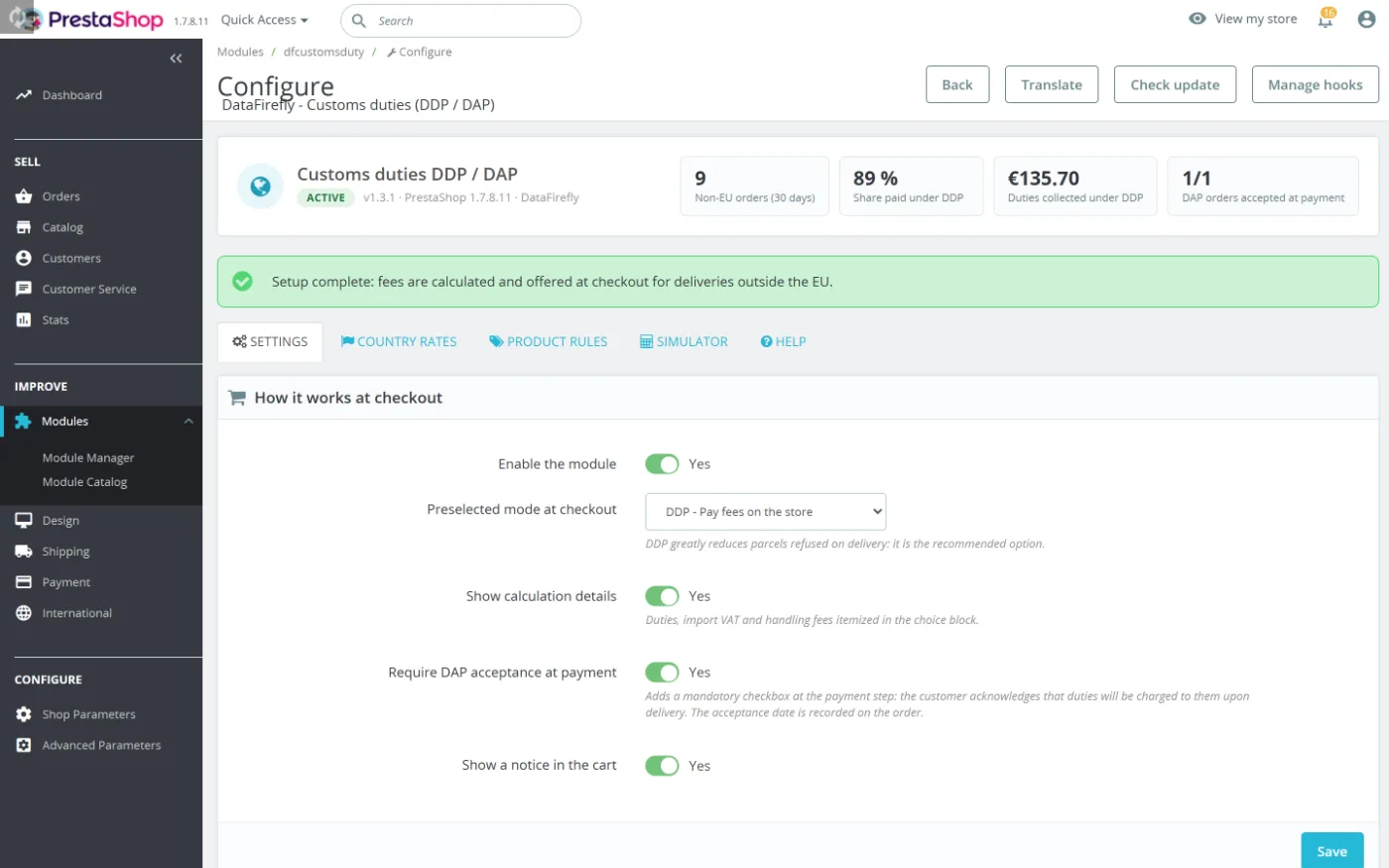
Configuration page: 30-day figures, status banner and the five tabs.
## Settings
### How it works at checkout
- **Enable the module**: global switch.
- **Preselected mode at checkout**: DDP (recommended, it reduces refused parcels) or DAP.
- **Show calculation details**: the customer can expand the breakdown of duties, import VAT and fees.
- **Require DAP acceptance at payment**: adds a mandatory checkbox at the payment step when the customer has chosen DAP (see below).
- **Show a notice in the cart**: tells the customer from the cart onwards that a delivery outside the EU involves fees.
### Default calculation
These values apply to all non-EU destinations, unless overridden per country.
- **Customs duties (%)**: average duty rate for your products.
- **Import VAT / tax (%)**: applied to the customs value plus duties.
- **Fixed handling fee**: fixed amount, in the store default currency, tax excluded.
- **Duty-free threshold (de minimis)**: below this order value, no fee. 0 = no threshold.
- **Include shipping costs in the calculation base**: the customs value (CIF) generally includes transport.
### Destinations and carriers
- **EU customs territory countries (ISO codes)**: by default the 27 member states plus Monaco. Any delivery to another country is treated as outside the EU.
- **Countries requiring DDP (ISO codes)**: destinations where the customer cannot choose DAP. Default value: `US`. Leave empty to disable.
- **DDP-compatible carriers**: tick the carriers able to deliver duties paid. If nothing is ticked, all carriers are considered compatible.
### Estimate on the product page
- **Show the estimate on the product page**: block placed below the add-to-cart button (see [On the product page](#fiche-produit)).
- **Use geolocation**: when the visitor has neither an address nor a saved choice, the country is derived from their IP address: `CF-IPCountry` header if the store runs behind Cloudflare, otherwise the PrestaShop GeoLite2 database.
- **Offer a country selector**: the visitor chooses their delivery country. Without the selector, the block only appears if the country is known and outside the EU.
### Carrier fees (duty advance)
Below the settings, a table lists your carriers with three fields: fixed amount, percentage of duties and taxes, minimum. See [Carrier fees](#frais-transporteurs).
## Calculation formula
Fees are calculated in the cart currency, tax excluded:
```
customs value = products tax excl. (excluding the fee line)
+ shipping tax excl. (if the option is enabled)
for each cart line (line rates, see Product rules):
duties = line value × duty rate
import VAT = (line value + duties) × VAT rate
carrier fee = max(minimum, fixed + % × (duties + VAT))
total = duties + import VAT + fixed fees + carrier fee
```
The duty-free threshold is evaluated first, on the total customs value: if it is below the applicable threshold, no fee is charged. Shipping is allocated to the lines pro rata to their value. Carrier fees only apply if duties or taxes are due. Fixed fees, carrier fees and thresholds, entered in the default currency, are converted into the cart currency.
Example for the United Kingdom with 5% duties and 20% import VAT: for €150 of products and €20 of shipping, the customs value is €170, duties are €8.50 and import VAT is €35.70 (20% of €178.50), for a total of €44.20.
Actual duties depend on the HS code and origin of your products. Use an average rate representative of your catalog, and fine-tune per country for your main destinations.
## Country rates
The **Country rates** tab overrides the calculation destination by destination. The form offers: destination country, duties (%), import VAT (%), fixed fees, duty-free threshold and the **Enforce DDP for this country** option.
A field left **empty** uses the default calculation value. For the threshold, enter 0 if this country should have no threshold.
For each country, the rates table shows its own values or “default”, the DDP enforcement status (country option or global list), the fee amount for 100 units of your currency, and the **Edit** and **Delete** buttons.
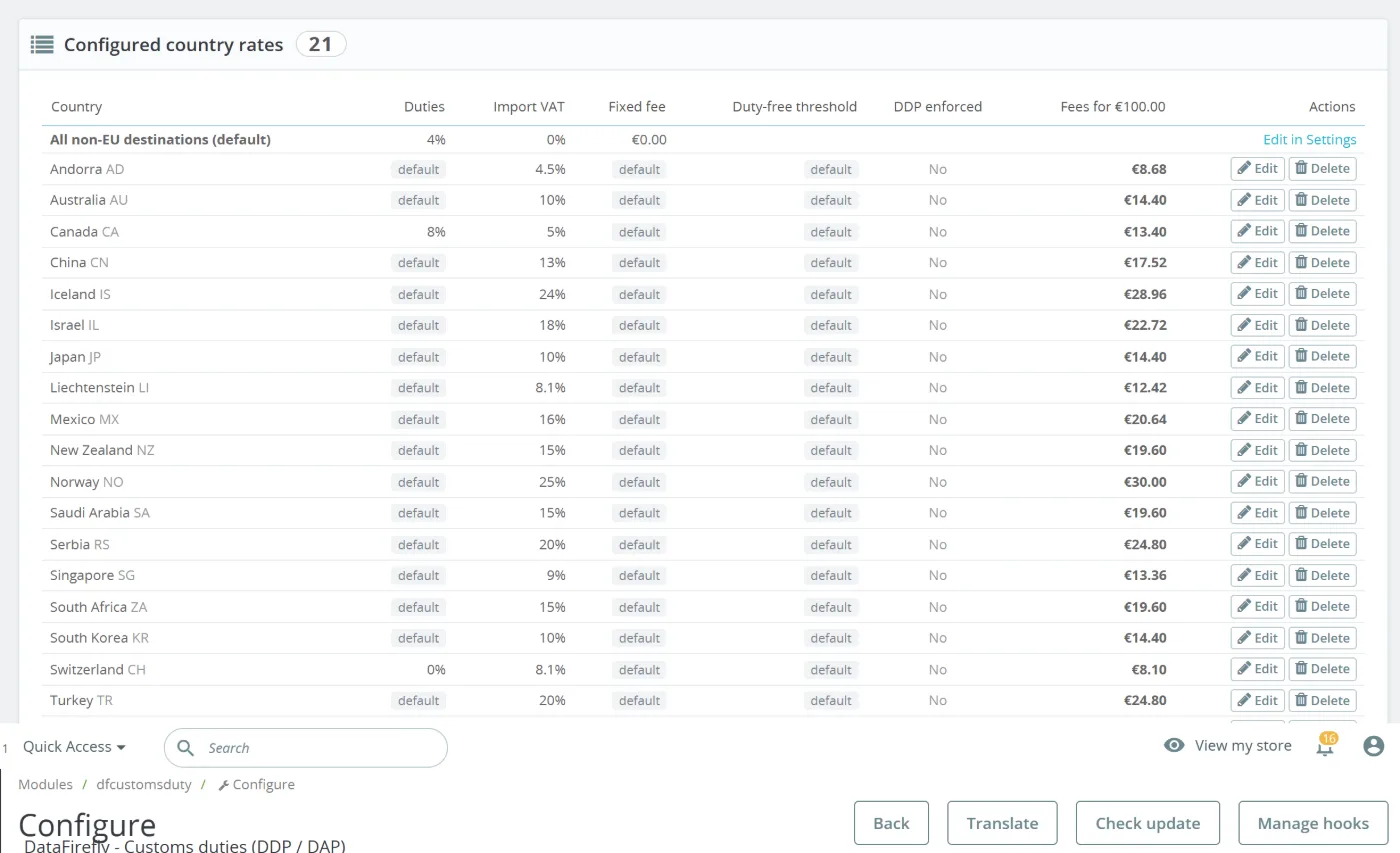
Country rates after applying the import VAT presets: own values, inherited “default” values and fees for €100.
### Import VAT presets
Below the table, the presets apply in one click the standard import VAT or GST of 21 countries: United Kingdom, Switzerland, Liechtenstein, Norway, Iceland, Andorra, Serbia, Turkey, Israel, United Arab Emirates, Saudi Arabia, United States, Canada, Mexico, Australia, New Zealand, Japan, South Korea, Singapore, China, South Africa. Only import VAT is changed: your duties, fees, thresholds and DDP enforcement remain unchanged. Countries with no VAT entered are ticked by default.
These rates are indicative: some products fall under reduced rates, and Canada adds a provincial tax (HST) depending on the province. Check them for your catalog.
## Category and product rules
The **Product rules** tab sets a duty and / or import VAT rate specific to a category or a product. Typical example: your items that are exempt from duties for the United States, or a category whose HS code carries a rate different from your average.
1. Choose **A category** (the rule also covers its subcategories) or **A product** (search by name, reference or ID).
2. Choose the **Destination**: a country, or **All non-EU destinations**.
3. Enter the duty and / or VAT rate. 0 exempts; an empty field keeps the rate of the next level. The **Exempt from duties (0%)** button fills in the duties field.
4. Click **Save rule**.
For each cart line, each rate is looked up in this order, and the first one defined wins:
1. product rule for the delivery country;
2. product rule, all non-EU destinations;
3. category rule for the delivery country (most specific category first);
4. category rule, all non-EU destinations;
5. country rate, then default rate.
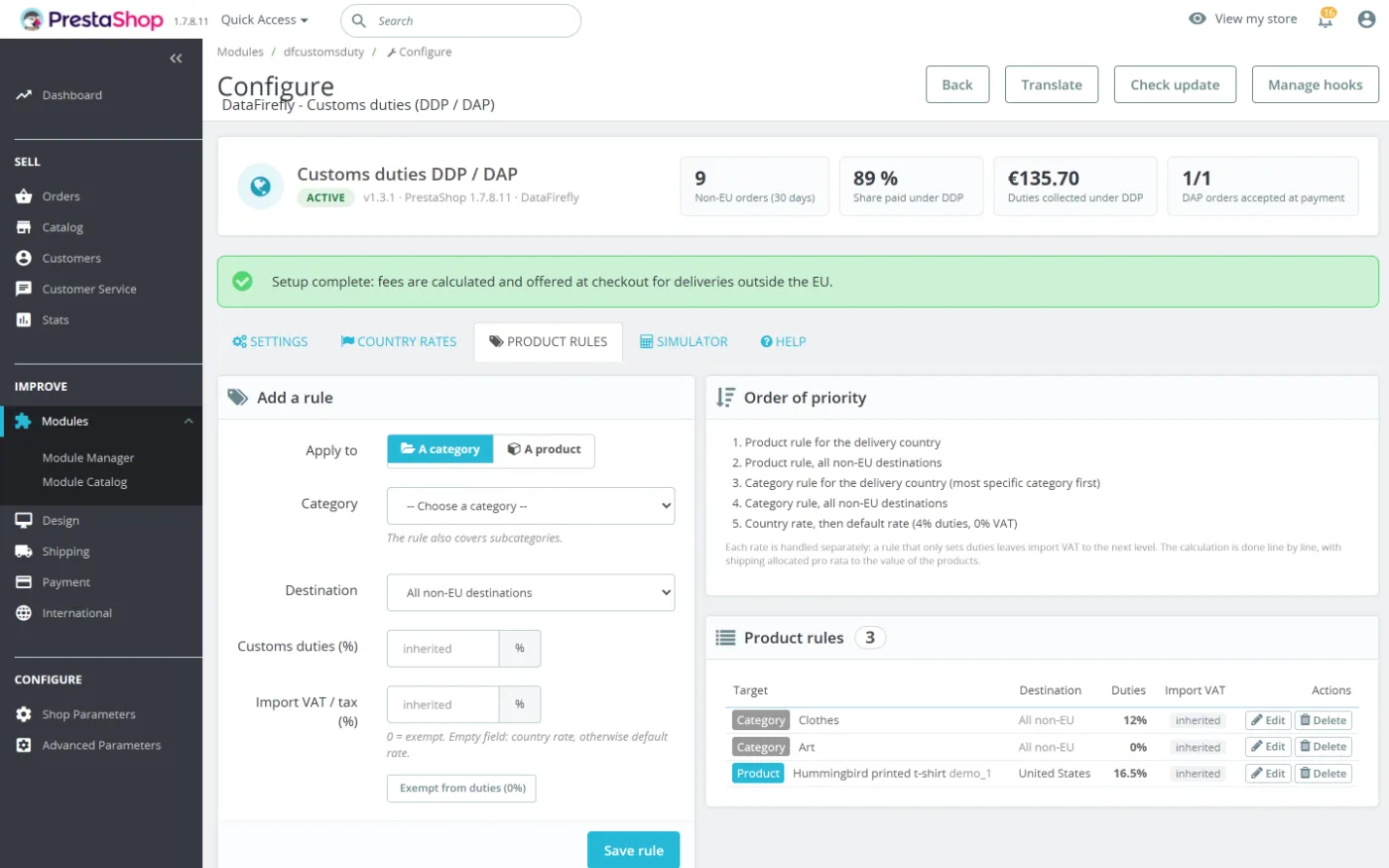
Product rules: a category rule for all destinations and a product rule for the United States.
Example: a “Duties 0%” rule on the Posters category for the United States, and a “Duties 12%, VAT 10%” rule on Clothing for all destinations. A cart to the United States with a T-shirt and a poster pays 12% duties and 10% VAT on the T-shirt, nothing on the poster. The calculation details then show “rates vary by product”.
A rule applies before the country rate. A category rule for “all destinations” therefore also replaces the rate of a country configured in **Country rates**. The duty-free threshold and fixed fees remain those of the country.
## DDP-compatible carriers
Not every carrier offers a DDP service. Once your compatible carriers are declared:
- with a non-compatible carrier, the block offers DAP only and indicates which carriers allow duties to be paid with the order;
- for a country that enforces DDP, non-compatible carriers are disabled at checkout and the customer is switched to a compatible carrier;
- if no compatible carrier serves the destination, the **Continue** button is blocked with a message, and the status banner alerts you.
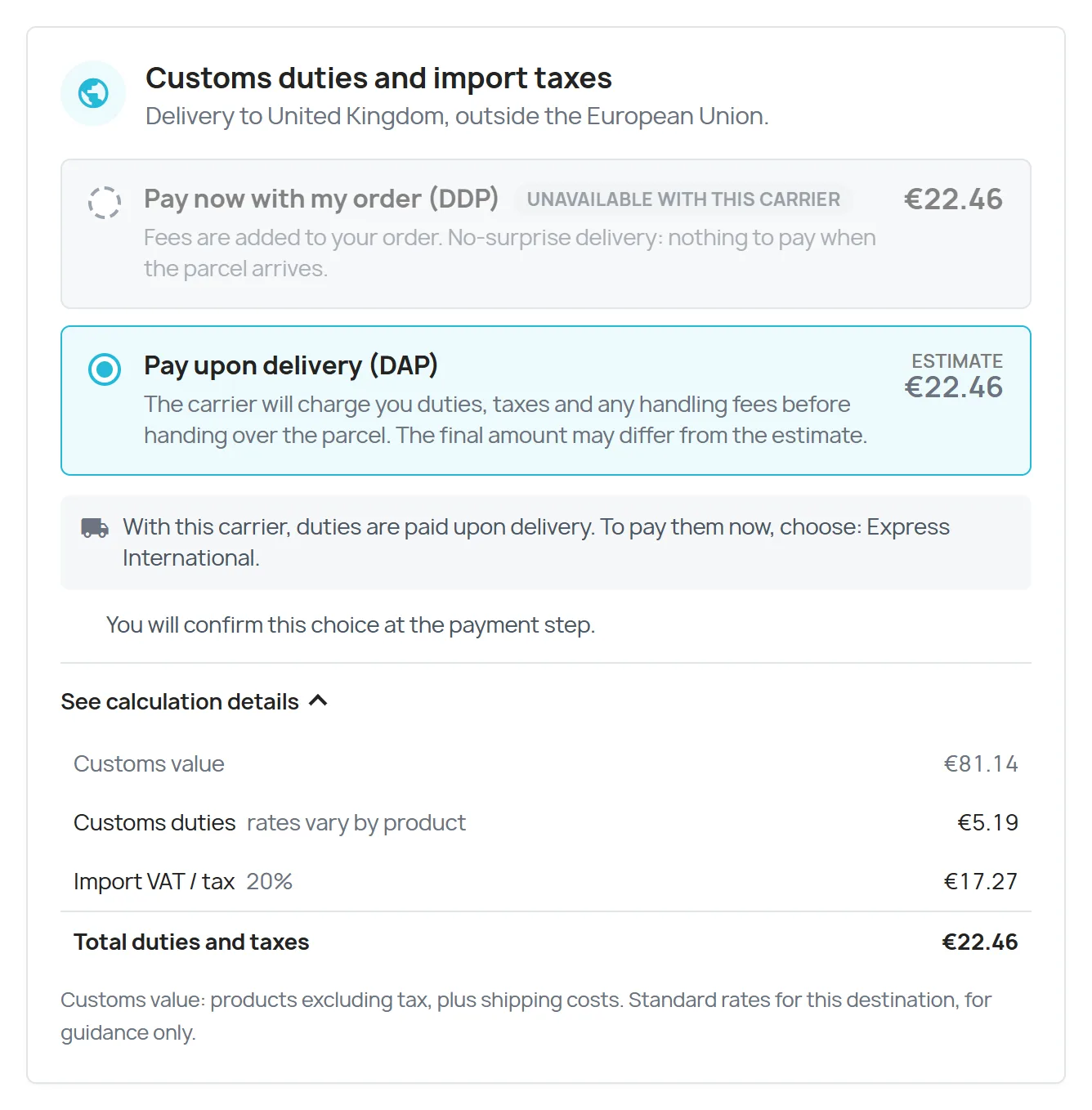
With a carrier that is not DDP-compatible, only DAP is offered and the block suggests a compatible carrier.
The blocking happens at checkout, in the browser. To hide a non-compatible carrier completely for a destination, remove the corresponding zone in **Shipping > Carriers**. The status banner lists the carriers concerned.
## Carrier fees
DHL, FedEx, UPS and most express carriers charge for advancing duties and taxes: a fixed amount, a percentage of the amounts advanced, or both with a minimum. Enter these values per carrier in **Settings > Carrier fees (duty advance)**.
- The fees are added to the calculation for the carrier chosen by the customer, under DDP (you pass them on) as well as in the DAP estimate (the carrier will charge them to the customer).
- They only apply if duties or taxes are due: a fully exempt order does not trigger them.
- They appear on a separate line in the calculation details, on the order and in the customer account: “Carrier fee (duty advance)”.
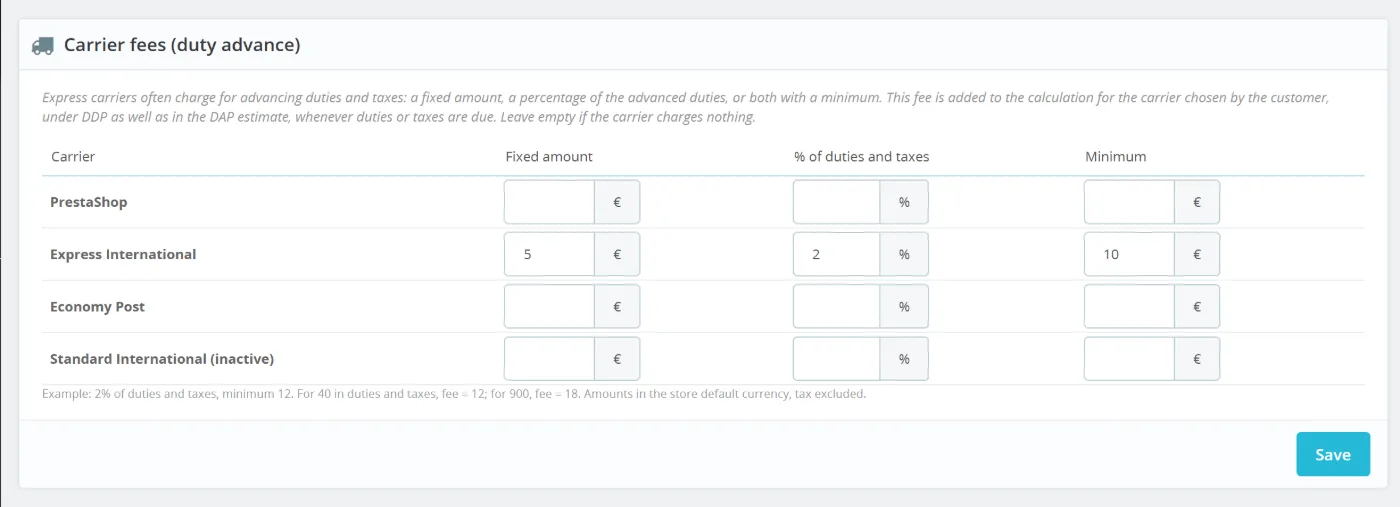
Duty advance fees per carrier: fixed amount, percentage and minimum.
Example: 2% of duties and taxes, minimum €12. For €40 of duties and taxes, the fee is €12; for €900, it is €18.
## Enforcing DDP for certain countries
A country enforces DDP if it is in the global list **or** if its country rate has the corresponding option. The United States is in the default list: duties are collected there on all shipments, regardless of value. For these destinations, the block shows DDP only, marked “Mandatory for this destination”, with an explanation for the customer.
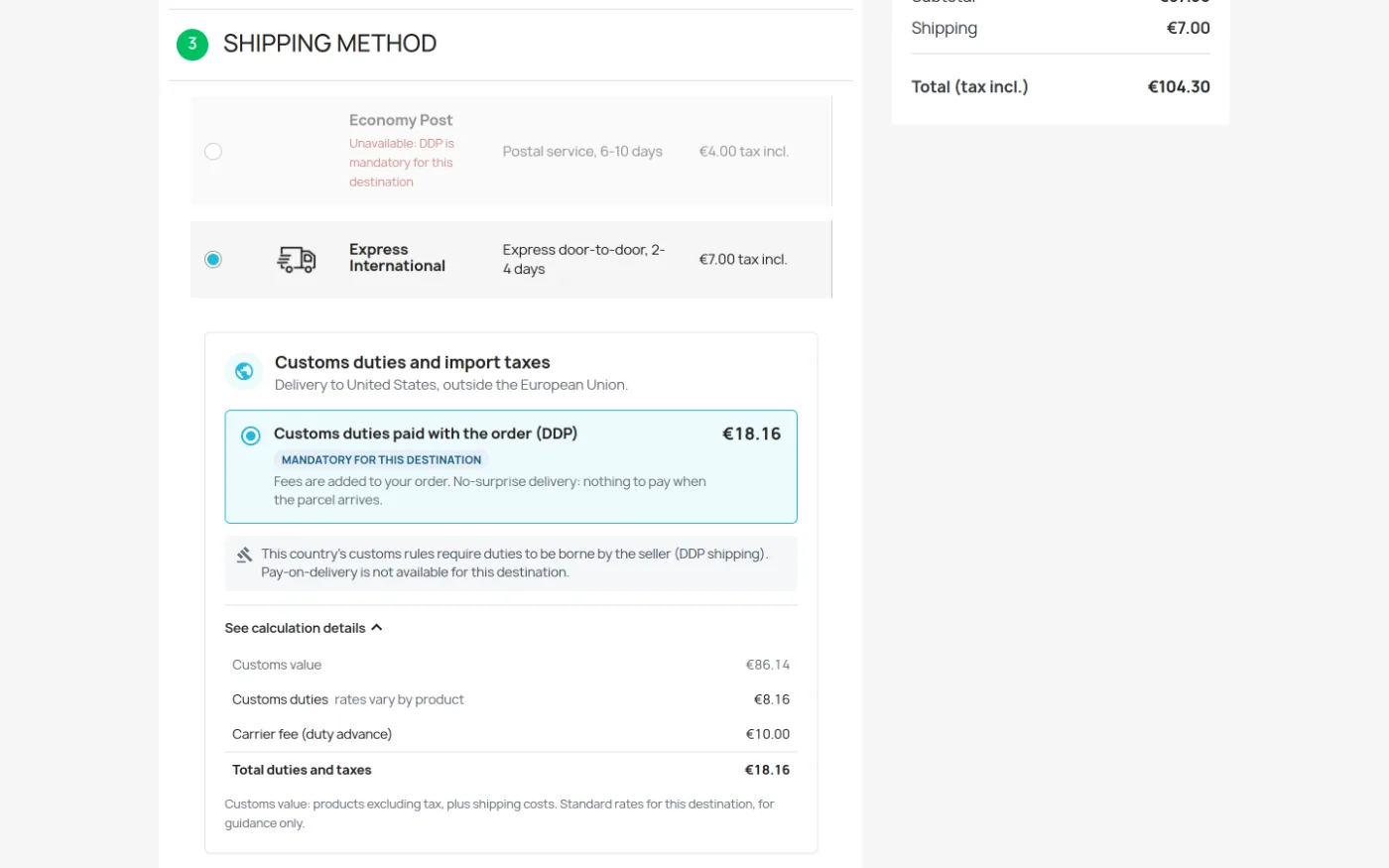
Delivery to the United States: DDP mandatory, non-compatible carrier disabled.
If you enforce DDP for a country with no fees configured, the order is recorded under DDP with no amount, and no customs notice appears (invoice, customer account, back office). The status banner flags this case.
## Simulator
The **Simulator** tab calculates the fees for a country, a product (optional), a products amount, a shipping amount and a carrier. It shows the exact details the customer will see, indicates whether DDP is mandatory for this country and specifies the source of each rate (product rule, category rule, country value or default value). It also flags the cases where the block would not be displayed: order below the duty-free threshold or no rate configured.
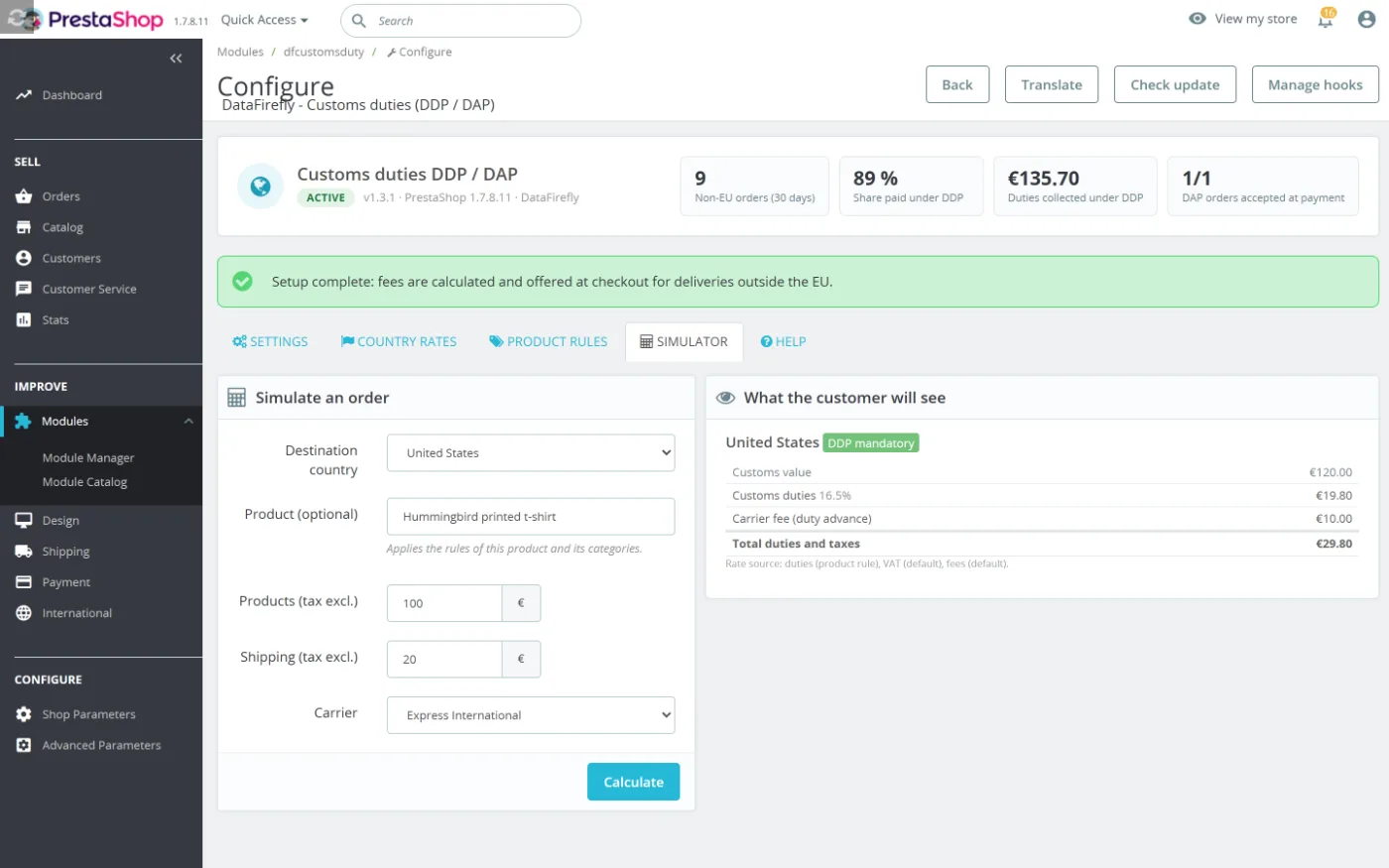
Simulator: what the customer will see and where each rate comes from.
## Customer experience
### On the product page
Below the add-to-cart button, a block shows the destination and the estimated duties and taxes for the item, with the rates applied (product rules included). The estimate covers the item alone: shipping, handling fees and carrier fees are not included, as the block states. It updates when the combination changes.
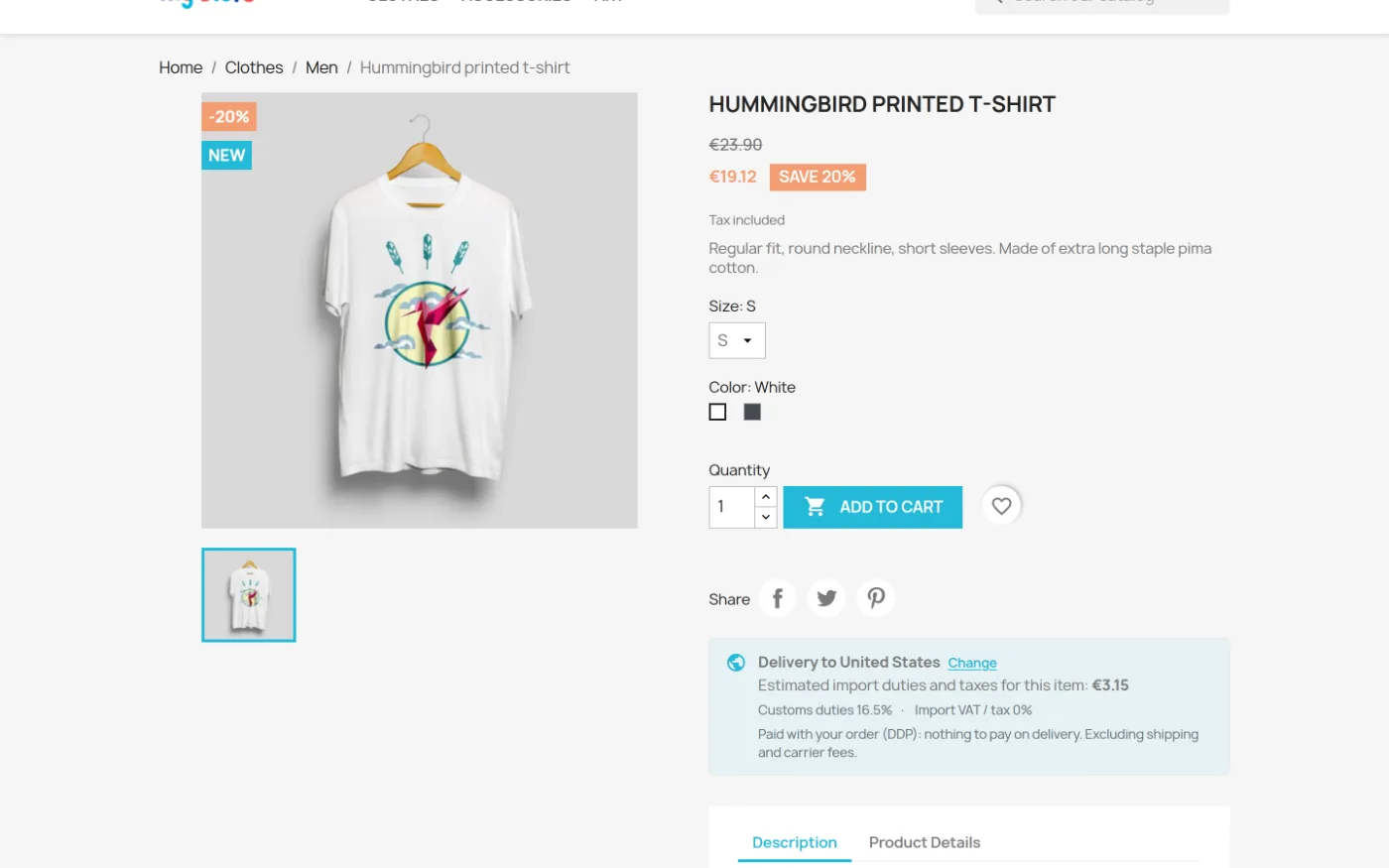
Estimate below the add-to-cart button, with the destination and the rates applied.
The country is determined in this order:
1. country chosen by the visitor in the selector (remembered in their browser);
2. cart delivery address;
3. first address of the logged-in customer;
4. geolocation, if the option is enabled: Cloudflare header, then GeoLite2 database.
For an EU country or an unknown country, the block is reduced to the link “Delivery outside the European Union? Estimate the customs duties”, which opens the selector. If the item alone is below the duty-free threshold, the block says so and gives the estimate above that amount. An exempt item shows that no duties or taxes apply.
The GeoLite2 database is not shipped with PrestaShop. To install it, follow **International > Localization > Geolocation**: it goes in `app/Resources/geoip/GeoLite2-City.mmdb`. Without it (and without Cloudflare), the country comes from the customer's address or the selector.
### In the cart
If the customer's address is already known and outside the EU, a notice announces the estimated fees. For a destination that enforces DDP, it states that the fees will be added at the Shipping step. Under DDP, the “Customs fees” line in the cart shows an image and is locked: no quantity change, no removal, no link to a product page.
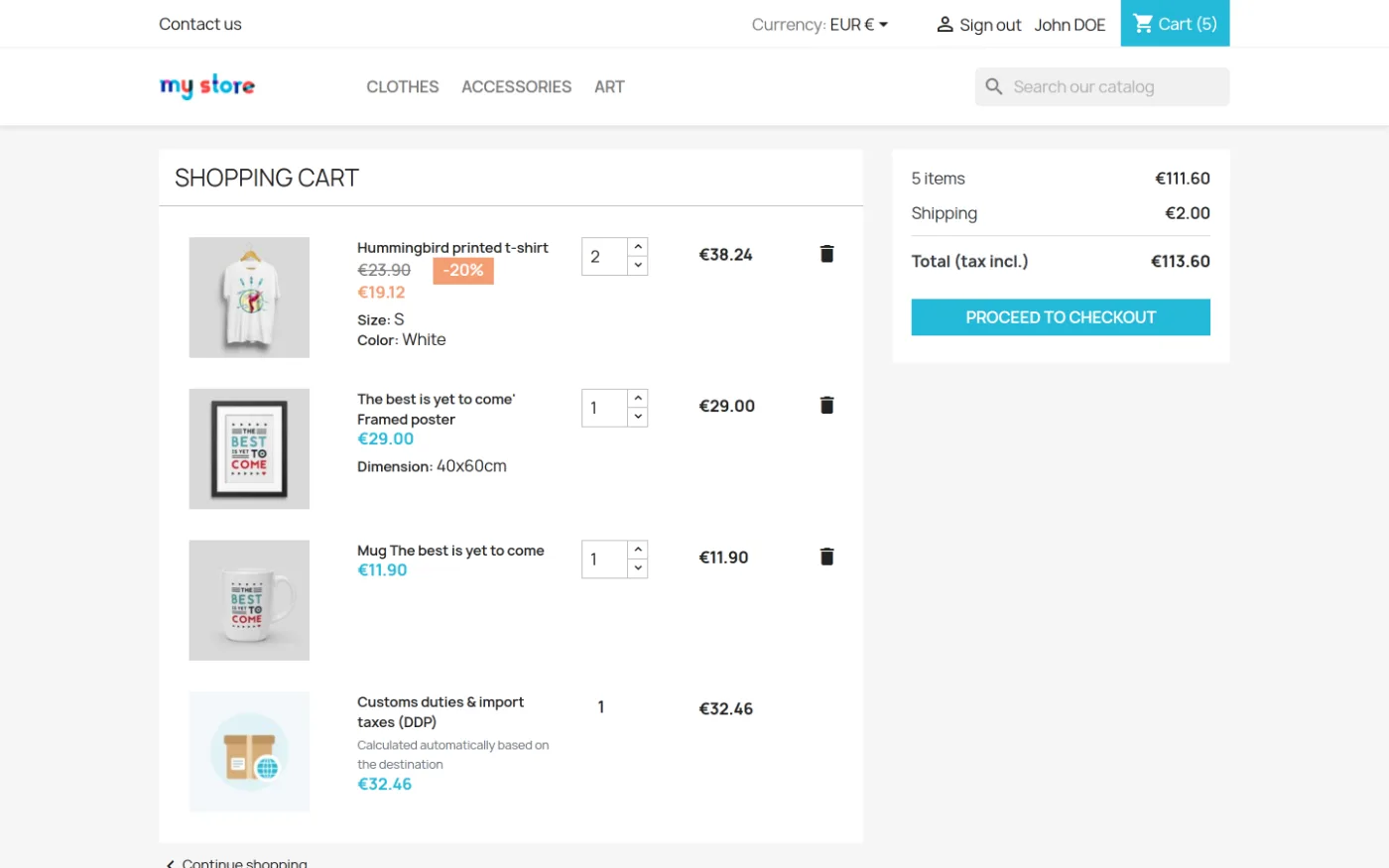
The DDP fee line in the cart, locked and illustrated.
### At the carrier step
The block is displayed between the list of carriers and the order comment, before the **Continue** button. The customer sees:
- **Pay now with my order (DDP)**, with the amount: the fees are added to the order and nothing is requested on receipt;
- **Pay upon delivery (DAP)**, with the estimate: the carrier will charge the duties, taxes and any handling fees;
- **See calculation details**: customs value, duties, import VAT, handling fees, carrier fees.
Changing the option does not reload the page: the order summary is updated immediately. The block also updates when the customer changes carrier.
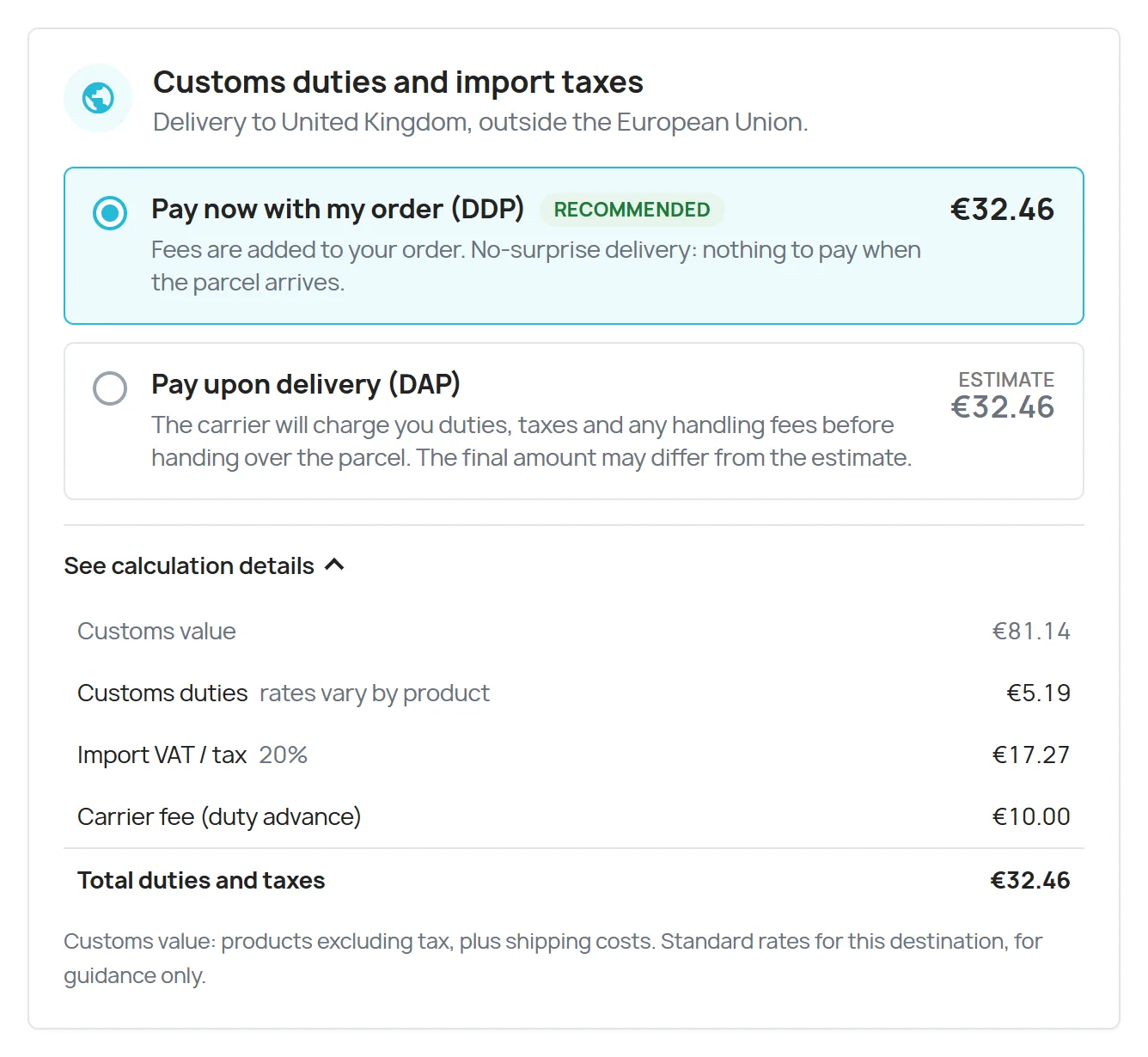
Delivery to the United Kingdom: DDP or DAP choice with the calculation details expanded.
### DAP acceptance at the payment step
If the option is enabled and the customer has chosen DAP, a mandatory checkbox appears alongside the terms and conditions: the customer acknowledges that duties (with the estimate) and any carrier fees will be charged to them upon delivery. The acceptance date is recorded and shown on the order page. It is cancelled if the customer changes mode or if the estimated amount changes.
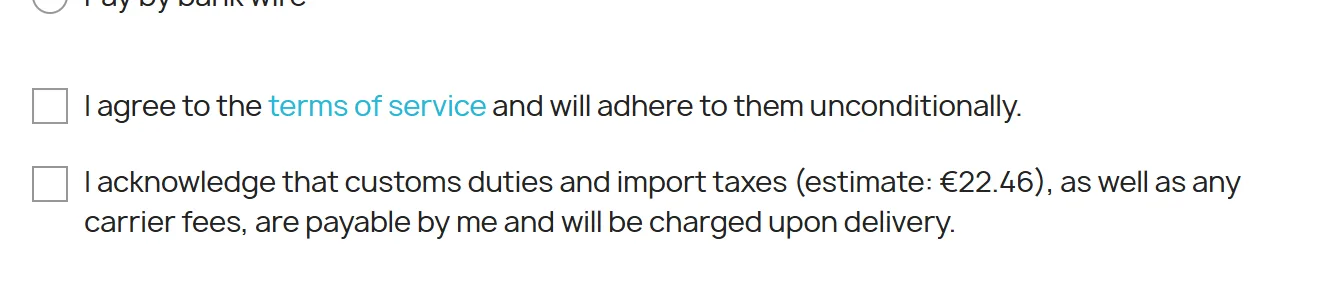
DAP acceptance checkbox at the payment step.
## Order, invoice and delivery slip
When the order is validated, the module records the mode, the amount, the breakdown of duties / VAT / handling fees / carrier fees, the country, the carrier and, under DAP, the acceptance date.
- **Back-office order page**: DDP or DAP badge, amount, breakdown, destination, carrier, DAP acceptance date, and an alert if a DDP order ships with a carrier not declared as compatible.
- **Customer account**: reminder of what has been paid or remains due, with the breakdown.
- **PDF invoice**: Incoterm DDP notice (duties paid with the order) or DAP notice (duties payable by the recipient, with the estimate provided).
- **PDF delivery slip**: “SHIP UNDER DDP” or “SHIP UNDER DAP” instruction for the packer, with the destination.
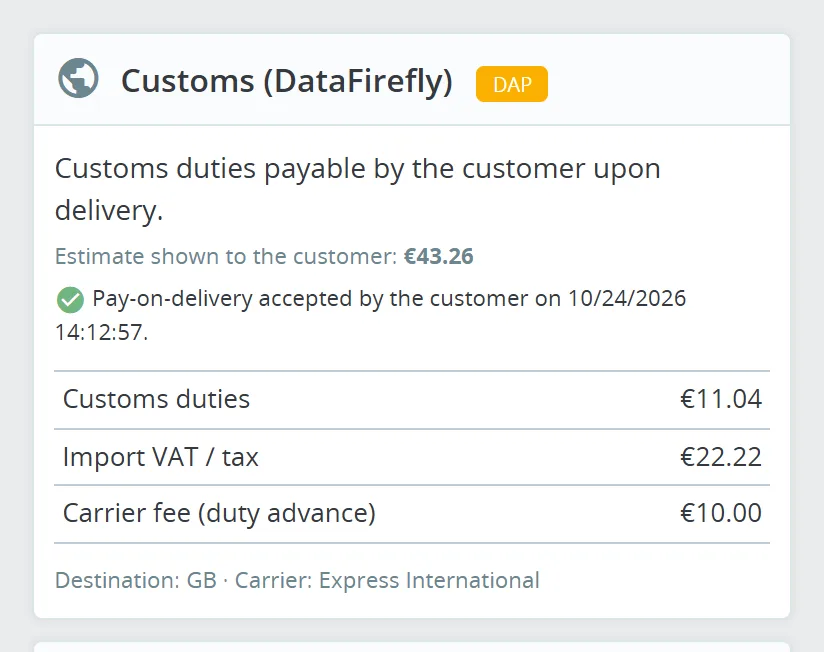
Back-office order page: DAP order with the acceptance date and the breakdown.
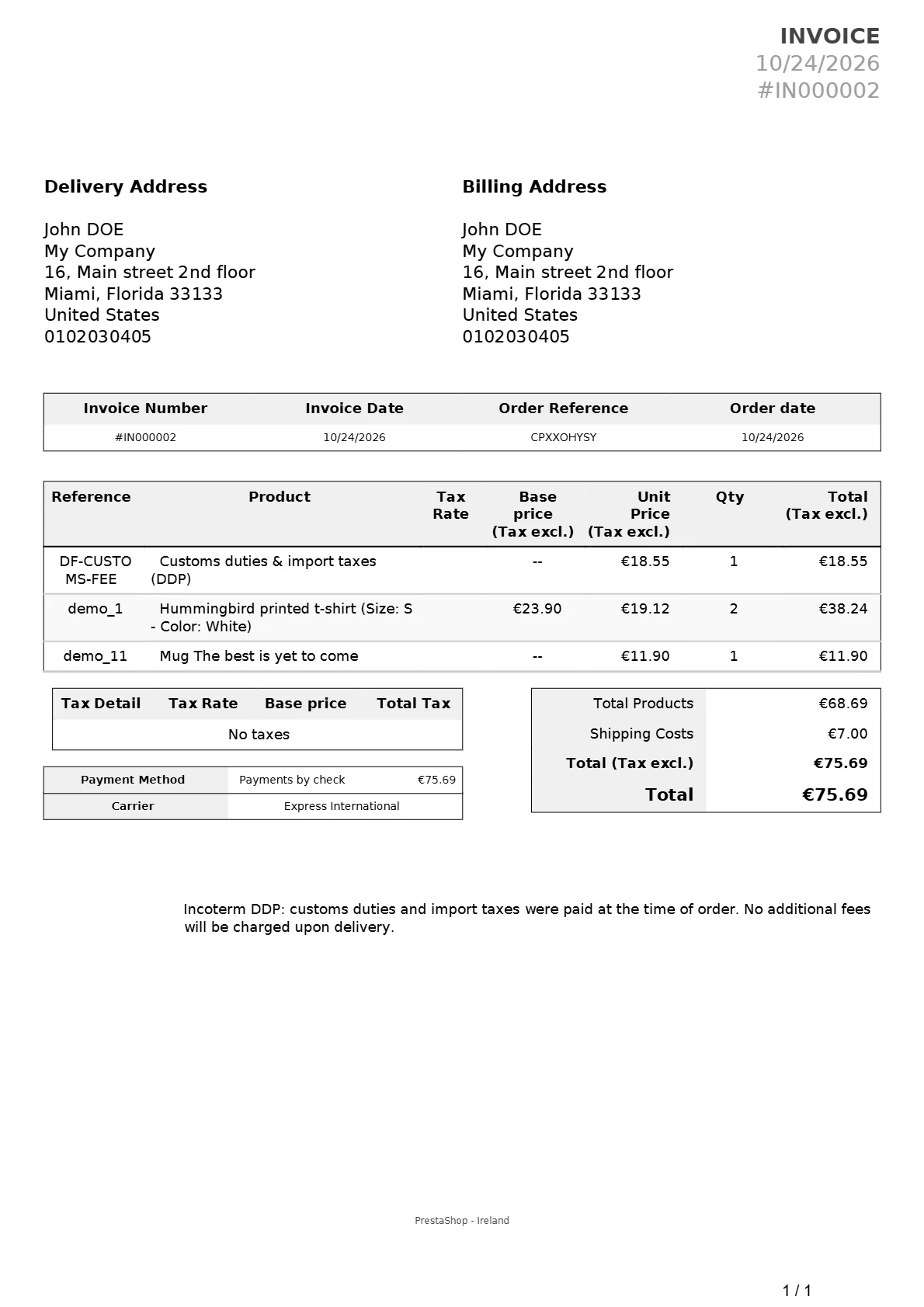
PDF invoice: tax-excluded fee line and Incoterm DDP notice.
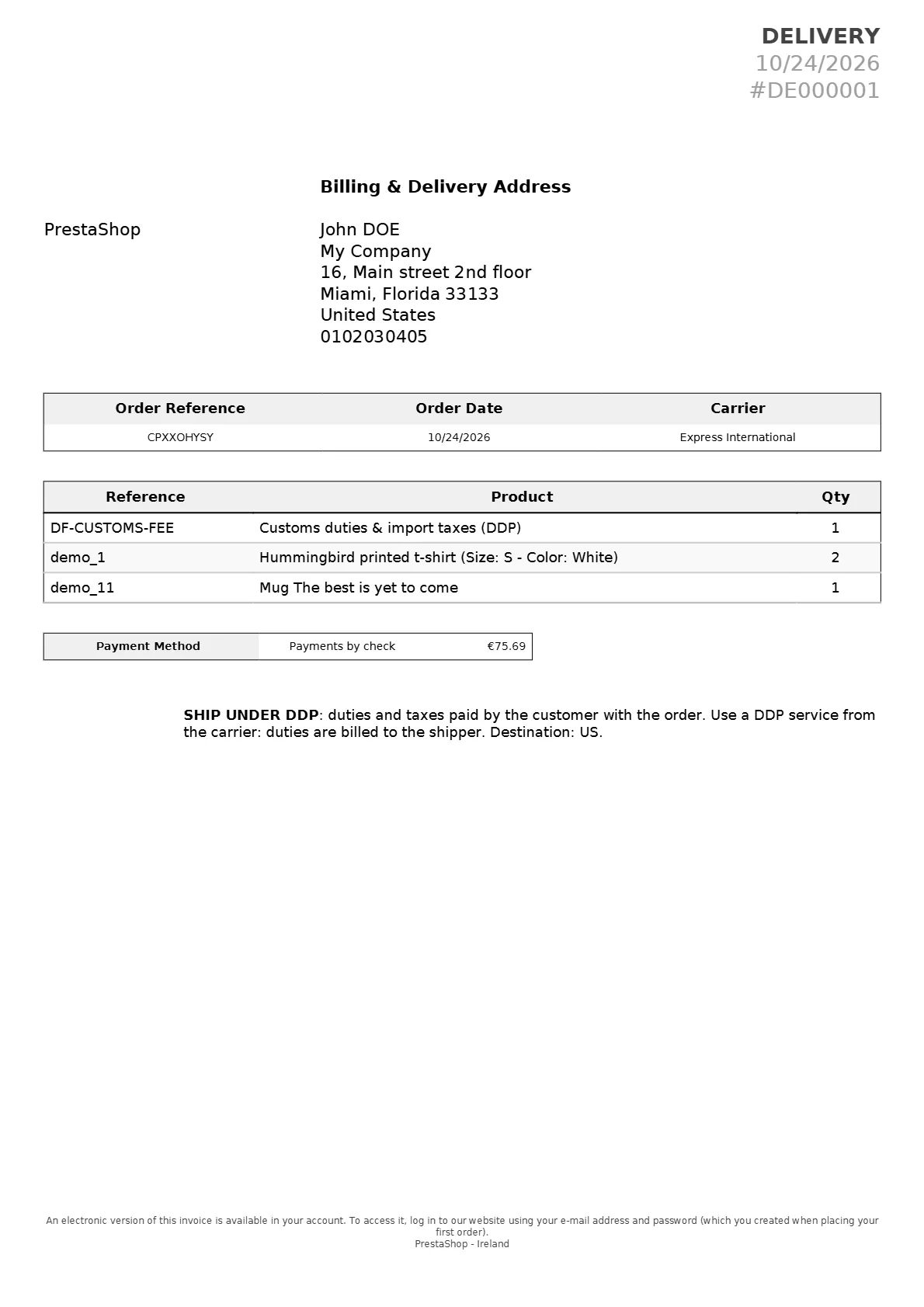
PDF delivery slip: “Ship under DDP” instruction for the packer.
## Translations
All labels (checkout, cart, customer account, back office, PDF) are provided in French, English, Spanish, German, Italian, Portuguese, Dutch and Polish. You can adjust any text in **International > Translations > Installed modules translations**.
## FAQ and troubleshooting
### The choice block is not displayed
Check the status banner first. Then make sure the delivery address is outside the configured EU territory, that a rate produces an amount above 0 and that the order exceeds the duty-free threshold. The simulator shows you what the customer will see for a given country and amount.
### The estimate does not appear on the product page
Check that the option is enabled in Settings and that at least one rate is configured. Without the country selector, the block only appears if the visitor's country is known and outside the EU. A heavily customized theme must call the `displayProductAdditionalInfo` hook on the product page, as Classic and Hummingbird do.
### An exempt product is still taxed
Check the order of priority: a product rule takes precedence over a category rule, and a rule for the country takes precedence over an “all destinations” rule. The simulator, with the product selected, shows the source of each rate.
### Does a voucher apply to the fees?
PrestaShop treats the fee line as a product: a percentage voucher on the whole order also reduces the fees, and the line counts towards minimum order amounts. The amount recorded on the order is the net amount actually collected.
### Does free shipping above an order amount change the calculation?
If the fee line pushes the order over the free shipping threshold, shipping is still counted in the customs value (last known cost for this carrier), so that the fees remain stable.
### The amount looks wrong in multi-currency
Fixed fees and thresholds are entered in the default currency, then converted according to your exchange rates. Check that these rates are up to date.
### Do I need to ship differently under DDP?
Yes: choose a DDP service from your carrier or freight forwarder. The delivery slip reminds the packer of this. The module handles collection and information, not the customs declaration.
### What happens on uninstallation?
Uninstalling removes the hooks, the configuration, the module tables and the fees product. No residual data is left in the database.