# DF Quantity Tiers — Documentation
> Overview and requirements DF Quantity Tiers turns PrestaShop's native quantity discounts into a clear, clickable selling block. The module introduces no new pricing logic: it reads the "starting at N…
- Page:
- Language: en
- Last updated: 2026-10-28
- Other languages: [fr](https://www.datafirefly.com/documentation/df-quantity-tiers/index.md), [es](https://www.datafirefly.com/es/documentation/df-quantity-tiers/index.md), [de](https://www.datafirefly.com/de/documentation/df-quantity-tiers/index.md), [it](https://www.datafirefly.com/it/documentation/df-quantity-tiers/index.md), [pl](https://www.datafirefly.com/pl/documentation/df-quantity-tiers/index.md), [pt](https://www.datafirefly.com/pt/documentation/df-quantity-tiers/index.md), [nl](https://www.datafirefly.com/nl/documentation/df-quantity-tiers/index.md)
- Index:
## Overview and requirements
DF Quantity Tiers turns PrestaShop's native quantity discounts into a clear, clickable selling block. The module introduces no new pricing logic: it reads the "starting at N units" specific prices already configured in your catalog and stages them as cards or a table, with an add-to-cart button for each tier.
- Compatible with PrestaShop 8.0 to 9.x: the Classic theme and derived themes, as well as the PrestaShop 9 Hummingbird theme.
- PHP 7.4 to 8.3.
- Multistore and multilingual: interface translated into English, French, German, Italian, Spanish, Dutch, Portuguese and Polish. Any other language displays the texts in English.
- No file overrides: native hooks only.
Tiers come from **Catalog > Products > Pricing > Specific prices**, the "Starting at" quantity field. If a product has no quantity-based specific prices, the block is not shown for that product.
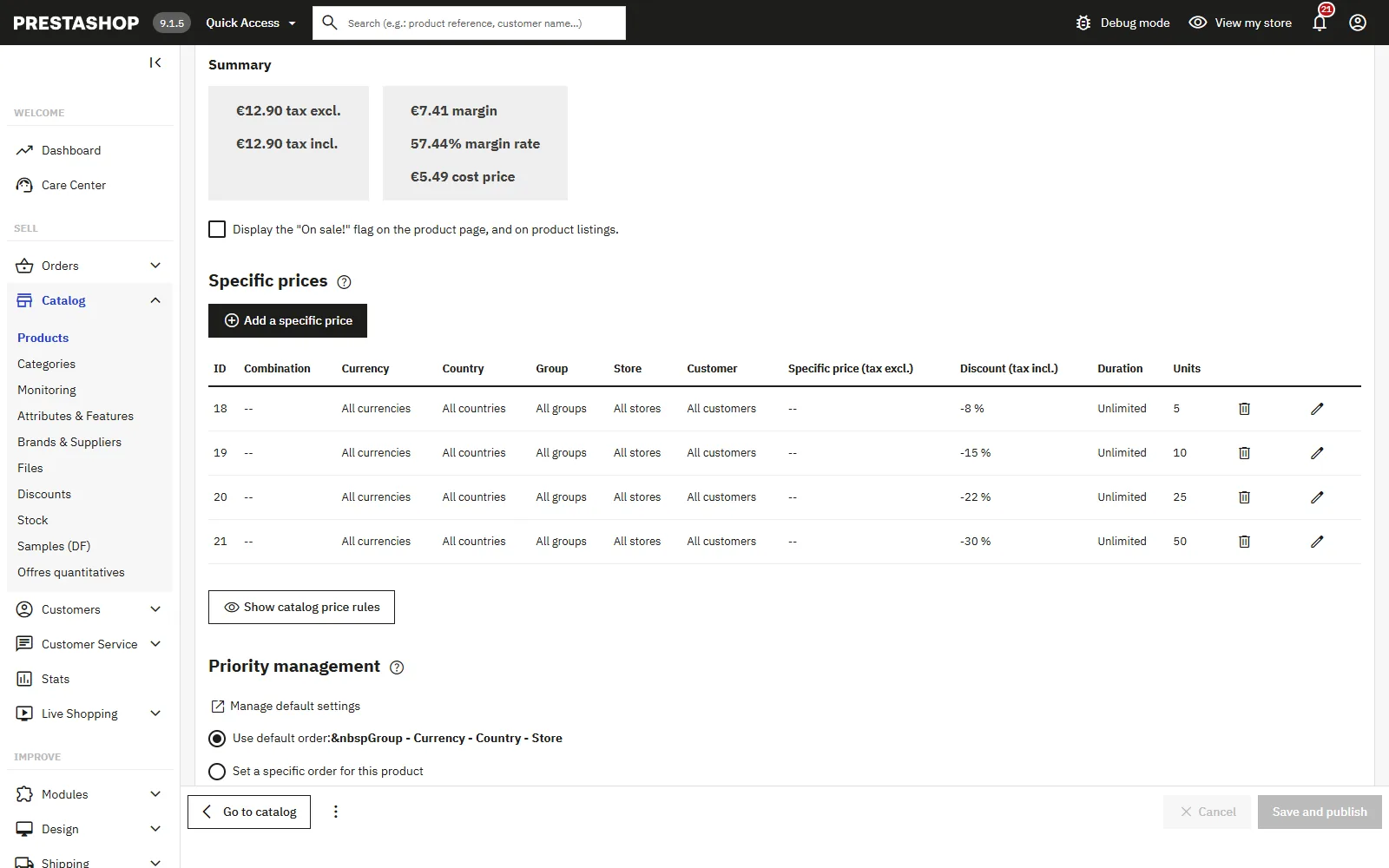
Tiers come from the “Starting at N units” specific prices of the product page.
## Installation
Install the module like any PrestaShop module:
1. Download the `dfquantitytiers-1.2.2.zip` archive from your customer account.
2. In the back office, go to **Modules > Module Manager**.
3. Click **Upload a module** and drop the archive.
4. Once installed, click **Configure**.
On installation, the module registers its hooks, creates its statistics table and pre-fills a block title translated into each of the shop's languages ("Buy more, pay less" in English). Your existing quantity discounts appear immediately on the relevant product pages.
## Upgrading
Upgrading is done normally from the Module Manager, by uploading the new archive over the previous version. Your existing configuration is preserved.
- **From 1.0.0**: the built-in upgrade script creates the statistics table, registers the cart-page hook and applies the default values of the options introduced in 1.1.0.
- **From 1.1.x or 1.2.x**: no migration is required.
Since 1.2.2, the module's JavaScript and stylesheet are loaded with a versioned URL: after an upgrade, a CDN such as Cloudflare or the browser cache can no longer serve the old version of the files.
After upgrading, clear the cache in **Advanced Parameters > Performance**. Without this step, PrestaShop may keep serving the old templates and old texts (for example French labels on an Italian store).
## General configuration
The configuration page gathers all display settings:
- **Block title**: text shown above the tiers, translatable per language. Leave it empty to hide the title completely.
- **Layout**: "Cards (recommended)", one card per tier, or "Compact table", one row per tier.
- **Position on the product page**: below the buy box (`displayProductAdditionalInfo` hook, default) or directly below the price (`displayProductPriceBlock` hook).
- **Accent color**: applied to the "Best deal" tier, badges and buttons.
- **Savings display**: as a percentage ("-10%"), as the amount saved per unit ("You save €0.78 / unit"), or both.
- **Show the tier total price**: adds the total for exactly the tier quantity, labelled "Total for 6 units: €42.12". Disabled by default.
- **Show the "single unit" tier**: displays the base price as the first comparison tier.
Savings are expressed per unit so they stay accurate whatever quantity is ordered: a customer who takes 7 pieces on a "6+" tier really does save €0.78 on every piece. The total price, on the other hand, is only valid for the exact tier quantity, which is why it is disabled by default.
The tier with the lowest unit price automatically receives the "Best deal" badge (only when there are at least two discount tiers). When the customer changes the quantity, the card matching their choice is highlighted in real time.
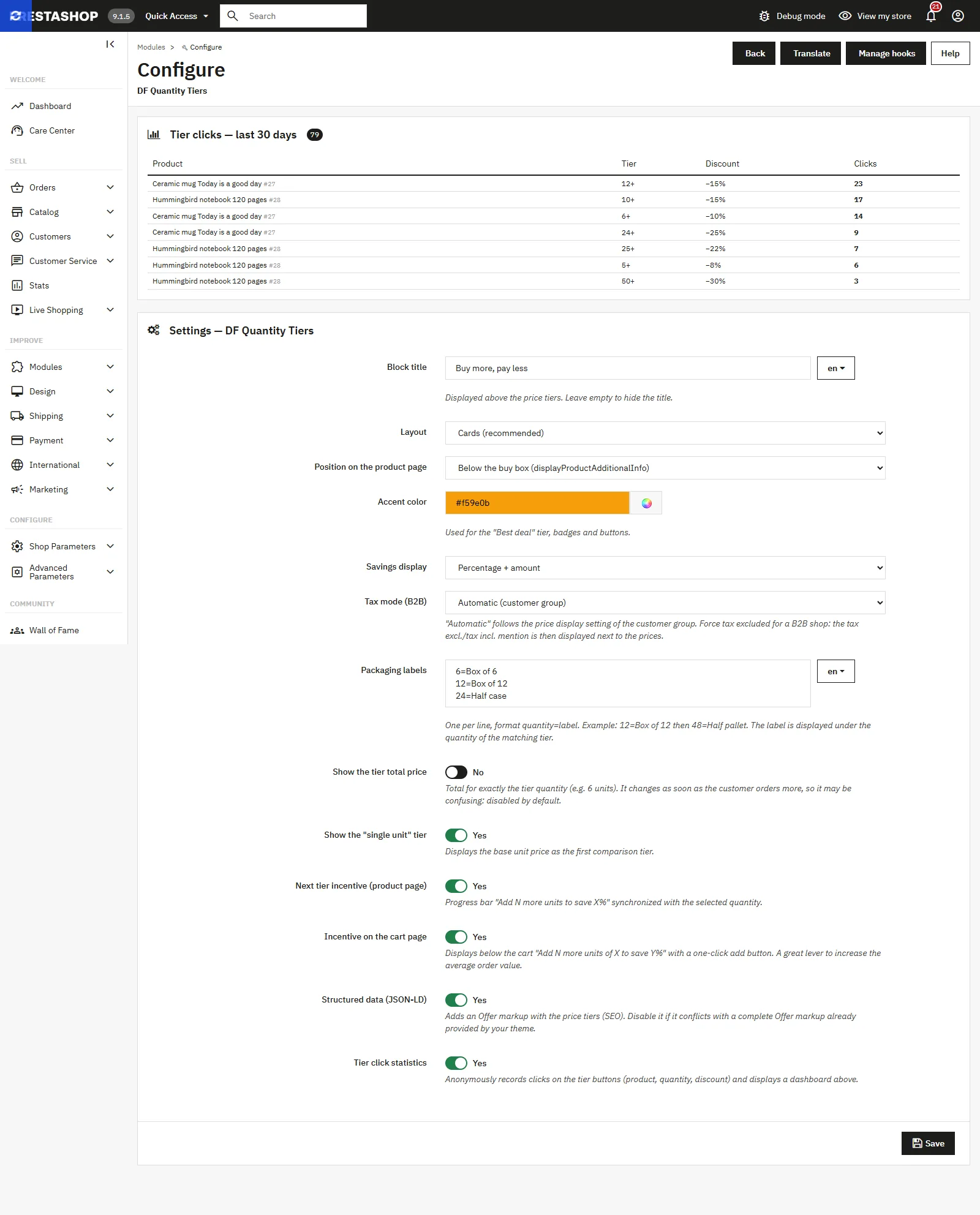
The configuration page: click statistics for the last 30 days and display settings.
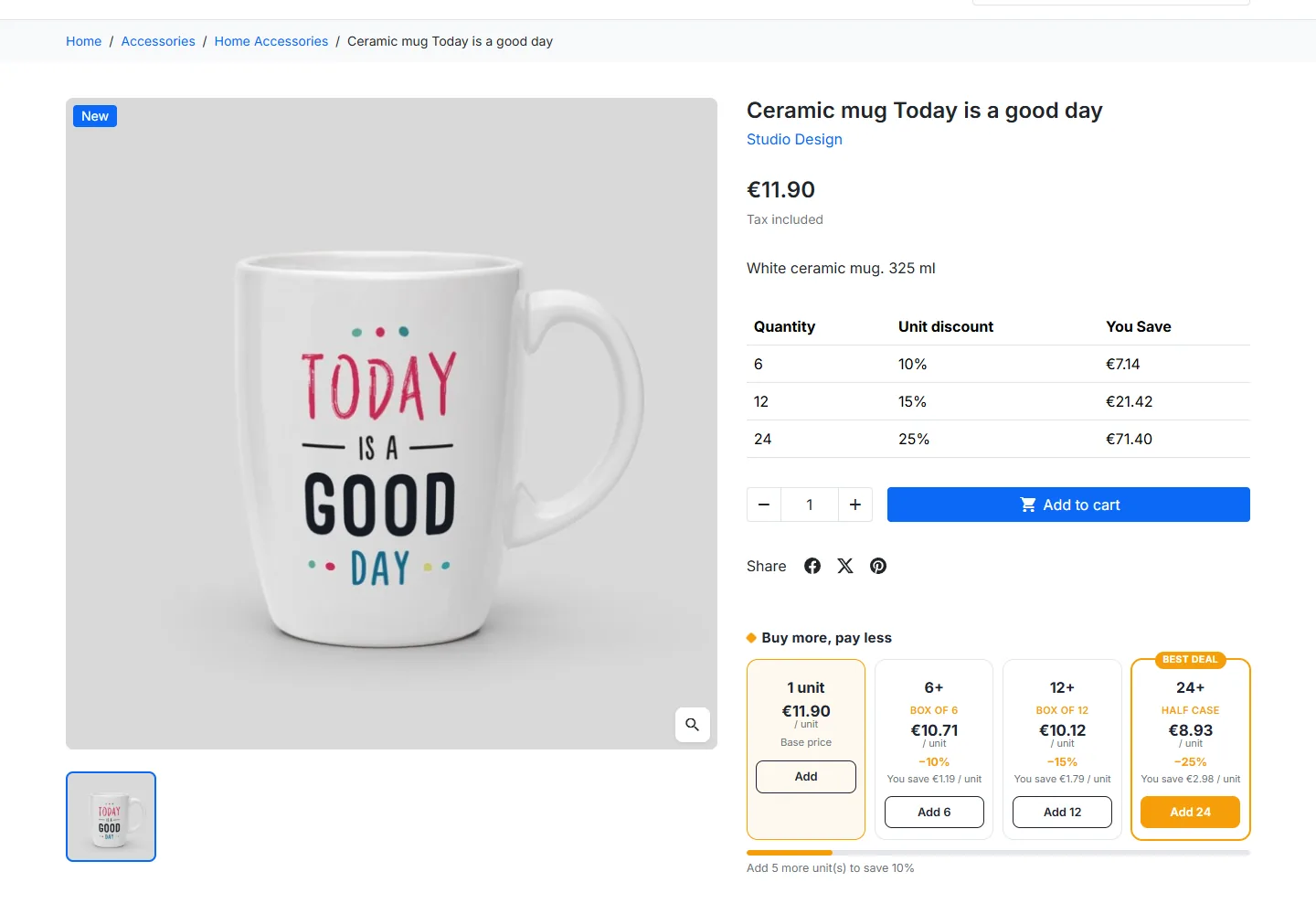
Cards layout: unit price, discount, packaging label and “Best deal” badge.
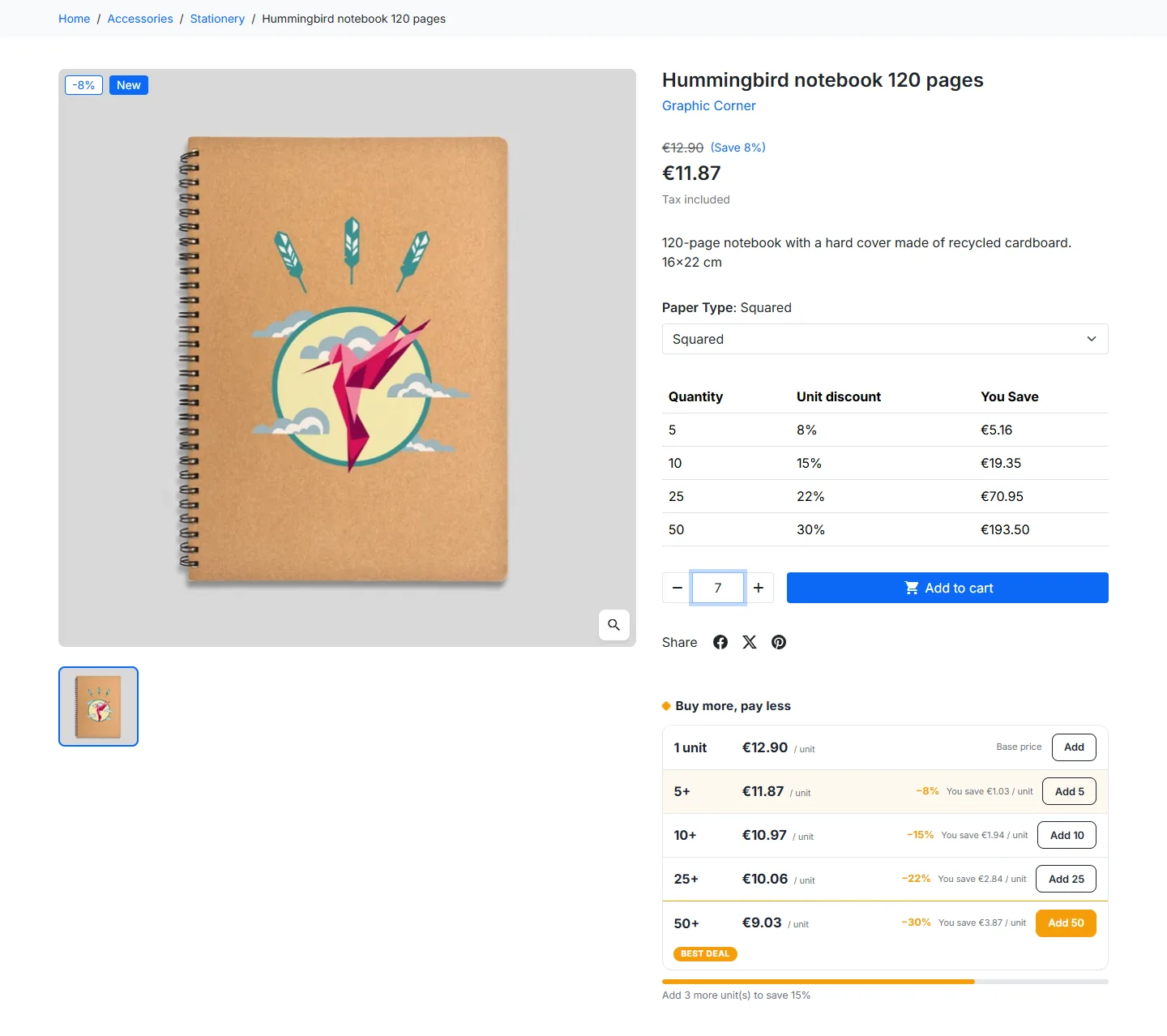
“Compact table” layout on a product with combinations, with savings per unit and tier total.
## Tax mode (B2B)
The tax mode determines whether tier prices are shown excluding or including tax:
- **Automatic (customer group)**: follows the price display setting of the current customer group (standard PrestaShop behavior).
- **Force tax excluded**: always shows prices excluding tax, with a "tax excl." label next to each unit price. Ideal for a professional store.
- **Force tax included**: always shows prices including tax, with a "tax incl." label.
The chosen mode applies to the product-page cards, the cart upsell block and the structured data alike. The label is translated into the visitor's language (for example "IVA escl." in Italian, "zzgl. MwSt." in German).
## Packaging labels
You can attach a business label to each quantity, such as "case" or "pallet". In the **Packaging labels** field, enter one mapping per line in the `quantity=label` format:
```
12=Case of 12
48=Half pallet
96=Pallet
```
The label is shown under the quantity of the matching tier. This field is translatable: fill it in for each language using the language selector in the form.
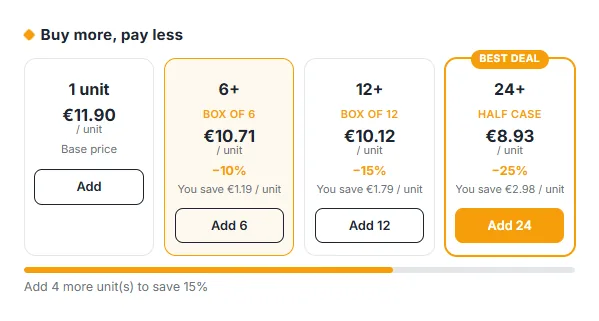
Packaging labels shown under each tier quantity (Box of 6, Box of 12, Half case).
## Stock, minimum quantity and price visibility
The block follows PrestaShop's sales rules:
- **Minimum order quantity**: if a product is only sold in sixes, the button of the "single unit" tier adds 6 units and reads "Add 6".
- **Stock**: when stock management is enabled and out-of-stock orders are denied, the buttons of tiers whose quantity exceeds the available stock are disabled and show "Not enough stock".
- **Product not orderable** ("Available for order" unchecked, catalog mode): tiers are still displayed for information, without an add button.
- **Hidden prices** (catalog mode without prices, customer group not allowed to see prices, "Display price" unchecked): the block is not displayed.
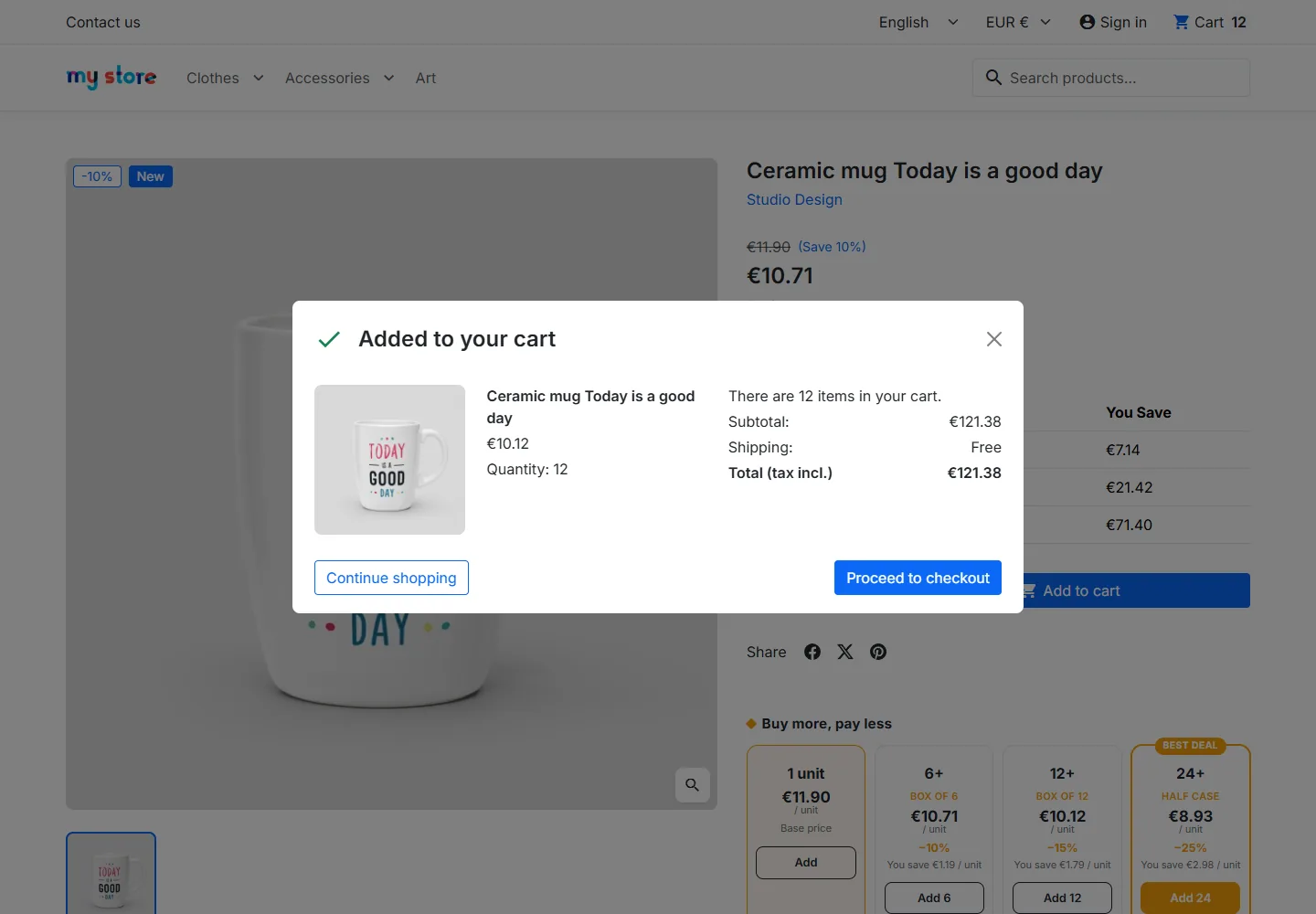
The “Add 12” button sets the quantity and triggers the theme's native add to cart.
## Next-tier upsell
Two encouragement mechanisms are available and can be enabled independently.
### On the product page
A progress bar shows a message such as "Add 3 more unit(s) to save 15%", recalculated in real time based on the entered quantity. When the customer reaches the most advantageous tier, the message switches to "You get the best discount!".
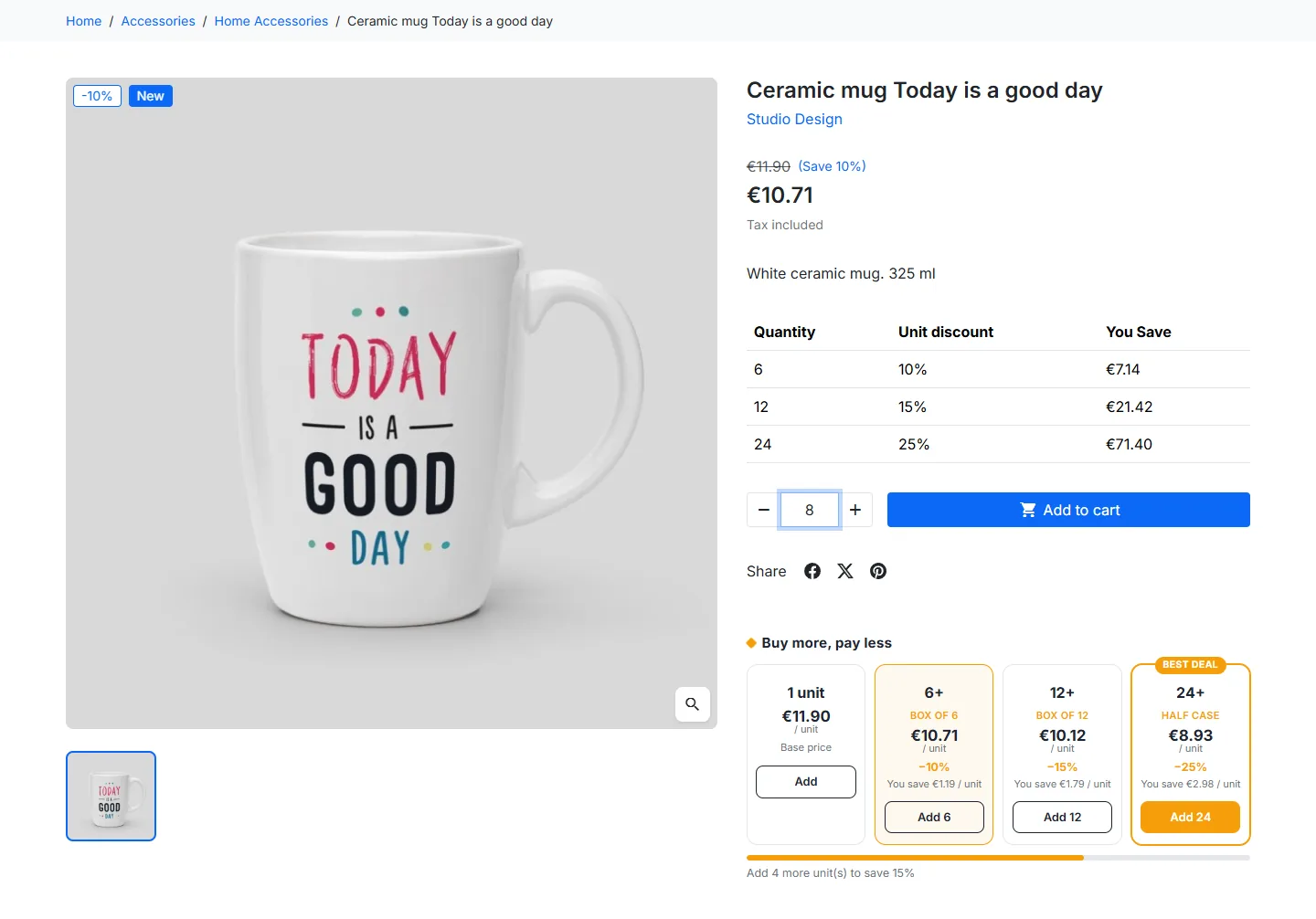
At 8 units, the 6+ tier is highlighted, the price drops to €10.71 and the bar shows the next tier.
### On the cart page
For each cart product where a higher tier is still reachable, the module shows a block under the cart reading "Add N more unit(s) to pay €X per unit", with a one-click add button. The button uses PrestaShop's native cart update mechanism, then refreshes the page.
- If quantity discounts are calculated per product (PrestaShop setting _Quantity discounts based on: Products_), the quantities of all the product's combinations are added up, just as PrestaShop does for the price.
- No suggestion is made if stock does not allow the tier to be reached, nor for free gift products.
- If PrestaShop refuses the addition (stock, maximum quantity…), the error message is displayed directly in the block.
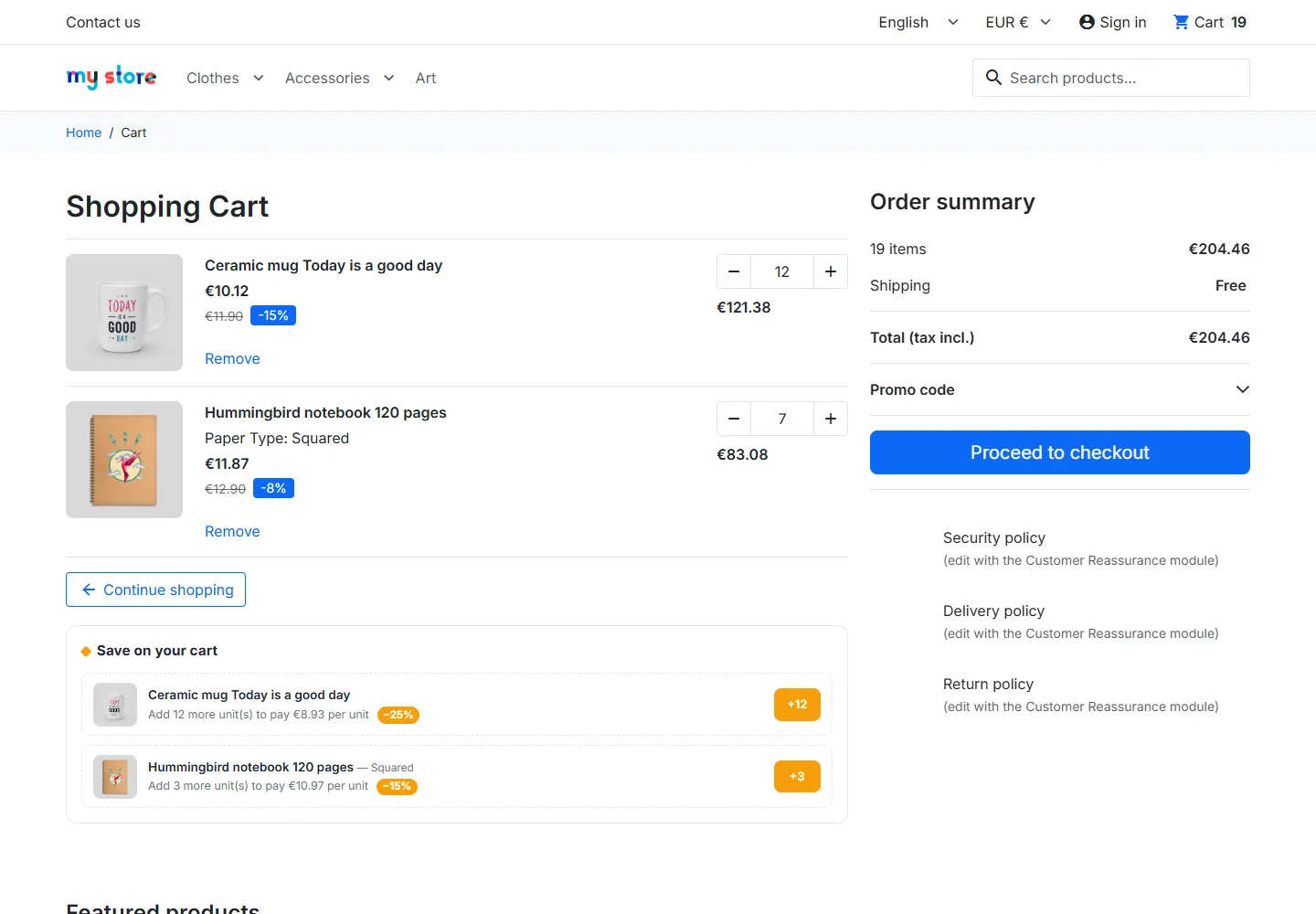
Below the cart, the module suggests reaching the next tier with a one-click +N button.
## Structured data (JSON-LD)
When the option is enabled, the module adds a `Product` JSON-LD markup on the product page with an `Offer` whose `priceSpecification` field lists one `UnitPriceSpecification` per tier, with its minimum eligible quantity (`eligibleQuantity`) and whether tax is included or excluded. This is the recommended form for quantity discounts offered by a single seller. The markup also includes availability, the main image and the reference (SKU).
If your theme or another SEO module already outputs a full `Product` / `Offer` markup for your products, disable this option to avoid duplicate markup flagged in Search Console.
## Per-tier click statistics
When the option is enabled, every click on a tier add button is recorded anonymously: product, combination, quantity and discount of the clicked tier. No personal data and no cookies are used, which makes the feature GDPR compliant.
The tier is re-checked server-side and the discount recalculated from your actual prices, so the data cannot be skewed by forged requests. Clicks older than one year are purged automatically to keep the table lightweight.
The configuration page shows a dashboard for the last 30 days: total number of clicks and the top product / tier / discount combinations clicked. This data helps you calibrate your discounts by identifying which tiers actually trigger add-to-carts.
## Translations
The module's texts are provided in English, French, German, Italian, Spanish, Dutch, Portuguese and Polish. They adapt automatically to the language of the visitor and of the back office. To change a wording, go to **International > Translations > Installed modules translations** and pick _dfquantitytiers_.
Texts entered in the configuration (block title, packaging labels) are filled in language by language using the language selector in the form.
## FAQ and troubleshooting
### The block doesn't appear on a product
Check that the product has specific prices with a starting quantity greater than 1, that those prices apply to the current customer group, currency and country, and that prices are visible to this customer (see "Stock, minimum quantity and price visibility").
### Texts are displayed in French on a store in another language
You are using a version older than 1.2.0, whose texts were not translated. Install the latest version, then clear the cache in **Advanced Parameters > Performance**.
### The "Block title" and "Packaging labels" fields have no input box
This configuration form display issue has been fixed since 1.2.0. After upgrading, both fields appear with their language selector.
### The displayed total or savings don't match the quantity ordered
Since 1.2.1, savings are shown per unit and stay accurate for any quantity within the tier. The total price is only valid for the exact tier quantity: disable the **Show the tier total price** option if you don't want to display it.
### The add button doesn't work with my theme
The module relies on the standard add-to-cart button of the Classic theme. On a heavily customized theme, make sure the quantity field (`name="qty"`) and the add button (`data-button-action="add-to-cart"`) follow PrestaShop's standard markup.
### The block doesn't appear in the quick view
This is intentional: the quick view window does not load the module's styles. Tiers are displayed on the full product page.
### Does it work with combinations?
Yes. Tiers are recalculated for each combination and the block updates automatically when the variant changes, without a page reload.
### What happens on uninstall?
Uninstalling cleanly removes the hooks, configuration variables and statistics table. No residual data is left in the database.