# DataFirefly Cart Cross-Sell: product suggestions in the PrestaShop cart
> Overview DataFirefly Cart Cross-Sell shows product suggestions in the cart page, in the add-to-cart modal and in the empty cart. Customers add a suggestion in one click, choose the combination…
- Page:
- Language: en
- Last updated: 2026-11-02
- Other languages: [fr](https://www.datafirefly.com/documentation/dfcartcrosssell/index.md), [es](https://www.datafirefly.com/es/documentation/dfcartcrosssell/index.md), [de](https://www.datafirefly.com/de/documentation/dfcartcrosssell/index.md), [it](https://www.datafirefly.com/it/documentation/dfcartcrosssell/index.md), [pl](https://www.datafirefly.com/pl/documentation/dfcartcrosssell/index.md), [nl](https://www.datafirefly.com/nl/documentation/dfcartcrosssell/index.md), [pt](https://www.datafirefly.com/pt/documentation/dfcartcrosssell/index.md)
- Index:
## Overview
DataFirefly Cart Cross-Sell shows product suggestions in the **cart page**, in the **add-to-cart modal** and in the **empty cart**. Customers add a suggestion in one click, choose the combination in the card, and the cart is updated without reloading the page.
Suggestions come from your **rules** first, then from **automatic sources**: related products, frequently bought together, same category, same brand, same features, best sellers, new products and similar price. A rule can lower the price of its products while the cart contains a product that triggers it.
The module runs on PrestaShop 1.7.8 to 9.x with PHP 7.1 to 8.5, with the Classic and Hummingbird themes. It is translated into English, French, Spanish, German, Italian, Polish, Dutch and Portuguese.
## Installation and update
1. In **Modules > Module Manager**, click **Upload a module** and drop the `dfcartcrosssell-2.0.0.zip` file.
2. Click **Configure** to open the module page with its four tabs: Dashboard, Rules, Settings and Tools.
The installation builds the frequently bought together index from your existing orders, so this source works from the first visit.
Updating from version 1.0: upload the 2.0.0 zip over the old module. Your settings and statistics are kept, the bundles of 1.0 become rules, and the cache of combined JS/CSS files is emptied. The 1.0 bundle discount was never applied to carts: discounts now go through the offers of the rules.
## Where the suggestions appear
### Cart page
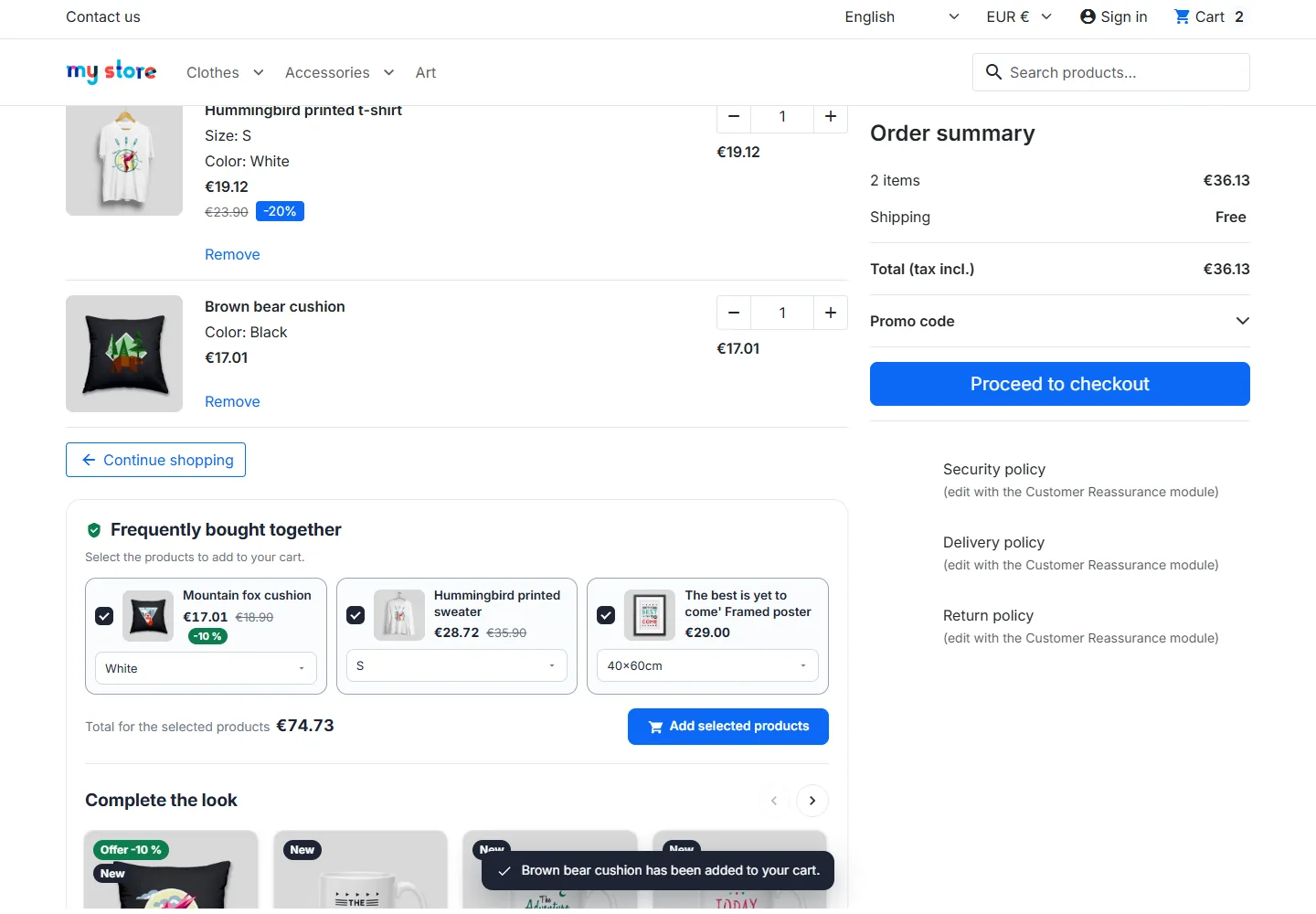
By default the block is shown under the cart products, as a carousel, a grid or a compact list. Above it, the **frequently bought together** block lists products often ordered with the cart, with checkboxes, the combination choice, the real total of the selected products and one button to add them all.
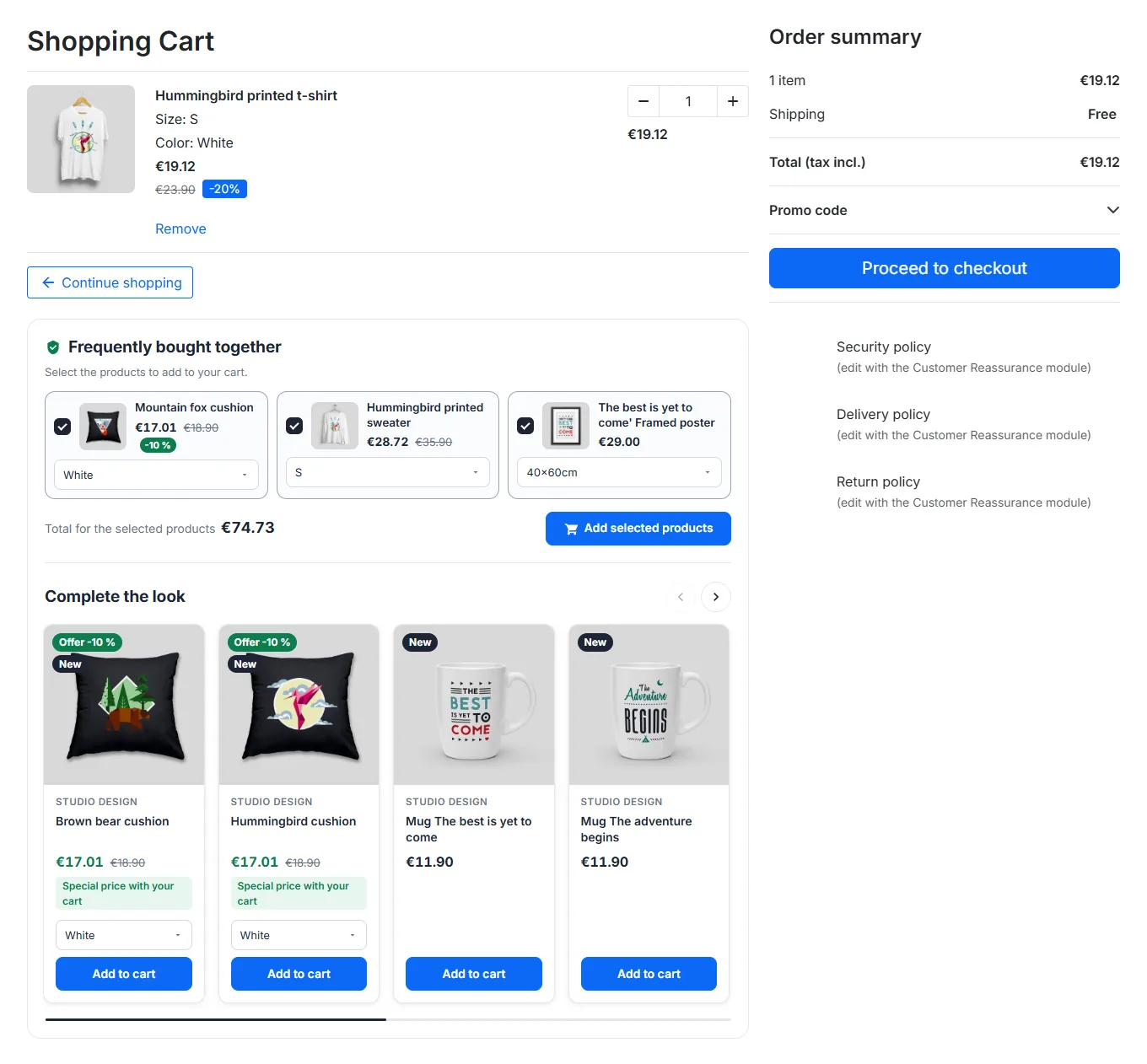
Cart page with the frequently bought together block and the suggestion carousel with offer prices
You can also place the block in the order summary column: it then becomes a compact list of up to 4 products.
### Add-to-cart modal
When a customer adds a product from any page, the confirmation modal shows suggestions for that product. Adding one keeps the modal open, updates the cart count and announces the new cart total to screen readers.
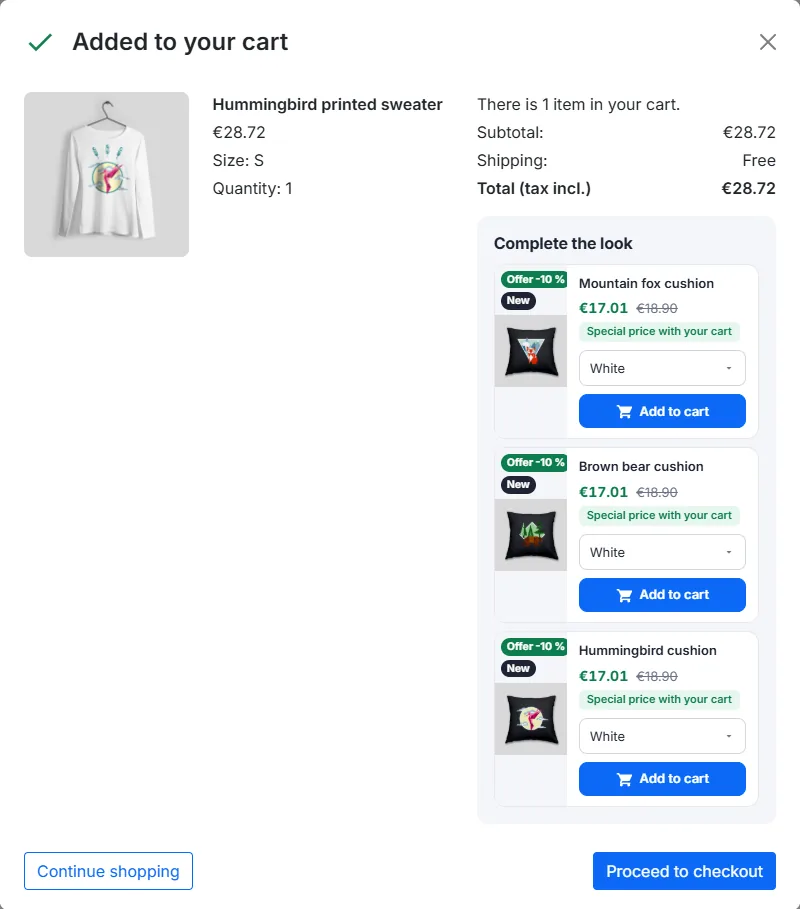
Add-to-cart confirmation modal with suggestions for the product that has just been added
### Empty cart
An empty cart shows your best sellers, so the page is never a dead end.
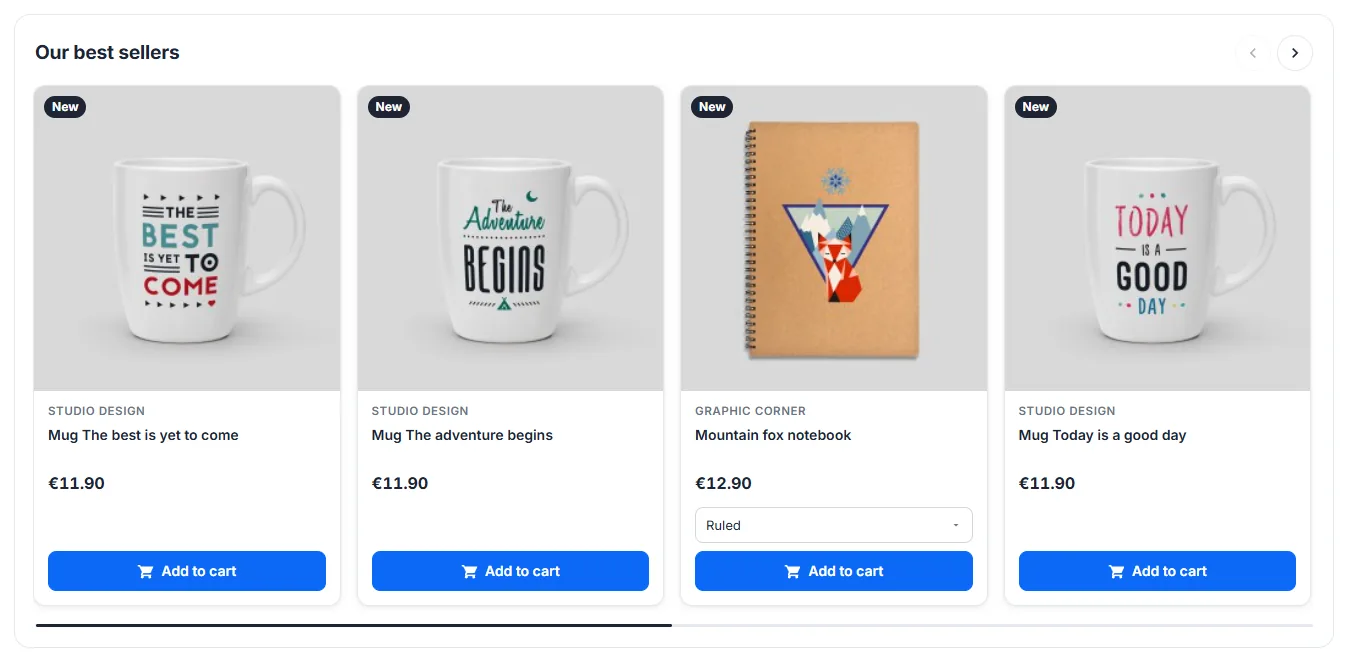
Empty cart page showing the best sellers of the shop
### Mobile
On mobile the carousel is swipeable and the next card peeks out to invite scrolling. Arrows, keyboard navigation and the optional automatic scrolling are available on desktop; automatic scrolling stops on hover, on focus and when the visitor prefers reduced motion.
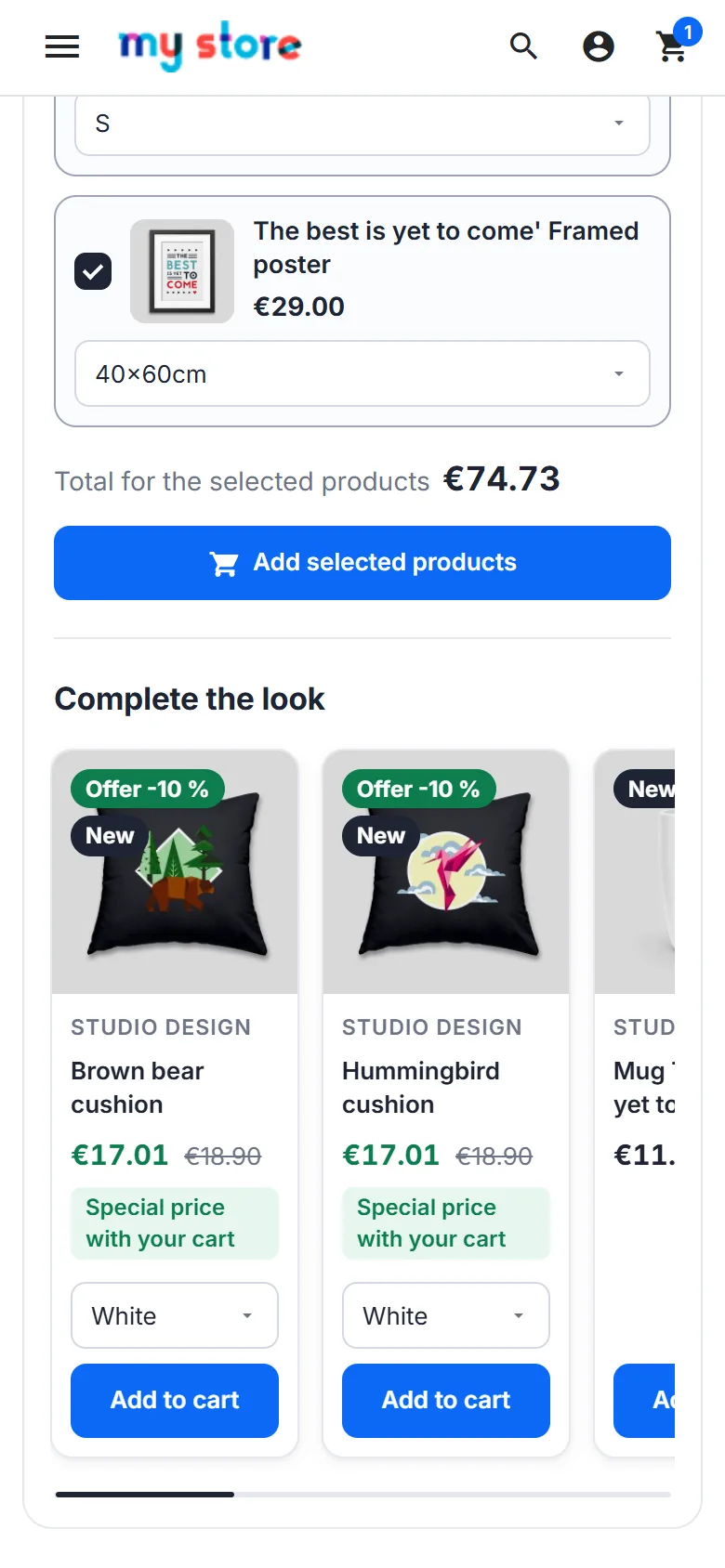
Suggestion carousel on mobile
Compatibility
## One-click add to cart
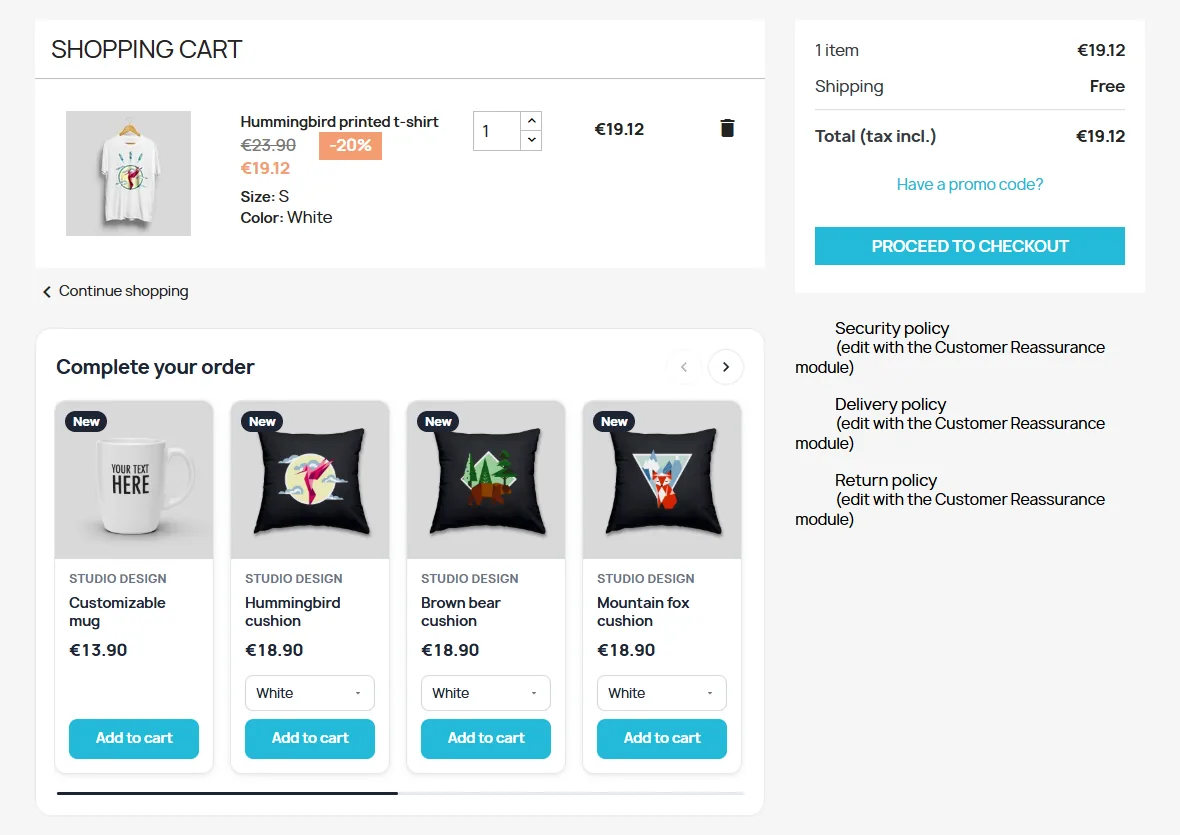
Each card shows the price, the regular price when it is reduced, the discount or offer badge, the brand and, if the Product Comments module is active, the real average rating of validated reviews. Products with combinations get a drop-down list in the card: the price follows the chosen combination and unavailable combinations are greyed out.
The add button sends a request checked by the server: the product must be active, visible, available for order, in stock (unless out-of-stock orders are allowed), without required customization and accessible to the customer group. Then the module triggers the theme cart refresh: totals, cart preview and the block itself are updated without reloading the page, with a skeleton while the suggestions are recalculated.
One-click add to cart with combination choice
## Rules
Rules choose the products to suggest for given carts. They are shown before the automatic suggestions, from the highest priority to the lowest. The list shows the triggers, the suggested products, the offer, the priority, the status (active, inactive, scheduled, expired) and the adds and revenue of the last 30 days.
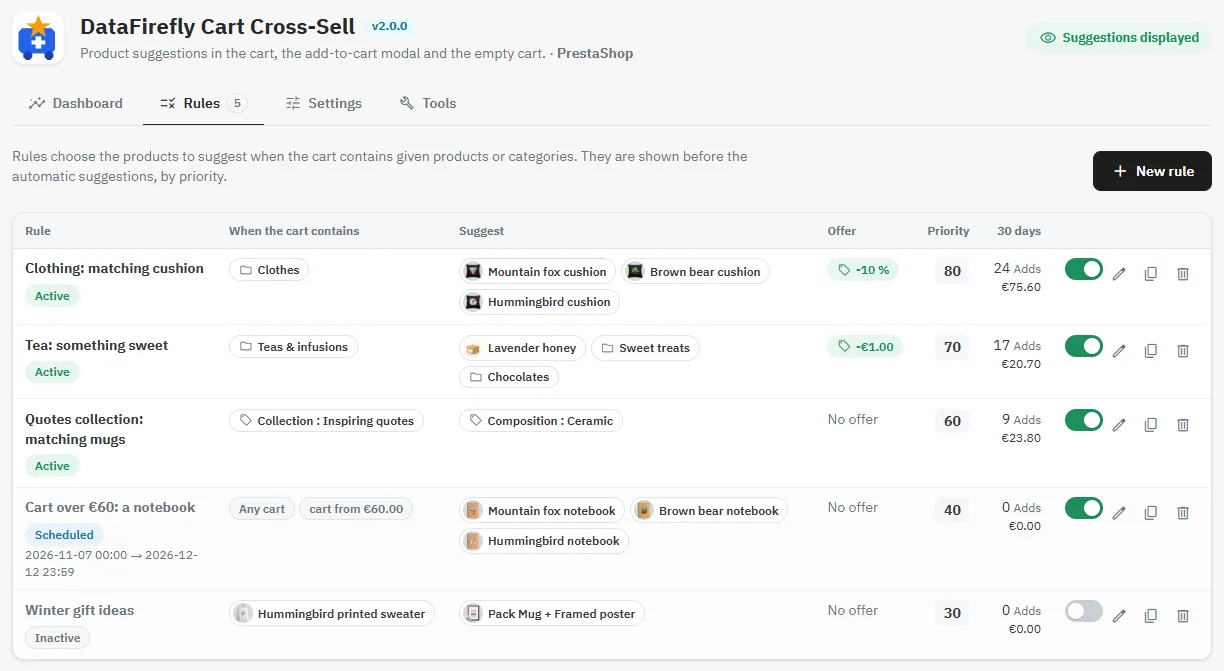
List of cross-sell rules with triggers, suggested products, offers, priority and status
### Creating a rule
1. **When the cart contains**: products, categories (their subcategories included) or feature values. Leave everything empty to apply the rule to every cart. A minimum cart amount can be added.
2. **Suggest**: products in the chosen order, categories or feature values (the best-selling products are used).
3. **Offer** (optional): a percentage or an amount including tax on the suggested products listed in the rule.
4. **Options**: priority from 0 to 100, show only the products of this rule, start and end dates, customer groups and a block title of its own in each language.
The preview on the right shows the cards exactly as customers will see them, with the offer prices.
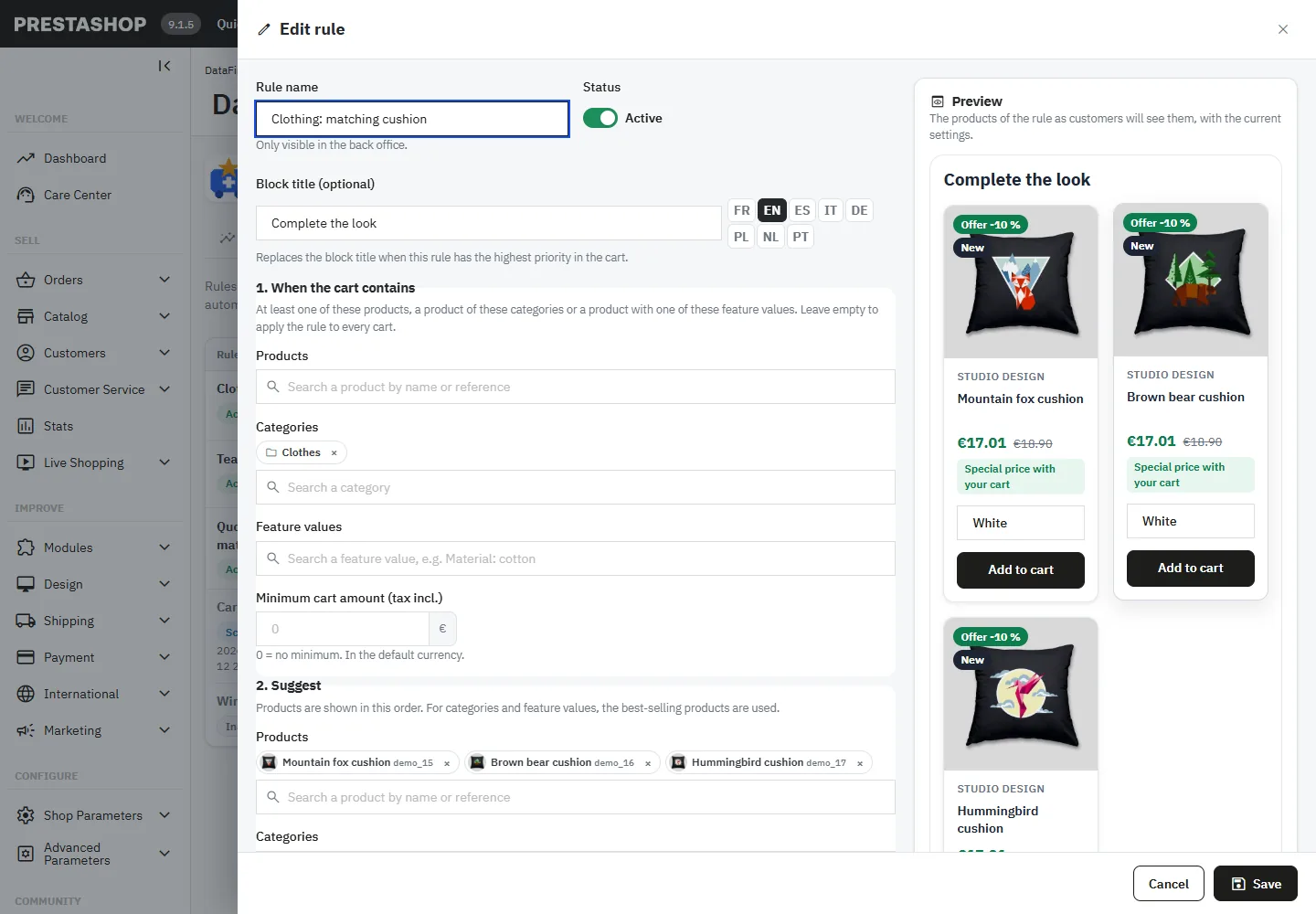
Rule editor
### Rules based on product features
A rule can be triggered by feature values (for example _Collection: Inspiring quotes_) and suggest products with other values (for example _Composition: Ceramic_). Search a value with _Feature: value_; the number of products of each value is shown.
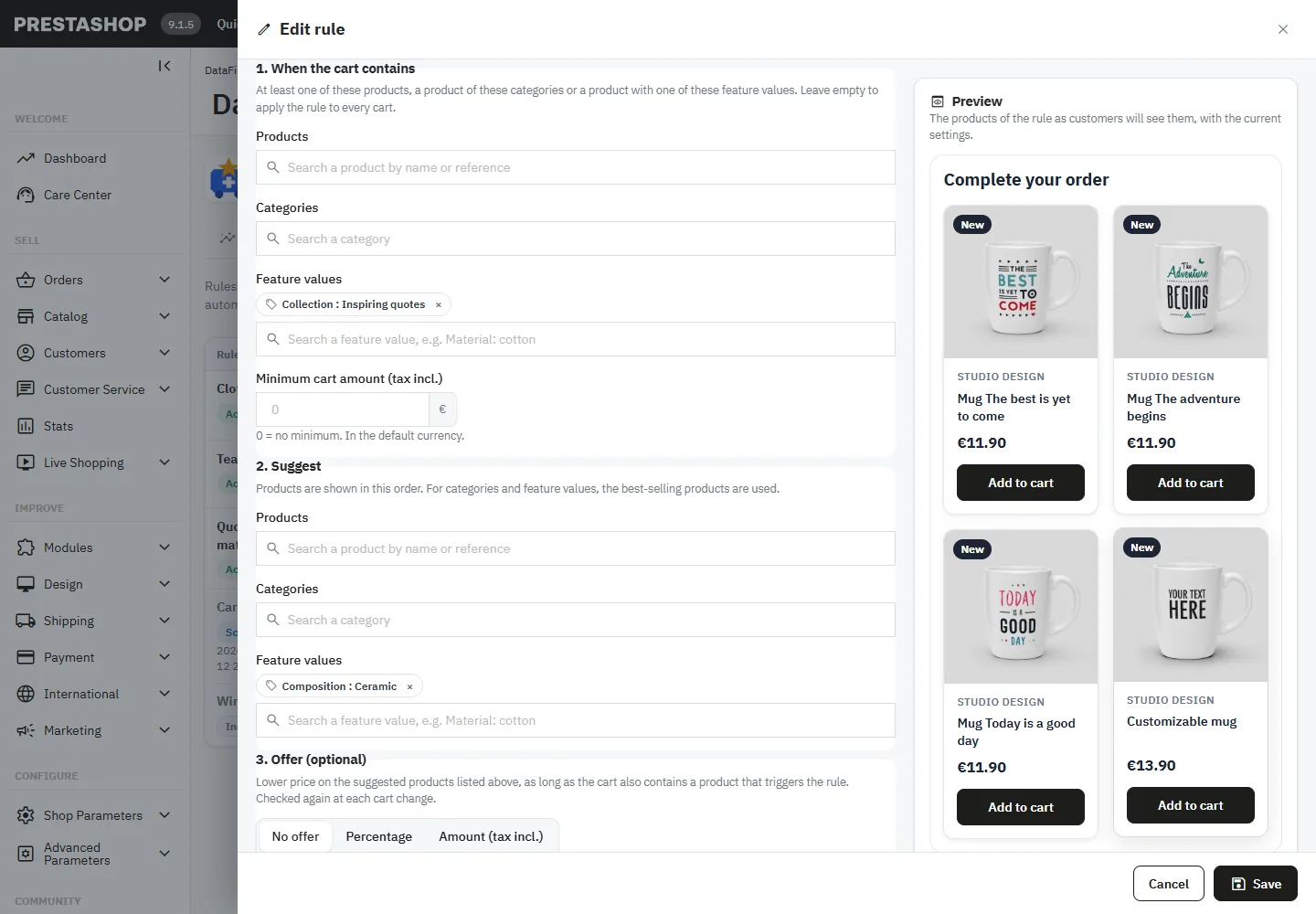
Cross-sell rule based on product features
### Offers
An offer lowers the price of a suggested product while the cart also contains **another** product that triggers the rule. It is computed by the server and applied with a specific price limited to that cart: nothing sent by the browser can change it. It is checked again at each cart change and removed as soon as the cart no longer qualifies. Existing catalog promotions are kept: the offer applies to the price already reduced.
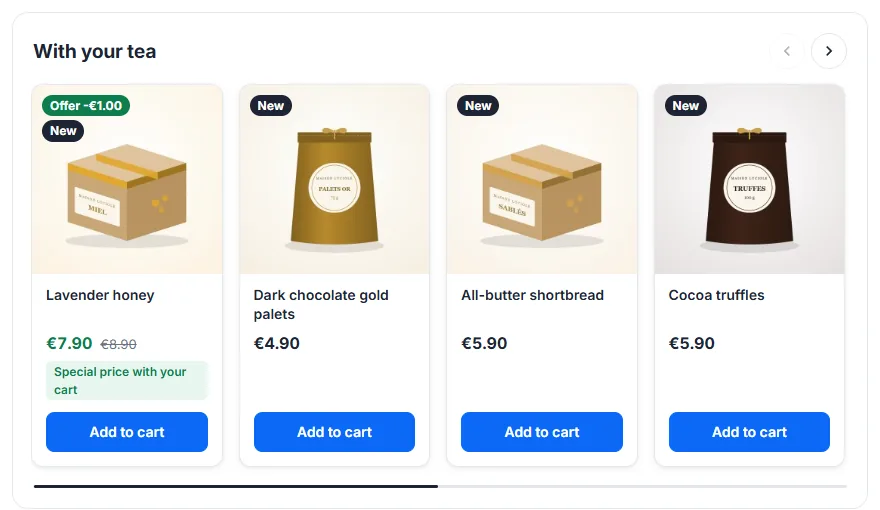
Suggestions of a rule with its own title and an amount offer for a tea cart
An offer applies to every unit of the product in the cart. Turn off **Offers of the rules** in the settings to stop all offers at once.
## Automatic suggestions and product features
Each automatic source has a weight from 0 (off) to 10. Products found by several sources get a higher score. The **Same features** source suggests the products that share the most feature values with the cart; you can limit it to some features.
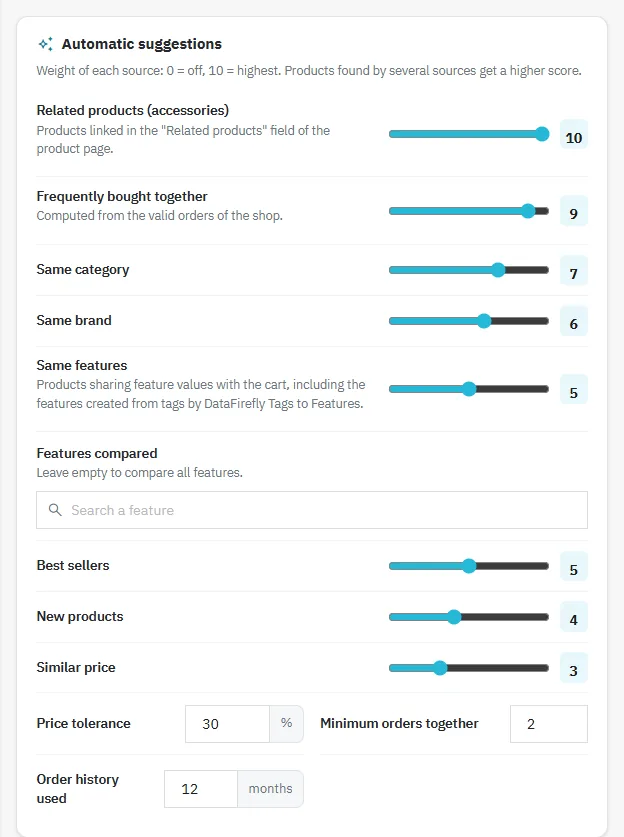
Weights of the automatic sources
DataFirefly Tags to Features turns product tags into native features. The cross-sell reads these features live, with no setting: once the tags are converted, the same features source and the feature rules use them right away.
Inactive, invisible and unavailable products, products with required customization and products of categories hidden from the customer group are never suggested. In **Filters and exclusions** you can also hide out-of-stock products, products already in the cart, and given products or categories.
## Display and appearance
The settings tab groups the position in the cart, the layout, the number of products, the titles in each language, the add-to-cart modal, the empty cart, the bought together block, the content of the cards, four card styles, the accent color (or the colors of your theme), the corner radius and the shadow. Settings are saved per shop in multistore.
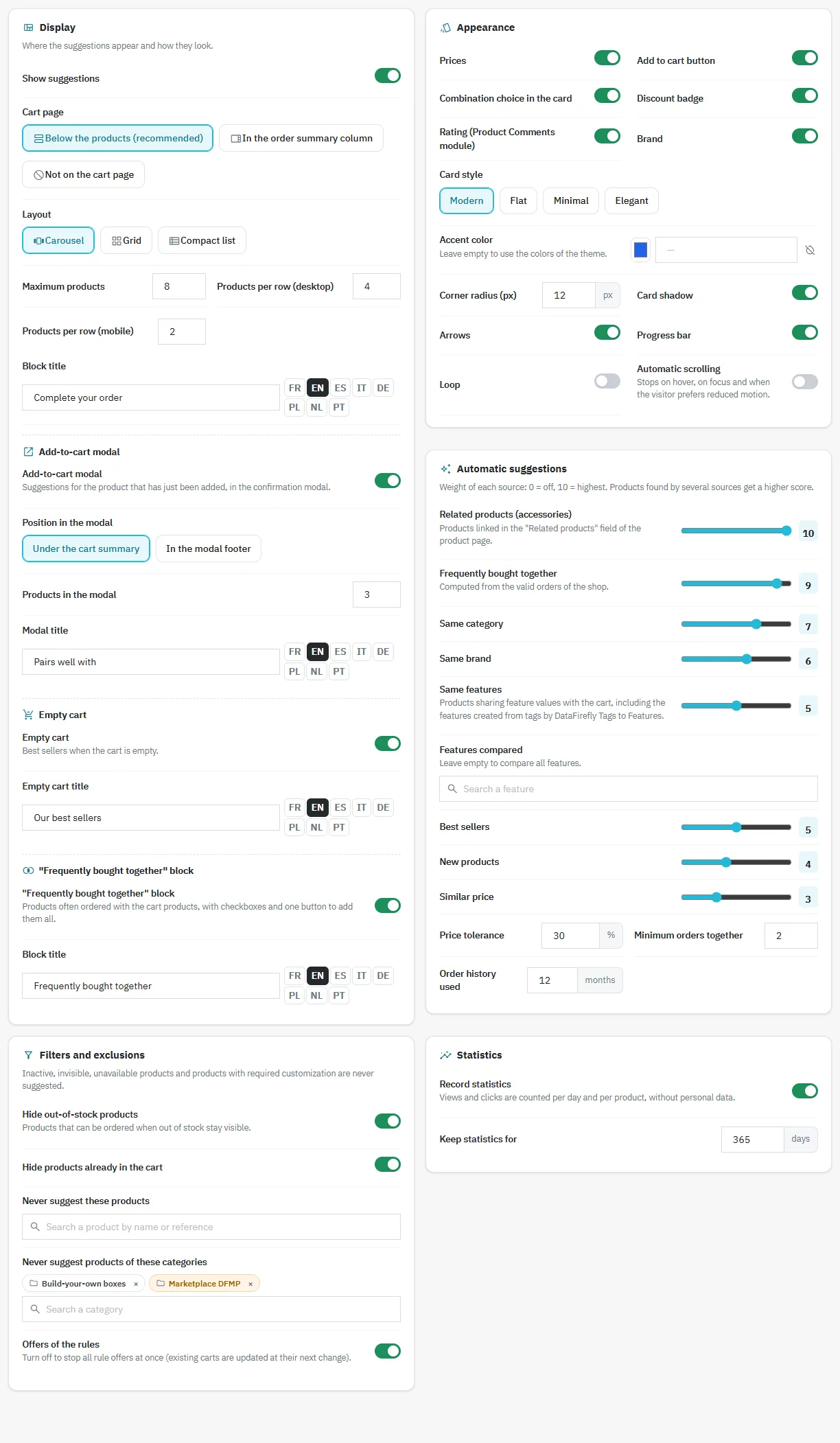
Display settings
## Dashboard
The dashboard only shows data recorded by the module on your shop: block views, product clicks, adds to cart, add rate, orders containing a suggested product and the **additional revenue**, which is the tax-excluded total of the order lines of products added from the block, in valid orders. It also compares the average order with and without a suggested product, and each figure with the previous period.
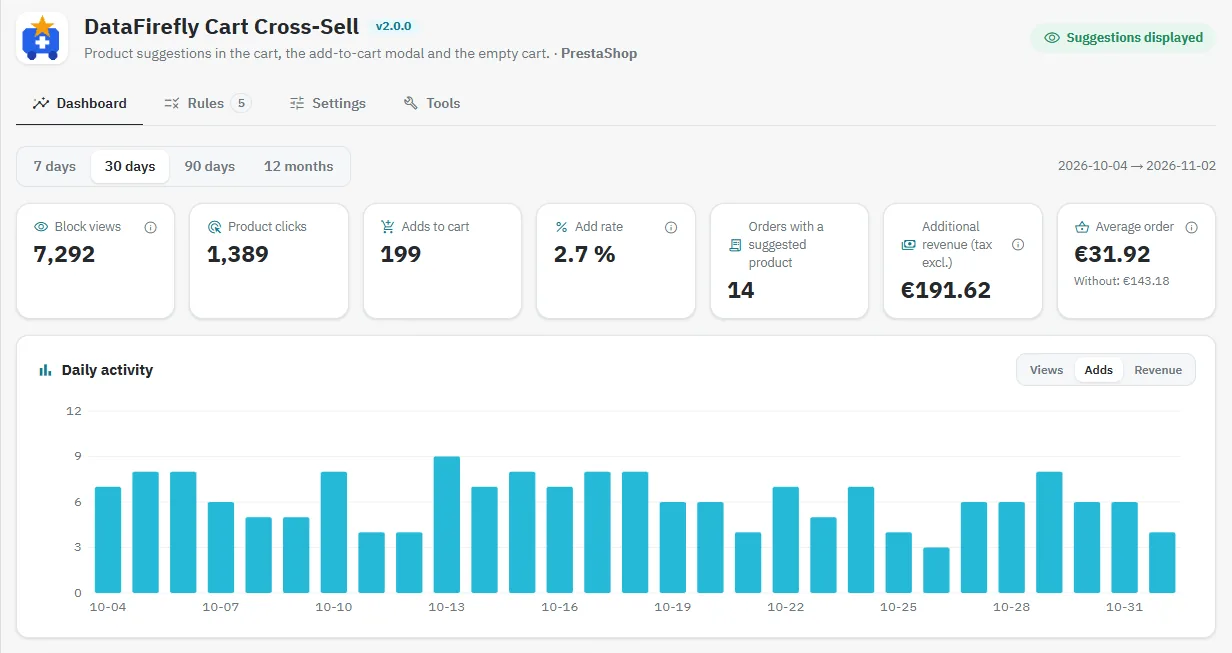
Cart cross-sell dashboard
The tables break down views, adds, rate and revenue by source and by place (cart page, modal, empty cart, bought together block), and list the products that perform best.
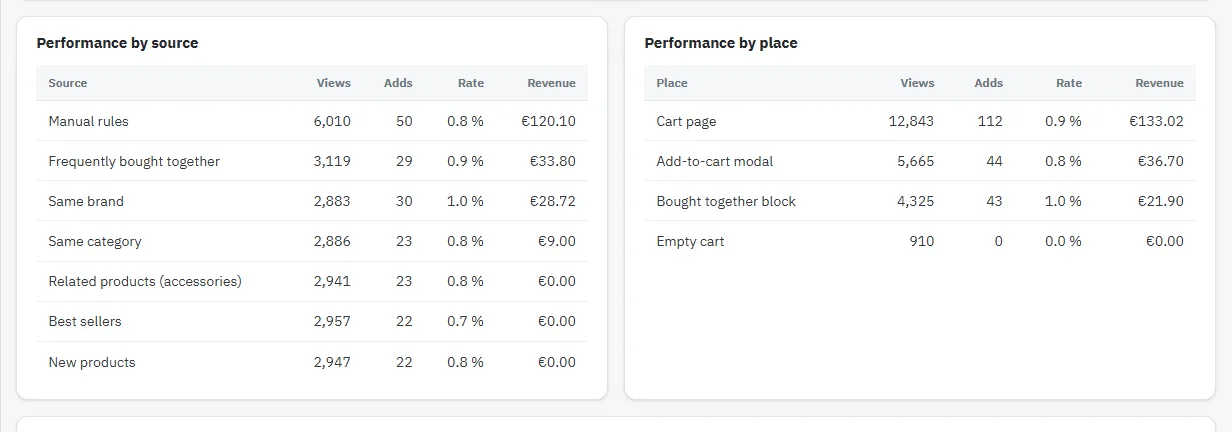
Performance of the suggestions by source and by place
## Tools
The **cart simulator** shows the suggestions for any list of products, with the source, the rule and the score of each one: the quickest way to check a rule or the weights.
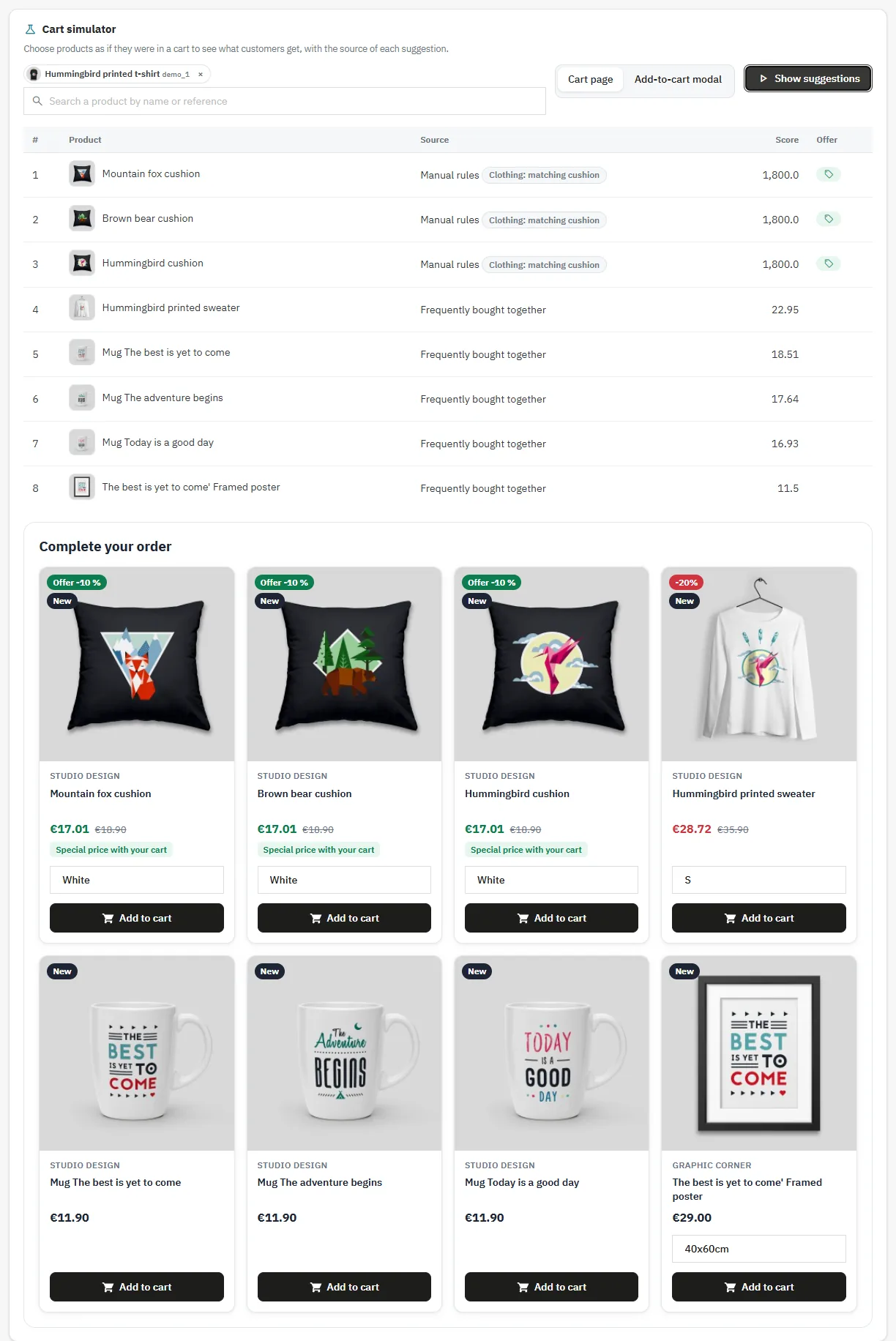
Cart simulator
- **Frequently bought together index**: updated at each order; rebuild it after importing orders or changing the history length.
- **Scheduled task** (optional): call the URL once a day to rebuild the index and clean old data. Without it, cleaning runs at most once a day on its own.
- **Maintenance**: number of carts with an active offer and deletion of the statistics.
## Security and privacy
- Adding to the cart requires a POST request with the shop token; prices and quantities sent by the browser are ignored.
- Views and clicks are signed by the server, so forged statistics are refused.
- Statistics contain no personal data: daily counters per product, and the cart id only to link an add to its order.
- Uninstalling deletes the tables, the settings and the cart offers of the module.
## Troubleshooting
### The block does not appear
Check that **Show suggestions** is on, that the cart position is not set to _Not on the cart page_ and that some products can be suggested: the cart simulator shows why a list is empty.
### The old script is still loaded after the update
The update empties the cache of combined files. If a server cache or a CDN keeps an old copy, empty it as well.
### An offer is not applied
The cart must contain another product that triggers the rule, the rule must be active and within its dates, and the offer must give a lower price than the current one.