# Smart Live Search — Complete Guide
> Overview and requirements DF Live Search replaces your shop search with an instant search panel. Before typing, it shows the visitor's recent searches, popular searches and recommended products. While typing,…
- Page:
- Language: en
- Last updated: 2026-11-01
- Other languages: [fr](https://www.datafirefly.com/documentation/dflivesearch/index.md), [es](https://www.datafirefly.com/es/documentation/dflivesearch/index.md), [de](https://www.datafirefly.com/de/documentation/dflivesearch/index.md), [it](https://www.datafirefly.com/it/documentation/dflivesearch/index.md), [pl](https://www.datafirefly.com/pl/documentation/dflivesearch/index.md), [pt](https://www.datafirefly.com/pt/documentation/dflivesearch/index.md), [nl](https://www.datafirefly.com/nl/documentation/dflivesearch/index.md)
- Index:
## Overview and requirements
DF Live Search replaces your shop search with an instant search panel. Before typing, it shows the visitor's recent searches, popular searches and recommended products. While typing, it offers inline completion, suggestions and the results grid, with direct add to cart. Filters (price, availability, categories, brands, attributes, features) and sorting are available as an option.
- Compatible with PrestaShop 1.7.8 to 9.x, Hummingbird, Classic and child themes, Warehouse (iqit) theme.
- PHP 7.4 to 8.5.
- Multilingual (FR, EN, ES, DE, IT, PT, PL, NL) and multistore.
- No overrides, no external resources.
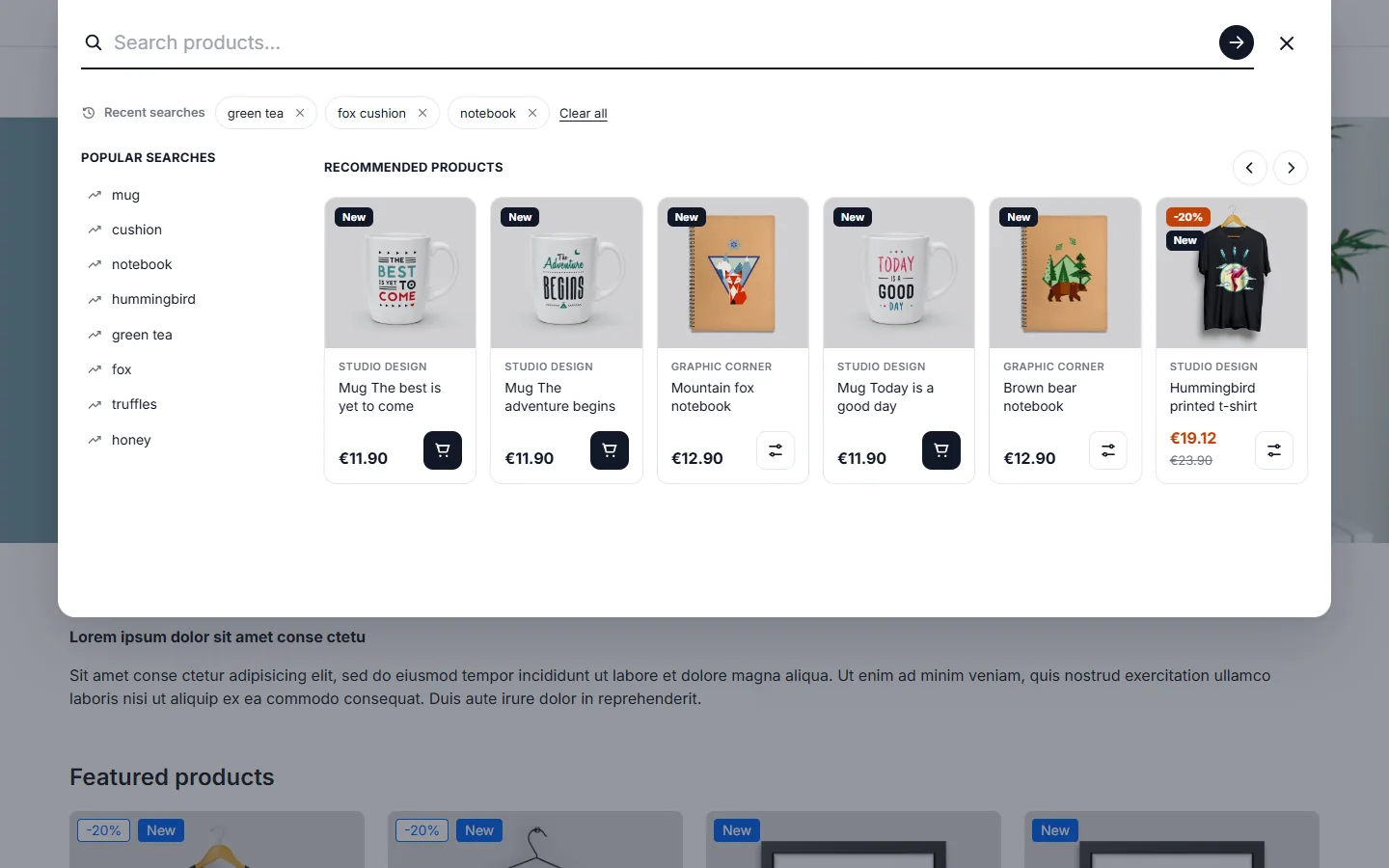
DF Live Search panel: recent searches, popular searches and recommended products
## Installation and update
1. Download `dflivesearch-2.1.0.zip` from your customer account.
2. In the back office, open **Modules > Module Manager**, click **Upload a module** and drop the archive.
3. Click **Configure**.
On installation, the module creates its tables, builds its search index and typo dictionary, and pre-fills common synonyms in every language. The search is live right away: by default, your theme's search field opens the panel.
**Updating from a 1.x version**: upload the new zip in the Module Manager and run the update. Your settings, synonyms and statistics are kept. New options keep the 1.x behaviour (module bar plus theme fields, references shown) and **filters stay disabled** until you enable them. IP addresses already stored are replaced by an anonymous hash.
After an update, clear the PrestaShop cache (Advanced Parameters > Performance). If your theme combines CSS and JS files (CCC), the new script is then loaded straight away.
## General settings
The configuration page is organised in tabs, with a **live preview** on the right that follows your settings (colors, layout, card content). The **General** tab contains:
- **Panel layout**: _Overlay_ (large panel over the page) or _Dropdown_ (opens from the search bar, full screen on mobile).
- **Search bar**: _Theme bar_ (the theme's search field opens the panel, recommended), _Module bar_ (replaces the default PrestaShop bar) or _Both_ (1.x behaviour).
- **Search field placeholder** per language, **characters before searching**, **products per page** (more are loaded with “Show more products”).
- **Keyboard shortcut**: Ctrl+K (⌘K on Mac) or `/` opens the search from any page.
- **Use this engine on the search results page**: the full PrestaShop results page then lists the same products, in the same order, as the panel.
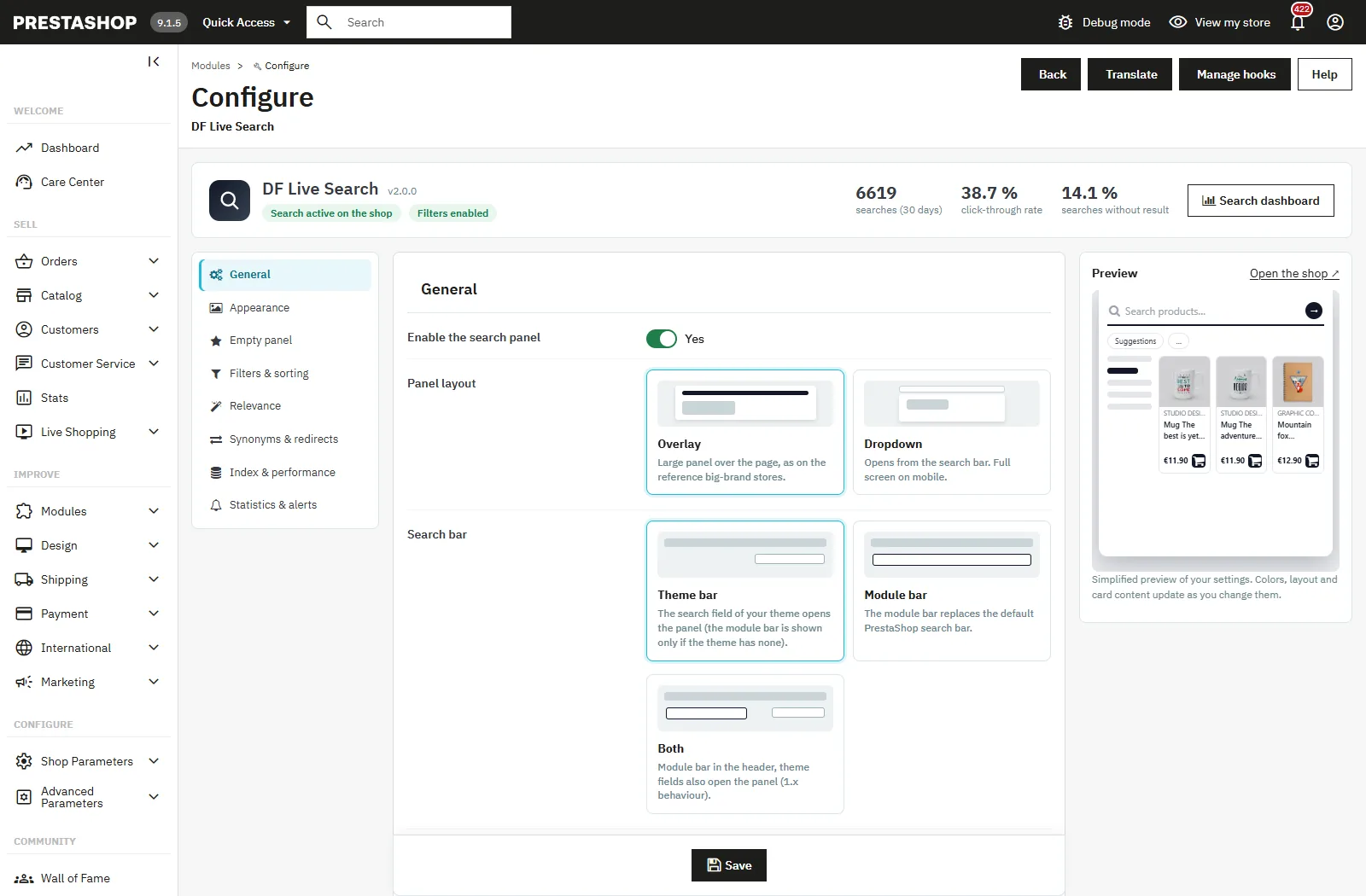
Back office: general settings with live preview
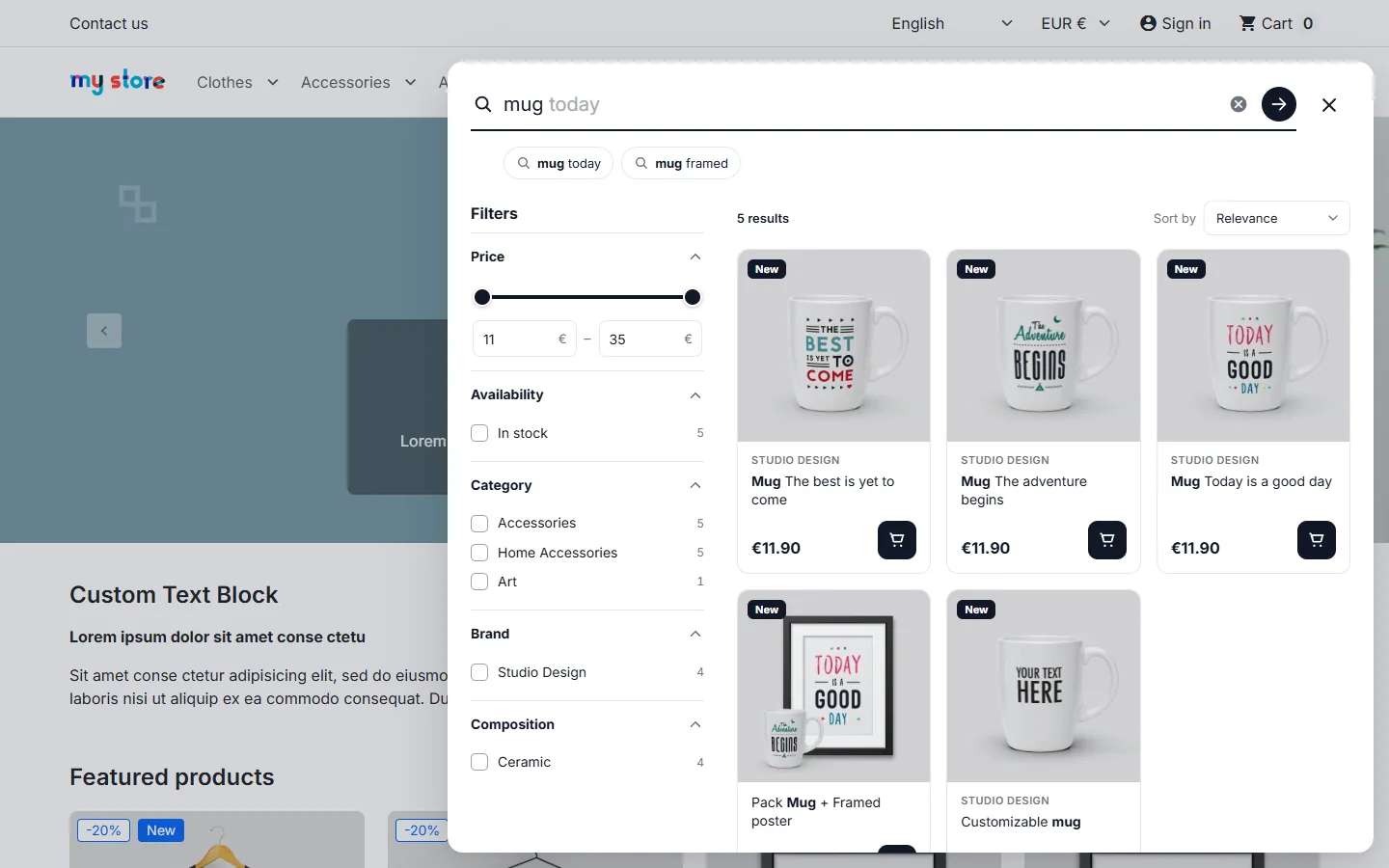
Dropdown layout opening from the search bar
## Appearance and product cards
- **Main color** and hover color (buttons, active filters, focus), with suggested colors.
- **Maximum panel width**: for example `1320px`, `100%` or `90vw`.
- **Module bar**: height, maximum width and corner radius (0 = square, 50 = pill).
- **Product cards**: prices, discounts (old price and percentage), brand, reference, add to cart button, quantity selector, image size.
PrestaShop rules always apply: catalog mode, customer groups without prices and products with “Show price” off never show a price or a cart button. Prices follow the visitor's group (tax incl. or excl.), its discounts and its currency.
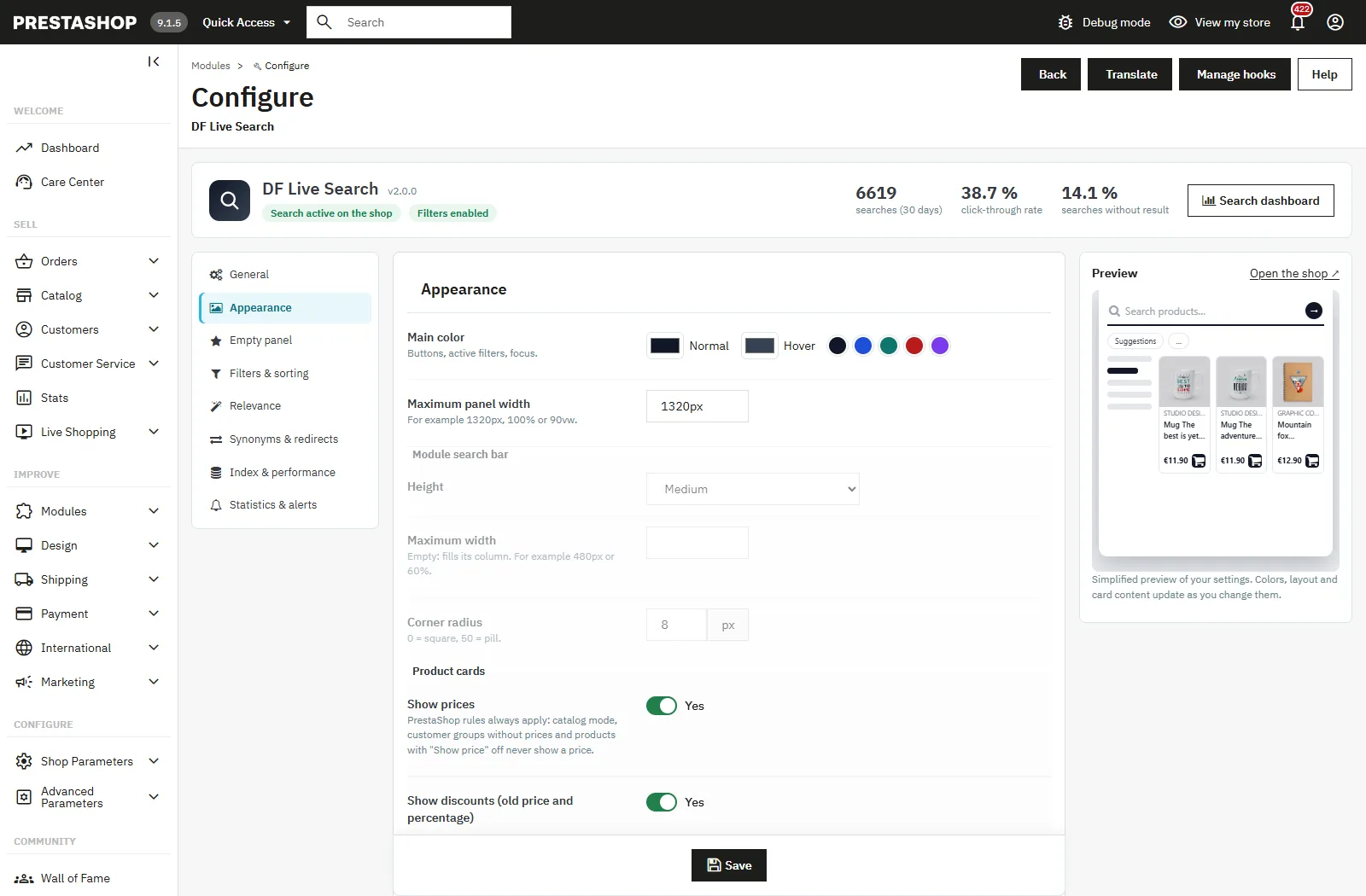
Back office: colors, search bar and product card content
## The search panel on the shop
### Before typing
The **Empty panel** tab sets what visitors see when the panel opens:
- **Recent searches**: stored in the visitor's browser only, removable one by one or all at once.
- **Popular searches**: automatic (statistics), your list per language, or your list completed by statistics. A query is shown only if it found products for a minimum number of different visitors (2 by default): nobody can publish text in this list. You can exclude words; links and e-mail addresses are always excluded.
- **Recommended products**: best sellers then newest products, your selection (search, drag and drop or arrows to set the order), or personalization for logged-in customers.
### While typing
The panel shows **inline completion** (Tab or → to accept it), suggestion chips, matching categories and brands, the number of results and the product grid. Searched words are in bold. The keyboard moves through suggestions (arrows, Enter, Esc) and the number of results is announced to screen readers.
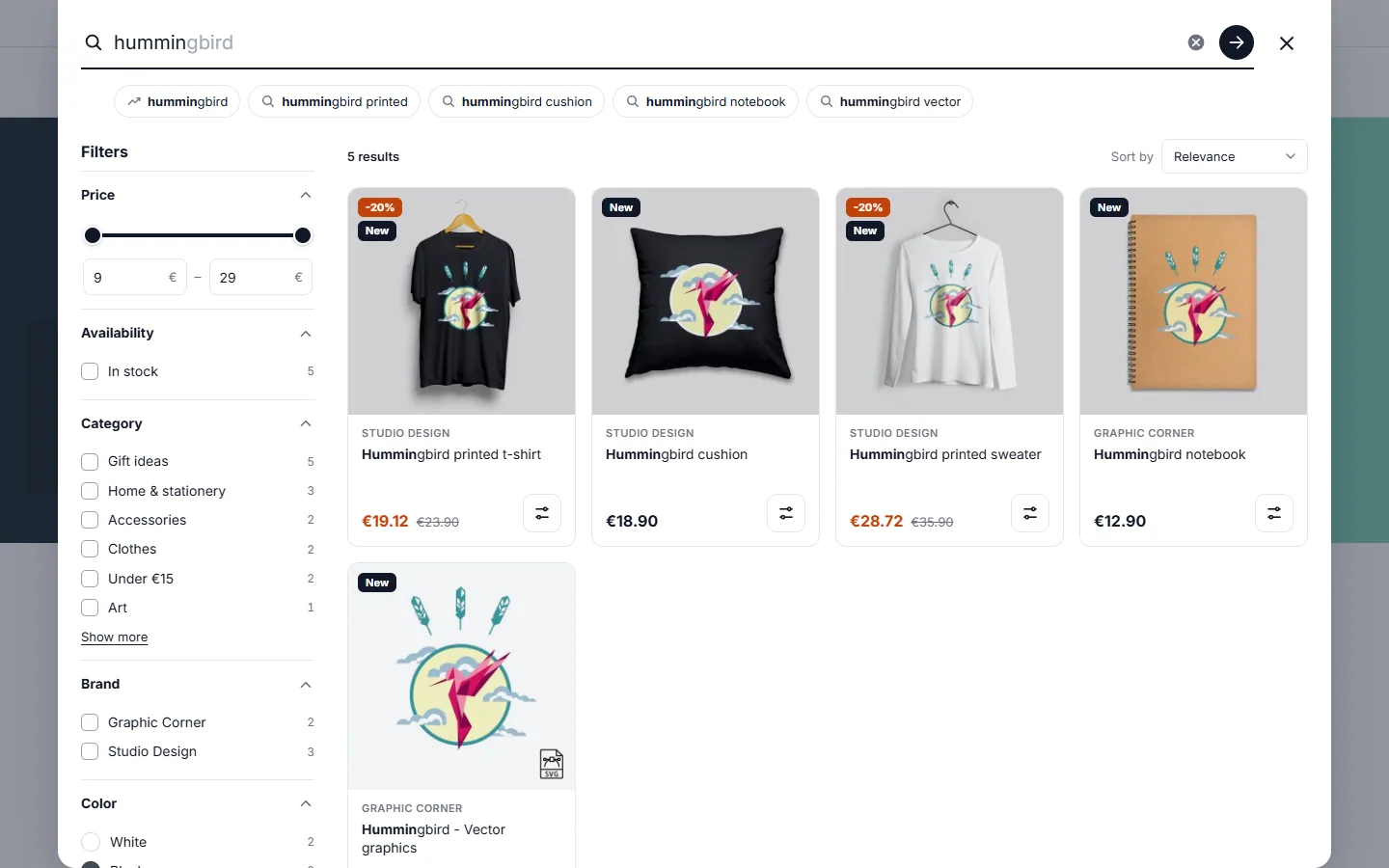
Typing a query: inline completion, suggestions and instant results
### Add to cart
The cart button goes through the PrestaShop cart controller: stock, minimal quantities and cart rules are respected. A confirmation appears in the panel with a link to the cart, and the header cart is refreshed. Products with combinations show “Choose options”, which opens the product page.
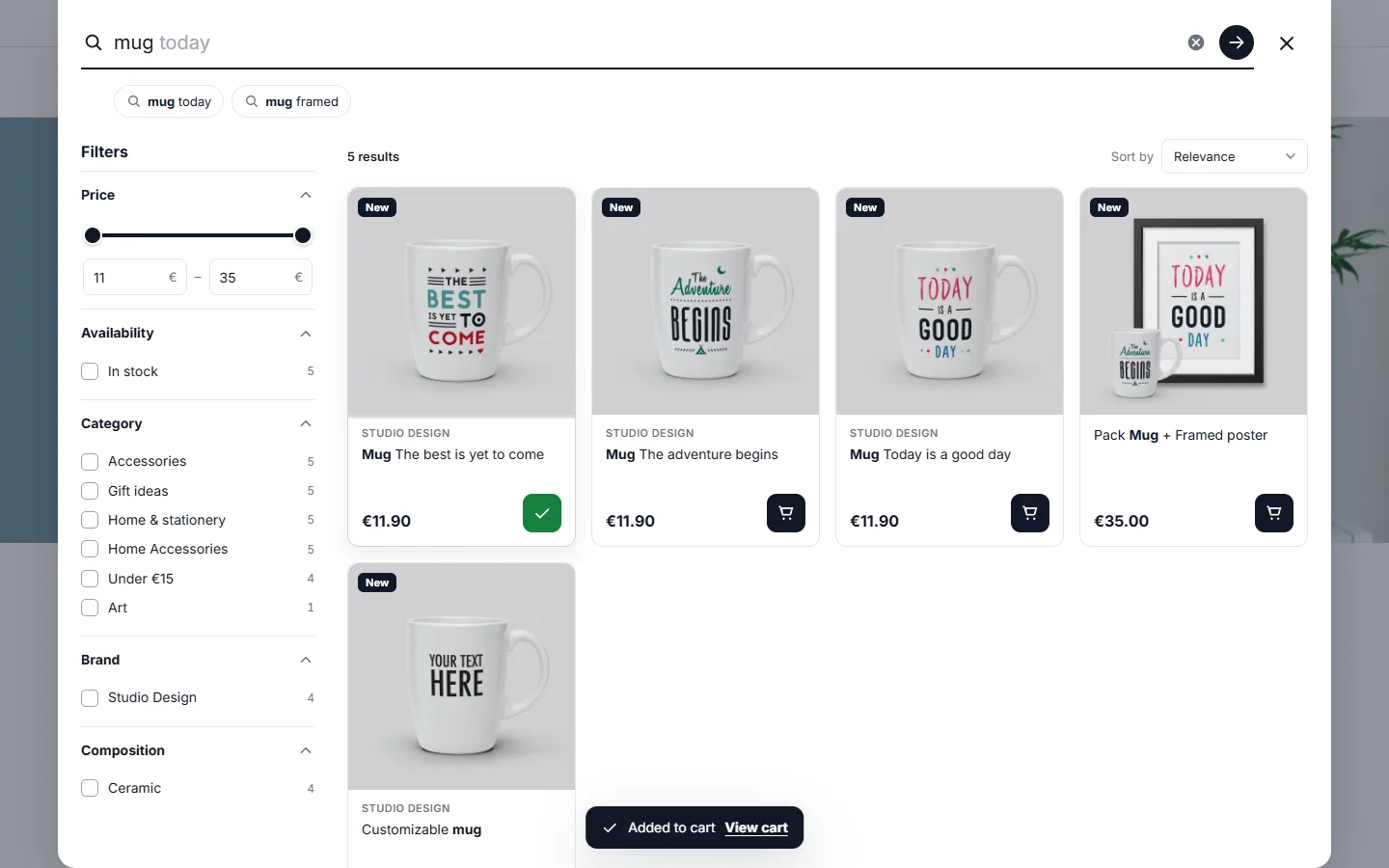
Add to cart straight from the search results
## Filters and sorting (optional)
Filters are **disabled by default**. Enable them in the **Filters & sorting** tab, then tick the filters to show and drag them (or use the arrows) to set their order:
- **Price**: double slider and min/max fields, in the visitor's currency and tax display.
- **Availability**: products in stock.
- **Categories** and **brands**.
- **Attributes** and **features** of your catalog, as you choose (swatches for colors).
Counts update with each choice, and values of the same filter can be ticked together. Long lists get a search field and a “Show more” link. Active filters appear as chips above the results. The sort menu offers relevance, price low to high or high to low, newest, best sellers and name; choose the sort options in the same tab.
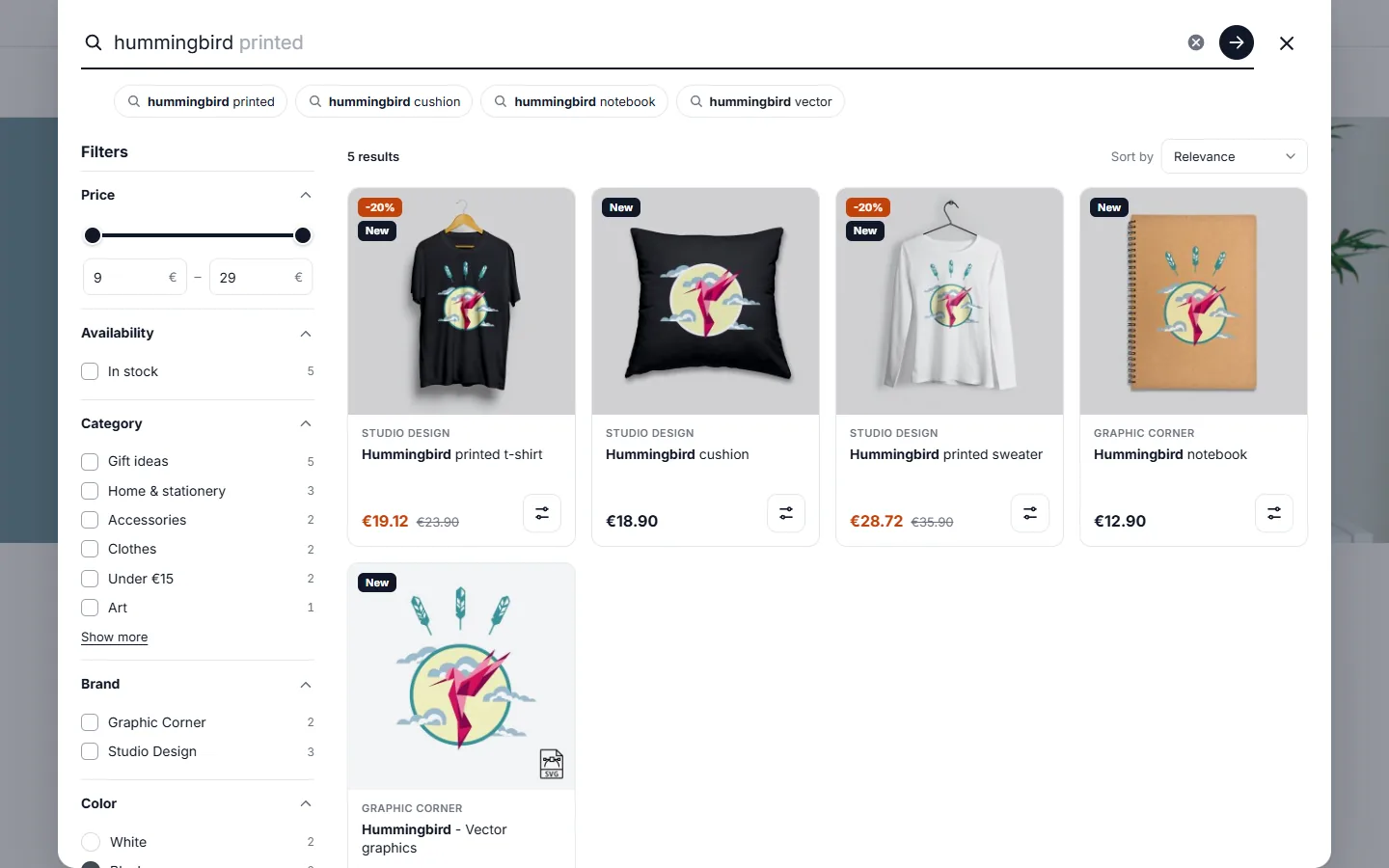
Search results with price, availability, category, brand and color filters
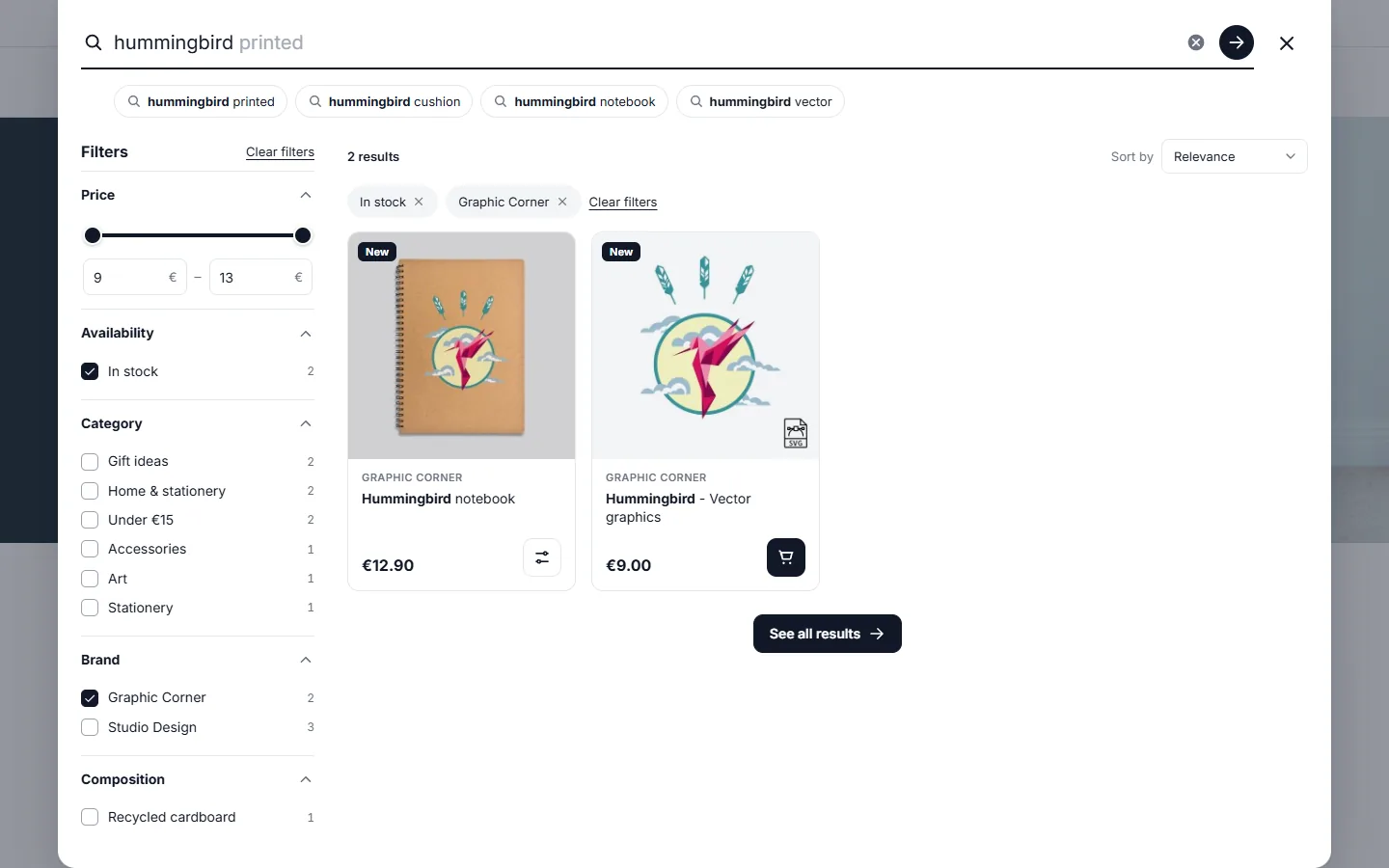
Active filters with chips and updated counts
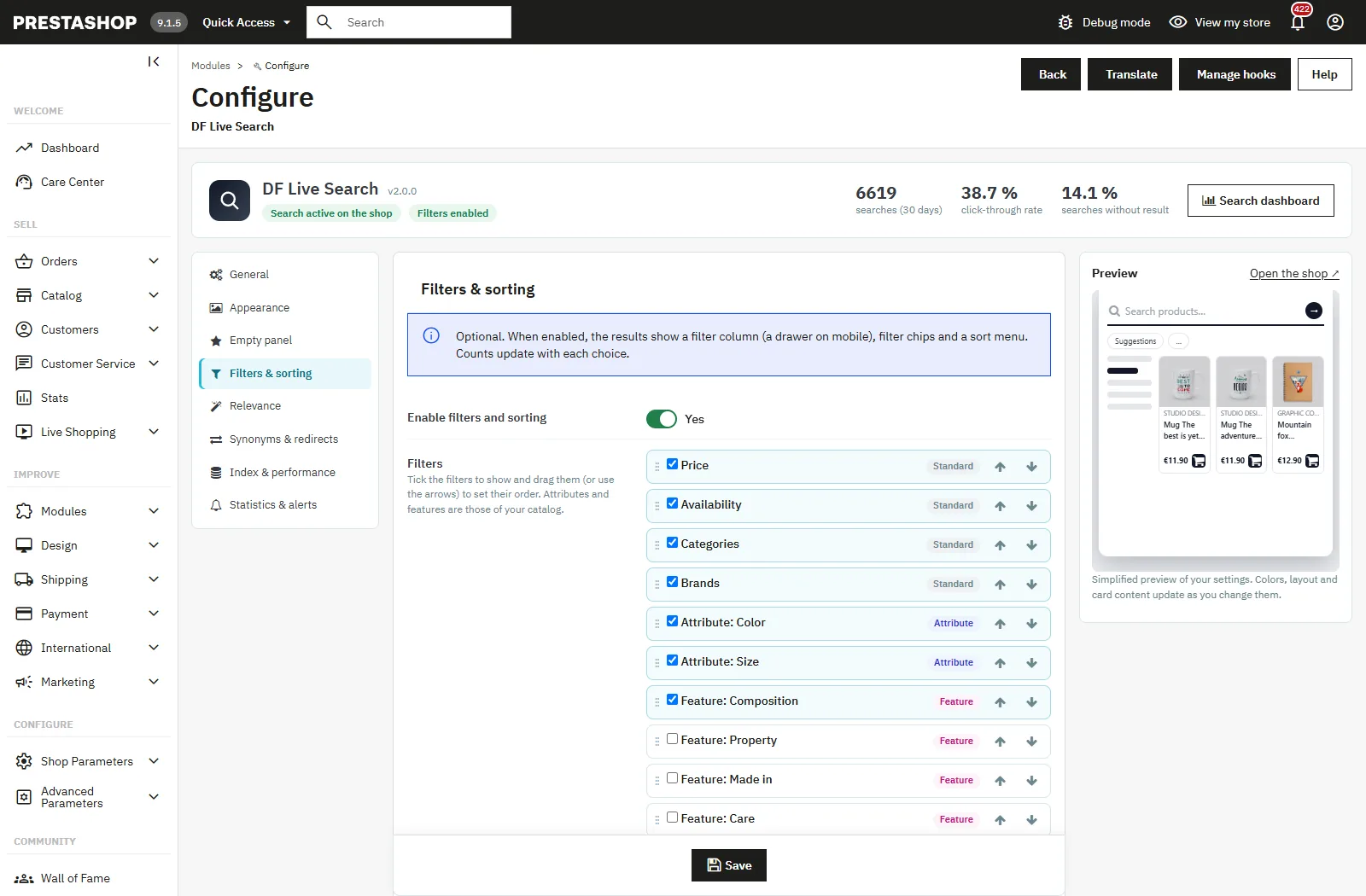
Back office: filters to enable and order, sort options
## On mobile
On mobile, the panel opens full screen, the grid switches to two columns and filters open in a **drawer** with a “Show N results” button. Suggestions scroll horizontally under the field.
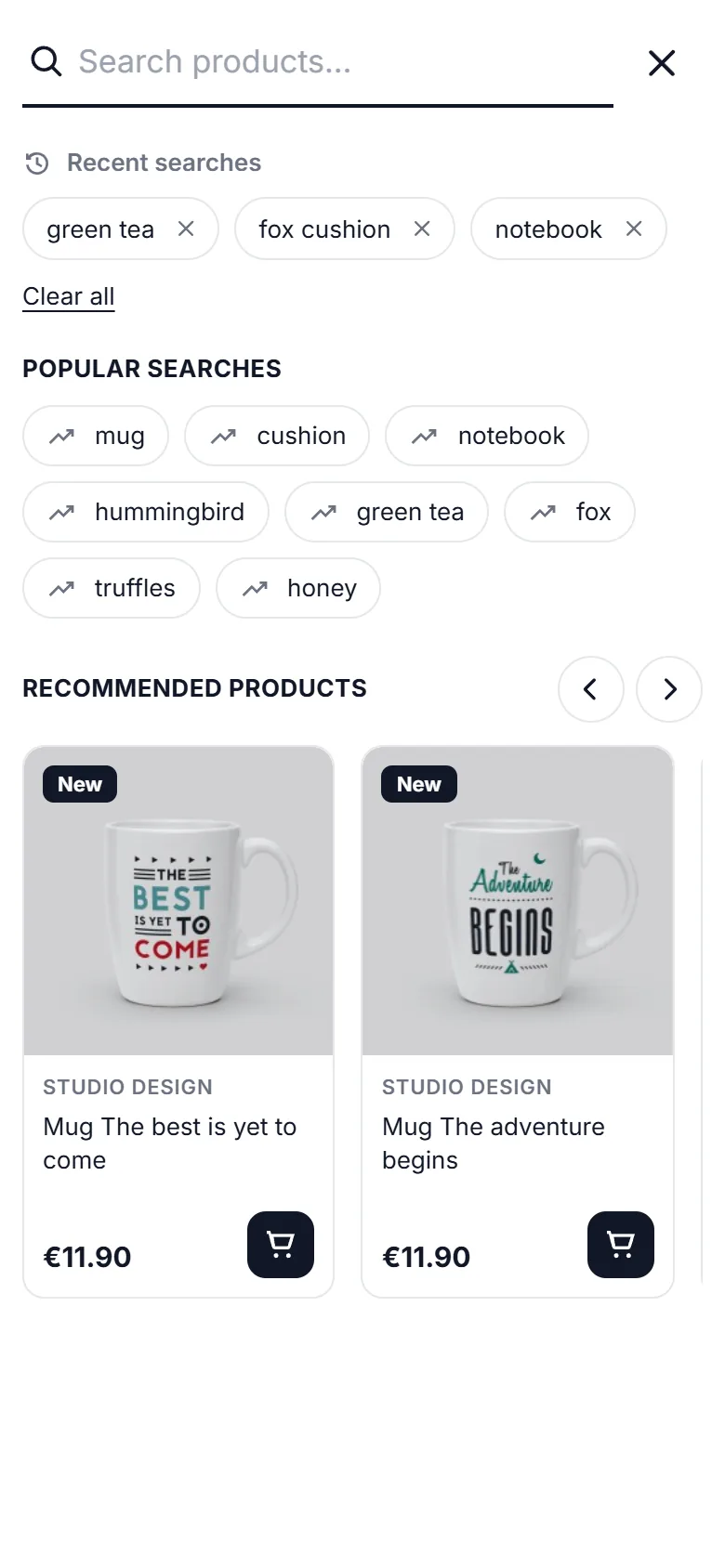
Search panel on mobile before typing
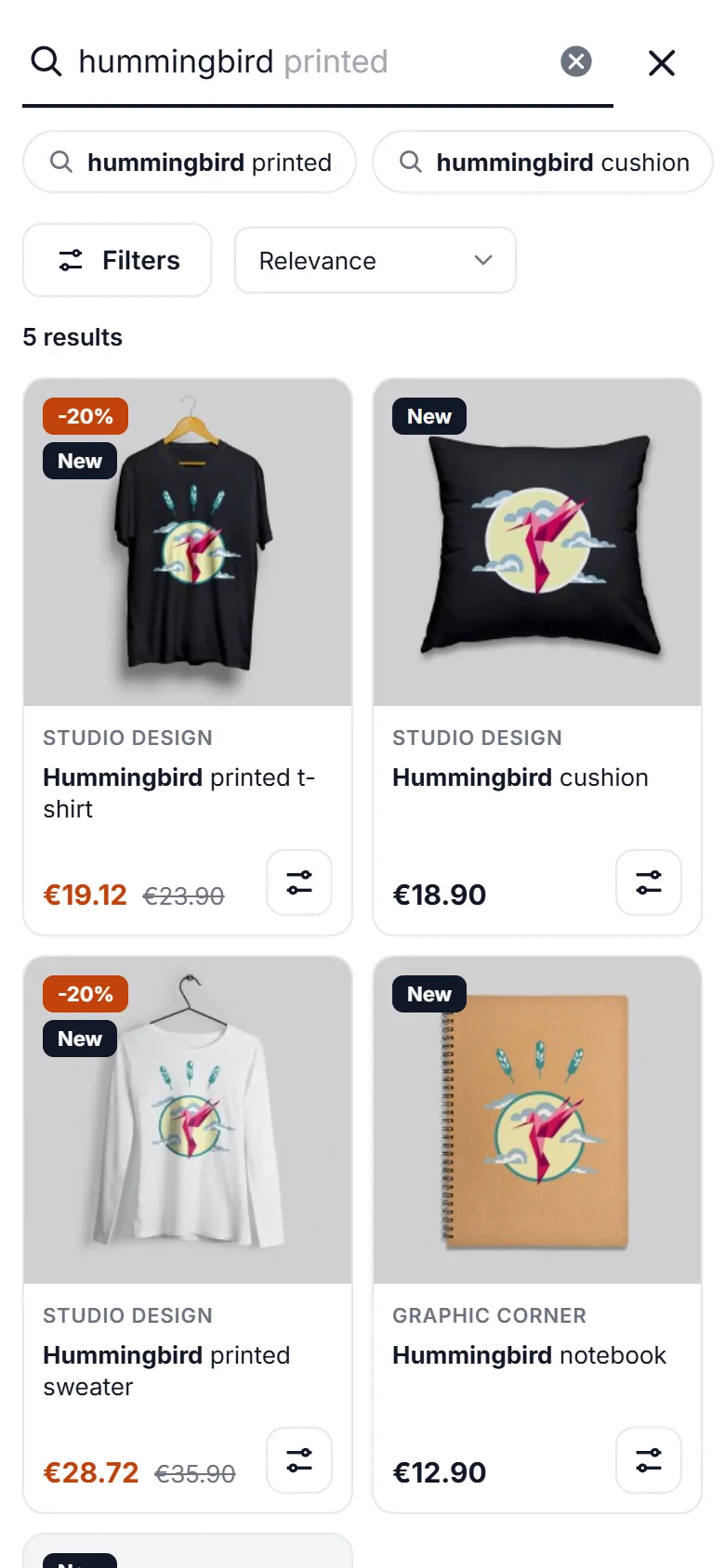
Search results on mobile
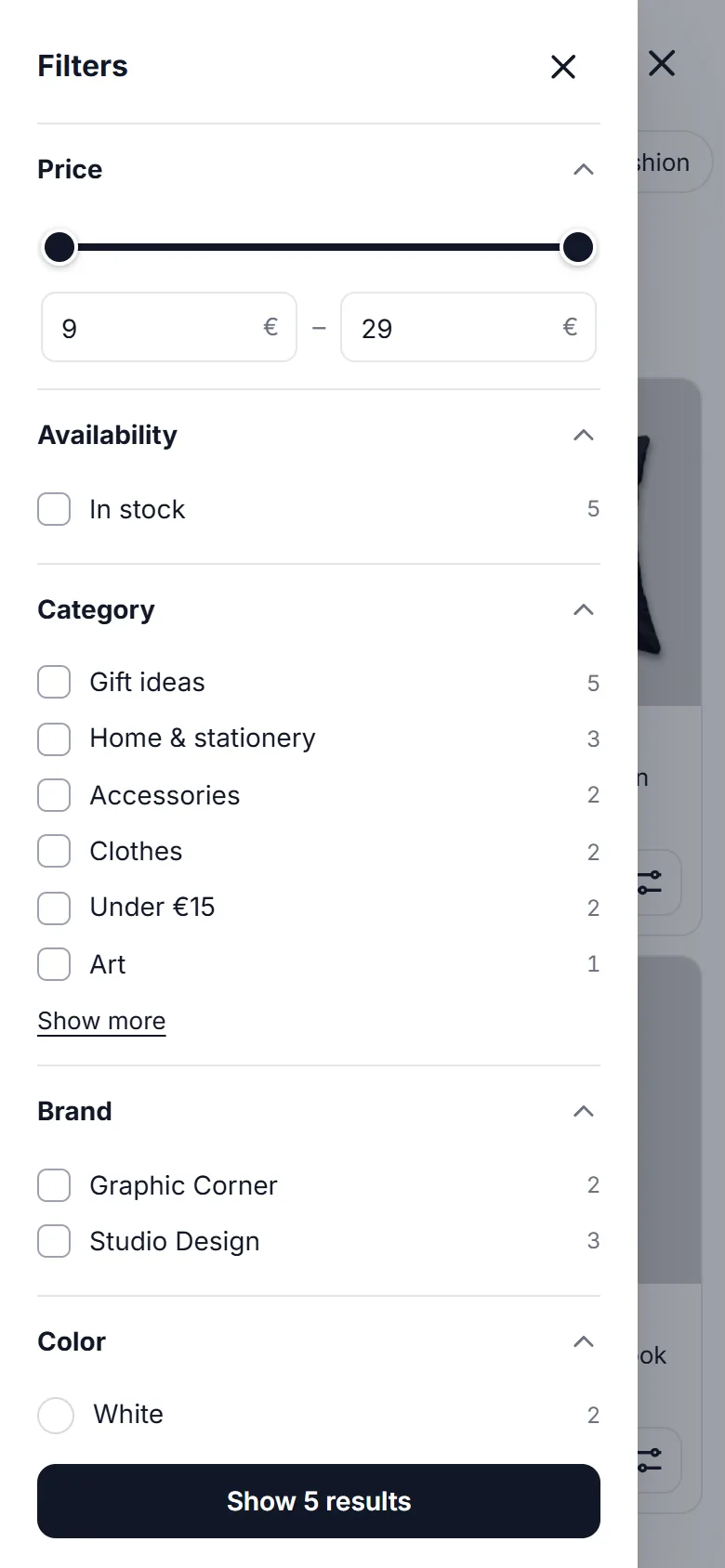
Search filters in a drawer on mobile
## Relevance and typo tolerance
Always on: accents and case ignored, plurals in the 8 languages (“lamps” finds “lamp”), words in any order, hyphenated words (“t-shirt” = “tshirt”), as-you-type matching, product and combination references, EAN, UPC, MPN and supplier references. When the query is a combination reference, the result opens that exact variant.
The **Relevance** tab sets:
- **Suggestions and inline completion**, and their maximum number.
- **Search in brands**: “brand + product” works even when the brand is not in the product name.
- **Typo tolerance** and maximum typing errors per word (2 recommended; words of 4 letters or less accept one error). When a query finds nothing, the closest catalog words are tried.
- **Tell visitors about corrections**: “Showing results for… Search instead for…” with a link to the original spelling.
- **Products in stock first** and **best sellers first**, at comparable relevance.
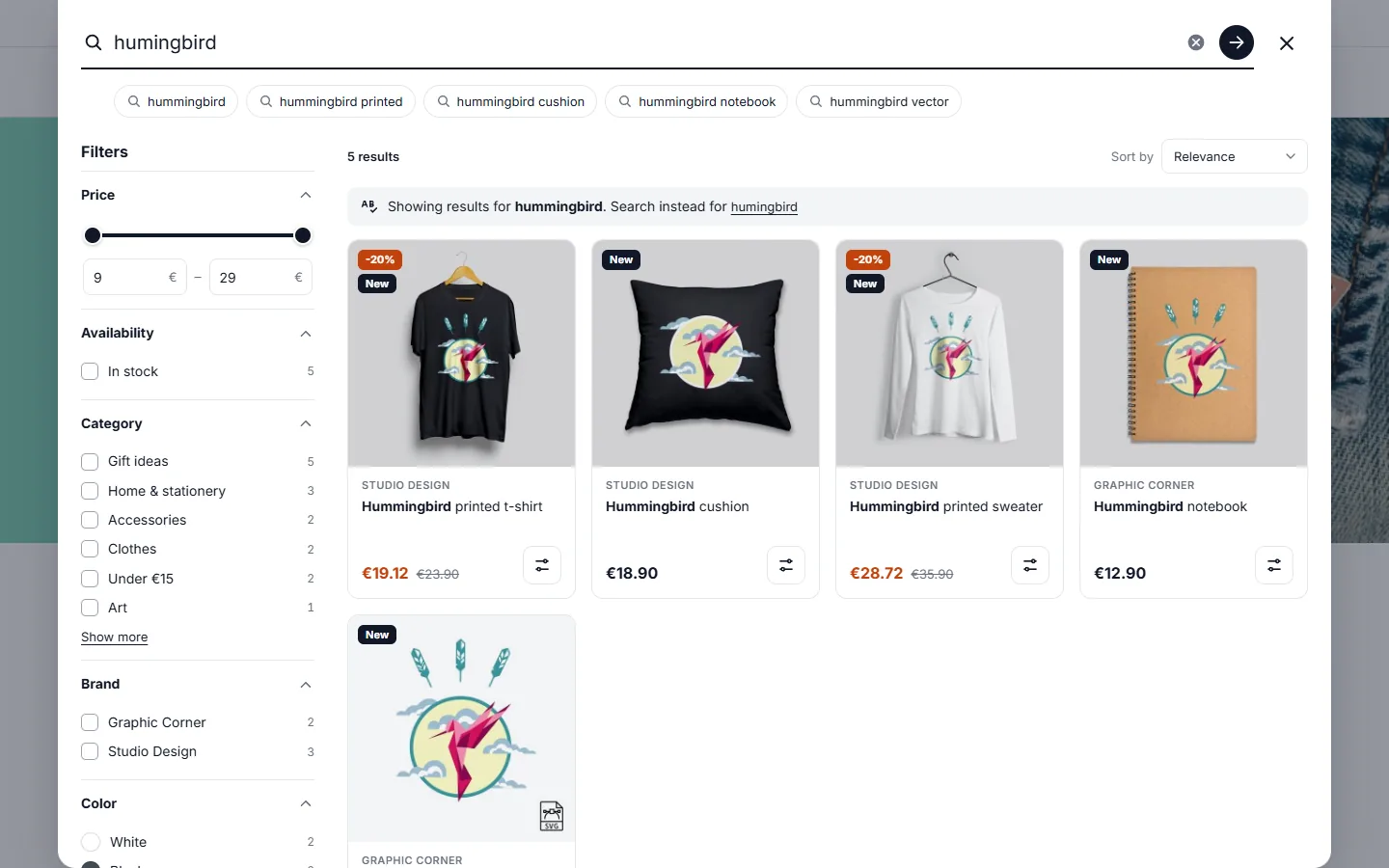
Typo tolerance: “Showing results for… Search instead for…”
## Synonyms and redirects
In the **Synonyms & redirects** tab, enter one group of synonyms per line and per language:
```
sofa, couch, settee
chocolate => truffles, pralines
```
A line with commas links equivalent words: each one finds the others. A line with `=>` works one way: “chocolate” also finds the words on the right, not the reverse. Plurals are taken into account and a synonym only finds whole words.
**Redirects** send a query straight to a page: “delivery” to your shipping page, a brand to its page… Choose “Exact query” or “Contains these words”, the language and the URL (full address or a path of your shop starting with `/`). The panel then shows a shortcut, the Enter key opens the page, and the results page redirects too. The number of uses of each redirect is shown.
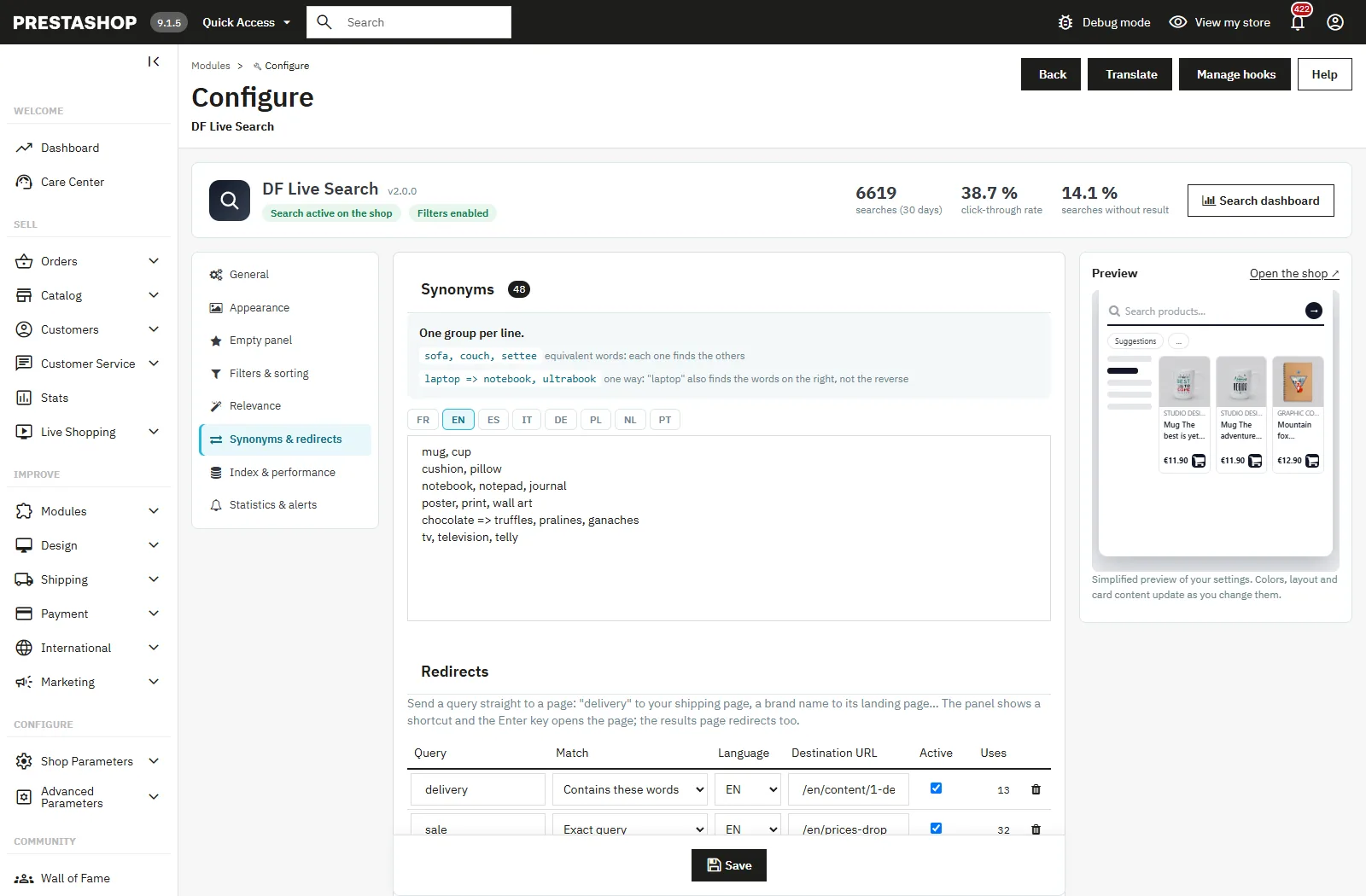
Back office: synonyms per language and query redirects
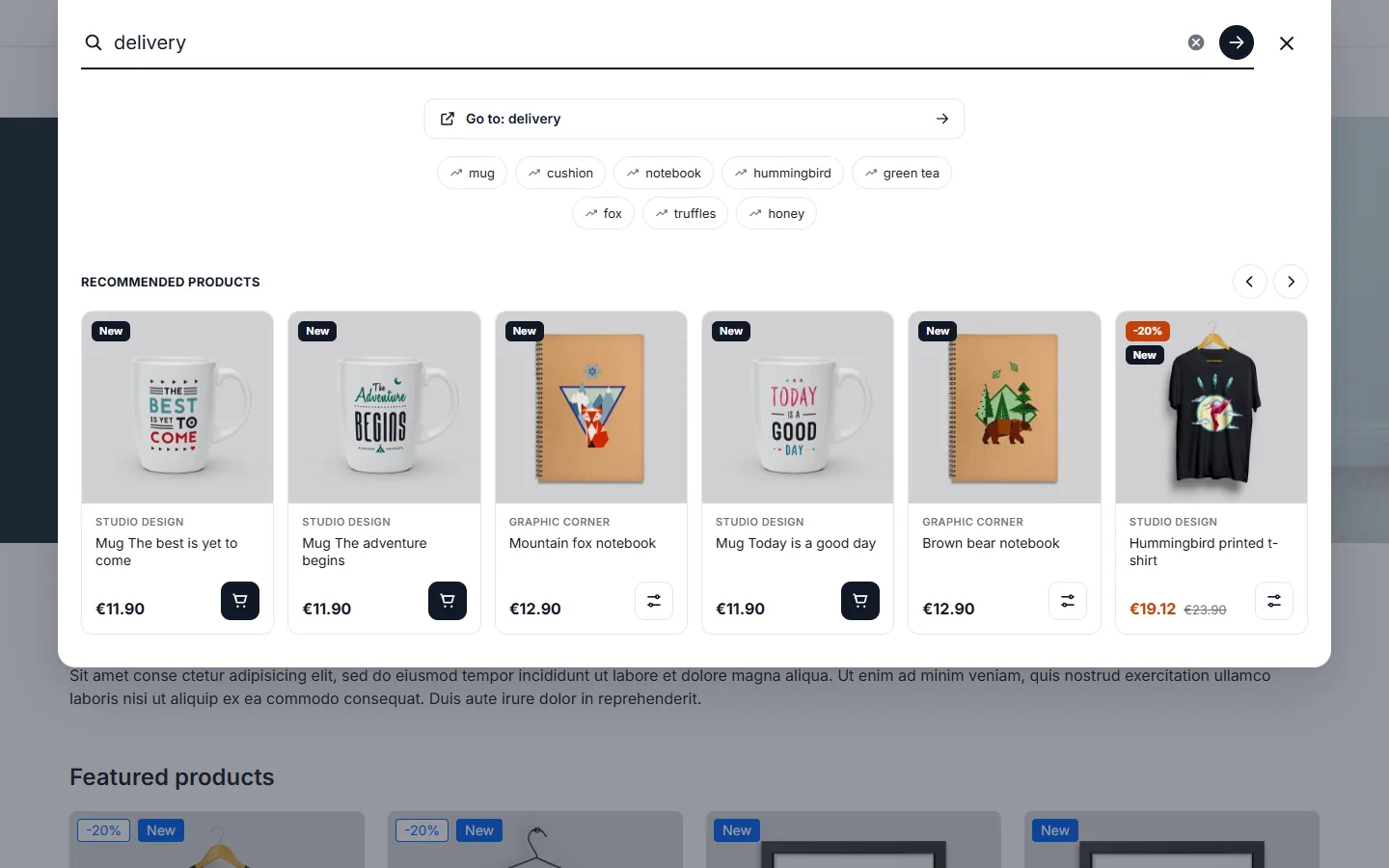
A query redirected to a page of the shop
## Searches without result
When nothing matches, the panel offers popular searches and recommended products instead of an empty page. When filters are active, a message invites the visitor to clear them. These queries are listed in the dashboard, with a button to create a synonym or a redirect in one click.
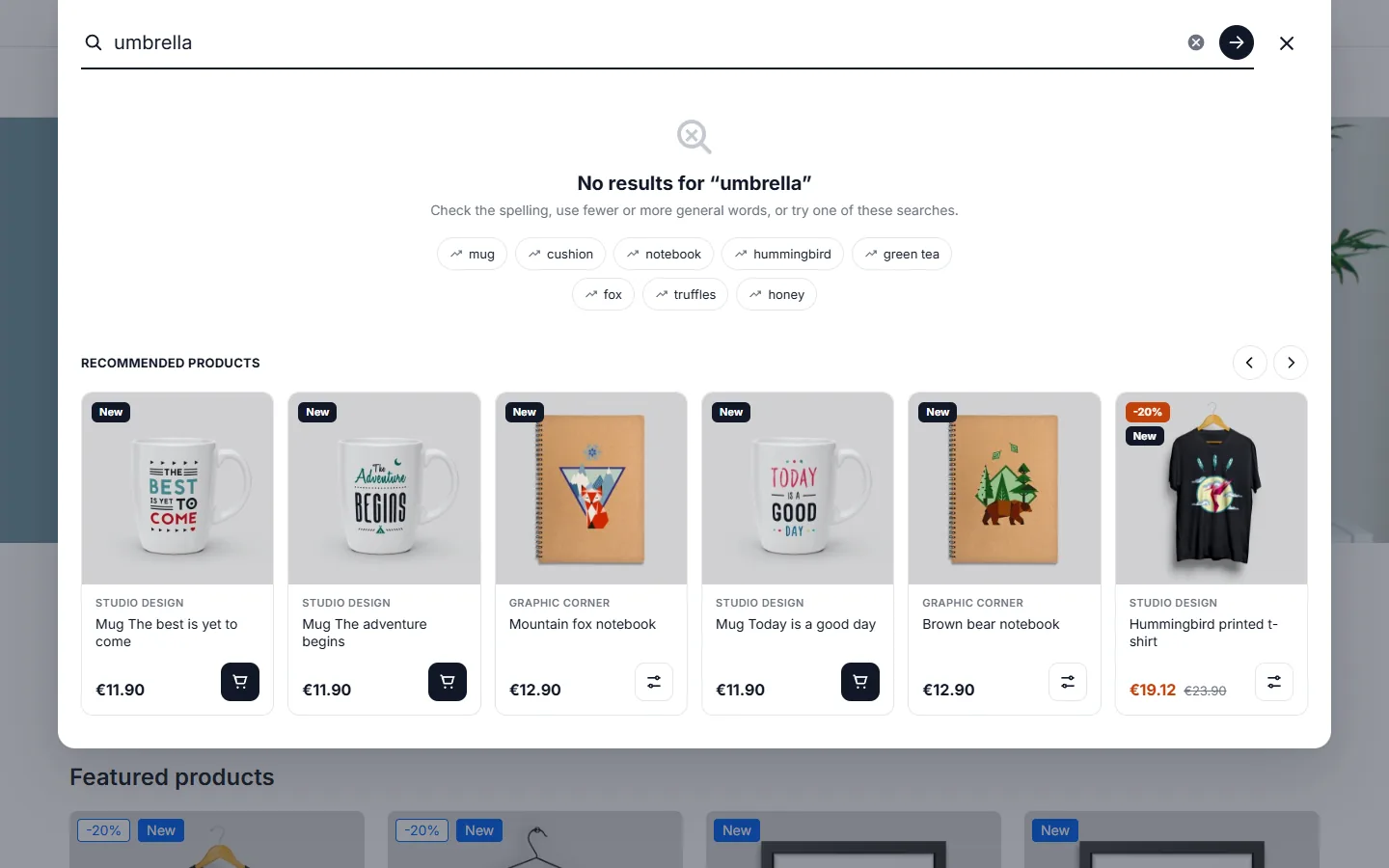
Search without result with popular searches and recommended products
## Smart search (optional)
Two optional layers improve the results beyond word matching. Both are off by default, in the **Smart search** tab.
### Self-learning (no external service)
The module learns from your shop's own search statistics:
- **Clicks and orders**: for a query, the products that several different visitors opened and bought rise in the results.
- **Reformulations**: when visitors who found nothing for a query succeed right after with another one, that reformulation is learned and the next visitors get its results ("Showing results for… Search instead for…").
A signal counts only once a minimum number of different visitors gave it (3 by default), so nobody can push a product alone. The learning is updated every 6 hours, by the nightly command or with **Update now**. Learned reformulations are listed with the **Make it a synonym** and **Ignore** buttons.
### Semantic search (hybrid ranking)
Semantic search understands the meaning of a query: "gift for a coffee lover" finds mugs, "something to write in" finds notebooks, even when these words are not in the product names. It uses an embeddings service compatible with the OpenAI API: OpenAI, Mistral AI or your own server (Ollama…), preset with one click.
1. Enable the option, choose the provider, enter the API key (stored in your database, never shown on the shop) and save.
2. Click **Test the connection**, then **Generate the vectors**. The tab shows the progress and an estimate of the volume to send. Afterwards, only new or changed products are sent again: with the button, the nightly command, or automatically when a product is saved.
The ranking is hybrid: the word score and the similarity are combined with an adjustable weight (40 % by default), and products less similar than the minimum similarity are not added. By default, the semantic search runs only when word matching finds few products; references and EAN codes always use word matching. If the service is slow or unavailable, the search answers with word matching after the maximum waiting time. On 10,000 products, the vector search itself takes about 15 ms.
When enabled, the text of your products (name, brand, categories, features, short description) and the queries typed by visitors are sent to the chosen service. No personal data is sent. Choose a provider compatible with your privacy policy, or your own server.
## Merchandising
The **Merchandising** tab decides what visitors see for given queries. A rule applies to exact queries, to queries containing some words or to every search, in one language or all, and can be scheduled between two dates. Plurals and accents do not matter.
- **Pinned at the top**: products shown first, in your order, even if the search would not find them.
- **Hidden**: products never shown for these queries.
- **Boost or bury**: from -100 % to +100 % for a product, a category, a brand, products in stock or out of stock, new products or products on sale.
- **Banner**: a text, with an optional image and link, above the results.
Rules apply in the order of the list. The **Ranking preview** shows, for a query and a language, the products in the order visitors get them, and why: words, meaning, learning, pinned products, boosts and hidden products.
## Index and performance
The module searches its own index (one row per product, shop and language), updated automatically when a product, a combination, a stock, a specific price, a category or a brand is saved. Only active products visible “everywhere” or “search only” are indexed, and categories restricted to some customer groups are respected.
- **Rebuild the index**: useful after an import done directly in the database.
- **Scheduled rebuild**: the cron command is shown ready to copy, for example `0 3 * * * php /path/to/shop/modules/dflivesearch/cli/reindex.php`. Recommended every night if you use dated price rules.
- **Results cache**: identical searches are answered from the cache (5 minutes by default, per language, currency and customer group). It is emptied automatically when the catalog changes.
No call is made when pages load: panel data is loaded when it opens. On our 5,000-product test catalog, a search answers in 57 to 80 ms (8 products) and in 41 to 45 ms from the cache, PrestaShop start-up time included.
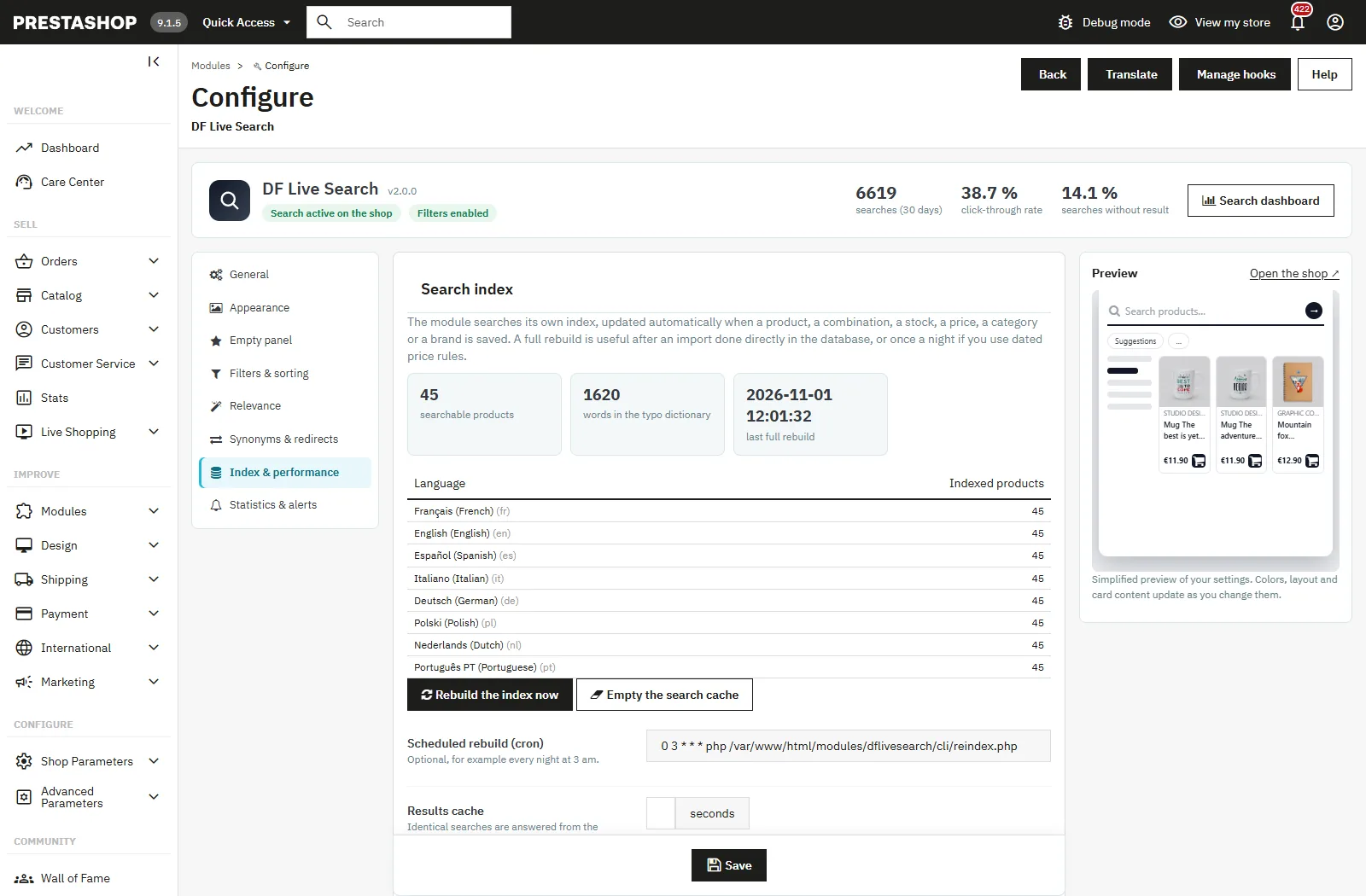
Back office: search index, cache and scheduled rebuild
## Search dashboard and alerts
The **Catalog > Search insights** menu (or **Customers** on a shop updated from 1.x) shows, for the chosen period and language:
- searches, different queries, share of searches with results, click-through rate, searches followed by an order within 24 hours, searches without result, with the trend against the previous period;
- a chart of searches per day;
- top searches with their click-through rate and orders;
- searches without result, with the **+ Synonym** and **→ Redirect** buttons;
- the products most opened from the search;
- CSV exports (top, without result, all searches).
An **alert** is created when the same query without result is searched by a number of different visitors you set (5 by default) within 7 days. It can be sent by e-mail (8 languages) to the address of your choice.
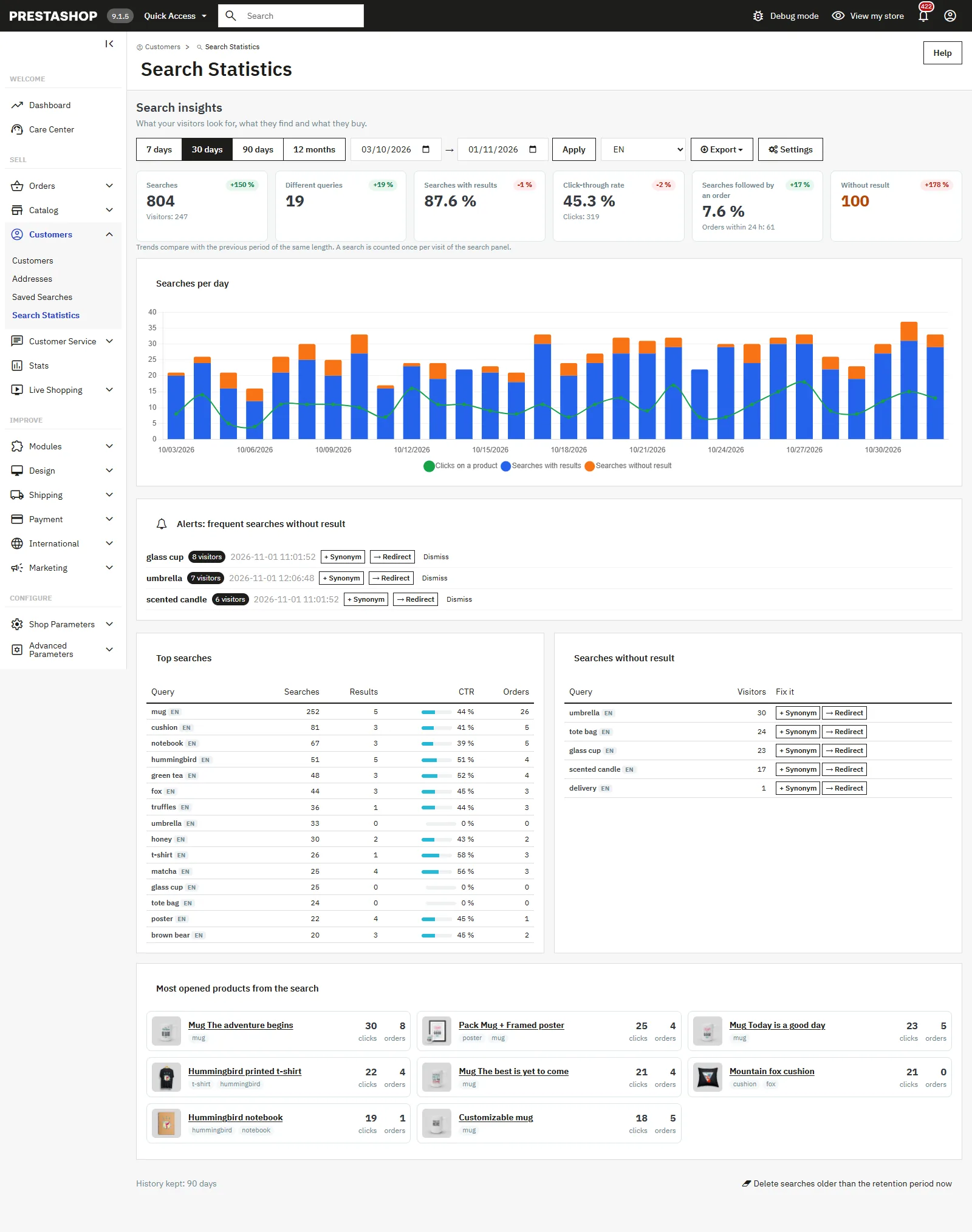
Search dashboard: click-through rate, searches without result, top searches
## Privacy and security
- Visitor IP addresses are never stored: only a salted hash is used to count different visitors. Recent searches stay in the visitor's browser.
- The recorded number of results is signed by the server: statistics cannot be forged from the browser.
- The search endpoint is limited to 120 searches per minute and per visitor.
- Any text typed by a visitor is escaped when displayed, in the panel, the back office and alert e-mails.
- The history is kept 90 days by default (adjustable), then deleted automatically.
## Uninstallation
By default, uninstalling removes the module's tables, settings, tab, hooks and cache. Enable **Keep data when uninstalling** (Statistics & alerts tab) to keep statistics, synonyms, redirects and settings for a later reinstallation.
## FAQ and troubleshooting
### Two search bars appear in the header
Choose _Theme bar_ (the theme field opens the panel) or _Module bar_ (the default PrestaShop bar is hidden) in the General tab.
### A product is not found
Check that it is active, visible “everywhere” or “search only”, and that one of its categories is open to the visitor's group. After a direct database import, rebuild the index (Index & performance tab).
### The filtered price differs from the displayed price
The price filter and price sort use the indexed public price. Prices specific to a group or a customer are displayed correctly on the cards. If you use dated price rules, schedule a nightly index rebuild.
### Popular searches stay empty
A query only appears after finding products for the minimum number of different visitors within 30 days. Lower this minimum or enter your own list (Empty panel tab).
### The new design does not show after the update
Clear the PrestaShop cache. If your theme combines CSS and JS files (CCC), this regenerates the combined files.
### The search shows “Too many searches in a short time”
The limit of 120 searches per minute protects your server from bots. A normal visitor never reaches it; check that no test tool or bot queries the endpoint in a loop.
### How do I open the search from a button of my theme?
Add the `data-dflivesearch-trigger` attribute (or the `dflivesearch-trigger` class) to the button, or call `window.dflivesearchOpen('query')` in JavaScript. The Warehouse theme search icons are handled automatically.
### Does the semantic search send my data to an external service?
Only if you enable it: product texts and visitors' queries go to the provider you choose, never personal data. With your own server (Ollama), nothing leaves your infrastructure. Self-learning and merchandising use no external service.
### How do I put a product first for a query?
In the Merchandising tab, add a rule with the query, pin the product and save. Check the result with the ranking preview.