# DataFirefly Payment Links: send a payment link from the back office
> Overview DataFirefly Payment Links sends your customers a secure payment link prepared in the back office: for an order taken by phone or email, a quote, a deposit, a balance,…
- Page:
- Language: en
- Last updated: 2026-11-06
- Other languages: [fr](https://www.datafirefly.com/documentation/dfpaymentlink/index.md), [es](https://www.datafirefly.com/es/documentation/dfpaymentlink/index.md), [de](https://www.datafirefly.com/de/documentation/dfpaymentlink/index.md), [it](https://www.datafirefly.com/it/documentation/dfpaymentlink/index.md), [pl](https://www.datafirefly.com/pl/documentation/dfpaymentlink/index.md), [nl](https://www.datafirefly.com/nl/documentation/dfpaymentlink/index.md), [pt](https://www.datafirefly.com/pt/documentation/dfpaymentlink/index.md)
- Index:
## Overview
DataFirefly Payment Links sends your customers a secure payment link prepared in the back office: for an order taken by phone or email, a quote, a deposit, a balance, or an order already placed but not paid yet. The customer opens a clear page, clicks "Pay" and pays with the payment modules already installed on your shop. The order is created by that payment module, with your usual statuses, emails and invoices.
The module never collects money itself and never sees card data. It prepares, locks and tracks the order; the payment stays with your provider.
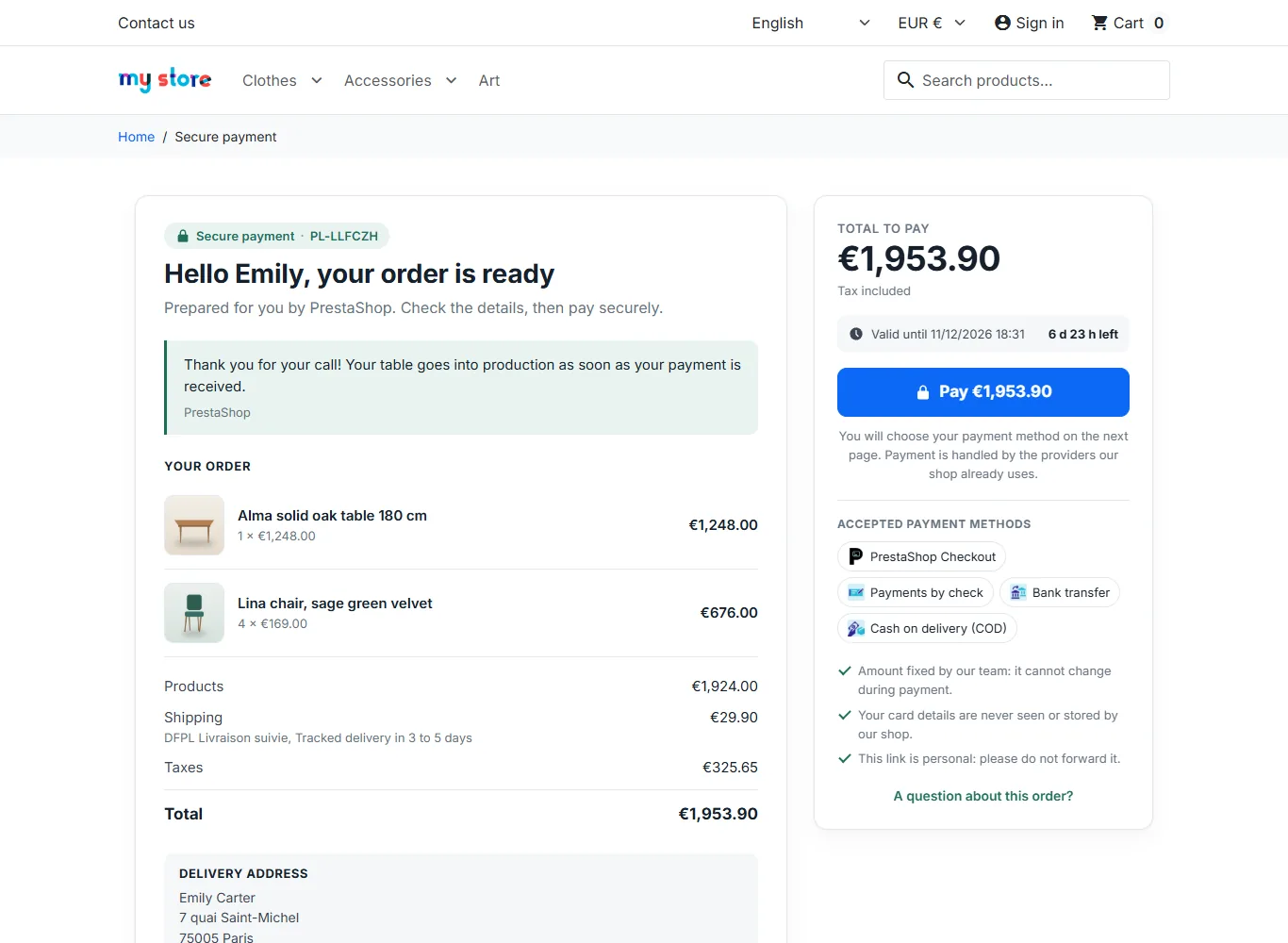
Secure payment page
## Installation and upgrade
Install the module from **Modules > Module Manager > Upload a module** with the ZIP file. The same ZIP works on PrestaShop 1.7.8, 8 and 9.
On installation, the module creates its tables (links, history, drafts), adds the **Orders > Payment links** tab and registers its hooks (payment page, cart lock, order validation, order page and customer page, GDPR).
From version 1.2.1, simply upload the 2.0.0 ZIP: the upgrade adds the new columns and settings without deleting anything. Existing links, their history and your settings are kept.
Make sure at least one payment method is active for the customer's country, currency and group: the setup assistant shows it.
## Settings and setup assistant
The configuration page starts with a **setup assistant** that checks the available payment methods, the shop's email sending, the cart lock and the creation of a first link. A box sums up how the payment is protected.
- **Links**: default validity (2 hours to 30 days), reference prefix (PL gives PL-7K3M9Q), email sending ticked by default.
- **Security of the payment**: automatic sign-in (guests and registered customers, guests only, or never), lock of the link cart (recommended), cancellation of the replaced order once paid, display of the accepted payment methods.
- **Reminders and notifications**: automatic reminder 6 to 48 hours before expiry, email to the employee who created the link, extra notification address, hidden copy of every email.
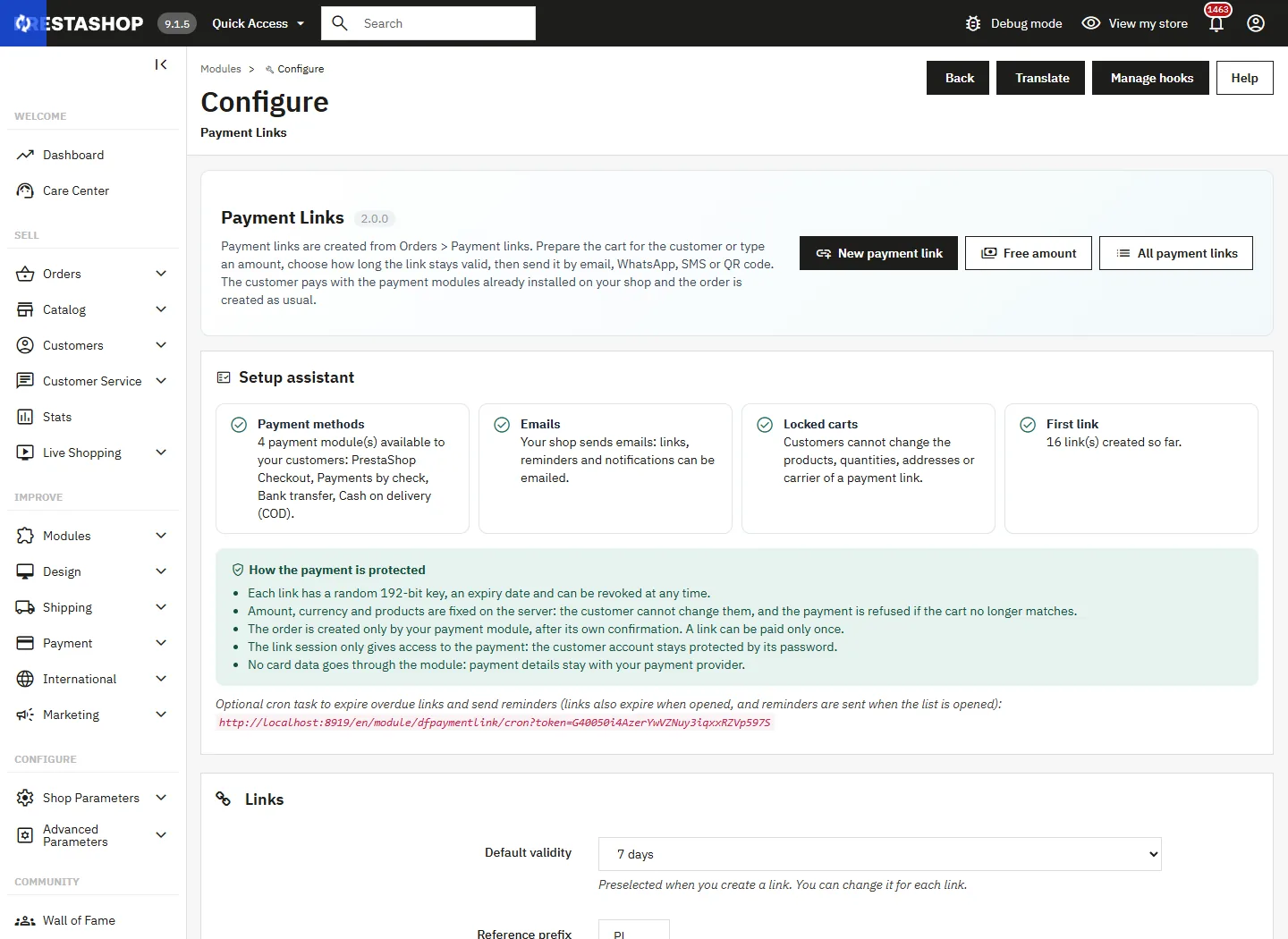
Payment link settings and security
## Create a link for products
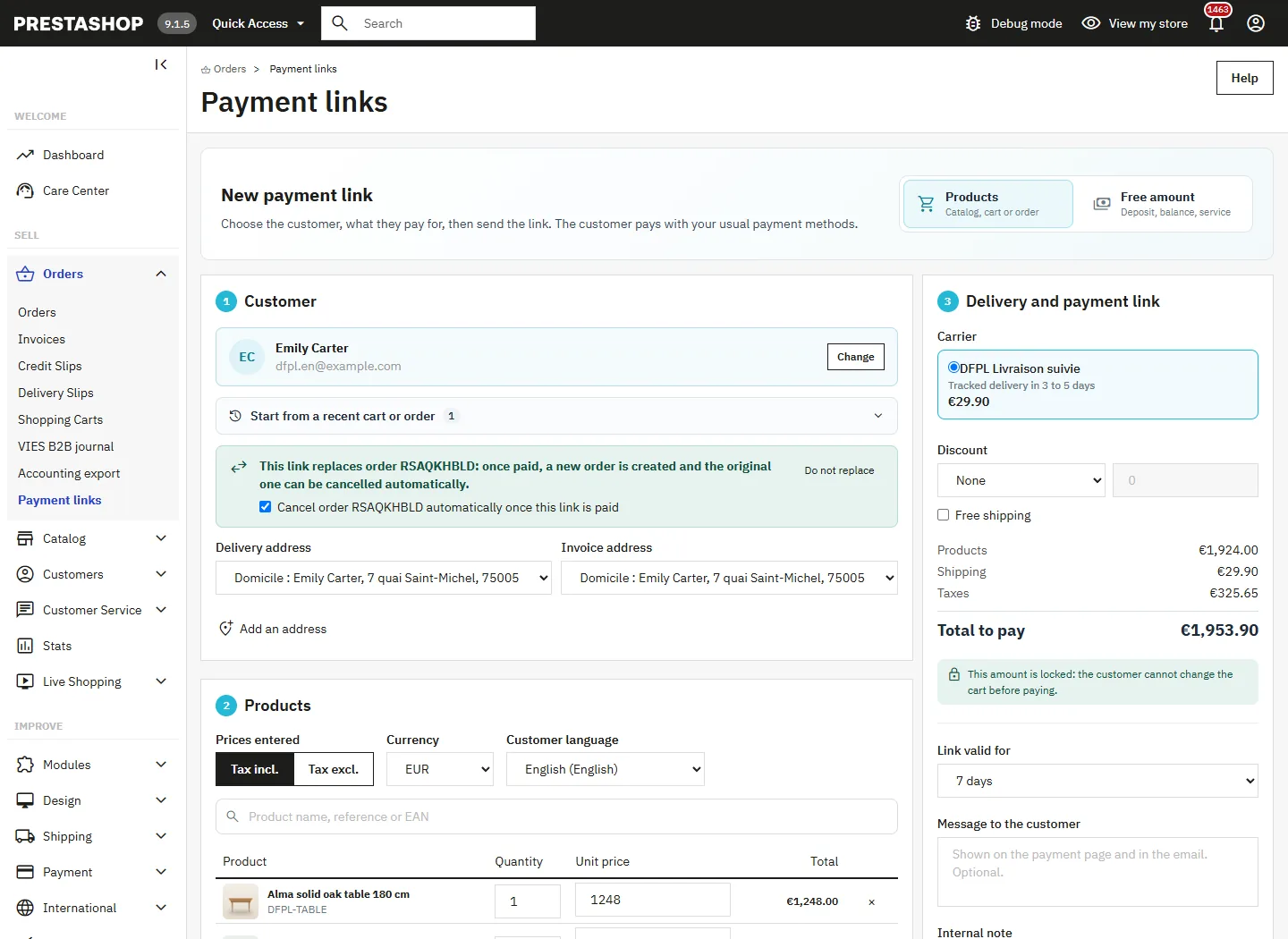
Open **Orders > Payment links**, click **New payment link** and keep the **Products** type. Totals are recalculated at every change.
### 1. The customer
Search for the customer by name, email, company or phone (arrow keys and Enter on the keyboard), or create them, as a guest account if you wish. Choose the delivery and invoice addresses or add one. The **Start from a recent cart or order** block reuses the products of a cart of the customer or of one of their orders, with their prices.
### 2. The products
Search by name, reference or EAN: each combination shows its price and stock. Leave the unit price empty for the catalog price, or type a negotiated price, tax included or excluded. It applies to this cart only, and the difference with the catalog price is shown under the line. Choose the currency and the customer's language.
### 3. Delivery and link
Choose the carrier, a discount as an amount or a percentage and free shipping if needed, the validity, a message for the customer and an internal note. The **Create the payment link** button tells you what is missing until everything is ready.
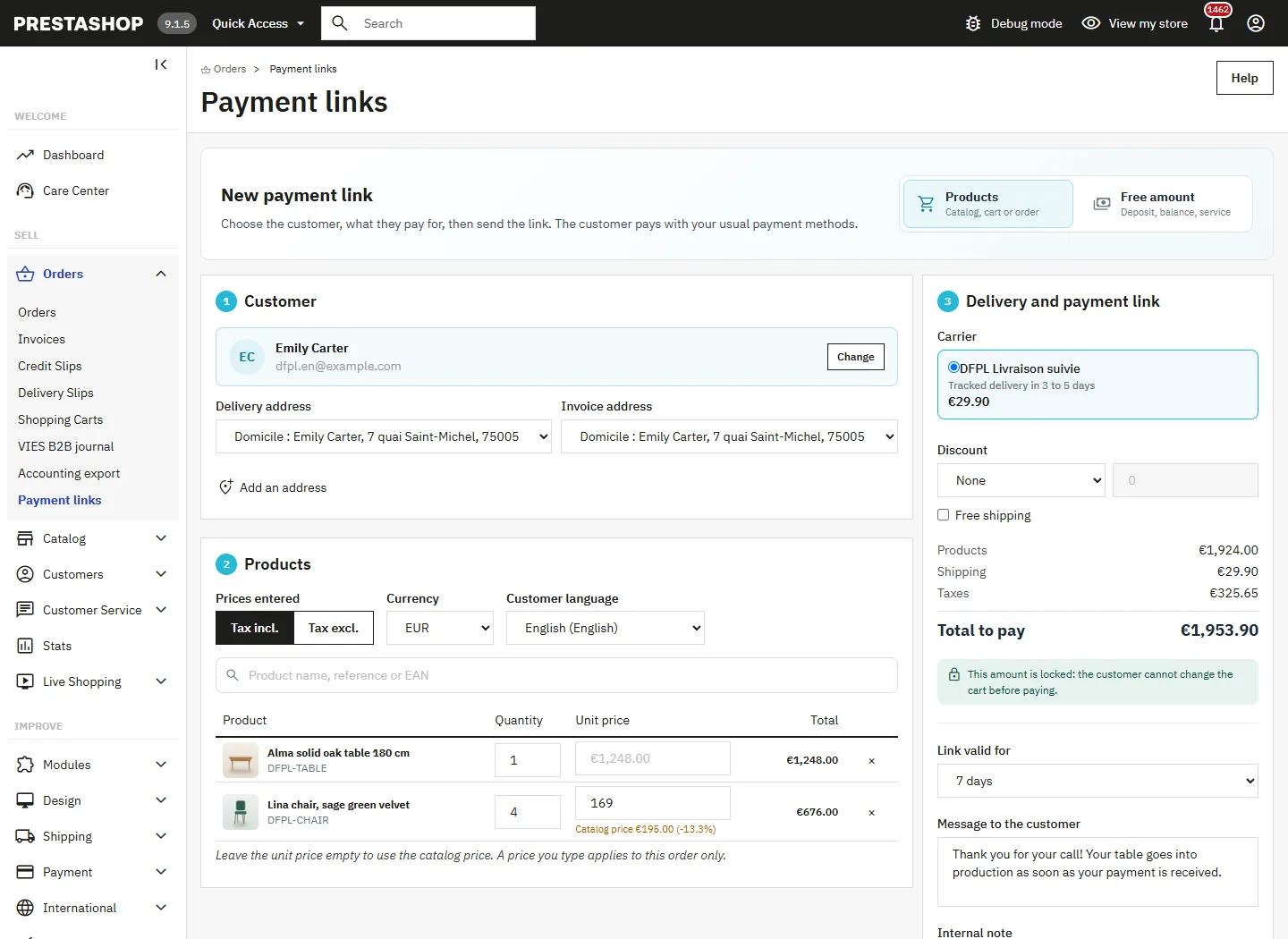
Create a payment link with products
## Free-amount link: deposit, balance, service
Choose the **Free amount** type to collect an amount without catalog products: deposit on a quote, balance, service, custom order. Type the amount including tax, the tax included (or "No tax") and what the customer pays for, for example "Deposit quote Q-2207". Quick labels prefill the description.
The description is shown on the payment page, in the email, on the order and on the invoice. Only the billing address is required, no carrier.
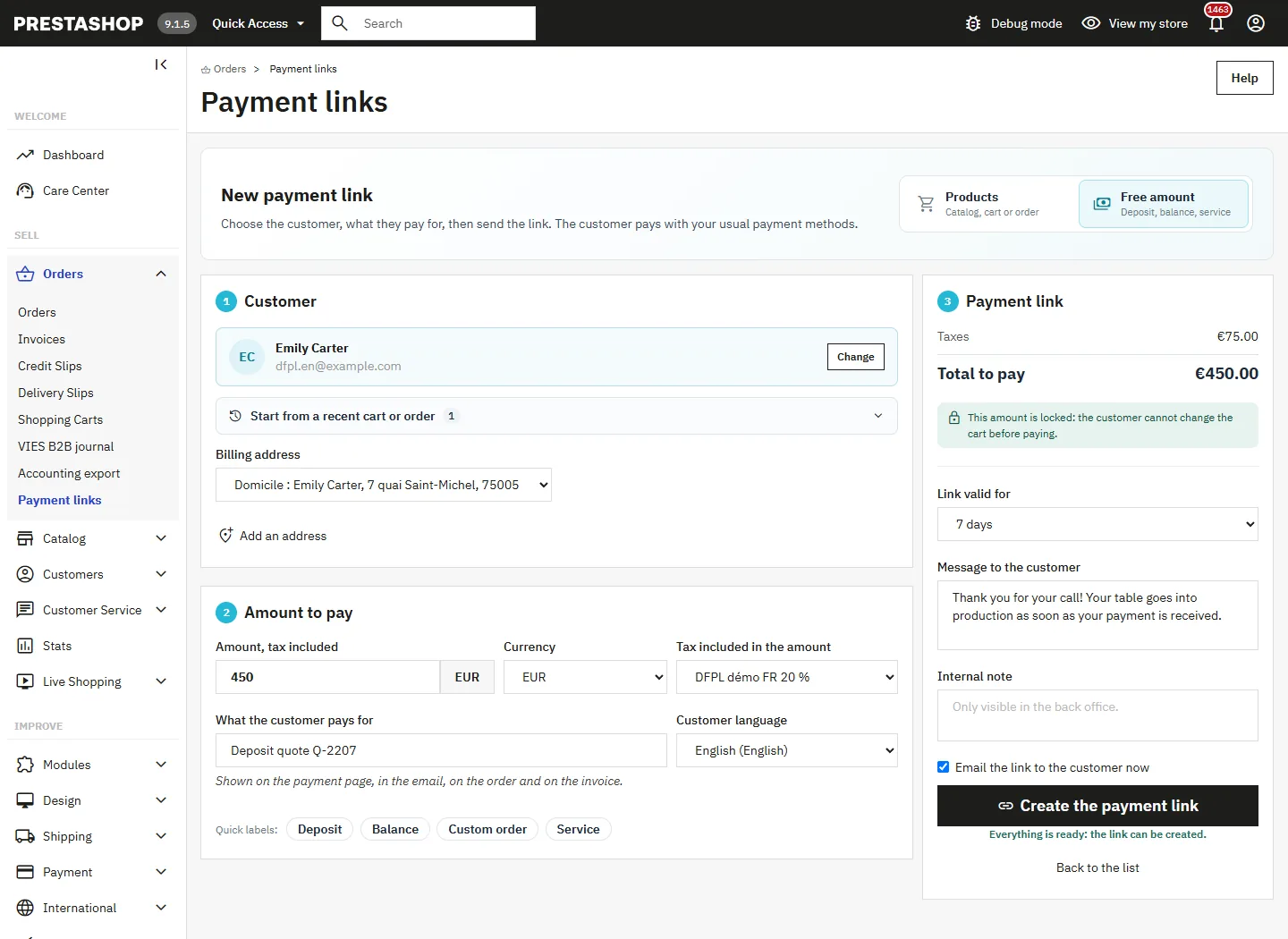
Free-amount payment link (deposit)
## Get an unpaid order paid
A customer chose cheque or bank transfer and now prefers to pay online? On the order page, the **Payment link** card offers **Send a payment link for this order**. The link reuses the products, the prices paid, the addresses and the carrier.
When the link is paid, a new order is created and the old one can be **cancelled automatically** (option ticked by default, stock restocked by PrestaShop, note on both orders). An order that is already paid is never cancelled.
Get an unpaid order paid
## Send the link to the customer
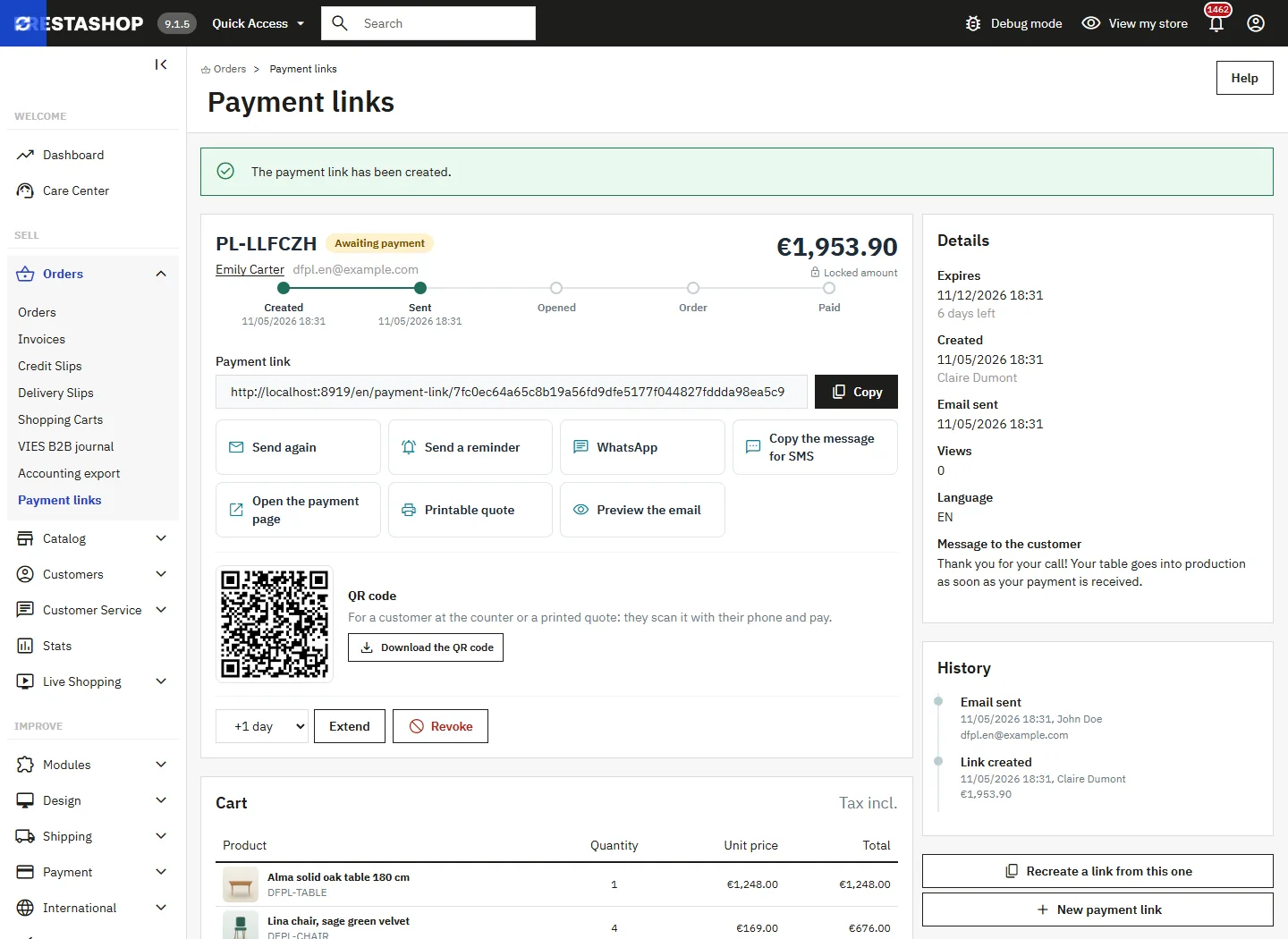
The link page shows its progress (created, sent, opened, order, paid) and gathers every way to send it:
- **Copy** the link, also available in the list.
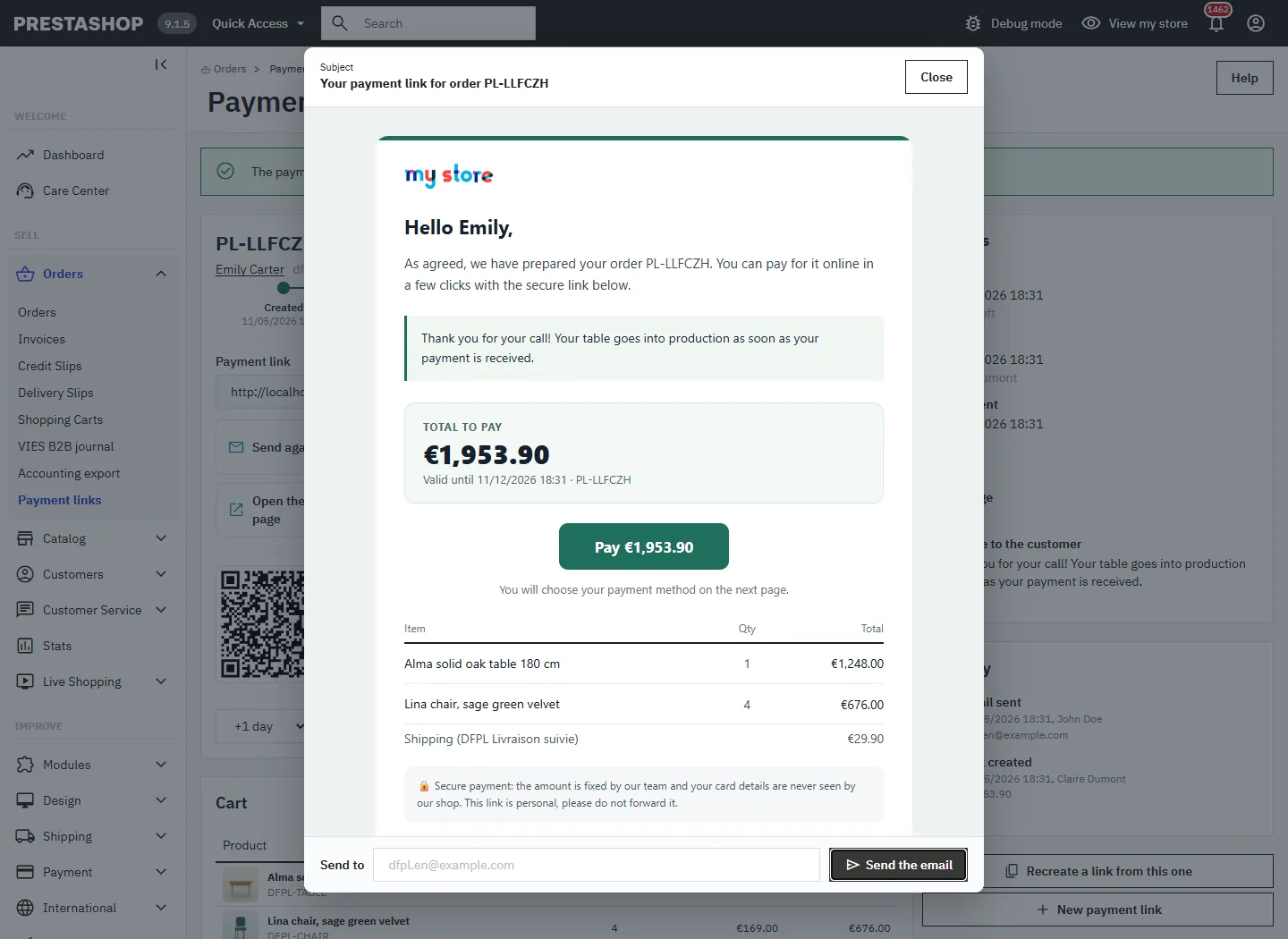
- **Send by email** or **Send a reminder**: a window shows the exact email, and you can send it to another address than the account's.
- **WhatsApp** and **Copy the message for SMS**: ready-made text with the amount and the expiry date.
- Downloadable **QR code** and A4 **printable quote** with QR code, in the customer's language.
You can also extend the link by 1, 3 or 7 days, revoke it or recreate it.
Link page: QR code and sharing
Email preview before sending
## The email received by the customer
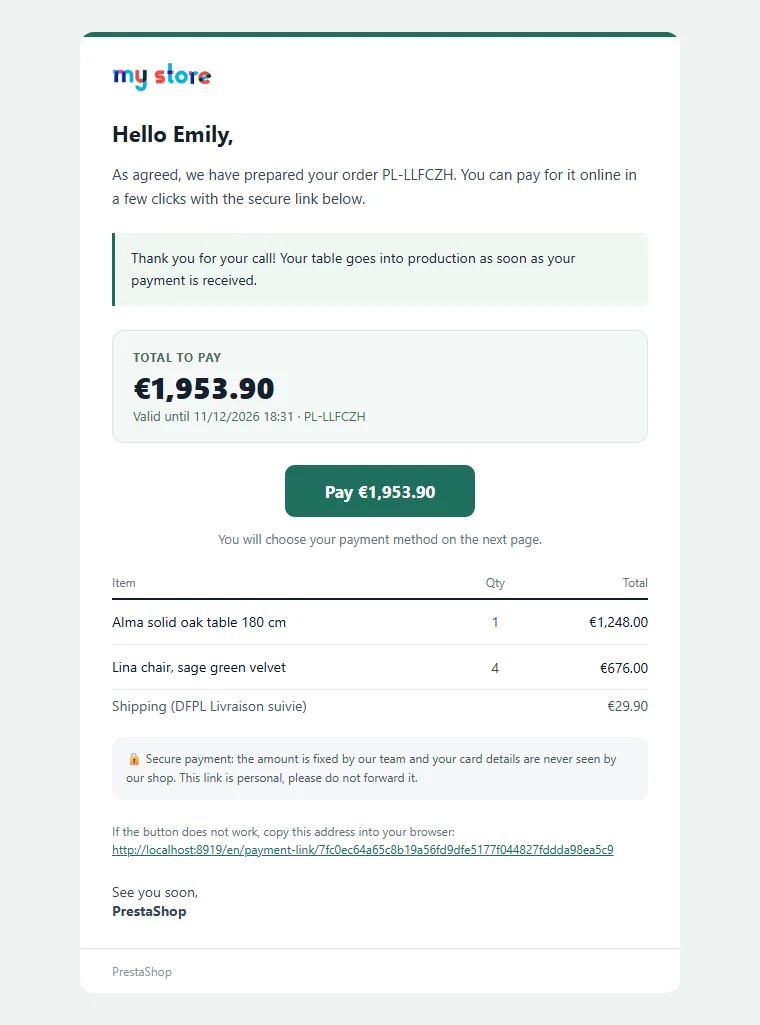
The email is sent in the customer's language: your message, the total to pay, the validity date, a payment button, the order details and a security note reminding that the link is personal. The reminder uses the same template with a reminder of the deadline.
Payment link email received by the customer
## What the customer sees
The payment page works with the Classic and Hummingbird themes. It shows the summary, the total, a countdown, the accepted payment methods and trust notes. On a phone, a fixed bar keeps the total and the "Pay" button visible.
After clicking "Pay", the customer lands directly on the payment step of the checkout, with identity, address and delivery already validated. A banner reminds them that the order was prepared for them: products, prices, addresses and delivery cannot be changed.
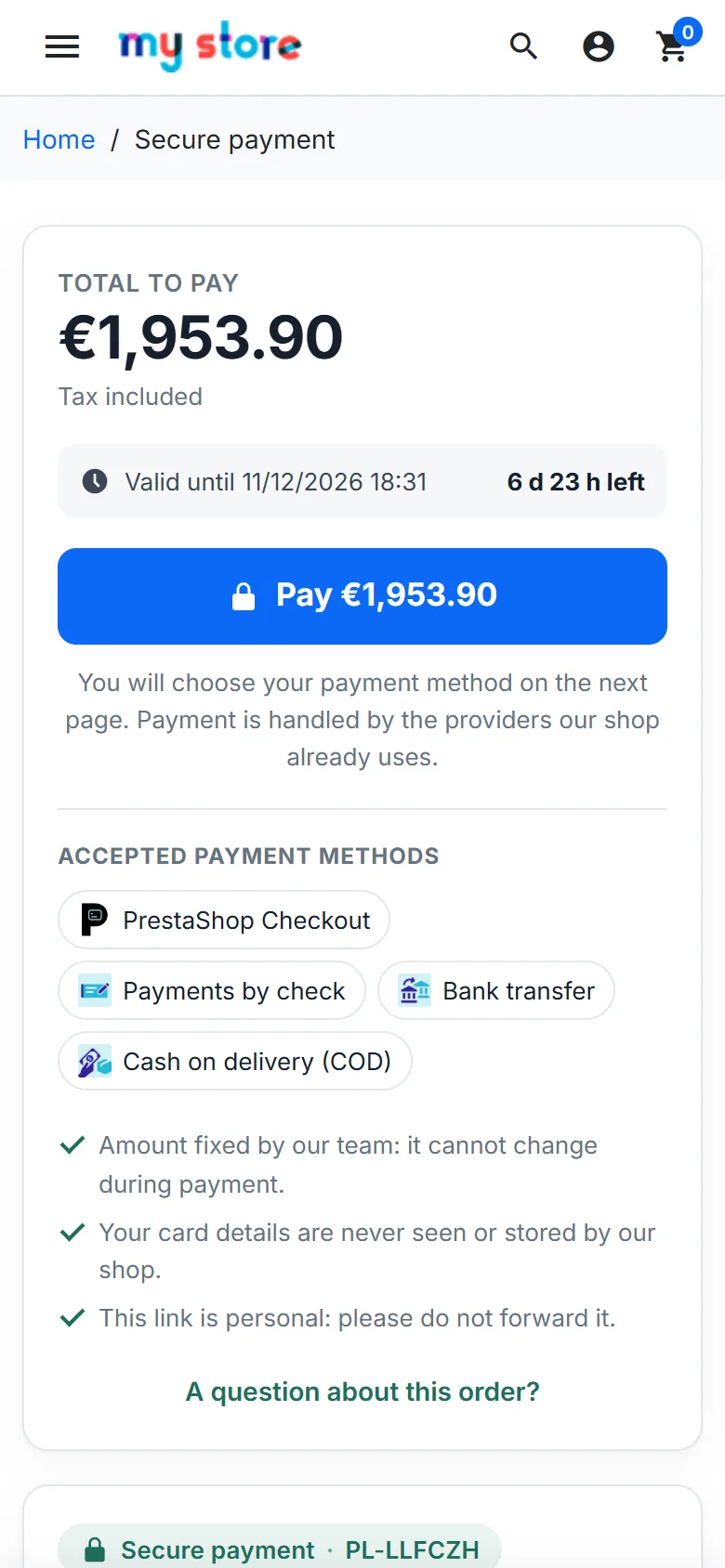
Payment page on a phone
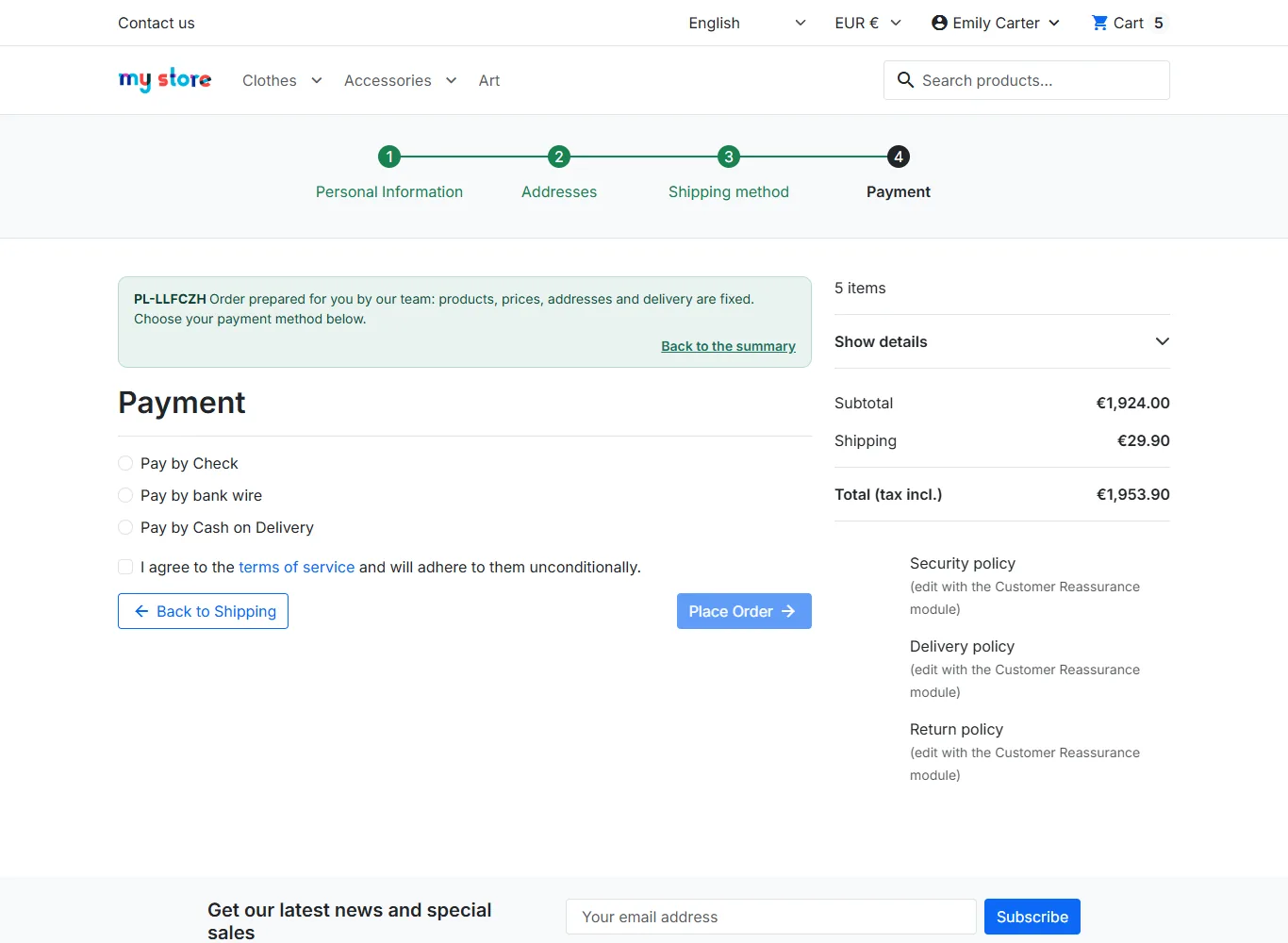
Locked payment step
## After the payment
The order is created by the payment module. The link becomes **Order placed** (for example a pending cheque or bank transfer), then **Paid** as soon as the order status is paid, by your provider or when you confirm the payment. The link can no longer be paid: when they open it again, the customer sees their order reference.
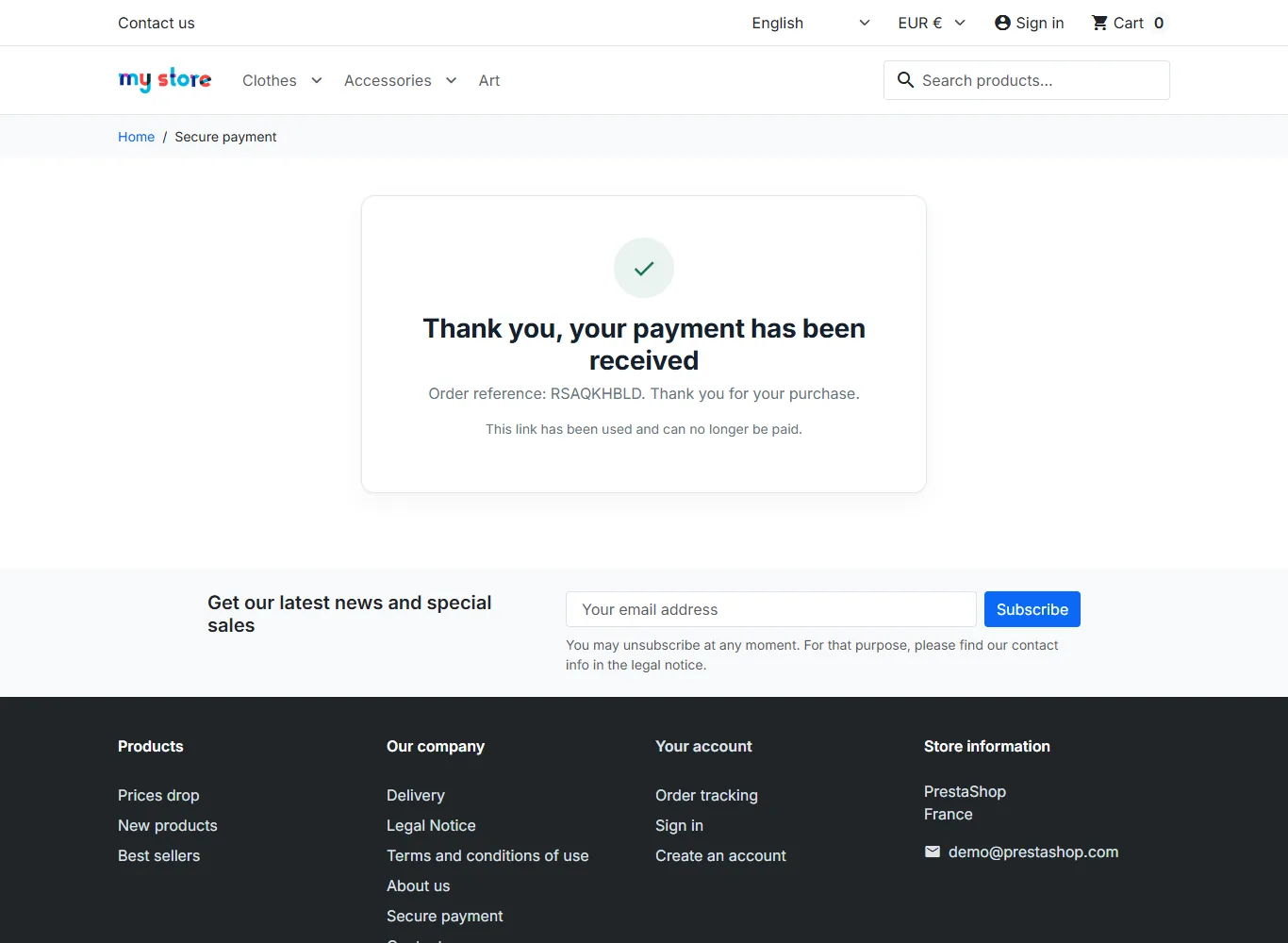
Payment received, link used
## Security of the payment
- **Unguessable link**: random 192-bit key, expiry date, can be revoked at any time.
- **Locked amount**: prices are frozen for this cart when the link is created. The customer cannot add a product, change a quantity, apply a voucher or change the address or carrier.
- **Check before payment**: if the total no longer matches the amount of the link (changed shipping costs for example), payment is blocked. The customer is asked to contact you, and the link page offers **Update the amount**.
- **Paid only once**: the order is attached to the link only once. On PrestaShop 8.1 and later, two simultaneous validations are serialised and the second is refused; on earlier versions, a second order is reported to the merchant.
- **Restricted session**: signing in through the link only gives access to the payment. Account pages (addresses, orders, personal data) ask for the password.
- **Reliable confirmation**: the link is marked paid only from the order status, never from a simple browser return.
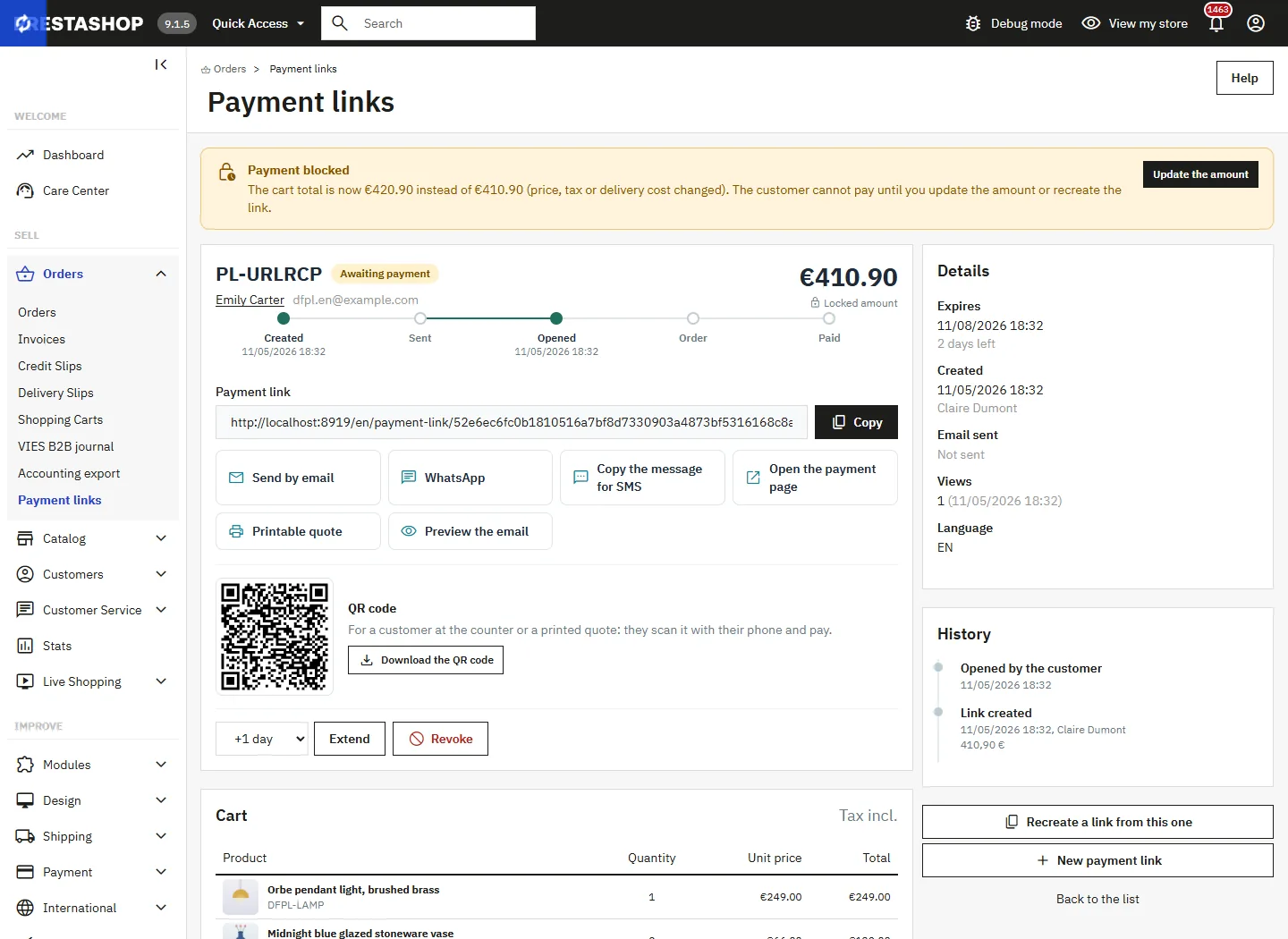
Payment blocked: amount changed
## Track the links
The list shows the amount awaiting payment, the amount ordered over 30 days with a daily chart, the conversion rate and the average time to order. Tabs filter by status: awaiting payment, order placed, paid, expired, revoked, cancelled, and **Needs attention** for blocked payments, second orders and late orders.
Tick several links to send the email again, send a reminder, revoke or delete. Every link page keeps the full history: creation, sending, opening, payment step, refused changes, order, payment.
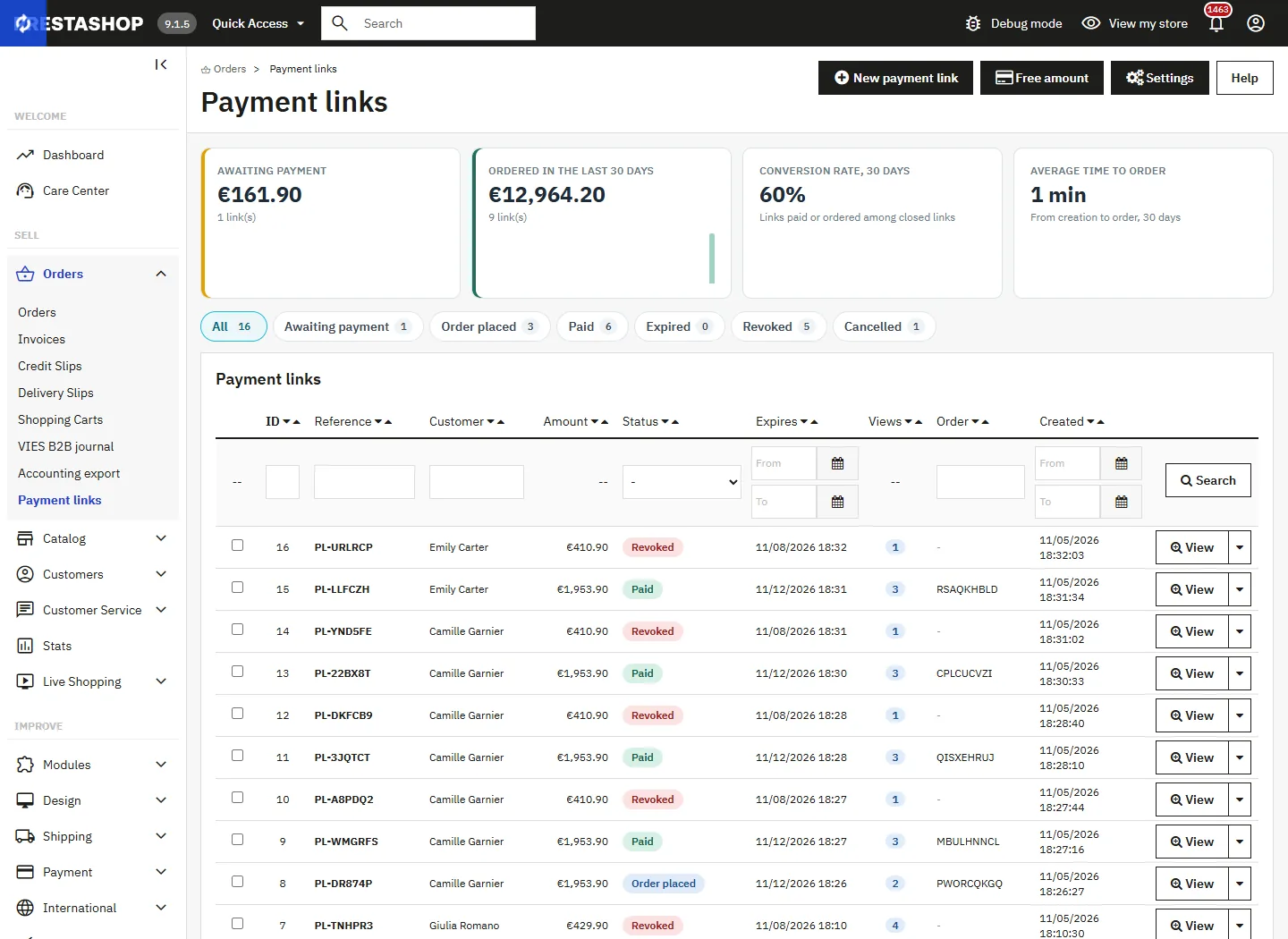
Payment links: dashboard
## Order page and customer page
On an order page, the **Payment link** card shows the original link, its status and amount, reports a different amount or a second order, and offers to get the order paid if it is unpaid or to create a link with the same products. The customer page lists their latest links and offers a new link or a free amount.
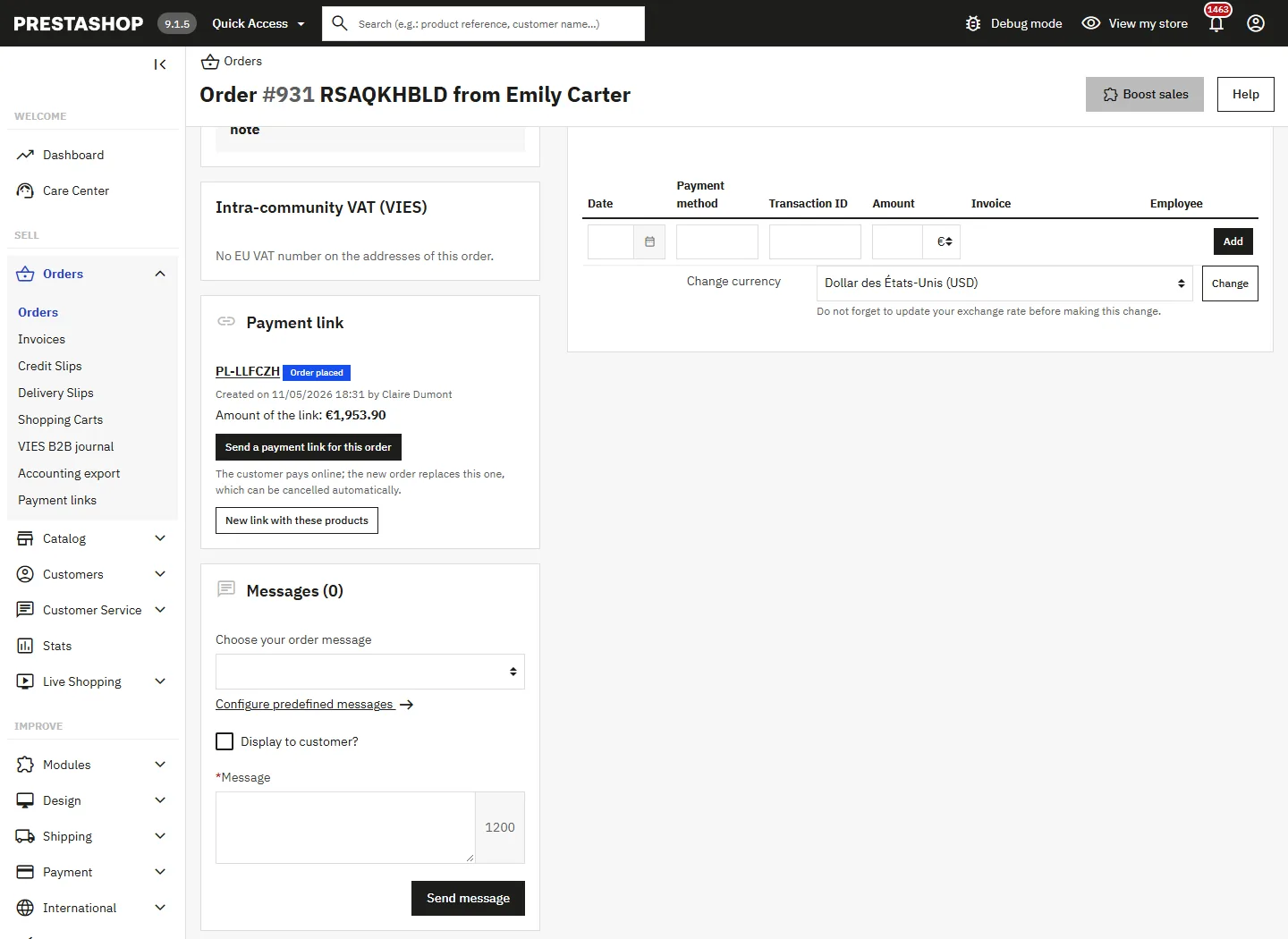
"Payment link" card on the order page
## Employee permissions
The profile's rights on the Payment links tab apply to every action: **View** for the list and link pages, **Add** to create a link, **Edit** to send, remind, extend, revoke or update the amount, **Delete** to delete. Creating a customer or an address also requires the rights on customers and addresses.
## Cron task
Links expire when they are opened and reminders are sent when the list is opened. To send reminders even when nobody opens the back office, schedule the cron URL shown in the configuration, for example every hour. It also cleans up abandoned drafts older than 7 days.
## Troubleshooting
### The customer sees "This payment is on hold"
The cart total no longer matches the amount of the link: a price, a tax or the shipping cost has changed. Open the link, click **Update the amount** and send it again, or recreate the link.
### No carrier is offered
Check that the carrier covers the zone of the address, accepts the weight and amount of the cart and is assigned to the customer's group. Virtual-only carts and free amounts need no carrier.
### The customer has to type their password
This happens when they open an account page (the link session is for the payment only) or when automatic sign-in is set to "guests only" or "never".
### The email is not received
Use the preview, then test the shop's email sending in **Advanced Parameters > E-mail**. The link can still be shared by copy, WhatsApp, SMS or QR code.
## Compatibility
- PrestaShop 1.7.8 to 9.x with the same ZIP, Classic, Hummingbird and child themes.
- All PrestaShop payment modules: cheque, bank transfer, Stripe, PayPal, Mollie…
- Multistore, multicurrency, multilingual; GDPR deletion and export of a customer's data.
- Interface and emails in English, French, Spanish, German, Italian, Dutch, Polish and Portuguese.