# Shipping on Quote: complete guide
> Overview Shipping on Quote handles products whose shipping cannot be calculated automatically: furniture, machines, pallets, fragile items or special deliveries. These products show a dedicated notice on the product page,…
- Page:
- Language: en
- Last updated: 2026-11-04
- Other languages: [fr](https://www.datafirefly.com/documentation/dfshippingquote/index.md), [es](https://www.datafirefly.com/es/documentation/dfshippingquote/index.md), [de](https://www.datafirefly.com/de/documentation/dfshippingquote/index.md), [it](https://www.datafirefly.com/it/documentation/dfshippingquote/index.md), [pl](https://www.datafirefly.com/pl/documentation/dfshippingquote/index.md), [nl](https://www.datafirefly.com/nl/documentation/dfshippingquote/index.md), [pt](https://www.datafirefly.com/pt/documentation/dfshippingquote/index.md)
- Index:
## Overview
**Shipping on Quote** handles products whose shipping cannot be calculated automatically: furniture, machines, pallets, fragile items or special deliveries. These products show a dedicated notice on the product page, in the cart and at checkout, and you price their delivery yourself.
Two workflows are available, separately or at the customer's choice:
- **Before the order**: the customer requests a quote at the delivery step, you answer from the back office, the customer receives an e-mail with a link back to the cart, and the **Shipping on quote** carrier charges exactly the quoted amount.
- **After the order**: the customer orders with a regular carrier, then you send the shipping quote by e-mail, with an optional payment link.
The module works on PrestaShop 1.7.8 to 9.x, with the Classic and Hummingbird themes and their child themes. The back office, the shop and the e-mails are translated into English, French, Spanish, German, Italian, Polish, Dutch and Portuguese.
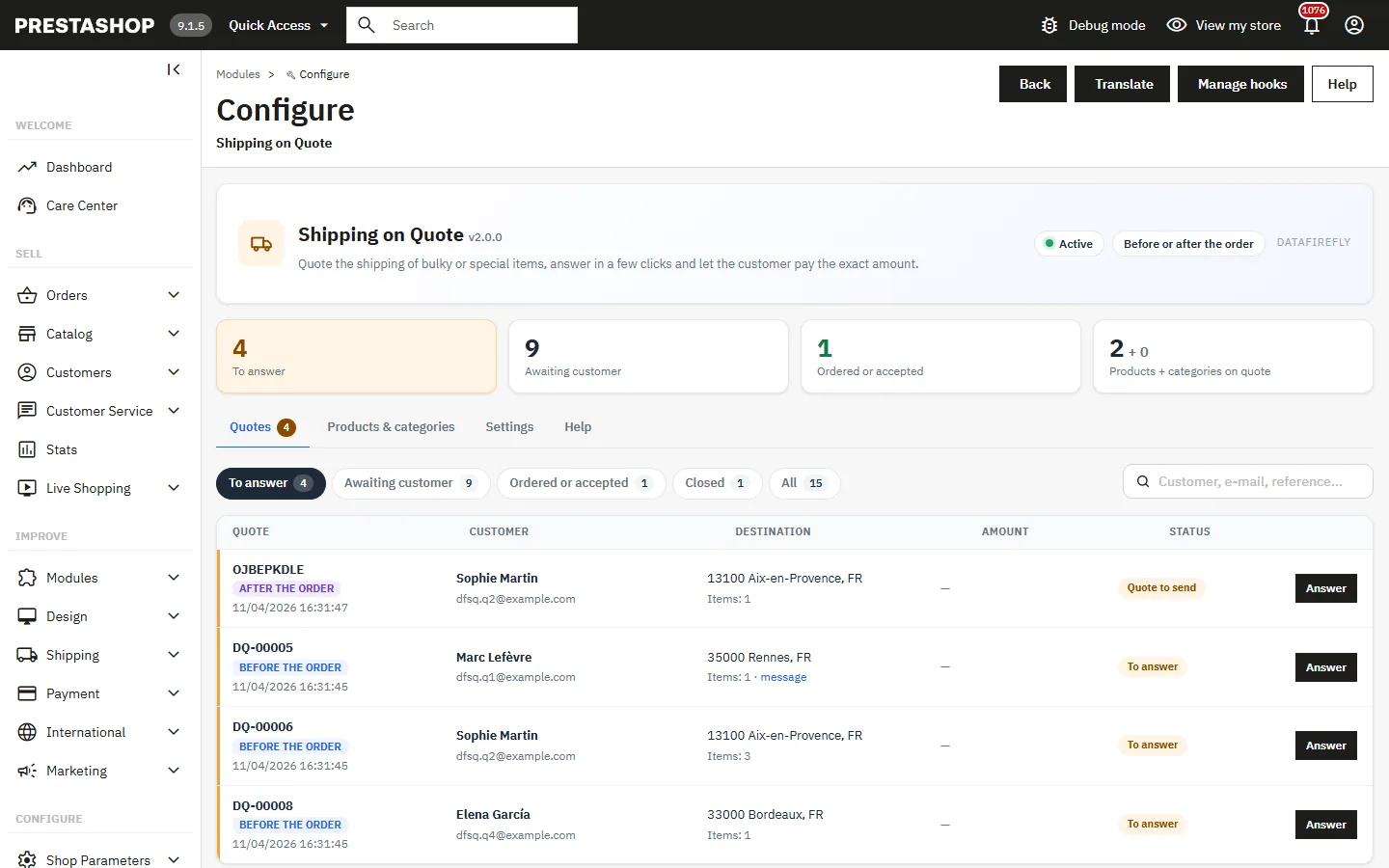
Shipping quote queue with status filters and counters in the PrestaShop back office
## Installation and update
1. In **Modules > Module Manager**, click **Upload a module** and drop the file `dfshippingquote-2.0.1.zip`.
2. Click **Configure**. The menu **Orders > Shipping quotes** opens the same page.
3. Follow the **Get started** list: module enabled, products or categories on quote, carrier ready, notification address.
The installation creates the **Shipping on quote** carrier in every zone and customer group, with the payment methods already allowed for your other carriers. It only appears at checkout for a cart that has a valid quote.
**Updating from 1.0:** upload the new zip over the old one. Products and categories on quote, texts, colors and order quotes are kept, and the workflow stays “After the order only”: nothing changes on your shop until you choose another workflow.
## Choosing the workflow
In the **Settings** tab, the **Workflow** section defines when the shipping is quoted:
- **Customer choice** (recommended): the customer can request a quote at checkout, or order now with another carrier and receive the quote after the order.
- **Before the order only**: a cart containing a product on quote can only be ordered with a valid quote. Other carriers are not offered.
- **After the order only**: no request form, the quote is sent from the order page.
The same section sets the default quote validity (14 days), the addresses that receive new requests, the confirmation e-mail to the customer, the optional phone field, the tax of the carrier, the anti-spam limit and how long requests are kept.
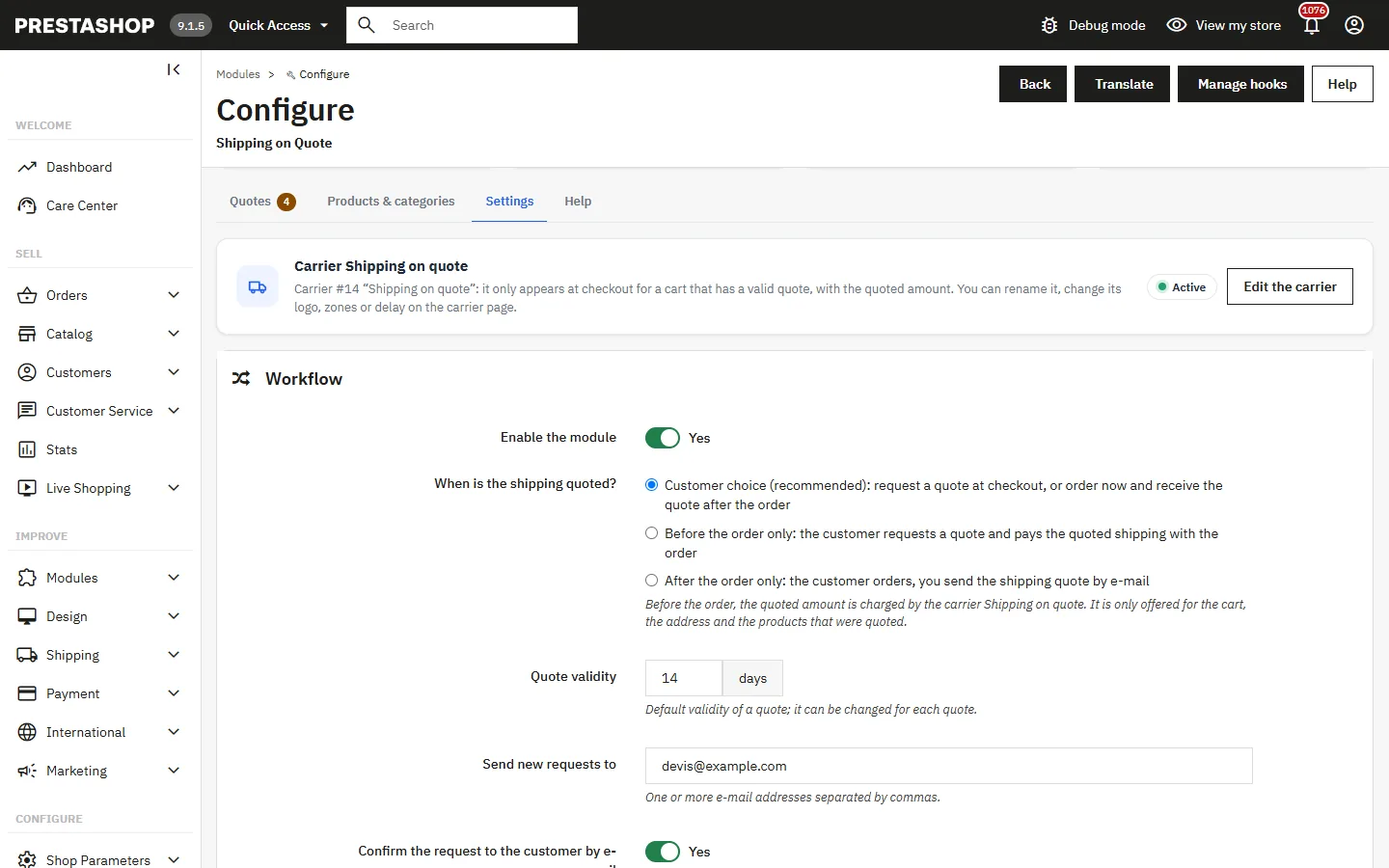
Settings: quote before or after the order, validity, notifications and tax
## Products and categories on quote
A product is shipped on quote when it is flagged one by one or belongs to a category on quote. In the **Products & categories** tab, search a product by name, reference or ID and click **Add**, or tick whole categories. You can also use the switch in the **Modules** tab of the product page.
On the shop, the product page shows a **Shipping on quote** notice with an explanation, under the Add to cart button or right after the price. A badge can also be shown on product lists and cart lines. Virtual products are never concerned.
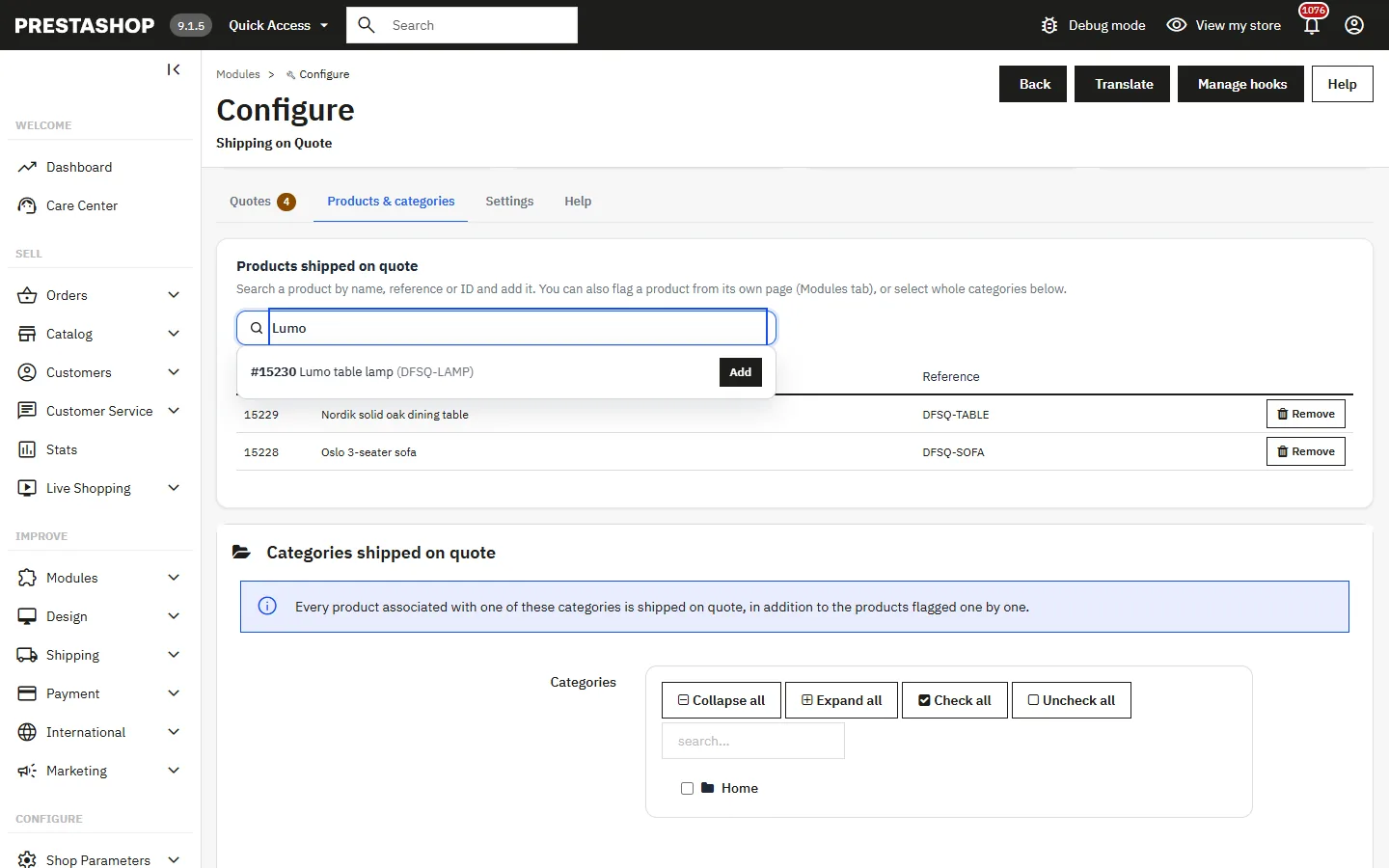
Products and categories shipped on quote with quick search
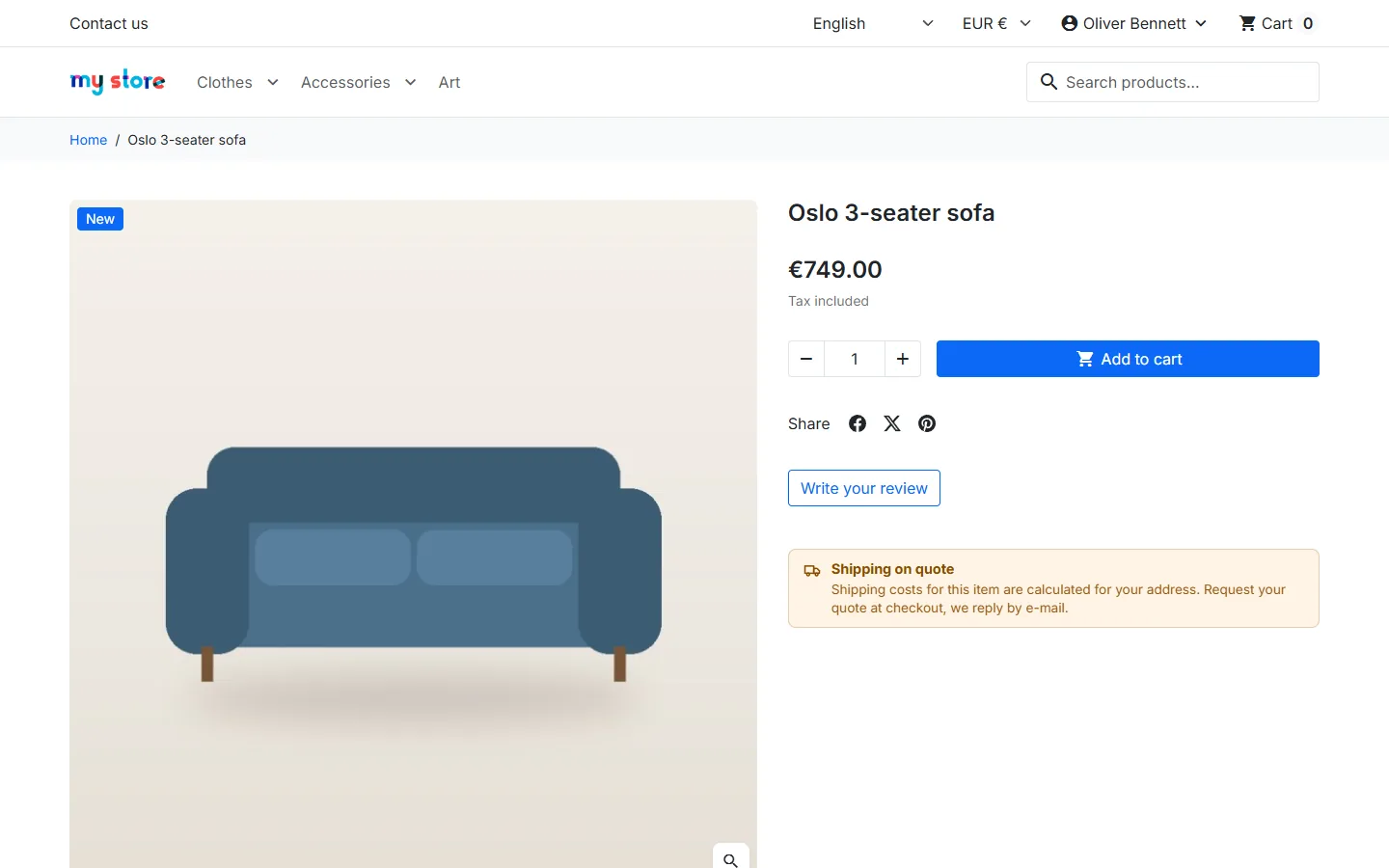
Product page with the Shipping on quote notice
## Quote request at checkout
At the **Delivery** step, a card lists the products shipped on quote and recalls the delivery address. The customer can add details (access, floor, tail lift, preferred dates) and a phone number, then click **Request my shipping quote**.
The request records the exact cart content and address. You receive an e-mail with the products, their weights and dimensions and the customer's message; the customer receives an acknowledgment. The card then says that the request is sent and that the answer will arrive by e-mail.
If the customer changes the cart or the address, the card says so and offers to request a new quote. An expired or declined quote is also clearly shown.
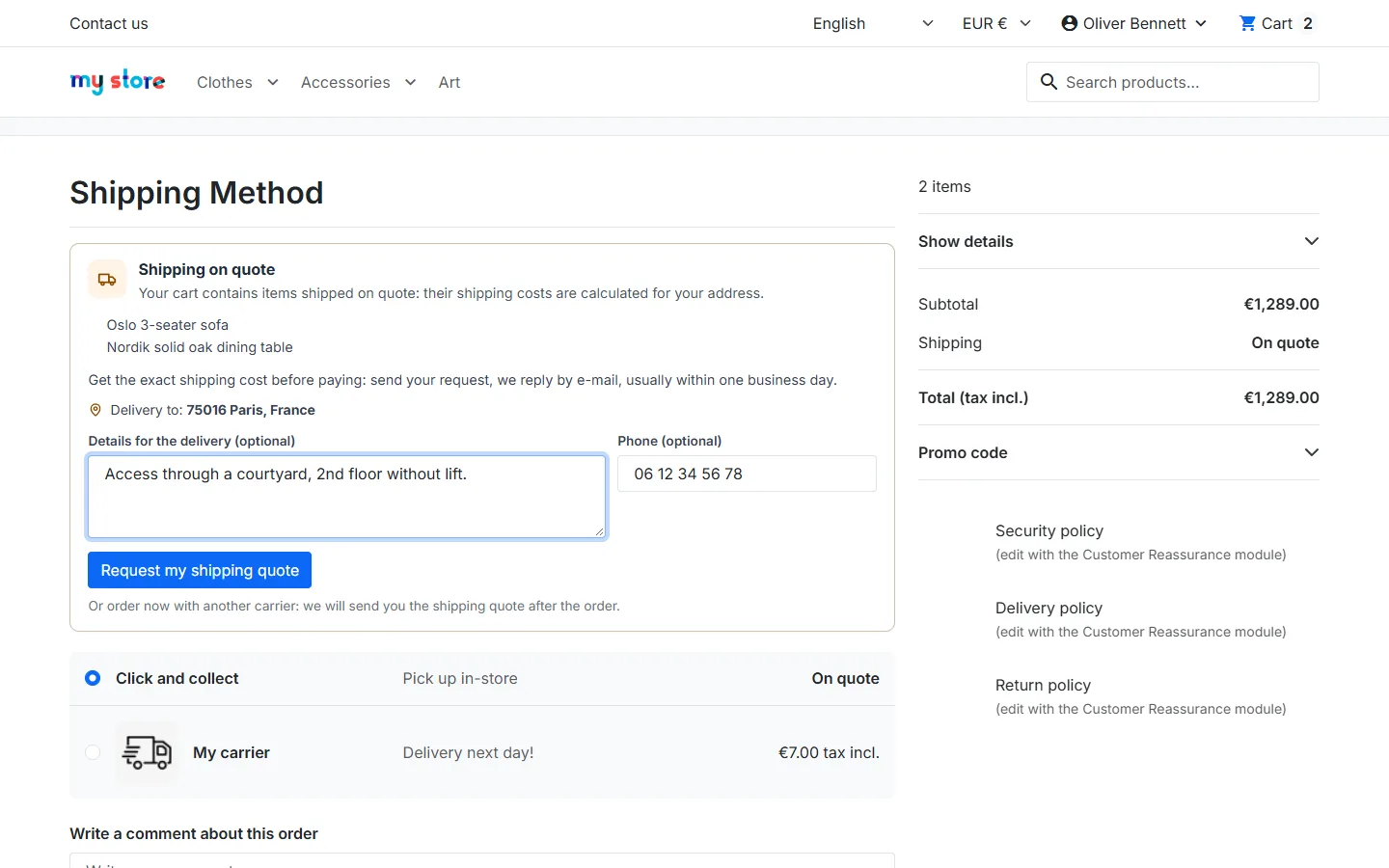
Shipping quote request form at the delivery step
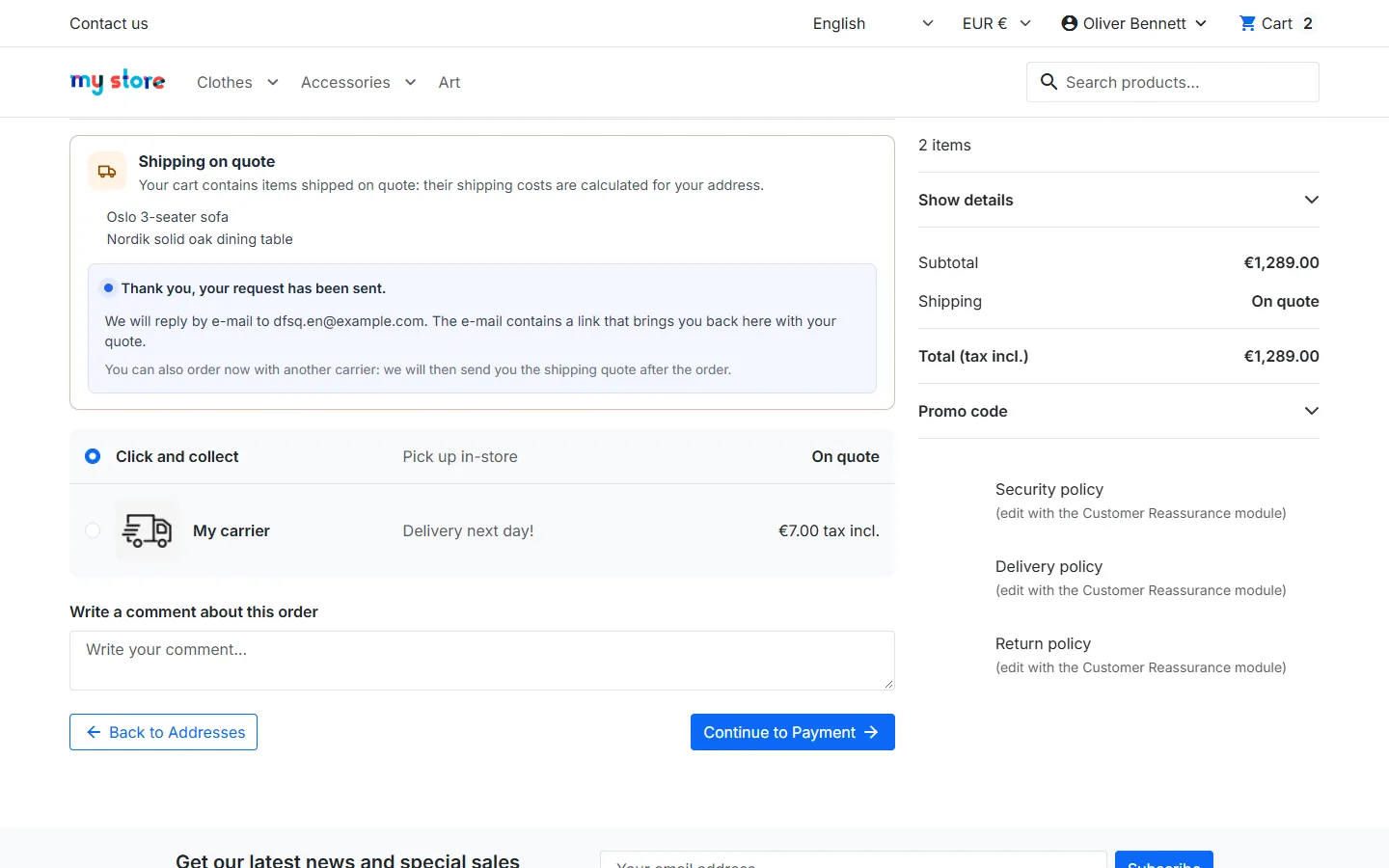
Quote request confirmation in the checkout
## Answering a request
The **Quotes** tab gathers every request and every quote after the order. The **To answer**, **Awaiting customer**, **Ordered or accepted** and **Closed** filters show their counters, and the search finds a customer, an e-mail or a reference.
**Answer** opens the quick answer panel:
- the customer, the full address, the customer's message and the items to ship with weights and dimensions;
- the **amount**, entered tax excluded or included: the other amount is calculated live with the carrier tax for the delivery address;
- the **validity date** and the **message to the customer**, prefilled in the customer's language;
- an optional **attachment** (PDF, JPG, PNG or WebP, 5 MB maximum), sent with the e-mail and never kept on the server.
**Preview the e-mail** shows the e-mail exactly as the customer will receive it, in the customer's language. **Send the quote** sends it; **Decline** closes the request, and the customer sees it at checkout and in the account.
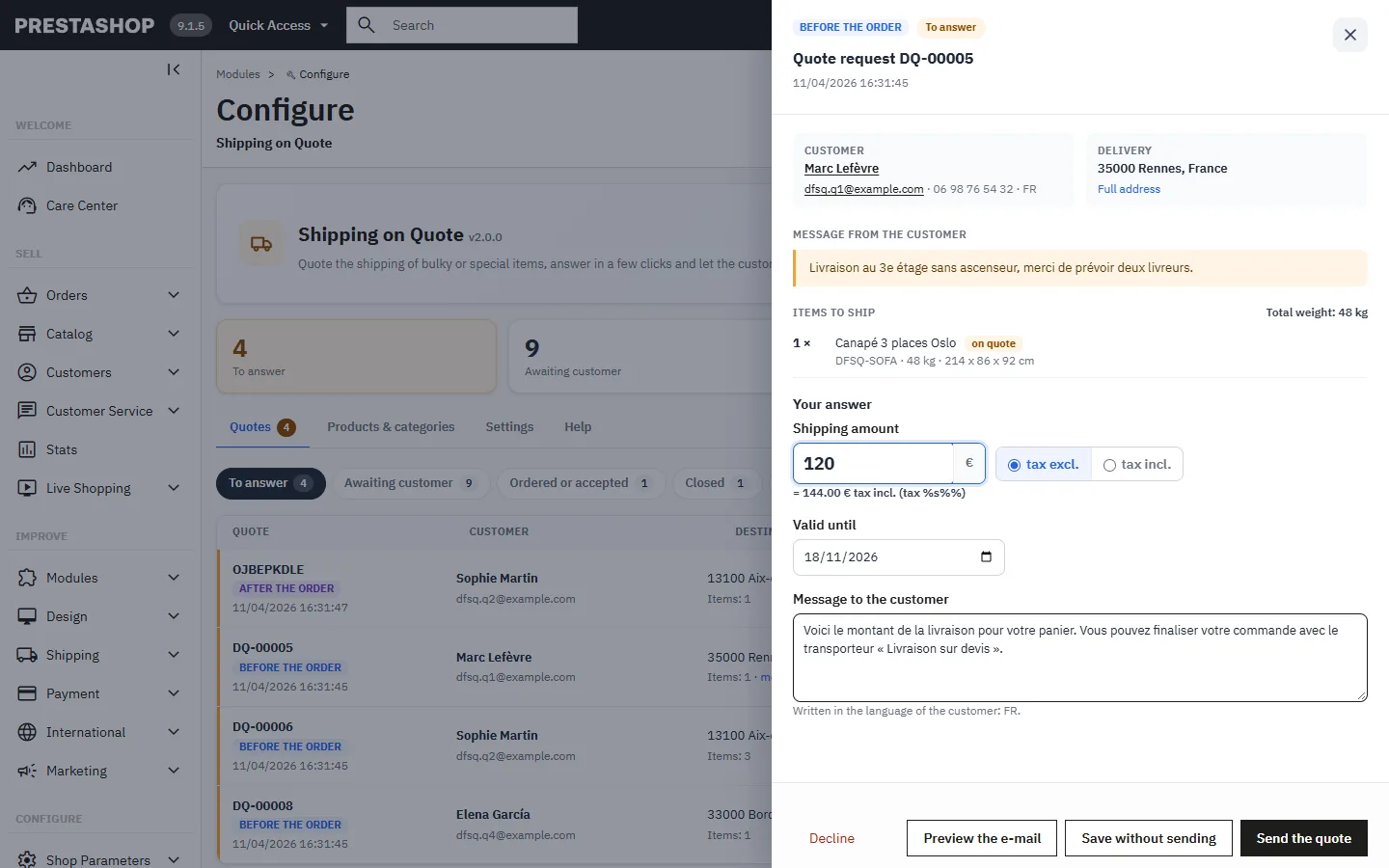
Quick answer panel: amount tax excluded or included, validity and message to the customer
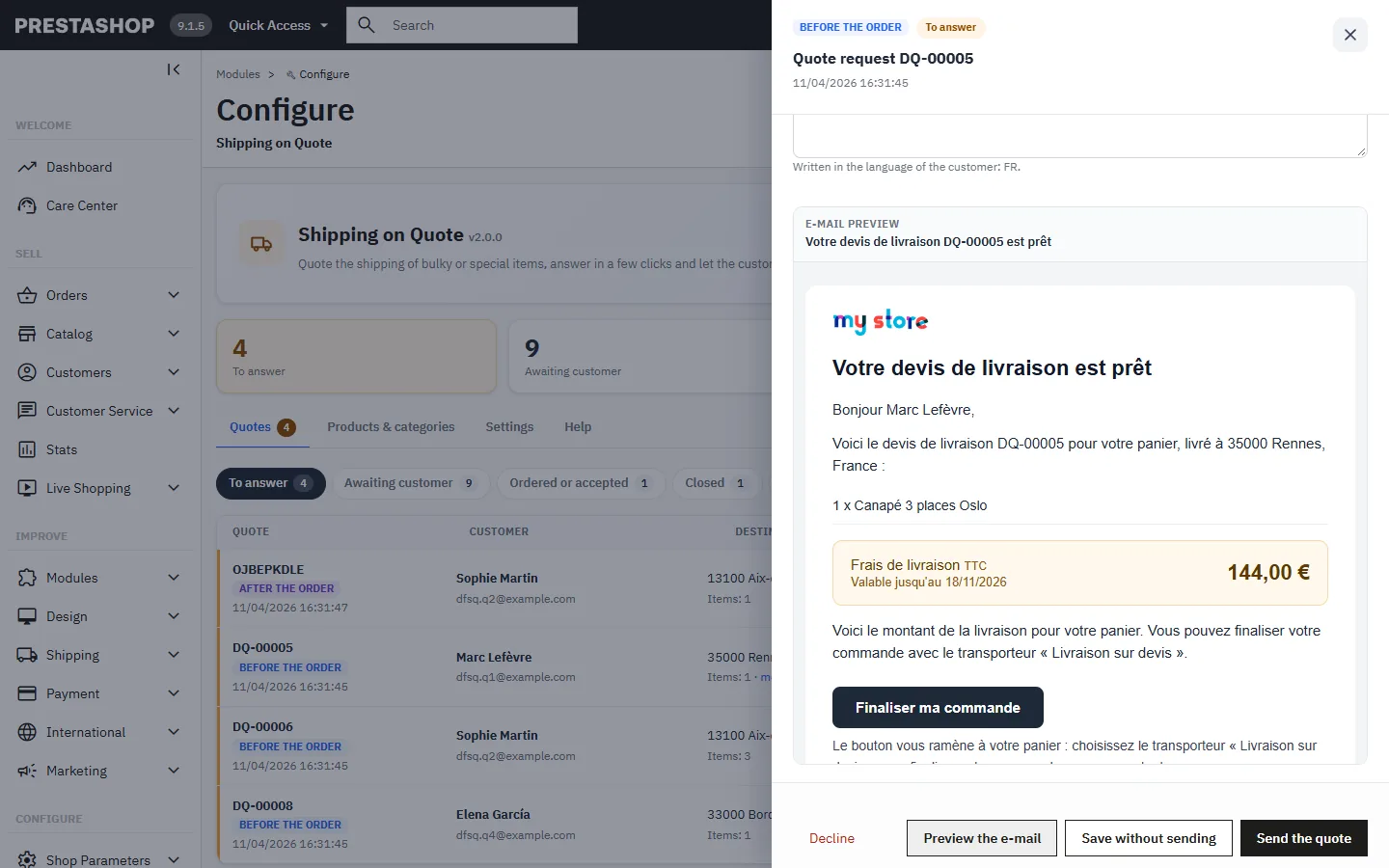
Preview of the shipping quote e-mail before sending
## The customer completes the order
The **Your shipping quote is ready** e-mail shows the amount, the validity and your message, with a **Complete my order** button. The link uses PrestaShop's cart recovery: the customer gets the cart back, even for guest checkout.
The **Shipping on quote** carrier is preselected with the quoted amount, and the cart summary is up to date. The amount is part of the order, the invoice and the payment, like any shipping cost.
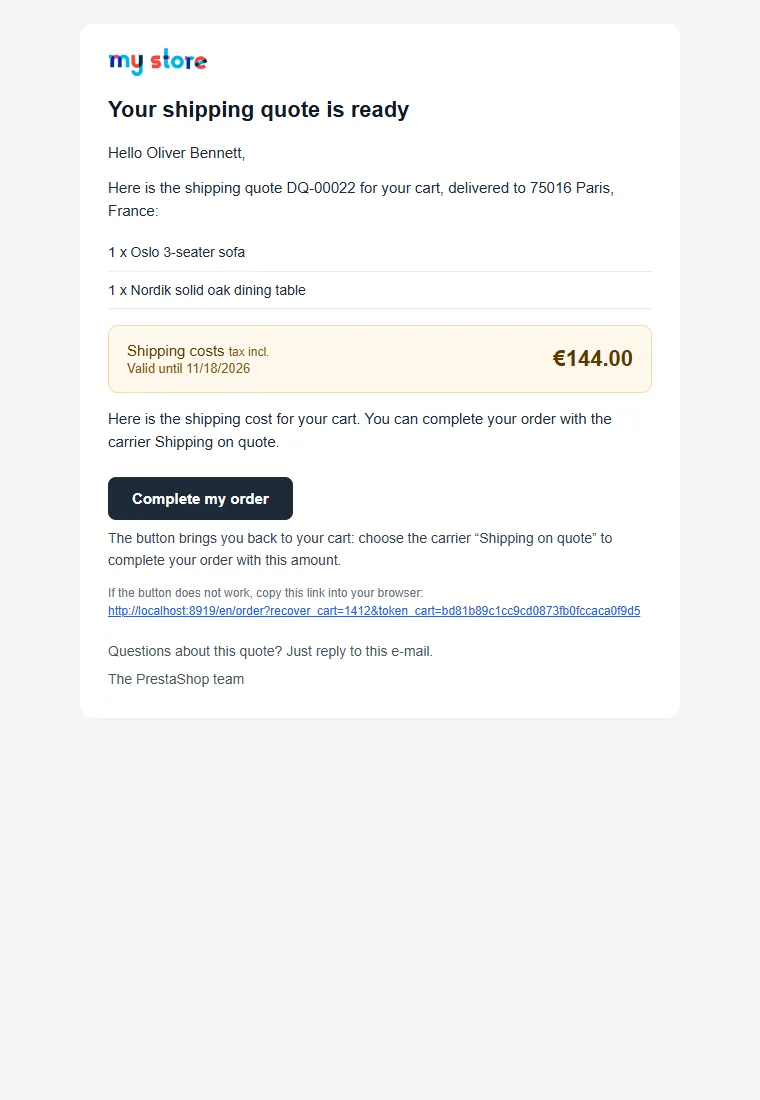
Your shipping quote is ready e-mail with the Complete my order button
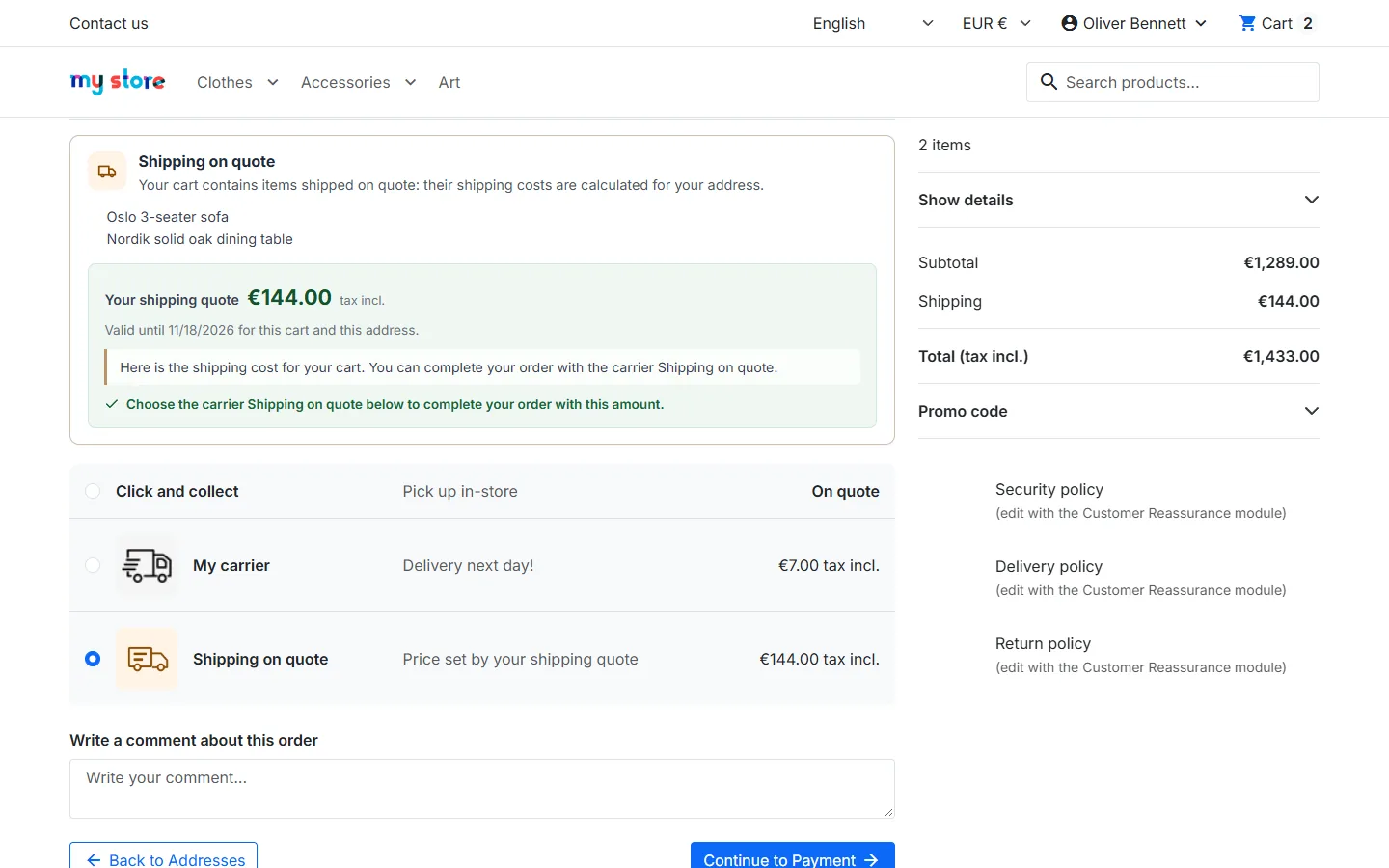
Quote ready: amount with tax and the Shipping on quote carrier preselected
## Quote after the order
For an order placed with a regular carrier, the order page shows a **Shipping on quote** card with the items concerned. **Prepare and send the quote** opens the same panel: amount tax included, optional payment link (for example a link from your payment provider), status, message and attachment.
The customer receives the quote by e-mail. The shipping line of the order confirmation, the order detail and the order e-mails shows your label instead of “Free”, and a note can be added to the PDF invoice.
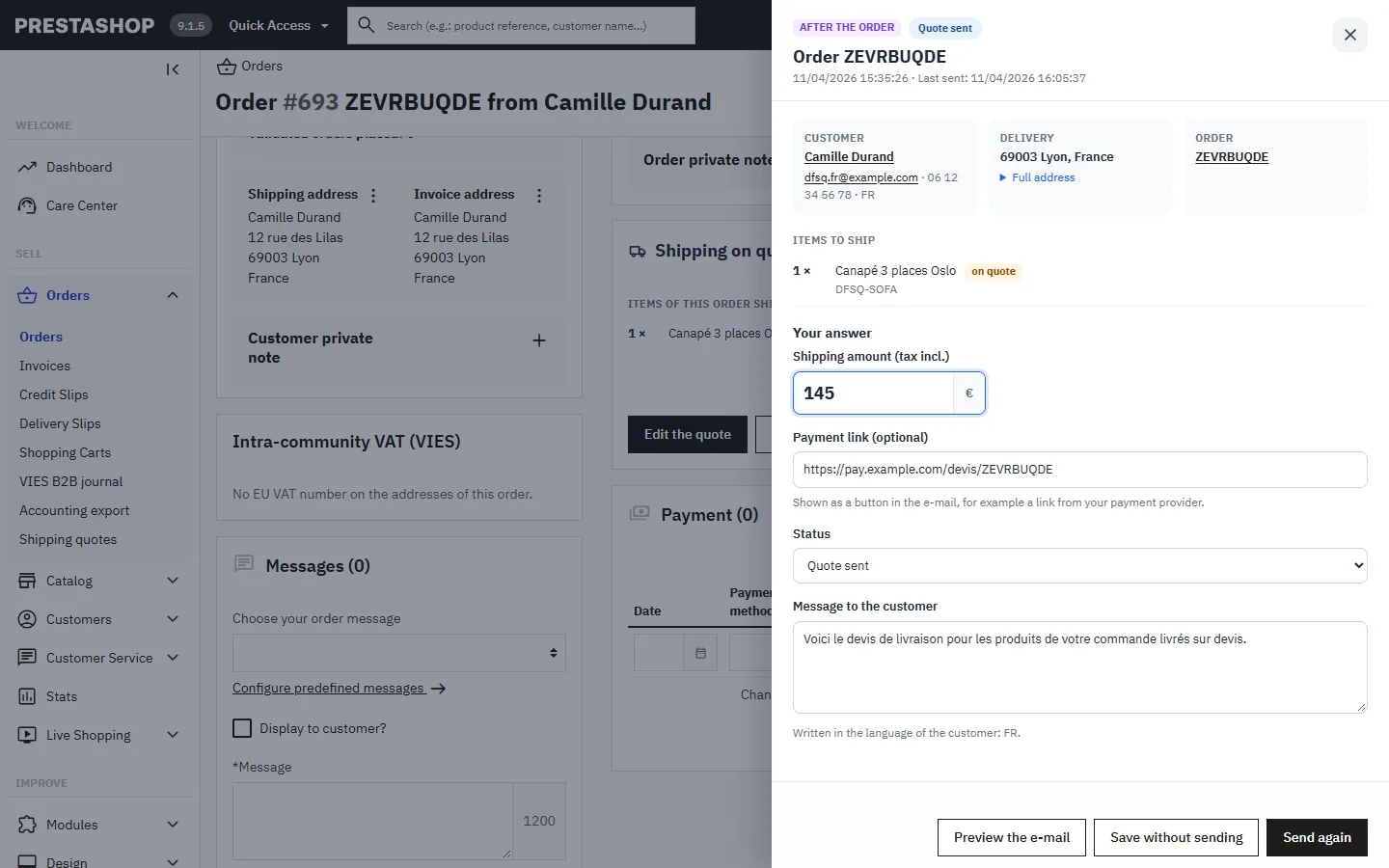
Shipping quote sent from the order page with a payment link
## Customer account
The **My shipping quotes** link of the customer account lists every request and every order quote, with its status, amount, validity date and your message. The **Complete my order**, **Pay the shipping costs** and **View the order** buttons appear depending on the quote. The order detail and the confirmation page also show the state of the quote.
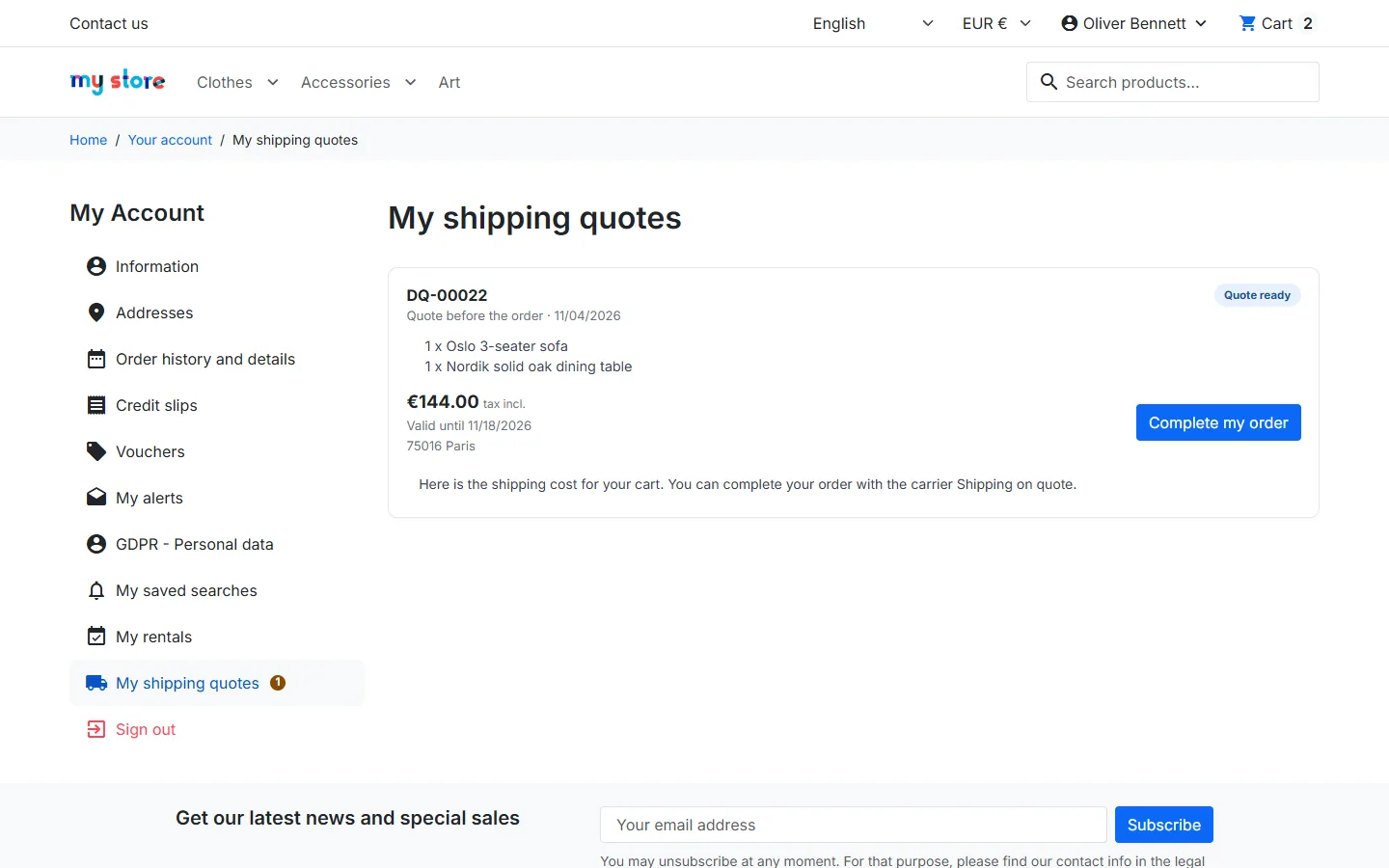
My shipping quotes page in the customer account
## Security, taxes and personal data
- **Amount controlled by the server**: the browser never sends an amount. The carrier reads the quote from the database and checks on every calculation the customer, the cart content (products, combinations, quantities), the delivery address, the currency and the expiry date.
- **Taxes**: the amount is stored tax excluded and the carrier tax is applied for the address, like for any carrier.
- **Anti-spam**: session token, honeypot field, request limit per customer and per day and per IP address.
- **GDPR**: requests are exported and deleted with the PrestaShop GDPR module. IP addresses are erased after 30 days and requests without an order after the retention period (24 months by default).
## Troubleshooting
### The Shipping on quote carrier does not appear
It is only offered for a cart with a valid quote: check that the quote was sent, has not expired, and that the cart and the address did not change. If the Settings tab says the carrier is missing, click **Create the carrier**.
### No payment method with this carrier
Open **Payment > Preferences** and check that your payment methods are ticked for the Shipping on quote carrier.
### The shipping is free despite the quote
A cart rule with free shipping also applies to this carrier. Restrict your free shipping rules to the other carriers.
### I do not want the block at the delivery step
Choose the **After the order only** workflow and switch off **Show a notice above the carriers**: the block is then fully hidden.