# Tags to Features for PrestaShop 8 & 9: documentation
> Overview Tags to features turns product tags into feature values. Tags are quick to add, often by the thousand from a supplier file, but PrestaShop cannot use them in faceted…
- Page:
- Language: en
- Last updated: 2026-11-02
- Other languages: [fr](https://www.datafirefly.com/documentation/dftagfeature/index.md), [es](https://www.datafirefly.com/es/documentation/dftagfeature/index.md), [de](https://www.datafirefly.com/de/documentation/dftagfeature/index.md), [it](https://www.datafirefly.com/it/documentation/dftagfeature/index.md), [pl](https://www.datafirefly.com/pl/documentation/dftagfeature/index.md), [nl](https://www.datafirefly.com/nl/documentation/dftagfeature/index.md), [pt](https://www.datafirefly.com/pt/documentation/dftagfeature/index.md)
- Index:
## Overview
Tags to features turns product tags into feature values. Tags are quick to add, often by the thousand from a supplier file, but PrestaShop cannot use them in faceted filters, catalog price rules or most cross-selling modules: these rely on features. The module converts the tags you already have, keeps the products they are on and builds one value per term, translated into every language.
Nothing is written before you apply: the wizard shows the impact first. Every change is recorded in a journal and can be undone exactly.
## Installation
1. In **Modules > Module Manager**, click **Upload a module** and select the module ZIP file.
2. Installation creates the **Catalog > Tags to features** tab, the mapping and journal tables, the default settings and a secret token for the cron URL.
3. Open **Catalog > Tags to features**. The module works on PrestaShop 1.7.8 to 9.x, with PHP 7.1 to 8.5.
### Upgrading from 1.0.0
Upload the 2.0.0 ZIP over the installed module, then click **Upgrade** in the Module Manager if PrestaShop asks for it. The upgrade adds the journal tables and the new settings. Saved mappings, settings and the cron token of 1.0.0 are kept as they are, so an existing cron task keeps working.
## Dashboard
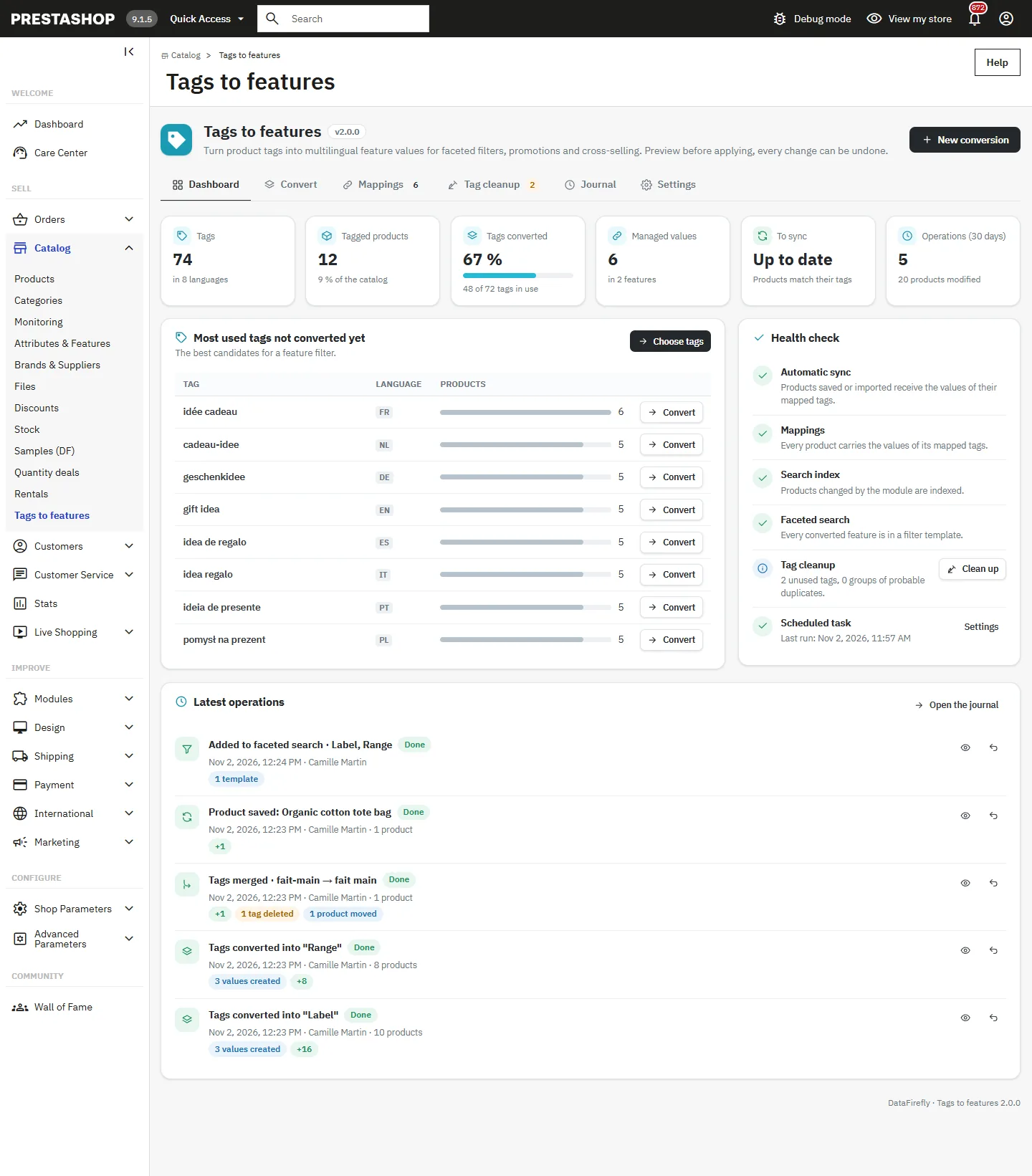
The **Dashboard** tab sums up the catalog: number of tags, tags already converted, feature values managed by the module, values waiting for a sync and operations of the last 30 days. The **Health check** block flags what needs attention: converted features missing from the faceted search templates, products waiting for the search index, mappings out of sync, the last cron call. The most used tags that are not converted yet are listed with a button to convert them.
Dashboard
## Converting tags
The **Convert** tab opens the conversion wizard, in four steps.
### Step 1: select the tags
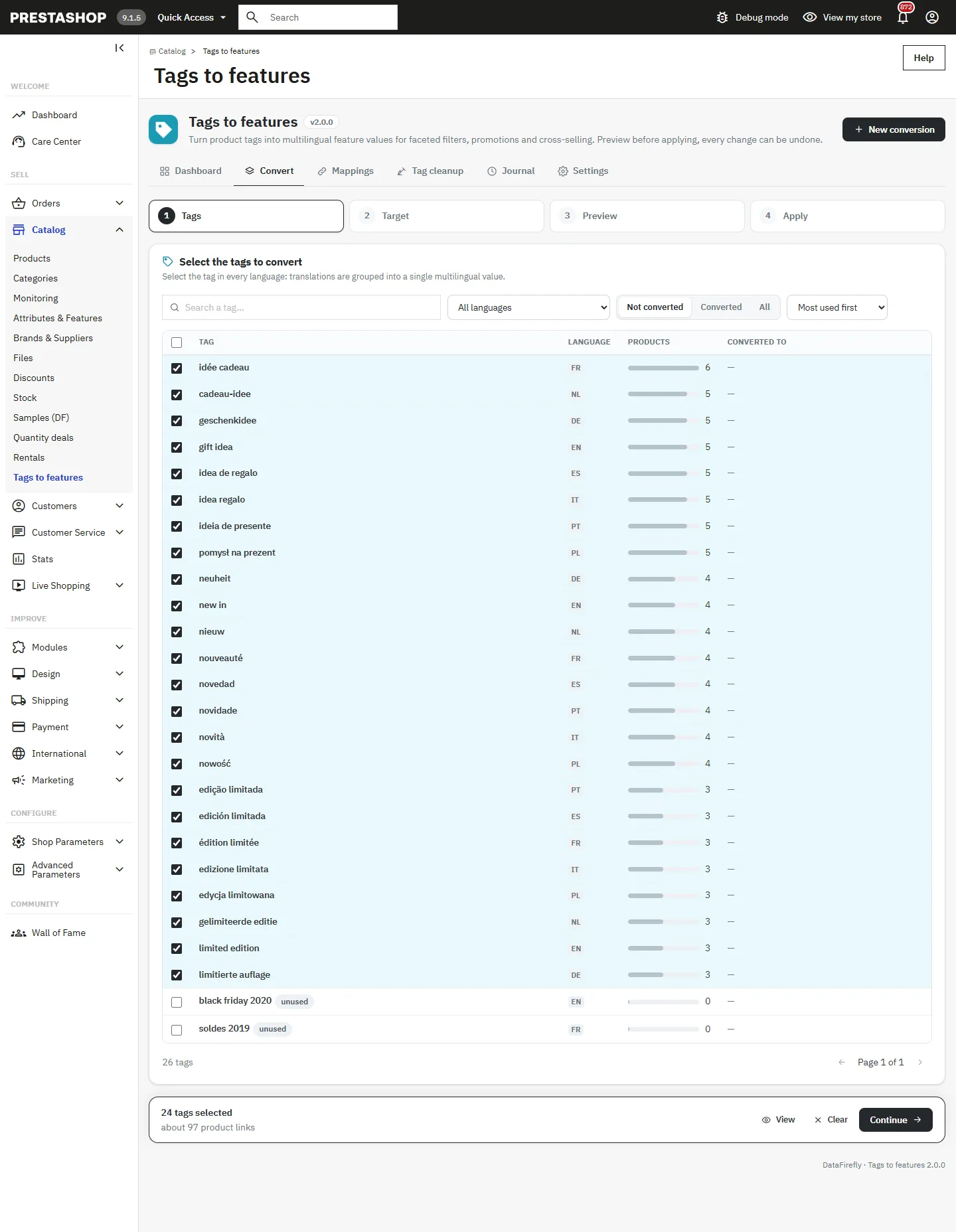
The tag list is paginated on the server, so it stays fast with tens of thousands of tags. Search by name, filter by language and by status (converted or not), sort by name or by number of products. Tick the tags to convert, or use the button that selects every result of the current search.
Select the tag in every language: in a multilingual shop, the same term is a different tag in each language, and the module groups these translations into a single multilingual value.
Tag selection
### Step 2: target feature and options
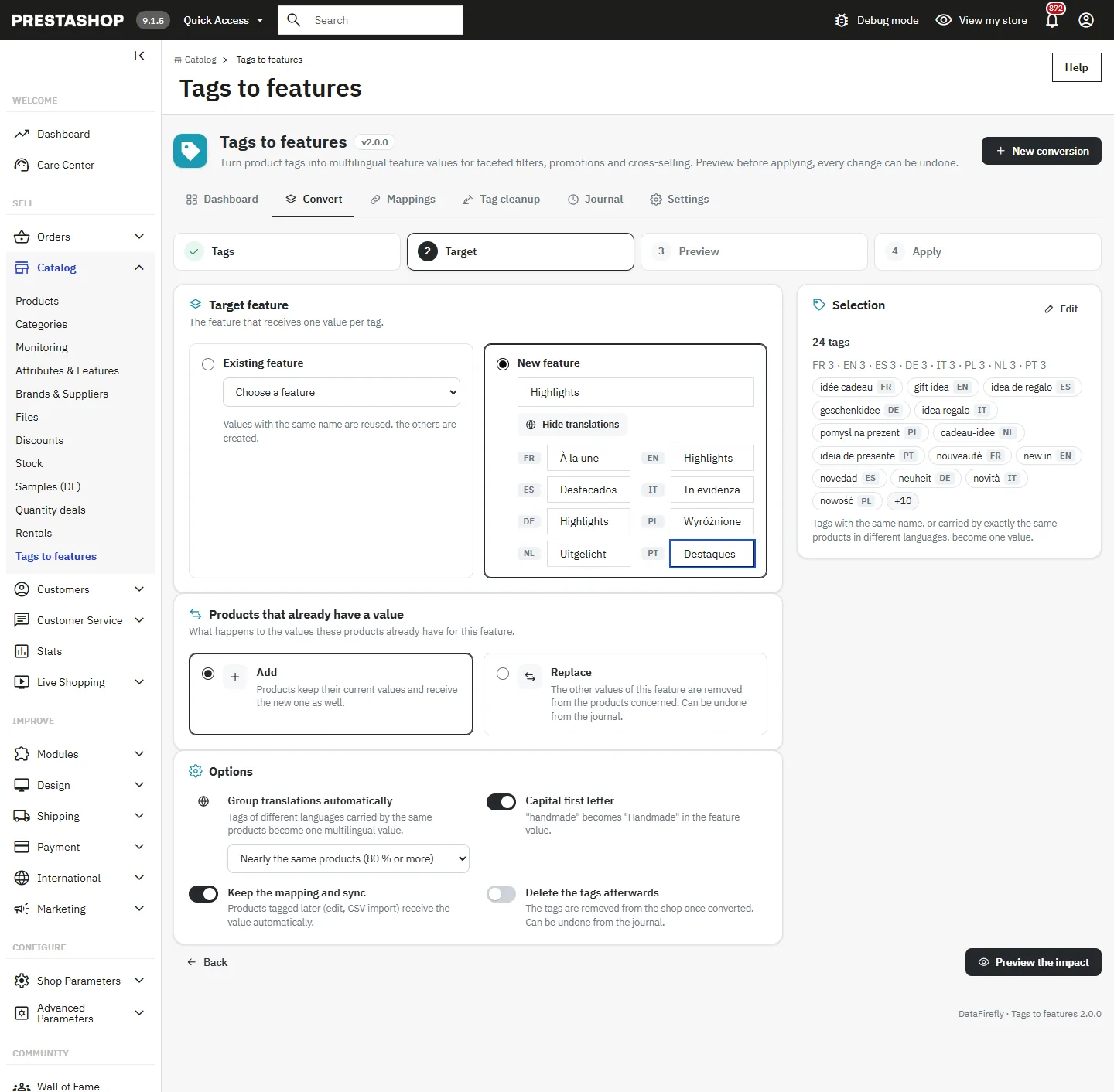
- **New feature**: enter its name in each language. An empty language takes the name of the default language.
- **Existing feature**: values whose name already exists in the feature are reused instead of being duplicated.
- **Add** mode: products keep their current values of the feature and receive the new one as well. **Replace** mode: the other values of this feature are removed from the products concerned, only after the new values are in place.
- **Keep the mapping and sync**: the tag keeps its feature value, so products tagged later receive it (see Mappings below).
- **Delete the tags afterwards**: the converted tags disappear from the products and from the shop. The journal keeps everything needed to restore them.
- **Show it in the faceted search**: adds the feature to the filter templates of the Faceted search module once the conversion is done.
Target feature
### Step 3: impact preview
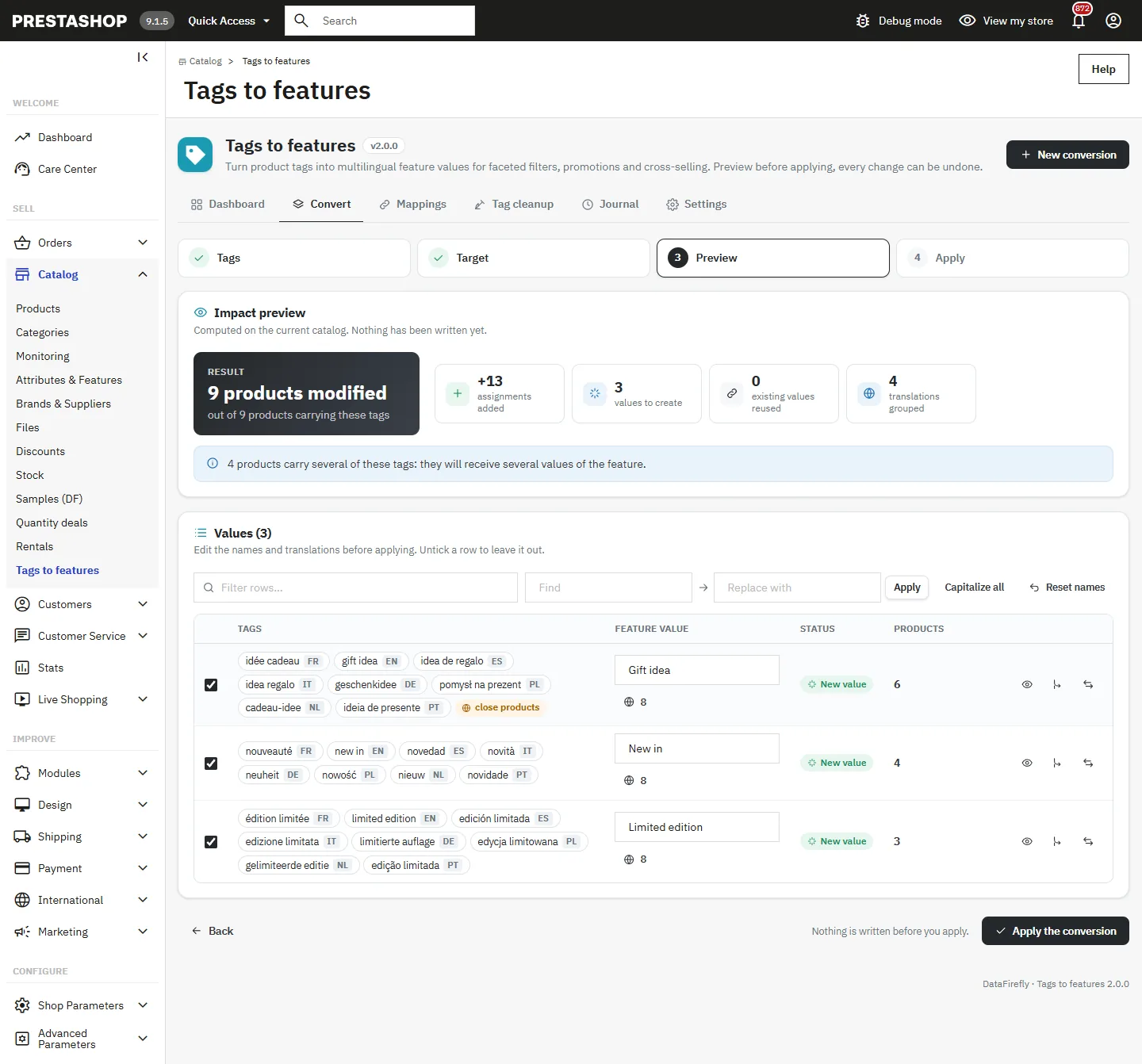
Click **Preview the impact**. The module computes, on the current catalog and without writing anything, the products that will change, the new assignments, the values created and reused, the products carrying several selected tags and, in replace mode, the values that will be removed, with their names.
Each row is a future feature value. With **Group translations automatically**, tags of different languages on exactly the same products form one row. The **Nearly the same products (80 % or more)** mode also groups tags whose products overlap by at least 80 %, for incomplete tagging; these rows are flagged. You can also **Merge with another row** or **Split this row**: counts are recomputed on the server.
Impact preview
Open **Translations of the value** to edit the name of the value in each language. Languages copied from another one, because no tag existed in that language, are highlighted so you can translate them. Find and replace and **Capital first letter** work on every row at once. Untick a row to leave it out.
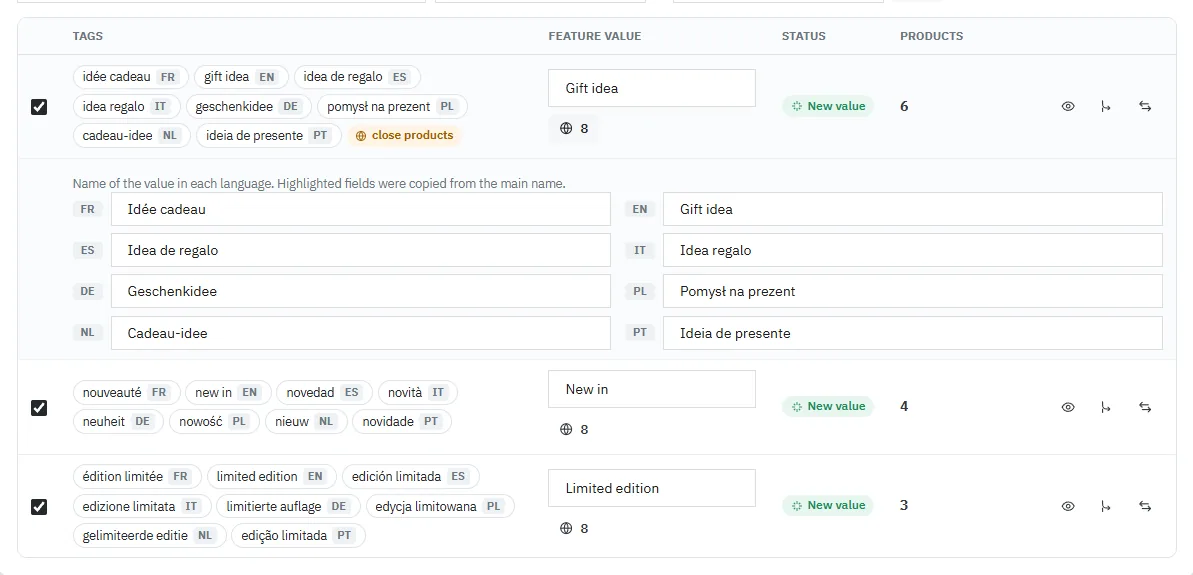
Value translations
The number of products of a row opens a side panel listing each product with its current values of the feature and the value it will receive.
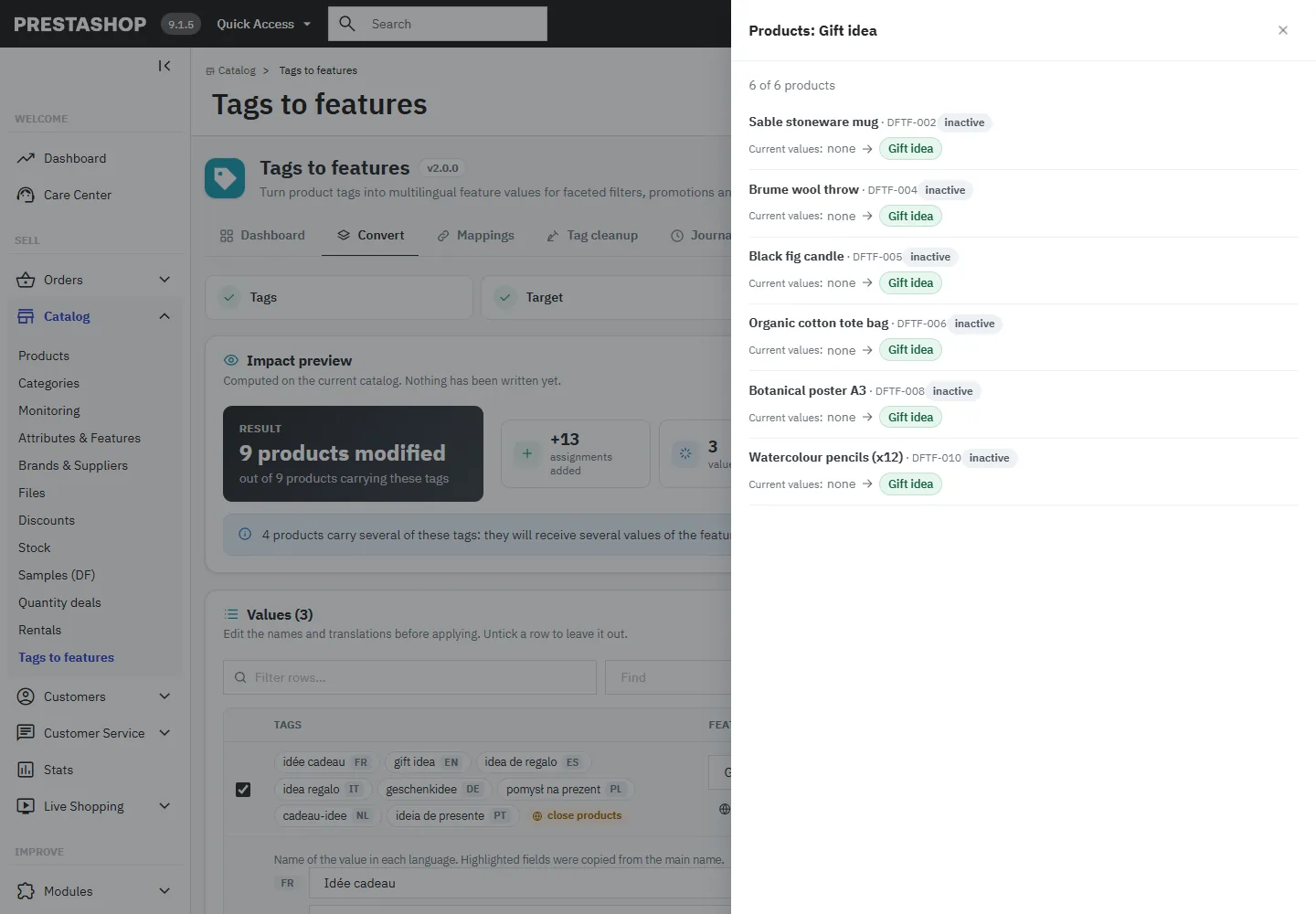
Products in the preview
### Step 4: apply
Click **Apply the conversion**. The work runs in short batches with a progress bar, phase by phase, so no request hits the hosting time limit whatever the size of the selection. Keep the page open until the end. If it is interrupted, the changes already made are in the journal and can be undone.
The result shows the values created, the assignments added and removed, and the buttons **Undo this conversion** and **Add to the faceted search** when the feature is not in a filter template yet.
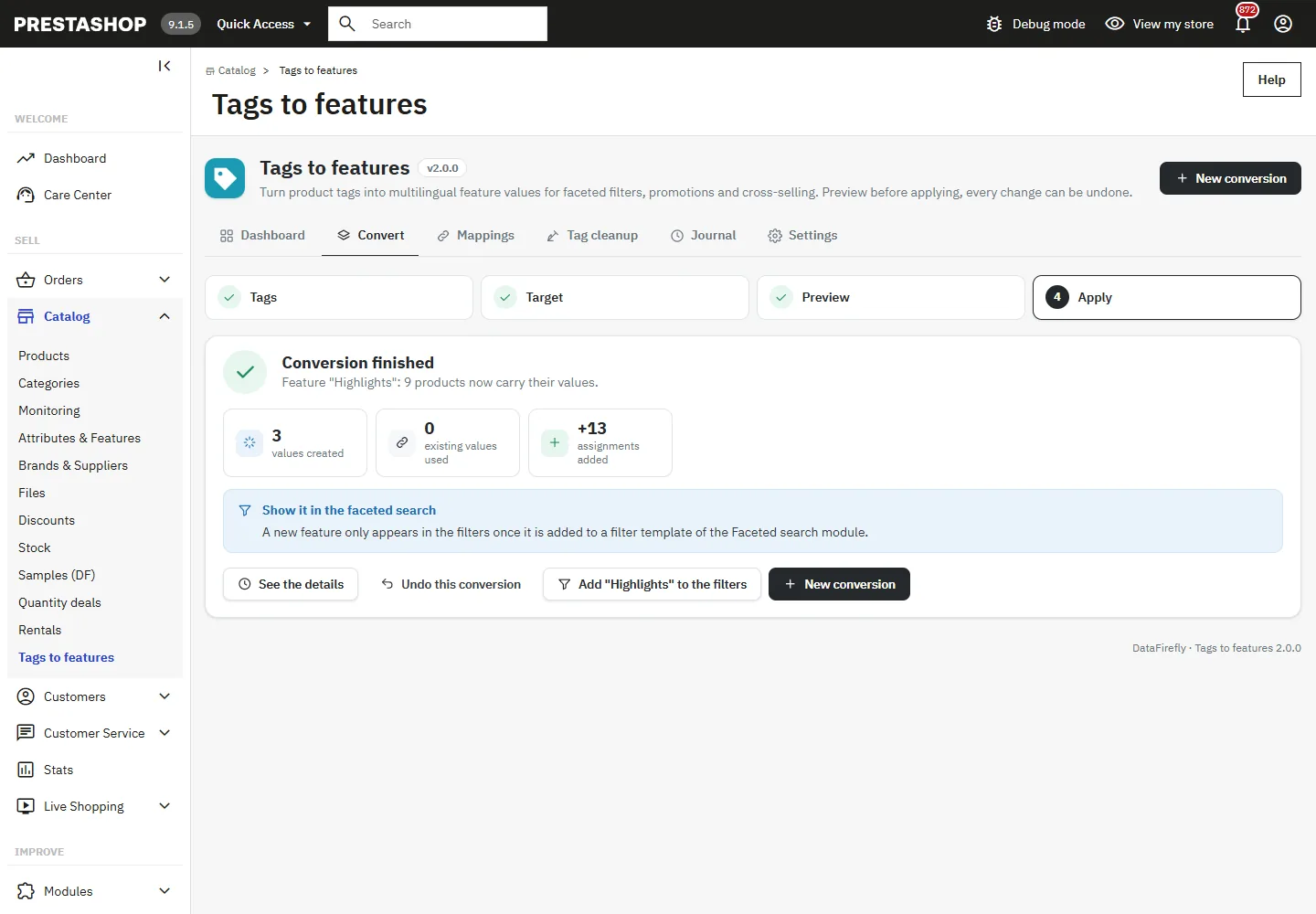
Conversion result
## Mappings and sync
When **Keep the mapping and sync** is on, each converted tag stays linked to its feature value. The **Mappings** tab lists the **Saved mappings** grouped by feature, with the number of products to sync for each value.
- A product created, edited or imported with a mapped tag receives the value when it is saved, if **Sync a product when it is saved** is on in the settings.
- **Sync now** on a value, or **Sync all**, first shows what will be added (+) and removed (−), then applies it in batches.
- Values of products that lost their tag are kept, unless **Also remove the value when the tag is removed** is on.
- Removing the mappings of a value does not change any product: it only stops the sync.
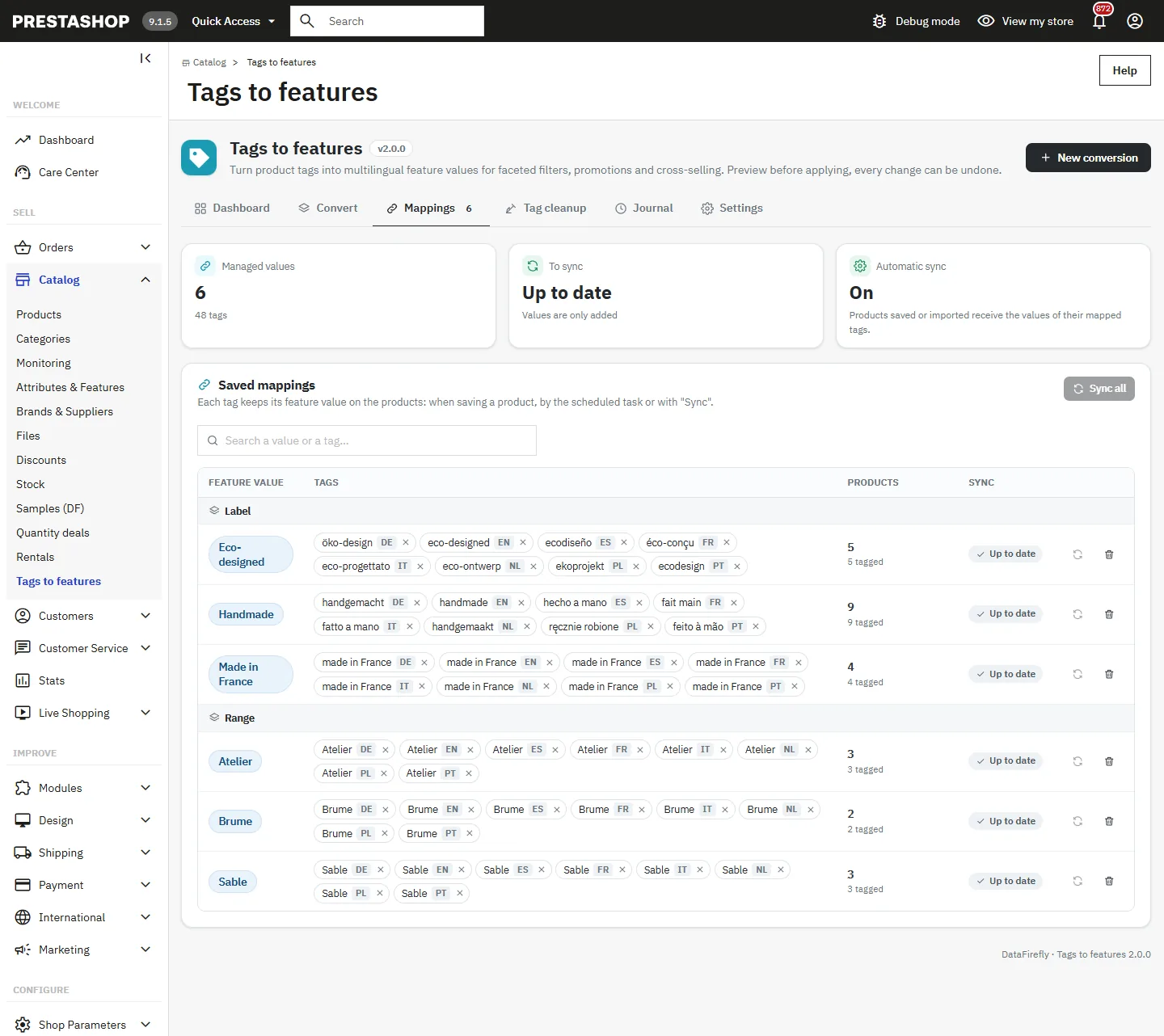
Saved mappings
## Tag cleanup
The **Tag cleanup** tab tidies the tags themselves, before or after a conversion.
- **Probable duplicates**: tags of the same language that differ only by accents, case, hyphens or spaces. **Merge tags** moves the products to the tag you keep.
- **Unused tags**: tags on no product, deleted in one click.
- The full list lets you rename, merge or delete any tag. Renaming to a name that already exists in the language offers to merge both tags. Only tags of the same language can be merged.
Every change is recorded in the journal: deleted, merged or renamed tags are restored with their products and their IDs when undone.
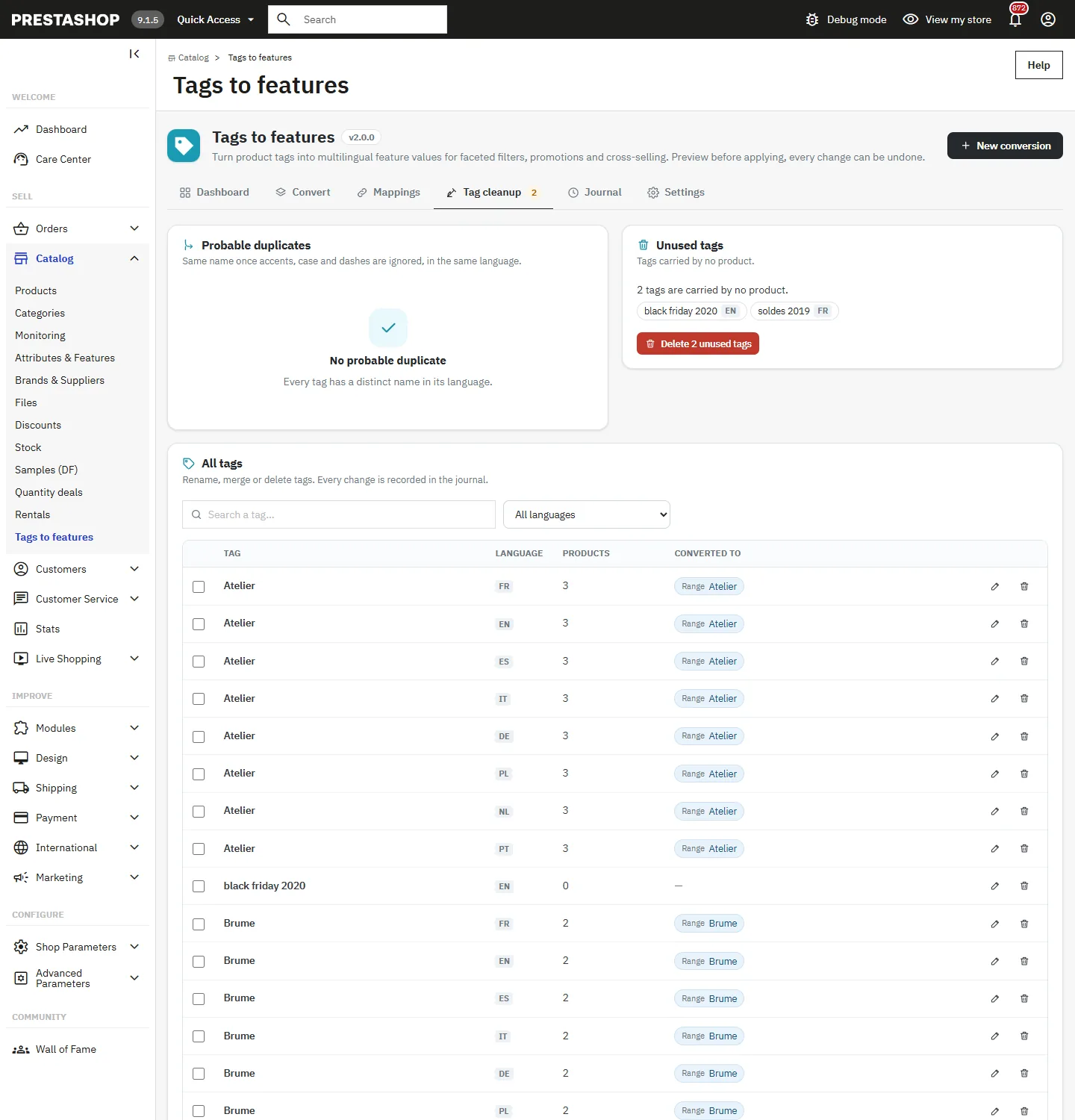
Tag cleanup
## Journal and undo
The **Journal** tab lists every write of the module: conversions, syncs (manual, on save and by cron), tag merges, renames and deletions, additions to the faceted search and undos. Filter by type and period (last 7, 30 or 90 days).
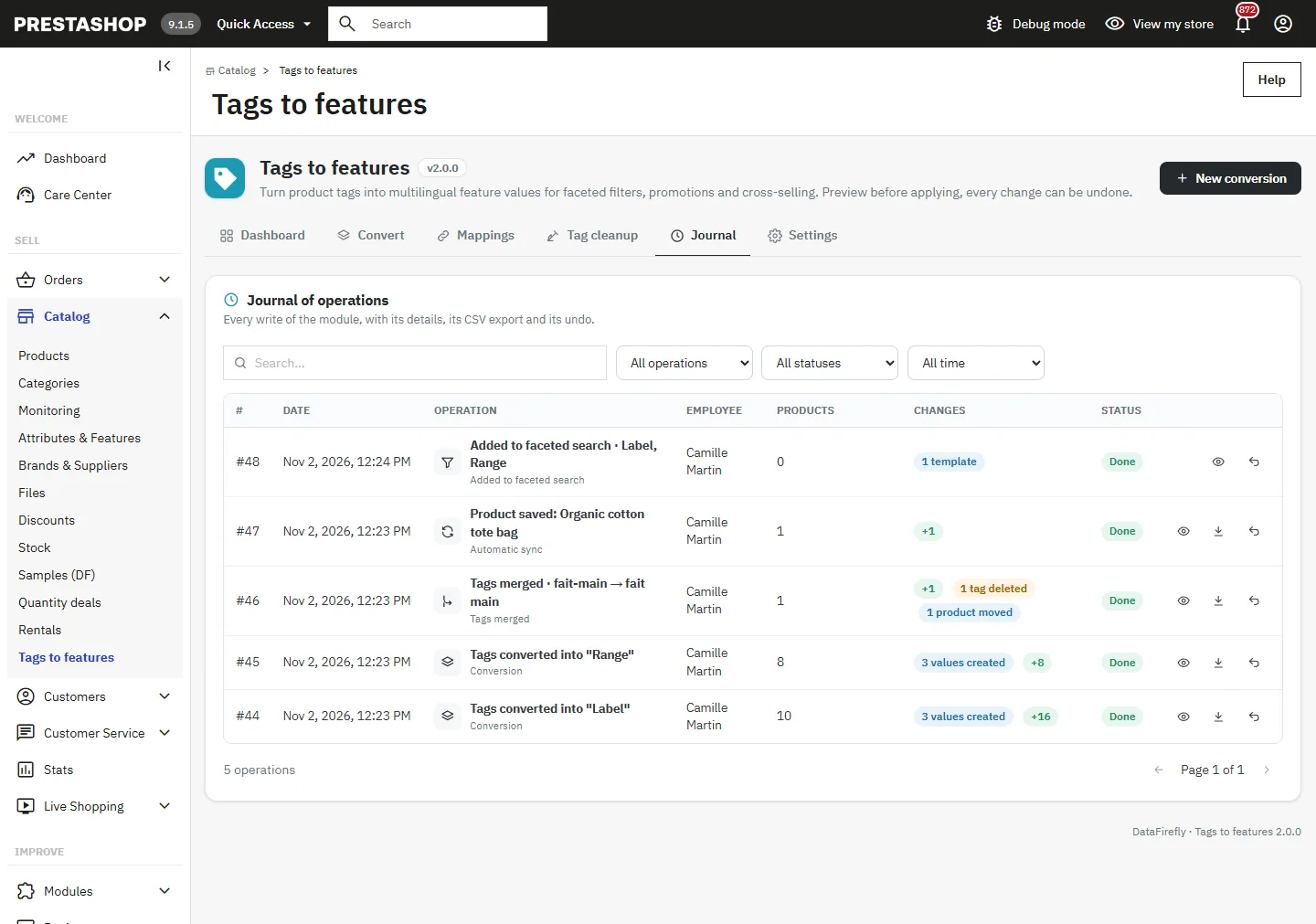
Operations journal
Click an operation to see its detail: each product change, the values and features created, the tags affected. **Export CSV** downloads the full list.
**Undo** restores the previous state exactly: assignments added are removed, assignments removed are put back, created values and features are deleted if nothing else uses them, deleted tags come back with their products and IDs, mappings and filter templates are restored. If a later operation changed the same products or tags, the module asks you to undo it first, starting from the most recent.
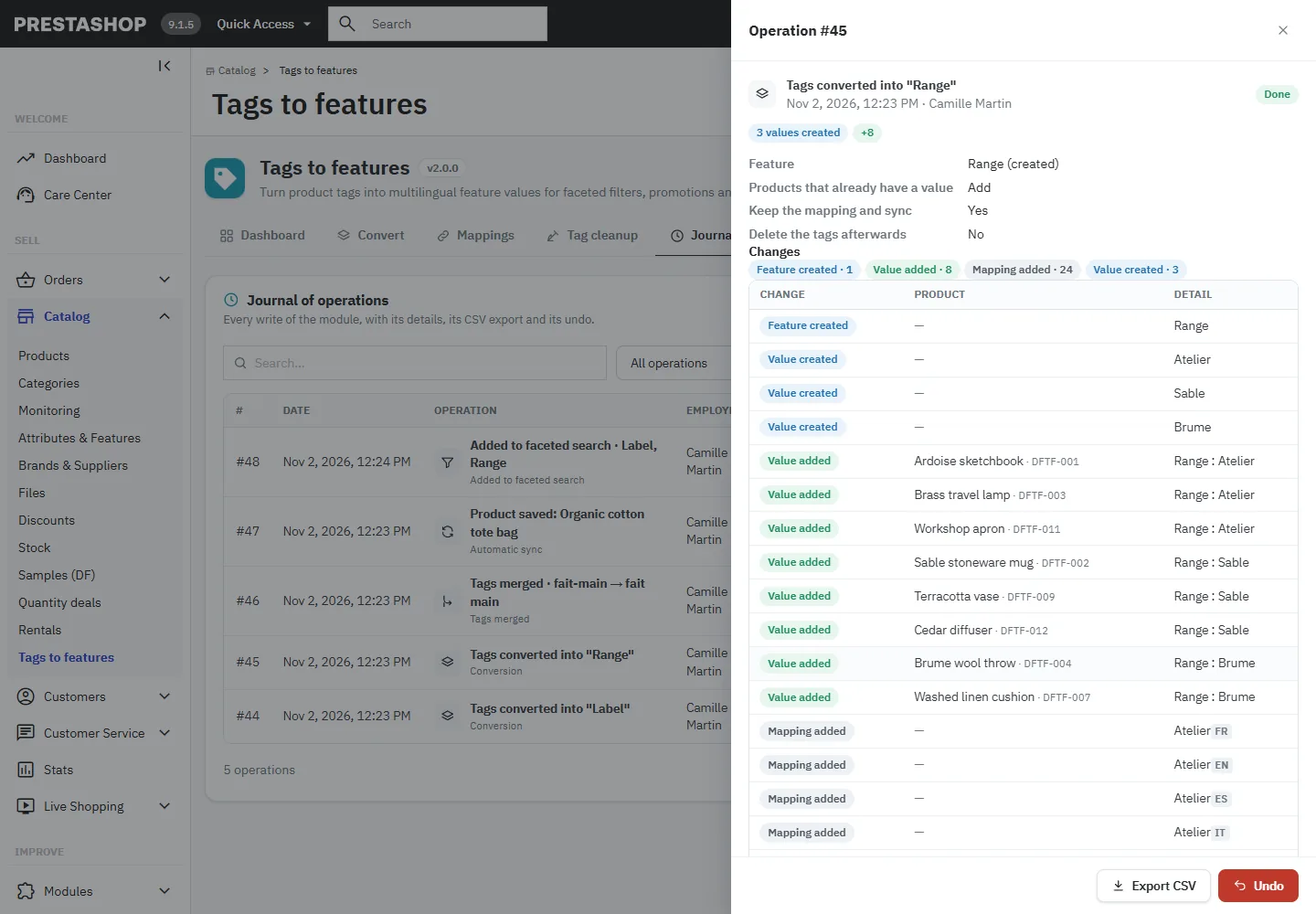
Operation detail
## Settings and cron
These settings apply to every store.
- **Sync a product when it is saved** (on by default): off, tags added later are not converted until the next sync.
- **Also remove the value when the tag is removed** (off by default).
- **Update the search index after each operation** (on by default): products changed are re-indexed right away, in batches, so the new values are searchable.
- Default options of a new conversion: **Group translations automatically** and **Capital first letter**.
- **Keep operations for**: 180 days by default, 0 keeps them forever. Older operations are deleted and can no longer be undone.
The **Scheduled task (cron)** block shows the **Cron URL**, its last call and an example crontab line. The cron is optional: it runs a full sync of the mappings, the search index of the changed products and the journal cleanup. The URL contains a secret token; generate a new one if it has been shared.
```
0 3 * * * curl -fsS "https://your-shop.com/…cron URL copied from the Settings tab…" >/dev/null
```
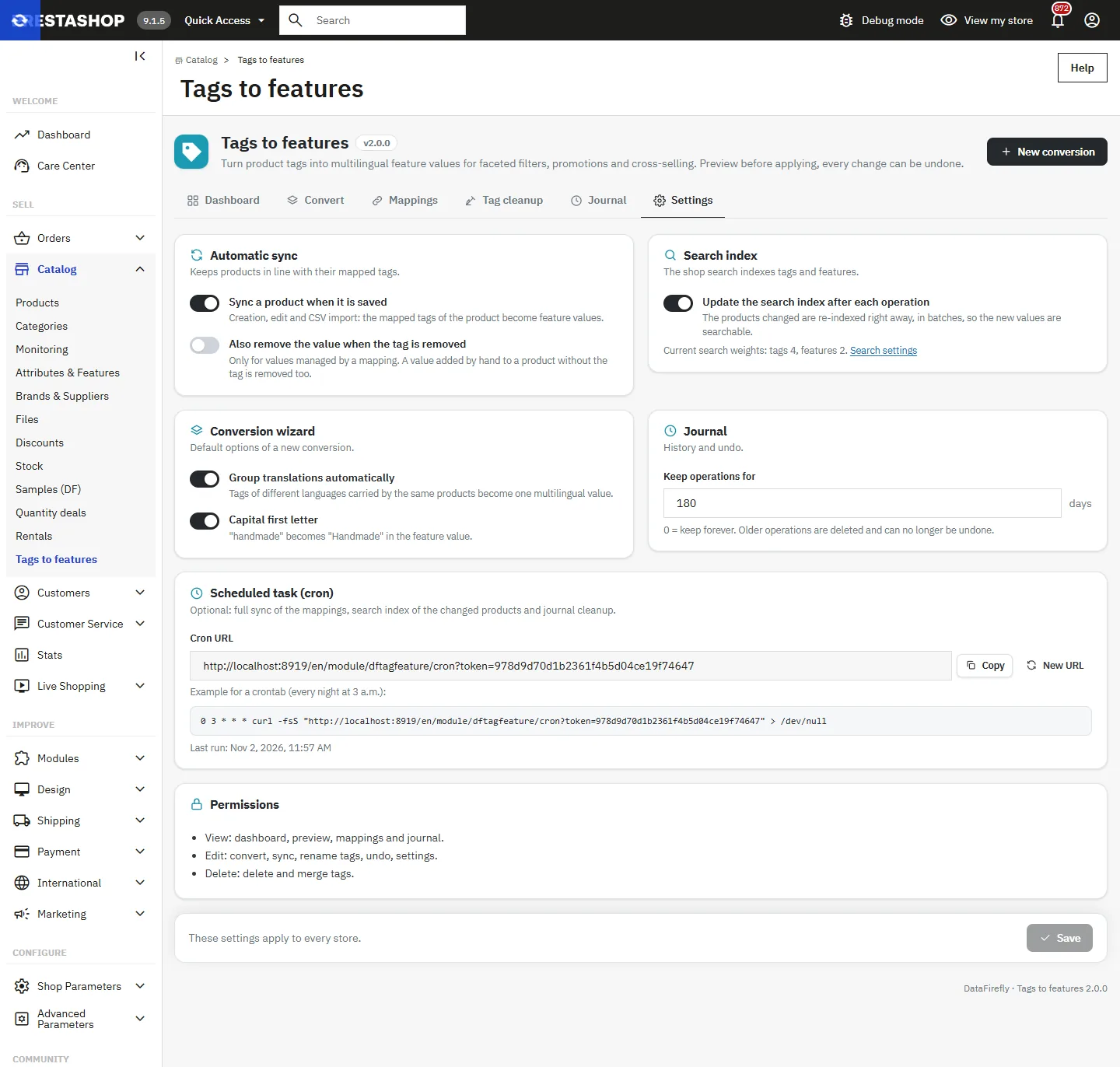
Settings
## Storefront and faceted search
The converted values appear in the data sheet of the product page, in the visitor's language.
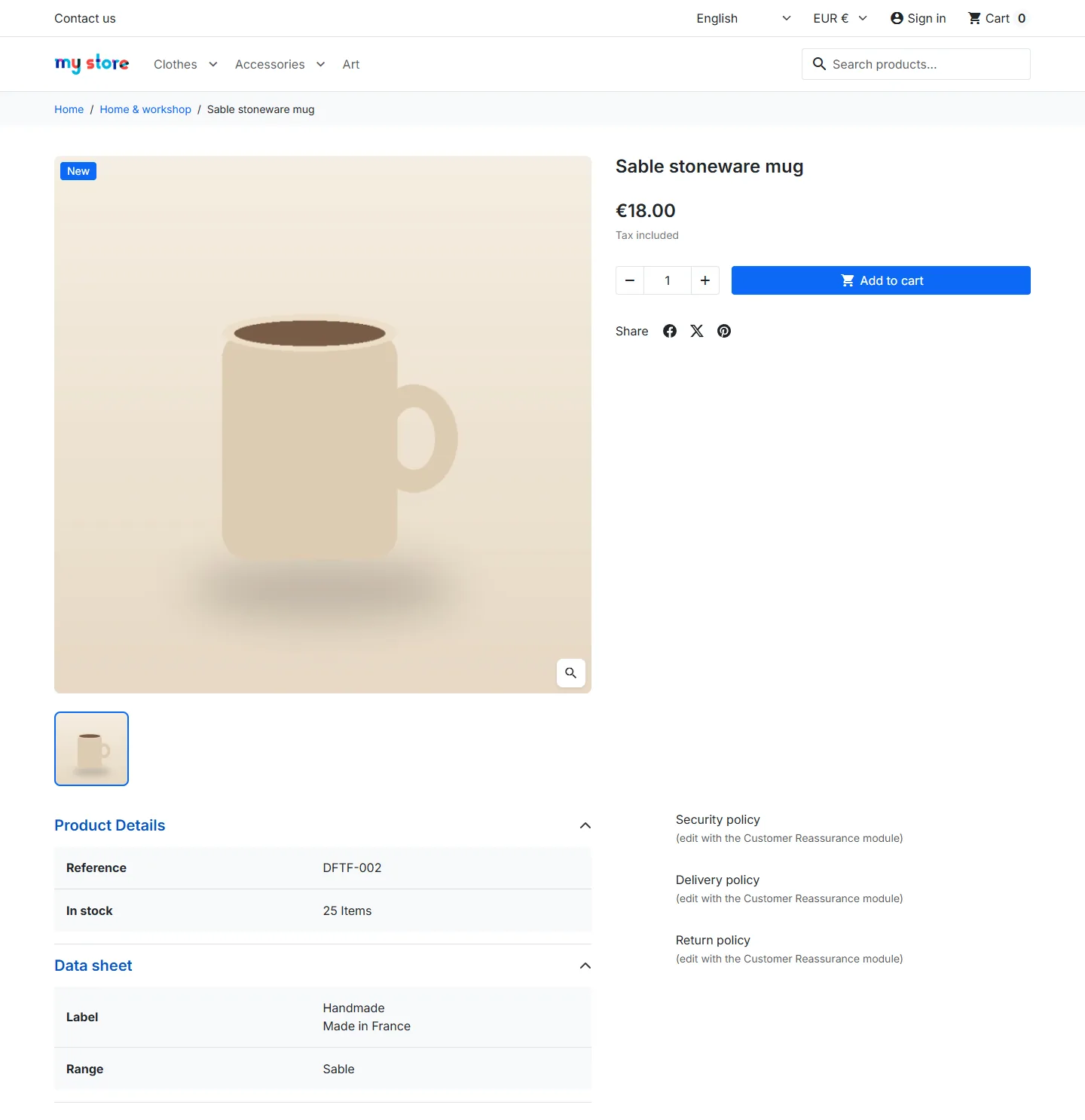
Product data sheet
A new feature only appears in the filters once it is added to a filter template of the Faceted search module (ps_facetedsearch 3.x or 4.x). The module flags converted features missing from the templates. **Add to filters** adds the feature as a checkbox filter, after the existing filters, to the templates you choose. The previous template is kept in the journal: undoing restores it exactly.
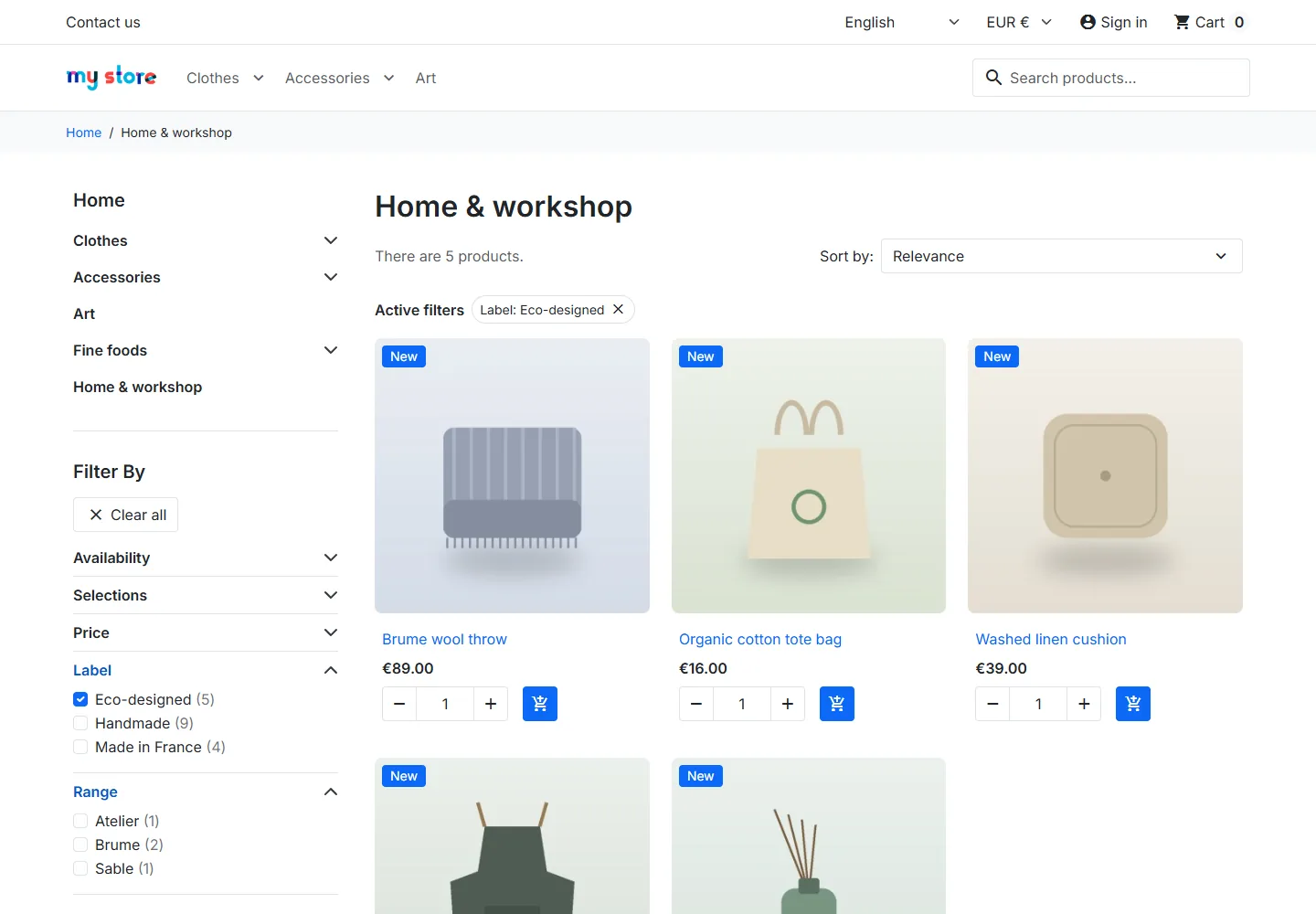
Faceted filters
## Permissions and multistore
- **View** permission on the tab: dashboard, preview, mappings and journal, read only.
- **Edit**: convert, sync, rename tags, undo, settings.
- **Delete**: delete and merge tags.
Each action checks the permissions of the employee's profile on the server. In PrestaShop, tags and features are shared by every store: a conversion applies to the whole catalog, new features are associated with every store and the search index is updated for each store.
## Troubleshooting
- **The tag list is empty**: your products have no tags yet. Tags are added on the product page (Options or SEO tab, depending on the version) or with a CSV import.
- **A tag is missing from the list**: it may already be converted. Show "All" in the status filter.
- **The new feature does not show in the filters**: add it to a filter template with **Add to filters**, and check that the Faceted search module is enabled.
- **The values are not found by the shop search**: turn on **Update the search index after each operation**, or click **Update the index** in the dashboard.
- **Products tagged later do not get the value**: check that the conversion kept the mapping and that **Sync a product when it is saved** is on, or run **Sync all**.
- **Undo is refused**: a later operation changed the same products. Undo the later operations first, from the most recent.
- **The cron URL returns 403**: the token is wrong or has been regenerated. Copy the URL again from the Settings tab.