# Odoo Connector — Complete Guide
> Install, connect and run the Odoo Connector: API key, settings tab by tab, initial sync, cron, Odoo webhooks, resilient queue, duplicate prevention and troubleshooting for PrestaShop 8 and 9.
- Page:
- Language: en
- Last updated: 2026-10-28
- Other languages: [fr](https://www.datafirefly.com/documentation/connecteur-odoo/index.md), [es](https://www.datafirefly.com/es/documentation/conector-odoo/index.md), [de](https://www.datafirefly.com/de/documentation/odoo-konnektor/index.md), [it](https://www.datafirefly.com/it/documentation/connettore-odoo/index.md), [pl](https://www.datafirefly.com/pl/documentation/connecteur-odoo/index.md), [nl](https://www.datafirefly.com/nl/documentation/connecteur-odoo/index.md), [pt](https://www.datafirefly.com/pt/documentation/connecteur-odoo/index.md)
- Index:
The **Odoo Connector** synchronises your products and combinations, stock, customers, orders, invoices and shipments between PrestaShop and Odoo in real time and in both directions. This guide covers installation, connecting to Odoo, each settings tab, the initial sync, the cron, Odoo webhooks and troubleshooting.
## Requirements
- PrestaShop 8.0 to 9.x.
- PHP 7.4 to 8.5 with the cURL extension.
- Odoo 14 to 20, self-hosted, Odoo.sh or Odoo Online, reachable from your PrestaShop server. On Odoo Online, your plan must include access to the external API.
- The Odoo **Sales** and **Inventory** apps, plus **Invoicing** if you create invoices. The **Delivery** app is needed to send the tracking number back to PrestaShop.
- A dedicated Odoo user with Sales, Inventory and Invoicing rights, and an API key.
The module communicates with Odoo over **JSON-RPC**. The PHP `xmlrpc` extension, removed in PHP 8, is not required.
Install the **Inventory** app in Odoo _before_ sending your products. Since Odoo 18, stock tracking for a product depends on this app: products created without it would not be tracked in stock.
## Installation and updates
1. In the back office, open _Modules > Module Manager_, click _Upload a module_ and drop the module's zip file.
2. Then open the configuration via the _Configure_ button or the _Odoo Connector_ menu.
To update, upload the new version in the same way: PrestaShop runs the upgrade, and your settings, API key and mappings are kept.
## Generate an API key in Odoo
1. Log in to Odoo with the user dedicated to the sync.
2. Click your avatar, then _My Profile_ (or _Preferences_), the _Account Security_ tab, and _New API Key_.
3. Copy the key: it is only shown once.
A dedicated user (for example "PrestaShop Sync") rather than a personal administrator account gives you a clear history in Odoo and lets you revoke access at any time.
## Connection tab
- **Odoo URL**: the address of your instance, starting with `https://` (or `http://`), for example `https://mycompany.odoo.com`.
- **Database**: the exact name of the Odoo database.
- **Login**: the login (often the email address) of the dedicated user.
- **API key**: stored encrypted. Leave the field empty to keep the current key.
Click **Test the connection**: the module shows the Odoo version, the user and the company. Then click **Load lists from Odoo** to choose the company, warehouse, location, sales team, salesperson and payment journal from drop-down lists. Save, then tick **Enable synchronisation**.
For security, the saved API key is never sent to any address, database or login other than the saved ones: to test another server, enter its API key.
The same tab also offers **Real-time processing** (changes are sent right after the page is delivered to the visitor; when disabled, the cron sends them), **Test mode**, the **Detailed log**, the **Webhook IP allowlist**, and the activation of each flow: customers, products, stock, orders.
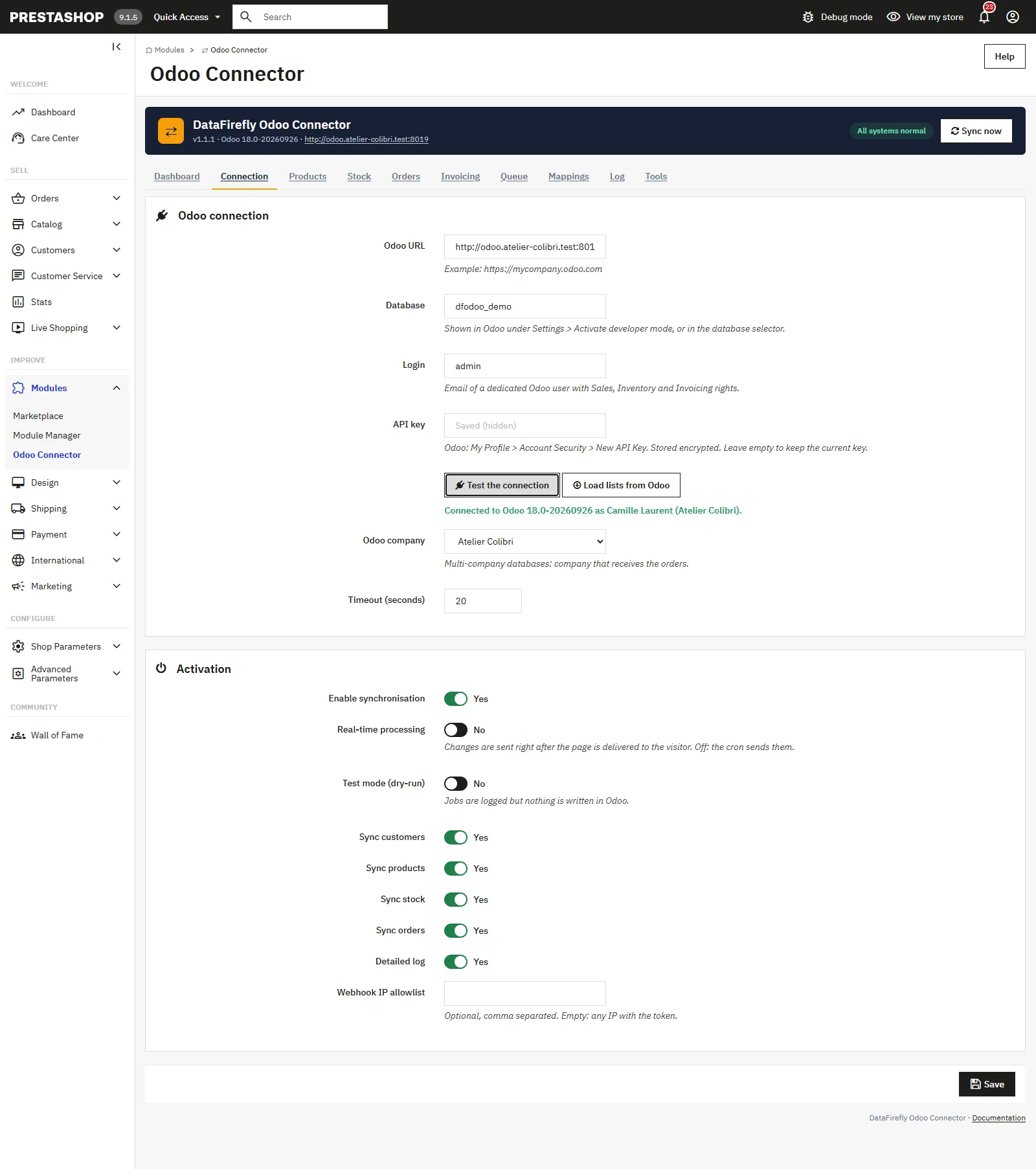
Odoo connection with URL, database, login and encrypted API key, with a successful connection test
## Products tab
- **Product direction**: PrestaShop to Odoo, Odoo to PrestaShop, or both ways.
- **Send the cover image**, **Create the category tree in Odoo** (with the parent Odoo category) and **Send the purchase price as cost** (disable this if Odoo computes costs using average or FIFO costing).
- **Archive Odoo variants missing in PrestaShop**.
- **Extra field mapping**: one line per field, in the format `odoo_field=prestashop_field`.
- **Odoo to PrestaShop**: price, name, reference and EAN13, enabled status, as you choose.
- **Import new Odoo products**: sellable products created in Odoo are created in PrestaShop, with their variants as combinations, in the chosen category and tax rule, enabled or not.
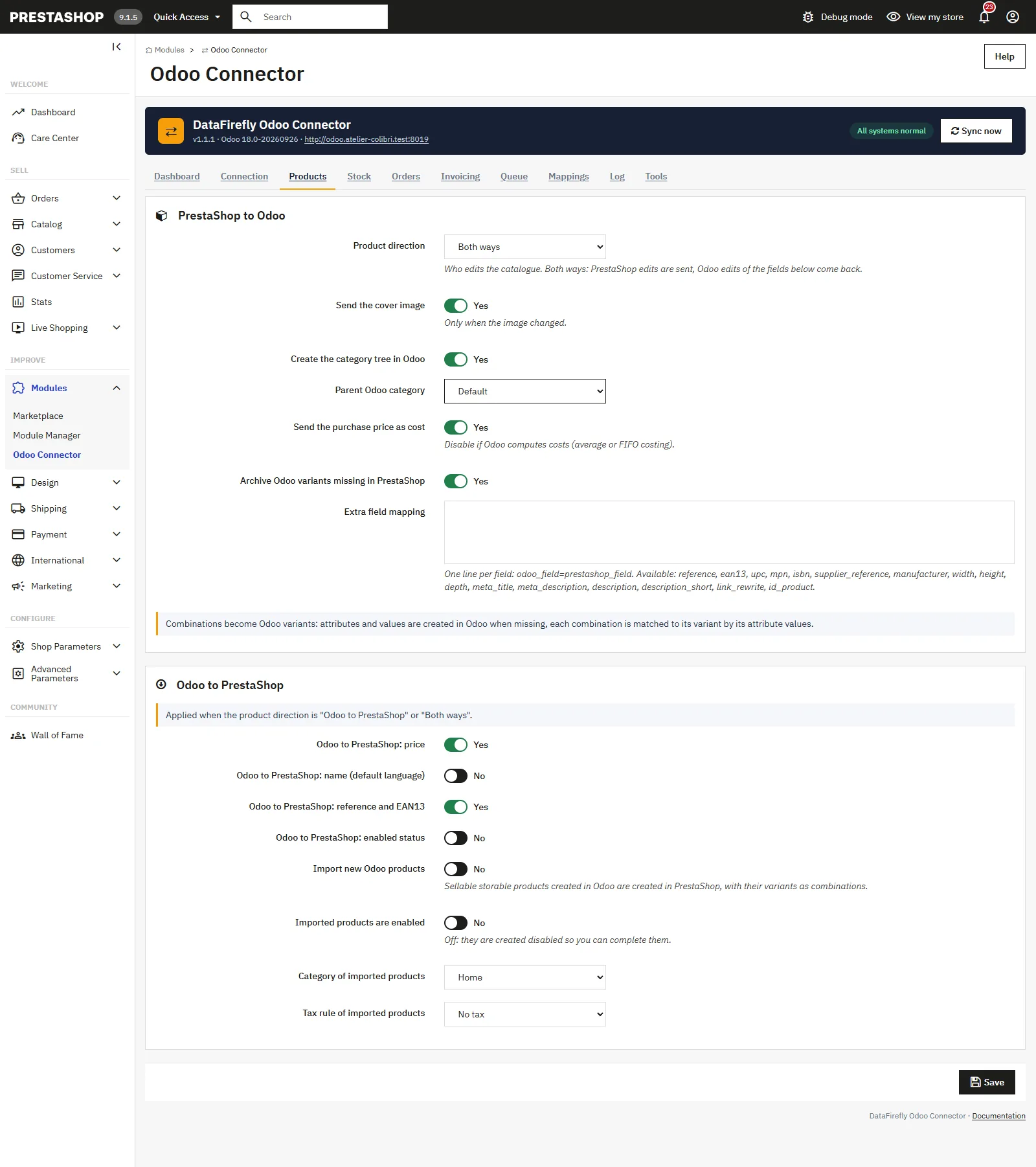
Product and combination sync settings between PrestaShop and Odoo, both ways
## Stock tab
- **Stock master**: Odoo (recommended), PrestaShop, or both. Movements linked to orders are never counted twice.
- **Quantity sent to PrestaShop**: the free-to-sell quantity (after deducting reservations, recommended to avoid overselling) or the on-hand quantity.
- **Odoo warehouse**, also applied to orders, and an optional **specific location**.
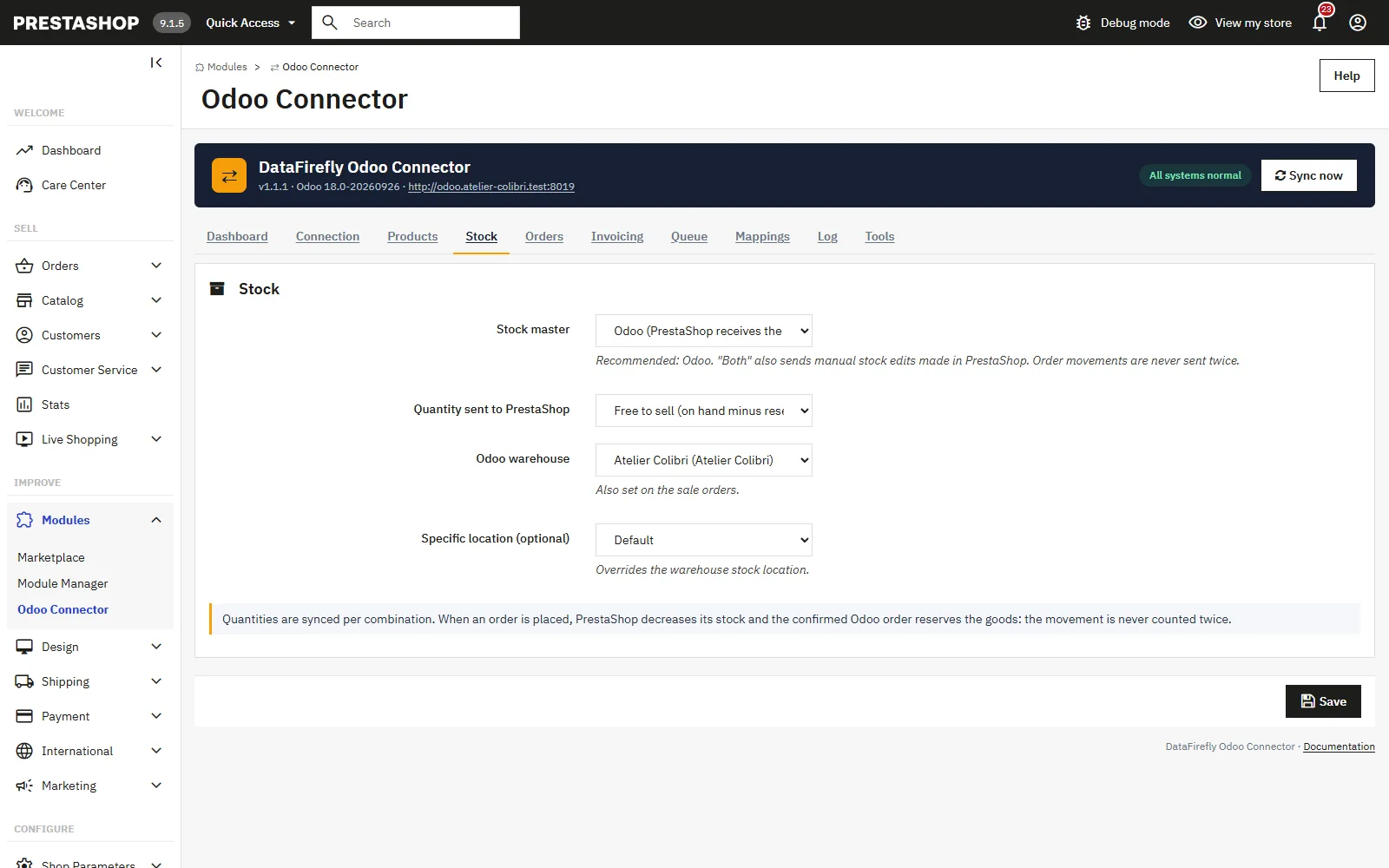
Stock sync per combination with Odoo as master, free quantity and warehouse
## Orders tab
- **Send orders to Odoo**: as soon as they are placed or only once paid, with a date before which orders are ignored.
- **Confirm the Odoo quotation** when the order is placed or when it is paid: confirmation creates the delivery order in Odoo.
- **Taxes**: _PrestaShop rates_ (Odoo taxes with the same rate are used and the totals match) or _Let Odoo compute_ (Odoo product taxes and fiscal positions).
- **PrestaShop statuses that cancel the Odoo order**, **Sales team** and **Salesperson**.
- **Odoo deliveries update PrestaShop**: when the delivery is validated, the order takes the chosen status (Shipped by default) with the tracking number, and the customer receives the shipping email.
- **Odoo cancellations update PrestaShop**.
Each order line points to the Odoo variant of the combination. Shipping, gift wrapping and discounts are added as separate lines, with discounts split by tax rate. The module compares the Odoo total with the PrestaShop total and reports any difference in the log.
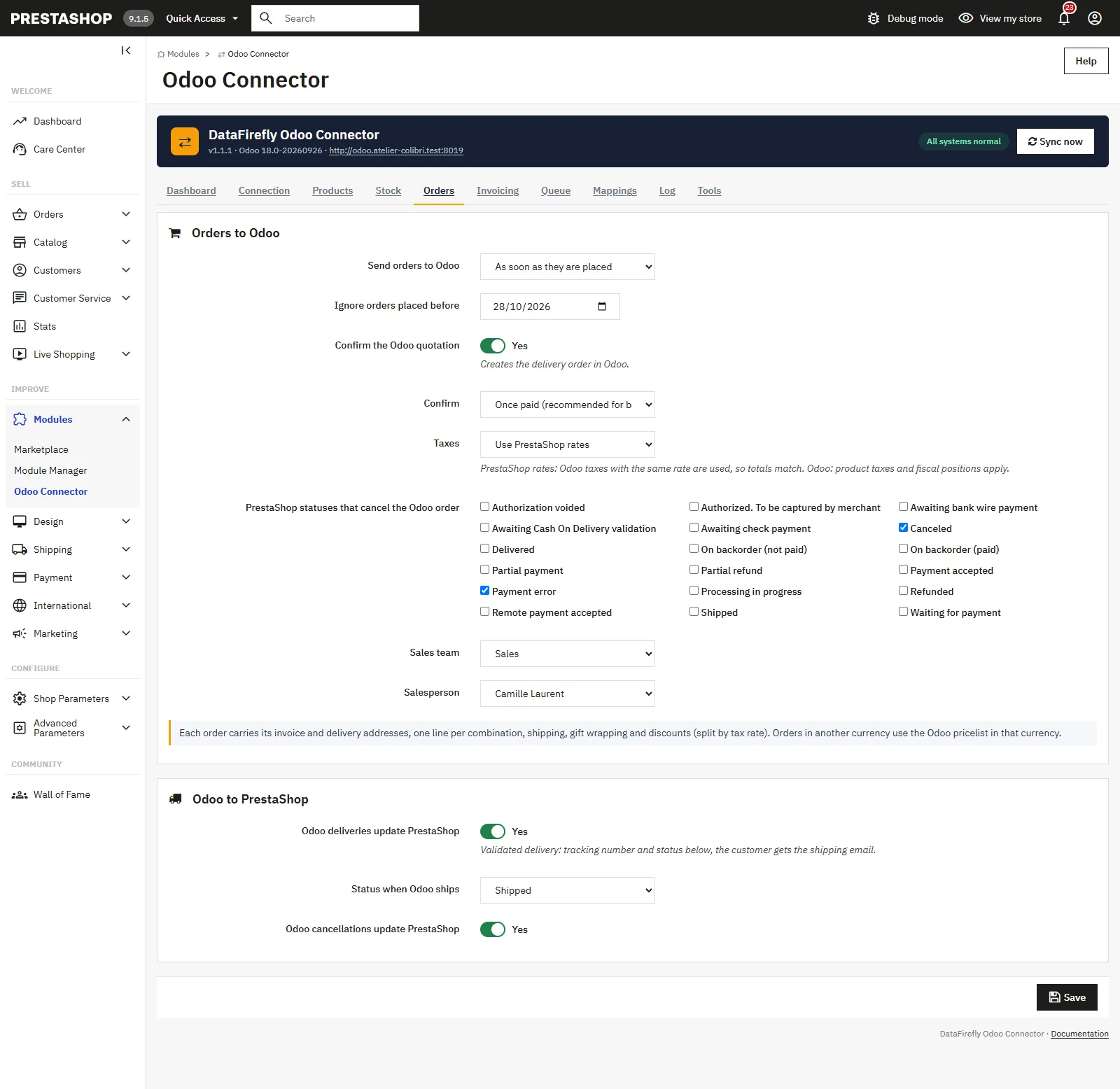
Sending PrestaShop orders to Odoo: confirmation on payment, taxes, sales team and shipments coming back
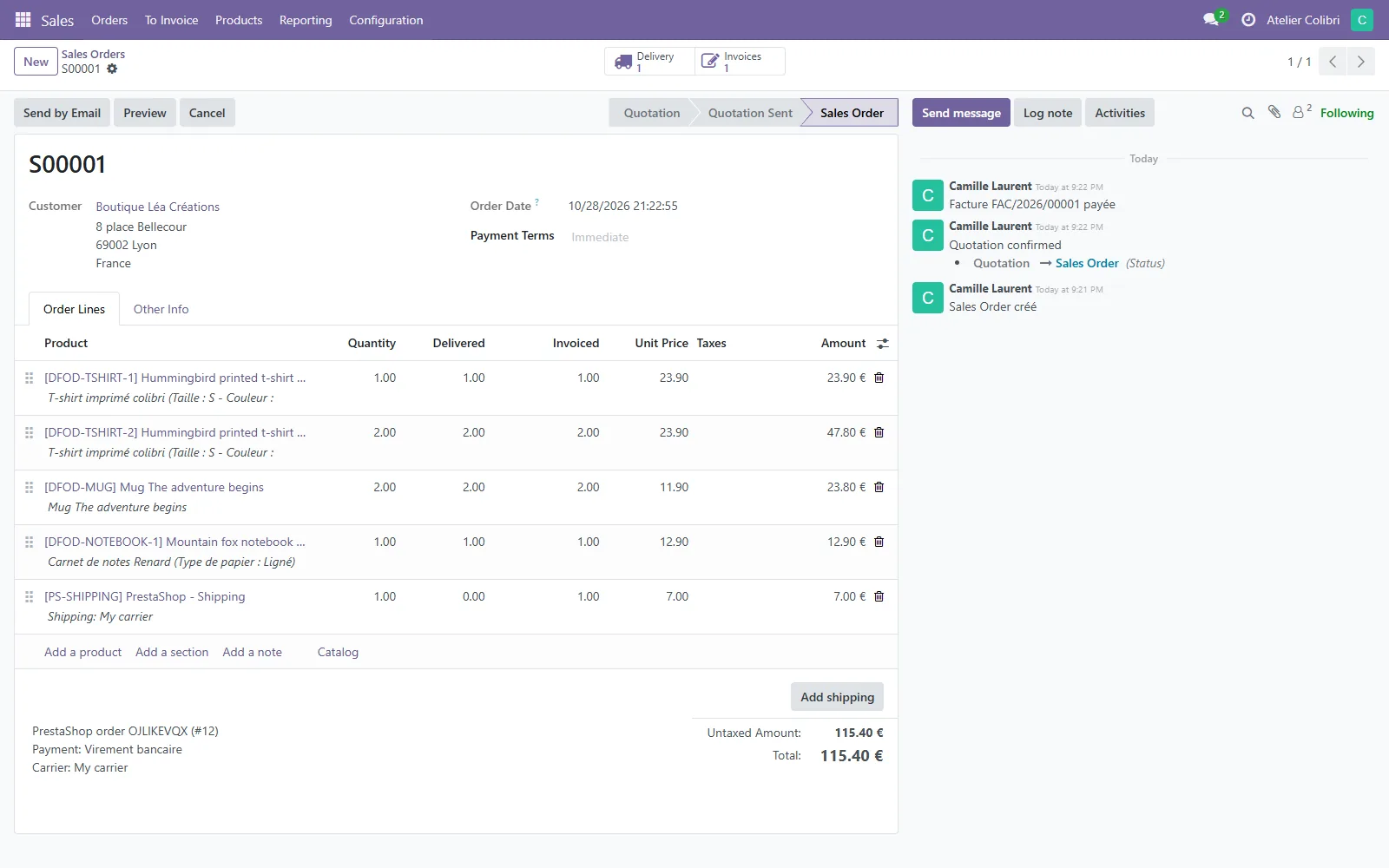
Odoo sales order created from PrestaShop: one line per variant, shipping, delivered and invoiced
## Invoicing tab
- **Odoo invoices**: do not create, create as draft, or create and post. The invoice is created from the confirmed order, when the order is placed or when it is paid.
- **Register the payment in Odoo**: the posted invoice of a paid order is marked as paid in the matching journal.
- **Default payment journal**, and **Journal per payment module**: one line per module, in the format `module_name=journal_id`, for example `stripe_official=7`.
Without a configured journal, the payment is not registered: the log shows a warning naming the payment module concerned.
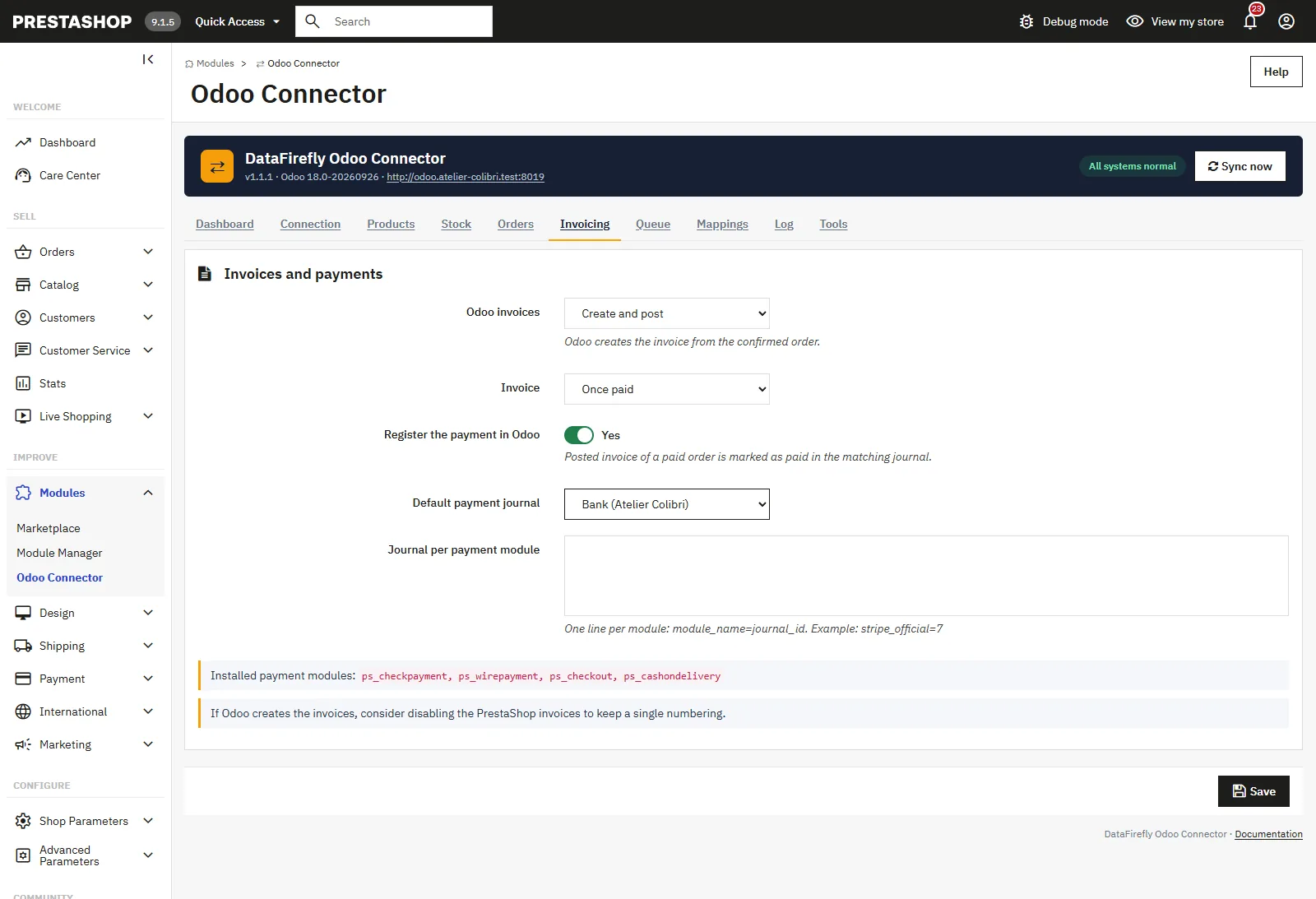
Posted Odoo invoices and payment registration in the journal of each payment module
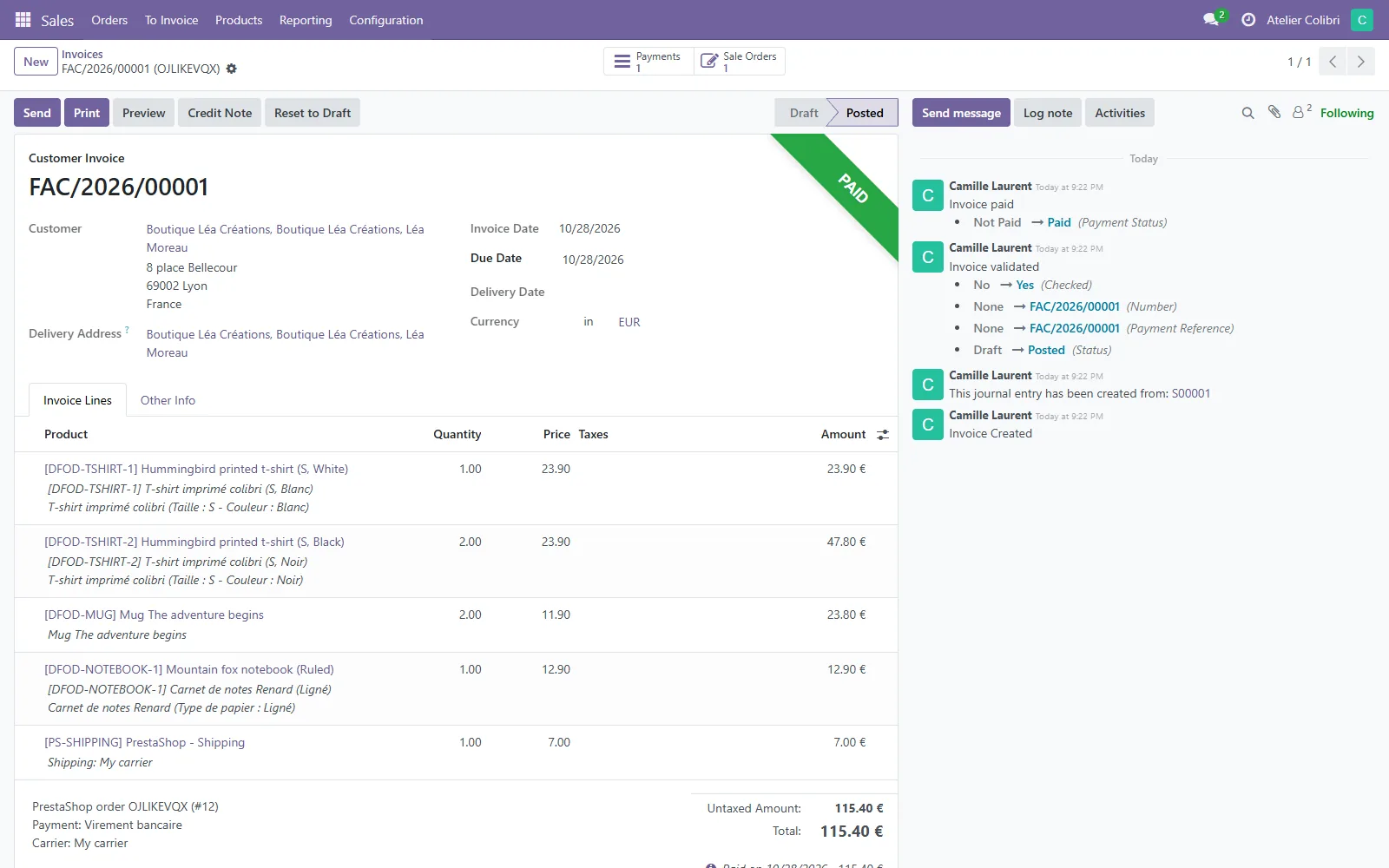
Odoo customer invoice posted and paid automatically for a PrestaShop order
## Initial sync
On an existing store, populate Odoo from the **Tools** tab, in this order:
1. **Send all customers**.
2. **Send all products**.
3. **Import all Odoo stock** if Odoo is the stock master.
4. **Send orders placed since** a date.
Jobs are sent in batches by the cron. If your catalogue or customers already exist in Odoo, they are **matched instead of being recreated**: customers by their email, addresses by their reference, simple products by their reference (or `PS-` if there is no reference), products with combinations by the references of their variants, and orders by their origin.
Start with **Test mode** enabled: every operation is recorded in the log without writing anything to Odoo. Disable it once you have checked the result.
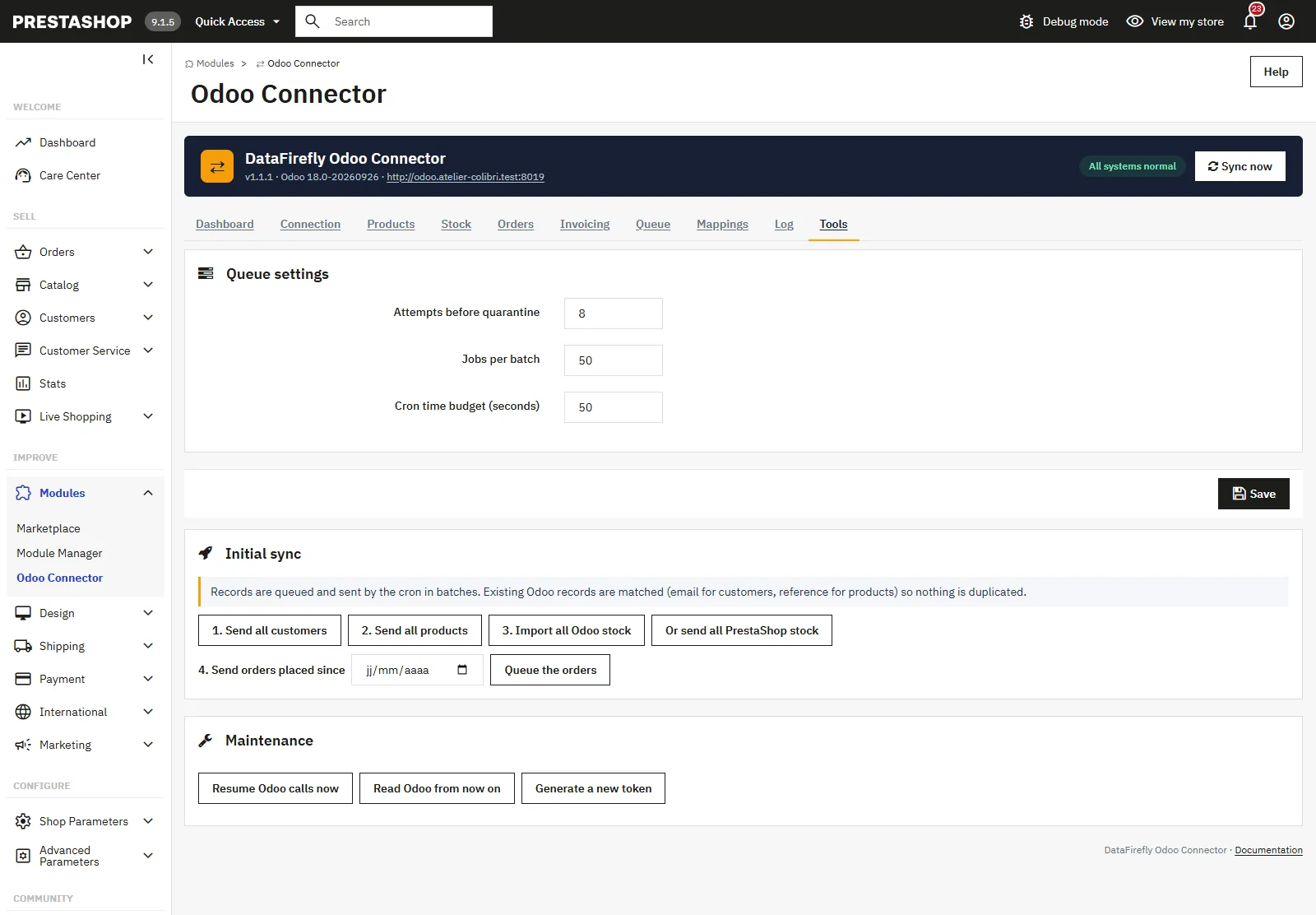
Initial sync tools: send customers and products, import Odoo stock and queue orders since a date
## Cron
The cron processes the queue and reads changes made in Odoo (stock, products, deliveries, cancellations). Schedule it every 1 to 5 minutes with the URL shown in the dashboard:
```
curl -s "https://your-store.com/module/dfodooconnect/cron?token=YOUR_TOKEN"
```
or, with no HTTP time limit, from the command line on the server:
```
php /path/to/prestashop/modules/dfodooconnect/cron.php
```
Two runs never execute at the same time. The **Sync now** button on the dashboard starts an immediate run.
## Odoo webhooks (real time from Odoo)
Without a webhook, the cron reads Odoo changes at every run. For immediate updates, from Odoo 17 onwards, create one rule per model with no code in _Settings > Technical > Automation Rules_:
- Models: _Product_, _Product Variant_, _Quants_ or _Stock Move_, _Transfer_, _Sales Order_.
- Trigger: _On save_.
- Action: _Send Webhook Notification_ to the webhook URL shown in the dashboard.
The token is mandatory: the webhook URL shown in the dashboard already contains it (`?token=`). For your own scripts, it can also be sent in the `X-DF-Token` header. The received content is never applied as is: it only indicates which record has changed, and the module reads it again from Odoo through the API.
A request without a valid token is rejected with a 403 code. You can also restrict the allowed IP addresses in the Connection tab.
## Dashboard and monitoring
The dashboard shows the health status (last cron run, last successful Odoo call, oldest waiting job, errors and warnings over 24 h), the queue counters (_Pending_, _Retrying_, _Quarantined_, _Done_) and the number of linked records. The **Queue**, **Mappings** and **Log** tabs can be filtered, and an Odoo panel on the order, product and customer pages offers a _Sync now_ button.
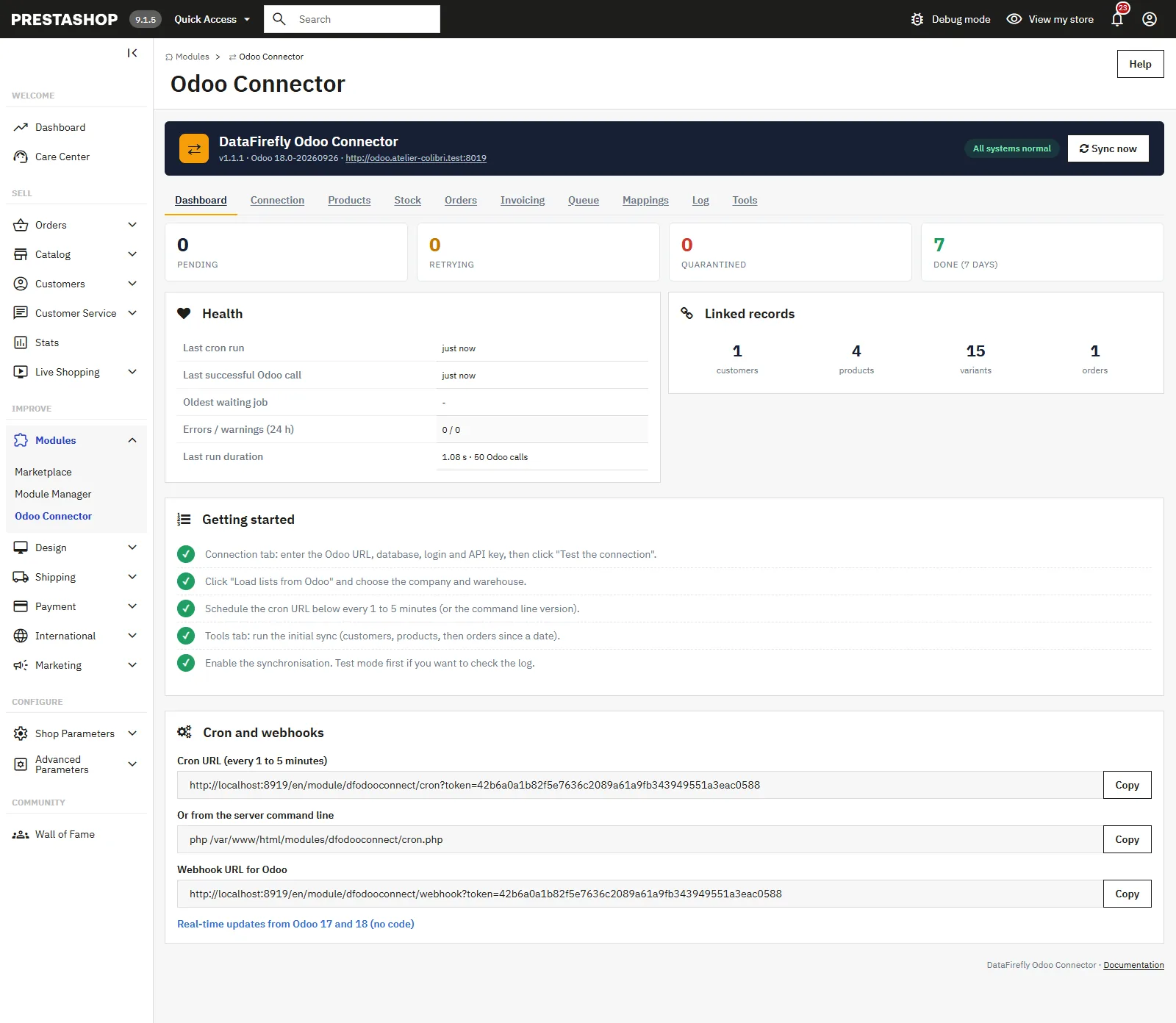
Odoo Connector dashboard for PrestaShop: queue counters, sync health and linked records
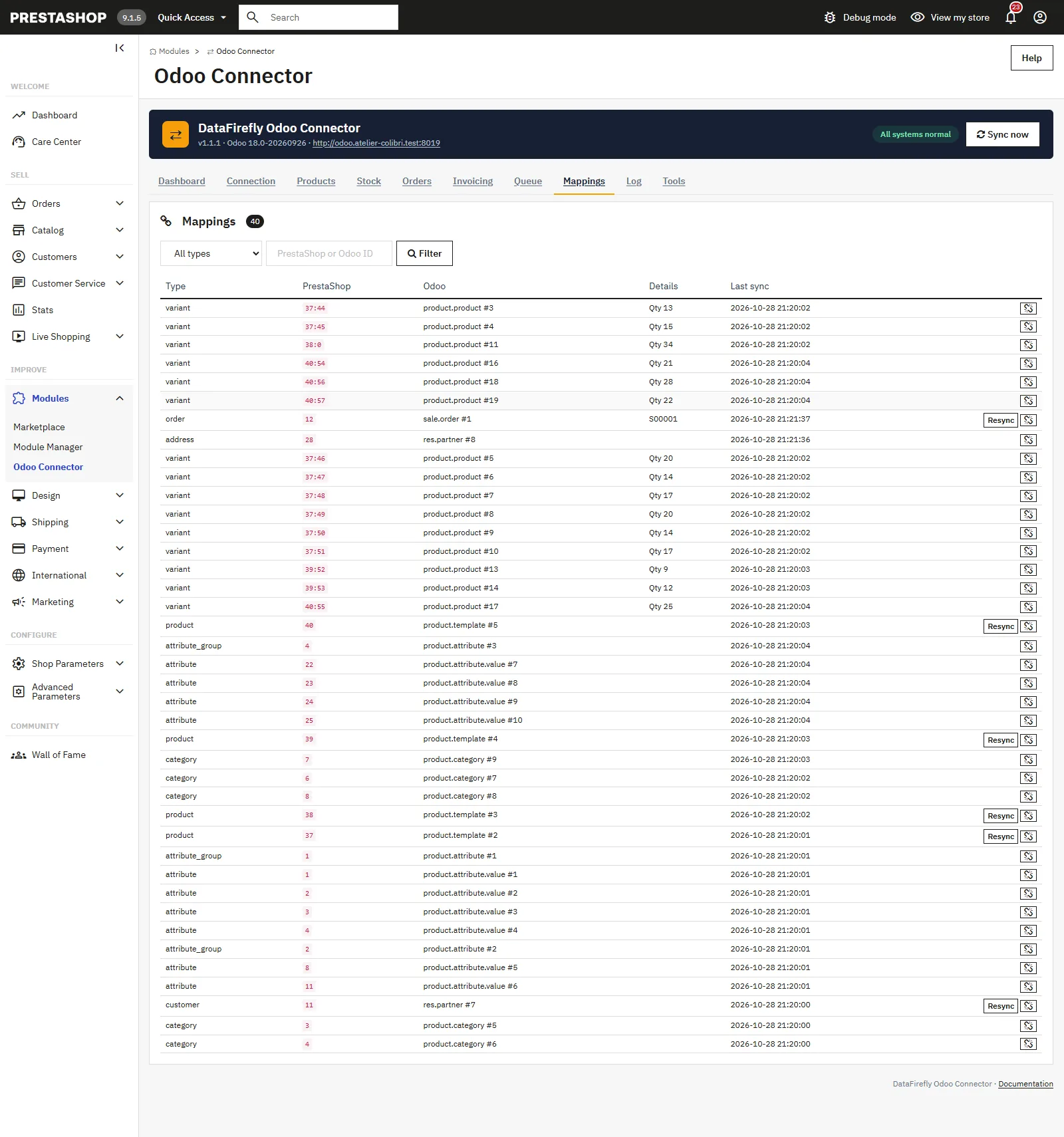
PrestaShop to Odoo record mappings: customers, products, variants and orders with links to Odoo
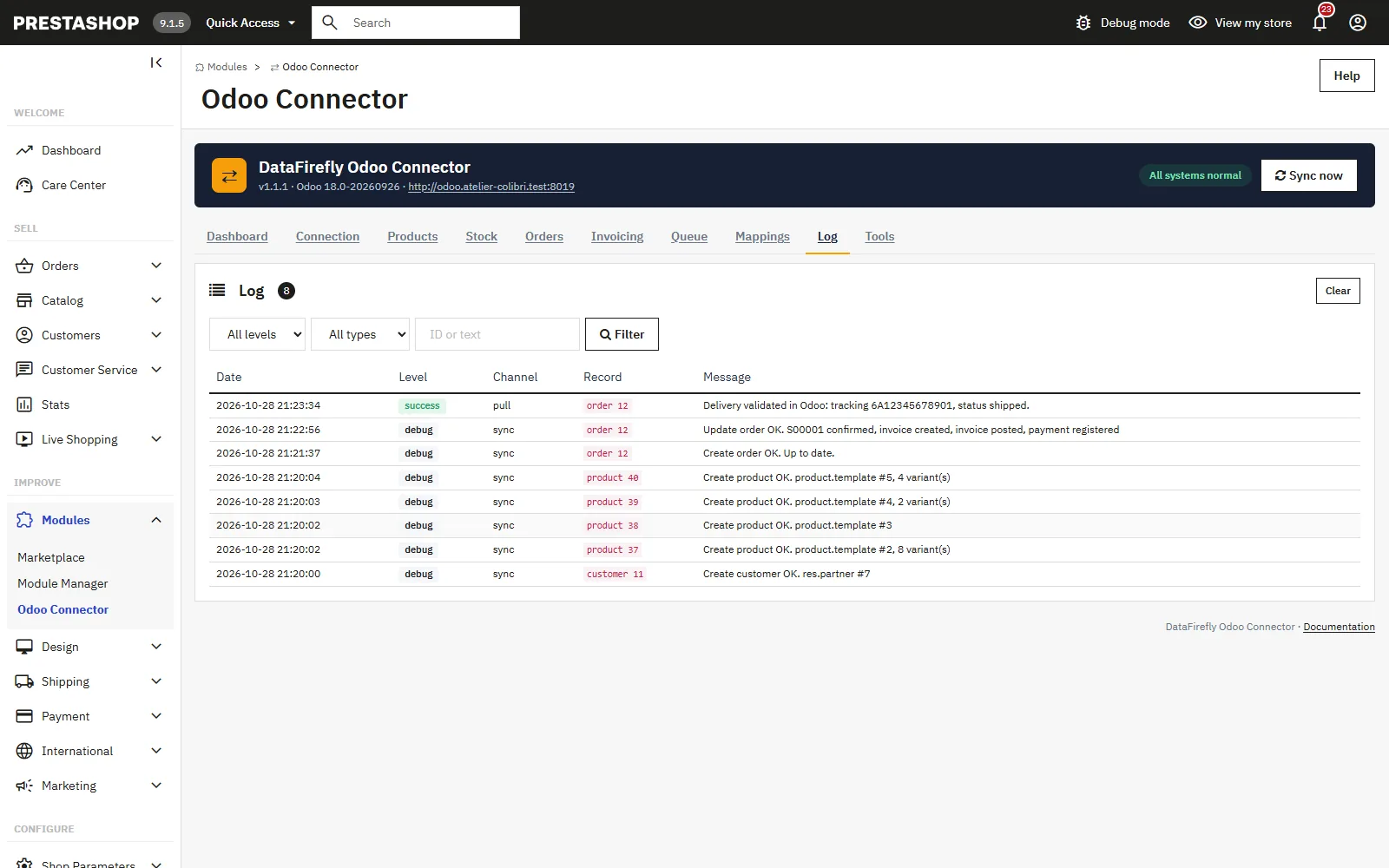
Odoo sync log: products and quotation created, invoice, payment and validated delivery
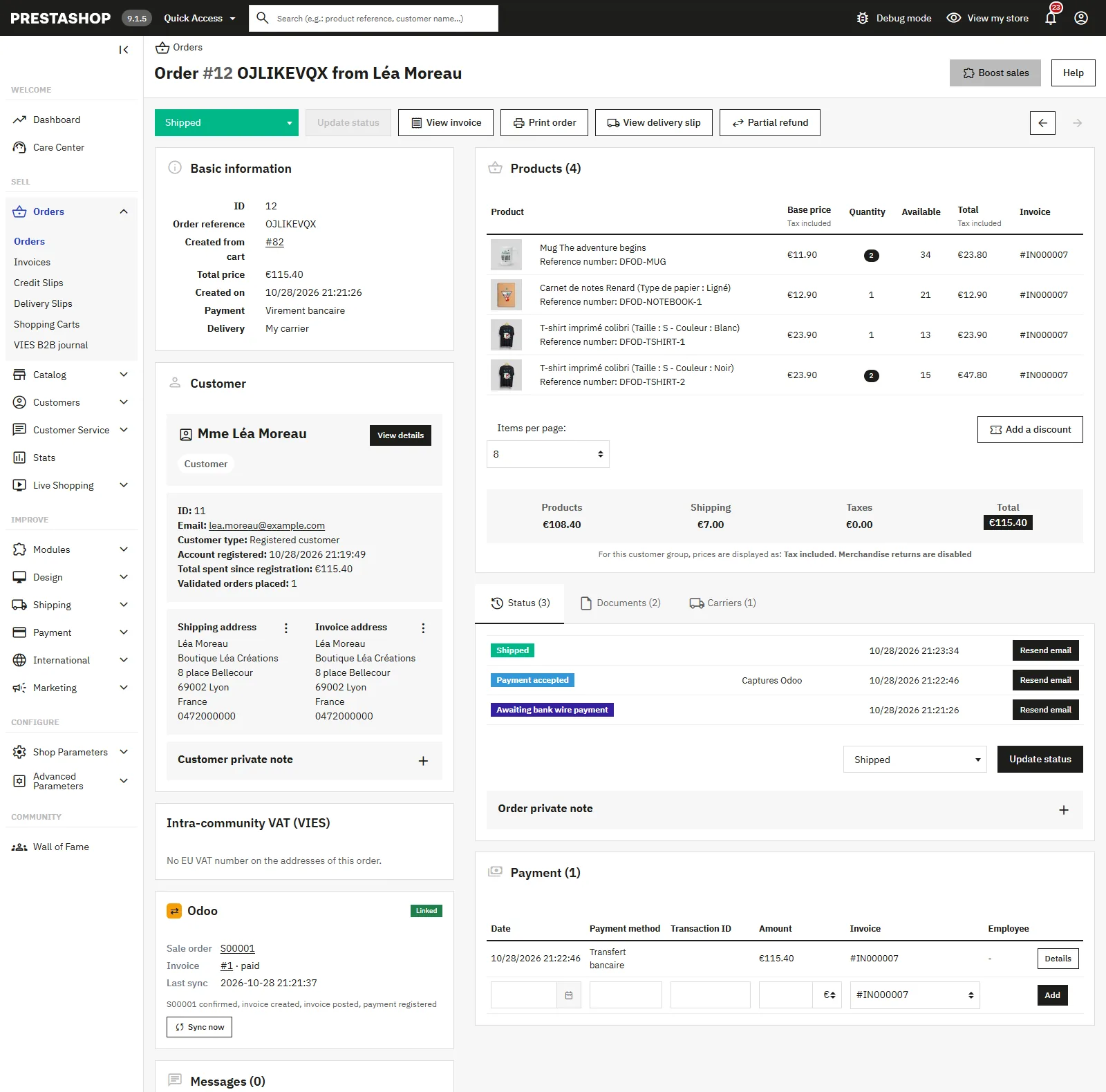
PrestaShop order linked to its Odoo sales order, paid invoice and Shipped status received from Odoo
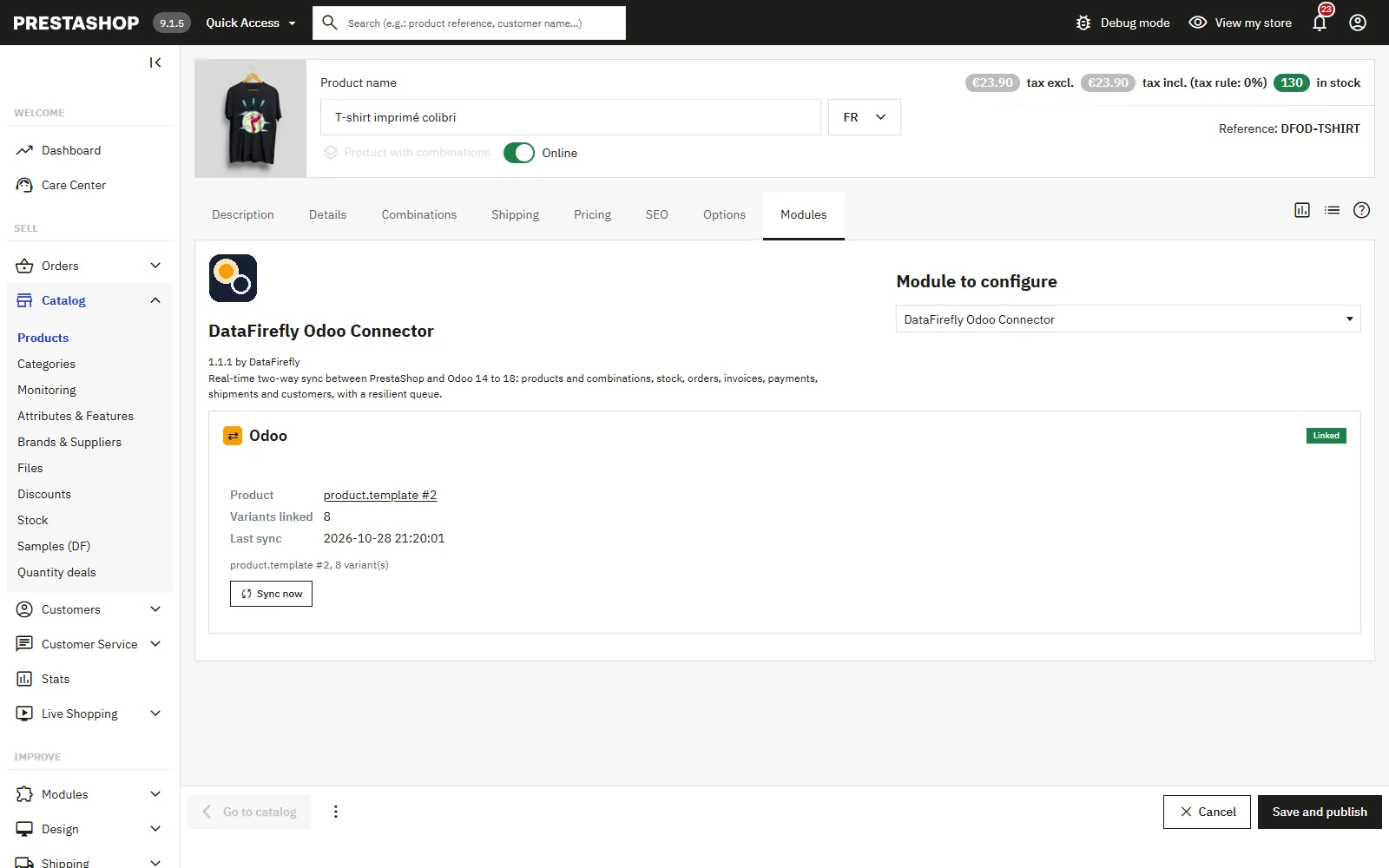
Odoo panel on the PrestaShop product page: linked product, variants and Sync now button
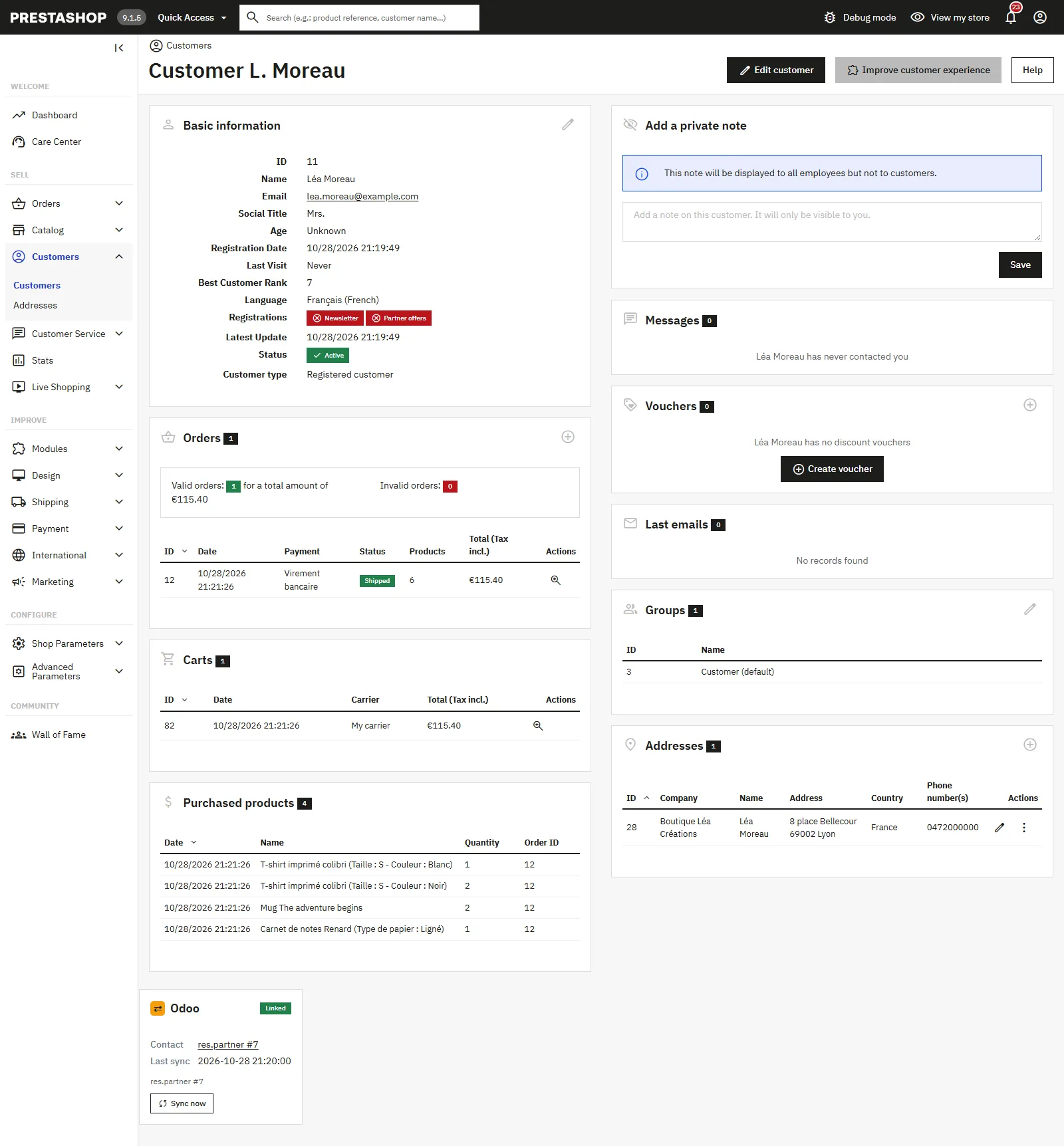
Odoo panel on the PrestaShop customer page: linked Odoo contact and on-demand sync
## The resilient queue
Every change is placed in a queue processed after the page has been sent to the customer: the checkout never waits for Odoo. If a job fails, it is retried with an increasing delay (from 1 minute to 24 hours); after the configured number of attempts (8 by default), it is quarantined and can be retried in one click. If Odoo stops responding, a circuit breaker pauses calls and keeps the jobs without using up their attempts, then synchronisation resumes on its own when Odoo is back.
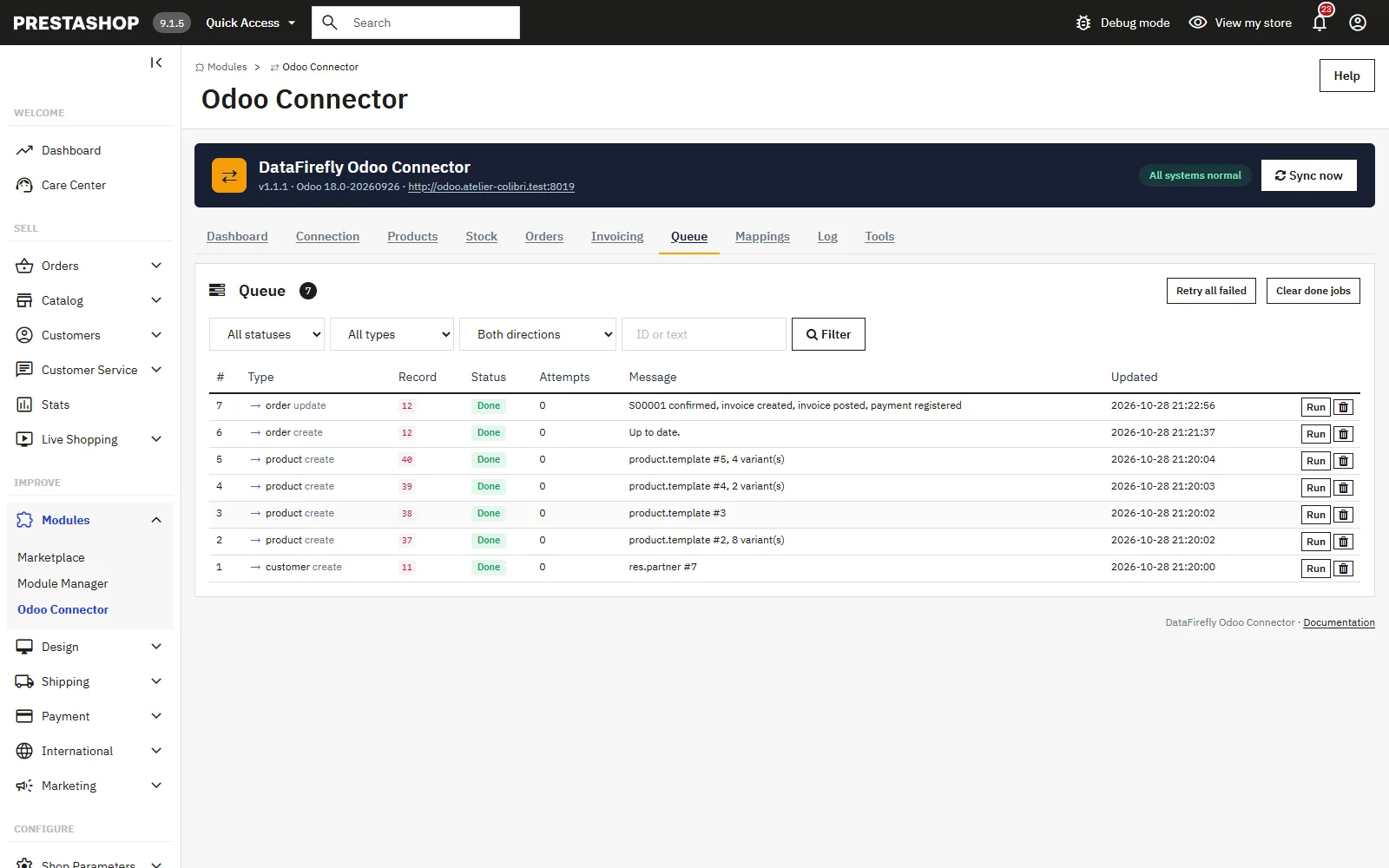
Odoo sync queue: completed jobs, attempts and one-click retry
## Changing Odoo database
If you switch from one Odoo database to another (test database to production, migration), the module detects it using the database's unique identifier. It then forgets the mappings and settings specific to the old database (company, warehouse, location, sales team, salesperson, journal) and displays a message: reload the lists from Odoo and check the settings. On the next sync, records in the new database are matched by their references.
## Synced fields
### Customers
Odoo contact with name (or company), email, VAT number, SIRET, country, region, language and phone. The invoice and delivery addresses become child contacts when orders are sent. A VAT number rejected by Odoo does not prevent sending: the contact is created without the VAT number and a warning is added to the log.
### Products and combinations
Name, price excluding tax, cost, weight converted to kg, reference, barcode, tax at the same rate (services tax for virtual products), category and image. Each combination is linked to an Odoo variant; attributes and their values are created as needed. An unchanged product is not rewritten in Odoo.
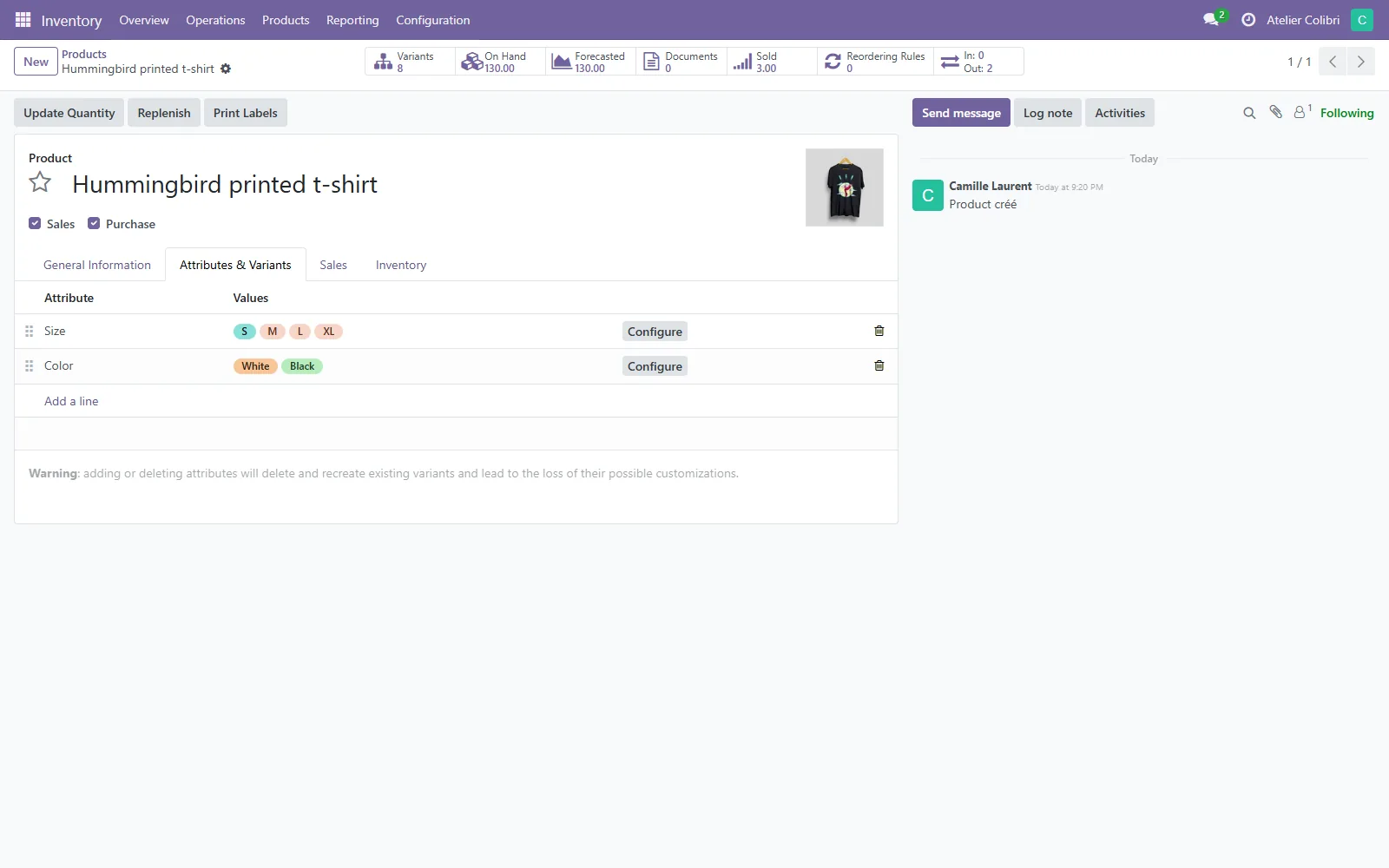
Odoo product created from PrestaShop with attributes and variants from its combinations
### Stock
Per combination, on the chosen warehouse or location.
### Orders
Customer, invoice and delivery addresses, lines per variant, shipping, gift wrapping, discounts, currency via pricelist, warehouse, sales team and salesperson.
## Troubleshooting
- **"Authentication refused by Odoo"**: the login or API key is incorrect, or the key has been revoked. Generate a new key.
- **"Odoo closed the connection: check the database name"**: the specified database does not exist on this server.
- **"Odoo redirects this URL"**: use the address given in the message (often the `https://` version).
- **"No Odoo sale tax at 20%"**: create a sales tax in Odoo at the stated rate, as a percentage and excluding tax.
- **"No Odoo payment journal for payment module…"**: choose a default payment journal or one per module in the Invoicing tab.
- **The tracking number is not sent back**: install the Delivery app in Odoo. The Shipped status works without it.
- **"Total mismatch"**: the Odoo total differs from the PrestaShop total; check the Odoo taxes matching the order's rates.
- **Stock or deliveries are not coming back**: check that the cron is running (last cron run date on the dashboard) and the configured direction.
- **A job is quarantined**: read its message in the Queue tab, fix the cause, then retry it.
## Uninstall
Uninstalling removes the mapping, queue and log tables as well as the module's settings. **Your data in Odoo is not modified.** If you reinstall, existing records in Odoo are matched by their references, with no duplicates.