In 2026, dark mode is no longer a “developer gadget” feature. Usage studies show that 60 to 80% of users activate dark mode on their OS at least part of the day — iOS switches automatically at night with True Tone, macOS and Windows have automatic brightness settings, power-users keep it on permanently to reduce eye strain. A store that doesn’t offer dark mode no longer meets 2026 UX expectations and sends visitors an aggressive white flash on every page load — particularly painful in the evening and on mobile.
Shopware 6.7 offers no native dark mode on the storefront. This absence isn’t trivial: a clean implementation requires handling several technical topics (anti-FOUC, cross-device persistence, Bootstrap compatibility, synchronisation with other components) that are rarely done properly without a dedicated plugin. This guide details how to implement a complete, performant dark mode on Shopware 6.7, with the technical pitfalls to avoid.
Why dark mode has become a UX standard in 2026
Three forces have turned dark mode from a bonus into an expectation.
OS usage has gone mainstream. Since iOS 13 (2019) and macOS Mojave (2018), system dark mode shifted from niche to mainstream. 2025 statistics show 80% of iOS users and 65% of Android users have enabled dark mode at least occasionally, with 35% keeping it on permanently. On desktop it’s slightly lower (40-50%), but growing steadily.
Visual fatigue is a recognised health concern. Studies have documented the impact of bright white at night on sleep quality and eye fatigue. Dark mode is no longer just an aesthetic preference — it’s a comfort practice embedded in the digital routines of users sensitive to these issues.
UX expectations have aligned. Major platforms (Twitter/X, Reddit, GitHub, Notion, Linear, Slack, Discord) all offer polished dark mode. Users expect to be able to switch to dark on any interface and perceive negatively sites that don’t follow. For an e-commerce store, it’s a subtle but real quality signal.
The white flash trap (FOUC) — why it’s a UX killer
FOUC means “Flash of Unstyled Content” — applied to dark mode, it’s the brief white flash visible before the dark mode JavaScript runs and applies the dark theme. For a visitor who has set their OS to dark, this flash typically lasts 100 to 400 milliseconds on the first page load — just long enough for a human to perceive the visual inconsistency.
The technical cause is well-known: most dark mode plugins apply the theme via JavaScript in DOMContentLoaded — an event that fires after the browser’s first paint. The fix is equally well-known: inject a minimal inline script directly in the head tag that reads the preference cookie (synchronous, ~10 lines of JS) and sets the data-bs-theme attribute on the root element before the browser’s first paint. On Shopware, this requires modifying the base Twig layout with an inline script — which few developers do naturally.
Architecture of a clean dark mode on Shopware 6.7
A complete, performant dark mode relies on five components that must work together.
A CSS convention supported by your theme. Bootstrap 5.3 introduced data-bs-theme="dark" as the standard convention, followed by most Shopware 6.7+ themes. Verify which convention your theme uses before anything else.
An anti-FOUC script at the start of the head tag. This script reads the visitor’s preference (cookie or browser detection) and applies the data-bs-theme attribute before the first paint. The only non-negotiable component of a clean implementation.
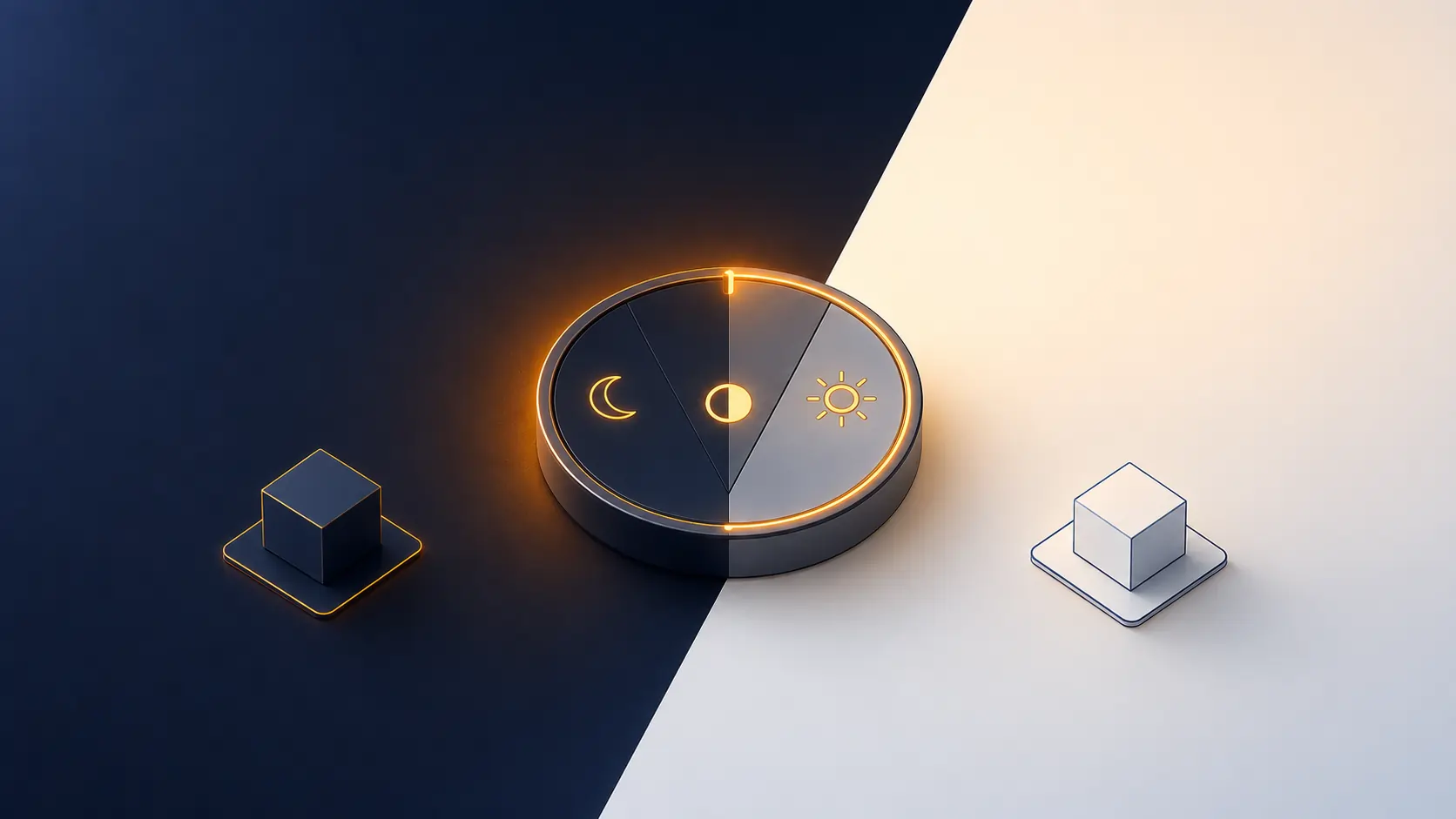
A toggle in the header. Button or switch that cycles between Auto (follows the browser), Light (forced), Dark (forced). The 3-state pattern has become standard in 2026.
Cookie persistence. A browser cookie (typically 1 year, SameSite=Lax) persists the preference between sessions.
Customer persistence for logged-in users. For logged-in customers, the preference must be stored server-side (customer custom field) to be found on any device. Without this, a customer who sets dark mode on their phone arrives on their computer and rediscovers light mode by default.
The orchestration: on login, sync the cookie with the customer custom field. On each toggle change, update the cookie AND write to the custom field if logged in. The result is a “cross-device” dark mode that follows the customer everywhere.
Step-by-step implementation on Shopware 6.7
Step 1 — Verify your theme’s CSS convention. Check theme/Resources/app/storefront/src/scss/ for [data-bs-theme="dark"] or another convention.
Step 2 — Add the anti-FOUC script in the base layout. Override base.html.twig to add an inline script as high as possible in the head tag, reading the df-dark-mode cookie and applying the attribute before the first paint.
Step 3 — Create the toggle component. A simple Twig component dark-mode-toggle.html.twig with a button cycling through 3 states. Include it in the base_header_actions_wishlist block or another block per your design.
Step 4 — Implement the JavaScript logic. A storefront JS plugin (dark-mode-toggle.plugin.js) that listens for toggle clicks, calculates the new state, writes the cookie, updates data-bs-theme, emits a custom df-dark-mode-changed event, and if logged in, sends a POST to a Shopware route to update the customer custom field.
Step 5 — PHP plugin for the customer custom field and AJAX route. A standard Shopware 6.7 plugin that creates the df_dark_mode_preference custom field on the customer entity, exposes a /df-dark-mode/save AJAX route, hooks CustomerLoginEvent for cookie/field sync on login, and cleans up the custom field on uninstall.
Manual implementation takes half a day for an experienced Shopware developer. That’s what our DataFirefly Dark Mode plugin does: 3-state toggle, guaranteed anti-FOUC via inline script, cookie + customer custom field hybrid persistence, login sync, JS event for third-party integrations, multilingual snippets FR/EN/DE. Ready in 3 minutes.
Persisting the preference: cookie vs customer custom field
Cookie only — simplest: persists for 1 year. Limitation: tied to one device and browser.
Customer custom field only — server-side, works across all devices. Limitation: only for logged-in users, and requires a server request to read (impossible for synchronous anti-FOUC).
Hybrid approach (the right one). Cookie for anti-FOUC and browser-side persistence, plus customer custom field for logged-in users. On preference change: write to both. On login: sync cookie with custom field value. This design combines the advantages of both and eliminates their respective limitations.
Syncing dark mode with other page components
Some third-party components need to know which theme is applied to adapt: Recharts/Chart.js charts, external iframes (calendar, video embeds, third-party forms), live chat widgets. Without synchronisation, these components remain in light mode on a dark background.
The clean solution: a custom JavaScript event emitted on document at each theme change — df-dark-mode-changed with a payload exposing the raw preference (auto/light/dark) and the resolved theme (the calculated light/dark after auto resolution). Interested components listen with document.addEventListener and adapt their rendering accordingly. This decouples components cleanly.
Conclusion: a moderate investment, a strong quality signal
Dark mode on Shopware 6.7 isn’t technically very complex in isolation. But it combines several details (anti-FOUC, cross-device persistence, Bootstrap compatibility, sync event) that must all be done correctly for the experience to be clean. A poorly done dark mode degrades UX instead of improving it — white flash, preference lost between devices, theme conflicts, broken contrasts on third-party components.
For related topics, browse our Conversion & UX and Performance & Core Web Vitals categories. And for a ready-to-deploy Shopware 6.7 dark mode with guaranteed anti-FOUC, hybrid persistence and native sync event, the DataFirefly Dark Mode plugin implements everything in this article with a 3-minute install.
To put this into practice: our selection of Shopware plugins for design and personalisation.