
Everything you'd want to know before you install.
A detailed look at how DataFirefly BOM — Bill of Materials & Product Assembly works, why we built it the way we did, and the thinking behind the features above.
The manufacturing building block PrestaShop lacks
PrestaShop knows how to sell products, but knows nothing about what they're made of. If you sell gift boxes, bundles, assembled machines or kits built from individual parts, you know the problem: the kit's stock never reflects its components, kit sales don't deduct the parts, and inventories drift apart week after week. This module adds true bill-of-materials management: every product can declare the exact list of its components with quantities, and the store draws all the consequences automatically.
Virtual kit: accurate stock, at all times
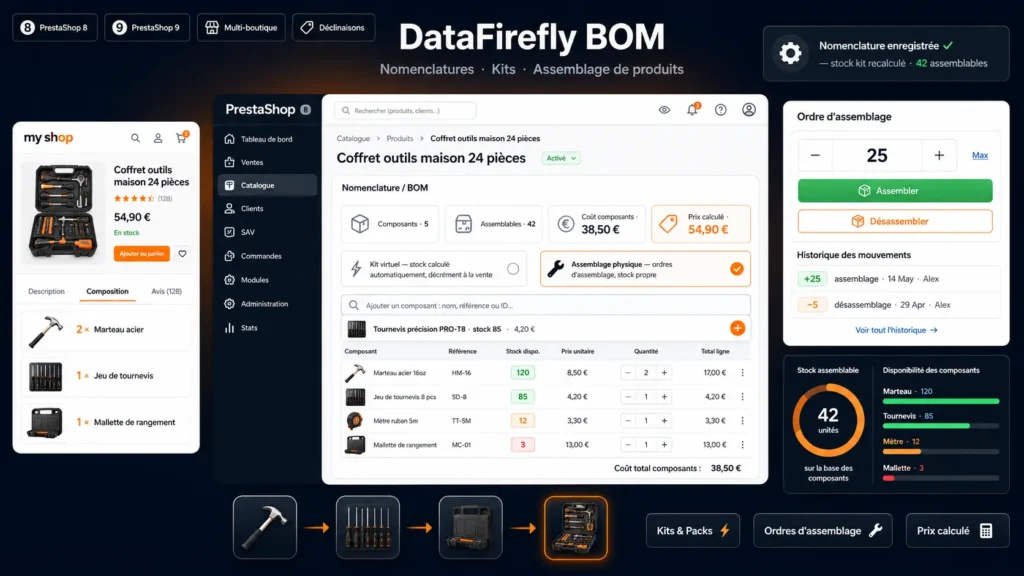
In virtual kit mode, you no longer manage the kit's stock: the module computes it. If your toolbox needs two hammers and one case, and you have 120 hammers and 40 cases, the kit shows 40 available units. When a customer orders, component stocks are deducted and the kit's stock is recomputed instantly. On cancellation or refund, components are restored. Your stock stays consistent with zero manual work, even when a component is shared across several kits.
Physical assembly: for those who manufacture
Some stores prepare their kits ahead of time: assembly, quality control, packaging. Assembly mode is built for them. The finished product keeps its own physical stock, which you credit through assembly orders: enter a quantity, click Assemble, components are consumed and finished product stock increases. The Max button tells you how many units your component stock allows. Disassembly does the reverse, and every operation is logged with employee, date and quantity, viewable from the Catalog menu.
A price that follows your costs
For each BOM, choose: a classic fixed price set on the product page, or a computed price. In computed mode, the kit price is the sum of its components' prices minus a percentage discount you set — the typical bundle discount that makes the kit more attractive than buying separately. When a component's price changes, the kit's price is recalculated automatically. The interface permanently shows the component cost and the resulting computed price, updated live as you adjust quantities and discount.
An interface built for speed
Everything happens in the product page, Modules tab. Four indicators at the top: component count, buildable quantity, component cost, computed price. Two pairs of clickable cards to pick the modes. Instant search with thumbnails, reference, stock and price to add components — including specific combinations. A visual table with color-coded stock badges (green, orange, red based on sufficiency), quantity steppers and per-line totals. Everything updates live, before you even save.
Show what's in the box
An optional “Composition” tab, enabled per product, shows the kit contents on your storefront product page: image, quantity and link for each component. Customers see exactly what they're buying — reassuring, value-enhancing, and a natural cross-sell to components sold separately.
Multi-level, combinations and safeguards
A component can be a specific combination of a product (size, color…) or itself a kit with its own BOM: sub-assemblies nest naturally and stock calculations propagate level by level. Circular-reference detection prevents creating a loop (a kit containing itself, even indirectly). A global option allows negative stock for just-in-time stores, and a resync button recalculates stocks and prices of all BOMs in one go.

There are no reviews yet.