PrestaShop Checkout & Payment

Prescription Upload for PrestaShop: Pharmacist Approval Before Shipping

No regulated order ships without your pharmacist's approval.

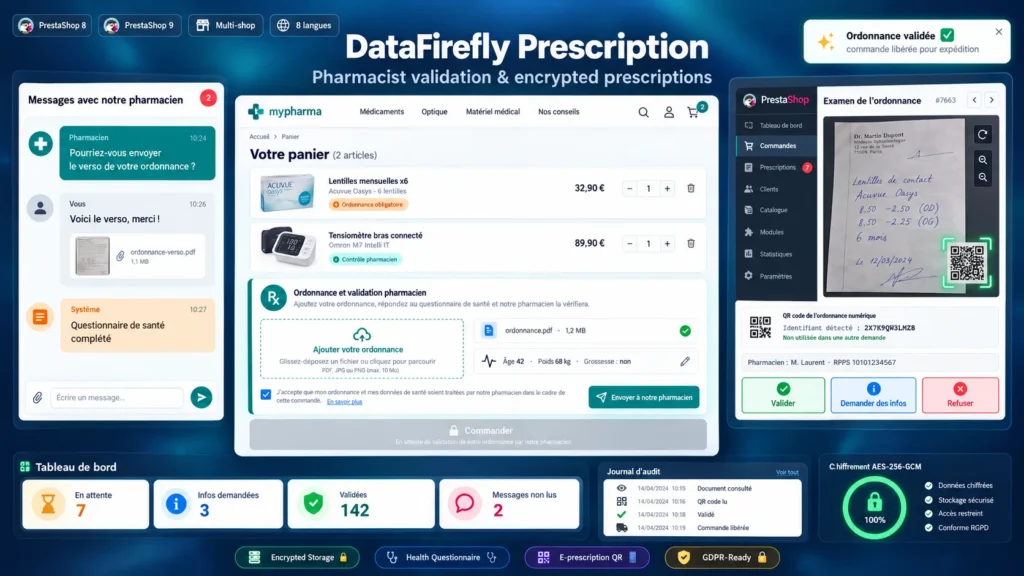
You sell medical supplies, contact lenses or products that need a check, and you handle prescriptions by email today. This module adds the prescription upload straight into the cart, holds the order until the pharmacist decides and keeps the documents encrypted on your server. The pharmacist reads the prescription in the back office, talks with the customer in a message thread, then approves, asks for details or refuses. The order returns to its status or is canceled automatically, and the customer is notified by email.

At a glance
  • Prescription upload in the cart (PDF, JPG, PNG, WebP), phone photos accepted
  • Order on hold until the pharmacist approves, or payment locked until approval
  • Documents and answers encrypted with AES-256-GCM, never served directly by the web server
  • Health questionnaire, maximum quantities per order and customer ↔ pharmacist messaging
  • QR code reading for electronic prescriptions and alert when a prescription is reused
PrestaShop 8 & 9 AES-256-GCM encryption 8 languages Pharmacy and medical supplies
  • 30-day refund
  • 12 months updates
  • 24h support
www.datafirefly.com/en/
Prescription Upload for PrestaShop: Pharmacist Approval Before Shipping
v1.2.0 · updated 2026-10-07
What it does

The short version.

01

The prescription comes with the order

Prescription products are flagged on their product page. In the cart, the customer drops the prescription or takes a photo with a phone, agrees to the processing of health data, then orders. Without a document the checkout is locked, even when the customer opens the order page directly.

02

The pharmacist decides, the order follows

The order goes to “Awaiting pharmacist validation”, even if a payment module confirms it later by webhook. The pharmacist opens the prescription in a viewer with rotation and zoom, signs with name and RPPS number, then approves, asks for information or refuses with a reason. Approved, the order returns to its original status. Refused, it moves to the status you chose, Canceled by default, which restocks the products.

03

Health data kept safe

Each file is checked by its binary signature, PDFs containing JavaScript or attachments are rejected, then the content is encrypted with AES-256-GCM before it is written. The storage folder can sit outside the web root, and the module tests whether it can be reached from the internet. An audit log records each view, download and decision, and a retention period purges files automatically.

04

Fewer back-and-forths with customers

Customer and pharmacist write to each other in an encrypted message thread, with saved replies inserted in one click. Reminders go out on their own when the customer does not answer, the request is canceled after the delay you set, and the pharmacist receives a summary of the requests waiting too long.

The long version

Everything you'd want to know before you install.

A detailed look at how Prescription Upload for PrestaShop: Pharmacist Approval Before Shipping works, why we built it the way we did, and the thinking behind the features above.

§ 01

Who it is for

Pharmacy and drugstore shops, medical supply sellers, online opticians and pharmacies allowed to sell online that must check a prescription or have some products reviewed by a professional before shipping. In France, selling prescription medicines online remains forbidden: there the module covers medical supplies, contact lenses, products under pharmacist review and other European markets where the law allows it.

§ 02

How an order goes

The customer adds a regulated product and sees the prescription block in the cart. The customer uploads the document, fills in the health questionnaire if you enabled it, then orders. The order is created with the “Awaiting pharmacist validation” status and the pharmacist receives an email. The pharmacist opens the request in Orders > Prescriptions, reads the document, writes to the customer if needed, then decides. The customer is emailed at each step and follows the request from the account or a private link.

§ 03

Before or after payment

By default the customer pays, then the order waits for validation: it is the simplest path, but a refusal means a refund. The “before payment” mode locks the checkout until the pharmacist has approved the cart: no refund to handle, at the cost of a waiting step for the customer. If the cart changes after approval, it has to be sent again.

§ 04

QR code reading for electronic prescriptions

When a request is opened, the QR code printed on the prescription is read in the pharmacist's browser, from photos and PDFs alike. The detected identifier is shown and compared with the other requests of the shop: a prescription already used by another customer triggers an alert. Only certified pharmacy software can query the national e-prescription service: the module does not replace that check, it prepares it and detects reuse.

§ 05

Hosting and compliance

A prescription contains health data. In France it must be hosted by an HDS-certified provider. The module brings the technical tools: encryption, explicit consent, audit log, retention period, GDPR export and deletion. Hosting choices and sales authorisations remain your responsibility.