
DataFirefly Digital Product Passport — Documentation
Install and use Digital Product Passport 2.0 for WooCommerce: setup wizard, sector templates, passport editor and live preview, variations, QR codes and labels, GS1 Digital Link, access levels and keys, import/export, REST API, regulations and troubleshooting.
Overview
DataFirefly Digital Product Passport gives every WooCommerce product, and every variation that needs it, a digital product passport: identifiers, manufacturer, environmental data, durability and repair, materials, components, instructions, substances of concern, documents and traceability steps. Each passport has a permanent public address and a QR code to print on the product, its packaging or its documents.
Version 2.0 adds an overview of your whole catalogue, a setup wizard with sector templates, an editor with a completeness score and a live preview, variation passports, a public page designed for phones in 8 languages, QR codes at print sizes and label sheets, GS1 Digital Link, access levels with access keys, a version history, CSV/JSON import and export, blocks and a documented REST API.
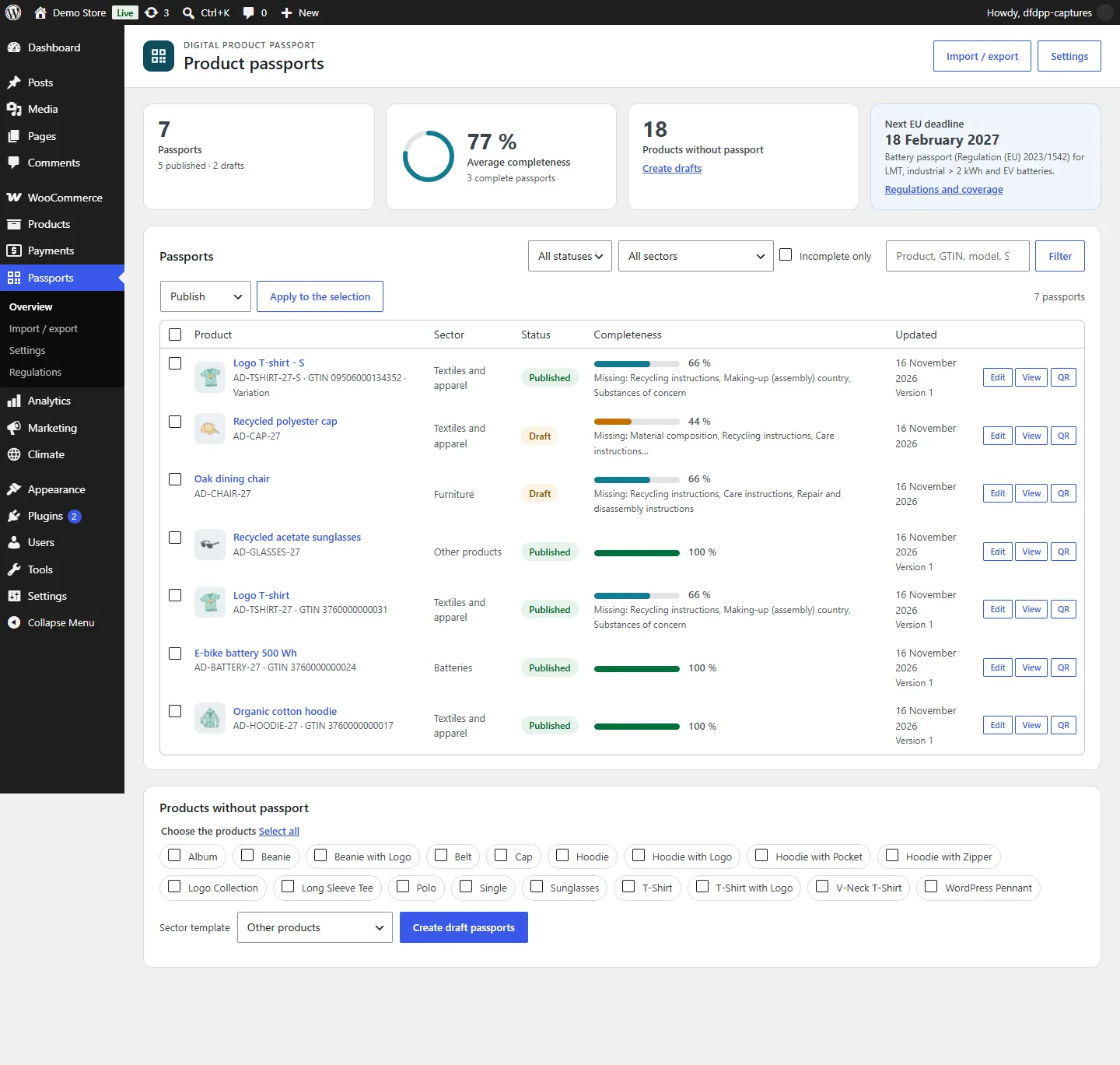
What the EU rules require
The Ecodesign for Sustainable Products Regulation (EU) 2024/1781 (ESPR) does not make a passport mandatory by itself: each product group needs a delegated act, which applies at least 18 months after it enters into force. In November 2026, no ESPR delegated act requiring a passport had been adopted yet. The Commission plans iron and steel first, then textiles, tyres and aluminium (2027), furniture (2028) and mattresses (2029). The battery passport of Regulation (EU) 2023/1542 applies from 18 February 2027 to LMT batteries, industrial batteries above 2 kWh and electric vehicle batteries.
The plugin helps you structure and publish the data. It does not make your products compliant by itself: it is not connected to the EU passport registry, it does not provide the back-up copy with an independent passport service provider required by the ESPR, and it has not been assessed against the harmonised standards for passports. The Passports > Regulations screen lists each requirement with its status (covered, partly covered, not covered, your responsibility) and its official source.
Installation and update
- In Plugins > Add New > Upload Plugin, choose
dfdpp-2.0.0.zip, then activate DataFirefly Digital Product Passport. - Open Passports in the admin menu.
Requirements: WordPress 6.4 or later, WooCommerce 8.2 or later, PHP 7.4 to 8.5. Public addresses work without saving the permalinks again.
Updating from 1.0
Upload the new zip and choose Replace current with uploaded. Passports, their identifiers, their public addresses and your settings are kept; QR codes already printed keep working. Country codes are normalised, the completeness of each passport is calculated and a first version of every published passport is recorded. The 1.0 display choices become access levels (hidden data becomes “Internal only”). A notice presents the new features.
Setup wizard
On a new installation, the overview offers a three-step setup:
- Your company: manufacturer name, address and country, operator identifier (for example your EORI number or GS1 GLN) and a contact for product information. These details pre-fill every new passport.
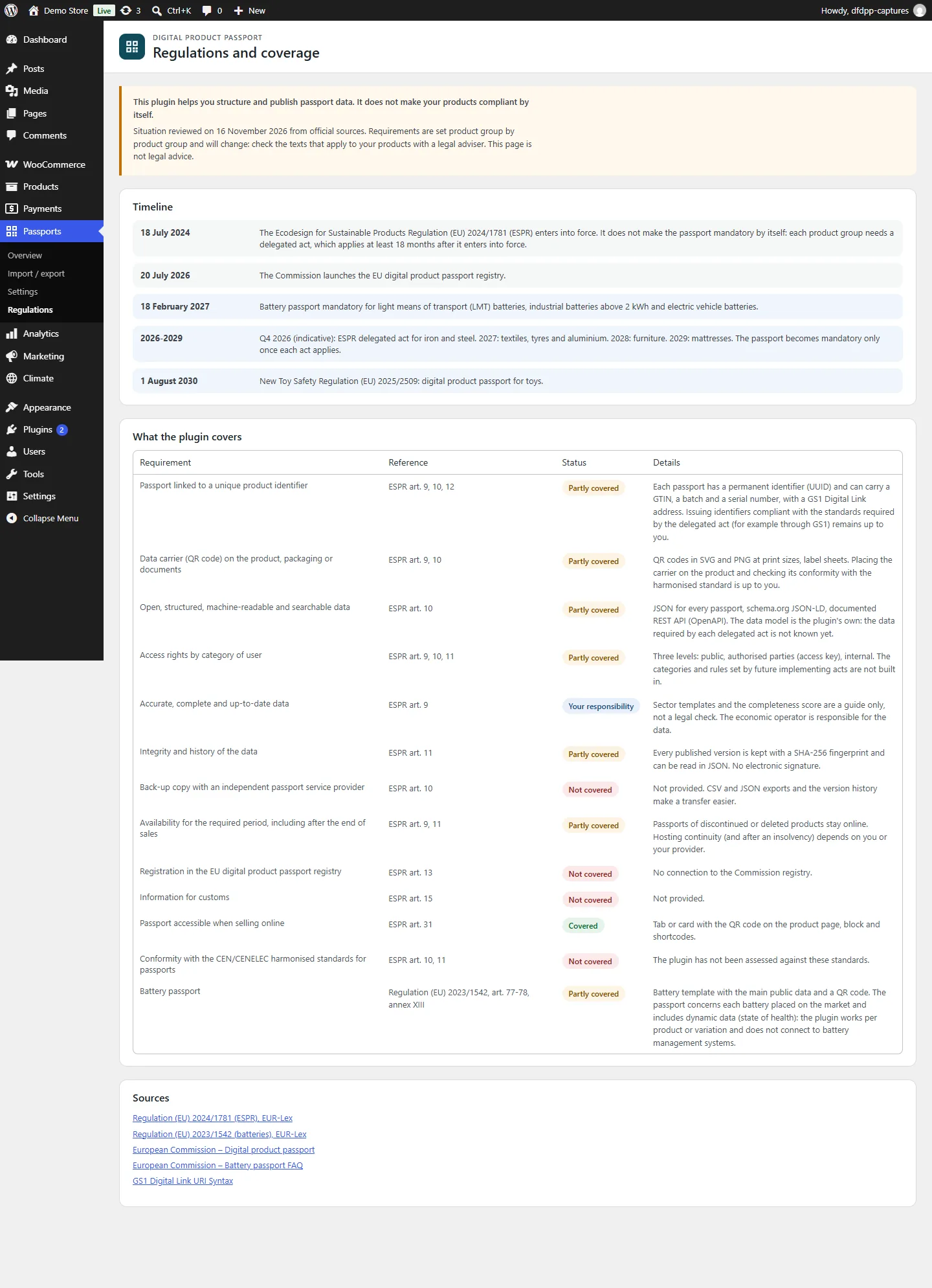
- Sector and display: a sector template (textiles, batteries, electronics, furniture or other products), the brand colour of the public page and what appears on product pages.
- First passports: create draft passports for all products without one, or for some categories. Nothing is published.
Overview of your passports
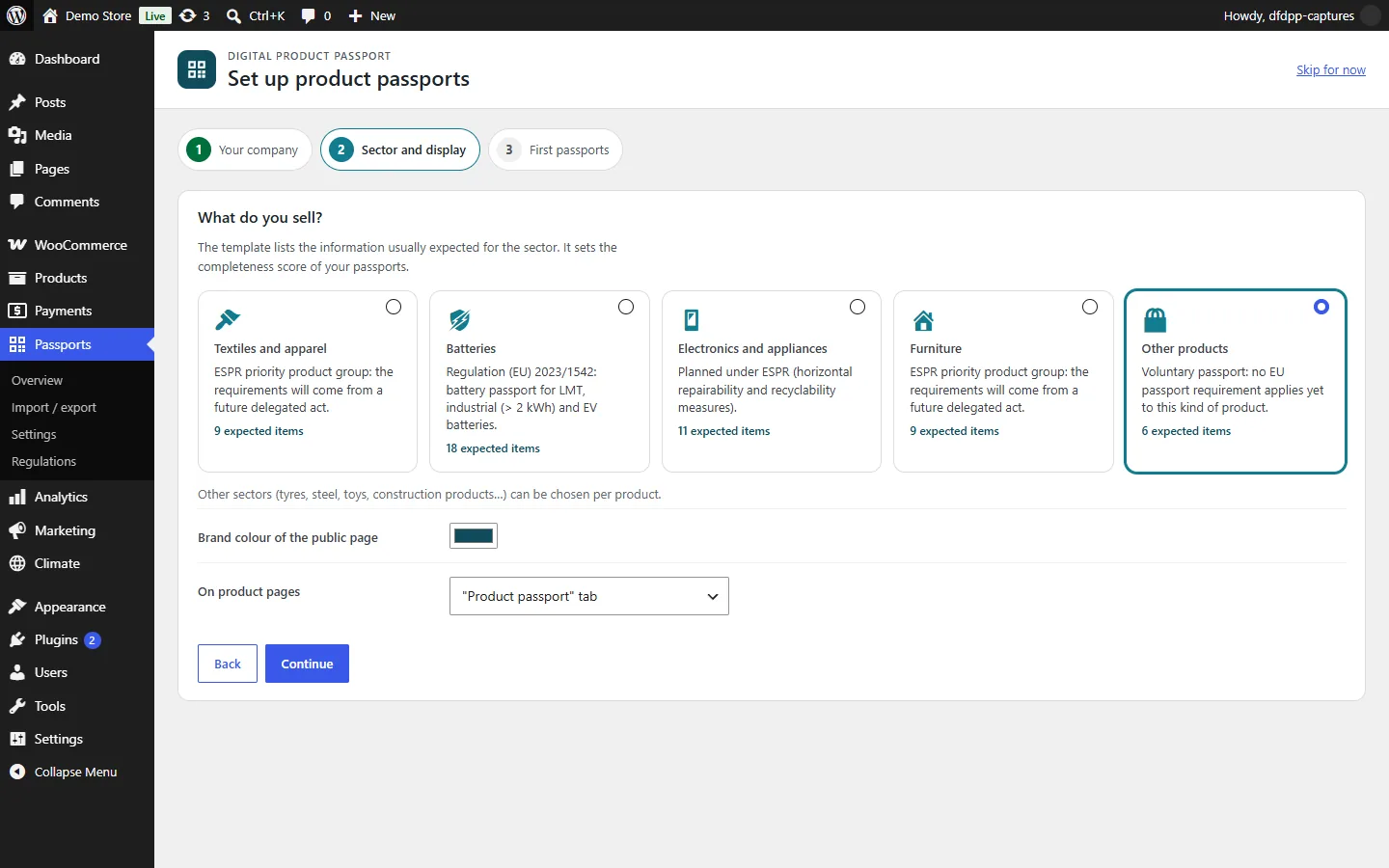
Passports > Overview shows the number of passports, the average completeness, the products without passport and the next EU deadline. The table can be filtered by status, sector and incomplete passports, and searched by product, GTIN, model or SKU. For each passport you see its completeness, the first missing items, its status, its version and its last update.
Bulk actions apply to the selected passports: publish, back to draft, archive, print labels, export in CSV or JSON. Below the table, create draft passports for products that have none, with the sector template of your choice.
Editing a passport
Open a product: the Product passport tab of the product data box contains the editor. For a product without passport, check Create a passport for this product when I save it (it is checked automatically as soon as you type in a field).
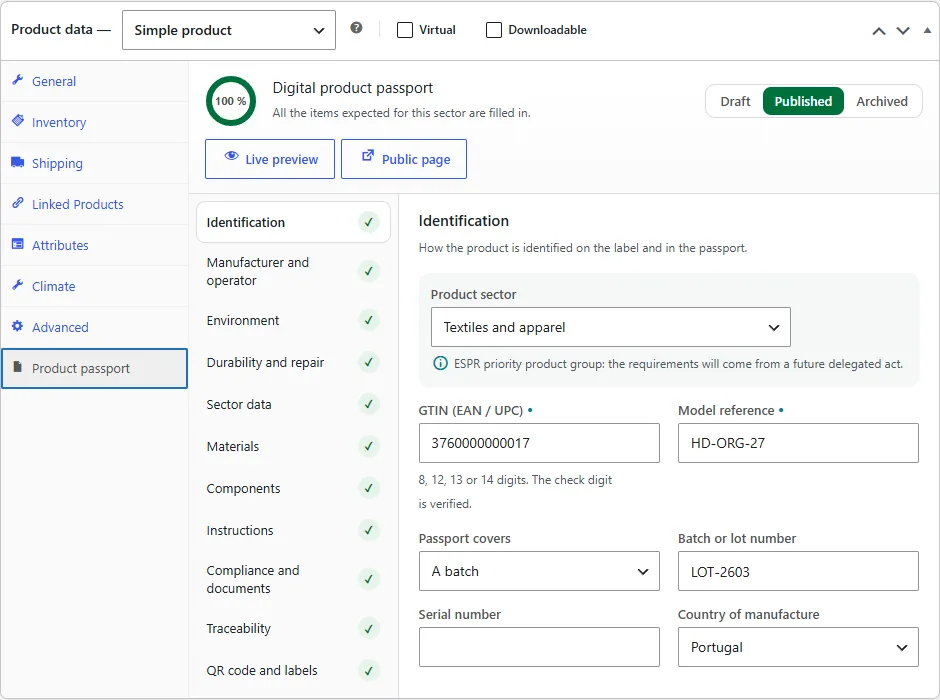
The header shows the completeness ring, the status (Draft, Published, Archived), the Live preview button and the link to the public page. Sections are listed on the left with the number of missing items; use the arrow keys to move between them.
- Identification: product sector (it sets the expected items), GTIN with check digit verification, model, what the passport covers (a model, a batch or a single item), batch, serial number, country of manufacture.
- Manufacturer and operator: manufacturer, operator identifier, responsible operator in the EU (importer or authorised representative), contact, manufacturing date, site and facility identifier.
- Environment: carbon footprint with its unit and calculation method, recycled content, recyclable share, expected lifetime, weight.
- Durability and repair: repair score, repairability class, commercial warranty, spare parts and software updates.
- Sector data: fields suggested for the sector, for example the spinning, weaving, finishing and making-up countries for textiles, or category, chemistry, capacity, voltage, energy, lifetime cycles and recycled cobalt, lithium, nickel and lead shares for batteries.
- Materials, Components, Instructions (use, care, repair, safety, recycling, end of life), Compliance and documents and Traceability.
Fields expected for the sector carry a dot. Values are checked as you type (GTIN, number ranges, dates, web addresses); invalid values sent anyway are refused when you save, listed in a notice and marked on the field, and the passport is not published until they are fixed.
Materials and components
Add a row per material: code (plastics, textile fibres, metals, battery chemistries…) or free name, share of the product, weight, recycled share, renewable or bio-based, origin, CAS number and, if needed, the component it belongs to. The total of the shares is shown and must not exceed 100 %.
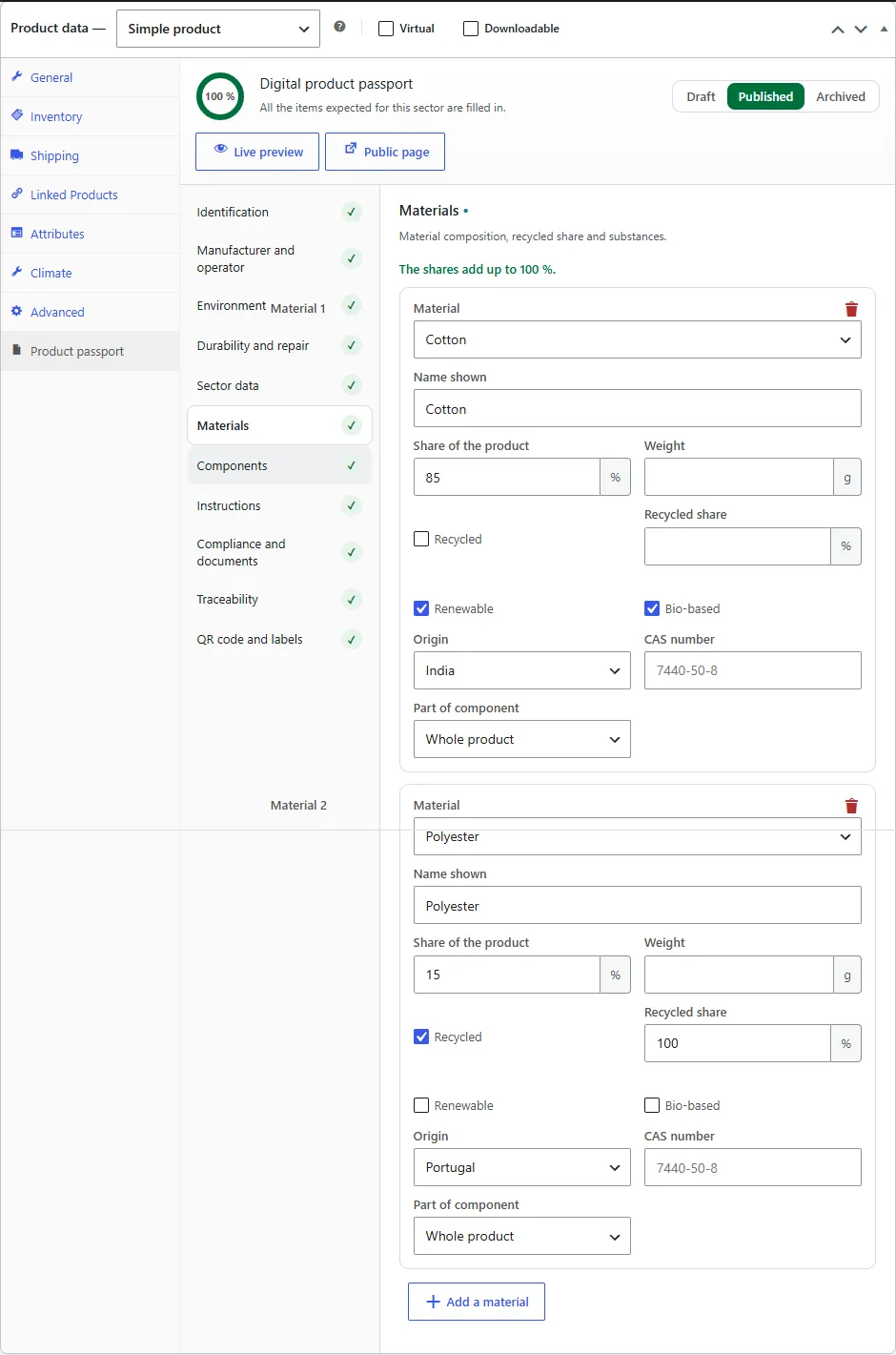
Components have a name, type, weight, origin, supplier and supplier country, and the replaceable, recyclable and “contains critical raw materials” flags. Documents (declaration of conformity, manuals, certificates…) can be chosen in the media library.
Live preview
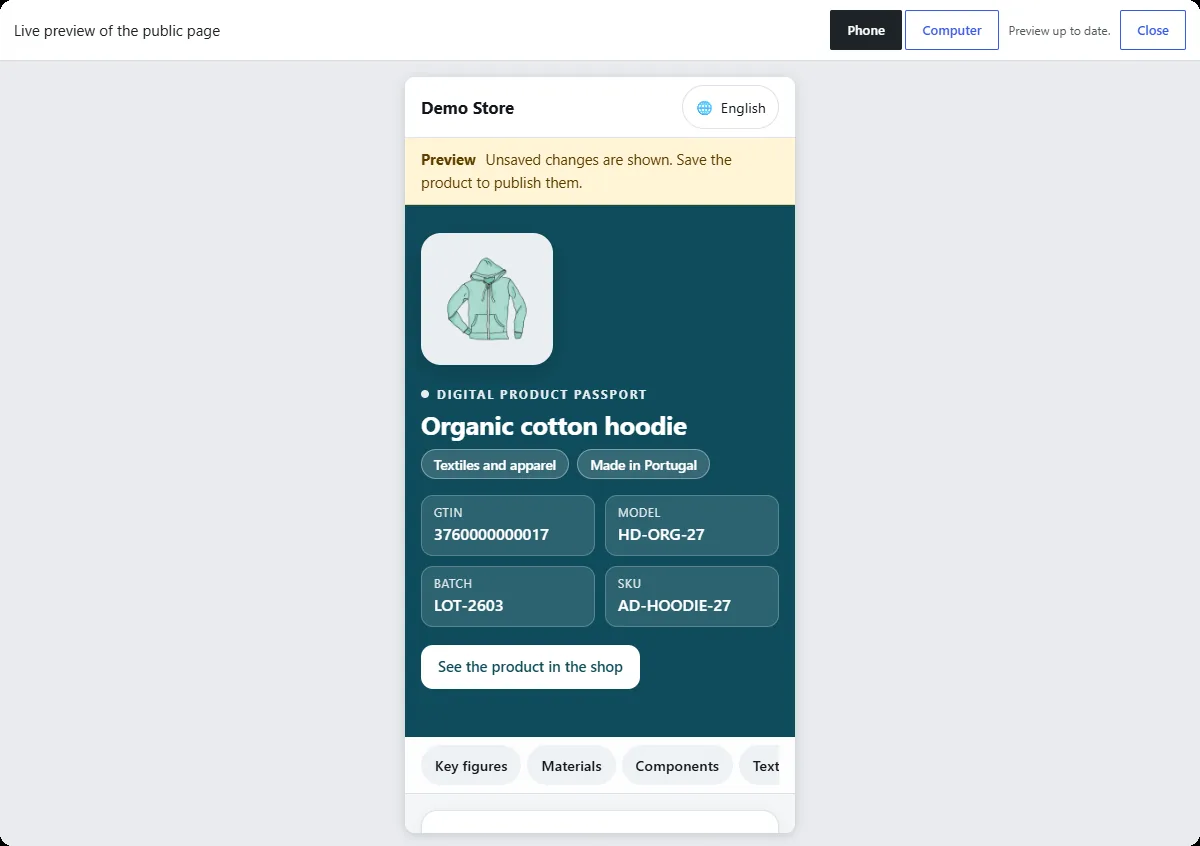
Live preview shows the public page with your unsaved changes, on a phone or a computer. It refreshes as you type.
Variations
In the Variations tab, check Own product passport for this variation: the variation gets its own GTIN, model, batch, serial number, carbon footprint, weight and QR code. The other data is inherited from the product passport. The product passport lists the variation passports.
QR codes and labels
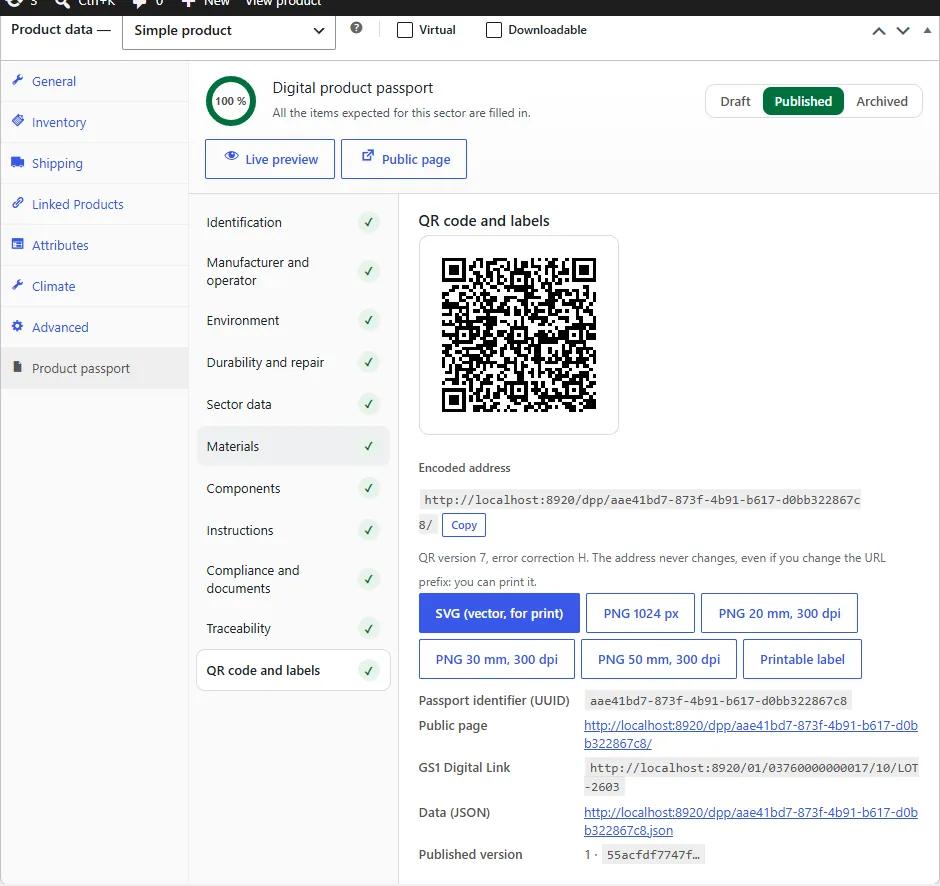
The QR code and labels section of the editor shows the encoded address, the QR version and its error correction, and offers:
- SVG (vector, for print), PNG 1024 px, and PNG 20, 30 or 50 mm at 300 dpi;
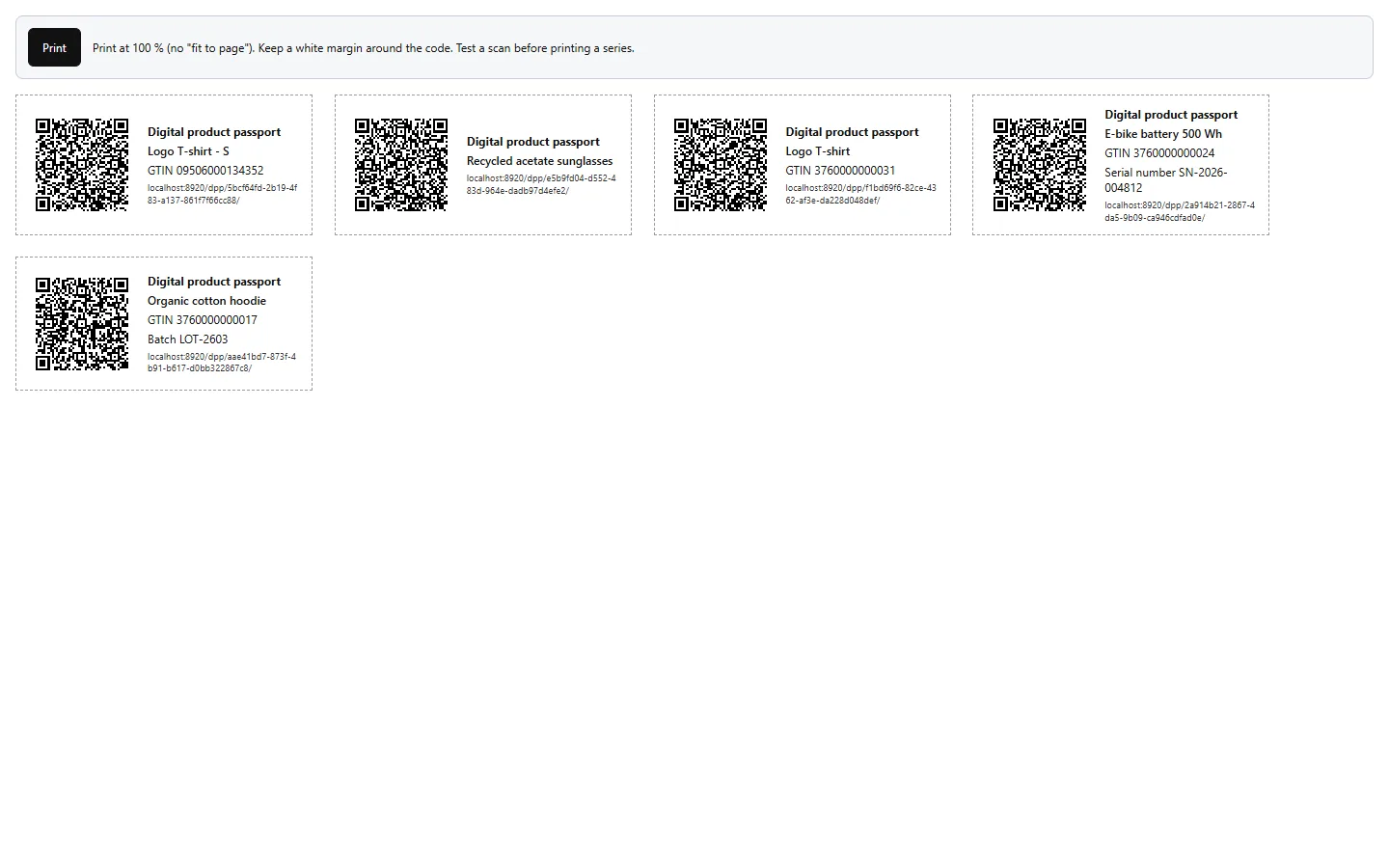
- a printable label with the QR code, the product name, the GTIN, the batch or serial number and the address;
- the passport identifier, the public page, the GS1 Digital Link address and the JSON data.
To print several labels, select passports in the overview and choose Print labels. Print at 100 % and keep the white margin around the code.
The public passport page
The public address looks like yourdomain.com/dpp/{identifier}/. The page is designed for phones and follows the language of the visitor’s phone (8 languages, with a language menu). It shows the product, its sector and identifiers, the key figures, the material composition, the components, the sector data, the instructions, the compliance information and documents, the traceability timeline, the manufacturer, the QR code (download, share, print) and the passport details (identifier, dates, version and SHA-256 fingerprint).
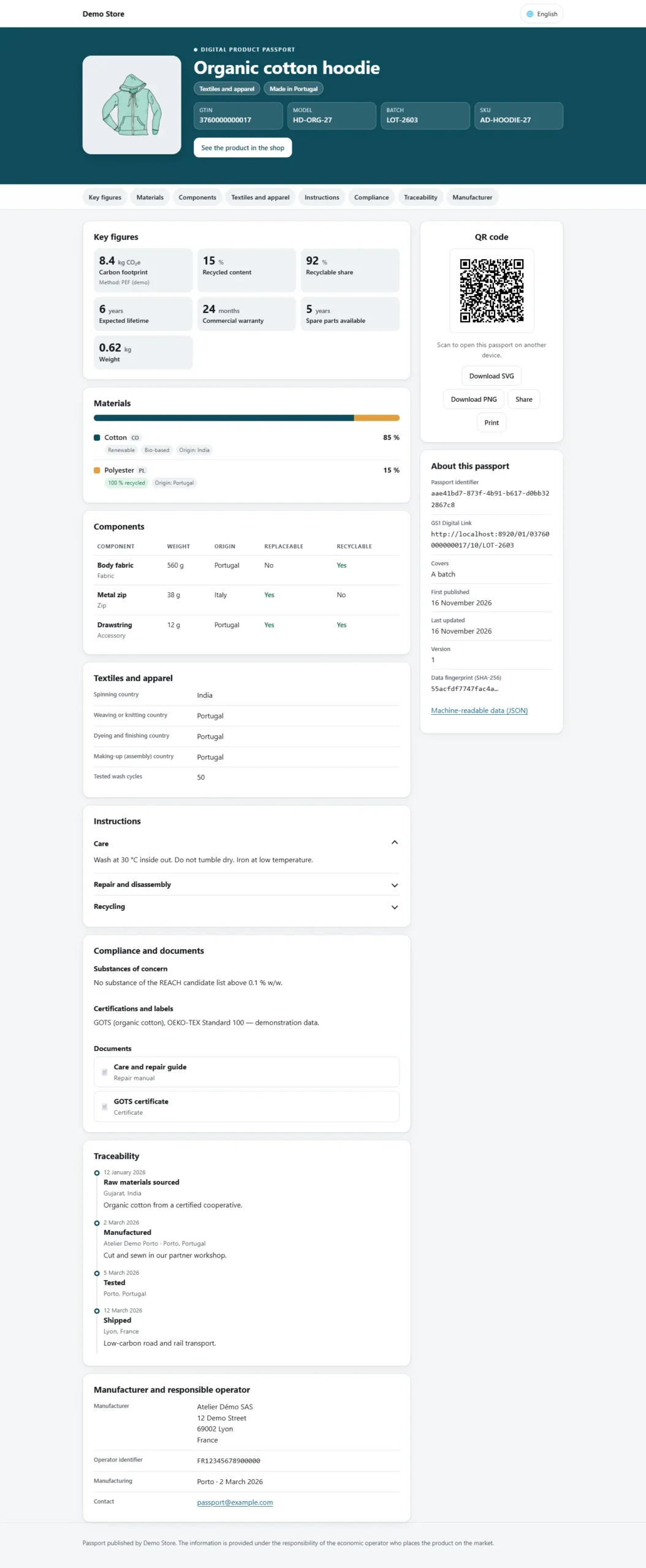
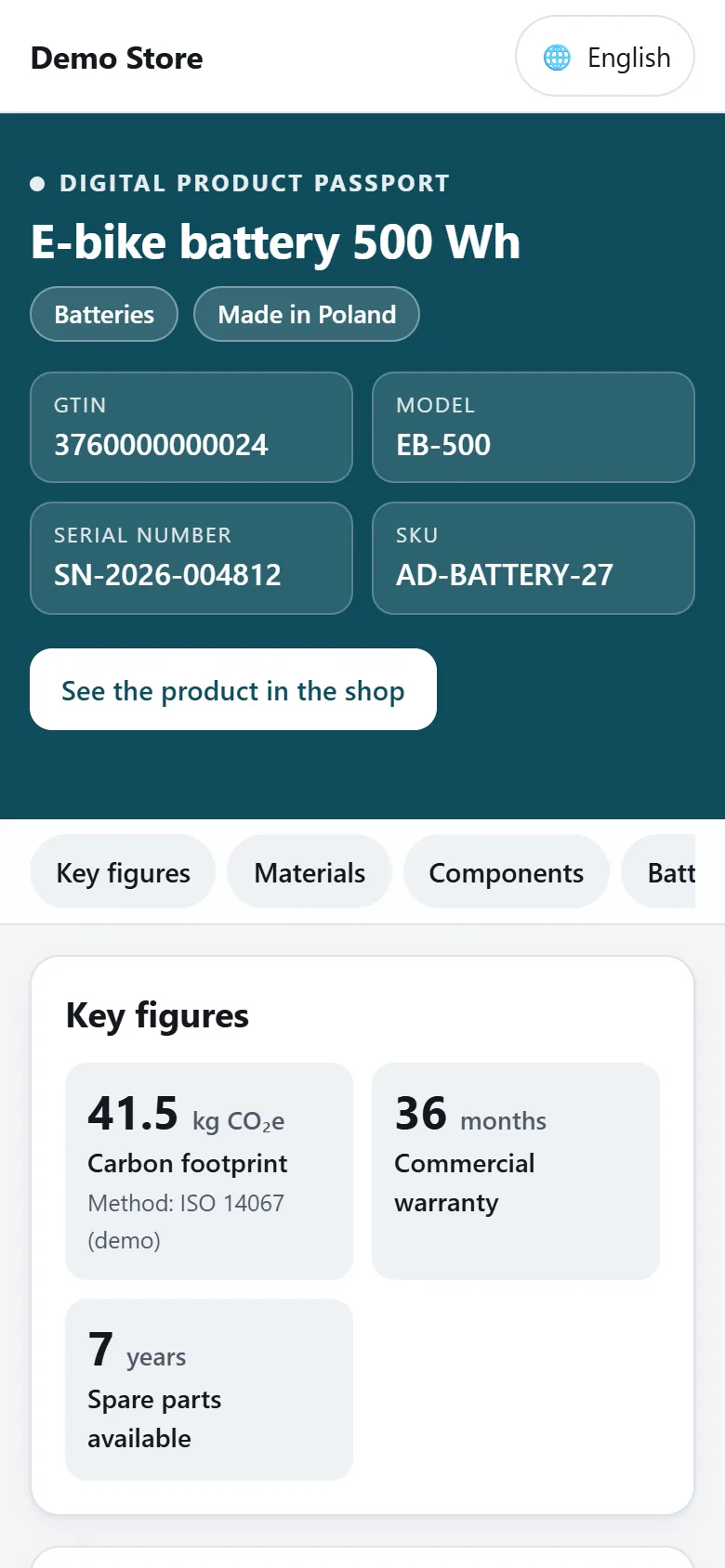
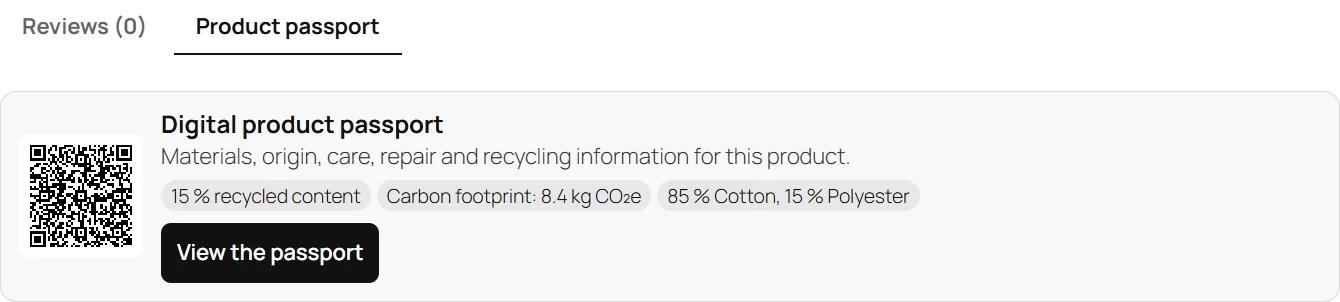
The page is accessible with a keyboard and a screen reader, adapts to dark mode and prints cleanly. It also offers its data in JSON (/dpp/{identifier}.json) and includes schema.org JSON-LD. On product pages, a Product passport tab (or a card below the summary) links to the passport.
Settings
In Passports > Settings (administrators and shop managers):
- Public page: URL prefix (takes effect immediately), standalone page or inside the theme, languages, search engine indexing, display on product pages, variation inheritance, automatic publication, passports of products no longer sold (kept online by default).
- Company defaults: pre-filled values of new passports and the default sector.
- Data access and API: the access level of each kind of data, access keys and the REST API.
- QR codes and labels: passport address or GS1 Digital Link, error correction, colour (dark colours only), download format, label size.
- Appearance: brand colour (the text colour on it is chosen for readability) and logo.
- Data and uninstall: delete everything when the plugin is deleted (unchecked by default).
Access levels and keys
For each kind of data — manufacturer, manufacturing site, environment, carbon footprint, durability, instructions, compliance, documents, components, supplier names, materials, traceability, who did each step, sector data — choose Public, Authorised parties (access key) or Internal only. Supplier names are internal by default. Identifiers, the product name and the country of manufacture are always public.
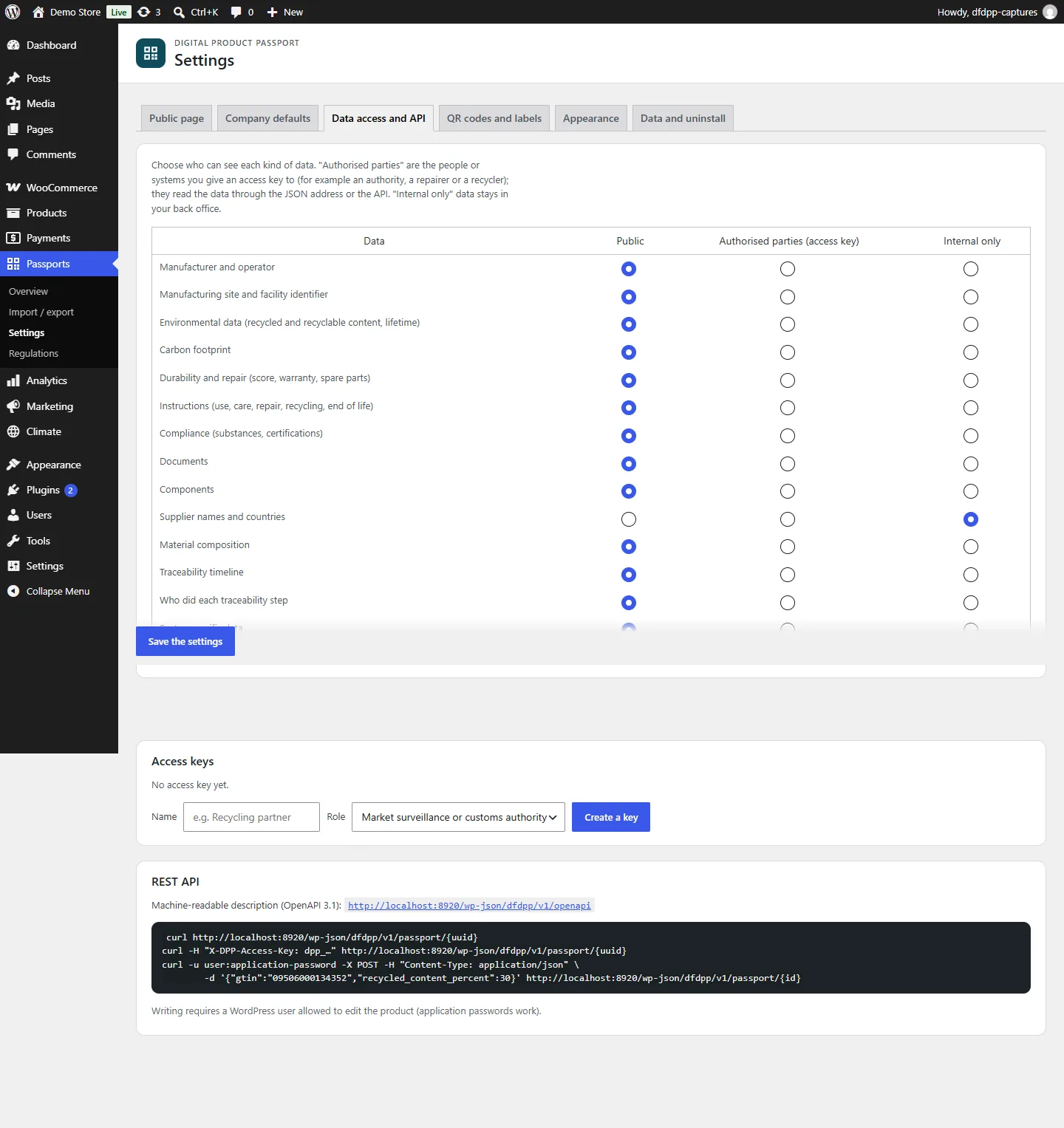
Create an access key for an authority, a repairer, a recycler or a partner: it is shown once, then stored as a hash. They send it in the X-DPP-Access-Key header when reading the JSON address or the API. Revoke a key at any time.
GS1 Digital Link
When a passport has a valid GTIN, it gets a GS1 Digital Link address on your domain, such as yourdomain.com/01/09506000134352/10/LOT42 (with the batch or the serial number depending on what the passport covers). The plugin answers these addresses and redirects to the passport; ?linkType=linkset returns the list of links. In the QR settings, you can choose to encode this address in the QR codes.
Import and export
Passports > Import / export:
- Export all passports, or one status, in CSV or JSON. JSON keeps every list (materials, components, steps, documents). Keep it as a back-up.
- Import a CSV (comma, semicolon or tab) or JSON file. Rows are matched by
uuid, thenproduct_id, thensku. The plugin first shows what will be created, updated or skipped, with warnings; nothing is written before you confirm. Empty CSV cells do not erase existing data. Start from the CSV template.
Blocks, shortcodes and developers
- Blocks Product passport (card with QR code, QR only or link) and Passport QR code.
- Shortcodes
[dfdpp_passport product="123" layout="card|qr|link" qr="no" size="112"]and[dfdpp_qr product="123" size="160"]; withoutproduct, the current product is used. - REST API
dfdpp/v1:GET /passport/{uuid},/qr,/revisions,/by-product/{id},/by-gtin/{gtin};GET|POST /passports;POST|DELETE /passport/{id};POST /passport/{id}/publish|unpublish|archive. Write calls need a user allowed to edit the product (application passwords work). Description:/wp-json/dfdpp/v1/openapi. - WP-CLI:
wp dfdpp status,list,publish,unpublish,qr,export. - Template: copy
templates/passport.phptoyour-theme/dfdpp/passport.php. Filterdfdpp_passport_payload; actionsdfdpp_passport_created,dfdpp_passport_saved,dfdpp_public_head.
Troubleshooting
The public page returns a 404
The passport is a draft or archived, or its product has never been published. The overview shows the reason. Passports of products no longer sold stay online unless you chose to hide them.
A value is not saved
A notice lists the refused values after saving and the fields are marked in the editor. Fix them and save again.
My page cache shows restricted data
Restricted data is only sent to requests with an access key or from your team. If you use a page cache, make it vary on the X-DPP-Access-Key header and on login cookies (the plugin sends the matching Vary header).
Uninstallation
Deactivating the plugin keeps all data. Deleting it keeps the passports too, so that a reinstall brings them back with their addresses. To delete everything (tables, settings, access keys), check Delete all passports and settings in Settings > Data and uninstall before deleting the plugin.
Support
Support is provided by email in French and English at support@datafirefly.com. Please give the plugin, WordPress and WooCommerce versions.