
Nutri-Score & INCO Nutrition Facts — Complete Guide
Install and configure the module on PrestaShop 1.7.8, 8 and 9: INCO nutrition declaration, food information for online sale, Nutri-Score according to its regulations of use, CSV import and schema.org data.
Overview
DataFirefly Nutrition Facts (INCO) (dfnutriscore) publishes on your product pages the nutrition declaration and the food information that Regulation (EU) No 1169/2011 provides for distance selling. It can also show the Nutri-Score, under the conditions of the regulations of use of the trademark.
- Nutrition declaration in the order of Annex XV, with the official wording of 8 languages (FR, EN, ES, DE, IT, PT, PL, NL), the rounding of the Commission guidance, portions, % of reference intakes and 27 vitamins and minerals.
- Ingredients with the allergens emphasised, storage, origin, net quantity, alcoholic strength and food business operator.
- Nutri-Score computed with the updated algorithm, with the breakdown of points, or taken from the packaging.
- Values per combination, two-step CSV import, copy between products and catalogue coverage table.
The module is compatible with PrestaShop 1.7.8, 8 and 9 (PHP 7.4 to 8.5). It helps you publish this information; you remain responsible for its accuracy and for the compliance of your product pages.
Before showing the Nutri-Score
The Nutri-Score is optional. It is a collective trademark owned by Santé publique France. Its regulations of use (version of 17 March 2025) provide in particular that:
- use is reserved to manufacturers and distributors registered with Santé publique France; it is free of charge and personal;
- the logo is reproduced only from the files given after registration, without any change;
- a distributor uses the letter attributed by the brand owner of the product, the one on the packaging;
- a distributor may only attribute a score itself if the brand owner is not registered, after a prior notice of 3 months;
- the score must be accompanied by a statement of who attributed it (Art. 7.3).
The module applies these rules: it includes no logo, shows no Nutri-Score before you have confirmed your registration, gives priority to the score on the packaging and shows the statement under each score.
The module does not check your registration: it relies on your declaration. It does not guarantee the compliance of your use. Read the current documents on the website of Santé publique France and, if in doubt, ask Santé publique France.
Installation and upgrade
- In the back office, open Modules > Module Manager.
- Click Upload a module and drop the
dfnutriscore-2.0.0.ziparchive. - Open Catalog > Nutrition facts. The help page offers a 4-step start.
From 1.0.0: install the 2.0.0 archive over it. Values and settings are kept and scores are recalculated. A letter forced manually becomes “Score on the packaging”, and the portion size becomes the portion description in each language. After the upgrade, no Nutri-Score is shown until you have confirmed your registration.
Settings
The Settings page contains:
- Nutri-Score trademark: the box “My company is registered for the use of the Nutri-Score and I will follow the regulations of use”. As long as it is not ticked, only the nutrition facts are shown.
- Scores attributed by your shop: off by default. Turn them on only for products whose brand owner is not registered, after the prior notice of 3 months. Enter the name shown in the statement.
- Official logo files: one file per letter (SVG, PNG or WebP). SVG files containing scripts or external references are refused. Until the 5 files are imported, the score is shown as text (“Nutri-Score B”).
- Display: score on the product page, score in lists (before the price or under the product name), table in a product page tab or in an accordion near the add to cart button, per-portion column, % of the reference intakes, rounding, “<0.5 g” or “0 g”, structured data.
- Default food business operator, and the food categories counted in the coverage.
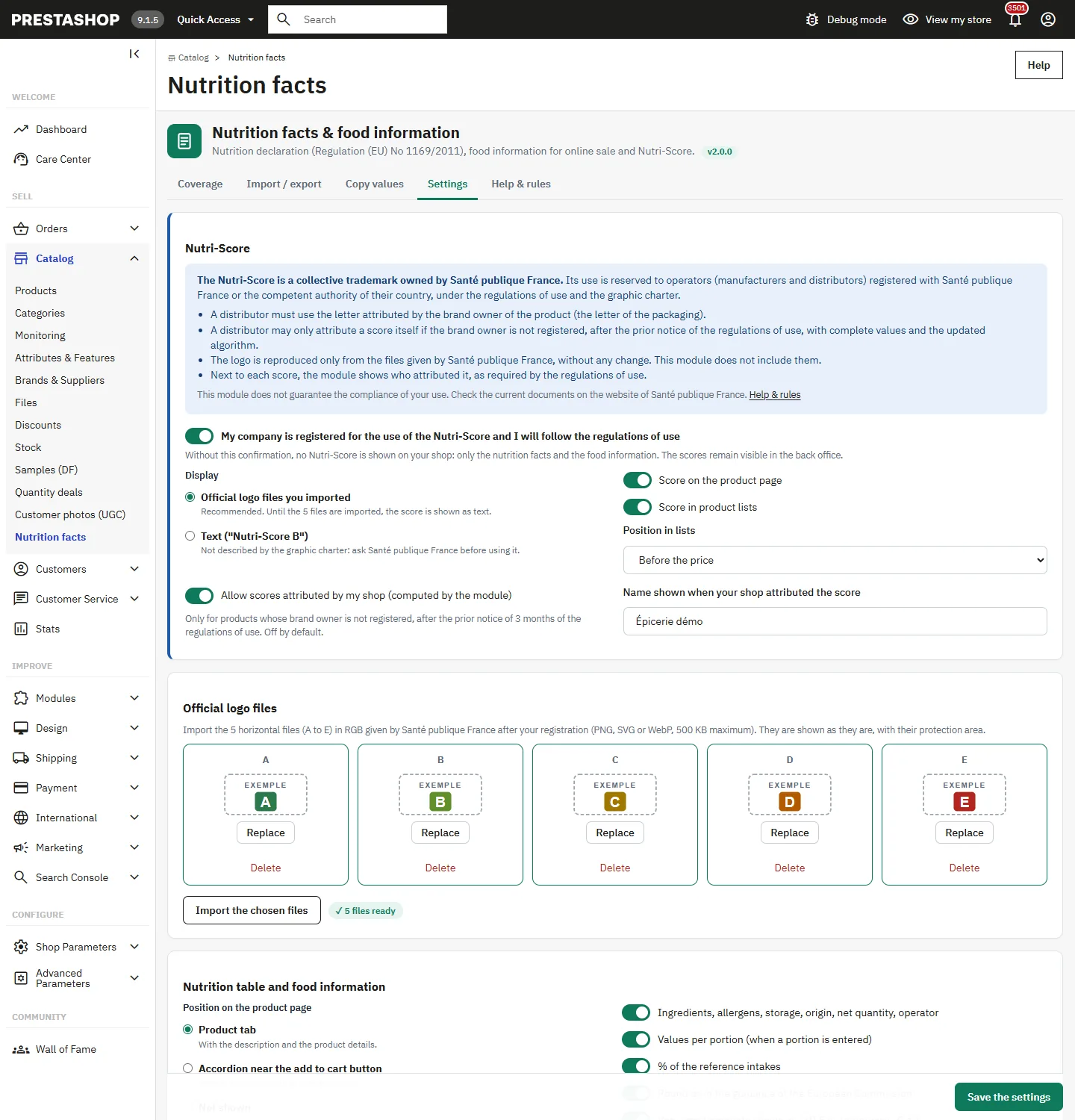
The text display is not described by the graphic charter: ask Santé publique France before using it.
Data entry in the product page
In the product page, open the Modules tab, then Nutrition facts. The editor has three parts.
- Nutrition declaration, vitamins and portion: values per 100 g or 100 ml (energy, fat, saturates, carbohydrate, sugars, protein, salt, then the optional values), portion, number of portions, vitamins and minerals. If you enter only the kJ or only the kcal, the other value is calculated.
- Nutri-Score category and score source: product category, fruits, vegetables and legumes, sweeteners, and score source: “Score on the packaging” (recommended), “Score computed by the module” or “None”.
- Food information for online sale: see below.
Saving is done with the module’s button, without reloading the page; the values are also saved with the product.
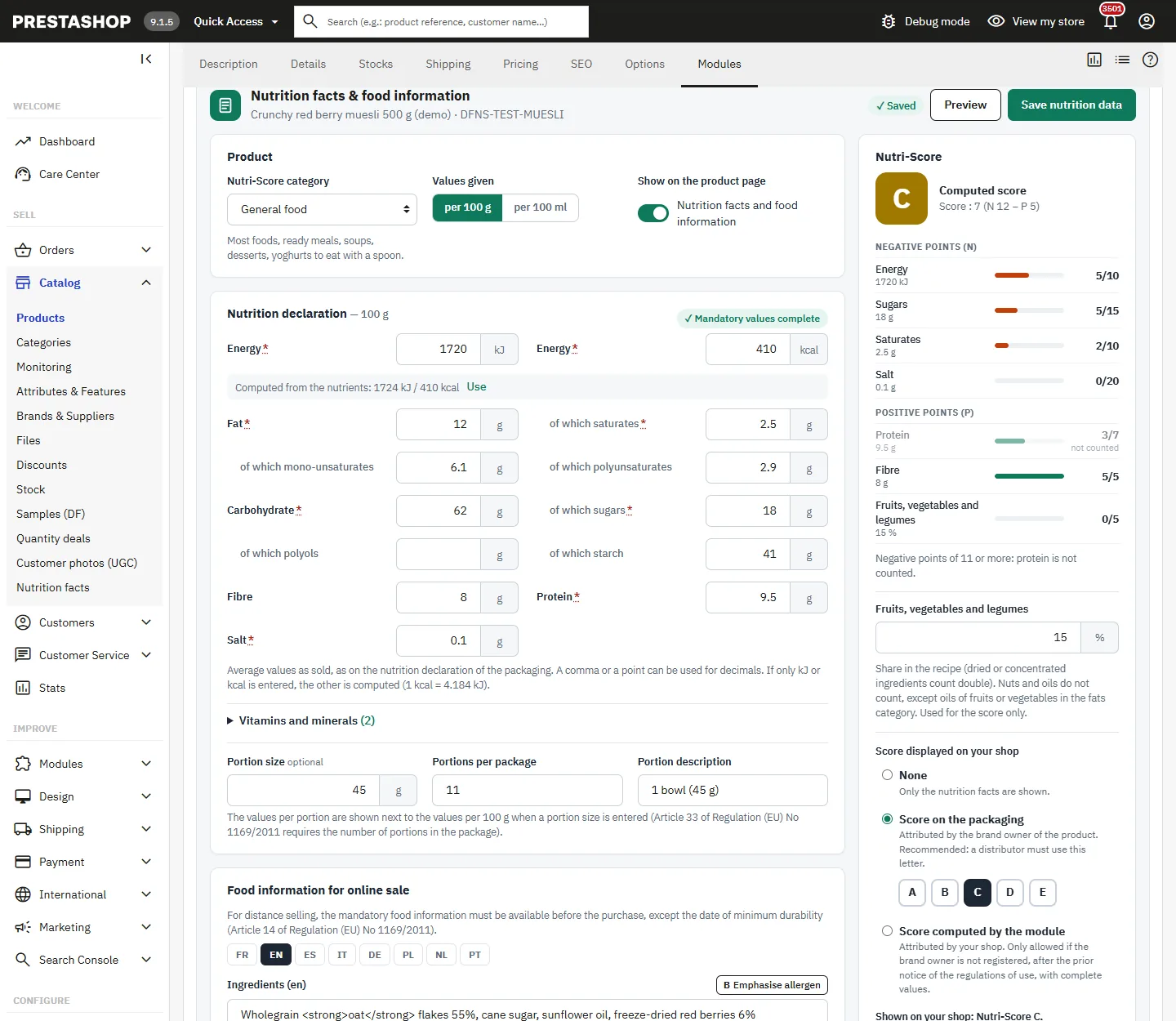
Checks. Errors prevent saving: negative value, more than 100 g per 100 g, sugars higher than carbohydrate, saturates higher than fat. Warnings do not prevent saving: declared energy more than 20% away from the recalculated energy, abnormal kJ/kcal ratio, vitamin below the significant amount threshold, missing mandatory values.
Score computation
The module applies the updated algorithm of the regulations of use (foods 2022, beverages 2023), in force in France since the arrêté of 14 March 2025. Choose the product category:
- General food: most foods, ready meals, soups, desserts. With 11 negative points or more, protein is not counted.
- Cheese: protein is always counted.
- Red meat product: protein points capped at 2.
- Fats, oils, nuts and seeds: energy from saturates and saturates / fat ratio; with 7 negative points or more, protein is not counted.
- Beverage (milk and plant-based drinks included): “beverages” grids, 4 points for non-nutritive sweeteners; only water can be graded A.
- Water without any addition: graded A.
- Not concerned by the Nutri-Score: no score.
The editor shows the breakdown: negative points (N), positive points (P), points of each component and rule applied. If a needed value is missing, no score is computed and the editor shows what to fill in. The module gives the same results as the 21 examples of the official Santé publique France spreadsheet.
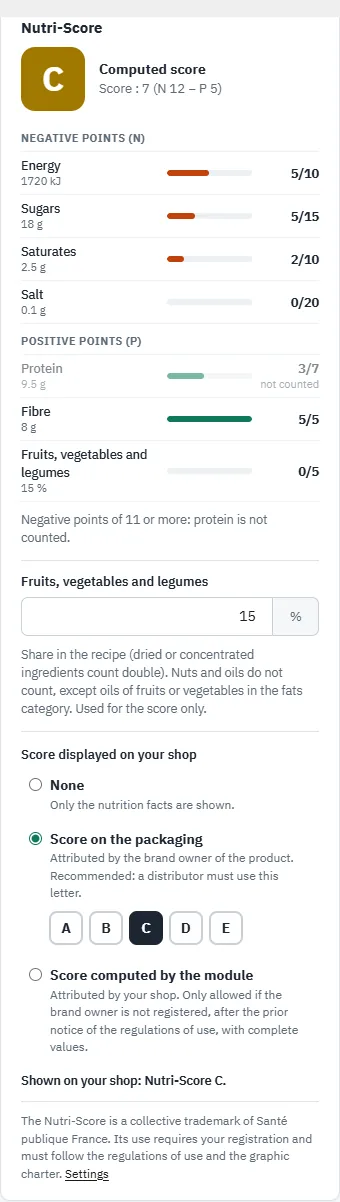
For the fruits, vegetables and legumes component of beverages, the table of the arrêté published in the JORF uses the grid 0, 1, 2, 5. The regulations of use and the official spreadsheet use 0, 2, 4, 6. The module follows the regulations of use and the spreadsheet.
Food information for online sale
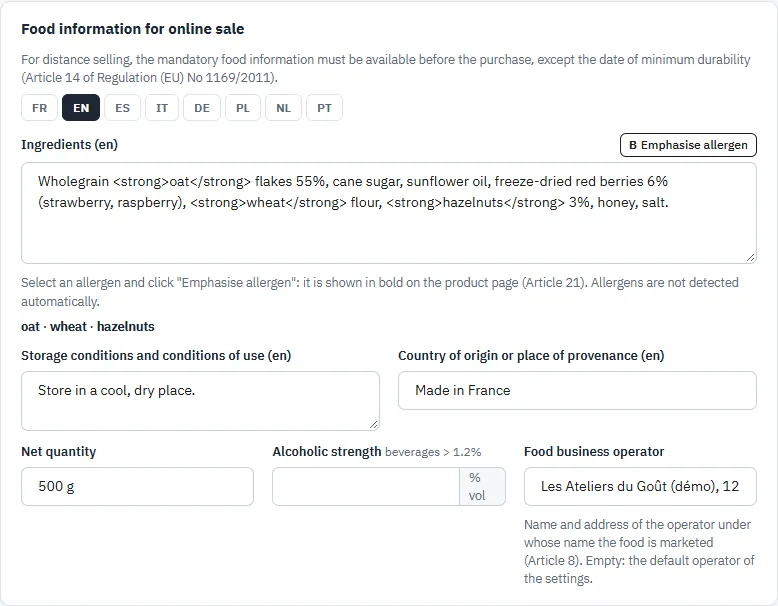
For each language: list of ingredients, storage conditions and conditions of use, country of origin or place of provenance. Select an allergen and click Emphasise allergen: it is shown in bold on the shop (Art. 21).
For each product: net quantity, alcoholic strength and food business operator (name and address, Art. 8). Without an operator of its own, the default operator of the settings is shown. Without a net quantity, and if DataFirefly Unit Price is installed, its net contents are shown.
Combinations
By default, combinations use the values of the product. For a different combination (another flavour, for example), choose it in the editor and click Give this combination its own values. On the product page, the table and the score change when the customer chooses this combination. In lists, the badge uses the values of the product.
CSV import and export
The Import / export page offers an empty template and the export of your data. The file is in UTF-8, with the semicolon as separator and one line per product or per combination with its own values. Products are identified by id_product, otherwise by reference. Ingredients have one column per language, with the allergens between <strong> and </strong>.
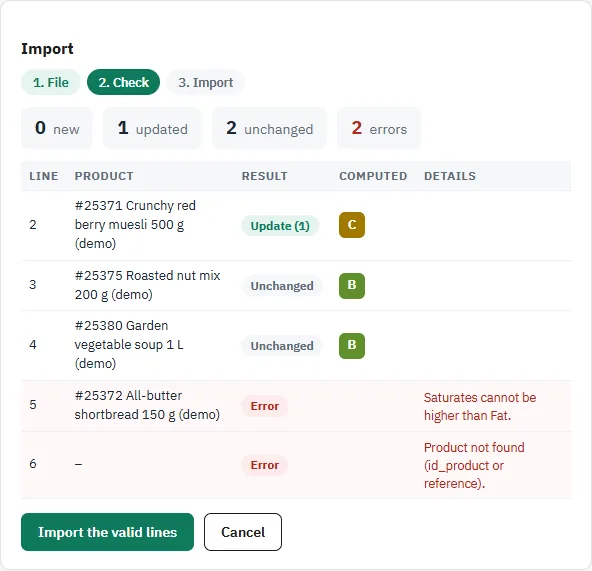
- Choose the file and click Check the file: nothing is saved at this step.
- The preview shows each line, its errors and the computed score.
- Click Import the valid lines.
Copy values
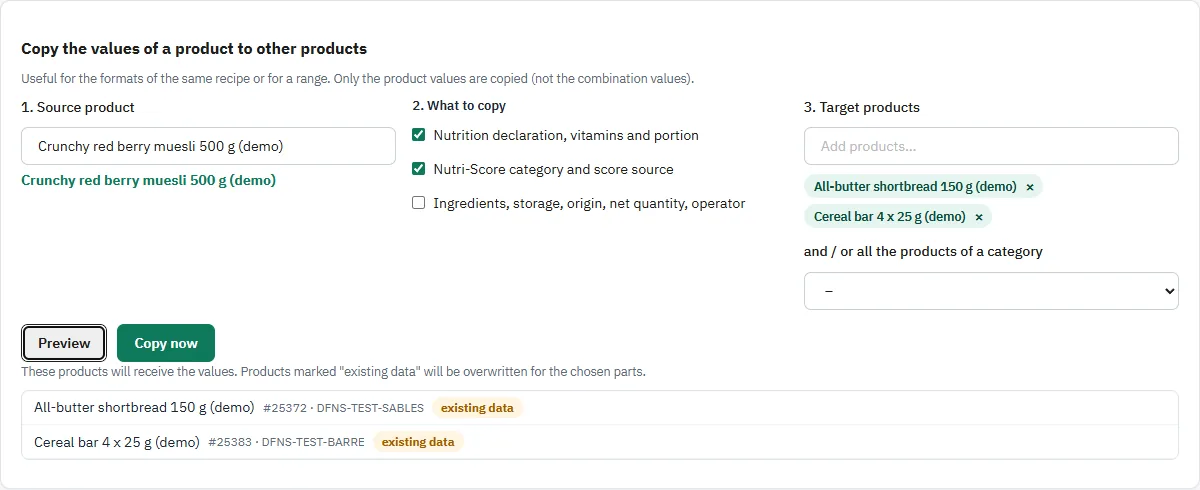
The Copy values page applies the values of a source product to target products or to all the products of a category. Choose what to copy (nutrition declaration, Nutri-Score category and score source, food information for online sale). Products marked “existing data” are replaced for the chosen parts. Only the values of the product are copied, not those of the combinations.
Catalogue coverage
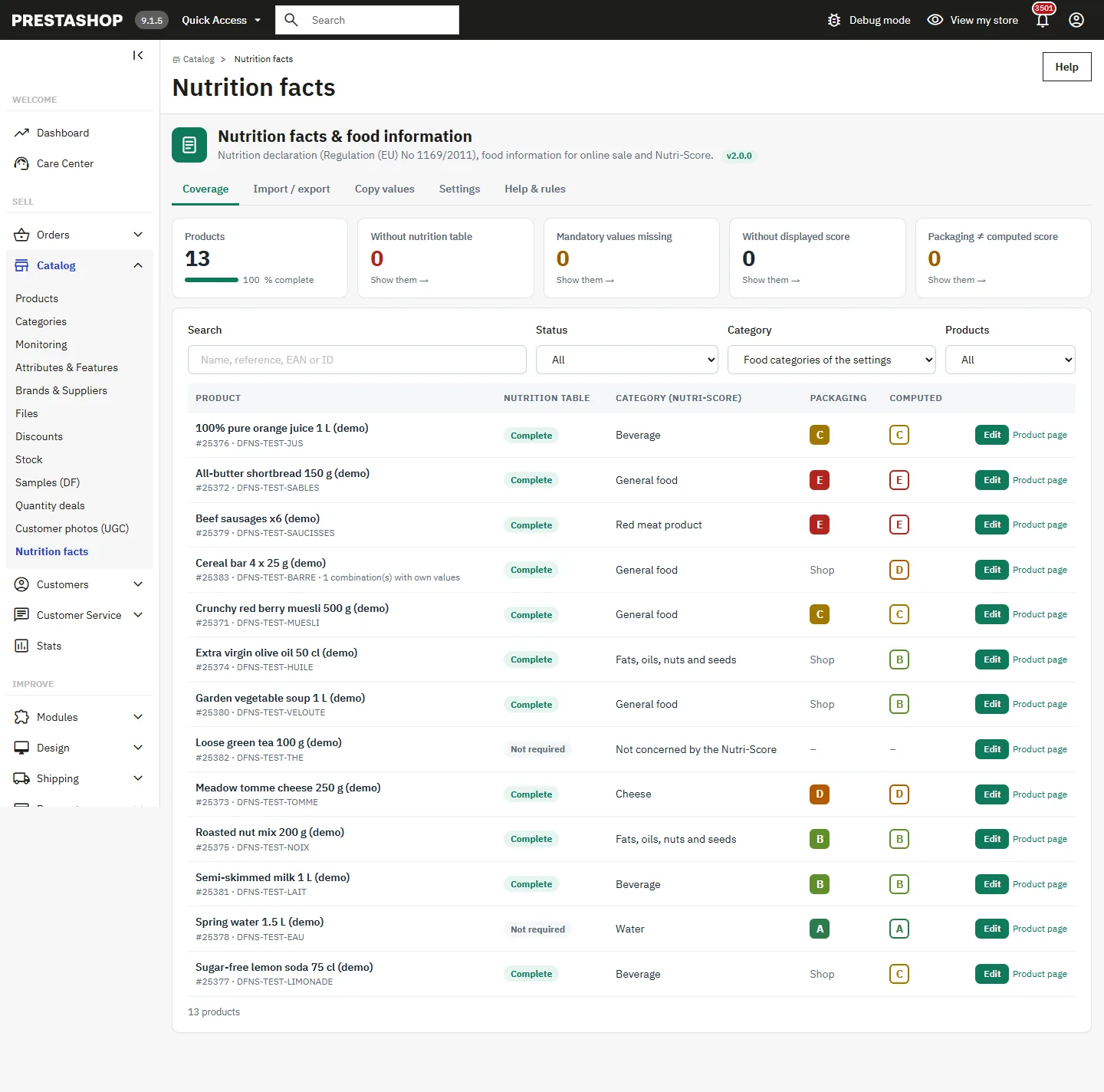
The Coverage page lists your products with their status: without nutrition table, mandatory values missing, without displayed score, or difference between the score on the packaging and the computed score. Filter by category or by status, then complete a product with Quick edit. Choose your food categories in the settings to count only food products.
Display on the shop
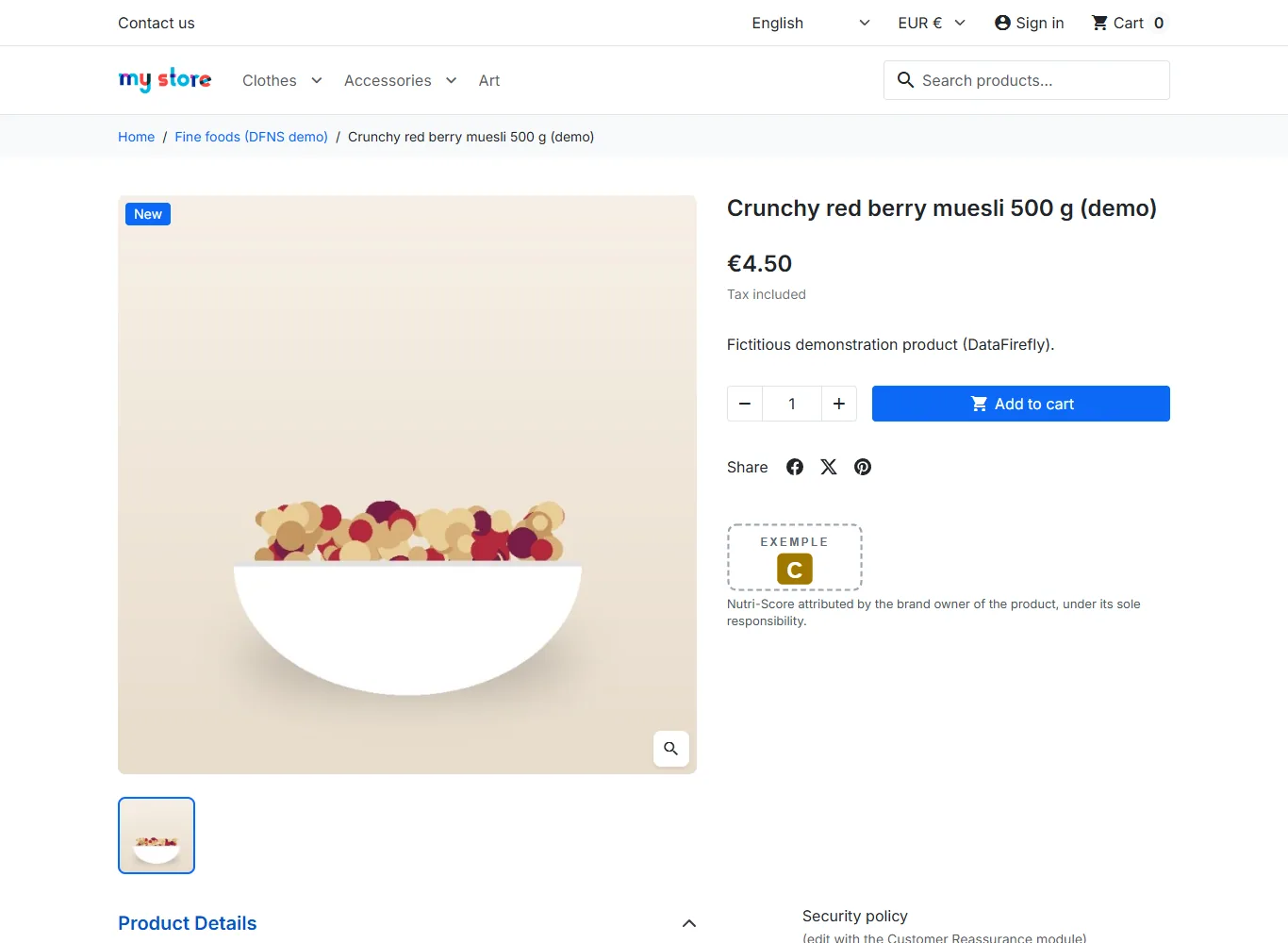
On the product page, the score is shown with the statement of who attributed it. The nutrition table and the food information are shown in a tab or in an accordion. It is a real HTML table (caption, column and row headers) that adapts to narrow screens.
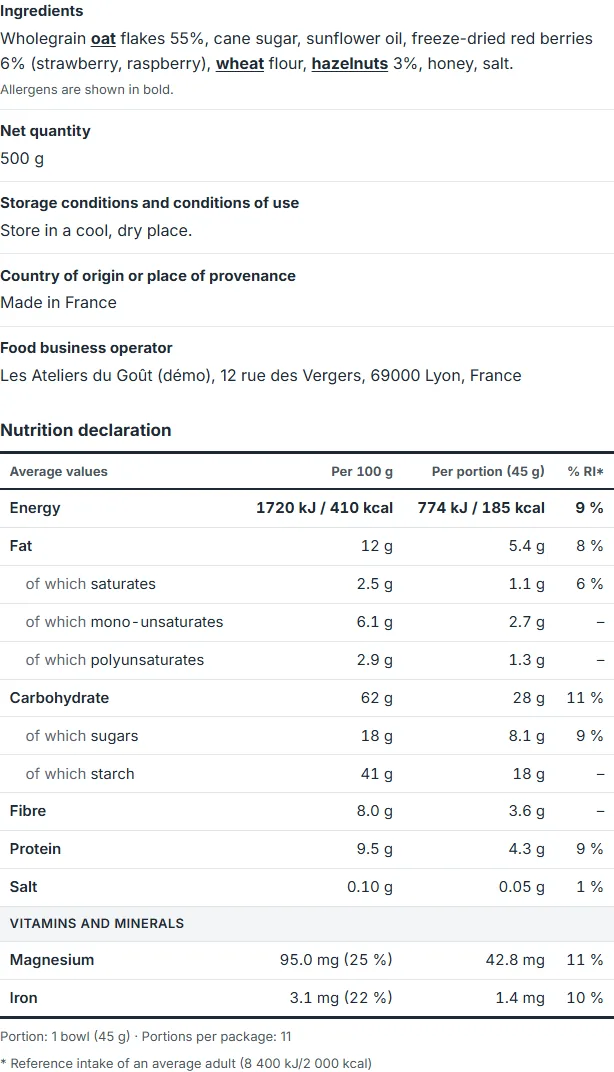
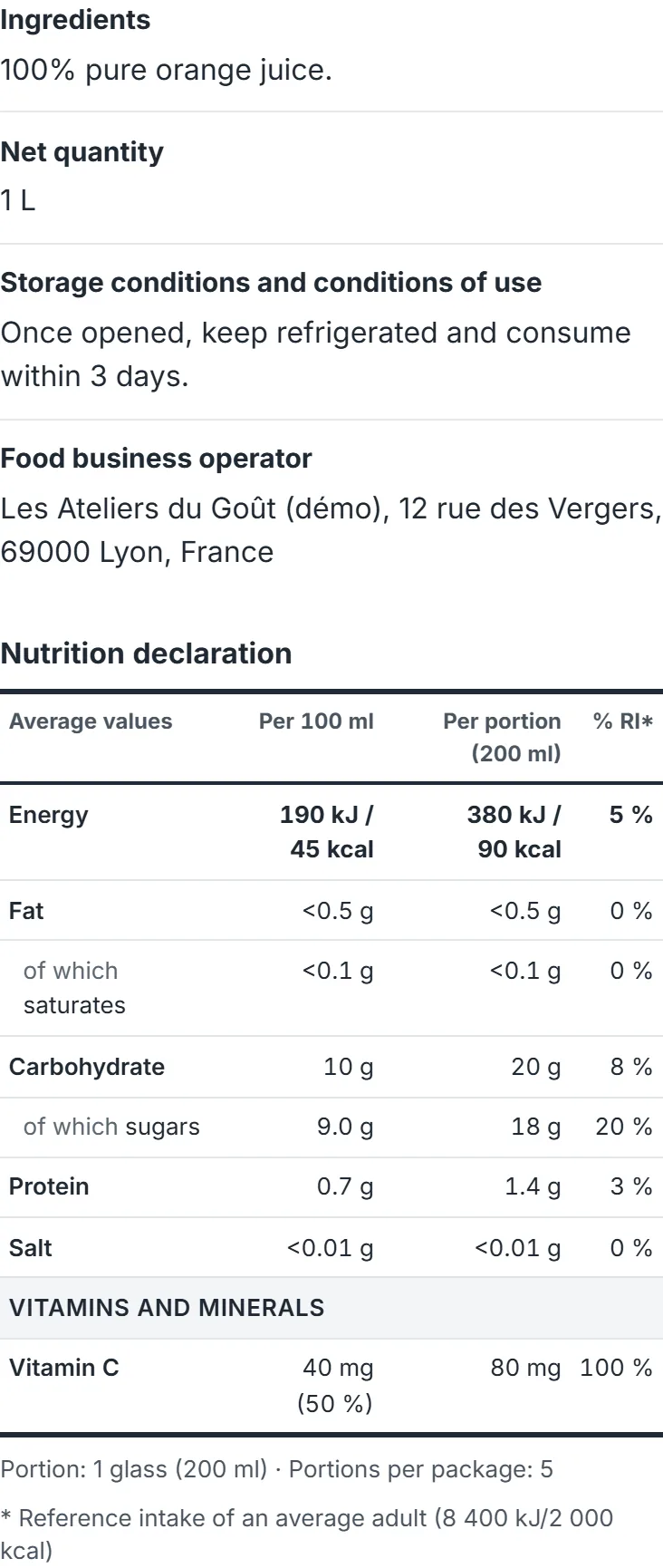
In product lists, a badge shows the score of each product. The statement of who attributed it appears as a tooltip. All the badges of a page are loaded with a single query.
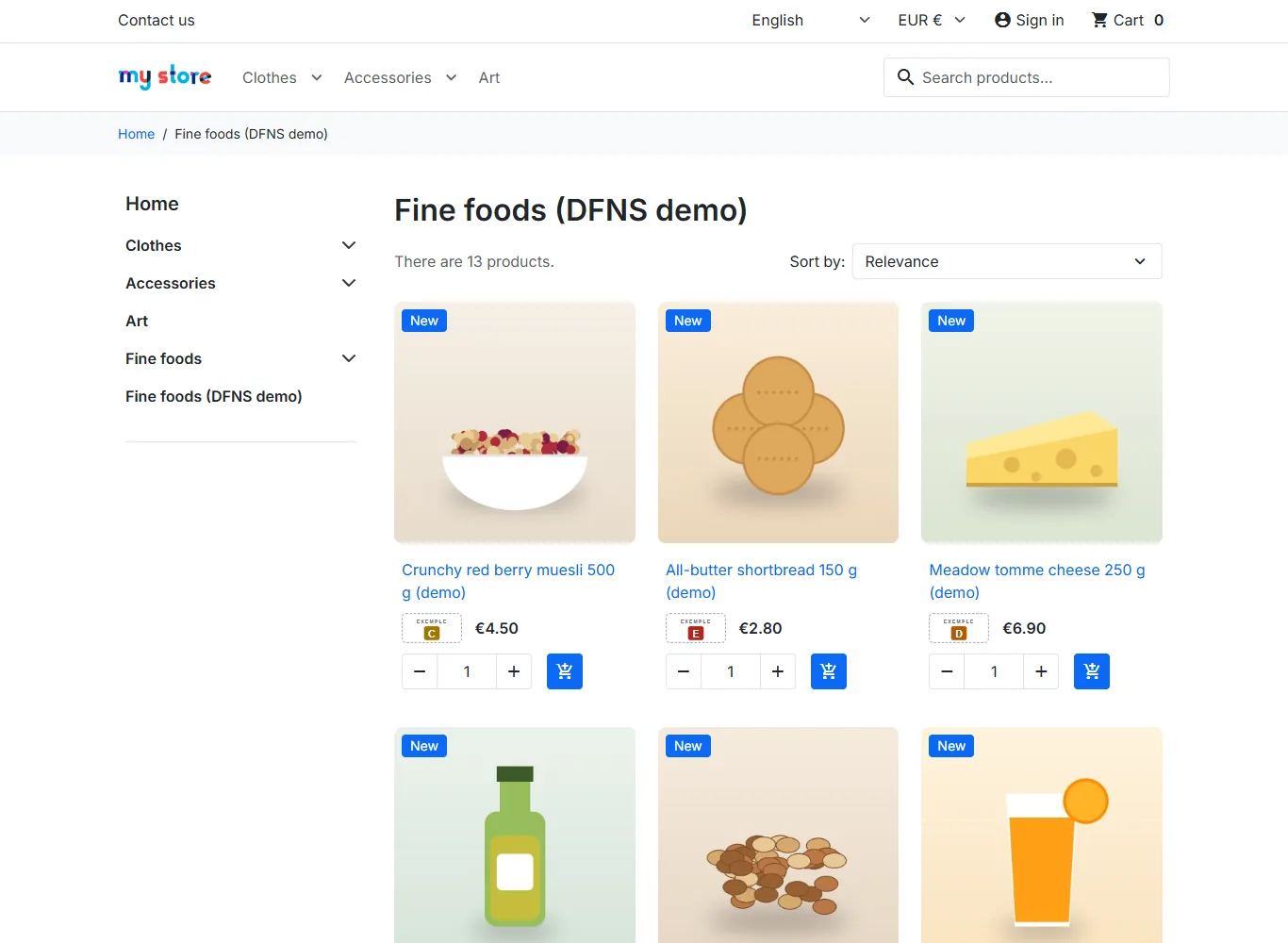
The screenshots on this page use dummy files marked “EXEMPLE”, not the official logo.
Structured data
The module adds a separate schema.org NutritionInformation node (identifier <url>#nutrition), per 100 g or 100 ml: calories, fat, saturated and unsaturated fat, carbohydrate, sugars, fibre, protein and sodium in mg. It never creates a Product node and therefore does not conflict with your theme or your SEO modules. Google does not document a “nutrition” rich result for products: no particular display is promised.
Help & rules
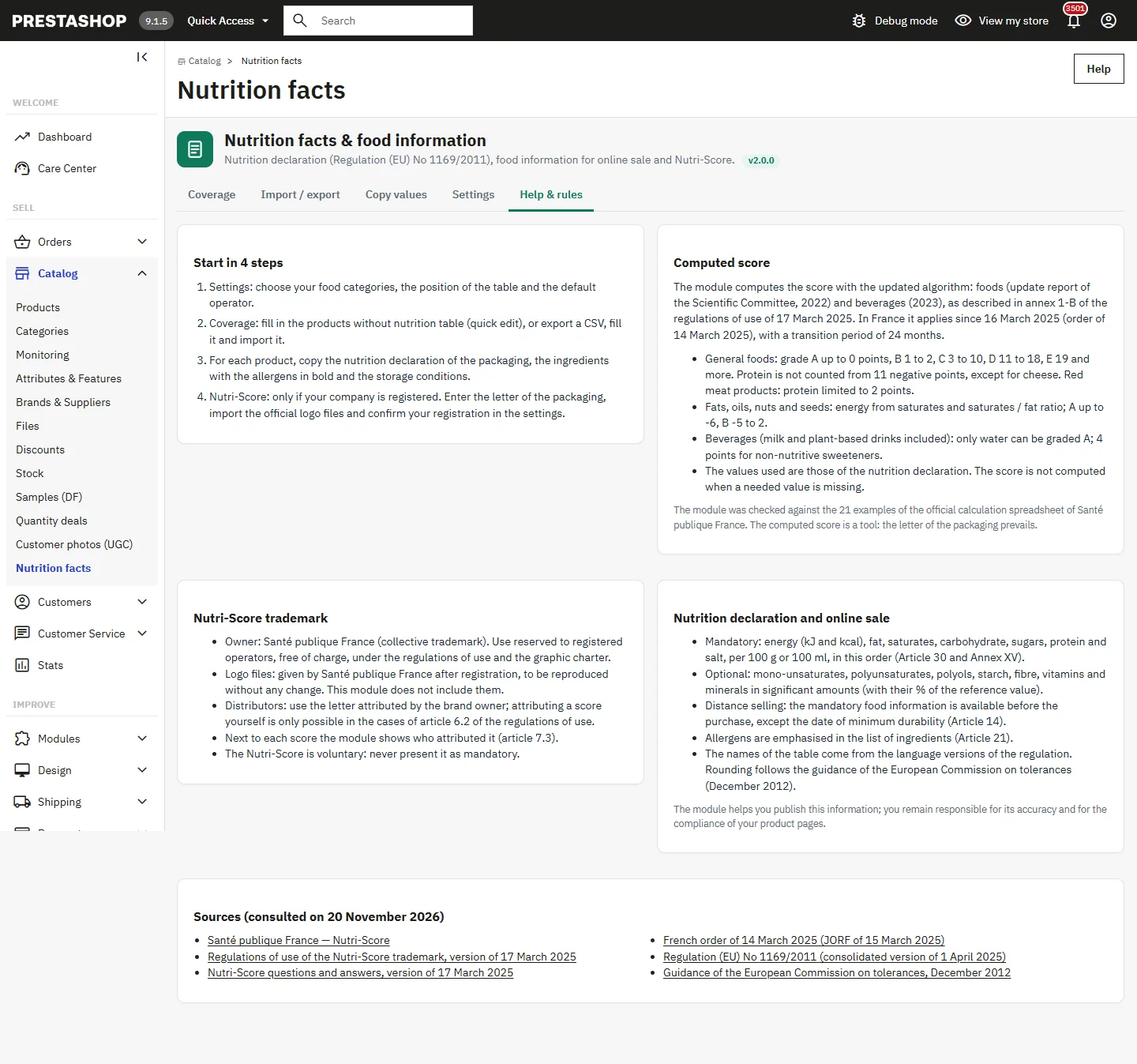
The module’s Help & rules page includes the 4-step start, the computation rules, the rules of the Nutri-Score trademark, the key points of the INCO regulation and the list of the sources consulted, with their date.
Troubleshooting
No Nutri-Score appears on the shop
Check in this order: the registration box is ticked in the settings; the score on the product page is turned on; the score source of the product is not “None”; for a computed score, scores attributed by the shop are allowed and no needed value is missing. Then clear the PrestaShop cache.
The score shown is not the one I expected
Check the Nutri-Score category of the product and the share of fruits, vegetables and legumes. Open the computation breakdown in the editor. If the packaging still shows a letter calculated with the former algorithm, the coverage flags the difference.
The table does not change with the combination
Only combinations that have their own values change the table. Clear the PrestaShop cache after upgrading the module, so that the new version of the script is loaded.
A CSV line is refused
The preview shows the cause: product not found, reference shared by several products (use id_product), non-numeric value, sub-component higher than its parent. Fix the file and check it again.
Uninstallation
Uninstalling deletes the nutrition values, the food information, the module settings and the imported logo files. Export your data as CSV beforehand if you want to keep it.
Sources
Documents consulted on 20 November 2026:
- Santé publique France, Nutri-Score page: regulations of use (version of 17 March 2025), graphic charter (March 2024), questions and answers (version of 17 March 2025), calculation spreadsheet (4 April 2024).
- Arrêté of 14 March 2025 (JORF of 15 March 2025).
- Regulation (EU) No 1169/2011, consolidated version of 1 April 2025.
- European Commission guidance document on tolerances, December 2012.
- schema.org NutritionInformation.