
DF Translate Pro — Complete guide
Install and use DF Translate Pro 2.0: setup assistant, translation center, bulk translation with the cost shown first, Autopilot that protects human edits, review, memory, glossary, WooCommerce, translated URLs, XLIFF, WP-CLI and troubleshooting.
DF Translate Pro is the add-on that turns the free DF Translate plugin into a complete translation workflow for WordPress and WooCommerce. This guide covers installation, the setup assistant, the translation center, bulk translation with its cost estimate, Autopilot, the queue, the translation memory, the glossary, review, WooCommerce, translated URLs, XLIFF, WP-CLI, the license, the upgrade from 1.x and troubleshooting.
DF Translate Pro is an add-on: the free DF Translate plugin must be installed and active. Pro uses the engine (Claude, OpenAI, DeepL or LibreTranslate) and the API key configured in DF Translate; your provider bills you directly, without any per-word fee from DataFirefly.
Installation
- Install and activate DF Translate (free), available from your DataFirefly account.
- Download
dftranslate-pro-2.0.0.zipfrom your account. - WordPress admin → Plugins → Add New → Upload Plugin → choose the ZIP → Install Now → Activate.
- The setup assistant opens. You can come back to it at any time from DF Translate → Pro settings → Setup assistant.
Requirements: WordPress 6.4 or later, PHP 8.0 or later, WooCommerce 8.2 or later for the store features. HPOS and the cart and checkout blocks are supported.
If DF Translate is deactivated, Pro shows a notice with a button to reactivate it. Your Pro data (queue, glossary, memory, settings) is kept meanwhile.
The setup assistant
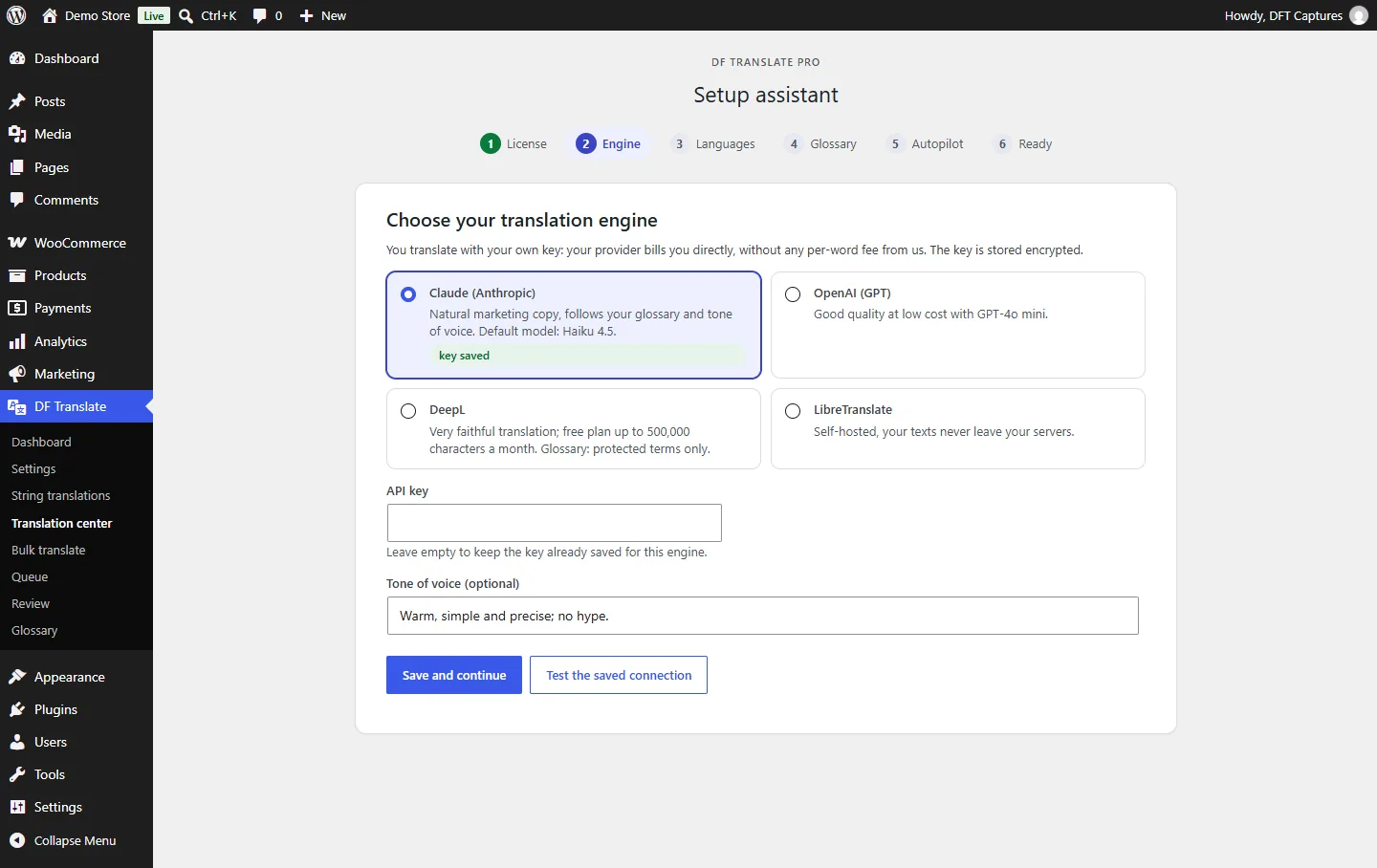
Five short steps, each optional and editable later:
- License: paste your key to receive updates and support (you can skip it to try the add-on).
- Engine: choose Claude, OpenAI, DeepL or LibreTranslate, enter your API key (stored encrypted) and, optionally, your tone of voice. The Test the saved connection button checks the key.
- Languages: tick the languages you sell in. Pro removes the 2-language limit of the free version.
- Glossary: enter up to five names that must never be translated (brand, product lines).
- Autopilot: choose how new translations go live (drafts or published) and whether Autopilot is on.
The translation center
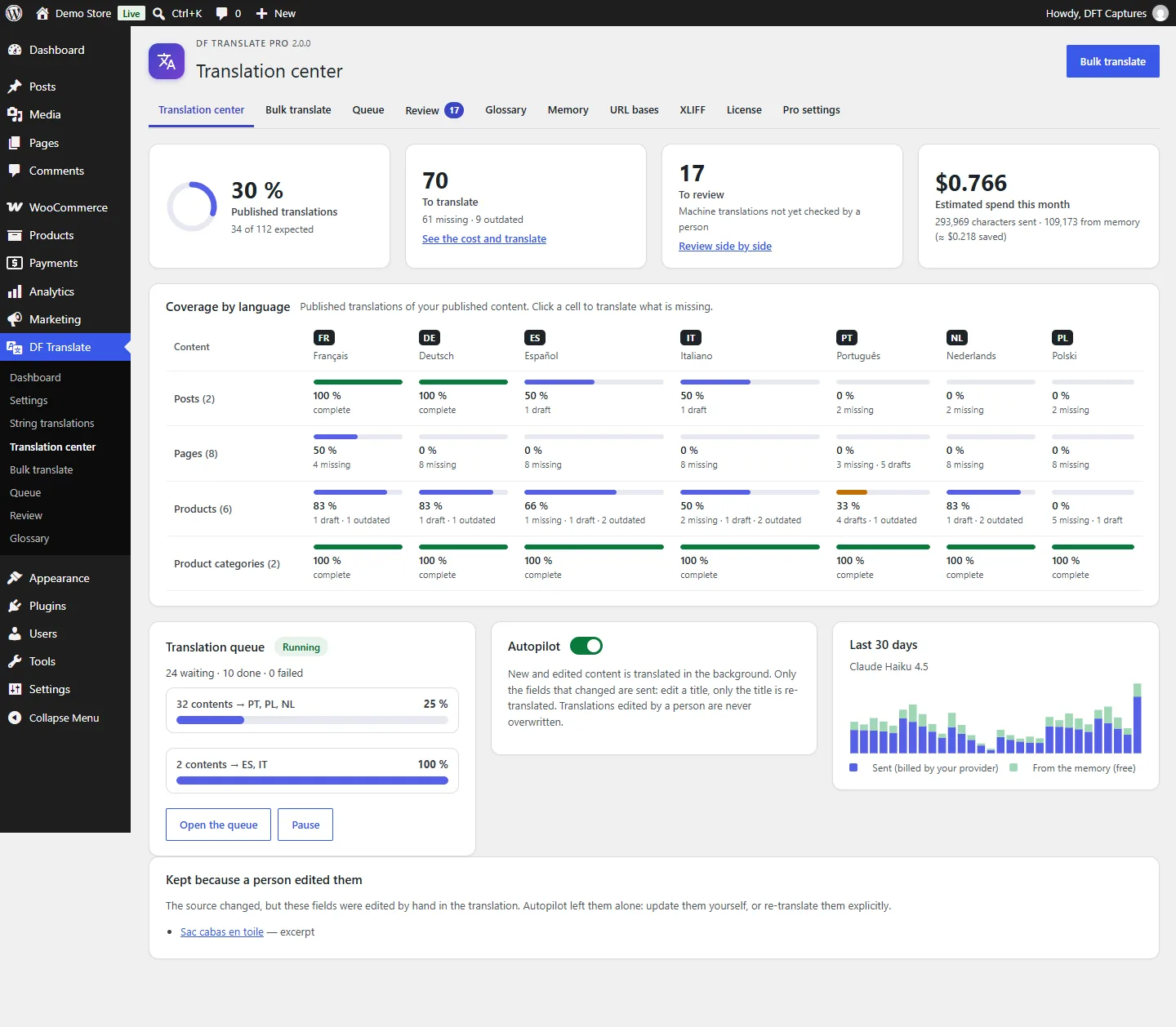
DF Translate → Translation center shows, at a glance:
- the share of published translations, the translations to do (missing and outdated), the translations to review and the estimated spend of the month, with the characters served free by the memory;
- the coverage matrix: for each content type (posts, pages, products, categories) and each language, the percentage published and what is missing, in draft or outdated. Click a cell to open bulk translation already filtered on it;
- the queue with its runs and live progress, the Autopilot switch and a 30-day consumption chart;
- the translations kept because a person edited them while their source changed.
While the translation center or the queue is open, the page also drives the queue every few seconds. Translations therefore progress even on a site whose WP-Cron is slow or disabled.
Bulk translation and its cost
Open DF Translate → Bulk translate.
- Choose what to translate: content types and categories. Categories are translated first, so translated content is filed in translated categories.
- Choose the languages.
- Choose the options: also update outdated translations (only the changed fields are sent), include unpublished sources, and — off by default — overwrite fields edited by a person.
- Read the panel Before you launch: number of translations, characters, estimated cost with a low–high range, and the detail per language and content type.
- Click Launch the translation and confirm.
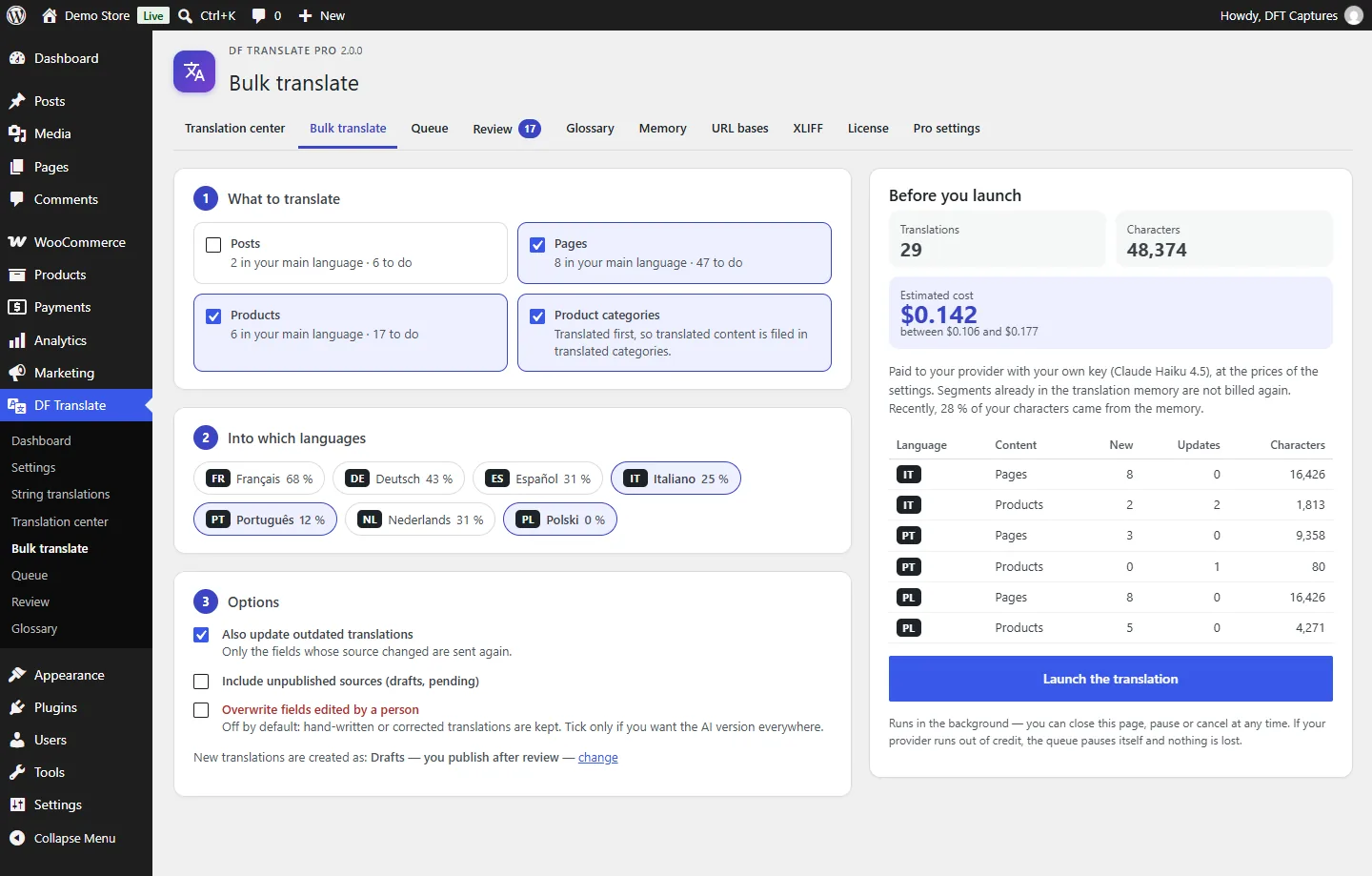
The estimate counts what will really be sent (titles, content, excerpts, SEO fields), at about 3.5 characters per token, +20 % for the translated text and the prompt of each call, with the prices of Pro settings → Prices used for estimates. Defaults are the public list prices checked on 19 November 2026 (Claude Haiku 4.5: $1 / $5 per million tokens; GPT-4o mini: $0.15 / $0.60; DeepL API Pro: €20 per million characters). Adjust them if your provider changes its prices or gives you another rate.
Segments already in the translation memory are not billed again: the panel shows the share recently served by the memory, and the real cost is often lower than the estimate.
New translations are created as drafts, pending review or published depending on Pro settings → Publishing and protection. Existing translations always keep their status.
The queue
DF Translate → Queue lists the runs (each bulk translation) with their progress, the characters sent, the estimated cost so far and the characters served by the memory, then every job with its status and details.
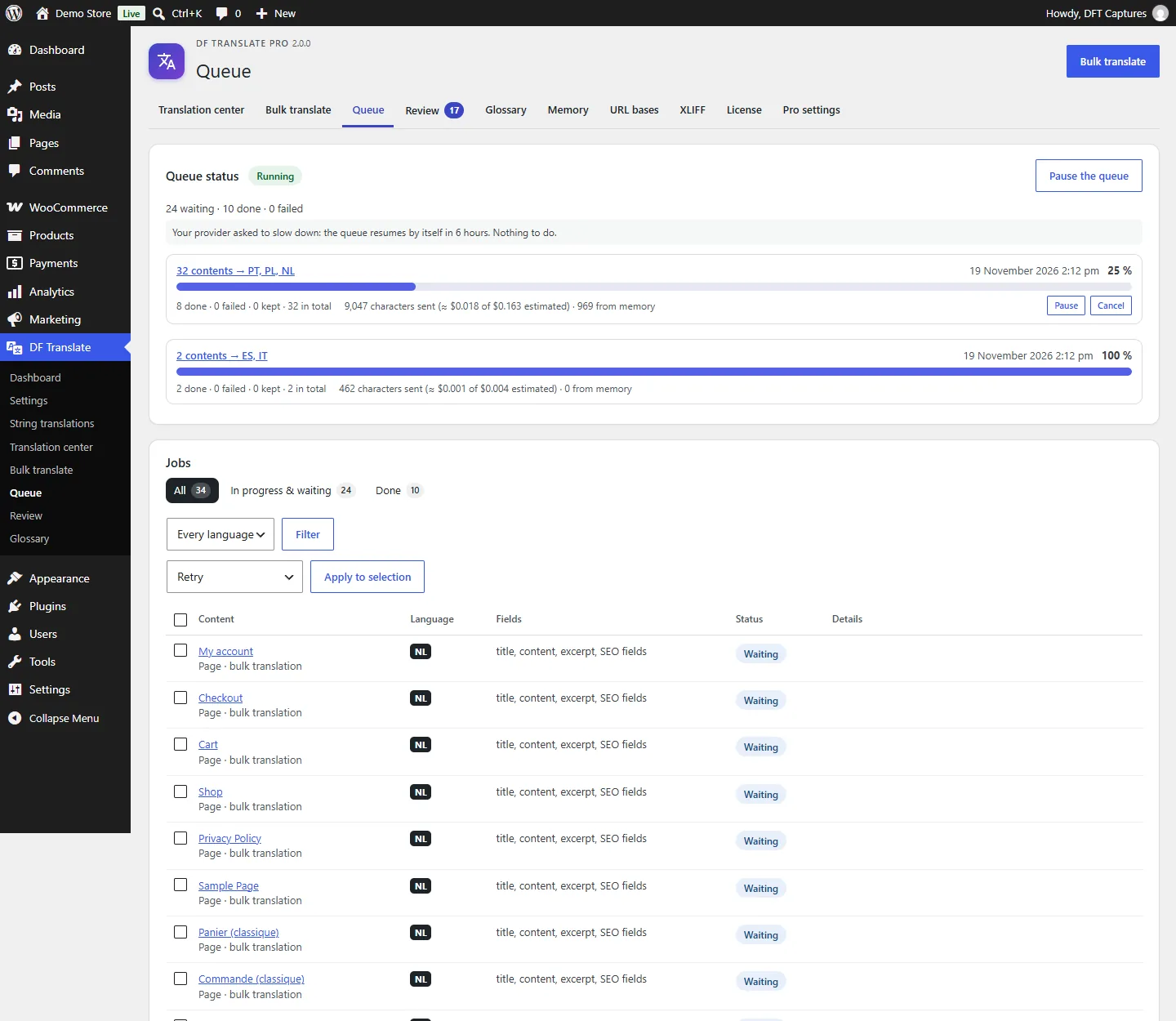
- Pause / Resume / Cancel a run, or pause the whole queue.
- Retry failed jobs of a run, or every failed job at once.
- Filter by status (in progress and waiting, failed, paused, done, skipped, cancelled) and by language; act on a selection.
How errors are handled:
- Quota, credit or rejected key: the queue pauses after the first refusal, no attempt is consumed, a banner explains what to do and an e-mail is sent (can be turned off). Top up your account or fix the key, then click Resume the queue.
- Rate limit: the queue waits the delay requested by the provider (Retry-After) and continues by itself.
- Temporary error (network, server): the job is retried after 1, 2, 4, 8… minutes, up to the number of attempts set in the settings.
- Damaged translation (lost shortcode or block, protected term missing): the translation is rejected and retried, never saved broken.
Each job is claimed by a single runner: a job never runs twice, even if Action Scheduler, WP-Cron and WP-CLI work at the same time. A job interrupted by a server restart goes back to the queue automatically.
Autopilot
Turn Autopilot on in the translation center or in Pro settings → Autopilot, and choose the content types (and whether categories and tags are included). When you publish or edit source content, Pro queues for each language only the fields that changed: title, content, excerpt, SEO fields, and the variations of variable products.
Human edits are protected
Each translated field remembers the machine version it received. As soon as a person edits the field (in the editor or in the side-by-side editor), Autopilot no longer overwrites it: when the source changes, the field is listed as kept because a person edited it. Re-translate it explicitly from the review screen if you want a new machine version.
In the editor
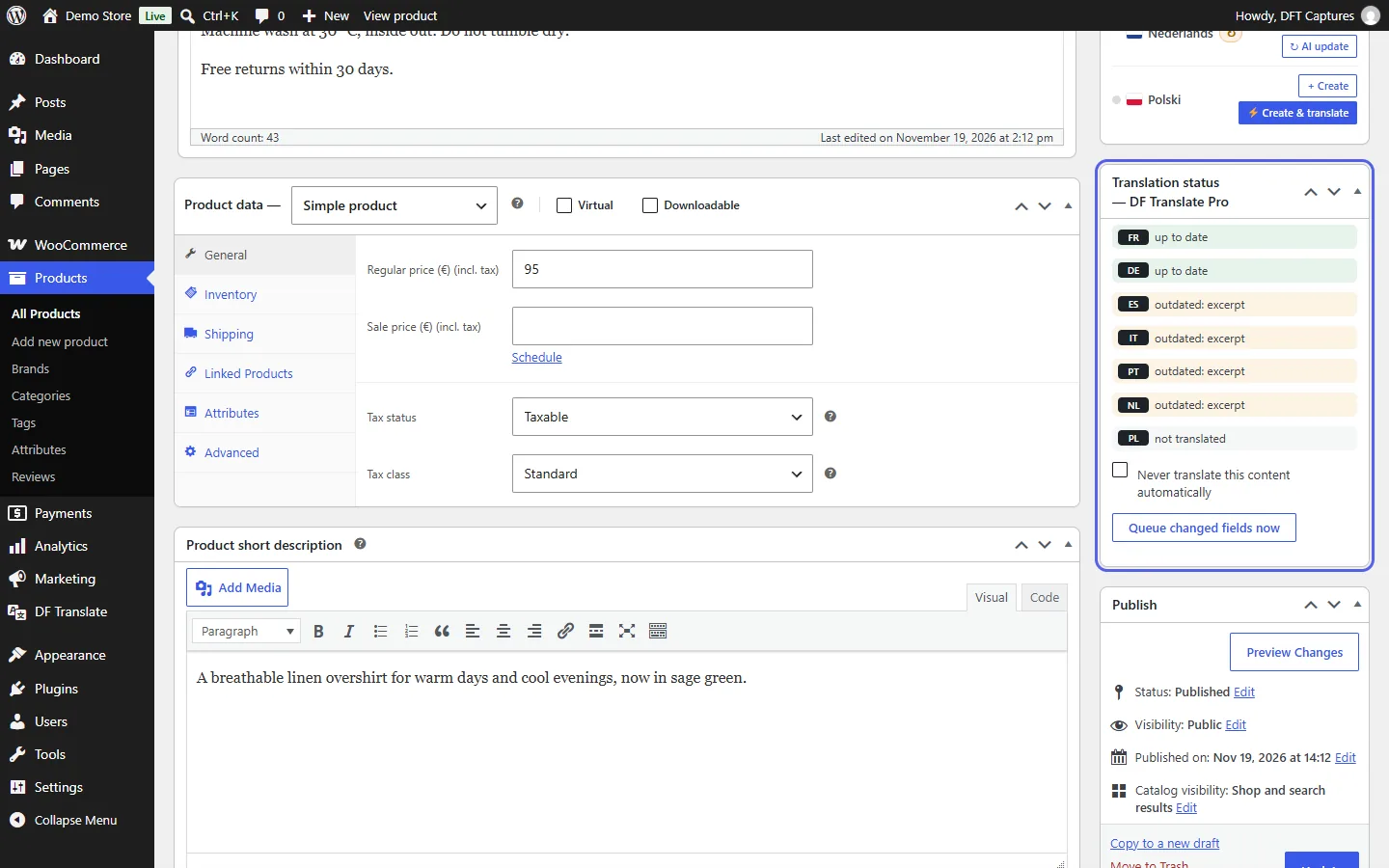
The Translation status — DF Translate Pro box shows each language as up to date, outdated (with the fields), to review or not translated. It also lets you exclude the content from automatic translation and queue the changed fields at once.
Translation memory
Every translated segment — paragraph, heading, list item, title, SEO field — is stored and reused. Translate a page again after editing one paragraph: only that paragraph is sent. When a glossary entry changes, the segments that contain the term are translated again automatically. Translations imported from XLIFF are stored as human translations and always take precedence over AI ones.
DF Translate → Memory shows the number of segments, the reuses and the amount saved, lets you search entries and delete them (one by one or a whole language).
Brand glossary
Open DF Translate → Glossary and click Add a term.
- Never translate: brand names, product lines, codes. These terms are protected for every engine, DeepL and LibreTranslate included.
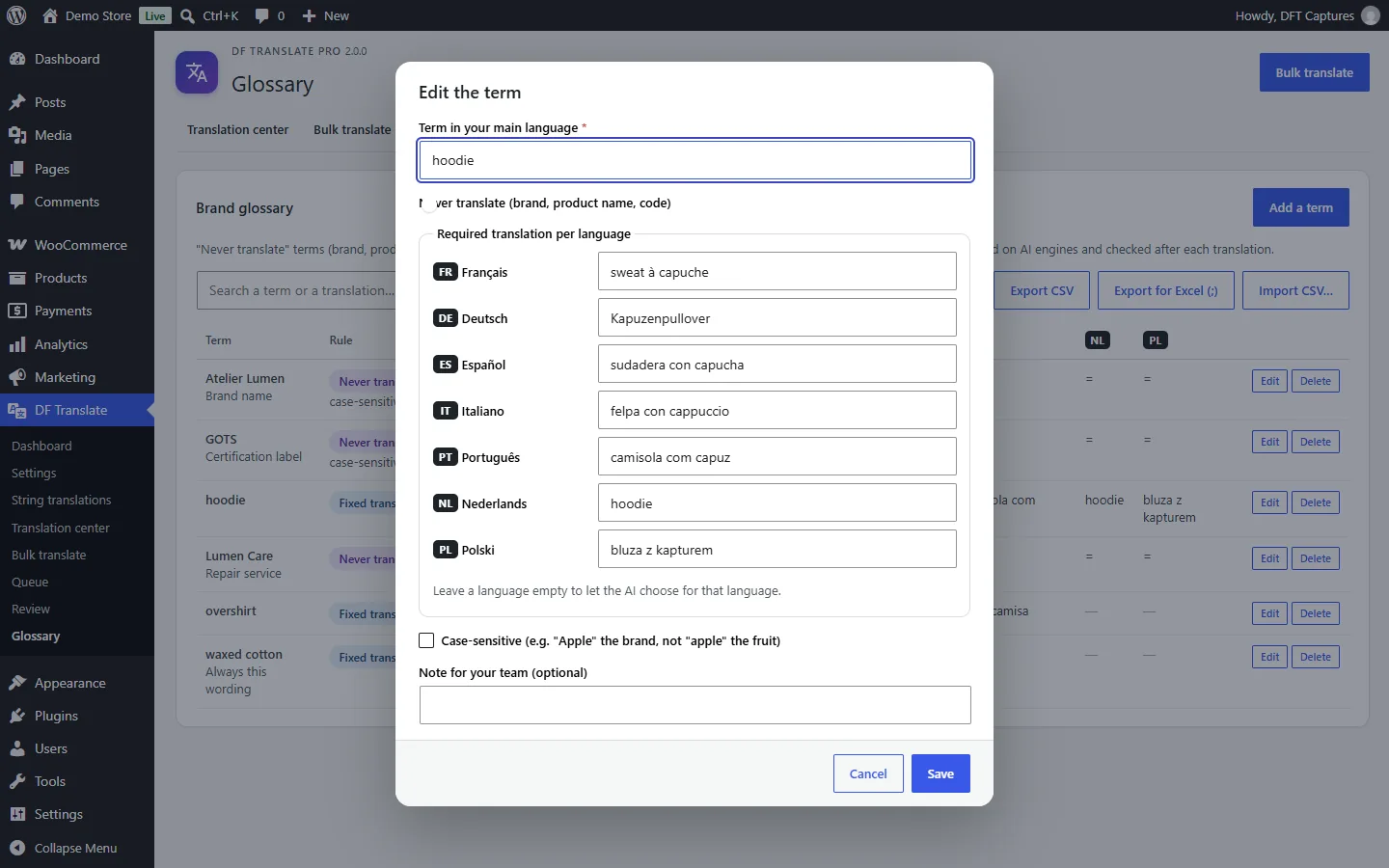
- Fixed translation: the required translation per language (leave a language empty to let the AI choose). AI engines receive it as a mandatory rule and the result is checked; DeepL and LibreTranslate receive the term already translated.
- Case-sensitive: for terms such as a brand that is also a common word.
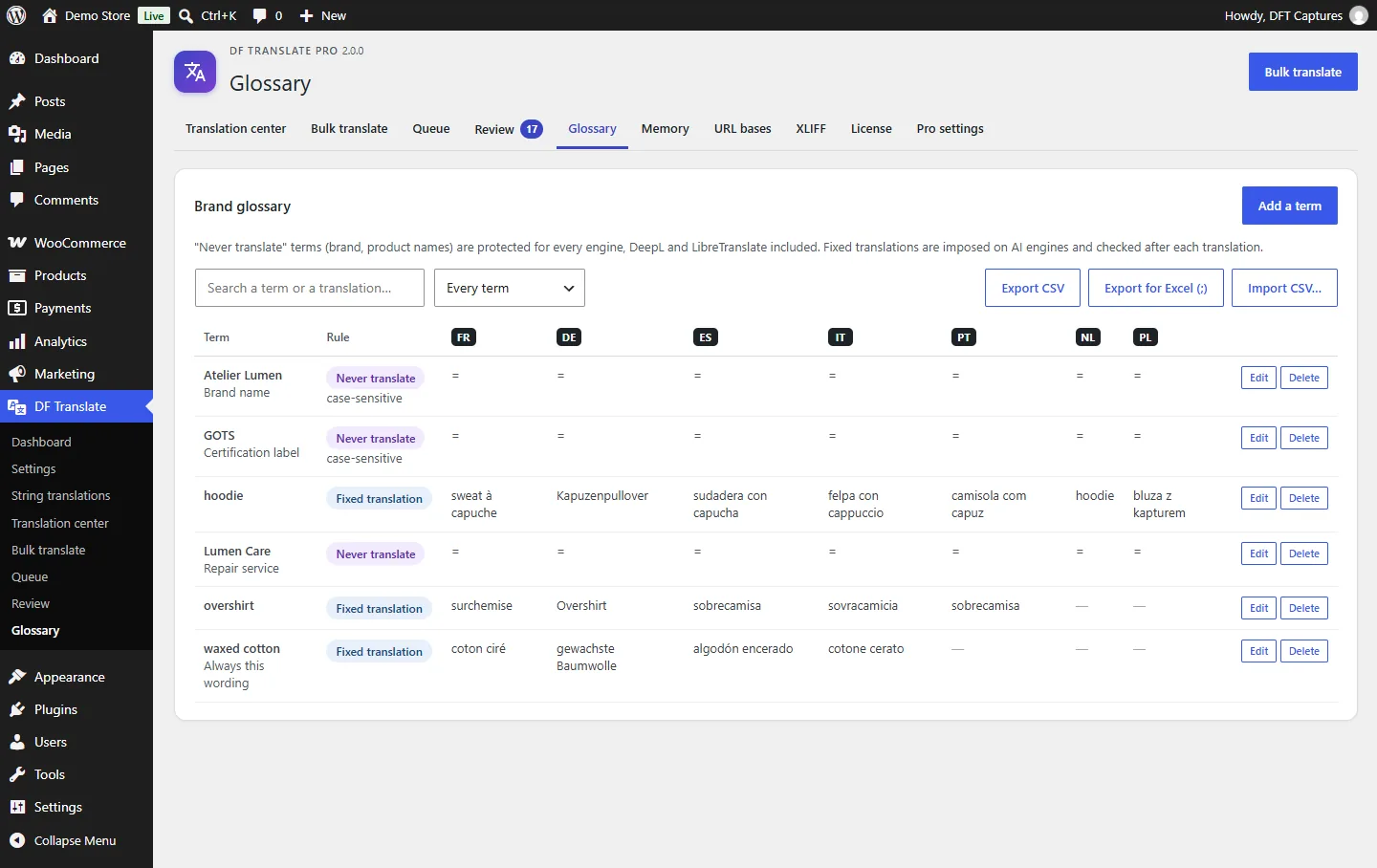
Import CSV shows a preview first (new terms, updated terms, ignored lines) and never creates duplicates. Comma, semicolon and Excel files (with BOM) are accepted, as well as multi-line cells. Expected columns: source_term, never_translate, case_sensitive, note, then one column per language code. Export CSV and Export for Excel (;) produce the same columns, protected against spreadsheet formulas.
Review
DF Translate → Review lists the machine translations not yet checked by a person, with a filter by language, content type and warnings. Open one to compare the source and the translation side by side: title, excerpt, content and SEO fields.
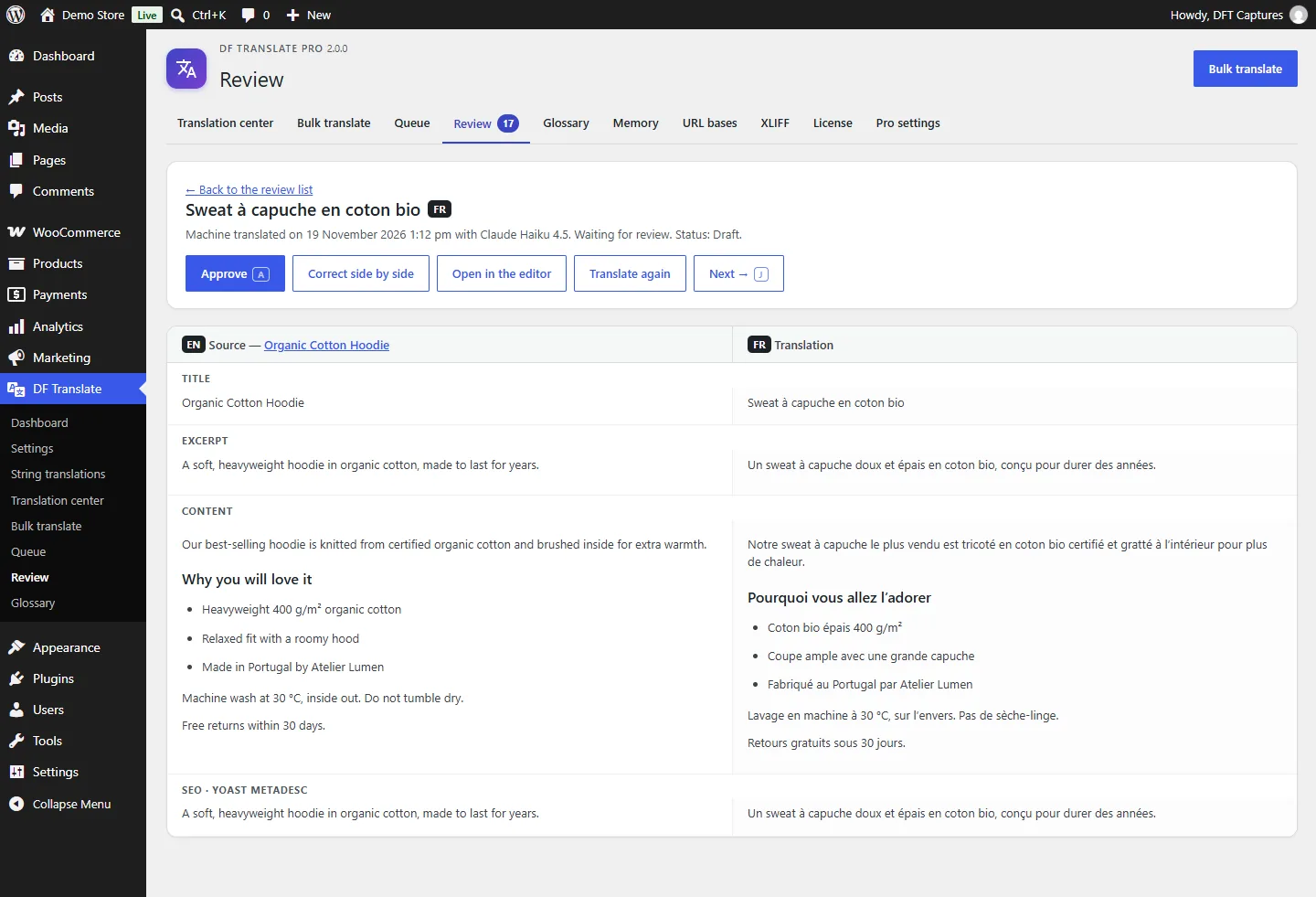
- Approve (key A) and go to the next translation (key J).
- Correct side by side opens the side-by-side editor of DF Translate; saving there also counts as reviewed.
- Translate again queues a new machine translation, replacing fields edited by a person.
Warnings explained on this screen: glossary not followed, translation much shorter or longer than the source, markup removed because the AI added scripts or event handlers that are not in the source.
Security: your content is sent to the AI as text to translate, never as instructions, and anything executable that the AI adds is removed before saving. If the source itself contains such instructions (for example text pasted from an untrusted site), the translation is flagged so that you check it.
WooCommerce
Variable products
When a variable product is translated, its variations are mirrored in the translation and linked to their source variation: stock is shared (a sale in one language decreases the stock of all), prices, sale dates, stock settings and dimensions are copied, variation descriptions are translated, and variations added or removed later are followed.
E-mails in the customer’s language
Customer e-mails (order received, processing, completed, invoice, note, refund…) are sent in the language recorded on the order — subject, heading and body. Admin e-mails stay in the language of your site. Orders placed with the block checkout are recorded with the shopper’s language too. If you customised a subject or heading in WooCommerce, translate it in DF Translate → String translations.
Translated URL bases
Open the URL bases tab of the DF Translate Pro navigation. For each base (product, product category, product tag, category, tag) and each language, enter the translated word, or click Fill empty fields with suggestions. An example address is shown under each field.
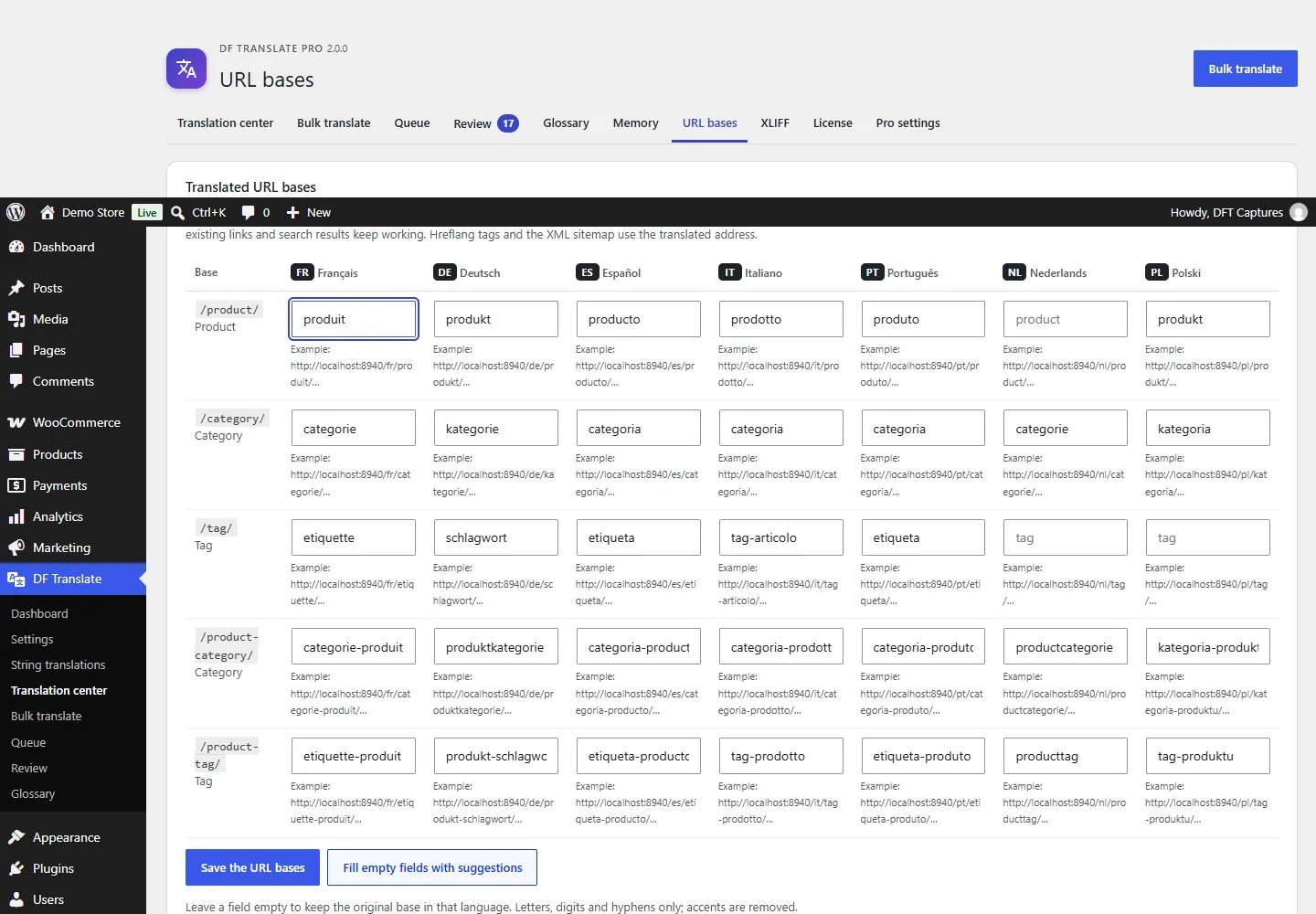
- The new addresses work immediately, without flushing permalinks.
- The untranslated address answers with a permanent 301 redirect to the translated one (query string kept, no loop).
- Hreflang tags and the XML sitemap use the translated addresses; every published translation is listed in the WordPress sitemap.
- Words reserved by WordPress, a word already used by another base, or the address of an existing page in that language are refused with an explanation.
XLIFF for translators
Open DF Translate → XLIFF.
- Export: choose the content type, the target language and which contents (not translated yet, translated but outdated, or all published). The XLIFF 1.2 file contains one unit per paragraph or heading, the existing translations pre-filled and a fingerprint of each source.
- Give the file to your translator or their CAT tool (Trados, memoQ, Smartcat, Phrase…).
- Import: upload the translated file and click Check the file. A report lists, per content, the units that will be imported and those left out: source changed since the export, shortcodes or blocks lost, wrong target language. Click Import the valid units.
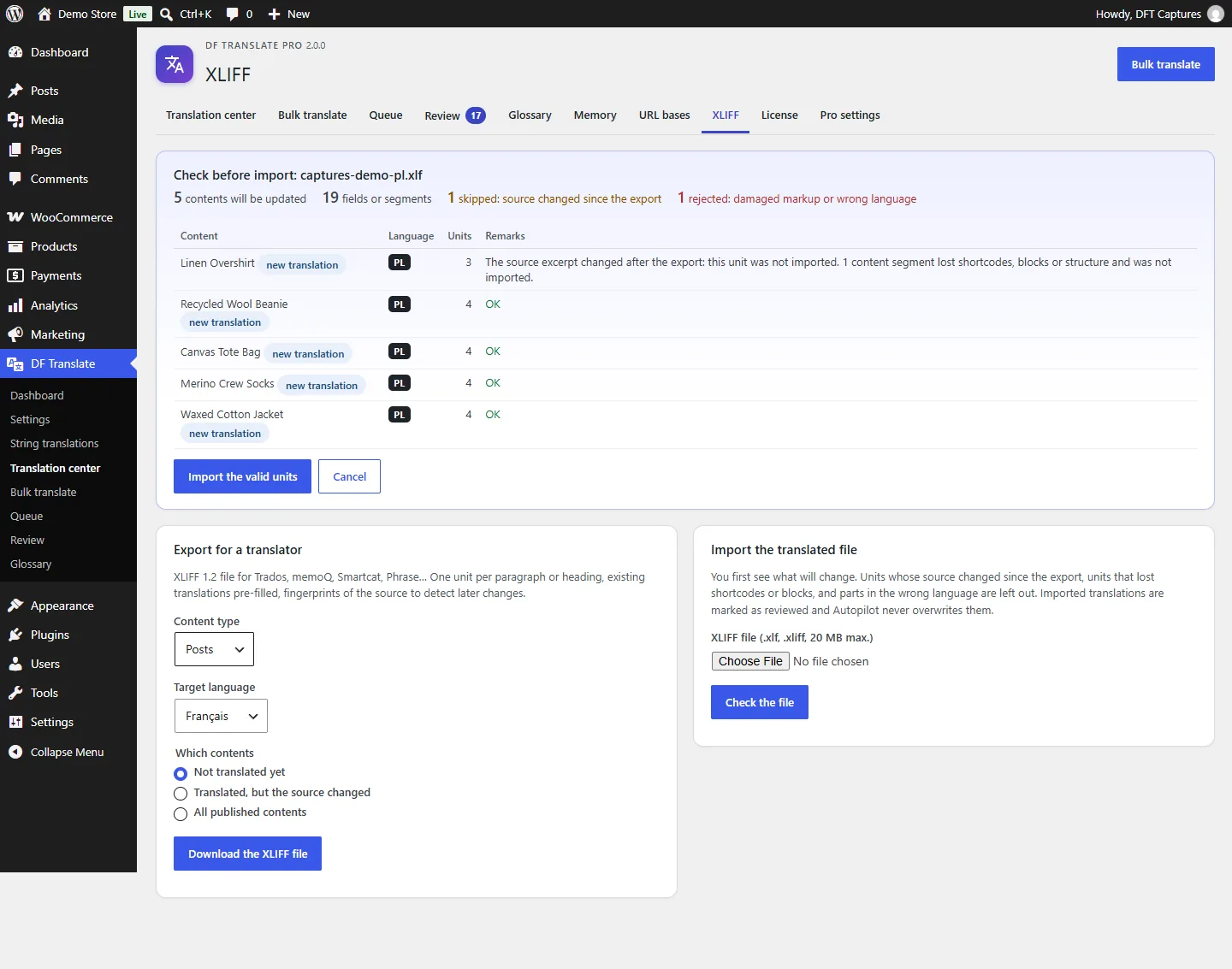
Imported translations are marked as reviewed, stored in the memory as human translations, and protected from Autopilot. Files exported by version 1.x are accepted, with a warning that changes to their source cannot be detected.
WP-CLI commands
wp dft estimate --lang=fr,de --post-type=product --terms: volume and cost, without sending anything.wp dft translate --lang=fr,de [--post-type=…] [--terms] [--outdated] [--drafts] [--force] [--dry-run]: queues a run.wp dft process [--max=…]: processes the queue now.wp dft status [--format=json],wp dft runs,wp dft pause,wp dft resume,wp dft retry [--run=…].wp dft orphans [--fix]: contents without a language.wp dft license status|activate <key>|check|deactivate.wp dft glossary export,wp dft glossary import file.csv [--dry-run].wp dft xliff export --lang=… --post-type=… --scope=missing|outdated|all,wp dft xliff import file.xlf [--dry-run].wp dft memory stats,wp dft memory clear --lang=….
License and updates
Open the License tab of the DF Translate Pro navigation, paste your key and click Activate. The page shows the status, the plan, the date until which updates are included and the number of sites used. Deactivate on this site frees the seat for another site (for example when moving from staging to production).
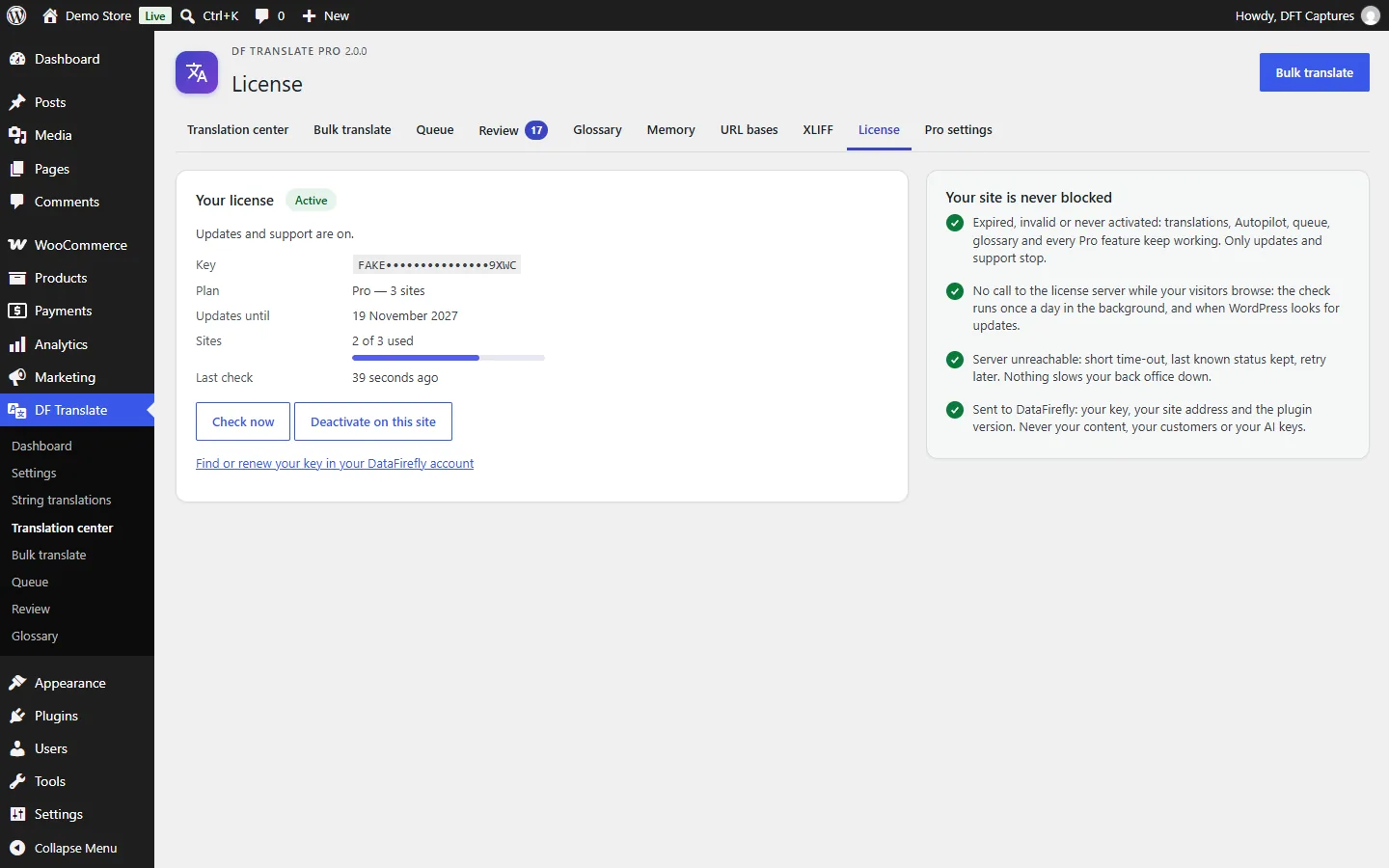
- Your site is never blocked: expired, invalid or not activated, every feature keeps working; only updates and support stop.
- No call to the license server while visitors browse: the status is checked once a day in the background and when WordPress looks for updates, with short time-outs; if the server cannot be reached, the last known status is kept.
- Sent to DataFirefly: your key, your site address and the plugin version — never your content, your customers or your AI keys.
Settings
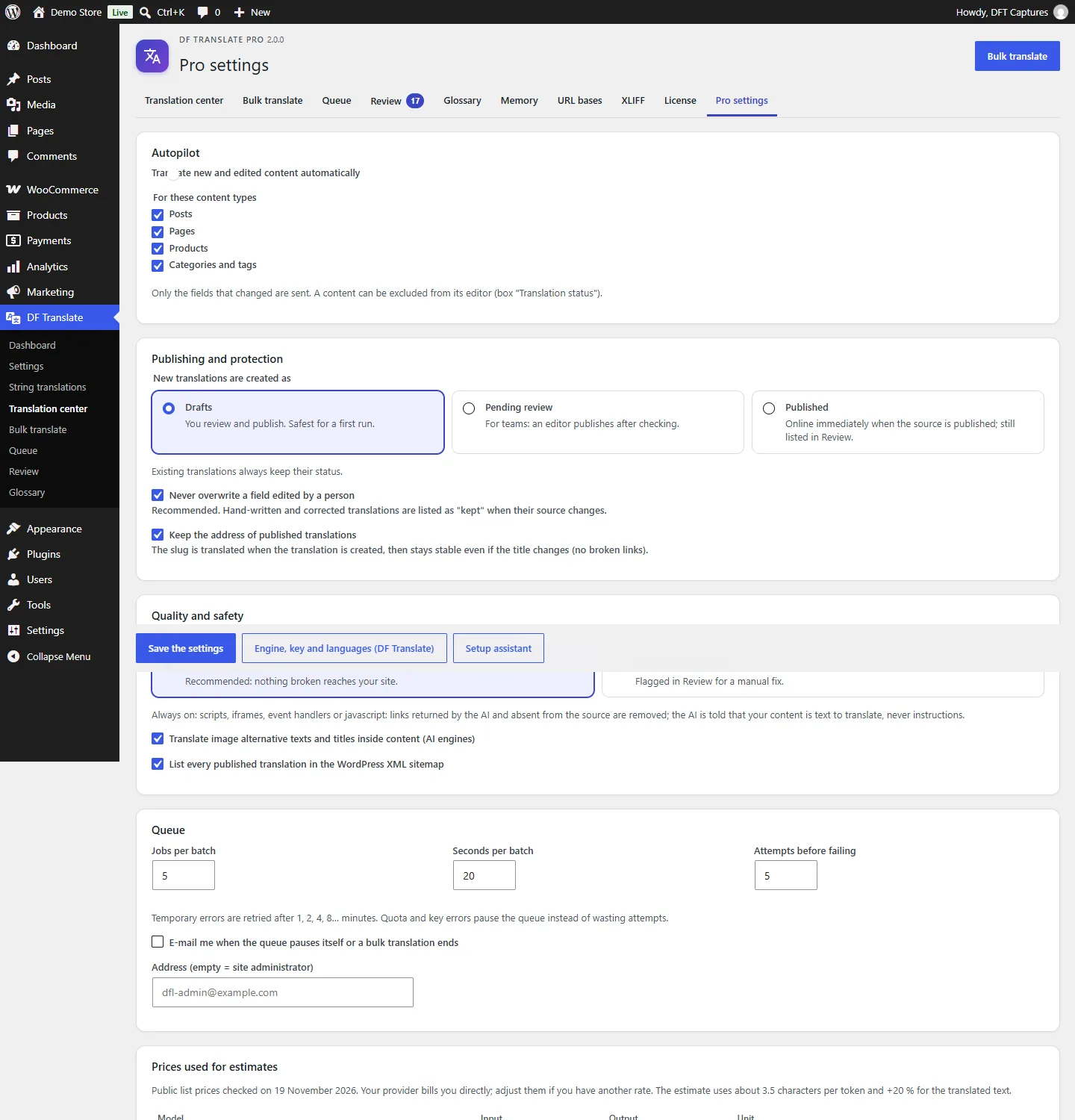
DF Translate → Pro settings gathers: Autopilot and its content types; the status of new translations; the protection of human edits; keeping the address of published translations; what to do with a damaged translation (reject and retry, or save with a warning); translation of image alternative texts; the XML sitemap; the queue (jobs and seconds per batch, attempts); notifications; the price table; and the deletion of the Pro data on uninstall.
Upgrading from 1.x
Install dftranslate-pro-2.0.0.zip over version 1.x (Replace current with uploaded). On the first load, the migration keeps the queue (jobs left “processing” by 1.x go back to the queue), the glossary (duplicate terms merged), the memory, the URL bases, the Autopilot setting and the license. Untouched machine translations stay refreshable by Autopilot; those already edited by hand are protected. Nothing is re-translated or re-billed.
Uninstall
Deactivating or deleting the plugin keeps all its data, so that a reinstallation finds everything again. To delete it, tick Delete every Pro data when the plugin is deleted in the Pro settings before deleting the plugin: the queue, glossary, memory, usage history, URL bases, license and settings are removed. Translated content is never deleted.
FAQ and troubleshooting
The Pro menus do not appear. DF Translate (free) must be active; Pro shows a notice with a button to reactivate it.
The queue is paused with a red banner. Your provider refused a request (credit, quota or key). Follow the advice in the banner, then click Resume the queue. Nothing was lost.
A translation was not updated after I edited the source. Check that Autopilot is on for that content type and that the content is not excluded. If the field had been corrected by hand, it is listed in Kept because a person edited them: re-translate it from the review screen if you want.
A job failed with “rejected by the quality check”. The engine damaged shortcodes, blocks or protected terms. Retry the job; if it keeps happening with a very long page, try another model.
The estimate seems high. Narrow the selection (one content type, one language) to validate the result first, check the prices in the settings, and let the memory fill up: segments already translated are not billed again.
A translated URL answers 404. Check the URL bases screen: a word refused there (reserved word or existing page) is not applied.