
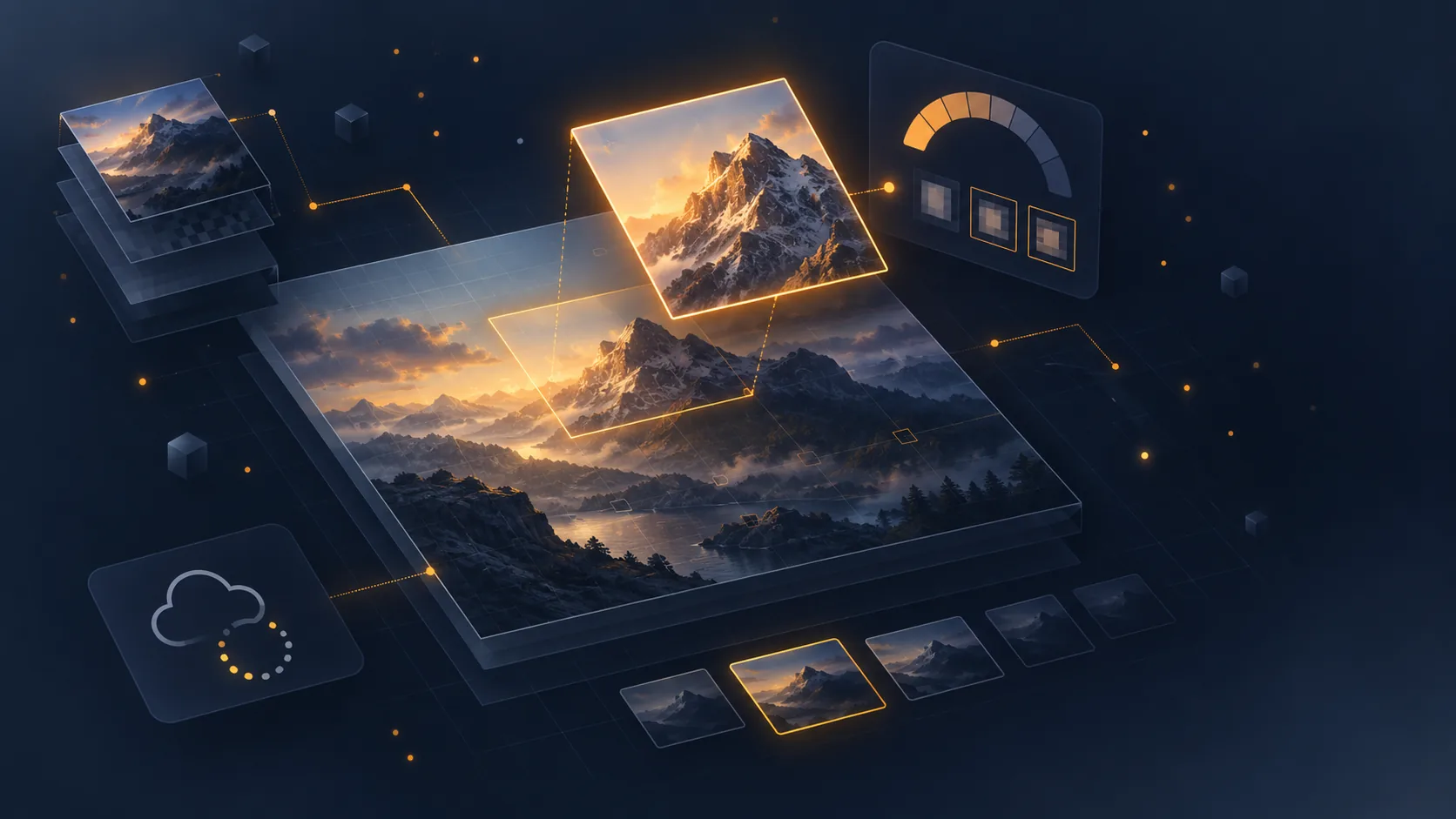
Zoom on product images is one of the few features whose absence is noticed immediately. A customer who wants to check a texture, a finish or a marking and cannot enlarge the image assumes something is being hidden.
Source resolution, the precondition
No zoom feature can create detail that does not exist in the file. That is the first check, and it often rules the project out before it starts.
The rule: your source image must be two to three times the maximum display size. If your gallery shows the image at 600 pixels wide, the source should be between 1200 and 1800 pixels. For comfortable zooming on detail, aim for 2000 pixels on the long side.
A quick check: open a product image in a new tab and look at its actual size. On many shops, the visuals were resized on import and cap out at 800 pixels, which rules out any useful zoom.
An important point: enlarging an 800-pixel image by software processing restores no detail. The result looks blurry and produces the opposite of the intended effect. If your sources are insufficient, the work starts with photography, not with a module.
The three behaviours
The magnifier on hover. A zoom square follows the cursor, the enlargement appears alongside or over the image. A classic desktop behaviour, effective for quickly inspecting one area.
Fullscreen on click. The image opens as an overlay, with navigation between visuals and the option to enlarge further. This is the most complete and most universal behaviour.
Pinch on mobile. The natural gesture on a touchscreen. It must work inside the fullscreen view, never on the page as a whole.
The combination that works: magnifier on hover on desktop, fullscreen opening on click on both formats, pinch available inside fullscreen.
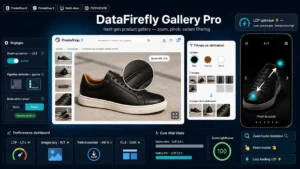 PrestaShop Product Gallery — HD Zoom, Fullscreen & Variant FilterNext generation product gallery: HD zoom, vertical thumbnails, mobile fullscreen with pinch and variant based image filtering.€69.00
The critical point on mobile
This is the most frequent and most damaging implementation mistake.
If the zoom component captures touch gestures on the gallery displayed in the page flow, it conflicts with scrolling: a visitor who wants to scroll the page gets stuck on the image.
The correct behaviour: in the page flow, the gallery is browsed by horizontal swipe and vertical scrolling stays free. Zoom only activates after fullscreen is explicitly opened, by tapping the image or a dedicated icon.
Second point: closing fullscreen must be obvious, with a visible cross and the swipe-down gesture, which has become a standard.
Deferred loading of the high-definition file
Loading a 2000-pixel image on every product page for a visitor who will never zoom is a waste of bandwidth, and it degrades your performance metrics.
The right architecture rests on two files per visual. A display version, sized for the gallery, loaded immediately. And a high-definition version, loaded only when zoom is triggered.
Two execution precautions. Provide a loading indicator while the high-definition version downloads: on a slow connection, two seconds with no visual feedback feels like nothing is happening. And preload the next image when the visitor is in fullscreen, so navigation between visuals stays fluid.
Weight and format
A 2000-pixel JPEG at maximum quality can weigh several megabytes. Three levers bring it back to a reasonable size.
Modern formats, WebP and AVIF, cut weight by 30 to 50% at equivalent perceived quality. Plan a JPEG fallback for older browsers.
Compression quality, around 80 to 85%, where the visual difference becomes imperceptible while the weight drops sharply.
Resizing at source: a 6000-pixel photo out of a professional camera serves no purpose online. Cap it at 2000 or 2500 pixels on import.
What not to do
Zoom on an image that is too small. Better no zoom at all than opening a pixelated version. Plan a detection: if the resolution is insufficient, zoom does not activate.
Zoom that hides the buy button. On desktop, a magnifier displayed to the right of the image often covers the price and add-to-cart column. Zoom must stay inside the image area or in a modal overlay.
Disabled right click. Some modules block the right click to protect images. It stops nobody from taking them, gets in the way of legitimate uses, and hurts accessibility.
The case for detail shots
On some catalogues, zoom is not enough and a dedicated photo works better.
A close-up of stitching on a garment, of connectors on a device or of the grain of a material brings more than an enlargement of a general shot, because it was framed and lit to show that detail.
The signal: if your customers regularly ask the same question about a detail, add a photo rather than hoping zoom will answer it.
The Product Gallery module for PrestaShop handles this chain on PrestaShop 8 and 9: high-definition zoom with deferred loading of the enlarged version, fullscreen behaviour suited to touch with no conflict with scrolling, and automatic deactivation of zoom when source resolution is insufficient.