
Axonaut Connector for WooCommerce — Documentation
Install and use Axonaut Connector 2.0 for WooCommerce: setup assistant, sync rules, mappings, exact totals, credit notes, payments, history catch-up, dashboard, log, WP-CLI and troubleshooting.
Overview
The Axonaut Connector for WooCommerce sends your WooCommerce sales to Axonaut, the French CRM and invoicing software: an invoice (or a quotation) for each order, with the WooCommerce totals to the cent, a credit note for each refund or cancellation, the payment, the customer with its contact, and the products. Everything runs in the background: your checkout is never slowed down, and an order is never sent twice.
Version 2.0 adds a setup assistant, a dashboard that tells you what to do when something goes wrong, an invoice preview, an Axonaut column in the orders list, mappings for taxes and payment types, a history catch-up in date order and a filterable log with masked personal data, in 8 languages.
Requirements
- WordPress 6.4 or later (tested up to 7.1), PHP 7.4 to 8.5.
- WooCommerce 8.2 or later (tested up to 11.2), with HPOS or legacy storage, classic or block checkout.
- An Axonaut account and its API key.
- WP-Cron (or a server cron) running, as for any WooCommerce shop: the queue uses Action Scheduler.
Installation and setup assistant
- In WordPress, open Plugins > Add New > Upload Plugin, choose the zip, install and activate.
- Open WooCommerce > Axonaut: the setup assistant starts.
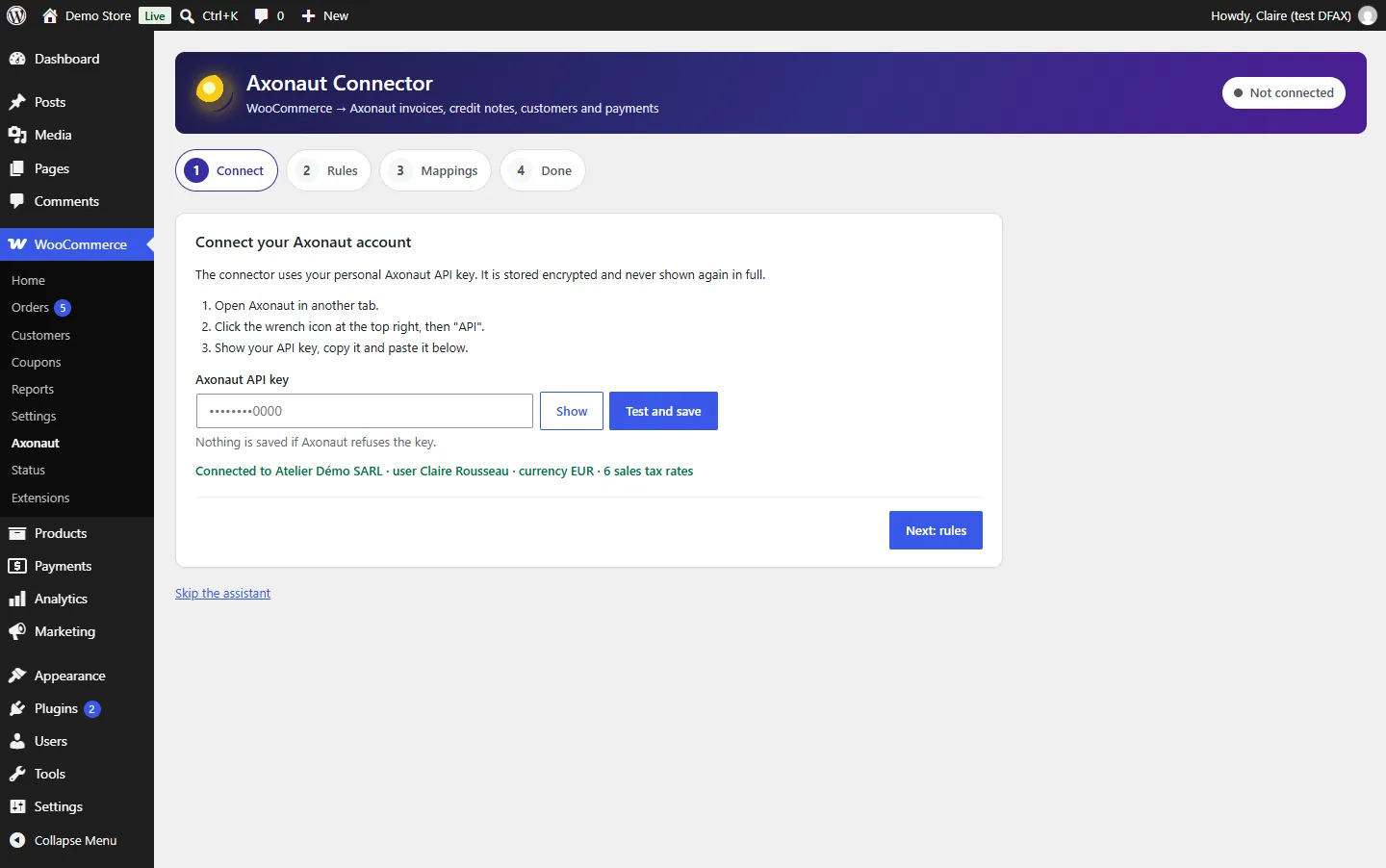
- In Axonaut, click the wrench icon at the top right, then API, show your API key and copy it.
- Paste it in the assistant and click Test and save. Nothing is saved if Axonaut refuses the key; when it works, the connected account is shown (company, user, currency, number of tax rates).
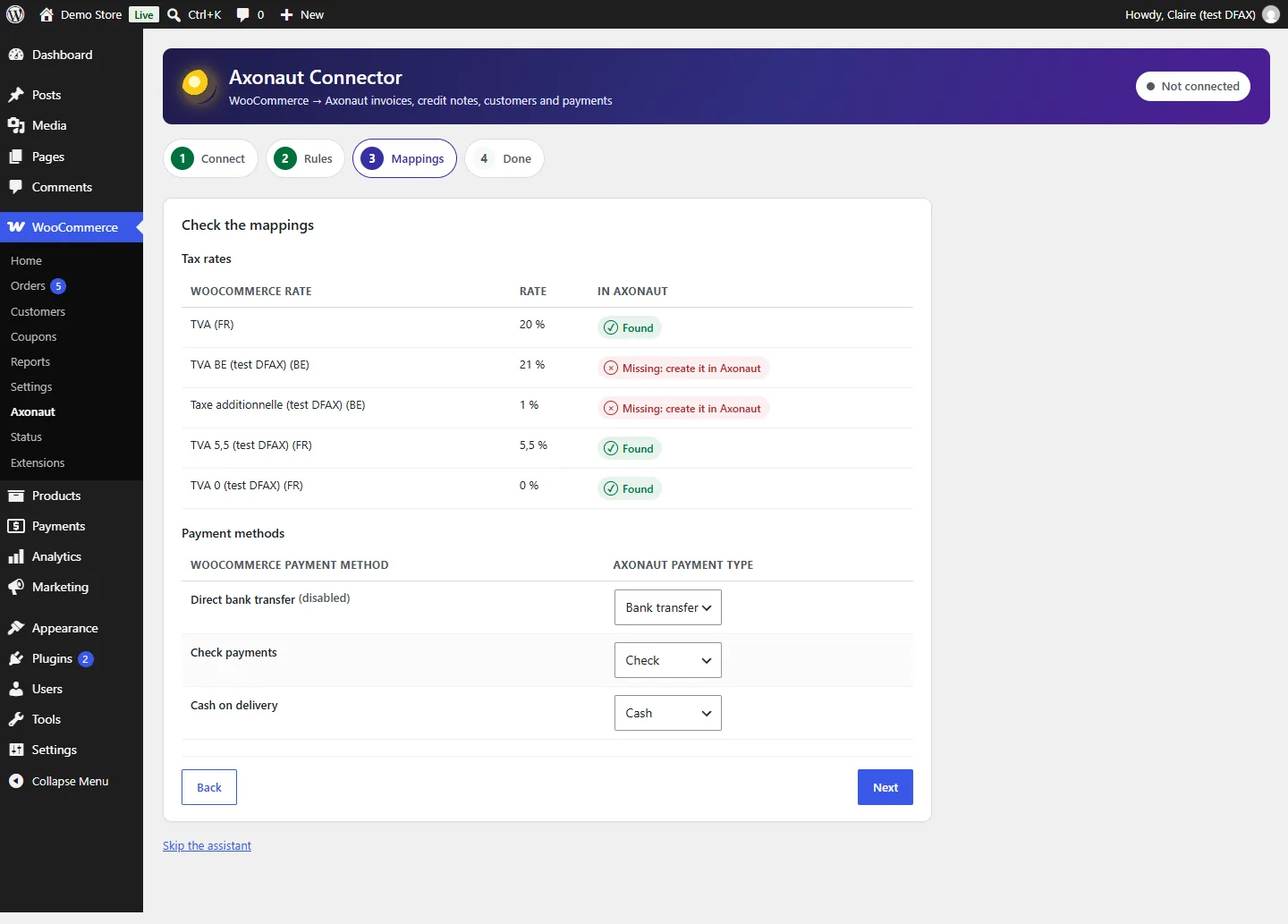
The next steps let you choose the document (invoice or quotation), the statuses that trigger the sending, credit notes and payments, then check the mappings: each WooCommerce tax rate is looked for in your Axonaut account, and each payment method gets an Axonaut payment type (card, transfer, check, cash, direct debit, other).
wp-config.php: define( 'DF_AXONAUT_API_KEY', '…' );Sync rules
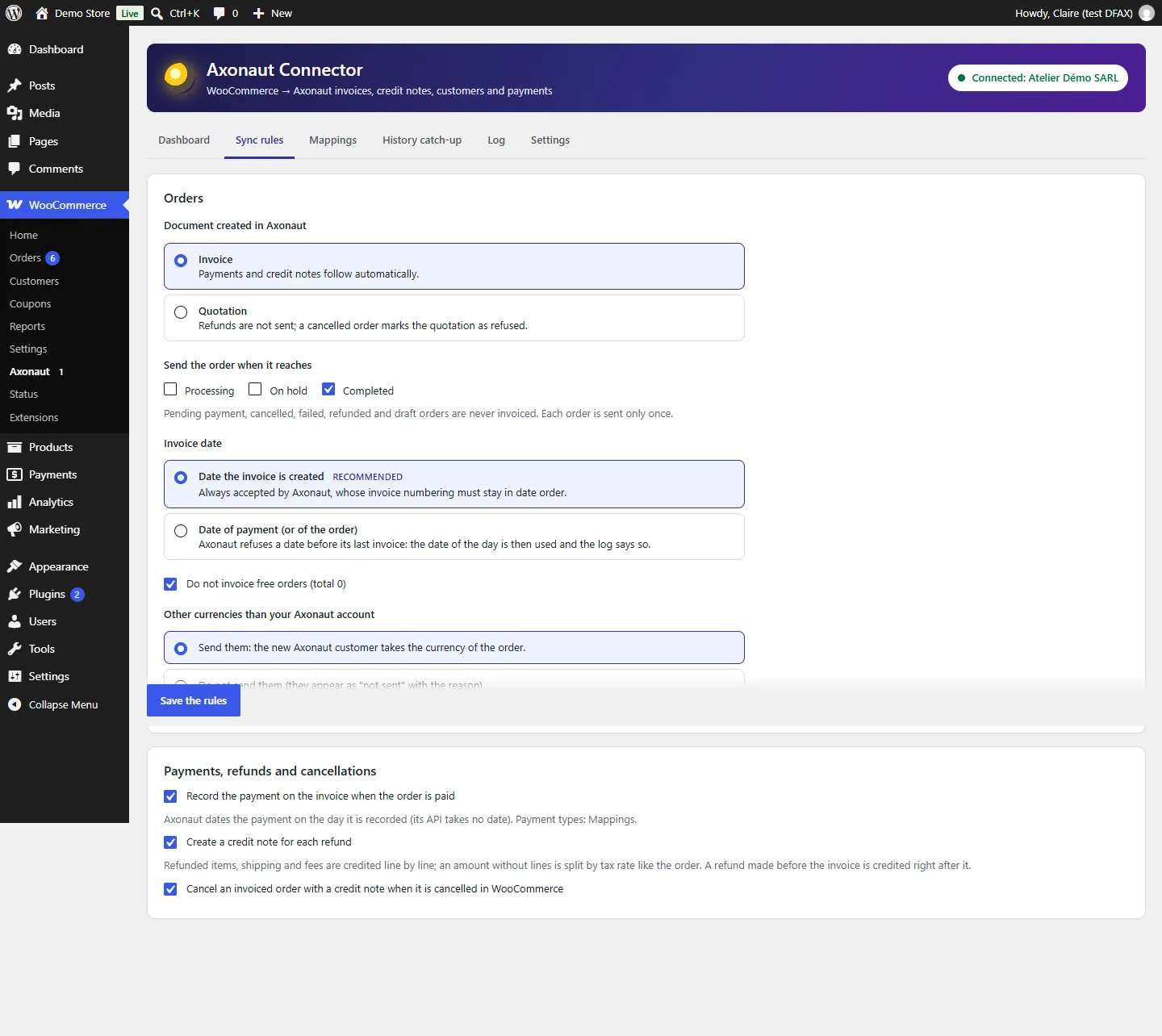
- Document: invoice (payments and credit notes follow automatically) or quotation (a cancelled order marks the quotation as refused).
- Trigger statuses: for example Completed for physical goods, Processing for digital products. Pending payment, cancelled, failed, refunded and draft orders are never invoiced. Each order is sent only once.
- Invoice date: the day the invoice is created (recommended), or the payment date when Axonaut accepts it. Axonaut numbers invoices in date order and refuses an invoice dated before its last one: the date of the day is then used and the log says so.
- Free orders (total 0) can be skipped, and other currencies sent (the new Axonaut customer takes the currency of the order) or blocked.
- Payments, refunds and cancellations: record the payment, create a credit note for each refund, cancel an invoiced order with a credit note.
Totals exact to the cent
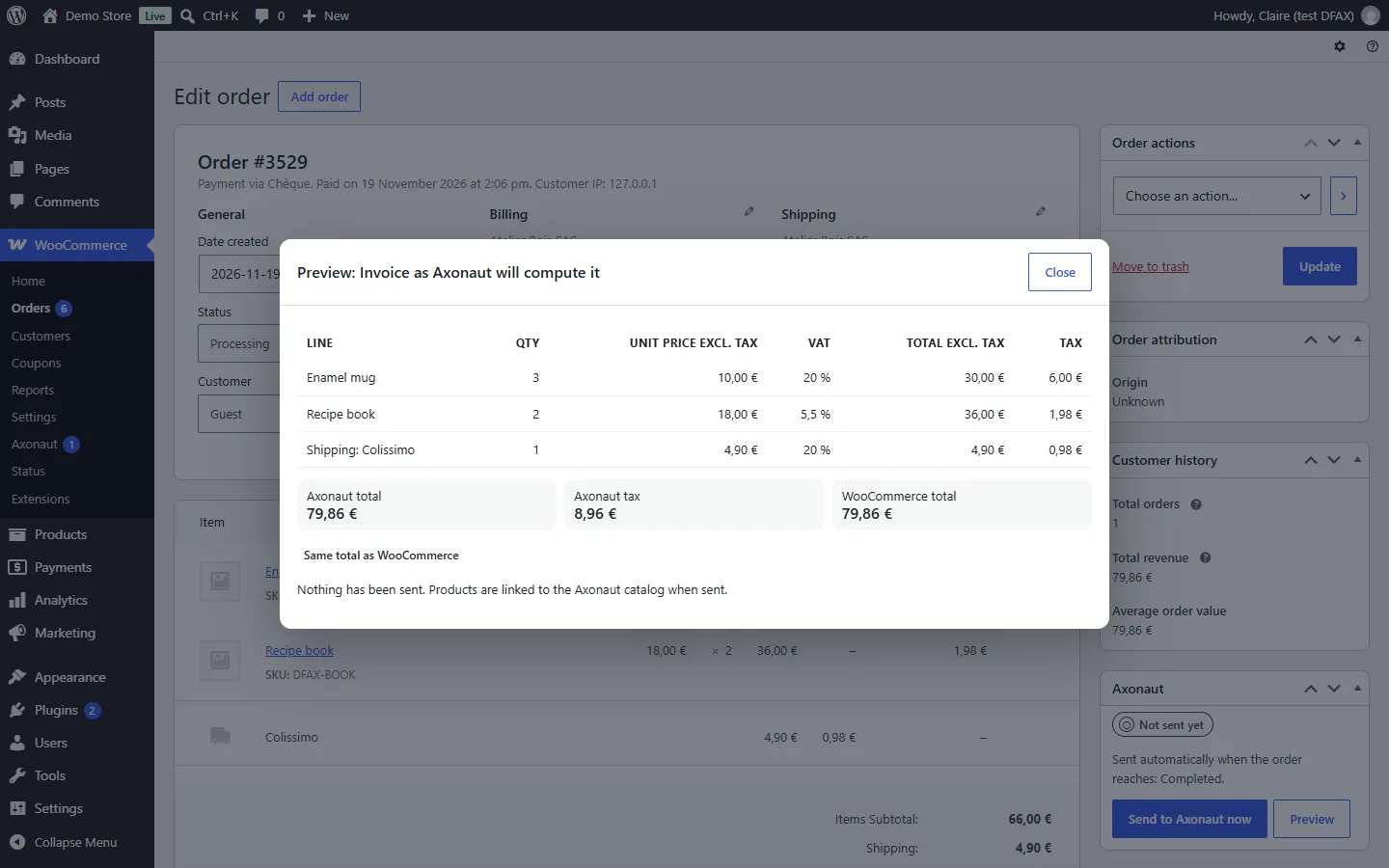
Each line is sent with its net price after discount and the declared rate of its WooCommerce tax, never a rate recomputed from rounded amounts. WooCommerce keeps line amounts unrounded and rounds the tax per rate over the whole order, while Axonaut rounds each line: the connector chooses the cents of every line (within 1.5 cent of its exact amount) so that the total excluding tax, the VAT of each rate and the total including tax are the WooCommerce ones. If needed, a line with a quantity of 2 or more is split in two.
- Shipping, fees and negative fees (discounts) are separate lines with their VAT.
- Coupons are explained on the line: price before discount, discount, coupon code.
- The WooCommerce order number is sent in the order number field of the invoice, with the delivery address.
- Every invoice is checked after creation; a difference would be flagged on the dashboard. An optional Rounding adjustment line (0 % VAT, at most 5 cents) is available in Settings.
Before sending, the Preview button of the order screen shows the lines as Axonaut will compute them and compares the totals with WooCommerce. Nothing is sent.
Customers and products
Individuals become B2C customers in Axonaut with their contact; a billing company makes a B2B customer, with its VAT number and its SIRET / SIREN if your checkout collects it, and each buyer is added as a contact once.
Customers are identified by their account, their e-mail or their VAT / SIRET number, never by their name: two people with the same name are never merged. Business customers can also be linked to a company that already exists in Axonaut with the same name and postcode (option). When a customer orders with a new address, it is updated in Axonaut.
Products and variations are created in the Axonaut catalog at their first sale (recommended) or kept in sync on every change, with their SKU, price excluding tax, tax rate, category and type (sale of goods 707 or of services 706). Every invoice line is linked to its product, so the catalog never fills with duplicates. History catch-up > Sync the whole catalog creates all products at once.
Mappings
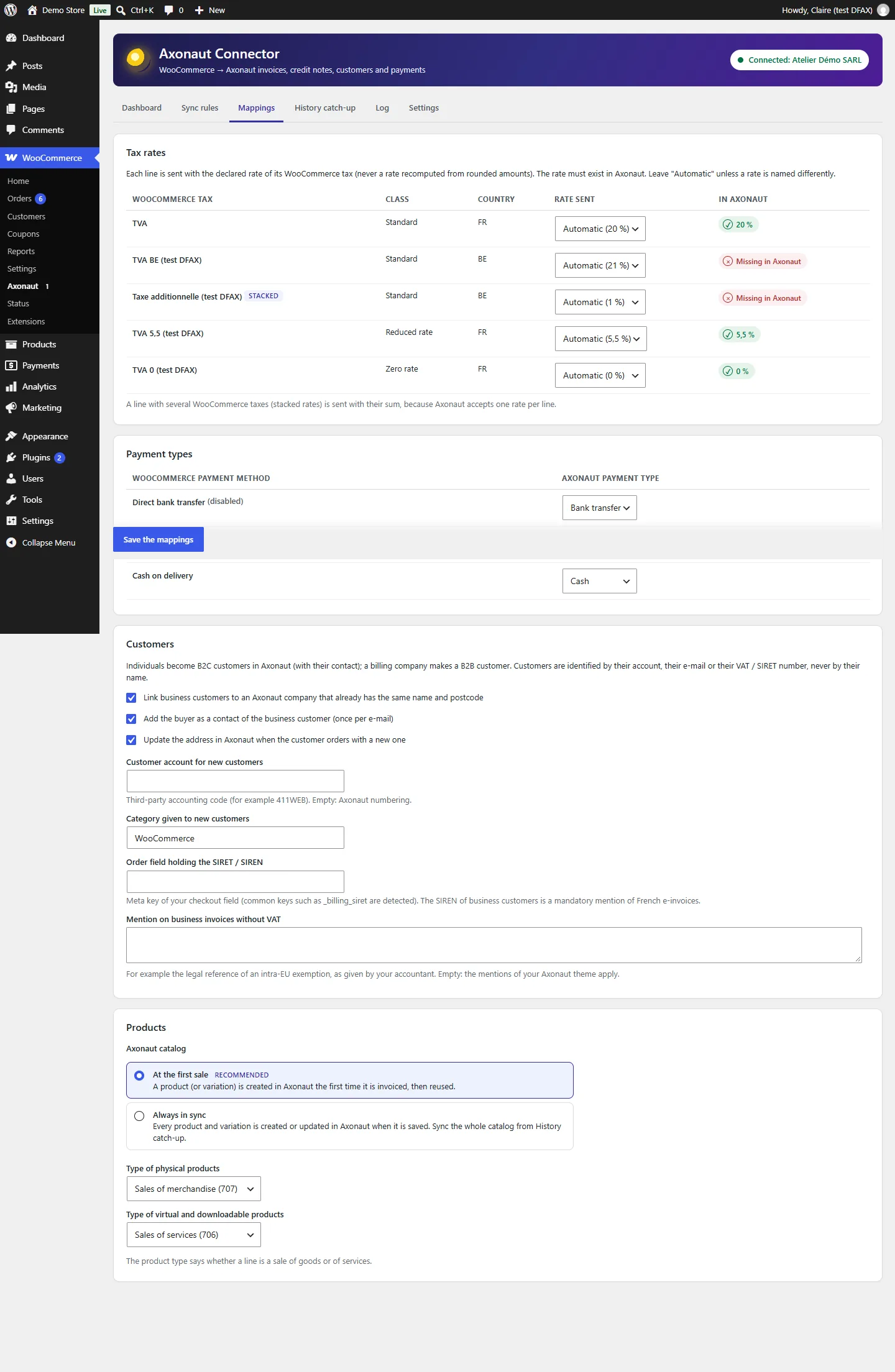
- Tax rates: each WooCommerce rate, its class and country, the rate sent and whether it exists in Axonaut. Choose an Axonaut rate only if a rate is named differently. A line with several WooCommerce taxes (stacked rates) is sent with their sum, which must exist in Axonaut.
- Payment types: one Axonaut type per WooCommerce payment method.
- Customers: link to existing companies, contacts, address update, customer account (third-party code), category, order field holding the SIRET / SIREN, mention for business invoices without VAT.
- Products: catalog mode and product types.
Order screen and orders list
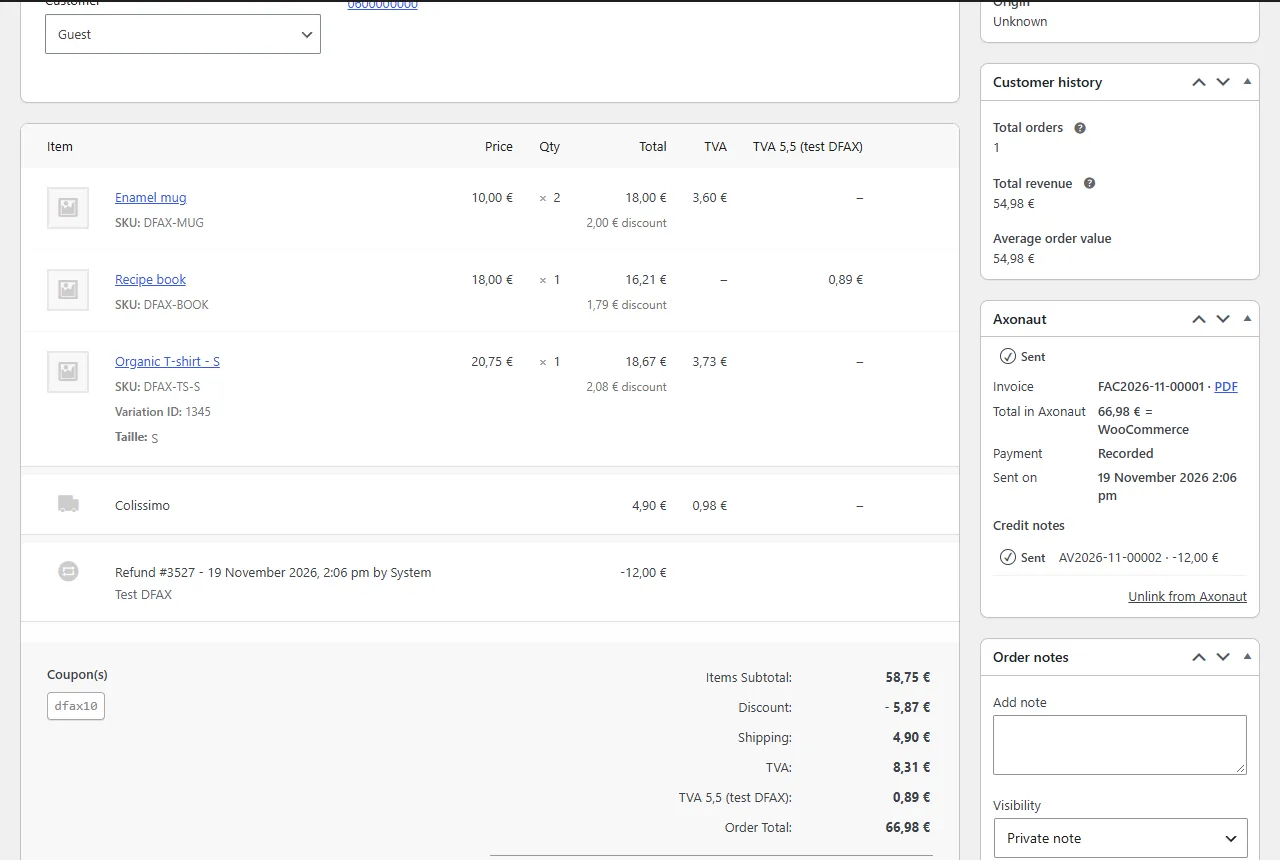
On each order, the Axonaut box shows the status, the invoice number with a link to its PDF, the total in Axonaut compared with WooCommerce, the payment and the credit notes. If the order is not sent yet, it shows why and what to do, with Send to Axonaut now and Preview. If the order was changed after its invoice, Credit note + new invoice corrects it.
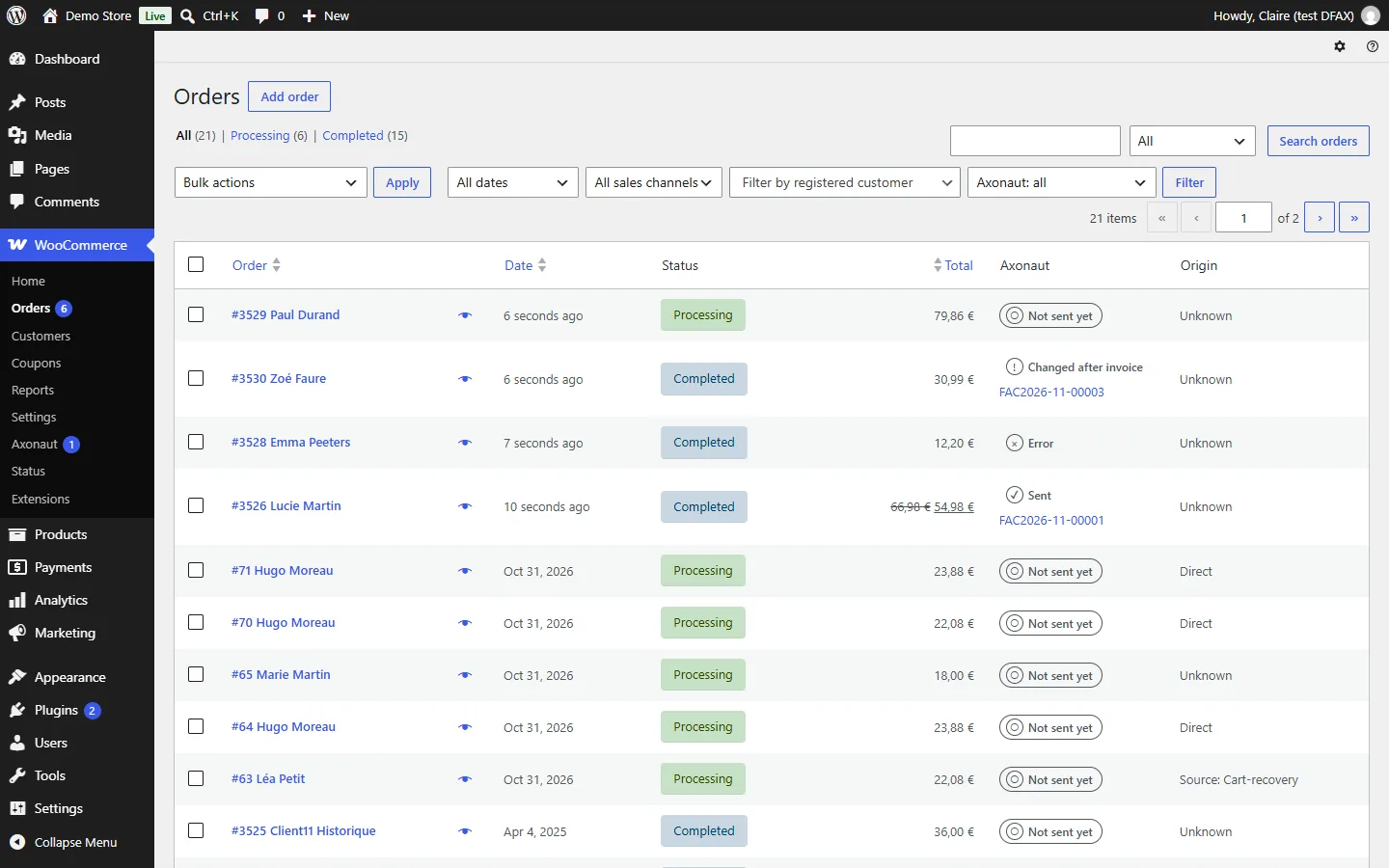
The orders list gets an Axonaut column (status, number, PDF link), a filter (sent, error or to check, not sent) and the Send to Axonaut bulk action, which reports the orders refused and why.
Credit notes, cancellations and changes
Axonaut credit notes are invoices with negative quantities linked to the original invoice. The connector creates them for you:
- refunded items, shipping and fees are credited line by line, with their quantity or as an amount;
- an amount refunded without lines is split by tax rate like the order, exact to the cent;
- a refund made before the invoice is credited right after it; a fully refunded order is not invoiced;
- an invoiced order that is cancelled gets a credit note for what is left (an exact mirror of the invoice if nothing was refunded);
- an order changed after its invoice is flagged: an invoice cannot be edited, so one click issues a credit note for the whole invoice and a new invoice from the order as it is now.
Dashboard
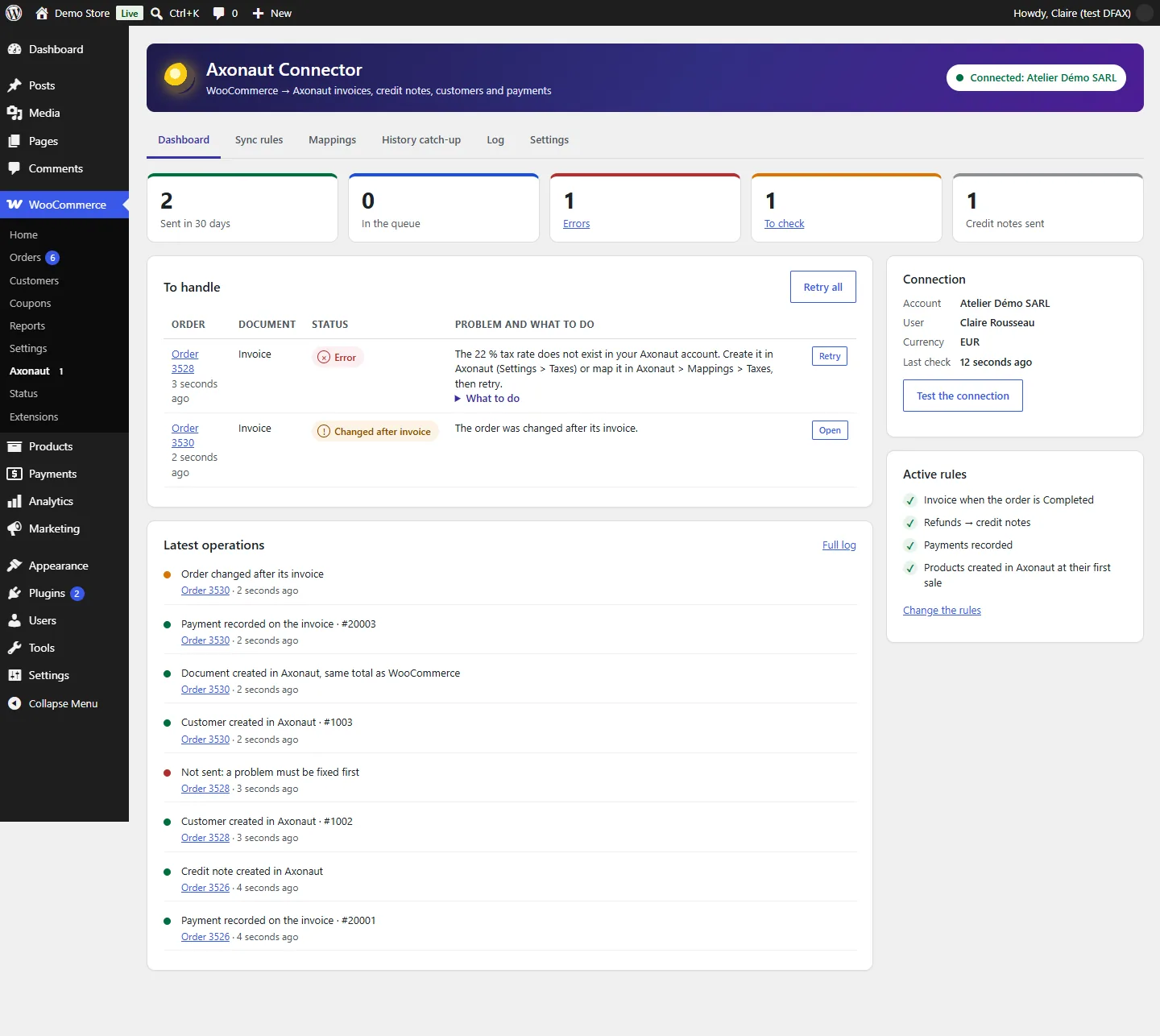
The dashboard shows the documents sent in 30 days, the queue, the errors, the documents to check and the credit notes sent. The To handle list gives, for each document, the problem and what to do, with Retry (or Retry all). The latest operations, the connection (with Test the connection) and the active rules are on the same page.

Reliability: never twice
- Each order is sent under a lock: a manual send and the queue can never send it at the same time.
- If the answer of Axonaut is interrupted (timeout, server error), the next attempt first looks for the document in Axonaut (same customer, same total, same lines) and links it. If several documents could match, nothing is created and you choose (Send anyway).
- Temporary errors are retried after 1, 5 and 15 minutes, 1, 3 and 6 hours. When Axonaut asks to slow down, the queue waits.
- If Axonaut refuses the API key, sending is paused, a notice tells you, and waiting documents are sent automatically once the key works.
History catch-up
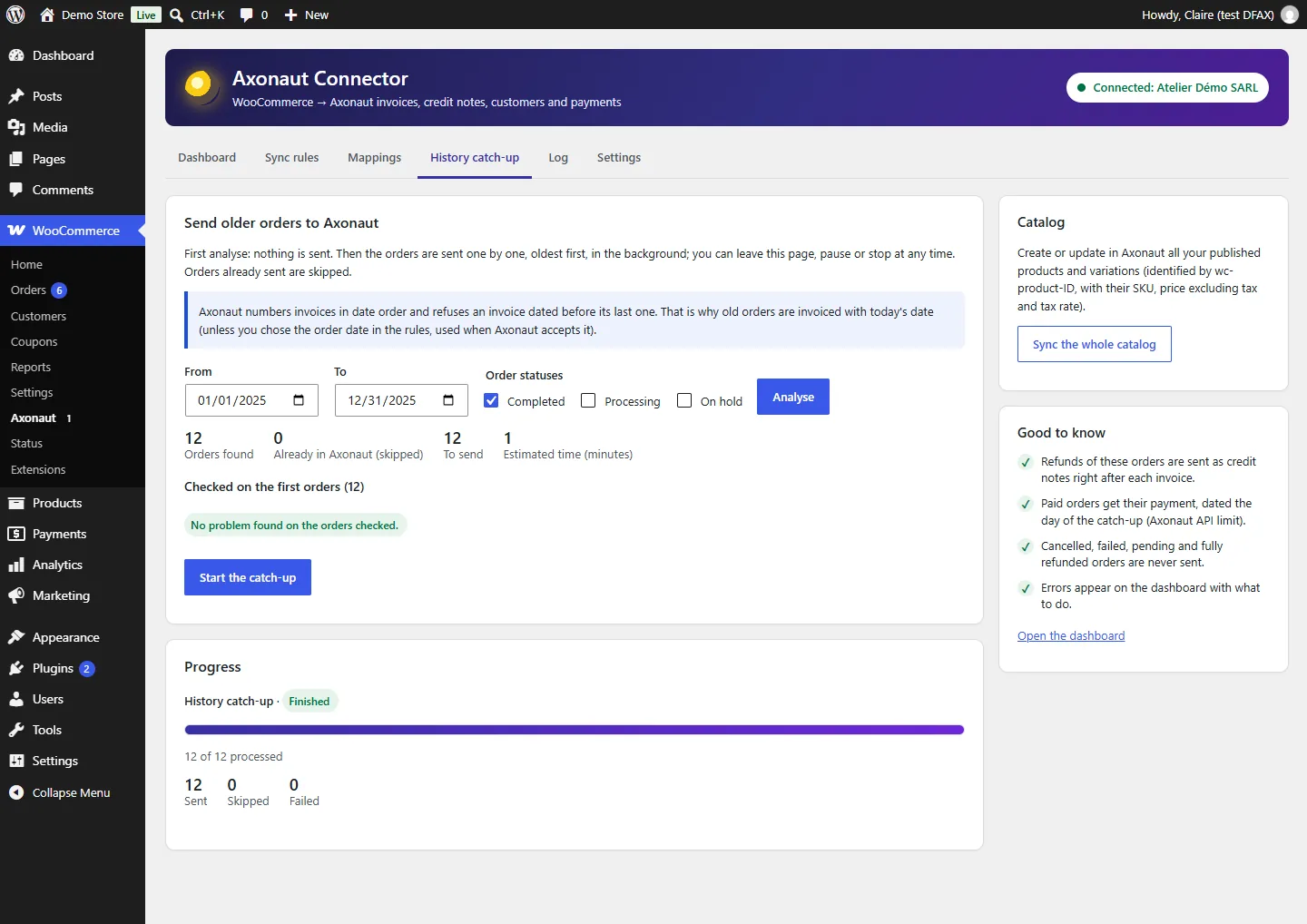
- Open History catch-up, choose the dates and statuses (completed, processing, on hold), then click Analyse: you see the orders found, those already in Axonaut, those to send, the problems found and the estimated time. Nothing is sent.
- Click Start the catch-up. Orders are sent one by one, oldest first, in the background; you can leave the page, pause, resume or stop.
- Refunds of these orders are sent as credit notes right after each invoice; paid orders get their payment (dated the day of the catch-up, an Axonaut API limit).
Log
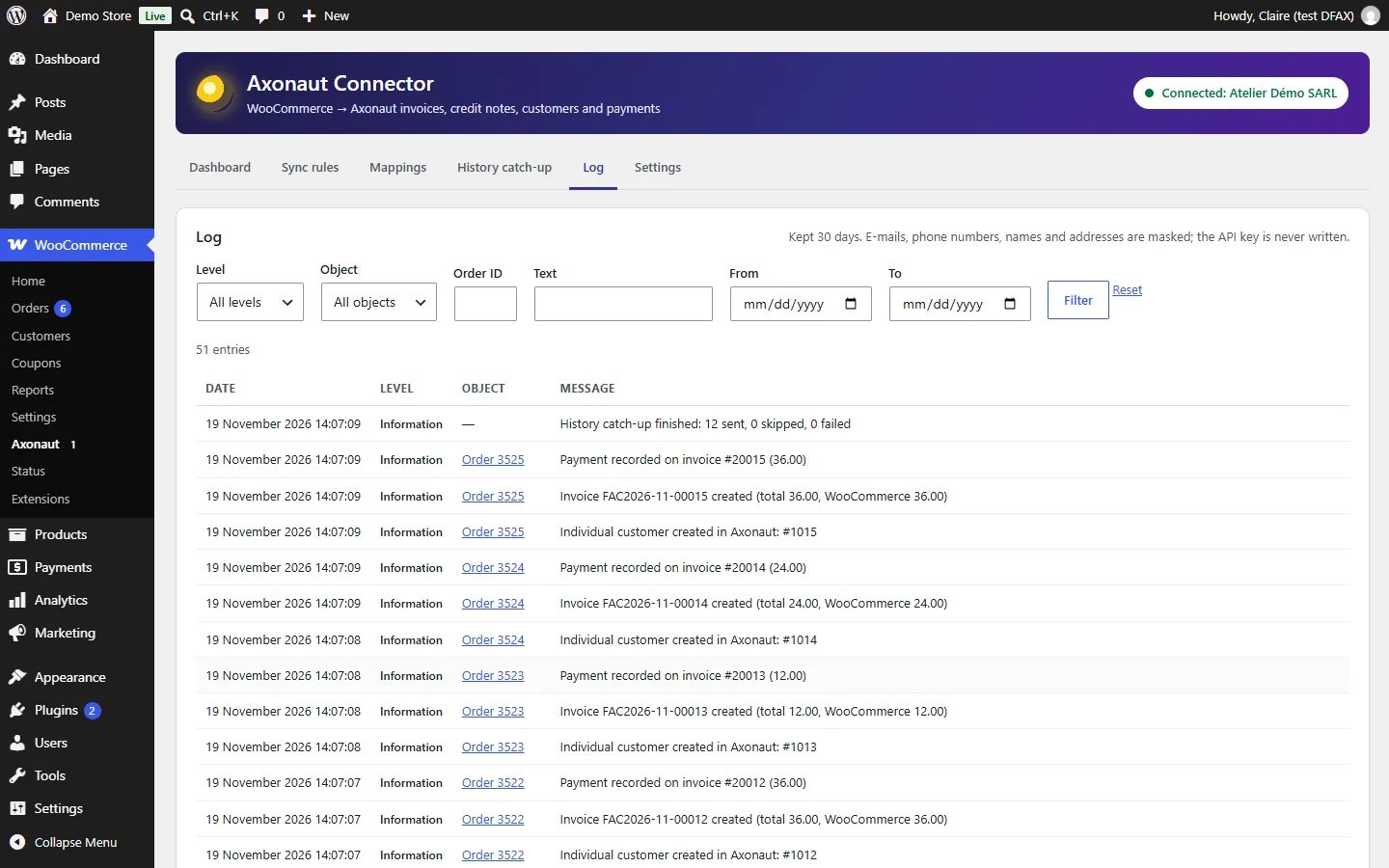
The log lists every operation with its level, object and order, filterable by level, object, order, text and dates, with details (code, HTTP status, duration). E-mails, phone numbers, names and addresses are masked and the API key is never written. Export it as CSV or empty it; the retention period is set in Settings.
Settings, privacy and French e-invoicing
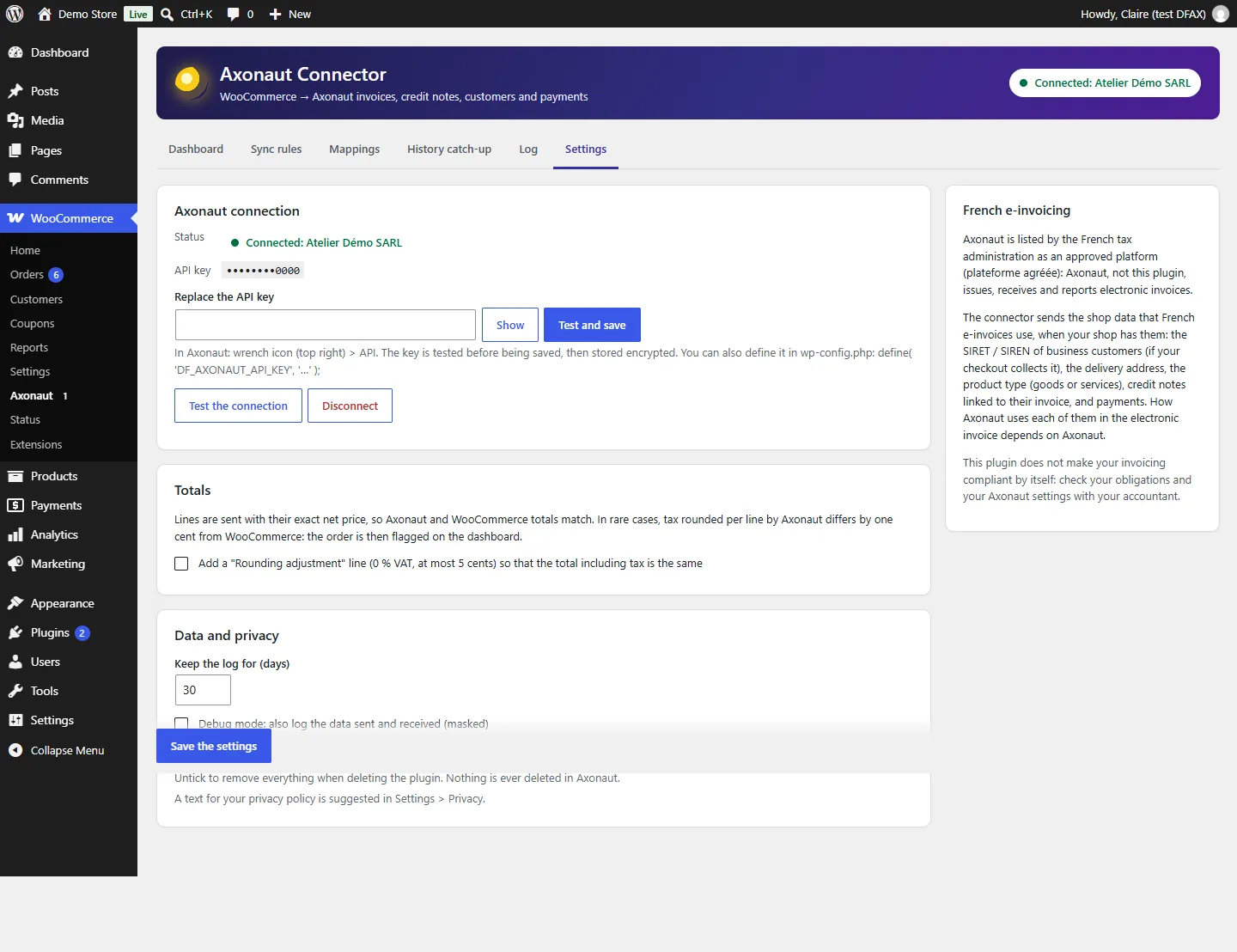
Settings lets you replace, test or remove the API key, add the rounding line, set the log retention, enable the debug mode (data sent and received, masked) and choose what happens when the plugin is deleted: by default settings, links and log are kept, so that a reinstallation never sends an order twice. A text for your privacy policy is suggested in Settings > Privacy; the log of an order anonymized by WooCommerce is deleted.
Update from version 1.x
Install the 2.0 zip over version 1.x. Settings, API key and links between orders and Axonaut are kept: orders already sent are never sent again. Refunds made with 1.x had no credit note in Axonaut (the 1.x credit notes never reached Axonaut): they are listed on the dashboard with a Send the credit note button.
WP-CLI and developers
wp axonaut status,wp axonaut test,wp axonaut sync <order_id>,wp axonaut retry,wp axonaut backfill --from=2025-01-01 --dry-run,wp axonaut products.- Filters:
df_axonaut_company_payload,df_axonaut_employee_payload,df_axonaut_document_payload,df_axonaut_product_payload,df_axonaut_credit_note_payload,df_axonaut_vat_meta_keys,df_axonaut_siret_meta_keys,df_axonaut_capability. Actions:df_axonaut_order_synced,df_axonaut_refund_synced.
Troubleshooting
Axonaut refuses the API key
Copy the key again from Axonaut (wrench icon > API) and paste it in Settings. Waiting documents are sent automatically once the key works.
“The tax rate does not exist in your Axonaut account”
Create the rate in Axonaut, or choose an existing Axonaut rate in Mappings > Tax rates, then click Retry on the dashboard.
An order is not sent
Open the order: the Axonaut box says why (status never invoiced, free order, fully refunded, currency) and what to do. Check that WP-Cron runs (WooCommerce > Status > Scheduled Actions, group df-axonaut).
“Several Axonaut documents match this order”
After an interrupted answer, the connector found more than one possible document. Check the customer in Axonaut, then click Send anyway only if none is the right one.