
DataFirefly SEO AI Blog Pro — Complete guide
Installation, block-based editor, WordPress import (simulation, cancellation, 301 redirects), AI assistant reviewed by a human, technical SEO and upgrade from 1.x of the blog module for PrestaShop 1.7.8, 8 and 9.
Overview
DataFirefly Blog adds a complete blog to your PrestaShop shop: block-based article editor, categories, tags, authors, media library, moderated comments, multilingual SEO, import from WordPress and an AI assistant that prepares drafts reviewed by a member of your team. The module runs on PrestaShop 1.7.8, 8 and 9, with the Classic and Hummingbird themes, in multistore, and its interface, pages and e-mails are translated into 8 languages (French, English, Spanish, German, Italian, Portuguese, Polish, Dutch).
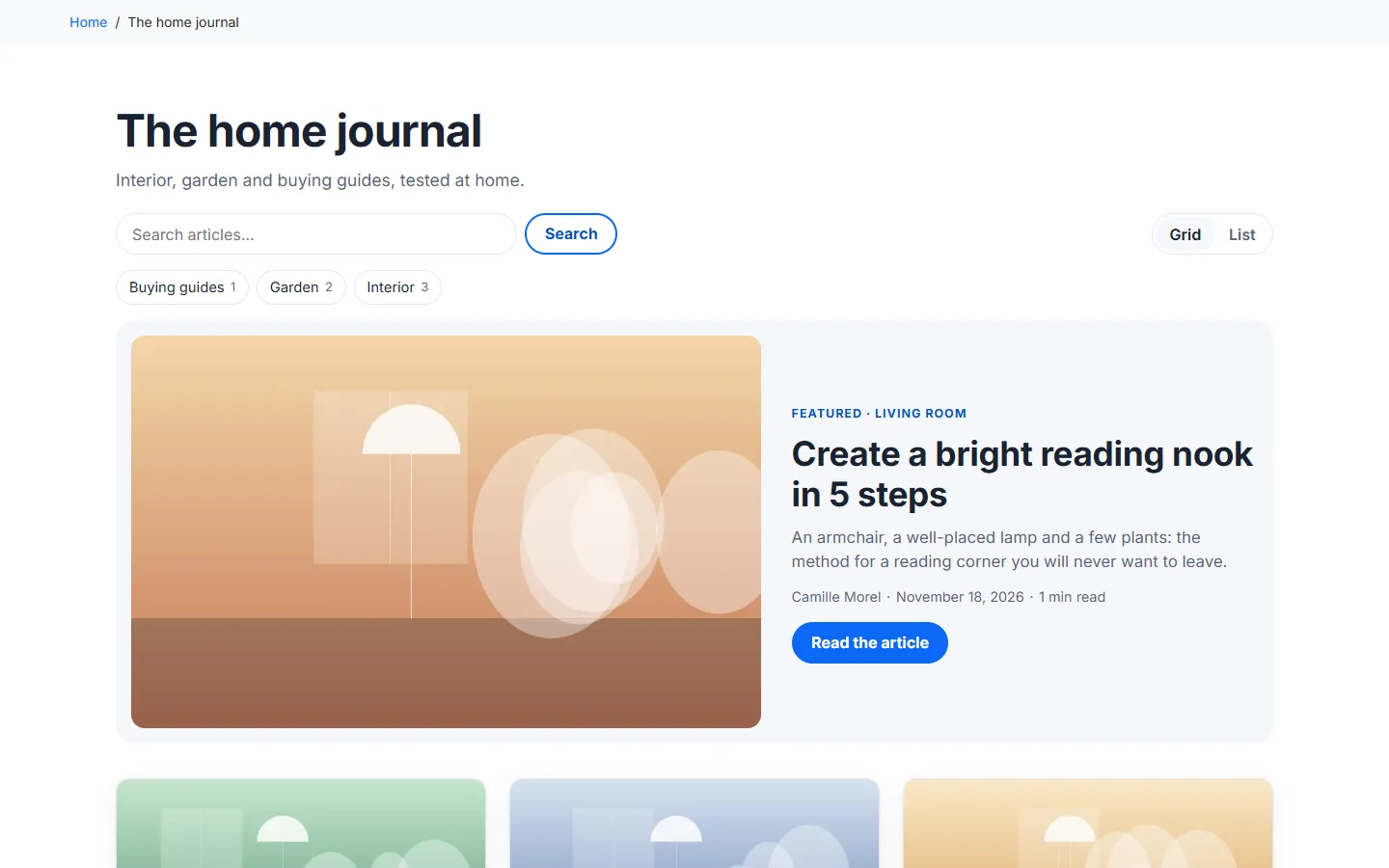
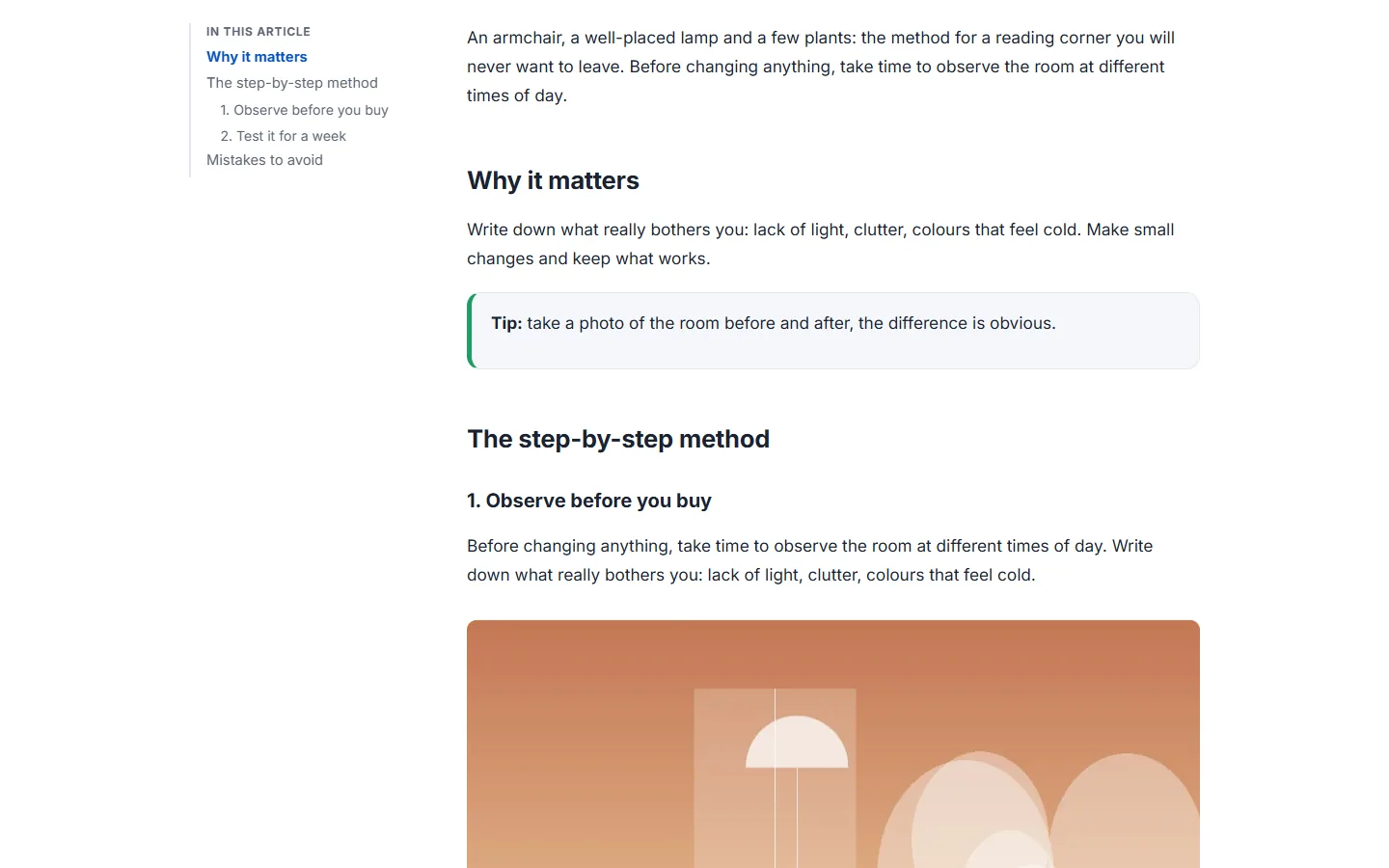
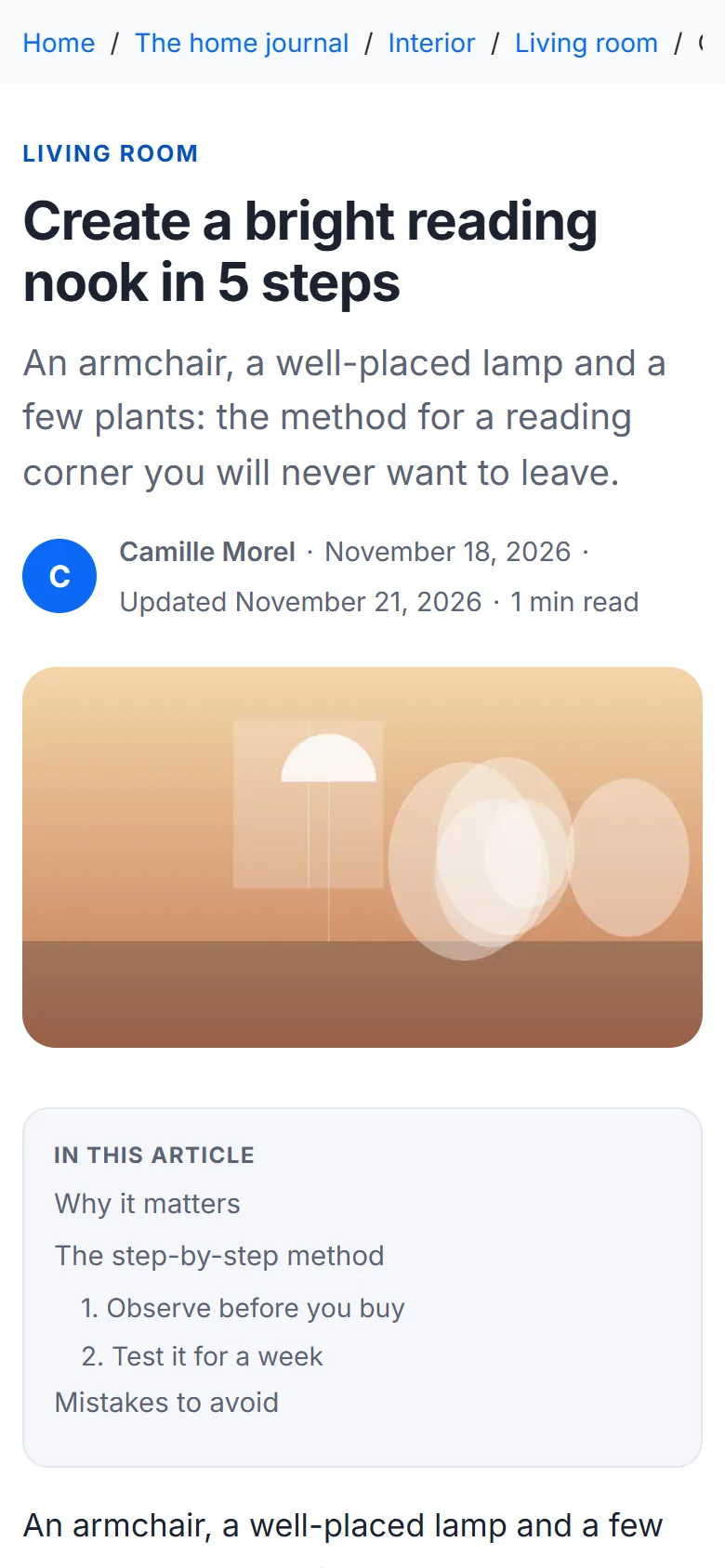
Articles display a side table of contents generated from the headings, callout boxes, product cards from your catalogue and, at the end of the article, related articles and associated products.
Installation
- In the back office, open Modules > Module Manager and click Upload a module.
- Drop the
dfblog-2.0.0.zipfile and wait for the installation to finish. - A Blog menu appears in the sidebar: Dashboard, Articles, Categories, Tags, Authors, Media, Comments, Internal links, Redirects, WordPress import, AI assistant and Settings.
The blog is served under /blog/ (prefix editable in Settings > URLs). Friendly URLs must be enabled in Shop Parameters > Traffic & SEO.
Requirements: PrestaShop 1.7.8 to 9, PHP 7.4 or later (tested on PHP 7.4, 8.1 and 8.5), GD extension with WebP support. Importing a compressed WordPress export (.zip) requires the ZipArchive extension.
Writing an article
Open Blog > Articles then New article. Choose the language at the top of the editor: each language has its own title, address (slug), content and SEO settings.
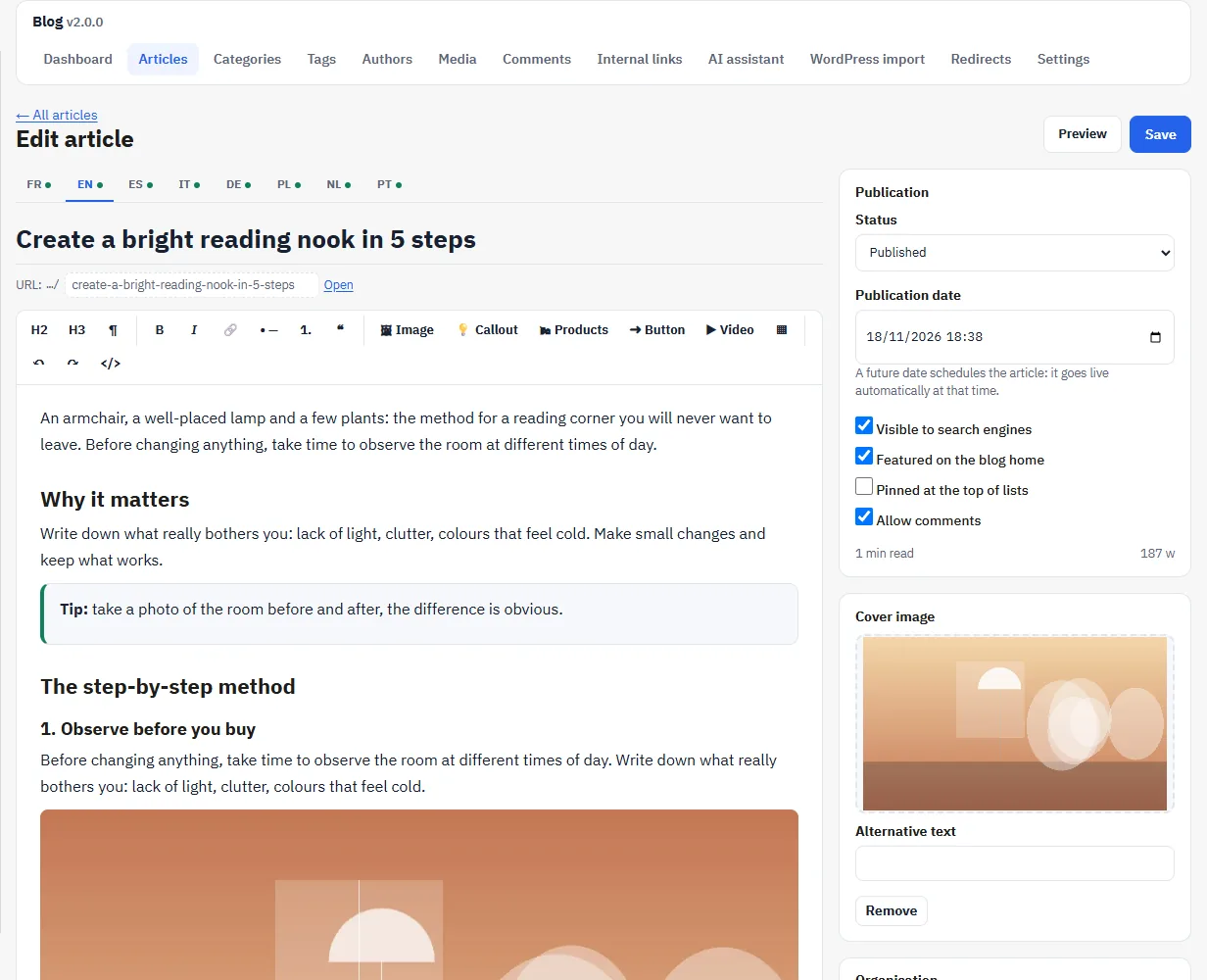
- Blocks: level 2 and 3 headings, paragraph, lists, quote, image, callout box, product cards, call-to-action button, video and table. Videos (YouTube, Vimeo) are only loaded after the visitor clicks.
- FAQ block: questions and answers displayed at the end of the article.
- Cover image: chosen from the media library, with alternative text. If no text is entered, the article title in the displayed language is used as alternative text.
- Organisation: author, categories, main category (breadcrumb), tags and products displayed after the article.
- Publication: draft, published or future date. A scheduled article goes live automatically on its date; until then, its address returns a 404 page.
The editor saves automatically every 30 seconds and keeps the last 30 versions per language: Revisions > Show lets you compare them and restore an earlier version.
SEO and readability
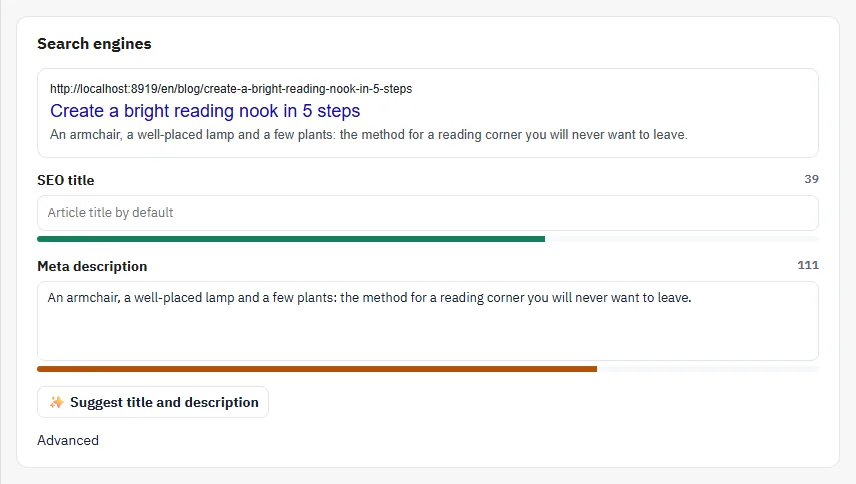
The Search engines panel shows the search result preview and the length of the SEO title and meta description. The SEO & readability panel presents an indicative checklist (heading structure, length, images without alternative text, internal links, main keyword): it measures structure and readability, it does not predict rankings or traffic.
Blog pages
The blog includes a home page with a featured article, category, tag and author pages, a search, an RSS feed and a blog-specific 404 page. The layout (grid or list), the number of articles per page, the table of contents, related articles, share buttons (plain links, with no script or tracker) and the newsletter sign-up prompt are set in Settings > Display.
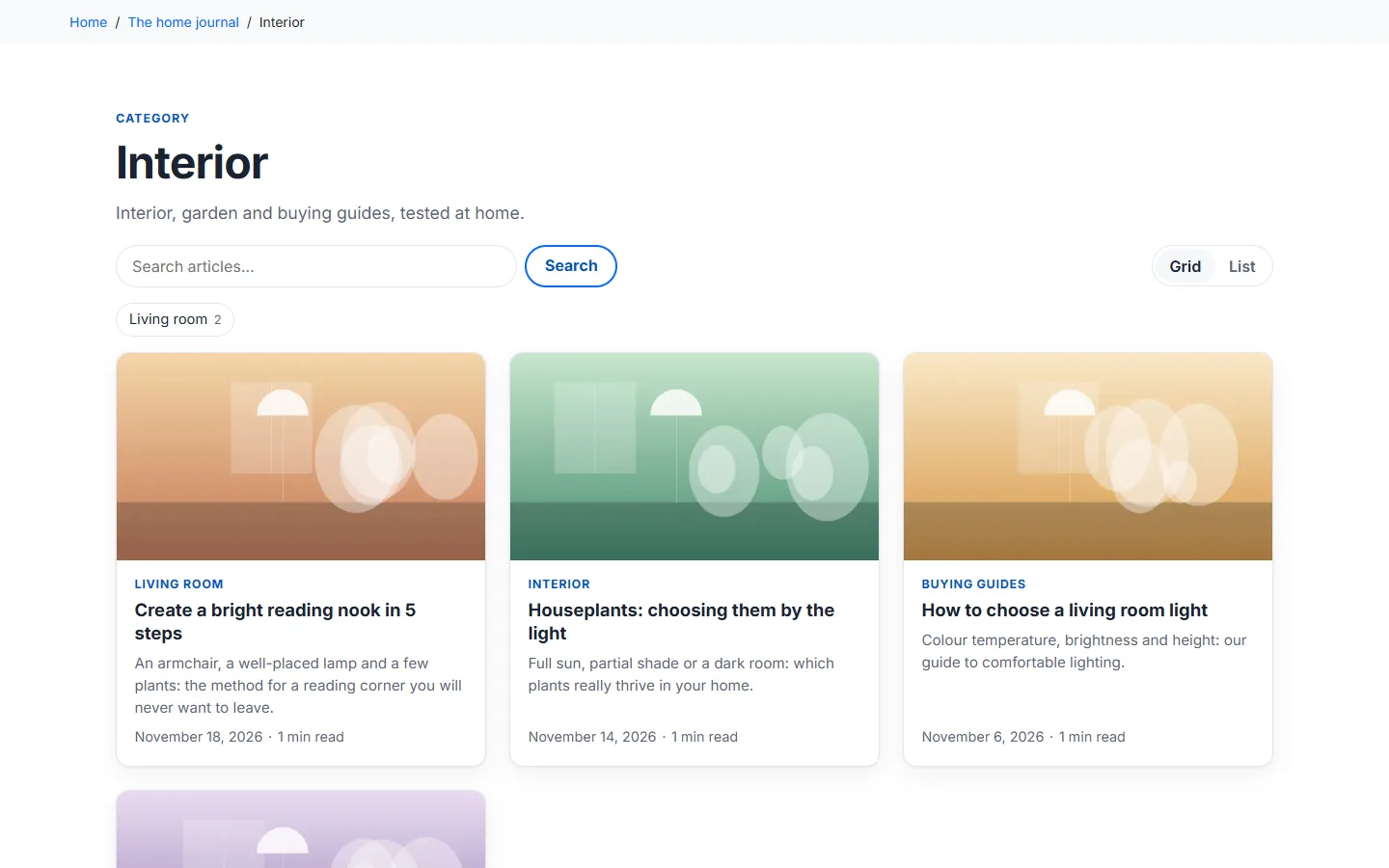
On mobile, the table of contents becomes a box within the flow of the article and the cover image is served at screen width.
Additional options: latest articles on the shop’s home page, and articles that mention a product at the bottom of its product page.
Dashboard
Blog > Dashboard only displays figures measured in your shop’s database: published, scheduled and draft articles, AI drafts awaiting review, comments to moderate, views over the last 30 days, most-read articles, content to refresh (oldest updates first) and quality points (articles without a meta description or without a cover image).
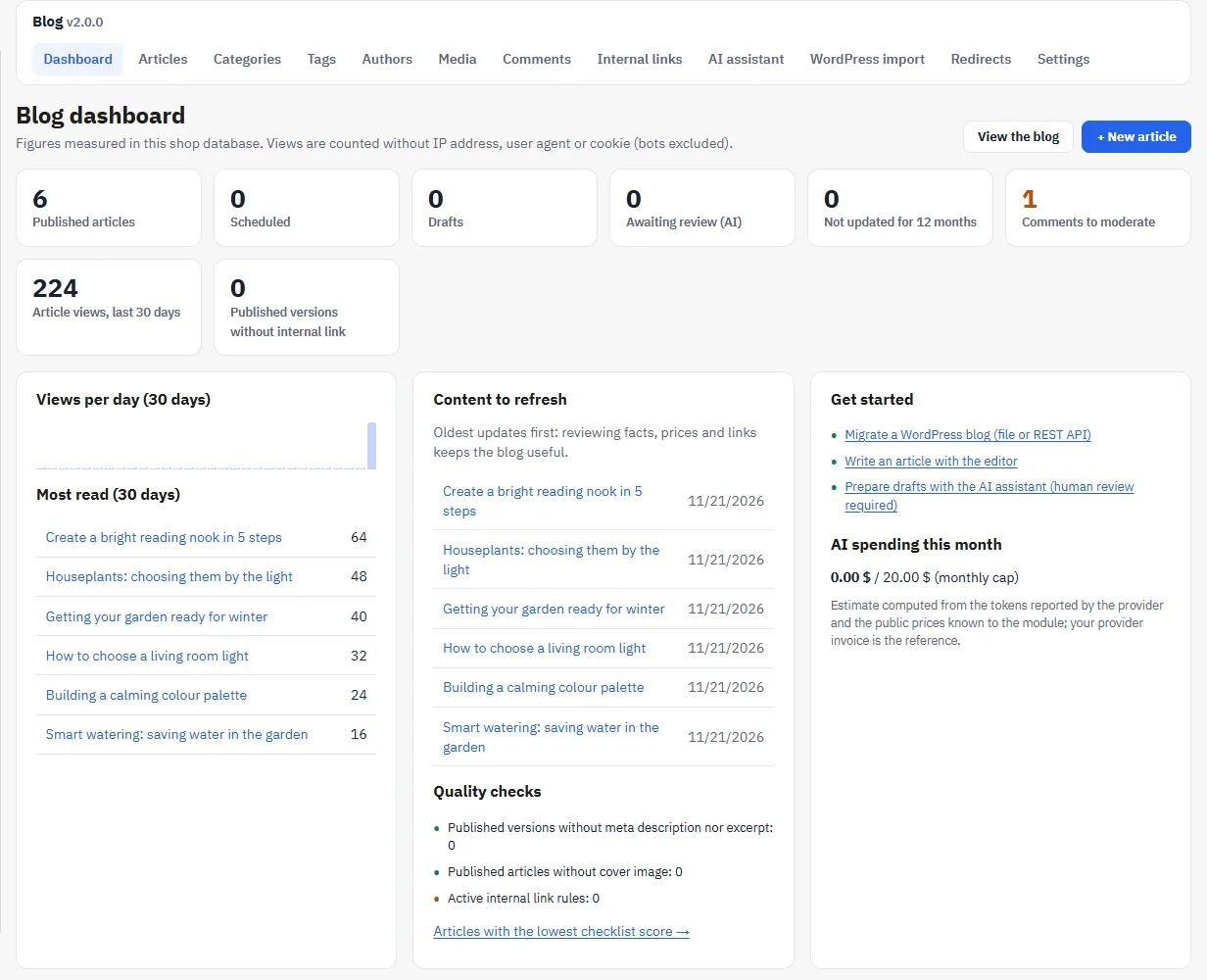
Views are counted per day and per article, without an IP address, without a stored user-agent and without a cookie; known bots are excluded. The chart only shows the days measured since installation. Counting can be disabled in the settings.
Migrating from WordPress
Blog > WordPress import takes over an existing WordPress blog: categories (with their hierarchy), articles, tags, authors, images, SEO titles and descriptions, translations and 301 redirects from the old addresses. The wizard proceeds in 6 steps: source, analysis, mappings and options, simulation, import, report.
1. Choose the source
- Export file (recommended): in WordPress, open Tools > Export > All content and download the file. Drop the
.xmlfile (or a.zipthat contains it). The file is read as a stream, which allows large exports; the module limit is 512 MB by default (adjustable), within the limits of your server. - REST API (live site): enter the site address. The module reads
/wp-json/wp/v2/page by page, with a pause between calls. Public content requires no password; for drafts and private posts, create an application password in WordPress (Users > Profile > Application Passwords). It is only sent over https, stored encrypted for the duration of the import and erased at the end.
2. Read the analysis
The analysis counts posts and pages by status, the languages detected (Polylang or WPML), the SEO plugins used (Yoast, Rank Math, AIOSEO), images, Gutenberg or classic editor content, embedded content (embeds) and plugin shortcodes. Nothing has been written yet.
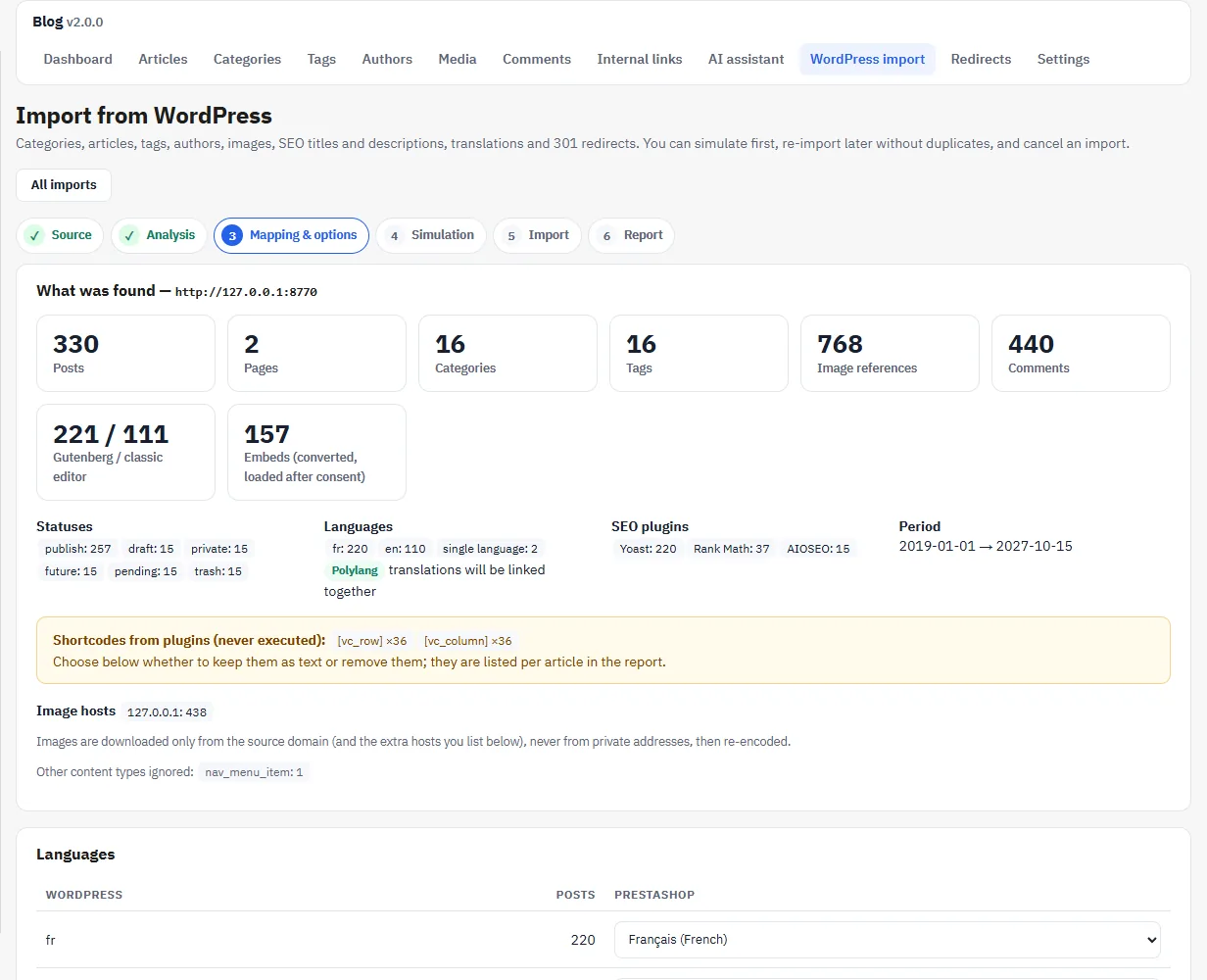
3. Set the mappings and options
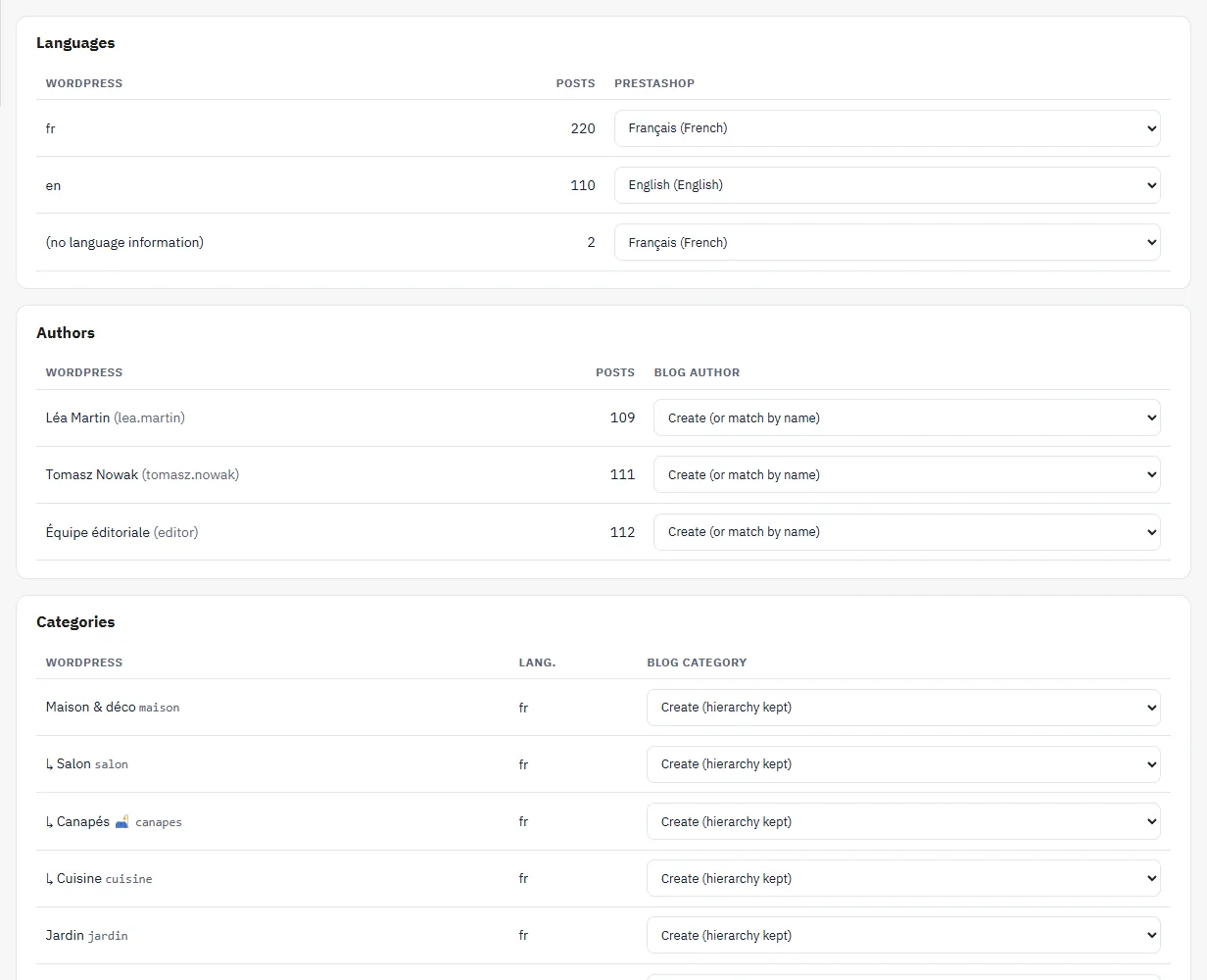
Map each WordPress language to a shop language, each author to a blog author and each category to a blog category (or let the module create them, keeping the hierarchy). For content without language information, choose a target language or “Do not import”.
- Status: published posts become drafts to review (default) or stay published with the same date. Private posts are imported as drafts.
- Unknown shortcodes: never executed. The module removes the tags while keeping the inner text, or keeps them as they are; they are listed per article in the report.
- Images: downloaded (featured image and content images), re-encoded to WebP, metadata removed, and their addresses rewritten. Images are only fetched from the source domain and from hosts you add (your CDN, for example), never from a private address.
- SEO: titles, descriptions, canonical and noindex from Yoast, Rank Math and AIOSEO.
- 301 redirects from each old address to the new article.
- WordPress pages imported as articles (optional), into the category of your choice.
- Approved comments (optional): only the name and text are imported, never the e-mail address or the IP address.
- Re-import: update articles already imported, or leave them as they are.
Gutenberg and classic editor content is cleaned up into HTML (headings, lists, quotes, images, tables); WordPress galleries and captions are converted, and YouTube and Vimeo embeds become videos loaded after the visitor clicks. Internal links between imported articles are rewritten to the new addresses.
4. Simulate, then import
Save and run the simulation calculates what the import will create, update or skip, without writing anything. Then click Start the import. The import proceeds in batches of a few seconds: if the page or the connection closes, reopen the import to resume where it stopped (the cron also resumes it in the background). An e-mail can notify you when it finishes.
5. Check the report
The report gives the actions by type (created, updated, skipped), the images downloaded or refused, the articles whose internal links were rewritten and the points to check article by article. It can be downloaded as CSV.
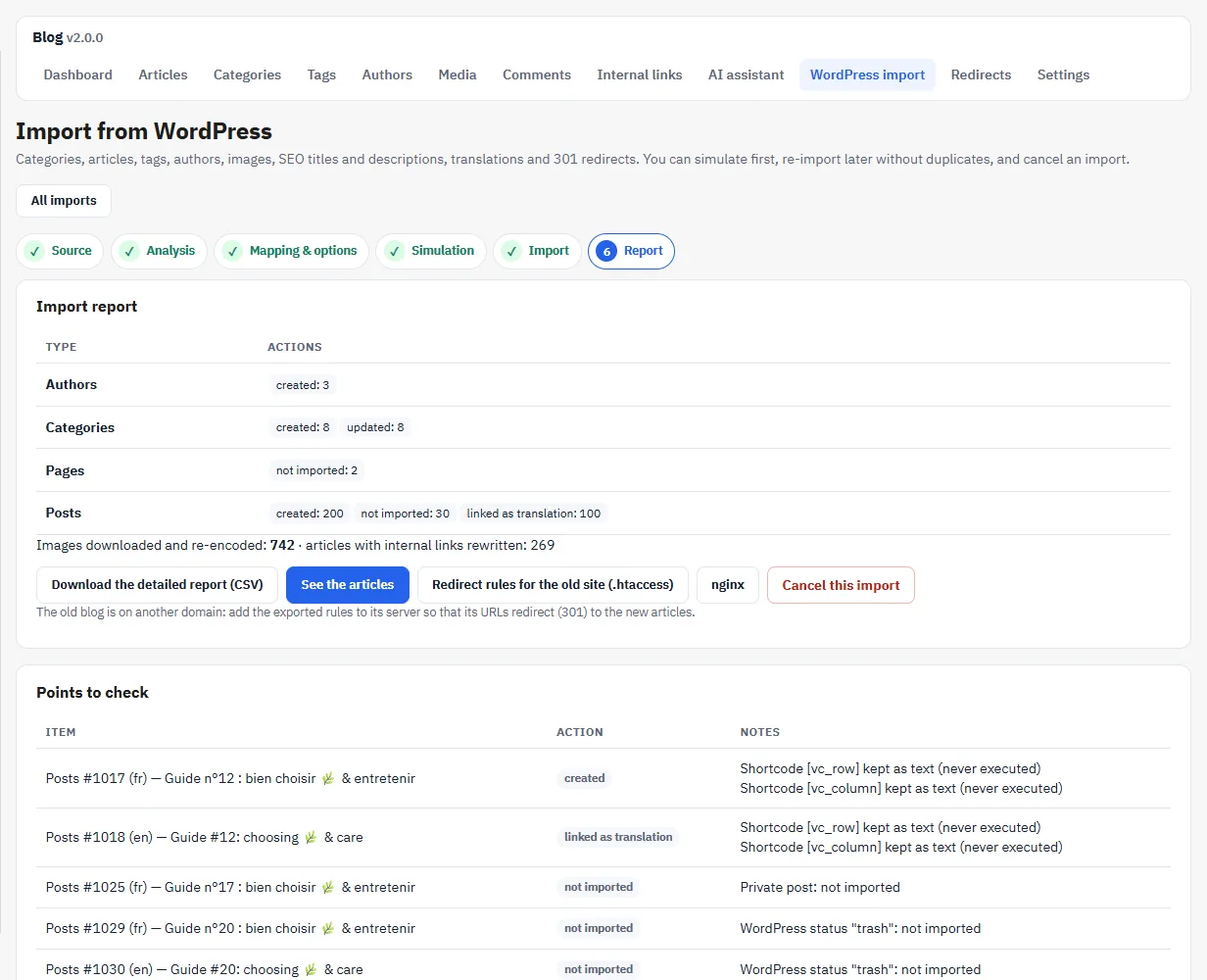
- Same domain: the old addresses are redirected (301) by the shop automatically.
- Different domain: export the redirect rules (
.htaccessfor Apache or an nginx block) and add them to the old site’s server.
Re-importing or cancelling
A re-import of the same site recognises content already imported: it creates no duplicates. Cancel this import deletes the articles, categories, images, comments and redirects it created; articles that already existed and were only updated are kept.
Back up the shop’s database and files before a large import. Leave imported articles as drafts while you check the rendering, the images and the points flagged by the report.
Files refused at import: a file that contains a DOCTYPE or entity declaration, a fake WordPress export, an abnormally compressed archive. The file is then deleted from the server.
AI assistant
Blog > AI assistant prepares drafts and suggestions; a member of your team reviews, corrects and decides what is published. Nothing is ever published automatically.
- Providers: Anthropic Claude, OpenAI, Google Gemini, Mistral and DeepSeek, with your own API key. Keys are stored encrypted and are never displayed again or logged.
- Draft an article: topic, keyword, your notes (angle, points to cover, facts to use), language, length, category, author and products that may be mentioned. The draft is saved as “Awaiting review”; facts the AI cannot guarantee are marked
[[CHECK: …]]. - Ideas: topic proposals to tick, then place in the generation queue. Each item in the queue becomes a draft to review.
- In the editor: excerpt, SEO title and description, FAQ, readability improvement and translation. Proposals are displayed next to your text: you choose what you apply.
- Costs: monthly cap ($20 by default), estimated cost per call and log (action, model, tokens, cost). Prompts, texts and keys are never logged. Your provider’s invoice is authoritative.
To publish an AI draft, tick the box in the editor confirming that you have reviewed and checked it.
Google Search Central guidance (consulted on 21 November 2026) accepts generative AI when the result is helpful, accurate and checked; producing many pages primarily to manipulate rankings is scaled content abuse, whatever the tool. The module promises neither traffic nor rankings.
Technical SEO
- Address per language, with a 301 redirect to the canonical form, canonical tag, hreflang to each translation and x-default.
- Title and meta description per article, category, tag and author; a single set of Open Graph tags, with no duplication with the theme or with a DataFirefly SEO module.
- BlogPosting structured data (author, publisher, dates, image) and breadcrumb. FAQPage data is disabled by default: Google has no longer displayed these rich results since 7 May 2026.
- Sitemap: in automatic mode, the blog addresses are added to the shop’s sitemap module (gsitemap or DataFirefly Sitemap); a blog-specific sitemap is only served if there is none.
- RSS feed. Optional
llms.txtfile, disabled by default and served only under the blog prefix: it is a community proposal, not a standard, and no effect is guaranteed. - Internal links: keyword-to-address rules (product, category, CMS page, article or custom address), with a maximum per article and a minimum distance between two links to the same target.
- Redirects: Blog > Redirects lists the 301 redirects (created by the import or by hand) and exports them for Apache or nginx.
Comments
Disabled by default. Once enabled, the form asks for a name, a text and consent; it is protected by a token, an anti-bot trap and a minimum delay. Each comment arrives as “pending” in Blog > Comments, and the shop can receive a moderation e-mail. Only the name and text are stored.
Scheduled tasks and webhooks
Scheduled articles go live on their date without cron. The cron (address with token in Settings > Scheduled tasks (cron), to be called every 10 to 15 minutes) updates their status, sends webhooks, processes the AI queue and resumes interrupted imports. Webhooks only accept public https addresses; each call is signed in the X-DfBlog-Signature header (timestamp and HMAC-SHA256).
Upgrading from version 1.x
Install the 2.0.0 zip over the current version from Modules > Module Manager > Upload a module. The upgrade script:
- keeps articles, categories, tags, authors, comments and addresses;
- encrypts API keys and webhook secrets, and disables webhooks that do not target a public https address;
- erases the hashed IP addresses and referrers recorded by 1.x;
- disables automatic publishing from the AI queue: pending items will become drafts to review;
- moves cover images into the media library and deletes 1.x files that are no longer needed.
The “Strategy & Setup” screens and the “1 article every N days” automatic publishing of 1.1 no longer exist: the AI assistant prepares drafts, and you schedule the date of each reviewed article yourself.
Back up the database and files before any upgrade on a production shop.
Troubleshooting
The blog returns a 404 page
- Check that the module is enabled and that Settings > Blog online is ticked.
- Check that friendly URLs are enabled, then clear the PrestaShop cache.
Blog images are not displayed
The module writes a .htaccess file in img/dfblog/ that allows images and refuses scripts. Check that this folder is writable. If a rule on your server blocks WebP, allow the .webp extension.
The import stops
Reopen the import: it resumes at the last batch. If the file is refused, compare its size with the limit displayed (module, server upload and post).
The AI assistant returns an error
Open Providers and run the connection test (Test). The log shows a short error code (key refused, quota, monthly cap reached).
Changes do not appear
If an external page cache is active (CDN, cache module, Varnish), purge it. On PrestaShop 1.7 with CCC enabled, clear the cache in Advanced Parameters > Performance.
Uninstallation
Before uninstalling, choose in Settings > Uninstallation whether you keep the blog content (articles, images, comments, redirects) for a later reinstallation, or delete everything (tables, settings, img/dfblog and var/dfblog folders, irreversible operation). By default, everything is kept.