
dfgoogletryon — AI virtual try-on module (Google Vertex AI)
Installation and upgrade to 2.0.0, Google Cloud connection assistant (service account, minimal role, encrypted key), product activation, limits and budget, privacy, what the shopper sees and troubleshooting for dfgoogletryon.
Overview
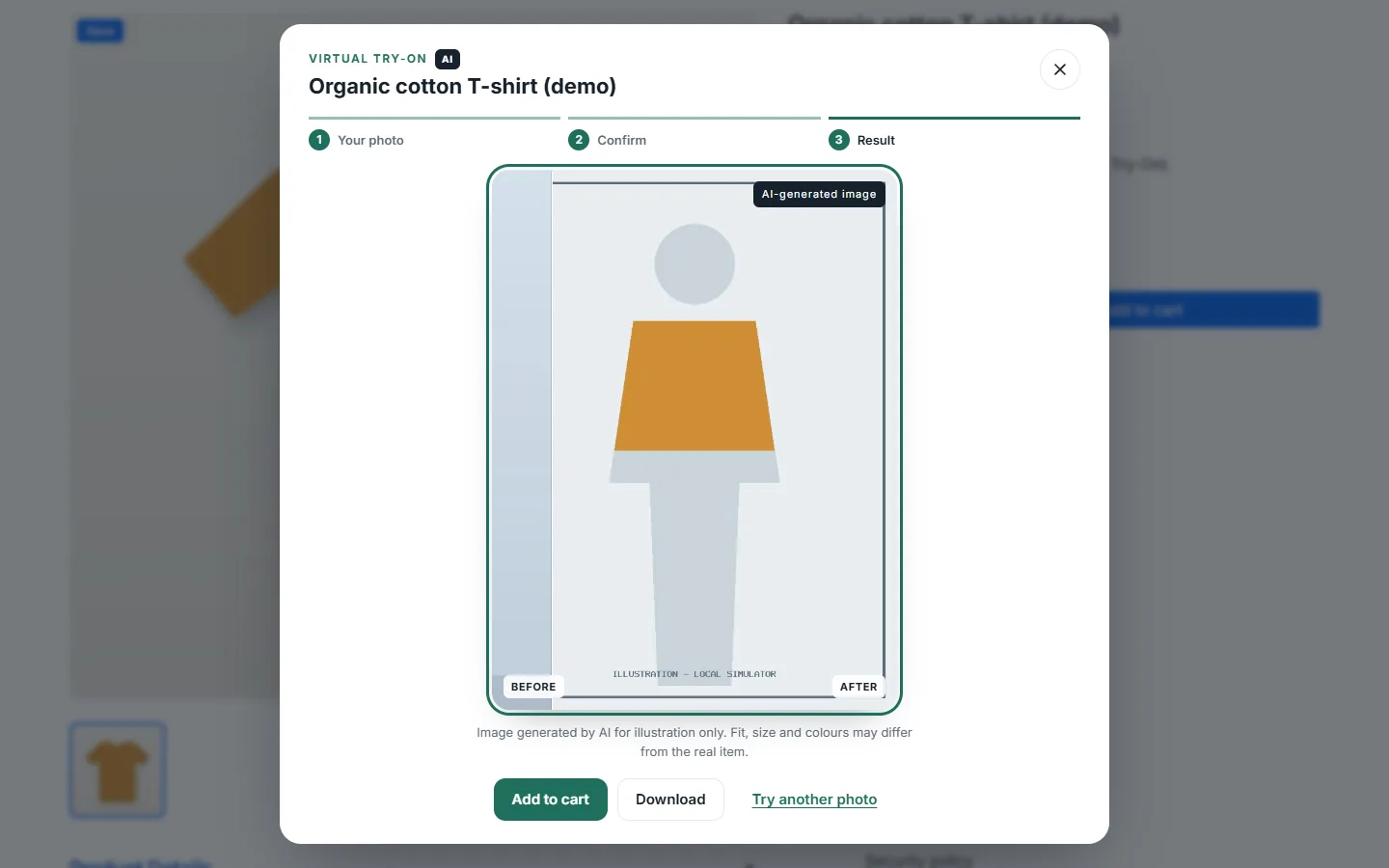
dfgoogletryon adds a virtual try-on window to your PrestaShop product pages. The shopper adds a full-length photo, gives explicit consent, and your server sends the photo and the garment image to the Google Cloud Vertex AI Virtual Try-On model (virtual-try-on-001). The window then shows the image generated by the model, clearly labelled as AI-generated, with a before / after comparison, download and add to cart.
Version 2.0.0 is a complete rework: PrestaShop 1.7.8, 8 and 9, Classic and Hummingbird, a Google Cloud connection assistant, a usage and budget dashboard, atomic cost caps, privacy settings, a journal and 8 languages.
The quality of the generated image depends on Google’s model and on the photos (person and garment). The module does not promise any result: test your own products with the back-office test generation before enabling the widget.
How is this different from Google Shopping try-on?
- Merchant Center apparel try-on: a feature shown on Google Search and Google Shopping only. It cannot be embedded on your shop.
- Vertex AI Virtual Try-On: the generative API used by this module. It is a paid, per-image Google Cloud service, billed to your own Google Cloud project.
Requirements
- PrestaShop 1.7.8.0 to 9.x, Classic or Hummingbird theme (or a theme calling the
displayProductAdditionalInfoanddisplayBeforeBodyClosingTaghooks). - PHP 7.2 to 8.5 with
curl,openssl(AES-256-GCM) andgd. Outgoing HTTPS tooauth2.googleapis.comandREGION-aiplatform.googleapis.com. - A Google Cloud project with billing, the Vertex AI API (
aiplatform.googleapis.com) and a service account (see below).
Google lists virtual-try-on-001 as deprecated since 14 September 2026, with retirement on 15 March 2027. The model ID is a setting of the module: check the model page before that date and enter the new ID when Google publishes one. The former virtual-try-on-preview-08-04 was replaced by virtual-try-on-001 in January 2026.
Installation and upgrade from 1.0.0
- In the back office, open Modules > Module Manager > Upload a module and upload
dfgoogletryon-2.0.0.zip. - A fresh install shows nothing on the shop until you enable the try-on on at least one product (default mode: Selected products).
- The menu Catalog > Virtual try-on is created. The module configuration link opens it too.
Upgrading from 1.0.0 keeps your settings: the service-account key, stored in clear by 1.0.0, is encrypted then deleted in clear; “restrict to category IDs” becomes the Selected categories mode (empty list = All products, as before); a custom consent text is copied into every language; the replaced preview model becomes virtual-try-on-001; safety and person-generation values are rewritten in the documented form; the OAuth token cached in clear is deleted; the combined theme cache is cleared so the new script is served.
Version 1.0.0 could not complete a try-on on PrestaShop 8.2 and 9.1 (its Ajax controller ended with a PHP fatal error). Version 2.0.0 fixes it.
Google Cloud connection assistant
Open Catalog > Virtual try-on > Google Cloud connection. Each step has direct links to the Google Cloud console and the matching gcloud commands, ready to copy.
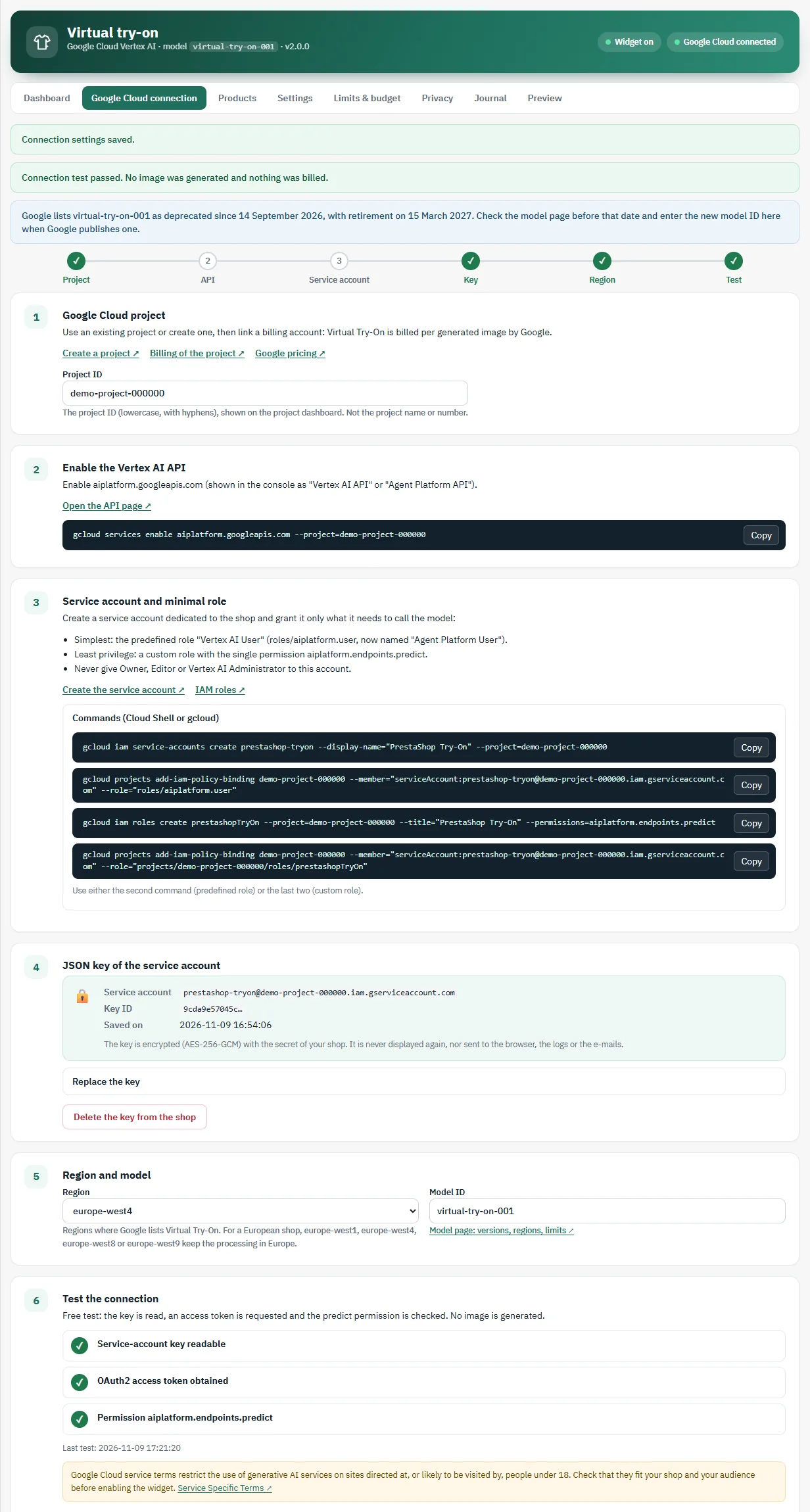
- Project: create or reuse a Google Cloud project and link a billing account. Enter the project ID (lowercase, with hyphens), not its name or number.
- API: enable
aiplatform.googleapis.com(shown as “Vertex AI API” or “Agent Platform API”). - Service account and minimal role: create a service account dedicated to the shop. Grant it Vertex AI User (
roles/aiplatform.user, now named “Agent Platform User”), or, for least privilege, a custom role with the single permissionaiplatform.endpoints.predict. Never give it Owner, Editor or Vertex AI Administrator. - Key: create a JSON key for the service account and upload the file (or paste it). The key is encrypted with AES-256-GCM using a key derived from your shop’s cookie key (outside the database). It is never displayed again, nor sent to the browser, the logs or the e-mails: only the account e-mail and the beginning of the key ID remain visible.
- Region and model: choose a region where Google lists Virtual Try-On (for a European shop:
europe-west1,europe-west4,europe-west8oreurope-west9). The model ID isvirtual-try-on-001by default. - Test: Save and test the connection runs a free test: the key is read, an OAuth2 access token is requested and the
aiplatform.endpoints.predictpermission is checked. No image is generated. Each failed step shows what to do and a link to the right console page.
Google Cloud’s Service Specific Terms restrict generative AI services on sites directed at, or likely to be visited by, people under 18. Check that they fit your shop and audience. The module provides neutral texts and does not guarantee compliance with any regulation.
Products
Choose where the try-on is offered: Selected products (recommended to control the cost), Selected categories or All products. A garment type (top, bottom, dress, outerwear, other) lets you switch the try-on on or off by type. Google does not publish a list of supported garment categories: test your products.
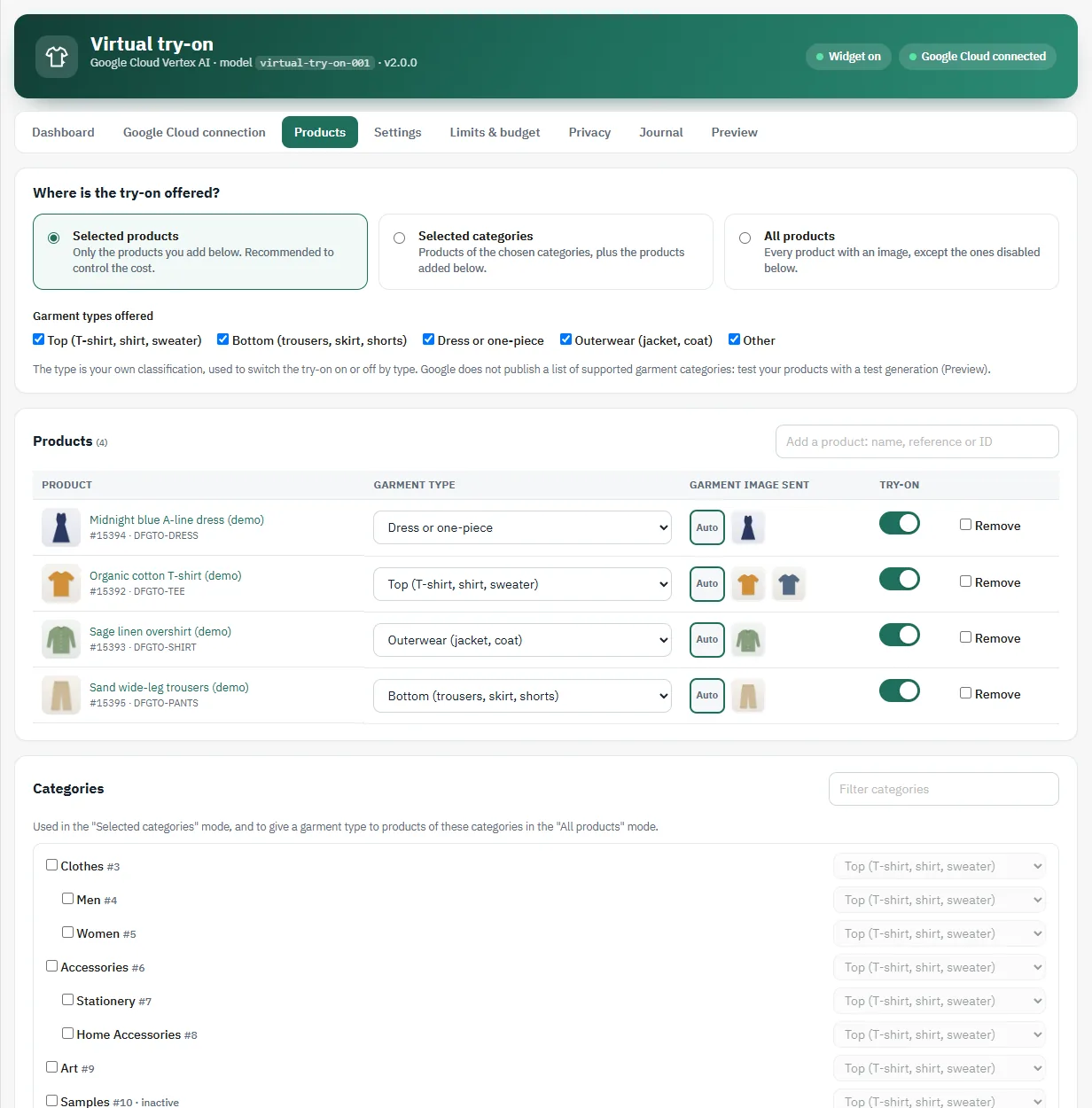
For each product you choose the garment image sent to Google: Auto uses the image of the selected combination, else the cover image. A garment alone on a plain background is the best reference. The same settings are available in the product page (Modules tab). The garment image is always read from the shop’s own image folder: no URL is ever fetched.
Settings
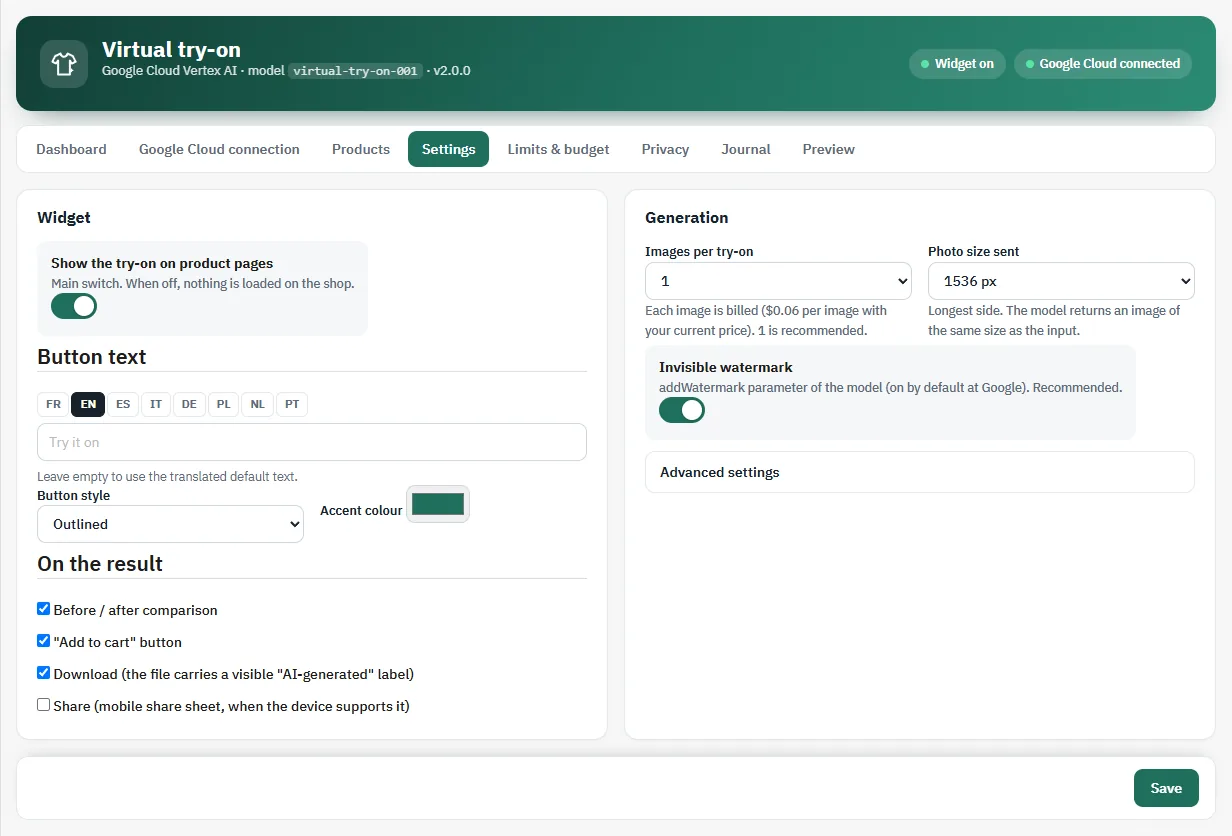
- Widget: main switch, button text in each language, style (outlined, filled, text link), accent colour, and result options (before / after comparison, add to cart, download with a visible “AI-generated” label, share on devices that support it).
- Generation: images per try-on (1 to 4, each one billed), photo size sent (1024, 1536 or 2048 px, the model returns an image of the same size), invisible watermark (
addWatermark). - Advanced: person generation, safety filter and steps are not sent by default (model defaults). Google indicates that some safety thresholds need approval from your account team.
Limits and budget
Every call is billed by Google, so the module checks every limit before calling Google, and reserves it atomically in the database: simultaneous visitors cannot exceed a cap.
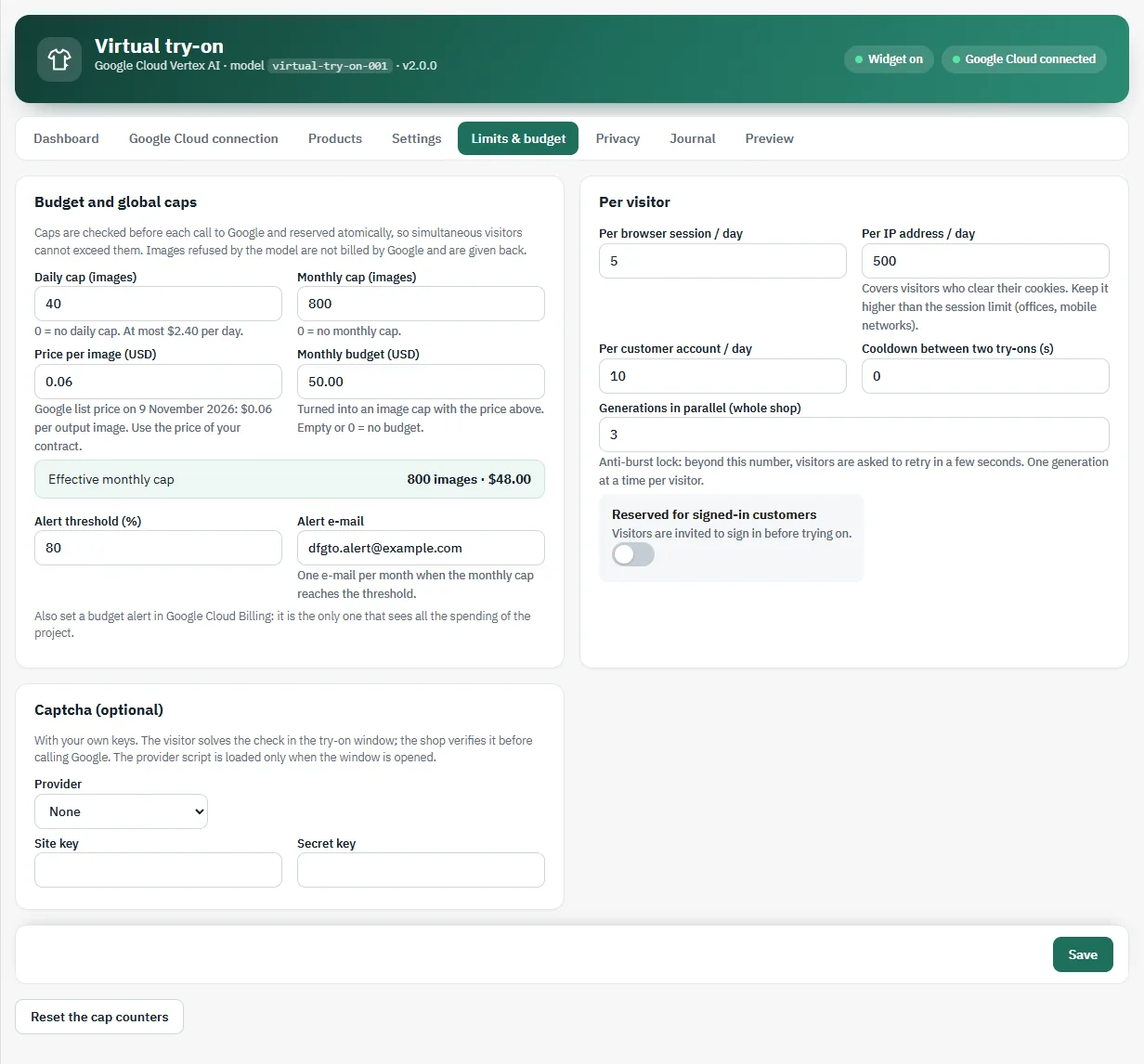
- Global caps: images per day, images per month, monthly budget (turned into an image cap with your price per image; Google list price on 9 November 2026: $0.06 per image), alert e-mail sent once a month at the chosen threshold.
- Per visitor: try-ons per browser session, per IP address and per customer account each day, cooldown between two try-ons, generations in parallel for the whole shop and one at a time per visitor.
- Signed-in customers only: visitors are invited to sign in first.
- Captcha (optional): Cloudflare Turnstile, hCaptcha or Google reCAPTCHA v2 with your own keys; the secret key is encrypted.
Images refused by the model are not billed by Google and are given back to the caps. Also set a budget alert in Google Cloud Billing: it is the only one that sees all the spending of the project.
Usage and budget dashboard
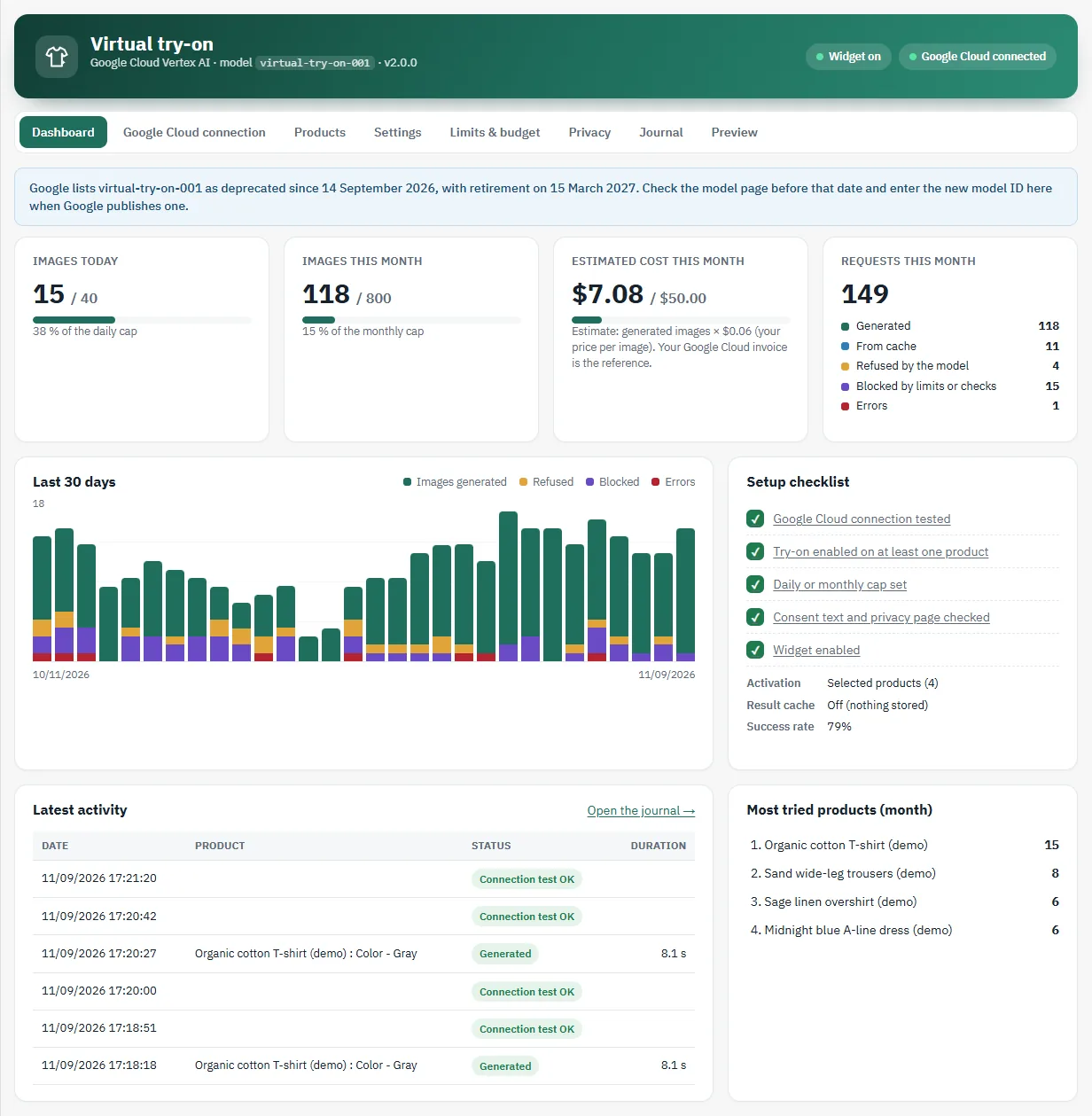
The dashboard shows the images of the day and of the month against the caps, the estimated cost (generated images × your price per image; your Google Cloud invoice remains the reference), the outcome of the requests (generated, from cache, refused by the model, blocked by a limit, errors), the last 30 days, the most tried products and a setup checklist.
Privacy
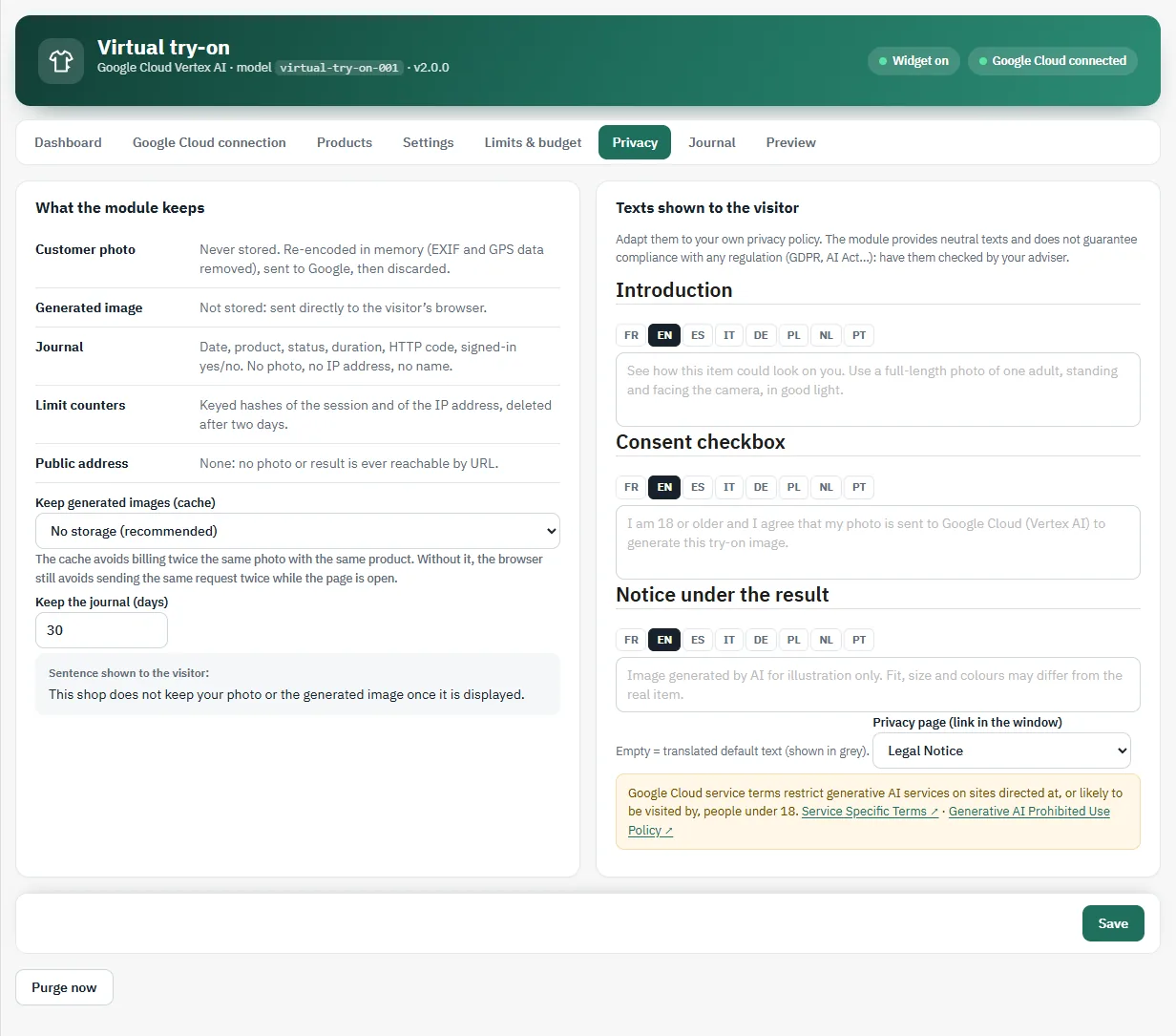
- Customer photo: never stored. It is checked (JPEG, PNG or WebP, up to 12 MB, at least 256 px), rotated according to its EXIF orientation and re-encoded in memory, which removes EXIF and GPS data, then sent to Google and discarded.
- Generated image: not stored by default. An optional encrypted cache (15 minutes to 24 hours) avoids billing twice the same photo with the same product; it is bound to the visitor’s browser session and purged automatically.
- No public address: the image is returned inside the response; no photo or result can be reached by URL.
- Journal: date, product, status, duration, HTTP code, signed in yes/no. No photo, no IP address, no name. Limit counters use keyed hashes deleted after two days.
- Texts: introduction, consent checkbox and notice under the result, per language (empty = translated default), plus a link to your privacy page. Have them checked by your adviser.
What the shopper sees
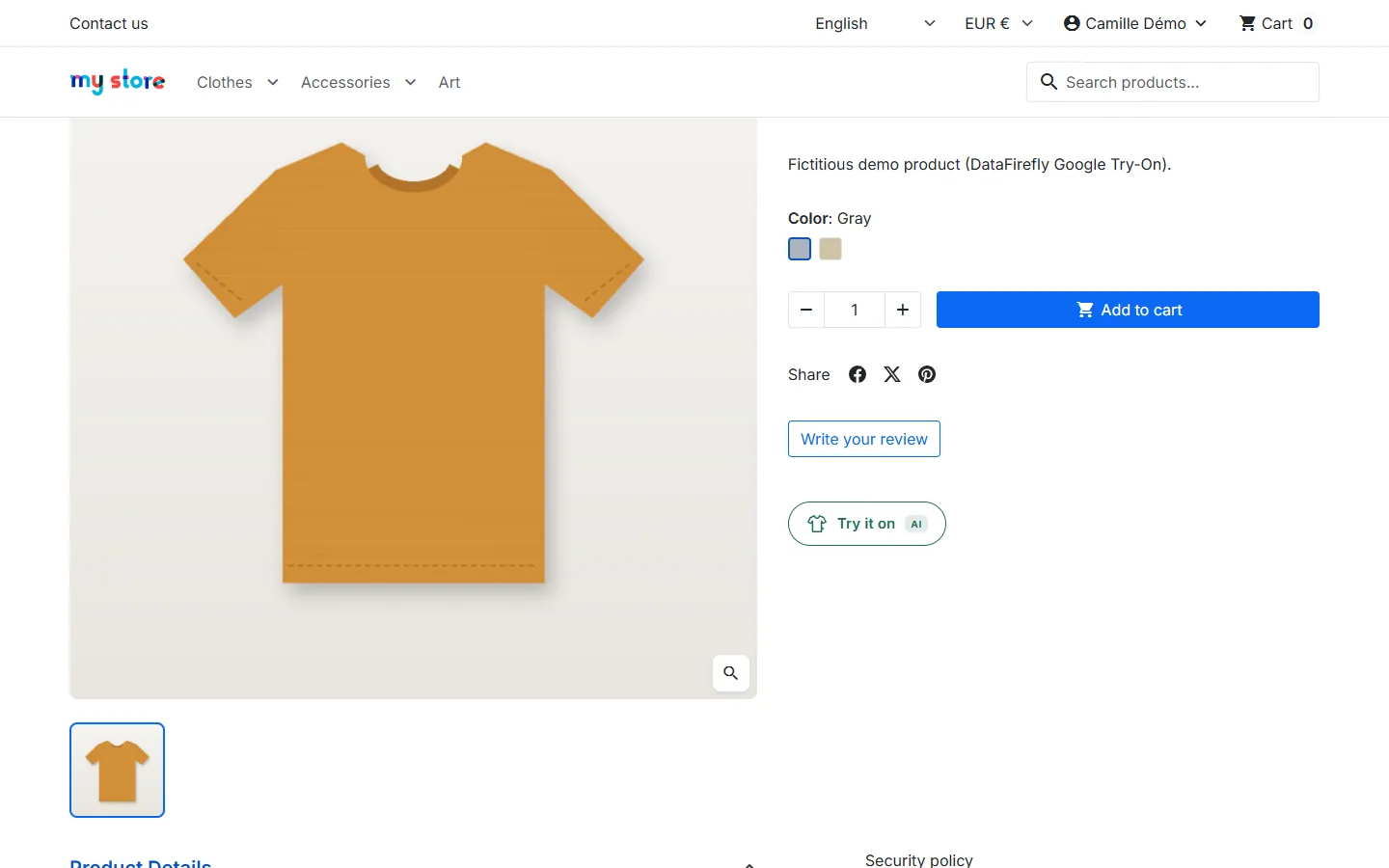
A Try it on button with an AI label appears on enabled products. The script and styles are loaded only on those pages.
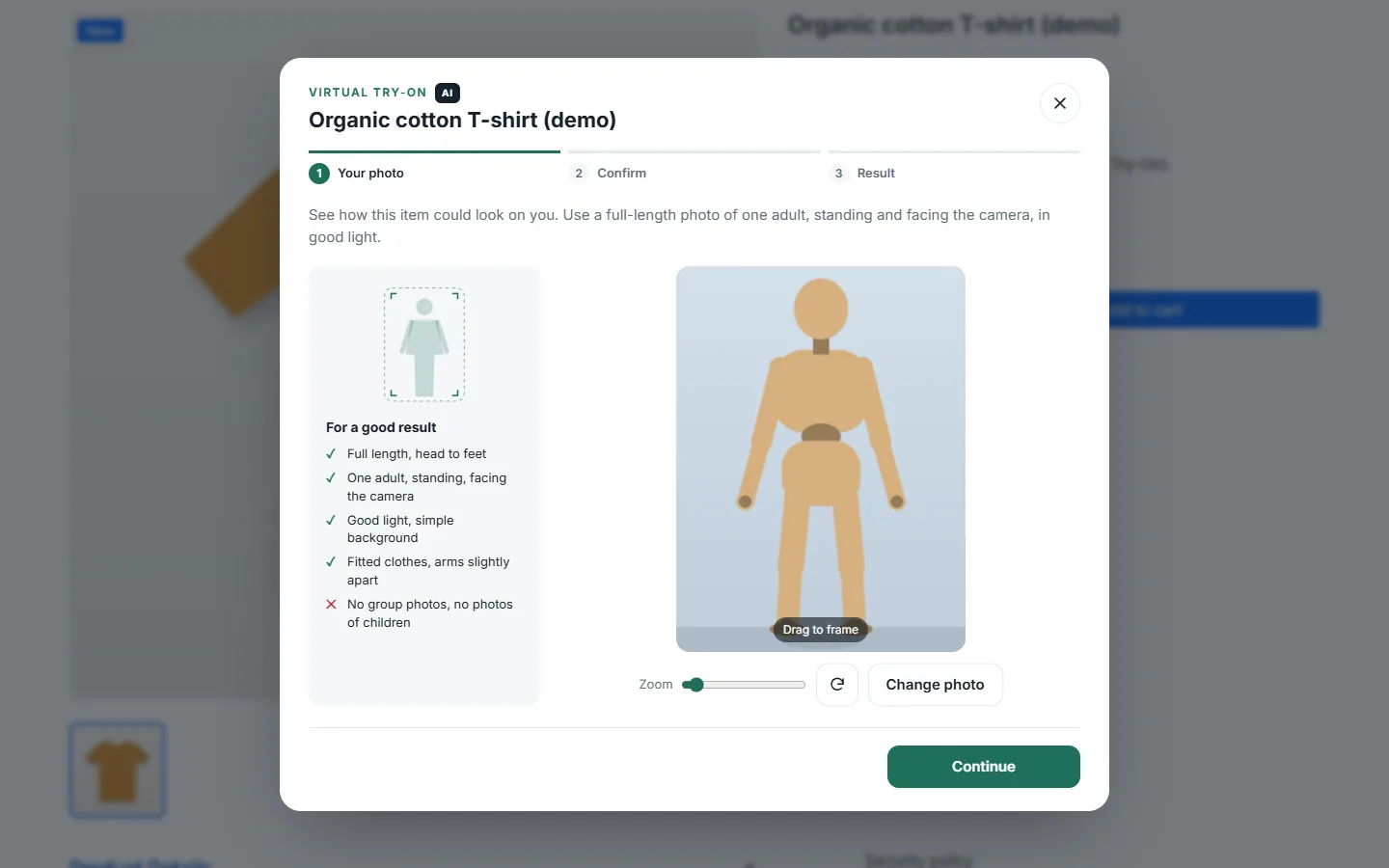
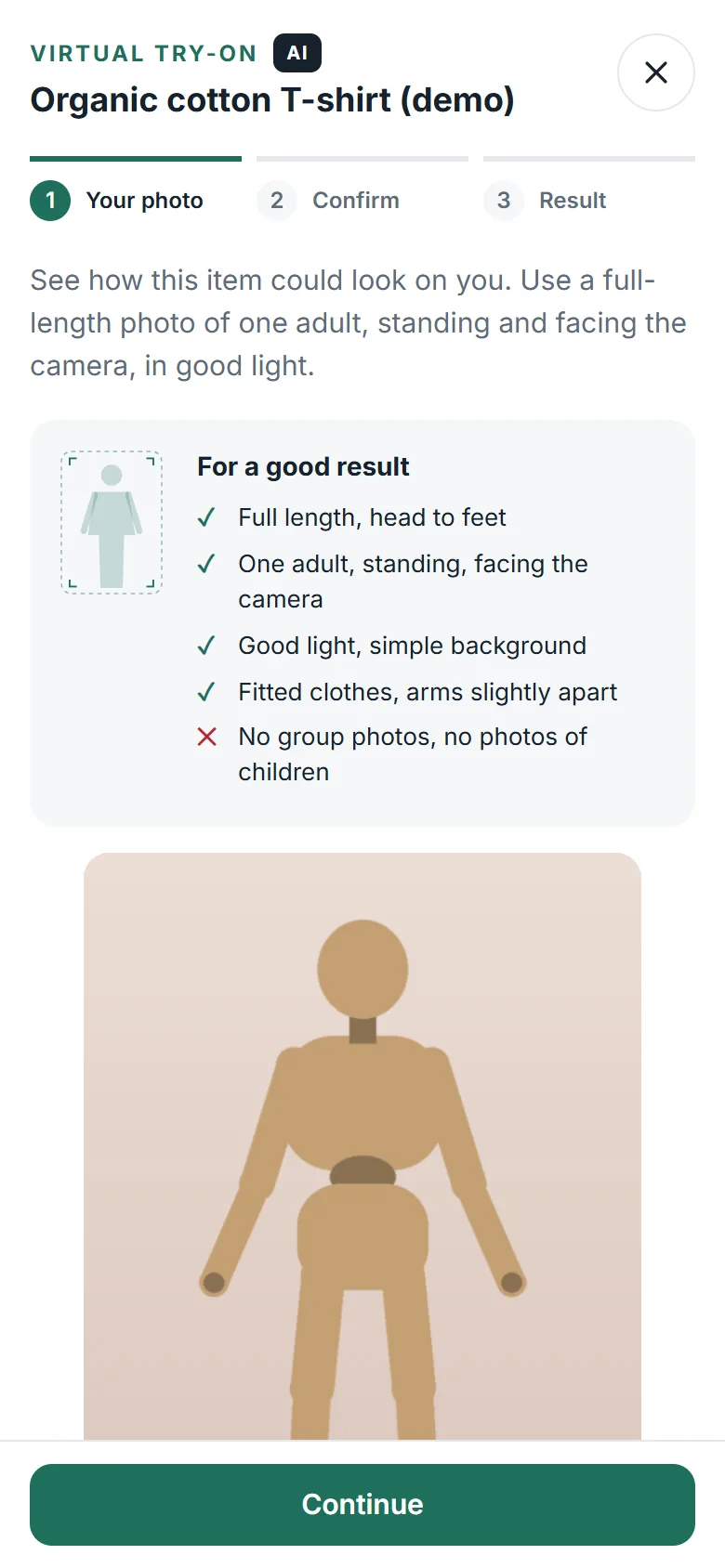
The window is accessible: focus kept inside, Escape to close, every action reachable with the keyboard, announcements for screen readers. The shopper takes a photo (camera on mobile), picks one from the gallery or drops it, then frames it (zoom, drag, rotation). A pose guide lists what works best.
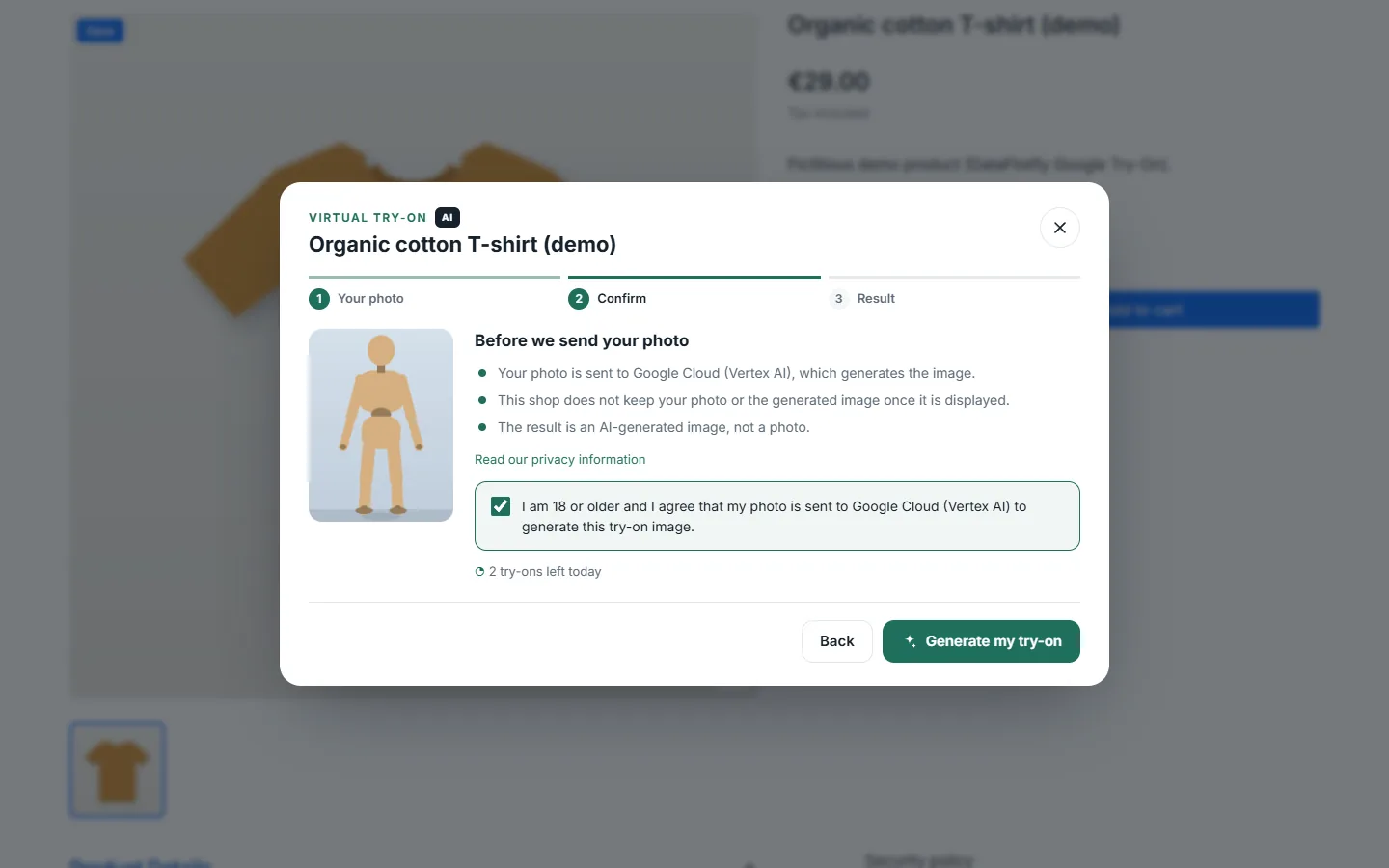
Before anything is sent, the shopper sees that the photo goes to Google Cloud (Vertex AI), what the shop keeps, and that the result is an AI-generated image, then ticks the consent box.
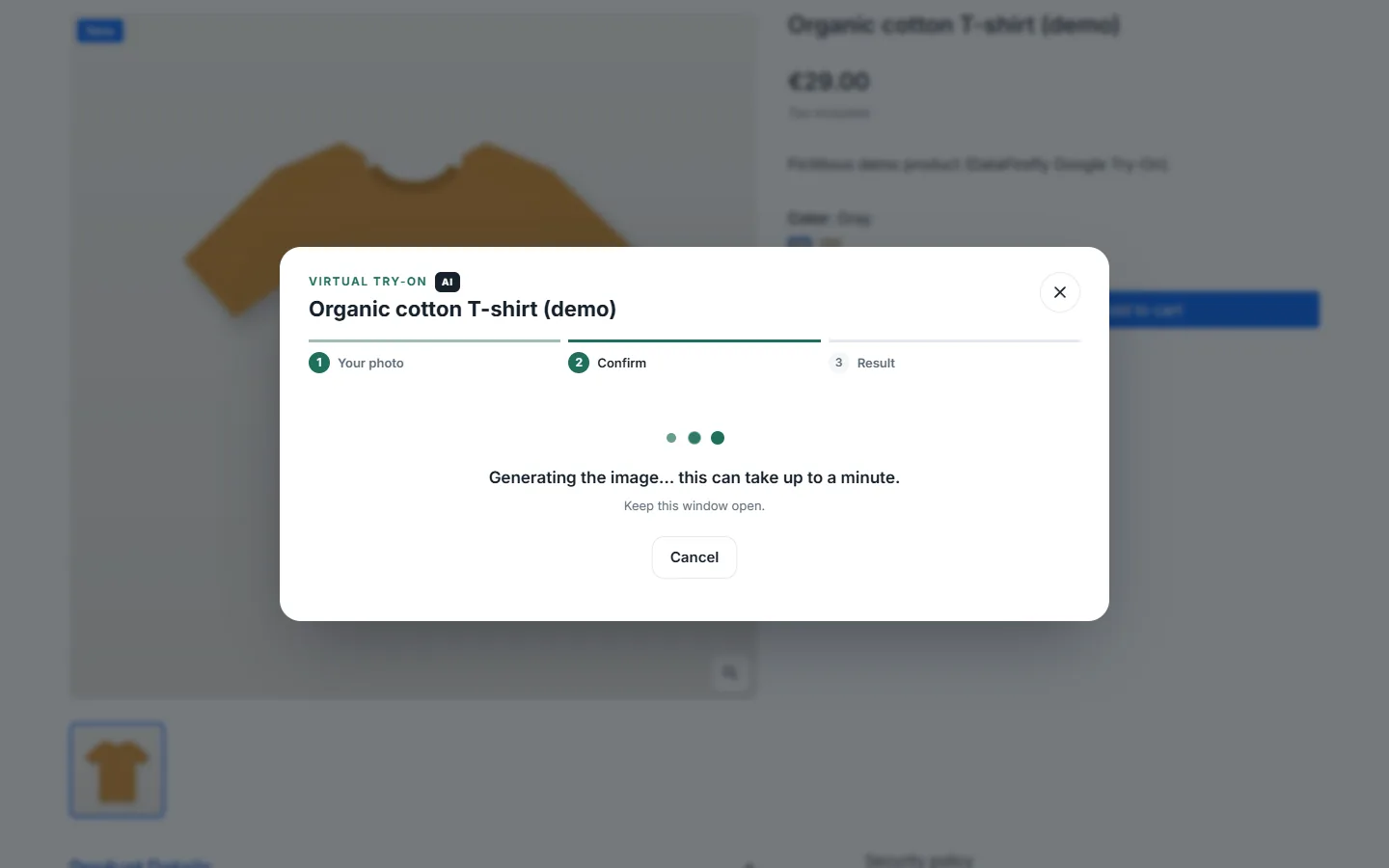
The result shows the generated image with an “AI-generated image” label, a before / after slider, download and add to cart. Generating the same photo again for the same product on the open page does not send a new request.
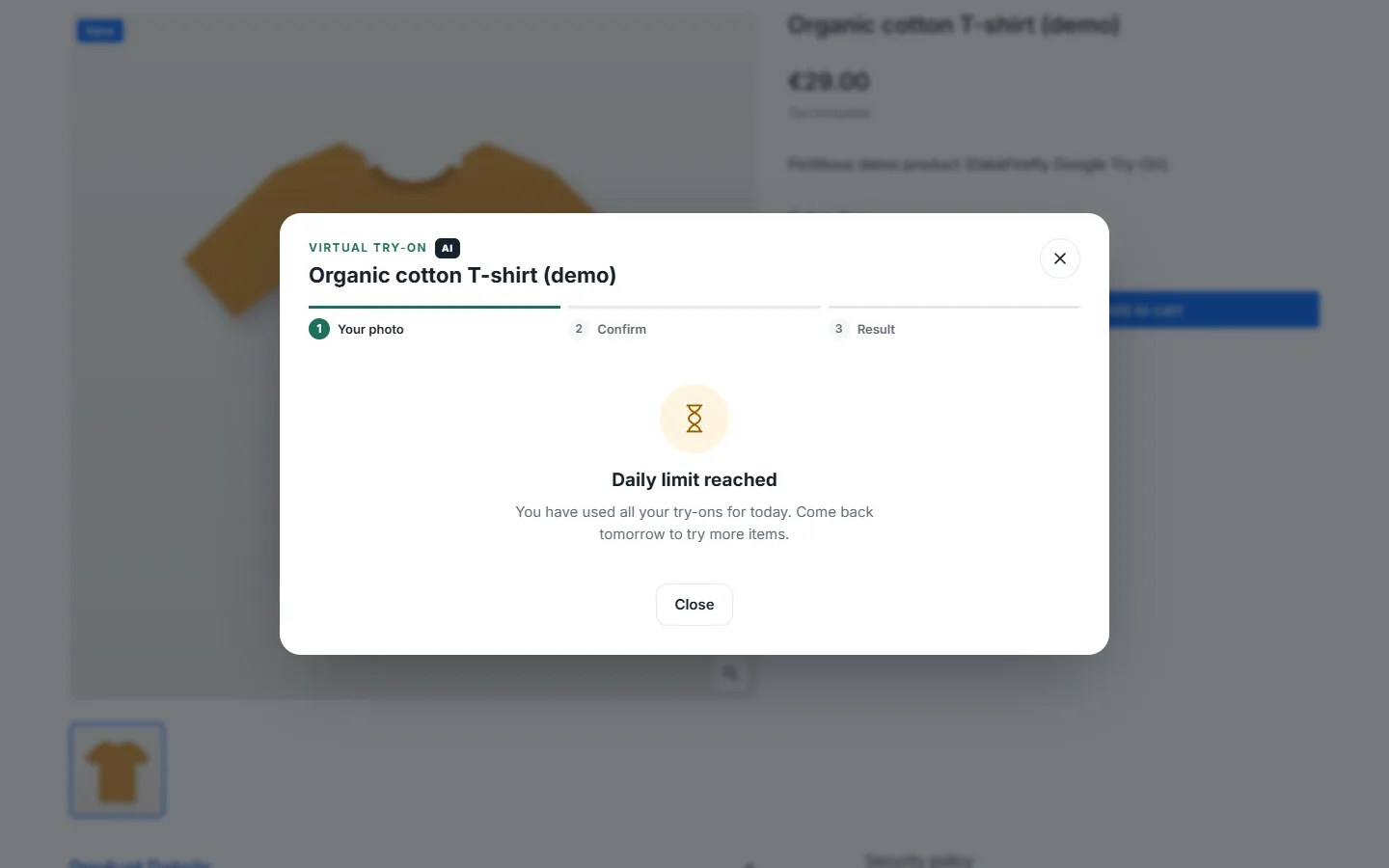
Clear messages cover every case: daily limit reached, shop cap reached, service busy, photo refused by the model (minor detected, no person detected, safety filters), photo too small or too large, sign-in required.
On mobile the window opens full screen, with the camera button first.
Journal and preview
The Journal lists each request with its outcome (filters, CSV export). The Preview shows the widget with your texts and colour, and offers a test generation with your own photo of a consenting adult: it is billed by Google like a visitor try-on and counted in the caps.
Troubleshooting
| Message or symptom | What to do |
|---|---|
| invalid_grant | The key was deleted or disabled in Google Cloud, or the server clock is wrong. Create a new key and check the server time (NTP). |
| Missing permission aiplatform.endpoints.predict | Grant Vertex AI User or a custom role with this permission to the service account on the project. |
| Permission not checked | The free check needs the Cloud Resource Manager API. It is optional; use a test generation to check the whole chain. |
| Vertex AI API not enabled | Enable aiplatform.googleapis.com, wait a few minutes, test again. |
| Model not found in this region | Check the model ID and choose a region listed on the model page. |
| Too many requests (429) | The module already retries twice with a growing delay. Lower the generations in parallel or ask Google for more capacity. |
| The saved key cannot be decrypted | The shop’s cookie key changed (migration). Upload the JSON key again. |
| No button on the product | Check the main switch, the activation mode, the garment types offered and that the product is active. |
| Google Cloud cannot be reached | Ask your host to allow outgoing HTTPS to oauth2.googleapis.com and *-aiplatform.googleapis.com. |
Uninstall
Uninstalling deletes the settings, the encrypted key, the journal, the statistics, the cache and the menu. Also delete the key of the service account in Google Cloud (IAM > Service accounts > Keys).