
SERP Tracker — Complete Guide
Install, configure and use Google rank tracking: Search Console or a SERP API, keywords by country, language and device, dashboard, keyword page, competitors, alerts, cron, quotas and cost, for PrestaShop 1.7.8 to 9.
Overview
The SERP Tracker module (dfserptracker) tracks your shop’s positions in Google results, keyword by keyword, directly in the PrestaShop back office: country (gl), language (hl), desktop or mobile, optional location. It keeps the history of every reading, draws trend charts, compares your positions with those of competitors you choose and notifies you by e-mail of significant changes, while keeping the number of requests and their cost under control.
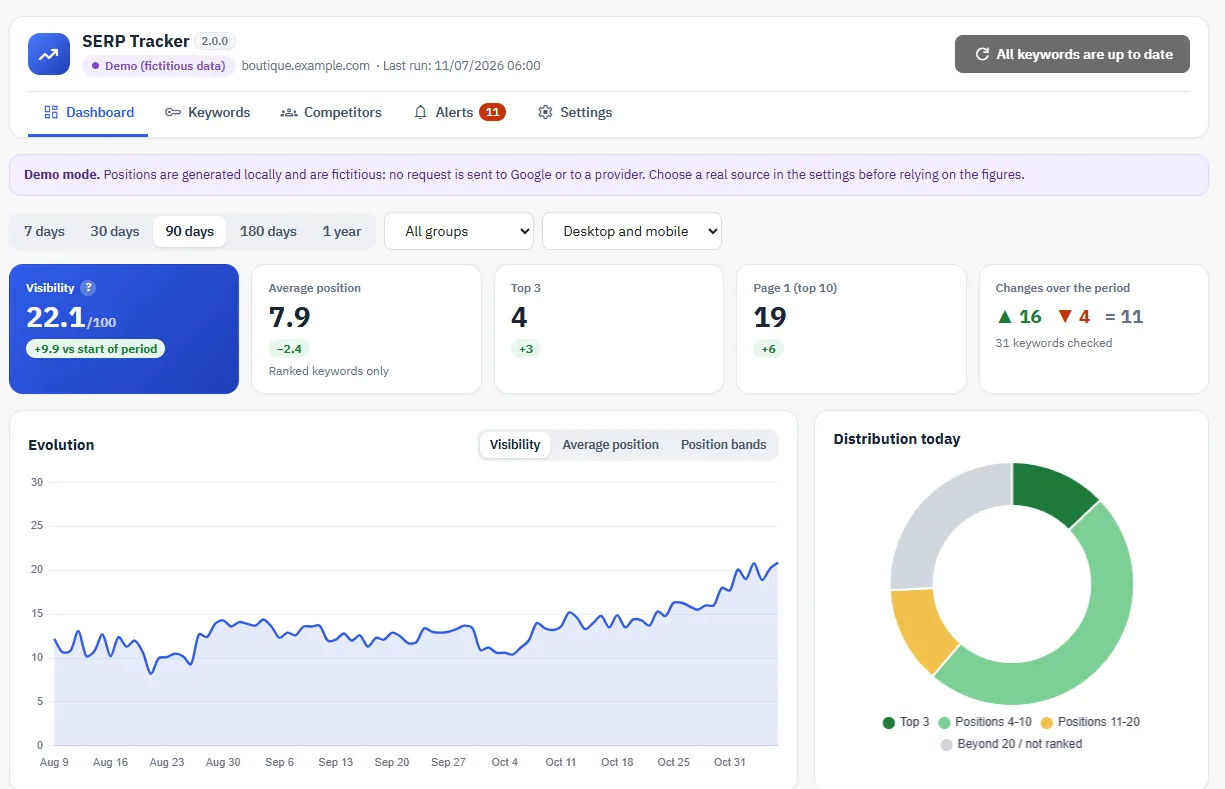
The module has no effect on the visitor side of your shop: it only adds back-office pages (menu Improve > Rank tracking) and a token-protected scheduled task URL.
Where do the positions come from?
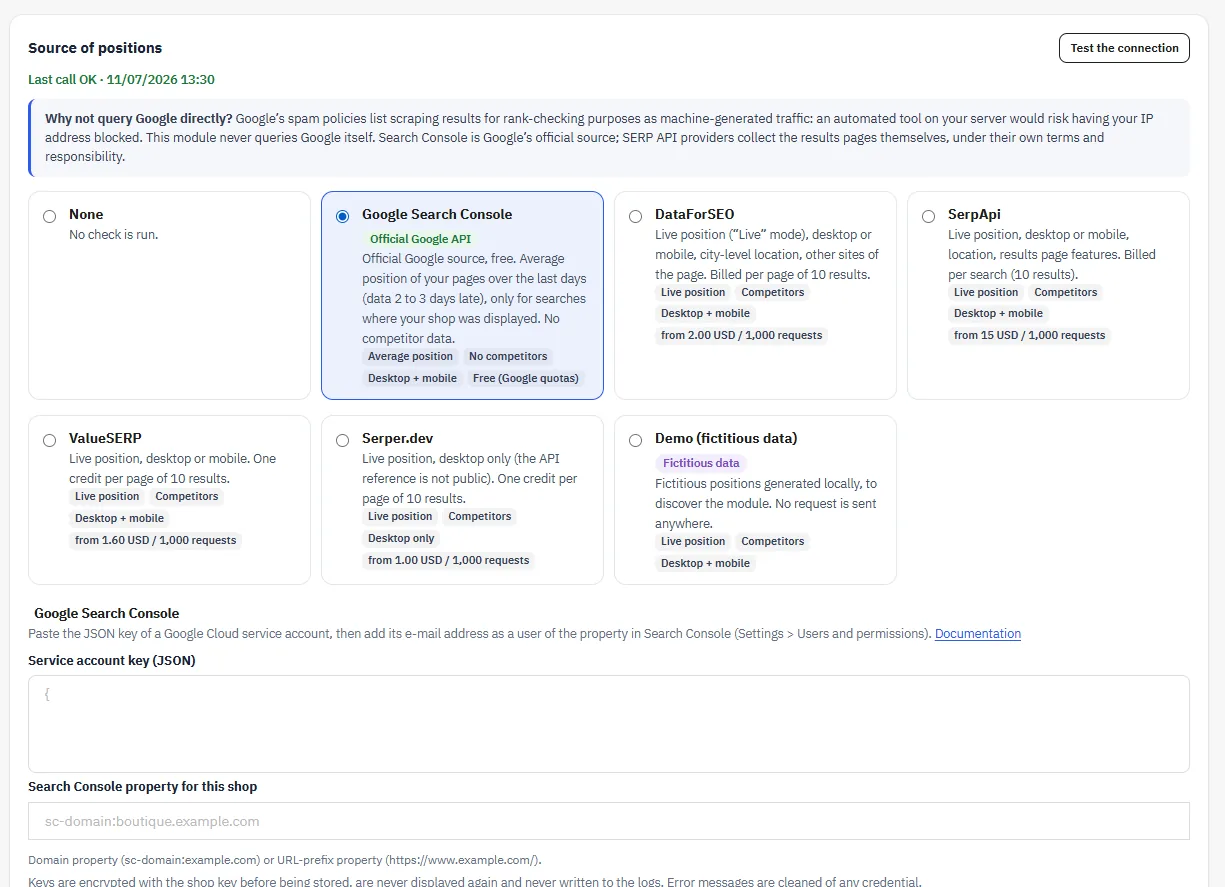
SERP Tracker never queries Google itself. Google’s spam policies count automated scraping of results for rank-checking purposes as automatically generated traffic: a tool installed on your server would expose your IP address to being blocked. You therefore choose a source in Settings > Source of positions:
- Google Search Console (Google’s official API, free): average position of your pages over the last 7 full days, with a 2 to 3 day delay, only for searches where your shop was shown. No data on competitors.
- A SERP API (DataForSEO, SerpApi, ValueSERP, Serper.dev): live position, other sites on the page, featured snippets, “People also ask”, local pack. These providers collect the results pages themselves, under their own terms and their own responsibility; they charge per request.
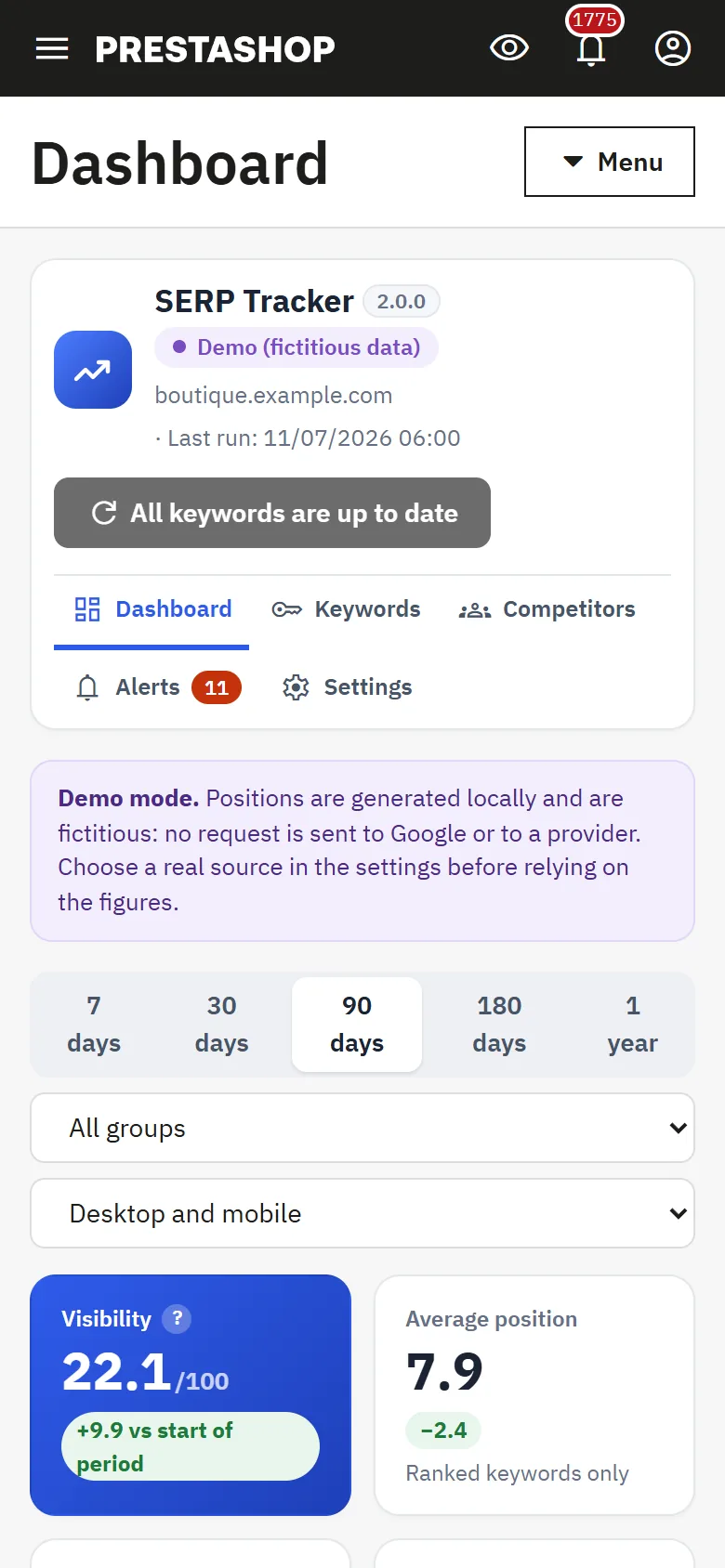
- Demo: fictitious positions generated locally to discover the module, without any request. A purple banner reminds you of this on every page.
Compatibility
- PrestaShop 1.7.8 to 9.x (tested on 1.7.8.11, 8.2.1 and 9.1.5)
- PHP 7.4 to 8.5, cURL and OpenSSL extensions
- Single shop and multistore (keywords, domain, alerts and Search Console property per shop)
- Back office and e-mails in 8 languages: FR, EN, ES, DE, IT, NL, PL, PT
- Compatible with shared hosting: a simple URL to call once a day, without Composer or any external service
Installation and update
- In Modules > Module Manager, click Upload a module and choose
dfserptracker-2.0.0.zip. - Open Improve > Rank tracking: a welcome screen guides you through three steps (source, keywords, scheduling).
Upgrading from 1.0.0: simply upload the new zip. Your keywords and their entire history are kept; your API keys are encrypted, then the old plain-text values are deleted; the menu is moved under Improve and the profiles that could see the old dashboard keep access to the new pages. As a cost precaution, a depth greater than 30 is reduced to 30 (can be changed).
Choosing and configuring the source
Google Search Console (recommended to start with)
- In Google Cloud, create a service account and download its key in JSON format.
- In Search Console, add the service account’s e-mail address as a user of the property (Settings > Users and permissions).
- In Settings > Source of positions, choose Google Search Console, paste the JSON key and the property (
sc-domain:your-domain.comorhttps://www.your-domain.com/). - Click Test the connection (free).
SERP API
- DataForSEO: API login and password (not those of the account). Billed per page of 10 results; the actual cost returned by the API is recorded.
- SerpApi: API key; one search billed per page of 10 results. Free connection test (remaining searches).
- ValueSERP: API key; one credit per page of 10 results.
- Serper.dev: API key; desktop results only (the API documentation is not public).
Keys are encrypted with your shop’s key before being saved. They are never displayed again (the field only says “Saved”), never written to the logs, and error messages are stripped of any credential. Leave a field empty to keep the stored value, tick “Delete the stored value” to erase it.
Tracking settings
- Domain to find in the results: the shop’s domain (the
www.prefix is ignored). Option: also count the subdomains. - Depth scanned: top 10 to top 100. Since September 2025, Google shows 10 results per page: each additional page is one more billable request. Reading stops at the page where your shop appears.
- Defaults for new keywords: country, language, device, frequency.
Adding keywords
In Keywords > Add keywords:
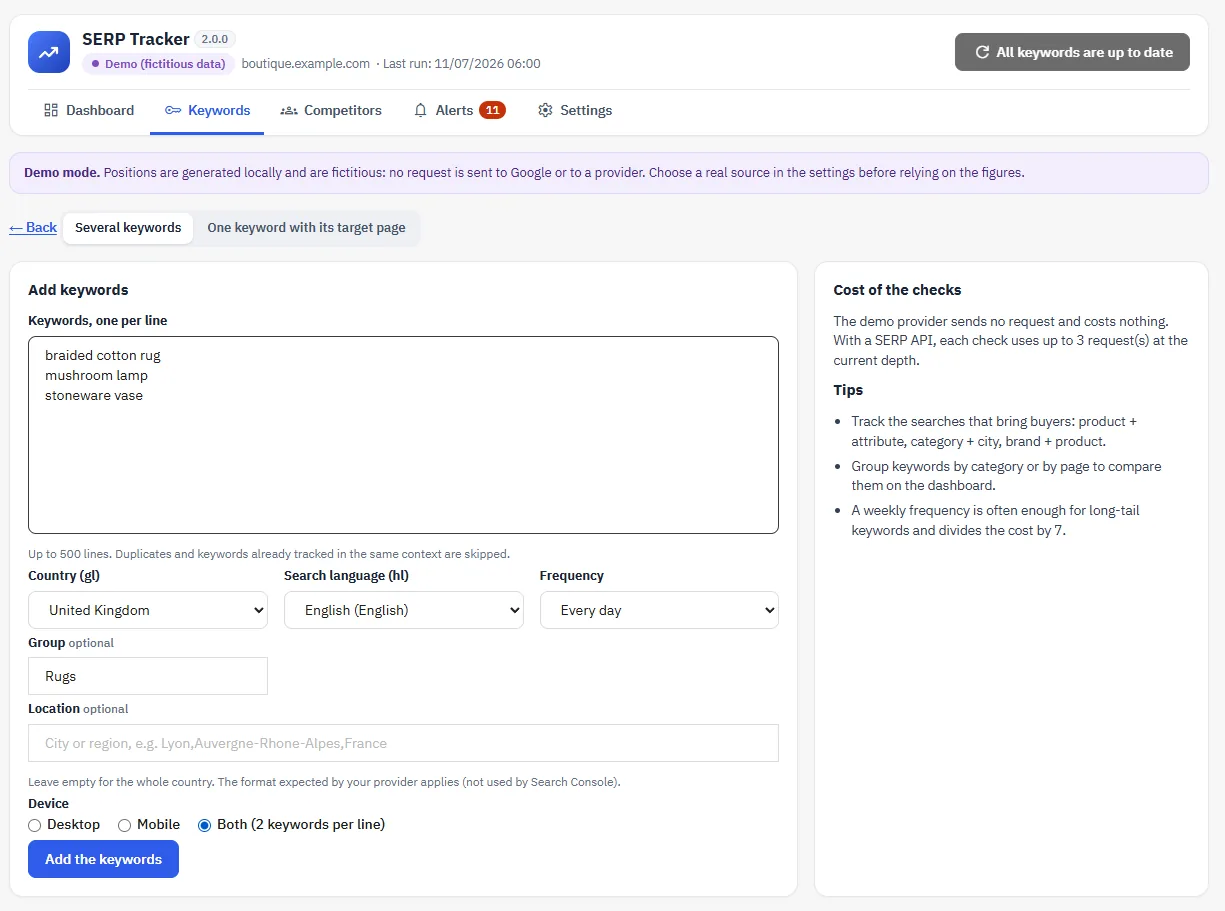
- Several keywords: one per line (500 at most), with the country, language, frequency, a group, an optional location and the device (desktop, mobile or both). Duplicates are ignored and an estimate of the cost for 30 days updates as you type.
- One keyword with its target page: when the target page appears in the results, its position is the one recorded; otherwise, the best page of your domain.
- CSV import: columns
keyword;group;country;language;device;target_url;volume;frequency.
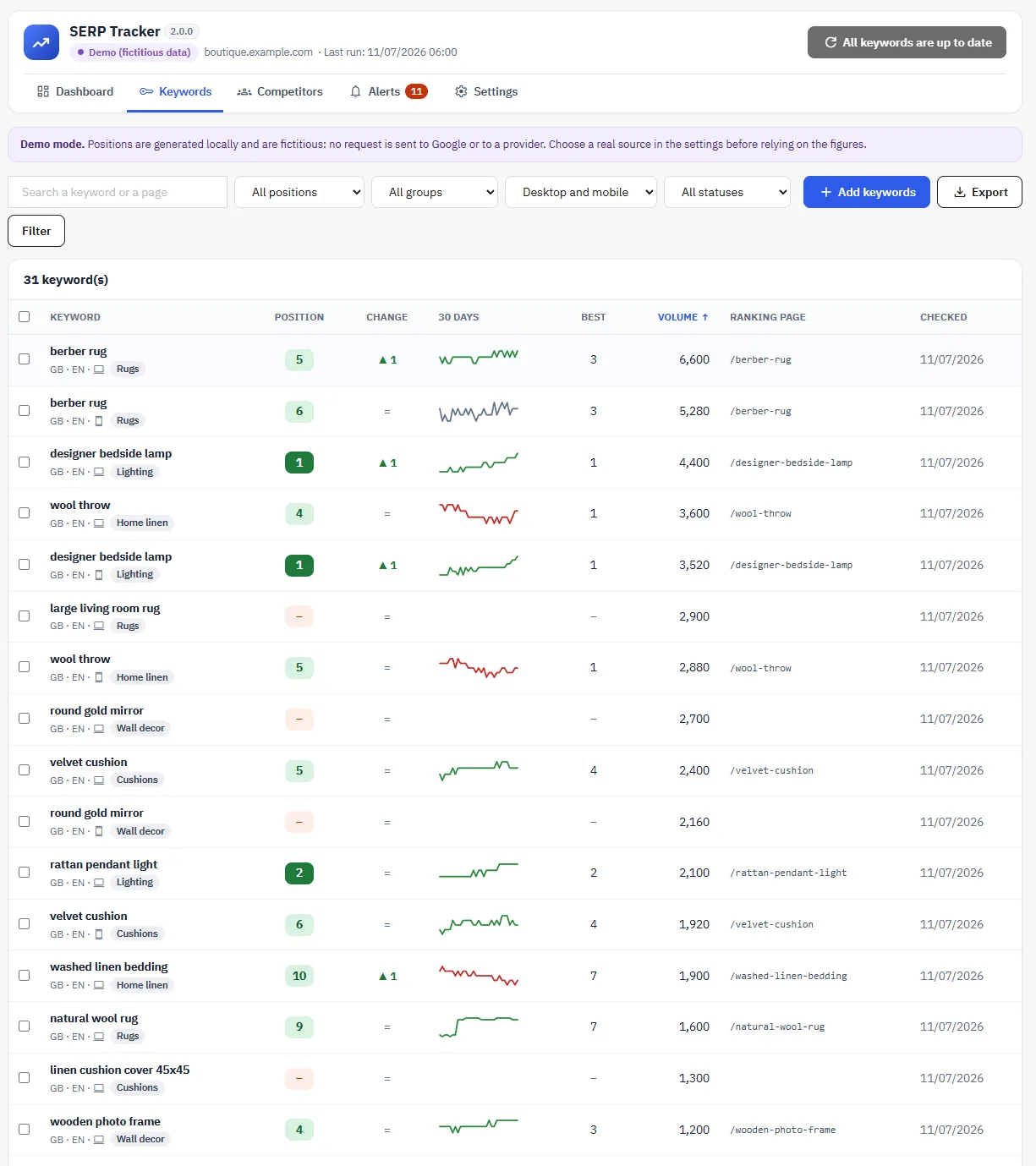
For each keyword, the list shows the position, the change since the previous reading, the 30-day trend, the best position, the volume and the ranking page, with filters, sorting and bulk actions (check, pause, resume, group, frequency, delete). Two CSV exports are available: the keywords with their latest positions, and the 90-day history.
The dashboard
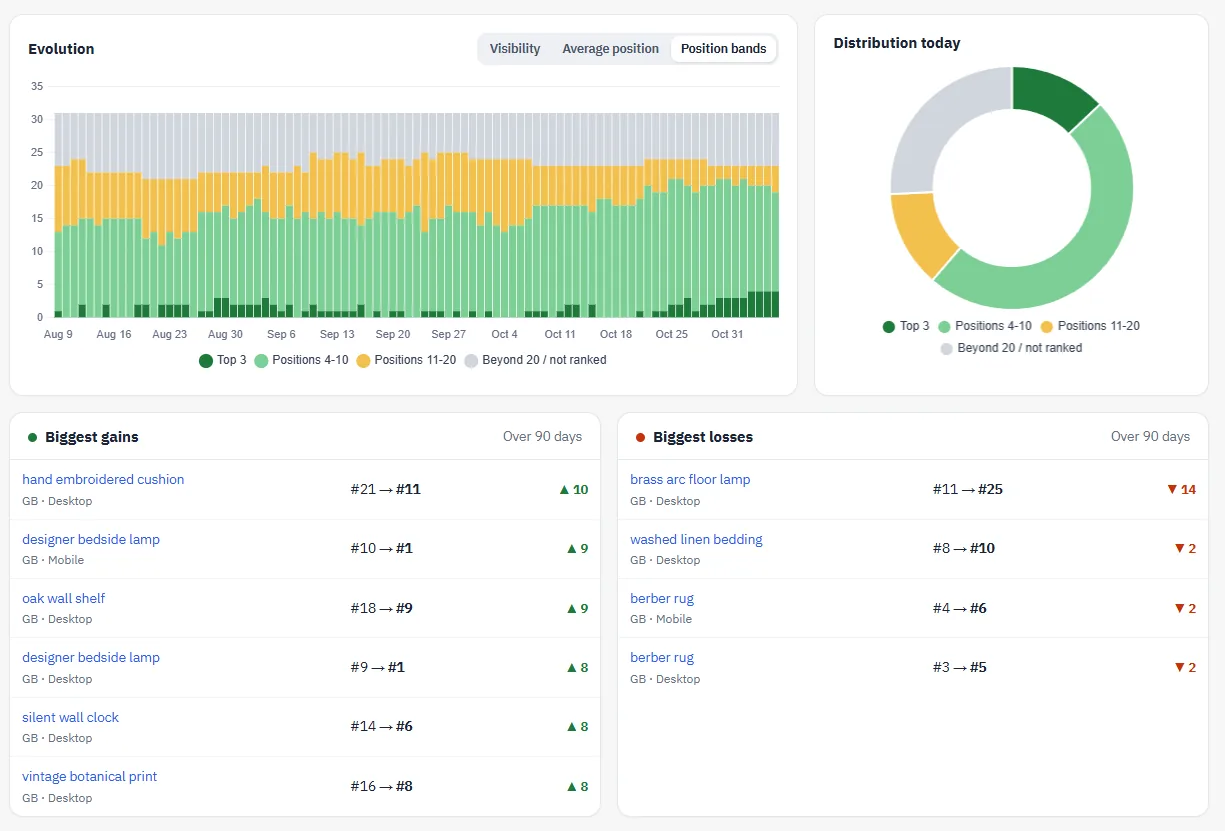
- Visibility (out of 100): an estimate of the expected click-through rate of your keywords compared with the situation where they would all be in first position, based on a public average CTR curve. It is not a measure of traffic.
- Average position (ranked keywords only), top 3, page 1, changes over the period.
- Evolution: visibility, average position or position bands day by day; distribution of the day.
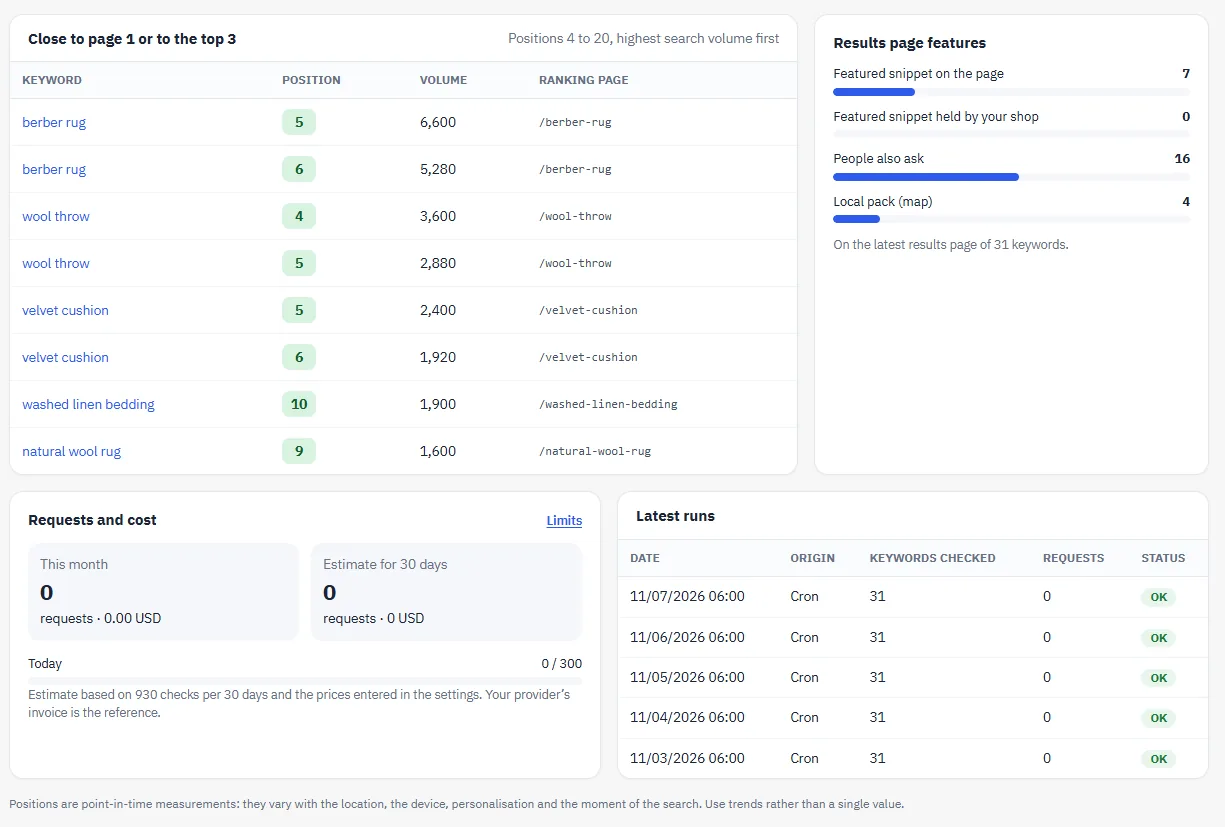
- Biggest gains and losses, keywords close to page 1 or to the top 3 (positions 4 to 20, sorted by volume), results page features, requests and cost, latest runs.
Filters: period (7 days to 1 year), group, device, country.
The keyword page
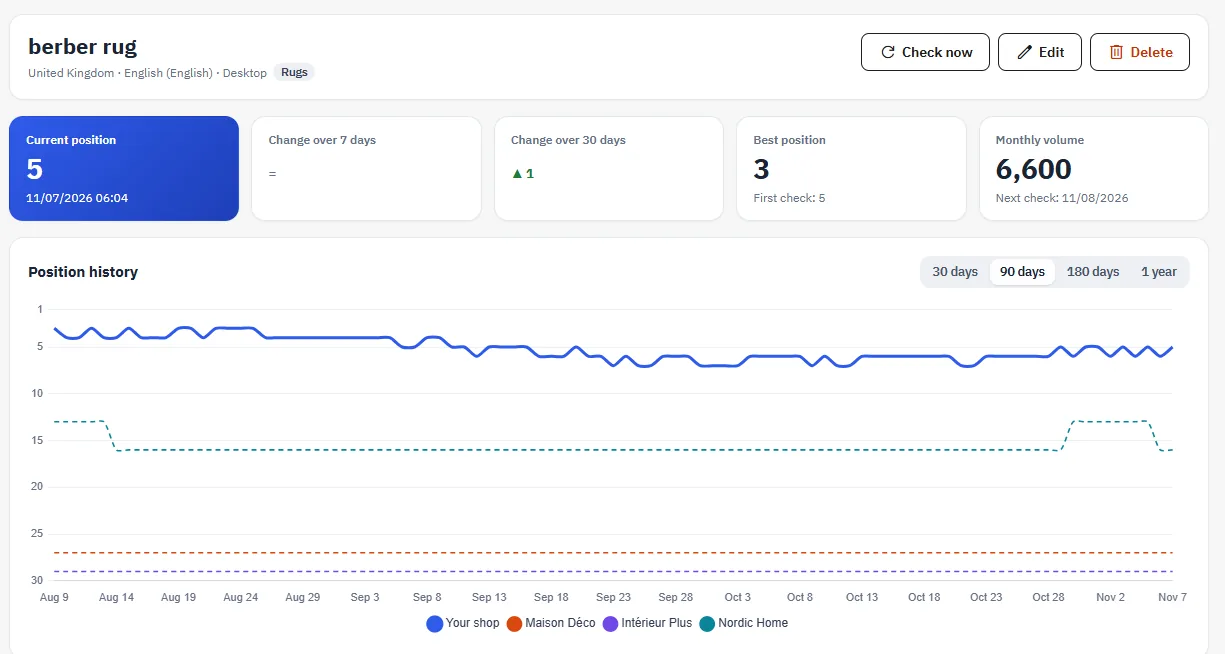
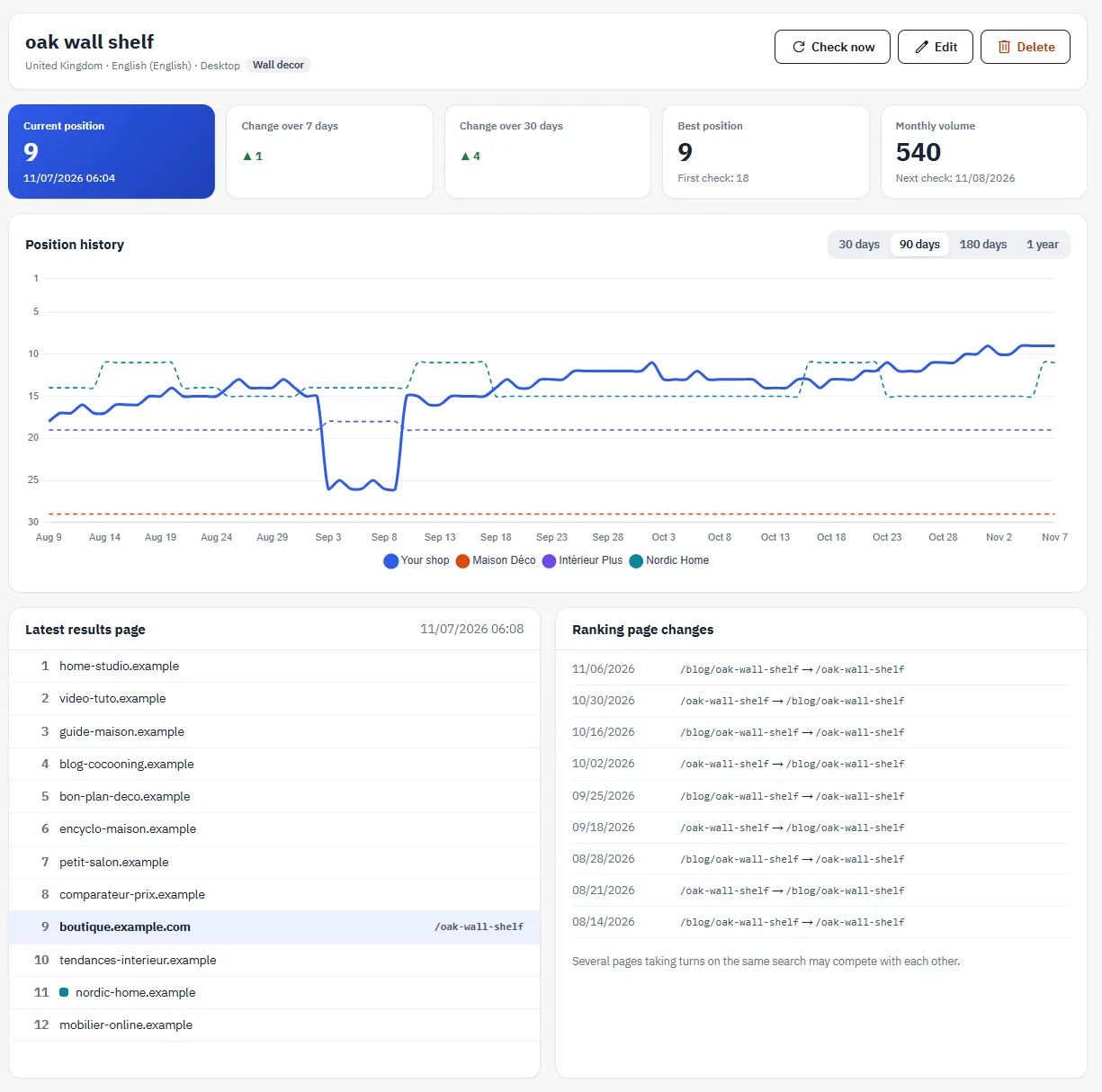
Click a keyword to see its current position, its changes over 7 and 30 days, its best position, its history chart compared with the tracked competitors, the latest results page, the ranking page changes (several pages of the shop taking turns on the same search may compete with each other) and the latest readings. Check now, Edit and Delete buttons.
Competitors
Follow up to 8 competitor domains (subdomains included). Their position is recorded at each check; when you add one, its past positions are rebuilt from the results pages already stored (top 20). The page shows each site’s estimated share of visibility on your keywords, the number of keywords where each competitor is above or below you, the evolution over time, and the other sites found on your keywords with a Follow button.
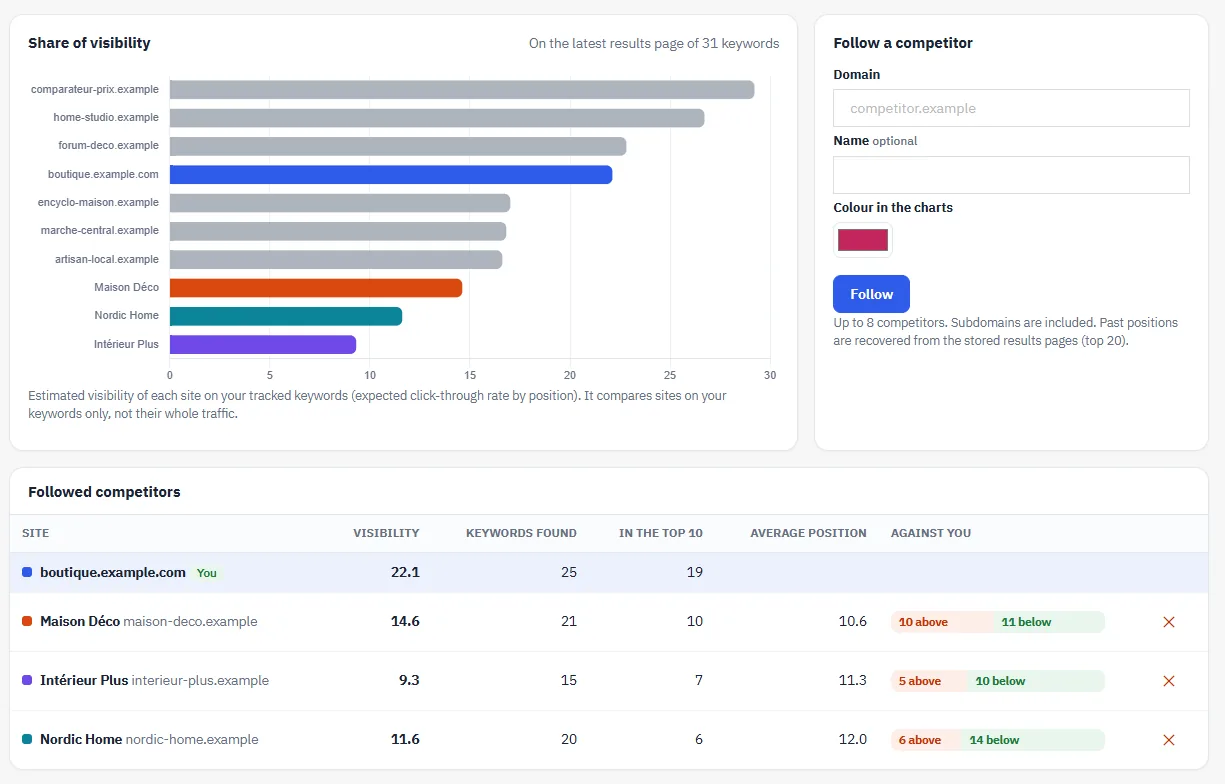
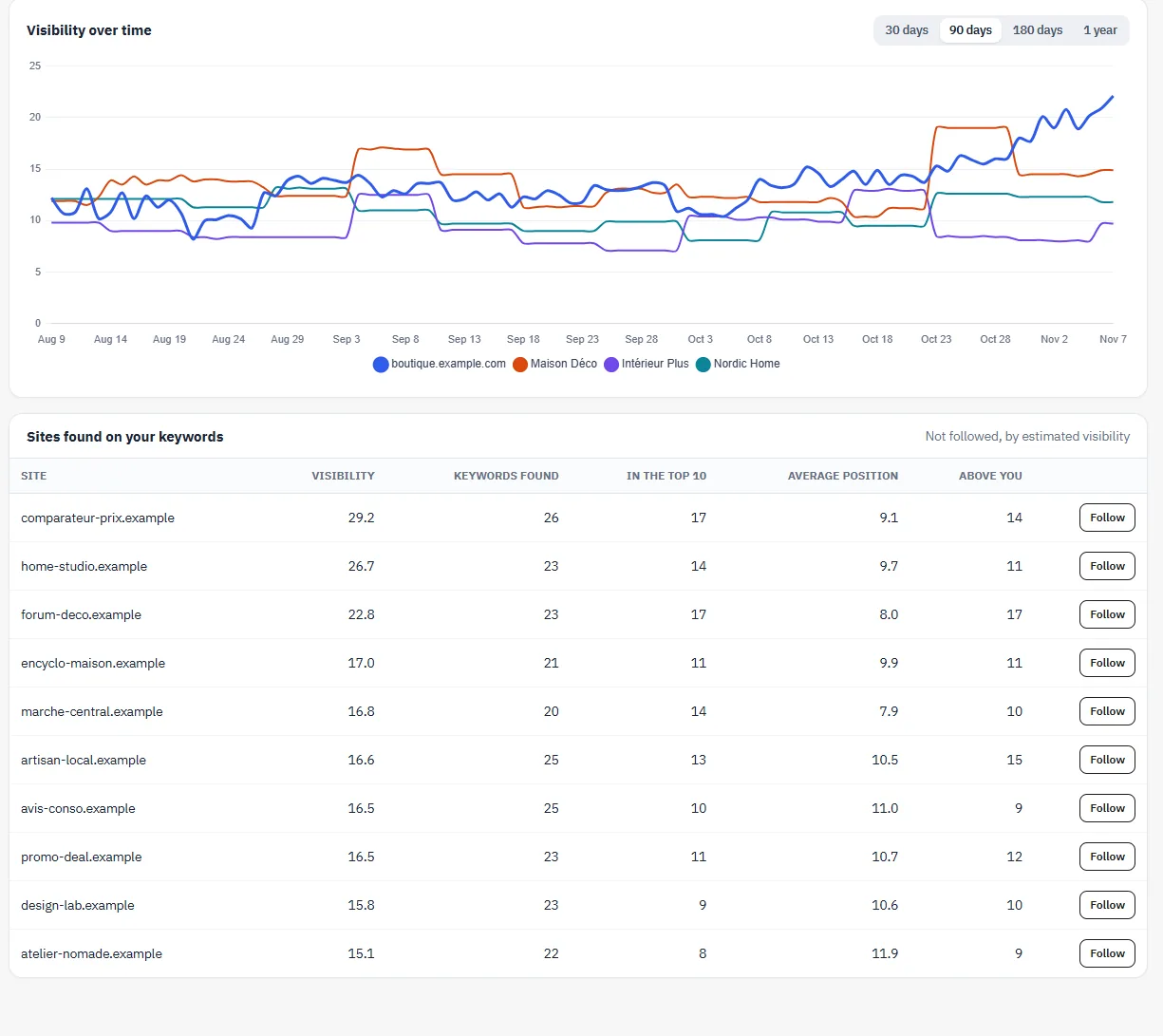
With Google Search Console, this page remains empty: Search Console only reports on your own pages.
Alerts
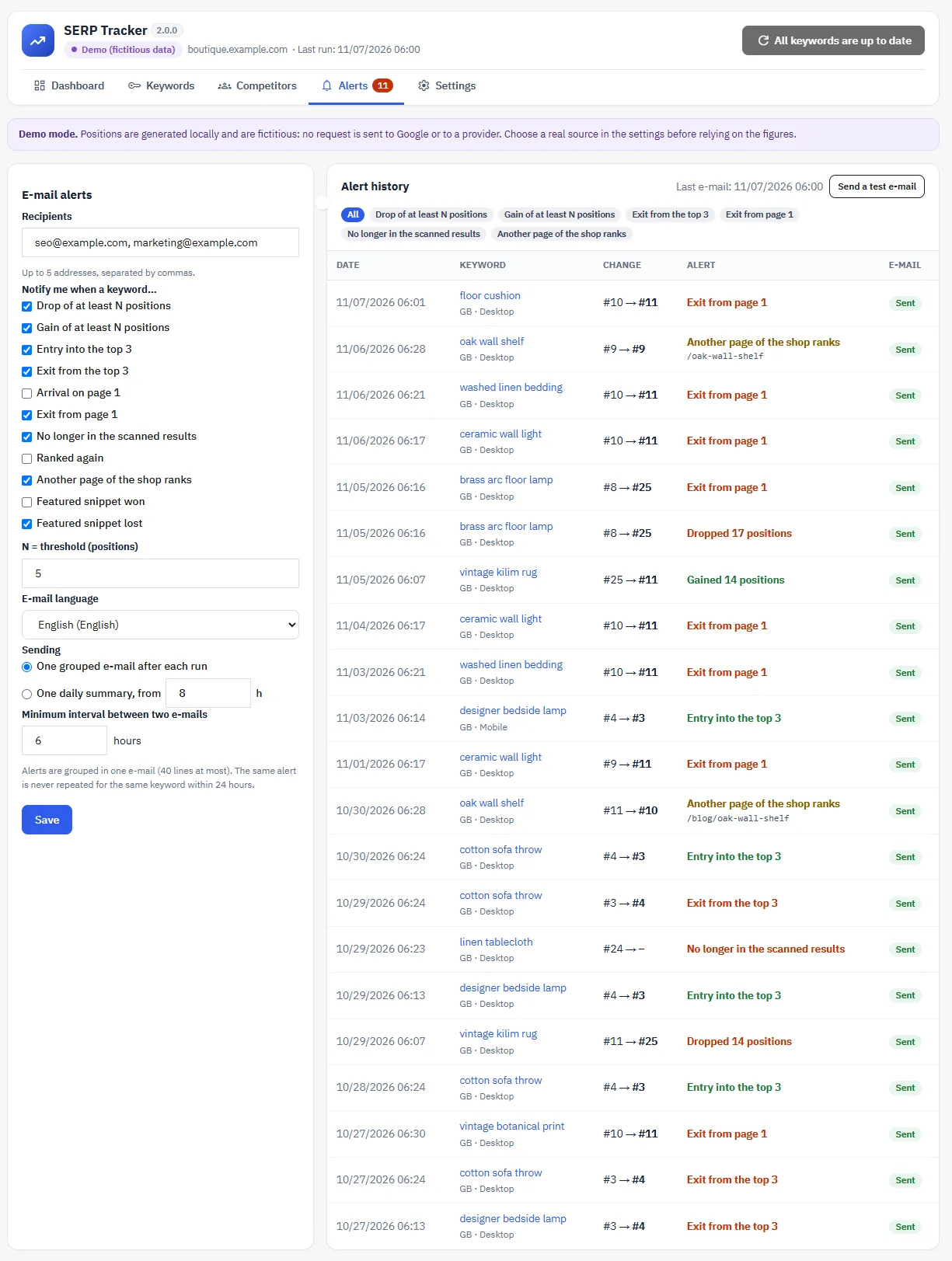
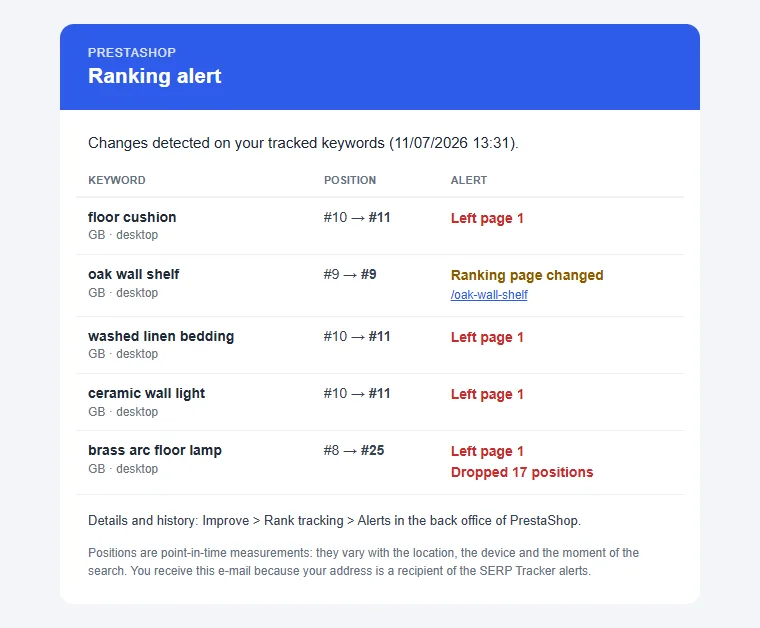
In Alerts, choose the recipients (5 at most) and the rules: drop or gain of at least N positions, entry into or exit from the top 3, arrival on or exit from page 1, no longer in the scanned results, return, another page of the shop ranks, featured snippet won or lost.
- One grouped e-mail after each run (one keyword per line) or one daily summary from the chosen time;
- minimum interval between two e-mails; the same alert is never repeated for the same keyword within 24 hours;
- alert history kept even when e-mails are disabled, Send a test e-mail button.
Schedule, limits and cost
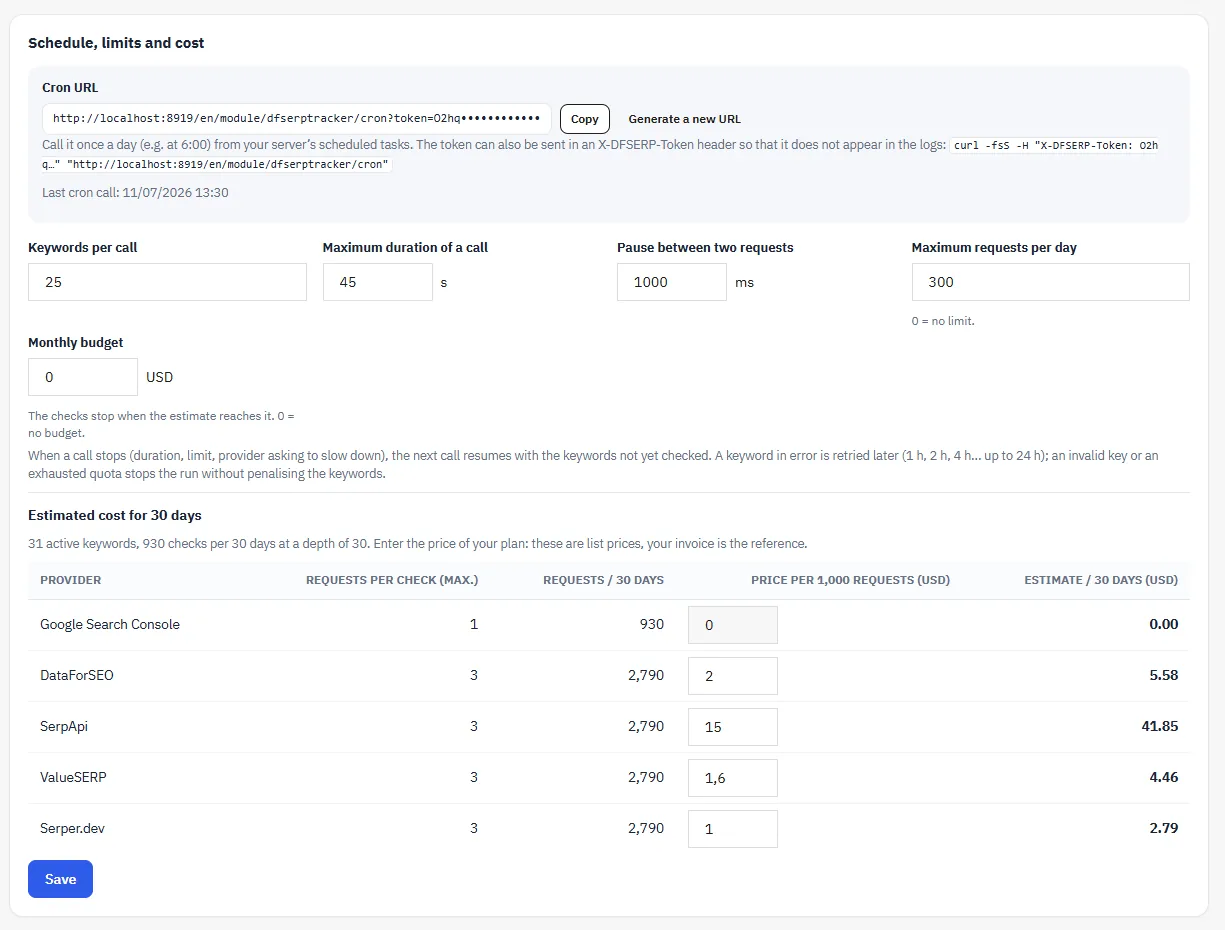
Checks are started by a cron URL to be called once a day (for example at 6 am) from your host’s scheduled tasks. The token can be sent in the X-DFSERP-Token header so that it does not appear in the server logs; Generate a new URL invalidates the old one.
- Frequency per keyword (every day, every 3 days, every week, every 2 weeks, every month): only keywords that are due are checked.
- Keywords per call, maximum duration of a call, pause between two requests, maximum requests per day and monthly budget.
- Resumption: the next call resumes with the keywords not yet checked. A keyword in error is retried later (1 h, 2 h, 4 h… 24 h); a refused key or an exhausted quota stops the run without penalising the keywords.
- Estimated cost for 30 days for each provider, based on the number of keywords, their frequency and the depth, with the prices per 1,000 requests that you enter (public rates by default). The provider’s invoice is the reference.
The Check due keywords button in the header also runs the checks from the back office, in small batches with a progress bar.
Data and privacy
- History kept from 90 days to 3 years (or without limit), purged automatically once a day.
- Permissions per employee profile: view to consult, edit to add keywords, change the settings and run checks (billed), delete to delete.
- With the demo provider, Generate 90 days of demo history fills the charts; Delete the demo readings erases them before you switch to a real source.
- On uninstallation, the module’s tables, settings and tabs are deleted.
FAQ and troubleshooting
Are the positions accurate?
They are one-off readings: the same search can give different results depending on the location, the device, personalisation and the time. Follow the trends rather than an isolated value. With Search Console, the value is an average position over several days.
Does the module improve my SEO?
No: it measures. It helps you spot keywords close to page 1, pages that compete with each other and drops to watch; no ranking gain is guaranteed.
A keyword shows “–”
Your domain was not found within the depth scanned. Check the domain, the target page and the context (country, language, device), or increase the depth, taking the cost into account.
Nothing updates
Check that the cron URL is being called (the date of the last call is shown in the settings), that the source is configured (green dot in the header) and that the daily cap or the budget has not been reached (status of the latest runs on the dashboard). If the shop is in maintenance mode, add your server’s IP address to the authorised IPs.
How much do the checks cost?
Search Console is free (within Google’s limits). For a SERP API, the cost depends on the number of keywords, their frequency and the depth: the “Estimated cost for 30 days” table in the settings calculates it for each provider. A weekly frequency divides the cost by 7.