
DataFirefly Shopify Migrator — Complete guide
Migrate PrestaShop 1.7.8, 8 or 9 to Shopify step by step: analysis, preview, resumable batches and 301 redirects, with the official Shopify CSV templates or the GraphQL Admin API.
DataFirefly Shopify Migrator moves a PrestaShop 1.7.8, 8 or 9 shop to Shopify with a step-by-step assistant: analysis of the catalogue, mapping, preview, migration in resumable batches, report and 301 redirects. It works with the files of the official Shopify templates (nothing to connect) or directly with the Shopify GraphQL Admin API.
Requirements
- PrestaShop 1.7.8, 8.x or 9.x, PHP 7.1 to 8.5 with cURL.
- Product images reachable by Shopify on a public https address: Shopify downloads every image from its URL. A shop running on
localhostor on a private address must enter its public address in the settings, or be migrated from the live shop. - API mode only: a Shopify store and an app with the scopes of the parts you migrate (see step 1).
Installation and update
- In Modules > Module Manager, click Upload a module and choose
dfshopifymigrator-2.0.0.zip. - The module creates 3 tables (
ps_dfshopifymig_jobs,_mapping,_log) and the menu Advanced Parameters > Shopify migration. It adds nothing to your shop front. - Update from 1.x: the Shopify token and client secret are encrypted, the CSV files of 1.x are moved out of the public folder
modules/dfshopifymigrator/exports/(they could be downloaded by anyone knowing their address), the REST ids of the mapping become GraphQL ids, and the jobs left unfinished by 1.x are closed: start them again, the mapping prevents duplicates.
Step 1: connection
Choose how the data goes to Shopify.
- Shopify CSV files: the module prepares the product, customer and redirect files with the columns of the official Shopify templates; you import them in your Shopify admin. No connection and no access key.
- Direct to my Shopify store: the module creates and updates products, collections, pages, customers, metafields, translations and redirects through the GraphQL Admin API. A second run updates instead of duplicating.
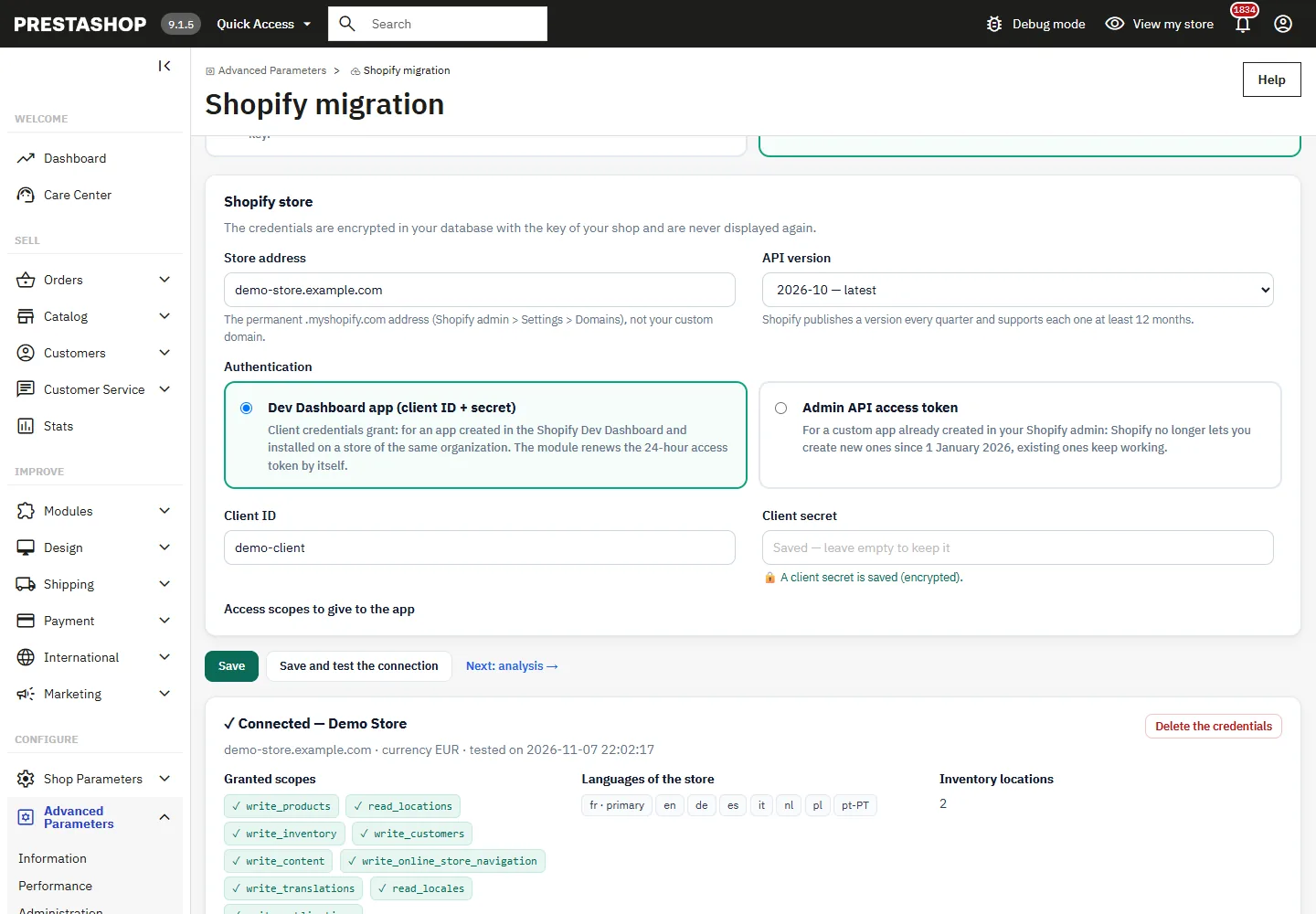
For the API, two authentications are available:
- Dev Dashboard app (client ID + secret): client credentials grant, for an app created in the Shopify Dev Dashboard and installed on a store of the same organization. The module requests the access token (valid 24 hours) and renews it by itself.
- Admin API access token: for a custom app already created in your Shopify admin. Shopify no longer allows creating new ones since 1 January 2026; existing ones keep working.
Enter the permanent .myshopify.com address of the store and choose the API version (the latest is selected by default; Shopify supports each version at least 12 months). The credentials are encrypted in your database and are never displayed again: leave a field empty to keep the saved value. Save and test the connection shows the store, its currency, its inventory locations, its languages and the scopes granted to the app.
| Scope | Needed for |
|---|---|
write_products |
products, variants, images, collections, metafields |
read_locations, write_inventory |
stock quantities |
write_customers |
customers, addresses, email marketing consent |
write_content |
CMS pages |
write_online_store_navigation |
URL redirects |
write_translations, read_locales |
translations |
write_publications |
optional publication on a sales channel |
Creating the app in the Shopify Dev Dashboard
- In the Shopify Dev Dashboard, create an app (for example “Migrator”).
- Configure the Admin API access scopes of the parts you migrate (table above) and save.
- Install the app on the target store (custom distribution) and approve the access requested.
- Copy the client ID and the client secret of the app into step 1 of the module, then click Save and test the connection.
shop_not_permitted. If you change the scopes after installing the app, approve them again on the store (reinstall the app if needed).Step 2: analysis of the catalogue
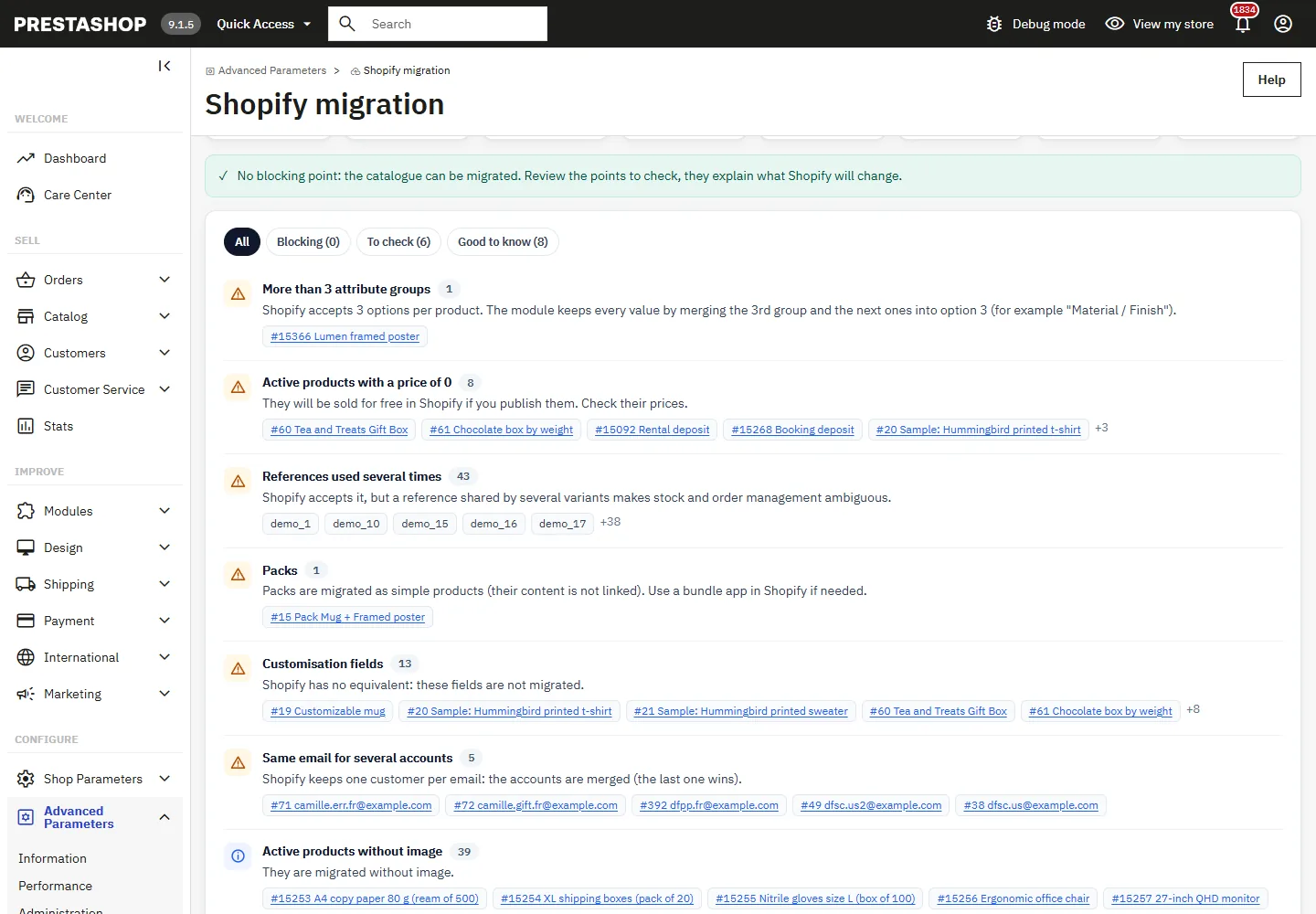
Before anything is sent, the analysis lists what Shopify would refuse or change, with clickable examples: blocking points (images not reachable by Shopify, images not in https, products without a name, more than 2048 combinations, invalid email addresses), points to check (more than 3 attribute groups, identical combinations, active products with a price of 0, missing image files, references used several times, packs, customisation fields, downloadable products, several accounts with the same email) and good to know (passwords, order history, languages, currencies, multistore, size of the product file).
Step 3: settings and mapping
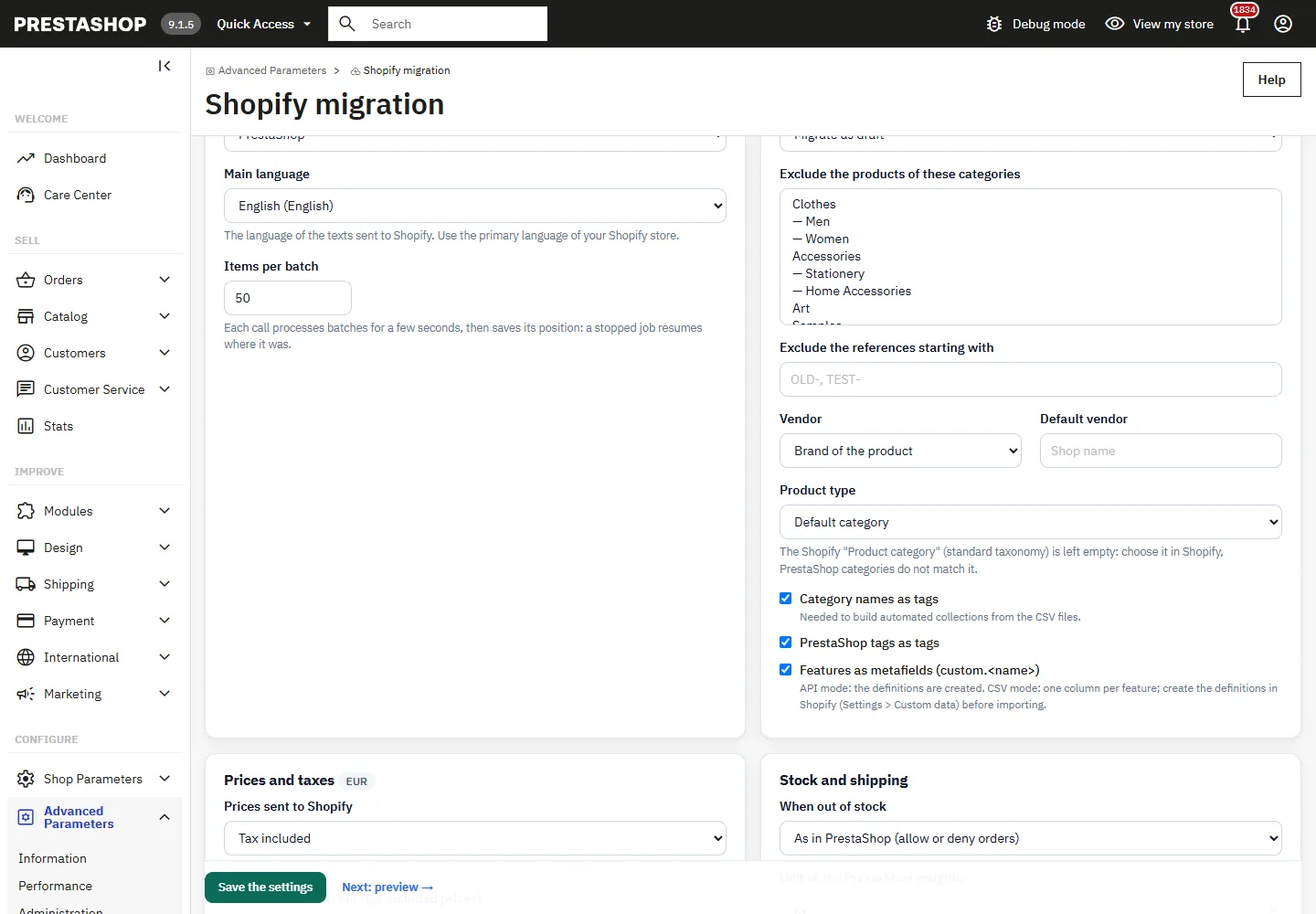
- Source: shop to migrate (multistore: one shop at a time), main language (use the primary language of the Shopify store), items per batch.
- Catalogue: disabled products as draft, archived or not migrated; exclusion by category or by reference prefix; vendor (brand or default vendor); product type (default category); category names and PrestaShop tags as Shopify tags (needed for automated collections in CSV mode); features as metafields
custom.<name>. The Shopify “Product category” (standard taxonomy) is left empty: PrestaShop categories do not match it. - Prices and taxes: prices tax excluded or included (choose what matches “Include tax in prices” in your Shopify tax settings) with the tax rate of the chosen country, current public reductions as compare-at prices, wholesale price as cost per item. Prices are exported in the default currency of the shop.
- Stock and shipping: out-of-stock behaviour (as in PrestaShop, always stop, always continue), unit of the PrestaShop weights (detected automatically). Virtual products do not require shipping.
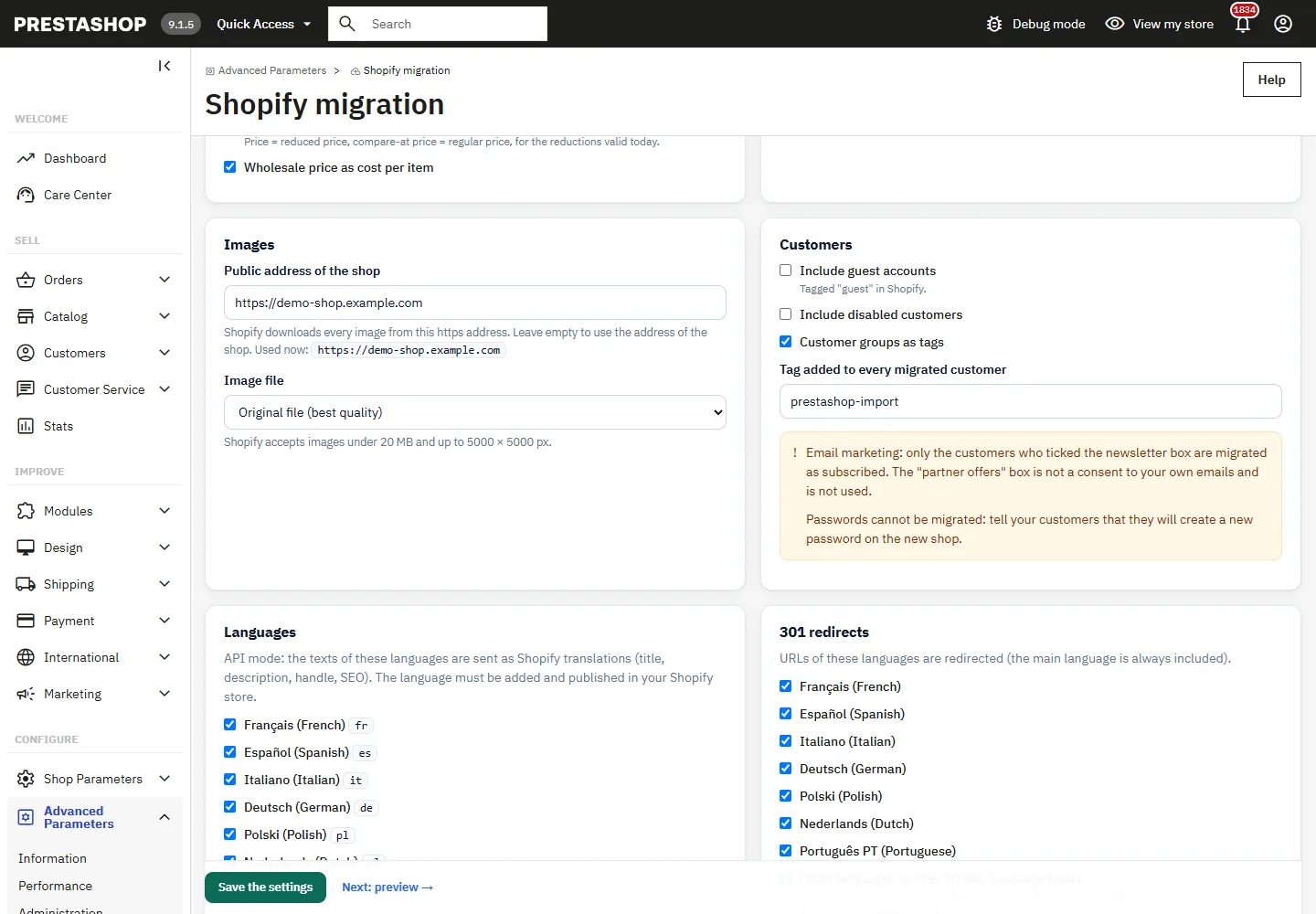
- Images: public https address used to build the image URLs, original file or largest generated size (Shopify accepts images under 20 MB and up to 5000 × 5000 px).
- Customers: guest and disabled accounts, customer groups as tags, a tag on every migrated customer.
- Languages (API mode): the texts of the selected languages are sent as Shopify translations (title, description, handle, SEO). The language must be added and published in the Shopify store.
- 301 redirects: languages, language folder for the other languages (
/en/products/handle), URLs of the combinations, brand pages. - Publication (API mode): products and collections created through the API are not published on a sales channel by default; choose one or publish them later in Shopify.
Step 4: preview
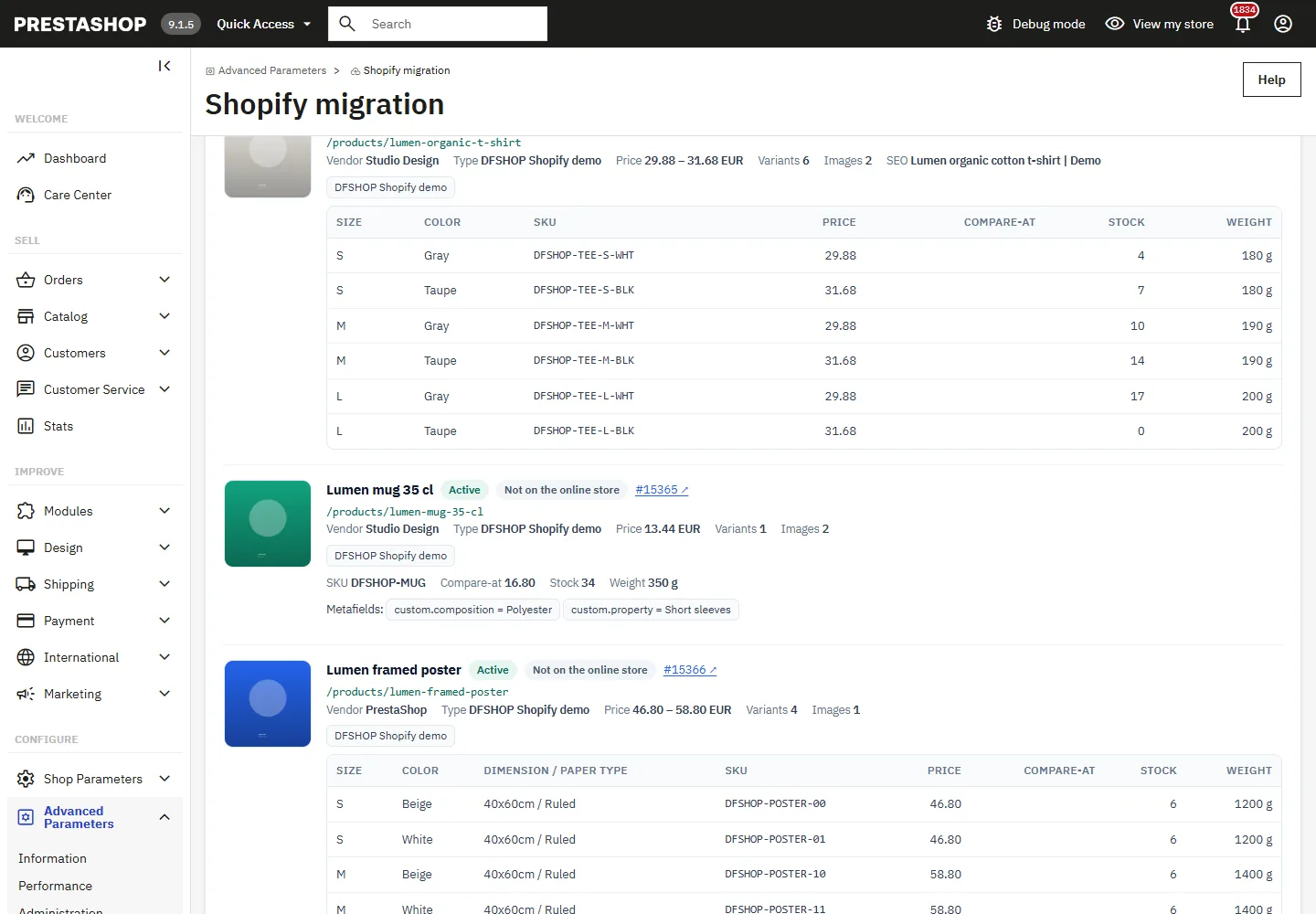
The preview reads 8 products with your settings, exactly as they will be sent: handle, status, vendor, type, tags, options and variants (SKU, price, compare-at price, stock, weight), images, metafields and the problems found. Shopify CSV of these products downloads the file of the products shown. Nothing is sent to Shopify.
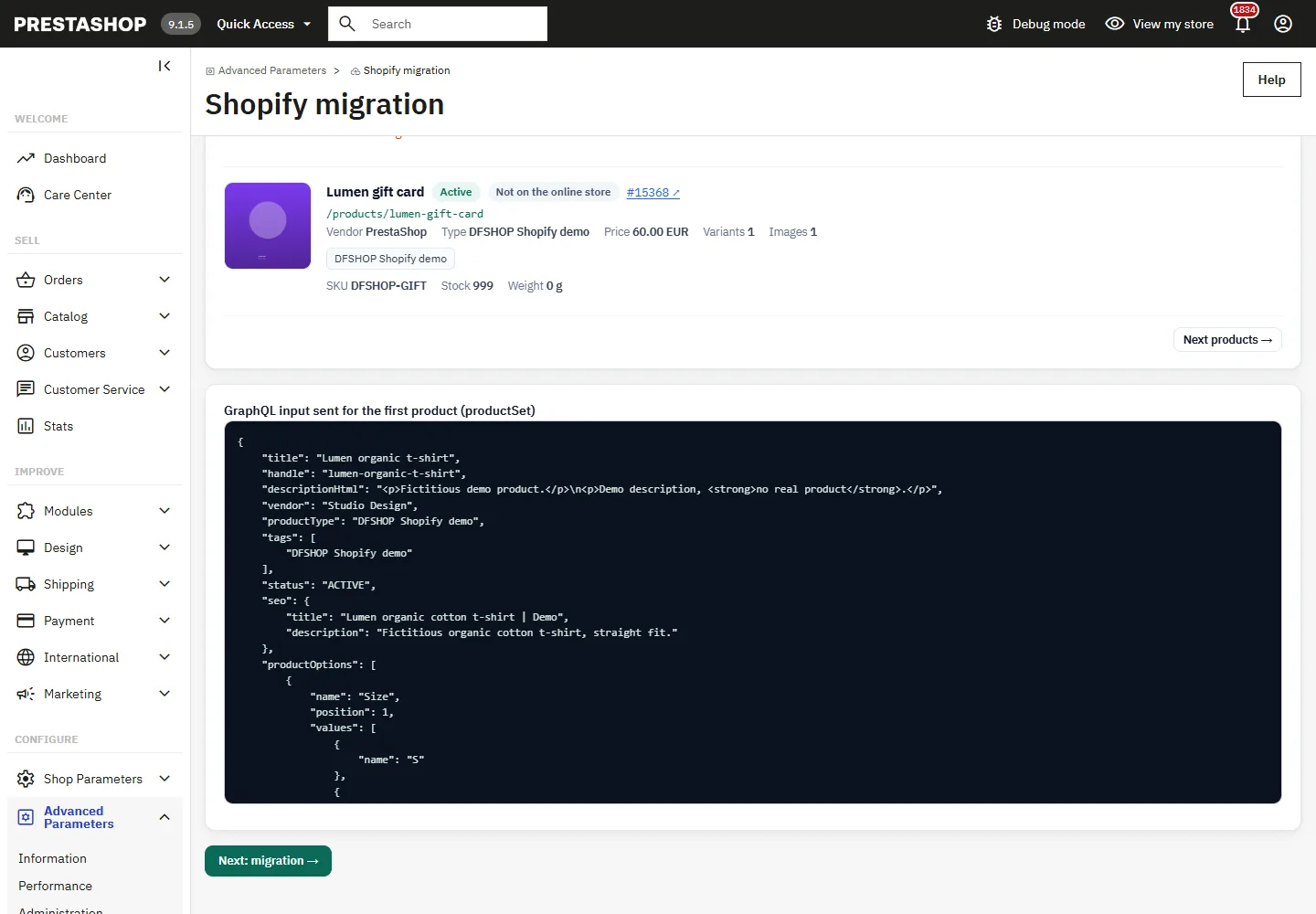
In API mode, the GraphQL input sent for the first product (productSet) is shown as well.
Step 5: migration
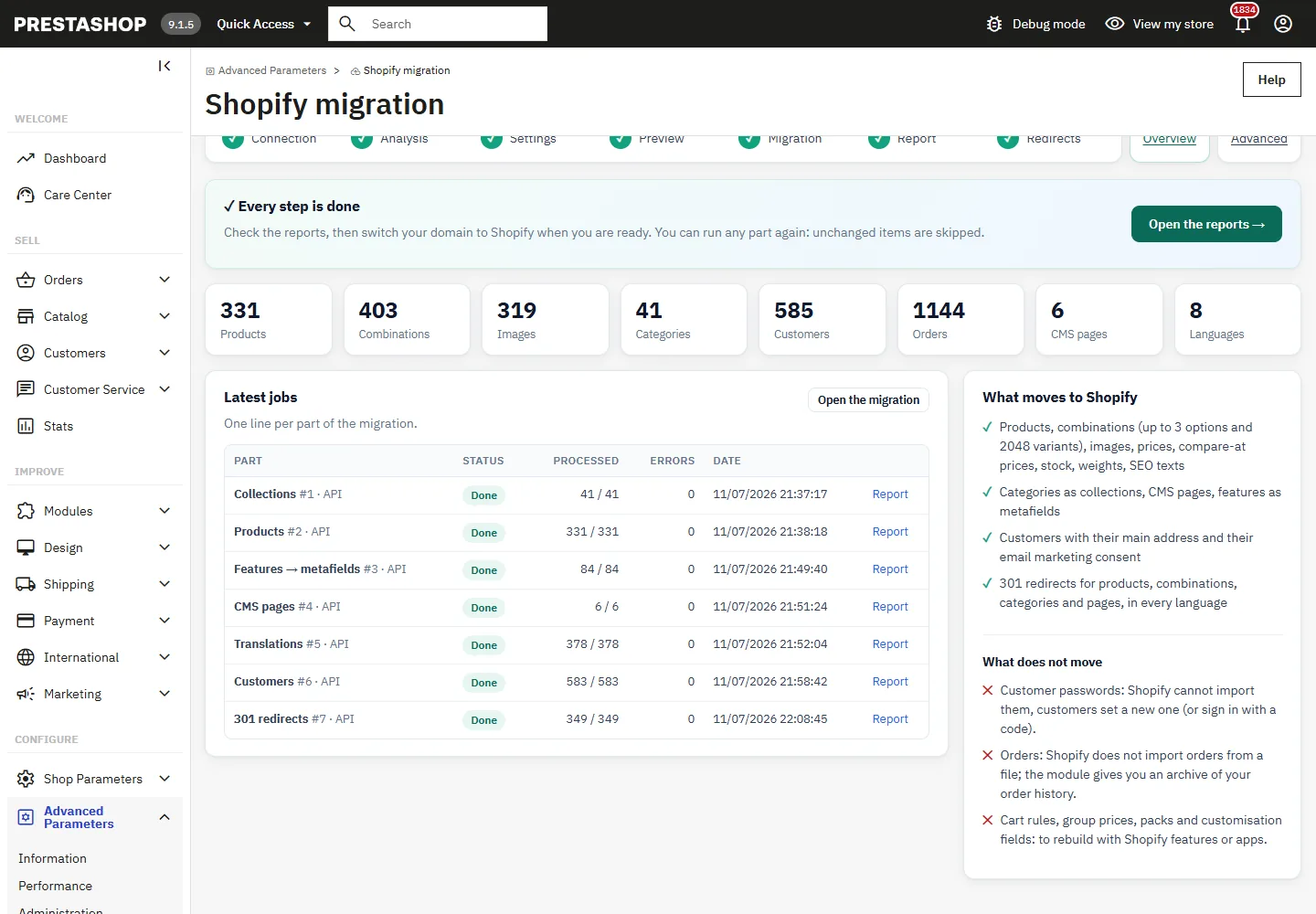
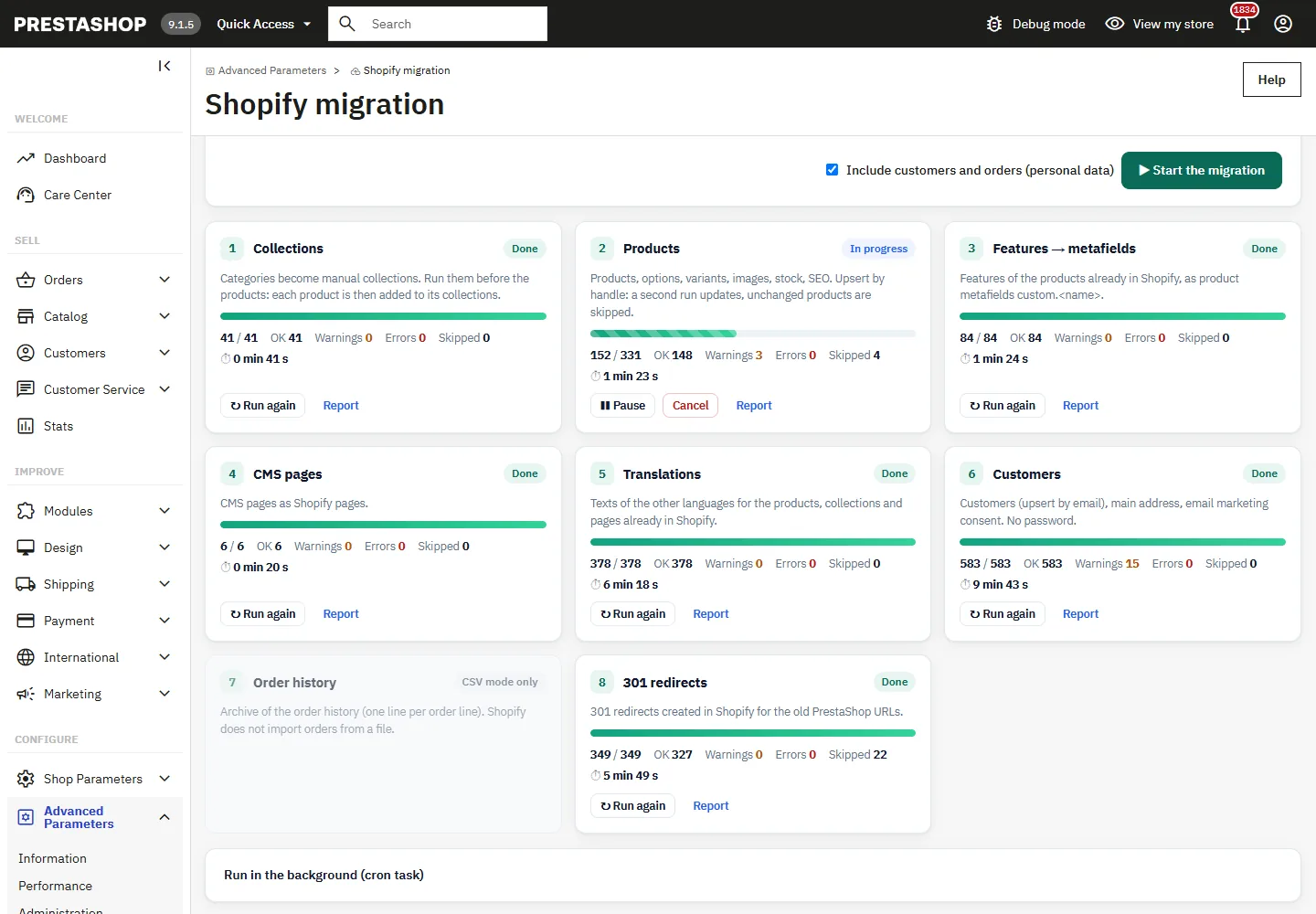
One card per part, in the recommended order: collections, products, features → metafields, CMS pages, translations, customers, order history, 301 redirects. Start the migration creates every job; the customers and orders (personal data) can be left out.
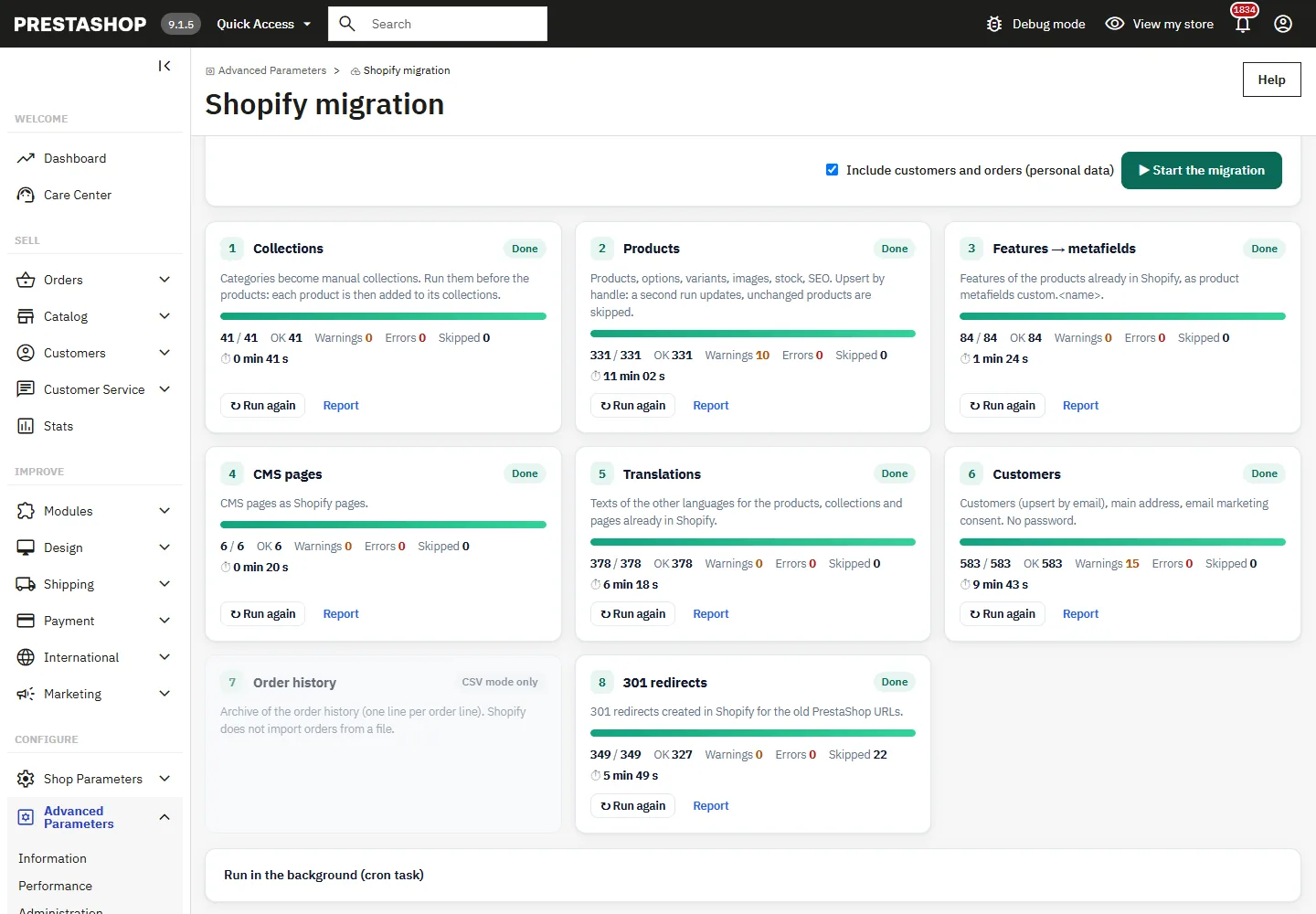
- The jobs run in this page, batch after batch (about 8 seconds per call) with live progress. Keep the page open, or add the optional cron task (Advanced page) to continue in the background.
- Pause, Resume and Cancel at any time; a job stopped on an error resumes where it was. Retry the errors sends only the items in error again.
- Each item is processed by increasing id: a resumed job neither skips nor repeats items. A job is never processed by the browser and the cron at the same time.
- API mode: the module reads the query cost returned by Shopify and waits when the bucket is low; rate limit (THROTTLED, HTTP 429) and server errors are retried a limited number of times; an invalid token stops the job at once.
What each part sends
| PrestaShop | CSV mode | API mode |
|---|---|---|
| Categories | reference file: automated collection rule by product tag (Shopify has no collection import) | manual collections, products linked by the product job; an existing collection with the same handle is reused |
| Products, combinations, images | Shopify product import file (official columns) | productSet, upsert by id or handle; unchanged products are skipped |
| Features | metafield columns Name (product.metafields.custom.key): create the definitions in Shopify first |
definitions created, values written with metafieldsSet |
| CMS pages | copy of the pages to paste (Shopify has no page import) | Shopify pages |
| Other languages | — | Shopify translations |
| Customers | Shopify customer import file | upsert by email, main address, email marketing consent |
| Orders | archive file (Shopify does not import orders from a file) | — |
| URLs | Shopify redirect import file | URL redirects created in Shopify |
Combinations: Shopify accepts 3 options and 2048 variants per product. With more than 3 attribute groups, the 3rd group and the next ones are merged into option 3 (for example “Material / Finish” = “Wood / Matt”): no value is lost. Two combinations with the same attributes cannot both exist in Shopify: only the first one is exported and the other is reported.
Importing the CSV files in Shopify
- Products > Import: choose the product file. Tick “Overwrite products with matching handles” only to update products already imported: with this option, empty columns overwrite the values in Shopify. Files over 15 MB (Shopify limit) are offered in several parts, without splitting a product.
- Customers > Import with the customer file.
- Online Store > Navigation > URL redirects > Import with the redirect file, once the handles are final.
Customers: passwords and consent
- Passwords cannot be migrated: they are encrypted and Shopify cannot import them. Your customers create a new password, or sign in with a code with the new customer accounts. Plan an email to tell them.
- Email marketing: only the customers who ticked the PrestaShop newsletter box are migrated as subscribed (single opt-in, with the subscription date). The “partner offers” box is not a consent to your own emails and is not used. SMS and WhatsApp marketing are set to “no”.
- The phone number of the address is rebuilt in international format with the calling code of the country; a number that cannot be rebuilt safely is left out and reported. The customer-level phone stays empty (Shopify requires it to be unique).
Step 6: report
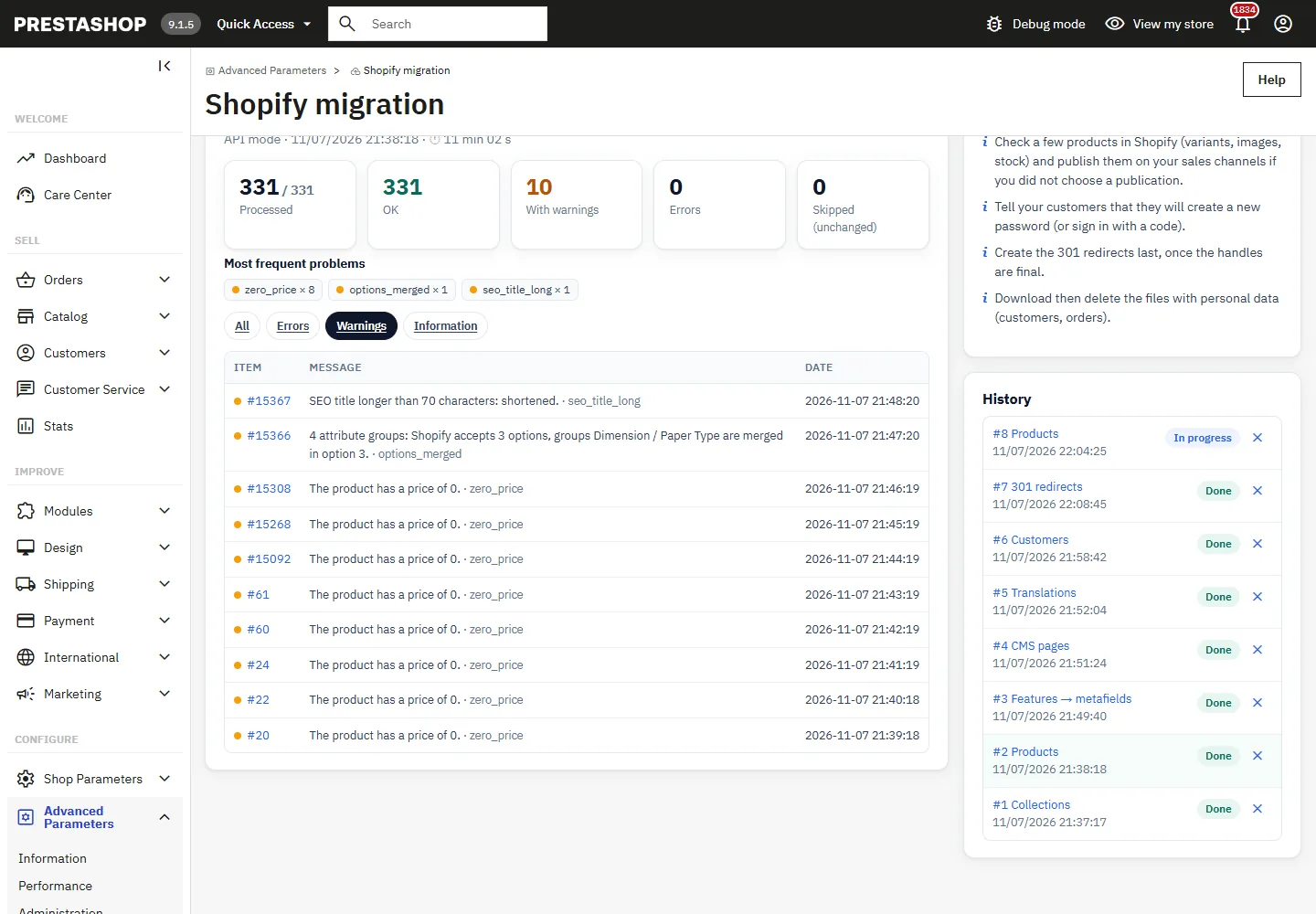
For each job: processed items, OK, with warnings, errors and skipped (unchanged), the most frequent problems, and a log you can filter (errors, warnings, information), in the language of the employee, with a link to the PrestaShop product. Error report (CSV) exports the problems for a spreadsheet.
Step 7: 301 redirects
The preview shows the old PrestaShop path and the new Shopify path for a few items. The redirects cover the active products and the URL of each combination (to the product, with the variant selected in API mode), the categories, the CMS pages and optionally the brands, in every selected language, with the translated handles when the translations were sent.
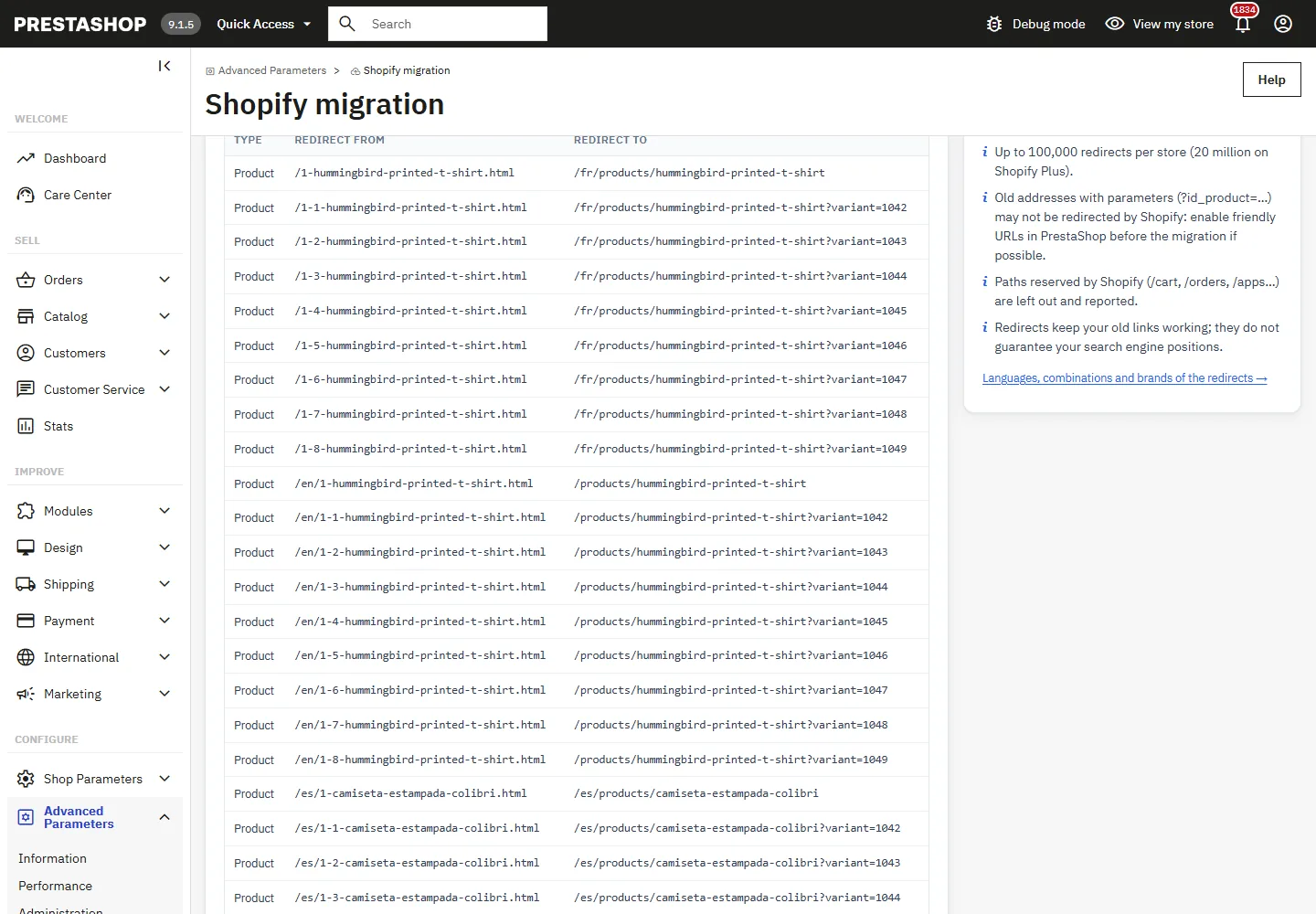
- Shopify applies a redirect only when nothing exists at the old address on the Shopify store.
- Up to 100,000 redirects per store (20 million on Shopify Plus).
- Old addresses with parameters (
?id_product=…) may not be redirected by Shopify: enable friendly URLs in PrestaShop before the migration if possible. - Paths reserved by Shopify (
/cart,/orders,/apps…) are left out and reported. - Redirects keep your old links working; they do not guarantee your search engine positions.
Security and personal data
- Generated files are stored outside the module, in
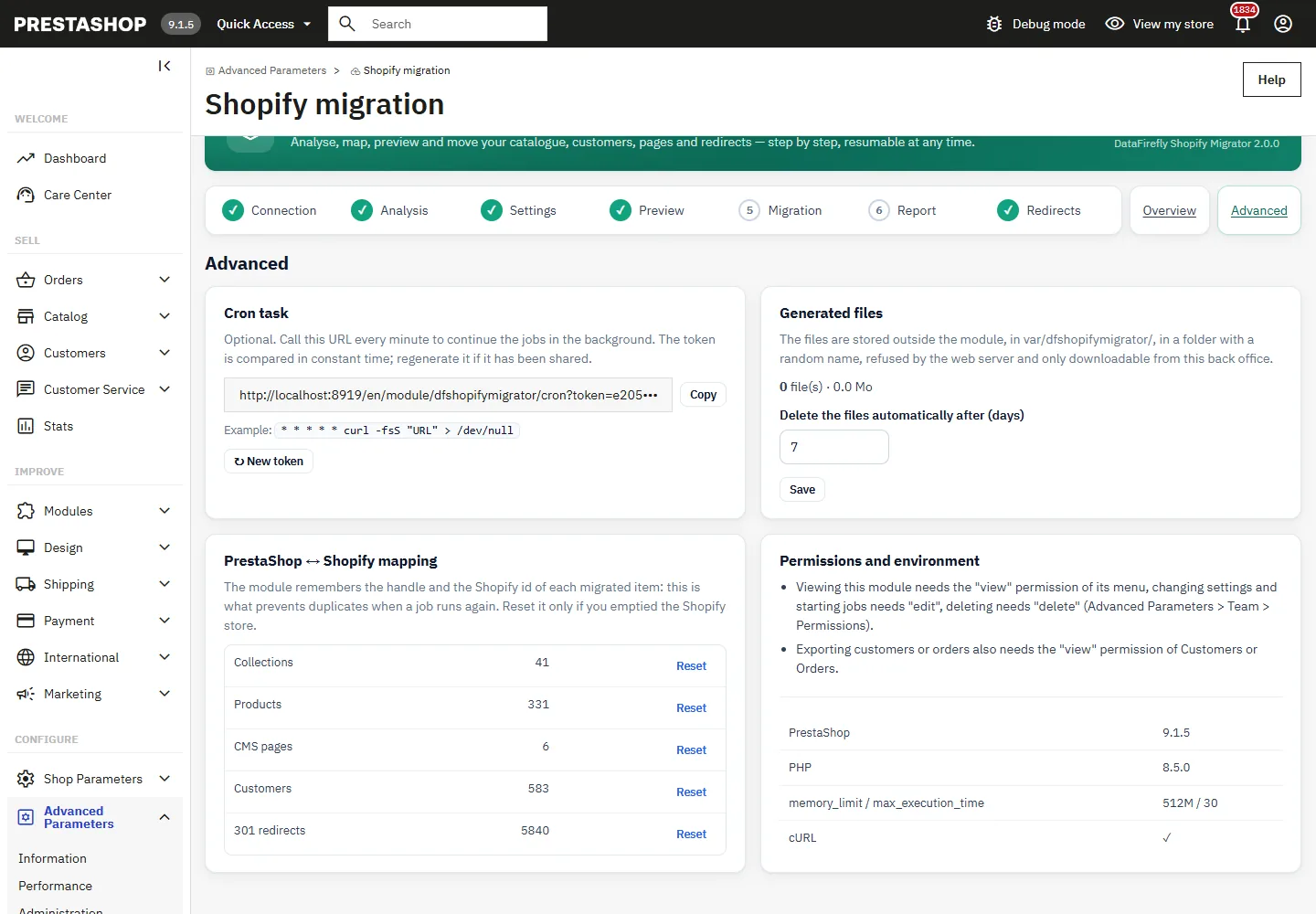
var/dfshopifymigrator/, in a folder with a random name, refused by the web server, with random file names. They can only be downloaded from the back office and are deleted automatically after the retention period (7 days by default, Advanced page). - The Shopify token and client secret are encrypted with the key of your shop, never displayed again and masked in every log.
- Permissions (Advanced Parameters > Team > Permissions): “view” to open the module, “edit” to change the settings and start jobs, “delete” to delete jobs and files. Exporting customers or orders also needs the “view” permission of Customers or Orders.
- The cron URL contains a random token compared in constant time; regenerate it if it has been shared.
- The mapping PrestaShop ↔ Shopify (handle and Shopify id of each item) is what prevents duplicates when a job runs again: reset it only if you emptied the Shopify store.
Troubleshooting
“Shopify refused the access token (HTTP 401)”
The token is wrong or the app was uninstalled. In client credentials mode, save the client secret again: the module requests a new token. The job stops at once and can be resumed after the fix.
“Shopify refused the client credentials”
Check the client ID and secret, and that the app is installed on a store of the same organization (shop_not_permitted).
A scope is shown in red after the connection test
Add the scope to the app, approve it on the store, then test the connection again. A missing scope only blocks the part that needs it.
Products arrive in Shopify without images
Shopify downloads the images from their URL: check in the analysis that the public address of the images is reachable in https from the internet, and that the image files exist on the server.
Limitations
- Not migrated: customer passwords (impossible), orders into Shopify (archive file only), cart rules, group, customer and quantity prices, pack contents, customisation fields, files of downloadable products, product reviews.
- One source shop and the default currency per job; tags cannot be translated in Shopify.
- Check the result on a Shopify development store before migrating your production store.
Frequently asked questions
Can I run a part again?
Yes. In API mode, unchanged items are skipped and changed items are updated; nothing is created twice. In CSV mode, a new file is generated.
Can I migrate without an access key?
Yes, with the CSV mode. Collections, pages and translations then need the API mode or a manual step in Shopify.
Is PrestaShop 1.7.8 supported?
Yes. Version 2.0.0 was tested on PrestaShop 1.7.8.11 (PHP 7.4), 8.2.1 (PHP 8.1) and 9.1.5 (PHP 8.5).