
dfsearchconsole — Google Search Console for PrestaShop
Installation, 5-step Google connection, sync, dashboard, SEO opportunities, settings and upgrade from 1.x.
Overview
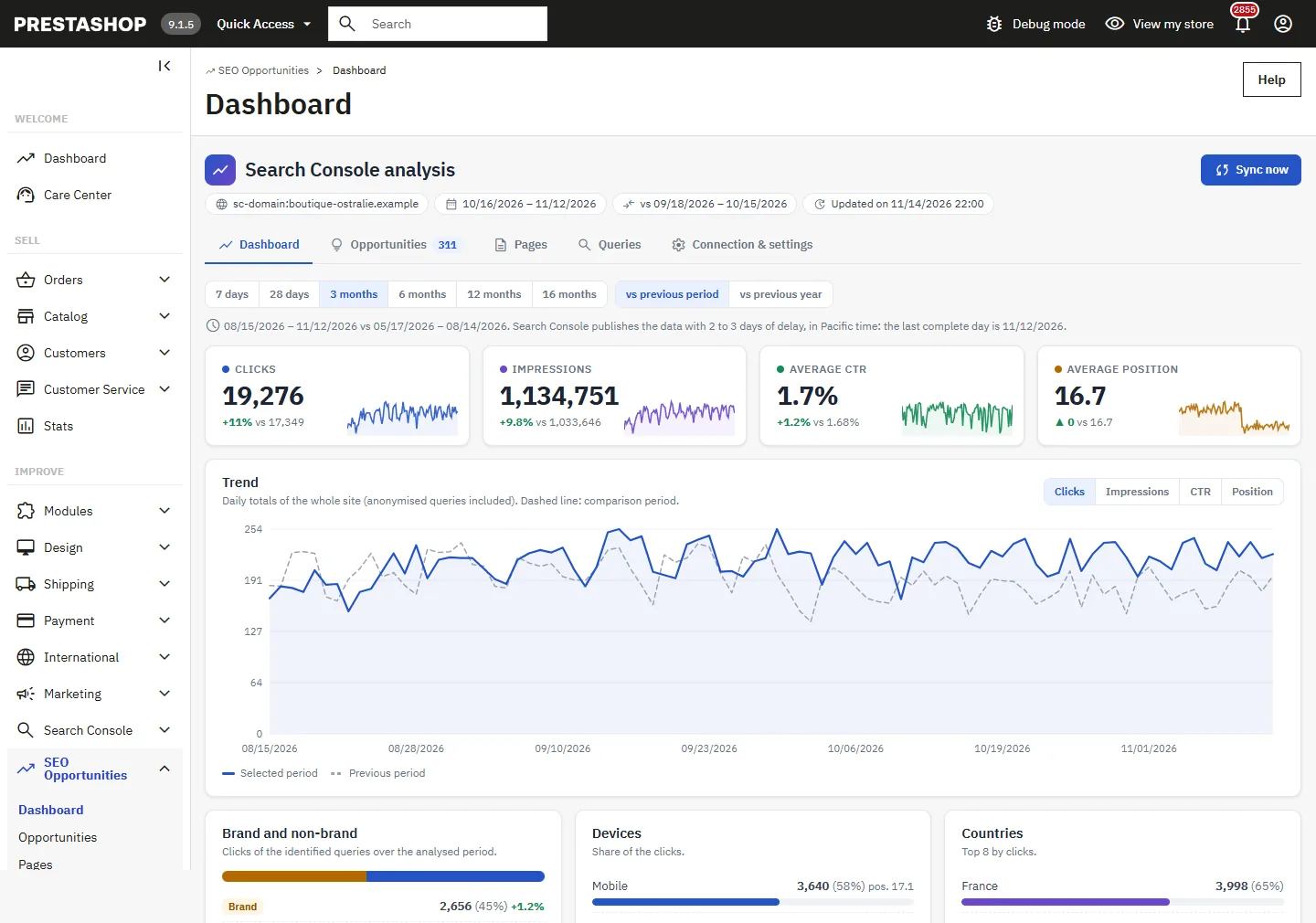
DataFirefly – Search Console imports Google Search Console data into the PrestaShop 1.7.8, 8 and 9 back office: clicks, impressions, CTR and average position per page and per query, comparison with the previous period or the previous year, share of brand searches, devices and countries. From this data, the module lists SEO opportunities calculated with explicit rules, shown on screen, and links each URL to the corresponding product, category or CMS page, with a link to edit it.
The module adds the Improve → SEO Opportunities menu with five tabs: Dashboard, Opportunities, Pages, Queries and Connection & settings. Access to Google is read-only (webmasters.readonly) and uses your own Google Cloud OAuth client.
This module is neither affiliated with nor endorsed by Google. Google Search Console is a trademark of Google LLC. The module does not forecast any gain in clicks or position: it measures and ranks, and the results depend on Google and on your competitors.
Installation
- Download
dfsearchconsole-2.0.0.zipfrom your DataFirefly customer account. - In the back office: Modules → Module Manager → Upload a module, then choose the file.
- Open Improve → SEO Opportunities → Connection & settings.
The module creates its own ps_dfsrch_* tables, its DFSRCH_* configuration keys and its AdminDfSrch* tabs. It shares no table, key or tab with the DataFirefly Search Console Connect module (dfgscconnect): the two can be installed together and uninstalled separately.
Requirements: PrestaShop 1.7.8 to 9.x, PHP 7.4 to 8.5 (tested on PHP 7.4, 8.1 and 8.5), cURL and OpenSSL extensions, a verified property in Google Search Console.
Connecting to Google
The Connection & settings tab provides a five-step Connection wizard. Allow about ten minutes the first time.
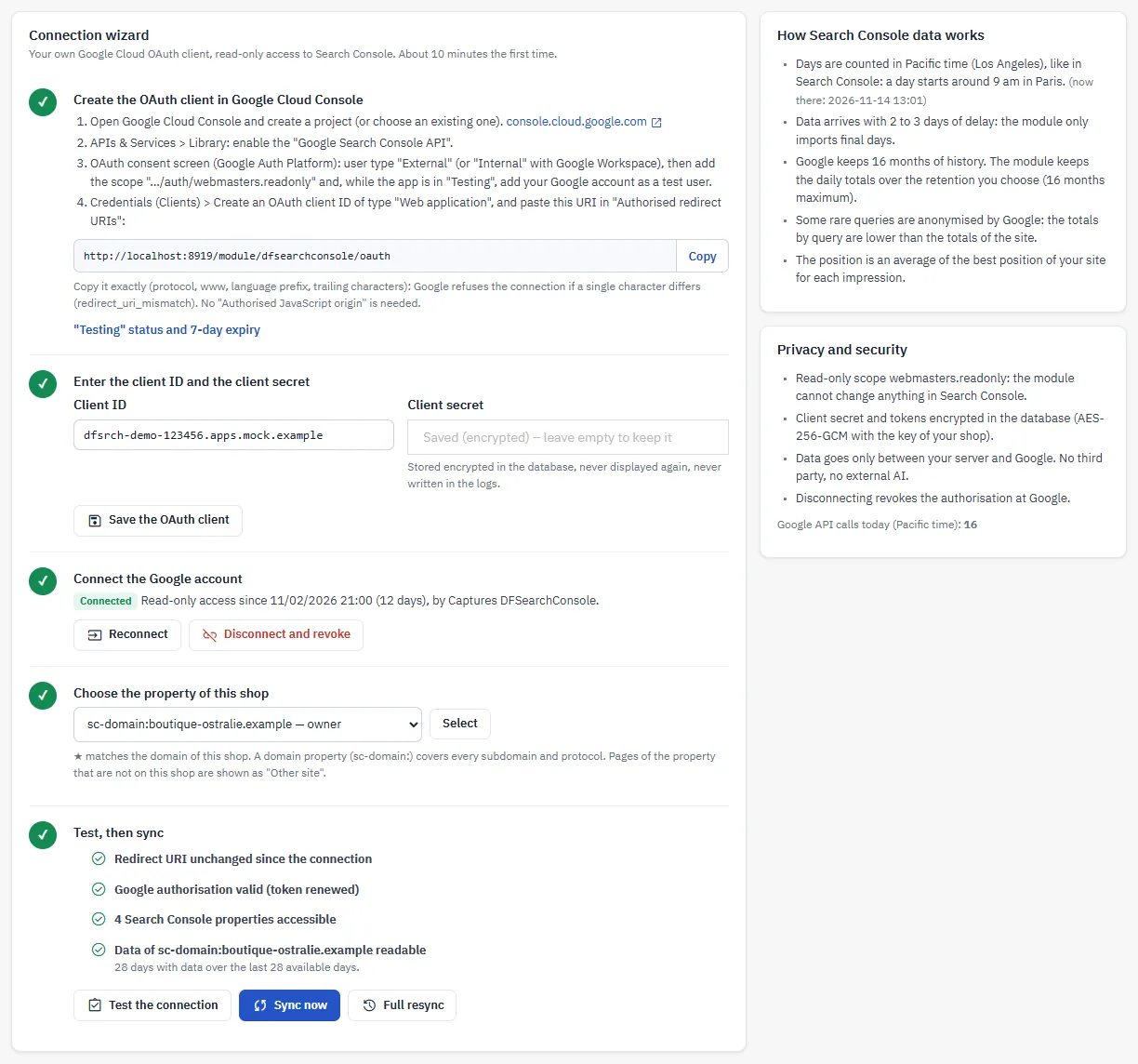
1. Create the OAuth client in Google Cloud Console
- On console.cloud.google.com, create a project (or choose an existing one).
- APIs & Services → Library: enable the Google Search Console API.
- OAuth consent screen (Google Auth Platform): user type External (or Internal with Google Workspace), add the scope
https://www.googleapis.com/auth/webmasters.readonlyand, while the app is in “Testing” status, add your Google account as a test user. - Credentials (Clients): create an OAuth client ID of type Web application and paste the URI shown by the module (Copy button) into Authorised redirect URIs.
The URI must be identical down to the last character (protocol, www, language prefix). Otherwise Google shows the error redirect_uri_mismatch. No authorised JavaScript origin is needed. If the domain, HTTPS or the default language of the shop changes, the URI changes too: the module points this out and you have to declare it again.
2. Enter the client ID and the client secret
Paste the Client ID and the Client secret, then click Save the OAuth client. The secret is stored encrypted and is never displayed again; leave the field empty to keep it when you make a change.
3. Connect with Google
Connect with Google opens the Google consent screen. Tick the Search Console access box: without it, the module refuses the connection and explains why. The request is single-use, tied to the employee and the shop, and protected by PKCE; the code exchange takes place in the back office.
“Testing” status of the Google Cloud app: Google invalidates the authorisation after 7 days. The module then shows Google connection to renew on all its pages; click Reconnect. To avoid these reconnections, set the app to “In production” in the OAuth consent screen; Google may then ask for a verification of the app.
4. Choose the property of this shop
The list shows the properties accessible with your account and your access level. The one matching the shop’s domain is marked with a star. A domain property (sc-domain:) covers all subdomains; pages that are not on the shop appear as “Other site”. If you change property, the data of the previous one is deleted.
5. Test, then sync
Test the connection checks the redirect URI, the Google authorisation (token renewed), the property list and the reading of the data for the last 28 days. Sync now starts the first sync with a progress bar.
Synchronisation
The first sync imports the daily totals of the last 16 months, then the pages and queries of the analysed period (7, 28, 90 or 180 days) and of the previous period of the same length, the devices and the countries. It proceeds in steps: the screens keep showing the last complete data until it finishes. Full resync re-imports everything, even when there is no new day.
- Days are counted in Pacific time (Los Angeles), as in Search Console.
- Data arrives with 2 to 3 days of delay; the module only imports final days.
- After that, only the missing days are imported. If no new day is available, the analysis is not recalculated.
- Google anonymises some rare queries: the totals per query are lower than the site totals.
- Google quota (error 429) or unavailability (5xx errors): the module retries with an increasing wait, then puts the sync on hold; it resumes at the same step on the next run (Sync on hold).
- Large catalogues: the import is done in pages of 25,000 rows, within the limit of Rows imported per period.
Automatic sync (cron)
Call the URL shown in Automatic sync (cron) every hour. It does nothing while the data is up to date, resumes a sync on hold and stops after about fifty seconds. A lock prevents two simultaneous runs.
7 * * * * curl -fsS "https://votre-boutique.example/module/dfsearchconsole/cron?token=…" >/dev/null 2>&1The URL is specific to each shop and acts as a password: only employees allowed to edit the tab can see it. Generate a new URL invalidates the previous one immediately. The response only contains a status, never any data.
Dashboard
Choose the period (7 days to 16 months) and the comparison (vs previous period or vs previous year). The four indicators (clicks, impressions, average CTR, average position) and the chart come from the site’s daily totals, anonymised queries included; the dotted line represents the comparison period.
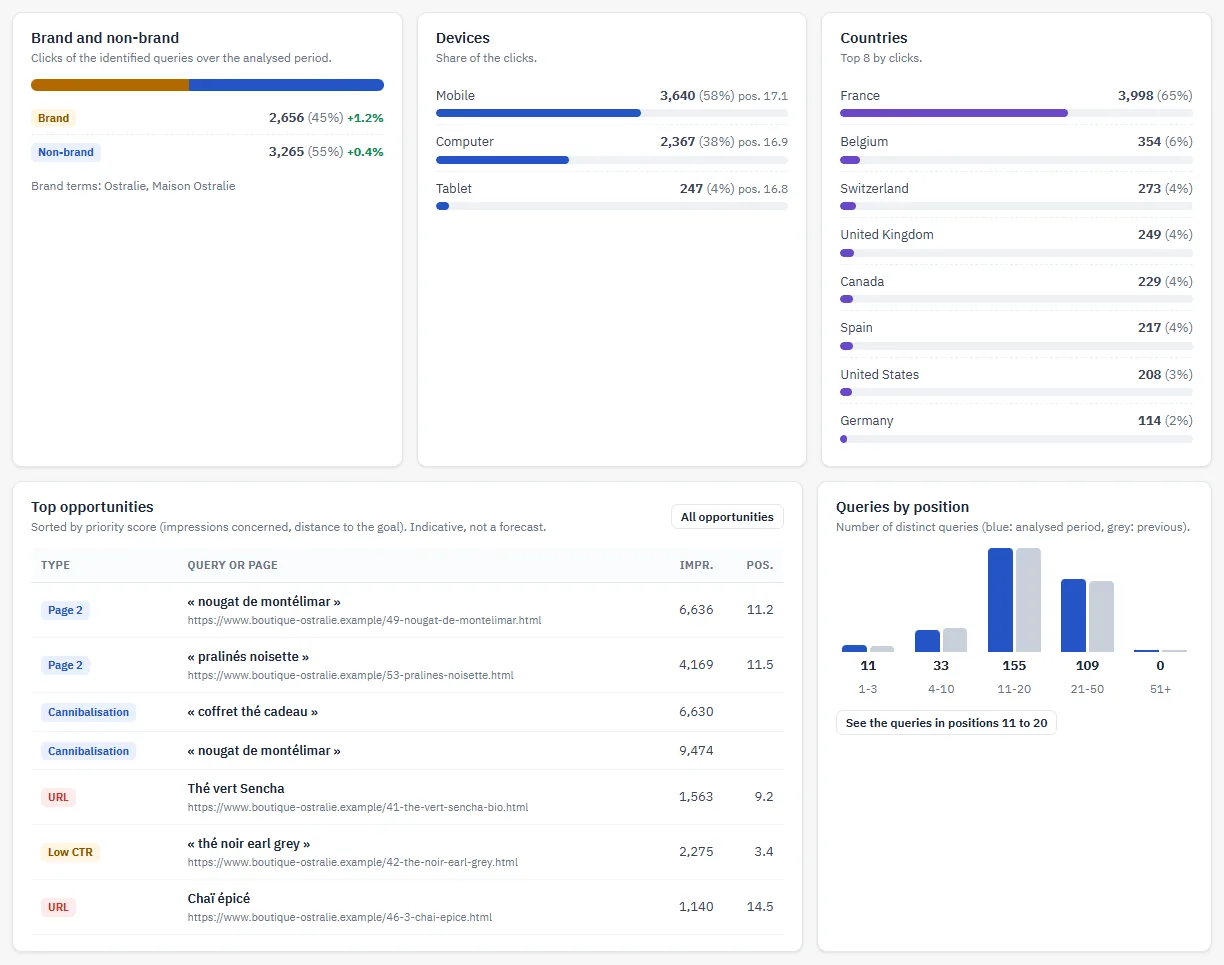
Below the chart: Brand and non-brand (based on the brand names entered in the settings), Devices, Countries, Top opportunities, Queries by position (1-3, 4-10, 11-20, 21-50, beyond), and the pages gaining or losing the most clicks.
Opportunities
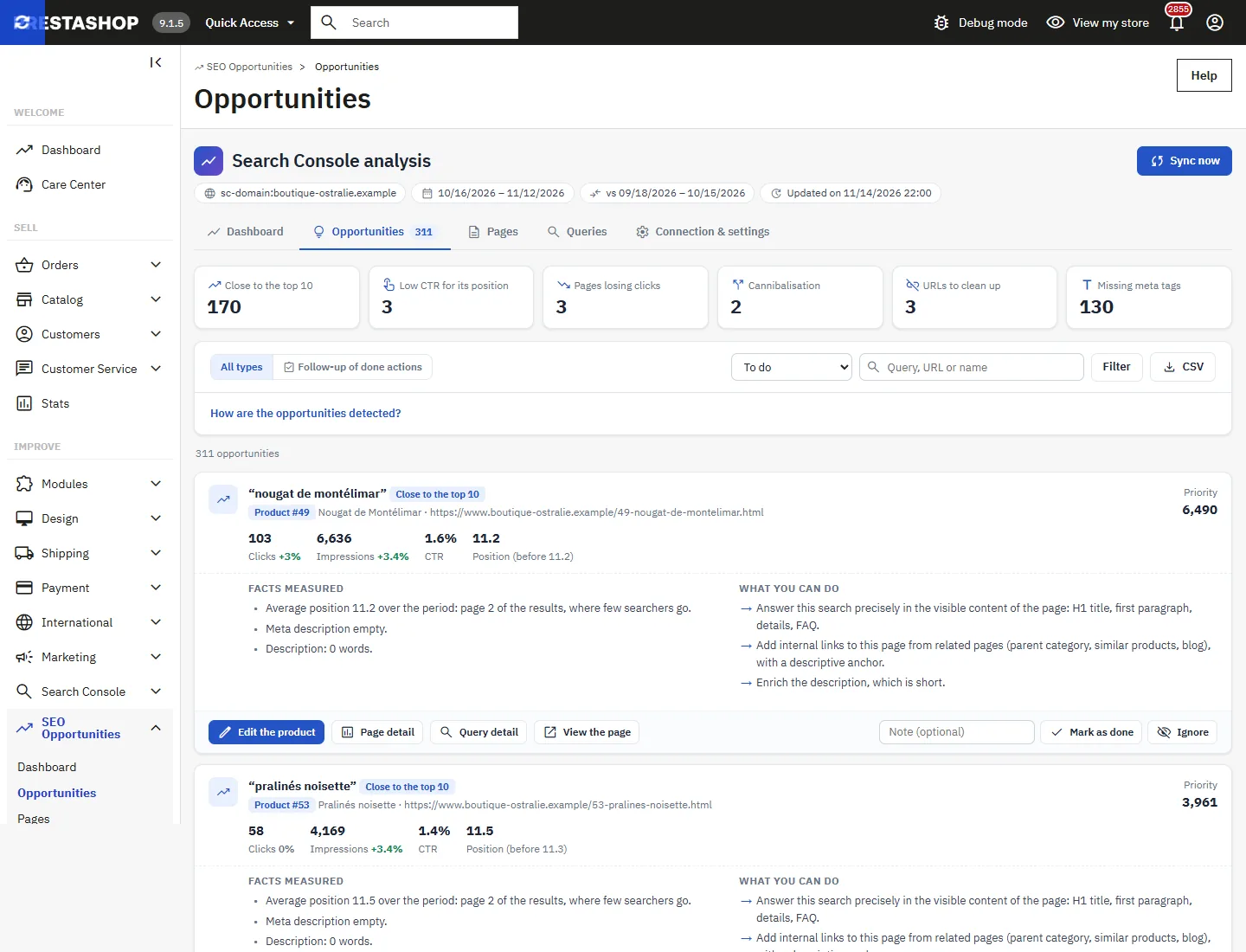
After each sync, the module calculates six types of opportunities. The rule of each type, with your thresholds, is shown at the top of the list (How are the opportunities detected?).
| Type | Rule (default thresholds) |
|---|---|
| Close to the top 10 | Non-brand query at an average position of 11 to 20, at least 50 impressions over the period. |
| Low CTR for its position | Non-brand query in the top 10 whose CTR is below 50% of the median CTR of your own non-brand queries at the same position. If your shop has fewer than 8 comparable queries, an indicative reference curve is used and flagged. |
| Pages losing clicks | Page that lost at least 30% of its clicks (and had at least 20); probable cause deduced from the position, the impressions and the CTR, or page unavailable. |
| Cannibalisation | Non-brand query for which at least two different objects each receive 15% of the impressions or more. URLs of the same product or category (combinations, pagination, parameters) are grouped together. |
| URLs to clean up | URL seen by Google that is not the current URL of its object: old URL, combination URL, tracking parameters, deleted or disabled product or page. |
| Missing meta tags | Product, category or CMS page at position 20 or better whose meta title or meta description is empty in the language of the URL. |
Each card shows the Facts measured (positions before and now, median CTR used for comparison, words of the query missing from the meta title, length of the description…) and What you can do, with a button to edit the product, the category or the CMS page.
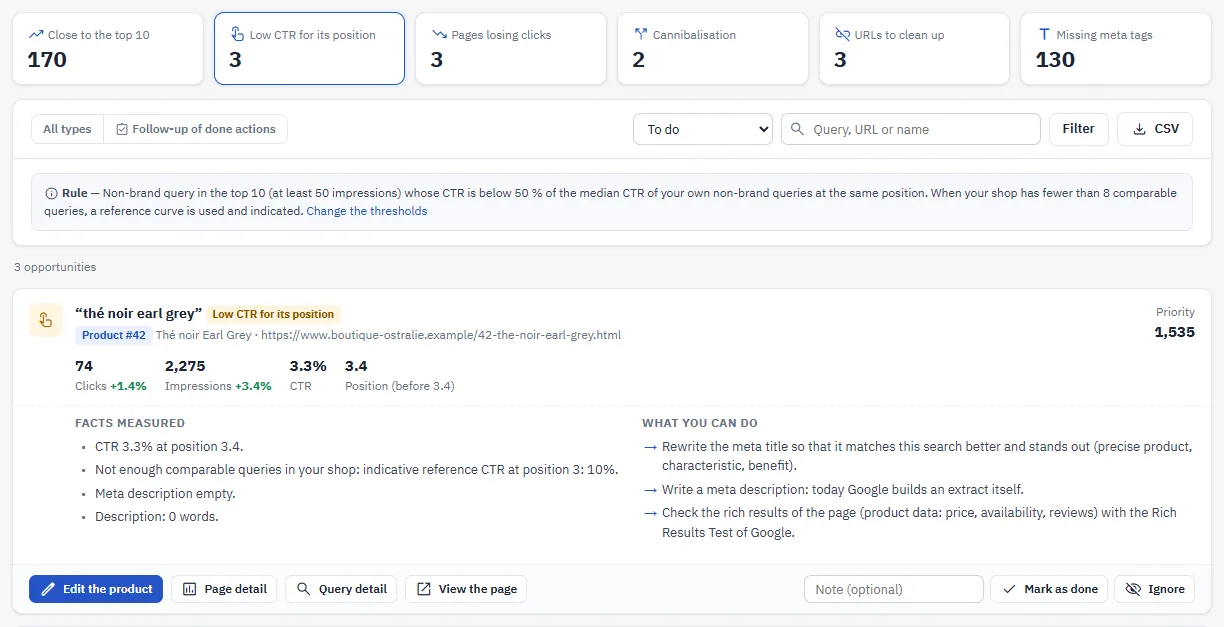
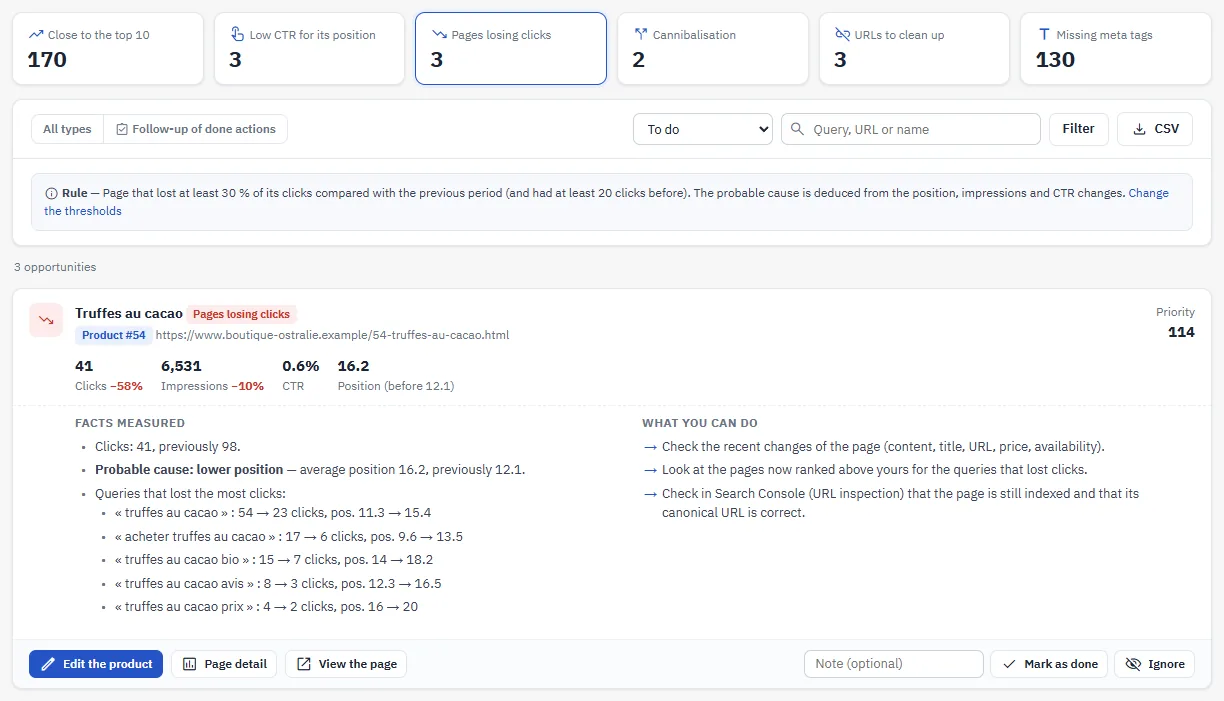
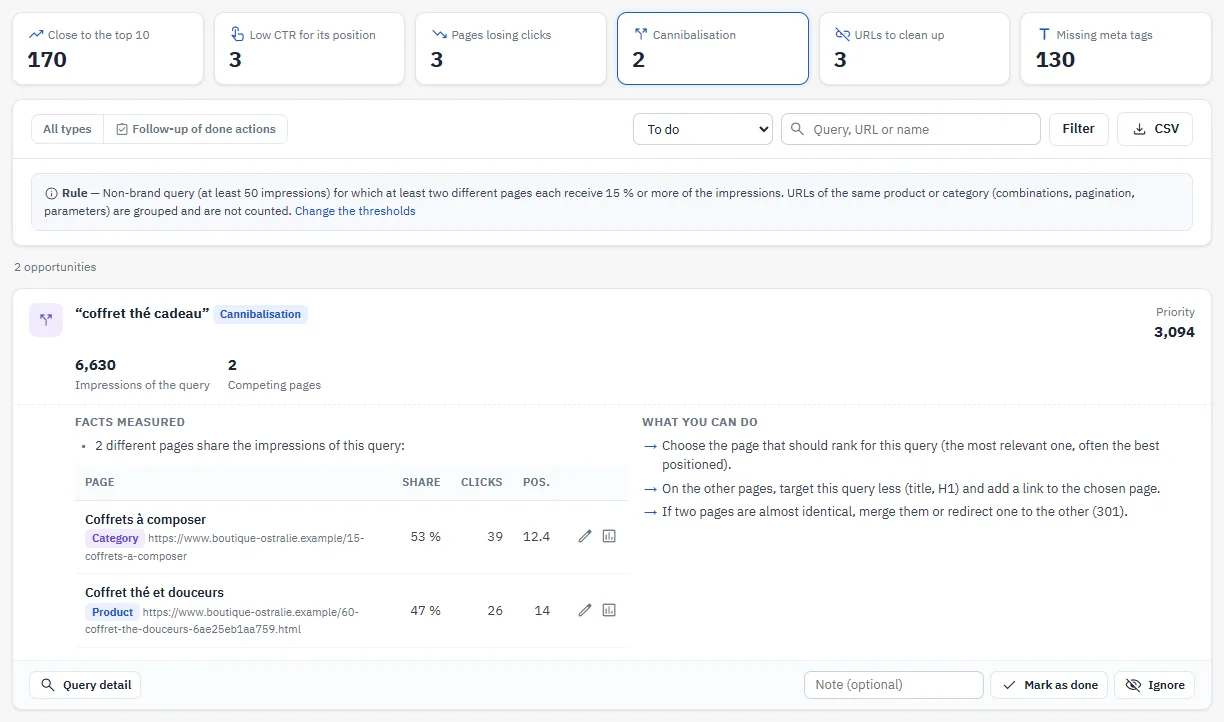
The Priority is only used to sort the list (impressions concerned and distance to the target); it is not a forecast. Mark as done (with an optional note) keeps the current metrics: the Follow-up of done actions tab compares them with the following syncs. Ignore removes the opportunity from the To do list; Reopen puts it back. These statuses are kept from one sync to the next.
The opportunities are recalculated as soon as you change a threshold or the brand names, without any new call to Google. The lists and the CSV export follow the filters shown.
Pages
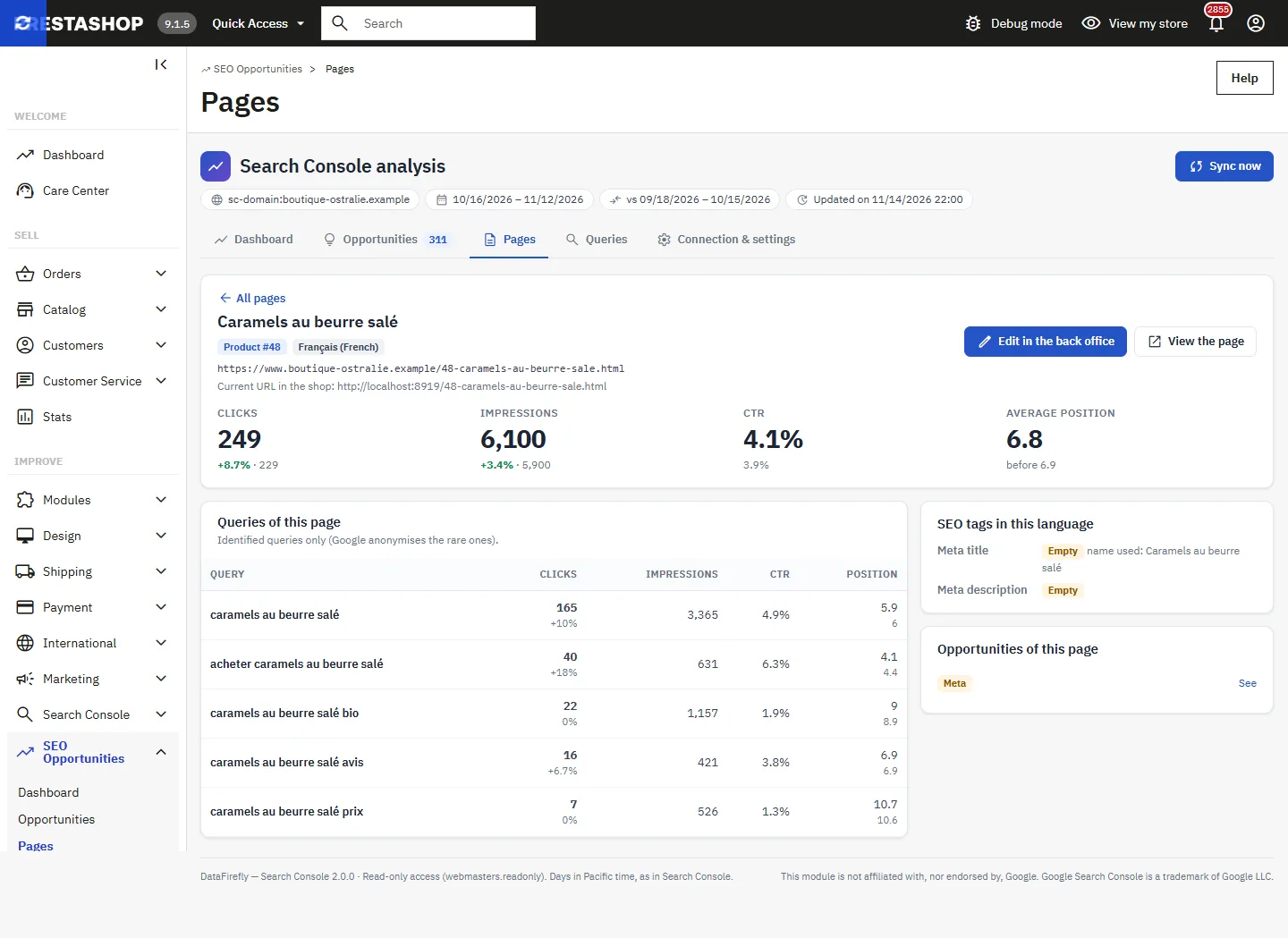
Each URL seen by Google is matched with its PrestaShop object using your shop’s URL rules (including custom rules), the language, the combinations and the parameters. Filters: type (product, category, CMS page, brand, supplier, home page…), trend (gaining, losing, new, no longer seen) and remark (Not the current URL, Combination URL, parameters, Deleted object, Disabled, Other site).
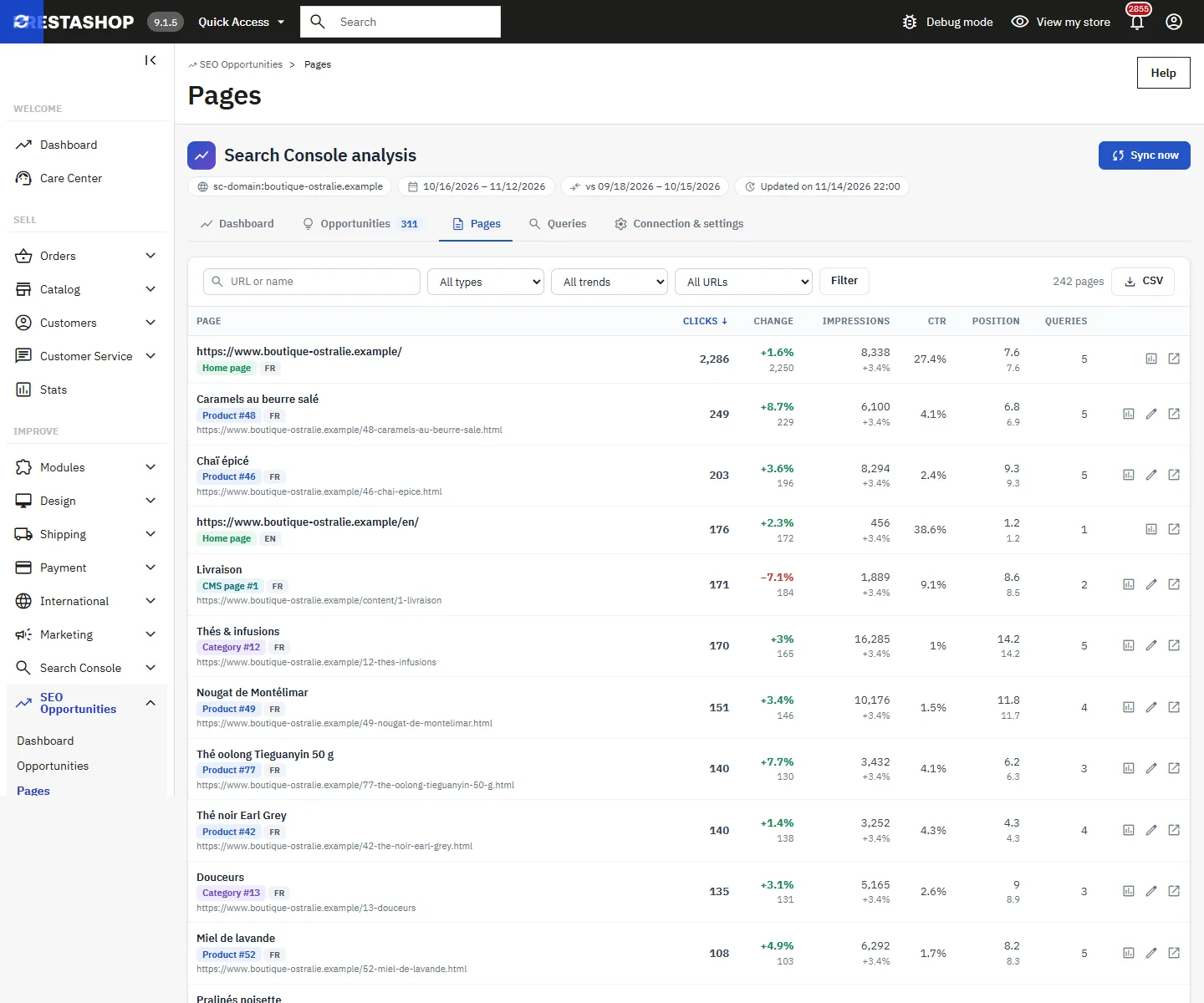
The Page detail shows the compared indicators, the queries of the page, the SEO tags in the language of the URL and the opportunities that concern it.
Queries
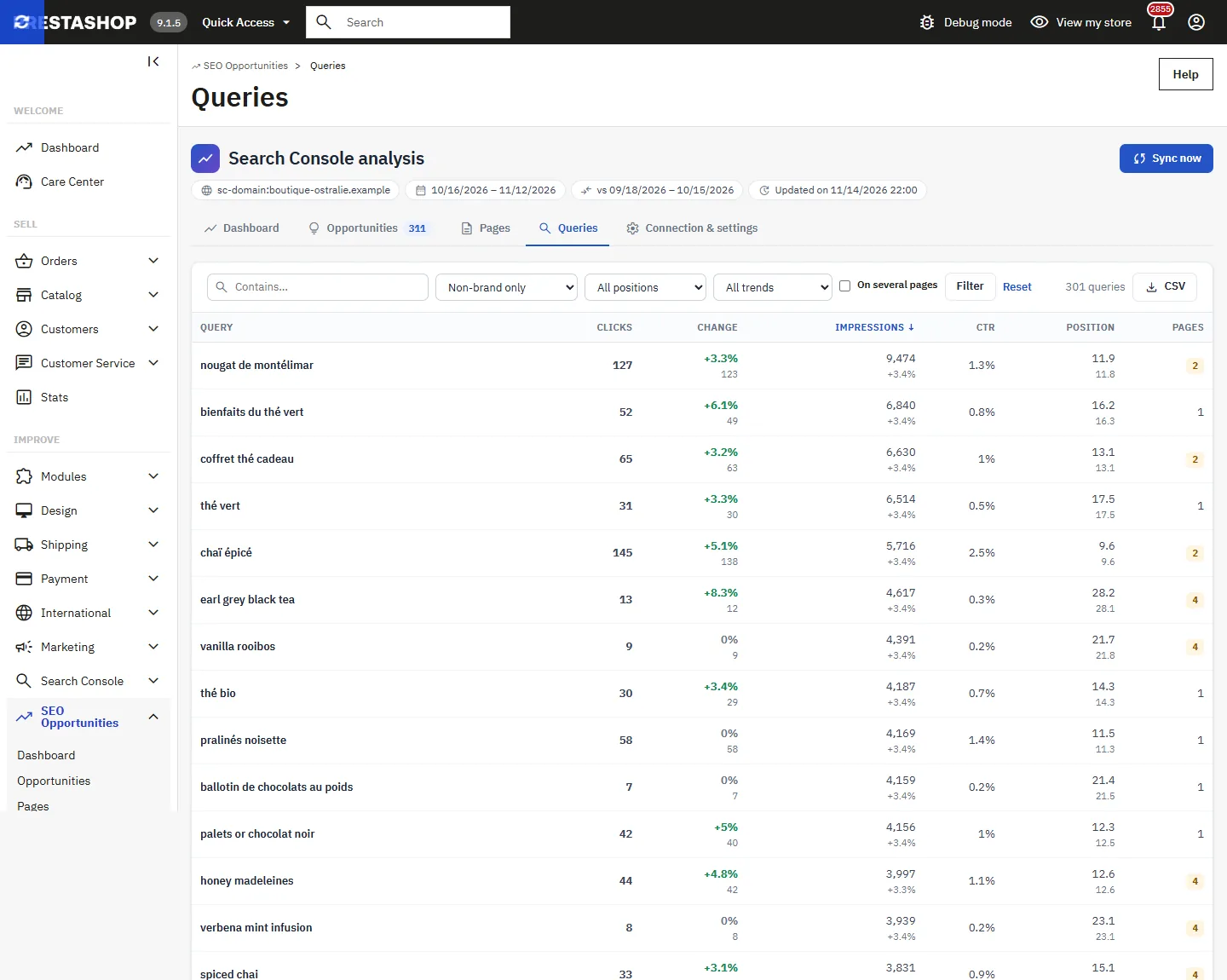
Queries are grouped across all pages. Filters: brand or non-brand, position range (top 3, 4 to 10, 11 to 20, beyond), trend and On several pages. The Query detail lists the pages that appear for this query.
Analysis settings
| Setting | Default | Effect |
|---|---|---|
| Analysed period | 28 days | 7, 28, 90 or 180 days, compared with the previous period of the same length. Applies from the next sync. |
| Minimum impressions | 50 | Below this, a query or a page is not an opportunity. |
| “Close to the top 10” positions | 11 to 20 | Position range of the “Close to the top 10” rule. |
| Low CTR threshold (% of your median) | 50 | CTR below this percentage of the median CTR at the same position. |
| Page losing clicks | 30% and 20 clicks | Minimum loss and minimum number of clicks over the previous period. |
| Cannibalisation: minimum share per page (%) | 15 | Share of the impressions that each page must receive. |
| Rows imported per period | 100,000 | Maximum number of page × query rows per period (5,000 to 1,000,000). |
| Daily history kept (months) | 16 | Older days are deleted at each sync. |
| Brand names | empty | Separated by commas (accents and capitals ignored). Brand queries are excluded from the opportunities and from the median CTR used for comparison. |
Permissions, multistore and security
- PrestaShop permissions per tab: view lets you consult and export to CSV; edit lets you connect, sync, adjust settings and change statuses; delete lets you erase the imported data. An employee with view-only access sees the fields greyed out and does not see the cron URL. All actions go through a form protected by a security token.
- Multistore: connection, property, cron URL, settings and data are specific to each shop. Select a shop in the shop selector; the “All shops” context shows Select a shop.
- Client secret, OAuth tokens and cron token are encrypted with AES-256-GCM using your shop’s key; they never appear in the pages or in error messages.
- Data goes only between your server and Google. No third party, no external AI.
Troubleshooting
“Google connection to renew”
Google refuses the saved authorisation: revoked, expired, or app in “Testing” status (7 days). Click Reconnect. The data already imported stays available.
“The Google Search Console API is not enabled”
Enable the Google Search Console API in APIs & Services → Library of the project, wait a few minutes, then try again.
This Google account has no access to the property
Add the account as a user of the property in Search Console (Settings → Users and permissions), or choose another property.
Sync on hold
Google is temporarily limiting requests (quota) or is unavailable. The sync resumes with the next cron run, or straight away with Resume now.
Red “Test mode” banner
The DFSRCH_TEST_API_BASE / DFSRCH_TEST_AUTH_BASE keys redirect the calls to a local development simulator. They are empty by default and have no field in the form; empty them before real use.
Updating from version 1.x
Upload the 2.0.0 zip over the installed version. The update takes over the settings, the client ID and the client secret, the tokens (no need to reconnect), the property, the cron URL (same token), the pages, the queries and the “done / ignored” statuses. It then deletes the old ps_dfgsc_sync, ps_dfgsc_page, ps_dfgsc_query and ps_dfgsc_opportunity tables (only if their structure is the 1.x one), the old 1.x configuration keys, its old tabs and its old files. The DFGSC_CRON_TOKEN key is left in place if the DataFirefly Search Console Connect module is installed. Then run a sync to load the daily history, the devices and the countries.
Uninstalling
Uninstalling revokes the Google authorisation, then deletes only the ps_dfsrch_* tables, the DFSRCH_* keys and the module’s tabs. You can also remove the app’s access in the security settings of your Google account.