
GSC Connect — Documentation
Install and use Search Console Connect 2.0.0: Google connection wizard, performance by product and category, bulk URL inspection, sitemaps, alerts, cron and security.
Search Console Connect displays your Google Search Console data in the PrestaShop back office: clicks, impressions, CTR and position by product, category, CMS page and query, bulk URL inspection with a queue, sitemaps and e-mail alerts. This guide covers installation, the Google connection wizard, reading the reports, inspection, alerts, the cron job, security and troubleshooting. Documented version: 2.0.0, compatible with PrestaShop 1.7.8 to 9.
Independence from Google. This module is not affiliated with, endorsed or sponsored by Google. It displays the data returned by the official Search Console API using your own OAuth client: your data does not pass through DataFirefly. It does not guarantee any gain in ranking, traffic or indexing.
Installation
- Back office → Modules → Module Manager → Upload a module, then drop
dfgscconnect-2.0.0.zip. - A Search Console menu appears with six pages: Overview, Performance, Indexing, Sitemaps, Alerts, Connection & settings.
- Open Connection & settings: a 4-step wizard guides you (about 10 minutes the first time).
Requirements
- PrestaShop 1.7.8, 8.x or 9.x; PHP 7.1 to 8.5 (tested on 7.4, 8.1 and 8.5);
curlandopensslextensions. - A Google account that is an owner or user of the shop’s Search Console property.
- A scheduled task (cron) at your host for automation.
Upgrading from 1.0.x
Install the new zip over the old one. The update script keeps the Google connection (the tokens are encrypted along the way), the property, the metrics (duplicates merged), the inspections, the queue and the alerts. Old alerts are not sent again by e-mail.
Google connection wizard
Step 1: create your Google Cloud OAuth client
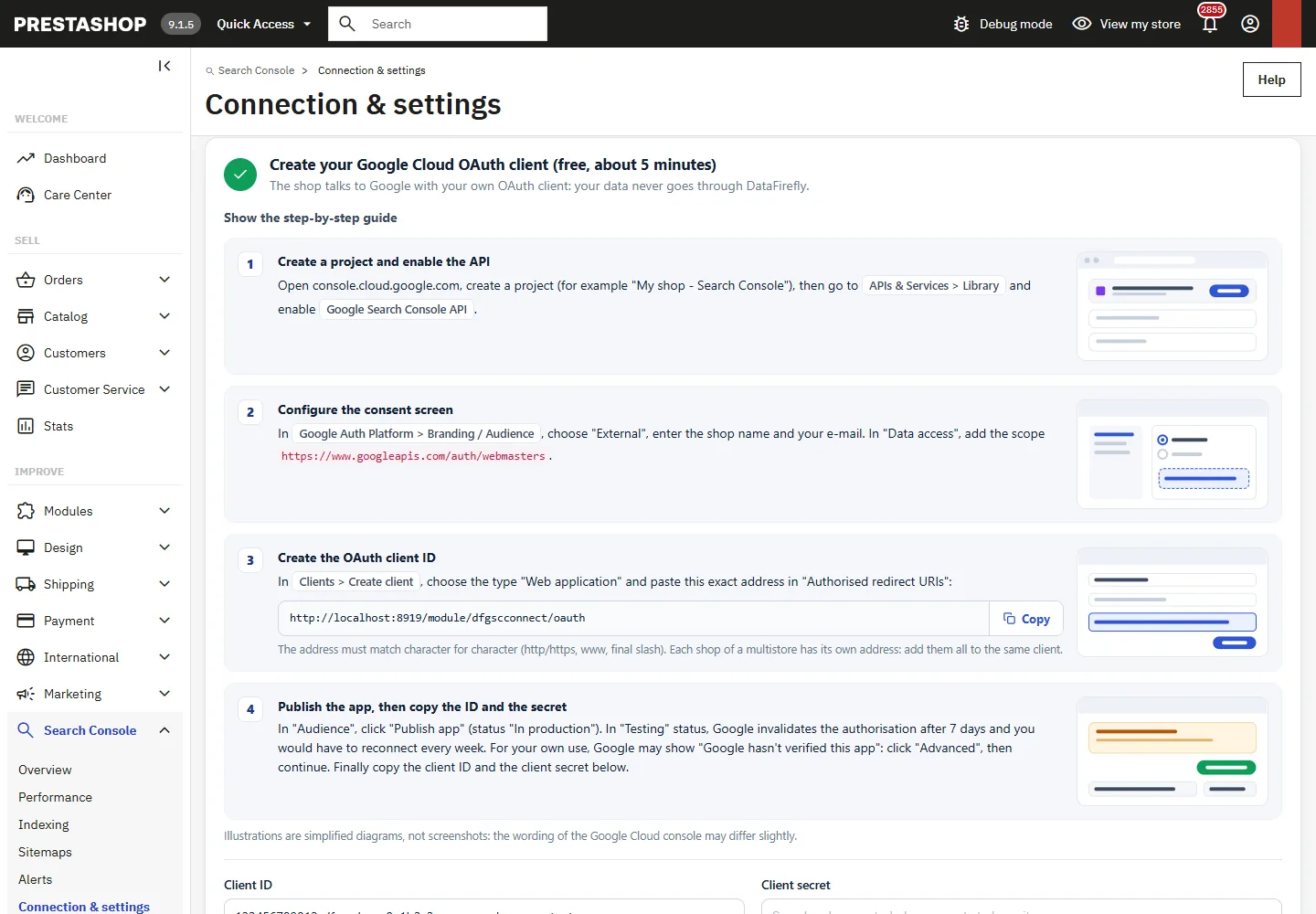
- On console.cloud.google.com, create a project, then in APIs & Services > Library, enable Google Search Console API.
- Configure the consent screen (type External) with the shop name and your e-mail. Under Data Access, add the scope
https://www.googleapis.com/auth/webmasters.readonly(orwebmastersif you want to manage sitemaps from the shop). - Create an OAuth client ID of type Web application and paste the address displayed by the module (Copy button) into “Authorized redirect URIs”. In multistore, each shop has its own address: add them all to the same client.
- Publish the app (status “In production”). With the “Testing” status, Google invalidates the authorization after 7 days and you would have to reconnect every week. For your own use, Google may display “Google hasn’t verified this app”: click Advanced, then continue.
- Copy the Client ID and the Client secret into the module, choose the requested access and save. The secret is encrypted (AES-256) and is never displayed again.
Which access should you choose? Read-only (recommended) is enough for performance, URL inspection and sitemap status. Read + sitemap management also lets you submit and remove sitemaps from PrestaShop. The module also requests openid email to show which Google account is connected.
Step 2: sign in with Google
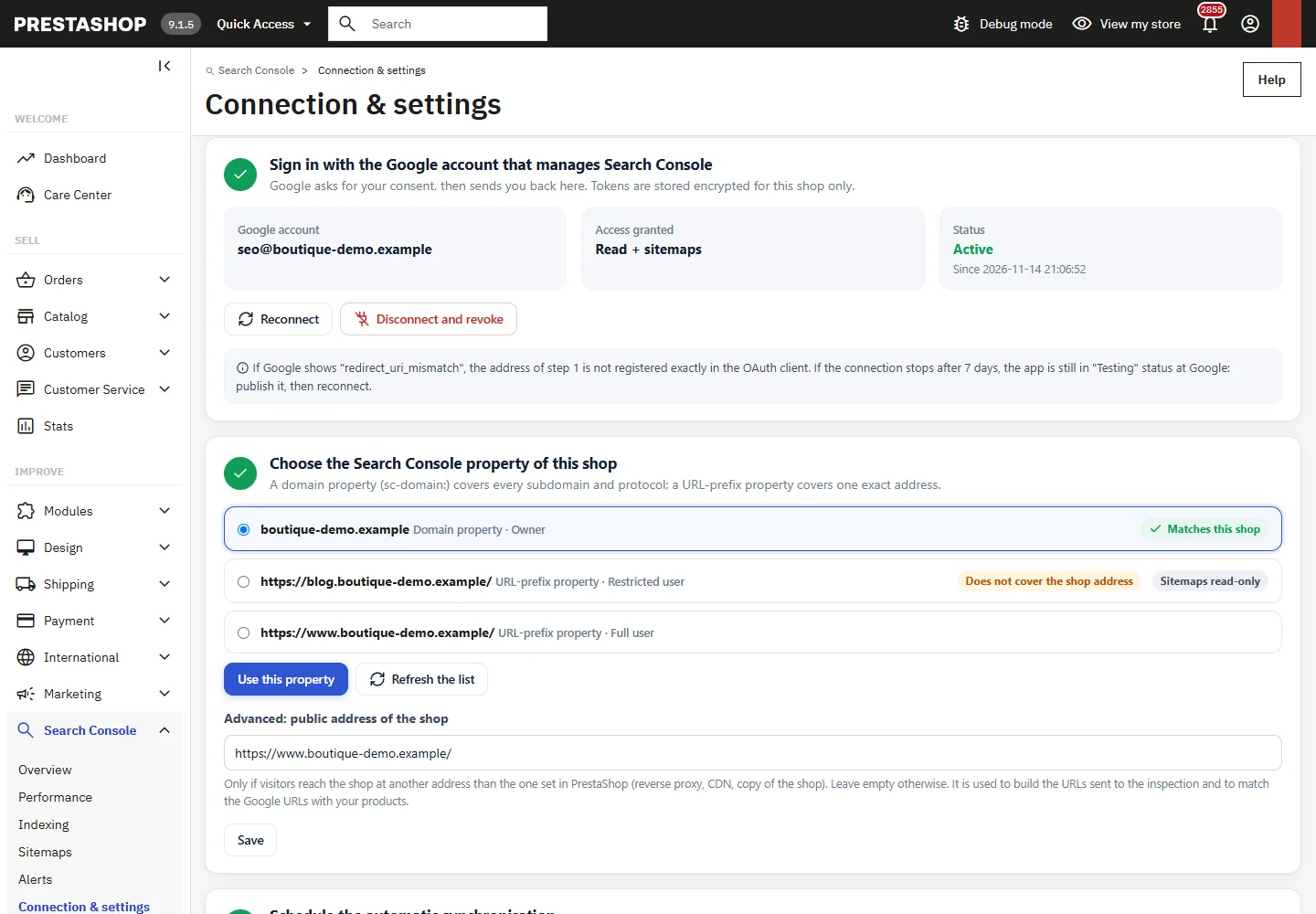
Click Sign in with Google and accept the consent screen: you return to the back office, connected. The account, the granted access and the connection status are displayed; Reconnect and Disconnect and revoke are available.
Step 3: choose the property
The module lists the available properties and highlights the one that covers the shop’s address (a domain property sc-domain: covers all subdomains; a URL-prefix property covers one specific address). Advanced option: public address, if the shop is served at a different address from the one defined in PrestaShop (proxy, CDN).
Step 4: automate
Copy the cron URL (keep it private) and schedule it every 15 minutes, for example: */15 * * * * curl -fsS "URL" >/dev/null. The Run now button starts an immediate run. The activity history lists the latest tasks and their errors, if any, explained in plain language.
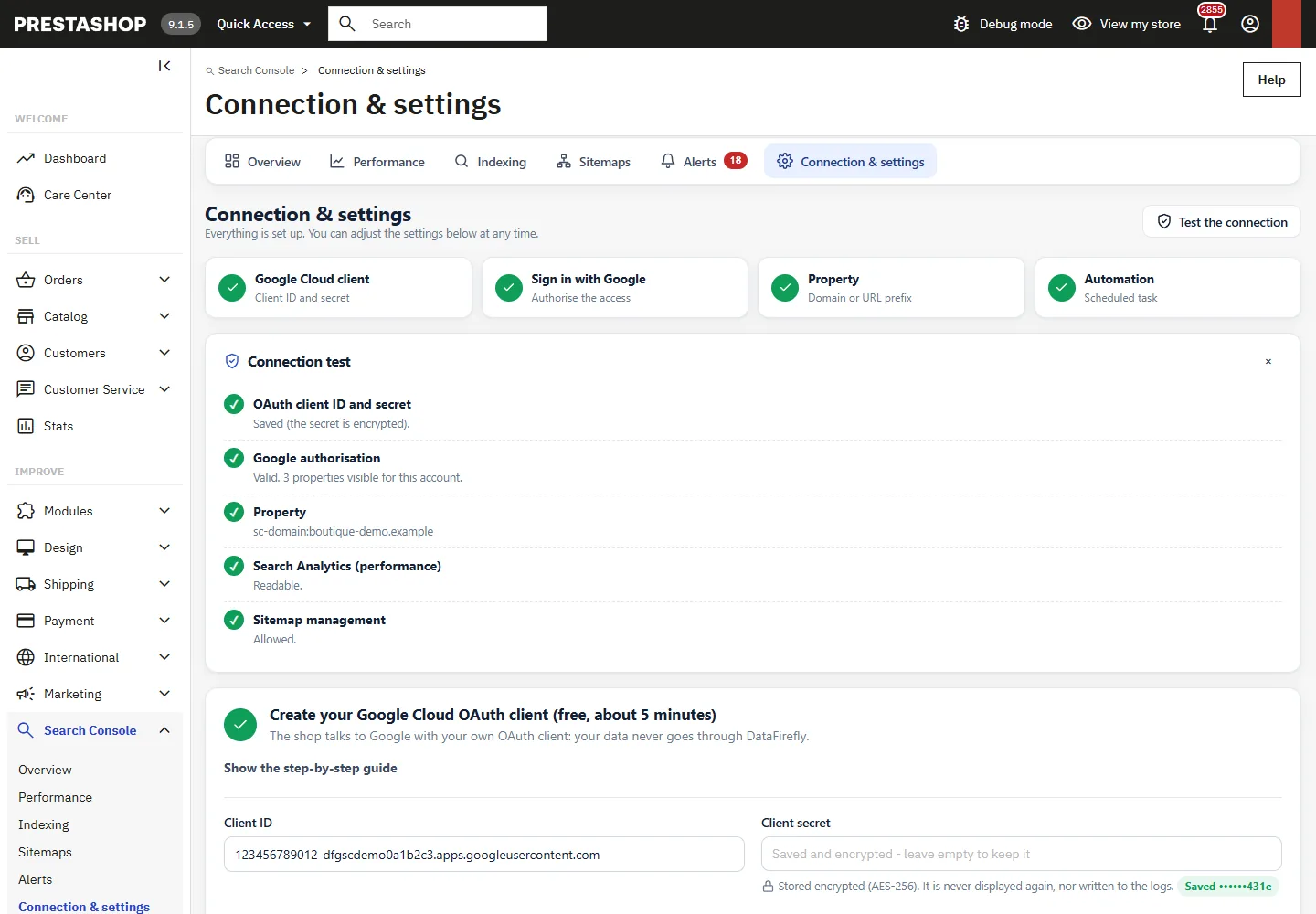
The Test the connection button checks step by step: OAuth client, Google authorization, property access, reading of performance data, sitemap management permission.
Overview
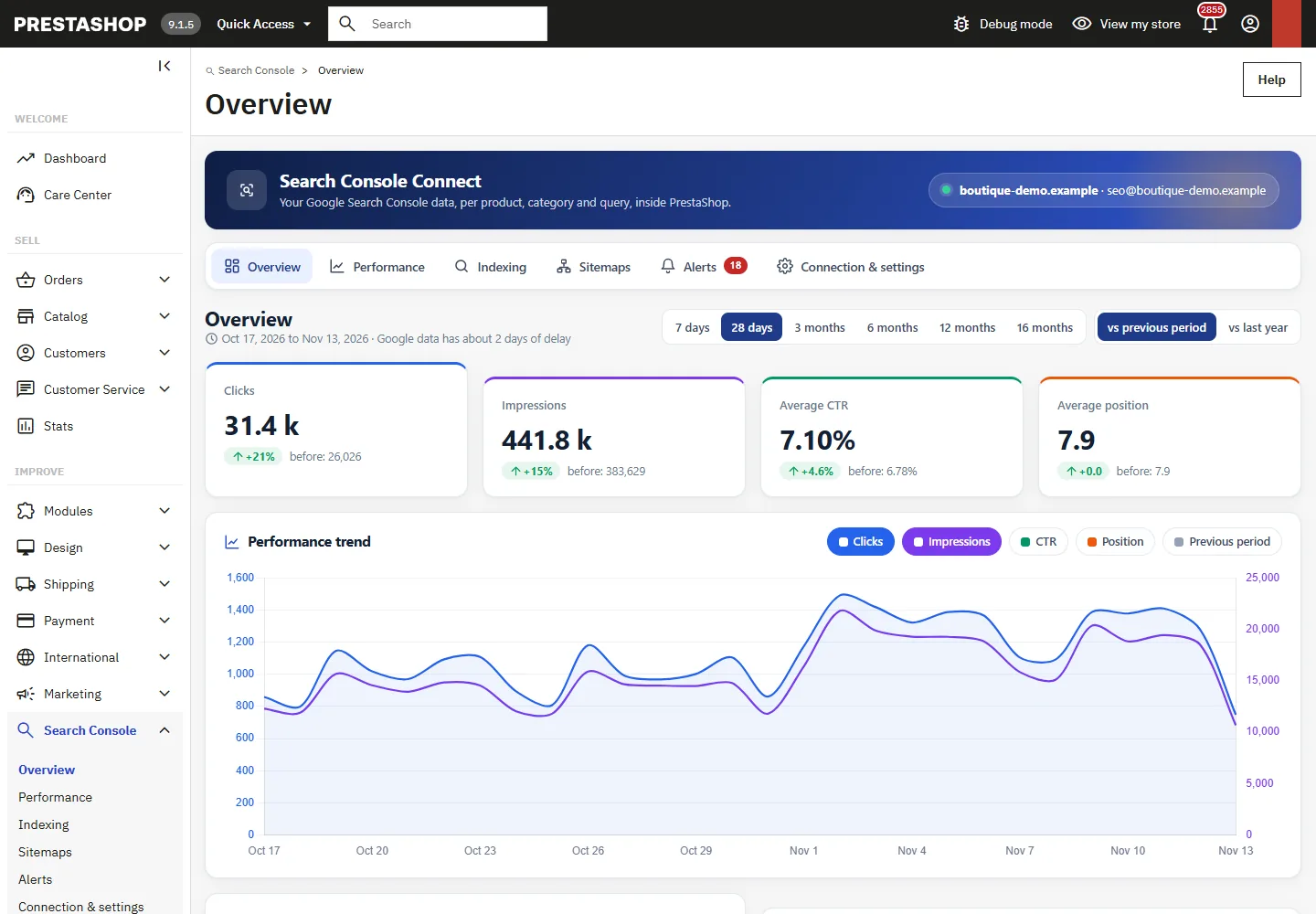
Clicks, impressions, CTR and average position of the property over 7 days to 16 months, compared with the previous period or the previous year. The totals come from the “date” dimension of the API: they are the same figures as the Search Console charts. The curve displays clicks, impressions, CTR, position and the comparison period.
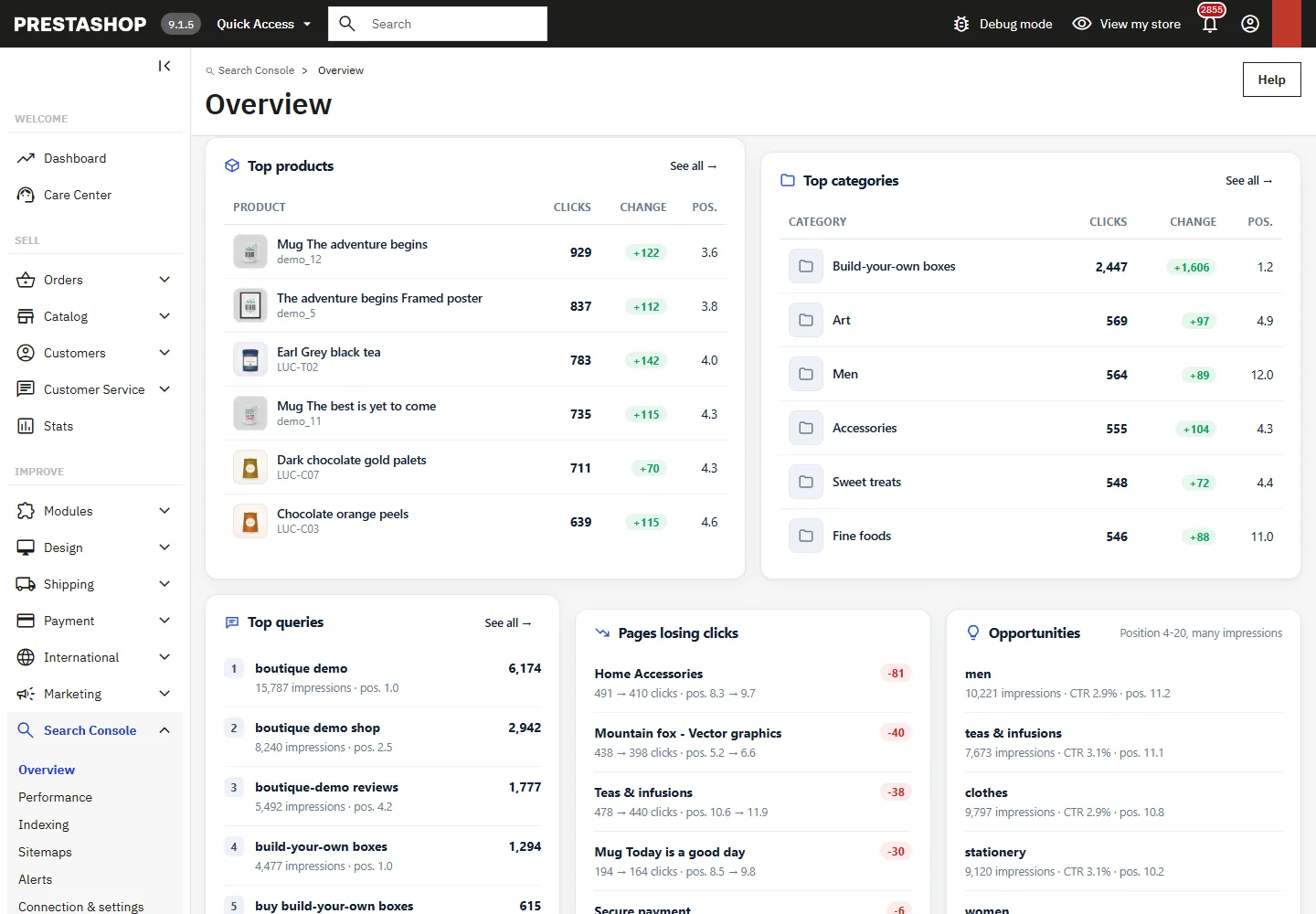
Further down: top products, top categories, top queries, pages losing clicks, opportunities (queries at position 4 to 20 with many impressions), indexing health, sitemaps and open alerts. Google publishes its data with a delay of about 2 days; the latest day may be incomplete.
Performance by product, category and query
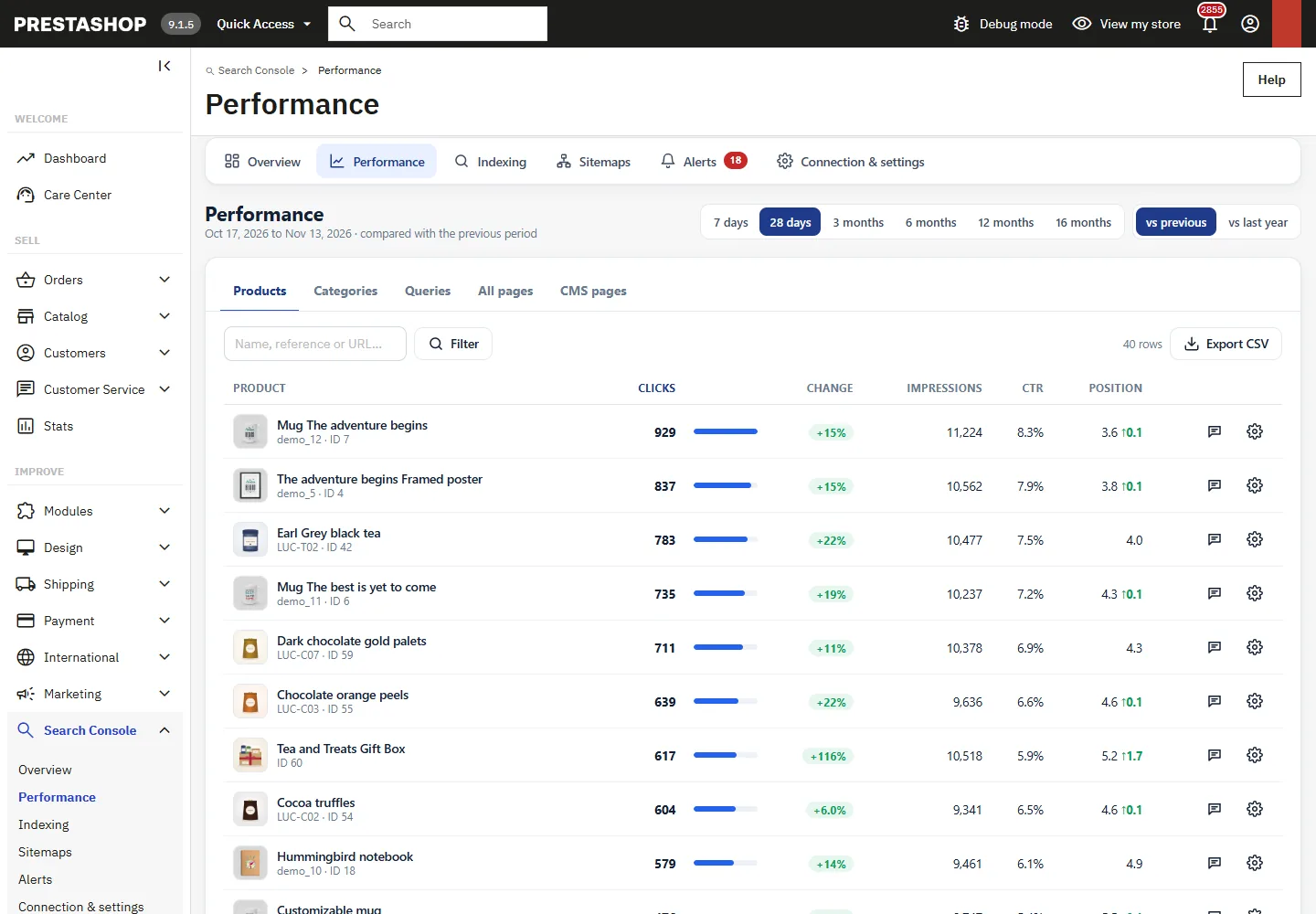
Products, Categories, Queries, All pages and CMS pages tabs: clicks, trend, impressions, CTR and position (average weighted by impressions, like Search Console), search, sorting, pagination and CSV export (UTF-8 with BOM, semicolon separator).
Each Google URL is matched to its PrestaShop page using the shop’s routes, including custom rules from “SEO & URLs”, the language prefix and non-rewritten URLs. Parameters (?utm_…, pagination, filters) are ignored: all the variants of a page are grouped under it.
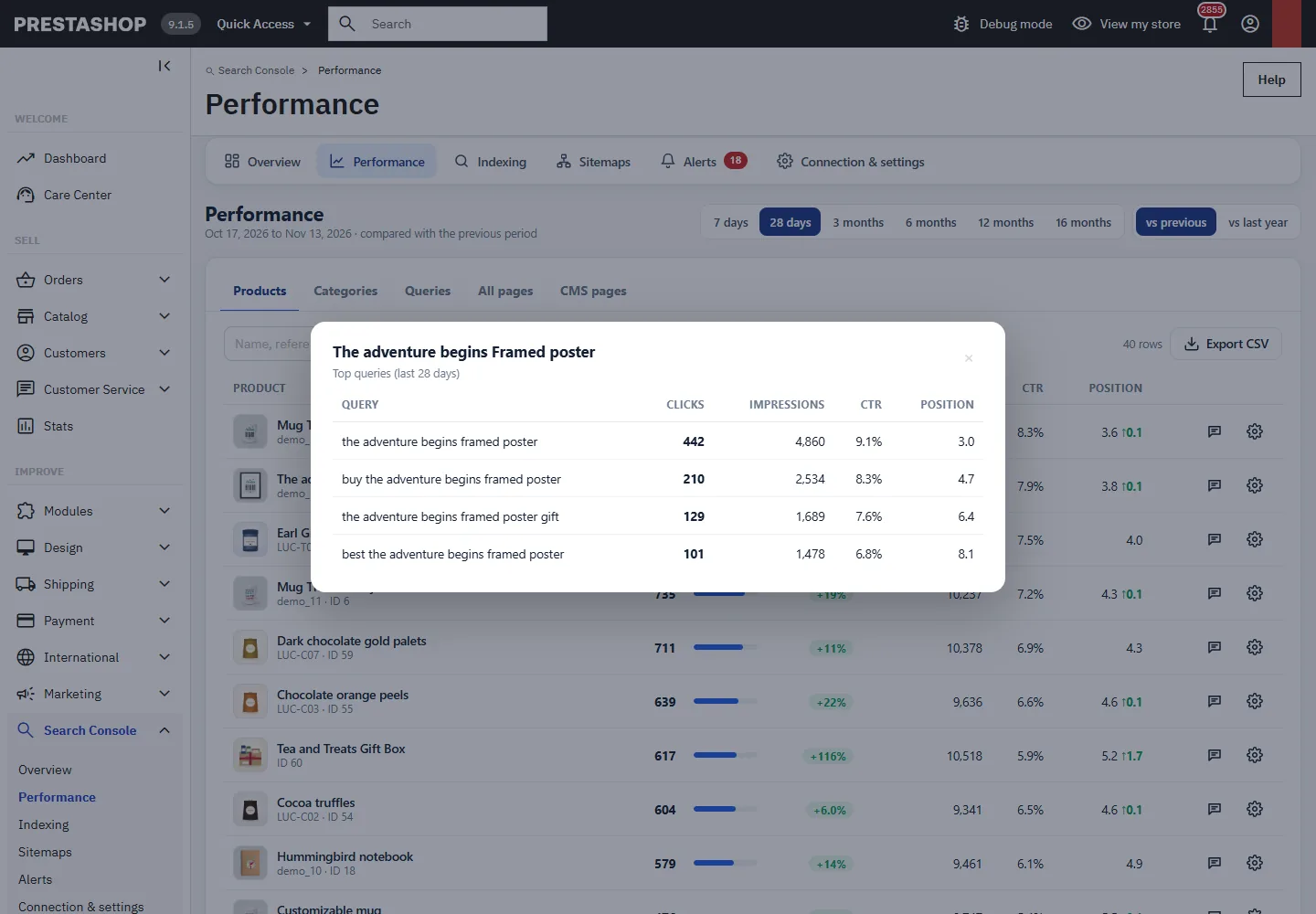
The detail button displays the queries that lead to a product, a category or a page (snapshot of the last 28 days), or the pages that rank for a query.
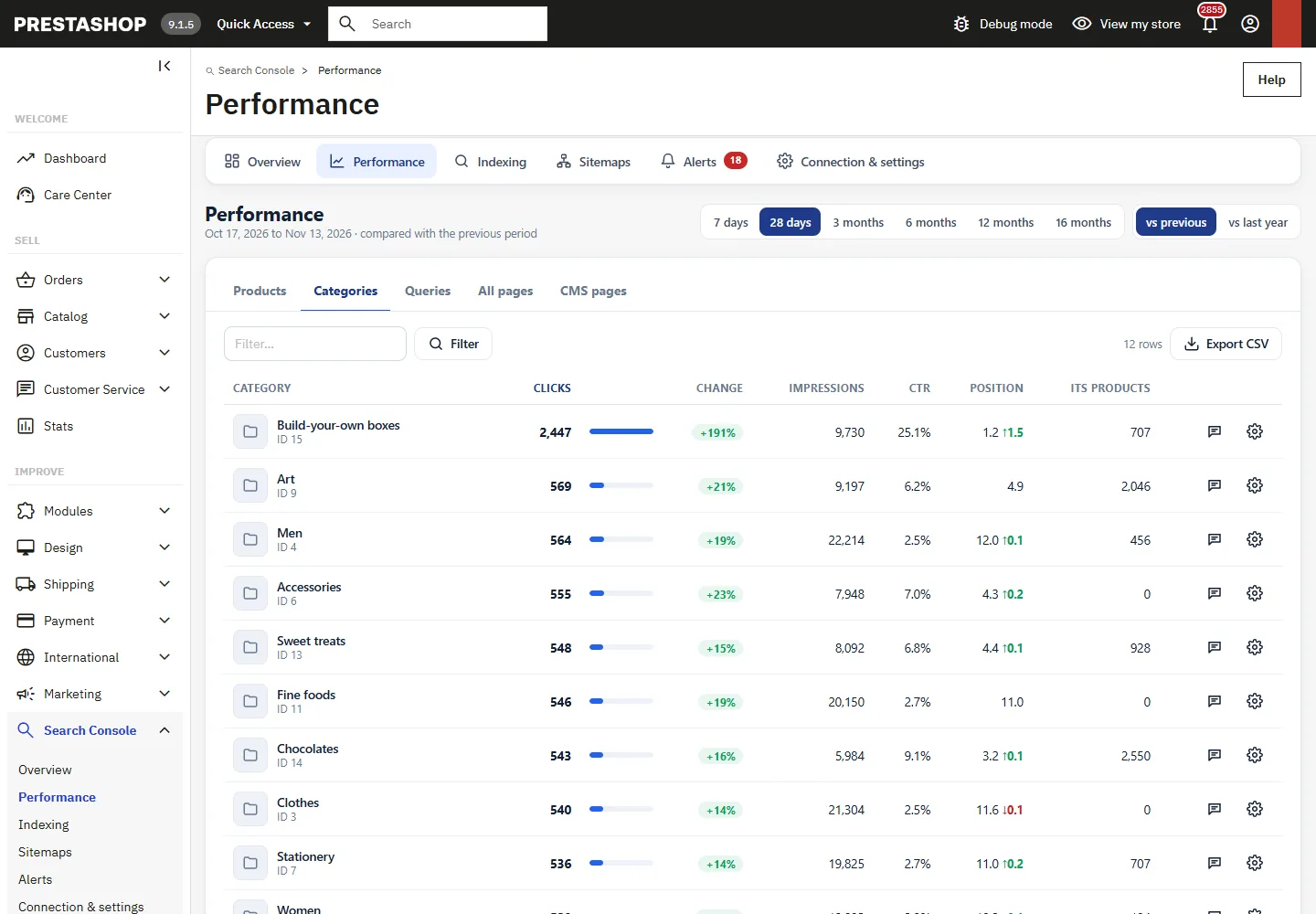
The Categories report also shows the clicks of the products whose default category is that category.
Indexing: bulk URL inspection
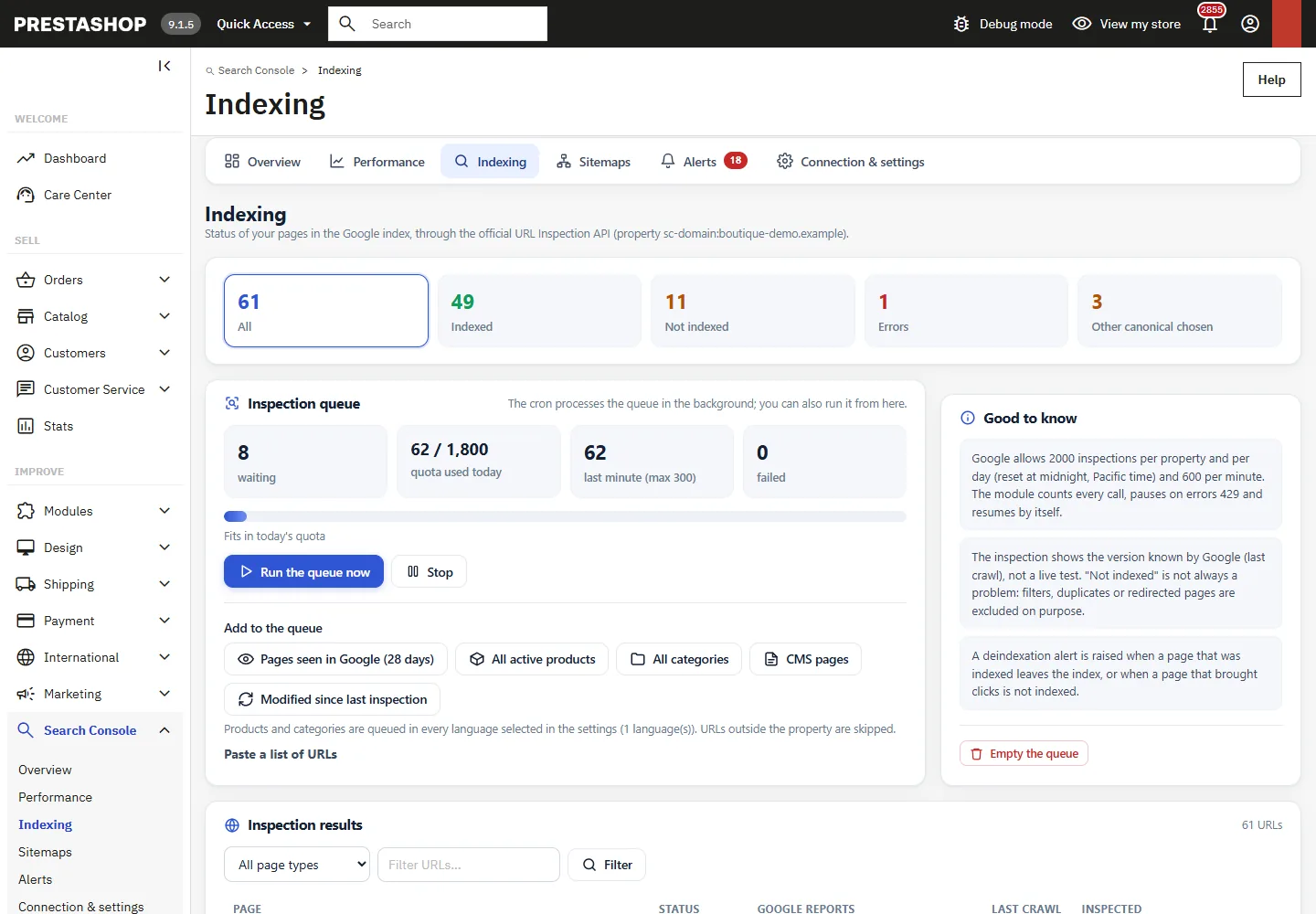
Add to the queue the pages seen in Google (28 days) (recommended: these are the exact URLs known to Google), all active products, all categories, CMS pages, pages modified since their last inspection, or a pasted list of URLs. URLs outside the property are ignored. The queue is processed by the cron; Run the queue now processes it from the page with a progress bar.
Google quotas. The inspection API is limited to 2,000 calls per day and 600 per minute per property (reset at midnight, Pacific Time). The module counts each call, respects your limits (adjustable below), pauses the queue on a 429 error and resumes on its own; a quota error does not use up an attempt.
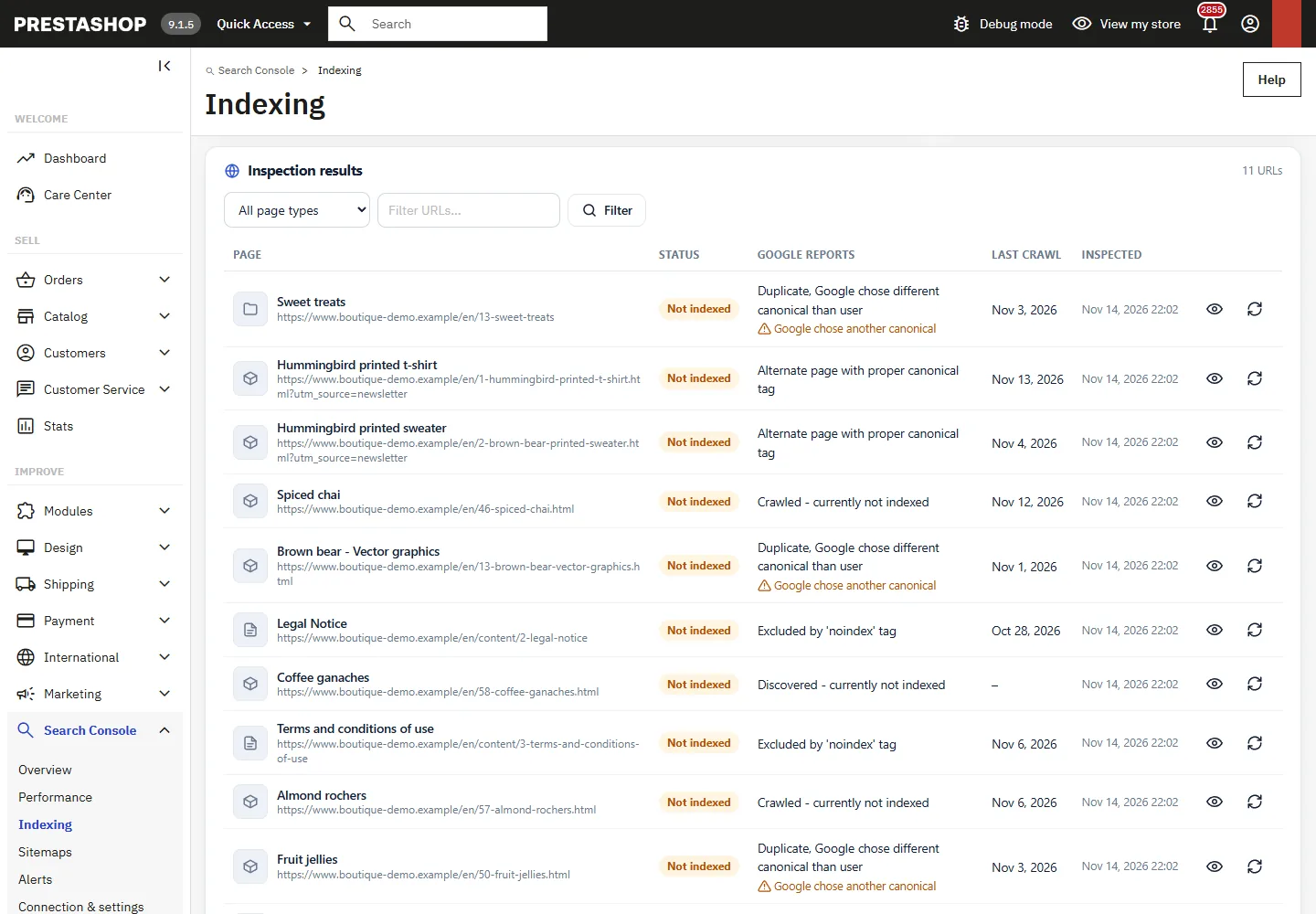
Filterable results: indexed, not indexed, errors, and pages for which Google chose a different canonical URL from the one declared.
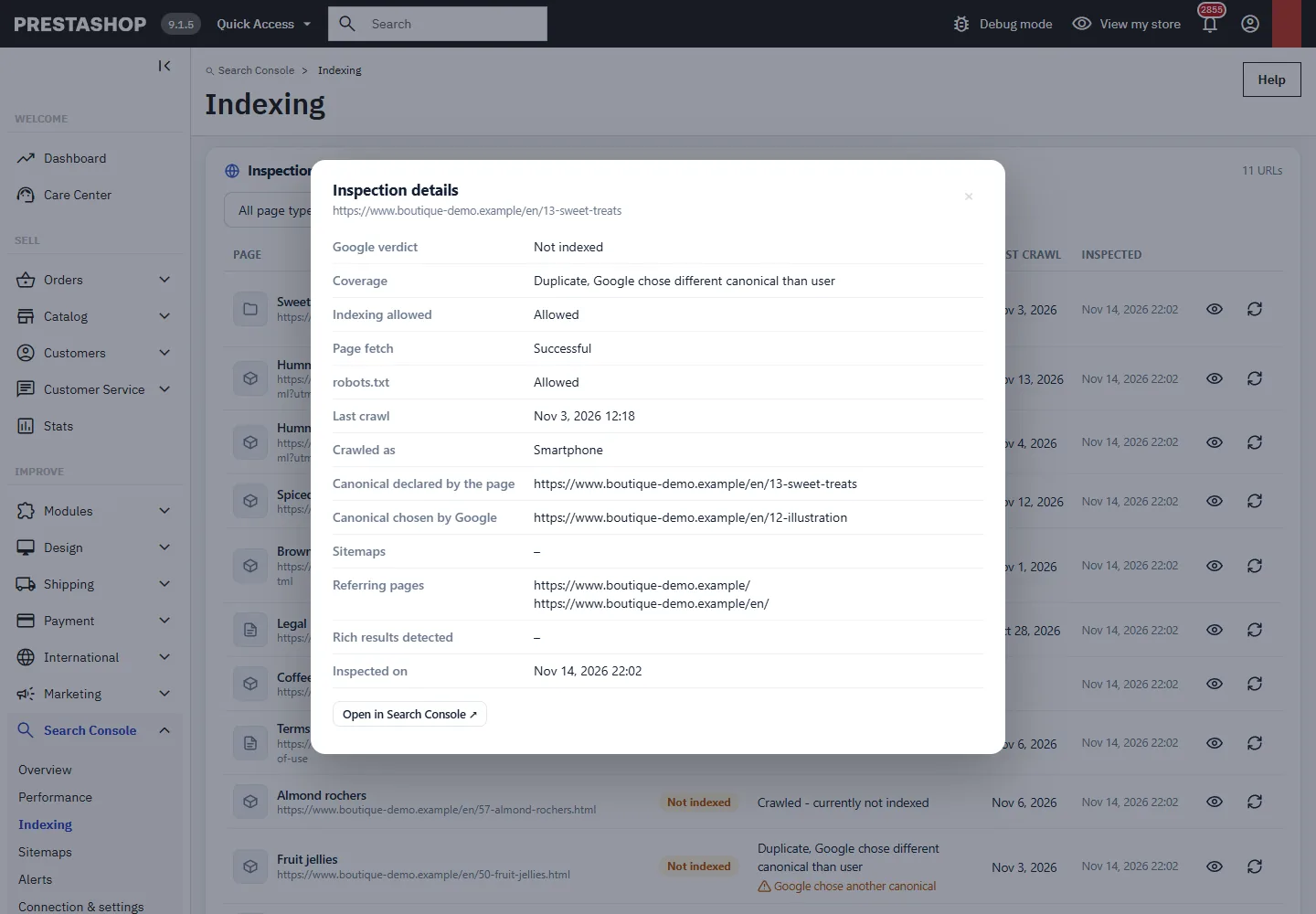
The detail displays the verdict, the coverage status, whether indexing is allowed, page fetch, robots.txt, the last crawl, the crawler, the canonical URLs declared and chosen by Google, the sitemaps, the referring pages and the rich results detected. The inspection shows Google’s known version (last crawl), not a live test. “Not indexed” is not always a problem: pages with a canonical tag pointing to another URL, redirected pages or pages set to noindex are deliberately excluded.
Sitemaps
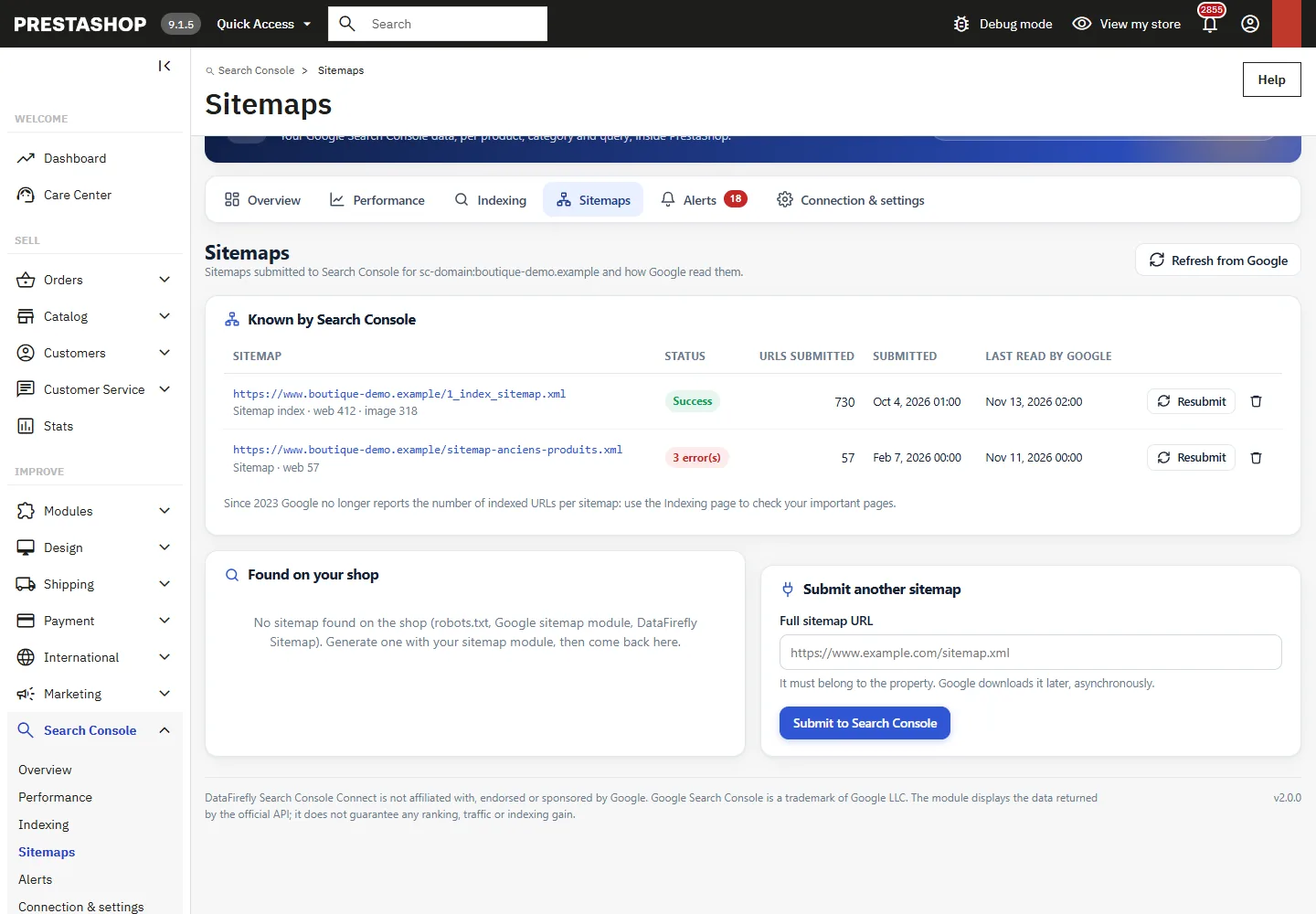
List of the sitemaps known to Search Console with their status (success, pending, errors, warnings), the URLs submitted by type, the submission date and the last read by Google. The module detects the shop’s sitemaps (Sitemap: lines in robots.txt, the Google sitemap module, DataFirefly Sitemap) and, with the “sitemap management” access, lets you submit, resubmit or remove them. Only URLs covered by the property can be submitted; removing a sitemap does not delete the file. Since 2023, Google no longer reports the number of indexed URLs per sitemap.
Alerts
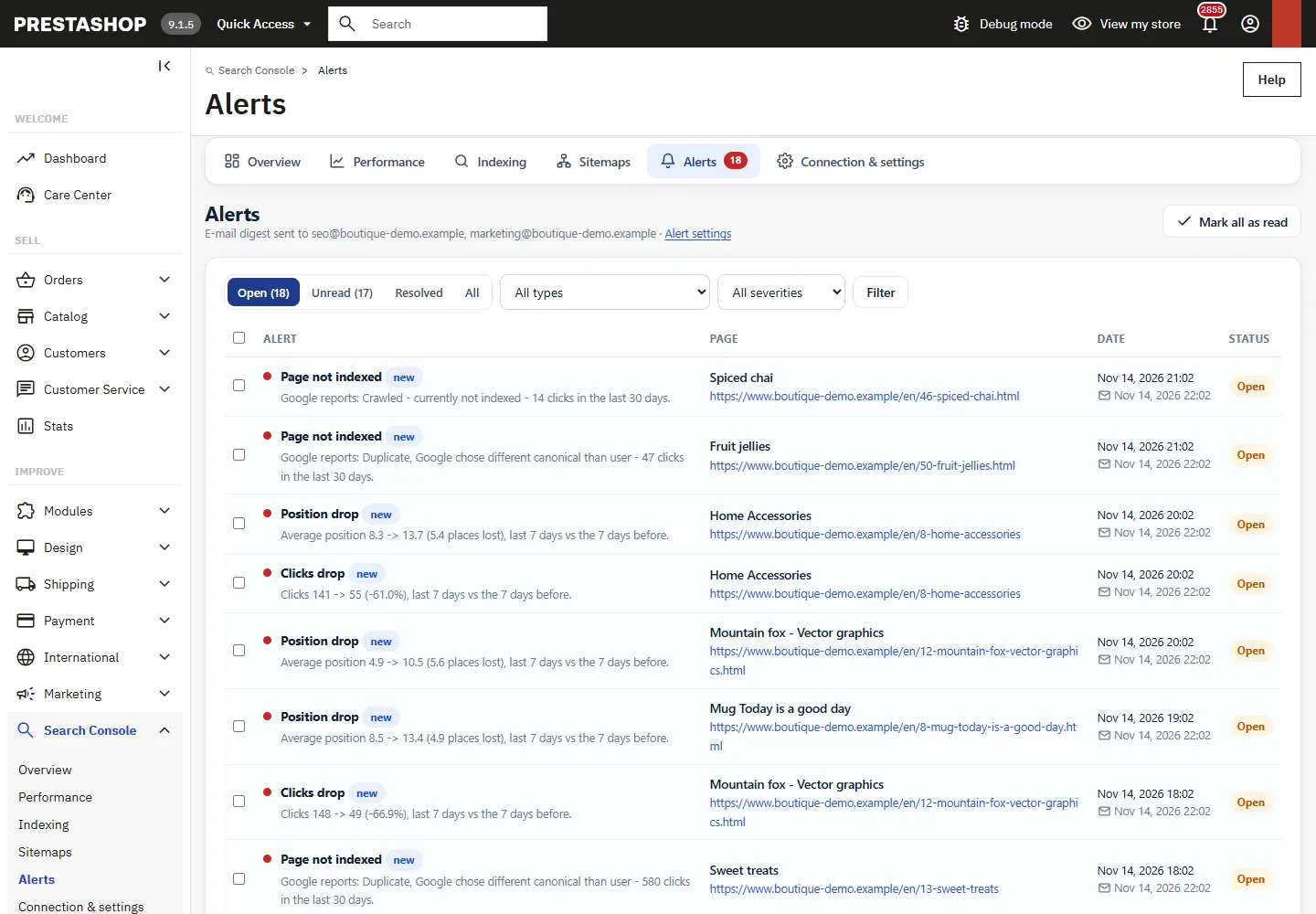
- Position drop and clicks drop: last 7 consolidated days compared with the previous 7 days, per page and for the whole property, with adjustable thresholds and minimum impressions or clicks.
- Page not indexed: an indexed page that drops out of the index, or a page that brings clicks and is not indexed (excluding deliberate exclusions).
- Sitemap errors, Google connection lost, URL inspection quota reached.
Alerts are deduplicated, resolve themselves when the problem goes away, and can be marked as read or resolved in bulk.
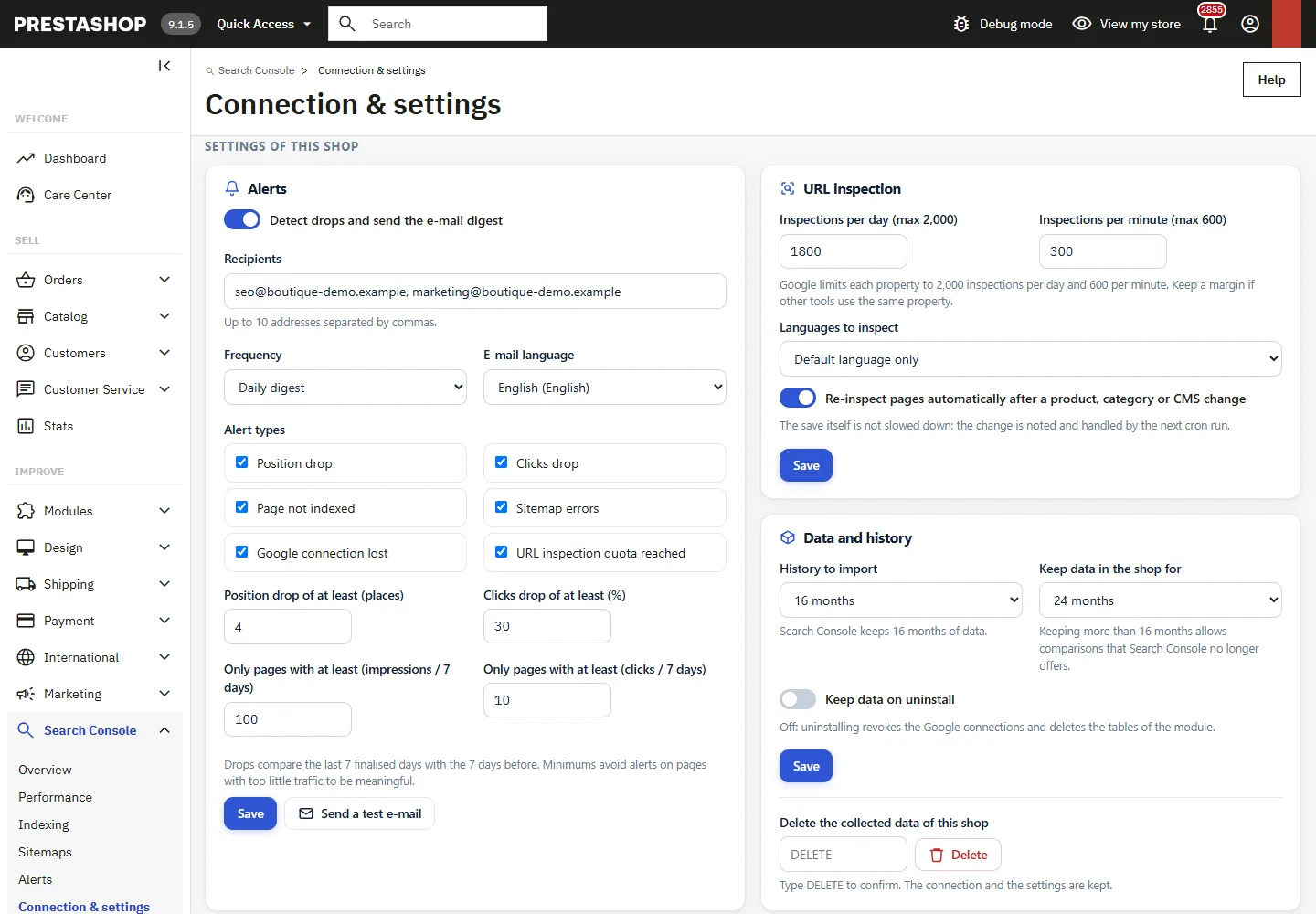
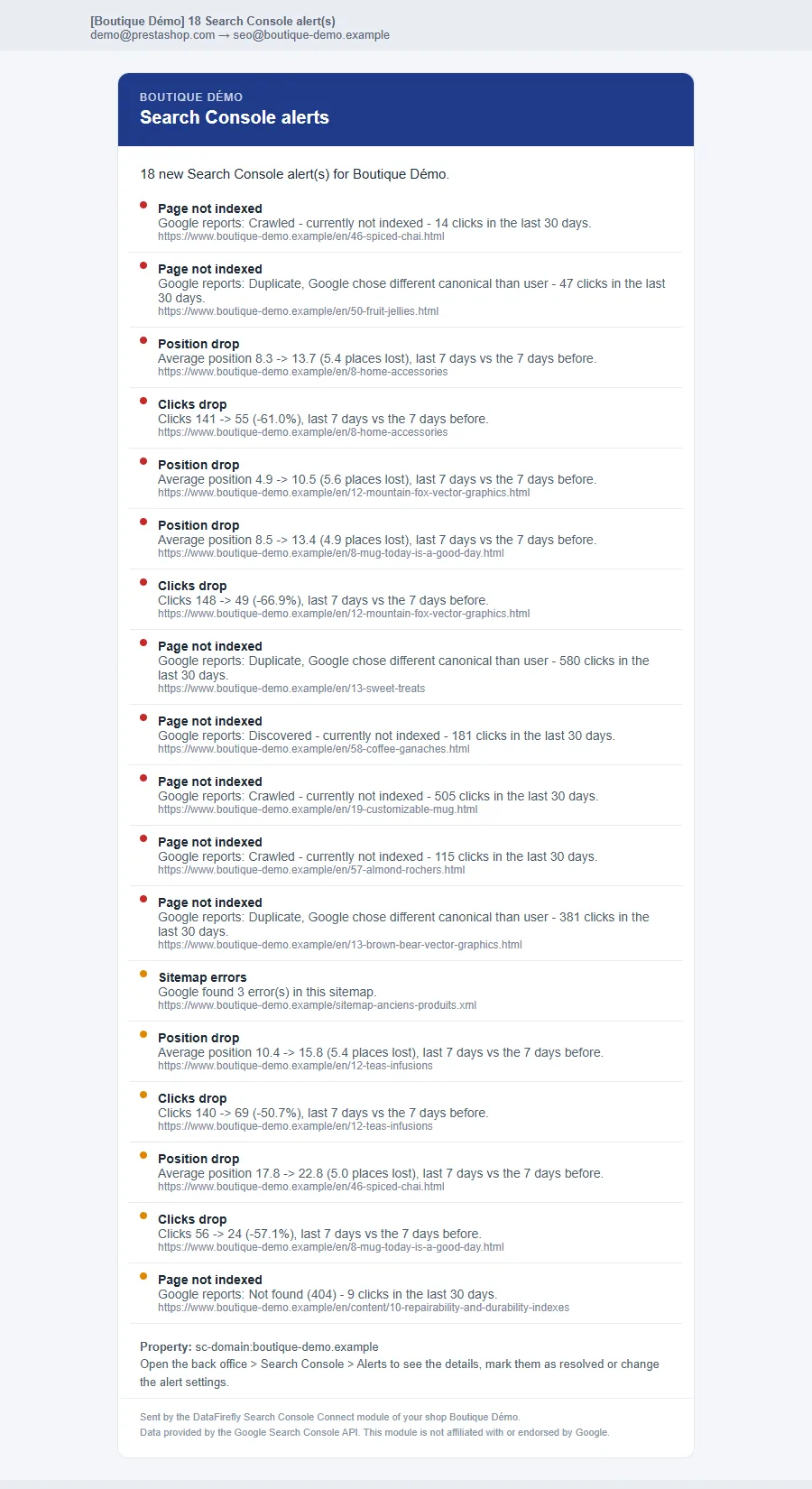
The e-mail digest (daily, weekly or at every cron run) goes to up to 10 recipients, in the language of your choice. A button sends a test e-mail.
Settings
| Setting | Default | Purpose |
|---|---|---|
| History to import | 16 months | Depth loaded on the first run, one month per cron run (Search Console keeps 16 months). |
| Keep data in the shop for | 24 months | Local retention (16, 24, 36 months or unlimited); beyond 16 months, comparisons that Search Console no longer offers. |
| Inspections per day / per minute | 1,800 / 300 | Module limits, below the Google limits (2,000 / 600). |
| Languages to inspect | Default language only | Or all active languages, or a selection. |
| Re-inspect pages automatically | Enabled | After a product, category or CMS page is modified. Saving is not slowed down: the change is noted and handled by the next cron run. |
| Keep data on uninstall | Disabled | Disabled: uninstalling revokes the Google connections and deletes the module’s tables. |
Security and permissions
- OAuth 2.0 with PKCE and a random
stateparameter, single-use, valid for 15 minutes and bound to the employee and their browser; the code is exchanged within the employee’s session. - Client secret, access token and refresh token encrypted in the database; never displayed or written to logs.
- Disconnect revokes the authorization at Google. If Google rejects the stored authorization (access revoked, password changed, app in “Testing” status), the shop switches to “reconnection required”, an alert is created and no further calls are made.
- Permissions per tab: a profile with only the “View” permission can see everything but cannot change anything. CSRF token on all actions.
- Multistore: each shop has its own connection, property, data, settings and alerts.
- Cron: token compared in constant time, lock against simultaneous runs, response without internal details. The Google callback controller and the cron remain accessible in maintenance mode.
Troubleshooting
redirect_uri_mismatch on the Google screen
The redirect address registered in Google Cloud is not strictly identical to the module’s (http/https, www, path). Copy it again with the Copy button.
The connection stops after 7 days
The OAuth app is still in “Testing” status at Google: publish it (“In production”), then reconnect the shop.
“Google Search Console API is not enabled”
Enable the API in the library of the Google Cloud project, wait a few minutes, then test the connection.
No products in the reports
Check that the property covers the shop’s address. If the shop is served behind a proxy or a CDN, enter the public address (step 3).
The inspection queue is paused
The daily quota is reached (yours or Google’s) or Google asked to slow down: the queue resumes on its own. The Resume now button lifts the pause.
Alert e-mails are not arriving
Check the recipients and PrestaShop’s e-mail configuration (Advanced Parameters > E-mail), then use Send a test e-mail. If sending fails, the module retries at most every 6 hours.
Data and uninstallation
Tables ps_dfgsc_* (connection, properties, daily totals, pages, queries, page-query pairs, URL mapping, inspections, queue, quotas, sitemaps, alerts, task history) and DFGSC_* keys. Uninstalling revokes the Google connections and deletes this data, unless “Keep data on uninstall” is enabled. Chart.js 4.4.0 (MIT license) is included and loaded only on the module pages that display charts.