
Access Manager — Complete Guide
Install and run Access Manager 2.0: quick start, groups and members, plain-language permissions, restricted pages, blocks and files, restriction screen, WooCommerce prices and methods, access simulator, privacy and troubleshooting.
Overview
DataFirefly Access Manager organises your users in groups and decides, in plain language, what each group can do in the back-office and what it can see on your site. Pages, posts, products, media files, categories, single blocks and menu items can be reserved to groups, and the protection covers every channel a visitor could use: the page itself, the REST API, the WooCommerce Store API, search, feeds, excerpts, comments, sitemaps and attachments.
Version 2.0 adds a quick start with ready-made scenarios, an access simulator, an “Access” panel in the block editor, protected files, a restriction screen you design with a live preview, previews that always end, an activity log with a retention period and GDPR tools, in eight languages.
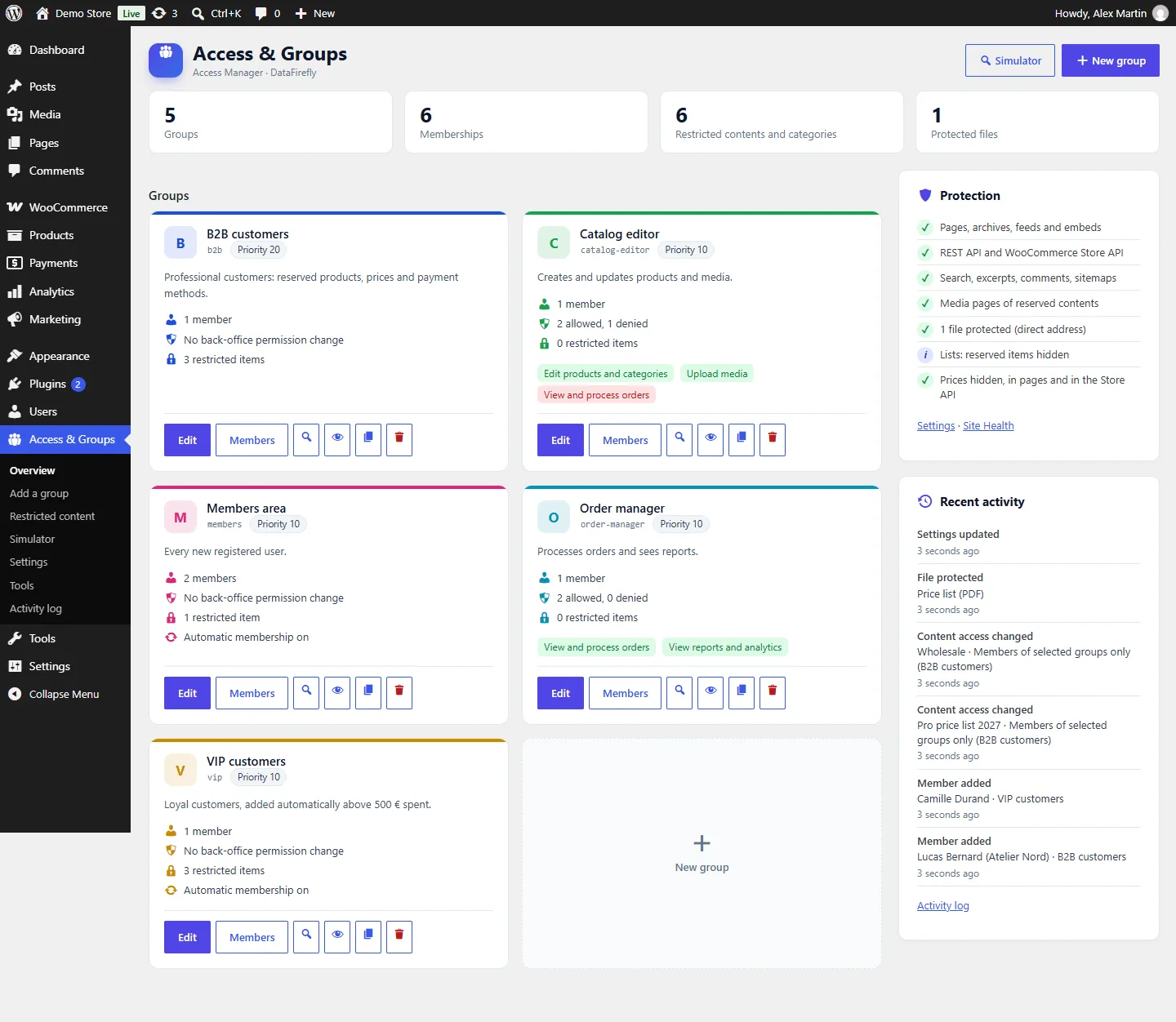
In short: install, open Access & Groups, pick a quick start scenario, reserve a page in its Access panel, then check the result with the Simulator.
Installation and update
- In Plugins > Add New > Upload Plugin, choose
df-access-manager-2.0.0.zip, then activate DataFirefly Access Manager – Groups & Permissions. - Open Access & Groups in the admin menu.
Requirements: WordPress 6.4 or later, PHP 7.4 to 8.5. WooCommerce 8.2 or later is optional: it adds hidden prices, reserved products, payment and shipping methods per group and reserved coupons. The plugin screens are reserved to administrators.
Updating from 1.x
Upload the new zip and choose Replace current with uploaded. Groups, members, access rules of contents, categories, menu items, blocks and coupons, and your settings are kept; a backup of the 1.x settings is stored. The 1.x option “Hide restricted content from lists” turned off becomes the teaser mode (title visible, content replaced), the log moves to its own table and previews started with 1.x are stopped. A notice presents the new features.
Quick start
When no group exists yet, the overview offers four scenarios. One click creates the groups and settings, then shows the next steps:
- Members area: a “Members area” group joined automatically by every new account; visitors are sent to the login page.
- Team permissions: “Order manager” and “Catalog editor” groups with the right back-office permissions (or “Content writer” without WooCommerce).
- B2B / wholesale shop: a “B2B customers” group without back-office access, prices hidden for everyone except this group.
- VIP club: a “VIP customers” group joined automatically above 500 spent.
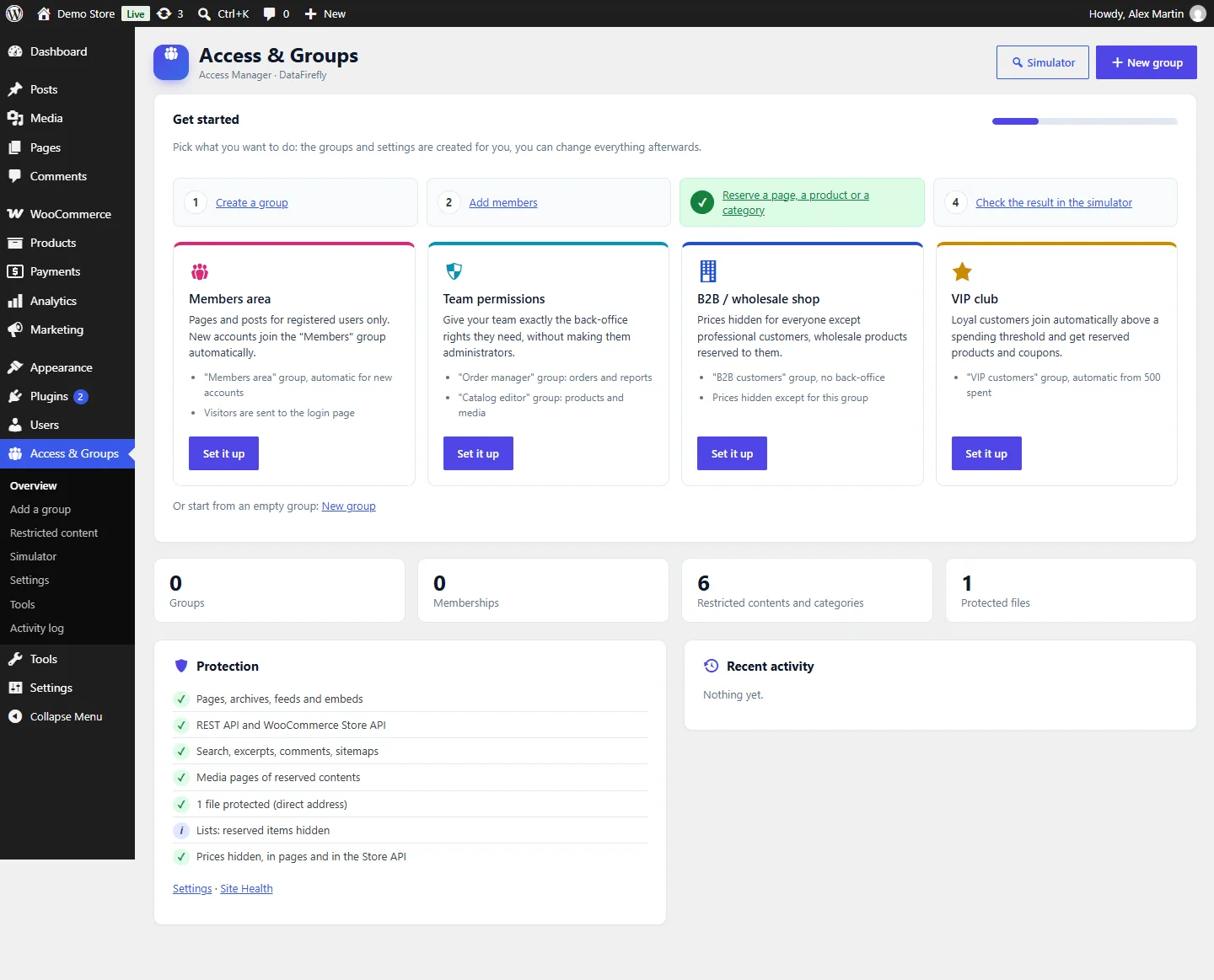
A four-step checklist (create a group, add members, reserve a content, check it in the simulator) follows your progress. The overview also shows four figures, the group cards, the protection status and the recent activity.
Groups and members
Create a group from the overview or Add a group, from a template (order manager, catalog editor, customer service, accountant, content writer, B2B customers, VIP customers, members area) or empty. The General tab sets the name, the identifier used in shortcodes, the colour, the priority (when a user is in several groups, the highest priority wins; with equal priority “Denied” wins) and an optional linked role (every user with this role is a member).
The Members tab adds members by search, by pasting a list of e-mails or logins with an optional end date, or automatically: every new account, a total spent, a number of orders, with a duration in days. “Apply these rules to existing users now” back-fills the group. Members can also be added from Users with a bulk action, or from each user profile.
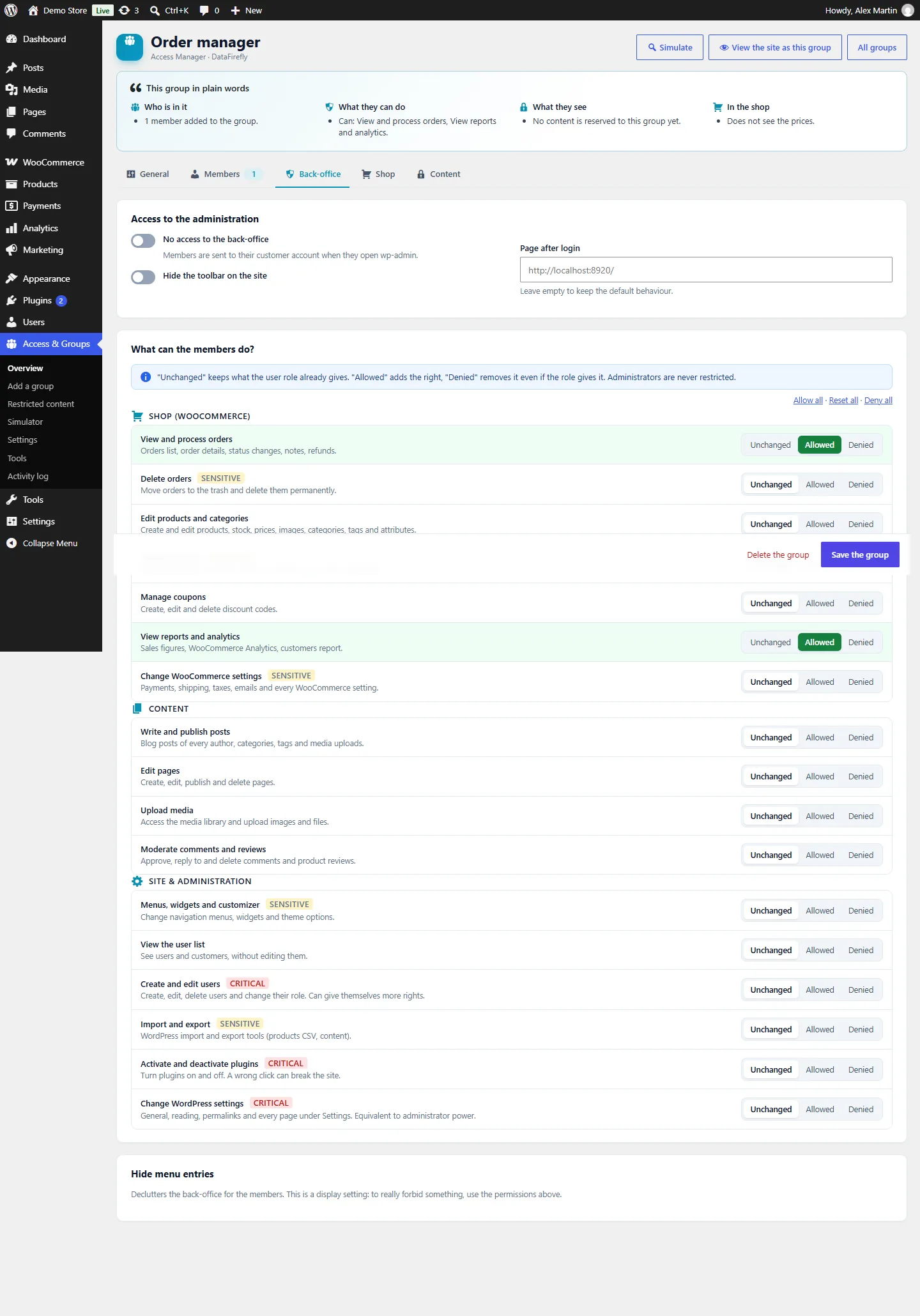
At the top of each group, This group in plain words sums up who is in it, what its members can do, what they see and what changes in the shop.
Back-office permissions
The Back-office tab lists 17 permissions written for humans — “View and process orders”, “Edit products and categories”, “Moderate comments and reviews”, “Create and edit users”… — each Unchanged (the role decides), Allowed or Denied. Sensitive and critical permissions are flagged; critical ones ask for a confirmation and are never ticked by “Allow all”. In Advanced, every WordPress capability, including those of other plugins, can be allowed or denied.
- Administrators are never restricted: a group can add rights to them, never remove any.
- Escalation guard: a user who received rights from a group can never edit, delete or promote a user who has more rights (an administrator for example), and can only assign roles whose capabilities they all have.
- Comfort settings: hide back-office menu entries, no access to wp-admin (members are sent to their account), hide the toolbar, page after login.
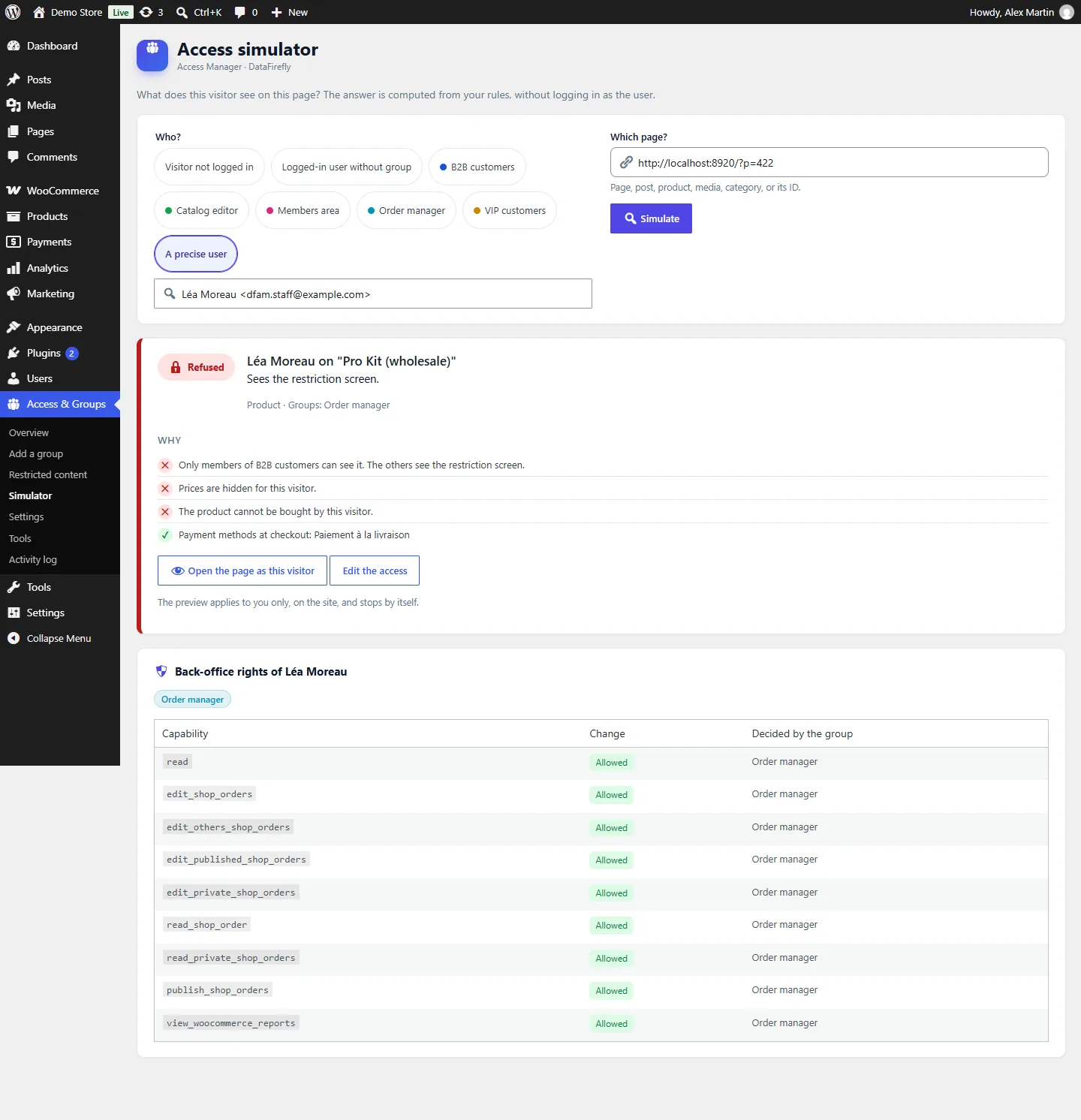
Open the Simulator with a precise user to see the exact list of capabilities added or removed by their groups.
Restricting content
Pages, posts and products
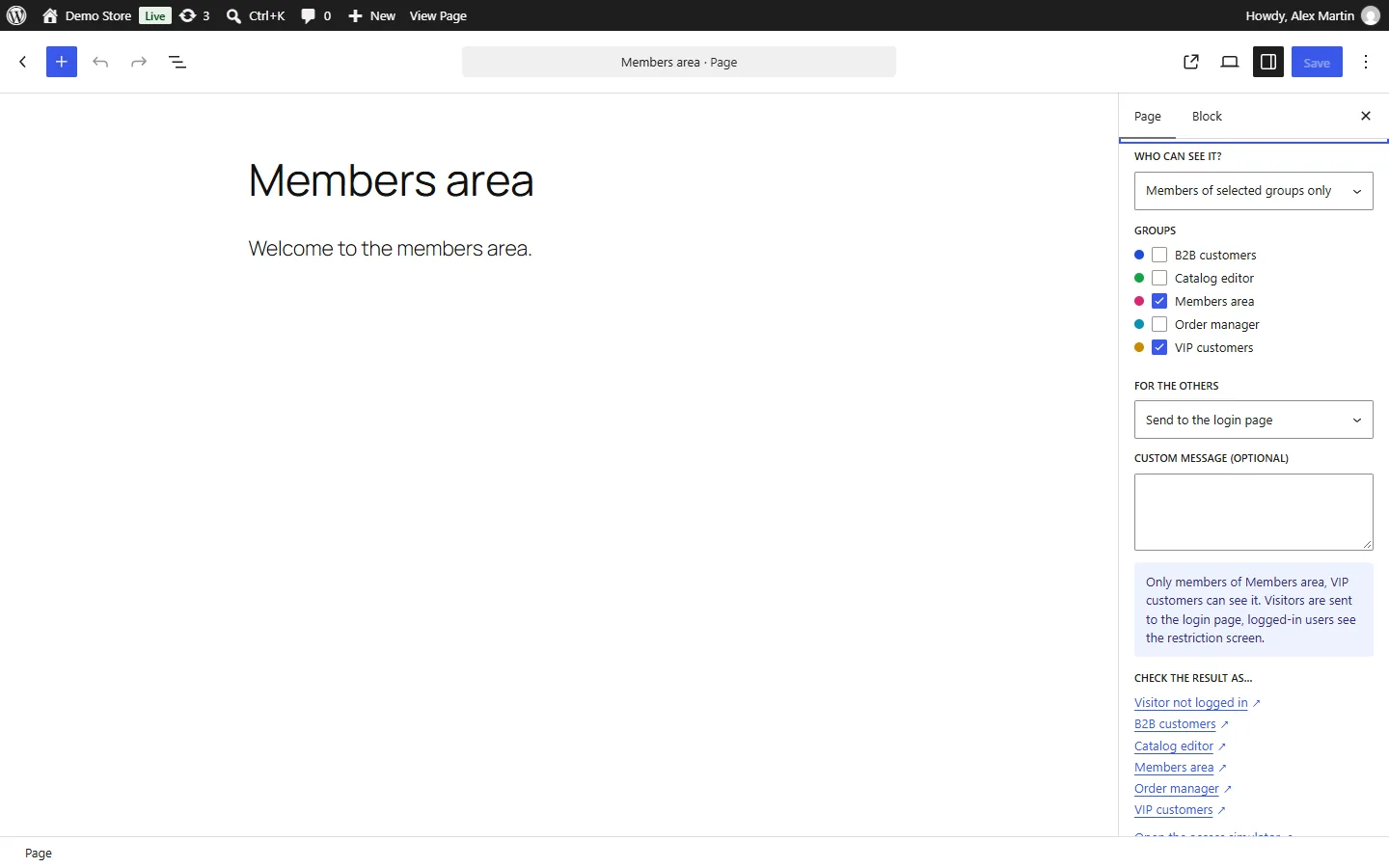
In the block editor, the Access panel of the document sidebar sets who can see the content: everyone, logged-in users only, visitors not logged in only, members of selected groups only, or everyone except selected groups. Then choose what the others get: the restriction screen, the login page, a redirect or a 404, and an optional custom message. A sentence sums up the rule, and the links “Check the result as…” open the page as a visitor or as each group.
With the classic editor, the same fields are in the Access box. Categories of posts and products have an Access field: sub-categories and their contents inherit the rule (when a content is in several restricted categories, access to one of them is enough). Menu items have a “Visible for” field in Appearance > Menus, and links to restricted contents are hidden automatically.
Single blocks
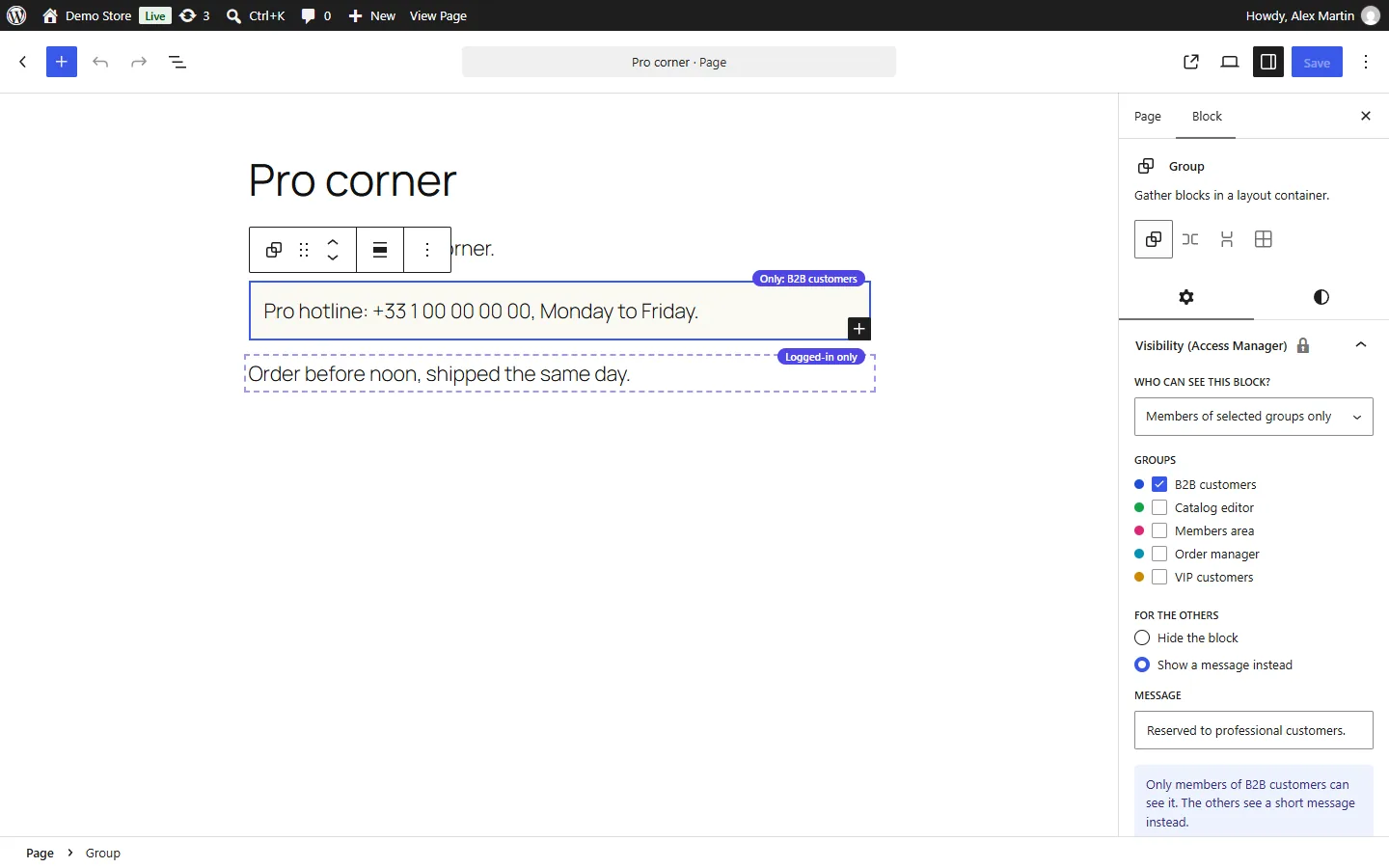
Select any block and open Visibility (Access Manager) in its settings: choose who can see it, then Hide the block or Show a message instead. Restricted blocks are outlined in the editor with a badge such as “Only: B2B customers” or “Logged-in only”.
Shortcode
[dfam_restrict groups="b2b,vip"]Only for these groups[/dfam_restrict]
[dfam_restrict groups="b2b" not="1"]Everyone except B2B[/dfam_restrict]
[dfam_restrict]Logged-in users only[/dfam_restrict]
[dfam_restrict guests="1"]Visitors only[/dfam_restrict]
[dfam_restrict groups="vip" message="Reserved to VIP members" show_login="1"]…[/dfam_restrict]
An unknown group never matches: the content stays hidden.
Protected files
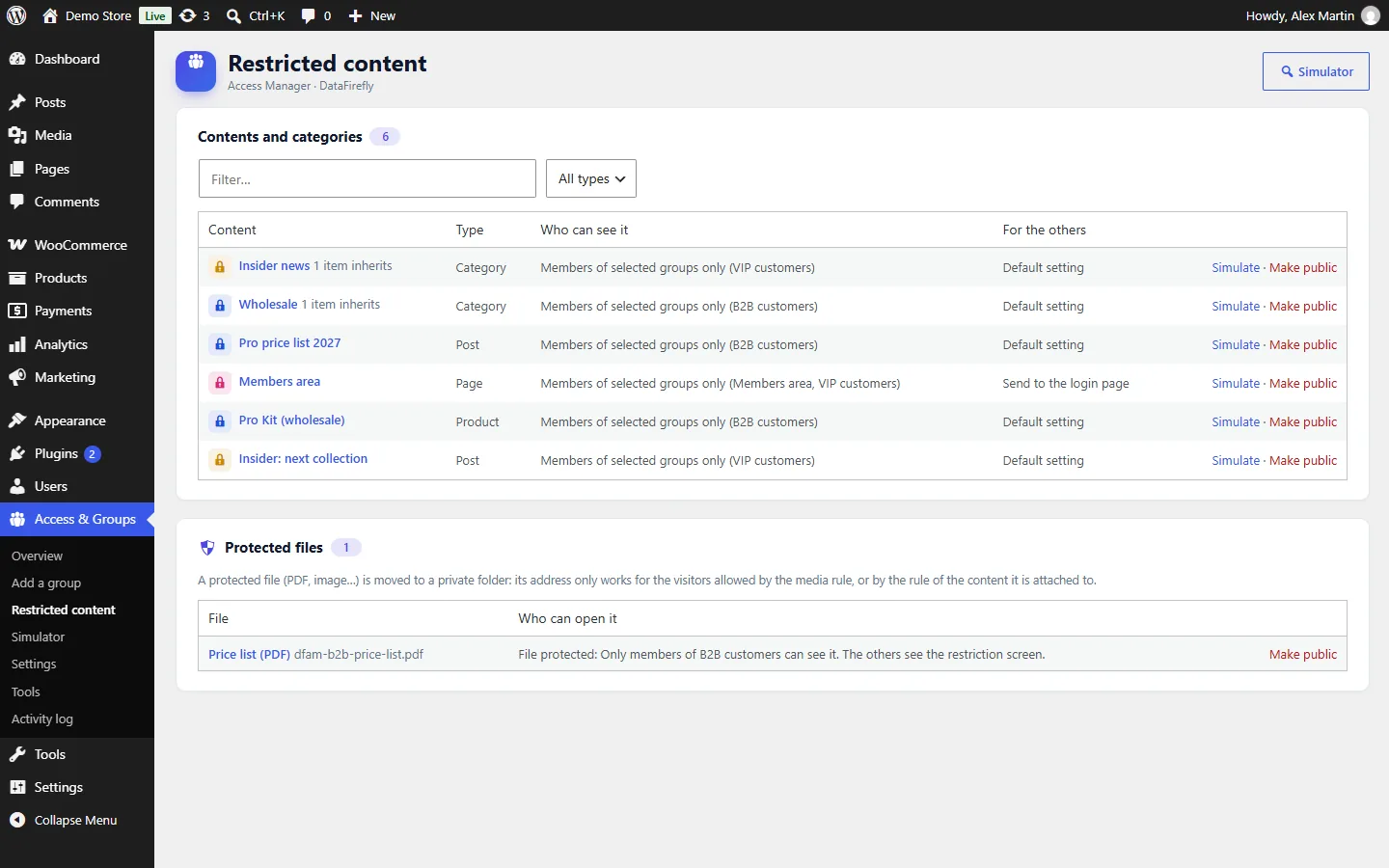
Media pages and REST entries follow the content they are attached to. The address of the file itself (a PDF price list for example) stays public until you protect it: open the media and tick Protect the file, or select files in Media and choose the bulk action. The file is moved to a private folder and is only served after an access check: the rule of the media, or of the content it is attached to; a protected file without any rule is reserved to logged-in users. Visitors are sent to the login page, other users get an error.
Restricted content lists the reserved contents and categories (with filters) and the protected files.
On Nginx, the deny rules of the private folder are ignored: add the rule shown in Tools > Site Health, which checks the folder automatically.
The restriction screen
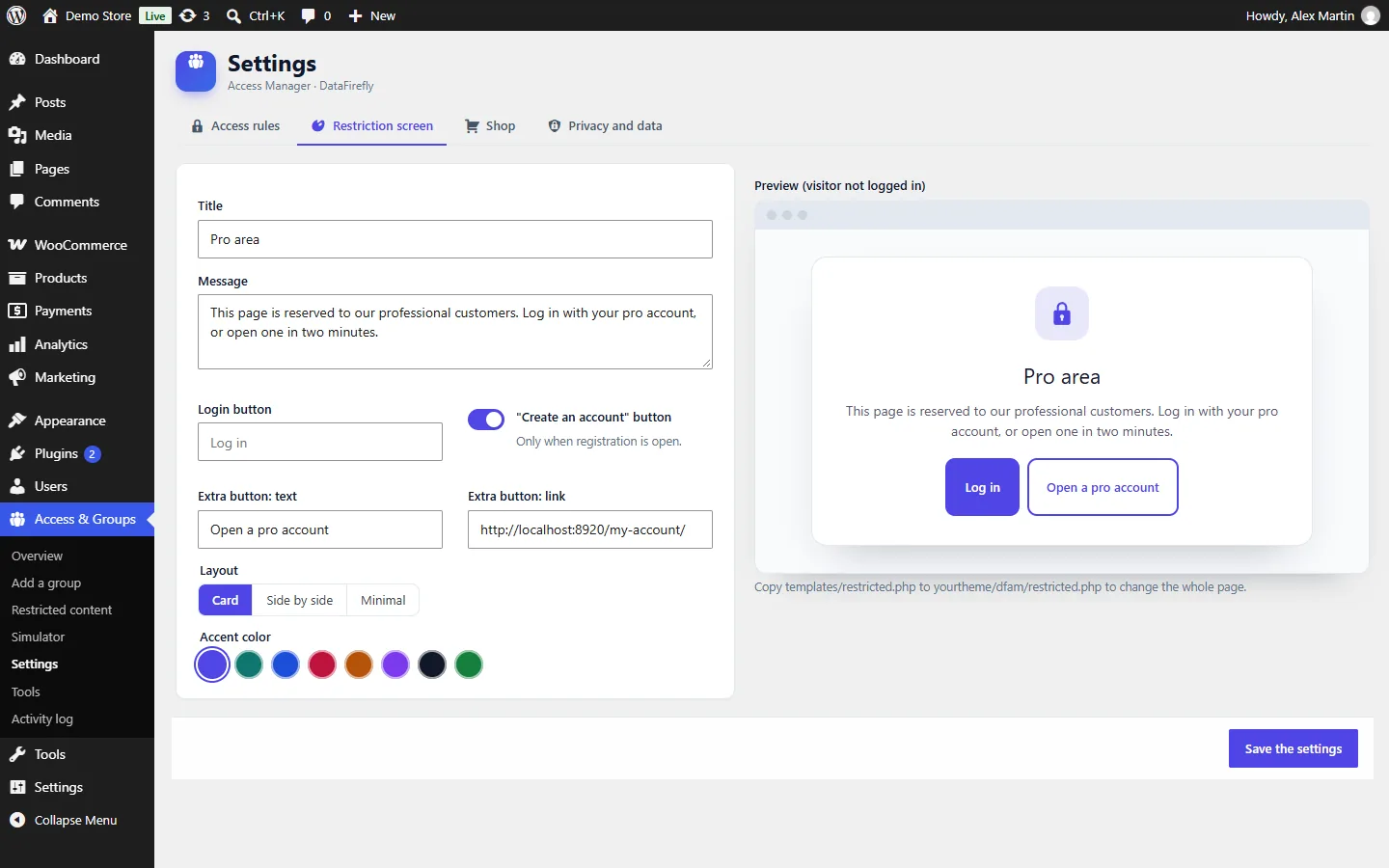
In Settings > Restriction screen, set the title, the message, the text of the login button, a “Create an account” button (shown when registration is open), an extra button with your own link (for example “Open a pro account”), the layout (card, side by side, minimal) and the accent colour. The preview updates while you type. The screen works with block and classic themes, in light and dark mode, and is never cached or indexed.
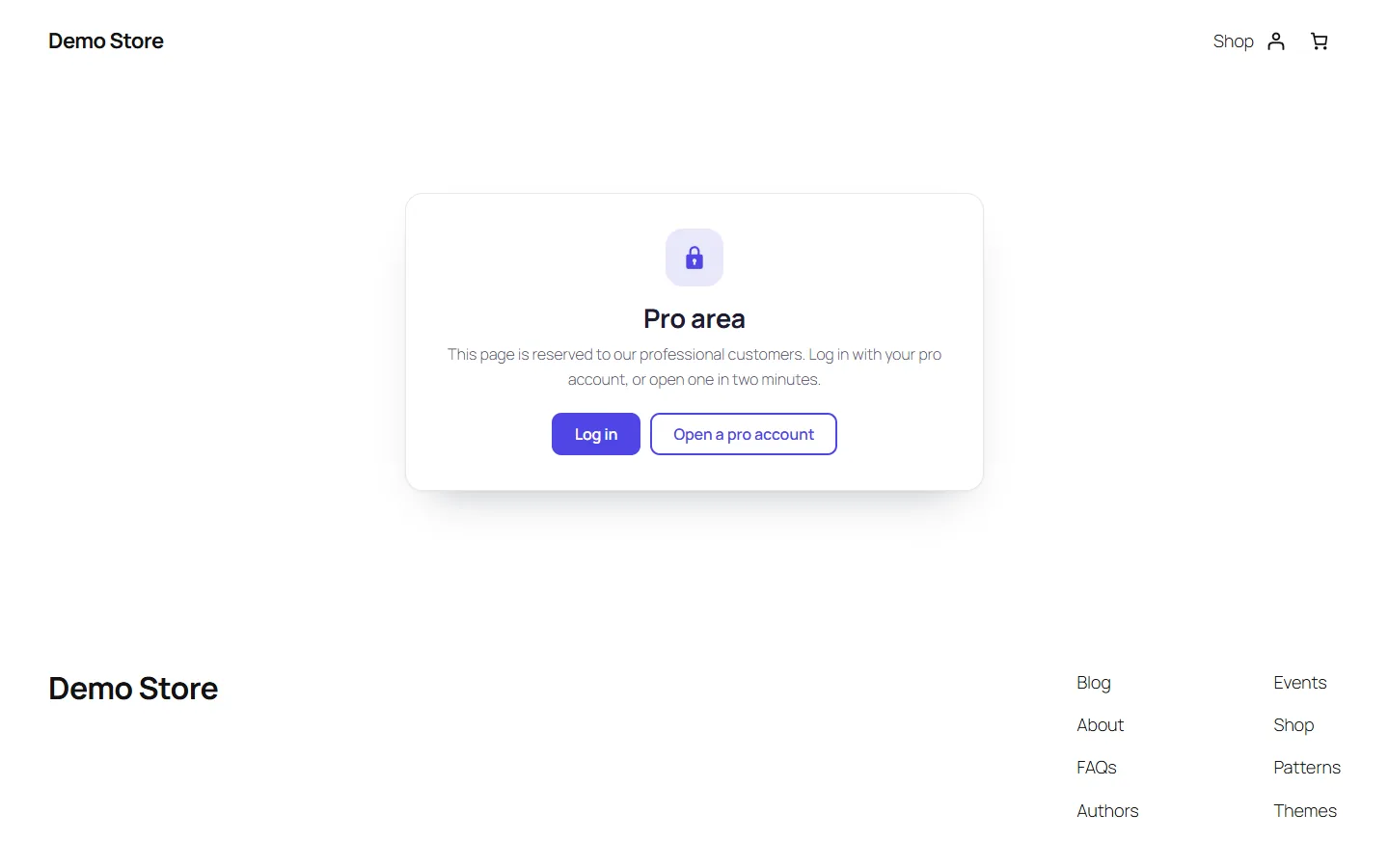
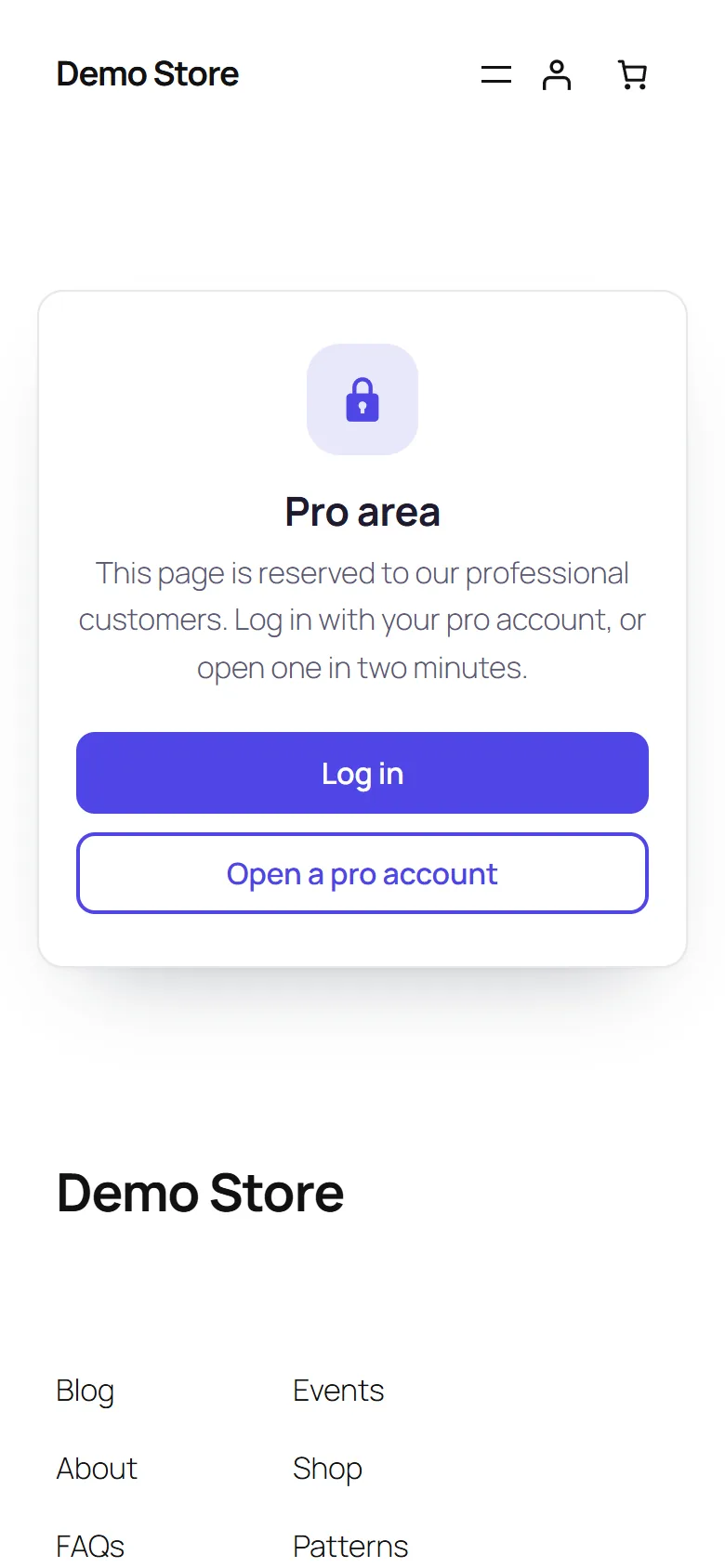
To change the whole page, copy templates/restricted.php to yourtheme/dfam/restricted.php.
Lists, search and other channels
In Settings > Access rules, choose what happens to restricted items in lists:
- Hide them (recommended): shop, categories, blog, search, related products, feeds, sitemaps and the REST API only show what each visitor can open.
- Show them with a teaser: title and image stay visible in archives; content, excerpt, price and description are replaced. They are never shown in searches and feeds.
Whatever the choice, a restricted content never leaks through the REST API (single items are refused), the WooCommerce Store API, comments and comment feeds, generated or manual excerpts, attachment pages, oEmbed, previous / next links or page lists.
WooCommerce
- Reserved products cannot be added to the cart and leave it when access is lost (logout, membership ended).
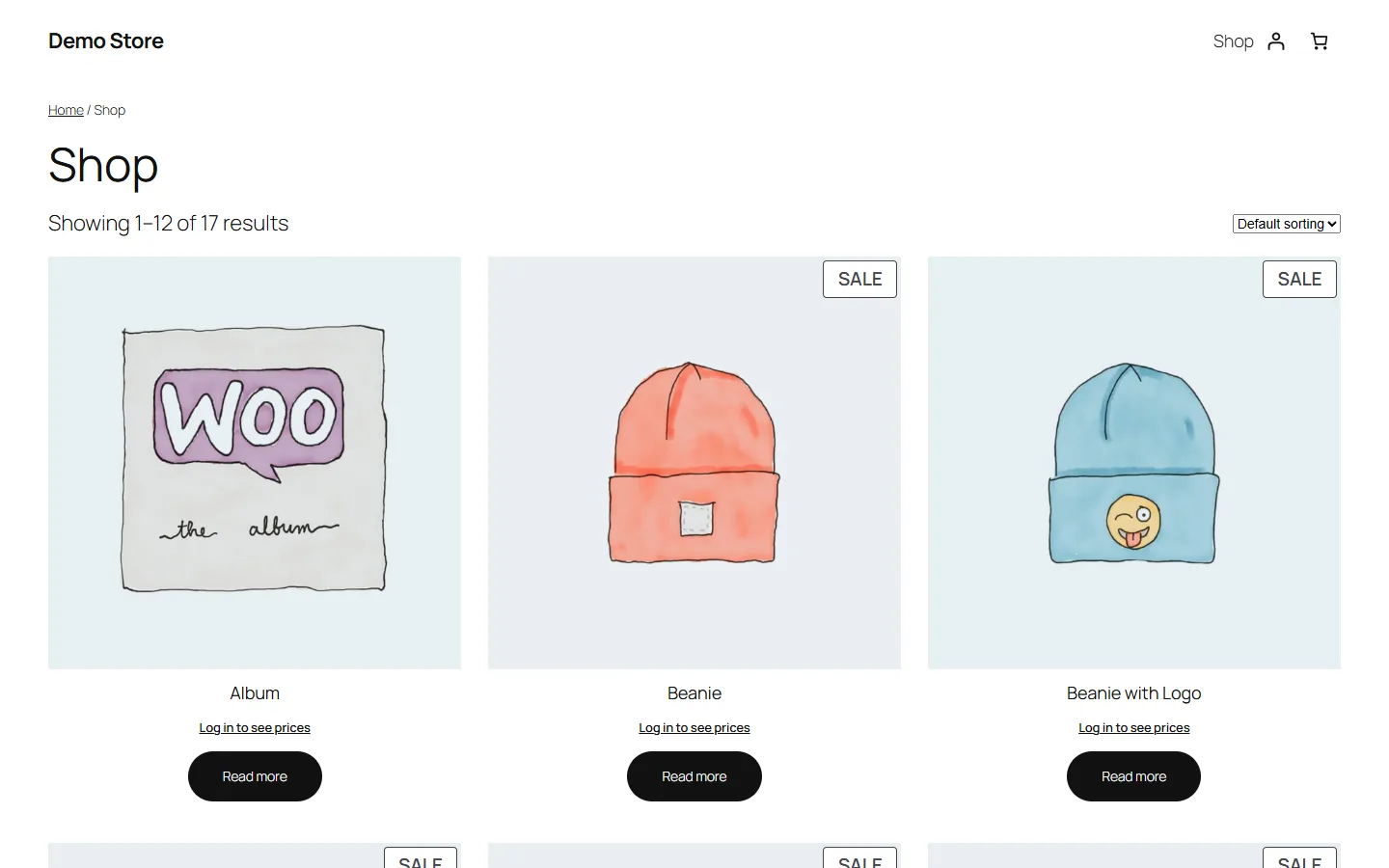
- Hidden prices (Settings > Shop): for visitors who are not logged in, or for everyone except some groups, with your own text; buying can be blocked at the same time. Prices are also removed from the Store API used by blocks and apps.
- Payment and shipping methods reserved to or hidden for a group (group, Shop tab).
- Coupons reserved to groups (coupon, Usage restriction, “Reserved to groups”).
Access simulator and “View as”
Access & Groups > Simulator answers “what does this visitor see on this page?”. Choose a visitor not logged in, a logged-in user without group, a group or a precise user (search by name or e-mail), then paste an address of the site or search a title. You get the verdict (sees the content, is sent to the login page, sees the restriction screen, gets a 404…), the reasons (own rule, inherited category, parent content, hidden blocks, protected file, prices, purchase, payment methods) and, for a user, the exact capabilities added or removed by their groups.
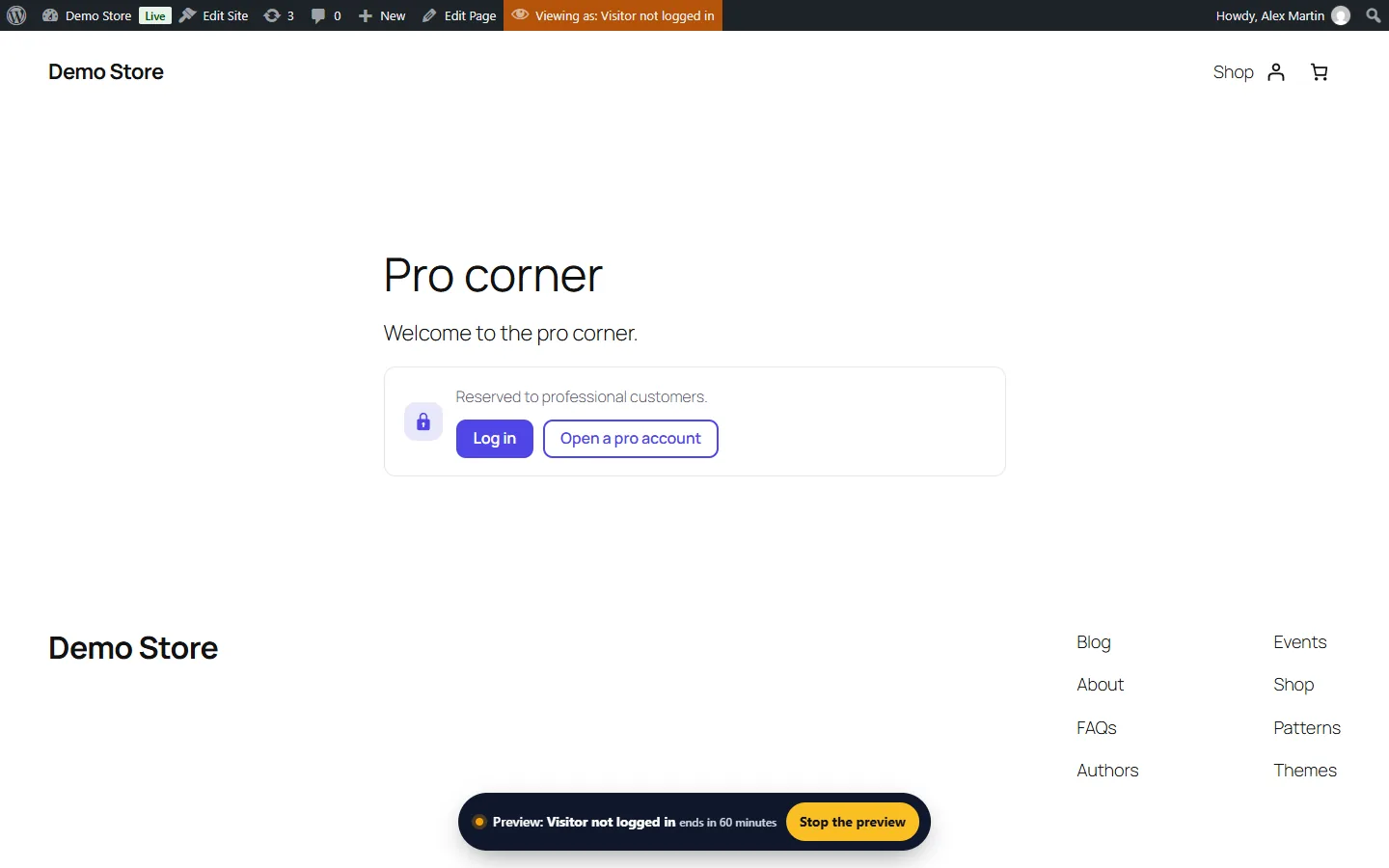
Open the page as this visitor, or View as… in the toolbar, starts a preview of the site as that visitor, group or user. It applies to you only, on the site (never in the back-office), a banner shows the remaining time, and it always ends: after its duration (60 minutes by default), at logout, when the plugin is deactivated, or with Stop the preview.
Settings, privacy and log
- Access rules: action when access is refused, default redirect, lists, menu links, administrators see everything, preview duration, content types with the Access panel.
- Restriction screen, Shop: see above.
- Privacy and data: retention of the activity log (180 days by default), delete all data when the plugin is deleted.
The Activity log records changes of groups, members, access rules, files and settings, with filters and a CSV export. Users are referenced by their ID, never by their e-mail; entries are anonymised when an account is deleted. The WordPress tools export and erase the memberships and log entries of a user, and a text is suggested for your privacy policy.
Cache and performance
Restricted screens are never cached. Pages whose content depends on the groups of a logged-in user are marked “do not cache” and sent with Cache-Control: private; pages of visitors stay cacheable. Keep the option “cache for logged-in users” of your cache plugin disabled, or separate per user: Site Health reminds you when a page cache is active. The list of hidden contents is computed once per combination of groups and kept in cache.
Developers
- Functions:
dfam_user_in_group( 'slug-or-id', $user_id ),dfam_can_access( $post_id, $user_id ). - Filters:
dfam_capability,dfam_permission_catalog,dfam_presets,dfam_scenarios,dfam_user_group_ids,dfam_context,dfam_hidden_post_ids,dfam_denied_rule,dfam_message_html,dfam_taxonomies. Actions:dfam_group_created,dfam_group_updated,dfam_group_deleted,dfam_member_added,dfam_member_removed,dfam_page_varies.
REST API for administrators, namespace dfam/v1:
GET /wp-json/dfam/v1/simulate?subject=guest|nogroup|<group ID>|u:<user ID>&target=<ID or URL>
GET /wp-json/dfam/v1/groups
GET /wp-json/dfam/v1/search/users?q=…
GET /wp-json/dfam/v1/search/content?q=…
WP-CLI: wp dfam status, wp dfam groups, wp dfam check user:camille https://example.com/pro-corner/, wp dfam rebuild-index, wp dfam preview-off, wp dfam protect <ID>, wp dfam unprotect <ID>.
Troubleshooting
A visitor still sees a restricted page
Check it in the simulator: it shows the rule that applies. If the simulator refuses access but the page is shown, a page cache served an old copy: clear it, and keep caching for logged-in users disabled.
I see everything while testing
Administrators see everything when “Administrators see everything” is on. Use View as… in the toolbar or the simulator.
The file of a restricted page can still be downloaded
Protect the file (Media). On Nginx, add the rule shown in Site Health.
A team member lost access to a screen
A group may deny a permission with a higher priority than another group. The simulator, with that user, lists each capability change and the group that decided it.