
Automatic Product Image Watermark: complete guide
Install, upgrade and configure the automatic product image watermark on PrestaShop 1.7, 8 and 9: logo or text with variables, live preview, exclusion rules, catalog processing and troubleshooting.
Overview
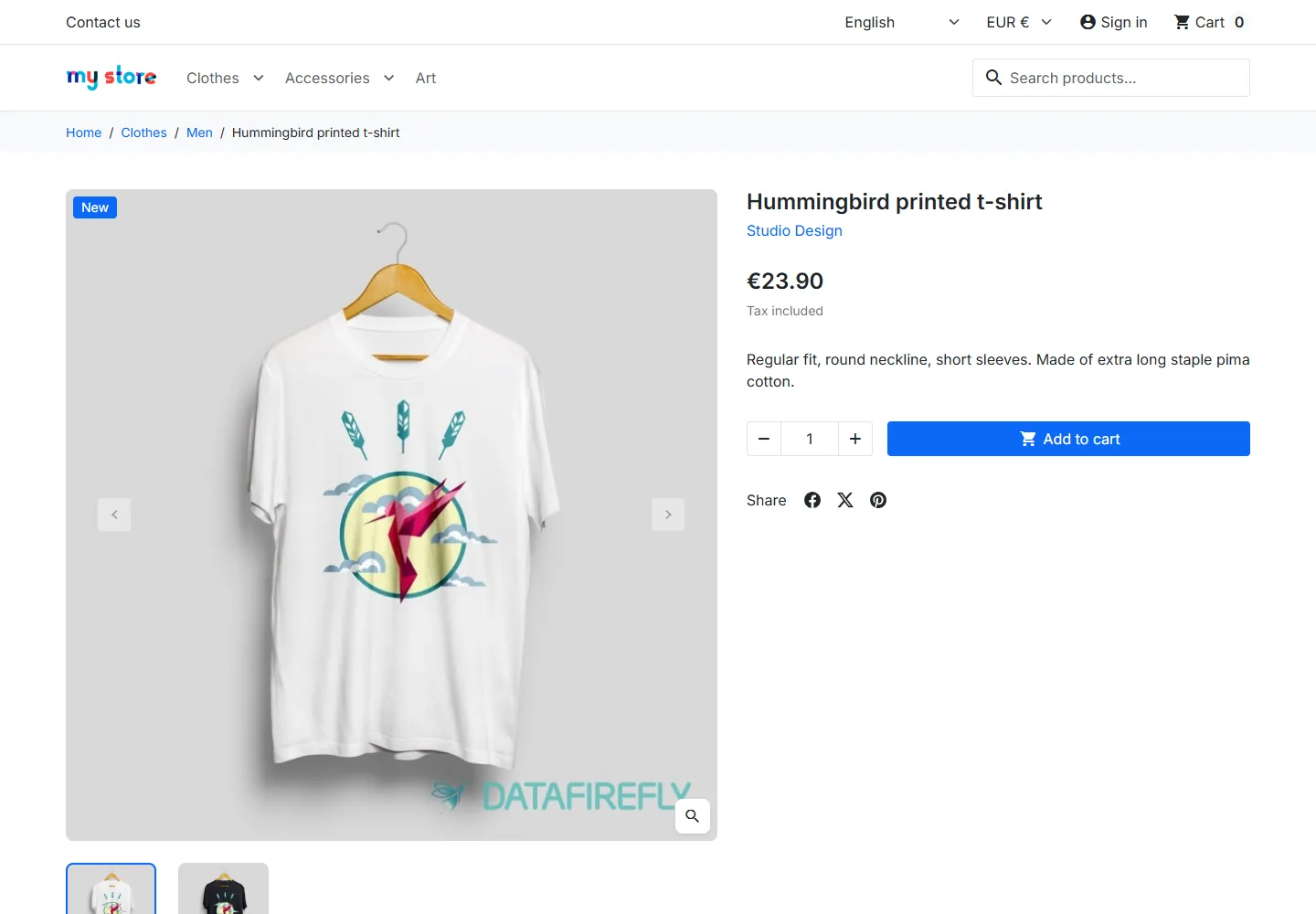
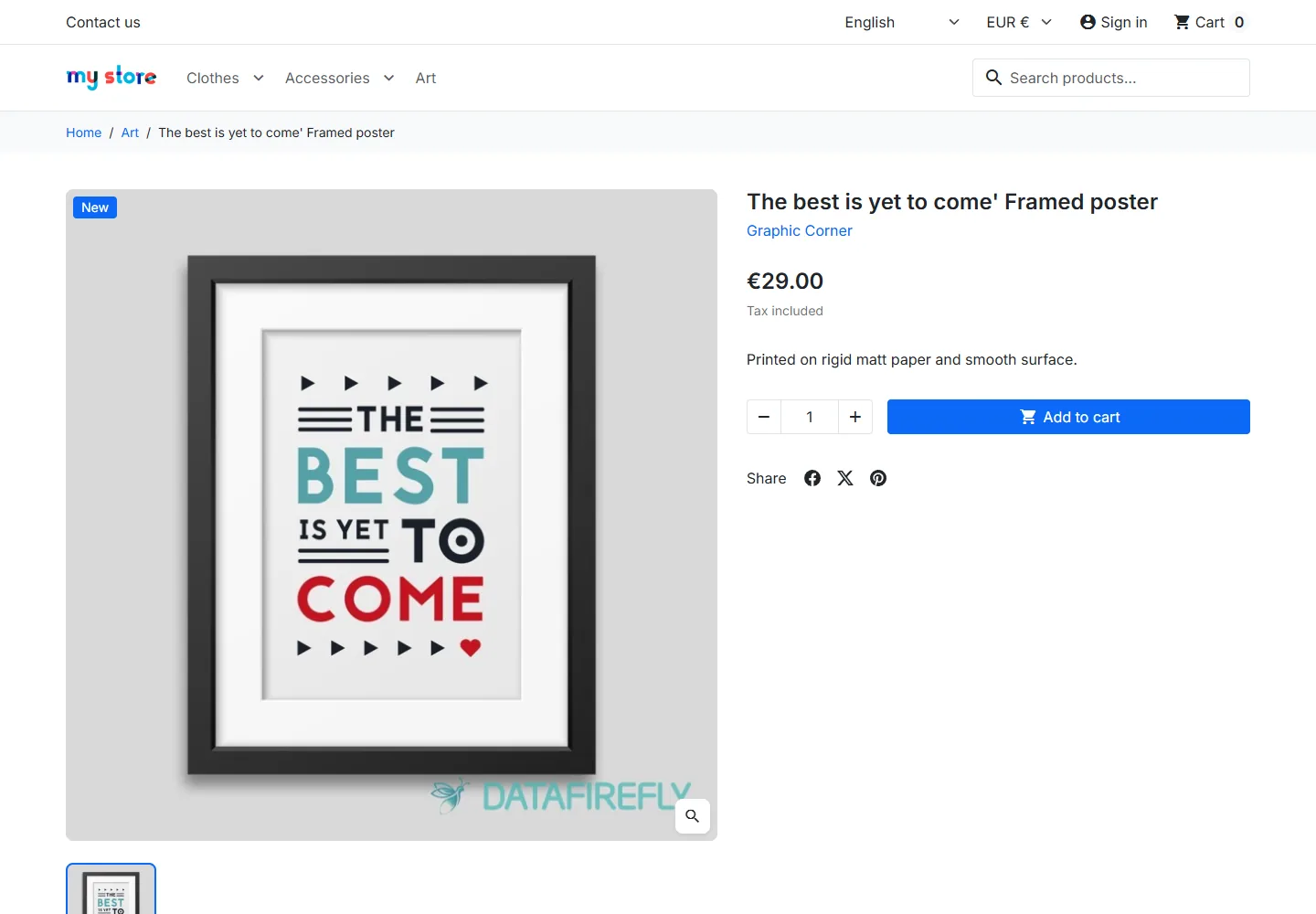
The DataFirefly Watermark module stamps your logo or a text on the thumbnails of your product images. The watermark is applied when an image is added to a product, on CSV import, through the webservice and on every thumbnail regeneration. Original files are never modified: each thumbnail is stamped from a fresh copy of the original, and each watermarked file gets a fingerprint that prevents a second watermark.
This guide covers version 1.1.1.
Requirements
- PrestaShop 1.7.0 to 9.x.
- PHP 5.4 to 8.4, with the GD extension. Installation is refused when GD is missing.
- FreeType (compiled into GD) for text mode. When it is missing, the configuration page says so and logo mode stays available.
- Processing WebP and AVIF files depends on what the server’s GD library can write. Unsupported formats are greyed out in the Rules tab.
Installation
- In the back office, open Modules > Module Manager.
- Click Upload a module and drop the ZIP archive.
- Click Configure once the installation is done.
Default settings are ready to use: logo at the bottom right, 60% opacity, size 25% of the width, 3% margin, 250 px minimum width, every thumbnail size at least 250 px wide and every format the server supports. In text mode, the default text is © {shop_name}. All that is left is uploading your logo.
Upgrading from version 1.0.x
- Upload the 1.1.1 archive over the old version from the Module Manager. PrestaShop runs the upgrade script.
- Your settings are kept: logo, opacity, size, position, selected sizes, formats. The pixel margins of 1.0.x are replaced by a percentage margin. In text mode, the regular font without effect is kept so the result looks the same.
- A One last step after the update banner appears. Click Open Catalog, then Regenerate everything.
This regeneration rebuilds every thumbnail from its original before watermarking it. It removes the watermarks stacked by version 1.0.1 during repeated PrestaShop 8 and 9 regenerations. The banner disappears when processing ends.
Until Regenerate everything has run, the module never stacks a new watermark: any thumbnail processed in the meantime is first rebuilt from the original.
The configuration page
At the top of the page, a switch shows Automatic watermark on or off. When it is off, the module leaves added or regenerated images alone, and thumbnails that already carry a watermark stay as they are. A link leads to this documentation.
Settings are split into three tabs: Design, Rules and Catalog. As soon as a setting changes, an Unsaved changes bar appears at the bottom of the screen with two buttons: Discard and Save. Nothing is applied to images before you save.
Design tab
Watermark type
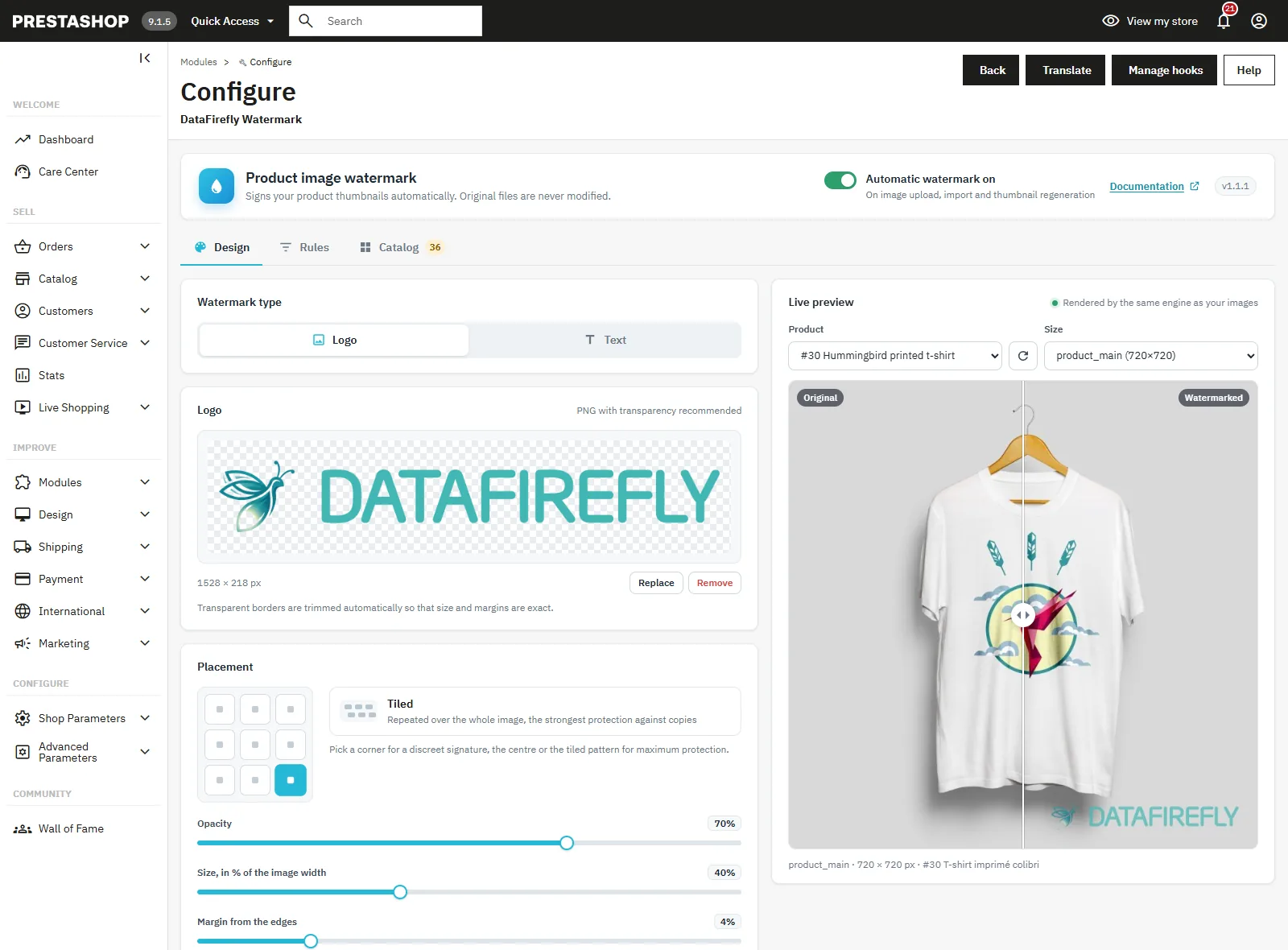
Choose Logo or Text.
Logo
- Drag your file onto Drop your logo here or click to browse. Accepted formats: PNG (transparent recommended), WebP, GIF or JPG, 5 MB and 40 megapixels max.
- The logo is converted to PNG, scaled down to 1,600 px when larger, and its transparent borders are trimmed. Size and margin then apply to the visible drawing, not to an empty area around it.
- Replace uploads a new file, Remove deletes the logo.
Text
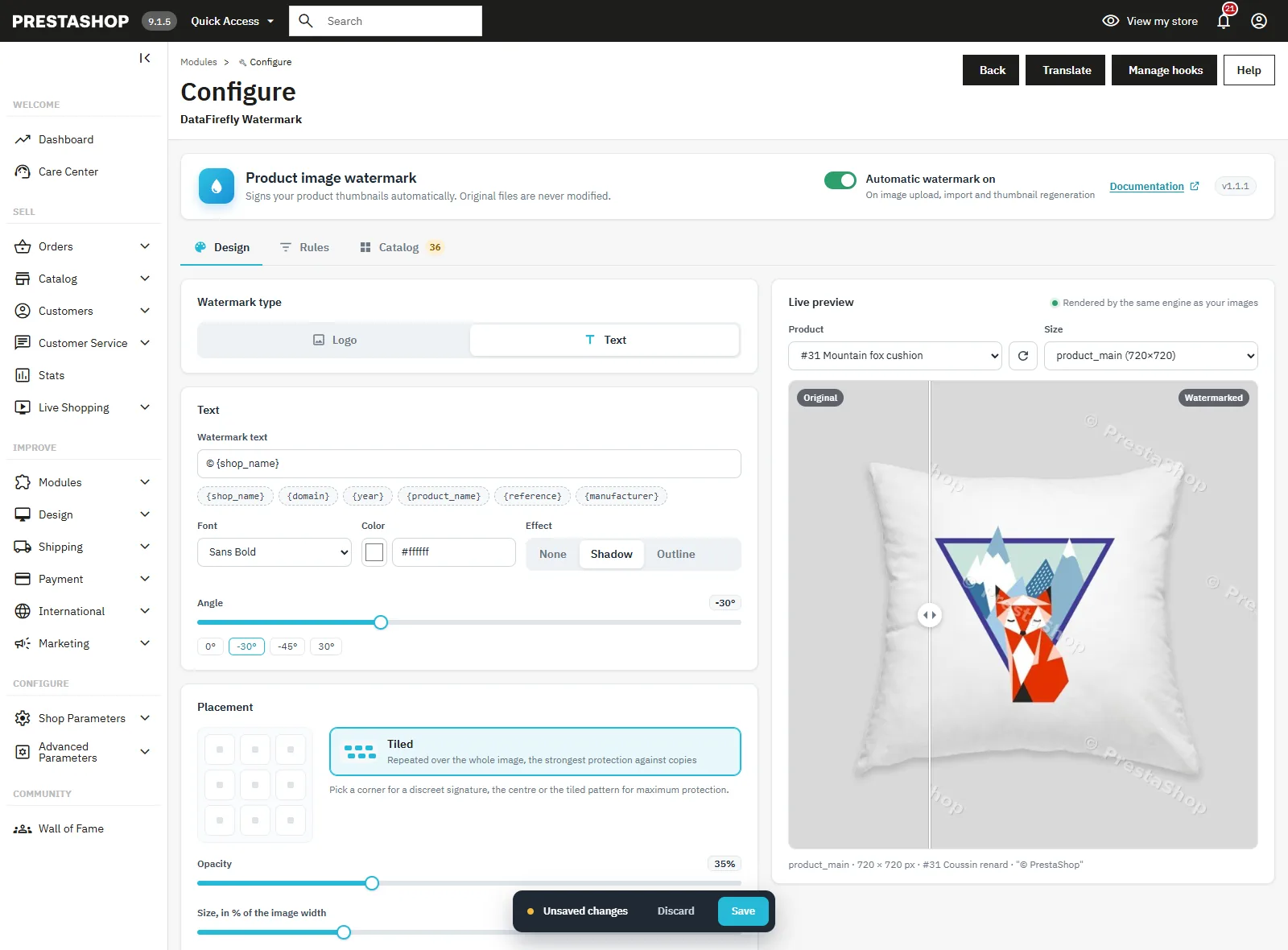
- Watermark text: 120 characters max. The Insert a variable button adds a variable at the cursor position.
- Font: DejaVu Sans, Sans Bold, Sans Condensed Bold or Serif. The fonts ship with the module, so the result is identical on every host.
- Color, Effect (None, Shadow or Outline) and Angle from -90° to 90°. Shadow or outline keep the text readable on light and dark photos.
Available variables, replaced image by image:
{shop_name}: shop name{domain}: shop domain{year}: current year{product_name}: product name{reference}: product reference{manufacturer}: product brand
Example: © {shop_name} · {reference} gives “© Maison Lumen · NW-SNK-01” on the images of the product with reference NW-SNK-01.
Placement
- Position: 9 anchors (corners, middle of the edges, centre) or Tiled, which repeats the watermark in a staggered pattern over the whole image. Tiled gives the strongest protection against reuse, a corner gives a discreet signature.
- Opacity: 5 to 100%.
- Size, in % of the image width: 5 to 100%.
- Margin from the edges: 0 to 20%, for anchored positions.
- Spacing between repetitions: for the tiled pattern only.
Since size and margin are relative to each image, the watermark keeps the same proportions on every thumbnail size.
Live preview
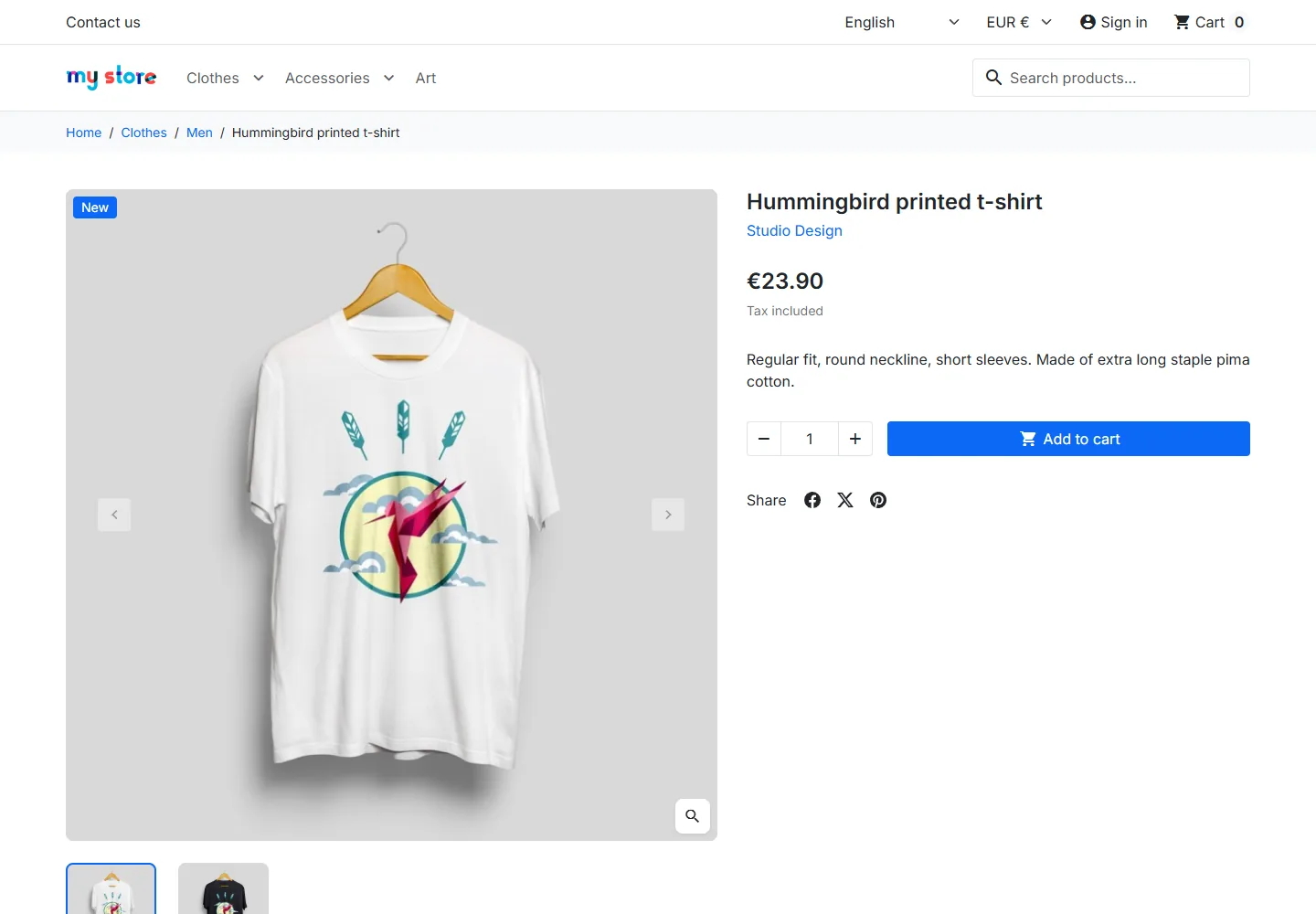
The preview is rendered by the same engine as your images, from one of your recent products. The Product menu and the Another product button change the photo shown, the Size menu picks the thumbnail. The Original, Watermarked and Compare buttons switch views; in Compare mode, drag the slider to see before and after. The preview also tells you when the selected product is excluded or when the size shown is below the minimum width.
Rules tab
Thumbnail sizes to watermark
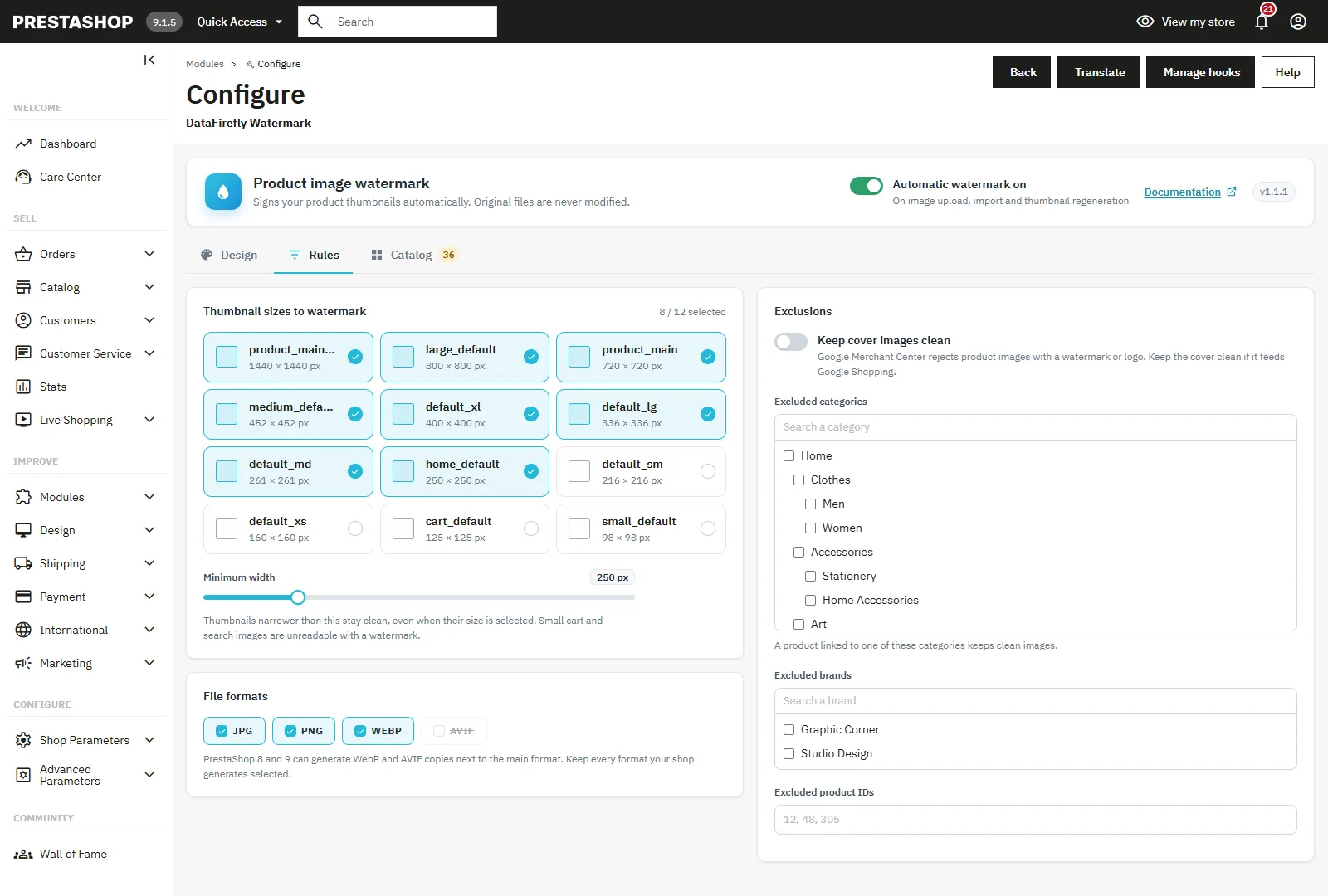
Tick the product image types to process. Each type shows its dimensions. By default, every size at least 250 px wide is ticked.
Minimum width
Thumbnails narrower than this value stay clean, even when their size is ticked. Small cart and search images are unreadable with a watermark.
File formats
JPG, PNG, WebP and AVIF. PrestaShop 8 and 9 can generate WebP and AVIF copies next to the main format: keep every format your shop generates ticked, otherwise one version of the image would stay clean. Formats that GD cannot write on your server are greyed out.
Exclusions
- Keep cover images clean: Google Merchant Center rejects product images that carry a watermark or a logo. Tick this box if your covers feed Google Shopping; the other photos of the product stay watermarked.
- Excluded categories: a product linked to one of these categories keeps clean images.
- Excluded brands and Excluded product IDs.
The category and brand lists have a search field. An image that already carries a watermark and becomes excluded is cleaned on the next run.
Catalog tab
Statistics
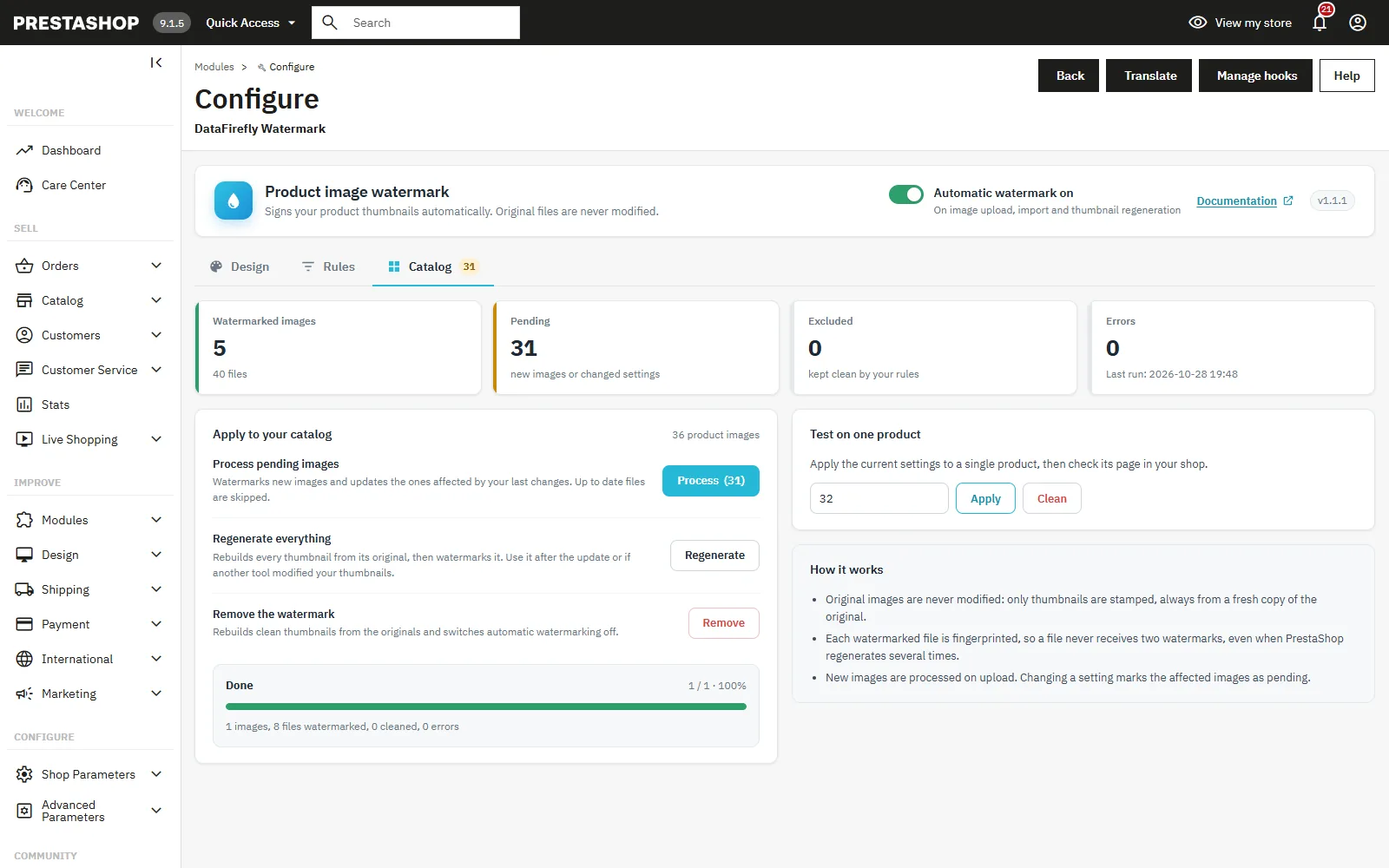
Four counters: Watermarked images (in files), Pending (new images or changed settings), Excluded (kept clean by your rules) and Errors. The date of the last run is shown.
Apply to your catalog
- Process pending images: watermarks new images and updates the ones affected by your last changes. Up to date files are skipped. This is the action to use after every settings change.
- Regenerate everything: rebuilds every thumbnail from its original, then watermarks it. Use it after upgrading from 1.0.x, or if another tool modified your thumbnails.
- Remove the watermark: rebuilds clean thumbnails from the originals and switches automatic watermarking off.
Processing runs in batches of a few seconds, with a progress bar and a Cancel button. It works on shared hosting where PHP execution time is limited. Keep the tab open while it runs; if you interrupt it, run the same action again to finish.
Test on one product
Enter a Product ID, then click Apply to watermark its images with the current settings, or Clean to make them clean again. Then check the product page in your shop (clear the browser cache if the old image still shows).
How it works
The module hooks into actionWatermark, which PrestaShop triggers after creating the thumbnails of a product image. For each thumbnail kept by your rules, it:
- checks its fingerprint: if the file already carries a watermark made with the current settings and has not been modified, it is left as is;
- otherwise rebuilds the thumbnail from the original image, with PrestaShop’s dimensions and resize mode;
- applies the watermark, saves the file with the quality levels set in the shop’s image settings, then records its fingerprint.
This solves the PrestaShop 8 and 9 regeneration issue: when the option to erase previous images is not ticked, PrestaShop only rebuilds missing thumbnails, then triggers the hook on every image. Without a fingerprint, a watermark module would stamp existing thumbnails a second time.
The module also handles the high density (2x) thumbnails of PrestaShop 1.7 and 8, and the “Use PNG for all images” option, which writes PNG data into .jpg files. Transparent images keep their transparency.
PrestaShop’s native regeneration still works: Design > Image Settings, or on the command line on PrestaShop 8 and 9:
php bin/console prestashop:thumbnails:regenerate products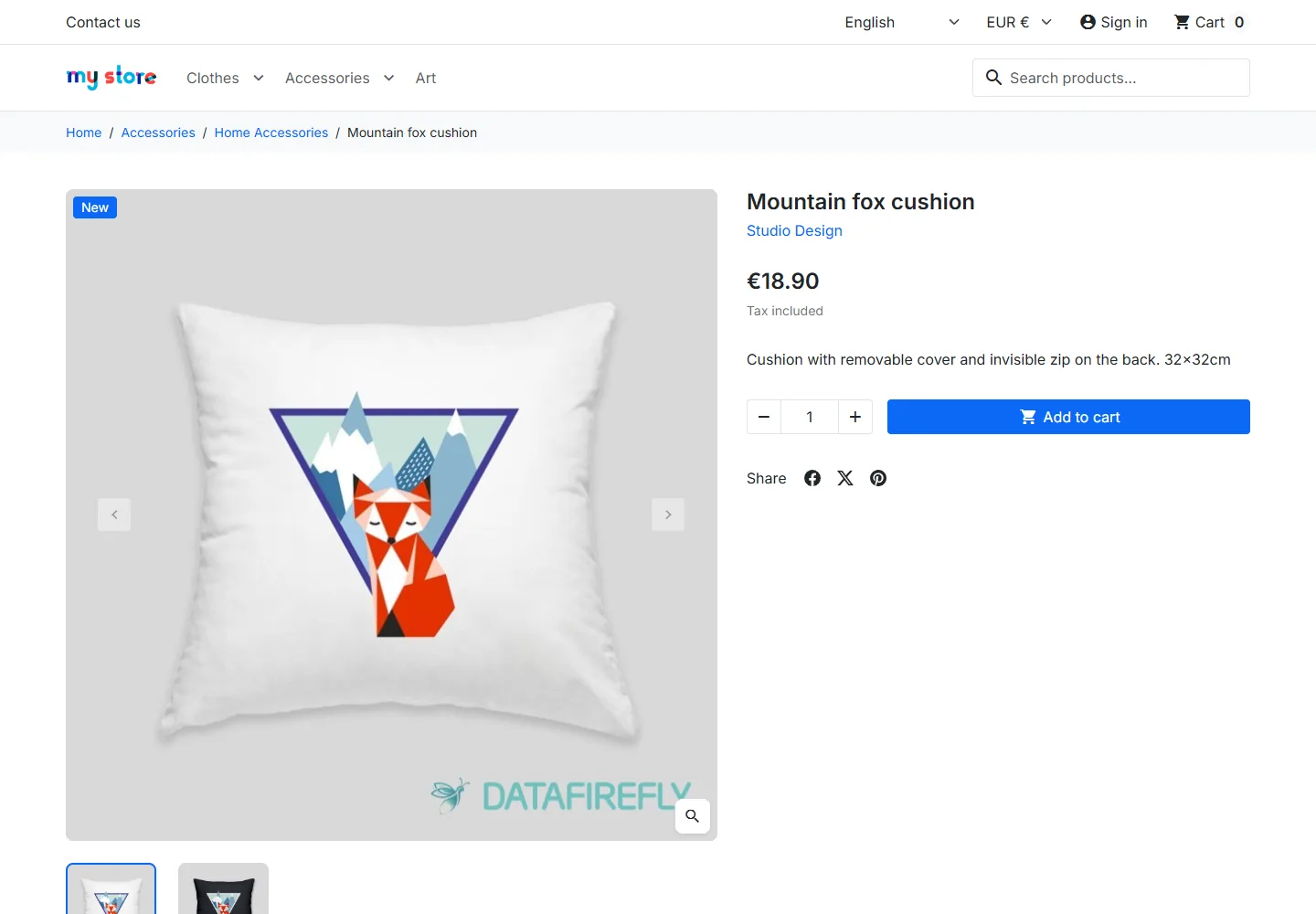
Multistore
PrestaShop shares product image files between all shops. The module’s settings are therefore shared by every shop, whatever context is selected in the back office. The {shop_name} and {domain} variables use the shop that is active when the image is processed: if your shops have different names, prefer a fixed text or a logo.
Uninstalling
Uninstalling deletes the module’s settings, the logo and its two tracking tables. Thumbnails that already carry a watermark are not modified. To get clean images back, first click Remove the watermark in the Catalog tab, then uninstall. You can also uninstall, then regenerate thumbnails from Design > Image Settings with the option to erase previous images ticked.
Troubleshooting
The watermark is not applied. Check that the switch is on, that a logo is uploaded (or a text entered), that at least one size and one format are ticked in the Rules tab, and that the product is not excluded. Then run Process pending images or Test on one product.
- The old image still shows in the shop: the browser or a CDN keeps the old version in cache. Reload without cache or purge the CDN.
- Errors counter above zero: the original image is usually missing or unreadable on disk. Open the product, replace the image, then run the processing again.
- Text mode is unavailable: the server’s GD library has no FreeType support. Ask your host to enable it, or use logo mode with a PNG that contains your text.
- WebP or AVIF greyed out: GD cannot write this format on your server. These files are not processed.
- Watermark too small on thumbnails: the size is proportional, so increase it or exclude small sizes with the minimum width.
- Two watermarks visible after upgrading from 1.0.1: run Regenerate everything in the Catalog tab.
FAQ
Are my original images modified?
No. Only thumbnails are watermarked, always from a fresh copy of the original.
Do I need to regenerate after every settings change?
No. The affected images become pending. One click on Process pending images updates them without redoing the others.
Can an image receive two watermarks?
No. Each watermarked file keeps a fingerprint. An up to date file is skipped; a file stamped with older settings or modified by another tool is rebuilt from the original before being stamped.
Is the watermark applied to images imported by CSV?
Yes. PrestaShop triggers the same hook on import and through the webservice.
Does the module slow down my shop?
No. The watermark is computed when thumbnails are created, never when pages are displayed.
Is the module compatible with PrestaShop 1.7?
Yes, from PrestaShop 1.7.0 to 9.x, with PHP 5.4 to 8.4.