
A professional buyer thinks in net prices, a consumer thinks in gross prices. Showing a VAT-inclusive price to a tradesperson comparing your rates with their wholesaler’s makes you look 20% more expensive than you are. The reverse is worse: a net price shown to a consumer is a misleading practice.
The native foundation
PrestaShop handles this distinction without a module, which is often overlooked.
In the configuration of each customer group, a setting determines price display: tax included or tax excluded. So all it takes is creating a group for professionals and switching that setting.
The parameter acts across the whole front office: listings, product page, cart, order summary. A customer attached to that group sees everything net, with no further work.
Two points to watch from the start. Attachment to the group must be validated, not self-declared: a consumer ticking an “I am a business” box to see lower prices distorts your catalogue. And the default group for new accounts stays the consumer one, whatever the customer entered at registration.
What the native setting does not do
Three gaps show up in production.
The logged-out visitor. They belong to no group and therefore see the default display. On a mainly B2B shop, that means all your search traffic sees gross prices while your target thinks net.
Dual display. Many professional shops show both amounts, with the net price large and the gross price smaller underneath. The native setting only offers one display at a time.
Module blocks. A related-products module, a promotions block or a side cart may show the price without honouring the group setting, depending on how it fetches the value.
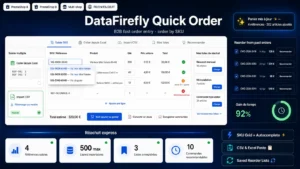 B2B Quick Order Module PrestaShop 8 & 9 — SKU Entry, CSV Import & Re-orderB2B ordering by reference, without browsing the catalogue.€89.00
The inconsistencies to hunt down
This is the real work, and it is done by browsing the site logged in with a test account attached to the professional group.
Four places concentrate the anomalies.
The category listing. Price shown gross while the product page shows net, or the reverse. A frequent case when the theme uses a different method on the two views.
Shipping costs. The carrier rate is entered net or gross depending on configuration, and its display does not always follow the group setting. A net cart with gross shipping costs produces an inconsistent total.
Discounts and promo codes. A percentage reduction poses no problem, a fixed-amount reduction does: are ten euros of discount ten euros net or gross? The rule has to be decided and checked.
Free shipping thresholds. Is a 200 euro threshold assessed on the net or the gross amount? For a professional customer seeing net prices, announcing it gross produces systematic confusion.
The invoice
A point not to confuse with display.
Whatever display mode you choose on the shop, the invoice must always show the net amount, the VAT rate and amount, and the gross total. That is an obligation, not a presentation option.
A shop running entirely on net prices therefore cannot make do with a net-only invoice. Check this on the invoice template before opening a professional area.
The mixed case
The most common situation in reality: a shop selling to both audiences.
Three approaches, with very different consequences.
Two groups, one site. The simplest. Consumers see gross, logged-in professionals see net. Downside: the logged-out visitor sees only one display, and that is a compromise.
A display switch. A button toggling between net and gross, with the choice remembered. It solves the logged-out visitor case and professional buyers appreciate it. Take care that the price shown to consumers stays gross by default.
Two shops. In multistore, a consumer site and a professional site with their own settings and their own rates. It is the cleanest solution as soon as the catalogues or the terms genuinely diverge.
Beyond display
A more fundamental remark: switching prices to net does not make a professional shop.
What a professional buyer also expects comes down to four points. Fast entry by reference, because they know their product codes and do not want to navigate. One-click reordering from a past order. List import for large orders. And the ability to order in pack quantities rather than by unit.
These weigh more on B2B conversion than price display, which is only a prerequisite.
The B2B Quick Order module for PrestaShop covers that part on PrestaShop 8 and 9: direct entry by reference with autocompletion, list import in spreadsheet format, reordering from history and pack quantity handling.