
Everything you'd want to know before you install.
A detailed look at how Vector Search Native — AI Semantic Search for WooCommerce works, why we built it the way we did, and the thinking behind the features above.
§ 01
Why native WooCommerce search isn't enough anymore
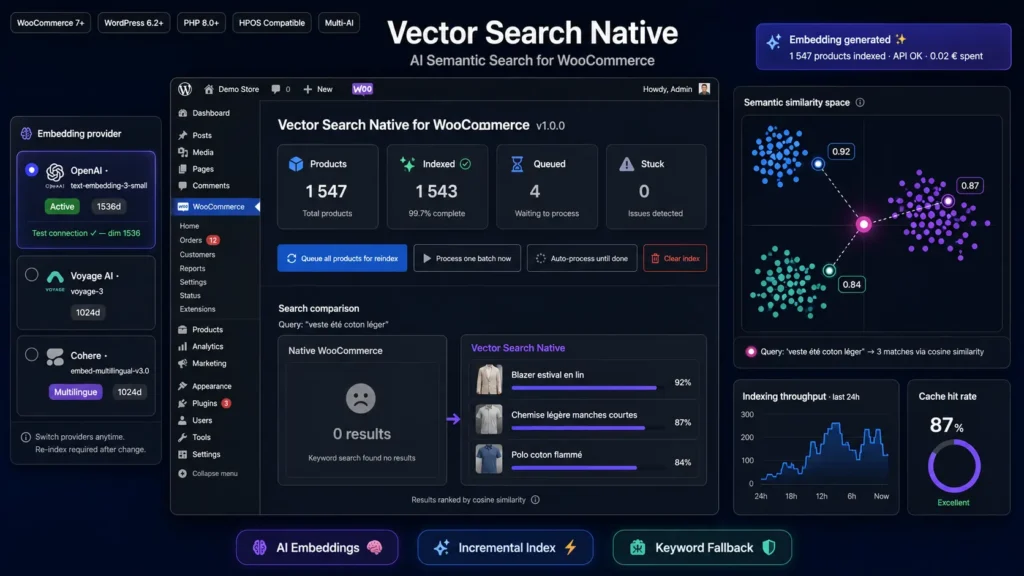
WooCommerce's search engine relies on a simple LIKE match in the database. If your customer types lightweight cotton summer jacket and your product is called summer linen blazer, they will find nothing. Worse, on long or imprecise queries, your best products remain invisible. Semantic search solves this by comparing the meaning of words, not their form.
§ 02
How semantic search works
Each product is converted into a vector of a few hundred to a few thousand numbers by an AI model (an embedding). The user's query is converted into a vector by the same model. The plugin then computes the cosine similarity between the query vector and every stored product vector, surfacing the best matches. Modern models capture semantics with impressive subtlety, and work even on misspelled or multilingual queries.
§ 03
Incremental indexing: efficient by design
Each product text is hashed in SHA-256 before any API call. If the existing hash matches, no call is made. This means a cron running every minute on a stable catalog costs nothing. Only products that actually changed trigger a re-embedding.
§ 04
Fallback: your safety net
If the provider API is temporarily unavailable, your key is misconfigured, or the query is so specific that semantic search returns fewer than N results (configurable threshold), the plugin silently lets the native WooCommerce search take over. Your customers never see an empty results page because of an AI-side problem.
§ 05
Which provider should you pick
OpenAI text-embedding-3-small offers the best quality-price ratio for most shops. Voyage AI provides models specifically trained for e-commerce search, often with superior retrieval quality. Cohere embed-multilingual-v3.0 is unbeatable for catalogs that mix several European languages in a single store. You can switch between the three without losing your configuration, a single reindex is enough.
§ 06
Installation and configuration in 3 minutes
Upload the ZIP, activate, go to WooCommerce then Vector Search. Pick a provider, paste your API key, select a model, click Test connection. If the test passes, click Queue all products for reindex then Auto-process until done. Your catalog is now searchable by meaning.


There are no reviews yet.