
Booking & Appointments: complete guide
Install, configure and run online appointments: quick start, services, staff, day/week/month planning, verified deposit and refunds, exceptional hours, emails and reminders.
Overview
The Booking & Appointments module (dfbooking) adds online appointment booking to PrestaShop 1.7.8, 8 and 9. The customer picks a service, a staff member or “First available”, then a day and a time. Available times are calculated in real time from schedules, service duration, break time, closures and existing bookings.
A deposit can be required: it is paid through a native PrestaShop order, so with the payment methods already active on your shop. Your team works from a back-office dashboard and planning, and customers manage their own appointment from a private link received by email or from their account.
This documentation covers version 2.0.0.
New in 2.0.0: dashboard, one-form quick start, day / week / month planning with visible opening hours, “Closures and hours” page, deposit check in the order, refund tracking, keyboard-friendly calendar, review step before confirmation, cancellation from “My appointments”, anti-bot limit, redesigned emails in 8 languages and PrestaShop 1.7.8 compatibility.
Key concepts
- Service: what the customer books (haircut, consultation, workshop). It has a duration, a break time, a price per person, a number of places per slot and, optionally, a deposit, a group and a photo.
- Staff member or resource: the person, room or machine performing the service. Each one has a weekly schedule and, optionally, a photo and an email address.
- Slot: a bookable time, generated from the schedule and the slot interval.
- Statuses: Awaiting payment, Awaiting confirmation, Confirmed, Cancelled, Completed, No-show.
- Deposit refund: Refund to do, Refunded or Deposit kept, for bookings that were paid and then cancelled.
Installation and upgrade
- Open Modules > Module Manager and click Upload a module.
- Drop the
dfbooking-2.0.0.ziparchive, then open Bookings > Dashboard.
Installation creates the tables, the Bookings menu (Dashboard, Planning, Bookings, Services, Staff and resources, Closures and hours), a hidden technical product “Booking deposit” and the img/dfbooking/ folder for photos.
To upgrade from a 1.x version to 2.0.0, simply install the new ZIP over it: the upgrade script adds the new columns and pages, records the deposit already received for paid bookings and adds the new settings. Your bookings, services, schedules, closures and settings are kept, and staff calendar links remain valid.
Do not delete the “Booking deposit” product: it carries the deposit amount in the cart. It is hidden from the catalogue, removed from any cart that is not a deposit cart, and disabled (rather than deleted) on uninstall if it appears in orders.
Quick start
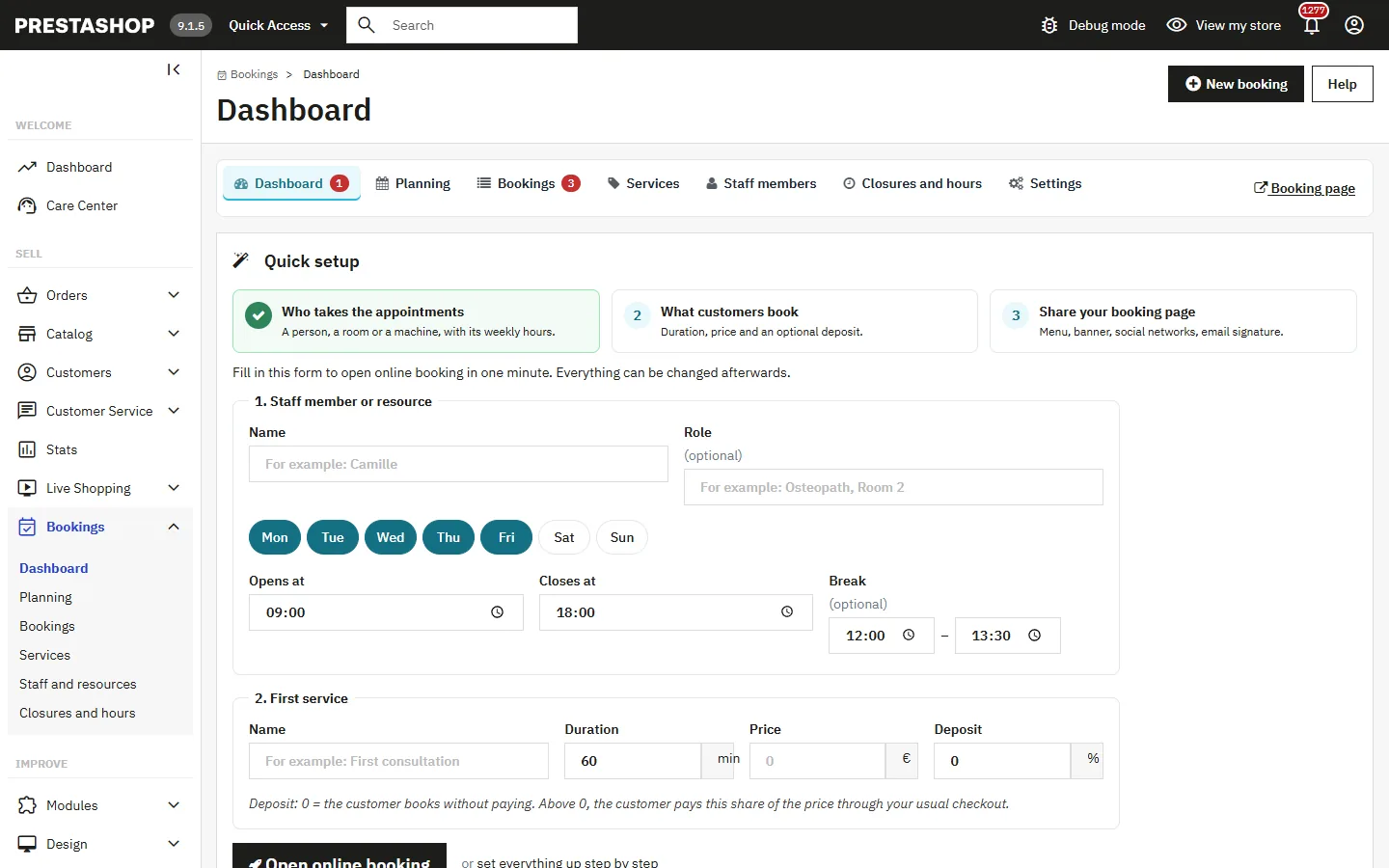
As long as no service is online, the dashboard shows a quick start form. In one minute, you fill in:
- the staff member (name and role), their working days, opening hours and an optional break;
- your first service: name, duration, price and deposit as a percentage (0 = booking without payment).
Clicking Open online booking creates the staff member, their schedule and the service, then shows the link to your booking page to add to your menu or a CMS page. You can also set everything up step by step from the Staff and Services menus.
Add ?service=ID to the booking page URL to open a service directly, for example from a CMS page presenting it.
Dashboard
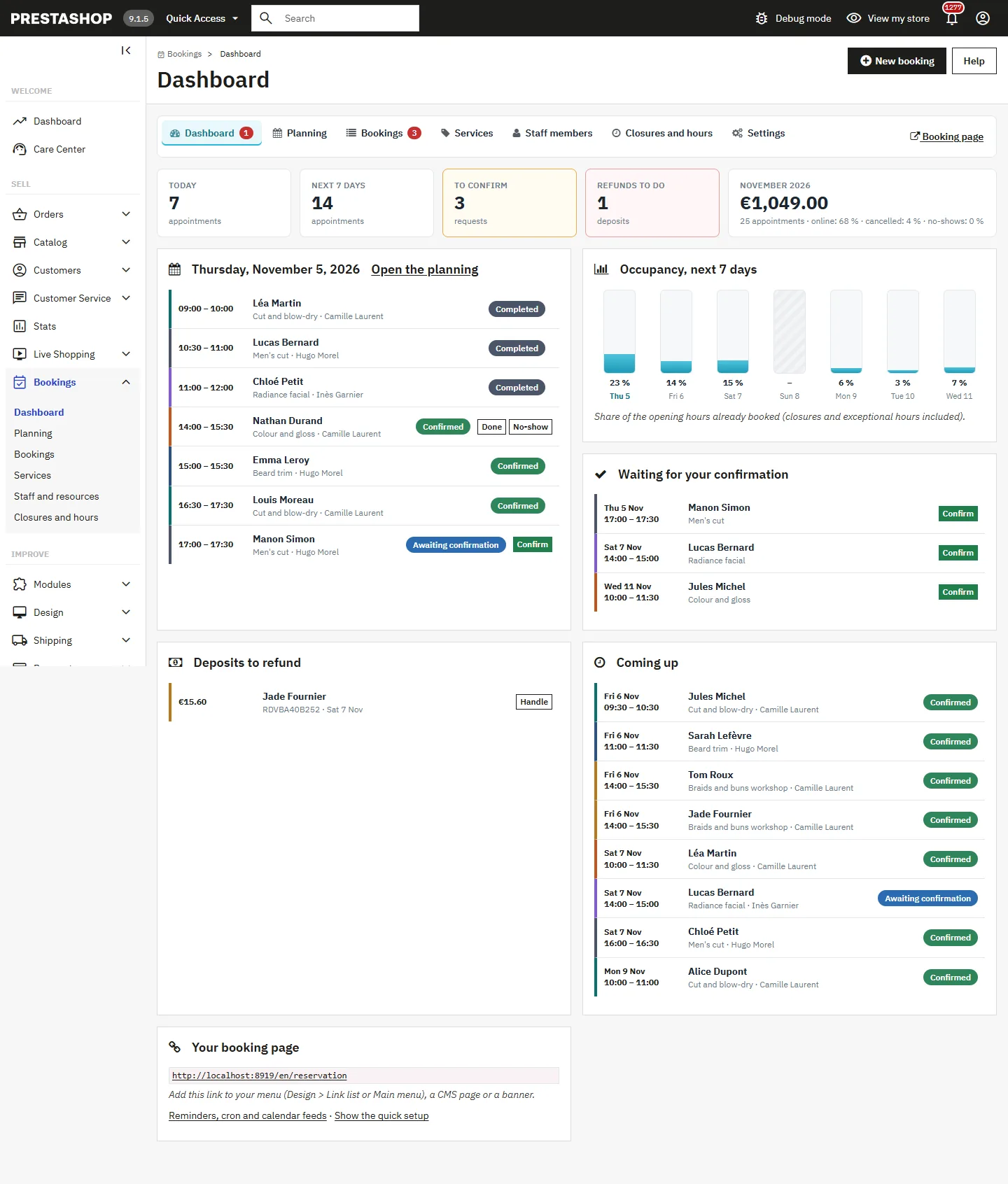
Bookings > Dashboard brings together everything that needs your attention:
- today’s appointments with one-click actions (Confirm, Completed, No-show);
- requests awaiting confirmation and deposits to refund;
- the occupancy rate for the next 7 days (share of opening hours already booked, including closures and exceptional hours);
- upcoming appointments and, for the current month, booked revenue, share booked online, cancellation rate and no-show rate.
A shared navigation bar links all the module pages, with counters (requests awaiting confirmation, refunds to do) and a link to the booking page.
Configuration
Settings open from the Settings tab of the navigation bar (or Configure in the Module Manager).
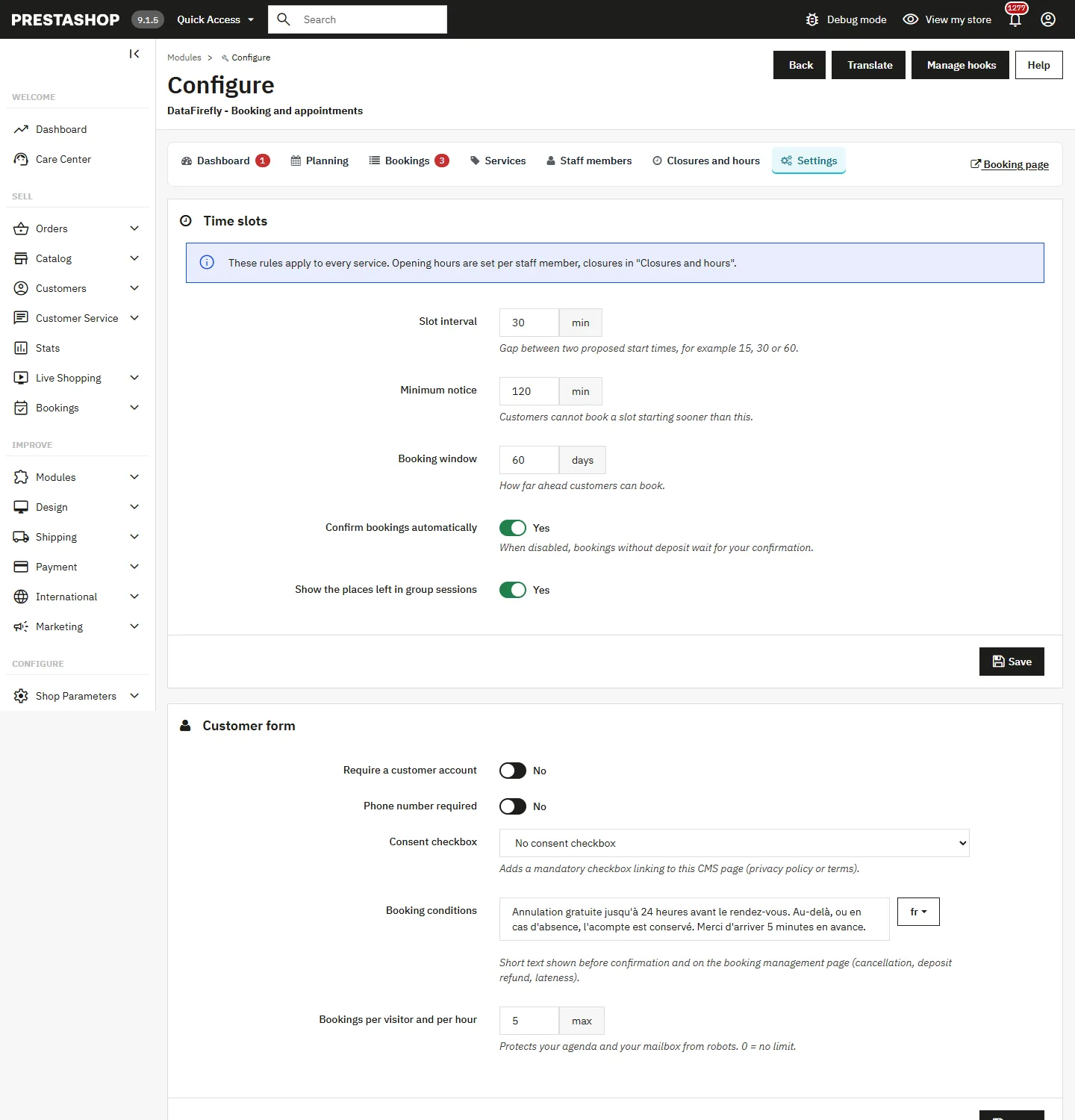
Time slots
- Slot interval (30 min by default): gap between two proposed start times.
- Minimum notice (120 min by default): customers cannot book a slot starting sooner.
- Booking window (60 days by default): how far ahead the calendar goes.
- Confirm bookings automatically: when disabled, bookings without deposit arrive as “Awaiting confirmation”.
- Show remaining places for group sessions.
Customer form
- Require a customer account and phone number required.
- Consent checkbox: choose a CMS page (privacy policy, terms); a mandatory checkbox appears before confirmation.
- Booking conditions: short text per language shown before confirmation, on the appointment page and in emails (cancellation, deposit refund, lateness).
- Bookings per visitor per hour (5 by default): protects your calendar and mailbox against bots. 0 = no limit. Logged-in customers are not limited, and the IP address is never stored.
Deposit, cancellation and changes
- Hold an unpaid slot for (30 min by default): after this delay without an order, the slot is released.
- Tax on deposits: no tax by default. The deposit set on a service is always the amount paid, tax included; choose a tax rule if the deposit invoice must show the VAT it contains.
- Online cancellation and online rescheduling by the customer, enabled separately.
- Online changes allowed until X hours before the appointment (24 by default).
- Refund the deposit when the customer cancels online: yes by default (the booking appears in “Refunds to do”); no: the deposit is kept and the customer is informed before cancelling.
Notifications and reminders
- Staff notification email: receives every new booking, cancellation and change (empty = shop email).
- Also notify the assigned staff member: copy sent to the email set on the staff member.
- Reminder email X hours before (24 by default, 0 to disable).
- Attach a calendar file (.ics) to confirmation, change and cancellation emails.
- Mark past appointments as Completed automatically.
Booking page
- Accent colour: buttons, selected day and selected time. Pick a colour that stays readable on white.
- Page URL:
/reservationby default, can be changed (for example/rendez-vous).
Links and automation
At the bottom of the settings: the booking page link, the cron URL, the team calendar feed, the Run the tasks now button and the Generate new calendar links button (the old links then stop working).
Services
In Bookings > Services, each service has:
- Name, group and description, per language. Services in the same group are shown together on the booking page, with filters as soon as there are at least two groups.
- Photo (JPG, PNG or WebP, 5 MB max), shown as a thumbnail.
- Duration and break around each appointment (cleaning, preparation).
- Places per slot: 1 for an individual appointment, more for a group session.
- Price per person (0 hides the price) and deposit: none, percentage of the price or fixed amount per person.
- Colour used in the planning, and the staff members who perform the service.
A service is only offered online when at least one active staff member is linked to it. The list flags services without staff; an empty list shows a getting-started guide.
Above six services, a search field appears above the list on the booking page.
Staff and schedules
In Bookings > Staff and resources, fill in the name, role, description, a photo (shown in a circle), a colour and, optionally, an email address for notifications.
Weekly schedule
For each day, enter up to three time ranges. Use two ranges for a lunch break. A day without any range is a day off. The Copy to Tuesday–Friday button copies Monday’s ranges, and Clear empties a day.
Personal calendar on the phone
Once the staff member is saved, their profile shows a private calendar link. In Google Calendar (Other calendars > From URL) or on an iPhone (Settings > Calendar > Accounts > Add subscribed calendar), their appointments appear and update automatically. A link for the whole team is available in the settings.
This link gives access to customer names and phone numbers. Share it only with the person concerned. If in doubt, generate new links from the settings.
Group sessions
With more than one place per slot, the customer chooses the number of participants and sees the places left under each time (configurable). Several bookings can share the same start time until places run out; price and deposit are multiplied by the number of participants.
Closures and exceptional hours
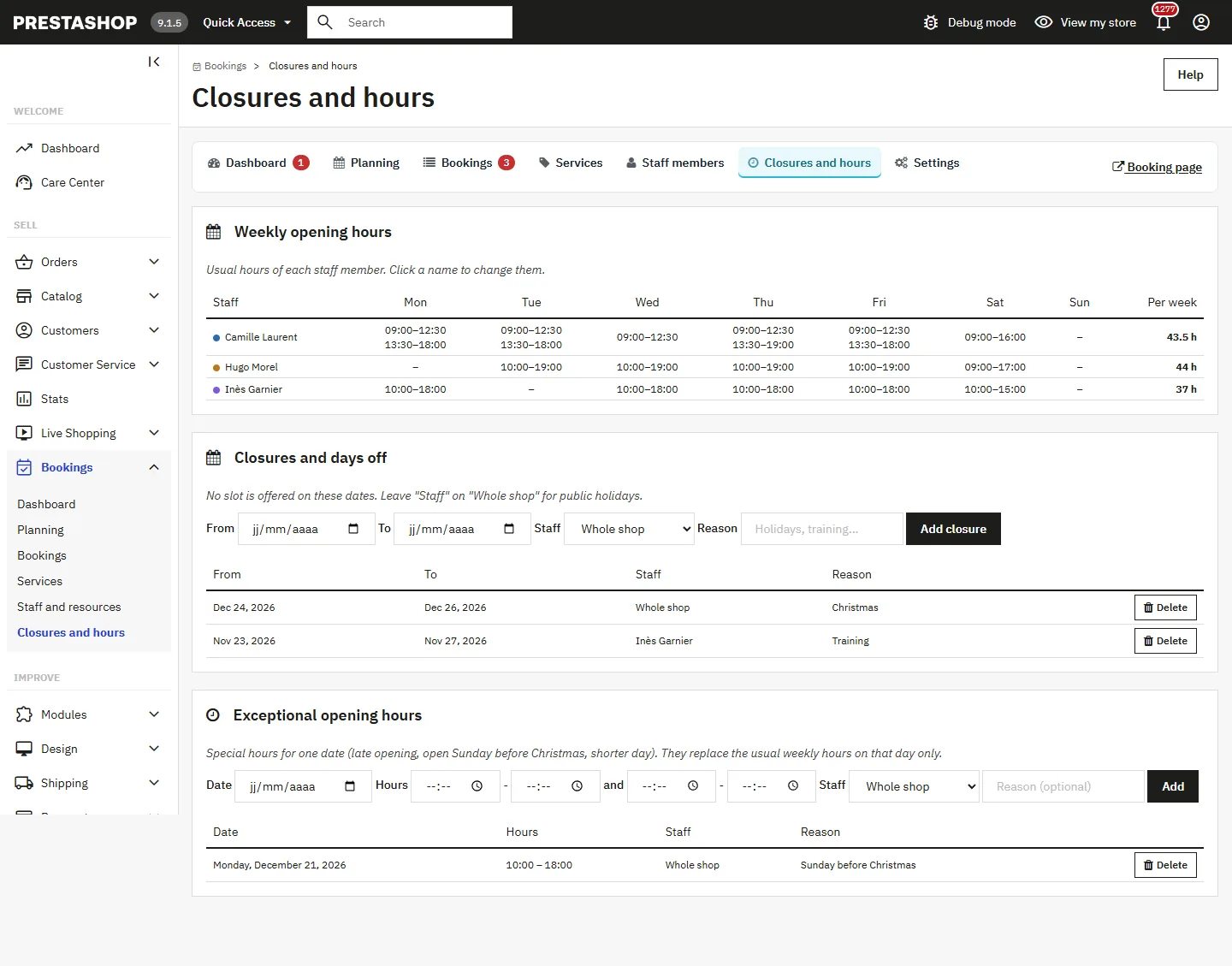
The Bookings > Closures and hours page brings together:
- a weekly view of each staff member’s hours, with the total hours per week (click a name to edit them);
- Closures and days off: a period without any slot, for the whole shop or one staff member. If bookings already exist in the period, a warning says so: they are not cancelled automatically;
- Exceptional hours: special hours for one date (late opening, Sunday before Christmas, short day), with an optional second range. They replace the usual week on that day only.
Priority for a given date: a closure always wins; then exceptional hours set for the staff member, then those set for the whole shop; otherwise the usual week. On the night clocks go forward for daylight saving time, times that do not exist are never offered.
The deposit
- The booking is created as “Awaiting payment” and the slot is held.
- The module prepares a cart holding only the deposit and sends the customer to your checkout. The cart they had is set aside.
- When the order is validated, the module checks that the full deposit is in the order. If it is missing (line removed from the cart, voucher), the booking stays “Awaiting confirmation” with an alert on the booking and on the order.
- Immediate payment (card, PayPal): the booking becomes Confirmed and emails are sent.
- Deferred payment (bank transfer, cheque): the slot stays held and the booking is confirmed when you move the order to a paid status.
- Order cancelled, in error or refunded: the appointment is cancelled and the customer notified.
- Abandoned payment: the slot is released after the configured delay.
After the order, the customer’s original cart is restored. The order confirmation page, the order details in the customer account and the PDF invoice show the appointment (with the balance to pay on site).
If a payment arrives after the delay while another customer took the slot in the meantime, the booking goes to “Awaiting confirmation” with an internal note, so that you contact the customer. All date comparisons use the shop clock, even if the database is set to another time zone.
Deposit refund
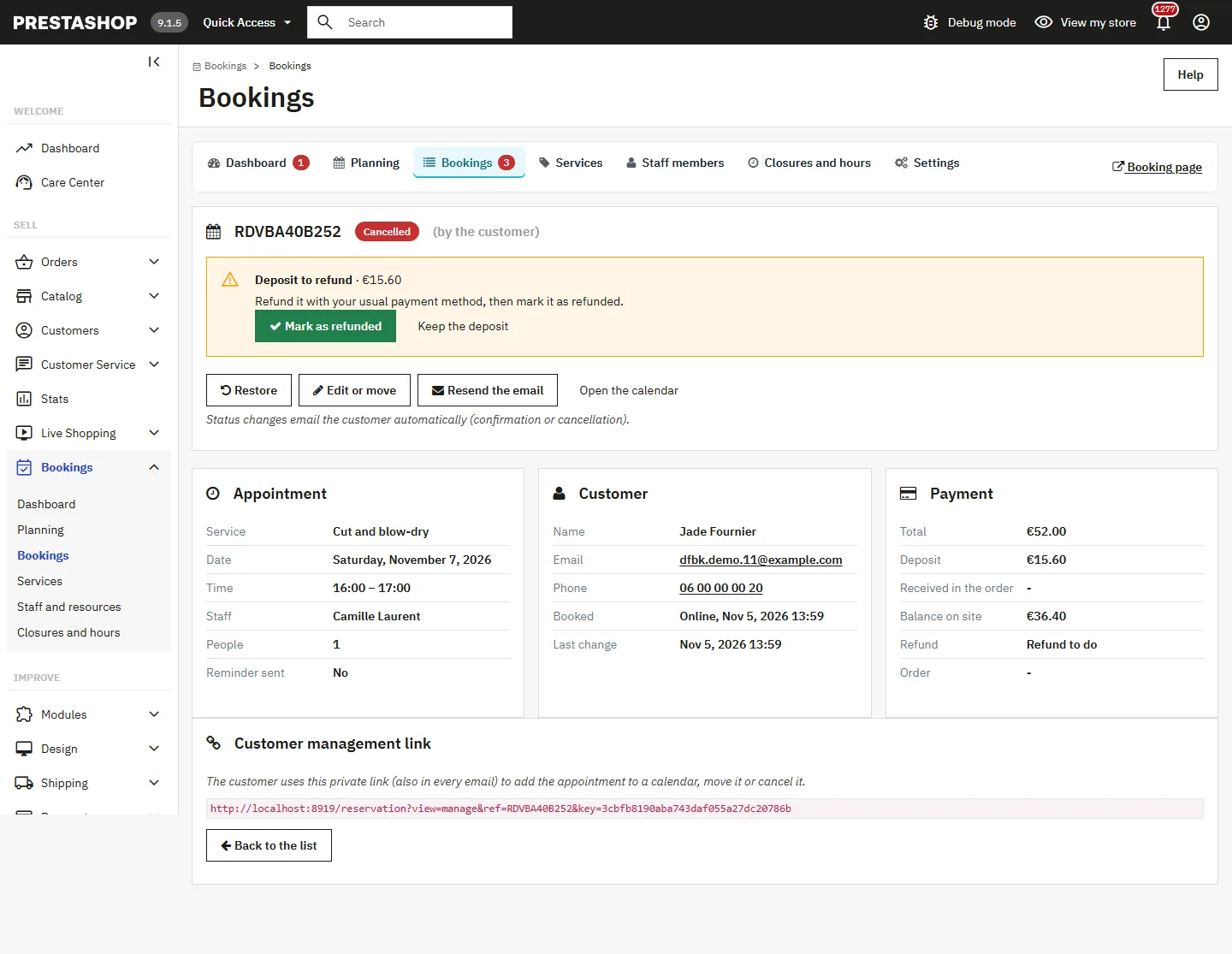
When a paid booking is cancelled (by the customer online, by the shop or with the order), it moves to Refund to do and appears on the dashboard. A partial refund or credit slip created on the order automatically marks it Refunded. You can also use the Mark as refunded or Keep the deposit buttons on the booking page.
Customer booking flow
- Service: list grouped by group, with filters and search.
- Staff member: a specific person or “First available”. This step is skipped when only one staff member performs the service.
- Day and time: the calendar opens on the next availability; times are grouped into morning, afternoon and evening.
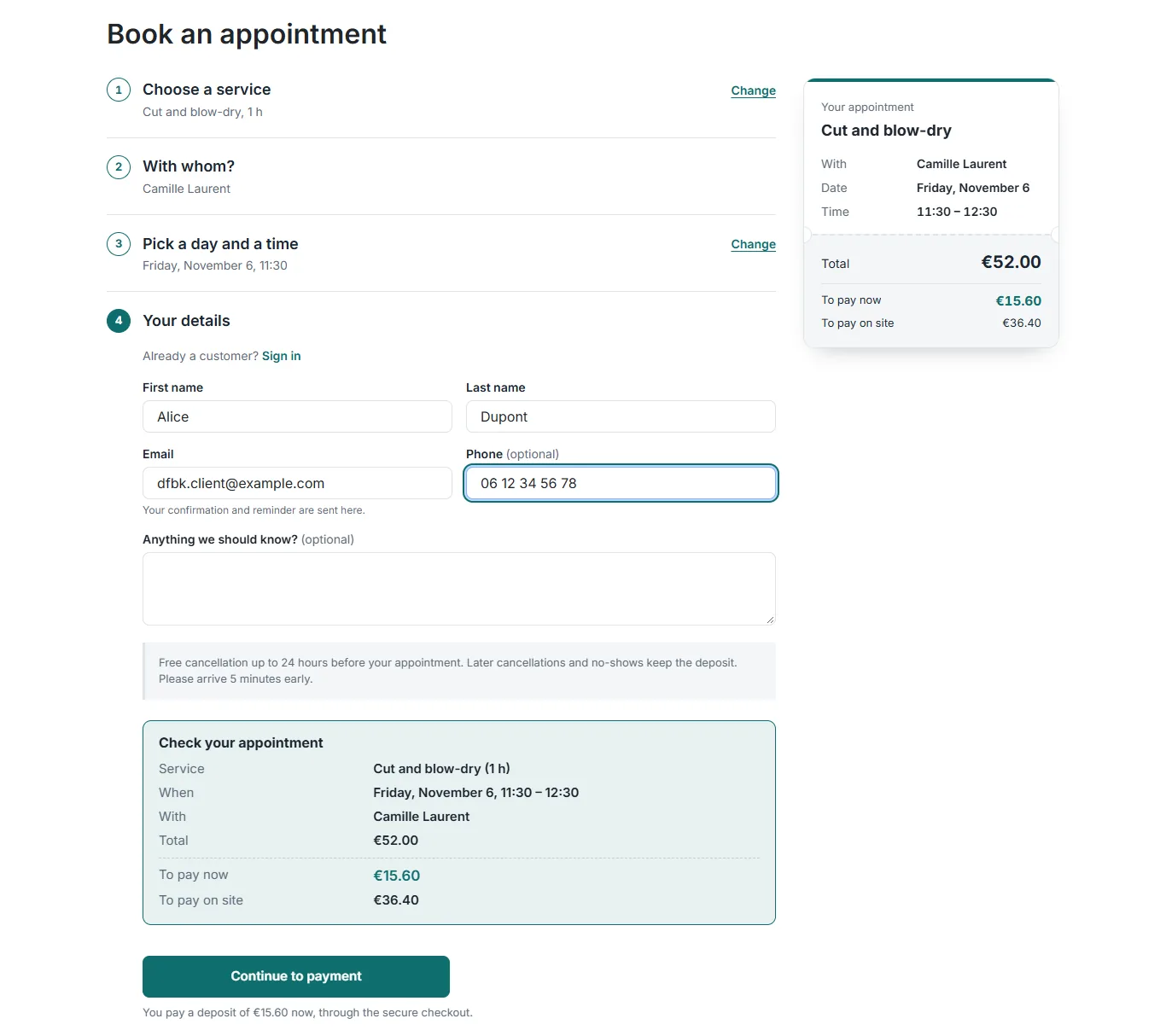
- Contact details, conditions and consent, then the “Review your appointment” summary (service, time, staff member, total, to pay now, to pay on site) just before the confirmation button.
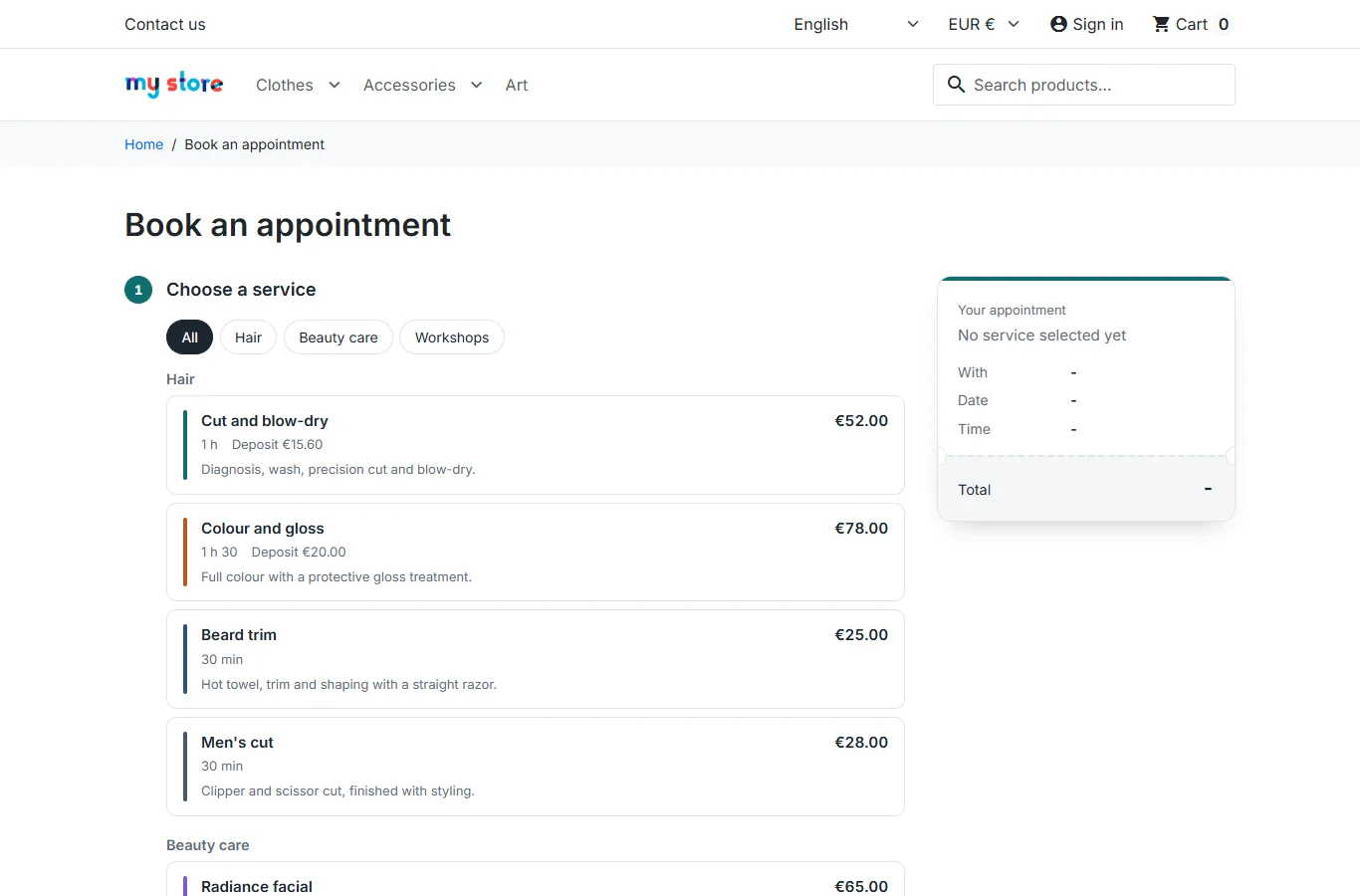
The calendar is keyboard-friendly: arrow keys move from one day or week to the next, Home and End for the week, Page Up / Page Down to change month, Enter to select. Unavailable days are announced as such to screen readers.
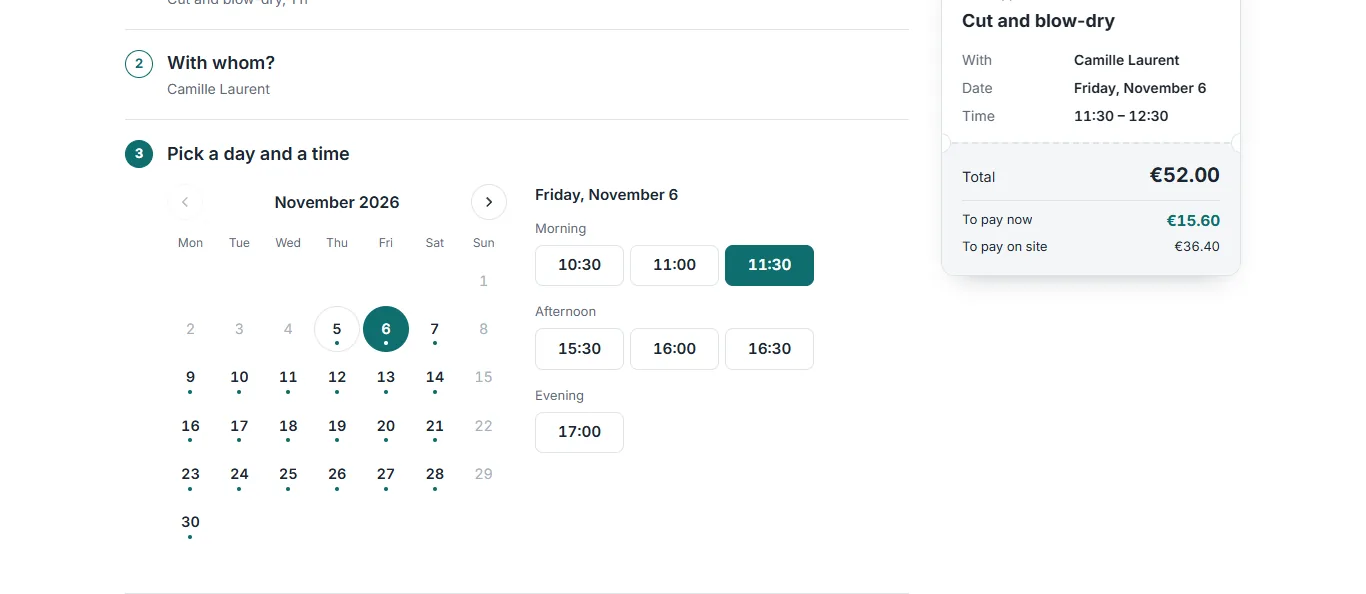
A summary ticket follows the customer on desktop; each completed step folds with a “Change” link.
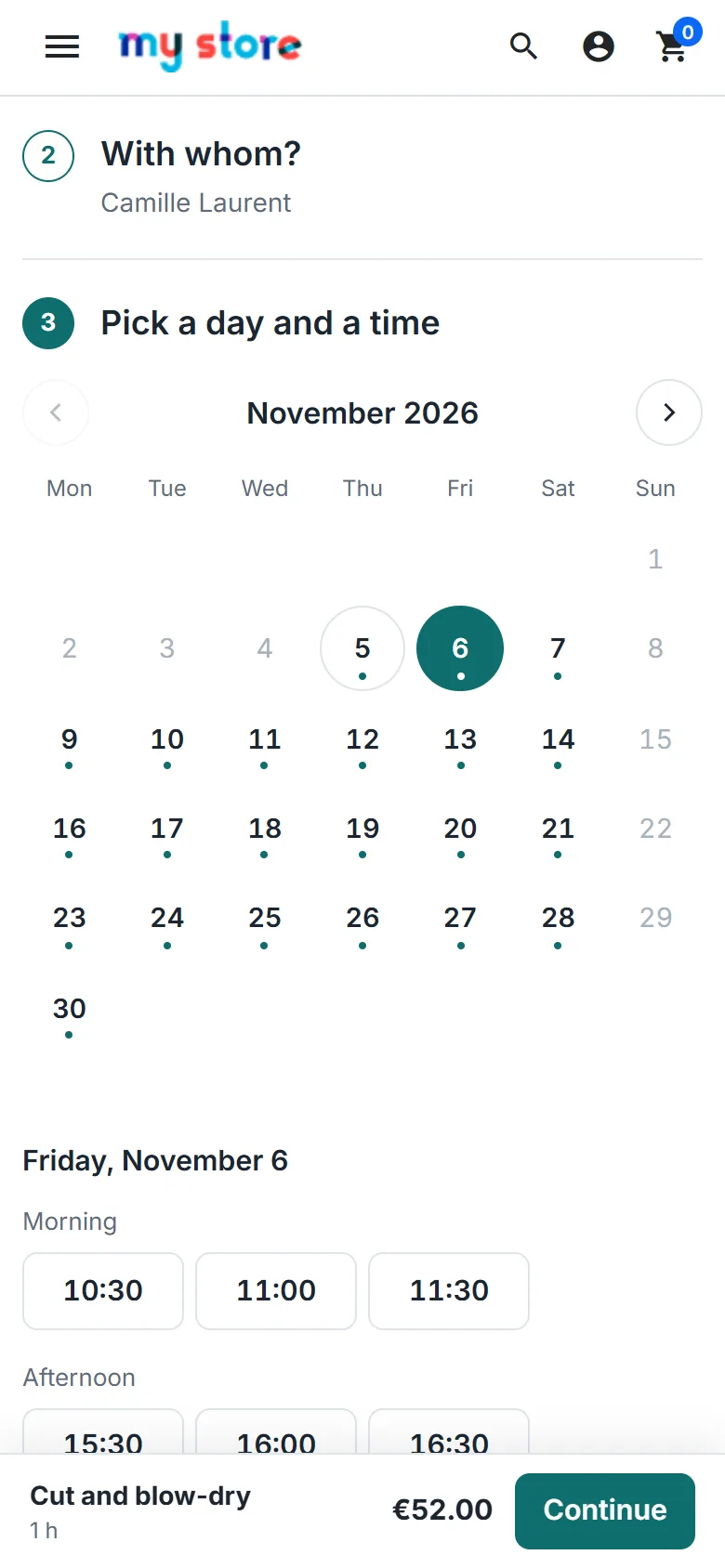
On phones, a bar at the bottom of the screen recalls the service, time and price, with a “Continue” button. The page works with the Classic and Hummingbird themes.
Appointment management by the customer
After booking, the customer lands on their appointment page. It shows the summary, an “add to Google Calendar” button and an .ics file for Apple Calendar and Outlook. Depending on your settings, they can also move the appointment to another free time (keeping the same staff member or not) or cancel it. The deadline (date and time) for online changes is shown, along with what happens to the deposit if they cancel.
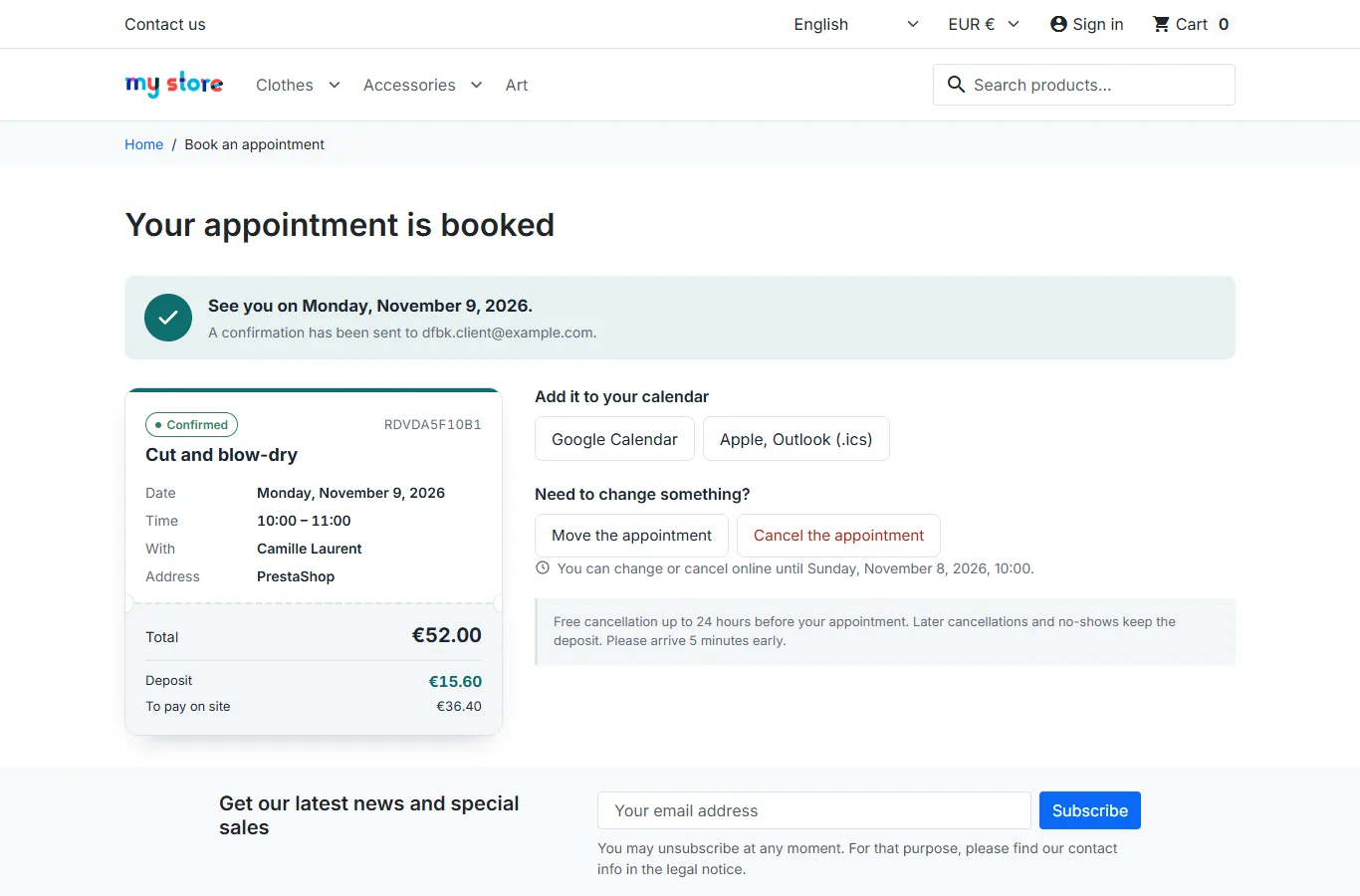
This page is reachable from the link in every email, including for customers without an account. Logged-in customers find their appointments in My account > My appointments: upcoming appointments as cards (status, reference, deposit, deadline), add to calendar, cancellation directly from the list after confirmation, and history.
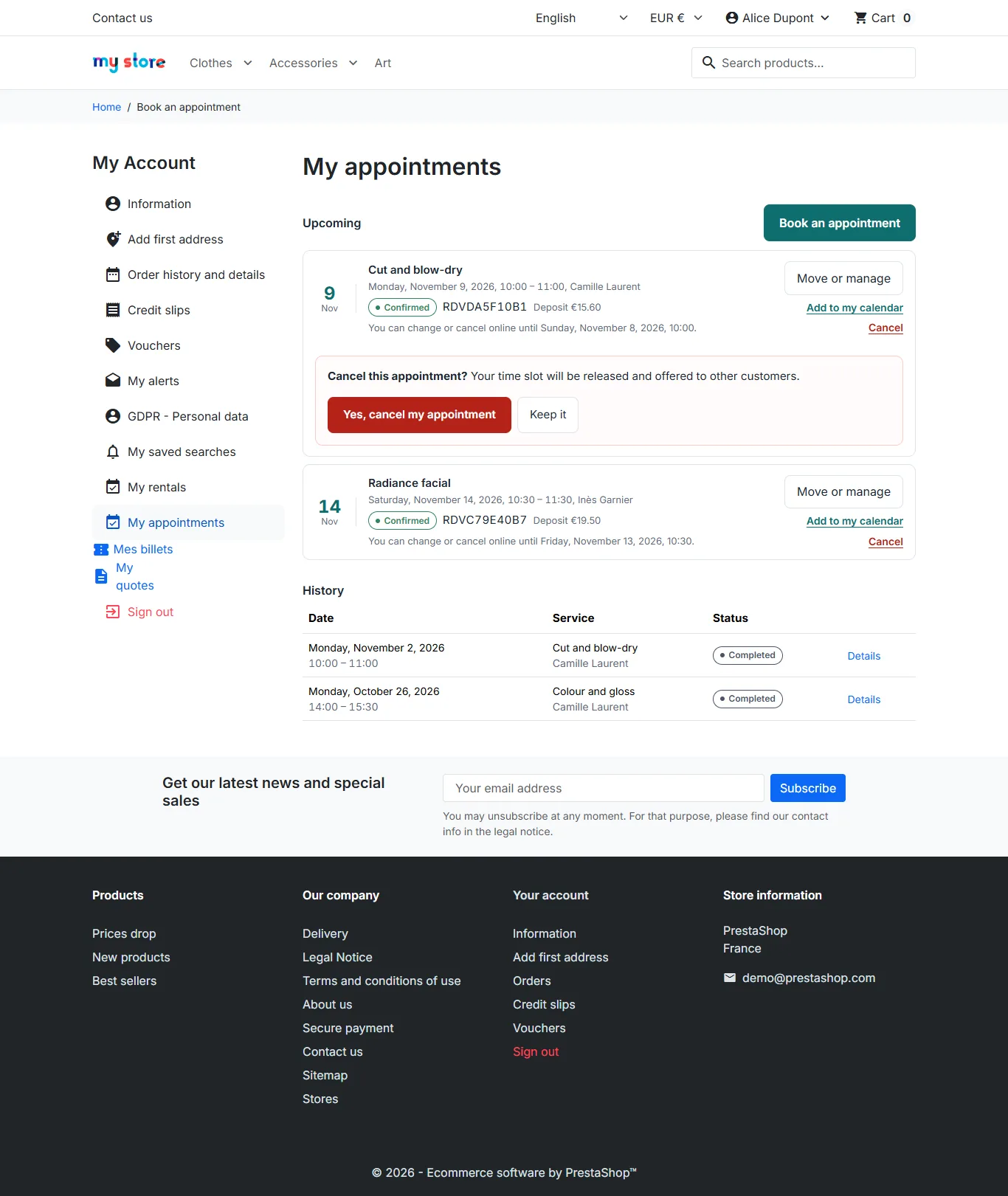
“My appointments” only shows the account’s bookings. A guest booking with a deposit is linked to the customer of the order.
Back-office planning
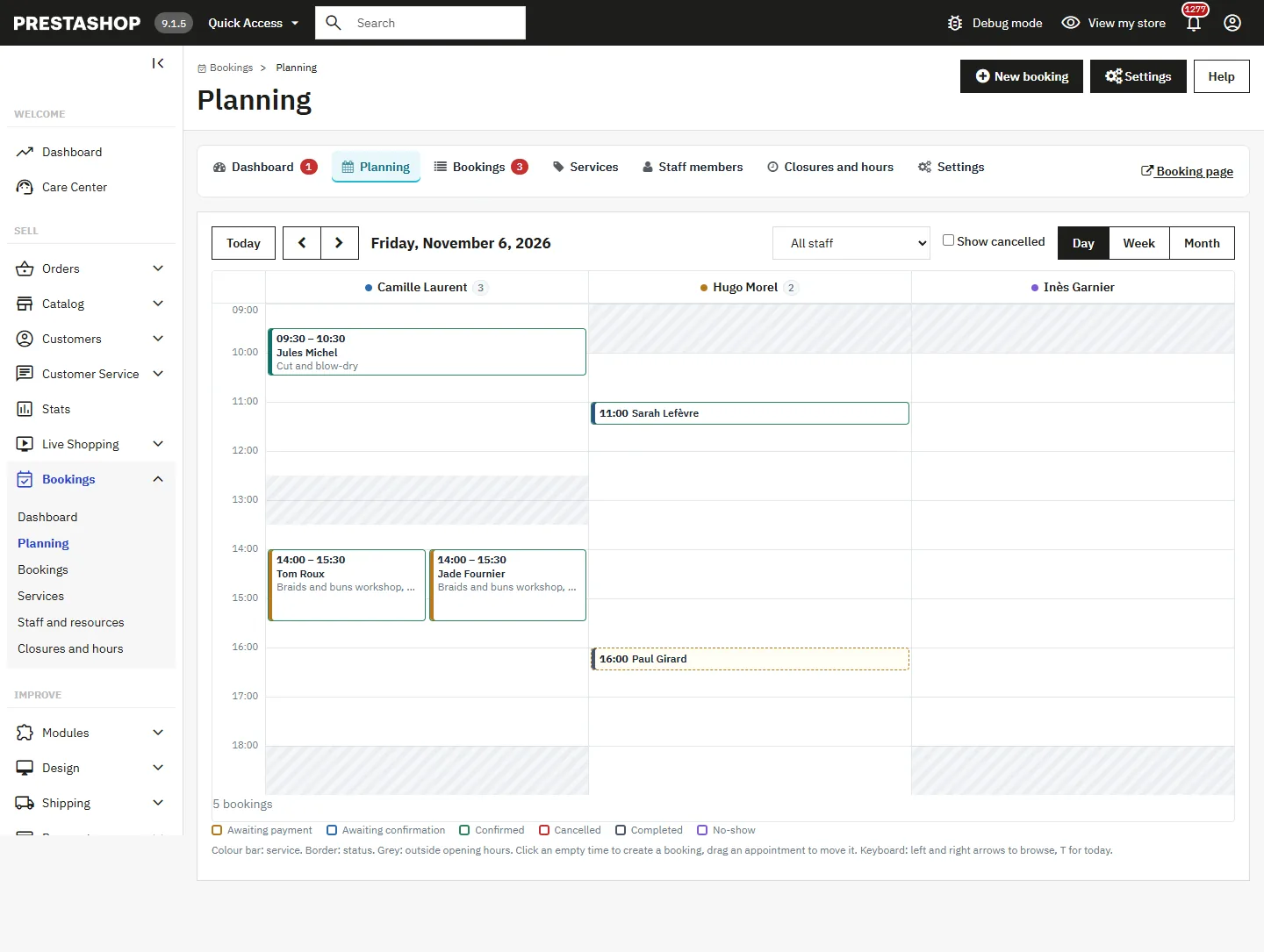
Bookings > Planning offers three views:
- the day view, with one column per staff member;
- the week view, with a staff filter;
- the month view, with each day’s appointments (“+N more” beyond three).
An appointment’s colour bar shows the service, its border shows the status (dashed until confirmed). Hours outside opening times are greyed out (including exceptional hours), closed days are hatched and a red line marks the current time.
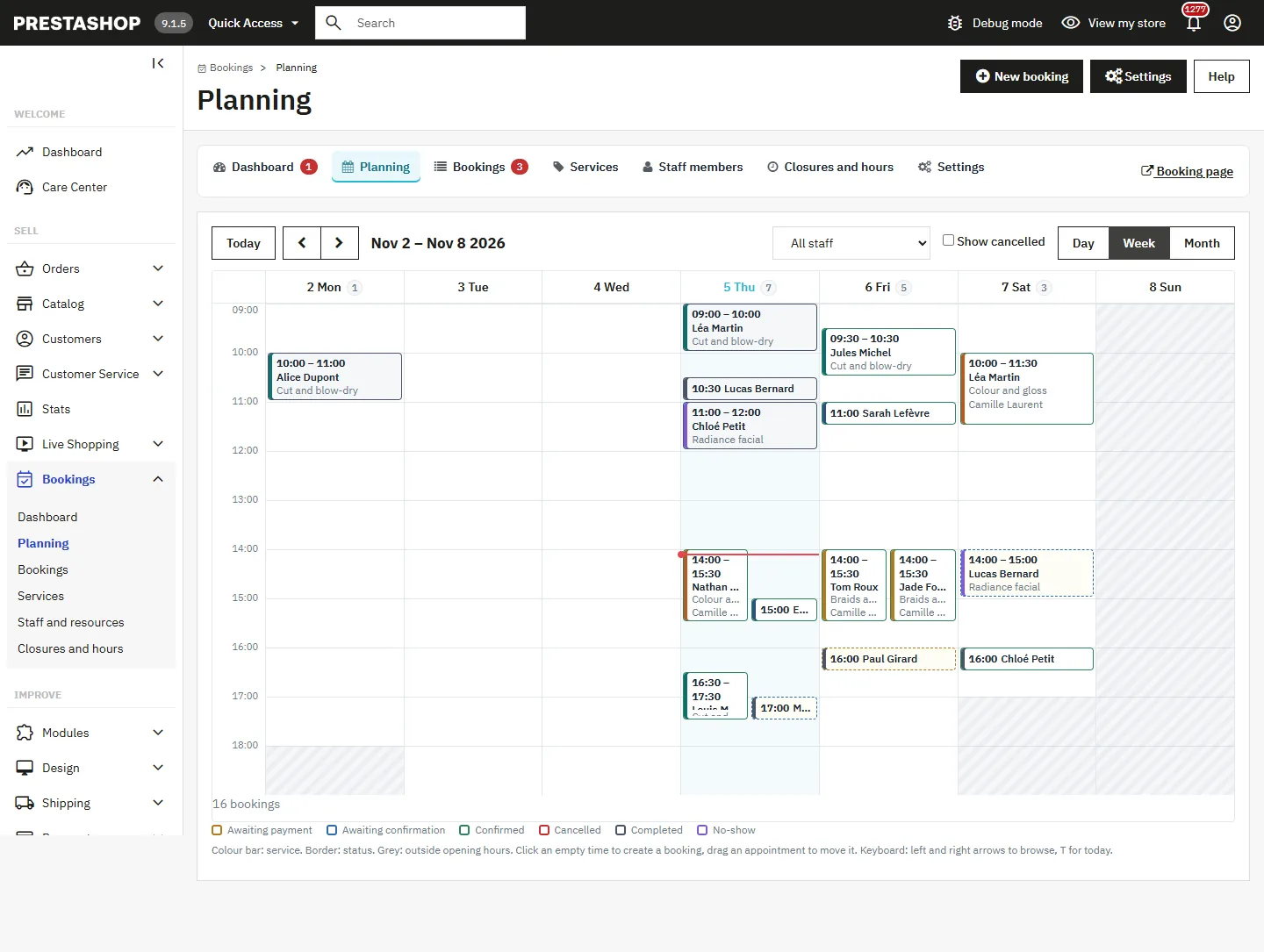
- Click a free time (or a day in month view) to create an appointment, with day, time and staff member already filled in.
- Drag and drop an appointment to move it, keeping its duration. In day view, dropping it in another column changes the staff member; in month view, it changes the day and keeps the time. A confirmation window offers to email the customer. If the slot is taken, or if the staff member does not perform the service, the planning asks for confirmation before forcing.
- Click an appointment to open it; click a day to open it in day view.
- Keyboard: left and right arrows to navigate, T to return to today.
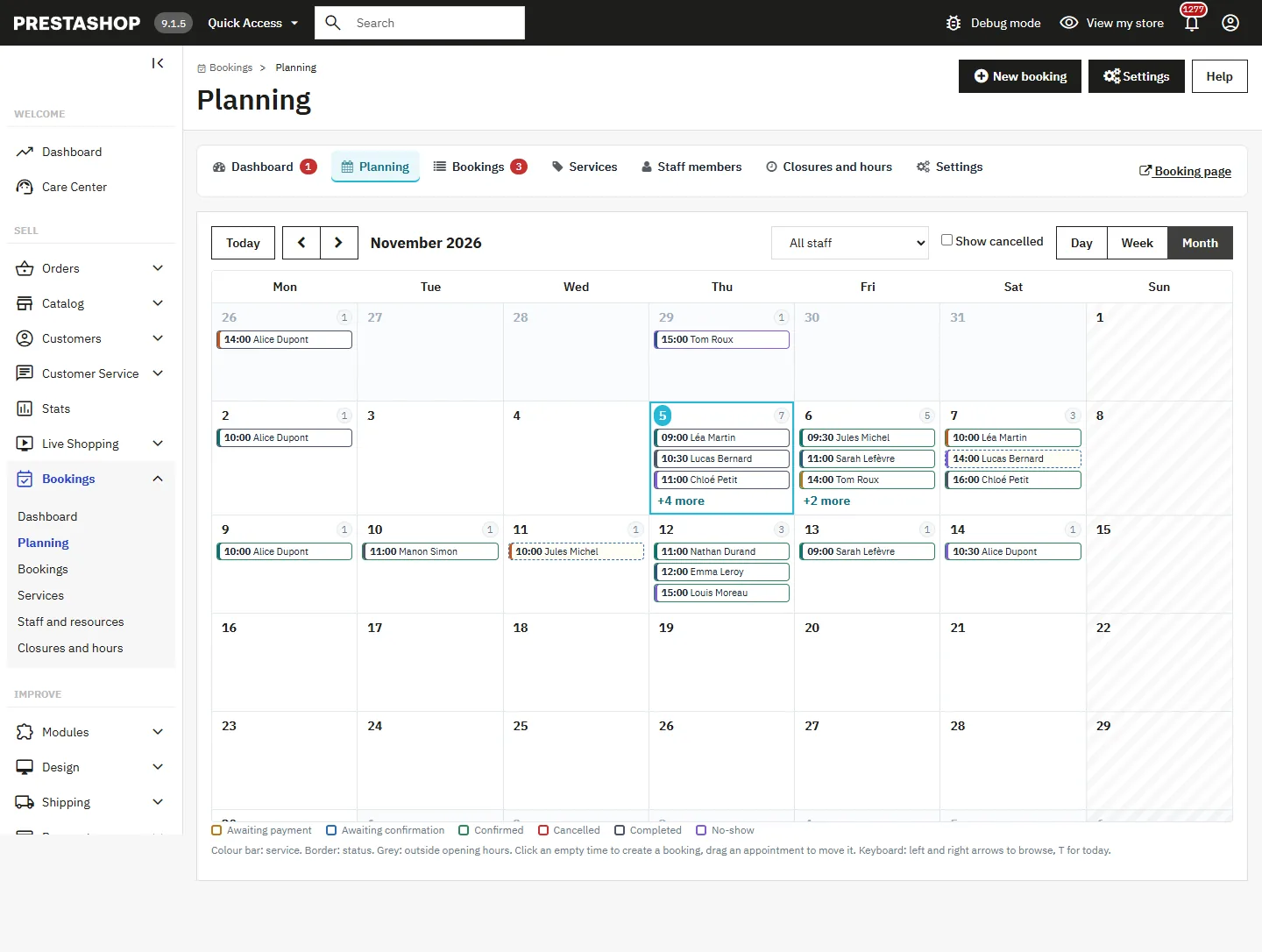
Bookings in the back office
List
Bookings > Bookings lists appointments with filters (status, refund, date, service, staff, customer) and CSV export.
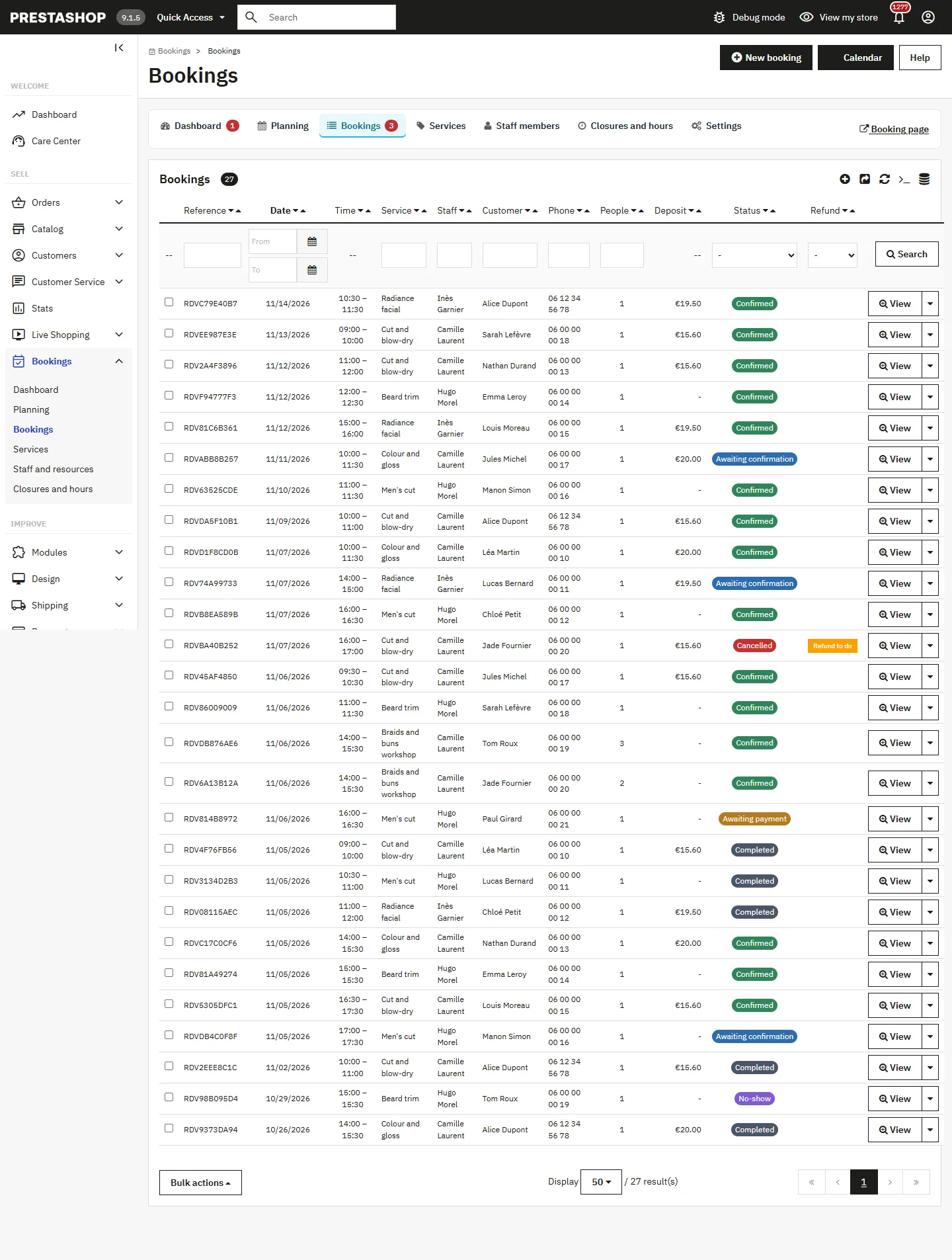
Create a phone booking
Click New booking or a free time in the planning. Choose the service, the staff member (or automatic assignment), the date and time; the end time is calculated from the service duration. If the email matches an existing customer, the booking is linked to them. A booking overlapping another one is refused unless you enable Save even if the time is taken.
Booking page
The booking page groups the appointment, the customer, the payment (deposit expected and received in the order, balance, refund, link to the order), the customer message and an internal note. Quick actions are Confirm, Mark as completed, No-show, Cancel booking, Restore and Resend the email. A status change sends the matching email to the customer. These actions respect employee permissions.
Order page
A deposit order shows a “Linked appointment” block with the deposit, any refund, alerts (missing deposit, deposit to refund) and a link to the booking.
Emails
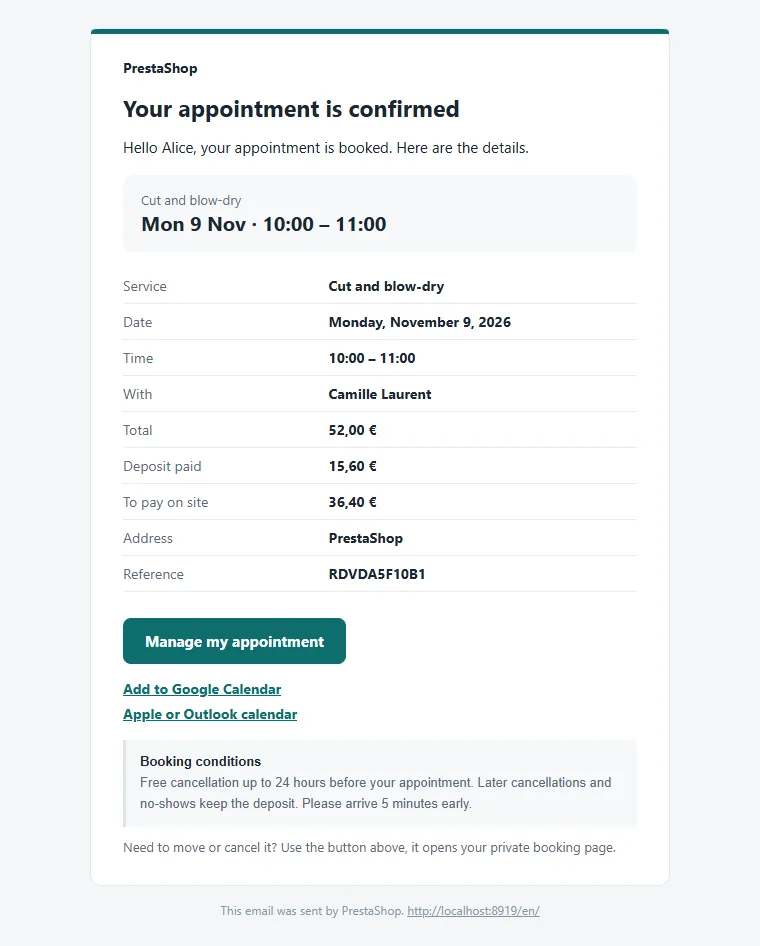
Six templates are provided in 8 languages (French, English, Spanish, German, Italian, Dutch, Polish, Portuguese), in HTML and plain text:
- Confirmation: appointment confirmed, with .ics attached;
- Request received: booking awaiting confirmation or payment;
- Reminder: sent X hours before the appointment;
- Cancellation (stating whether the deposit is refunded or kept) and Change;
- Team notification: new booking, cancellation or change by the customer. Replying to this email writes directly to the customer.
Every customer email highlights the date and time, and contains the summary, the private appointment management link, calendar links and your booking conditions.
Automatic tasks
Three tasks run in the background: sending reminders, releasing slots whose deposit was not paid in time, and marking past appointments as “Completed”.
The settings show a token-protected cron URL. Call it every 15 minutes from your server cron for on-time reminders. Without a cron, tasks run during shop visits, at most every 10 minutes. The Run the tasks now button runs them immediately.
Security and reliability
- Availability is checked again at confirmation time, under a lock shared by all shops: two customers cannot take the same slot.
- The deposit actually present in the order is checked before any automatic confirmation.
- Security tokens on all actions, management link protected by a secret key, booking limit per visitor.
GDPR
With the official psgdpr module, a customer’s data export includes their bookings, and deleting their data anonymises their bookings (name, email, phone, message, anti-bot fingerprint) without distorting your statistics.
Multistore and languages
Services and staff members have texts per language and per shop, and bookings belong to their shop. The module interface, menus, statuses and emails are provided in French, English, Spanish, German, Italian, Dutch, Polish and Portuguese.
Uninstall
Uninstalling deletes the tables, bookings, configuration, menu and photos. The deposit product is deleted, or only disabled if it appears in orders. Existing orders are not modified.
Troubleshooting
No time is displayed
Check that the staff member has a schedule for that day (Closures and hours page), that the service is linked to them, that the day is not closed, and compare the minimum notice and service duration with the time ranges.
A service does not appear online
It must be active and linked to at least one active staff member.
A paid booking stays “Awaiting confirmation”
Open the booking: either the order does not contain the full deposit (red alert), or the slot was taken in the meantime (internal note). Check the payment, then confirm or move the appointment.
A visitor can no longer book
The limit of bookings per visitor per hour may have been reached. Raise it or set it to 0 in the settings.
Reminders are not sent
Check that the reminder is not set to 0 and that the booking is “Confirmed”. On a low-traffic shop, set up the cron URL.
The photo is not saved
The img/dfbooking/ folder must be writable. Also check the size (5 MB max) and format.
The booking URL returns a 404 error
Enable friendly URLs in Shop Parameters > Traffic & SEO, then clear the cache.
FAQ
Can customers book without an account?
Yes, unless you enable “Require a customer account”. They manage their appointment through the link received by email.
Can I offer “First available”?
Yes, automatically as soon as several staff members perform the service. The module assigns whoever is free at the chosen time.
How are double bookings prevented?
Availability is checked again at confirmation time, under a lock, and the back office refuses overlaps unless you force them.
What happens if a customer removes the deposit from their cart?
The order is accepted, but the booking is not confirmed: it stays “Awaiting confirmation” with an alert, so that you can check the payment.
How do I refund a deposit?
Make a partial refund or a credit slip on the order: the booking is automatically marked “Refunded”. Deposits to refund are listed on the dashboard.
Is the module compatible with PrestaShop 9?
Yes, from PrestaShop 1.7.8 to 9.x, with the Classic and Hummingbird themes, single shop or multistore.