
B2B Quote Request — Complete Guide
Install, configure and run B2B quotes 2.1.0: requests from the product page or the cart, purchase / quote mode per product, pricing and negotiation, PDF, acceptance and one-click ordering at the negotiated prices, reminders and statistics, for PrestaShop 1.7.8, 8 and 9.
Overview
The B2B Quote module (dfb2bquote) adds a complete quote-based sales flow to PrestaShop: customers request a quote from the product page or from their cart, your team prices and negotiates it in the back office, the customer receives a PDF quote, accepts it and orders in one click at the negotiated prices, to the cent.
It works with the Classic and Hummingbird themes and speaks 8 languages (English, French, Spanish, German, Italian, Polish, Dutch, Portuguese): the interface, e-mails and PDF are written in the language of the customer.
New in 2.1.0: purchase / quote mode per product or per category, “On quote” badge and choice of what happens to a cart containing a quote-only product (see “Purchase / quote mode per product”).
New in 2.0.0: totals identical to the PrestaShop cart (taxes, rounding, discount, shipping), locked prices, negotiation through messages, signed links with an expiry date, automatic reminders and expiry, conversion statistics, GDPR, and upgrade from 1.0.x without data loss.
Compatibility
- PrestaShop 1.7.8, 8.x and 9.x (tested on 1.7.8.11, 8.2.1 and 9.1.5)
- PHP 7.4 to 8.5 (tested with PHP 7.4, 8.1 and 8.5)
- Classic, Hummingbird and child themes
- Single shop and multistore (quotes and settings per shop)
- 8 languages shipped for the module, e-mails and PDF
- No external dependency
Installation
- Open Modules > Module Manager and click Upload a module.
- Select the
dfb2bquote-2.1.0.zipfile. - Click Configure: the assistant lists the steps left.
The module creates its tables (df_quote*), the quote states in 8 languages, the Orders > B2B quotes tab and a “Delivery as quoted” carrier. This carrier is only offered for a cart created from a quote with negotiated shipping: your other customers never see it.
Upgrade from 1.0.x
Just upload the new zip over the old one: every quote, line, state and history entry is kept and completed (shipping mode, totals, sending and decision dates). A former “replace + hide prices” setup becomes “Quote only, prices hidden” and the invalid order state of 1.0.x is replaced by “Awaiting bank wire payment”. E-mail links of 1.0.x quotes still open keep working.
The 1.0.x front templates were renamed (basket.tpl, detail.tpl, list.tpl): a theme override of the old templates is no longer used.
Configuration
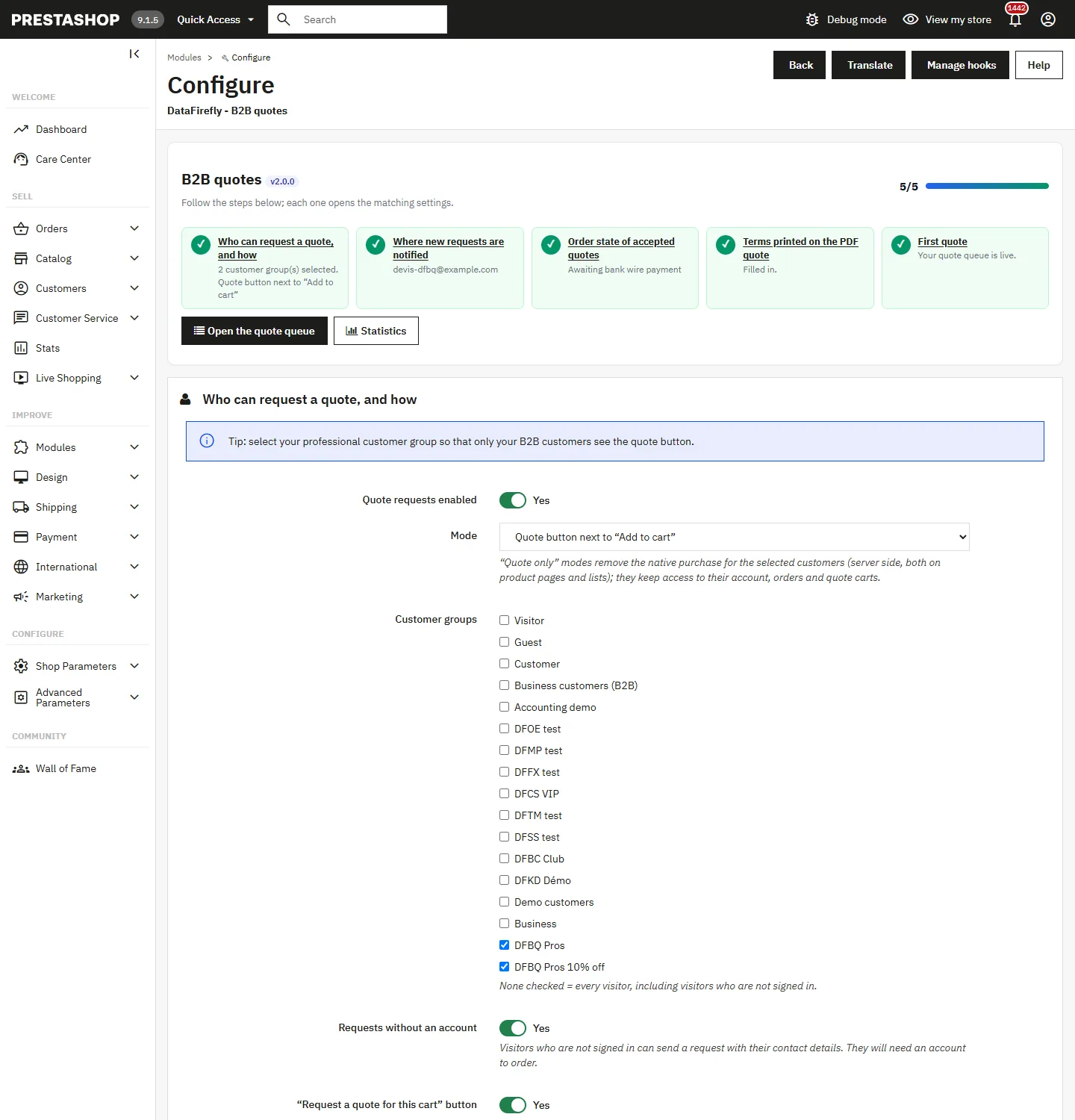
The configuration page starts with a 5-step assistant (who can request a quote, where new requests are notified, order state, PDF terms, first quote). Each step opens the matching block of settings.
Who can request a quote and how
- Mode: quote button next to “Add to cart”, quote only (direct purchase removed), or quote only, prices hidden. The quote-only modes are enforced server side: adding to the cart is really refused and prices are not sent in the pages.
- Customer groups: tick your business groups to keep quotes for B2B (none ticked = everyone).
- Requests without an account: visitors can send a request with their contact details; they need an account to order.
- Cart button and list button: “Request a quote for this cart”, button in product lists.
Quote rules
- Default validity, minimum amount and number format (for example
DEV-{YYYY}-{N}; existing numbers never change). - PDF available to the customer: once the priced quote is sent (default) or immediately.
- Attachments: PDF, images, office documents, CSV, DWG/DXF, 5 MB by default.
Ordering
- “Order” button of the customer: checkout at the negotiated prices (the customer chooses delivery and payment) or a direct order paid later.
- Order state of direct orders, also used for conversions made in the back office.
- Vouchers on top of a quote: no by default.
- Tax on negotiated shipping: tax group of the “Delivery as quoted” carrier.
Notifications and tasks
- Team e-mail address(es), acknowledgement to the customer, reminder before expiry, automatic expiry and validity of the links sent by e-mail.
- Terms printed on the PDF, per language; “My quote” link in the header and icons.
Front office
Requesting a quote
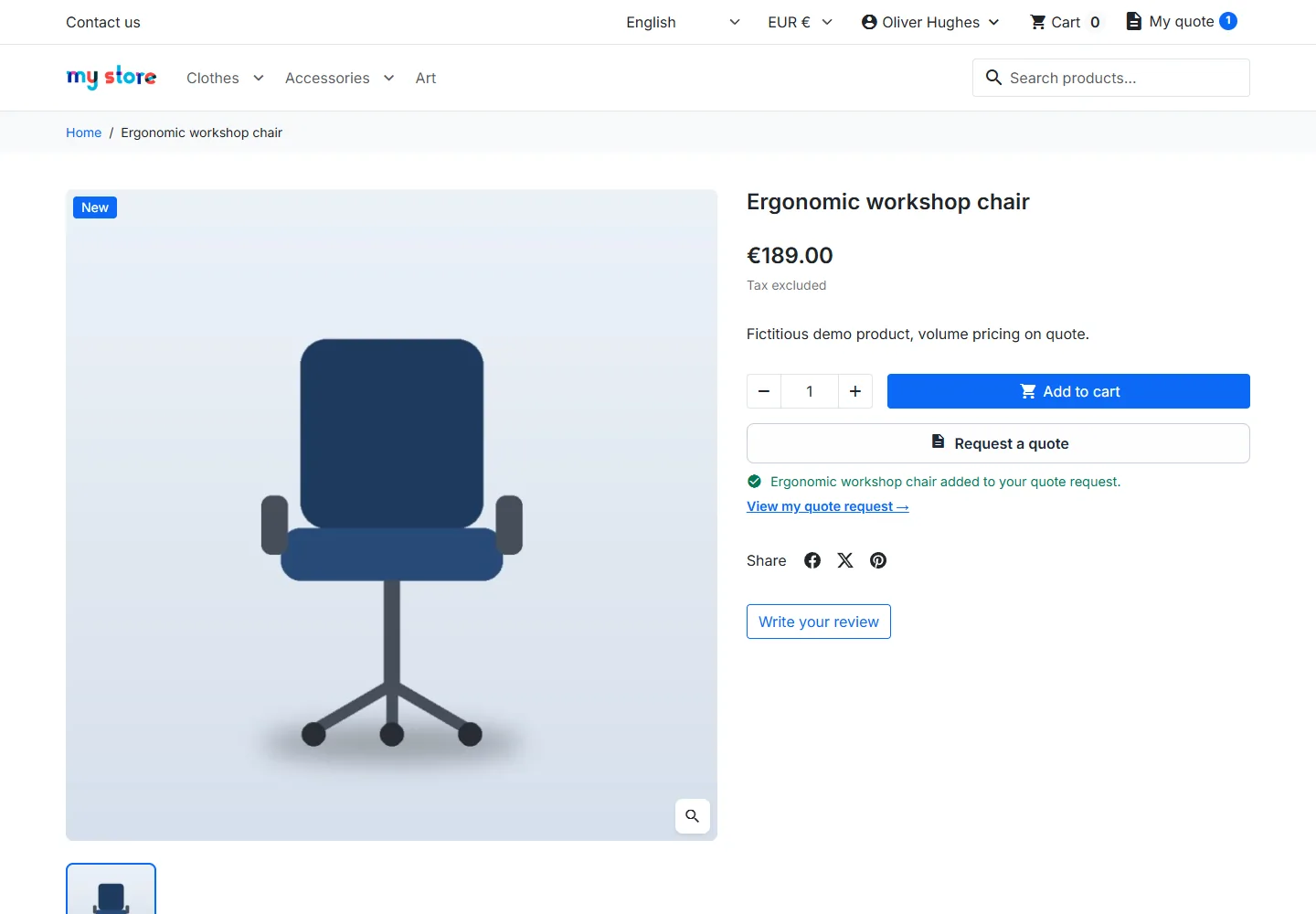
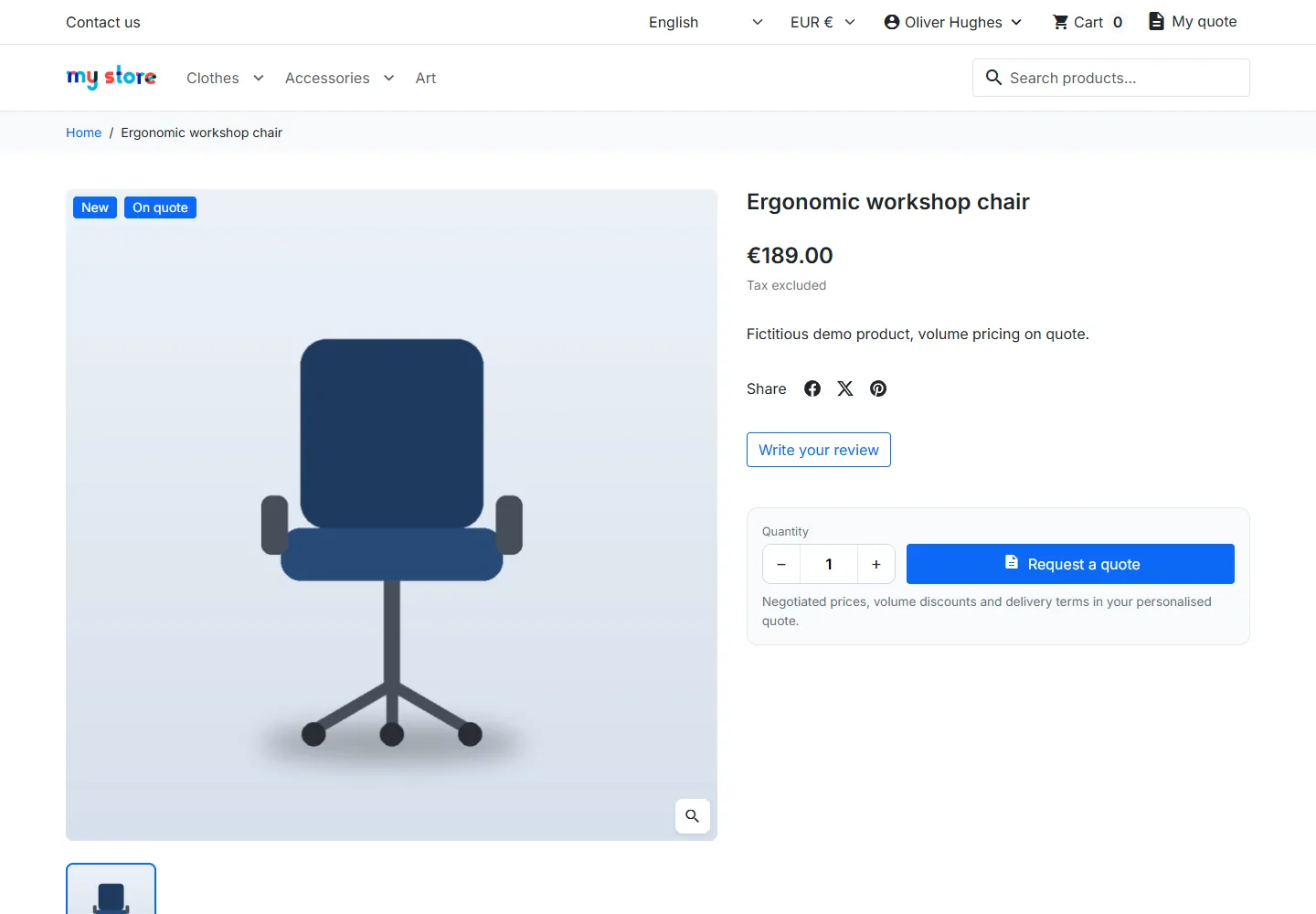
On the product page, the Request a quote button adds the product (and its combination) to the current request with the chosen quantity, without leaving the page. In quote-only mode the button replaces the purchase and has its own quantity.
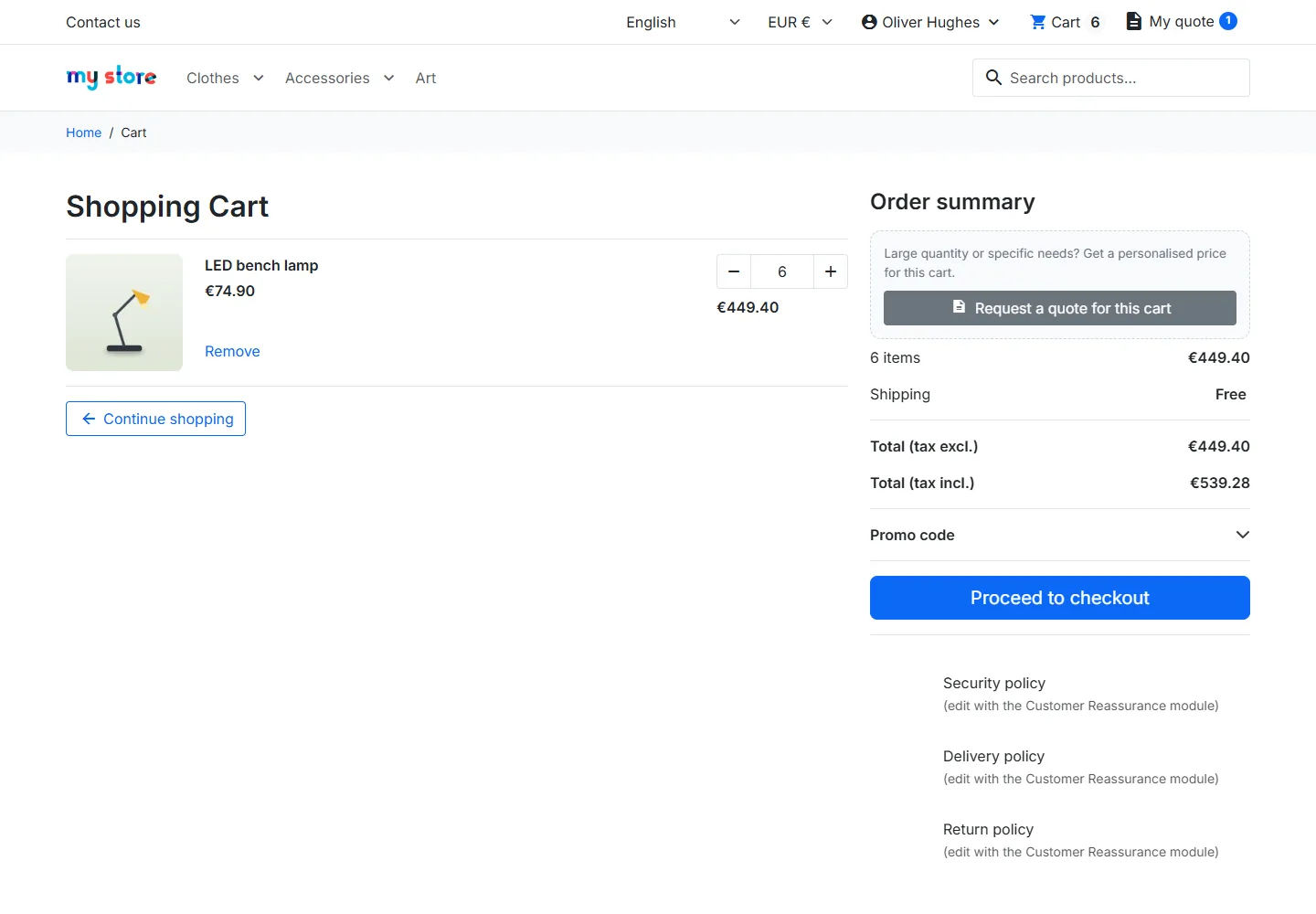
From the cart page, the customer can also turn the whole cart into a quote request.
Sending the request
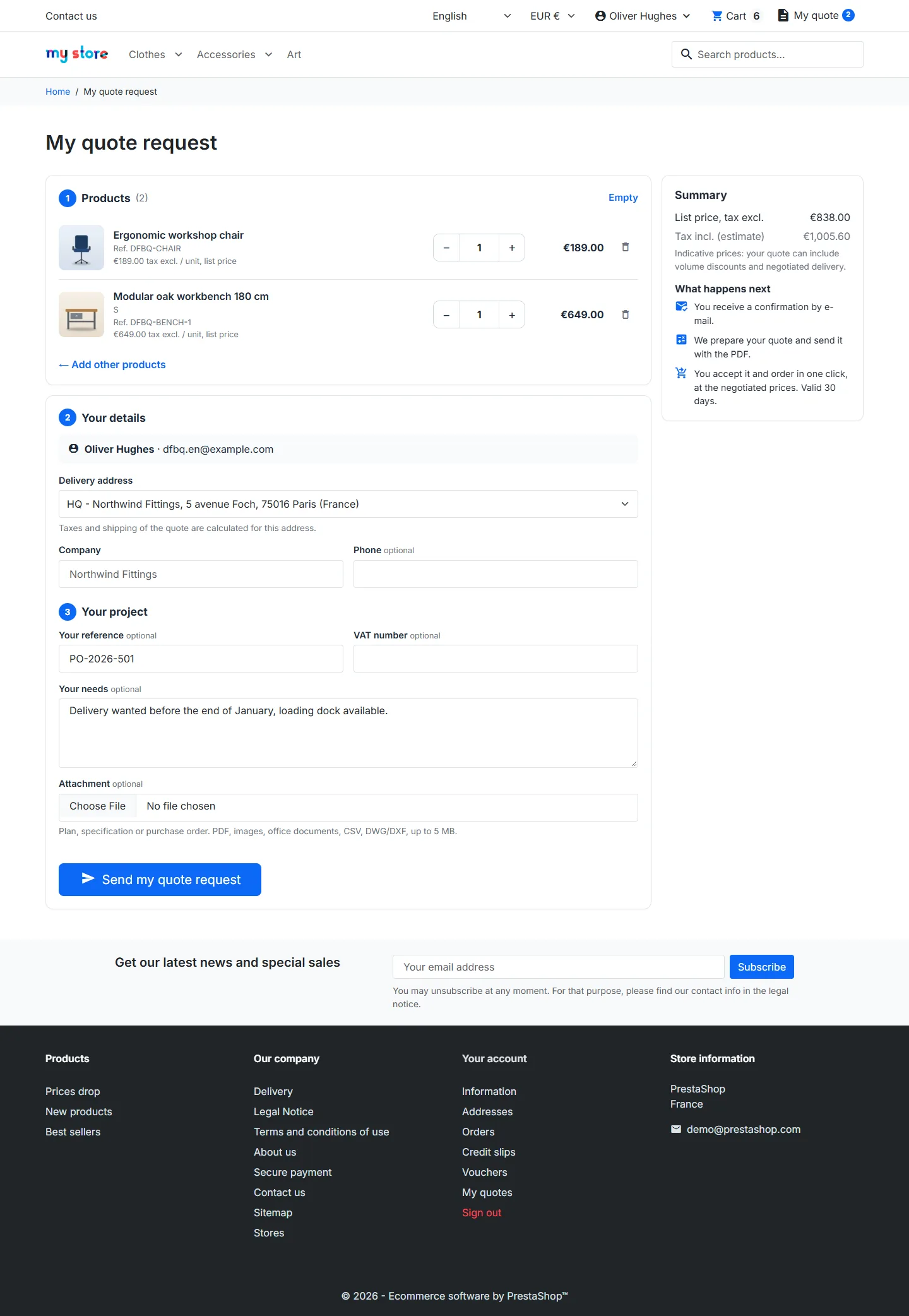
The request page gathers the products (editable quantities, indicative live totals), the contact details and the delivery address (which sets the taxes), the customer reference, the needs and an attachment. A summary explains the next steps.
Reading, accepting or negotiating
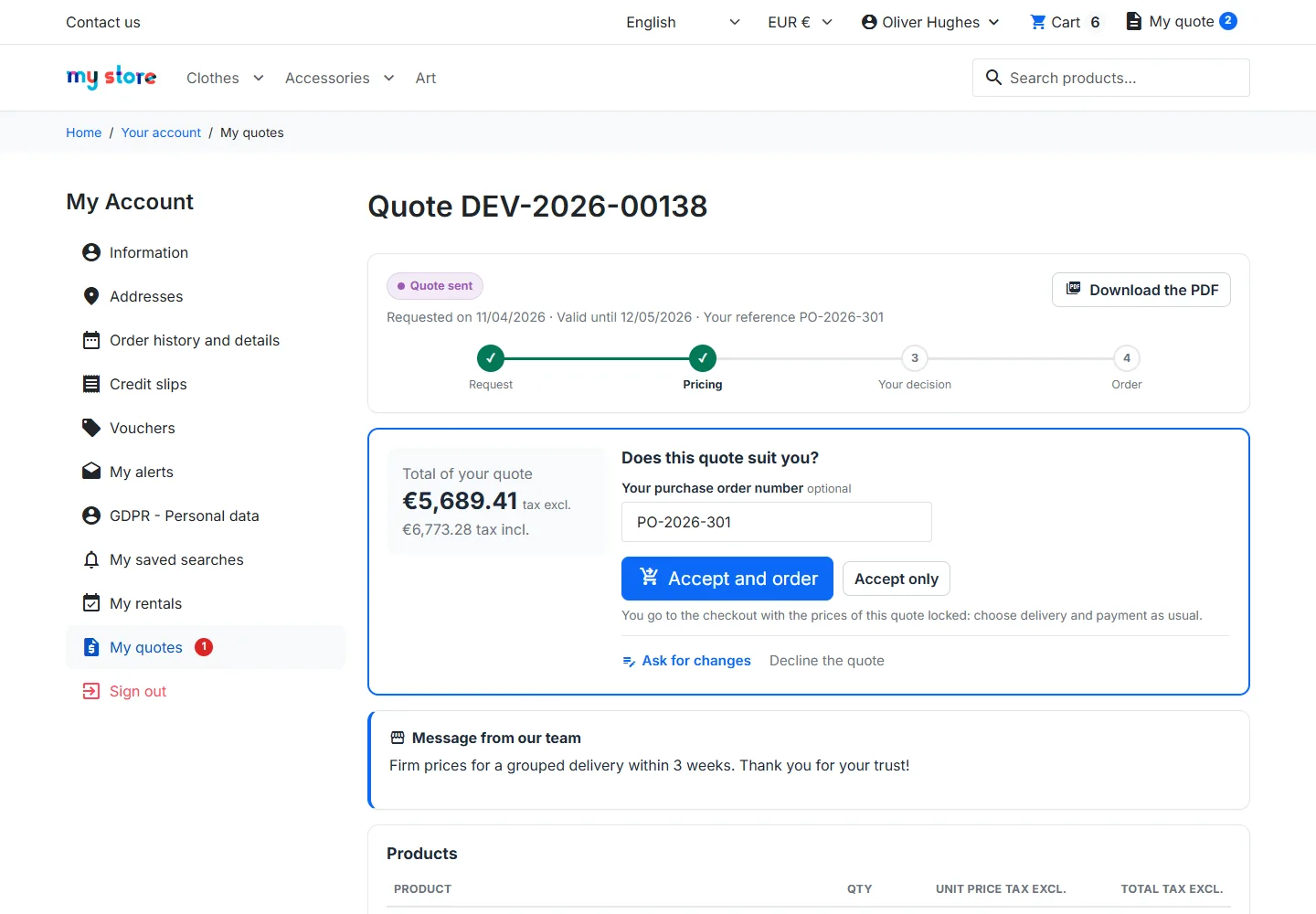
The quote page shows the progress in 4 steps, the totals tax excluded and included, your team’s message, the lines and the PDF. The customer can accept and order, accept only, ask for changes or decline. The link received by e-mail is signed and time-limited: it opens the quote without signing in, but ordering always uses the account of the quote.
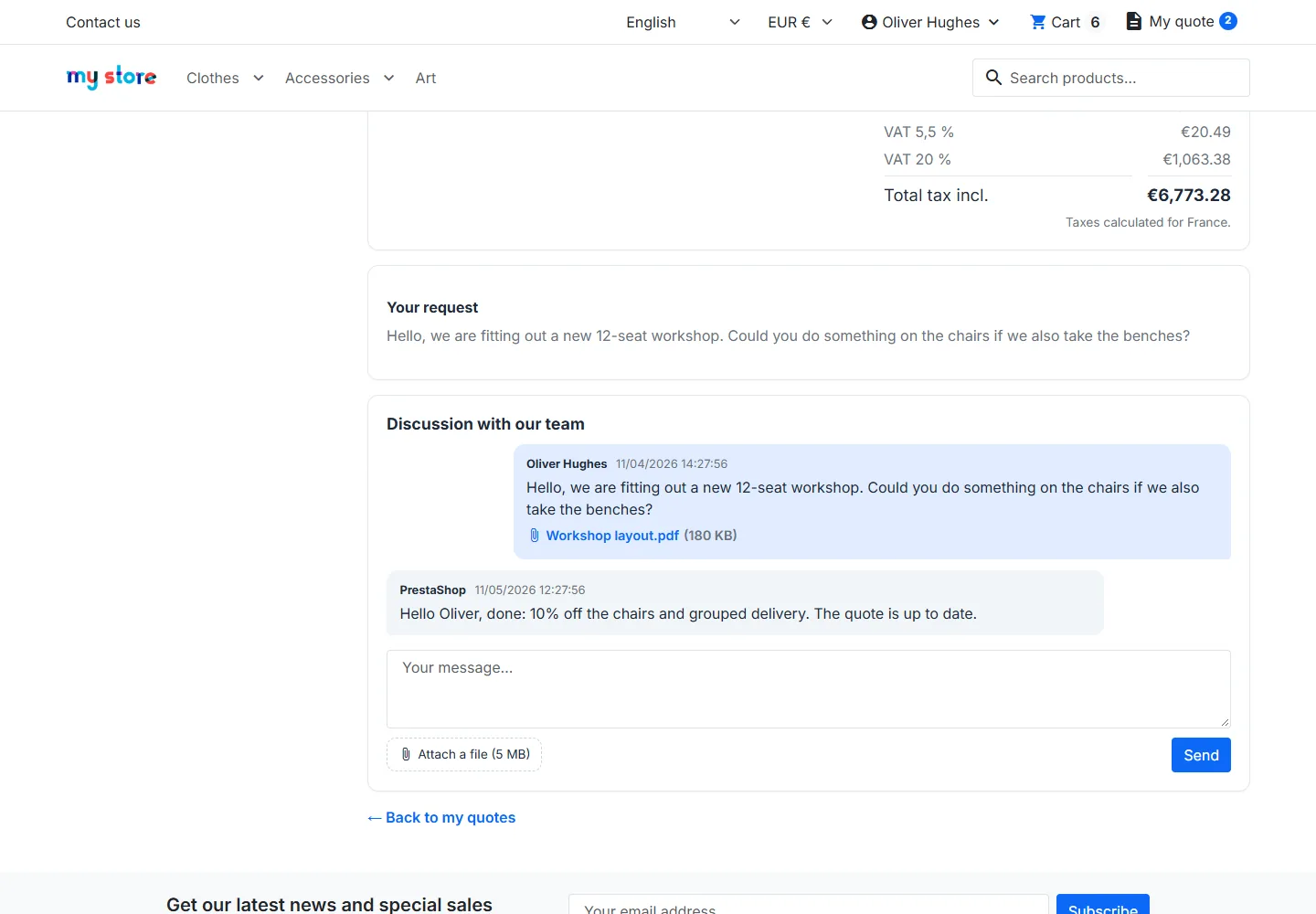
The discussion with your team happens on the same page, with attachments.
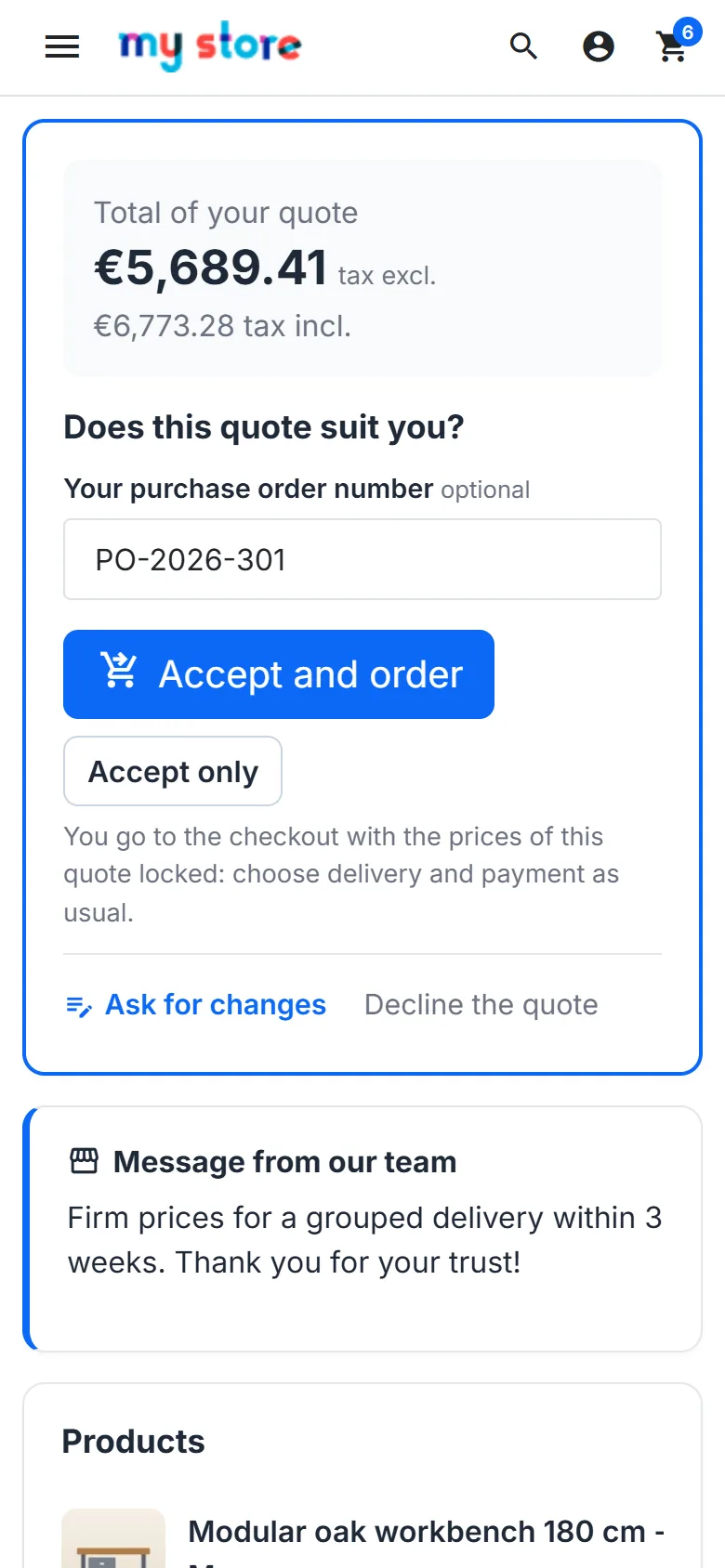
Every page is designed for mobile.
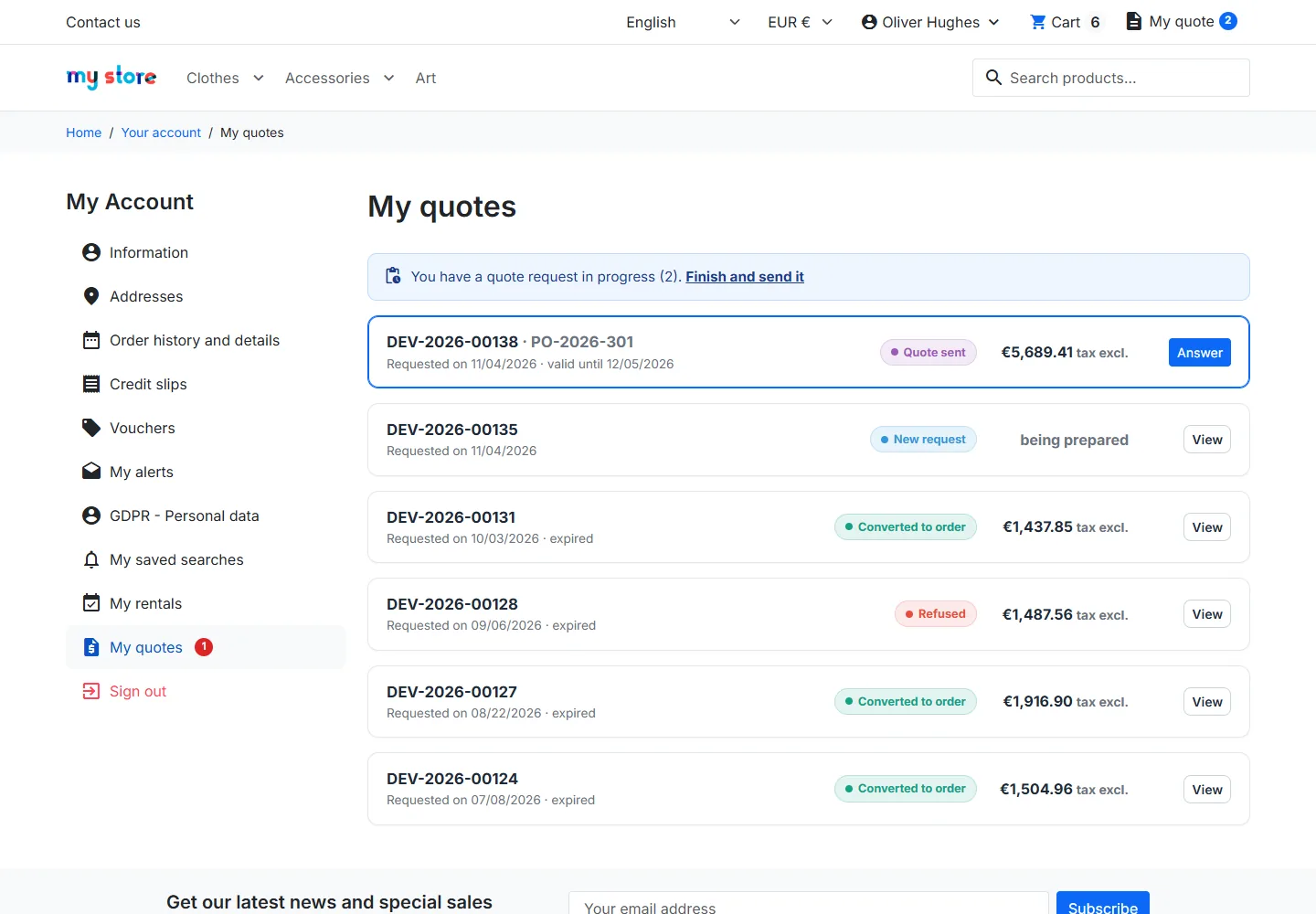
My quotes
In the account, the customer finds every quote with its status, amount, validity, unread messages and the expected action (answer, order, view). A badge shows the quotes waiting for an answer.
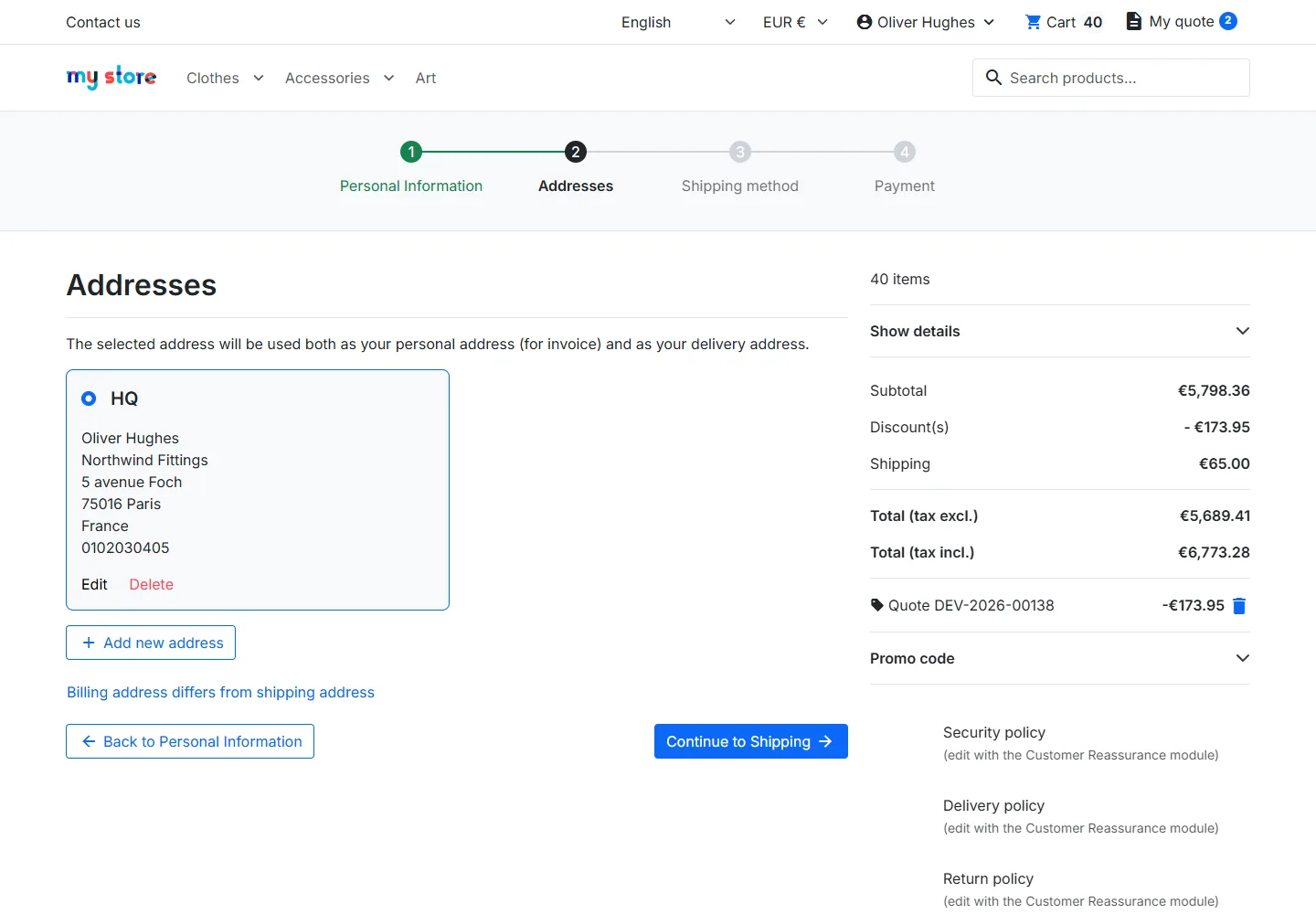
One-click order
“Accept and order” opens the checkout with a cart at the prices of the quote: negotiated prices, discount and shipping of the quote. The customer chooses the payment as usual.
Back office
Request queue
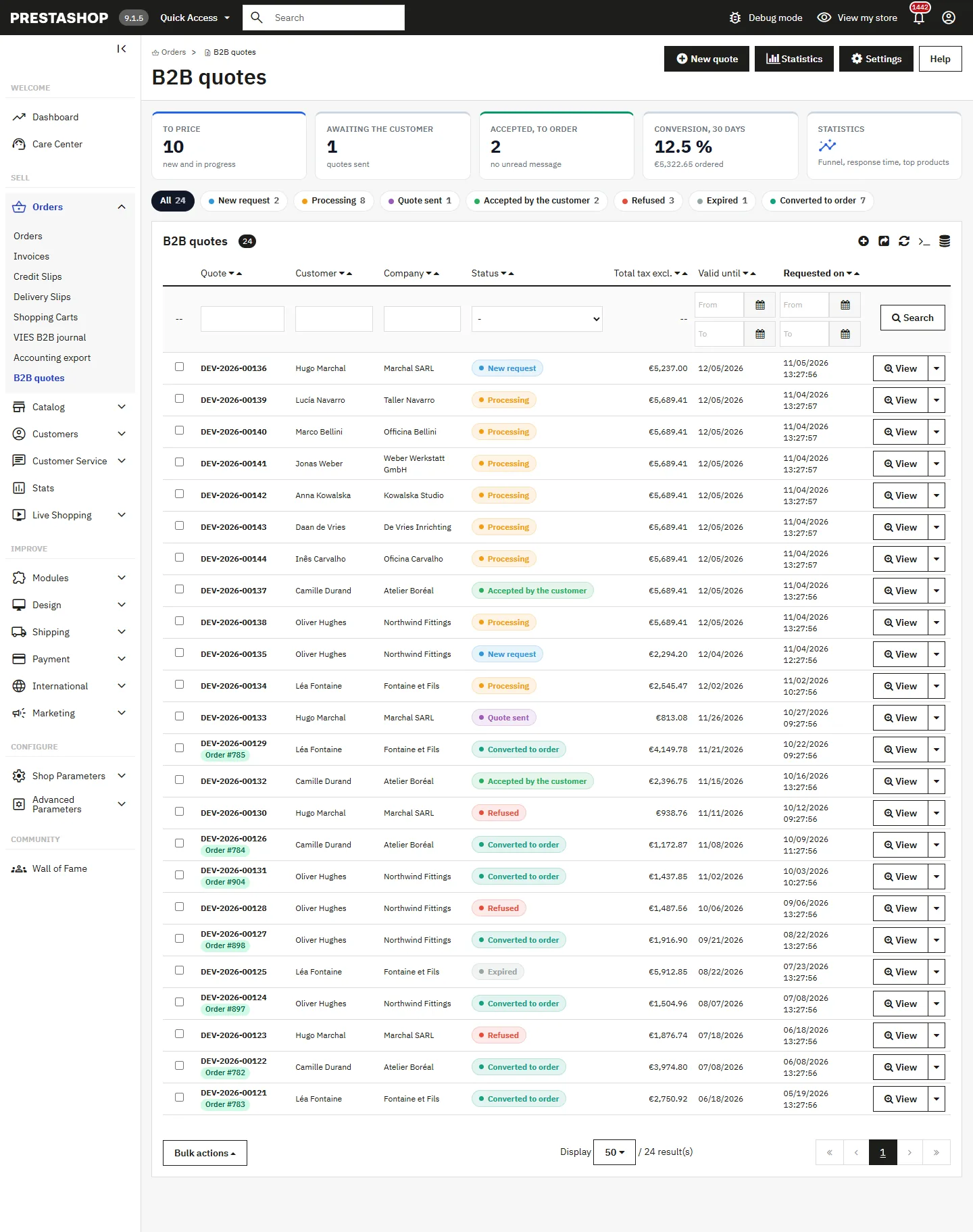
Orders > B2B quotes shows the key figures (quotes to price, awaiting the customer, accepted to order, 30-day conversion), status filters and the list of quotes with their unread messages and linked order.
Quote editor
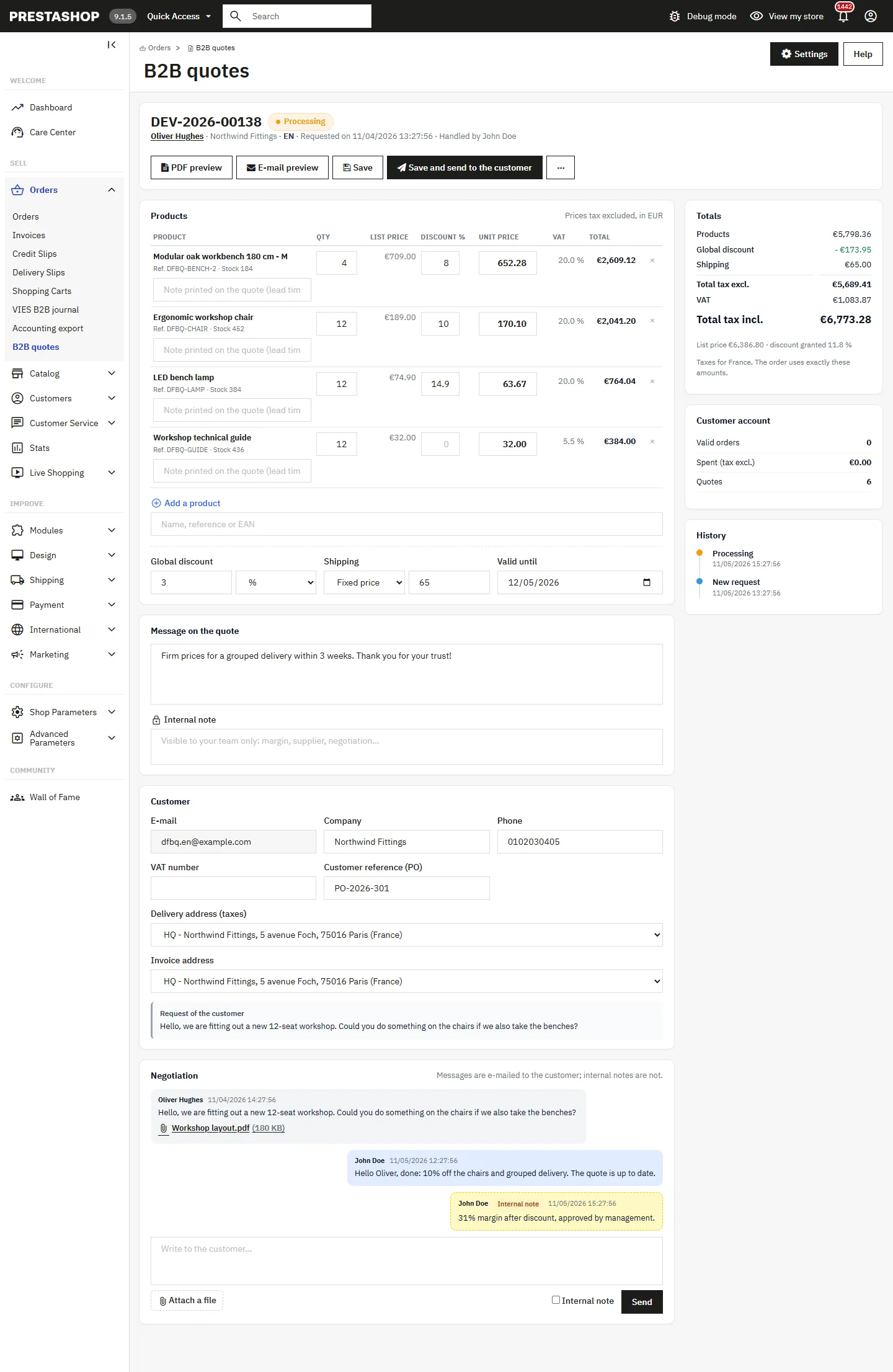
For each line, enter the quantity and the negotiated price or a discount percentage (one updates the other), and a note printed on the quote. Add a global discount, choose the shipping (at checkout, fixed price or free), the validity date, the message printed on the quote and an internal note. Totals are recomputed live by the server with the same rules as the cart.
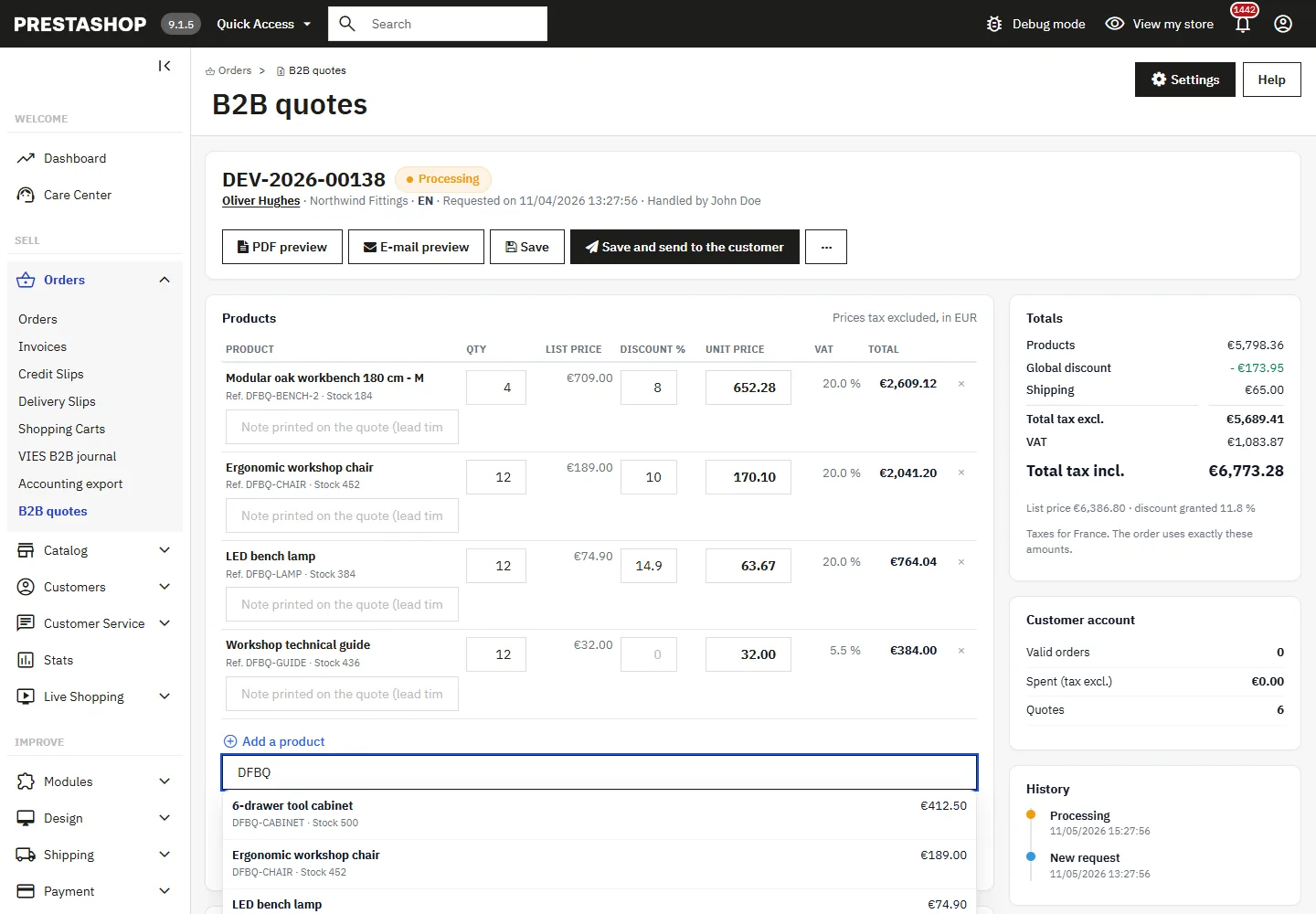
The product search (name, reference or EAN) adds lines from the keyboard, with the list price and the stock.
Sending the quote
Before sending, preview the PDF and the e-mail in the language of the customer. “Save and send to the customer” sends the e-mail with the PDF attached and a signed link.
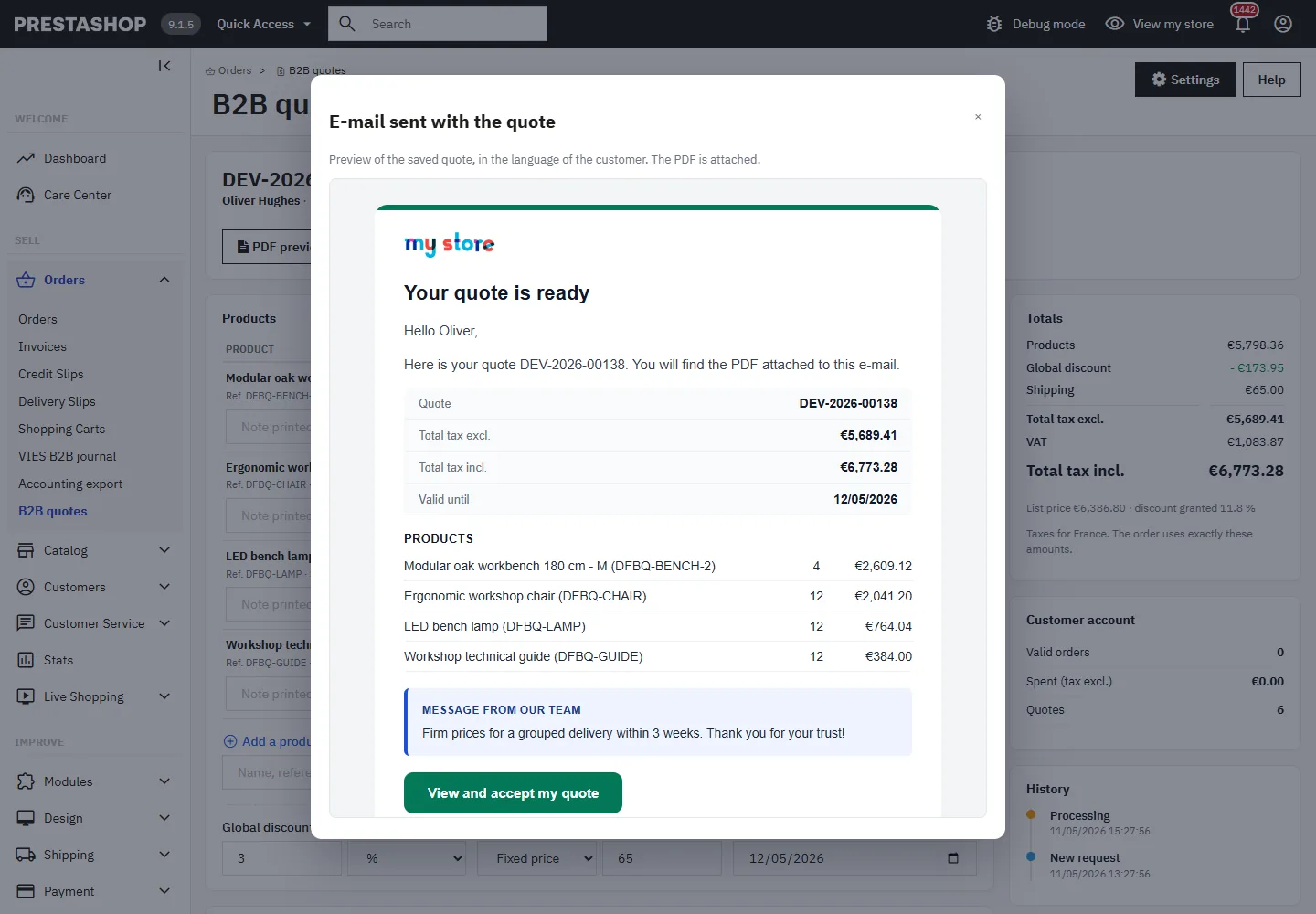
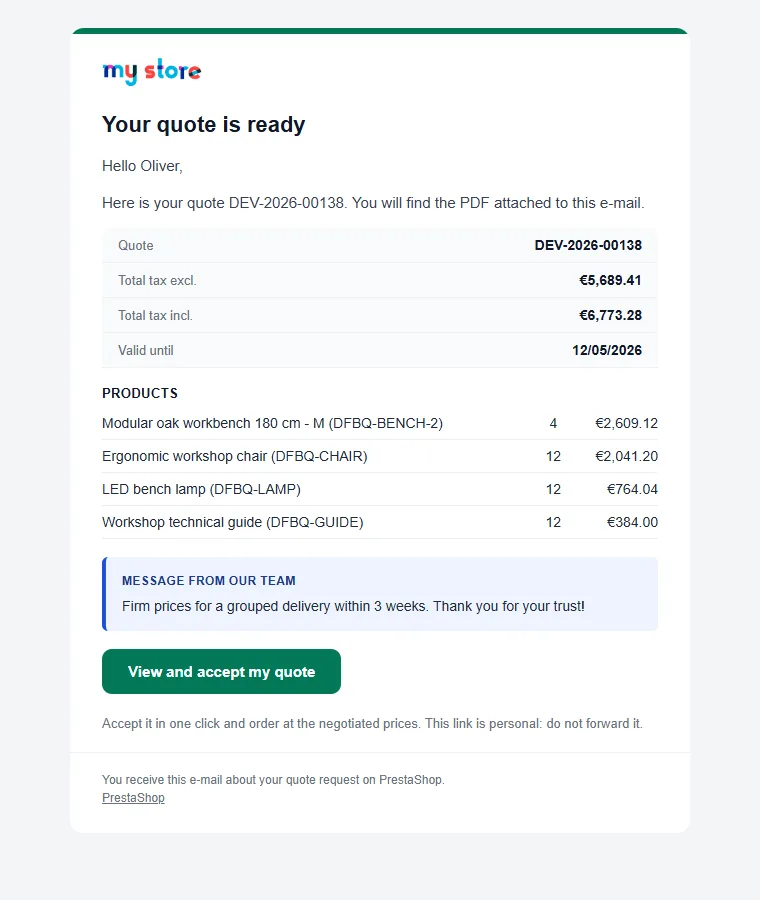
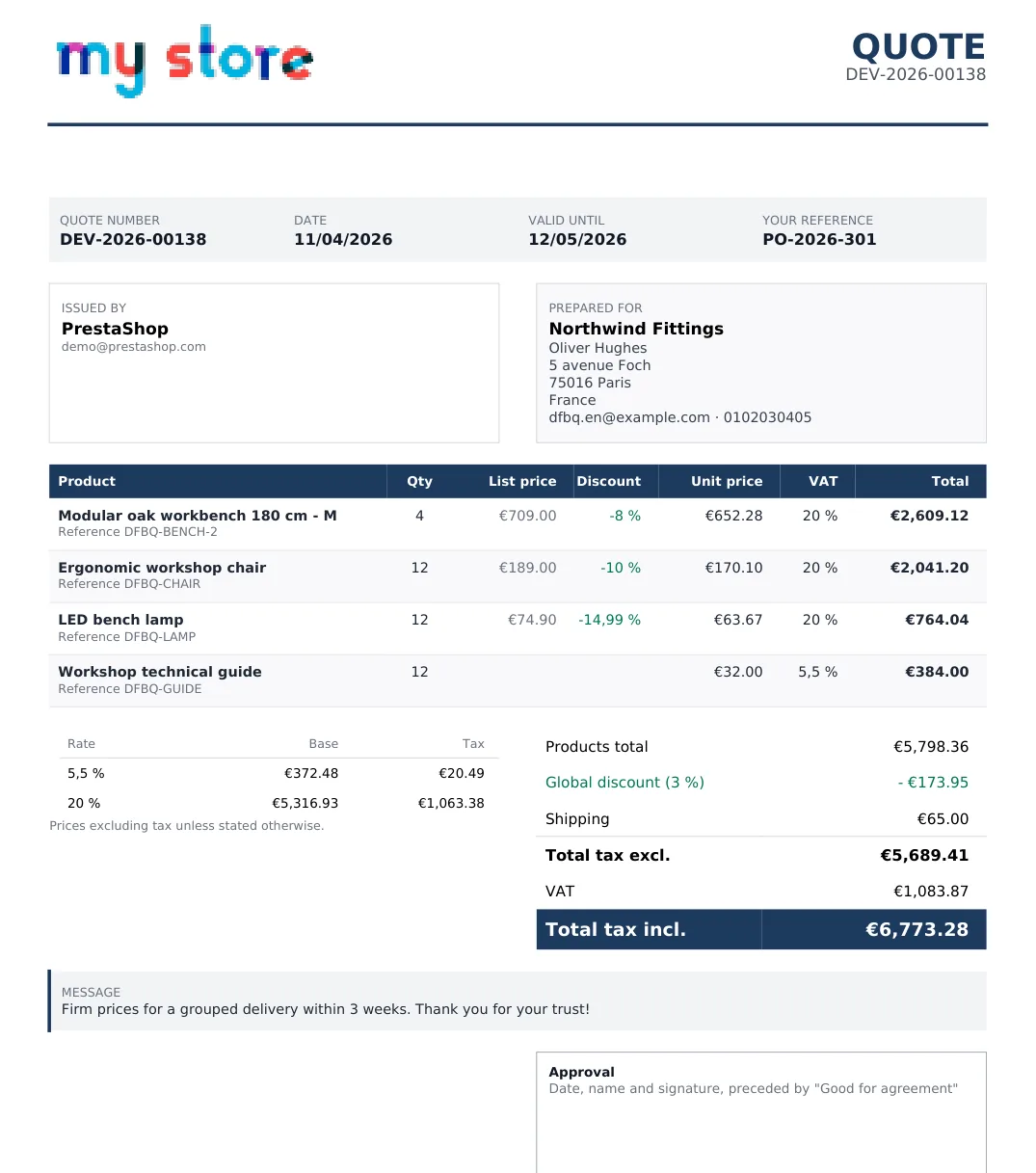
The PDF shows the list price and discount of each line, the VAT summary per rate, the totals, the reverse-charge mention when relevant, your terms and an approval box.
Messages and actions
The negotiation thread mixes messages to the customer (sent by e-mail) and internal notes (visible to your team only). The … menu lets you remind the customer, duplicate, reopen, revoke the links sent, mark as accepted or declined, and convert to an order. You can also create a quote for a customer from the list or from the customer page; order and customer pages show the linked quote.
Statistics
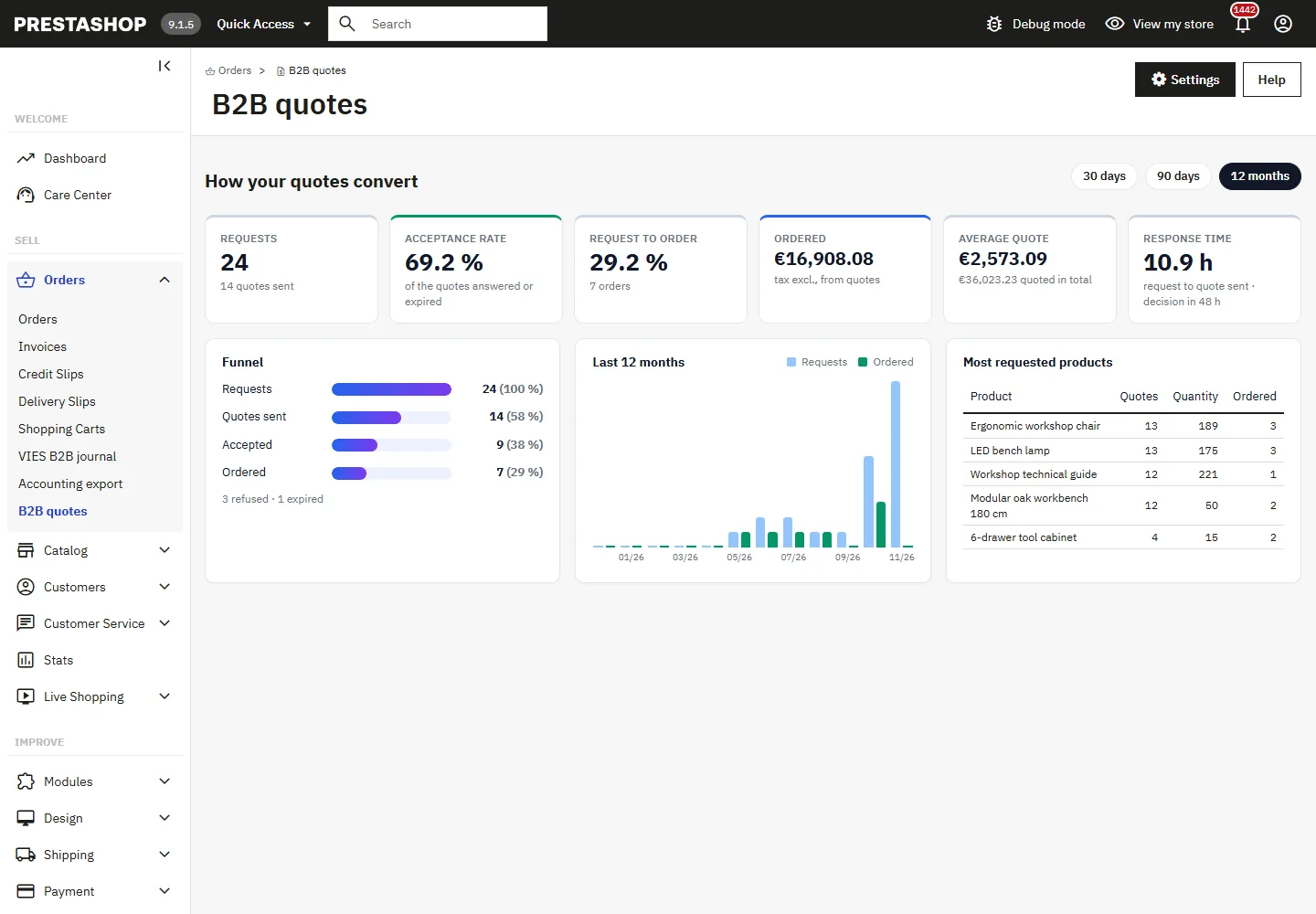
Funnel requests → quotes sent → accepted → ordered, acceptance and conversion rates, response and decision times, average quote, 12-month trend and most requested products, over 30 days, 90 days or 12 months.
Purchase / quote mode per product
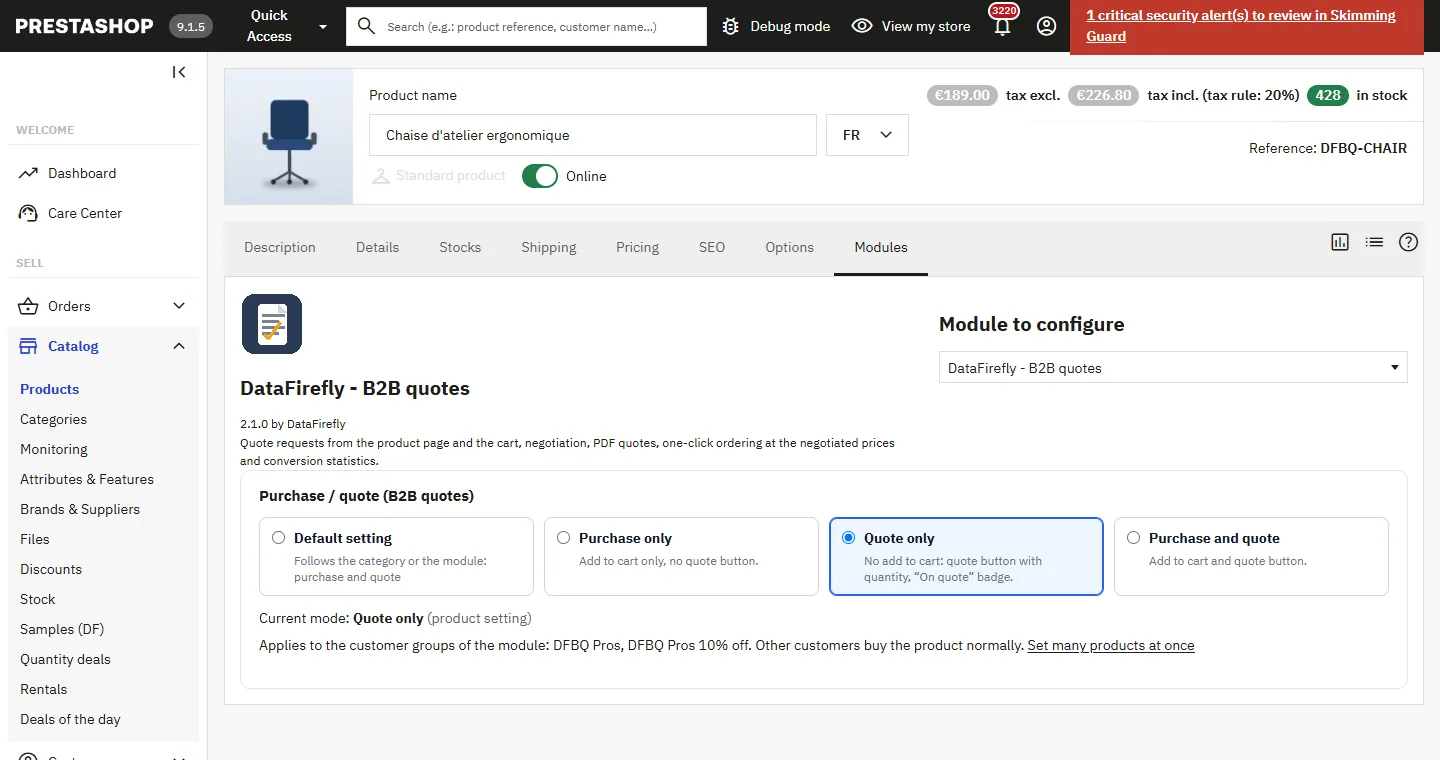
Since 2.1.0, every product follows the module mode or gets its own mode:
- Default setting: follows its category, otherwise the module setting.
- Purchase only: add to cart, no quote button.
- Quote only: no add to cart (product page, quick view, lists), quote button with quantity and “On quote” badge; prices shown or hidden depending on the “Show the prices of quote only products” setting.
- Purchase and quote: both buttons.
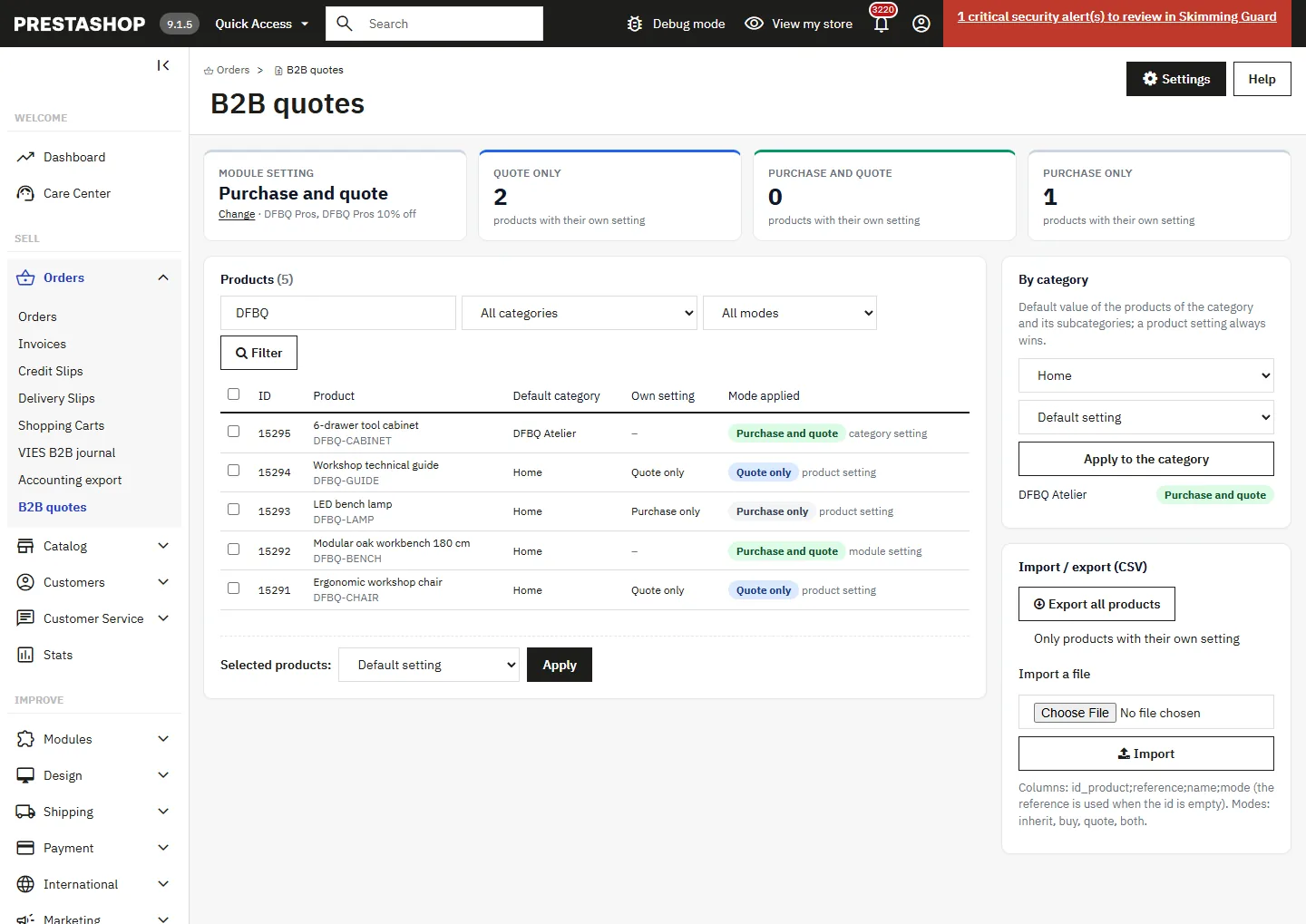
Set the mode on the product page (Modules tab, “Purchase / quote” block), on the page of a category (default value of its products and subcategories), or for many products in B2B quotes > Products and modes: bulk action, setting per category and CSV import / export (id_product;reference;name;mode, modes inherit, buy, quote, both). It only applies to the customer groups of the module: other customers buy normally.
A quote-only product never enters the cart, even through a forged link or another module: it goes to the quote request. The cart of an accepted quote can still be ordered at the negotiated prices.
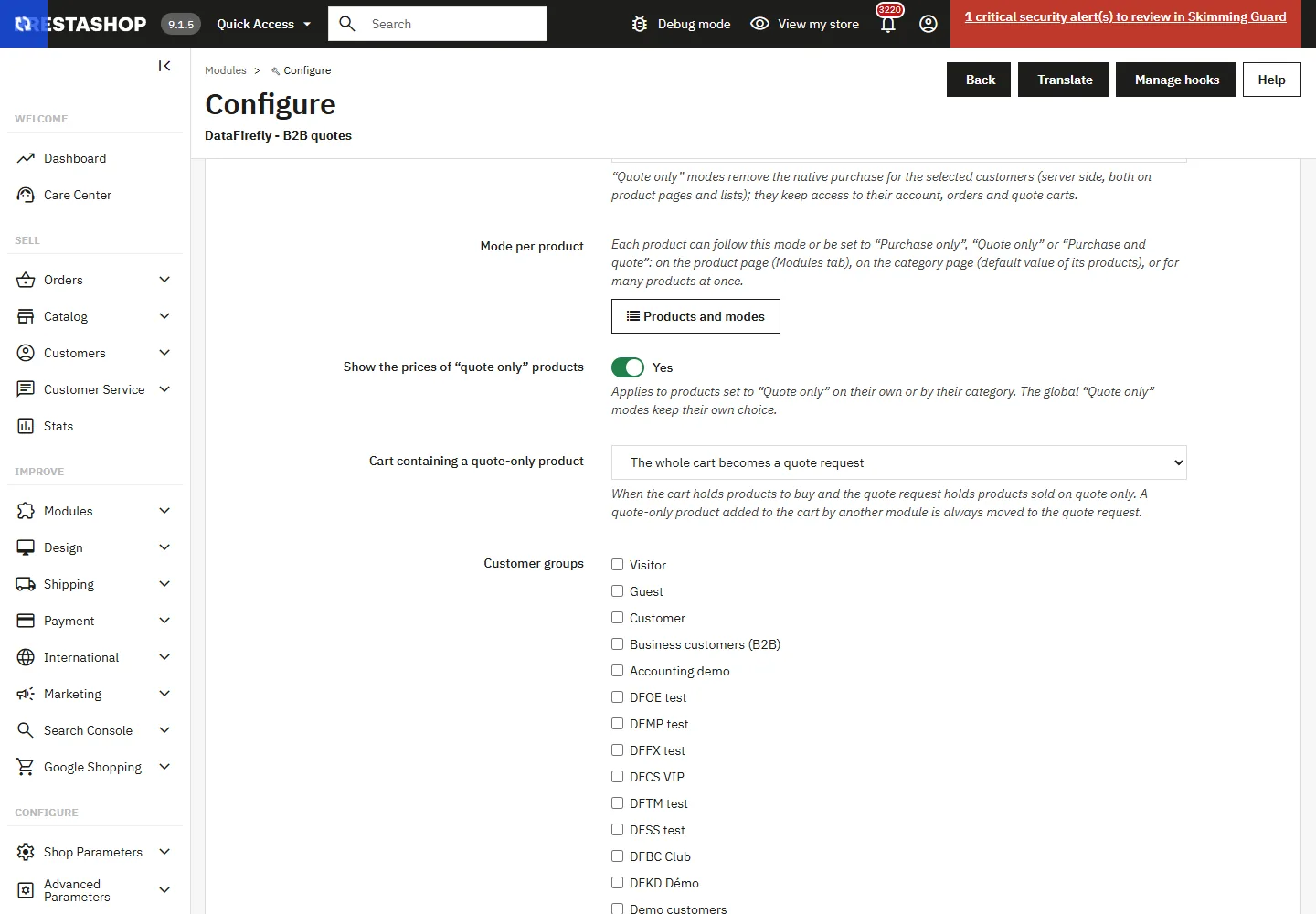
Cart containing a quote-only product
When the cart holds products to buy and the quote request holds products sold on quote only, the “Cart containing a quote-only product” setting offers:
- The whole cart becomes a quote request (default): a banner explains it at the top of the cart, the “Checkout” button is replaced by “Send my quote request” and the cart lines move to the request with their quantities.
- Order the other products: the customer orders the products that can be bought and sends the quote-only products in a separate request.
- Independent: cart and quote request stay separate.
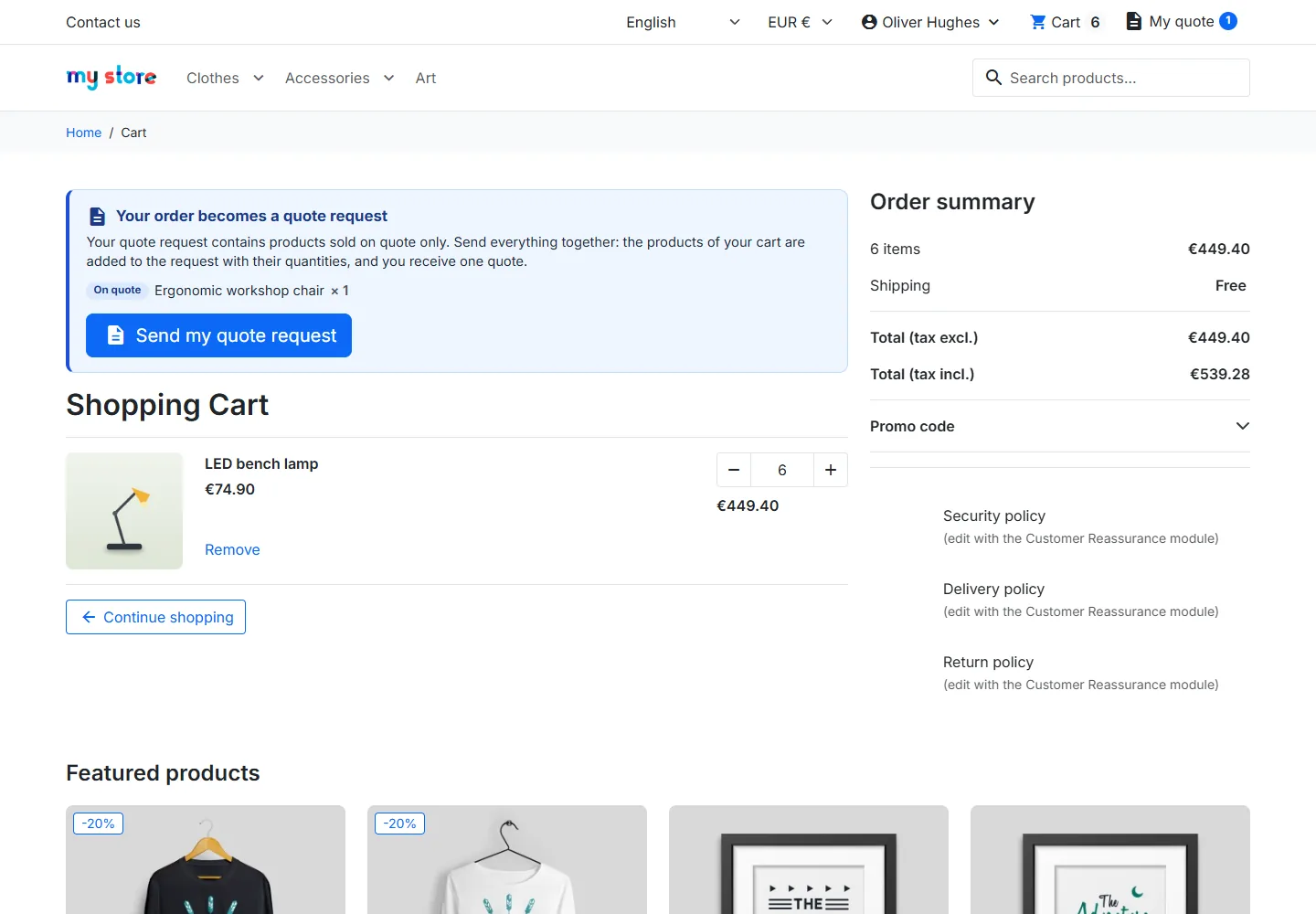
Upgrade from 2.0.x: upload the new zip; without a product or category setting, the shop works exactly as before.
Exact totals and locked prices
Quote totals use the same rules as the PrestaShop cart: tax address, tax rules (including VAT number exemption and the modules that extend it), rounding mode, discount spreading and shipping tax. The order created from a quote therefore has exactly the amounts of the quote.
- Negotiated prices are specific prices bound to the cart and customer of the quote, in the currency of the quote; the customer’s group reduction is not applied a second time.
- The global discount is a single-use cart rule restricted to the customer.
- Negotiated shipping goes through the “Delivery as quoted” carrier.
- If the customer changes the quote cart, the negotiated prices are removed; other vouchers are refused (configurable).
Reminders, expiry and scheduled task
Quotes past their validity date automatically switch to Expired and a reminder is sent before expiry. These tasks run at most every 30 minutes, triggered by the shop traffic. To run them at a fixed time, call the cron URL shown in the settings (protected by a token).
Security and GDPR
- Links sent by e-mail are signed (HMAC), have an expiry date and can be revoked from the back office.
- CSRF protection on every customer action, ownership check of each quote, PDF and attachment.
- Attachments checked (extension, real type, size), stored outside the module under a random name and served only after an access check.
- Hourly limit on requests and messages, anti-bot field, GDPR consent.
- Export and anonymisation of customer data (official GDPR module and customer deletion): amounts are kept, identity and messages are erased.
Quote states
- New request: request received, to be priced.
- Processing: quote being prepared, or changes asked by the customer.
- Quote sent: the customer can accept, ask for changes or decline.
- Accepted by the customer: ready to be ordered.
- Refused: declined by the customer.
- Expired: validity date passed.
- Converted to order: the order is created and linked to the quote.
FAQ and troubleshooting
The “Request a quote” button does not show
Check that the module is enabled, that the customer belongs to a group ticked in the settings (or that no group is ticked), then clear the PrestaShop cache.
The order total differs from the quote
This should not happen: the order is created with the prices, discount and shipping of the quote. Check that the customer did not change the cart (the negotiated prices are then removed) and orders with the address of the quote; another country can change the VAT.
The customer cannot accept the quote
Acceptance is only possible in the Quote sent state and before the validity date. Reopen an expired quote from the back office to extend its validity.
The link received by e-mail no longer works
Links expire after the end of the quote validity (configurable delay) or after a revocation. Send the quote or a reminder again: a new link is generated.
E-mails are not received
Check the team address in the settings and the PrestaShop e-mail configuration (Advanced Parameters > E-mail). Templates are shipped in 8 languages.
Can I customise the texts?
Yes, through the PrestaShop module translations (International > Translations) and the e-mail templates in the mails/ folder of the module.