
Everything you'd want to know before you install.
A detailed look at how Sales Counter for Shopware 6: number of sales displayed on the product page works, why we built it the way we did, and the thinking behind the features above.
What this plugin is for
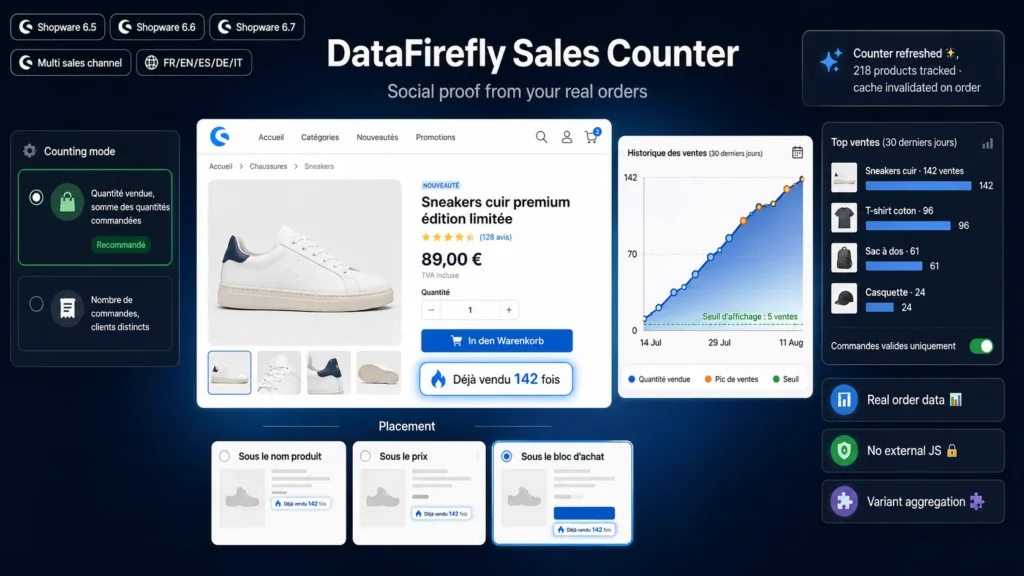
Showing how many times a product has already been sold is one of the simplest reassurance levers in online retail. A hesitating visitor is reassured to see that an item has already convinced other buyers, and the signal costs zero editorial effort since it updates on its own. Shopware 6 keeps all the required data in its order line items, but offers no native storefront display. This plugin fills that gap: it automatically adds the message to every product page, from your real sales data, with no manual entry and no background job to monitor.
Reliable and honest counting
The counter relies on product-type order line items, joined to the order and its state. Three scopes are available. All orders, which gives the raw figure. Cancelled orders excluded, which drops orders whose state machine state is cancelled. Paid orders only, which keeps orders with a transaction in paid or partially paid state, meaning sales that were actually collected. Counting is further restricted to the current sales channel, so a B2B storefront cannot inflate the figures shown on the consumer one. No invented data: the number displayed matches your sales.
Two ways to count, two different messages
Quantity mode adds up ordered quantities and emphasises volume shifted. It produces high numbers, well suited to consumables or products sold in batches. Order mode counts distinct orders containing the product and emphasises how many different customers were convinced. It produces lower but often more credible numbers on single-unit items. Both modes have their own wording, singular and plural, so the sentence stays correct whatever number is displayed.
The variant question
On a Shopware product page it is the selected variant that is displayed, not the parent product. Counting the sales of that single variant often gives a disappointing figure even when the model sells very well across all sizes. The aggregation option adds up the sales of the parent and all its variants, resolving the tree directly in the database. You can turn it off if your catalogue treats each variant as a product in its own right, for example on technical references where each variant matches a distinct use case.
Display you control
A display threshold prevents showing a figure that is too low: below it, no badge appears. You pick the placement among three positions of the buy box, under the product name, under the price or at the bottom of the box, along with the visual style, pill badge, plain text or banner. Four inline SVG icons are provided and the accent colour follows the theme by default. Wording is set at two levels: a global text from the plugin configuration, or per-language texts through the Shopware snippet manager, with a placeholder to position the number wherever you want in the sentence.
Performance and freshness
The counting query is a simple aggregation on indexed columns, but there is no reason to replay it on every page view. The result is therefore cached in the application pool, for a duration you set, fifteen minutes by default. To avoid the classic lag where a customer has just bought but still sees the old number, the cache of the products concerned is purged automatically whenever an order is placed. You can also set the lifetime to zero to hit the database on every view, which stays reasonable on a mid-sized catalogue.
DataFirefly standards
Plugin built with no additional Composer dependency, fully server-side rendering and no external JavaScript library. No table created, no migration, neutral uninstall with optional configuration removal. Compatibility covers the three major versions still in service, from 6.5 to 6.7: the queries avoid the database APIs that changed between versions, and the stylesheet declares a fallback value so it will not break the compilation of a custom theme. Native configuration page in the administration, translated into English, German and French, with storefront wording shipped in five languages.

There are no reviews yet.