
Everything you'd want to know before you install.
A detailed look at how Create Orders from the PrestaShop 8 & 9 Back Office: Phone and Email Order Entry works, why we built it the way we did, and the thinking behind the features above.
Why the native screen slows down order taking
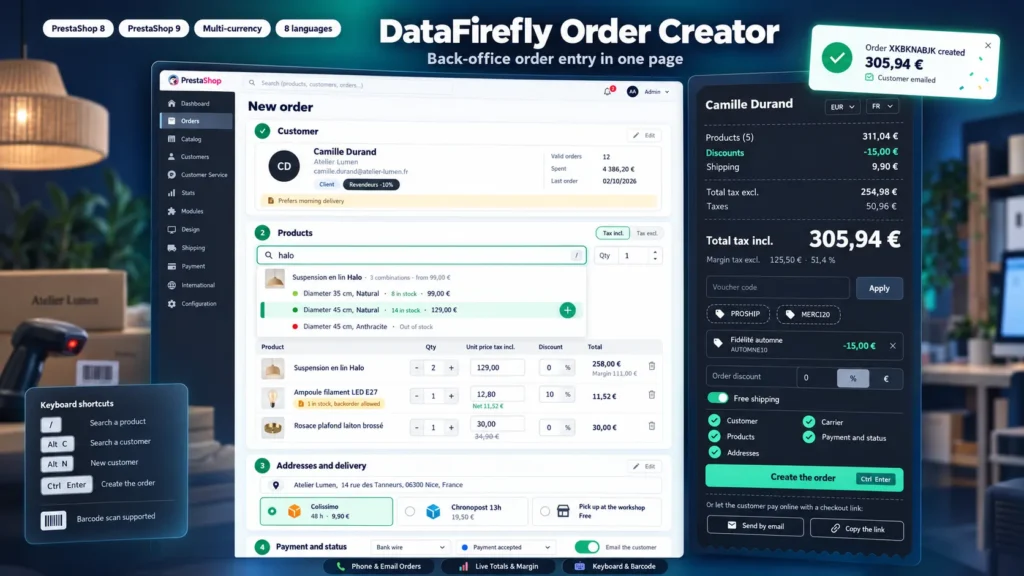
Order creation in the PrestaShop back office is a form split into blocks: customer search, cart, vouchers, addresses, shipping, summary. Each combination is picked in a drop-down list, stock and cost price are not shown, and you have to scroll to the bottom of the page to see the total. On the phone, the employee keeps the customer waiting while searching. This module uses the same creation mechanism, with a page organised to work fast.
One page in four steps, plus a summary
The page follows the order of a phone order: customer, products, addresses and delivery, payment and status. Each step turns green when it is complete. The summary on the right stays visible while scrolling and is recalculated after every action, with the total tax incl. in large type. On a narrower screen, it moves below the steps and a bar at the bottom of the page keeps the total and the create button within reach.
A customer's prices, without touching the catalogue
The prices shown are those of the selected customer: group, specific prices and automatic cart rules are applied by PrestaShop. An edited price or a line discount is saved as a specific price limited to the cart, as the native back office does. The order discount and free shipping are single-use cart rules reserved for the customer. Nothing is changed in the product pages.
Pay online or validate straight away
When the customer pays remotely, the Send by email button sends them the link to their cart, with the native PrestaShop email, or the Copy the link button puts it in the clipboard for a text message or a messaging app. When payment has already been made or agreed, the order is created with the chosen payment method and status. The Email the customer option can be unticked for an order that must not trigger any email.
Built for the team
The current cart is kept if the page is closed or reloaded, and each browser tab keeps its own cart. The Add new order button of the orders list opens this page directly, and the one of a customer cart opens it with that cart already loaded. The page of each created order shows the employee who entered it, whether the customer was notified and how many prices were edited.
There are no reviews yet.