
Everything you'd want to know before you install.
A detailed look at how Bank Transfer Reconciliation for PrestaShop 8 & 9 works, why we built it the way we did, and the thinking behind the features above.
Ticking off bank transfers, time lost every week
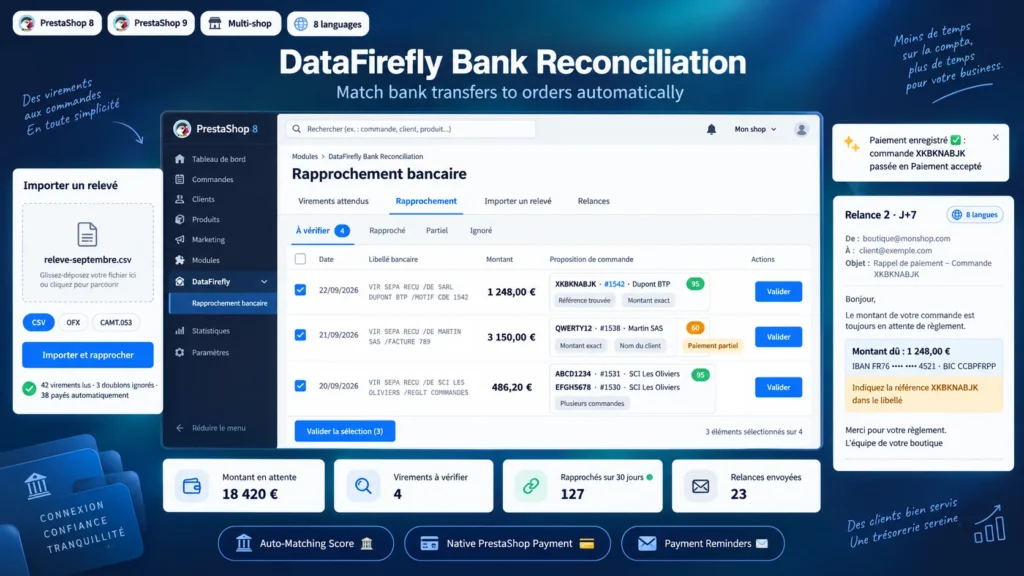
In B2B, the bank transfer is still the most common payment method: professional buyers pay on invoice from their company account. On the shop side, every transfer received requires the same steps: read the label, find the order, add the payment, change the status. Until that is done, the order waits. When it is done wrong, an order ships unpaid or a customer who paid gets a reminder.
How the module finds the right order
A bank label rarely looks like the expected reference: “SEPA CREDIT TRANSFER /FROM DUPONT LTD /REF ORDER 1542”. The module searches it for the order reference, even split by spaces, for the order number after words such as Order, CMD or Bestellung, and for the name of the customer or their company. It compares the amount with the balance due of each order awaiting payment. Reference plus exact amount scores 95 and is validated automatically, and so are order number, exact amount and customer name together. An amount and a name without reference give a proposal to review.
A payment recorded as if you had entered it
The module uses the PrestaShop native payment: the transfer appears in the Payments tab of the order, on the invoice and in accounting exports, with the bank reference as transaction ID. The status change reuses this payment instead of creating a second one, and an invoice already generated receives the payment. Orders split between carriers share one reference: they are handled as a single order, as PrestaShop does.
Real B2B payment cases
A customer pays several orders with one transfer quoting their references: the amount is split between them. An international transfer arrives a few euros short because of fees: the bank fee tolerance still settles the order. A customer pays a deposit: the partial payment is recorded, the balance due stays visible and the order stays followed. A transfer matches nothing: you assign it by typing an order reference or number, or you ignore it.
Reminders that do not miss
Reminders are sent by a daily cron task, at the delays you set after the order. The email states the amount due and your bank details and asks the customer to quote the reference in the transfer, which makes the next match easier. An order whose transfer is awaiting your review is not reminded, and neither are orders that are too old. You can also remind a customer in one click from the dashboard or the order page.

There are no reviews yet.