
Supplier Feed Import & Dropshipping for PrestaShop 1.7.8, 8 & 9
Connect a supplier feed, map its fields, compute selling prices, plan the imports and check each of them.
Overview
The Supplier Feed Import & Dropshipping module (technical name dfsupplierfeed) imports and synchronises your suppliers’ catalogues into PrestaShop. It reads CSV, XML and JSON feeds from a web address, an FTP or SFTP server, a file uploaded from your computer or a file already on the server, then creates and updates products, combinations, prices, stock, images, categories and brands.
Version 2.0.0 adds a 5-step assistant, drag-and-drop field mapping, readable pricing rules with a simulator, per-feed scheduling behind a single cron URL, a simulation that writes nothing, a detailed report for each import with rollback of the latest import, and an interface translated into 8 languages.
The module does not replace PrestaShop’s native CSV import, which is built for a one-off manual load: it automates recurring imports from several suppliers.
Installation and upgrade
- In the back office, open Modules > Module Manager, then Upload a module.
- Select the
dfsupplierfeed-2.0.0.zipfile. - The module then appears under Catalog > Supplier feeds.
To move from a 1.x version to 2.0.0, simply upload the new zip: the upgrade keeps your suppliers, feeds, rules and product links. It has been tested from versions 1.0.0, 1.2.0 and 1.4.0. Feeds created in 1.x keep their 1.x behaviour (see Changes compared with 1.x).
Before upgrading a production shop, back up the database, as with any module that writes to the catalogue.
Interface overview
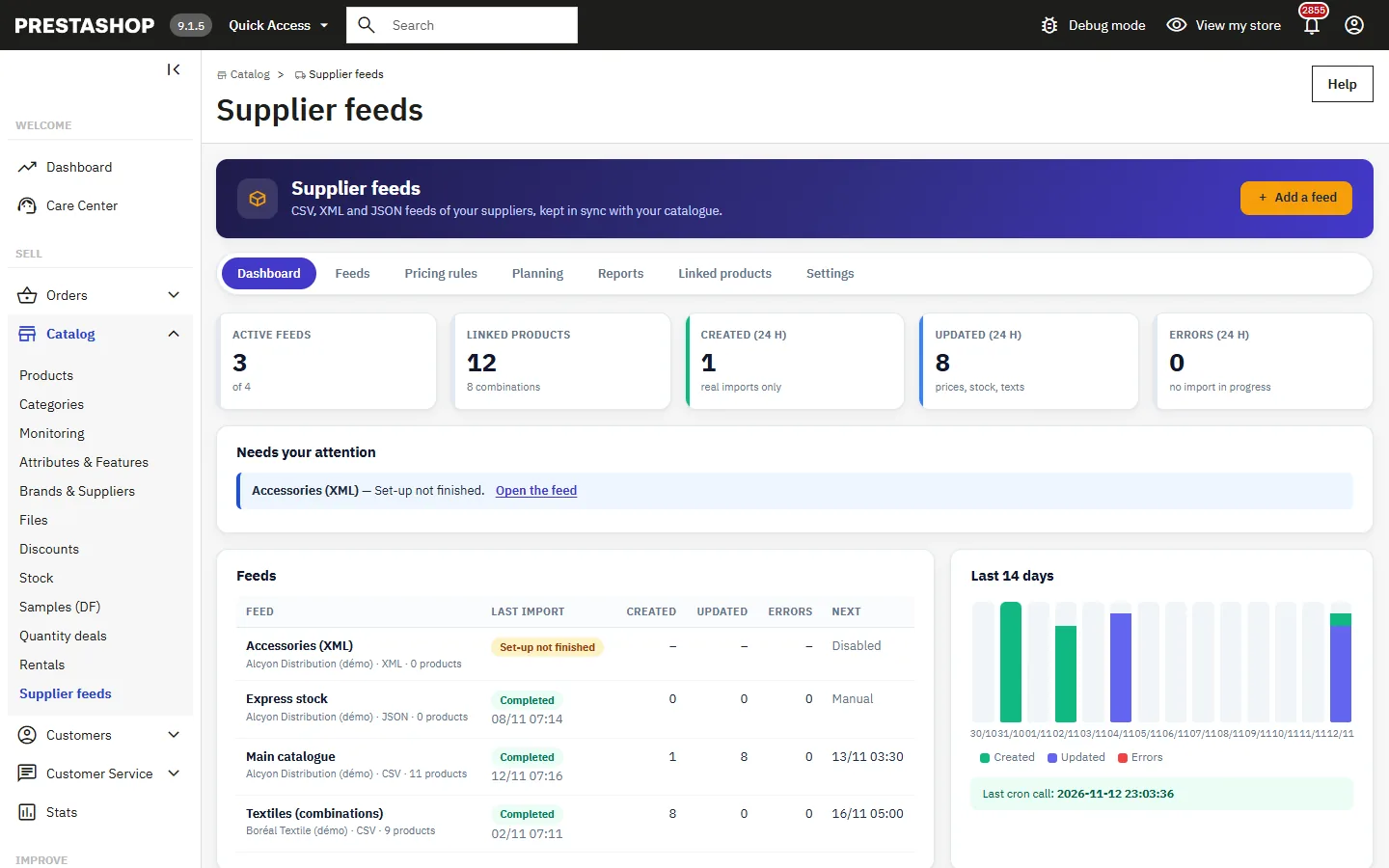
- Dashboard: active feeds, linked products, products created, updated and errors over 24 h and over 14 days, feeds that need your attention, last cron call.
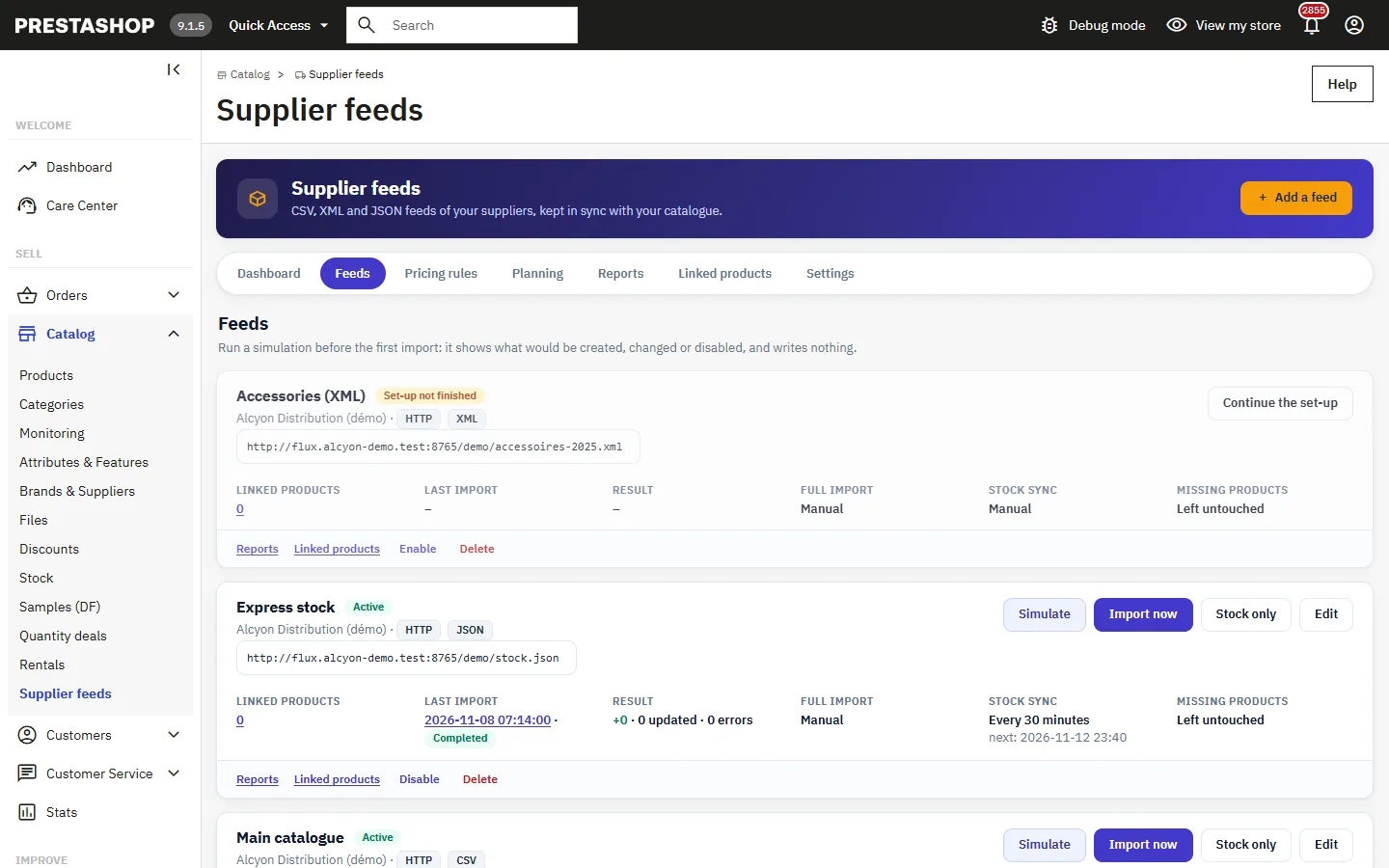
- Feeds: list of feeds with the source (credentials masked), the latest import, the schedule and the Simulate, Import now and Stock only buttons. Suppliers and their priority are managed at the bottom of this page.
- Pricing rules: computation of selling prices, with the price simulator.
- Planning: the single cron URL and the next runs of each feed.
- Reports: one report per import or simulation, plus the technical log.
- Linked products: products linked to a feed, origin, prices changed by hand, locked fields.
- Settings: default values, large feeds, security and limits, maintenance.
Creating a feed with the assistant
Click Add a feed. Each step is saved on its own: you can come back to any of them later, and a feed whose set-up is not finished stays inactive.
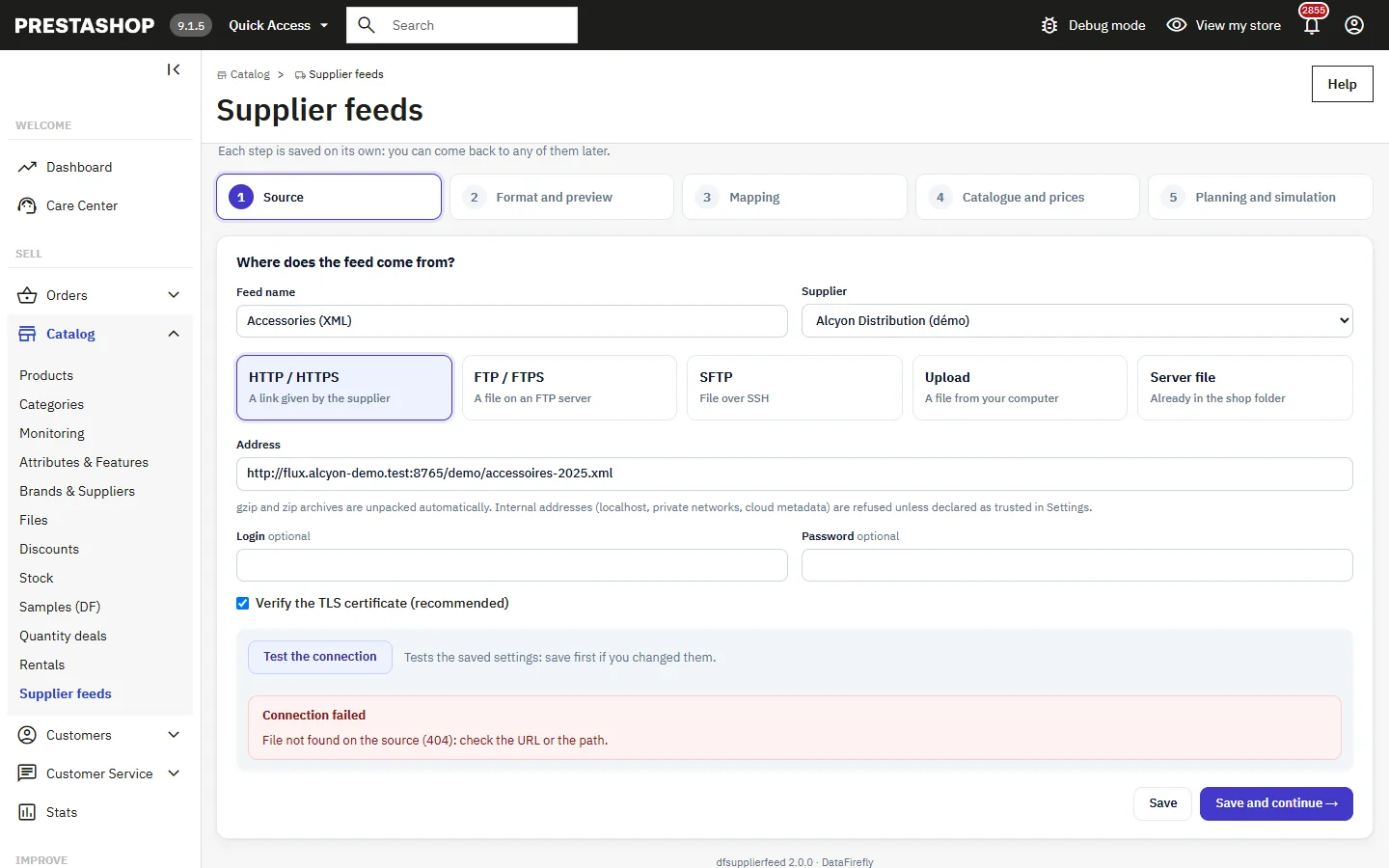
Step 1: Source
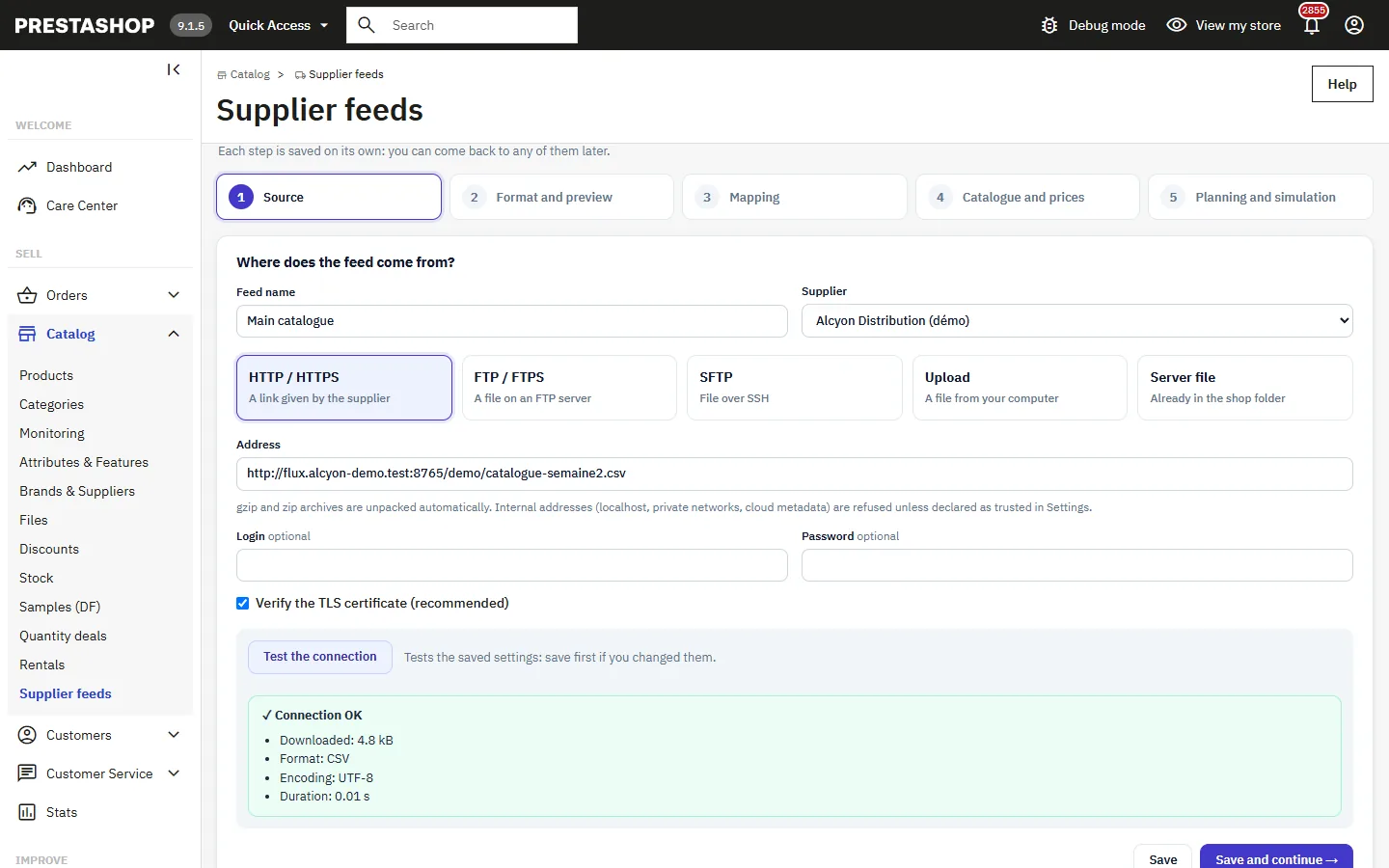
Give the feed a name, choose or create the Supplier (you can also create it as a PrestaShop supplier, to store the purchase price on each product), then the Source type:
- A link given by the supplier: http or https address.
- A file on an FTP server:
ftp://(plain FTP),ftpes://(explicit TLS, port 21, recommended) orftps://(implicit TLS, port 990). - File over SSH: SFTP with login and password.
- Upload: a file from your computer.
- Server file: a file already in the shop folder. Only feed files (
.csv .tsv .txt .xml .json .gz .zip) outside the configuration folders can be read.
Logins and passwords are stored encrypted with the shop key and are never displayed again. gzip and zip archives are unpacked automatically. Save, then click Test the connection: the test uses the saved settings.
Step 2: Format and preview
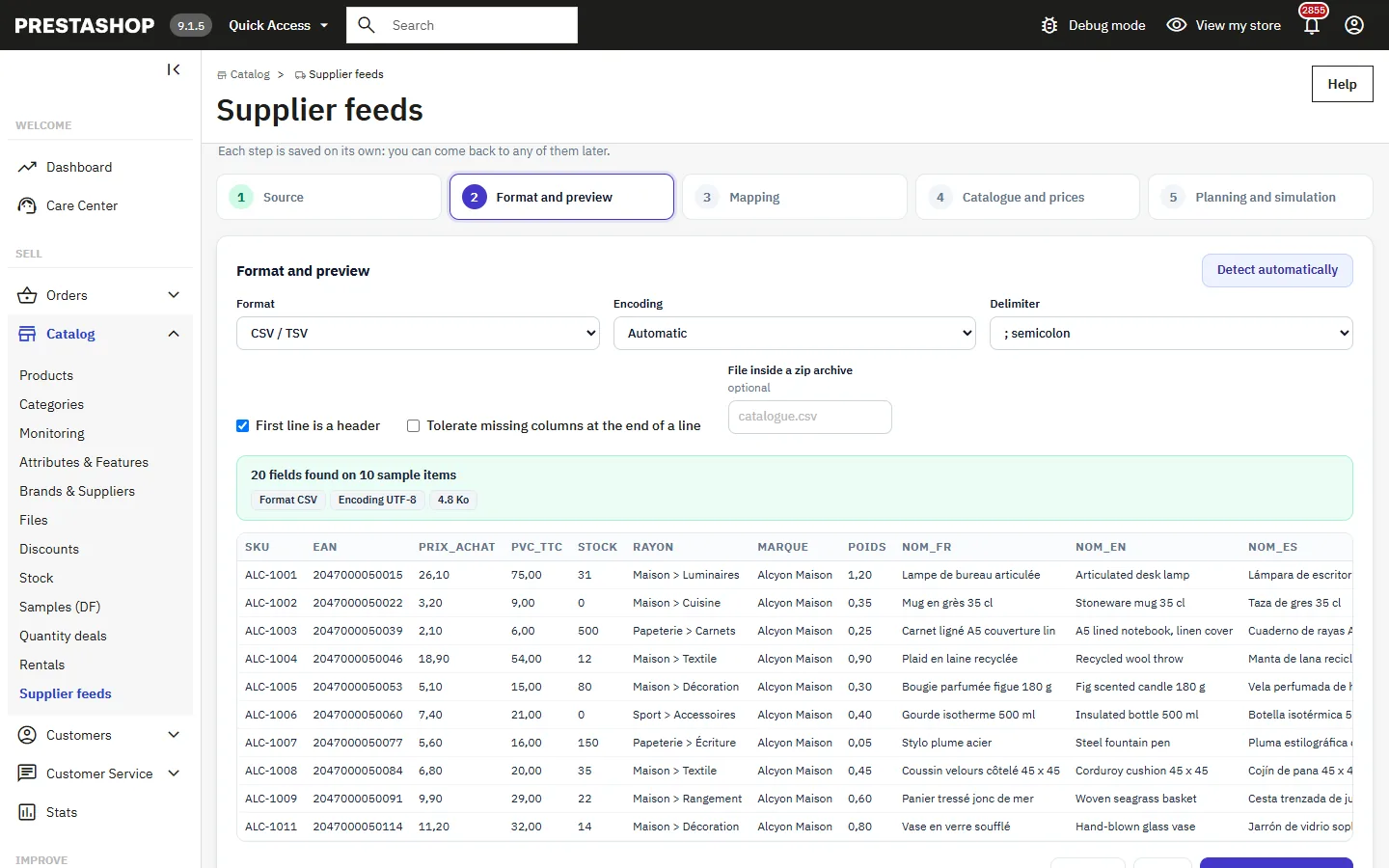
Click Detect automatically: the module reads the first items and detects the format (CSV, XML or JSON), the encoding, the delimiter and, for XML and JSON, the Items path (the repeated node that represents a product). A preview of the first lines is displayed. You can correct each value by hand.
- Encodings converted to UTF-8: UTF-8 with or without BOM, UTF-16 with BOM, ISO-8859-1, ISO-8859-15 and Windows-1252.
- CSV: semicolon, comma, tab and pipe delimiters; multiline quoted fields; option to tolerate missing columns at the end of a line.
- XML: namespaces read (
g:gtin), attributes read with@name. Any document containing a DTD is refused before parsing. - JSON: dot notation (
data.products), array indexes (images.0).
Step 3: Mapping
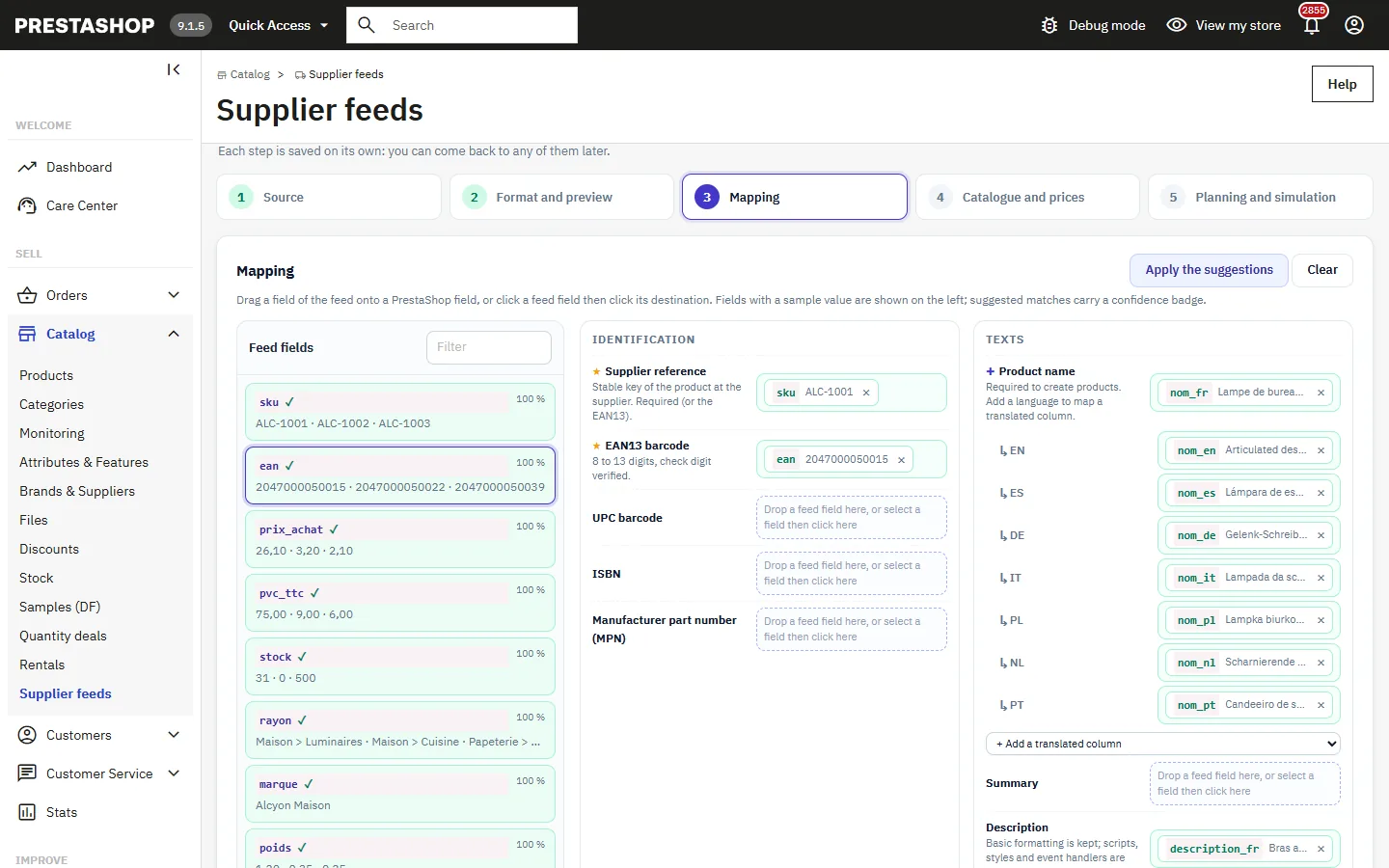
The left column lists the Feed fields with a sample value. Drag them onto the PrestaShop fields, or click a feed field then the target (usable with the keyboard). Apply the suggestions fills in the mapping from the column names, with a confidence score for each proposal. Translated columns are recognised: nom_en or title_de become name:en or name:de.
Only one matching key is required: reference or ean13. For special cases, Advanced: edit the mapping as JSON gives access to the raw mapping (see Field reference).
Check that the field mapped to cost really is a Purchase price. Many suppliers also ship a recommended retail price: map it to retail_price, otherwise your margin would be applied on top of a price that already includes one.
Step 4: Catalogue and prices
- New products: create or not the products missing from your catalogue, and put them online straight away or create them disabled for review (default).
- Root category and Create missing categories: paths such as
Home > Office > Chairsare looked up under this category, and the separator is configurable. Categories and brands can be created disabled. - Prices and taxes: purchase price tax incl. or tax excl., VAT rate of the feed, currency of the feed (converted to the shop default currency). Selling prices come from the pricing rules.
- Recognising products: Link the products of my catalogue that have the same key (reference or EAN). This option is off by default for a new feed: without it, the module touches no product it did not create. A Prefix added to references can be applied to the references it creates.
- What the feed may change on existing products, with Keep what I change by hand: a price, name or description changed by hand since the last import is no longer overwritten.
- Images on update: add the new ones only, or also remove those the feed no longer lists. Only images imported by the module are removed, never yours.
- Stock: feed quantity, or feed quantity minus the quantities reserved by orders.
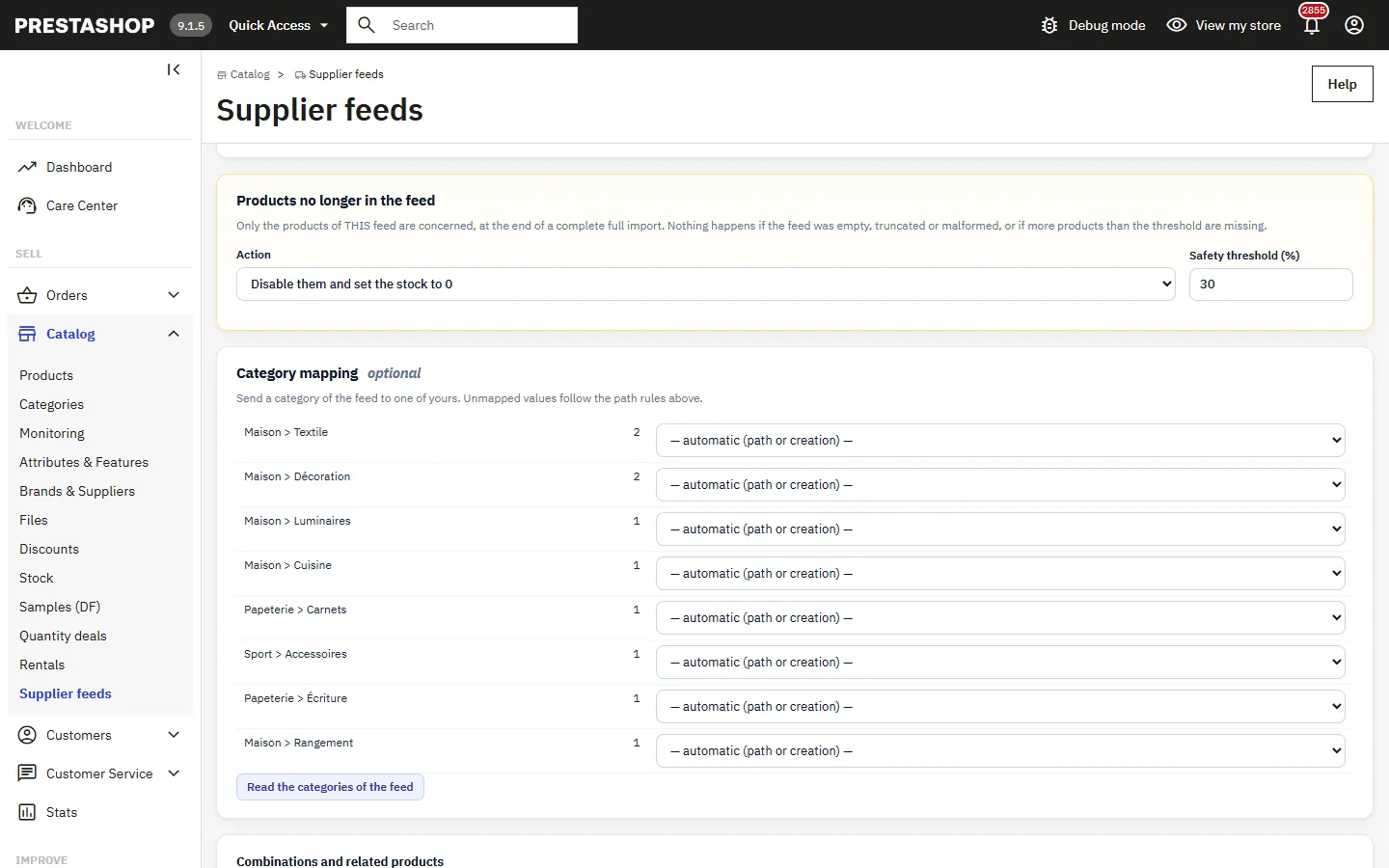
- Products no longer in the feed: leave them untouched, set their stock to 0, disable them, both, or delete those created by the feed (the others are disabled). A safety threshold (30 % by default) blocks the action if too large a share of the feed’s products disappears at once.
- Category mapping: Read the categories of the feed, then send each supplier category to one of yours.
- Combinations and related products: see below.
- Shops: in multistore, products, prices and stock are written to the ticked shops.
Step 5: Planning and simulation
Choose the frequency of the Full import (creation, update, missing products) and of the Stock and price sync (linked products only): manual only, every N minutes, every N hours, every day or every week. Set the Report by e-mail: only when something went wrong, after every import, or never.
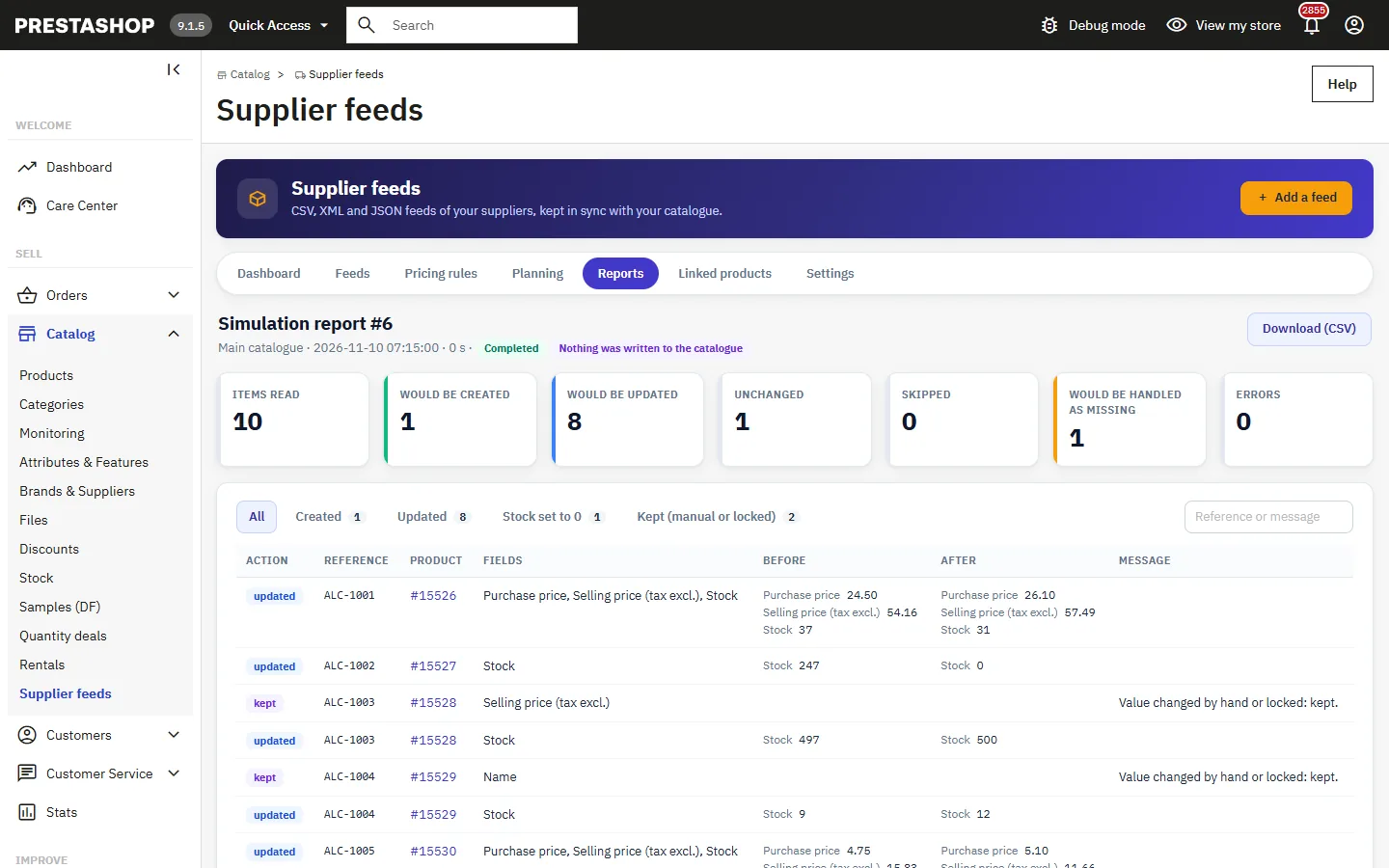
Then click Run a simulation: the whole feed is read and every decision is taken as in a real import, but nothing is written to the catalogue. The simulation report shows what would be created, updated, kept or treated as missing. When it suits you, click Finish and enable the feed.
Field reference
Fields available in the mapping:
reference ean13 upc isbn mpn name description description_short meta_title meta_description cost retail_price minimum_price tax_rate quantity low_stock_threshold category manufacturer condition weight width height depth image images group_reference attributes variant_attribute variants_stock variants_ean variants_reference related
Each text field also exists per language: name:en, description:de… A field can receive a list of sources: for images, every filled column is imported; for other fields, the first non-empty value is kept.
{ "fields": { "reference": "sku", "ean13": "ean", "name": "title", "name:en": "title_en", "cost": "price", "quantity": "stock", "images": ["image_1", "image_2"] } }

{ "items_path": "products/product", "fields": { "reference": "@sku", "ean13": "g:gtin", "cost": "pricing/wholesale" } }

{ "items_path": "data.products", "fields": { "cost": "prices.cost", "images": "media" } }
Combinations and related products
One line per variant
Tick Build combinations and map group_reference (identical for every variant of one product) and attributes (for example Size:M|Colour:Red).
Sizes packed in one column
For a feed that ships one line per product with the sizes in one column (S:4,M:9), tick Split packed variants and map variants_stock, plus variants_ean and variants_reference if the feed provides them. The attribute group, the entry separator and the value separator are set on the feed.
Tick this option before the first import. Otherwise the products are created without a parent reference, then created again when you enable the option.
Second axis and related products
variant_attribute adds a second axis (colour, material…) under the group chosen on the feed. related receives a comma-separated list of supplier references: with Link the related references as accessories, they become PrestaShop accessories, resolved once the feed has been read in full. Existing accessories are never deleted.
Pricing rules and simulator
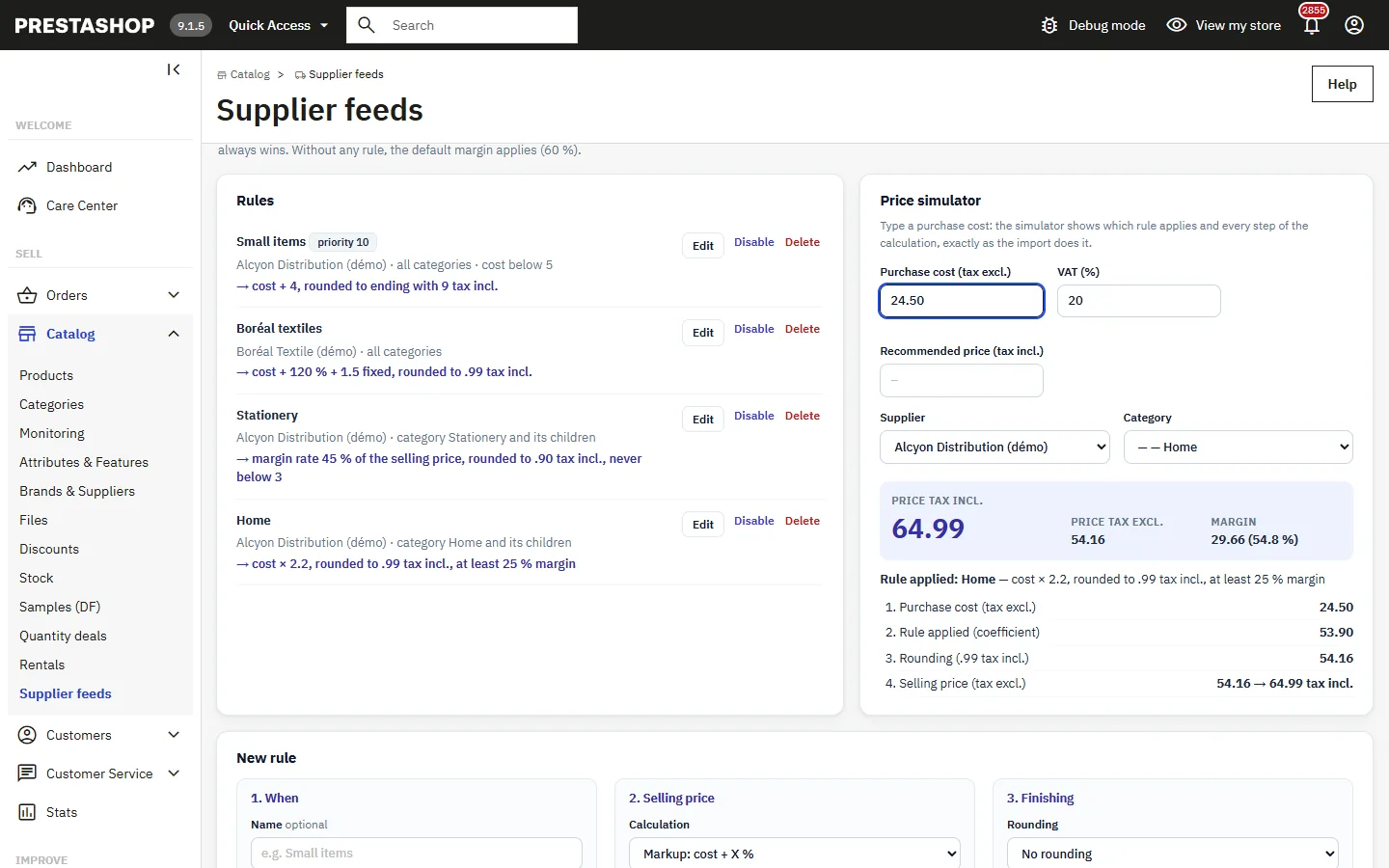
The selling price is computed from the purchase cost. A rule reads like a sentence, in three parts:
- When: supplier, category (and its subcategories), cost range (“Cost from” and “to (excluded)”).
- Selling price: markup (cost + X %), coefficient (cost × X), margin rate (X % of the selling price), fixed amount (cost + X), or recommended price of the feed − X %; with an added fixed amount, a minimum margin and a minimum price excluding tax.
- Finishing: psychological rounding (.99, .95, .90, .49/.99, whole number, ending in 9), applied to the tax-inclusive price your customers see or to the tax-excluded price.
When several rules match, the highest Priority wins. Without a rule, the default margin from the settings applies (30 %). The Price simulator shows the rule applied and each step of the calculation up to the rounded price.
Planning and cron
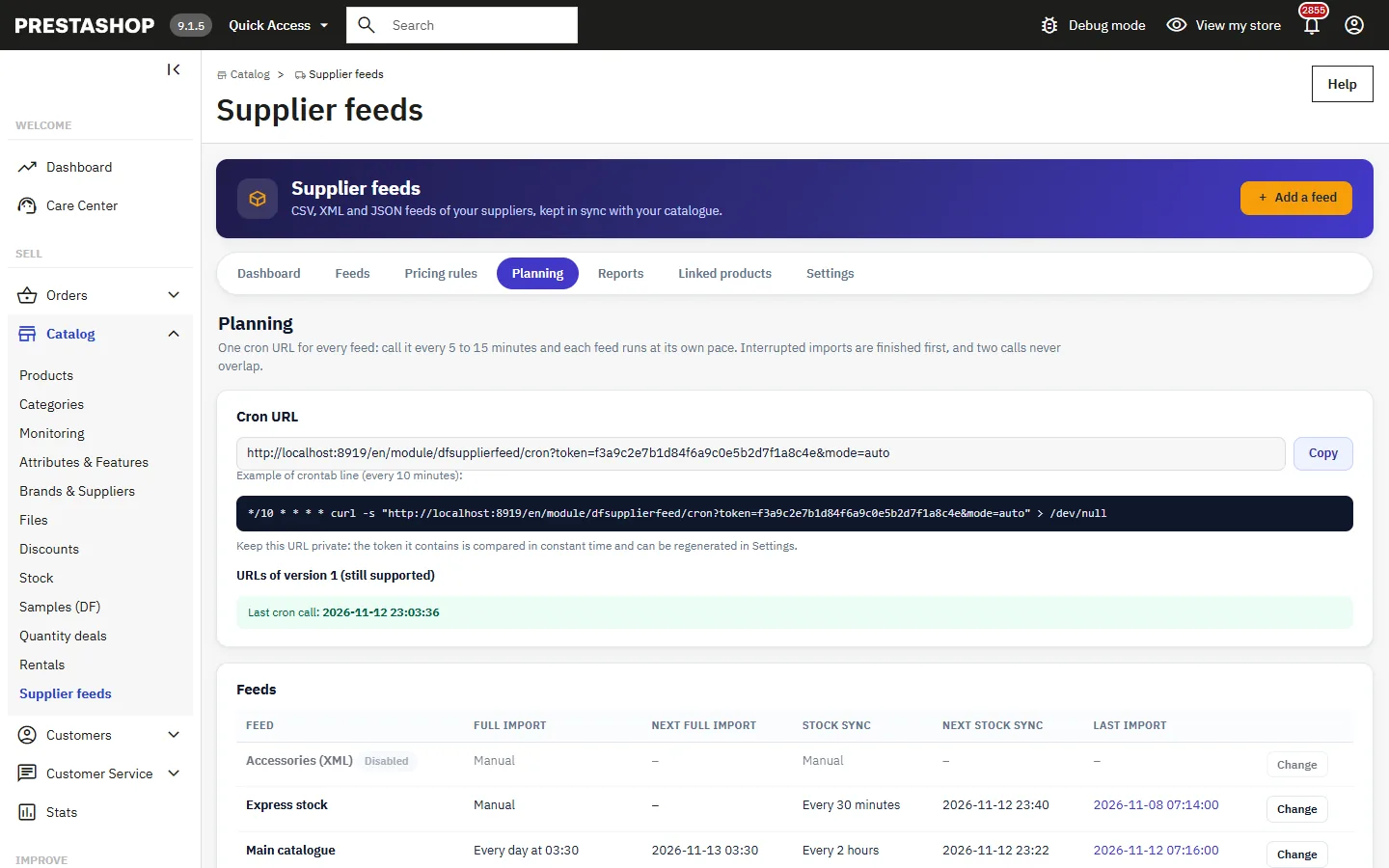
A single cron URL serves every feed. Have your host call it every 5 to 15 minutes: on each call, the module runs whatever is due according to each feed’s schedule. The full URL, with its token, is shown under Planning.
*/10 * * * * curl -s "https://yourshop.tld/index.php?fc=module&module=dfsupplierfeed&controller=cron&token=YOUR_TOKEN&mode=auto" > /dev/nullA cron call never overlaps the previous one and a feed is never imported twice at the same time. Version 1 URLs (mode=stock, mode=full, &id_feed=N, &budget=600) are still supported.
Keep this URL private. If you generate a new token in the Settings, update your cron job.
Reports, simulation and rollback
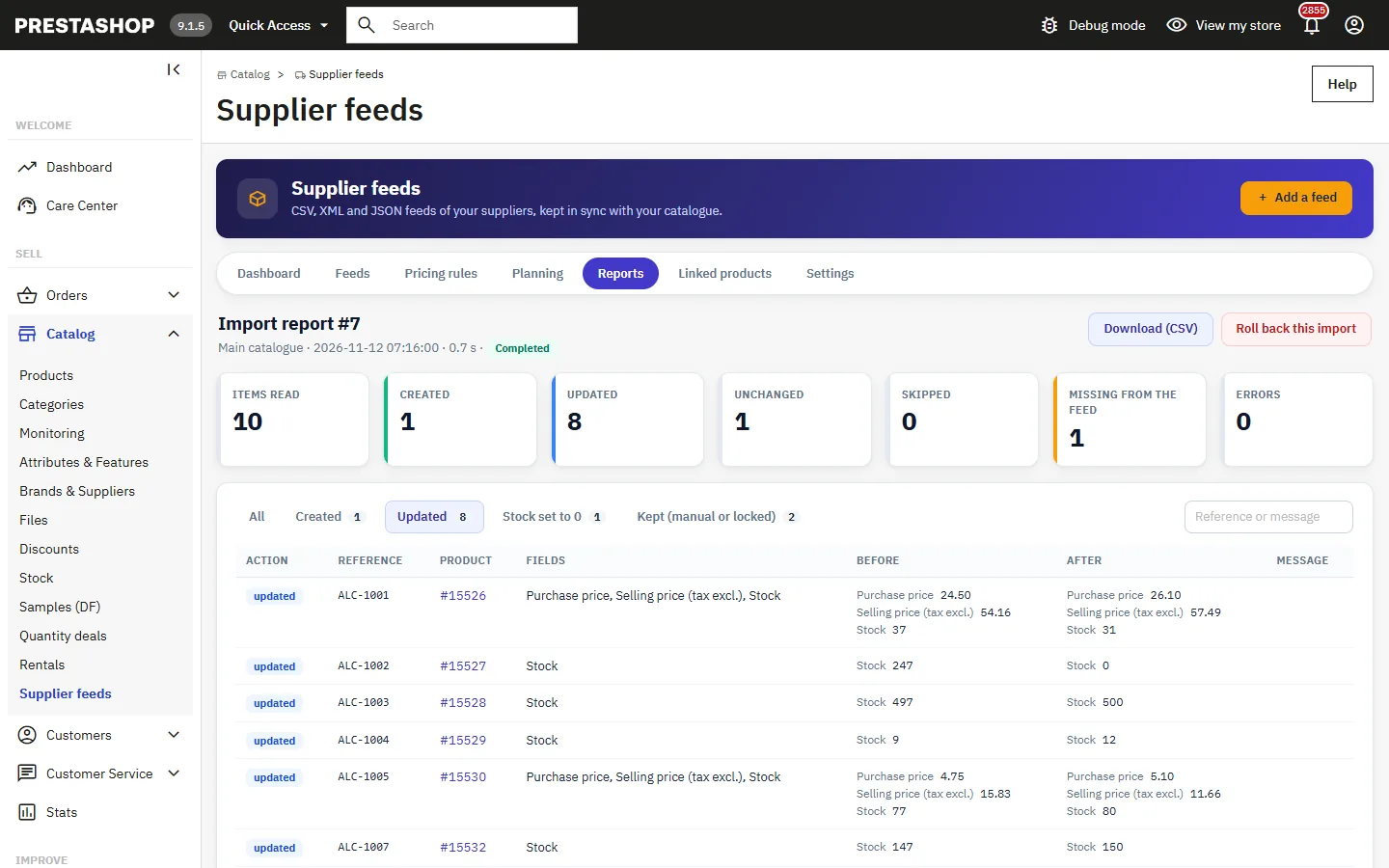
Every import and every simulation produces a report: items read, created, updated, unchanged, skipped, missing from the feed, errors. The details list each product with its values Before and After, filters by action and a search. Download (CSV) exports the report; cells that a spreadsheet could read as formulas are neutralised.
Roll back this import restores the values changed by the latest import of a feed, only where nobody has changed them since, and deletes the products and combinations it created. Images are not restored, and created categories and brands are kept because other products may use them.
Linked products and locked fields
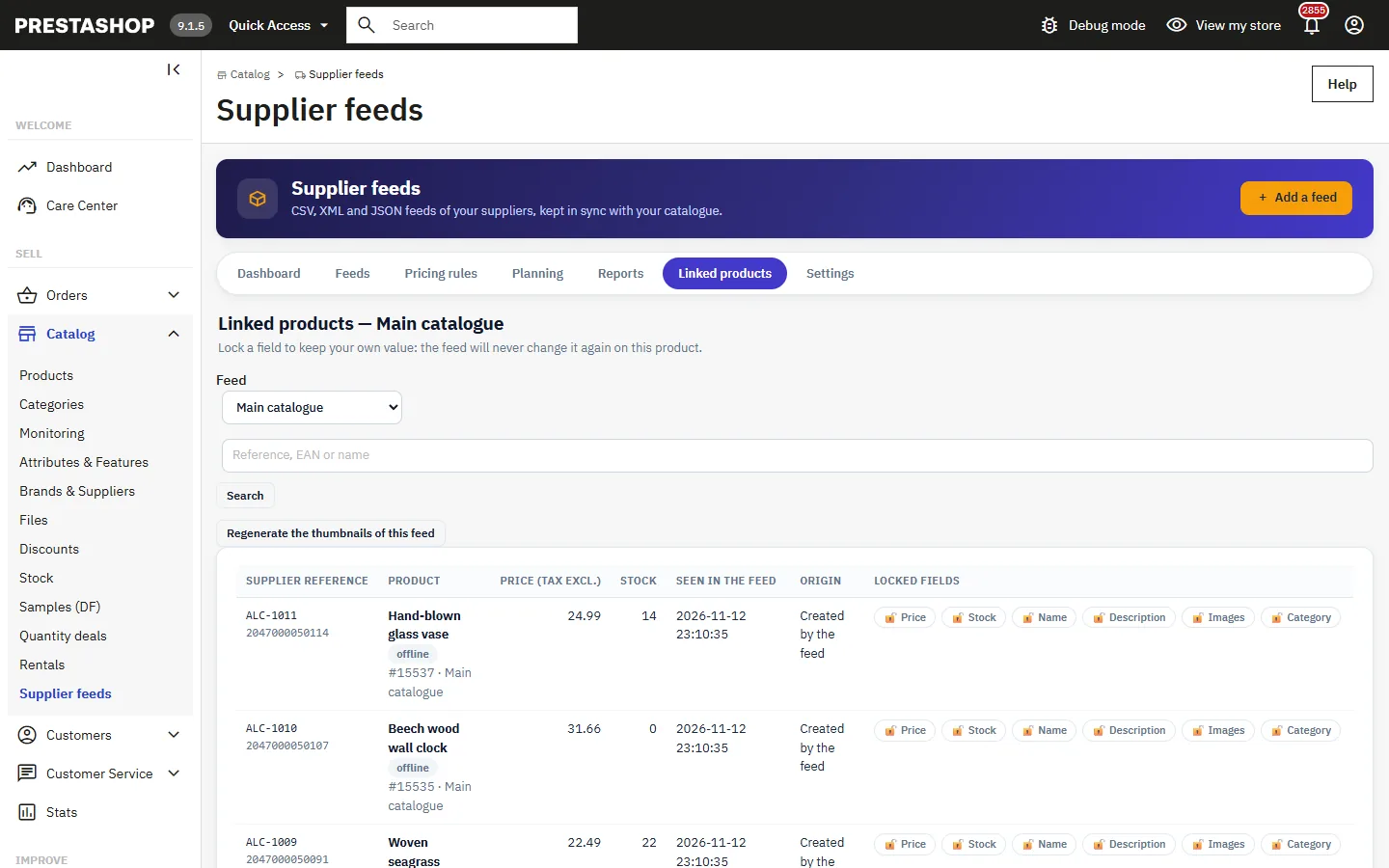
The Linked products tab lists the products linked to each feed: supplier reference, price, stock, date last seen in the feed, origin (created by the feed or existing product). A price changed by hand since the last import is flagged. Lock a field to keep your own value: the feed will no longer change it on this product. The Regenerate the thumbnails of this feed button rebuilds the thumbnails in every configured image format.
Suppliers and EAN priority
Suppliers are created from the assistant and managed at the bottom of the Feeds page. When two suppliers ship the same EAN, the one with the best priority (1 = highest) keeps the product; the other sources are skipped for that EAN.
Settings, security and limits
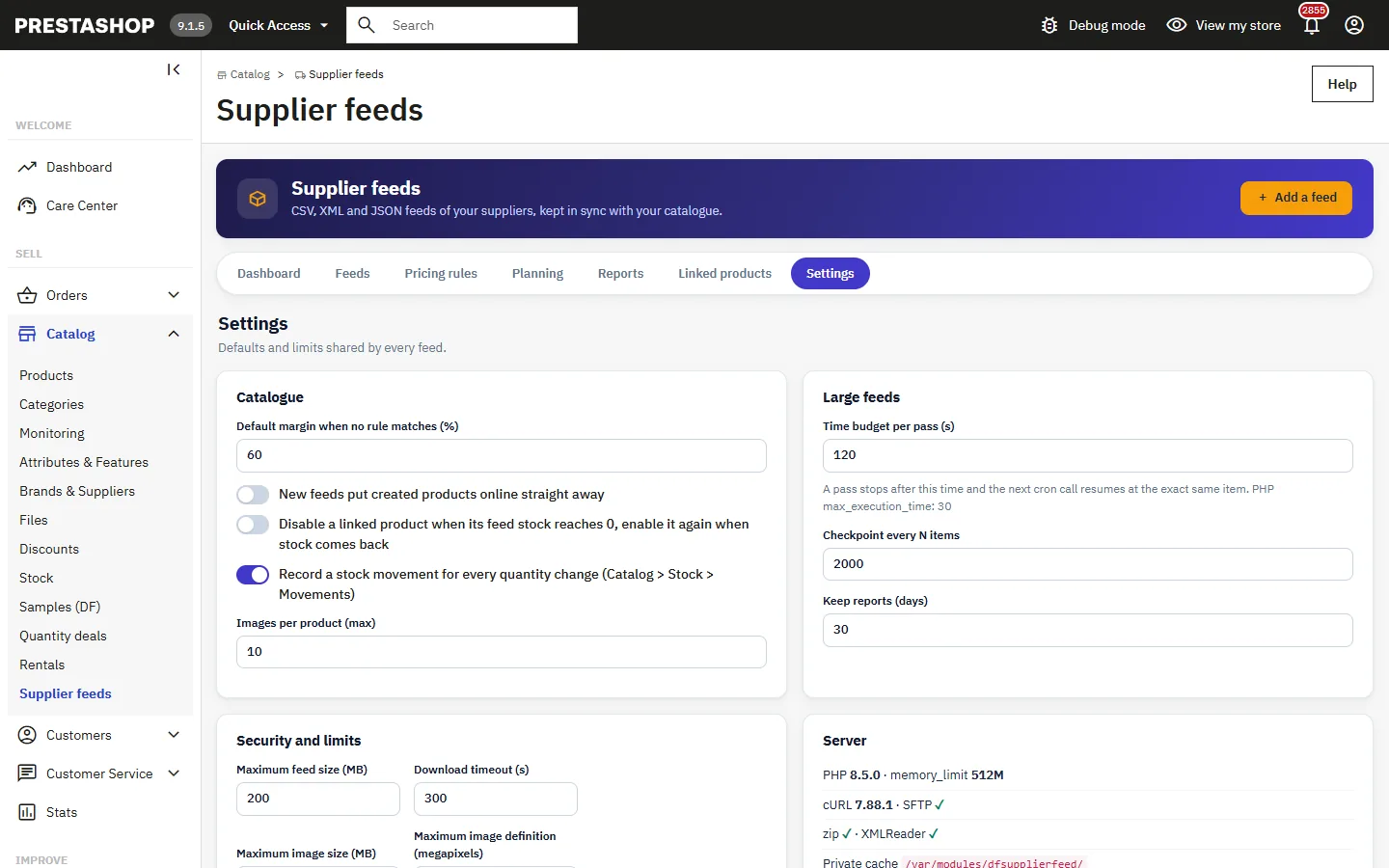
- Catalogue: default margin (30 %), immediate publishing of products created by new feeds, deactivation of a product when its feed stock reaches 0 (and reactivation when stock returns), stock movement recorded for each quantity change, maximum number of images per product (10).
- Large feeds: time budget per pass (120 s), checkpoint every N items (2,000), report retention (30 days).
- Security and limits: maximum feed size (200 MB, counted after decompression), download timeout (300 s), maximum image size (10 MB) and maximum definition (25 megapixels), trusted hosts, new cron token.
- Server: status of cURL, SFTP support and the private cache.
- Maintenance: clear the cache and the interrupted imports, delete the reports and logs.
Internal addresses (loopback, private networks, cloud host metadata addresses and their IPv6 equivalents) are refused for feeds and images, unless you declare them in Trusted hosts. Redirects are followed one by one and checked again. The download cache is stored in var/modules/dfsupplierfeed/, outside web access.
Every back-office action respects the employee’s permissions on the tab (view, add, edit, delete).
Large catalogues
Feeds are read as a stream and processing is split into passes: each pass stops after the time budget and the next cron call resumes at exactly the same item. Measurements taken on our test environment (PrestaShop 9.1.5 in a Docker container, 50,000-line CSV feed without images), for guidance only: they depend on your server, your catalogue and your feed.
- Creation of 50,000 products: 2,351 s over 20 cron passes, 44 to 51 MB of memory per pass, 0 errors.
- Re-import of the same feed with no changes: 165 s.
- Full simulation: 140 s, nothing written.
- Process killed mid-import: resumed at the item where it had stopped, with no duplicates.
Run a simulation first, then a first full import on a staging shop if you have one. Images make imports considerably longer.
Changes compared with 1.x
Feeds created in 1.x keep their behaviour: they still link catalogue products that have the same EAN, and their pricing rules still round the tax-excluded price. The only changes that also apply to these feeds:
- the action on products missing from the feed is cancelled if the import read nothing, if the document is malformed or truncated, or if more than the safety threshold (30 %) would be affected;
- a 1.x import interrupted at the time of the upgrade restarts from the beginning, as the cache has moved;
- rounding always goes up (1.x could round 31.995 to 31.99).
Troubleshooting
Error messages give the cause and what to do, in the employee’s language. The most common cases:
“Address … is internal (loopback, private network or cloud metadata): blocked to protect your server”
The feed points to an address on the local network. If this is intended (an internal server of your supplier or of your ERP), add the host in Settings > Trusted hosts.
“File not found on the source (404)”
Check the address or the file path, then click Test the connection.
“The feed is larger than the … MB limit”
Raise Maximum feed size in the Settings. The limit is counted after decompression.
Products are created but not visible in the shop
This is the default setting: created products are disabled for review. Enable them from the catalogue, or tick immediate publishing in step 4.
My existing products are not updated
For a new feed, tick Link the products of my catalogue that have the same key in step 4.
“Safety threshold reached: products missing from the feed were left untouched.”
The safety threshold blocked the action. The report says so; check the feed, then raise the threshold if the disappearance is expected.
Scheduled imports do not run
The dashboard shows the last cron call. If there is none, set up the cron job at your host with the URL from the Planning page.
A CSV line is rejected
Its column count does not match the header, usually because of an unescaped delimiter inside a text. It is rejected so that shifted values are not imported.
Compatibility and known limitations
- PrestaShop 1.7.8 to 9.x, PHP 7.4 to 8.5. Tested on PrestaShop 1.7.8.11, 8.2.1 and 9.1.5, with PHP 7.4, 8.1 and 8.5.
- No PrestaShop core override. Multistore supported.
- Interface and messages in French, English, Spanish, German, Italian, Polish, Dutch and Portuguese.
- SFTP: password authentication only (no key). FTP with implicit TLS (
ftps://, port 990) has not been tested. - Rollback: limited to the latest import of a feed, without restoring images.