
Product Positions — Complete Guide
Install and use Product Positions 2.0: merchandising grid, multi drag and drop, automatic sorting, pins, history, CSV import, automatic rules, scheduled task and dashboard.
Overview
Product Positions manages the order of the products in your PrestaShop categories, that is the native category_product.position column the shop uses for the “Relevance” / “Position inside category” sort. You organise a category like a merchandising board: a grid of product cards, drag and drop of several products at once, automatic sorting, pins that protect your strategic positions against imports, history with undo, and automatic rules applied every day.
The module does not modify your theme: the order set in the back office is the one your customers see, with Classic as with Hummingbird.
Compatibility and requirements
- PrestaShop 1.7.8 to 9.x: a single package, tested on 1.7.8.11, 8.2.1 and 9.1.5.
- PHP 7.4 to 8.5.
- Classic, Hummingbird and custom themes (the module displays nothing in the front office).
- Single shop and multistore, all the languages of the shop.
- No external service. The drag and drop library (SortableJS, MIT license) ships with the module.
- Recommended: the PHP
intlextension, to sort names in the alphabetical order of each language (without it, the sort simply ignores accents).
Installation and update
- Open Modules > Module Manager, click Upload a module and drop
dfproductpositions-2.0.0.zip. - The Catalog > Product positions entry appears in the menu, translated into the language of each employee.
- The Configure button of the Module Manager opens the module directly.
To update from a 1.x version, upload the new archive over the old one: the migration runs automatically. The order of your categories is not changed, and each pin takes the rank its product holds at the time of the update.
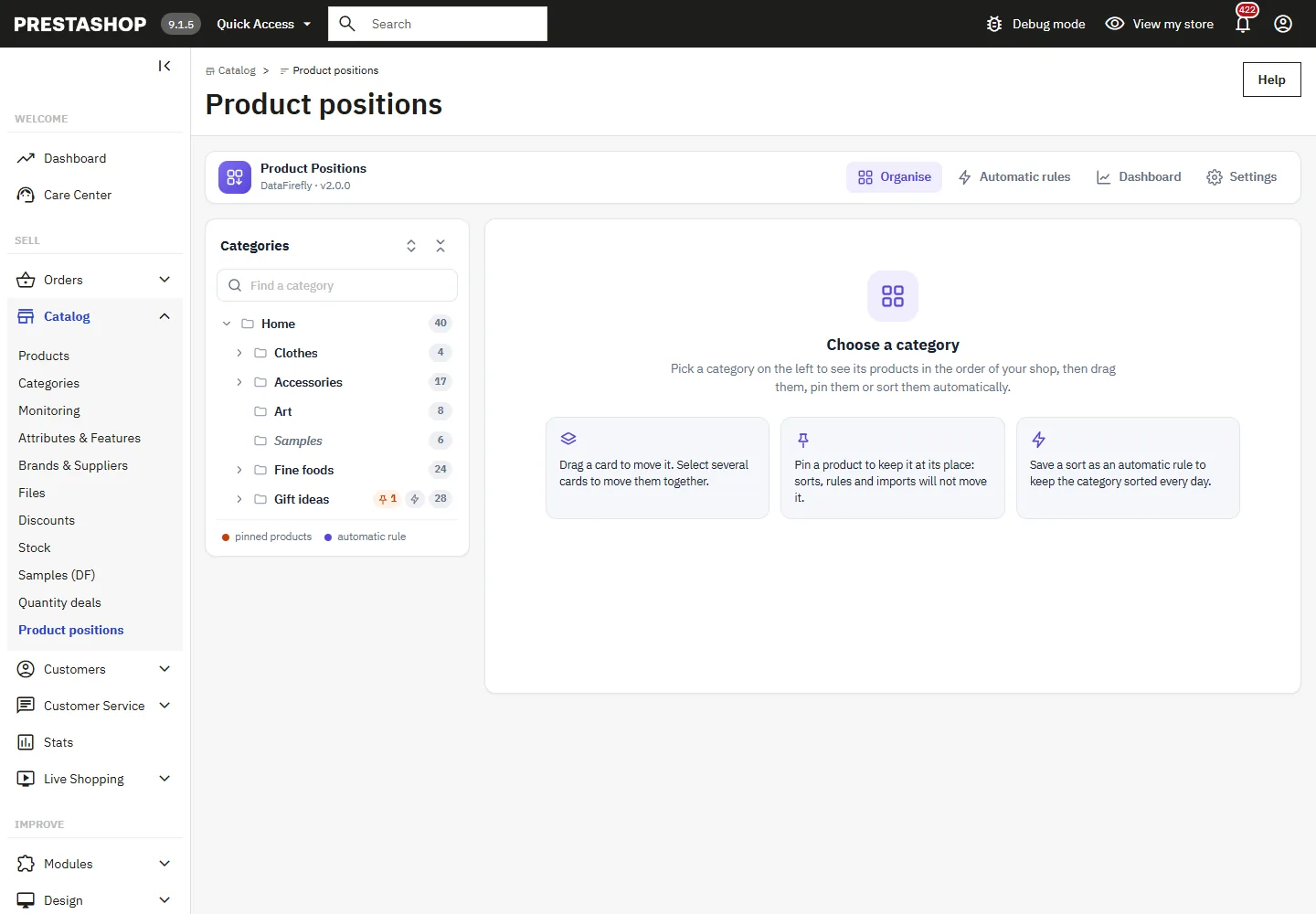
The module has four screens, reachable from the navigation bar: Organise, Automatic rules, Dashboard and Settings. When it opens, pick a category in the tree on the left.
Organise a category
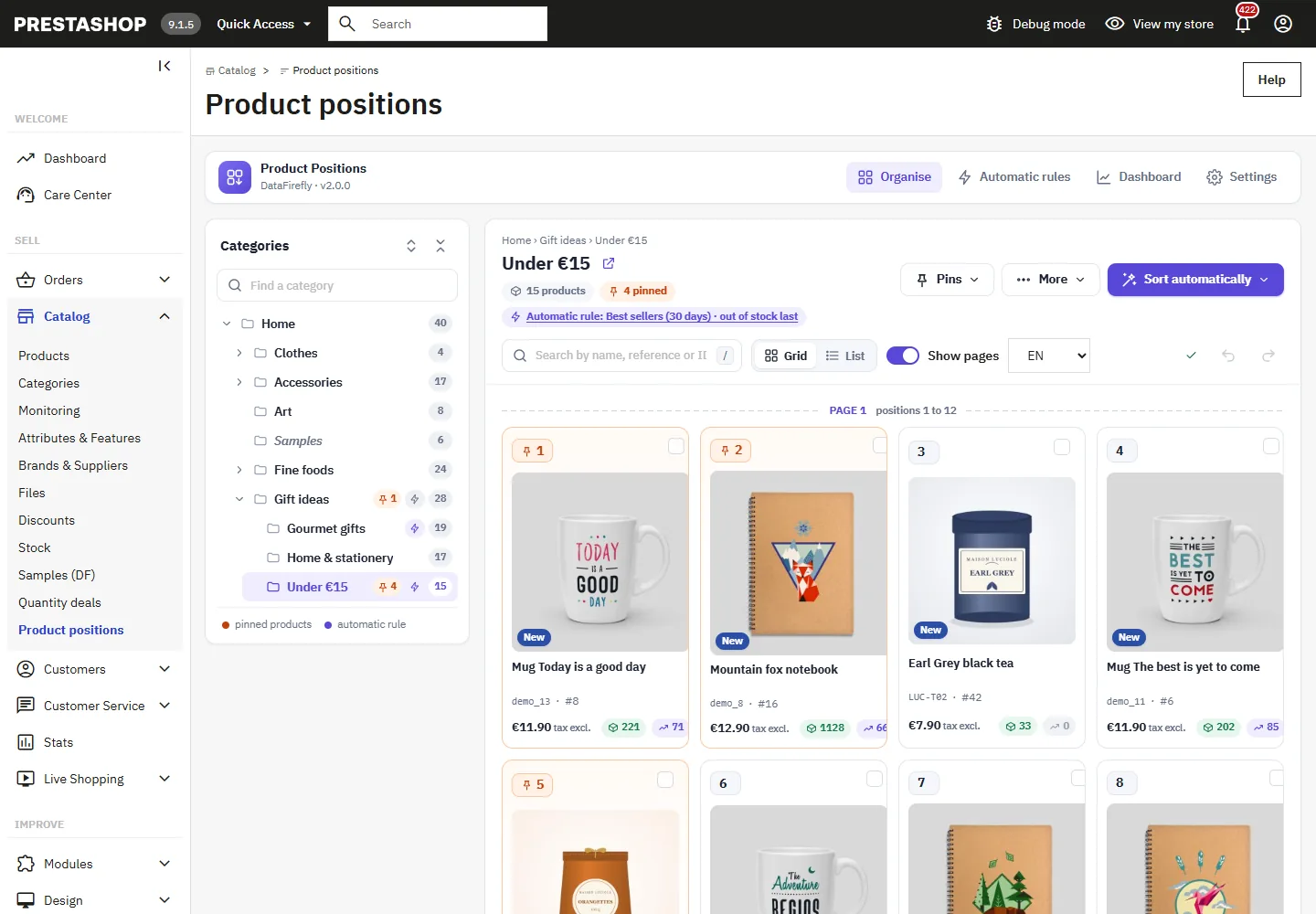
The tree on the left shows every category of the shop with its number of products, an orange dot when the category contains pinned products and a purple lightning bolt when it has an automatic rule. The search field filters the tree and highlights the matching names.
On the right, the category is displayed in the order of the shop:
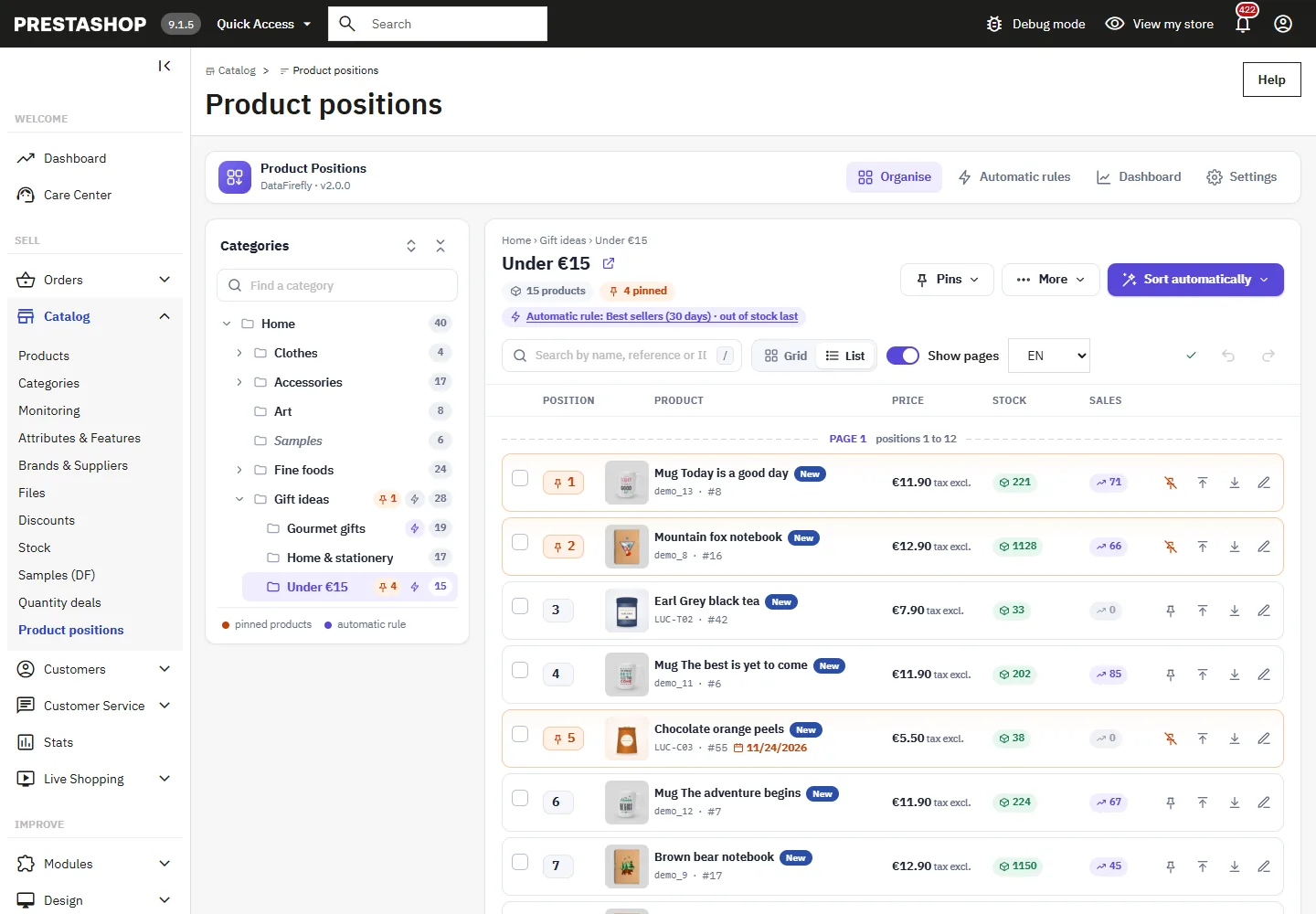
- Grid view: one card per product with the position, thumbnail, name, reference, ID, price tax excl., stock (green, orange below the low stock threshold, red when out of stock) and units sold over the chosen period. Badges flag products that are new, on sale, inactive or not in the current shop.
- List view: the same information in compact rows, with the date added.
- Show pages: a “Page 2 · positions 13 to 24” separator shows where each page of the category starts, based on the number of products per page of your shop.
- Search by name, reference or ID (shortcut /).
- The language selector changes the language of the displayed names, and the icon next to the title opens the category in the shop.
Every change is saved automatically; the indicator at the top right confirms “All changes saved”.
Move products
Drag and drop
Grab a card and drop it where you want it; the page scrolls automatically when you get close to the edge. During a search, drag and drop is disabled to avoid mistakes, but selection and actions remain available.
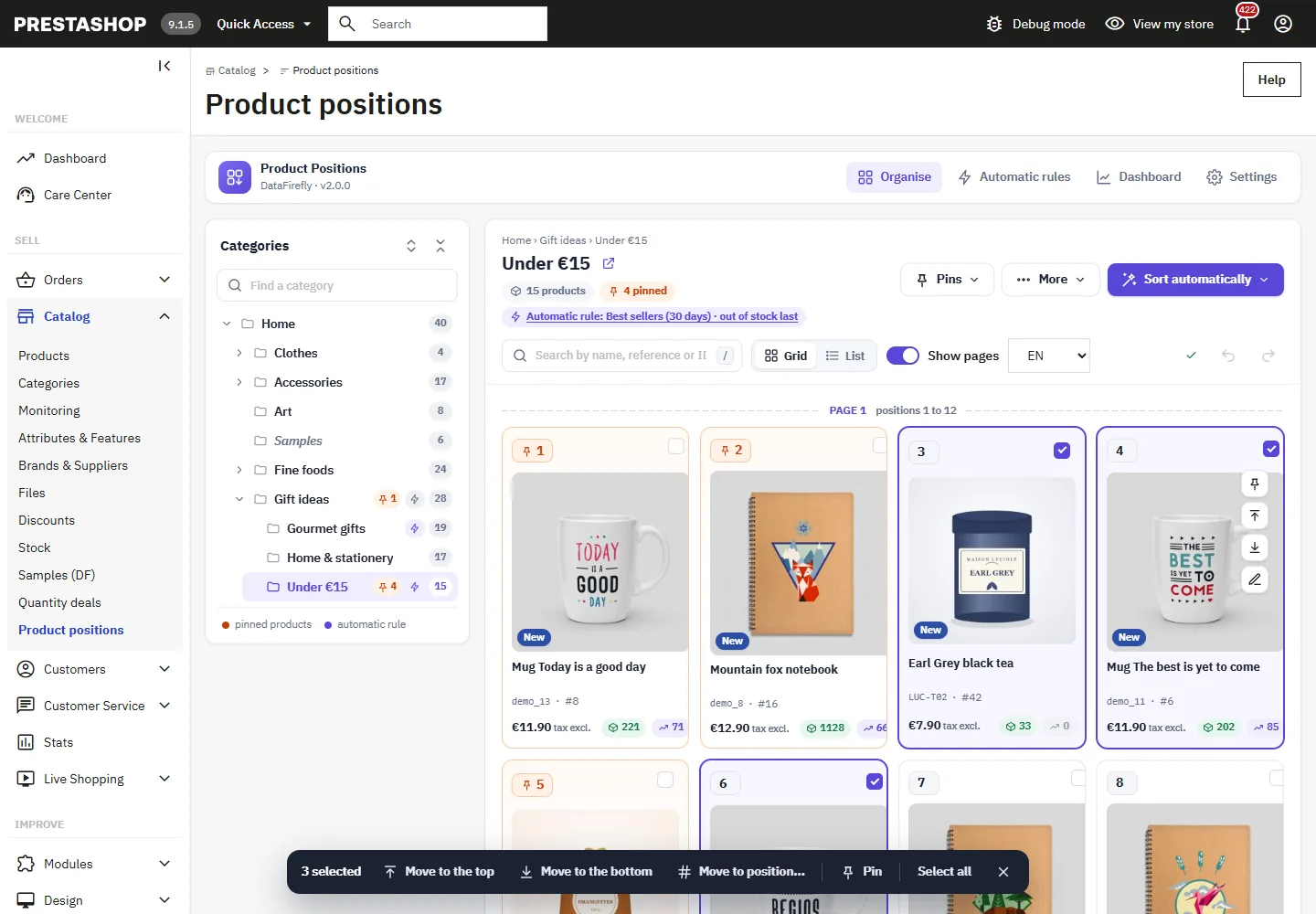
Multi-selection
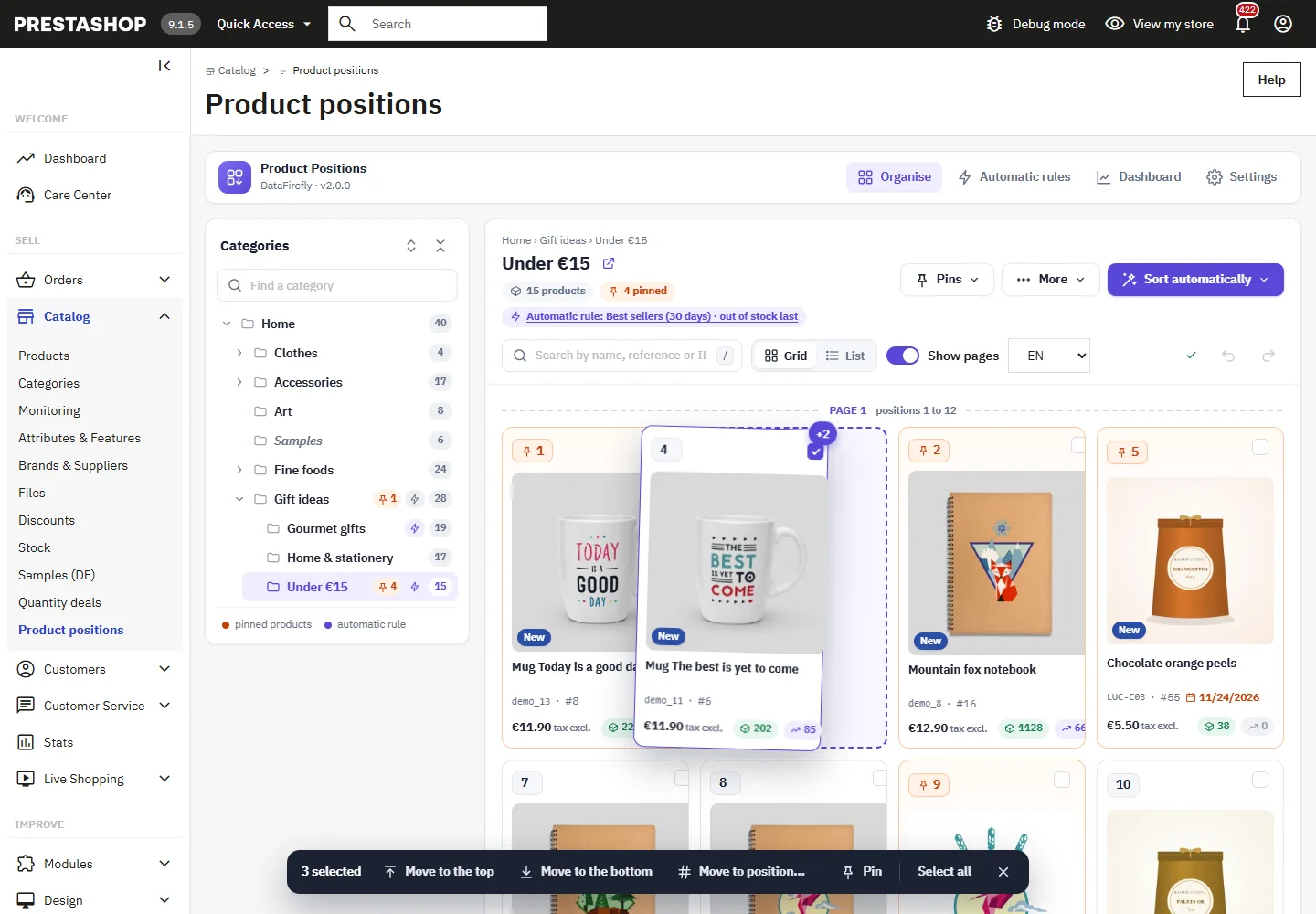
Click several cards to select them, Shift + click to select a range, Ctrl + A to select everything, Esc to clear the selection. An action bar appears at the bottom of the screen: Move to the top, Move to the bottom, Move to position…, Pin and Unpin. The selected products are placed one after the other, in their current order.
Drag several products at once
When several products are selected, drag one of them: the others follow it and a “+2” badge shows how many products are being carried. When you drop them, they are grouped at that spot.
Type a position
Click the position number of a card, type the new rank and confirm with Enter. The buttons that appear when you hover over a card also send the product to the top or the bottom, pin it or open its product page.
Automatic sorting
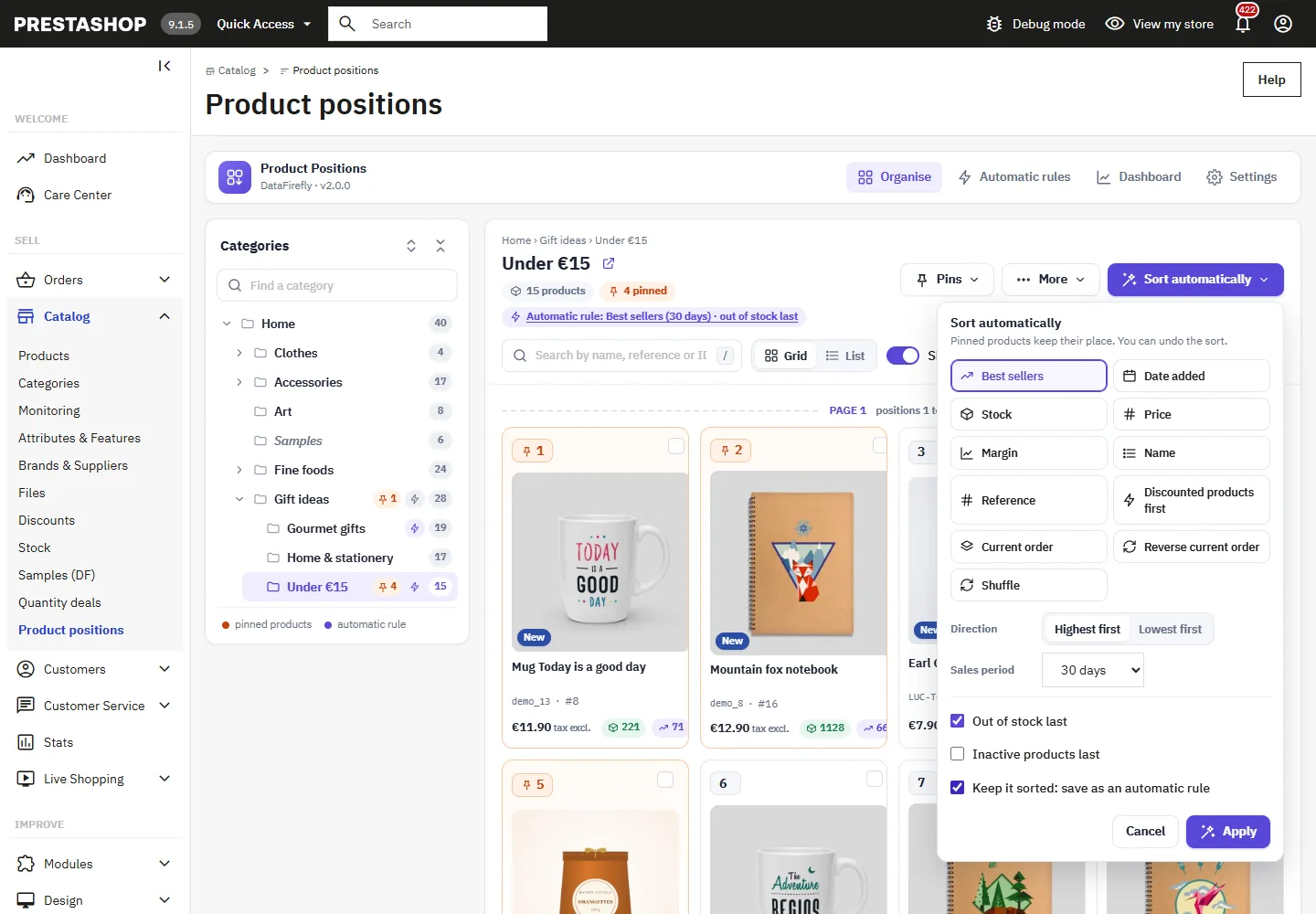
The Sort automatically button orders the whole category by one criterion:
- Best sellers over 7, 30, 90, 180 or 365 days (valid orders of the current shop);
- Date added (newest first);
- Stock;
- Price (base price tax excl.);
- Margin (selling price minus cost price);
- Name (alphabetical order of the language);
- Reference (natural order: REF-2 before REF-10);
- Discounted products first;
- Current order, Reverse current order and Shuffle.
Options: Out of stock last, Inactive products last and Also sort the subcategories. The Keep it sorted: save as an automatic rule checkbox turns the sort into a rule applied every day.
Pinned products keep their place, and every sort can be undone in one click.
Pin positions
A pin locks a product at its current rank in the category. A pinned product shows an orange badge with its position number.
- Automatic sorts, rules and CSV imports never move a pinned product: the other products arrange themselves around it.
- If you move a pinned product yourself, it is pinned again at its new place.
- An unpinned product dropped on the place of a pin goes right after it.
Temporary pin
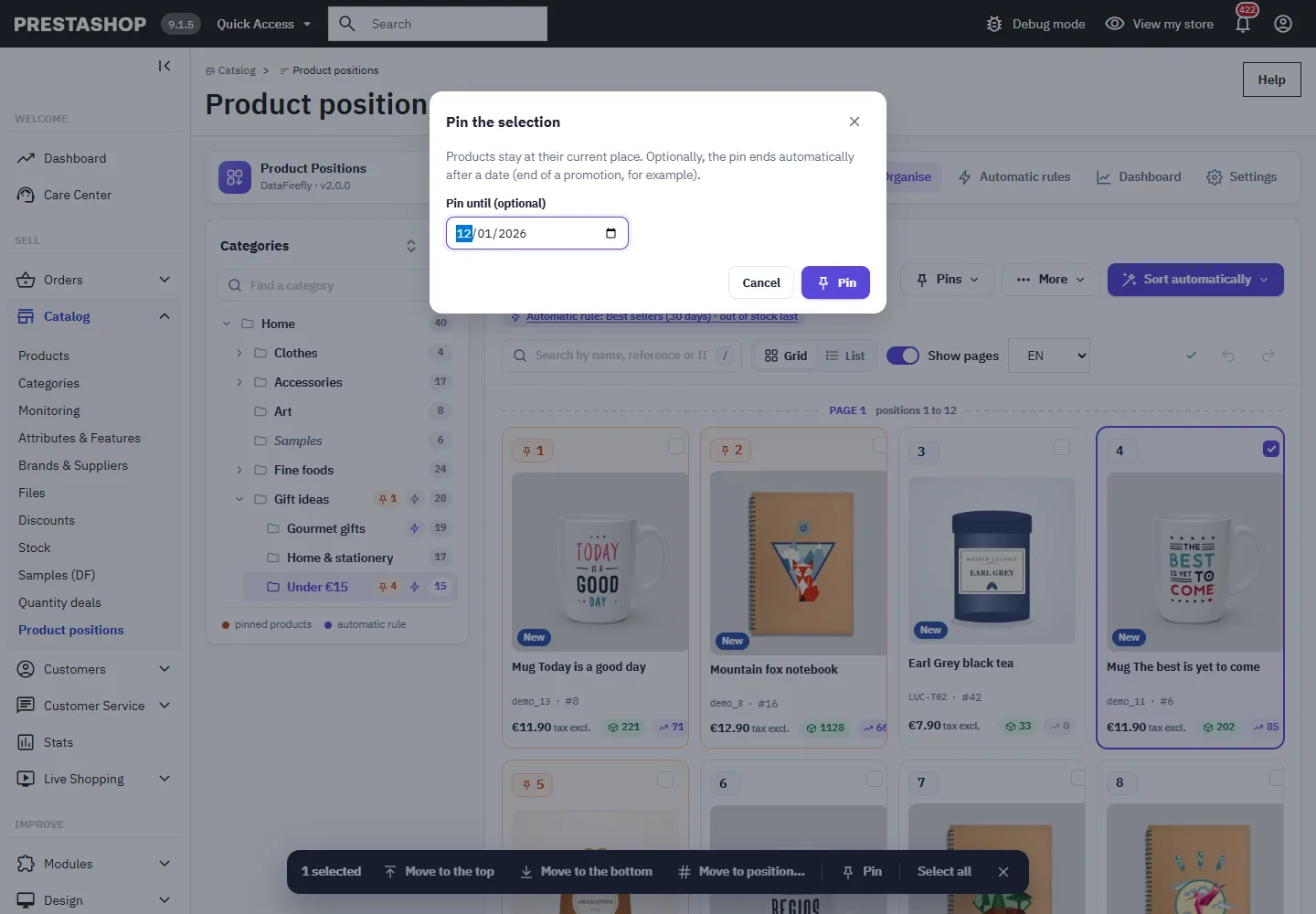
When pinning a selection, you can set an end date, for example the end of a promotion. The pin is removed automatically on that date by the scheduled task, and the date is shown on the card.
Pin the whole category
The Pins menu offers Pin the whole category (every product keeps its place, even after an import), Remove all pins (the order does not change) and Put pins back in place.
Automatic put-back
When the option is on (the default), pinned products return to their place after a product is saved, added or deleted, after a position change made through the native back office or the webservice (ERP), and every time the scheduled task runs. If another tool has moved pinned products, a banner reports it when you open the category, with a Put back in place button.
A script that writes directly to the database does not trigger any PrestaShop event. In that case, the scheduled task puts the pins back in place on its next run, or you can do it right away from the Pins menu.
Undo and history
The Undo and Redo buttons (Ctrl + Z / Ctrl + Y) restore exactly the previous order and pins. The notifications after a sort or a move also offer “Undo”.
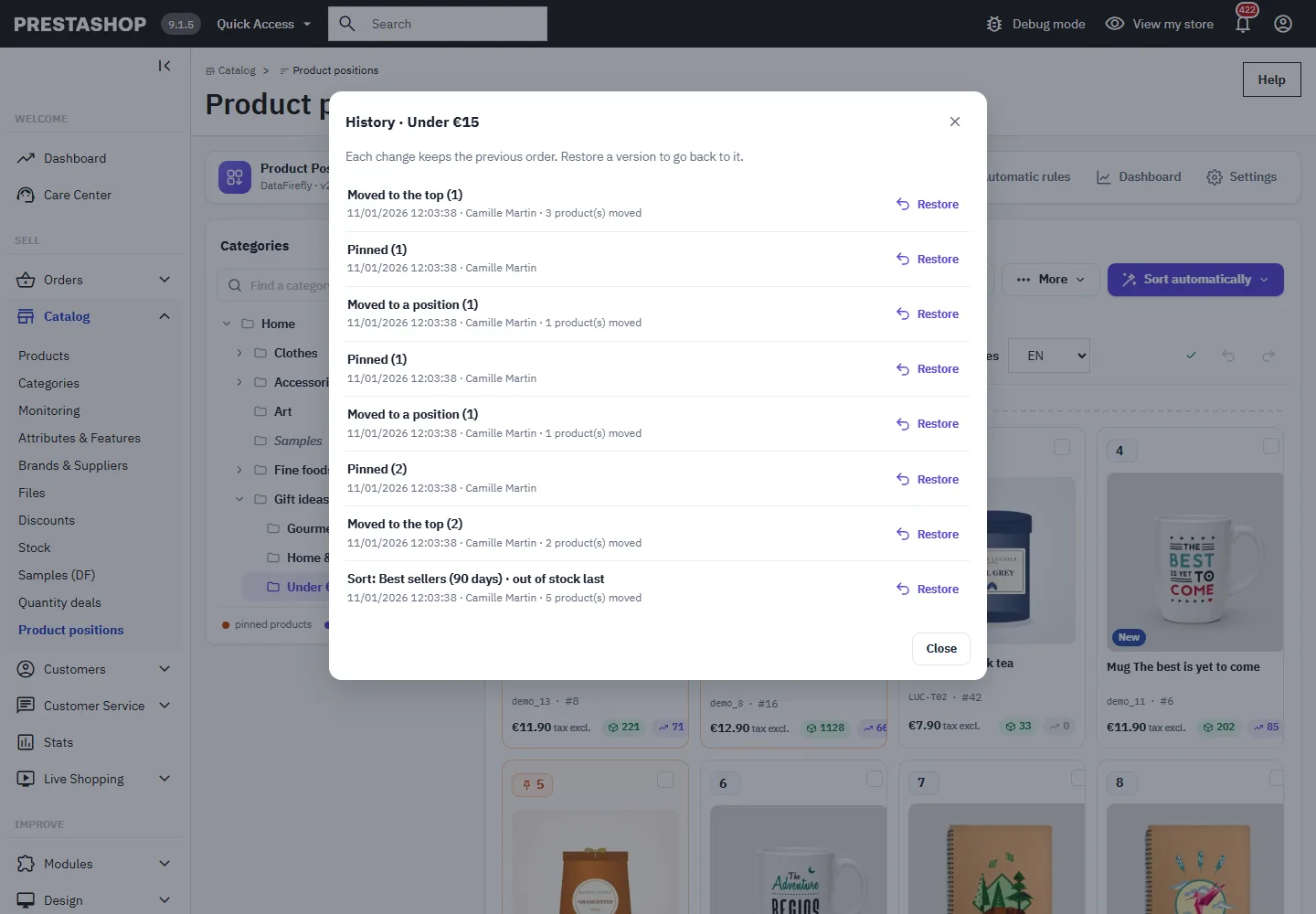
The More > History menu lists the changes of the category (drag and drop, sorts, rules, pins, imports, scheduled task) with the date, the author and the number of products moved. Restore puts the category back in the order it had before the chosen change. The number of versions kept per category is set in the settings (30 by default).
CSV import and export
More > Export the order (CSV) downloads the category with the position, ID, reference, name and pin status (semicolon separator, UTF-8).
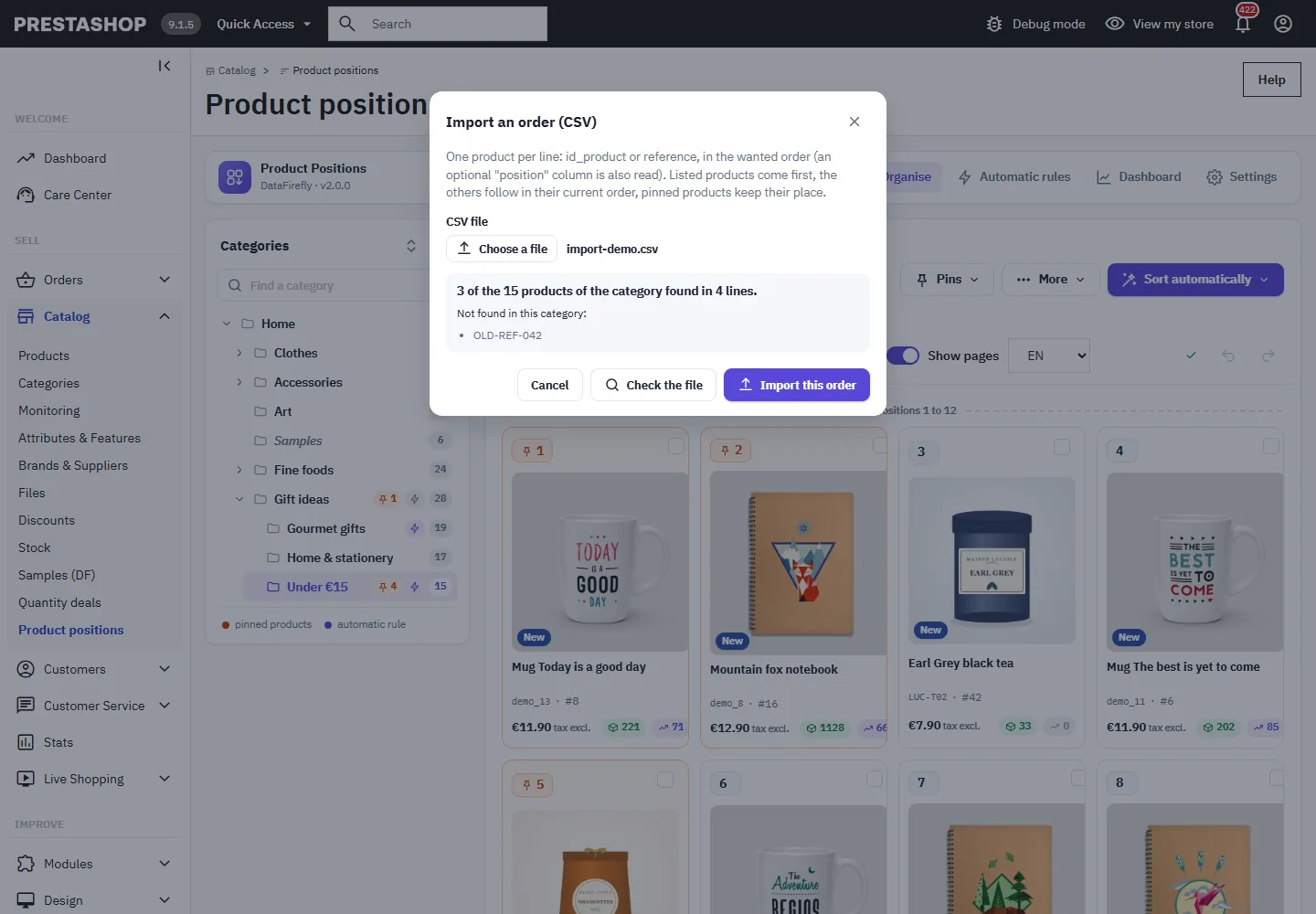
More > Import an order (CSV) reads a file with one product per line, identified by id_product or reference; an optional position column is also read. First click Check the file: the module tells you how many products of the category were found and lists the unknown references. The listed products come first, the others follow in their current order, and pinned products keep their place. The import can be undone.
Automatic rules and scheduled task
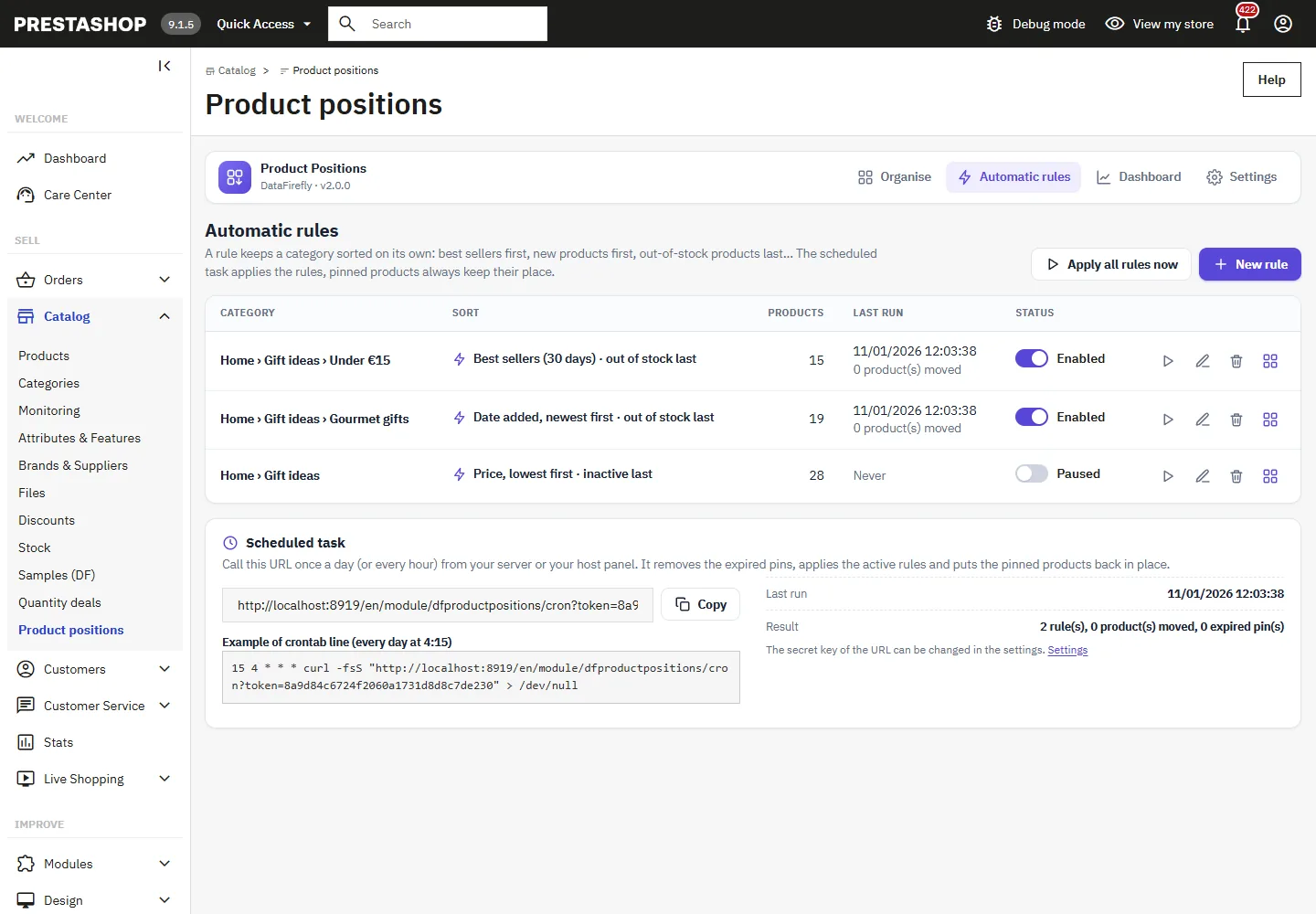
A rule keeps a category sorted on its own: best sellers of the last 30 days, newest first, out of stock last… Each category can have one rule, active or paused. The Automatic rules screen shows the last run of each one and the number of products moved, with the Apply now, Edit and Delete buttons.
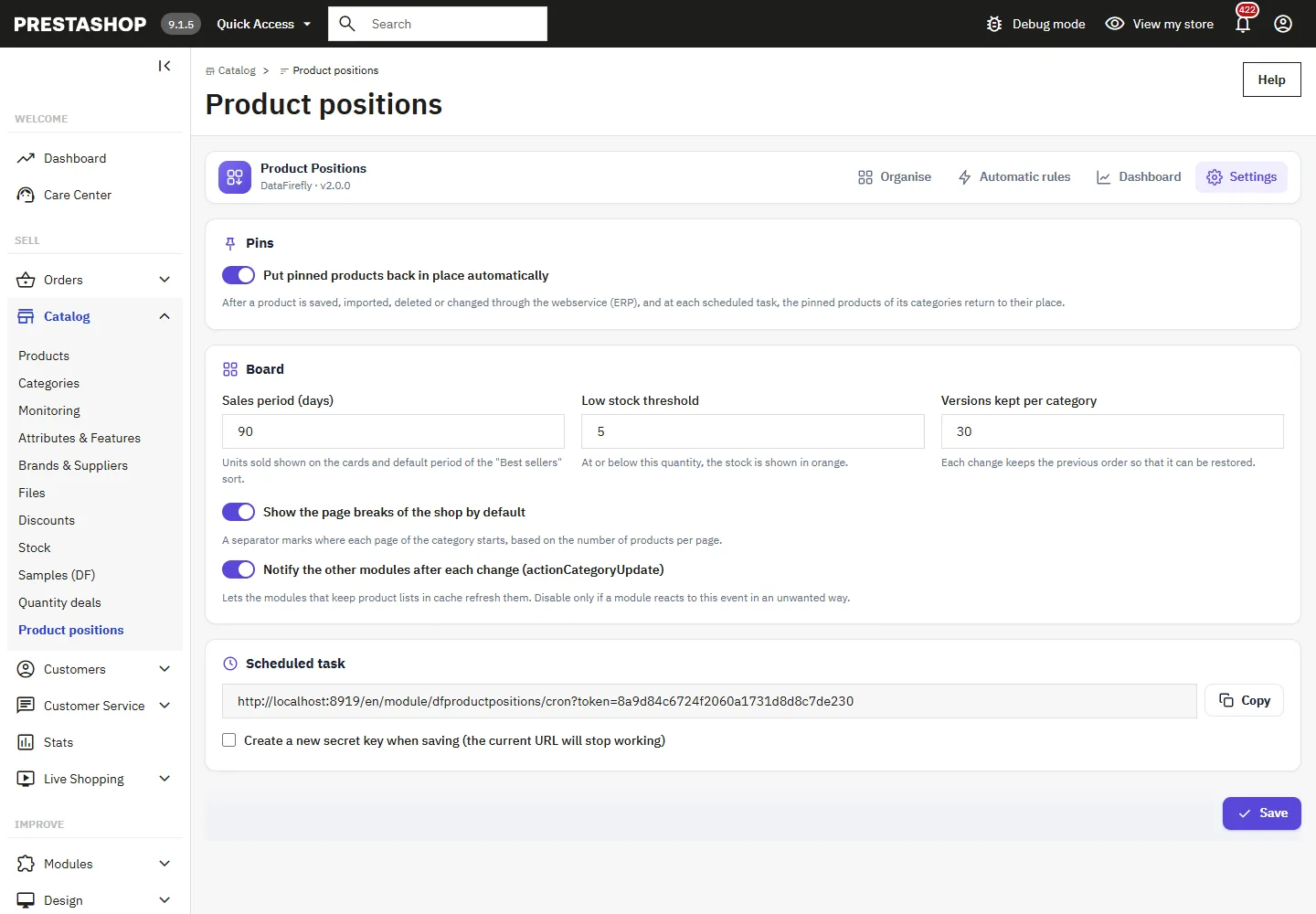
Rules are applied by the scheduled task: call the URL shown once a day (or every hour) from your server or your hosting control panel. The screen provides a Copy button and an example crontab line:
15 4 * * * curl -fsS "https://your-shop.com/module/dfproductpositions/cron?token=…" > /dev/nullOn each run, the task removes the expired pins, applies the active rules and puts the pinned products back in place. The URL is protected by a secret key, which you can renew in the settings.
Create or edit a rule
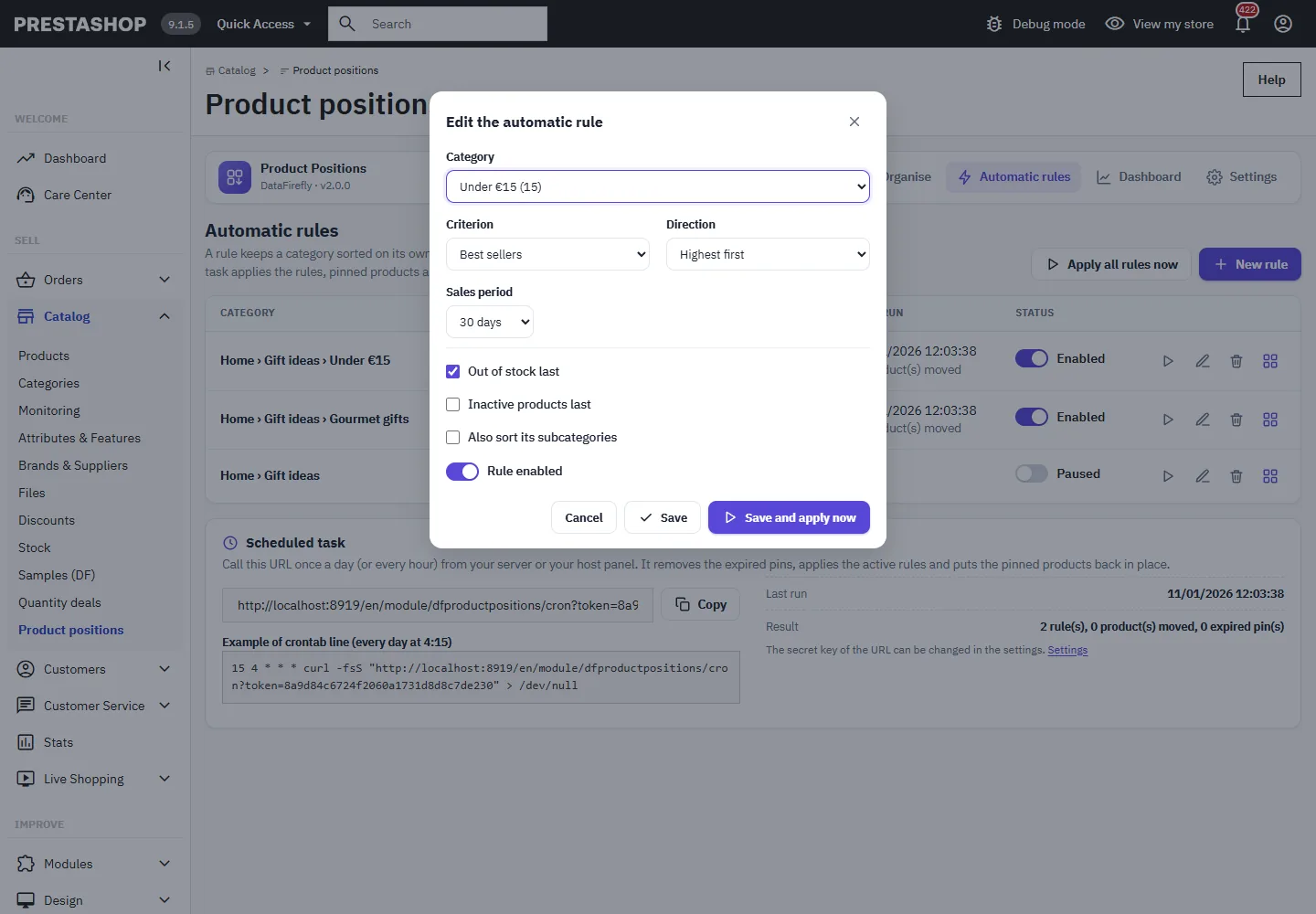
Choose the category, the criterion, the direction and, for best sellers, the period. The “out of stock last”, “inactive products last” and “also sort the subcategories” options are available. Save and apply now sorts the category immediately.
Dashboard
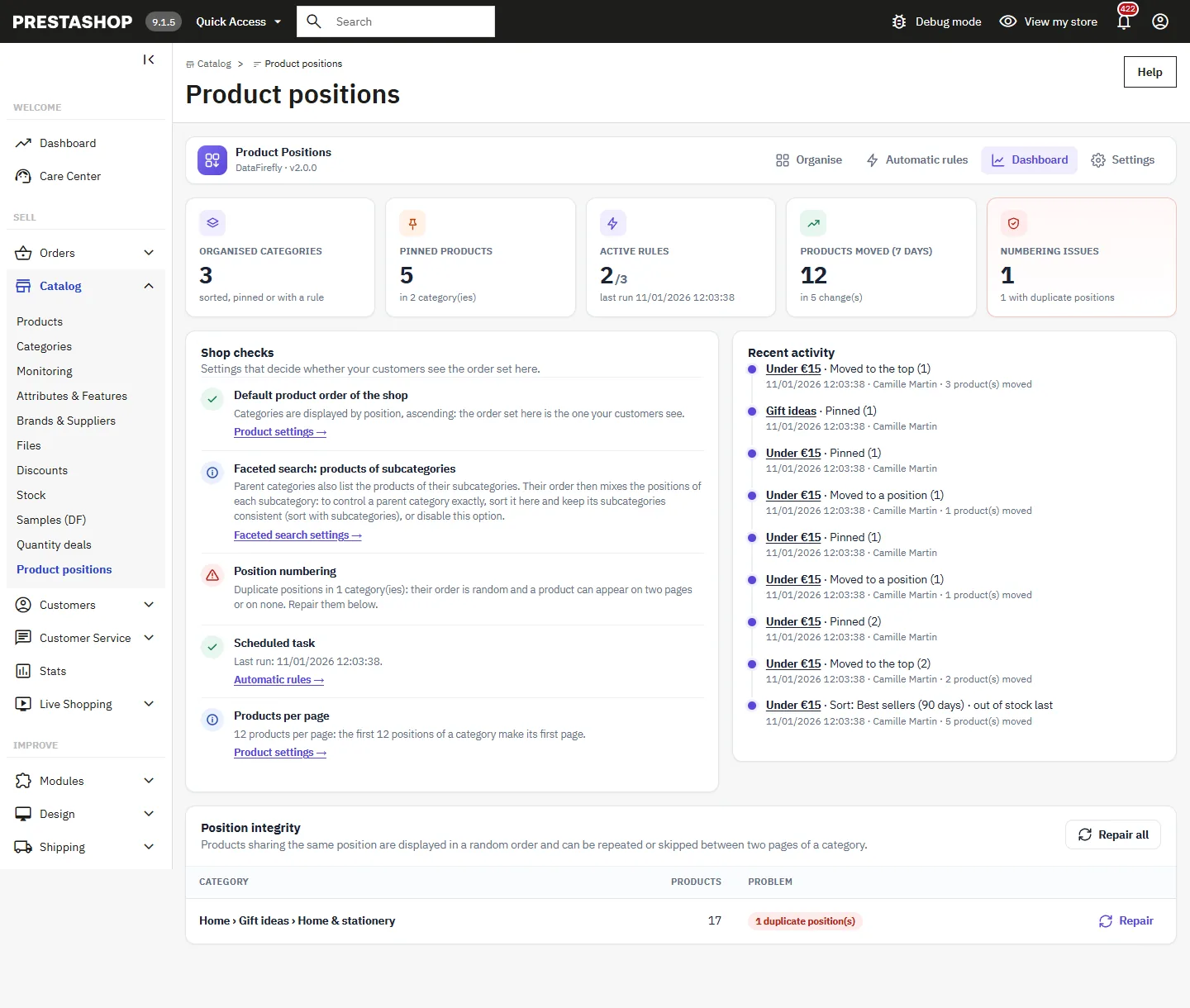
The dashboard sums up the activity: organised categories, pinned products (and pins ending within 7 days), active rules, products moved over 7 days and numbering issues.
The Shop checks verify the settings that decide whether your customers see the order set here: default product order of the shop on “Position inside category”, faceted search options, position numbering, scheduled task runs and number of products per page.
The Position integrity section lists the categories in which products share the same position. Their order is then random, and a product can appear on two pages or on none. Repair renumbers 1, 2, 3… without changing the displayed order.
Settings
- Put pinned products back in place automatically (on by default).
- Sales period shown on the cards and used by default by the “Best sellers” sort (90 days).
- Low stock threshold (5).
- Versions kept per category in the history (30).
- Show the page breaks of the shop by default.
- Notify the other modules after each change (
actionCategoryUpdate), so that the modules that keep product lists in cache refresh them. - URL of the scheduled task and renewal of its secret key.
What your customers see
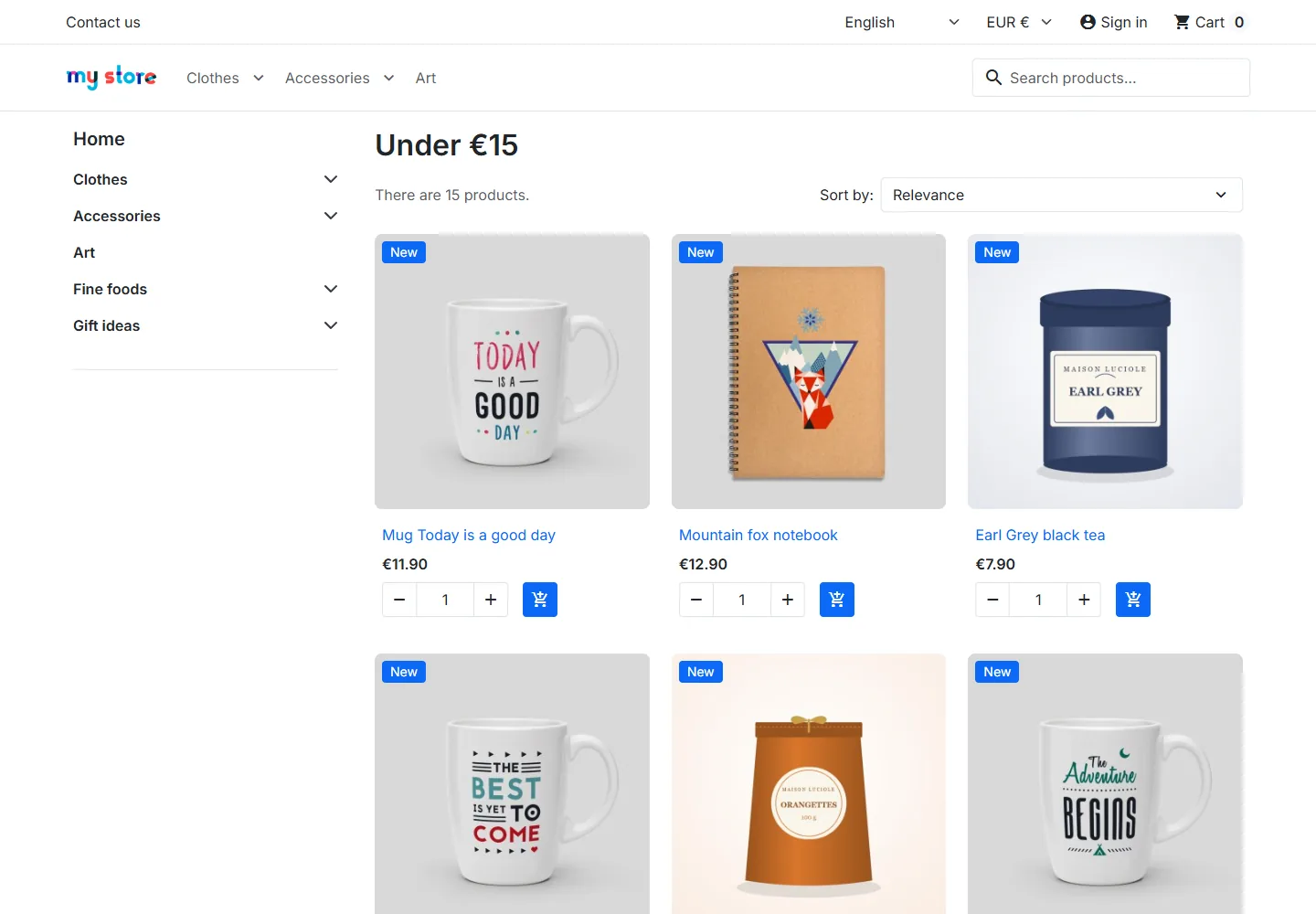
The module writes to the native PrestaShop position: the category page shows the products in the order you set, with no theme change. Two shop settings deserve attention, and the dashboard checks them:
- in Shop Parameters > Product Settings, the default order must be “Position inside category”, ascending;
- with faceted search and the “Show products from subcategories” option, a parent category mixes the positions of its subcategories. To control a parent category exactly, sort it together with its subcategories or disable this option.
Employee permissions and multistore
Access follows the native PrestaShop permissions (Advanced Parameters > Team > Permissions). A profile that only has the “View” permission on the Product positions tab sees the categories, the history and the dashboard in read-only mode; every change requires the “Edit” permission. All requests are protected by the PrestaShop admin token.
In multistore, the order of a category is shared by all shops (this is how PrestaShop works: positions do not exist per shop). The module therefore displays every product of the category and flags with a badge those that are not sold in the current shop. Pins are shared too; the sales, prices and stock displayed are those of the selected shop.
Updating from 1.x and uninstalling
The migration to 2.0.0 adds the rules and history tables, keeps the order of every category and places each pin at the actual rank of its product. Along the way, it fixes the one-place shift of pins seen in 1.x.
Uninstalling deletes the pins, rules, history, settings and the menu entry. The order of your categories is kept, since it is stored in the native PrestaShop position.
FAQ
Do I have to pin every product to keep my order?
No. The order you set stays in place as long as no sort, no rule and no external tool changes it. Pin the products whose place is strategic, or the whole category if an ERP rearranges your products.
How do I put my featured products first and sort the rest automatically?
Place the featured products at the top, pin them, then run a sort (or create a rule) by “Best sellers”. The featured products stay in the first places and the rest is sorted behind them.
Is the sort recalculated on every visit?
No. A sort or a rule writes the positions once; the shop pages do no extra computation.
What about a large catalog?
On a category of 5,000 products (PrestaShop 9.1, PHP 8.5), we measured 0.56 s to load and display the grid, 0.44 s for a sort by name and 0.24 s between dropping a card and saving.
A product appears on two pages of my category, or is missing. Why?
Several products probably share the same position, which happens after some imports. Open the Dashboard: the Position integrity section lists these categories and repairs them without changing the displayed order.
The order of my parent category does not match what I set.
Faceted search probably displays the products of the subcategories in the parent category. See the “What your customers see” section.
I cannot see the editing buttons.
Your profile only has the “View” permission on the Product positions tab. An administrator can add the “Edit” permission in Team > Permissions.
The rules are not applied.
Check that the scheduled task really calls the module URL: the dashboard shows the date of its last run. Paused rules are not applied.