
Bulk Edit Products in PrestaShop 8 & 9: documentation
Install and use the bulk editor 2.0: spreadsheet grid, batch assistant with a figures preview, features and descriptions, CSV, history, exact undo and batch resume.
Overview
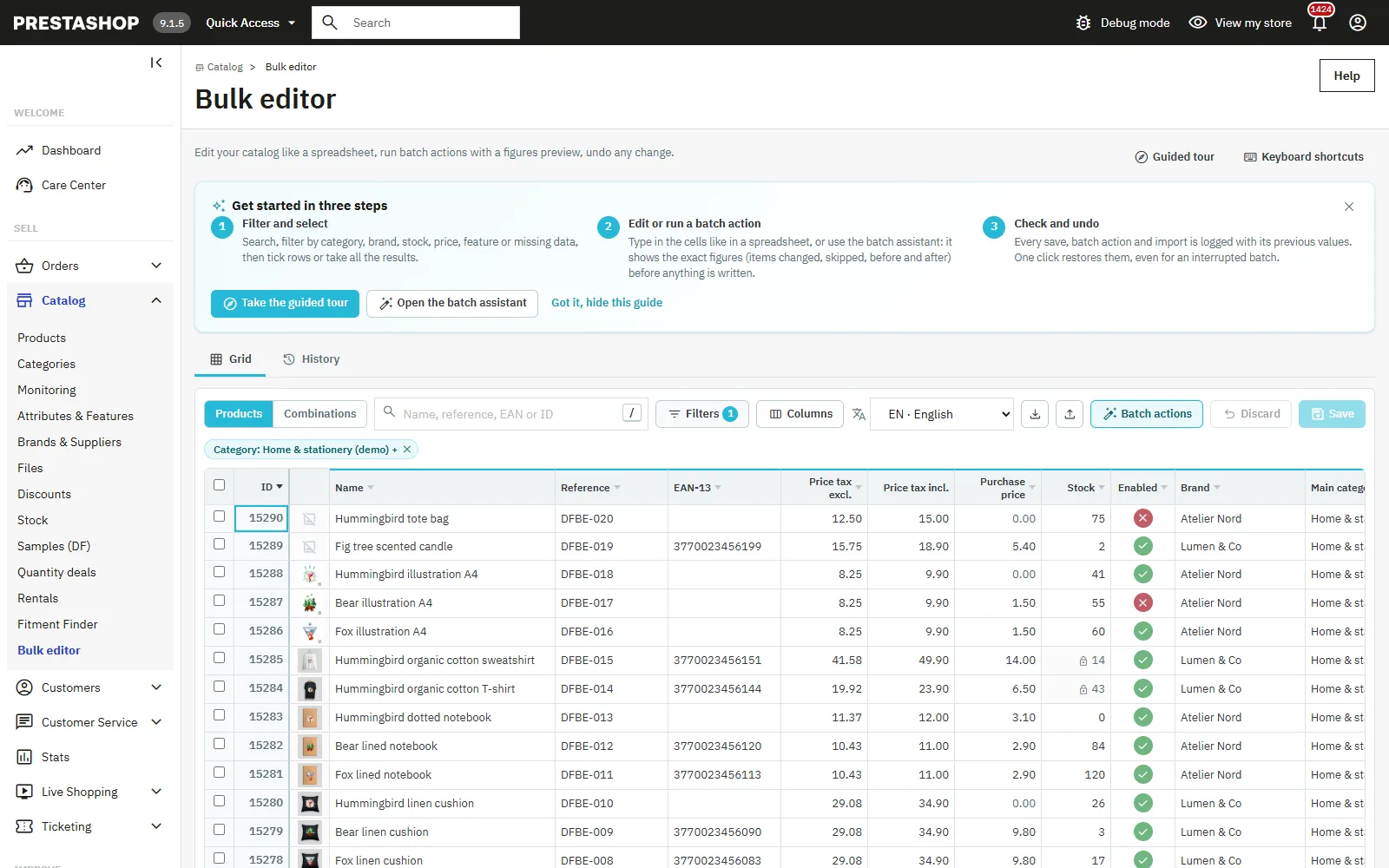
The module shows your catalog in an editable spreadsheet-style grid in the PrestaShop 1.7.8 to 9 back office. You edit products and combinations with the keyboard, run batch actions with a figures preview computed on the whole scope before anything is written, export and re-import a CSV file, and every change can be undone exactly from the history, even for an interrupted batch.
Installation and upgrade
- In Modules > Module Manager, click Upload a module and select
dfbulkeditor-2.0.0.zip. - Installation creates the Catalog > Bulk editor menu entry and the two history tables.
- From 1.0.0, simply upload the new zip: the upgrade adds the batch resume columns and keeps the whole history, which can still be undone.
Settings
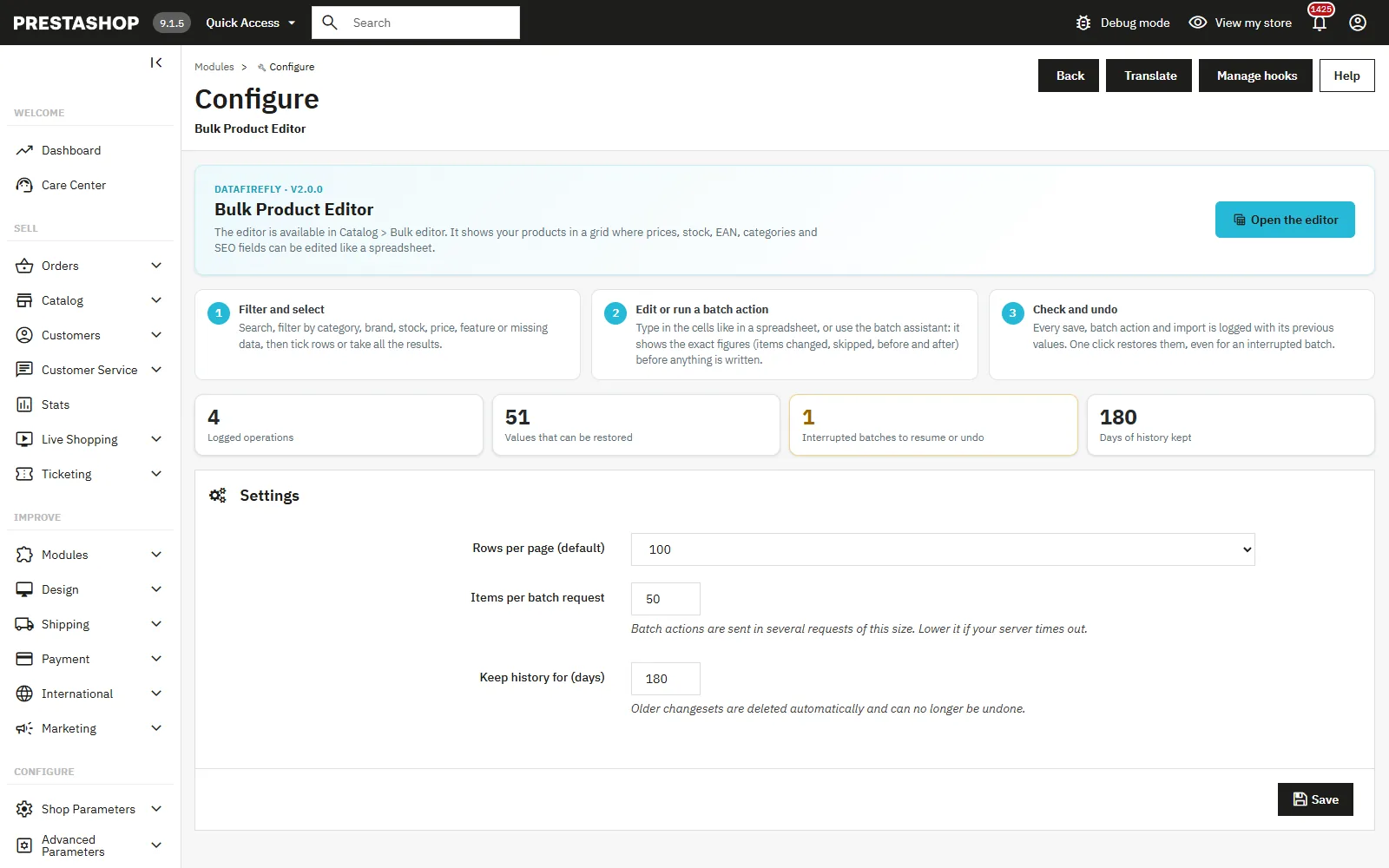
The Configure button presents the module, the history figures (logged operations, values that can be restored, interrupted batches) and three settings: default rows per page (50 to 500), items per batch request (10 to 500, 50 by default; lower it if your server cuts long requests) and how long the history is kept (180 days by default).
Getting started
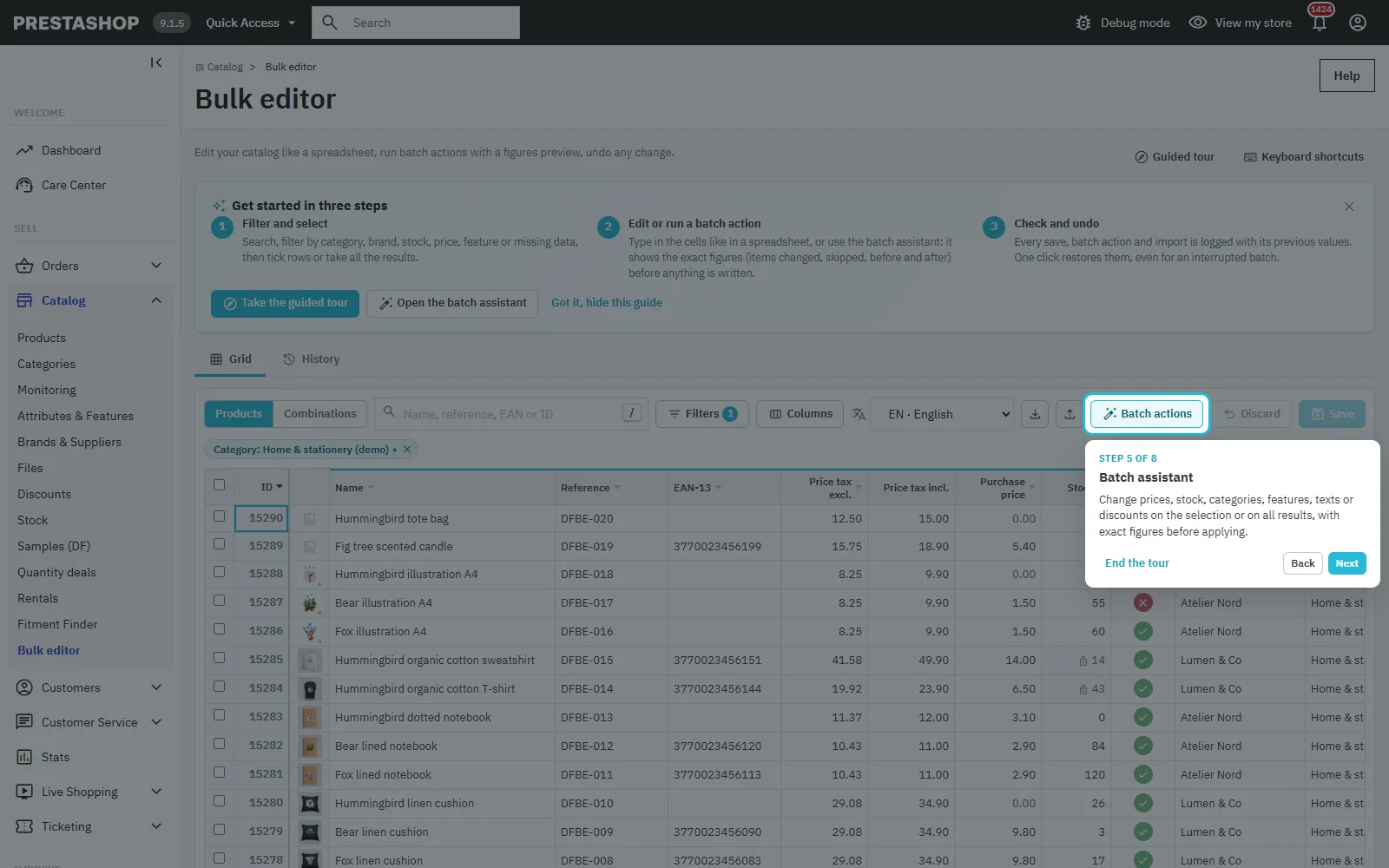
On the first visit, the Get started in three steps guide sums up the method: filter and select, edit or run a batch action, check and undo. The guided tour (8 steps) shows every area of the screen and can be restarted from the header at any time. The Keyboard shortcuts button (or the ? key) lists every shortcut.
Access rights
Rights are set in Advanced Parameters > Team > Permissions, on the Bulk editor tab. View gives access to the grid, the history, the figures previews and the CSV export. Edit is required to save, apply a batch action, import, resume or undo a batch. Without it the grid is read-only and the writing buttons are hidden.
The grid
Products and combinations
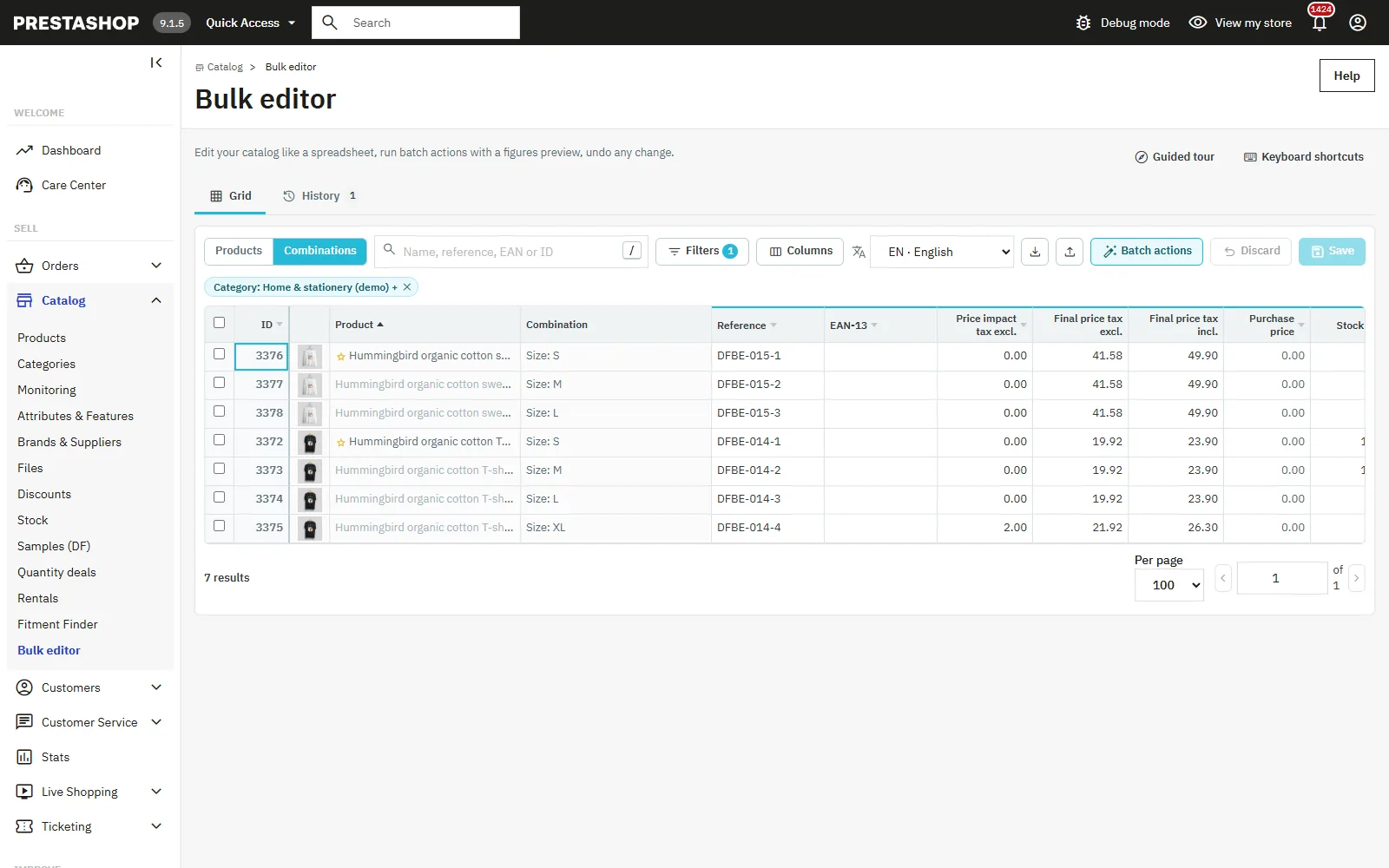
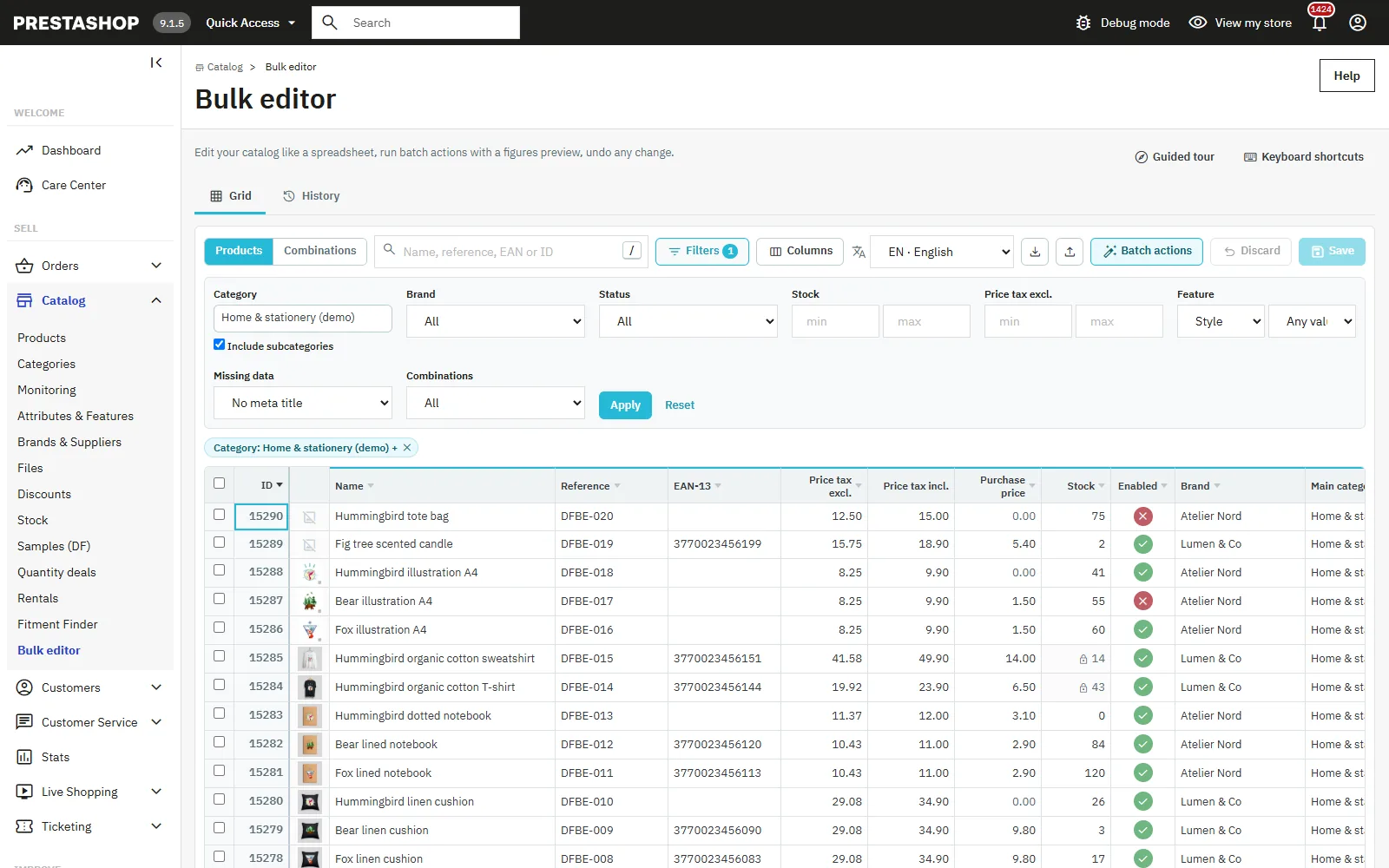
The switch at the top left toggles between products and combinations. The Combinations view shows each combination with its attributes, reference, price impact, final price tax excl. and incl., and stock.
Search, filters and columns
Search covers name, reference, EAN and ID (press / to jump there). The Filters button offers: category with or without subcategories, brand, status, stock and price ranges, feature (with a given value or “without this feature”), missing data (EAN, reference, purchase price, brand, meta title, meta description, short description, image) and products with or without combinations. Active filters appear as chips removed in one click. The Columns button shows or hides each column; widths and choices are kept in your browser.
Editing cells
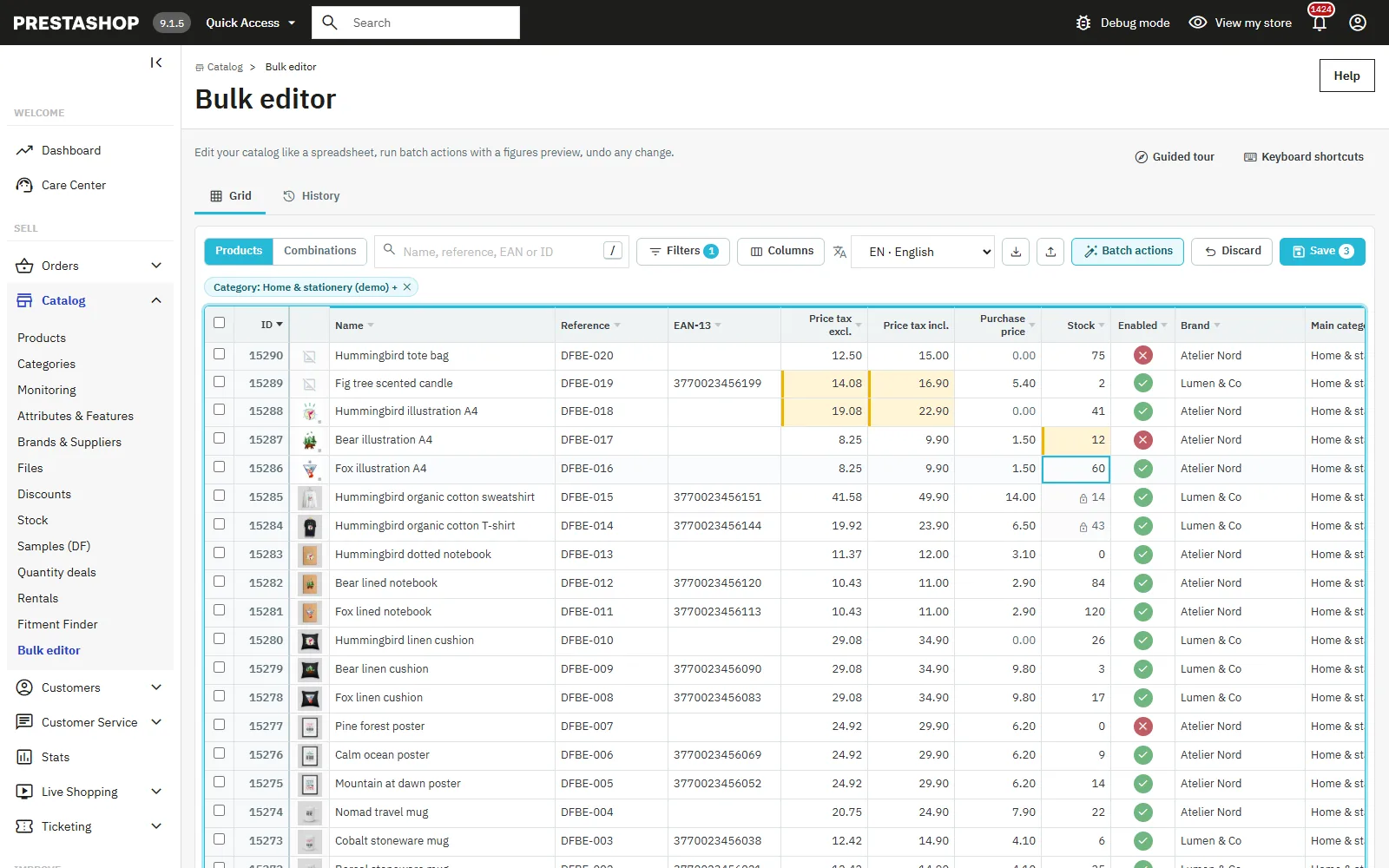
- Arrows, Tab, Enter: move; typing, F2 or double click: edit.
- Shift + click or Shift + arrows: select a range; Ctrl + C / Ctrl + V: copy and paste, also from Excel or Google Sheets.
- Ctrl + D: fill down; Delete: empty; Space: switch Yes/No cells.
- Ctrl + Z: cancel the last unsaved edit; Ctrl + S: save.
A tax incl. price is converted to tax excl. with the product tax rule. Changed cells stay yellow until you save; a value refused by PrestaShop turns red, with the reason on hover. Every save is logged.
Batch assistant
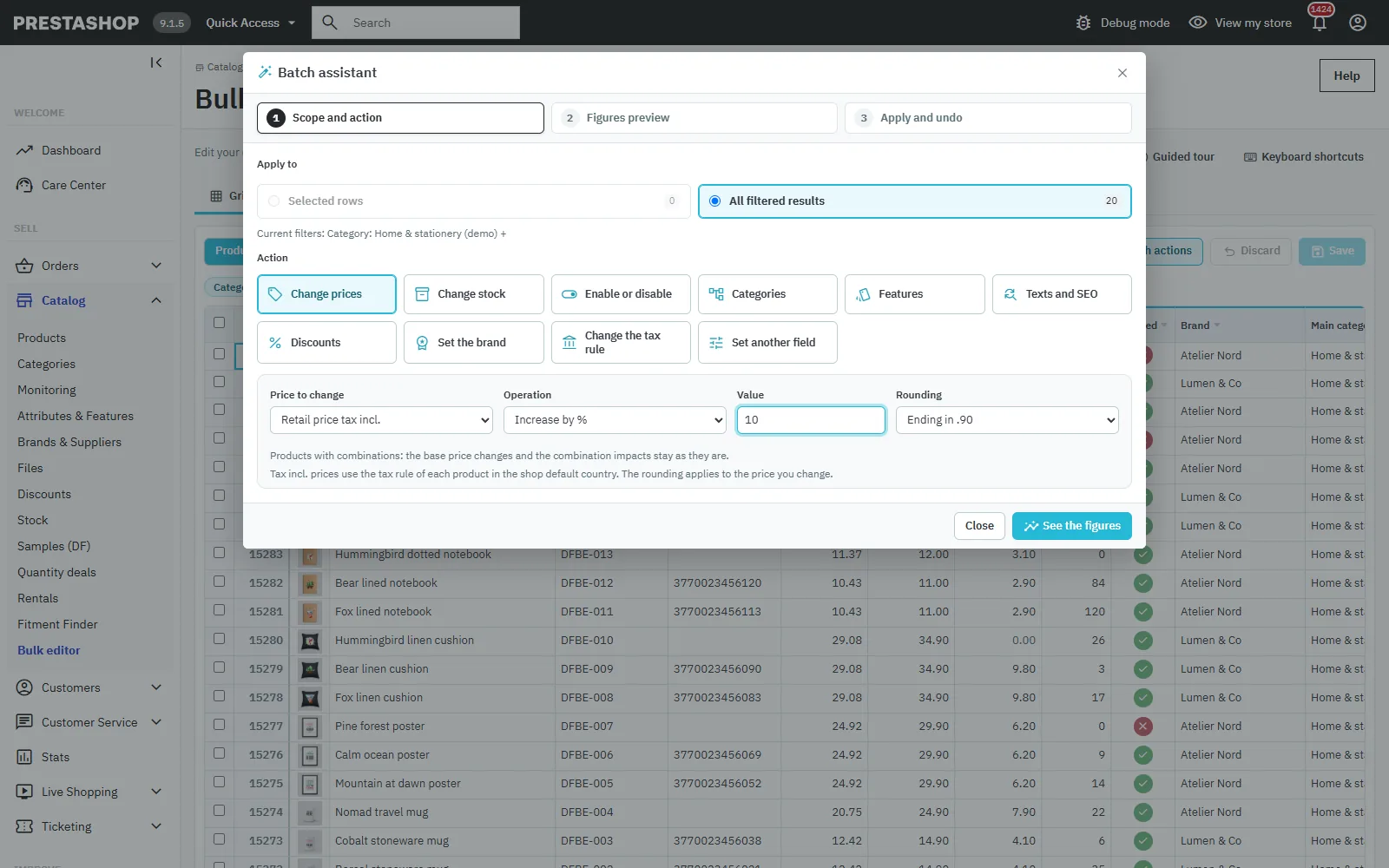
Step 1: scope and action
The Batch actions button (or Alt + B) opens the assistant. Choose the selected rows or all filtered results (the current filters are recalled), then the action: prices, stock, status, categories, features, texts and SEO, discounts, brand, tax rule or another field.
Step 2: figures preview
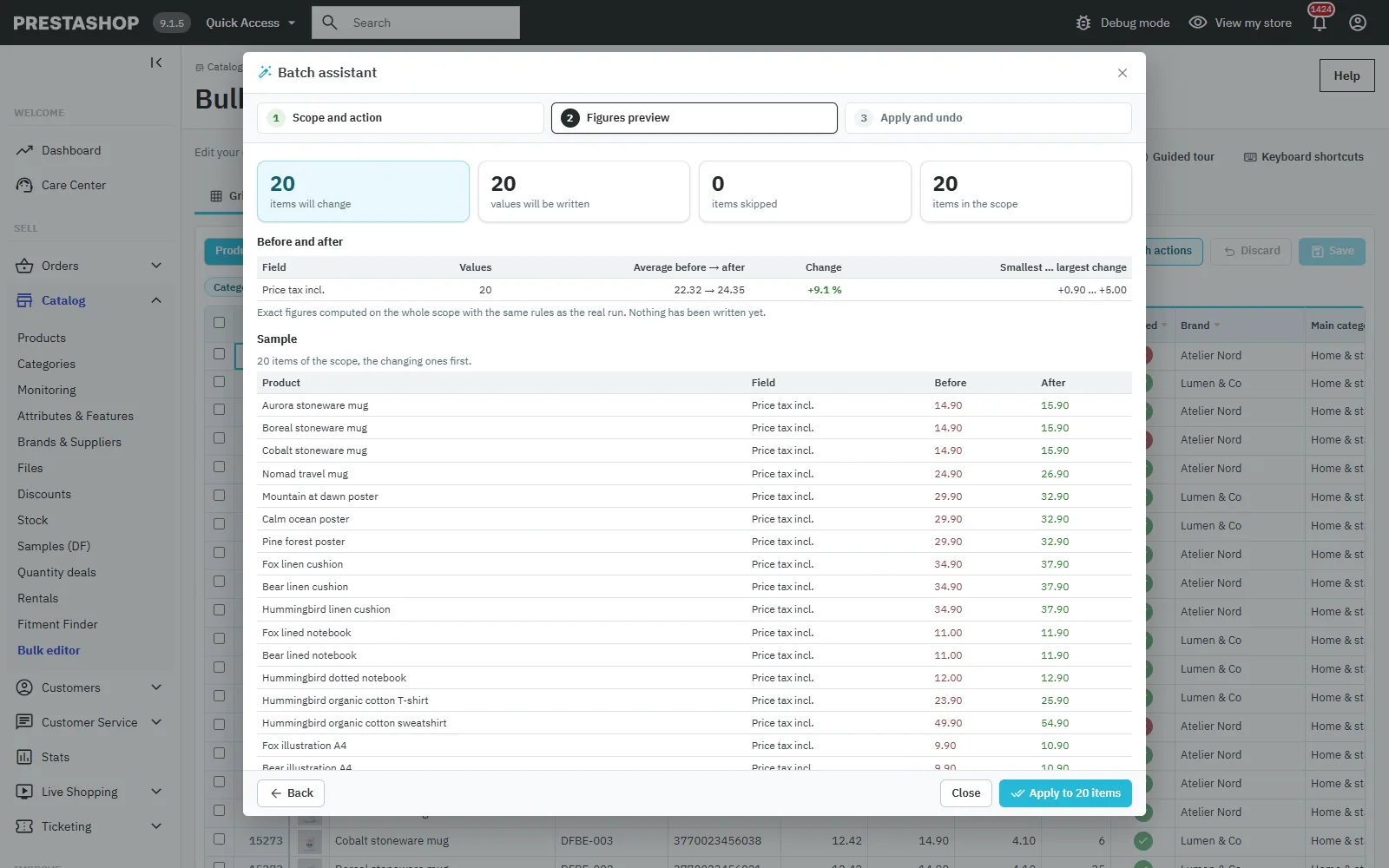
See the figures computes the action on the whole scope, with exactly the same rules as the real run, without writing anything: items that will change, values written, skipped items with their reason, average before → after, change in %, smallest and largest change, then a sample of 25 rows (changing ones first). With no filter and no selection, applying requires an explicit confirmation that the whole catalog is concerned.
Step 3: apply and undo
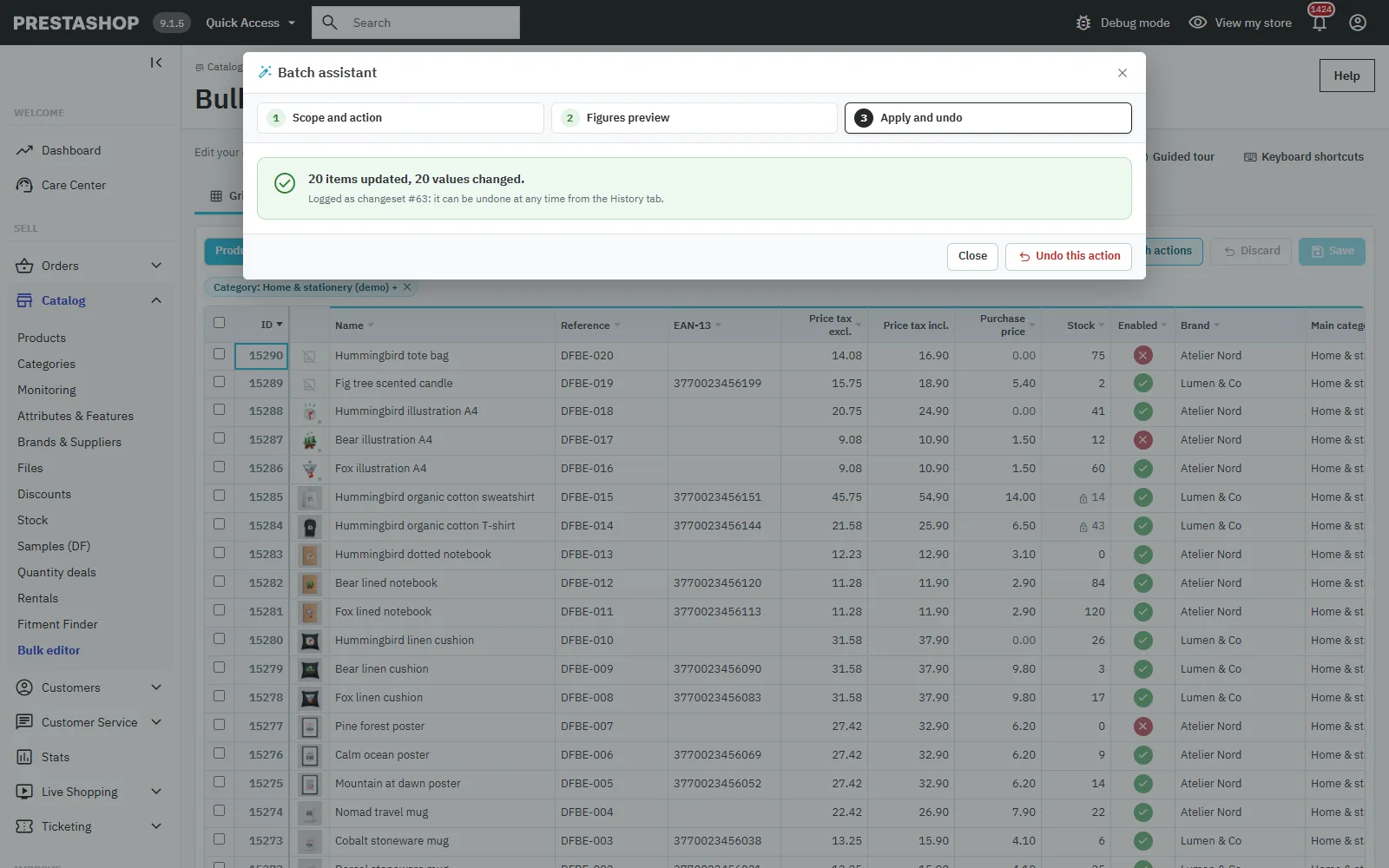
The action runs in chunks with a progress bar. The result shows the items updated, the skipped items and any error; the Undo this action button restores the previous values at once. A chunk sent again never writes a product twice.
Prices, stock, status, brand and tax
Price tax incl., tax excl. or purchase price (final price or impact for combinations): increase or decrease by % or amount, fixed value, or purchase price × coefficient, with rounding (0.05, 0.10, whole number, .99, .95, .90). Stock can be set, increased or decreased, and each change is recorded as a stock movement. Changing the tax rule can keep the prices tax incl.
Categories
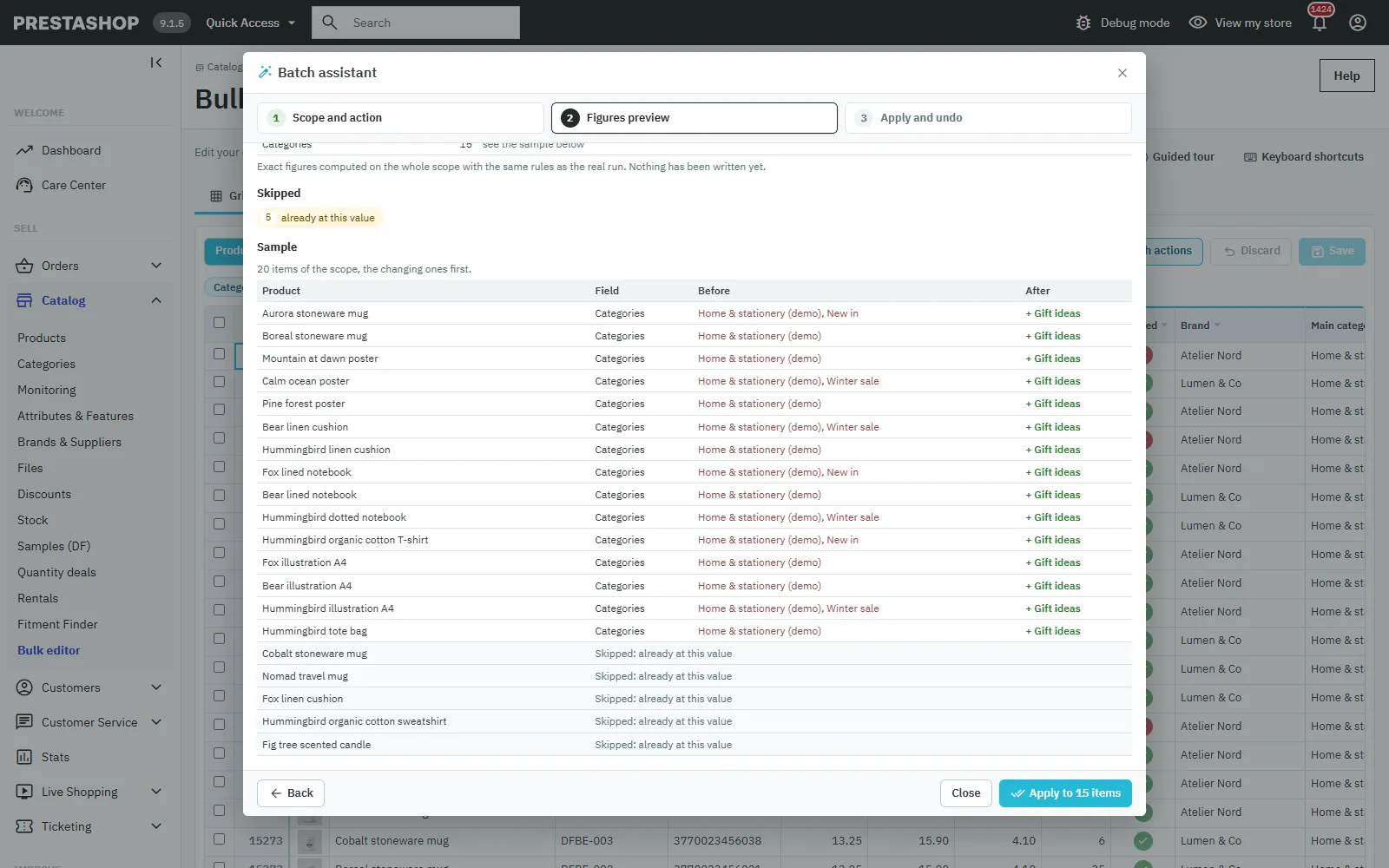
Add to categories, remove from categories, replace all categories or change the main category. The undo puts products back at their former position in sorted categories.
Features
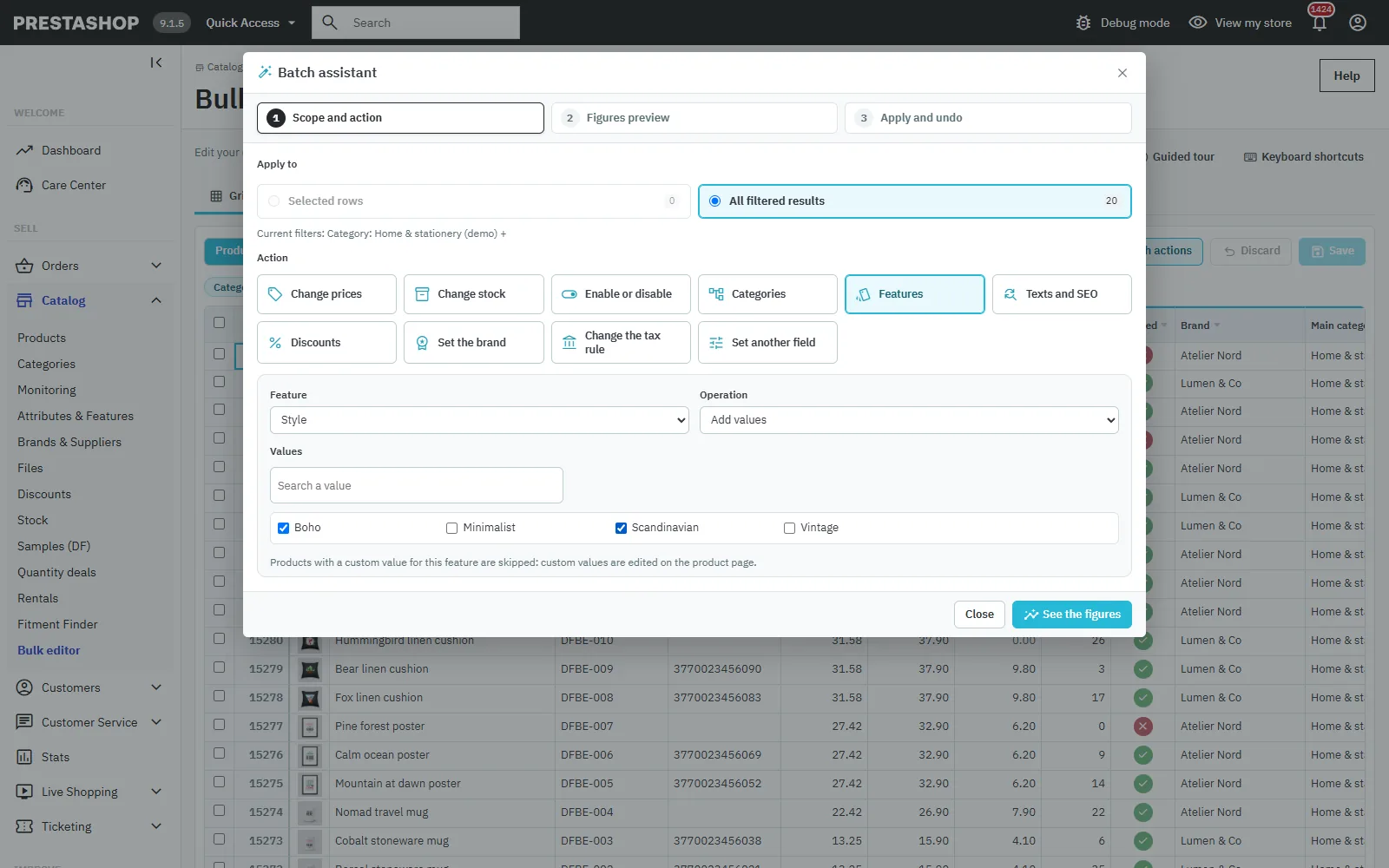
Add values, replace the values, remove values or remove the feature, with a search in the values. PrestaShop 8 and 9 accept several values per feature; in 1.7, adding a value replaces the current one. Products with a custom value are skipped.
Texts, descriptions and SEO
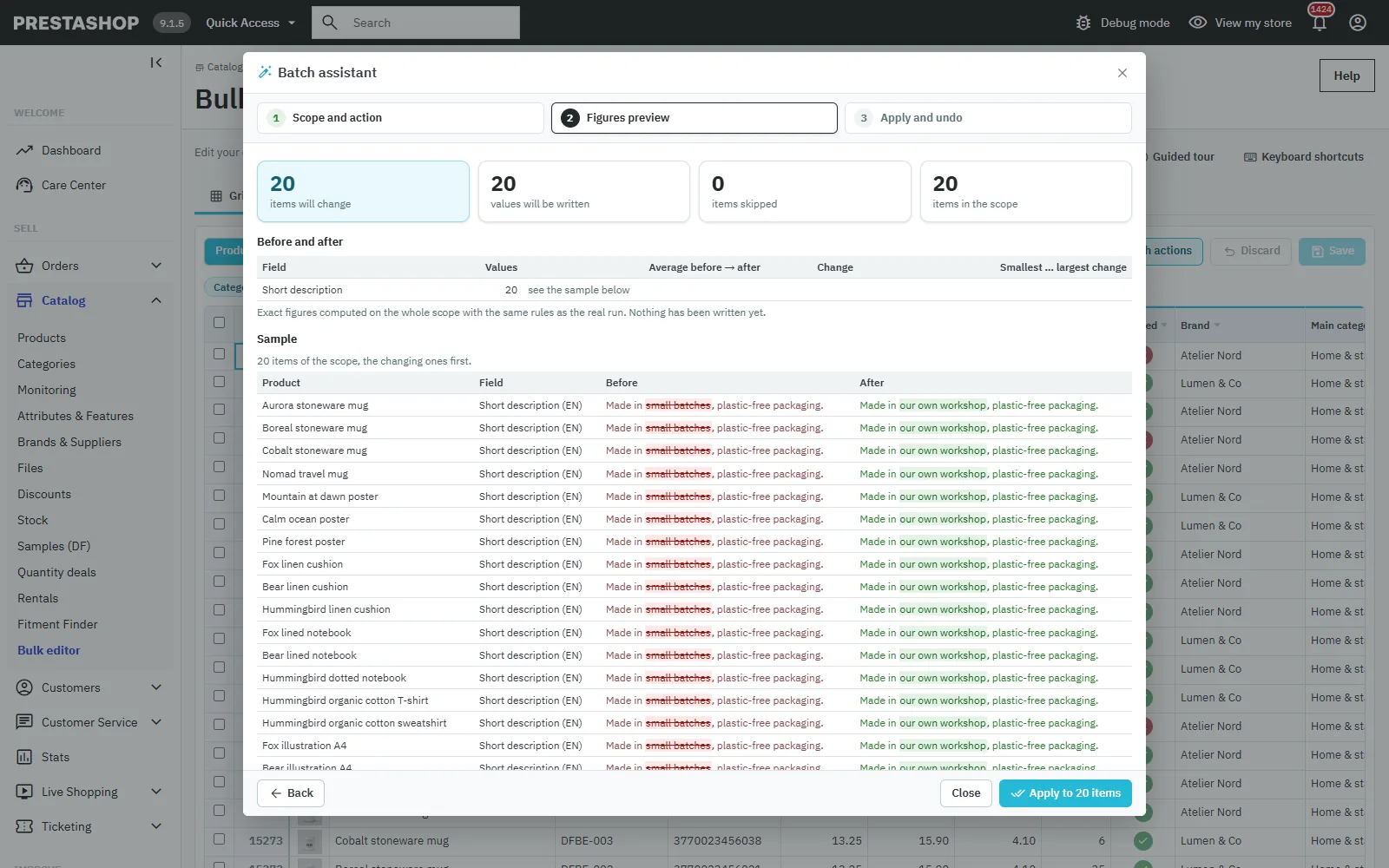
Fields: name, meta title, meta description, friendly URL, short description and description. Operations: fill from a template ({name}, {reference}, {ean13}, {manufacturer}, {category}, {price}, {shop}, {id}), add at the beginning or the end, find and replace (case sensitive, whole words). In HTML descriptions, replacing only changes the visible text, never tags, links or styles, and the preview highlights the difference.
Other fields and discounts
Visibility, condition, available for order, show price, online only, on sale flag, minimum quantity, low stock alert, shipping cost, dimensions and availability labels. Catalog discounts (percentage or amount, dates, group, quantity) can be added or removed; a discount with the same conditions is never created twice.
CSV export and import
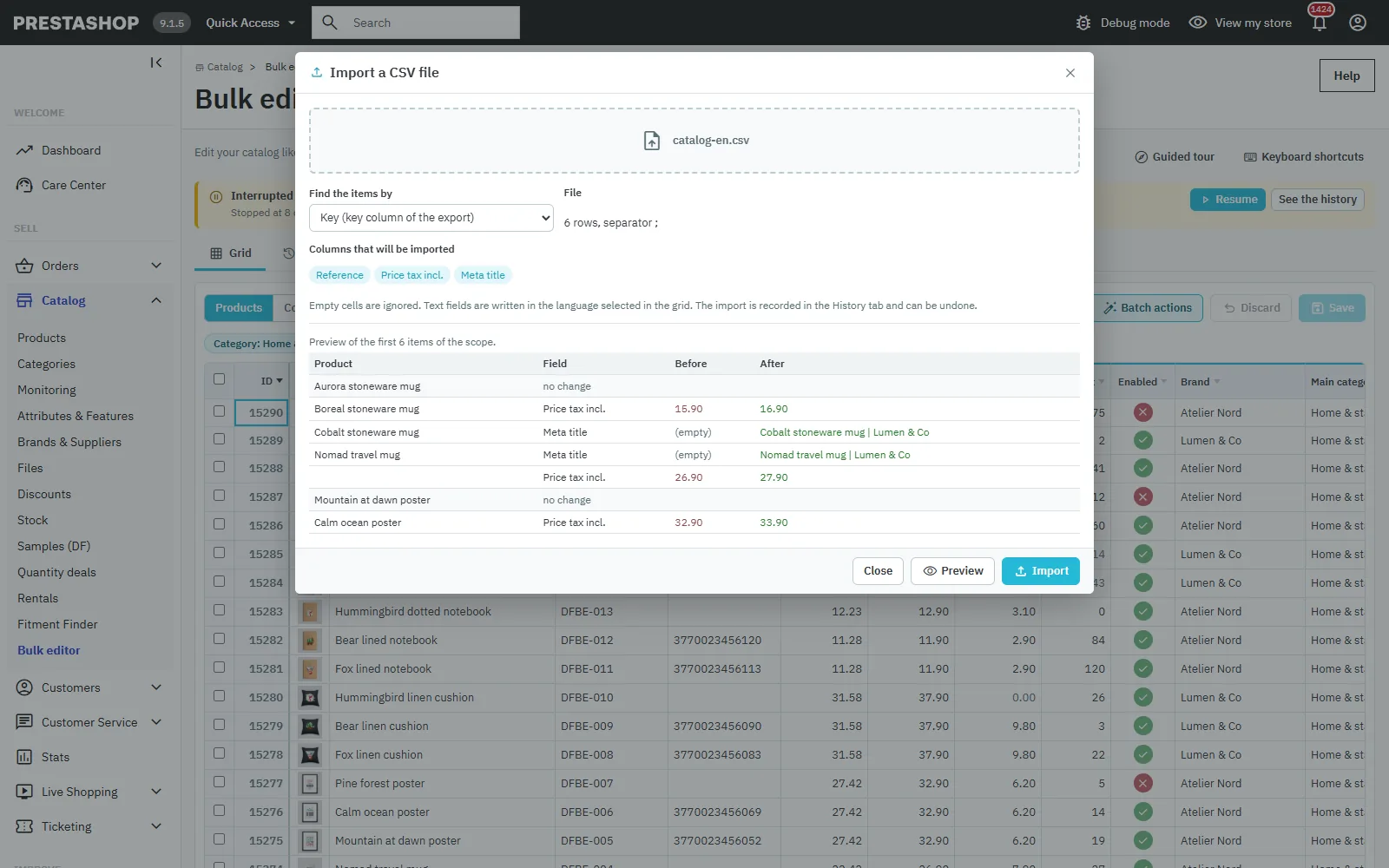
The export contains every editable field, short description and description included, with semicolons (European Excel) or commas (English Excel, Google Sheets). Texts that a spreadsheet would run as a formula (starting with =, +, – or @) get a leading apostrophe, removed again on import. On import, choose the matching key (key, ID, reference or EAN) and check the preview: only values that really differ are written, and the import can be undone like a batch action.
History, undo and resume
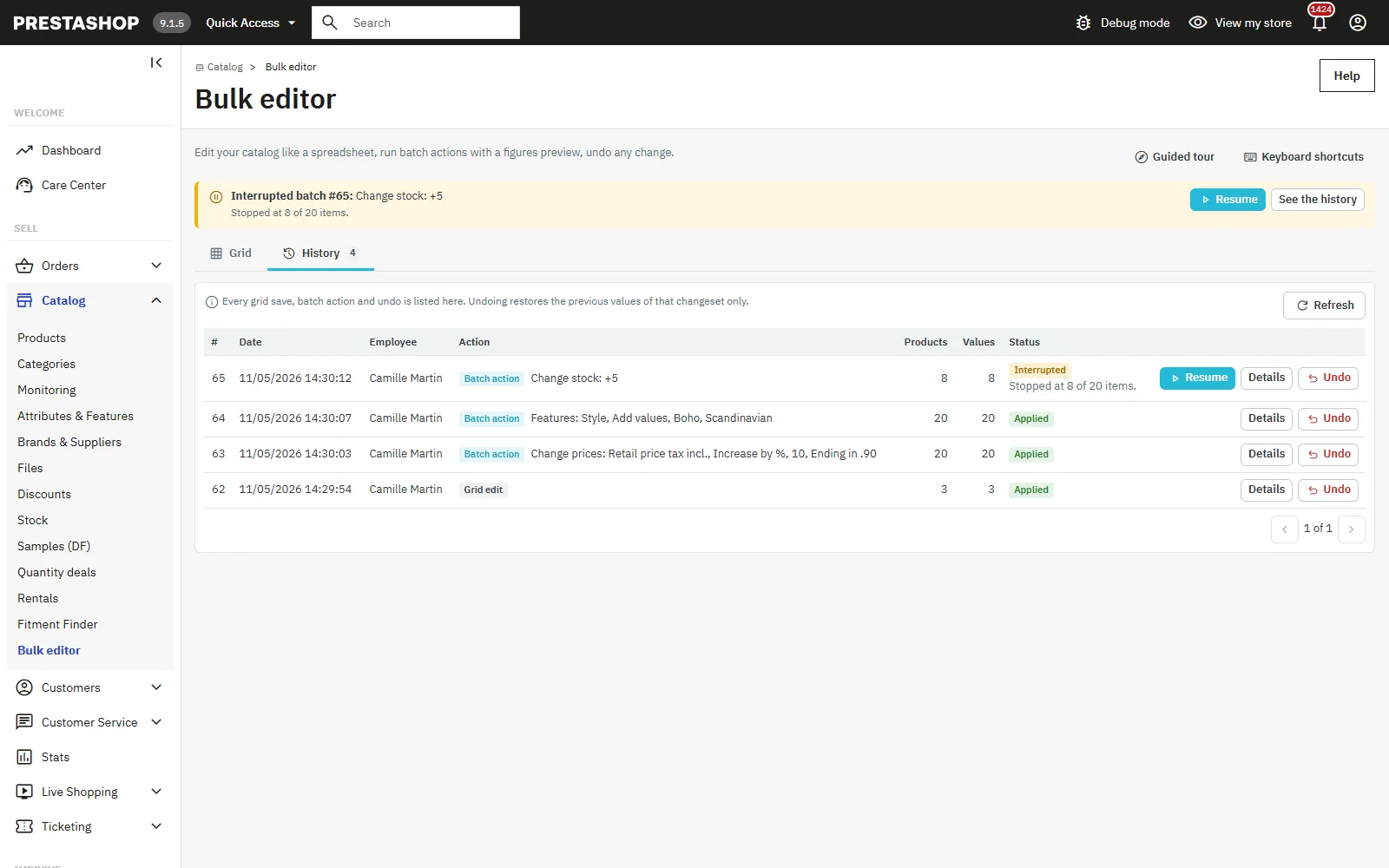
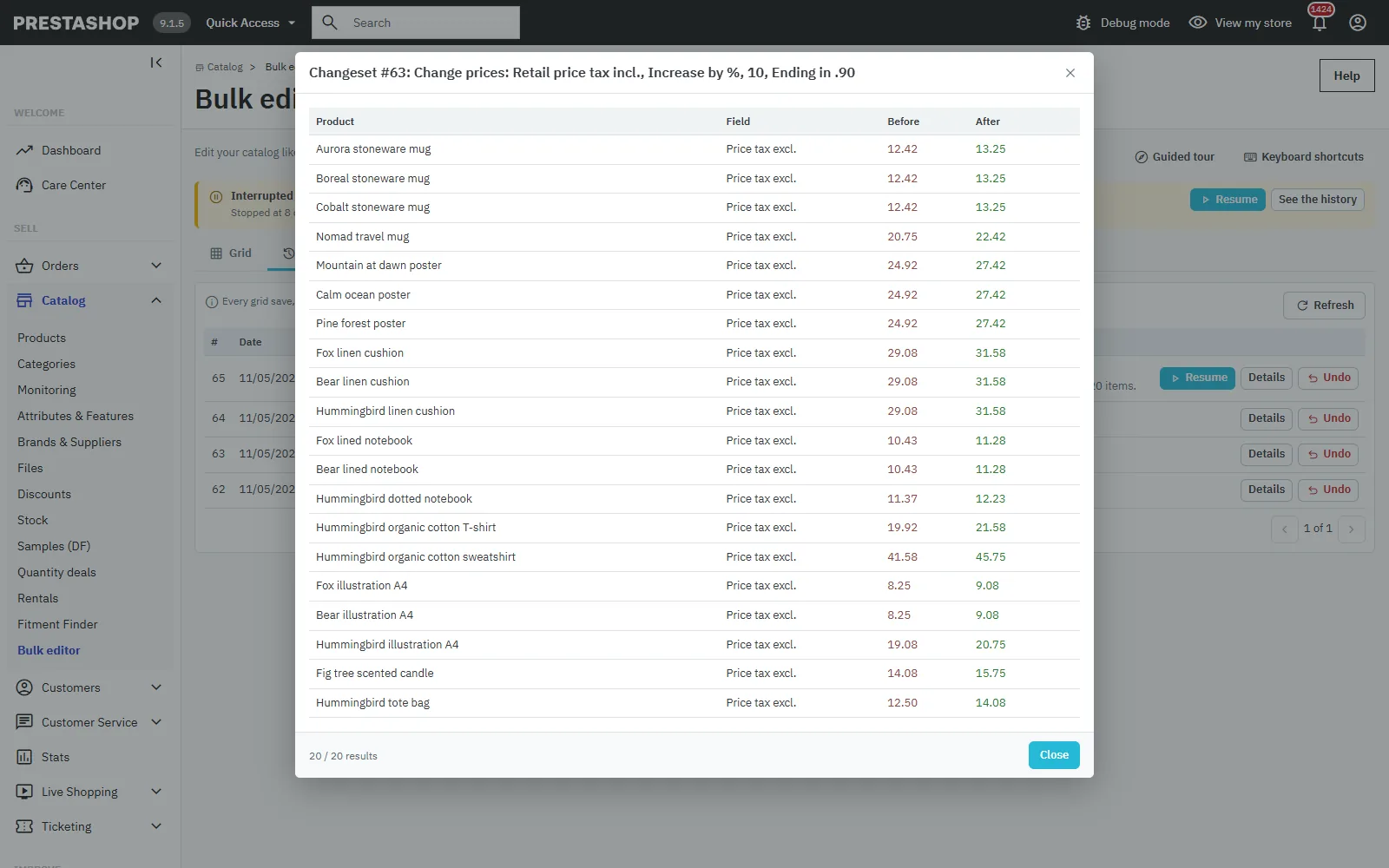
The History tab lists every save, batch action, import and undo. Details shows each value before and after; Undo restores exactly the previous values (a value changed again in the meantime is kept unless you tick “Overwrite later modifications”). If a batch stopped (closed tab, network failure), a banner offers to resume it where it stopped, without writing the products already done again, or to undo it.
Multistore
The grid shows and edits the selected shop only. In the “All shops” or group context, a warning tells which shop is displayed.
Troubleshooting
- A batch action stops: click Resume in the banner or the history; if it happens again, lower “Items per batch request”.
- A cell stays red: PrestaShop refused the value; hover it to read the reason.
- Strange characters on import: save the file as “CSV UTF-8”.
- No menu entry in 1.7.8: reinstall 2.0.0, which repairs the entry under Catalog.