
DataFirefly Marketplace: complete guide
Install, configure and run your multi-vendor marketplace on PrestaShop 8 and 9.
Overview
DataFirefly Marketplace turns your PrestaShop store into a multi-vendor marketplace. Independent sellers register, publish their products, prepare and ship their orders and reply to their customers from a dedicated area on the storefront. You approve sellers and their products, set commissions, pay out funds and monitor activity from the back office.
Every order placed with several sellers is split into real PrestaShop orders, one per seller, with exact totals and a single payment. Each seller’s balance is credited on payment, becomes available for payout after a holding period, then is paid to them by bank transfer (or through Mangopay or Stripe Connect if you use them). No scheduled task is needed.
The interface, the back office and the 16 emails are translated into French, English, Spanish, German, Italian, Dutch, Polish and Portuguese.
What’s new in version 2.0
- Always exact amounts: the seller orders add up to what the customer paid (shipping and discounts included), with a single payment for the whole order.
- Balance credited on payment, holding period, automatic reversal of cancellations, refunds and credit slips.
- Complete payouts: request with an amount, immediate reservation, bank transfer with a reference or rejection with a reason, CSV export.
- Shipping costs set by each seller through the “Marketplace” carrier, shown seller by seller in the cart.
- New back office: dashboard with trends and a “To process” queue, full seller profile, product moderation queue, commission rules with a simulator.
- New seller area: shared navigation, sales and net over 12 months, detailed finances, replies to reviews, vacation mode.
- Stronger security: anti-CSRF tokens, filtered seller content, customer data limited to what is strictly needed, IBAN verification.
Compatibility and requirements
- PrestaShop 8.0, 8.1, 8.2 and 9.x (tested on 8.2.1 with the Classic theme and on 9.1.5 with Hummingbird)
- PHP 8.1 or higher
- Multilingual; no scheduled task (cron) needed
- Optional: a Mangopay or Stripe Connect account to pay sellers automatically. Without one, sellers are paid by manual bank transfer.
Installation
- In the back office, go to Modules > Module Manager, click Upload a module and select
dfmarketplace-2.0.0.zip. - Installation creates the tables and adds the Marketplace menu under Sell (labels in each employee’s language), the “Marketplace” carrier (disabled until you use per-seller shipping costs) and three seller plans: Free, Pro and Premium.
- Open Marketplace > Settings. The seller sign-up link is shown at the top of the page: share it or add it to your menu.
Updating from version 1.x
Upload dfmarketplace-2.0.0.zip in the Module Manager, without uninstalling. PrestaShop runs the update automatically:
- sellers, products, orders, messages, reviews and history are kept;
- seller balances are carried over to the cent and pending payout requests remain to be processed;
- the old menus are replaced by the new ones, without touching the menus of other modules;
- if no Mangopay or Stripe key is saved, the seller payment method switches to manual transfers.
After the update, clear the cache from Advanced Parameters > Performance, then check the settings: holding period, minimum payout and shipping mode are new settings.
Settings
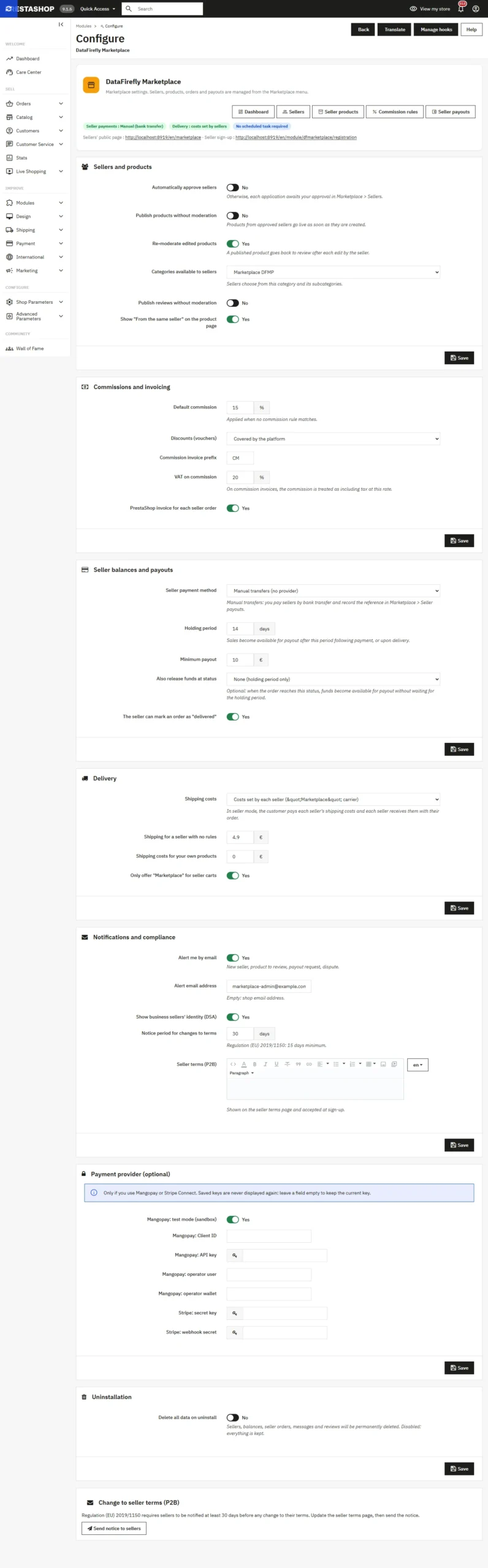
The Marketplace > Settings page is organised in sections.
Sellers and products
- Automatically approve sellers and Publish products without moderation: disabled by default, so every request waits for your approval.
- Re-moderate edited products: a published product goes back to review after each edit by the seller.
- Categories available to sellers: sellers choose from this category and its subcategories.
- Publish reviews without moderation and Show “From the same seller” on the product page.
Commissions and invoicing
- Default commission: applied when no rule matches.
- Discounts (vouchers): borne by the platform, or deducted from the seller’s net on a pro rata basis.
- Commission invoice prefix and VAT on commission.
- PrestaShop invoice for each seller order.
Seller balances and payouts
- Seller payment method: manual transfers (default), Mangopay or Stripe Connect.
- Holding period (14 days by default): a sale becomes available for payout this long after payment, or as soon as it is delivered.
- Minimum payout and, optionally, Also release funds at status for the status you choose.
- The seller can mark an order as “delivered”.
Delivery
- Shipping costs: shop carriers (costs collected by the platform) or costs set by each seller (“Marketplace” carrier).
- Shipping for a seller with no rules, Shipping costs for your own products and Only offer “Marketplace” for seller carts.
Notifications and compliance
- Alert me by email: new seller, product to review, payout request, dispute. You choose the alert address.
- Show business sellers’ identity (DSA).
- Notice period for changes to terms (15 days minimum) and Seller terms (P2B), editable in each language.
Payment provider (optional)
Mangopay or Stripe Connect keys, only if you use them. Saved keys are never displayed again: leave a field empty to keep the current key.
Uninstall
Delete all data on uninstall: disabled by default, so you never lose seller balances and history.
Dashboard
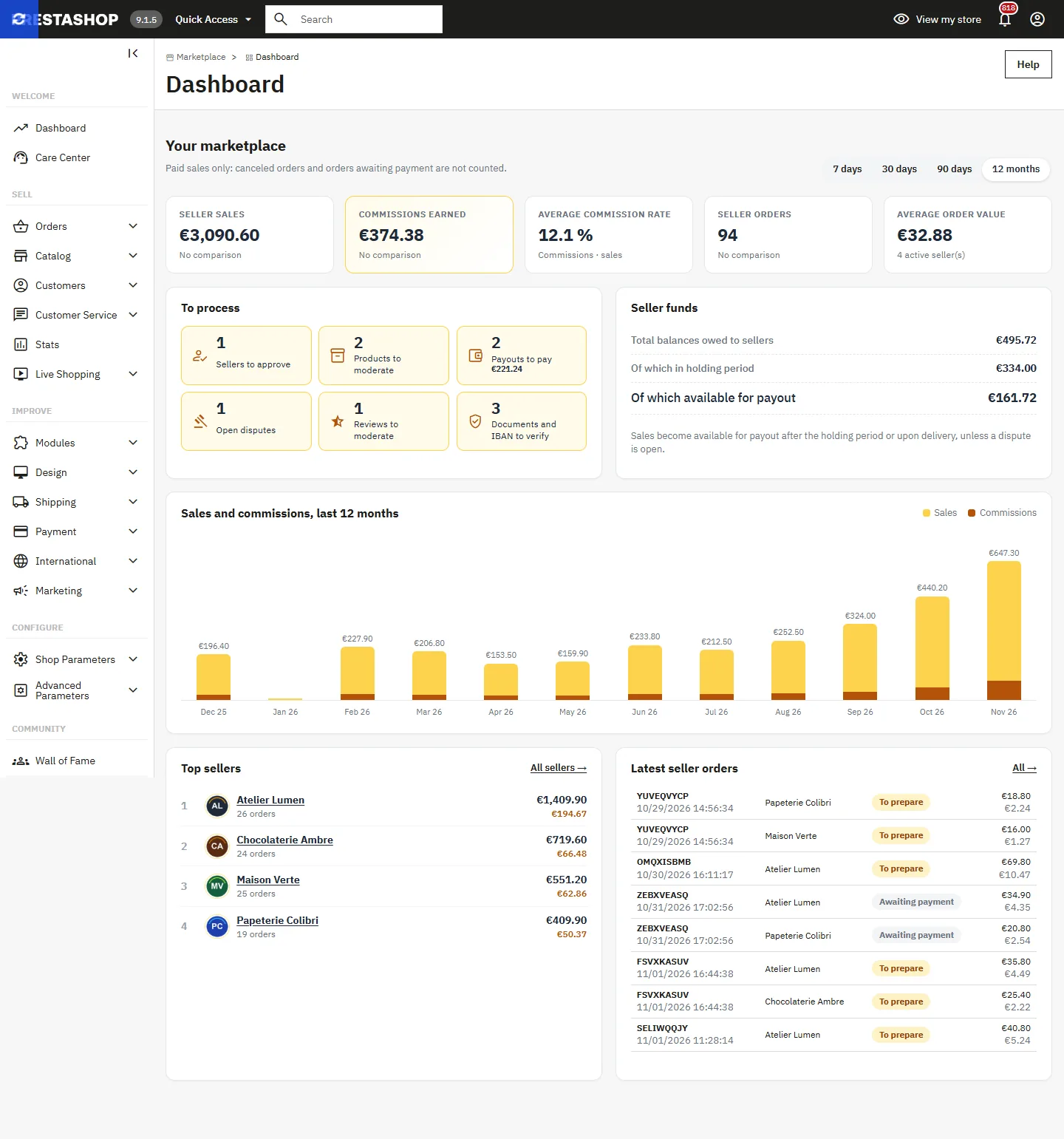
Marketplace > Dashboard brings the essentials together: paid sales, commissions, average rate, number of orders and average cart with their trend, funds owed to sellers, a 12-month chart, top sellers and latest orders.
The To process queue counts sellers to approve, products and reviews to moderate, payouts to pay, documents and IBANs to verify and open disputes, with a direct link to each screen.
Sellers
Sign-up
A logged-in customer becomes a seller from the sign-up page. They enter their shop name, their status (individual or business), their legal details, their IBAN and BIC, then accept the seller terms. The IBAN is validated (check digits) and the values entered are kept if there is an error.
Approval, suspension and rejection
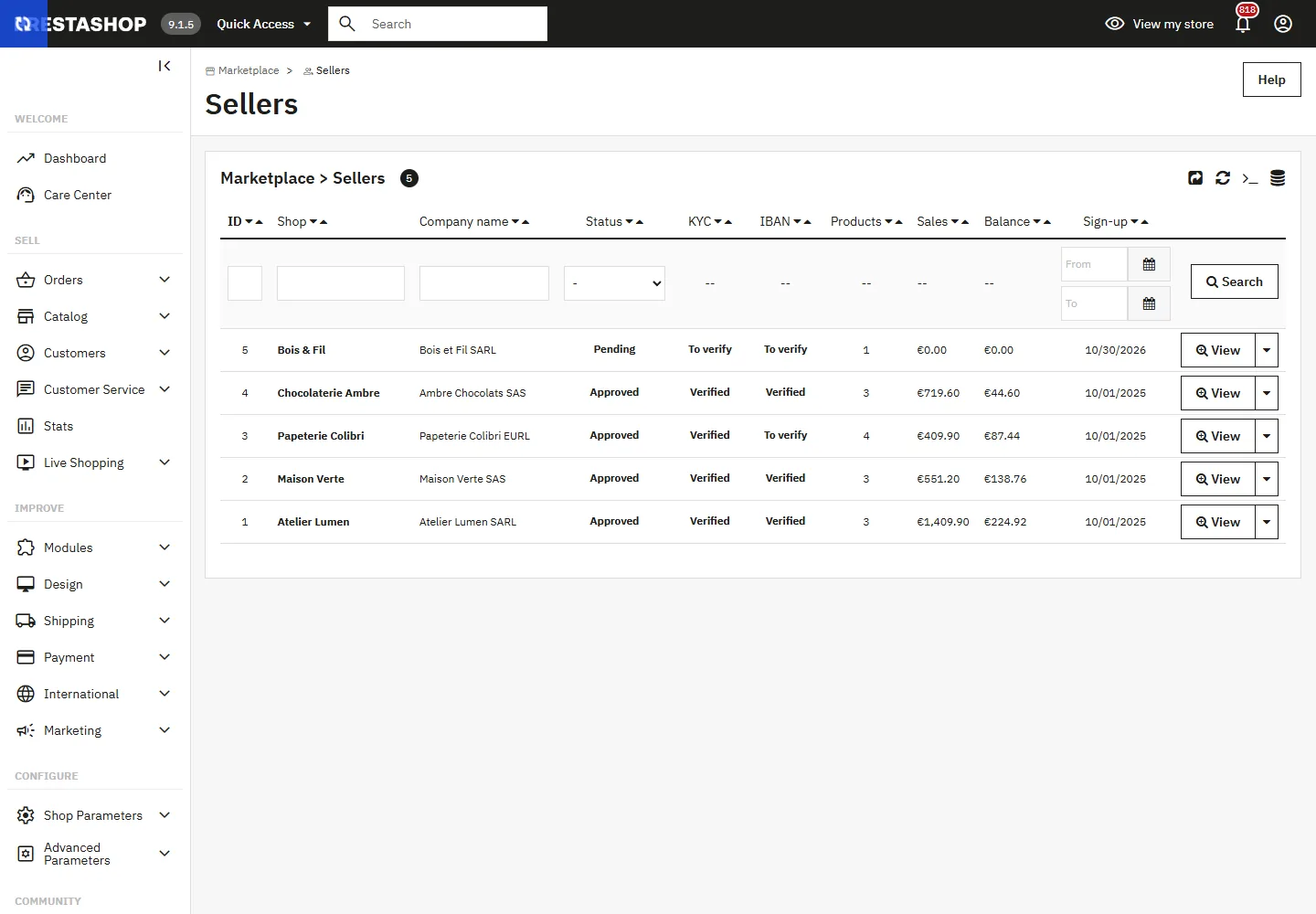
The Marketplace > Sellers list shows each seller’s status, KYC, IBAN, sales and balance. The seller profile lets you approve, suspend or reject with a reason, which is emailed to the seller as required by the P2B regulation.
When a seller is suspended or rejected, their products are withdrawn from sale and they can no longer add or edit any. The products go back online if the seller is reactivated.
Documents, IBAN and wallet
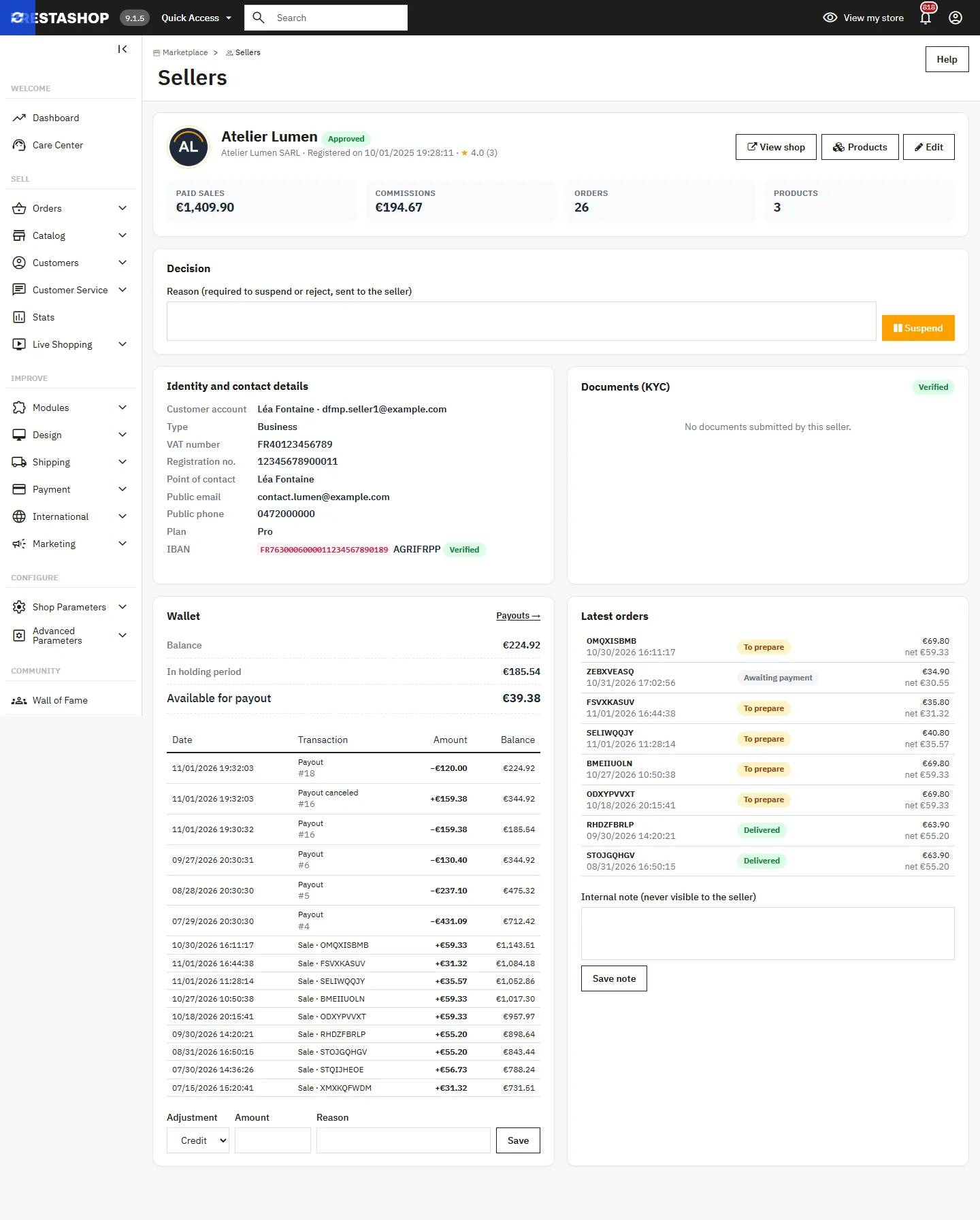
The seller profile also brings together:
- KYC documents, opened from the back office, with approval or rejection of the KYC;
- IBAN verification: an IBAN changed by the seller blocks their payouts until you verify it;
- the wallet, with its movements and a recorded manual adjustment (goodwill gesture, correction);
- the latest orders and an internal note visible to your team only.
KYC documents and commission invoices are stored in protected folders, under file names that cannot be guessed. On Nginx, deny access to /modules/dfmarketplace/docs/kyc/ and /modules/dfmarketplace/docs/commission/.
Products and moderation
Sellers create their products from their area: photos, price entered tax included (the tax-excluded price is shown), VAT, stock, allowed categories, weight and dimensions, descriptions.
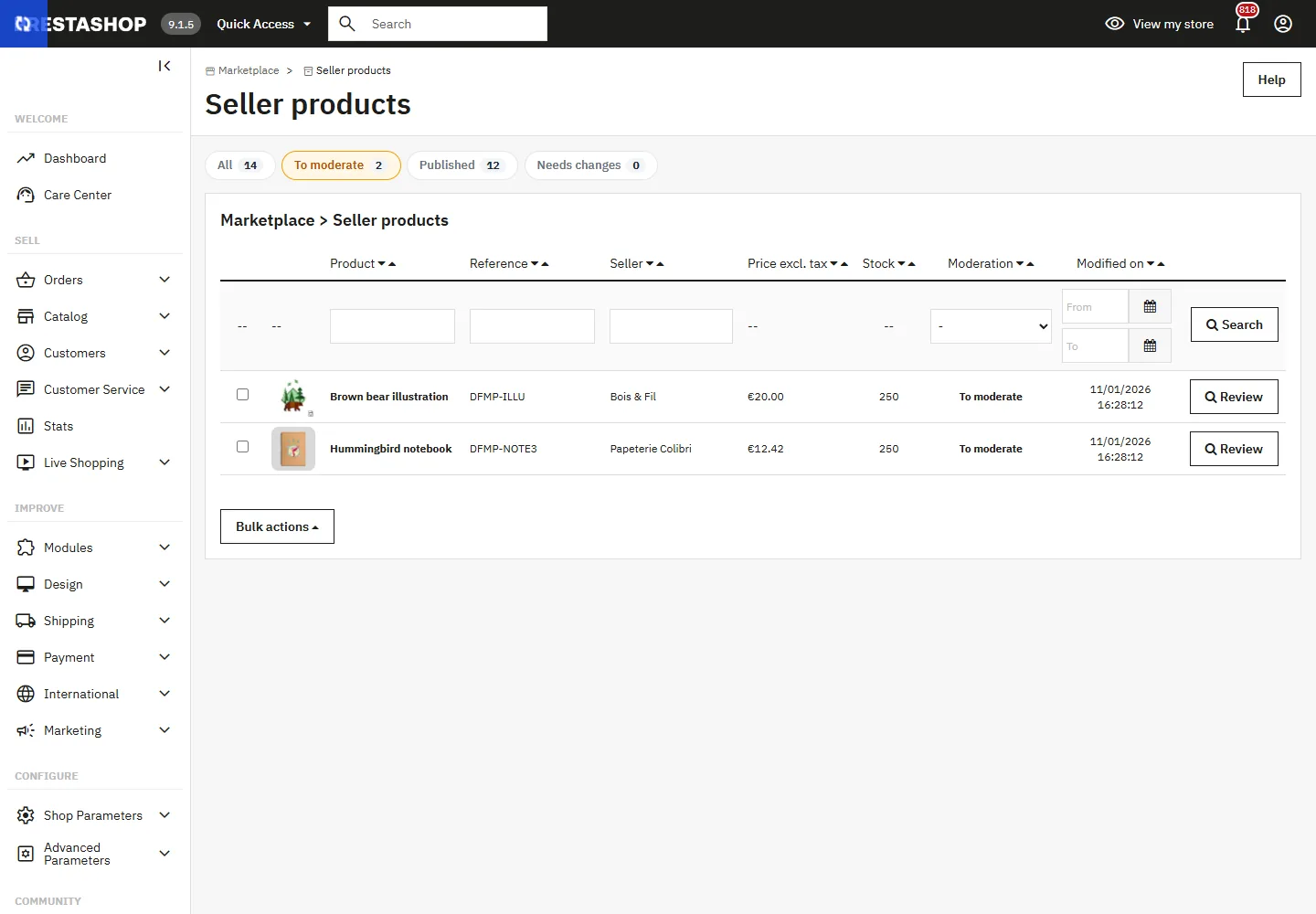
Marketplace > Seller products shows the moderation queue with filters by status and by seller. The review page shows the photos, the price and the description. You publish the product, or send it back to the seller with a reason that they see in their area and receive by email. Bulk publishing is available.
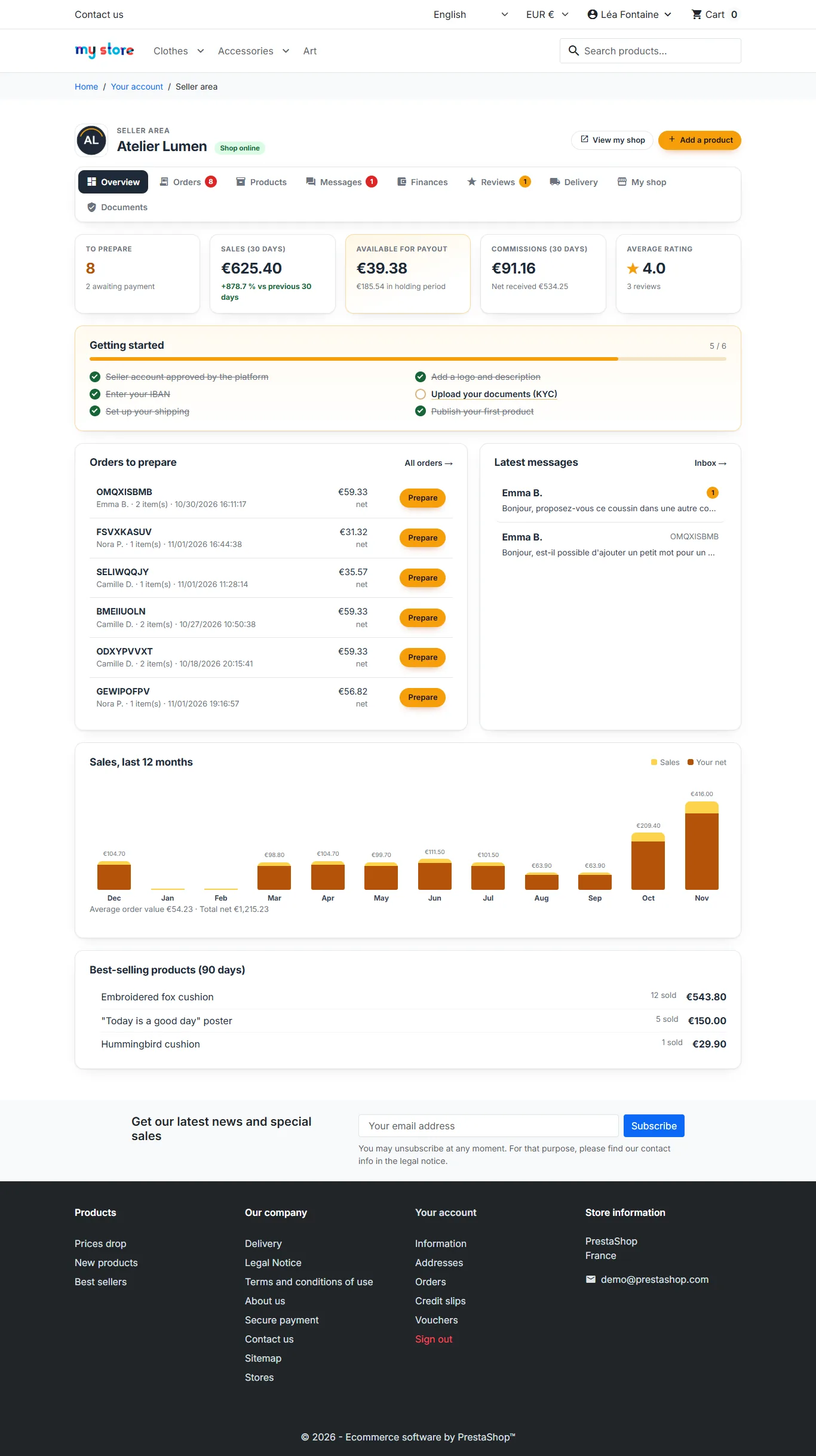
Seller area
Sellers manage their business from the storefront, without back-office access, and only see their own data. All pages share the same navigation, with the number of items to process.
Dashboard
Orders to prepare, 30-day sales with trend, amount available for payout, commissions and average rating, sales and net over 12 months, best sellers. A “Getting started” checklist guides them to their first sale.
Products
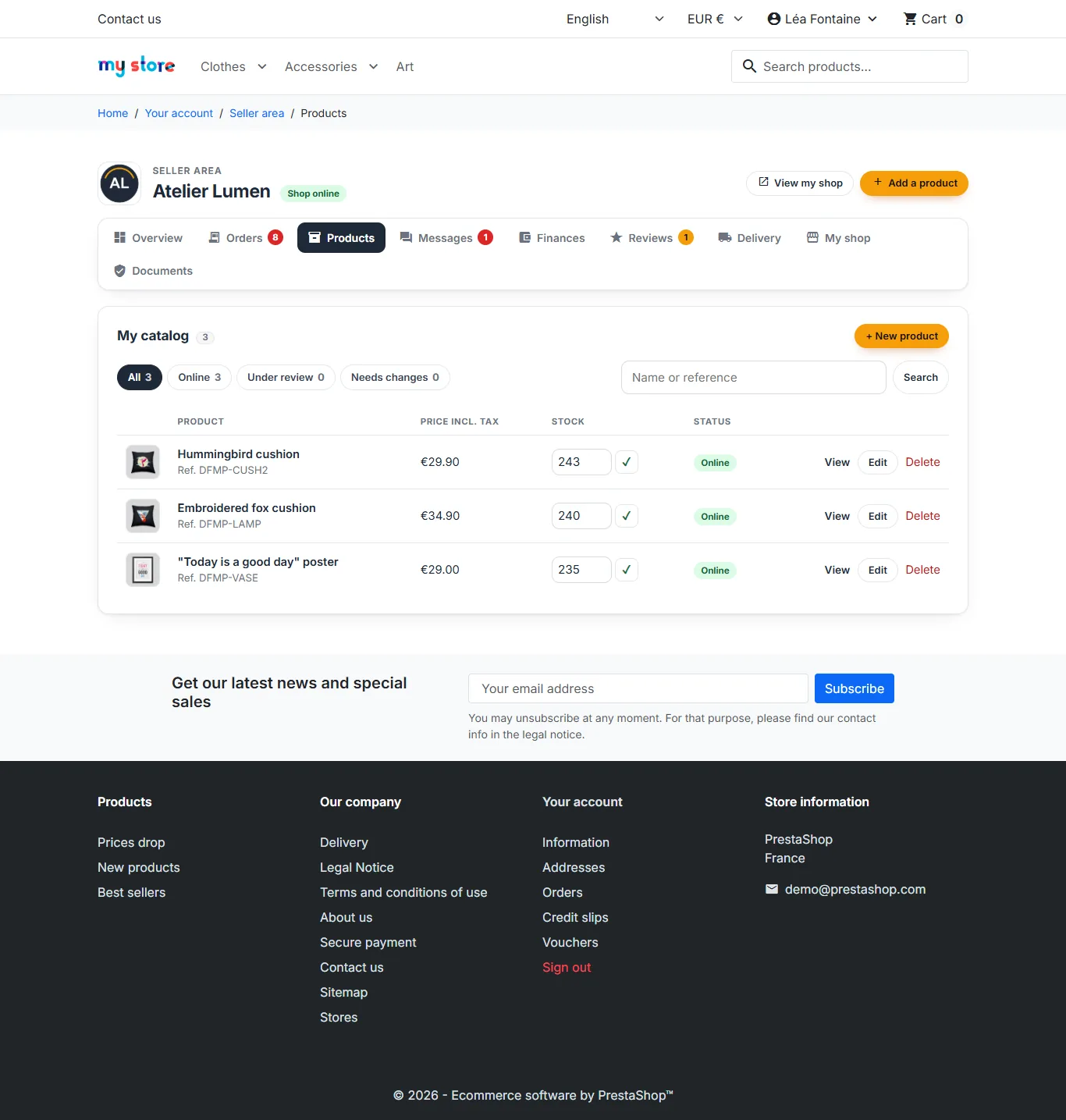
List with status filters, search and stock that can be edited directly. A rejected product shows the reason for rejection.
Orders
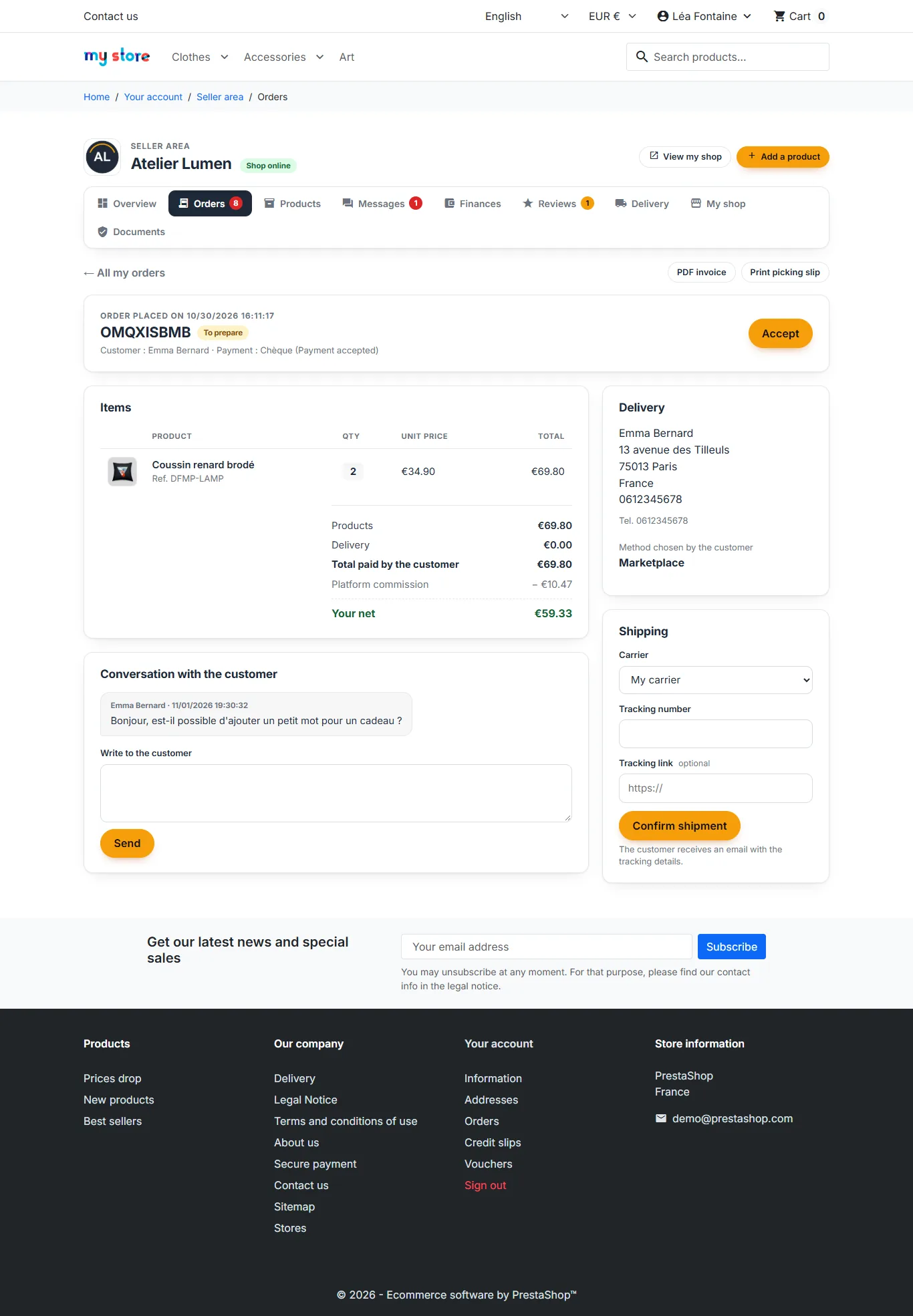
Filters, search and pagination. Each order page shows the items, the seller’s net after commission, the carrier chosen by the customer, the customer’s message and the conversation. The seller accepts the order, prints the picking slip, declares one or more parcels with the tracking number and link, then marks the order as delivered (if you allow it).
The customer’s address and phone number are only visible once the order is paid; their email address is never shared with the seller.
Finances
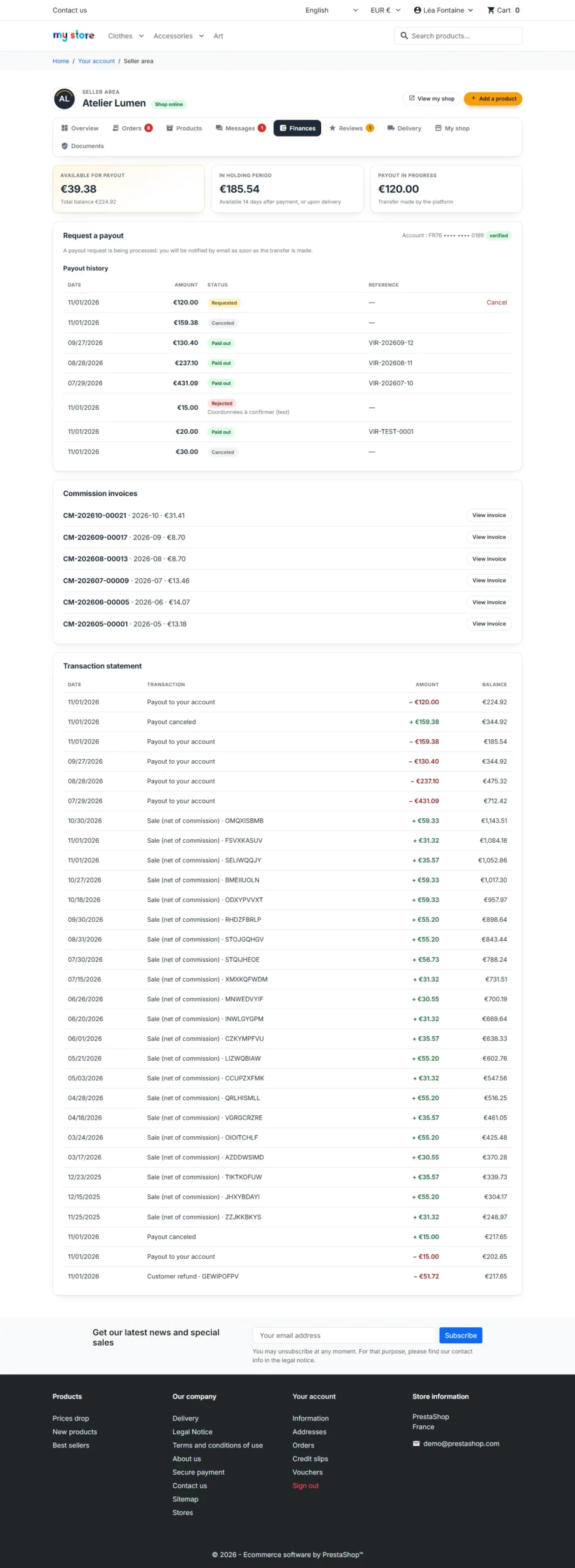
The seller sees their balance split into available, in holding period and payouts in progress. They request a payout, can cancel it as long as it has not been paid, and find their history, commission invoices and a statement of all movements.
Reviews, profile and vacation
- Reviews: rating breakdown and a public reply to each review.
- Profile: logo, banner, presentation, shipping and return policies, public contact details, DSA information, IBAN.
- Vacation mode: a message is shown on the seller’s shop and product pages.
- Delivery: shipping rules by amount or by weight, per zone, with free shipping from a set amount.
The seller area adapts to phones.

Order splitting
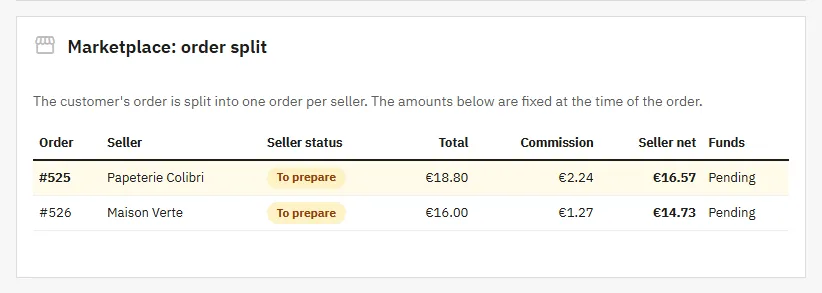
When a cart contains products from several sellers, the order is split into real PrestaShop orders, one per seller, with the same reference. Shipping costs and discounts are allocated, so the orders add up to the amount paid by the customer. A single payment covers everything, including when a bank transfer or cheque is confirmed later.
The order confirmation email shows the full total and attaches the invoices of all sellers in a single PDF. A “Marketplace” panel on the back-office order page shows the breakdown by seller.
Commissions
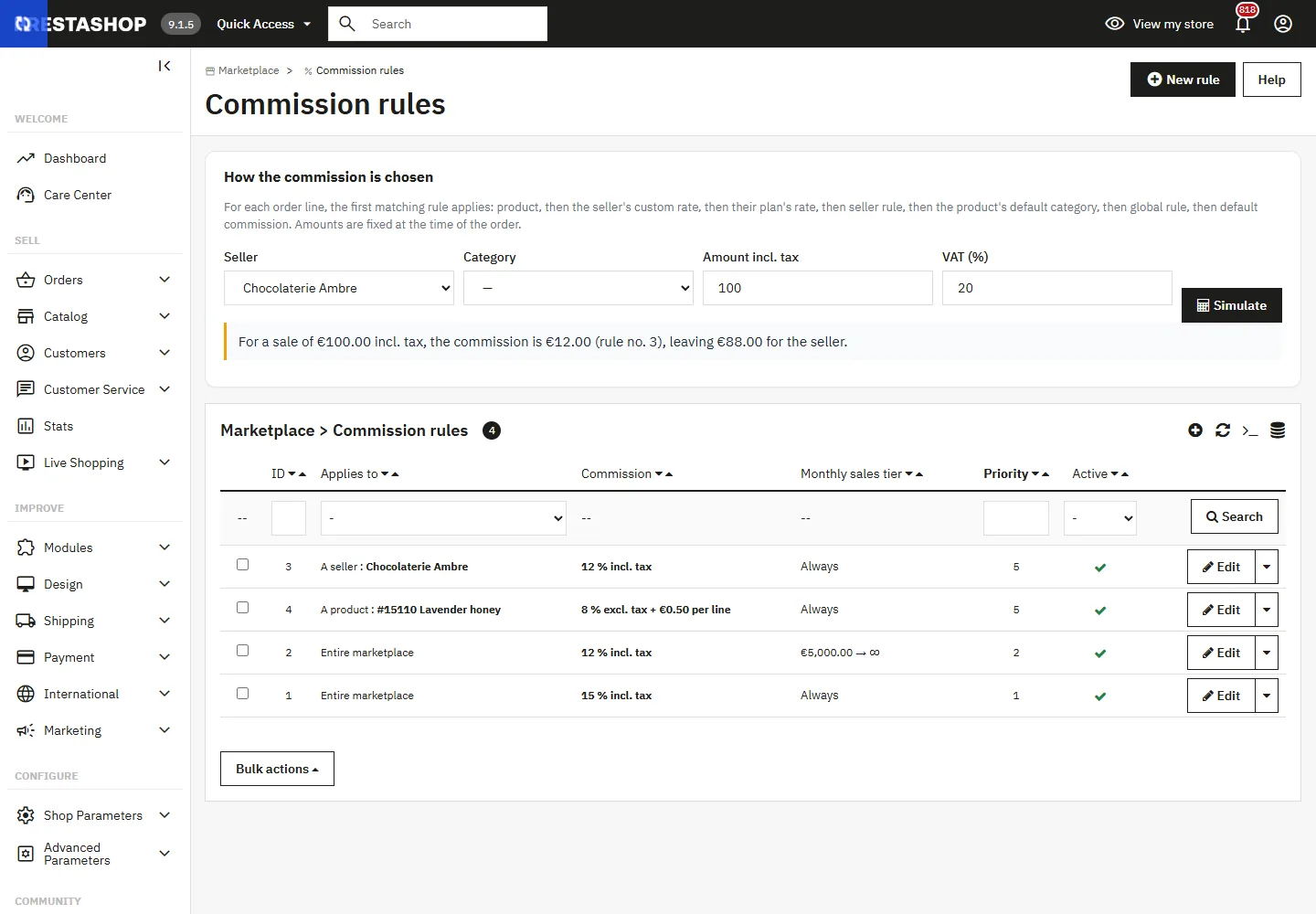
Marketplace > Commission rules lets you create rules per product, per seller, per category or global, as a percentage or a fixed amount, with tiers based on monthly sales. The most specific rule applies; failing that, the seller’s plan rate, then the default commission.
The simulator shows the commission and the seller’s net for a given product, seller and amount. The commission is frozen when the order is placed.
Balances and payouts
Credit and holding period
The net of each seller order is credited on payment, never before. It stays in the holding period for the time you choose, then becomes available for payout; it becomes available on delivery if that happens first. An open dispute blocks the release.
Cancellation, full refund or failed payment: the amount is deducted from the seller’s balance and the seller is notified. A credit slip (partial refund) debits the seller’s share, only once.
Requesting and paying payouts
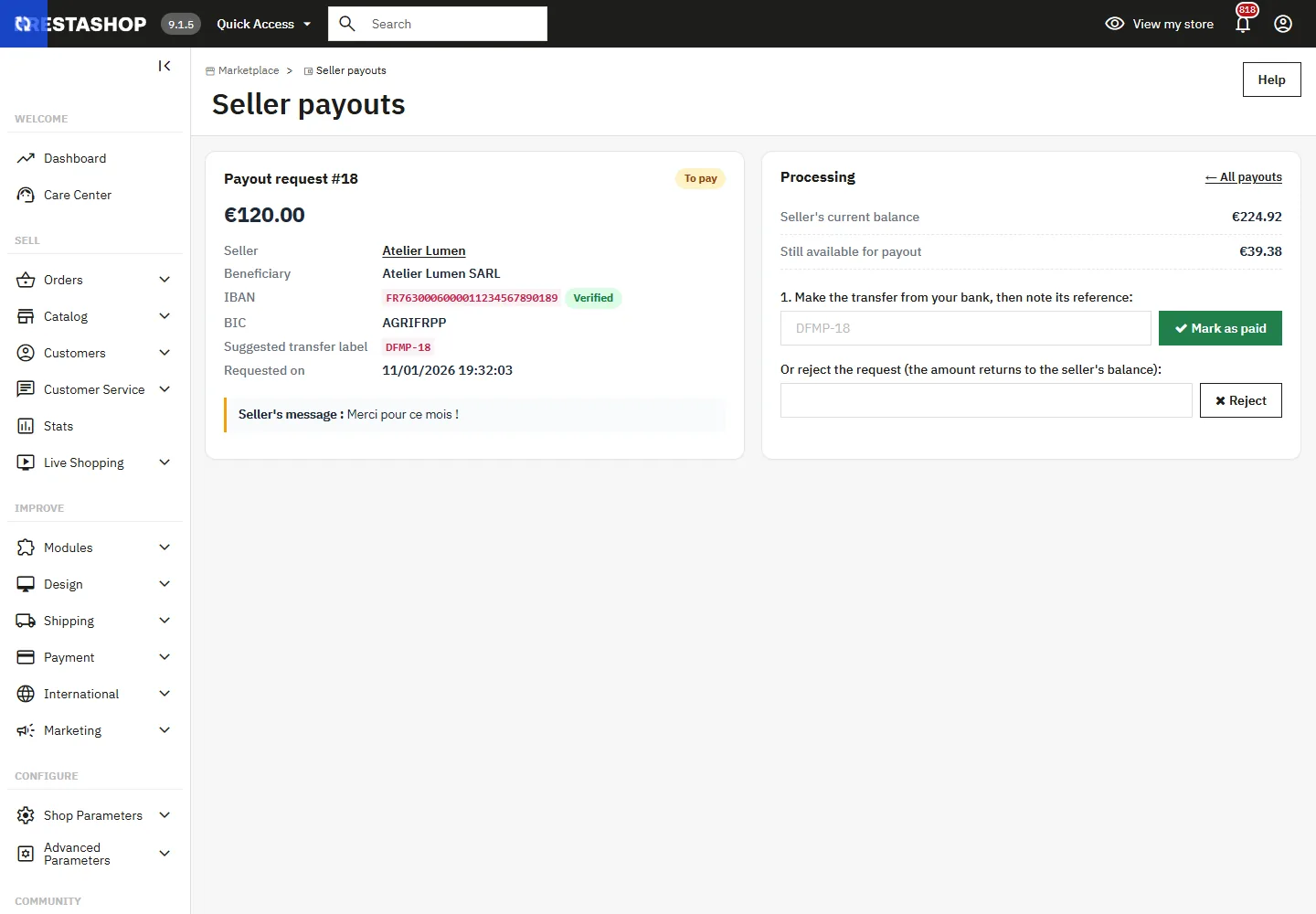
- The seller requests a payout from their finances, up to the available amount and above the minimum. The amount is reserved immediately.
- In Marketplace > Seller payouts, you make the bank transfer, then click Mark as paid and enter the reference. You can also reject it with a reason: the amount is returned to the seller.
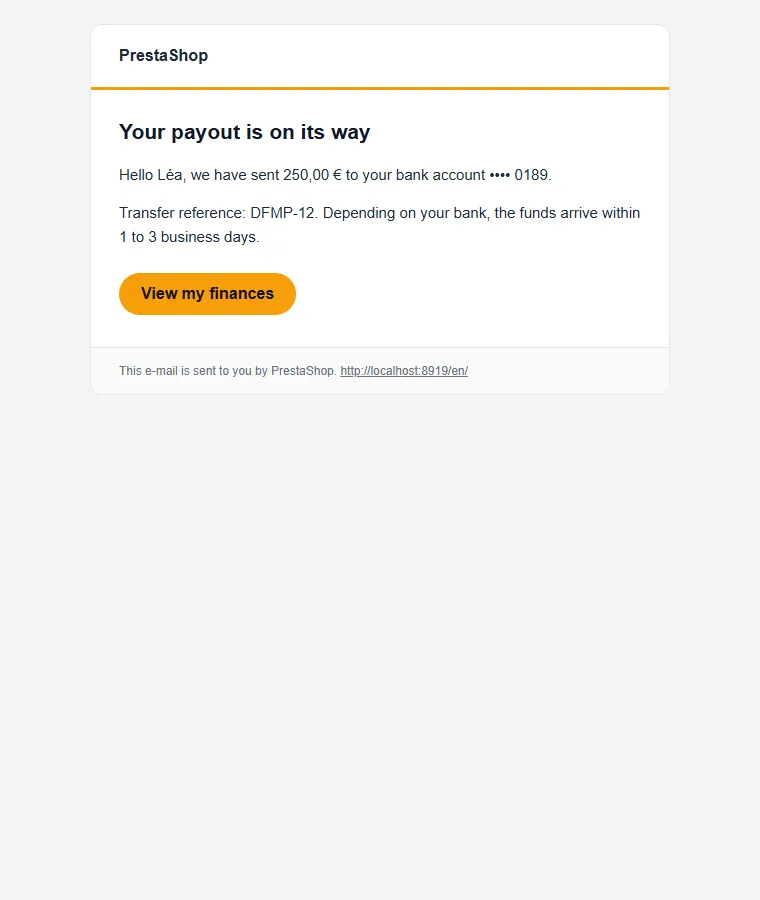
- The seller receives the “payout sent” or “payout rejected” email.
The CSV export lists the transfers to make. If Mangopay or Stripe Connect is configured, the payout can be made by the provider.
Delivery
Two modes are available:
- Shop carriers: your usual carriers, with shipping costs collected by the platform.
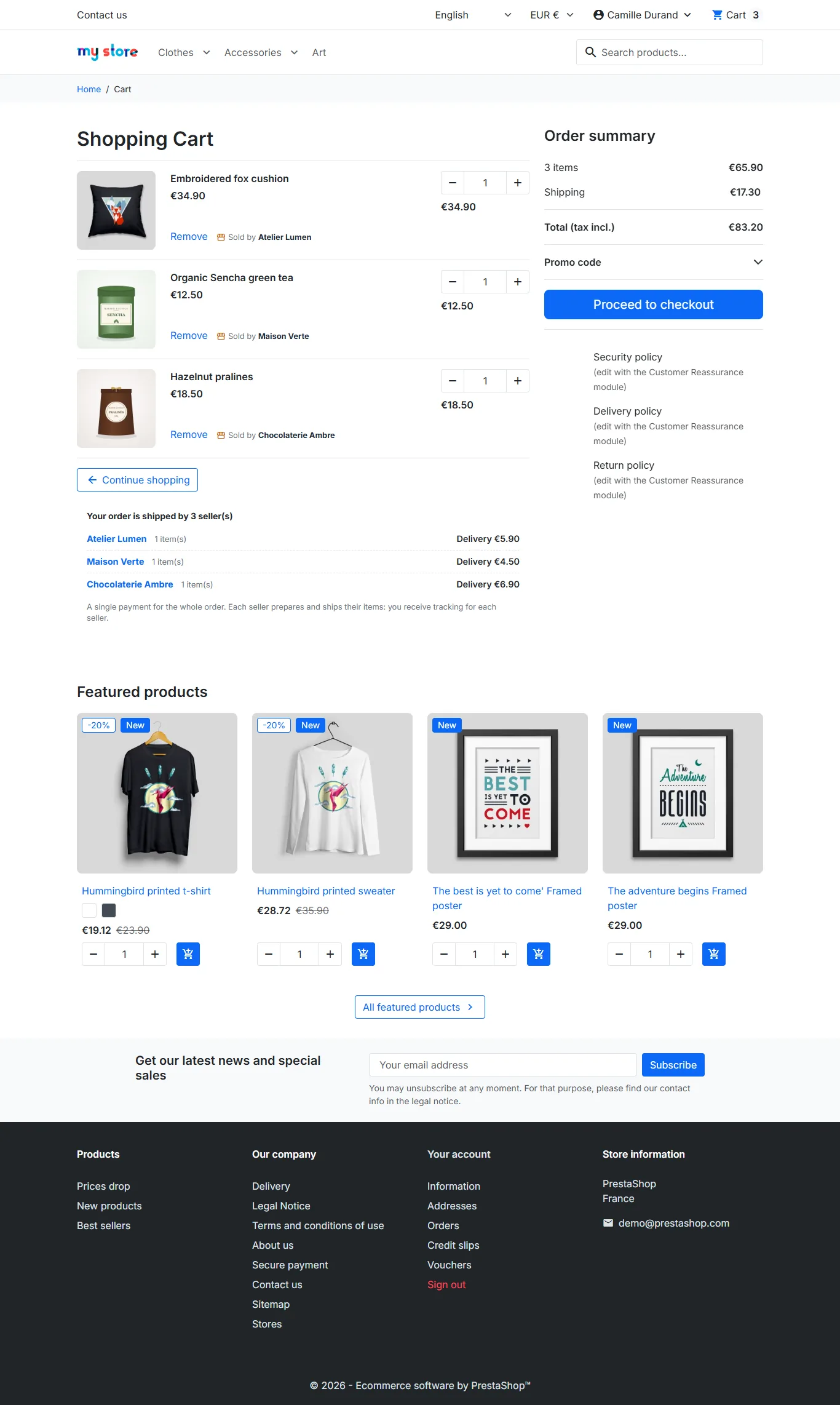
- Costs set by each seller: the “Marketplace” carrier calculates each seller’s costs from their rules. The cart shows the sellers and their costs, and each seller receives their shipping costs with their order.
When a seller confirms shipment, their order moves to the “Shipped” status. The customer receives one email per parcel, with the carrier and the tracking link.
Public pages
- Seller directory with search, at
/marketplace. - Each seller’s shop at
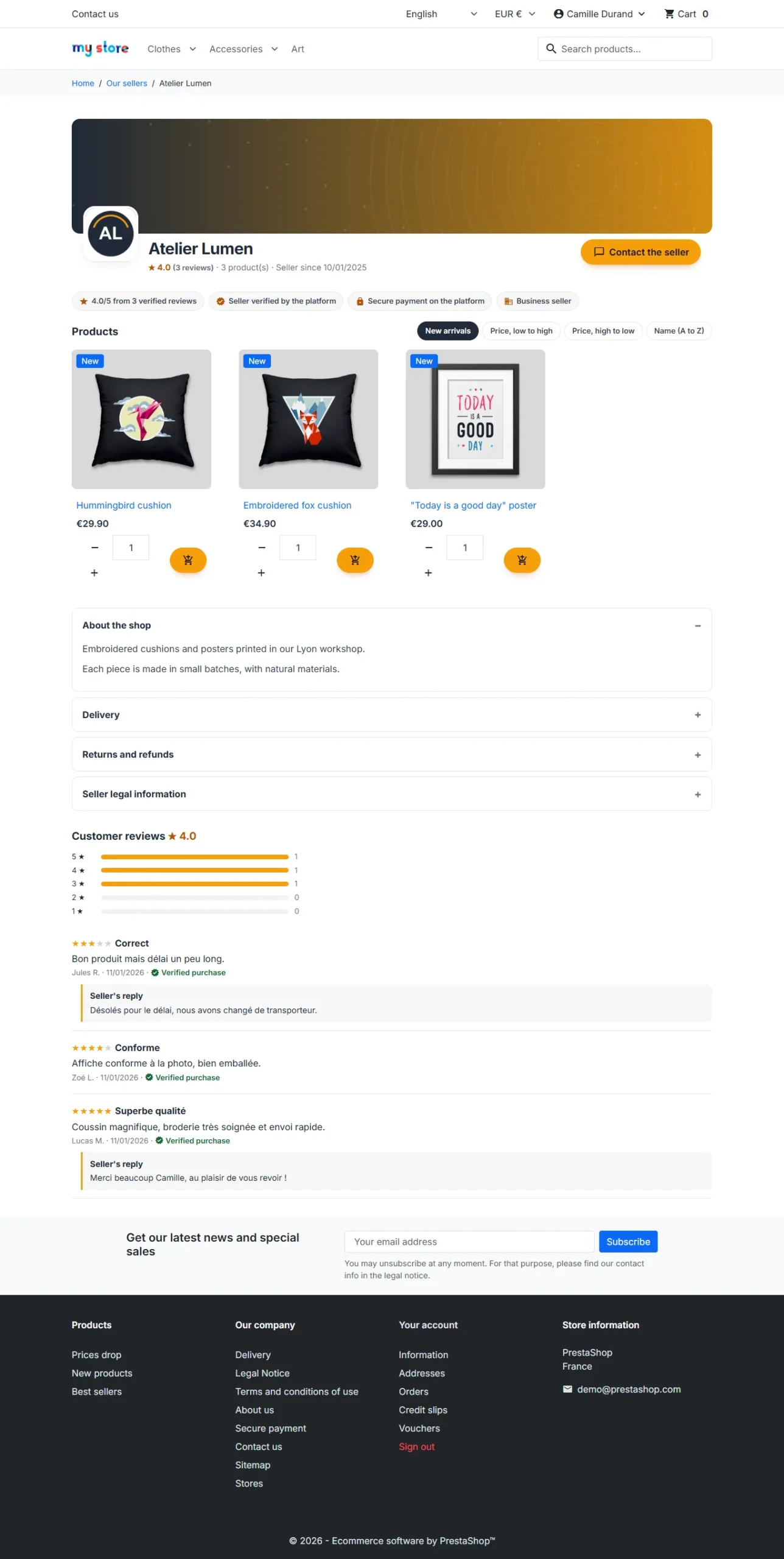
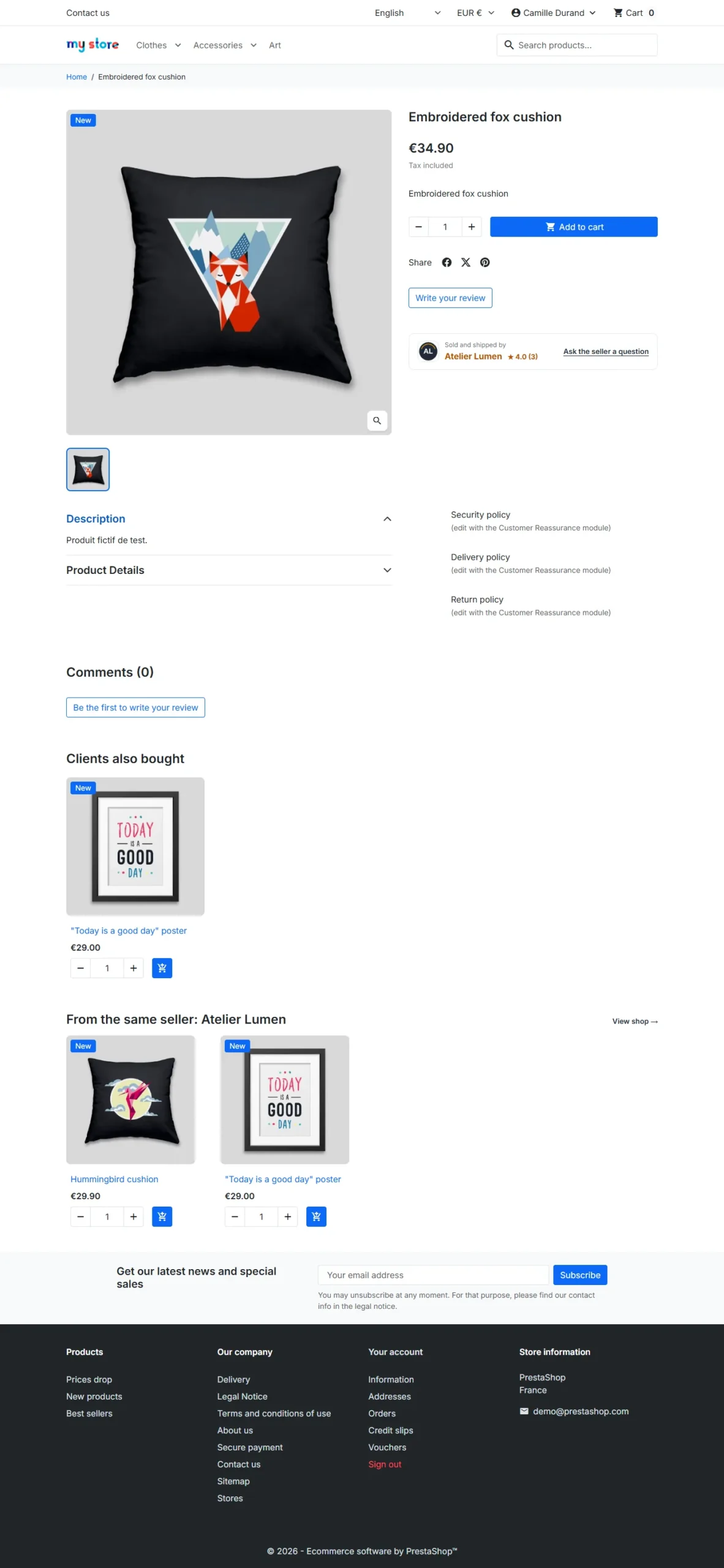
/marketplace/shop-name: banner, trust badges, products with sorting and pagination, verified reviews with seller replies, rating breakdown, policies and DSA legal information. - Product page: “Sold and shipped by” block with the seller’s rating and a link to write to them, and a “From the same seller” block.
- Cart: “Sold by” on each line and a summary of the sellers.
Buyer area and messaging
In My account, buyers find their orders grouped by seller, with the steps, the parcels and their tracking link. They can write to the seller before or after buying, report a problem or request a return, then leave a review.
Each new message triggers an email to the recipient. A seller can only write to a customer who has ordered from them or contacted them.
Reviews, disputes and plans
- Verified reviews: one review per order, only possible after shipment. Moderation in Marketplace > Seller reviews, public reply from the seller.
- Disputes and returns: conversation between customer and seller, a single closure with a refund capped at the seller order amount and charged to the seller’s balance, and an email to both parties.
- Seller plans: product quota, commission rate and access to statistics, managed in Marketplace > Seller plans.
EU compliance
- DSA: the business seller’s identity is shown on their shop.
- P2B: seller terms published and accepted at sign-up, decisions with reasons, change notice sent to all sellers with the notice period you choose.
- Commission invoices: generated per month in Marketplace > Commission invoices, with a breakdown excluding tax, VAT and including tax, order details and continuous numbering, written in the seller’s language.
- Personal data: the seller only receives the data needed for delivery, and only for a paid order.
Emails
16 HTML and text templates: registration received, seller approved, application rejected, account suspended (with reason), change of terms, new order, order shipped, order cancelled, new message, dispute opened, dispute closed, product approved, product rejected, payout sent, payout rejected and platform alert. Each one is sent in its recipient’s language. Customise them in International > Translations > Email translations.
Languages
The module is translated into French, English, Spanish, German, Italian, Dutch, Polish and Portuguese. To change a text, open International > Translations, choose Installed modules translations, then DataFirefly Marketplace and the language.
Uninstall
By default, uninstalling removes the menus and settings but keeps sellers, balances and history. To erase everything, enable Delete all data on uninstall in the settings before uninstalling.
FAQ and troubleshooting
A seller cannot request a payout
Check that their available amount exceeds the minimum payout, that their IBAN has been verified and that no dispute is open on their recent sales.
Sales stay “in holding period”
They become available for payout after the holding period or as soon as they are delivered. Shorten the period, or choose a status in “Also release funds at status”.
A seller product does not appear in the shop
It is probably waiting for moderation, or its seller is suspended or awaiting approval. Check Marketplace > Seller products.
Seller shipping costs are not shown
Choose “Costs set by each seller” in the Delivery section: the “Marketplace” carrier is then enabled. Check that it is available for the customer’s zone.
After an update, a page has not changed
Clear the cache from Advanced Parameters > Performance, then reload the page.