
dfbackup — PrestaShop 1.7.8, 8 & 9 Backup: complete guide
Installation, schedule and cron task, S3/FTP/Dropbox/OneDrive destinations, AES-256-GCM encryption, guided restore with undo and update from 1.0.0 for the dfbackup module.
Overview
DataFirefly Backup (dfbackup) saves the database and the files of your PrestaShop shop on a schedule, sends the archives to one or several destinations (this server, Amazon S3 or an S3-compatible service, FTP/FTPS, Dropbox, Microsoft OneDrive, another PrestaShop), encrypts them if you wish, and restores them through a guided wizard with an undo button. It works on PrestaShop 1.7.8, 8 and 9 (PHP 7.2 to 8.5), without mysqldump, shell_exec or SDK.
The module adds Advanced Parameters > DataFirefly Backup with three pages: Dashboard, Backups & restore and Settings.
Installation and update
- In Modules > Module Manager, click Upload a module and select
dfbackup-2.1.0.zip. - On first opening, the setup assistant guides you in five steps: contents, destinations, schedule, protection (encryption and e-mail), first backup.
Updating from 2.0.0: upload the 2.1.0 zip over the installed module. Settings, history and archives are kept; Microsoft OneDrive appears in the destinations.
Updating from 1.0.0: upload the 2.1.0 zip over the installed module. Your settings and your whole history are kept, the 1.0.0 archives stay restorable, credentials stored in clear by 1.0.0 are encrypted, and the archives are moved to the new protected folder.
Version 1.0.0 did not really encrypt the archives when the passphrase was typed in its form. After the update, the dashboard asks you to set a passphrase; archives that 1.0.0 had marked as encrypted but written in clear are labelled as such in the history.
Dashboard
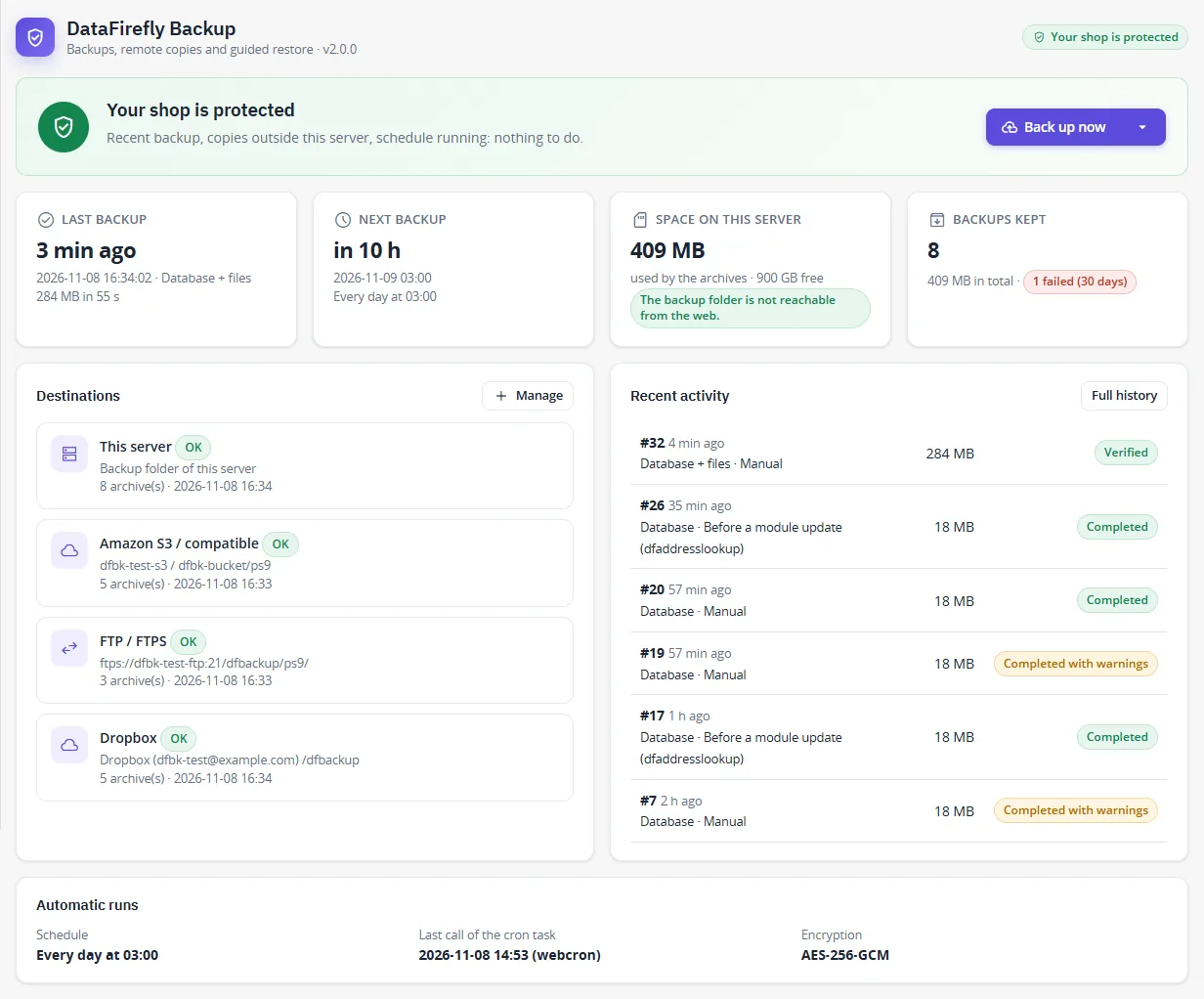
The top banner tells you whether the shop is protected and, if not, what to do: no recent backup, schedule off, cron task not calling, copies only on this server, destination in error, backup folder reachable from the web. Below: last and next backup, space used on this server, destinations with their last status, recent activity.
Back up now starts a full backup; the arrow offers Database only and Files only. The progress is shown step by step.

You can leave the page during a backup: the work continues at the next call of the cron task. Keeping the page open makes it faster.
How a backup runs
A backup is cut into short slices (20 seconds by default, below the PHP time limit). Each slice writes a checkpoint: if PHP is stopped (time limit, server restart), the next slice resumes from the last checkpoint instead of starting again. Slices are run by your open back-office page, by the cron task or by the command line.
- Database: every table using the shop prefix, plus views and triggers, read in batches (memory stays bounded). Tables listed in Tables whose data is not saved keep their structure.
- Files: the whole shop folder except caches, logs and the exclusions you set. Symbolic links are not followed: they are listed in the report so you can recreate them.
- Archive: a standard
.tar.gzfile, readable with any archive tool (tar xzf), even without the module. A SHA-256 fingerprint is recorded for every archive.
Destinations
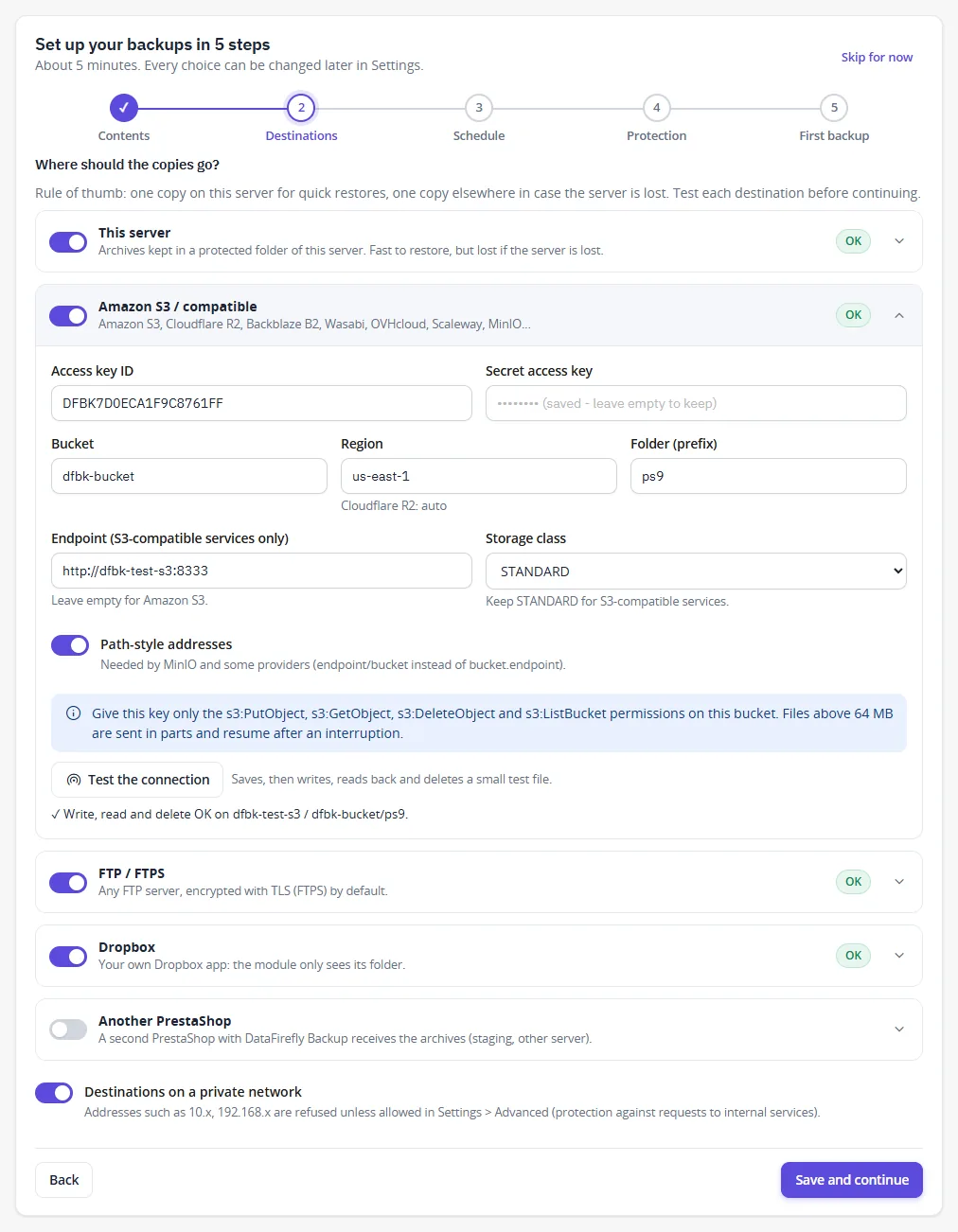
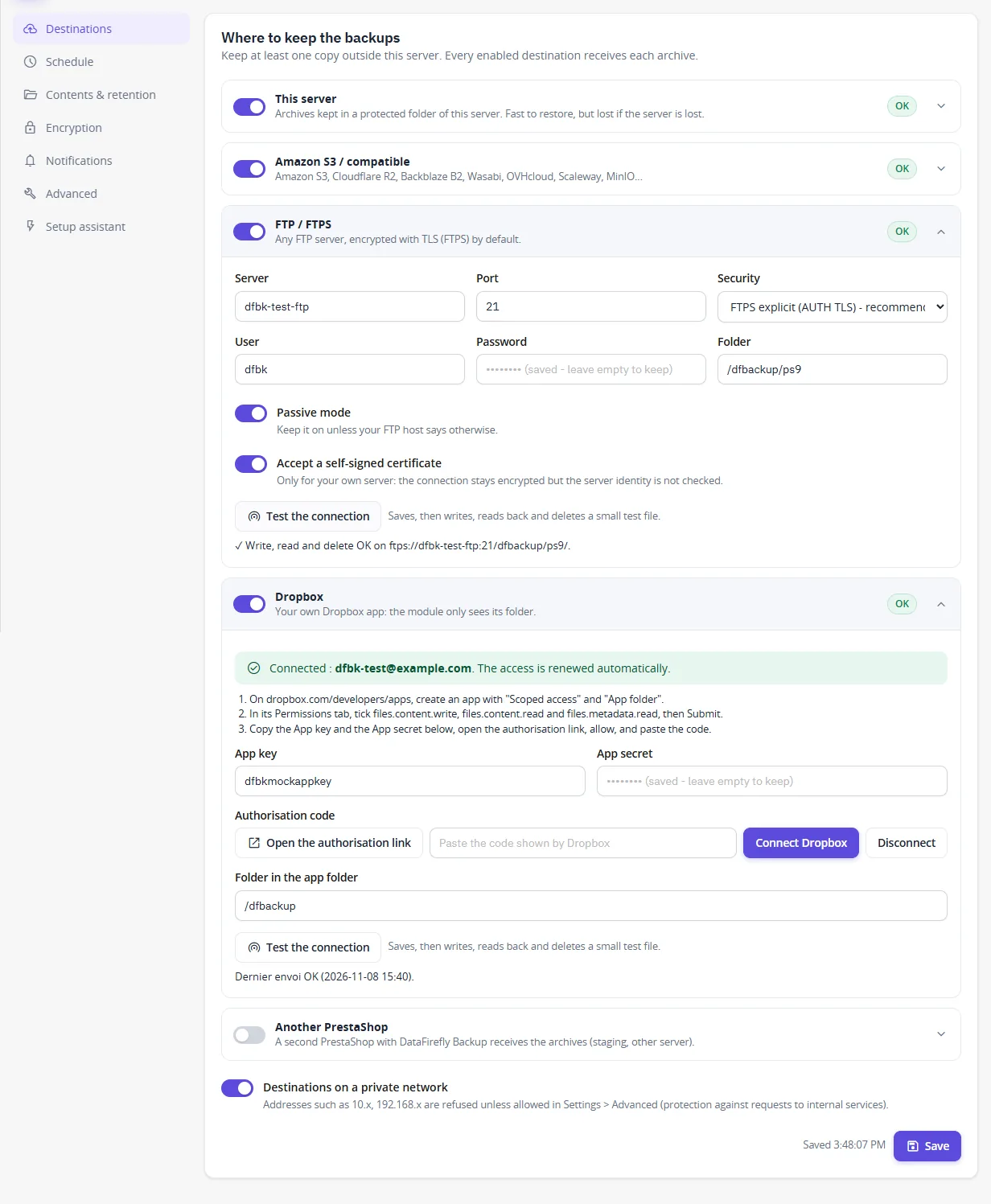
Every enabled destination receives each archive. Keep at least one copy outside this server. Each destination has a Test the connection button that saves the settings, then writes, reads back and deletes a small file; errors are explained (wrong key, wrong region, permission, TLS certificate…).
This server
Archives are kept in a protected folder: outside the website when the hosting allows it, otherwise in var/dfbackup-<random>/ with .htaccess, web.config and index.php protections and unguessable file names. The dashboard checks from your browser that the folder cannot be downloaded. On nginx, add a rule such as location ~ ^/var/dfbackup- { deny all; return 404; }, or set a folder outside the web root in Settings > Advanced.
Amazon S3 and compatible services
Access key ID, secret access key, bucket, region and optional folder. For a compatible service, fill in the endpoint: Cloudflare R2 (https://<account>.r2.cloudflarestorage.com, region auto), Backblaze B2, Wasabi, OVHcloud, Scaleway, MinIO (tick Path-style addresses). Archives above 64 MB are sent in parts and an interrupted transfer resumes. The key only needs s3:PutObject, s3:GetObject, s3:DeleteObject and s3:ListBucket on the bucket.
FTP / FTPS
Server, port, user, password and folder (created if needed). Security: explicit FTPS (AUTH TLS, recommended), implicit FTPS (port 990) or plain FTP. Passive mode by default. The transfer uses cURL, so the PHP ftp extension is not needed; an interrupted upload resumes where it stopped and the final size is checked.
Dropbox
- On dropbox.com/developers/apps, create an app with Scoped access and App folder.
- In its Permissions tab, tick
files.content.write,files.content.readandfiles.metadata.read, then Submit. - Paste the App key and the App secret, click Open the authorisation link, allow, and paste the code shown by Dropbox.
The module keeps a refresh token (encrypted) and renews the short-lived access by itself. Large archives are sent in 8 MB pieces. A long-lived token from version 1.0.0 keeps working until Dropbox rejects it; reconnect to switch to the refresh token.
Microsoft OneDrive
Works with OneDrive personal, Family and Microsoft 365 (work or school). You use your own app registration: no client secret and no redirect address are needed.
- On entra.microsoft.com (or portal.azure.com), open App registrations > New registration. Supported account types: personal accounts and accounts in any organisation (or only yours). Leave the redirect URI empty.
- In Authentication, set Allow public client flows to Yes and save.
- In API permissions, add the Microsoft Graph delegated permissions
Files.ReadWrite.AppFolder(orFiles.ReadWritefor A folder of my OneDrive),User.Readandoffline_access. - In the module, paste the Application (client) ID, keep Accounts on
common(orconsumersfor personal accounts only, or your tenant ID), choose the access and click Connect OneDrive. - Open the Microsoft page, type the code shown by the module and sign in with the account that owns the OneDrive. The page confirms the connection by itself.
With App folder only (recommended), the module only reaches Apps/<name of your app> in OneDrive. Some work accounts refuse the app folder: choose A folder of my OneDrive and connect again. The refresh token is stored encrypted and renewed automatically. Archives above 4 MB are sent in 10 MB parts and resume after an interruption.
Microsoft ends the access when it is not used for 90 days, when the password changes or when the access is revoked. A regular schedule keeps it alive; otherwise click Connect again.
Another PrestaShop
A second shop with DataFirefly Backup can receive the archives (staging, other server). On the receiving shop, tick Receive archives from another shop and generate the secret; on the sending shop, enter the address of the receiving shop and this secret. Requests are signed, time-stamped and cannot be replayed; the receiver checks the size and the SHA-256 of each archive. Received archives appear in the history of the receiving shop; they are never restored automatically.
Addresses on a private network (10.x, 172.16-31.x, 192.168.x) are refused unless you allow them in Settings > Advanced; loopback and cloud metadata addresses are always refused.
Schedule and cron task
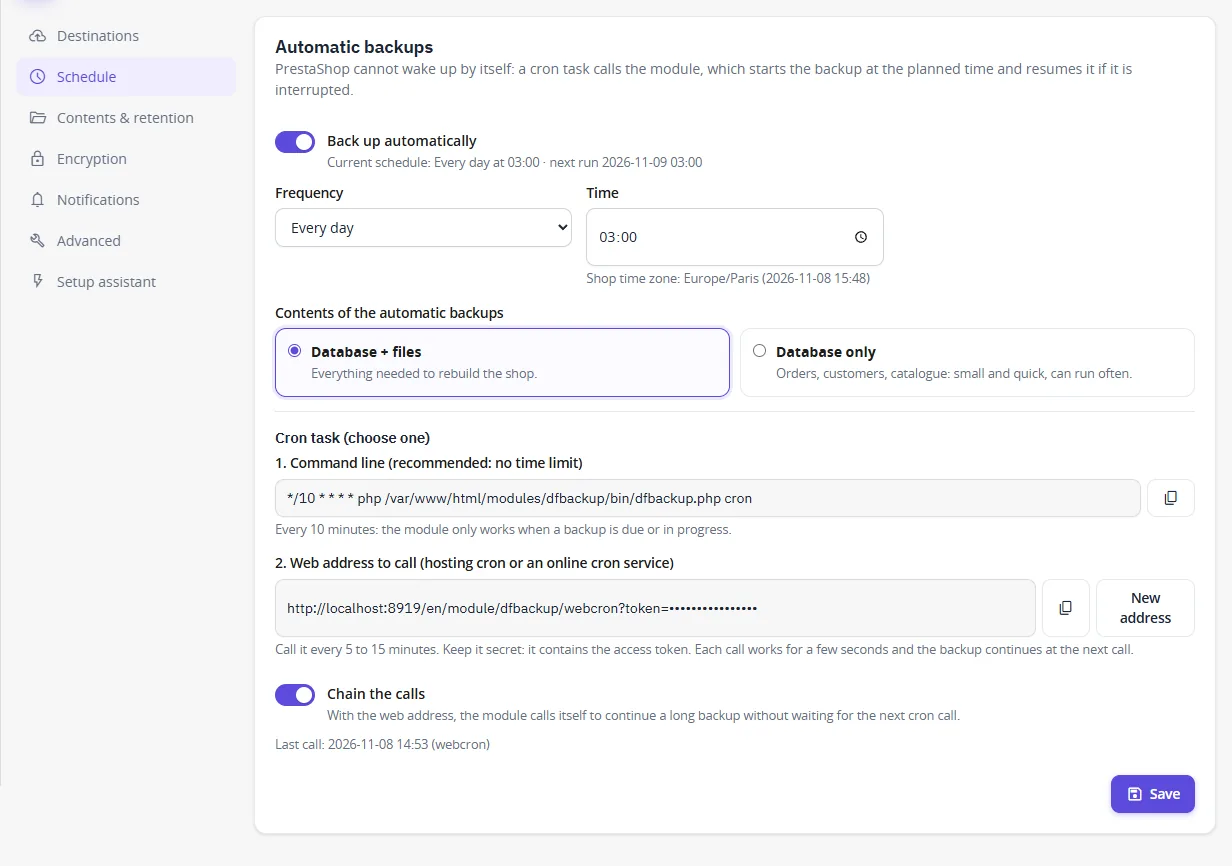
Choose the frequency (several times a day, daily, weekly, monthly), the time and the contents (database + files, or database only). PrestaShop cannot wake up by itself: create one cron task at your host.
- Command line (recommended, no time limit):
*/10 * * * * php /path/to/shop/modules/dfbackup/bin/dfbackup.php cron - Web address (hosting cron or online cron service), every 5 to 15 minutes. It contains a secret token: keep it private, and generate a new address if it leaked.
The module only works when a backup is due or in progress. A slot missed because the server was down is caught up at the next call (within 24 hours). If the PrestaShop Cron tasks manager module is installed, it also calls DataFirefly Backup every hour. The dashboard warns you when the cron task stops calling.
Contents and retention
Choose to save the database, the files or both. Folders and files not saved: one per line, relative to the shop folder; * matches any name (admin*/autoupgrade); a name without / matches everywhere (node_modules). Tables whose data is not saved: visit statistics and logs by default.
Differential files: between two full backups, only the files changed since the last full backup are saved. Restore the full backup first, then the differential one.
Retention: keep the last N backups and delete those older than X days. The most recent backup, the most recent full backup and protected backups (pin icon in the history) are never deleted; deletion applies to every destination. Safety backups (before a restore or a module update) have their own quota.
Encryption
Archives are encrypted with AES-256-GCM, by 1 MB blocks, each block authenticated: a modified, truncated or reordered archive is refused at restore. The key is derived from your passphrase with PBKDF2-SHA256 (600,000 iterations, random salt per archive).
- Type a passphrase of at least 12 characters twice, add a reminder if you wish (never the passphrase itself).
- Confirm that you stored it outside the shop, then click Save the passphrase and encrypt.
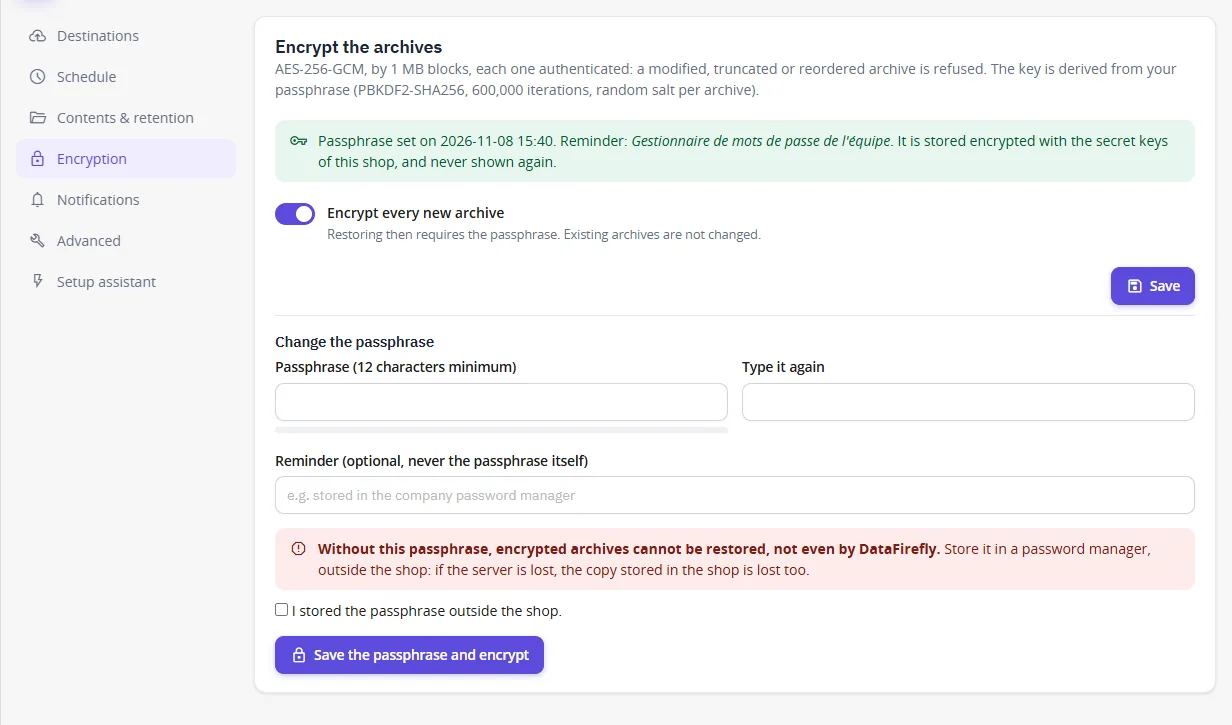
Without the passphrase, encrypted archives cannot be restored, not even by DataFirefly. The copy stored in the shop (encrypted with the shop’s secret keys) is lost with the server: keep it in a password manager. Advanced users can provide it with a DFBACKUP_PASSPHRASE environment variable or constant instead.
Without encryption, archives contain your customers’ data and app/config/parameters.php (database password): enable encryption as soon as a copy leaves this server.
Notifications
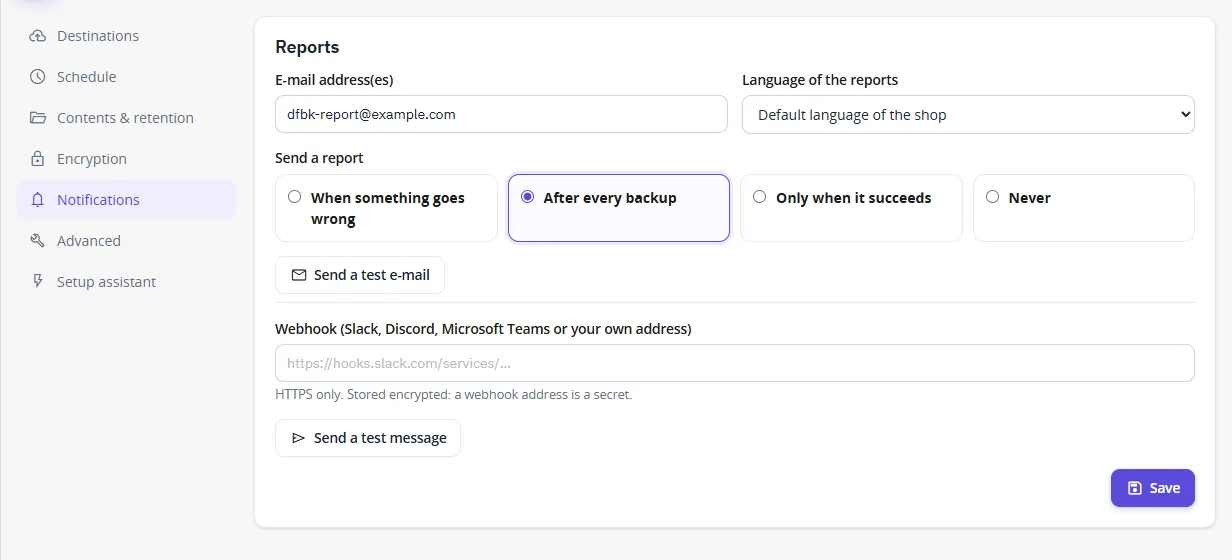
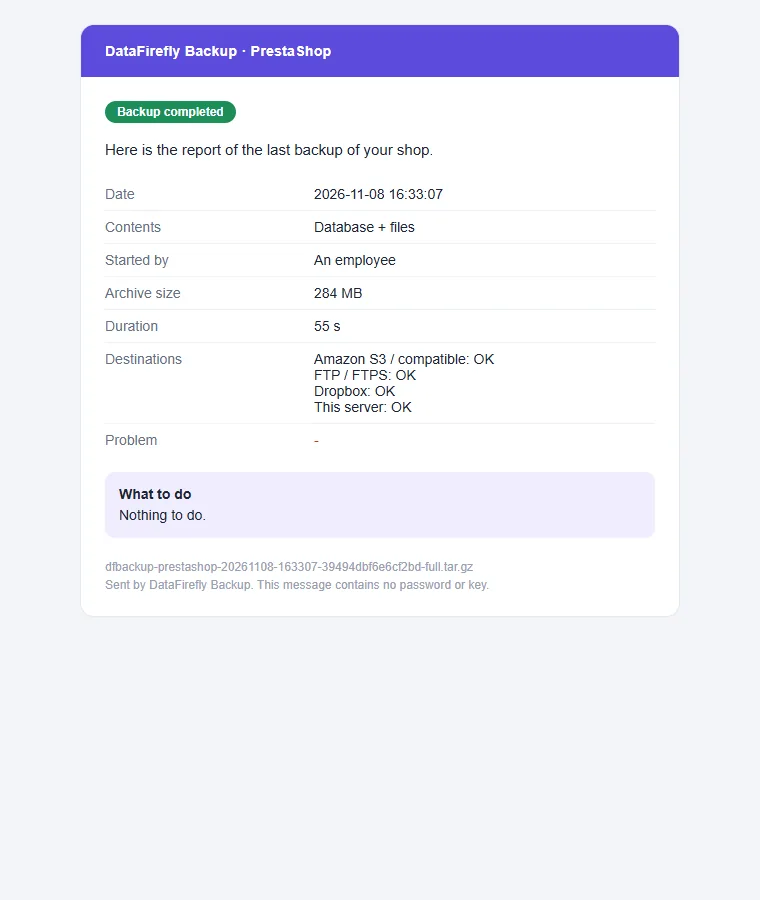
Reports by e-mail (several addresses separated by commas, in the language of your choice) and by webhook (Slack, Discord, Microsoft Teams or your own HTTPS address, stored encrypted). Send a report when something goes wrong, after every backup, only when it succeeds, or never. Reports never contain a password or key, and give the action to take.
Backups & restore page
Filter by status, contents, origin (manual, scheduled, before restore or update, received or imported), destination and period, or search by number, label or error. For each backup: details and log, Verify (reads the whole archive and checks it), Download (local copy), Restore, protect from rotation, delete.
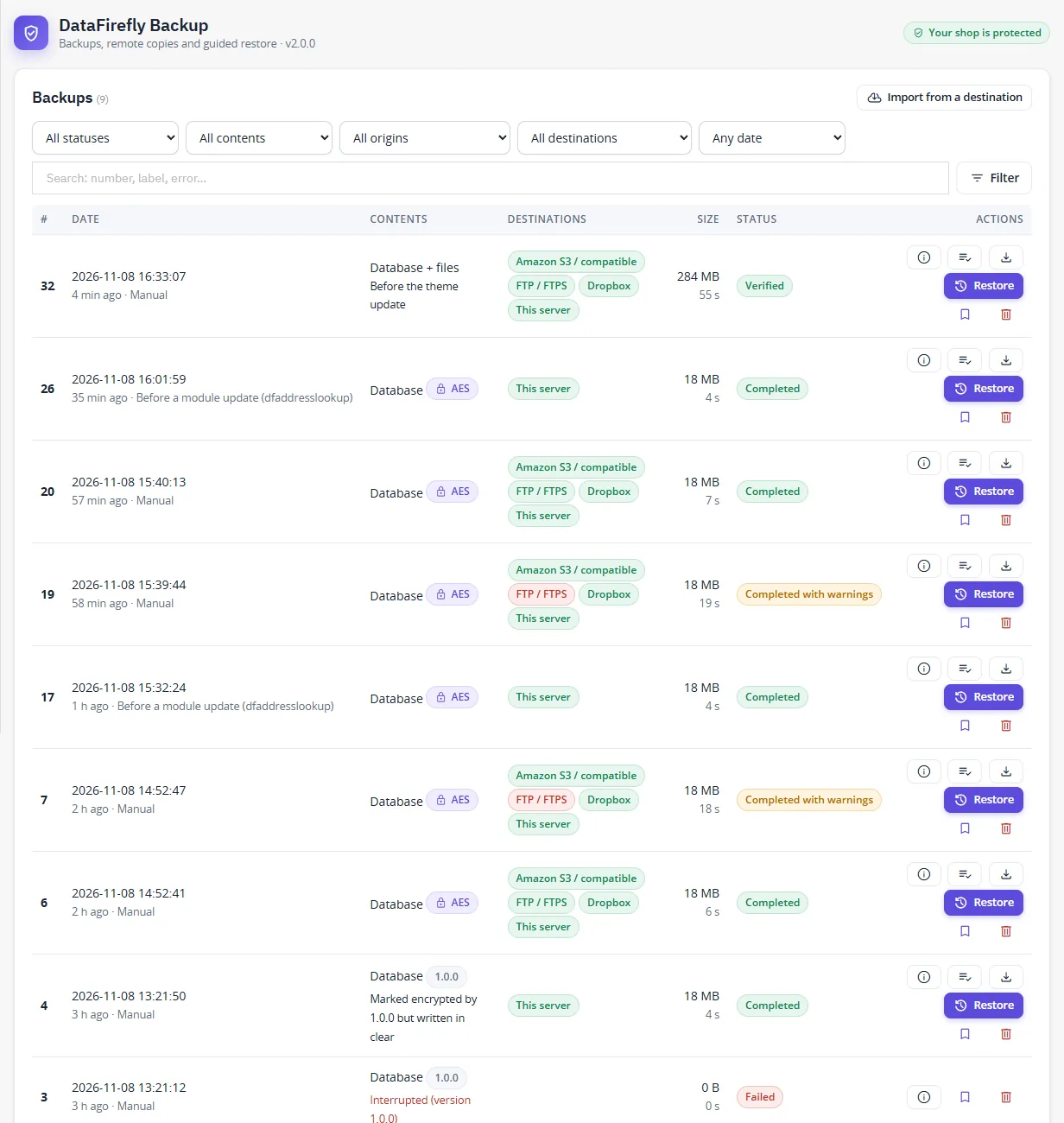
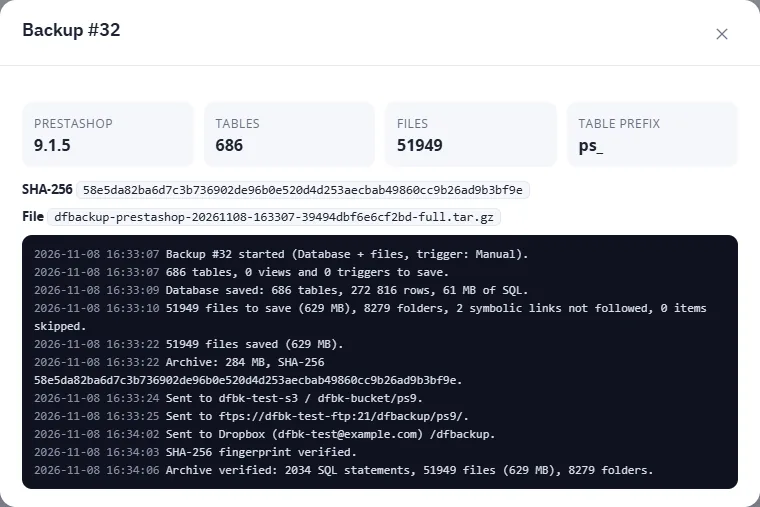
Import from a destination: on a new shop with this module, connect the destination where your archives are and register them to restore them (disaster recovery).
Guided restore
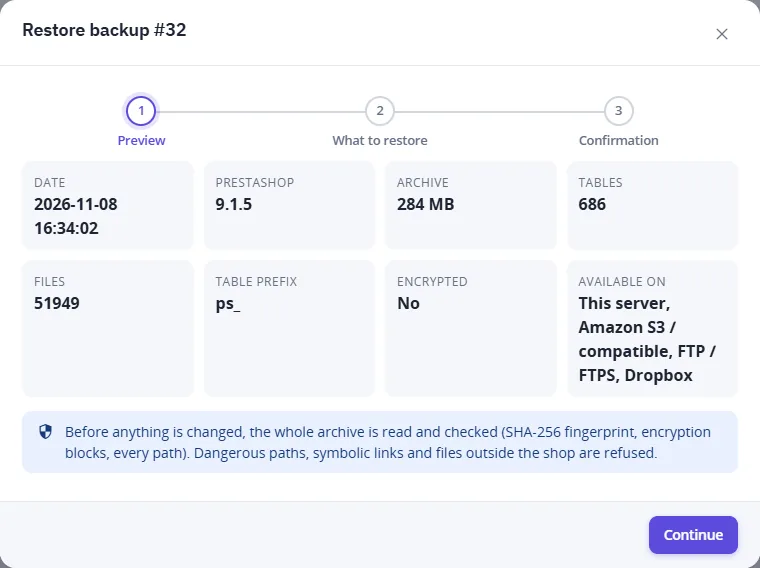
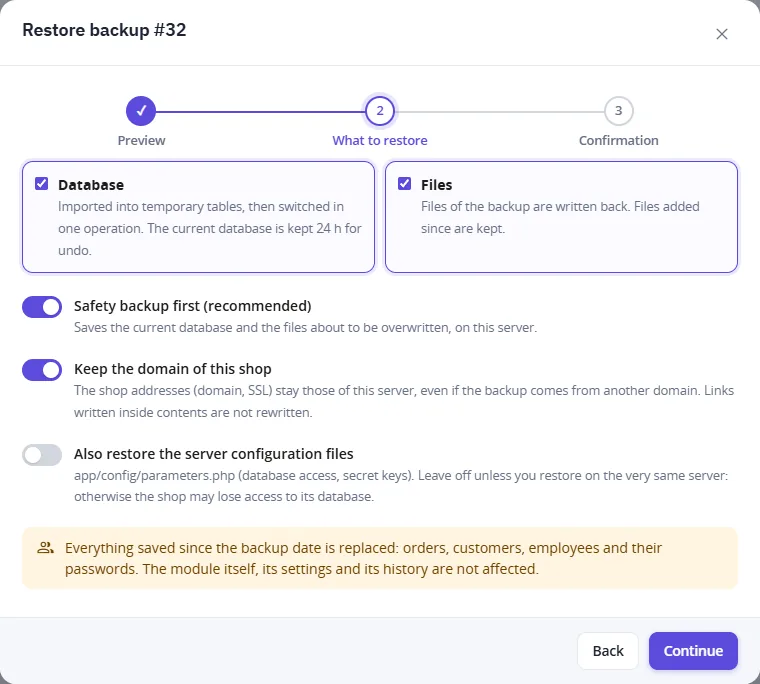
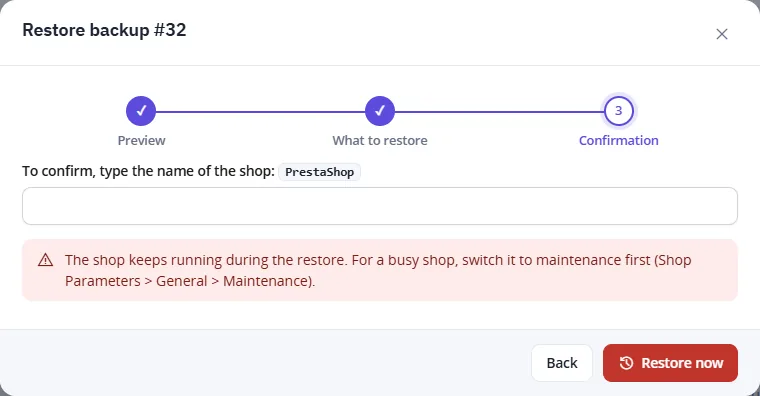
The restore wizard has three steps.
- Preview: date, PrestaShop version, size, number of tables and files, table prefix, encryption, copies available, and warnings (other PrestaShop version, differential backup, disk space).
- What to restore: database, files or both; safety backup first (recommended); keep the domain of this shop; restore the server configuration files (off by default).
- Confirmation: type the shop name; enter the passphrase if the archive is encrypted.
What happens next:
- Before anything is changed, the archive is fetched, its SHA-256 compared with the one recorded at backup time, every encryption block authenticated and the whole archive read. Absolute paths, paths with
.., symbolic and hard links are refused. - The safety backup saves the current database and the files about to be overwritten, on this server.
- The files are written back. Files added since the backup are kept.
app/config/parameters.php,parameters.yml,config/settings.inc.php, the module itself and the backup folder are not overwritten unless you ask for it. - The database is imported into temporary tables, then switched in one operation. The previous tables are kept for 24 hours: Undo puts them back. Tables using foreign keys are replaced in place.
- The settings and the history of DataFirefly Backup stay those of today. With Keep the domain of this shop, the shop addresses stay those of this server (links written inside contents are not rewritten).
Everything saved since the backup date is replaced: orders, customers, employees and their passwords. The shop keeps running during the restore; for a busy shop, switch it to maintenance first. After the switch, the back office may ask you to log in again with the credentials of the backup date.
Permissions
Permissions follow the employee profile on the module tabs: view to see, add to run or verify a backup, edit to change the settings and download, delete to delete; restoring needs edit and delete. Every sensitive action is written to the audit log (employee, IP, date).
Snapshot before a module update
On PrestaShop 8 and 9, a database snapshot is taken just before the update scripts of a module run (databases up to 2 GB), and kept on this server. PrestaShop 1.7.8 has no hook before updates: back up by hand before updating a module.
Advanced settings
- Backup folder: an absolute path, preferably outside the website; existing archives are moved when you change it.
- Work per request: 0 = automatic (20 seconds, below the PHP time limit).
- Memory limit during backups: only raised, never lowered.
- Maintenance mode during the backup: for a perfectly consistent copy of a busy shop.
- Allow destinations on a private network: for your own MinIO, FTP or shop on a local network.
Command line
php modules/dfbackup/bin/dfbackup.php cron            # scheduled backup if due, or continue the running one
php modules/dfbackup/bin/dfbackup.php backup full     # full, db or files
php modules/dfbackup/bin/dfbackup.php status
Troubleshooting
A backup shows “Paused”
Nobody drove it for five minutes (page closed, no cron call). Open the dashboard to continue it, or check the cron task.
“Not enough disk space”
Free some space, exclude large folders in Settings > Contents, delete old backups, or disable This server as a destination (the archive is then deleted after being sent).
“The server stops PHP while saving table …”
Run the backups with the command-line cron task, which has no time limit.
A destination fails
Open Settings > Destinations and click Test the connection: the message gives the cause and the fix. The backup is kept on this server when no remote destination accepted it.
“Integrity check failed”
The archive was modified or damaged (incomplete copy, disk error): nothing was changed on the shop. Use another copy (another destination) or another backup.
Uninstallation
Uninstalling deletes the settings and the history. The previous tables kept for Undo after a restore are deleted too. The archives already saved are kept in the backup folder and on the remote destinations.