
Bulk features and combinations: dfbulkfeature documentation
Installation, permissions, bulk operations on features and combinations, preview, undo, catalog page and troubleshooting.
Installation
Install the module from Modules > Module Manager > Upload a module by uploading the ZIP file. The same ZIP works on PrestaShop 8.0 to 9.x.
On installation, the module creates its history table, registers the actionAdminControllerSetMedia hook and adds the Bulk features tab under Catalog > Attributes & Features, next to the Attributes and Features tabs.
Upgrading from a previous version
Upload the new ZIP the same way. PrestaShop detects the installed version and runs the upgrade scripts: creation of the history table, the catalog tab and the permissions. Your settings are kept.
If your host uses a PHP cache (OPcache), the upgrade scripts clear it automatically. If something behaves unexpectedly right after an upgrade, also clear the PrestaShop cache from Advanced Parameters > Performance.
Employee permissions
The module relies on the PrestaShop permissions of each profile:
- Operations from the product list require the Edit permission on Products.
- The features part of the catalog page requires permissions on Features (view, edit, add, delete depending on the action).
- The attributes part requires permissions on Attributes. Deleting or merging attribute values also requires Edit on Products, since combinations are affected.
PrestaShop 8 does not run a module’s hooks for a profile that lacks the right to view that module. On installation, this right is granted automatically to the profiles that can edit products. If you create a profile later, give it the “View” right on the module in Advanced Parameters > Team > Permissions.
Features on a selection of products
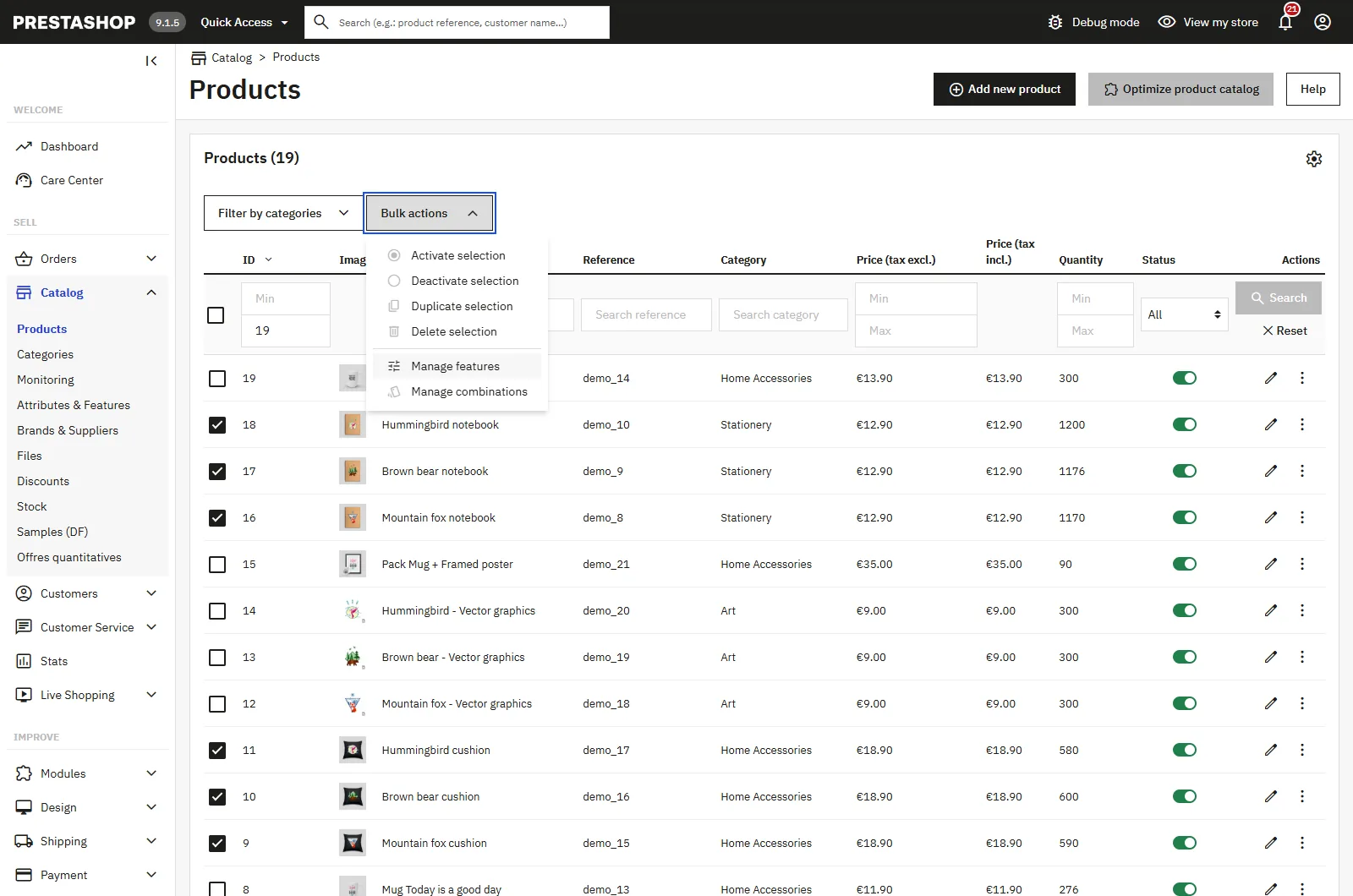
In Catalog > Products, tick the products concerned, open Bulk actions and then Manage features. The modal shows the list of features with a search field on the left, and the operation settings on the right. The number shown next to a feature or a value tells you how many products in the selection already use it.
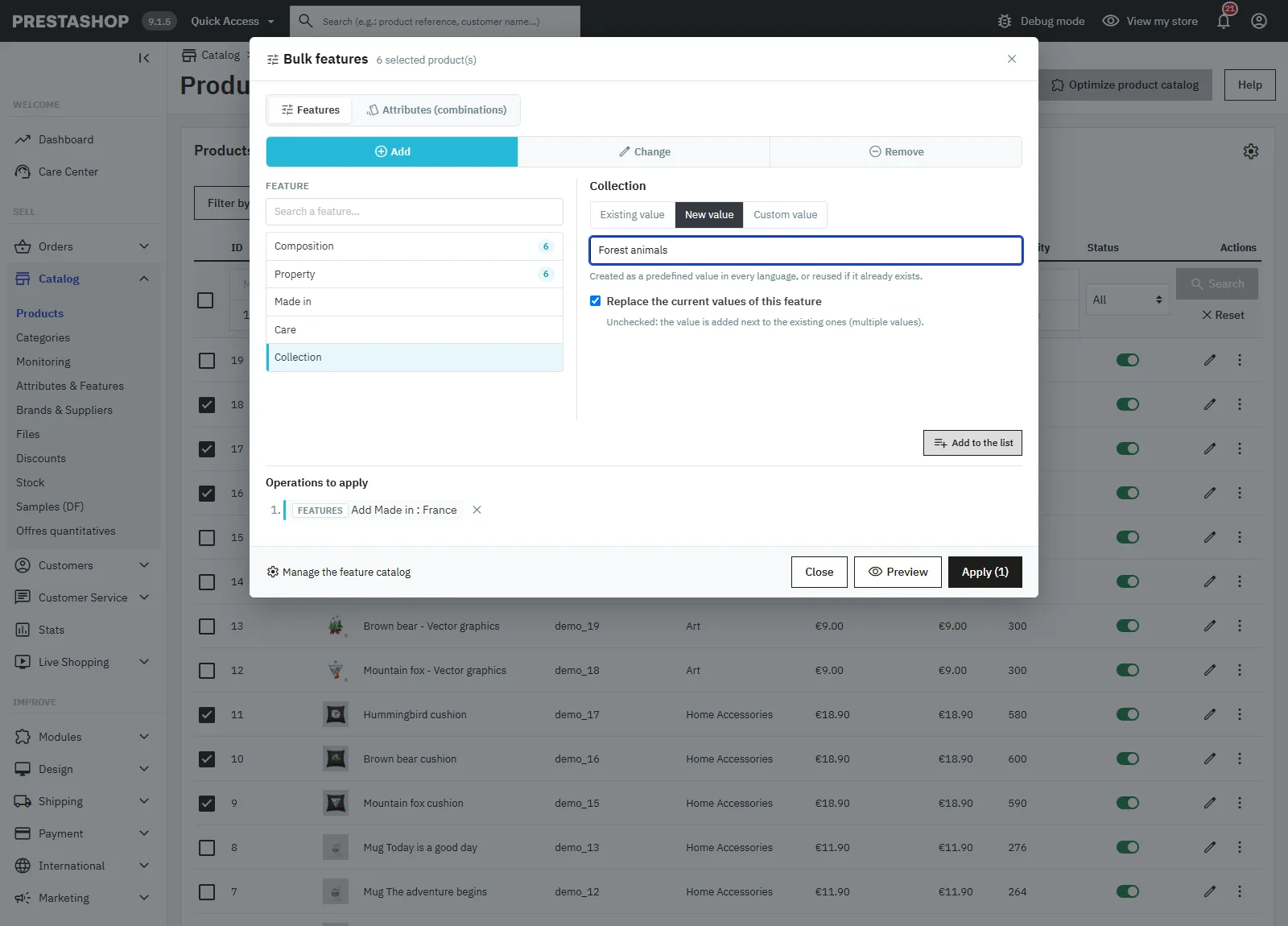
Add
Choose the feature, then the value type:
- Existing value: a predefined value of the feature.
- New value: the text entered becomes a predefined value, saved in every language. If a value with this name already exists (case-insensitive), it is reused.
- Custom value: a text specific to each product, as on the product page.
The Replace the current values of this feature box is ticked by default. When unticked, the value is added next to the existing values: PrestaShop 8 and 9 accept several values of the same feature on a product.
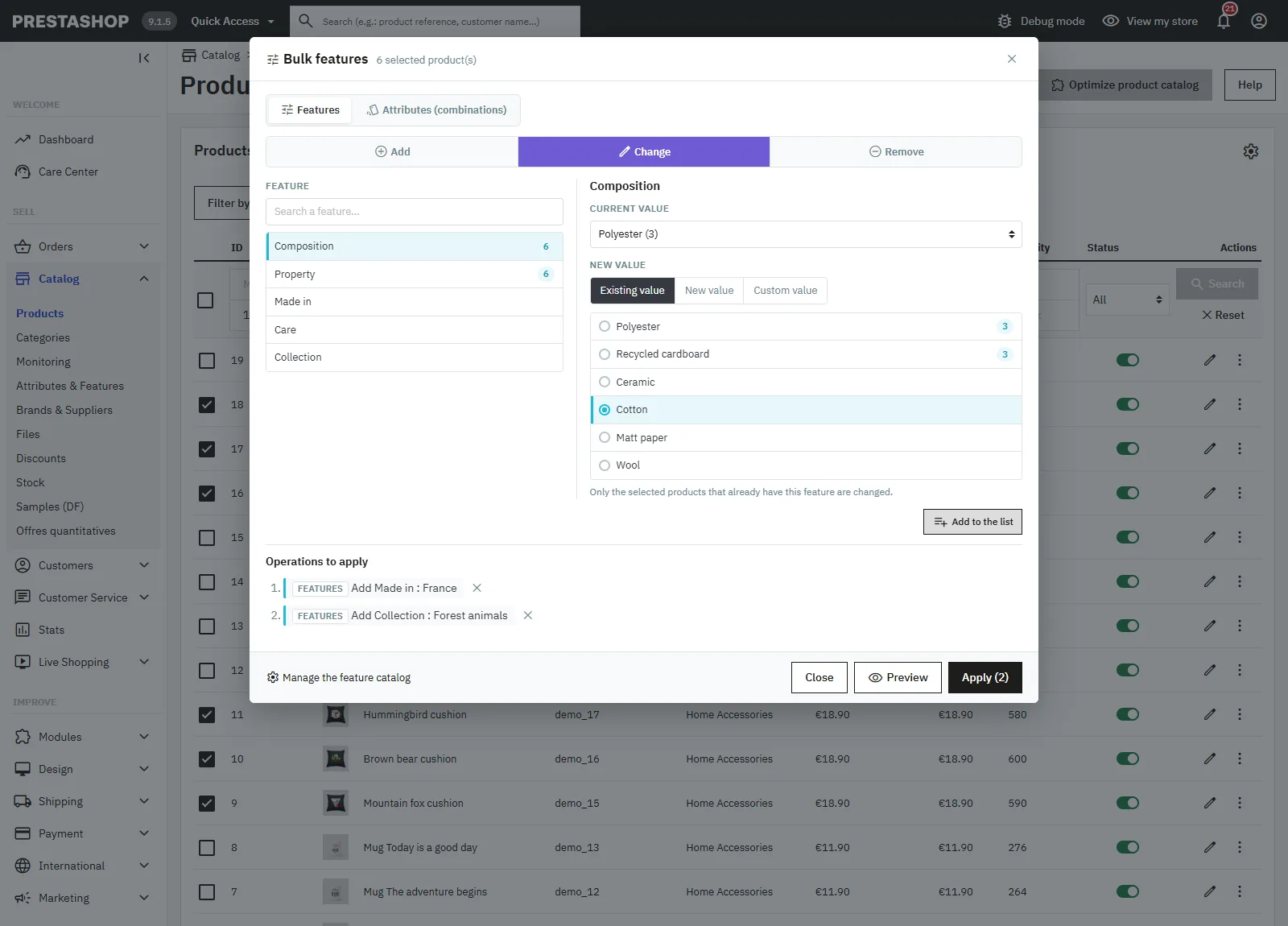
Change
Choose the current value (or “Any value”) and the new value. Only the selected products that already have this feature are changed, the others are counted as not concerned.
Remove
Remove a specific value, all values of a feature, or choose All features at the top of the list to clear the selected products completely. Custom values no longer used by any product are deleted from the database.
Combinations on a selection of products
Open Bulk actions > Manage combinations, or switch to Attributes (combinations) at the top of the modal. The list on the left then shows the attribute groups.
Adding combinations
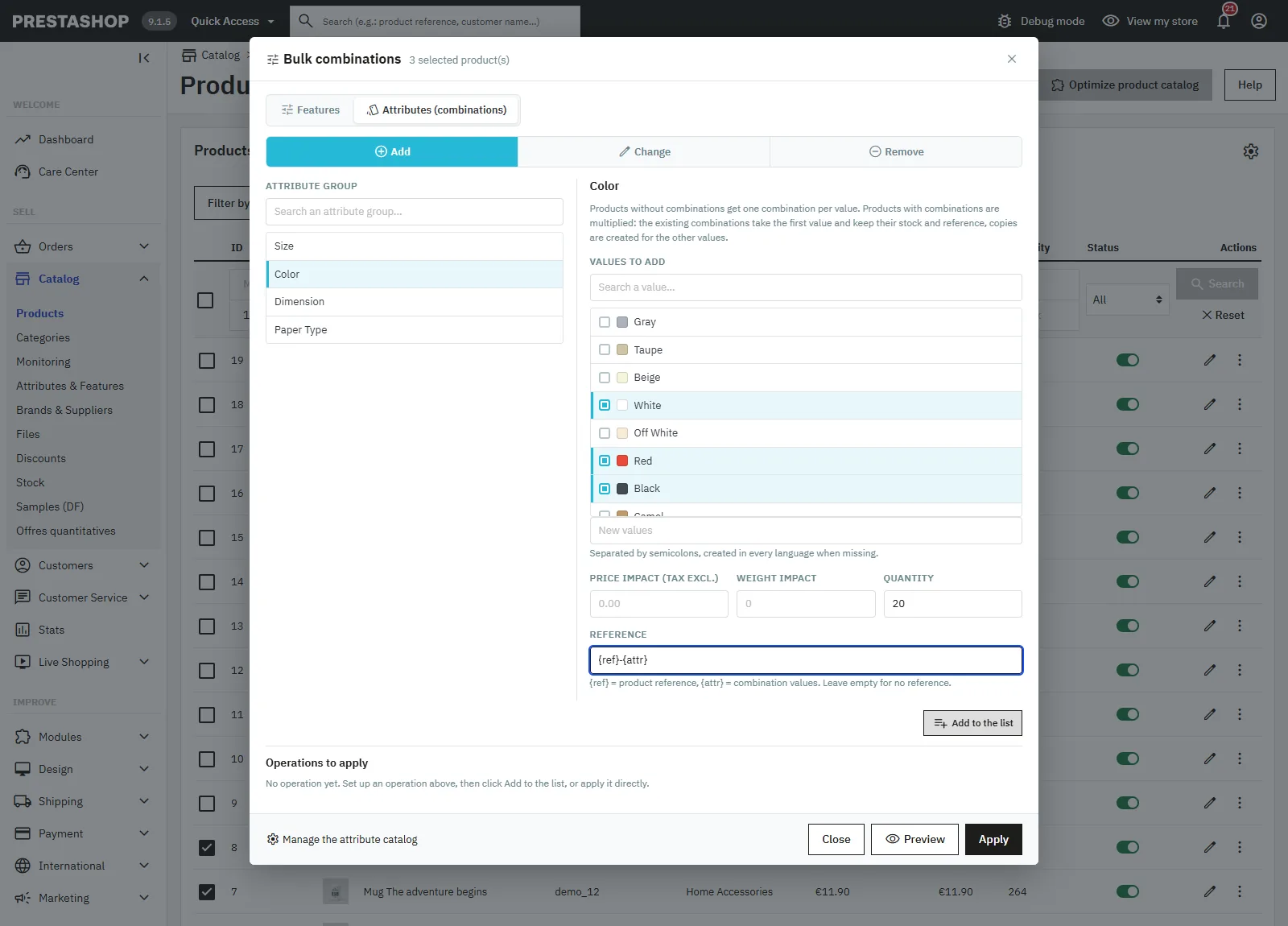
Choose a group, tick one or more values, and if needed enter new values separated by semicolons: they are created in the group, in every language. The module then applies the rules of the PrestaShop generator, product by product:
- A product without combinations gets one combination per value.
- A product with combinations on another group is multiplied. Example: a t-shirt exists in Red and Blue, you add Size S and M. The Red and Blue combinations become Red-S and Blue-S and keep their stock and reference, then Red-M and Blue-M are created.
- A product with combinations on this group already only gets the missing values, combined with its other attributes.
The operation fields apply to the created combinations:
- Price impact (tax excl.) and Weight impact: comma or dot accepted.
- Quantity: starting stock of each new combination.
- Reference: leave empty to set none, or use a pattern.
{ref}is replaced by the product reference,{attr}by the combination values.{ref}-{attr}gives for exampleTSHIRT01-red-m.
Packs and virtual products cannot have combinations in PrestaShop 8.1 and 9. They are skipped and counted separately in the preview and the result.
Changing an attribute value
Choose the current value, then the new value, existing or to be created. Each combination with the current value switches to the new one and keeps its stock, prices and images. If the product already has the combination that would result, the combination is left as is and counted as skipped.
Remove
- A value: the combinations having this value are deleted.
- All values (remove the group): the group is removed from the combinations. Combinations that become identical are merged: the oldest is kept and receives the stock of the others. A combination left with no attribute is deleted.
- All combinations, at the top of the list: deletes every combination of the selected products, which become simple products again.
After each operation, the module sets a default combination if needed, updates the product type and recalculates the product’s overall stock from its combinations, as PrestaShop does.
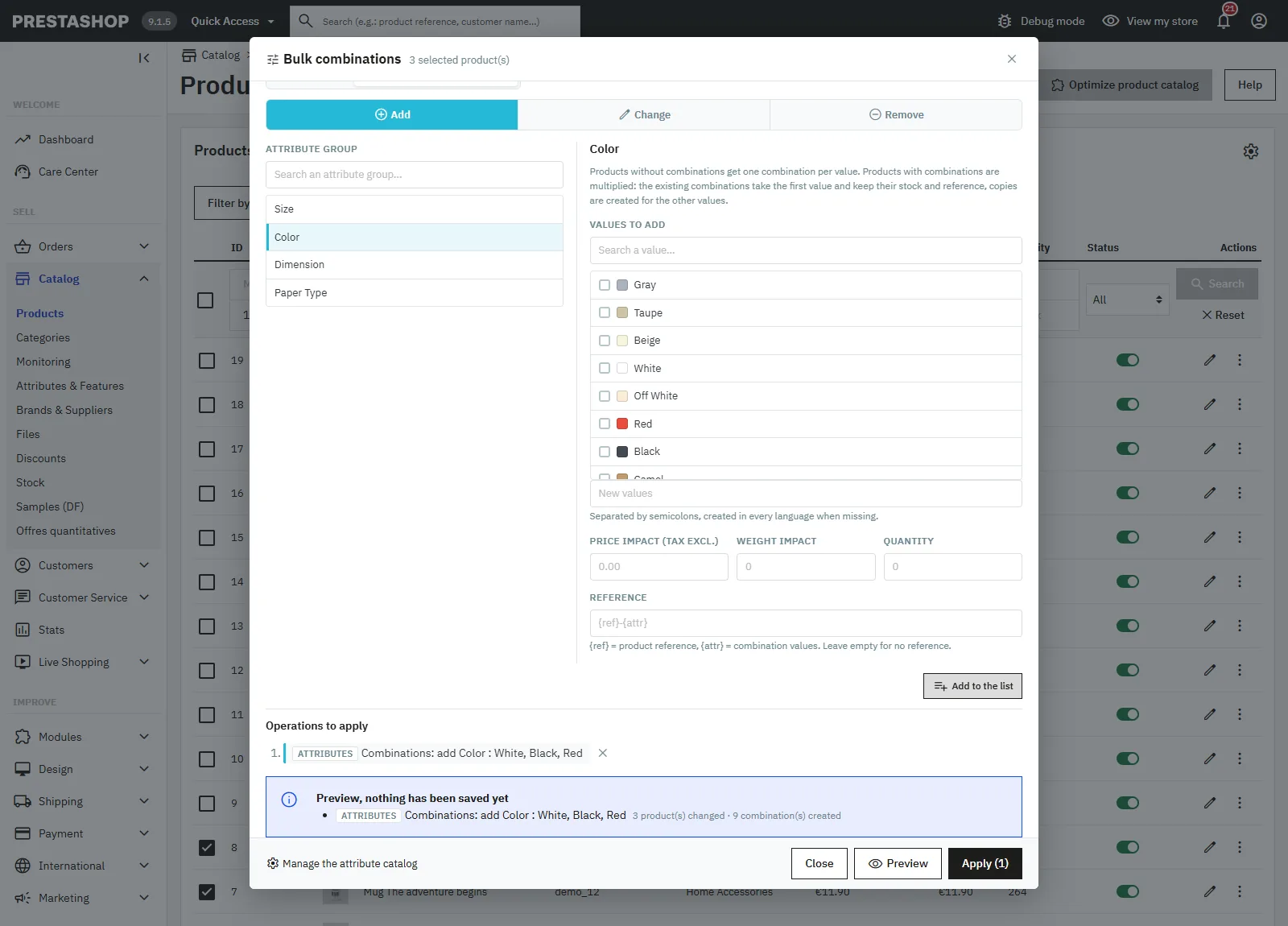
Operation list, preview and apply
The Add to the list button queues the operation below the modal. You can set up several, features and combinations mixed, then apply them in one go. They run in the order of the list. If the list is empty, Apply runs the operation currently being set up directly.
The Preview button calculates everything without saving anything. For each operation, it shows the number of products changed, already up to date or not concerned and, for combinations, the number of combinations created, deleted or skipped because they already exist.
The feature preview relies on a transaction rolled back at the end of the calculation. It requires InnoDB tables, which is the default. On a MyISAM database, the Preview button is disabled for features.
After applying, the result shows the same figures and offers Undo and Reload the list. Products that do not belong to the current shop are skipped and listed.
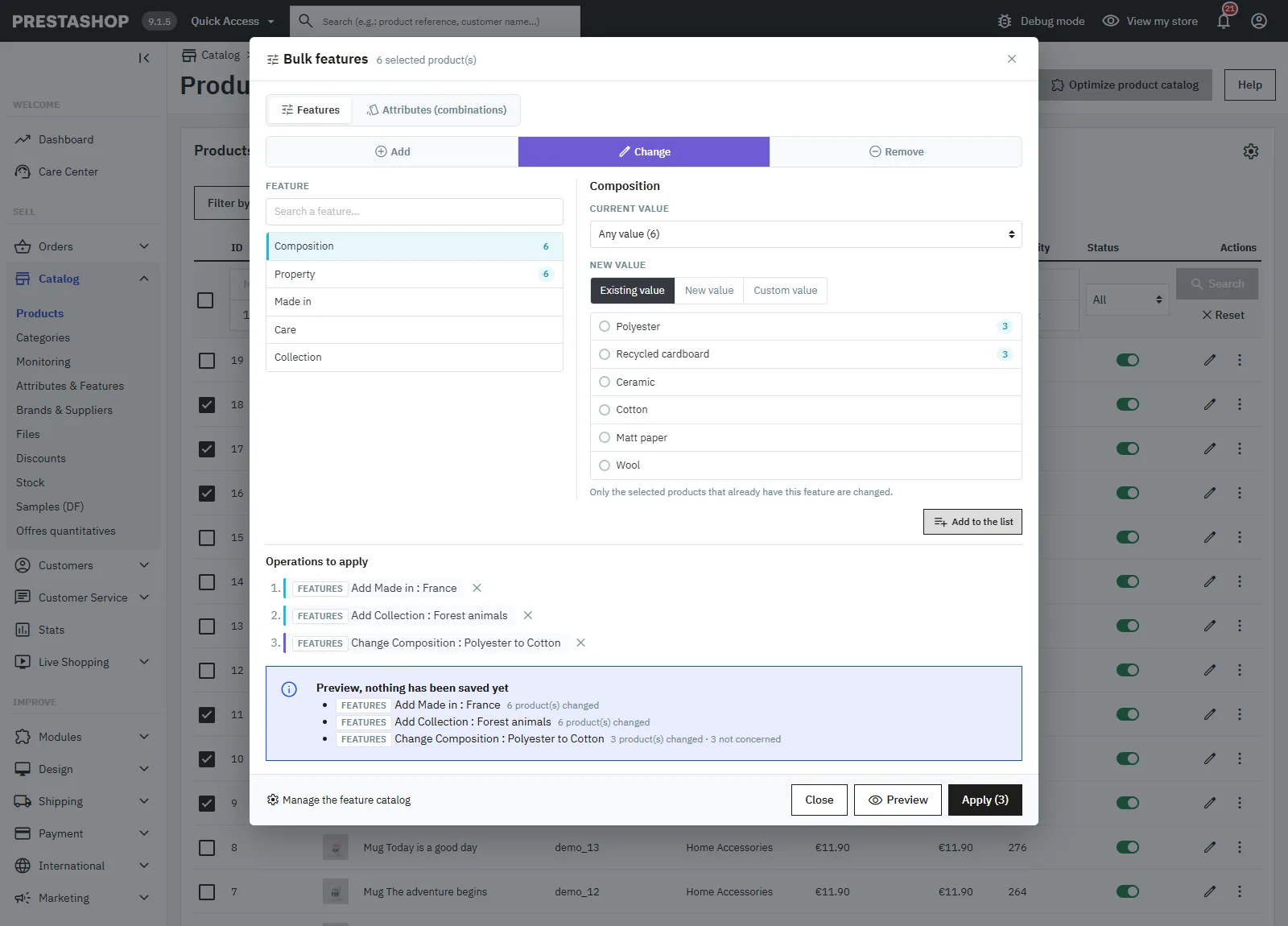
Undoing an operation
Each successful run is recorded in the history, with the state of the products concerned just before. Undo is available from the result in the modal or from the History tab of the Bulk features page.
- For features, the product values are restored exactly, custom values included.
- For combinations, the combinations are restored with their original IDs, stock, specific prices and images. Combinations created by the operation are deleted, including from carts in progress.
Undoing restores the products to their state before the operation. Changes made afterwards on the same products are lost. For a very large batch of combinations (beyond about 8 MB of data to keep), undo is not offered and the result says so.
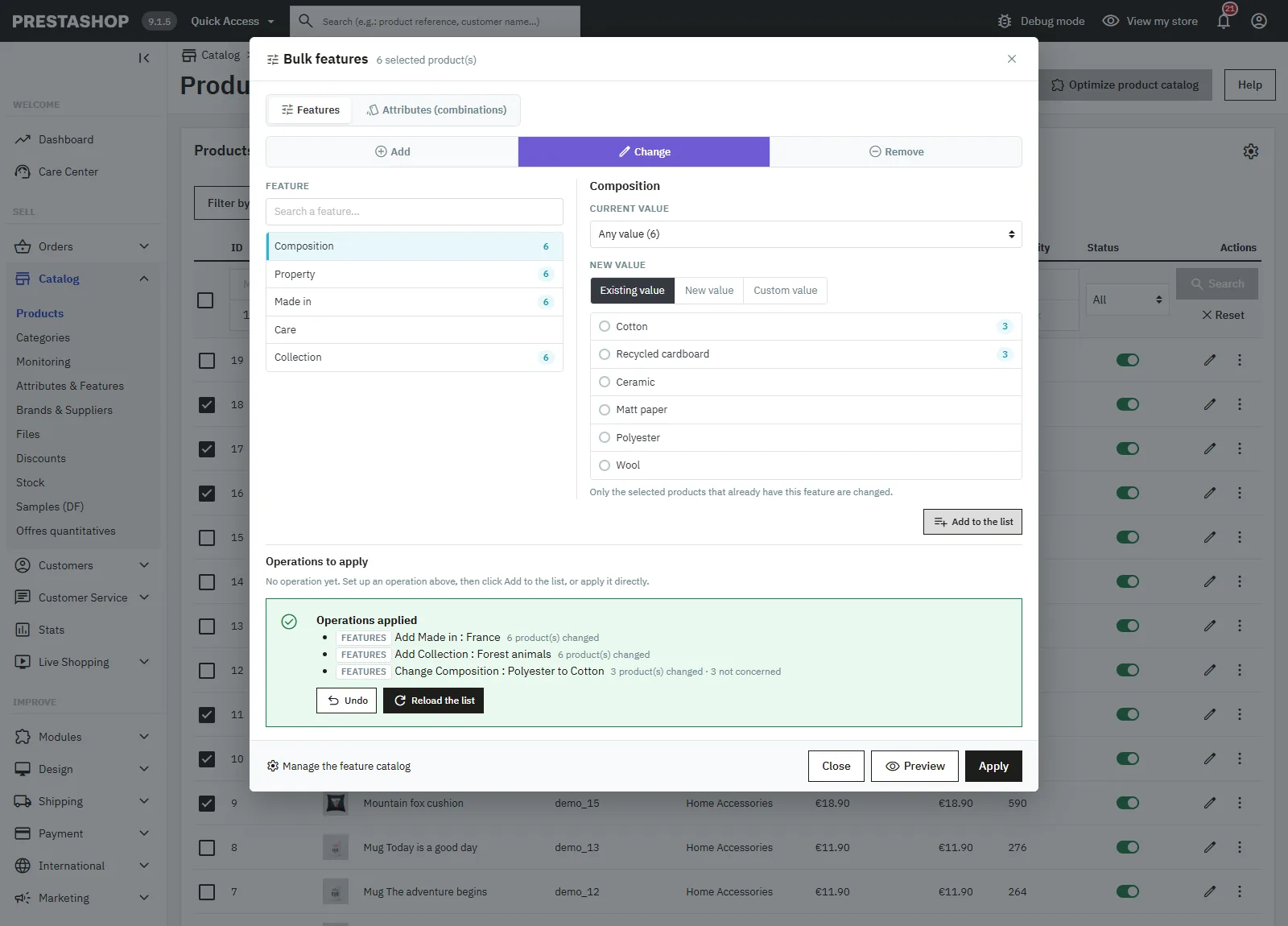
Bulk features page
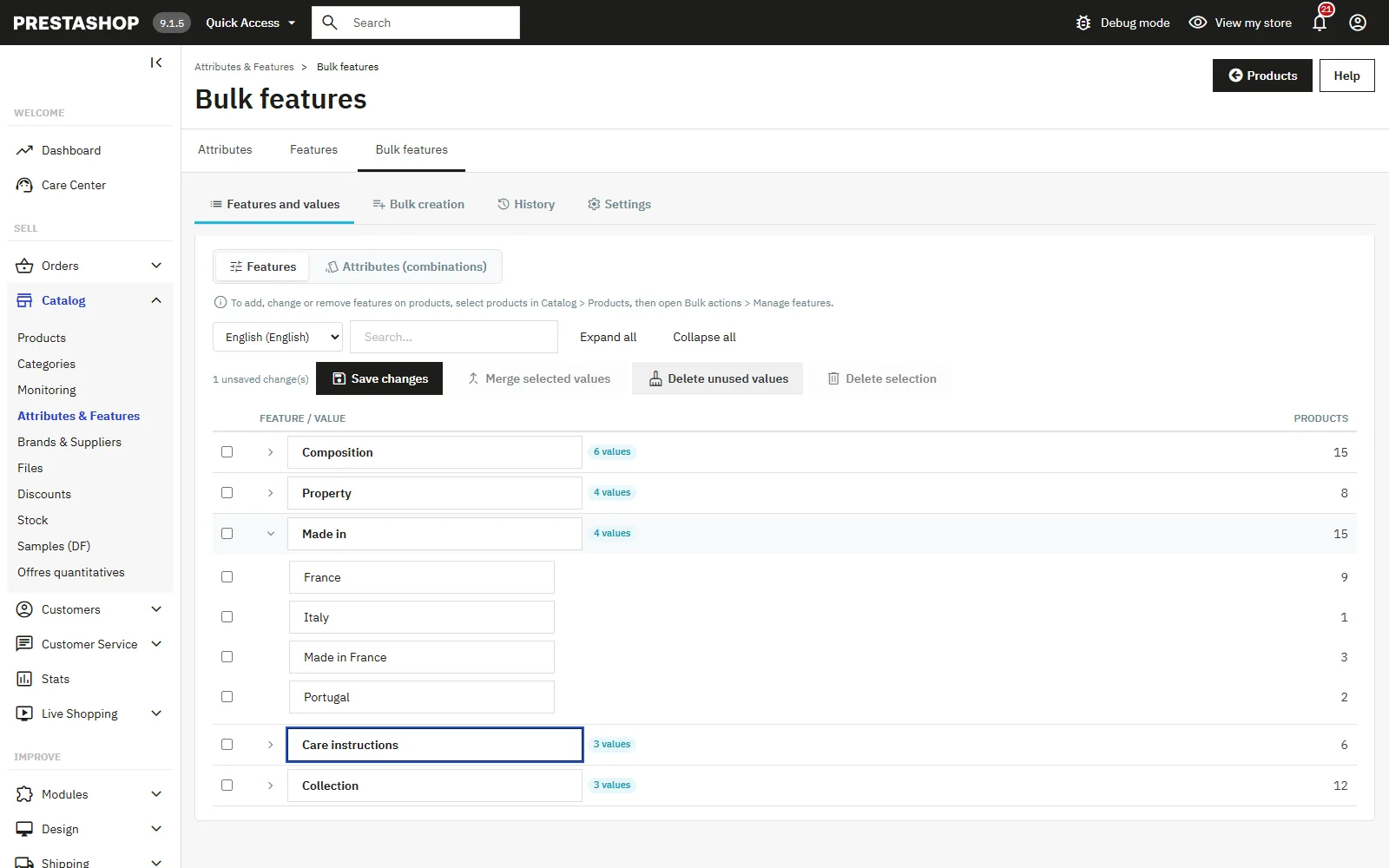
Open Catalog > Attributes & Features, Bulk features tab. The selector at the top of the page switches between Features and Attributes (combinations).
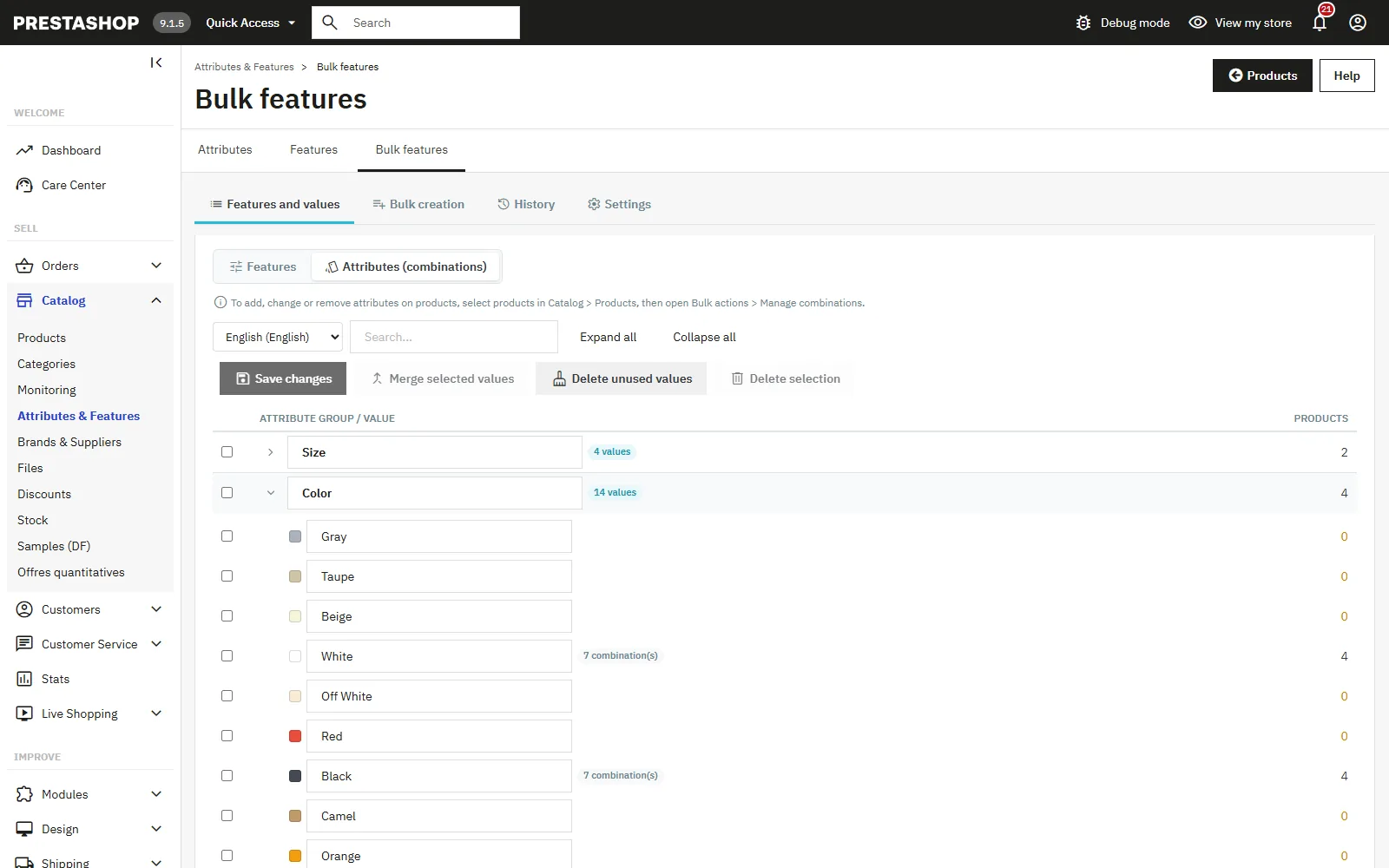
Features and values
Each feature or attribute group is listed with its number of values and products. Expand a row to see the values, their number of products and, for attributes, of combinations. Values used by no product appear in orange.
- Rename: choose the language, edit the names directly in the fields, then click Save changes. Only the chosen language is changed. For an attribute group, the public name follows the name if they were identical.
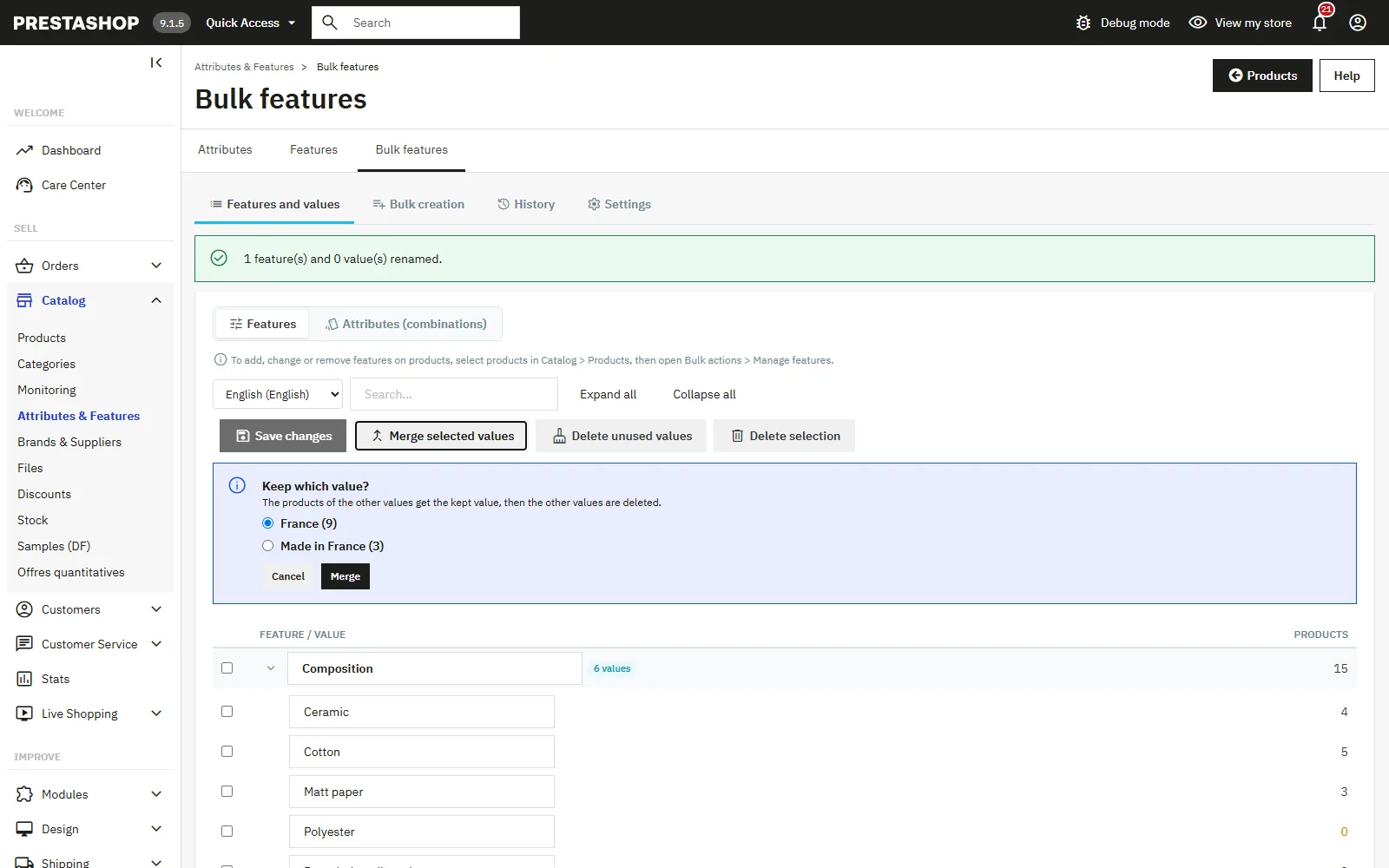
- Merge: tick at least two values of the same feature or group, click Merge selected values and choose the value to keep. The products of the other values get the kept value, then the other values are deleted. For attributes, a combination that would become identical to another is deleted and its stock added to the other.
- Delete selection: deletes the ticked features, groups or values. On the attribute side, combinations using a deleted value are deleted, and a deleted group is removed from the combinations, with identical combinations merged.
- Delete unused values: cleans up in one go the values that no product or combination uses.
Deletions and merges made from this page cannot be undone. Back up the database before a large cleanup.
Bulk creation
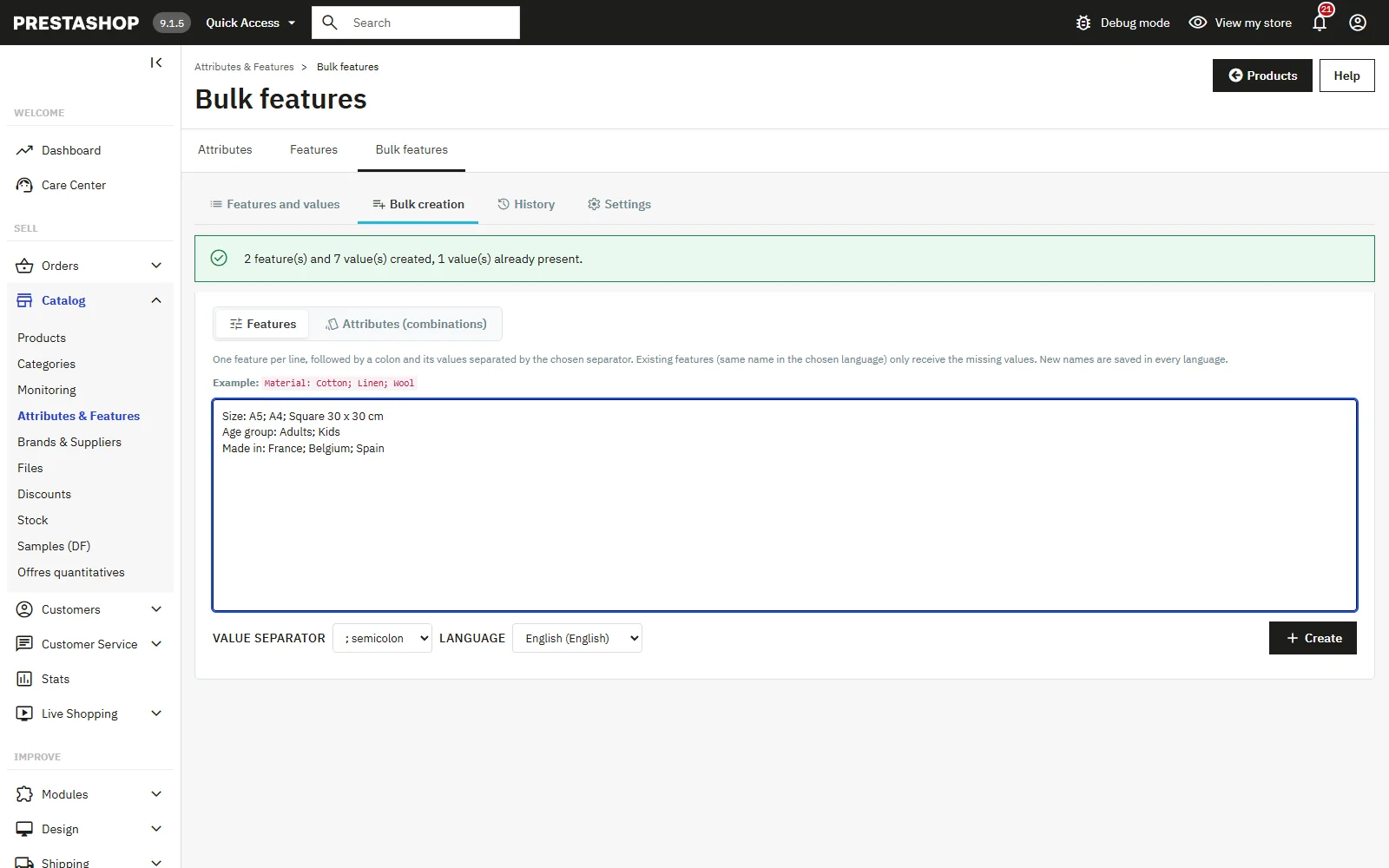
Paste one line per feature or attribute group, followed by a colon and the values separated by the chosen separator (semicolon by default):
Material: Cotton; Linen; Wool
Size: S; M; L; XL
A feature or group that already has this name in the chosen language only receives the missing values. New names are saved in every language, to be translated afterwards from the previous tab. New attribute groups are created as drop-down lists. Use the vertical bar separator if your values contain semicolons.
History
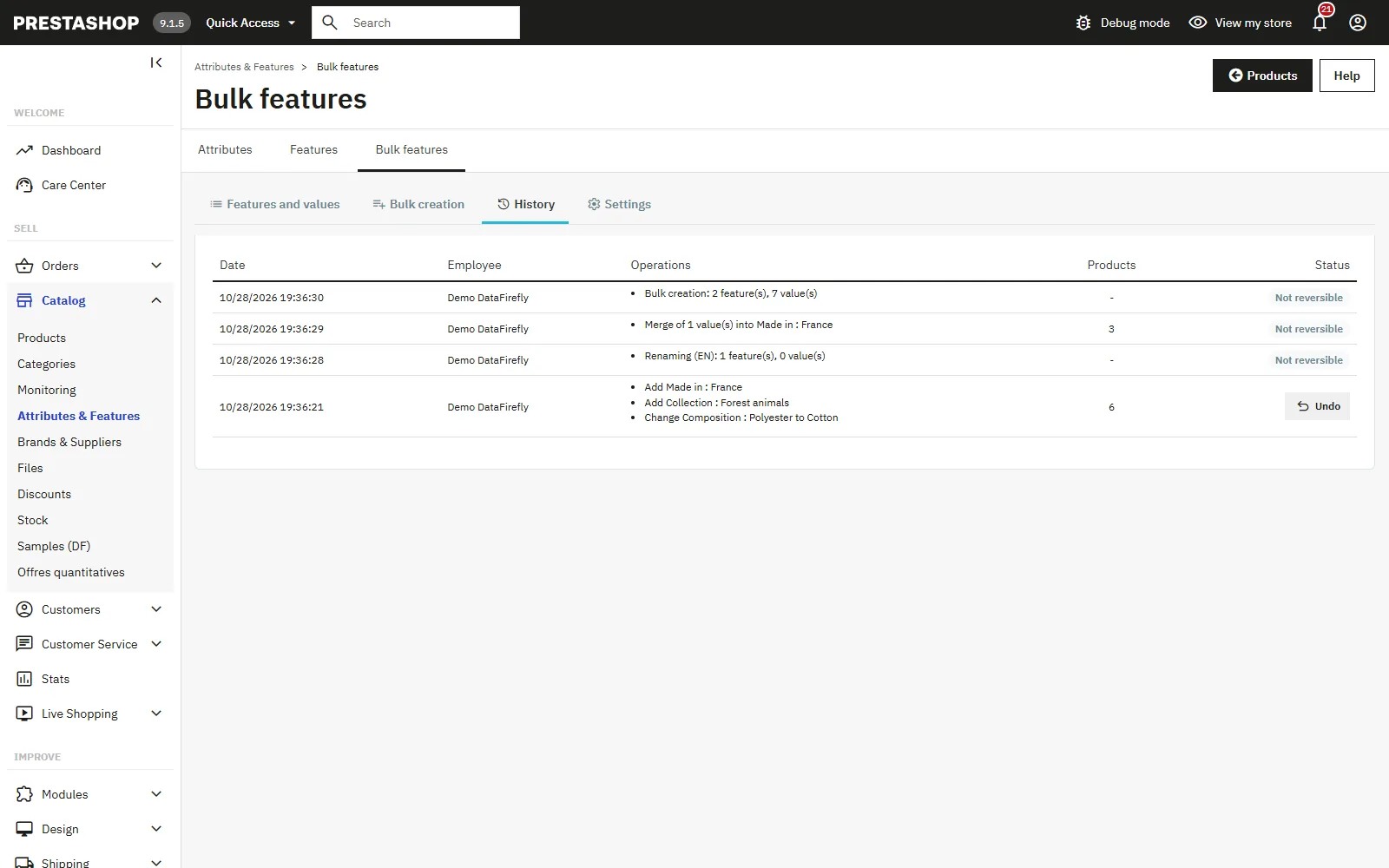
The history lists operations by date, with the employee, the operation details, the number of products concerned and the undo button when available. Operations made from the catalog page appear there marked Not reversible.
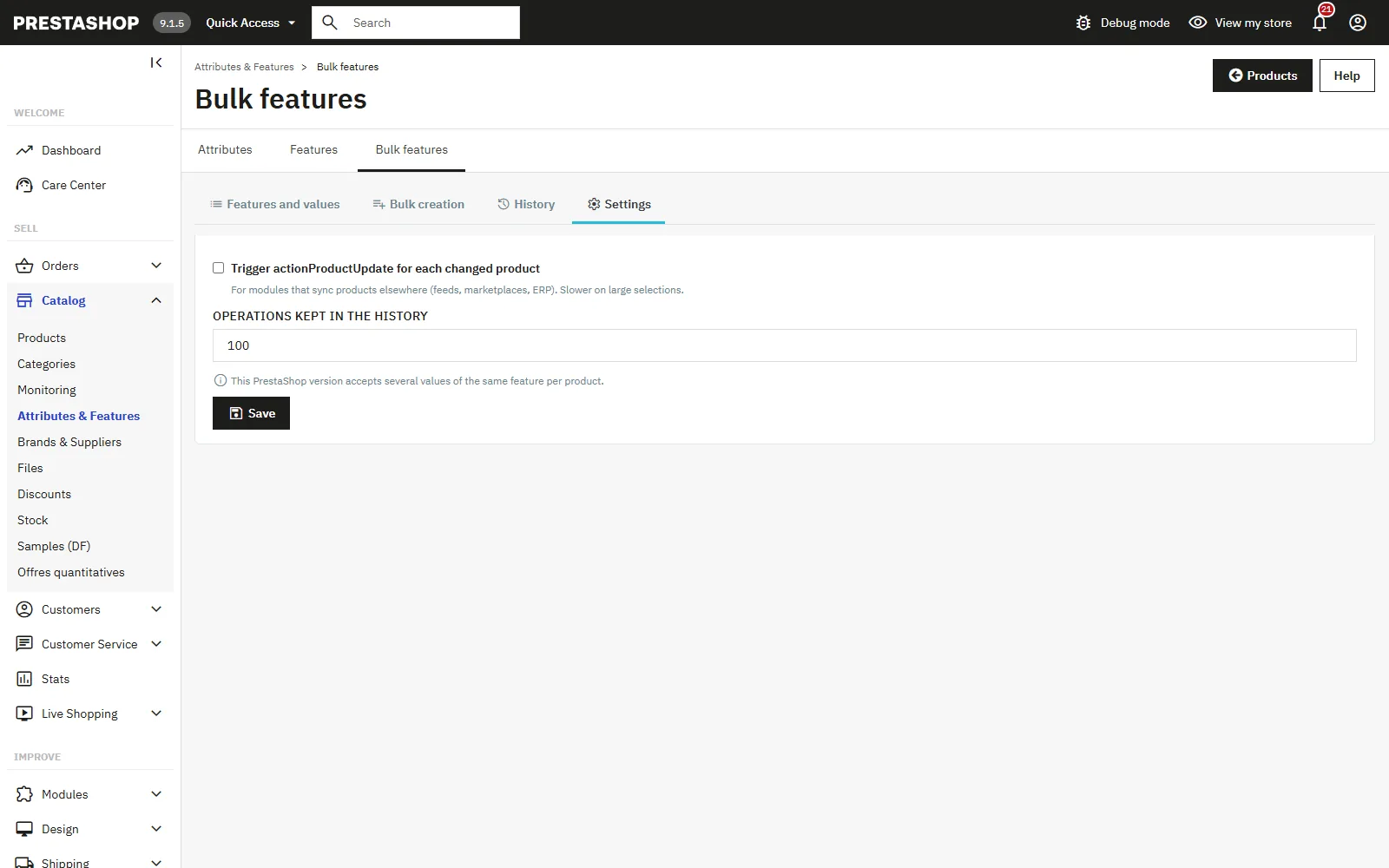
Settings
- Trigger actionProductUpdate for each changed product: enable it if a feed, marketplace or ERP module must be notified of the changes. Disabled by default, because it is slower on large selections.
- Operations kept in the history: 100 by default, between 10 and 1000. Older ones are deleted beyond that.
What the module updates
- Changed products are flagged for reindexing in the PrestaShop search.
- The block cache of the faceted search module (ps_facetedsearch) is cleared.
- Combinations are created and deleted through the native PrestaShop classes, which triggers the usual combination hooks.
- Other modules can listen to the
actionDfBulkFeatureProductsUpdatedhook, which receives the list of changed products.
Troubleshooting
The entries do not appear in the Bulk actions menu
The Bulk actions menu only becomes active once at least one product is ticked. Then check that the employee’s profile has the right to edit products and the “View” right on the module, and clear the PrestaShop cache.
“The server returned an unexpected response”
The session has expired or the profile lacks the required permissions. Reload the product list page and try again.
Some combinations are counted as skipped
The combination that would result from the operation already exists on the product. The module never creates two combinations with exactly the same attributes.
The shop filters still show an old value
Run the attribute and feature indexing again from the configuration page of the faceted search module, then clear the PrestaShop cache.
Compatibility
- PrestaShop 8.0 to 9.x, the same ZIP covers both branches. Tested on 8.2.1 and 9.2.0.
- PHP 7.2 and later.
- Multistore and multilingual.
- Interface available in French, English, Spanish, German, Italian, Dutch, Polish and Portuguese.