
PrestaShop POS Integration (Square, Zettle, SumUp): documentation
Install the module, connect Square, Zettle or SumUp, map your products and sync stock and sales between the POS and PrestaShop.
How it works
The module connects PrestaShop to your Square, Zettle by PayPal or SumUp POS. It imports every POS sale, return and refund into a journal, updates the stock in the direction you choose and can turn each sale into a PrestaShop order. It can also send your PrestaShop catalog to the POS.
The stock syncs in one of the following three directions, set per POS:
- Shop to POS: PrestaShop is the master. POS sales are deducted in PrestaShop, then the new level goes back to the POS.
- POS to shop: the POS is the master. PrestaShop takes the POS quantities on each cron run and on each stock webhook.
- Both directions: the changes made on each side since the last sync are added up. An online sale and an in-store sale each count once.
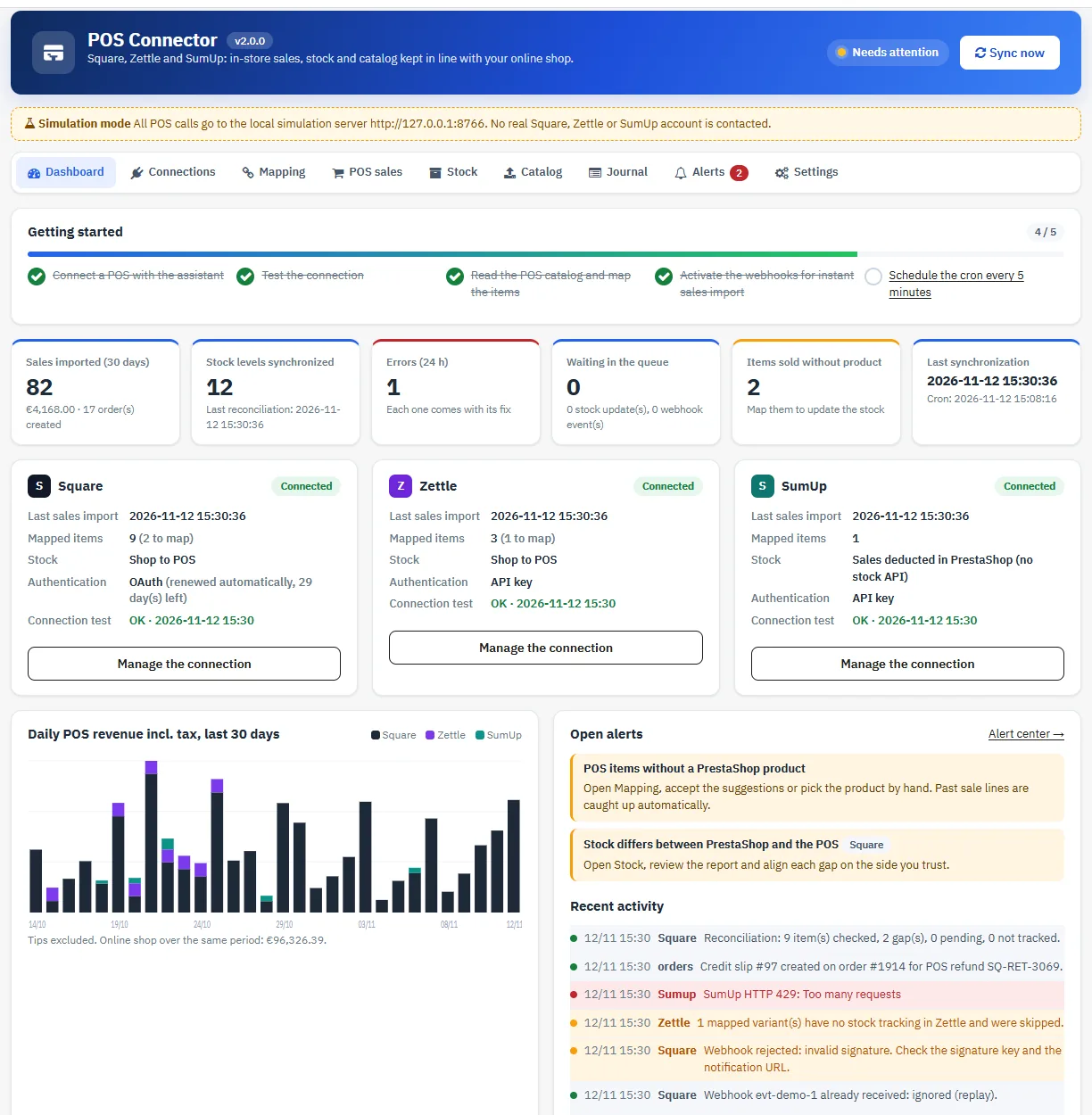
What each POS supports
- Square: sales, returns and refunds, stock in all three directions, several locations, catalog export with the main image, signed webhooks.
- Zettle by PayPal: sales and refunds, stock in all three directions, catalog export, signed webhook created by the module.
- SumUp: sales and refunds, deducted from the PrestaShop stock. The SumUp public API exposes no stock, no catalog and no webhook for POS sales. The import runs through the cron, and the stock shown in SumUp is not updated.
The module does not replace your POS and does not make it a certified till. Receipts, closing and tax obligations stay with Square, Zettle or SumUp.
Requirements
- PrestaShop 1.7.8 to 9.x. The module was tested on PrestaShop 1.7.8.11 (PHP 7.4), 8.2.1 (PHP 8.1) and 9.1.5 (PHP 8.5).
- A cron job on your hosting.
- A shop on HTTPS for the webhooks and for the OAuth connection.
- A Square, Zettle or SumUp account, and access to its developer area if you connect with a token or an API key.
Installation and upgrade
- In Modules > Module Manager, click Upload a module and send the ZIP.
- The module adds the Catalog > POS Connector menu. The dashboard shows a Getting started list that ticks itself as you set things up.
To upgrade from a 1.x version to 2.0.0, send the new ZIP the same way. The upgrade keeps the mappings, the sales journal, the connections, the import cursors (no sale is imported again) and the settings. Existing webhook URLs stay valid. It adds the new tables, encrypts the old secrets again and removes from the “POS sale” state the shipping flag that caused a second payment. Orders already created are not changed.
Connect your POS
The Connections tab shows the status of each POS and the features available. Each POS has its own wizard. Secrets are stored encrypted and are never shown again or written to the journal. A field left empty keeps the saved value.
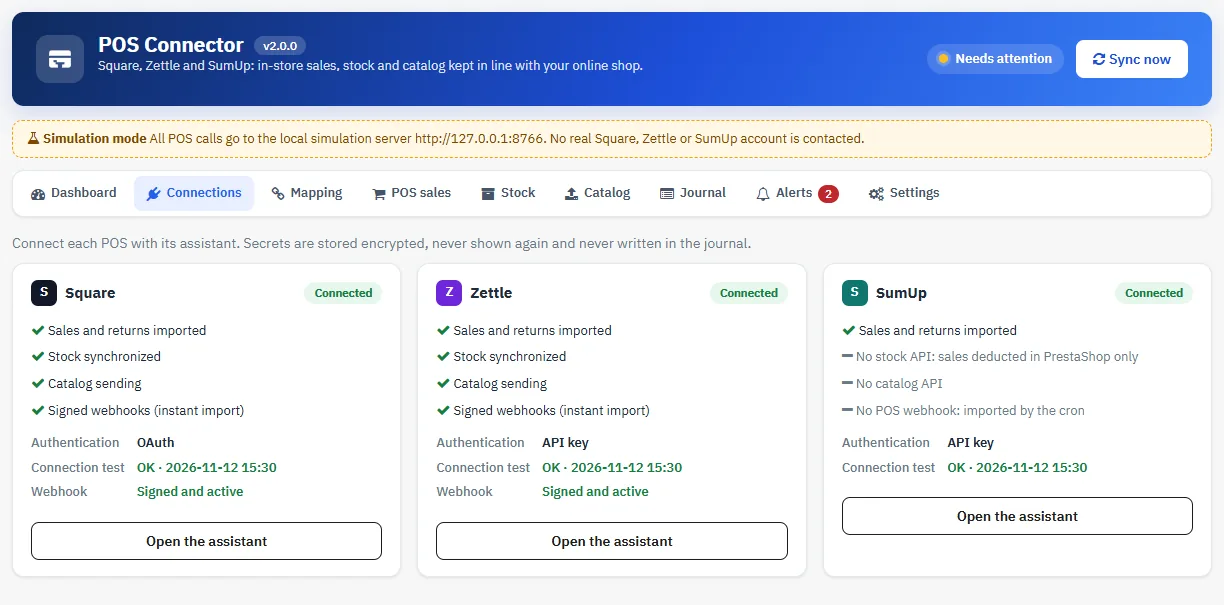
Square
- Choose the connection mode. OAuth is recommended: you authorize the module from your Square account, and the token is renewed automatically. For a single shop, you can also paste a personal access token.
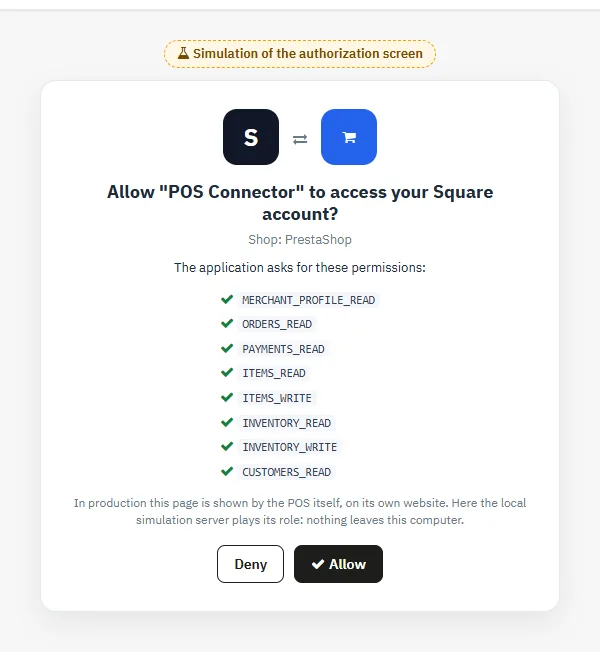
- With OAuth, enter the ID and the secret of your Square application, and declare the redirect URL shown in that application. The module only asks for the permissions it needs: read access to locations, orders, payments, catalog, stock and customers, and write access to catalog and stock.
- Click Connect with Square, accept the permissions, then Test the connection.
- Choose the location that holds the stock, and tick the ones whose sales are imported (10 at most).
- For instant import, add in Webhooks > Subscriptions the notification URL shown, with the
order.updated,refund.created,inventory.count.updatedandoauth.authorization.revokedevents, then paste the signature key into the module. The URL must be identical, character for character, on both sides.
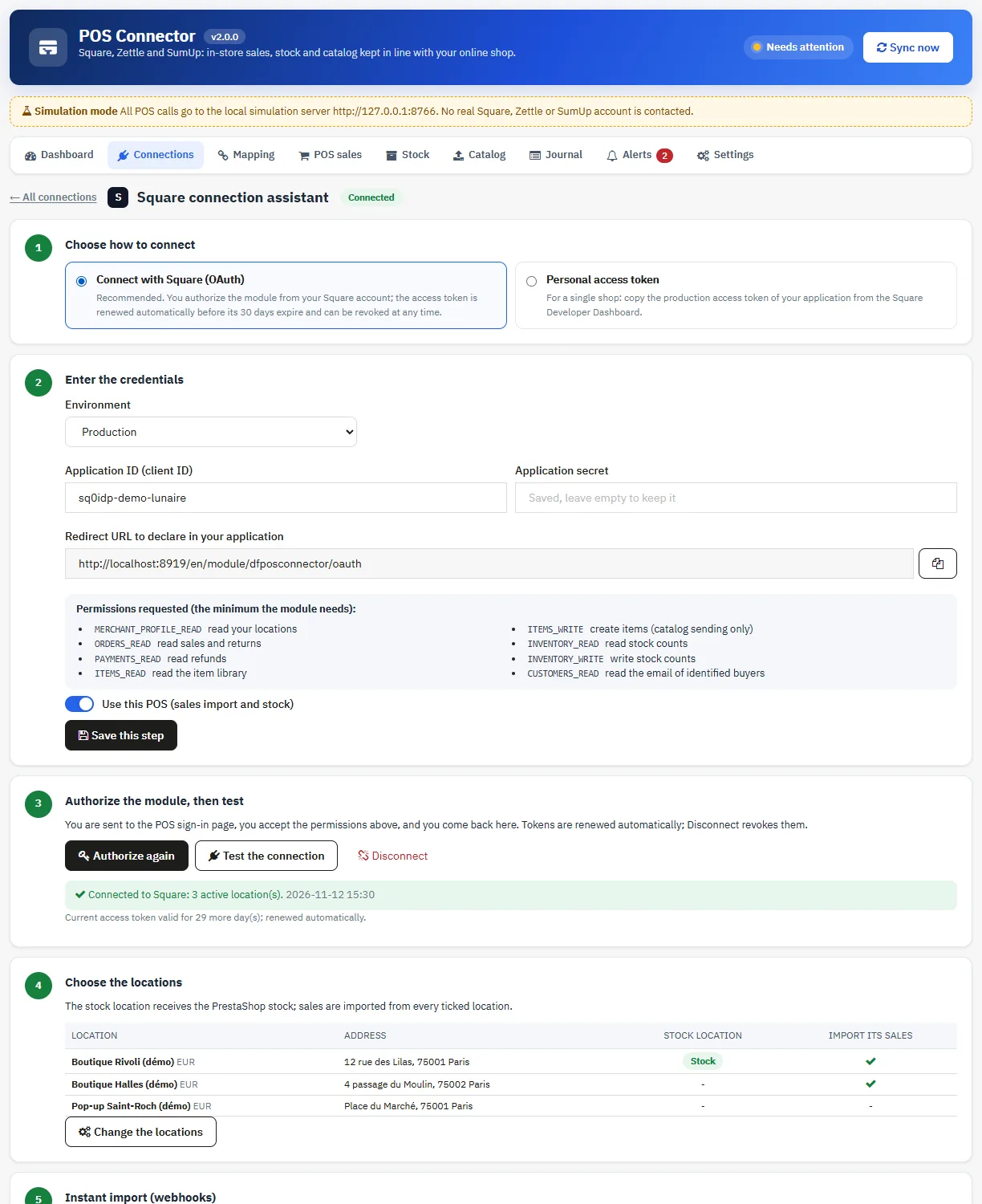
The OAuth connection button sends you to the authorization page of the POS, on its own website, then brings you back to the module. The screenshot below was taken in demo mode, with a simulated authorization screen.

Zettle by PayPal
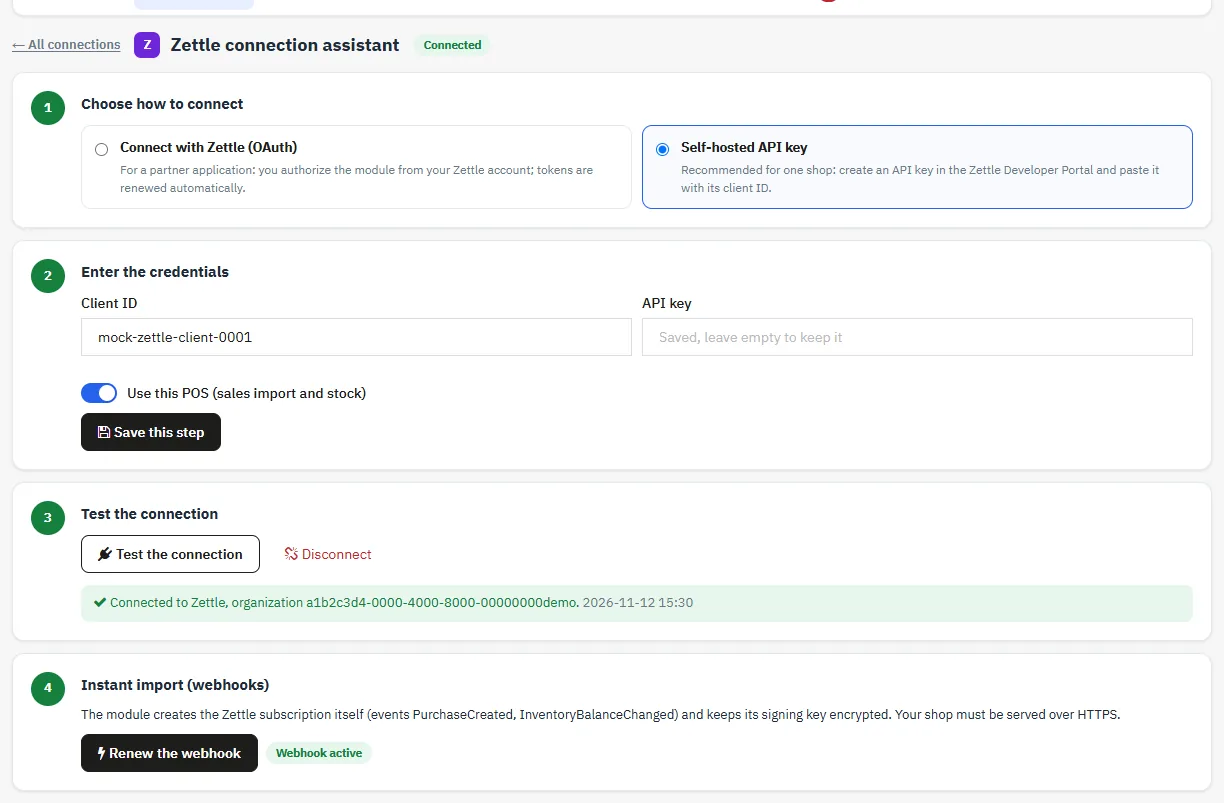
- For a single shop, the self-hosted API key is recommended: create it in the Zettle Developer Portal and paste it with its client ID. An OAuth connection is also offered for a partner application, with automatic token renewal.
- Save, then test the connection.
- Click Activate the webhook: the module creates the subscription itself (
PurchaseCreated,InventoryBalanceChanged) and keeps its signature key encrypted. Zettle requires a shop on HTTPS. - Stock tracking must be enabled on the products in Zettle. Products sent by the module have it automatically.
SumUp
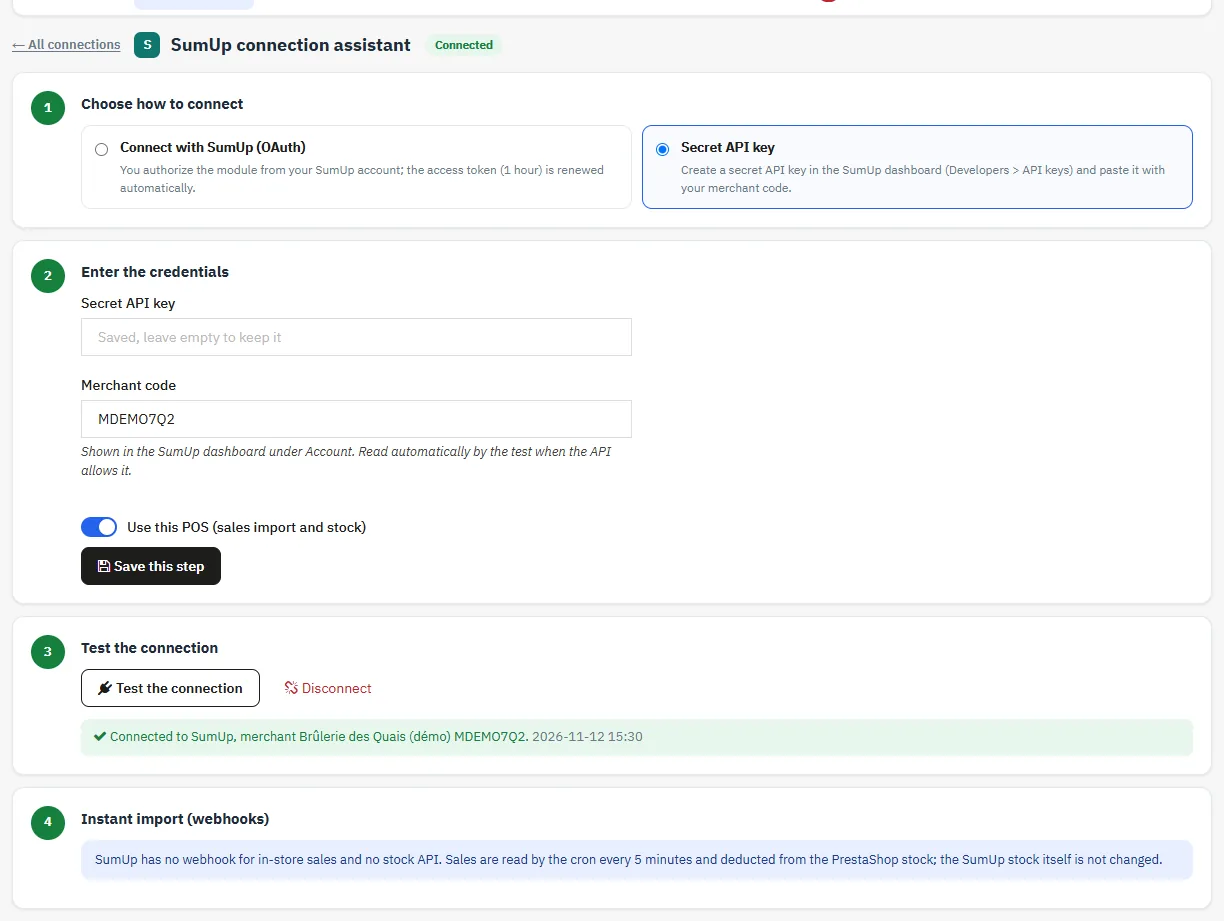
- Paste your secret API key (SumUp dashboard, Developers > API keys) with your merchant code, or connect with OAuth.
- Test the connection. The merchant code is read automatically if it is missing.
- SumUp sends no webhook for POS sales: they are imported by the cron every 5 minutes. They are mapped by reference or by item name.
Disconnect a POS
The Disconnect button revokes the tokens when the POS allows it (Square, Zettle) and deletes them from PrestaShop. The mappings and the sales journal are kept.
Stock direction
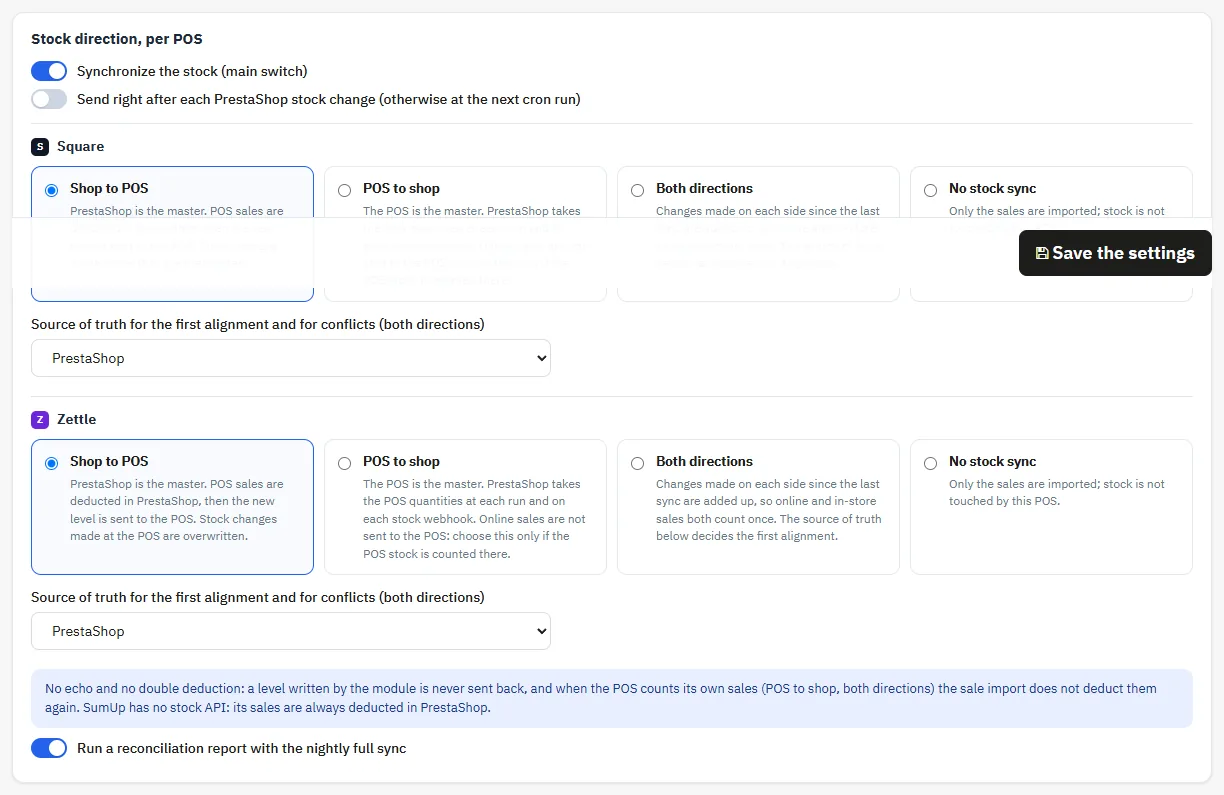
In Settings > Stock, choose the stock direction for Square and for Zettle: shop to POS, POS to shop, both directions or no stock sync. For SumUp, sales are deducted from the PrestaShop stock, but its POS receives no stock.
- Only one POS can be the stock master. If you choose a second one, the module sets it to Both directions.
- In both directions, the source of truth decides the first alignment and the conflicts.
- A level written by the module is never sent back, to avoid echoes. When the POS already counts its own sales, the import does not deduct them a second time.
- The Send right after each PrestaShop stock change option sends the level at once. Otherwise, it goes out at the next cron run.
Map your products
The Mapping tab links each POS item to a PrestaShop product or combination.
- Read the catalog of Square or Zettle: items are mapped automatically by SKU (product or combination reference) and by EAN-13 / UPC barcode.
- Suggestions by name: for each remaining item, the module proposes the closest product with a score. Suggestions at 90% or more can be accepted in one go, the others one by one. No suggestion is saved without your validation.
- Manual mapping: search a product by name, reference or EAN.
- An item sold at the POS but missing from the catalog read also shows up in the queue. You can hide it if it is not sold online.
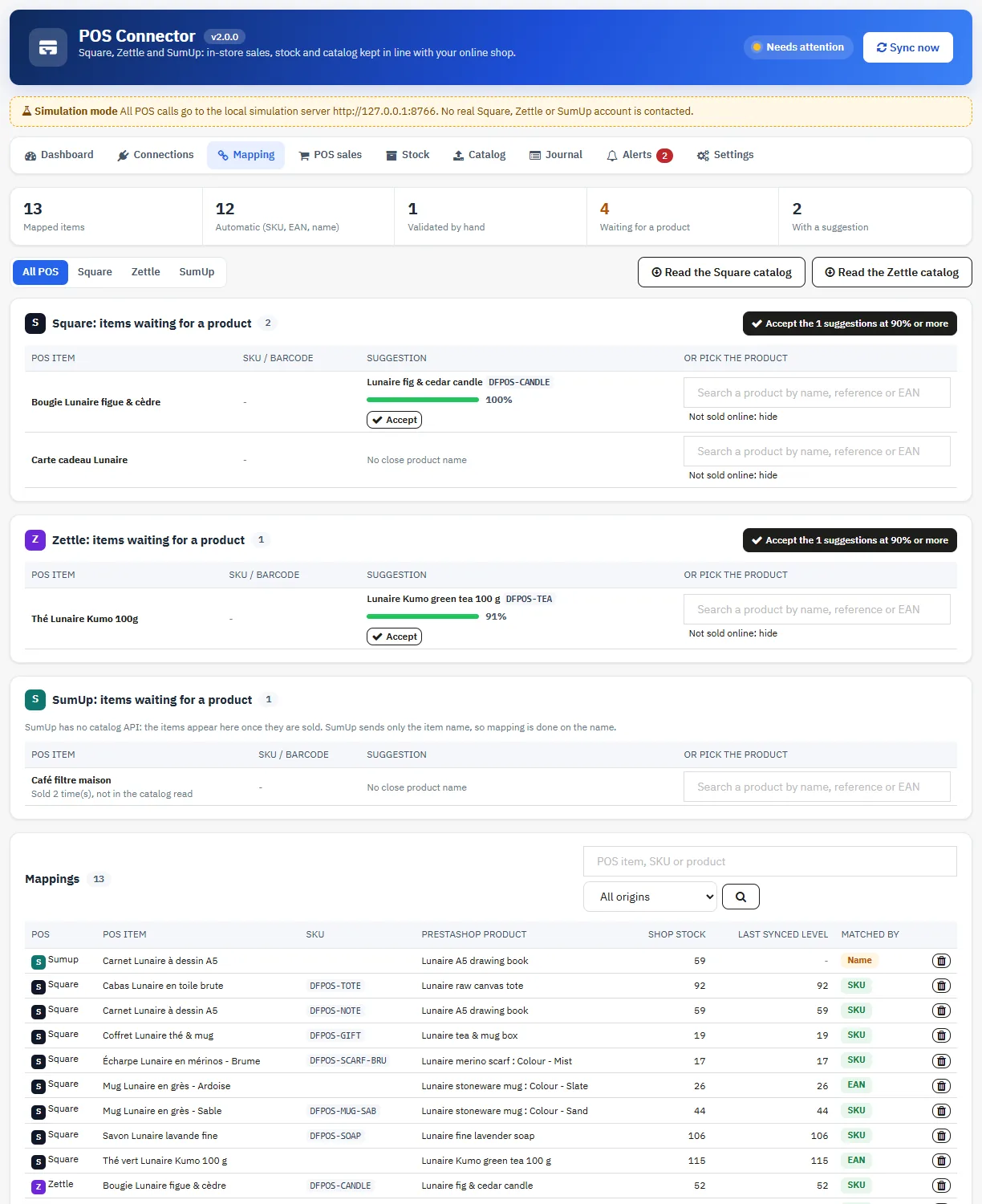
Mapping an item catches up the stock of the sales already imported, once. Past sale lines are linked to the new rule.
Send the catalog to the POS
The Catalog tab creates your PrestaShop products in Square or Zettle: combinations as variations, price, SKU, barcode, main image as an option, then stock. Choose the POS, a category (subcategories included), the price sent (tax incl. or tax excl., without discounts) and whether only active products are concerned.
- Check what will be sent first reads the POS catalog, maps by SKU or barcode what already exists, then shows the number of products and variations to create.
- Tick the confirmation, then Create them in the POS: the products are sent in batches, with a progress bar, and each created item is mapped at once.
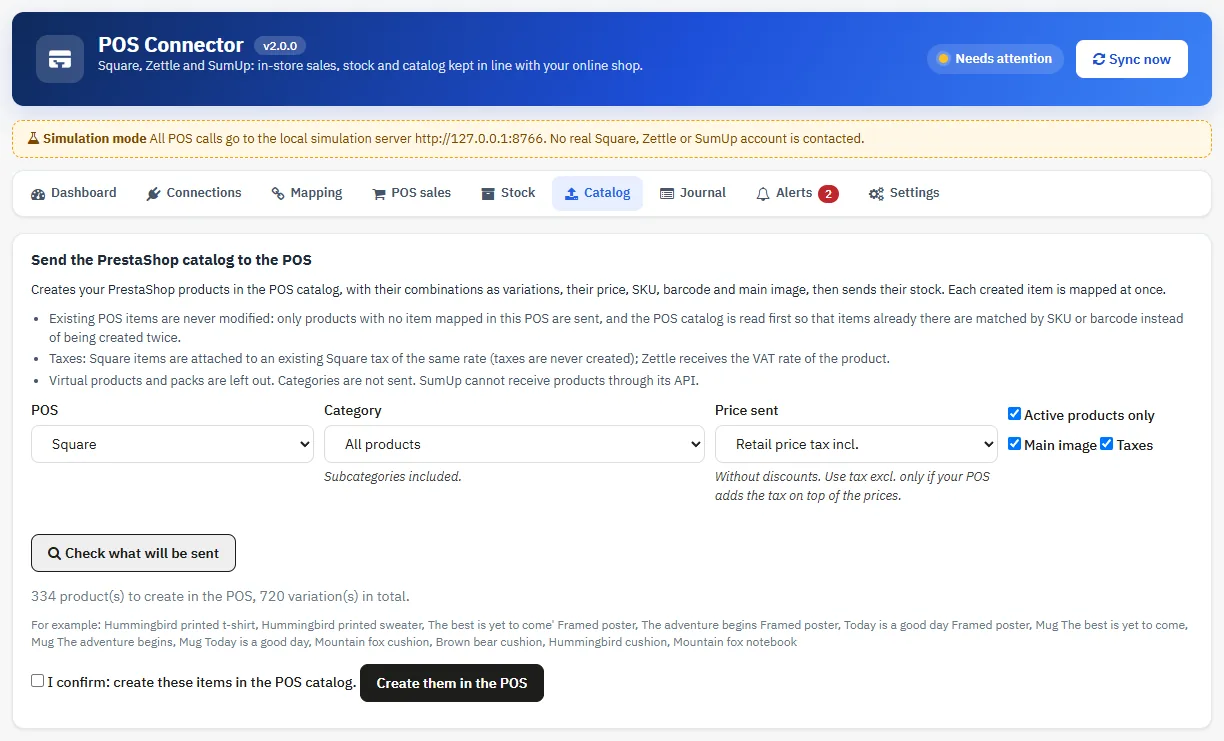
Existing POS items are never changed. On Square, each item is linked to an existing Square tax with the same rate: no tax is created. Virtual products and packs are left out, and categories are not sent. Zettle accepts at most 99 variations per product. SumUp cannot receive products through its API.
Stock check and reconciliation
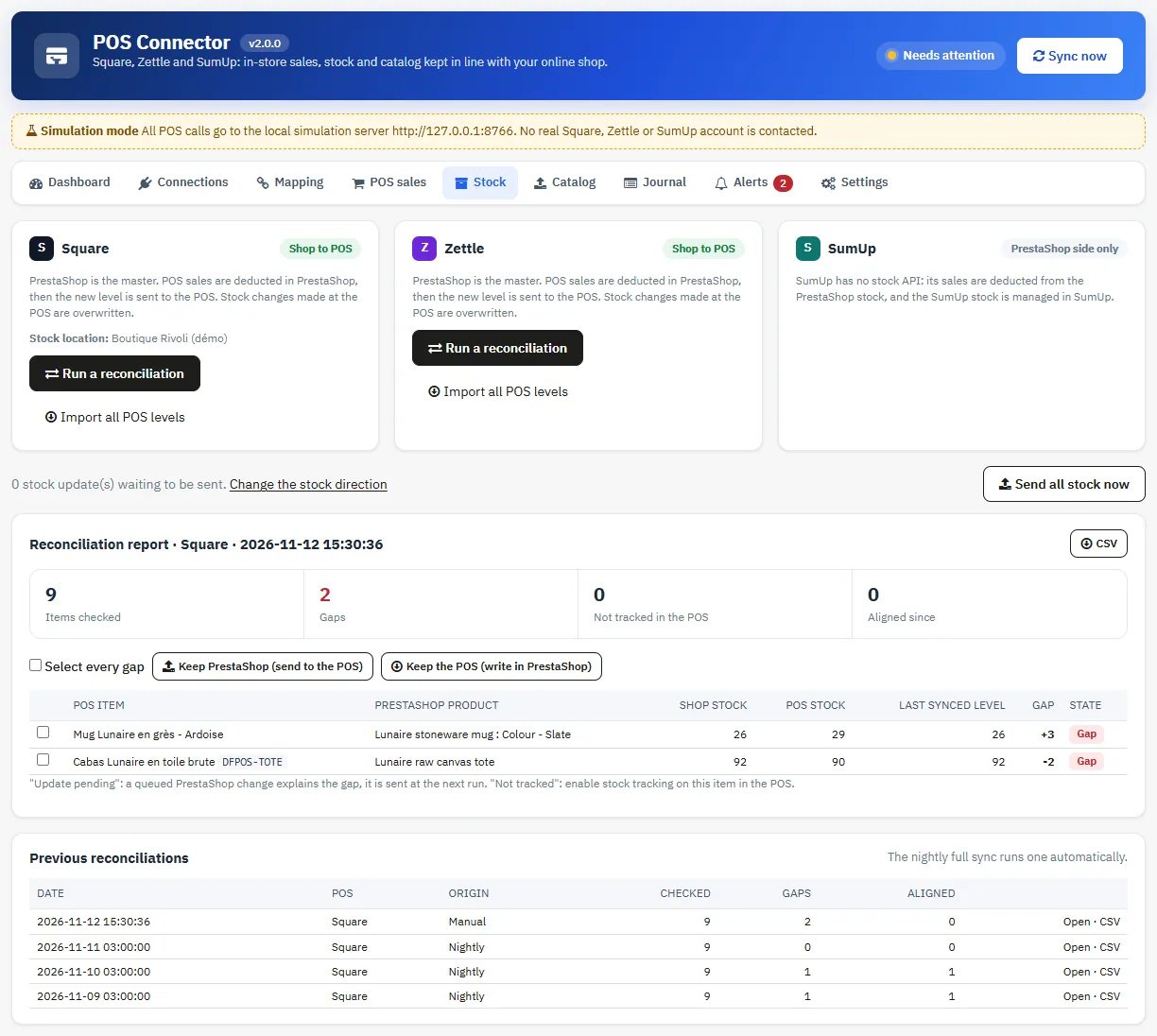
The Stock tab compares the PrestaShop stock and the POS stock for each mapped item, and lists the gaps. For each gap, or for a selection:
- Keep PrestaShop: the POS receives the PrestaShop quantity.
- Keep the POS: PrestaShop receives the POS quantity, with a stock movement.
The nightly full sync runs a reconciliation and keeps its report. Previous reports remain available. Import all POS levels overwrites the PrestaShop stock of each mapped product: use it only once, at setup, if the POS stock is the most reliable one.
POS sales
The POS sales tab lists each ticket with its lines, POS, location, payment, VAT per line, tip and, when relevant, the PrestaShop order. Filters: POS, type (sales, returns and refunds, PrestaShop orders), amount gaps, search by ticket, item, location or order number, and date range. Export CSV exports the selection.
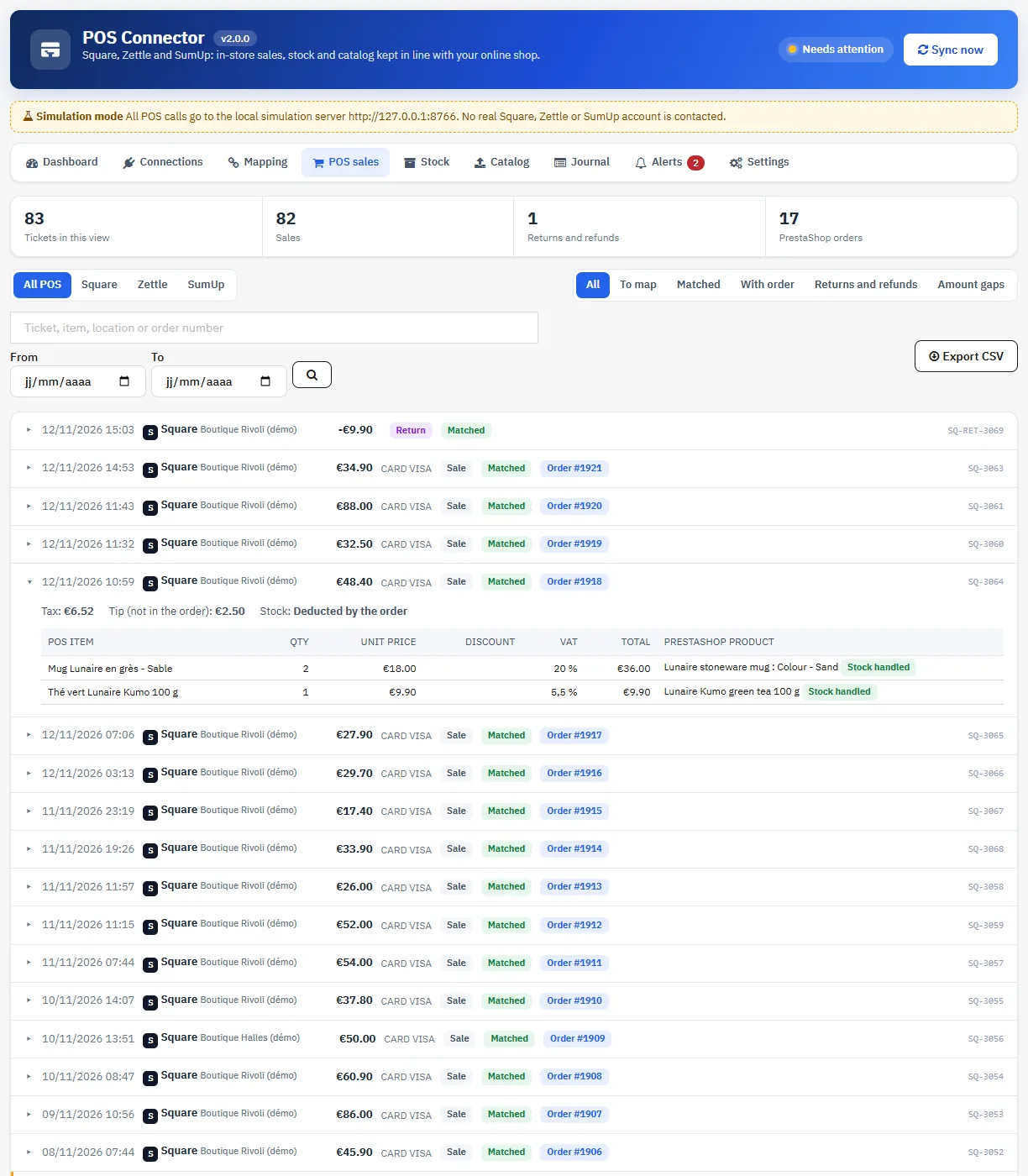
The import is idempotent: a sale already imported is never duplicated, even if it arrives through several webhooks and the cron at the same time. Tickets recorded offline at the POS and sent later are imported too. Sales before the date set in Import POS sales from are ignored.
PrestaShop orders for in-store sales
In Settings > Orders and refunds, the Create a PrestaShop order for each POS sale whose items are all mapped option is off by default. Once enabled:
- one walk-in customer per shop, at the shop address;
- a free “POS sale” carrier, never offered at the checkout;
- the “POS – Square / Zettle / SumUp” payment method, a single payment, and an order dated at the time of the sale;
- the ticket prices and discounts, spread over the lines;
- the tip outside the order total, written in its note;
- no email, to the customer or to you.
The default state is “POS sale” (paid, delivered, no email and no invoice). If PrestaShop calculates a total different from the ticket (tax rules, rounding), the gap is shown on the sale and written to the journal.
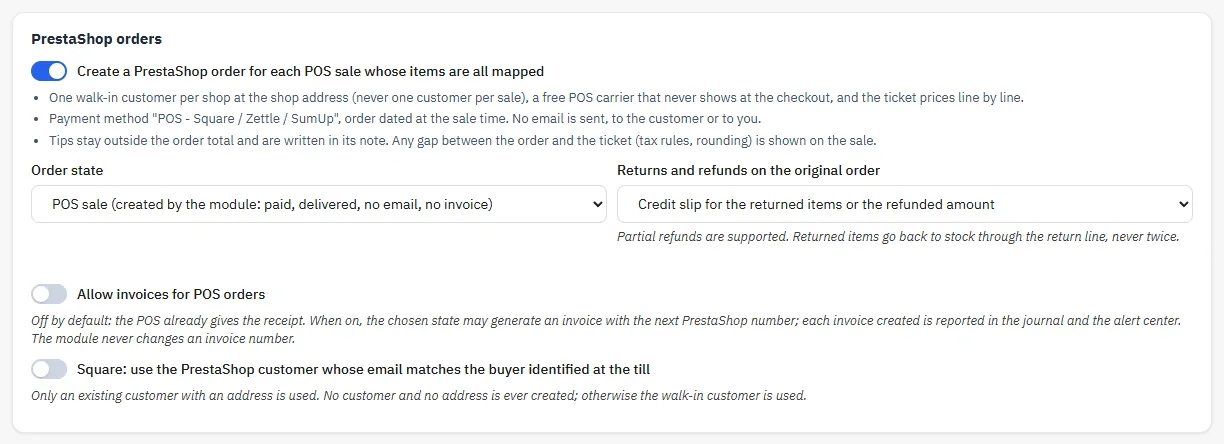
- Allow invoices for POS orders: off by default, because the POS already gives the receipt. Without this option, a state that generates an invoice is refused. With it, the invoice is created on the existing payment and reported in the journal.
- Identified customers (Square): the order can be linked to the existing PrestaShop customer who has the same email address as the Square customer. Only an existing customer with an address is used: no customer and no address is created.
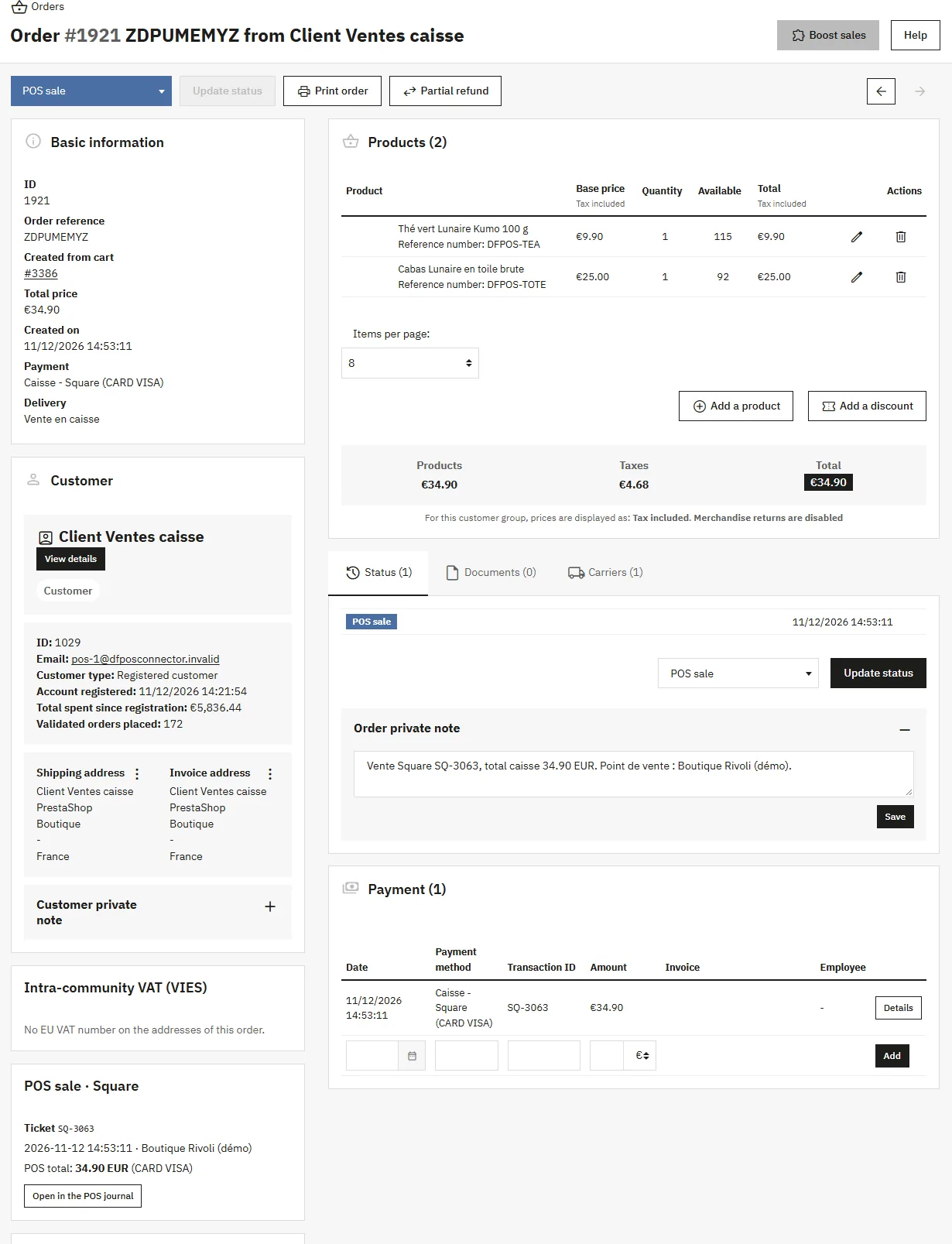
A sale that contains unmapped items gets no order: its mapped items are deducted directly from the stock.
Returns and refunds
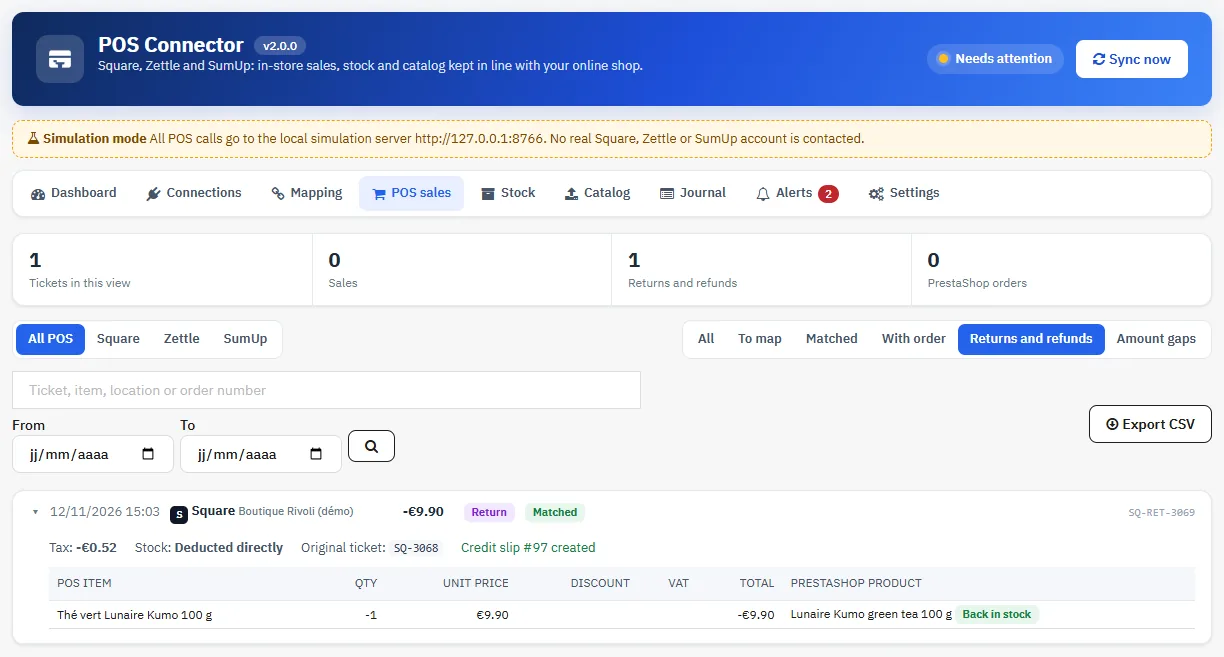
Square returns, Zettle refunds and SumUp refunds are imported, partial ones included. Returned items go back to stock only once, through the return line. A refund without a returned item does not change the stock. On the original order, choose:
- Note in the order only (default);
- Credit slip for the returned items or the refunded amount;
- Credit slip, and “Refunded” state once the order is fully refunded.
Scheduled tasks and webhooks
Settings > Scheduled tasks shows the cron URL. Call it every 5 minutes, and the same URL with full=1 once a night:
*/5 * * * * curl -s "https://your-shop.com/module/dfposconnector/cron?token=YOUR_TOKEN" >/dev/null
0 3 * * * curl -s "https://your-shop.com/module/dfposconnector/cron?token=YOUR_TOKEN&full=1" >/dev/null
The cron processes the webhook queue, imports new sales, renews the tokens and sends the pending stock levels. Two runs never overlap. The nightly run resends every mapped level and generates the reconciliation report.
Each webhook is checked before it is accepted:
- the URL key specific to webhooks, separate from the cron token;
- the POS signature;
- a maximum size of 256 KB;
- a maximum age of 96 hours;
- an event ID never seen before.
The module answers at once, then processes the event. An unsigned, wrongly signed or replayed notification is refused and written to the journal.
Technical journal
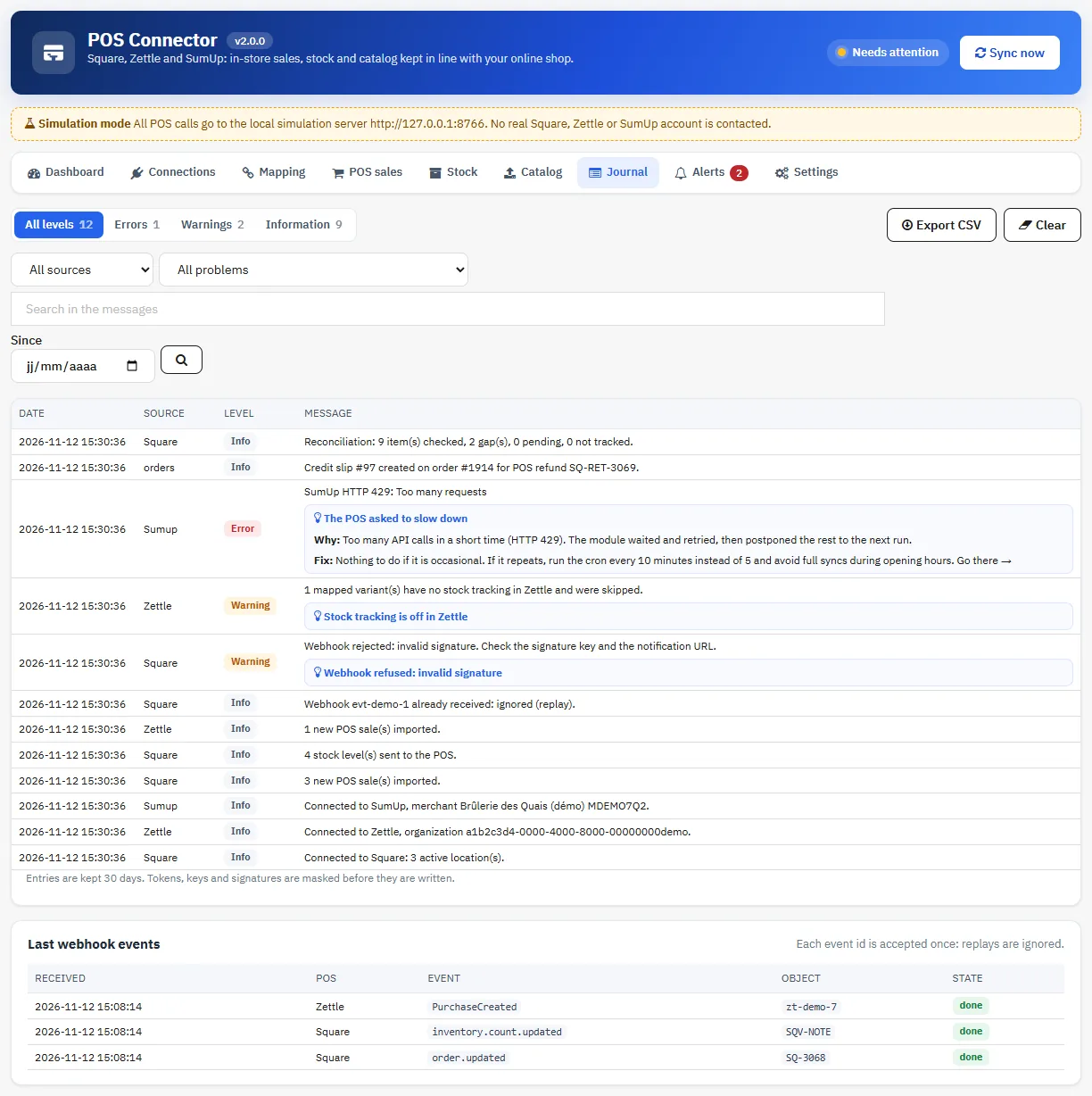
The Journal tab lists errors, warnings and information, filterable by POS, level, problem, text and date. Each known error gives its cause and its solution, with a link to the screen concerned. Tokens, keys and signatures are masked before they are written. Entries are kept 30 days by default (adjustable), and the last webhook events received are listed.
Alerts
The Alerts tab gathers the current problems with their cause, their solution and a Fix it now button. An alert closes by itself when the problem goes away.
- sync failing on 3 runs in a row, then a message when it works again;
- token refused or impossible to renew, missing permission, webhook signatures refused;
- stock updates abandoned, cron no longer running;
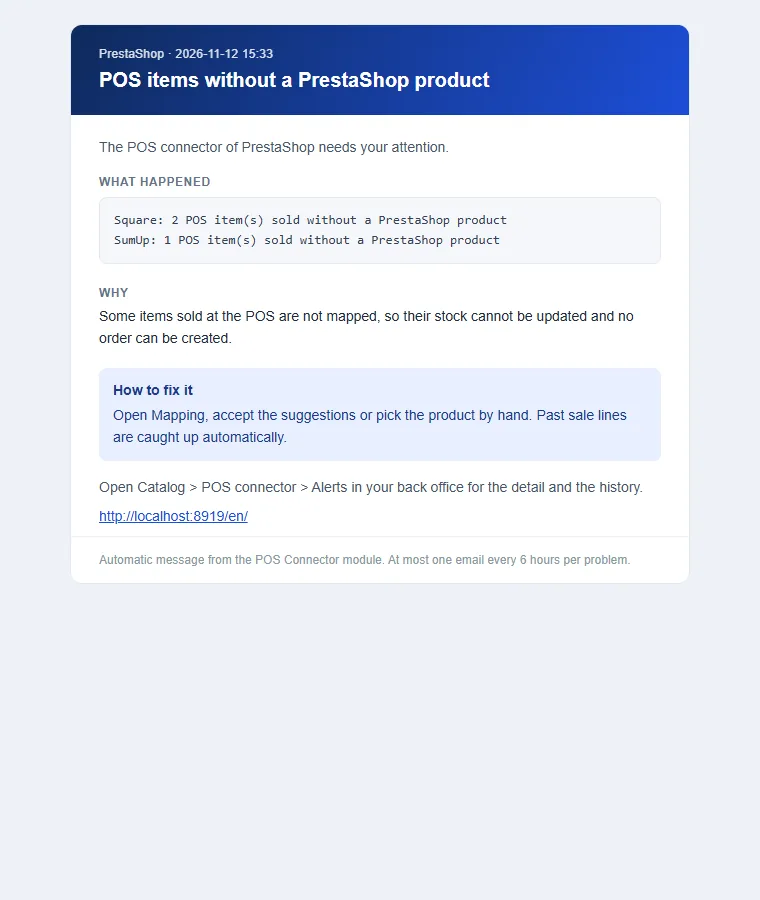
- items sold at the POS with no PrestaShop product;
- gaps found by the nightly reconciliation.
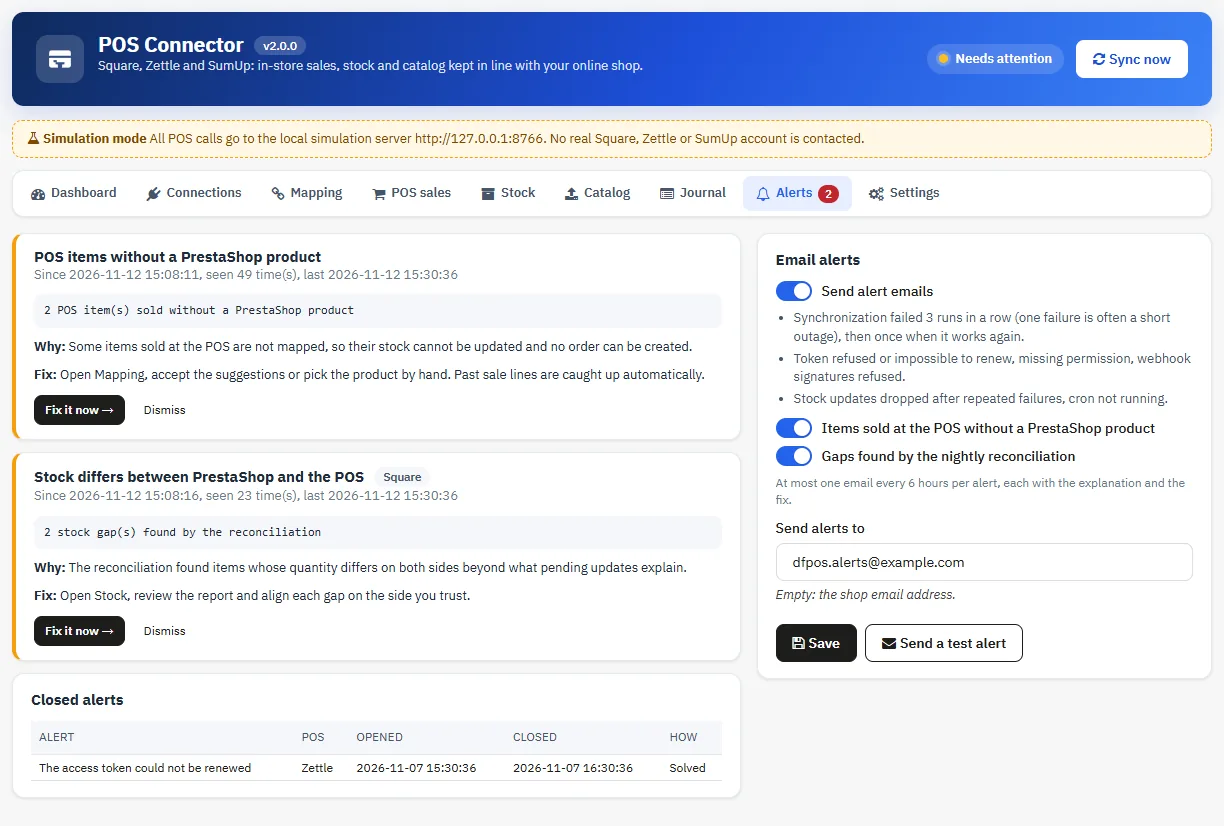
Alerts can also be sent by email, at most one every 6 hours per alert. Leave the address empty to use the shop address. Send a test alert checks the delivery.
Troubleshooting
“Inventory not initialized” on Zettle
Enable stock tracking on at least one product in Zettle, or send a product from the Catalog tab.
Square webhook refused (invalid signature)
The notification URL declared in Square must be identical, character for character, to the one in the module, and the signature key must belong to that subscription.
Token refused or missing permission
Open Connections, reconnect the POS with its wizard and accept all the permissions listed.
Stock is not sent after a change in the back office
PrestaShop does not run a module’s hooks for an employee who lacks the “View” permission on that module. In the shop to POS direction, the cron gap check catches these changes on the next run. You can also grant this permission in Advanced Parameters > Team > Permissions.
A sale did not create an order
The journal gives the reason: unmapped items, sale currency inactive in PrestaShop, product limited to certain carriers, or quantity below one unit. The stock was then handled directly. Fix the cause for the next sales. The Create the PrestaShop order button is only offered for a sale whose stock has not been deducted yet, so that it is never deducted twice.
The order total differs from the ticket
Check that the PrestaShop tax rule of the products matches the VAT rate used at the POS. The gap is shown on the sale.
Uninstallation
Uninstalling deletes the module tables (mappings, sales journal, queues, technical journal, reconciliations, alerts) and its settings, and disables the “POS sale” carrier. Orders created, the order state, the walk-in customer and the stock movement reasons are kept, because the history refers to them.