
DataFirefly Subscriptions — Complete guide (PrestaShop 8 & 9)
Installation, payment methods (card, SEPA Direct Debit, PayPal, offline billing), plans, scheduler, retries, customer area and back office of the subscription module for PrestaShop 8 and 9.
Overview
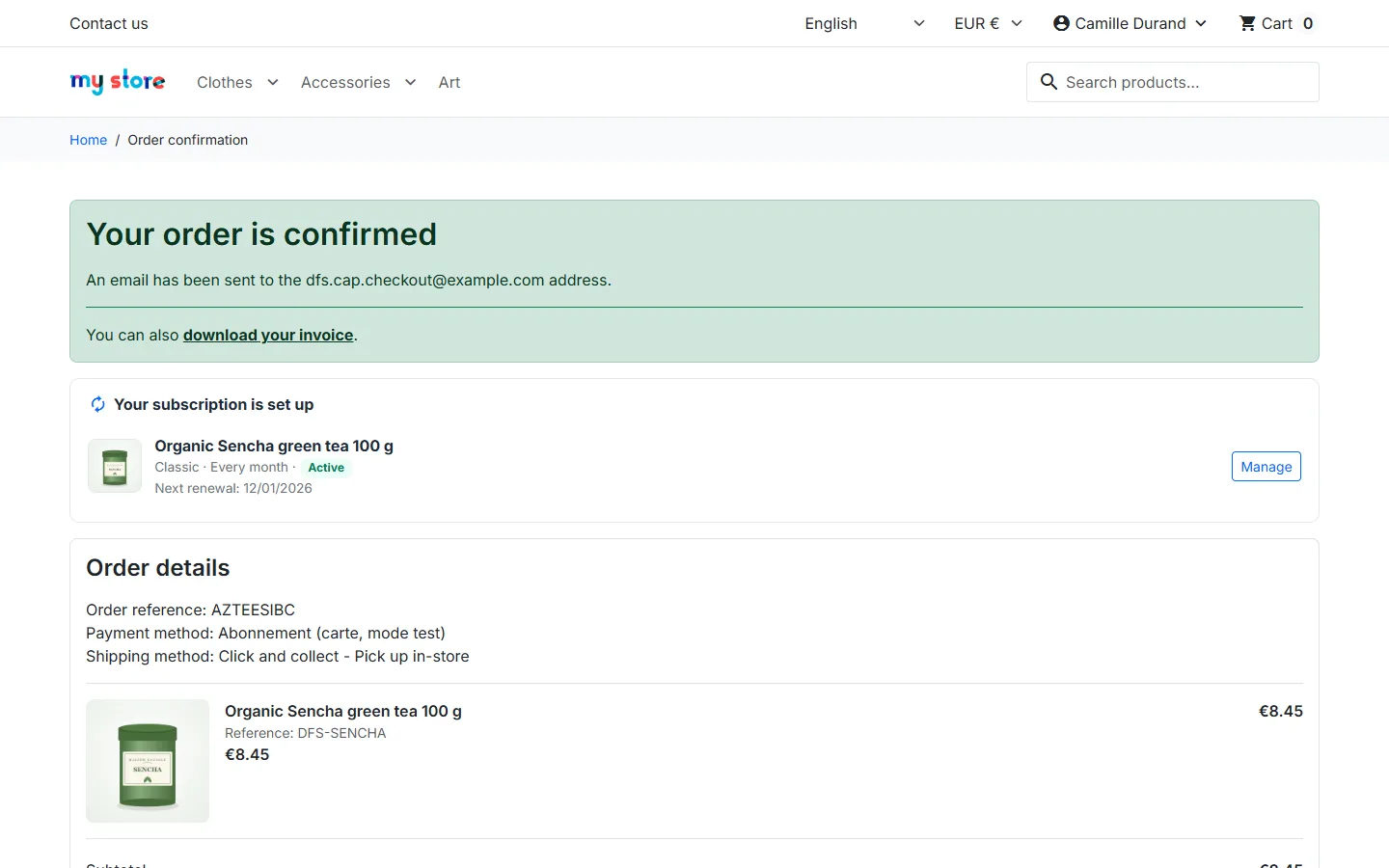
DataFirefly Subscriptions lets you sell your products as subscriptions on PrestaShop 8 and 9. You create plans (frequency, discount, free trial, sign-up fee, commitment, number of deliveries); the customer chooses a plan on the product page and pays the first order, then each due date automatically creates a real PrestaShop order, paid automatically with the payment method the customer saved (card, SEPA Direct Debit or PayPal) or created as awaiting payment (offline billing).
- Subscription price shown everywhere: discount, free trial and sign-up fee are applied in the cart, at checkout, on the order and on the invoice.
- A single billing engine: the shop’s scheduler; each subscription is reserved before its renewal, so two simultaneous runs never charge twice.
- Customers manage everything from their account: skip a delivery, pause, change plan, quantity, address or payment method, cancel.
- Complete back office: dashboard, subscriber list, subscription page with timeline, plan editor with preview.
New in 3.0.0: SEPA Direct Debit (via Stripe or with a pain.008 bank file) and PayPal, offline billing and test mode, sign-up fee, truly free trial, discount applied from the 1st order, pause with automatic resumption, plan and quantity changes by the customer, payment method change, cancellation at the end of the commitment, reminder before renewal, “subscribers” customer group, new dashboard, e-mails in 8 languages, command-line cron.
Subscription or recurring order? DataFirefly Subscriptions creates the orders on the due date and collects payment automatically (or invoices them). If you would rather send the customer a cart ready to pay before each due date, with no automatic charge, see the DF Recurring Orders module instead.
Installation and update
- Download the ZIP from your DataFirefly account.
- Back office: Modules → Module Manager → Upload a module, then choose the ZIP.
- The Orders → Subscriptions menu appears: Dashboard, Subscribers, Plans, Activity, Settings, SEPA direct debits.
Requirements: PrestaShop 8.0 to 9.x, PHP 7.4 to 8.5, a scheduled task (cron) at your host; depending on the payment methods you choose: a Stripe account (card, SEPA Direct Debit via Stripe), a PayPal Business account eligible for the PayPal vault (merchant-initiated payments), or a SEPA creditor identifier (ICS) and a bank that accepts pain.008 direct debit files. No Composer dependency.
Updating from 2.x: install the 3.0.0 ZIP over the existing module. The migration adds the new columns, repairs the empty dates saved by 2.x, carries over the shop, currency and language of each subscription, keeps your settings (a 2.x shop using Stripe keeps the card as its payment method) and removes files that are no longer needed. No subscription is lost.
When the module is uninstalled, subscriptions are kept by default and found again after reinstallation; the “Delete all subscription data when uninstalling the module” option erases everything.
Choosing the payment methods
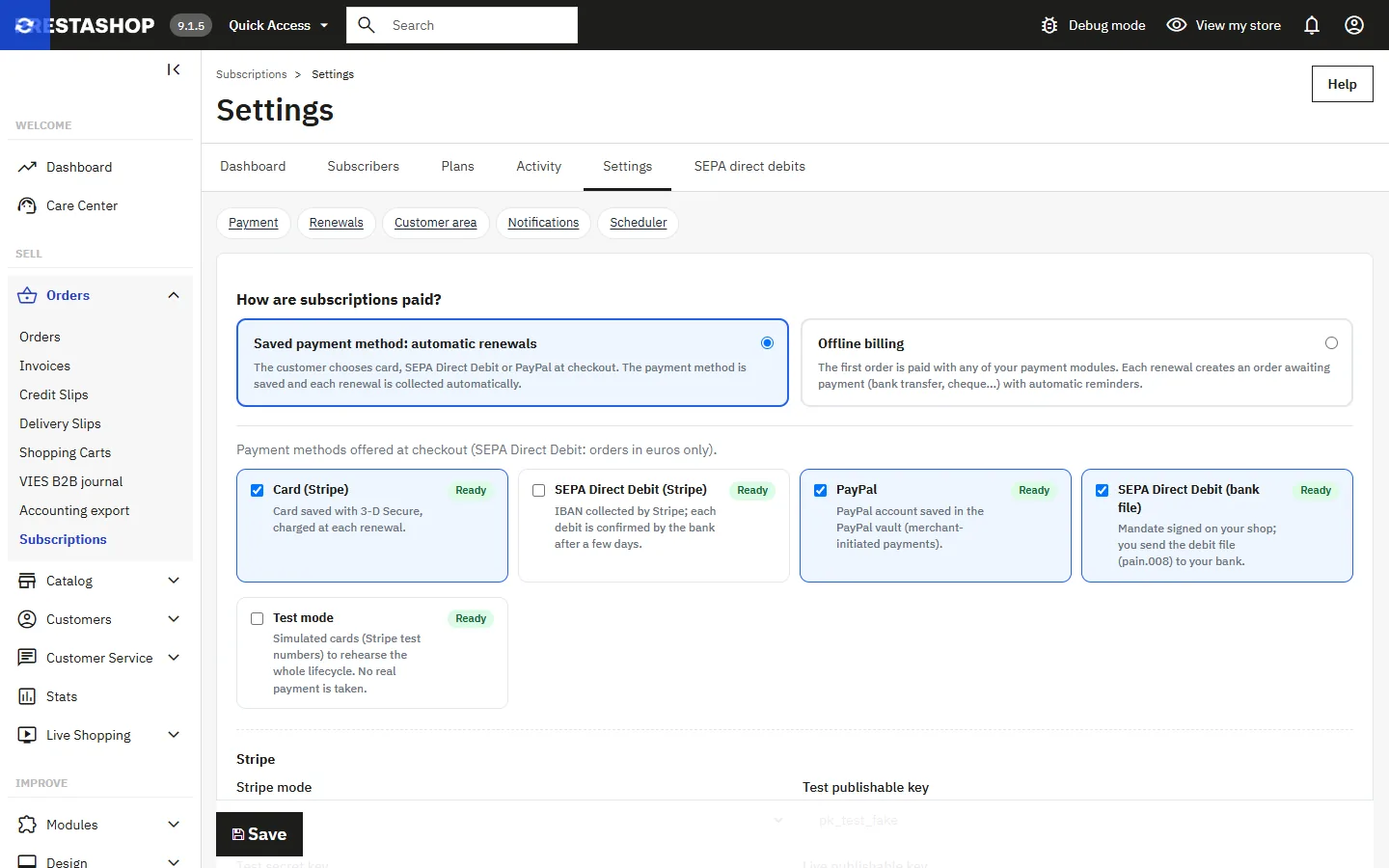
Subscriptions → Settings → Payment offers two modes:
- Saved payment method: automatic renewals — you tick the methods offered at checkout; the customer chooses one, it is saved with the 1st order and then used automatically for every renewal. For a cart containing a subscription, only these methods are offered.
- Offline billing — the 1st order is paid with any of your payment methods (bank wire, cheque…). The subscription starts when the order reaches a paid status. Each renewal creates an order “awaiting payment” (by default “Awaiting bank wire payment”, which sends your bank details); the customer is sent reminders and the subscription is suspended if the order remains unpaid.
Methods available in “saved payment method” mode (each card shows “Ready” or “To configure”):
- Card (Stripe) — card saved with 3-D Secure, charged at each renewal.
- SEPA Direct Debit (Stripe) — the IBAN is entered in Stripe’s secure form, and Stripe manages the mandate. A debit is confirmed by the bank after a few days: the order stays “Awaiting SEPA direct debit” and moves to “Payment accepted” when Stripe confirms; the scheduler checks the result, so no additional webhook is needed.
- PayPal — the customer approves once in PayPal; their account is saved in the PayPal vault and renewals are charged without further approval. Create a REST app in the PayPal developer area (sandbox credentials, then live); your PayPal Business account must be authorised for saved payments (“Vault”).
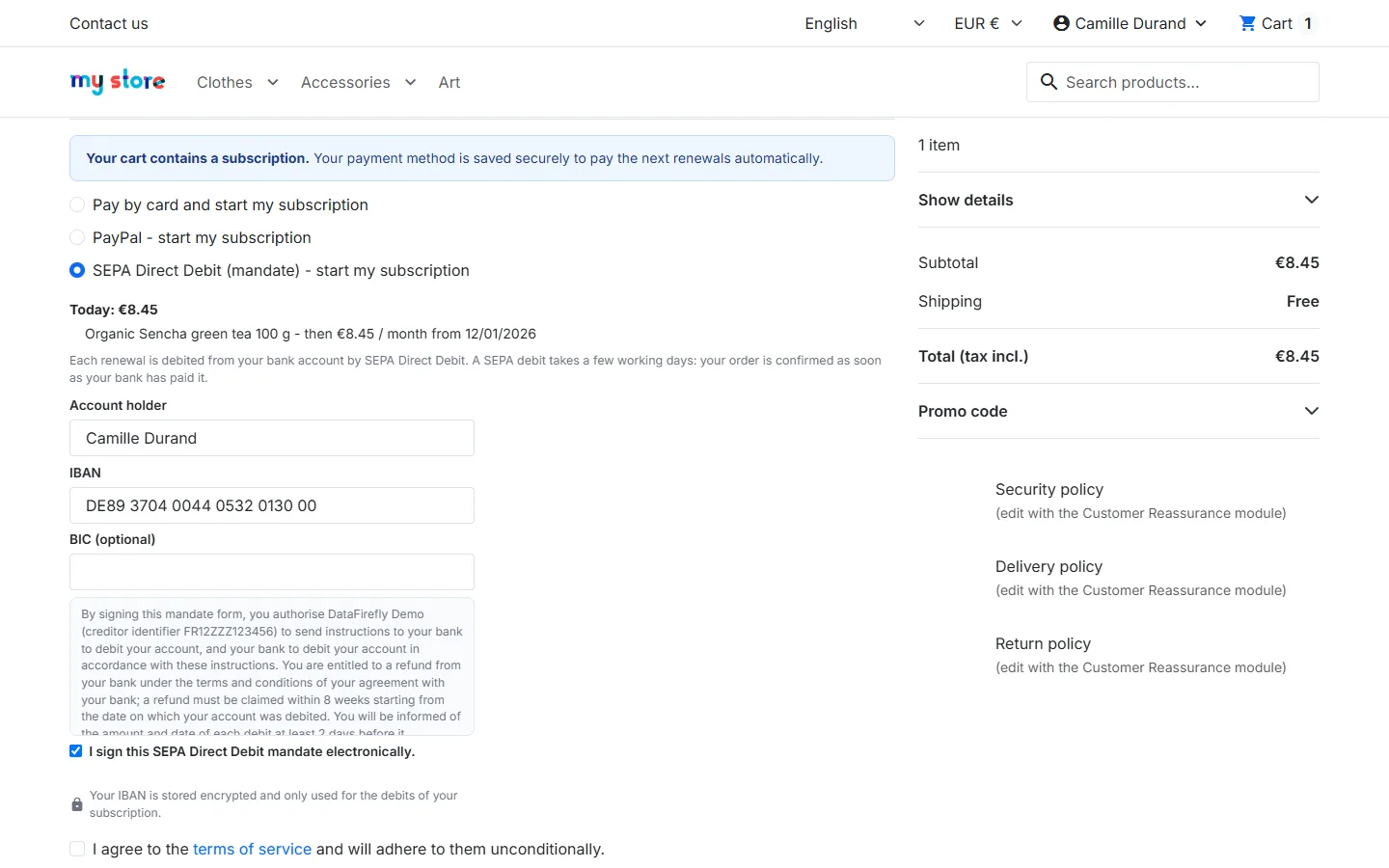
- SEPA Direct Debit (bank file) — the customer signs a SEPA mandate on your shop (account holder, verified IBAN, optional BIC, signature checkbox). You send the debits to your bank yourself: see “SEPA direct debits” below. Fill in the creditor name, your SEPA creditor identifier (ICS), and the IBAN and BIC of the account credited.
- Test mode — simulated cards (Stripe test numbers), no real payment: to rehearse the whole cycle before going live.
SEPA Direct Debit is only offered for carts in euros.
Stripe keys and webhook
Enter the publishable and secret keys for the chosen mode (test or live); saved secret keys are never displayed again (leaving the field empty keeps the key). Then create a webhook in Stripe pointing to the URL shown, with the events payment_method.detached, charge.refunded and charge.dispute.created, and paste the whsec_… signing secret. Unsigned events are rejected and each event is processed only once.
Creating a plan
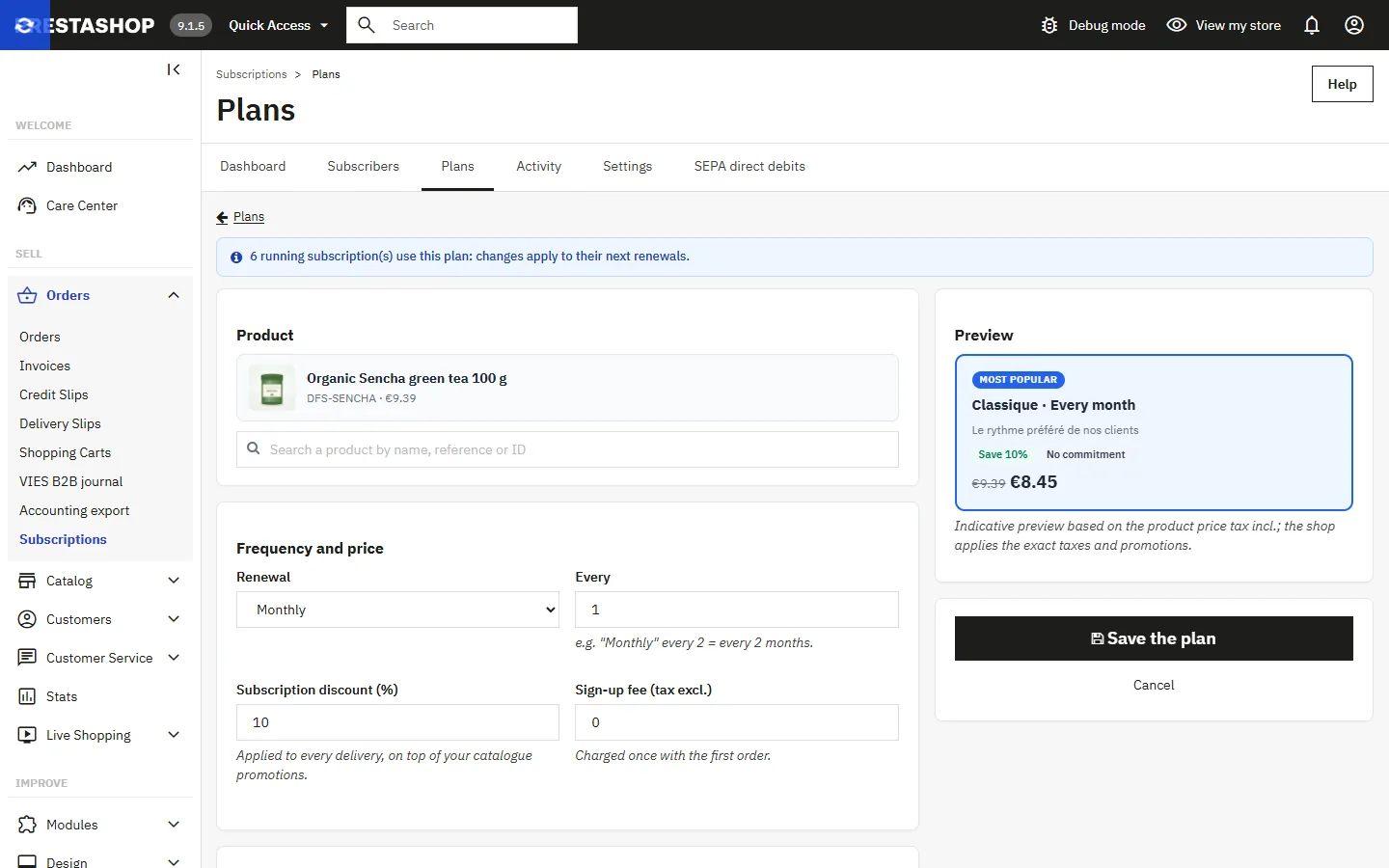
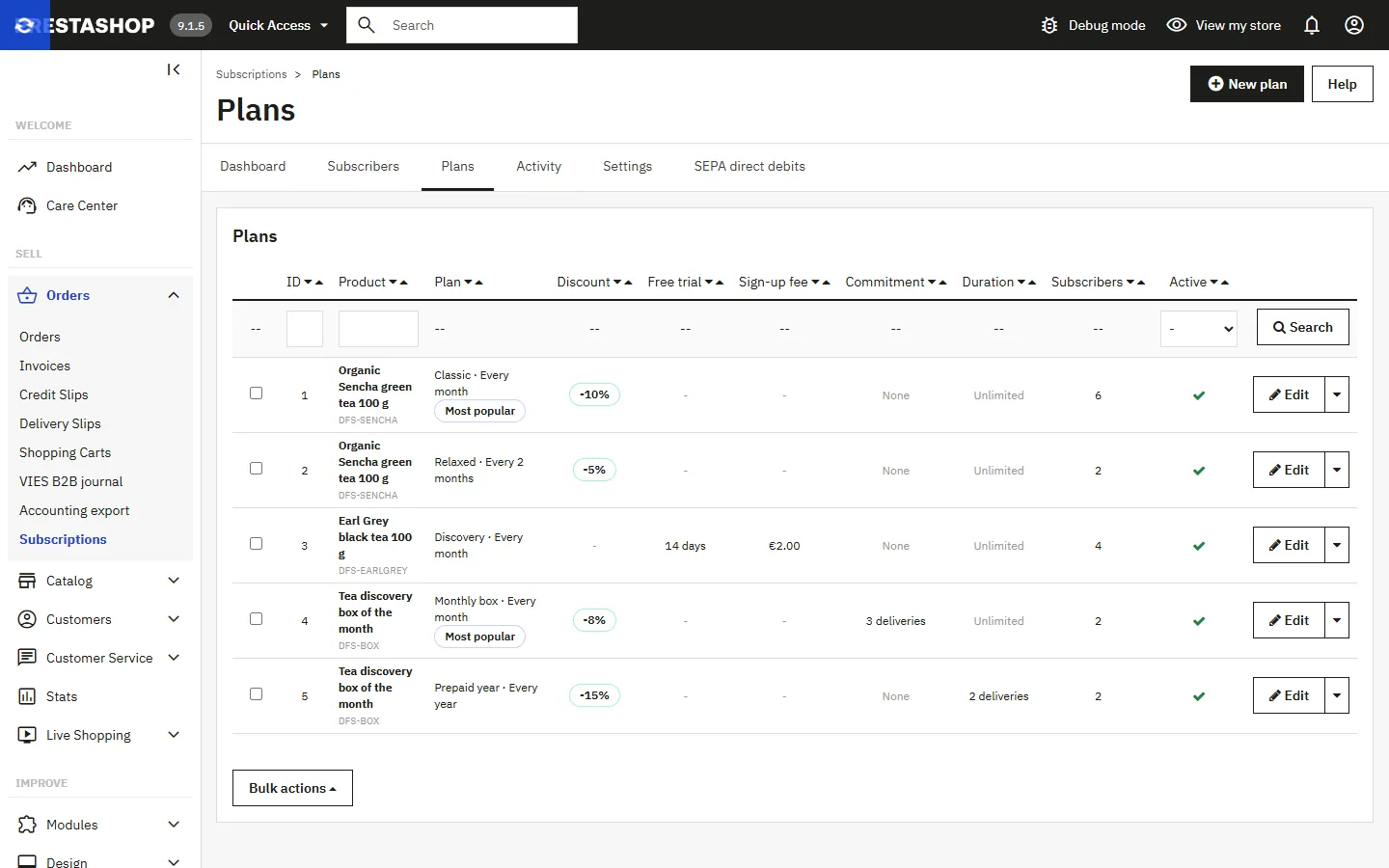
Subscriptions → Plans → New plan (or from the Modules tab of the product page):
- Product (search by name, reference or ID) and, if needed, one combination only.
- Renewal: weekly, every two weeks, monthly, quarterly, every six months or yearly, with a multiplier (“Monthly” every 2 = every 2 months).
- Subscription discount (%): applied to each delivery, after your catalog price rules.
- Sign-up fee (tax excl.): charged once with the 1st order.
- Free trial (days): the 1st delivery is free, and the 1st charge takes place at the end of the trial.
- Commitment: number of paid deliveries before the customer can cancel.
- Total number of deliveries: 0 = until cancelled; otherwise the subscription ends on its own (e.g. 12 issues).
- Display: name and short pitch per language, “Most popular”, display order, activation.
The preview on the right shows the plan card as it will appear. A plan used by subscriptions cannot be deleted: deactivate it instead (running subscriptions continue).
Customer journey
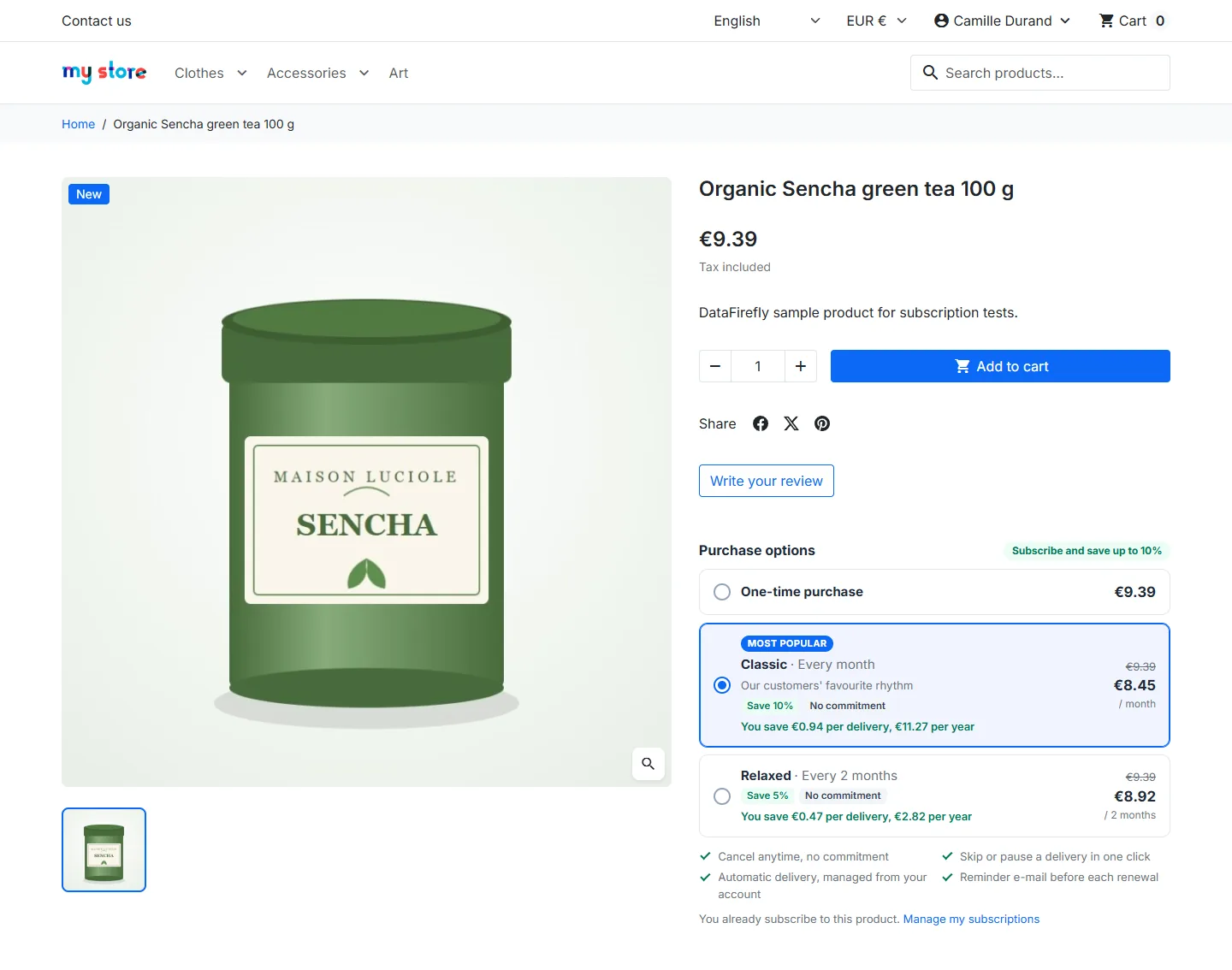
Product page
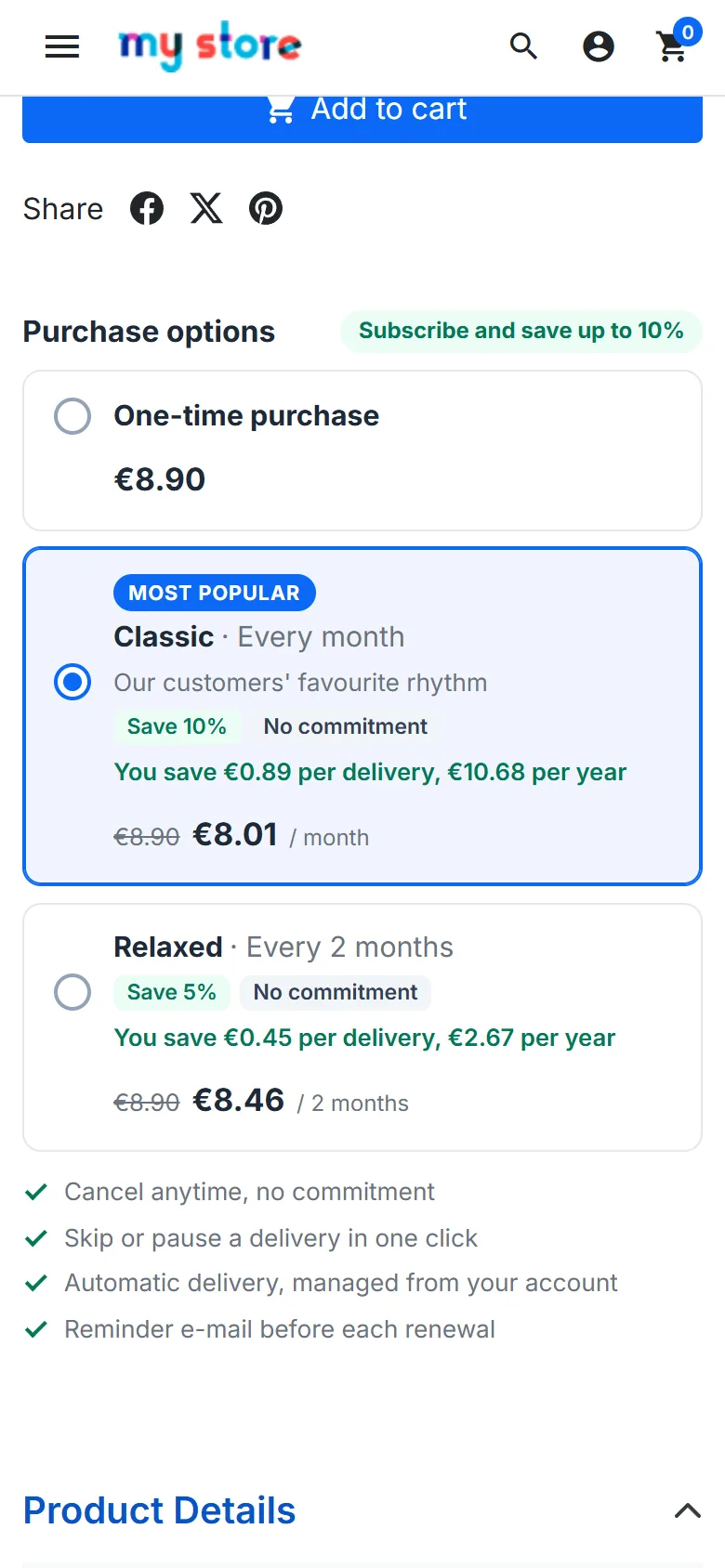
The “Purchase options” block compares the one-time purchase with each plan: strikethrough price, price per delivery, savings per delivery and per year, badges (trial, commitment, fee), note about the 1st order. The choice is saved even before the product is first added to the cart.
Cart and checkout
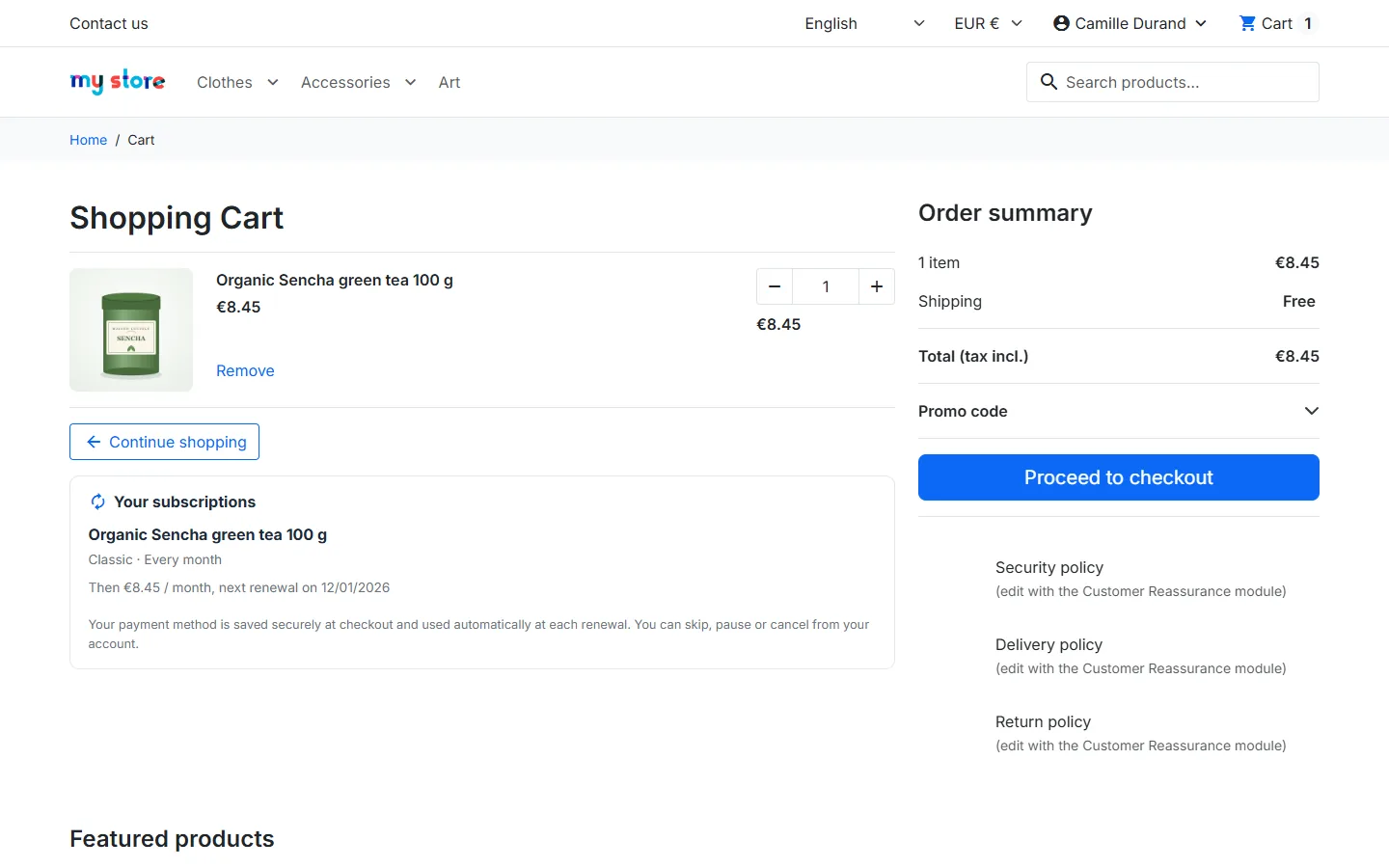
The cart shows the subscription price and a summary: plan, trial, fee, recurring amount and next renewal date. At checkout, the customer sees what is paid today and the authorisation to charge for the renewals. A subscription requires a customer account: guests are asked to sign in or create an account.
SEPA direct debits (bank file)
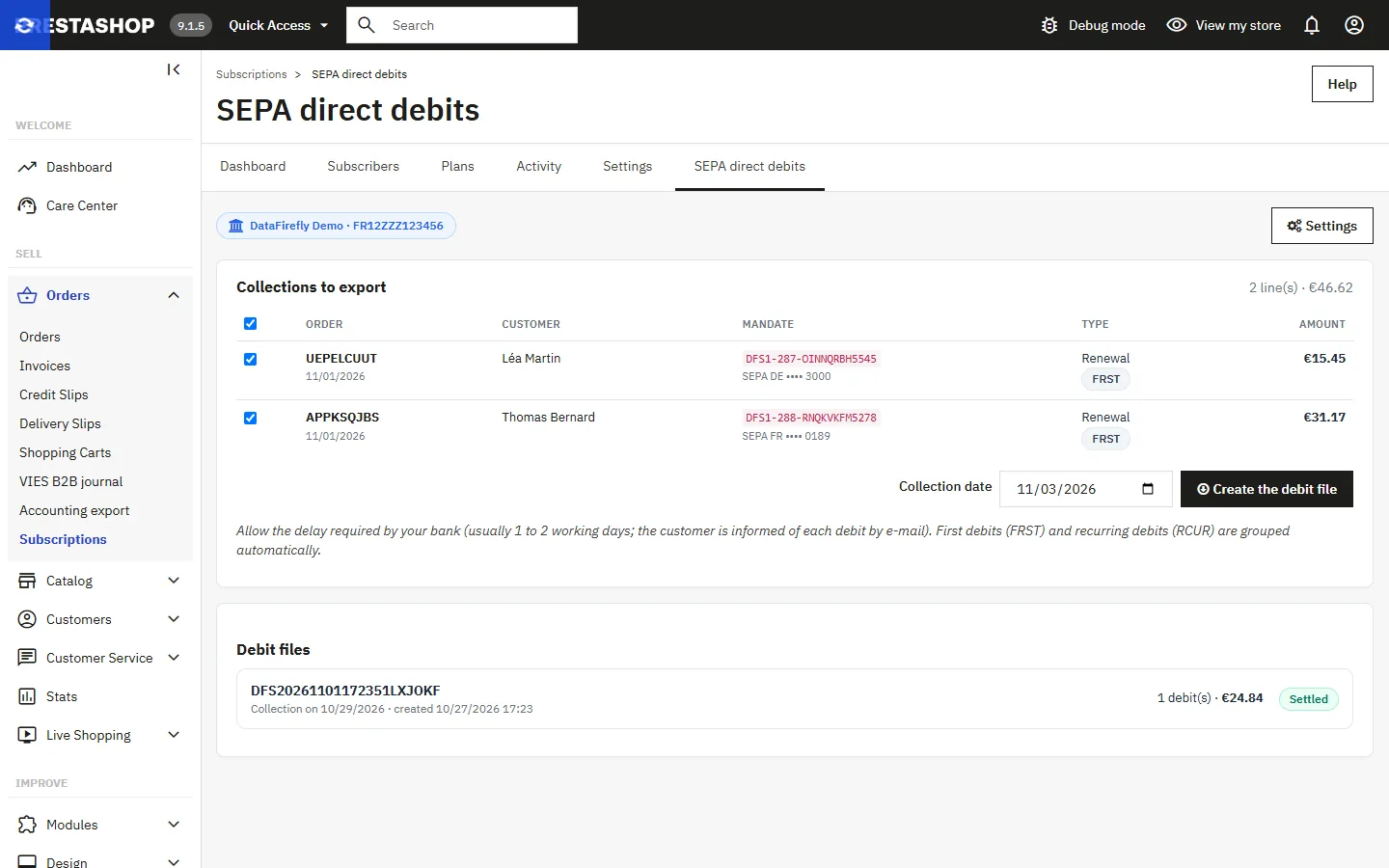
Orders paid by SEPA mandate wait in Subscriptions → SEPA direct debits:
- select the collections, choose the collection date (respecting your bank’s lead time) and click Create the debit file;
- download the pain.008 XML file and upload it to your online banking (first debits FRST and recurring debits RCUR are grouped automatically);
- once the bank has paid, click Mark as paid: the orders move to “Payment accepted”, and the subscription starts or the renewal is counted;
- for a rejected debit, use Mark as rejected: the order moves to “Payment error” and the subscription follows your retry rules.
IBANs are stored encrypted; only the country and the last 4 digits are displayed. The file is regenerated at each download.
Renewals and scheduler
The scheduler processes due renewals, retries failed payments, resumes subscriptions whose pause has ended, follows up unpaid offline orders and pending SEPA direct debits, and sends reminders. Run it once a day (or every hour). From the command line (recommended; the token can also be passed through the DFSUBSCRIPTION_CRON_TOKEN variable):
0 6 * * * php /path/to/shop/modules/dfsubscription/cli/run.php --token=YOUR_TOKENor by URL: https://yourshop.com/module/dfsubscription/cron?token=YOUR_TOKEN. Command-line exit codes: 0 = OK, 2 = invalid token, 3 = module disabled, 5 = payment failures or errors. The “Scheduler” panel in the settings shows the last run and lets you start a run or regenerate the token.
At each renewal: the cart is rebuilt in the subscription’s shop, currency and language and with its address, the original carrier is used if available, the subscription price is applied (current price minus the discount, or locked price depending on your settings), then the payment is charged, a standard PrestaShop order is created and the customer receives an e-mail. If the product is out of stock or unavailable, the renewal is postponed by one day with no charge and no failure counted, and you are notified.
Failed payments and retries
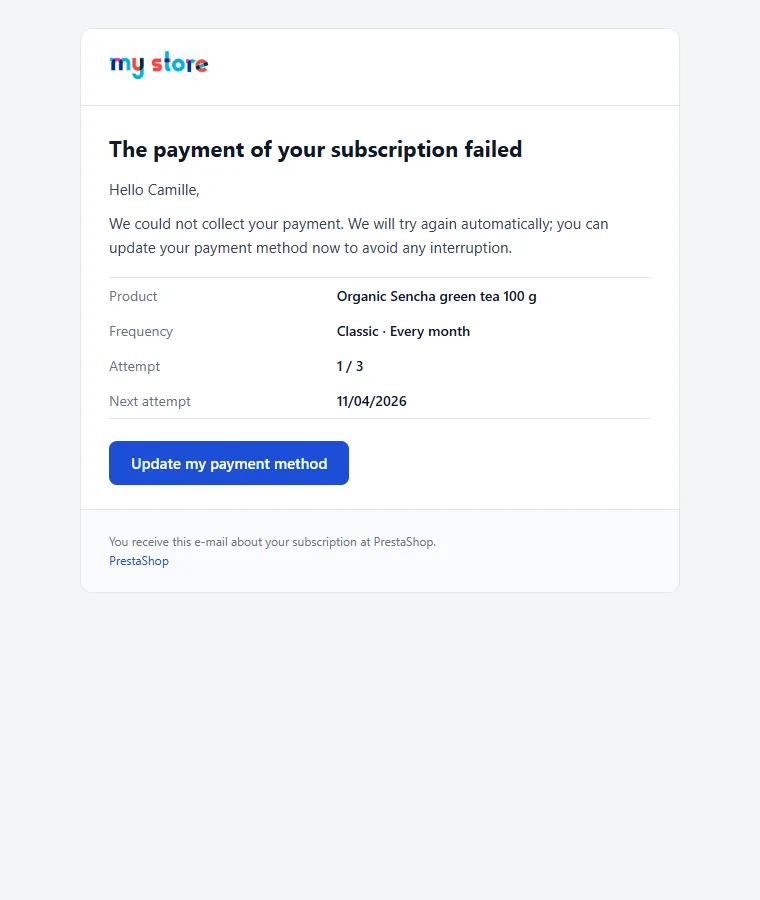
- The charge fails: the subscription becomes “Payment failed” and the customer receives an e-mail with a link to update their payment method. For a SEPA direct debit, the rejected order moves to “Payment error” and follows the same rules.
- Automatic retry after the configured delay (3 attempts 3 days apart by default).
- After the last attempt: suspension (by default) or cancellation, depending on your settings; you are notified.
- As soon as the customer saves a new payment method, the subscription becomes active again and is charged at the next run.
“My subscriptions” customer area
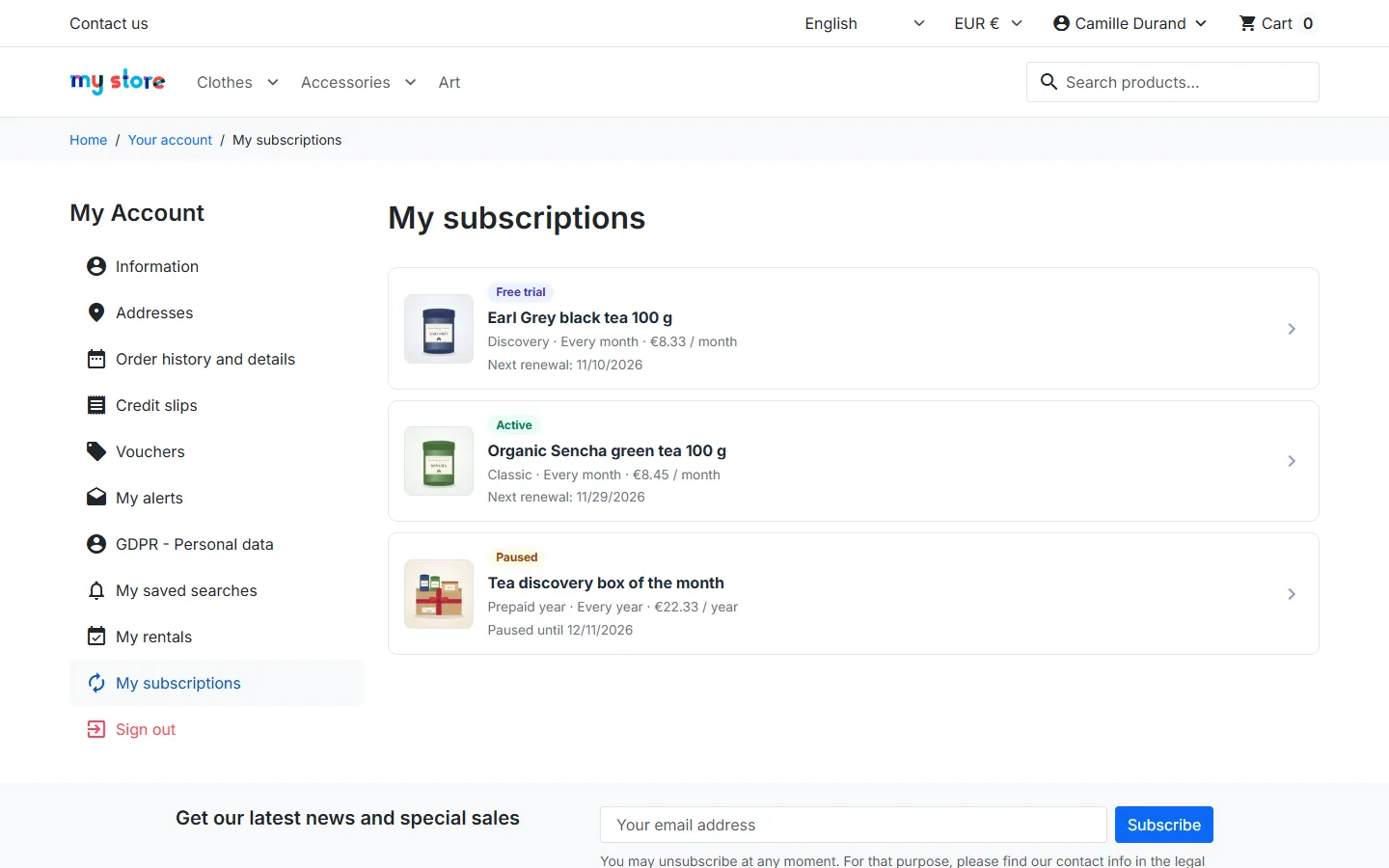
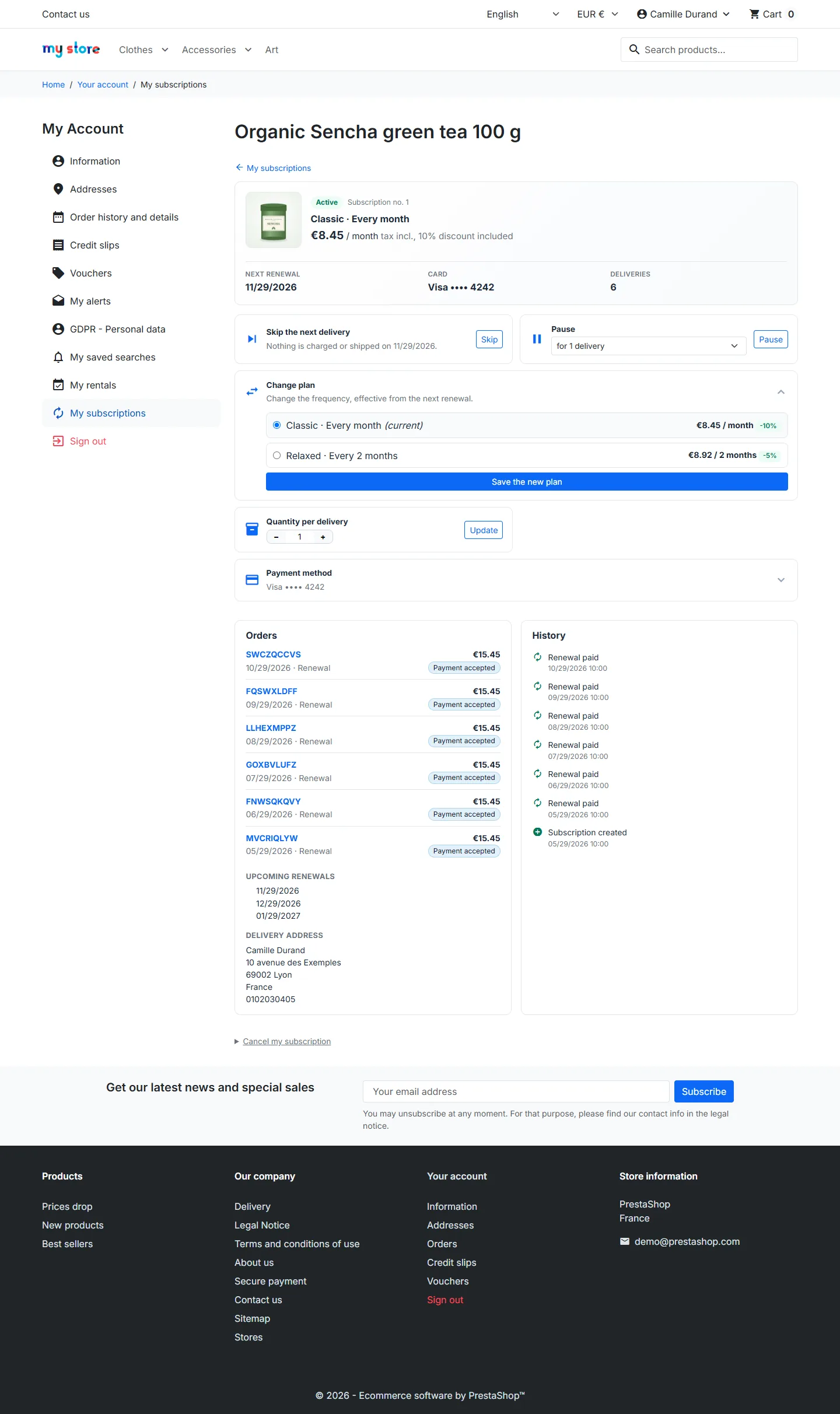
Customers see their current and past subscriptions, then, for each one: status, next date, payment method, remaining commitment, deliveries, orders and history. Depending on your settings, they can:
- Skip the next delivery.
- Pause for 1 to N deliveries (automatic resumption) or until resumed, then resume on the planned date.
- Change plan among the product’s plans (effective from the next renewal, no prorating) and change the quantity.
- Change the delivery address and replace their payment method: new card, new IBAN, new SEPA mandate or another PayPal account (applied to all their subscriptions paid the same way).
- Cancel with a reason; during a commitment, they can only schedule the cancellation for the end of the commitment (and undo it).
Each action is sent as a POST request with a session token and checks that the subscription really belongs to the customer.
Back office
Dashboard
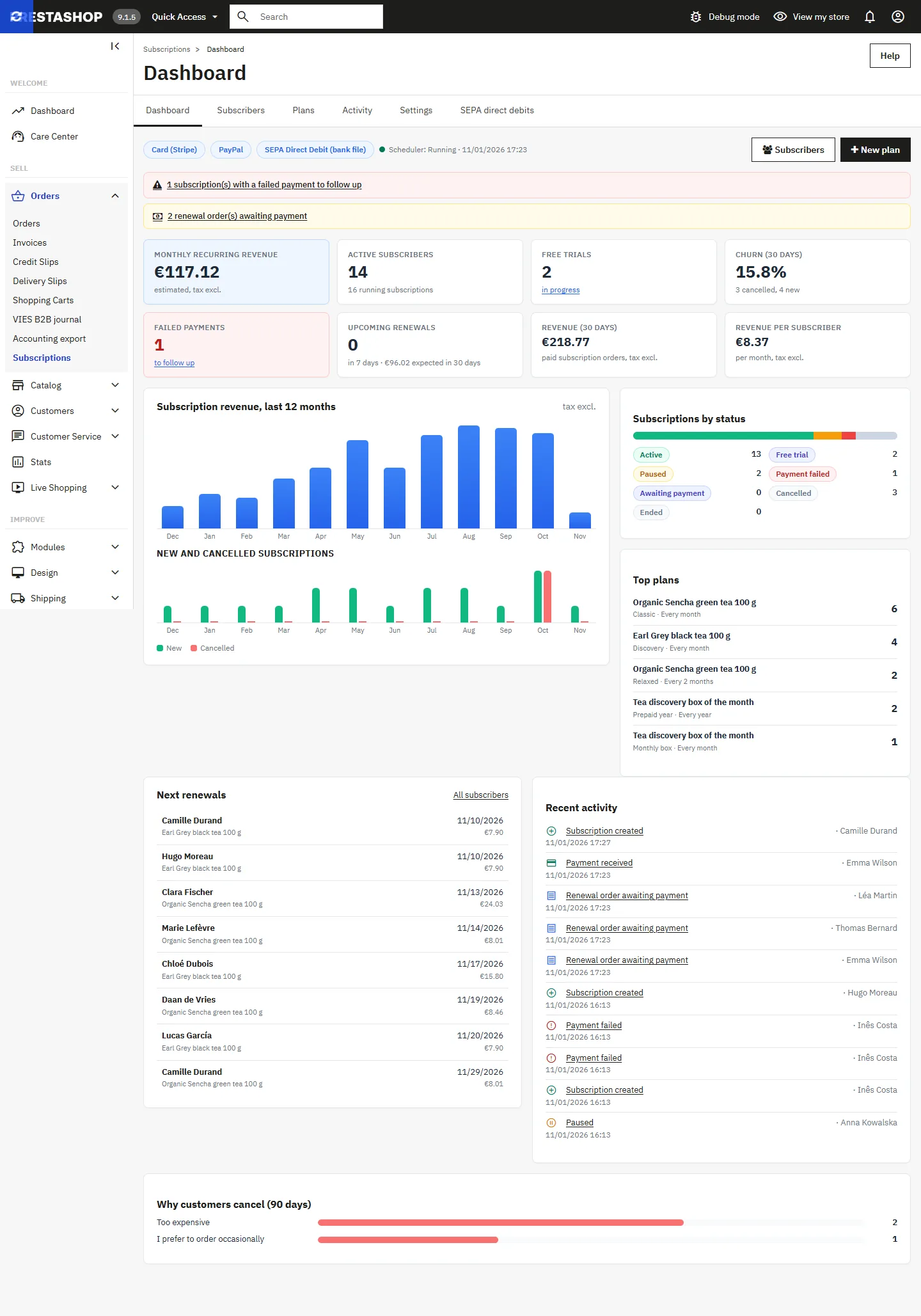
Estimated monthly recurring revenue (tax excl.), active subscribers, ongoing trials, 30-day churn rate, failed payments to follow up, renewals in the next 7 and 30 days, revenue from subscription orders, revenue per subscriber, 12-month chart, new subscriptions and cancellations, breakdown by status, top plans, upcoming renewals, recent activity and cancellation reasons. A getting-started guide is displayed until the configuration is complete.
Subscribers and subscription page
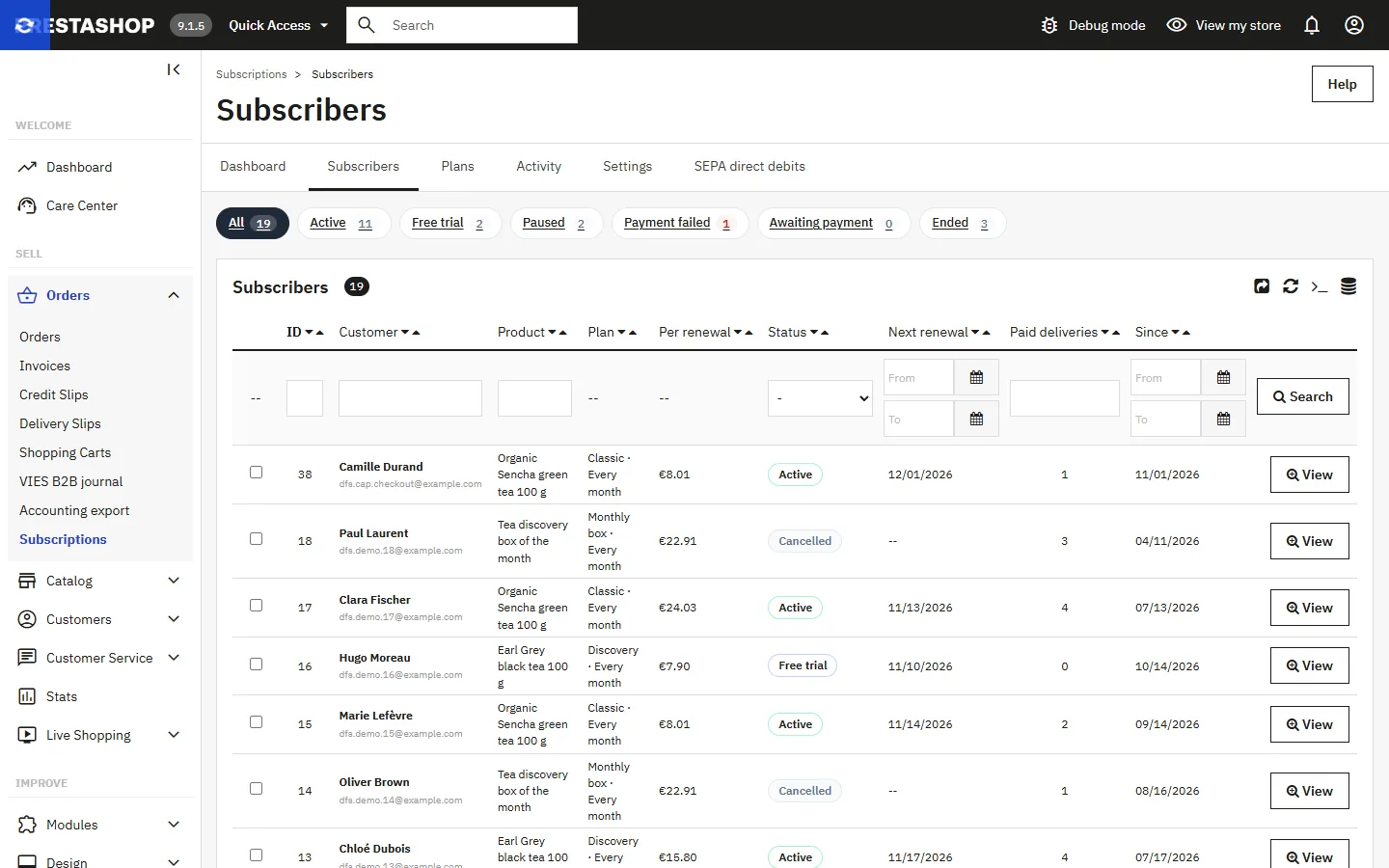
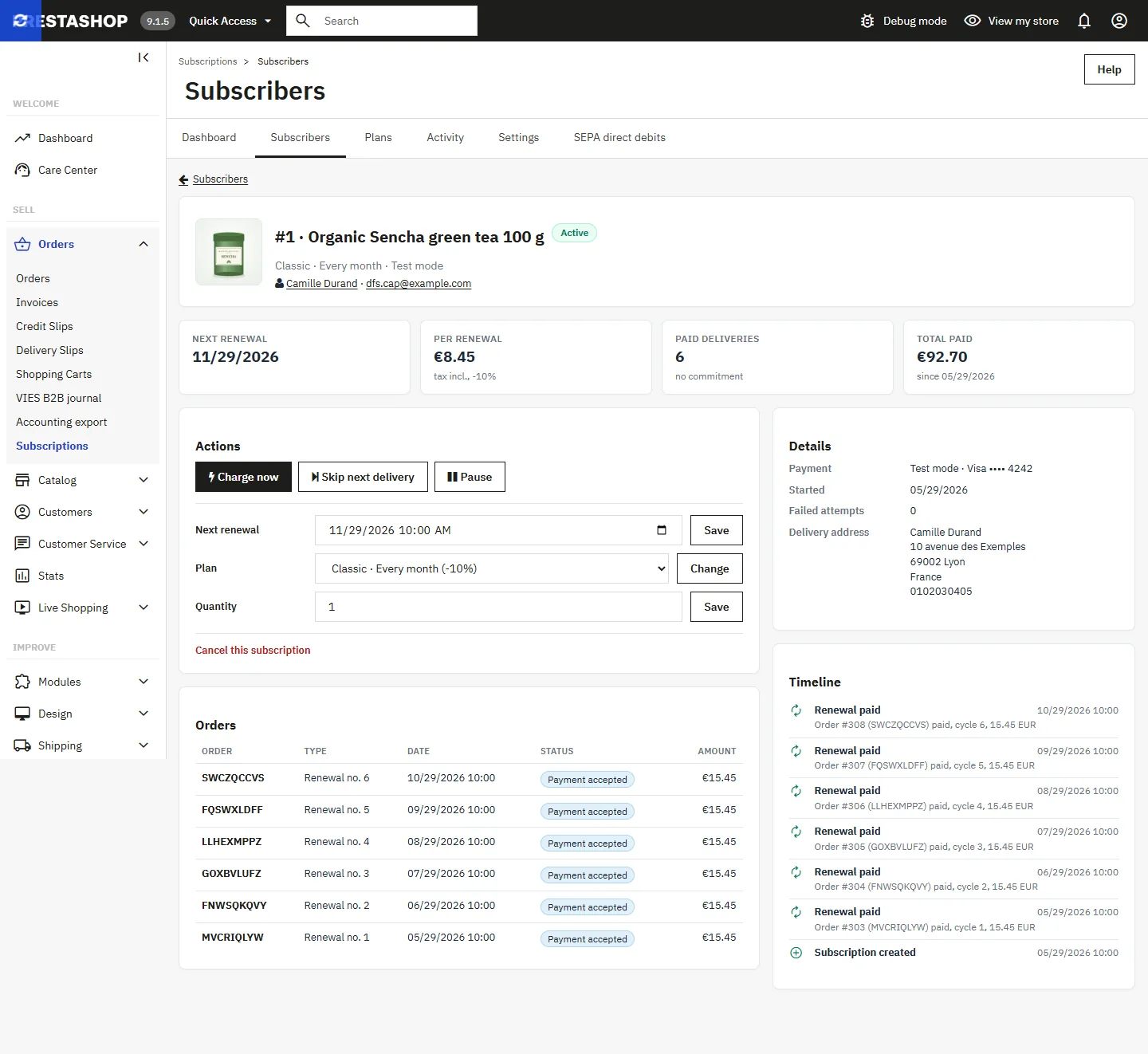
The list can be filtered by status (active, trial, paused, payment failed, awaiting payment, ended), exported to CSV and supports bulk actions (pause, resume, cancel). A subscription’s page brings together indicators, actions (charge or invoice now, skip, pause, resume, next renewal date, plan, quantity, cancellation, reactivation), orders and the full timeline.
Other screens
- Activity: all events, filterable by type and by author (customer, employee, scheduler).
- Order page and customer page: panel listing the related subscriptions.
- Subscriber customer group (Settings): customers are placed in it as long as a subscription is active or paused; use it for reserved prices or access to categories.
E-mails
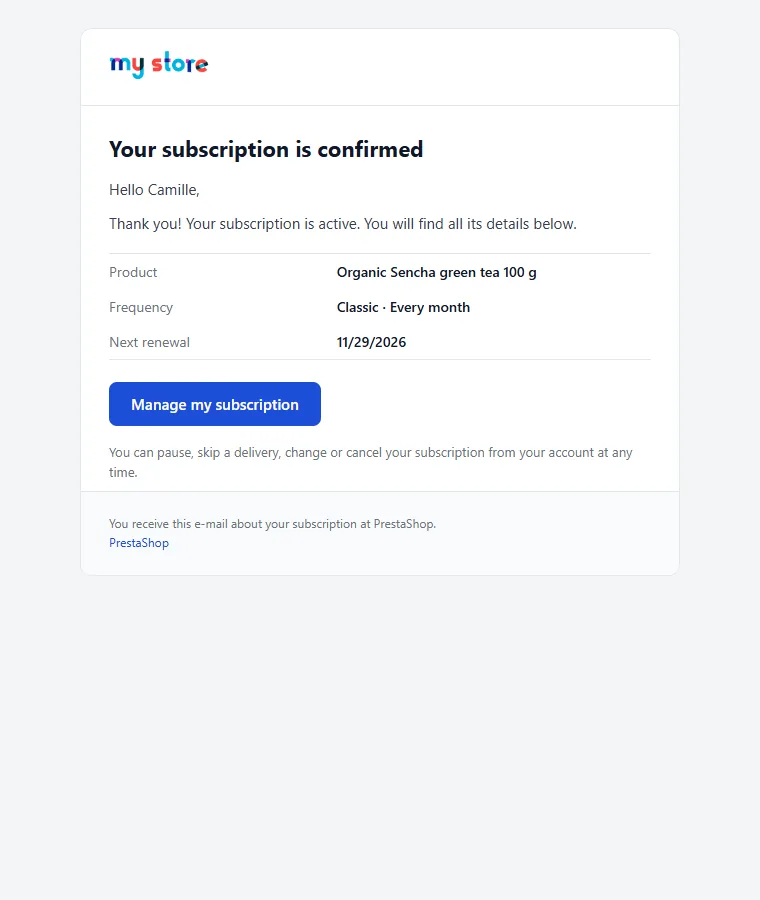
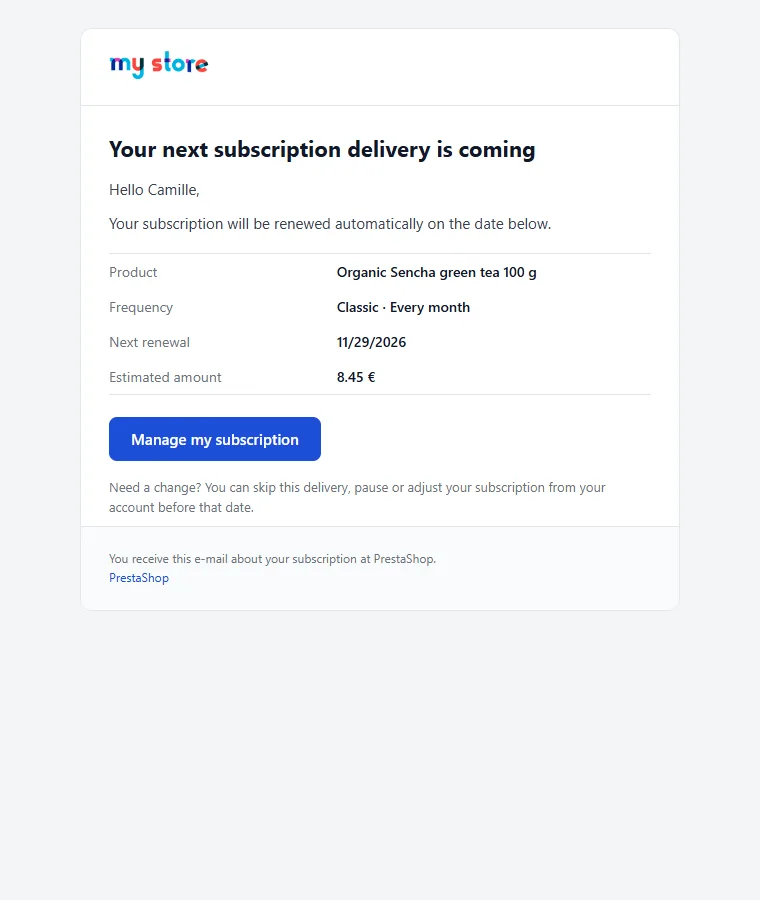
All e-mails are sent in the customer’s language (8 languages included) with amounts in their currency: subscription confirmed, renewal paid, SEPA direct debit requested, order awaiting payment and reminders, payment failed, reminder before renewal and end of trial, pause, resumption, change, cancellation, end approaching. The merchant is notified of new subscriptions, cancellations, suspensions and postponed renewals. The texts can be edited in International → Translations → Installed modules translations.
FAQ and troubleshooting
The subscription block does not appear on the product page
Check that an active plan exists for this product (or this combination) and that at least one payment method is “Ready” in the settings (Stripe or PayPal keys entered, SEPA creditor details complete; cart in euros for SEPA).
PayPal declines renewals
Check with PayPal that your account is authorised for saved payments (Vault, merchant-initiated payments). The error returned by PayPal appears in the subscription’s history.
Renewals are not happening
The “Scheduler” panel shows the last run. Run the command manually to see the report and any errors.
How can I test safely?
Switch to Test mode, create a plan, place an order with the card 4242 4242 4242 4242, then use “Charge now” on the subscription’s page. The card 4000 0000 0000 0341 is accepted when ordering and then declined at renewal: ideal for testing retries.
Need help? Open a ticket from your DataFirefly account: reply within 24 business hours, in French or English.