
Minimum quantity and pack multiples: DataFirefly Minimums documentation
Installation, quantity rules (minimum, multiple, maximum), priorities and simulator, order minimums per group, server-side checks, CSV import and troubleshooting.
What the module does
DataFirefly Minimums and Pack Multiples sets a minimum, a required multiple (sold by 6, by 12) and a maximum per product, combination, category, brand or for the whole catalog, optionally for one customer group and one period. It also sets a minimum order amount per customer group. Every rule is checked again on the server, from the add to cart up to the creation of the order: a direct request cannot bypass it.
Installation
Install the ZIP from Modules > Module Manager > Upload a module. The module creates its tables, registers its hooks and adds two tabs under Catalog: Minimums and multiples and Order minimums. Version 2.0.0 runs on PrestaShop 1.7.8, 8 and 9 with the same ZIP.
Upgrading from 1.0.0: upload the 2.0.0 ZIP over the old one. Your rules and order minimums are kept, the new columns and settings are added automatically.
Overview
The configuration page opens on an overview: number of active rules per target, order minimums, the place of every server-side check, events counted over the last 30 days (quantities adjusted, updates refused, checkouts blocked, orders refused) and consistency checks. The module only counts real events; it does not estimate any effect on sales.
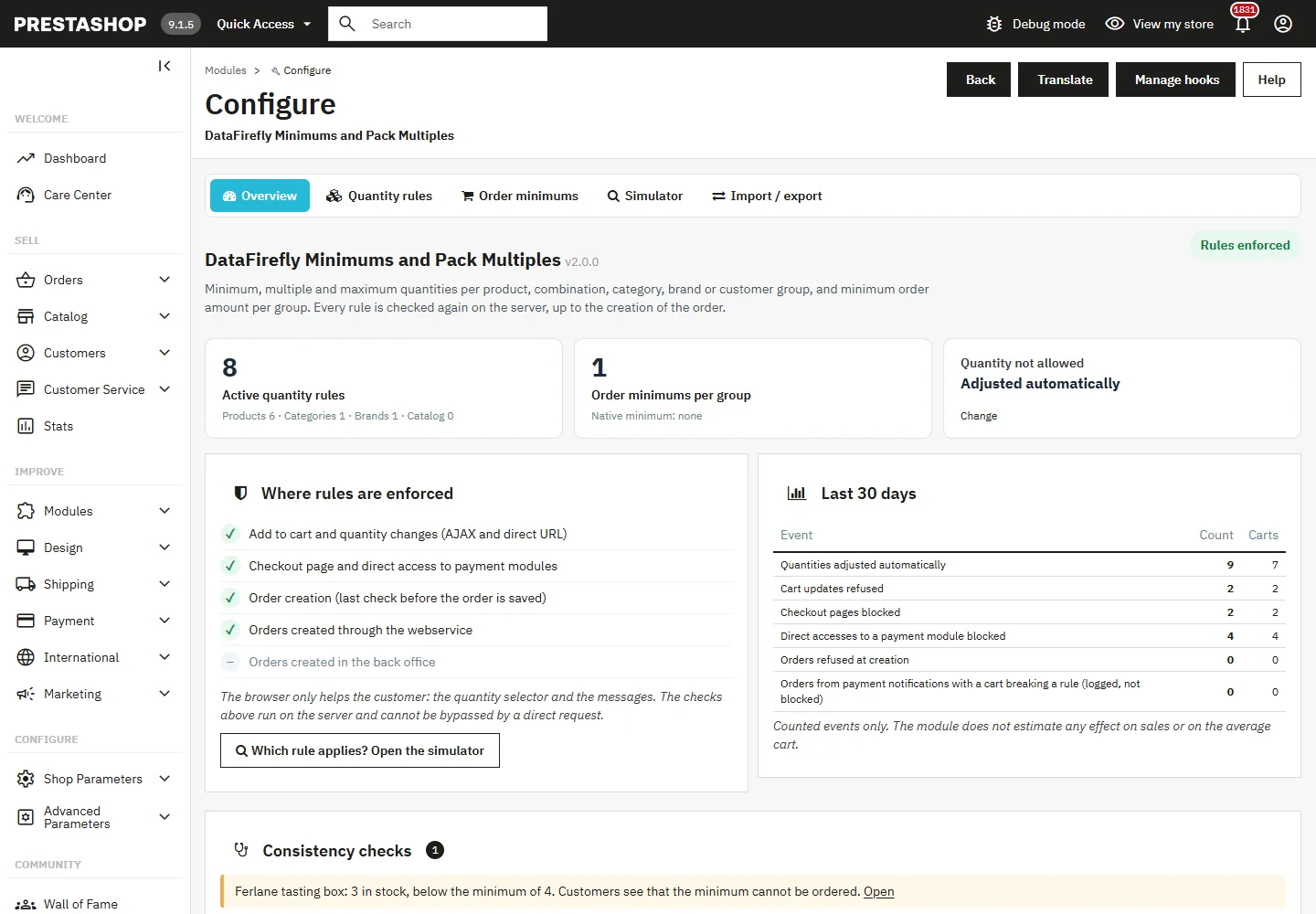
The consistency checks list the rules that target a deleted product, category, brand or group, ended rules, rounded minimums, ignored maximums, ambiguous rules (same target, group and priority), products whose stock is below the minimum and the native minimum quantity of product sheets.
Settings
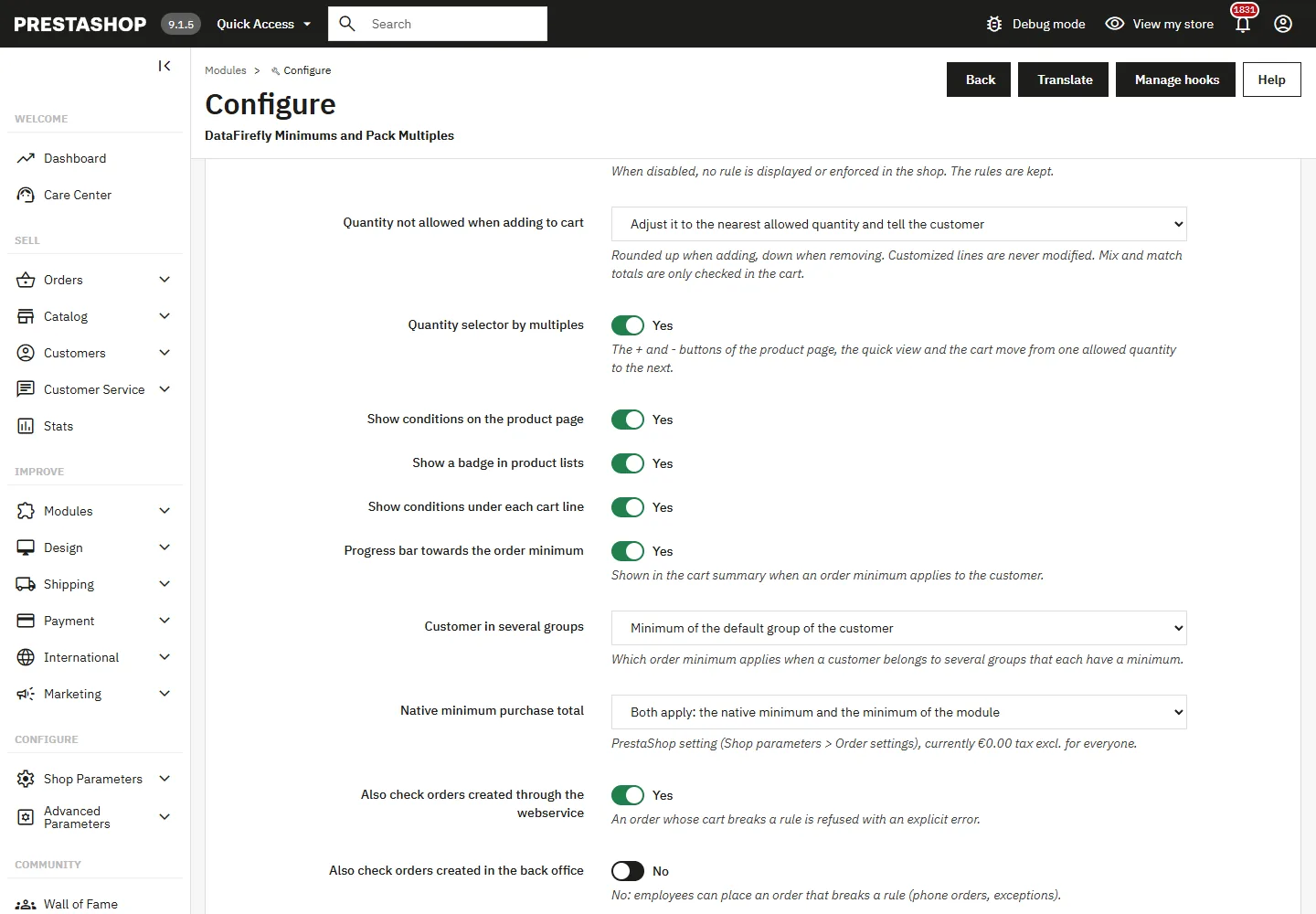
- Enable purchase rules: main switch. Disabled, nothing is displayed or enforced; rules are kept.
- Quantity not allowed when adding to cart: adjust it to the nearest allowed quantity and tell the customer (rounded up when adding, down when removing), or refuse the update and explain which quantities are allowed.
- Quantity selector by multiples: the + and – buttons of the product page, the quick view, the product lists (Hummingbird) and the cart jump from one allowed quantity to the next.
- Conditions on the product page, badge in lists, conditions under cart lines, progress bar: each display can be switched off.
- Customer in several groups: the order minimum of the default group, the highest or the lowest.
- Native minimum purchase total: both apply, or the module minimum replaces the native one for customers who have one.
- Webservice and back office orders: webservice orders are checked by default and refused with an explicit error; back office orders are not checked by default, for phone orders and exceptions.
- Measure adjustments and blocks: only the cart ID is stored, entries are deleted after 90 days.
- Keep the rules when uninstalling.
Quantity rules
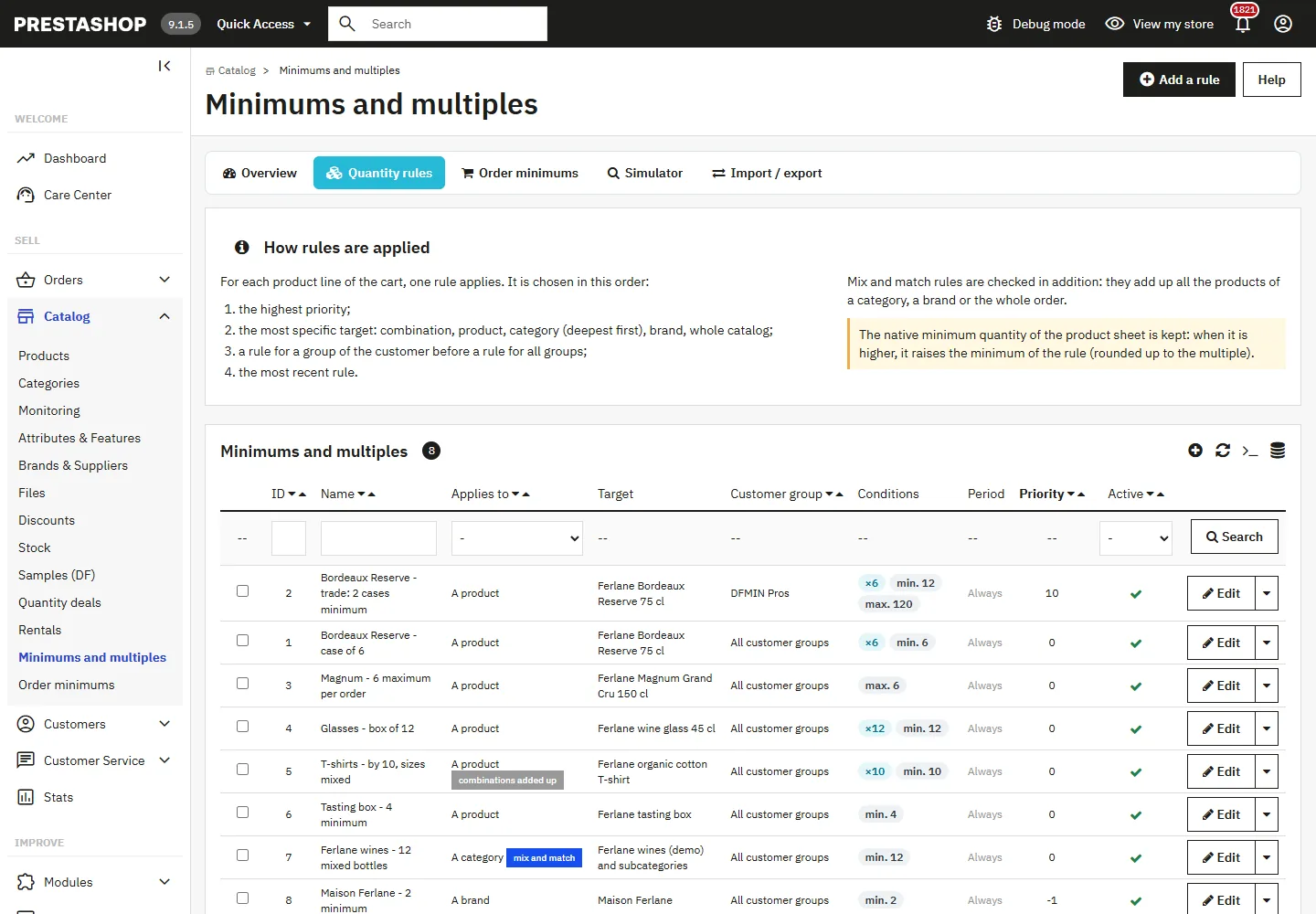
Open Catalog > Minimums and multiples. The list shows the target, the customer group, the conditions, the period and the priority of every rule. Rules can be duplicated and enabled or disabled in bulk.
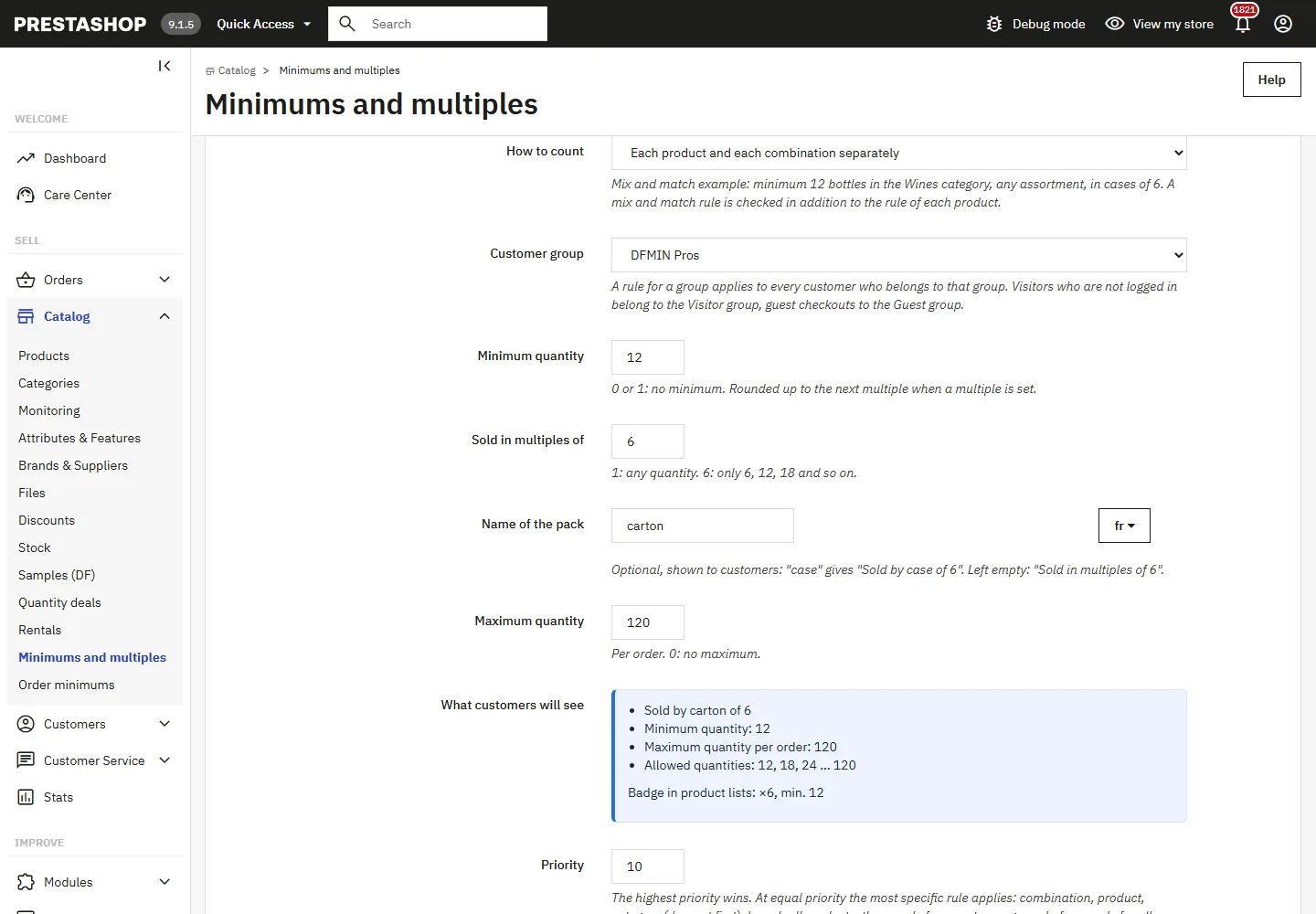
Creating a rule
- Applies to: a product (search by name, reference, EAN or ID, then optionally one combination), a category (with or without subcategories), a brand or all products.
- How to count: each product and each combination separately; each product with its combinations added up (sizes and colours mixed); or all the targeted products together (mix and match).
- Customer group: all groups or one group. Visitors who are not logged in belong to the Visitor group, guest checkouts to the Guest group.
- Minimum, multiple, maximum: the minimum is rounded up to the multiple (5 by 6 gives 6). The maximum must be a multiple and at least the smallest allowed quantity: the form refuses it otherwise and suggests two values.
- Name of the pack, per language: “case” gives “Sold by case of 6”.
- Priority and optional period (from / until).
The What customers will see block previews the messages and the badge while you type, with the warnings.
Which rule applies
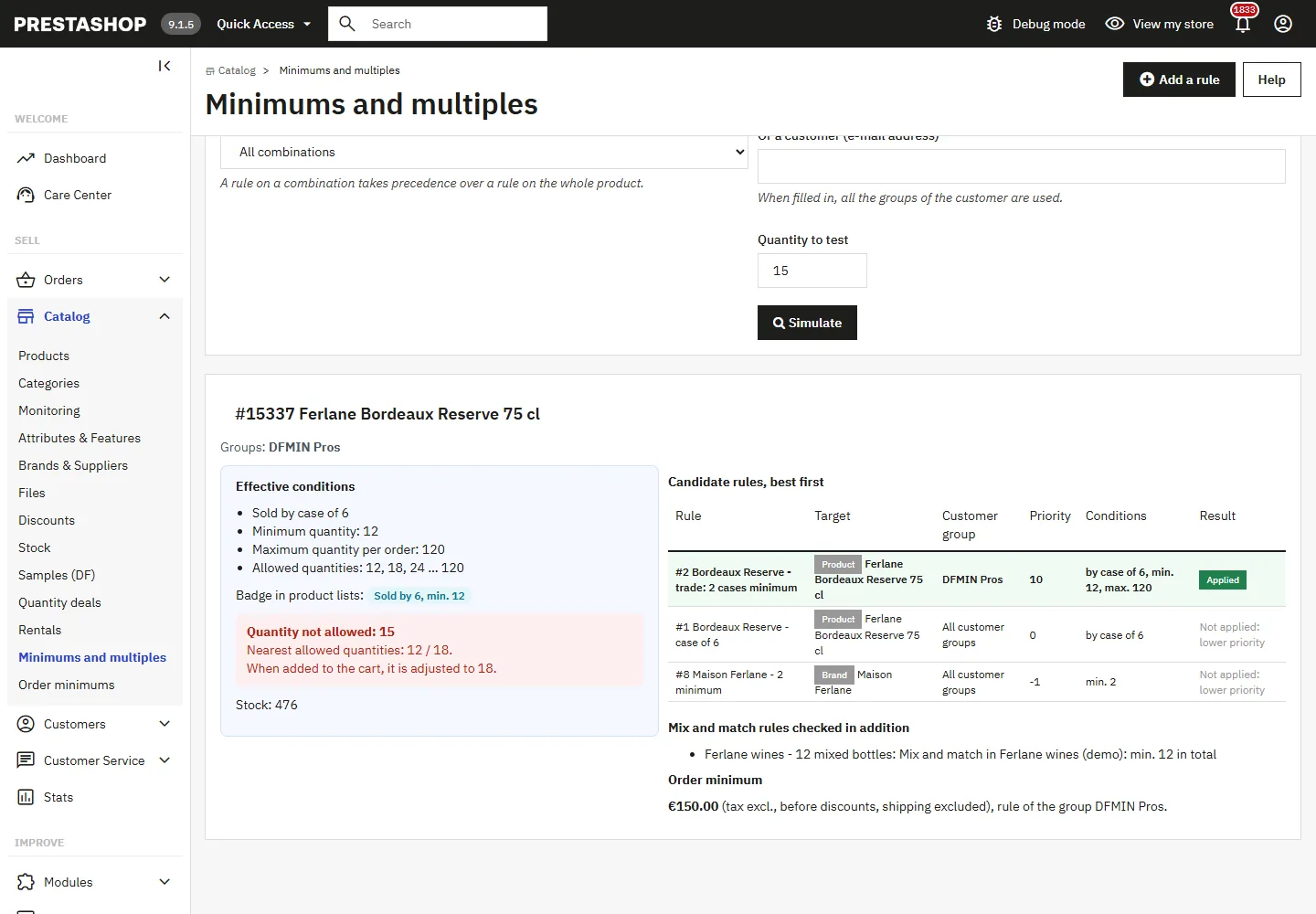
For each product line of the cart, one rule applies. It is chosen in this order:
- the highest priority;
- the most specific target: combination, product, category (deepest first), brand, whole catalog;
- a rule for a group of the customer before a rule for all groups;
- the most recent rule.
Mix and match rules are checked in addition: they add up all the products of a category, a brand or the whole order. The native minimum quantity of the product sheet is kept: when it is higher, it raises the minimum of the rule, rounded up to the multiple.
The Simulator answers the question for a product, a combination, a customer group or a customer (e-mail) and a quantity: it lists every candidate rule, the one applied, why the others are not, the effective conditions, the verdict for the quantity, the stock and the order minimum.
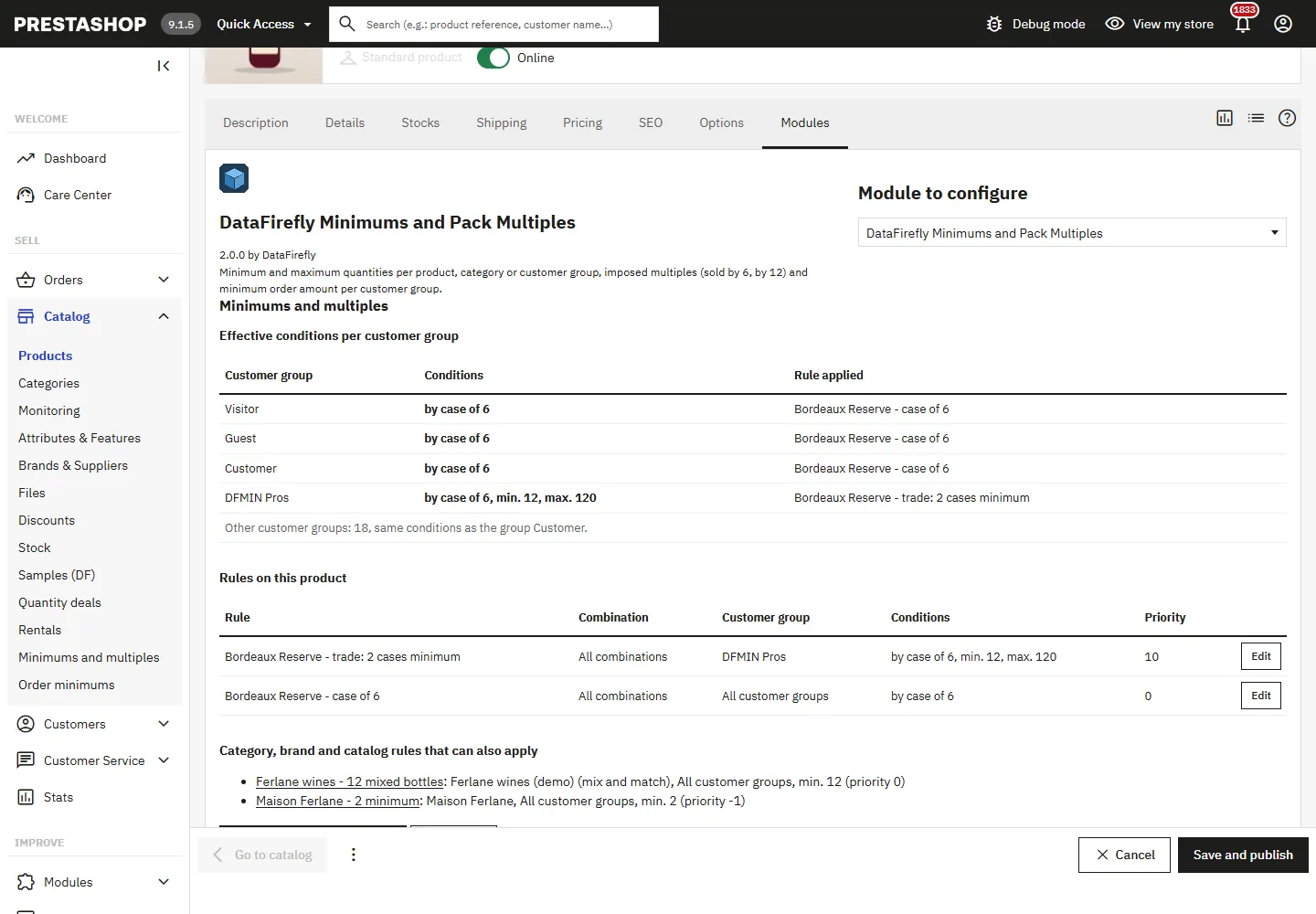
The Modules tab of the product page shows the effective conditions per customer group, the rules on the product and the inherited rules.
Order minimums per group
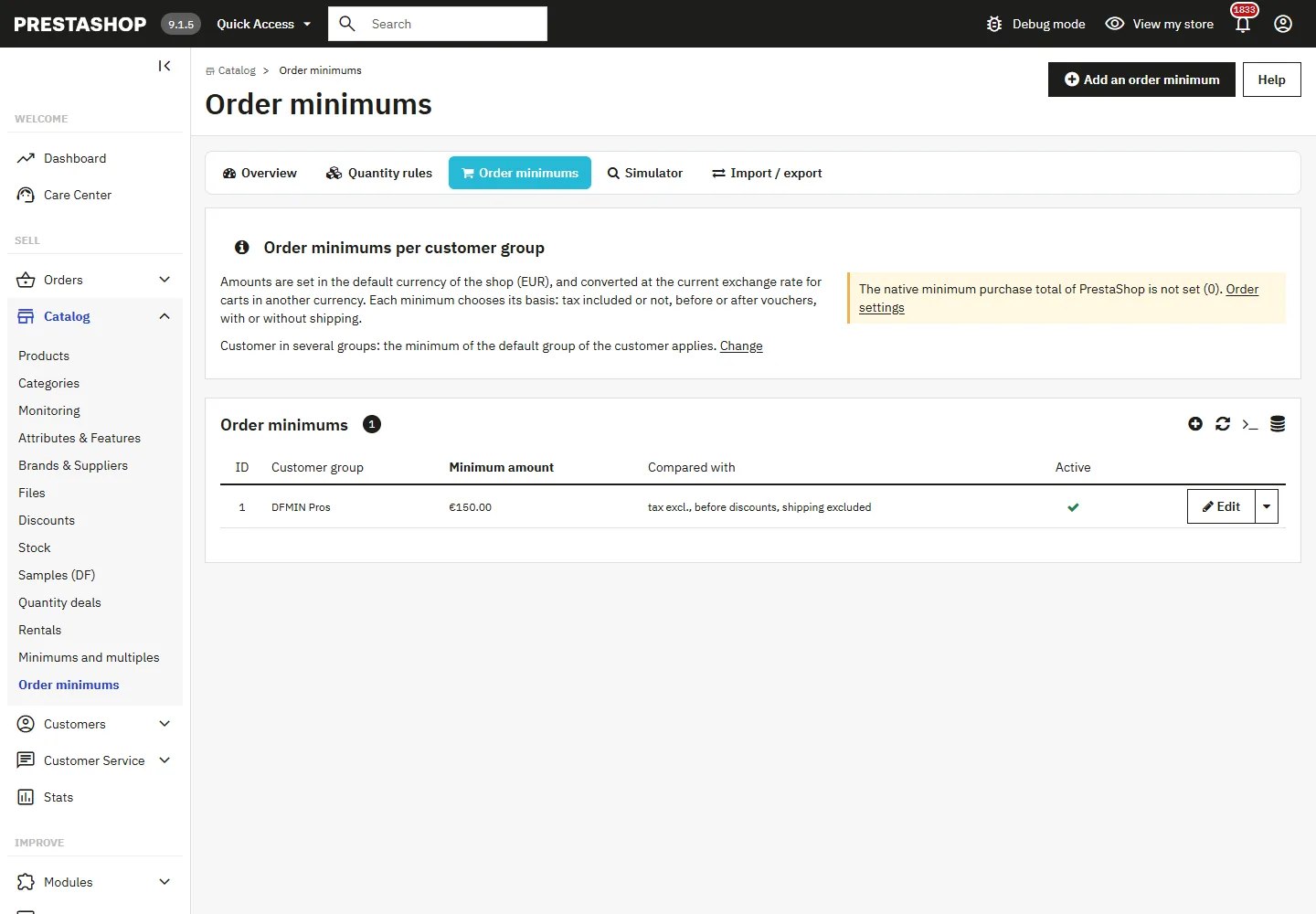
Open Catalog > Order minimums. One minimum per group, plus an optional fallback for all customers without a dedicated minimum. Each minimum chooses its basis: tax included or not, before or after vouchers, with or without the shipping estimated in the cart. Amounts are set in the default currency and converted at the current exchange rate.
What the customer sees
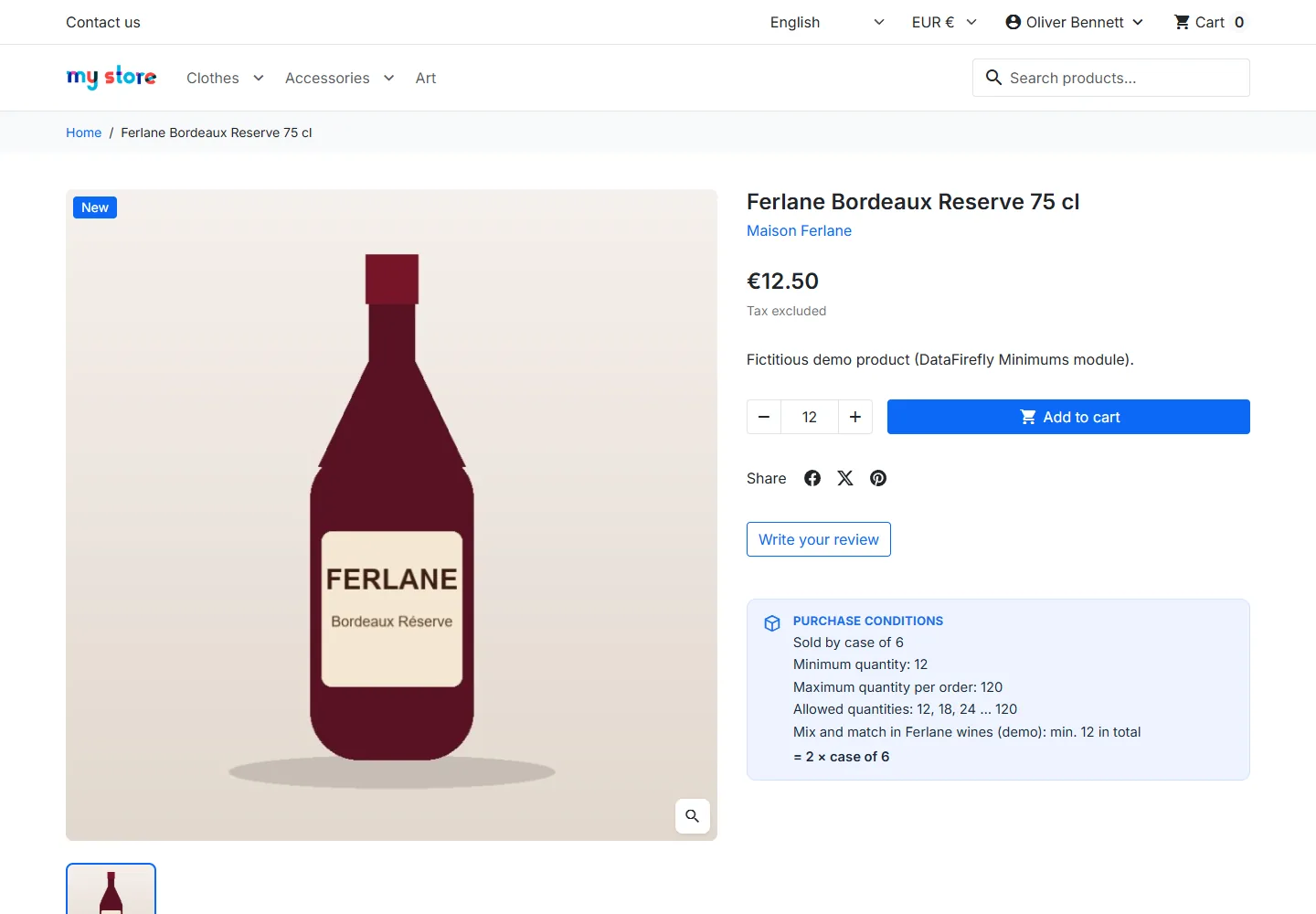
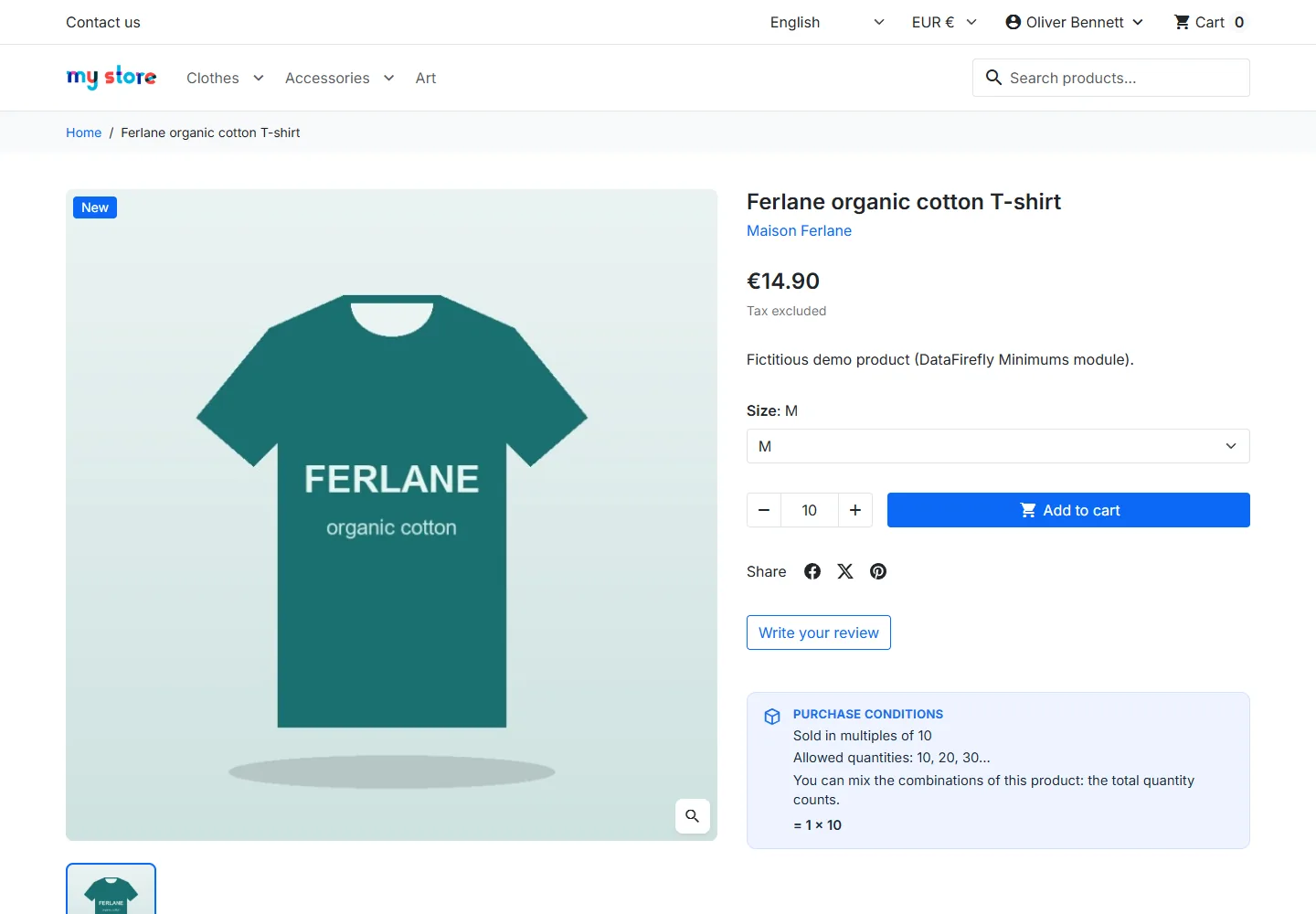
The product page shows the purchase conditions, the allowed quantities and the number of packs. The quantity selector starts on an allowed quantity and steps by the multiple.
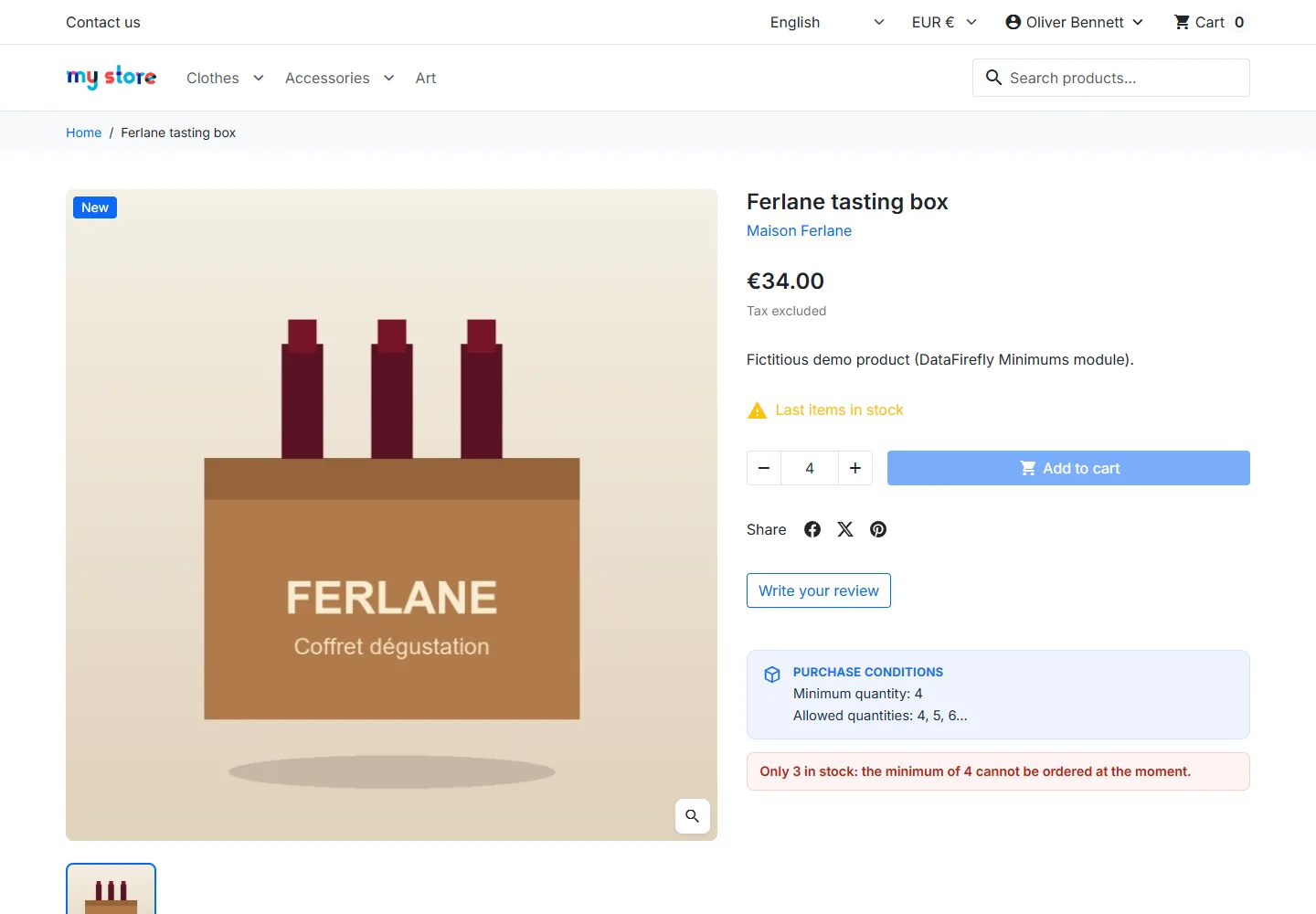
When the stock is below the minimum and out-of-stock orders are refused, the customer sees why and the add to cart button is disabled.
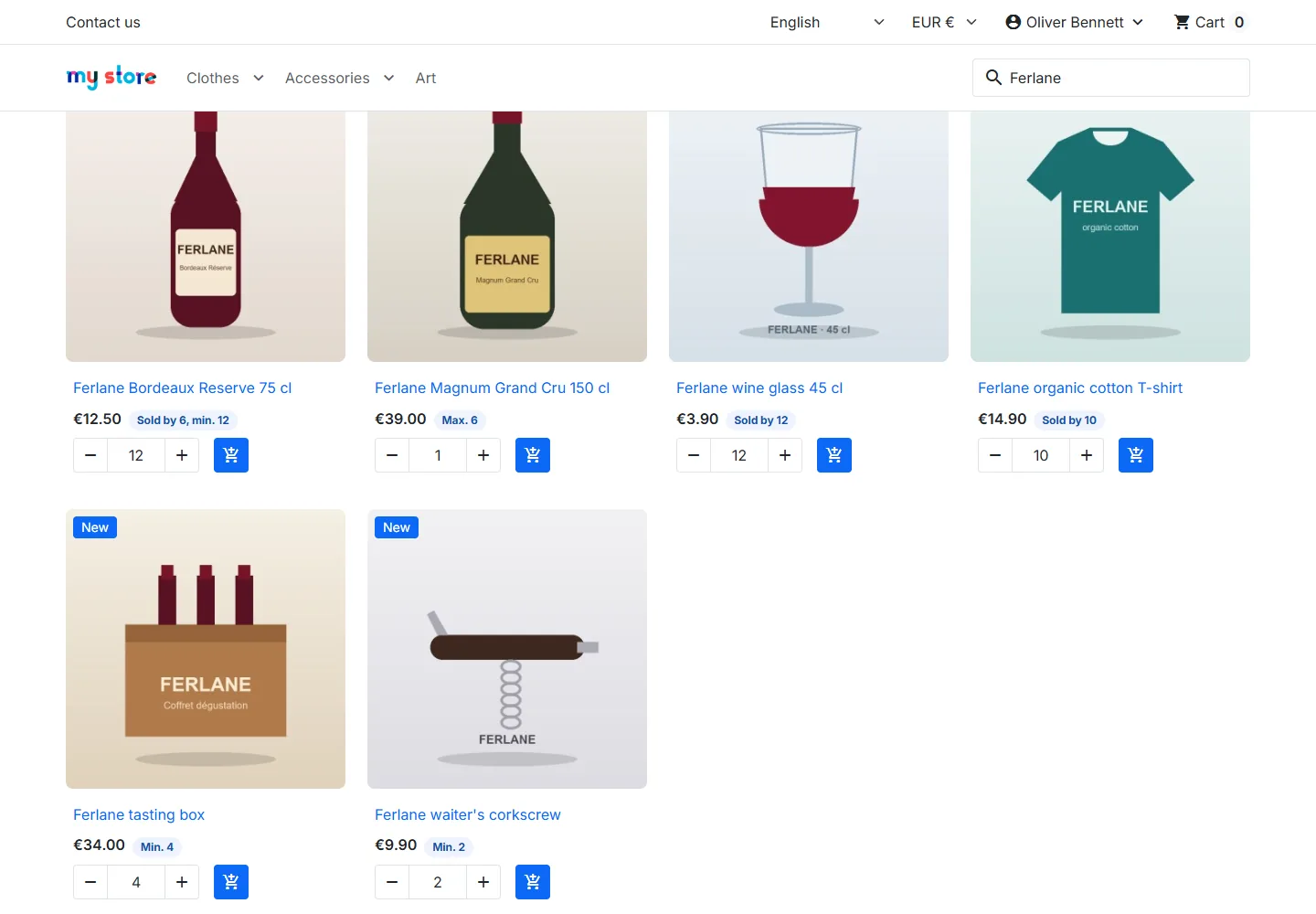
Product lists show a badge (“Sold by 6”, “Min. 4”). On Hummingbird, the quantity selector of the miniatures follows the rule too.
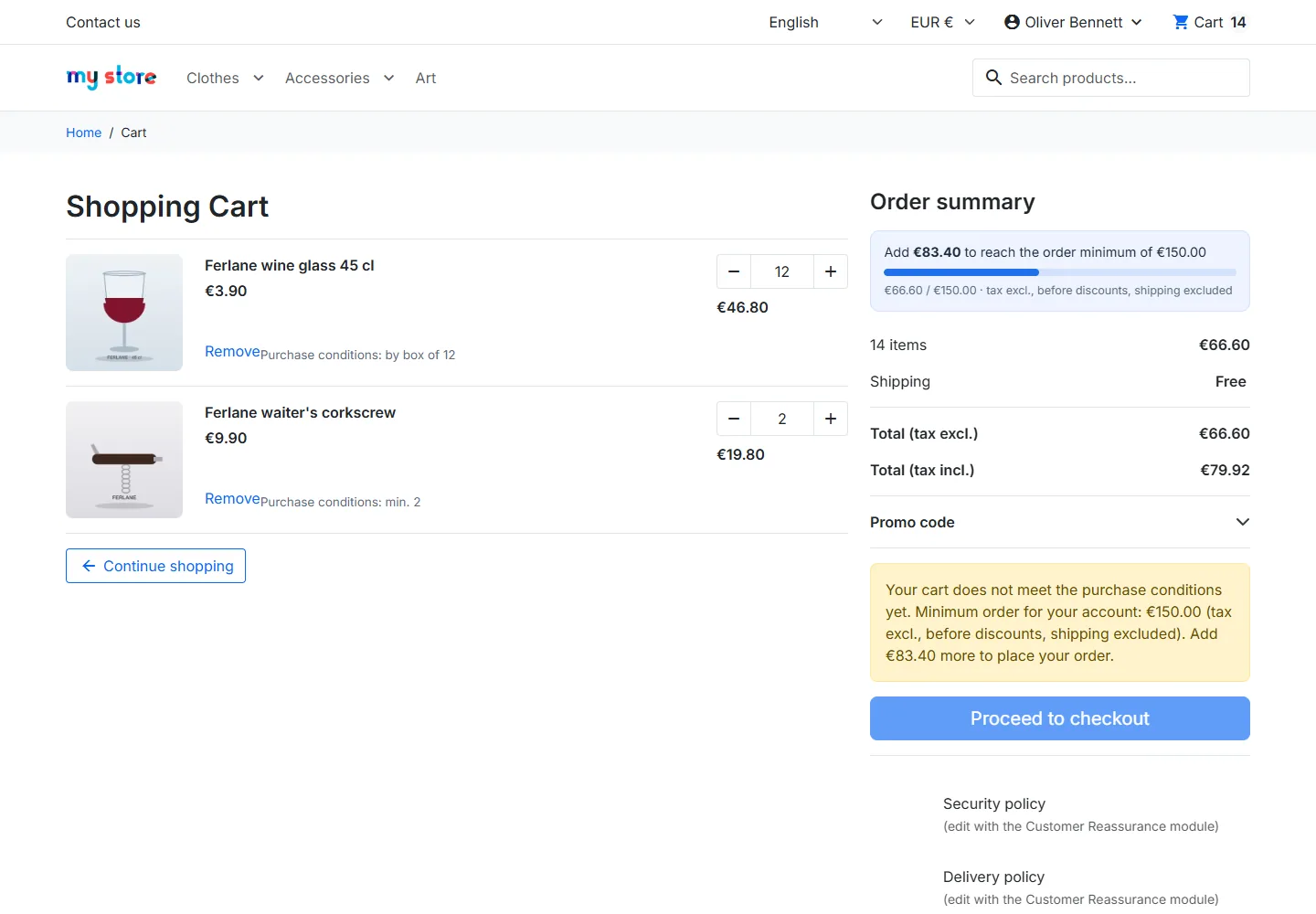
In the cart, each line recalls its condition. A quantity that is not allowed is explained, with buttons to set the nearest allowed quantities, and the checkout button is disabled with the reason.
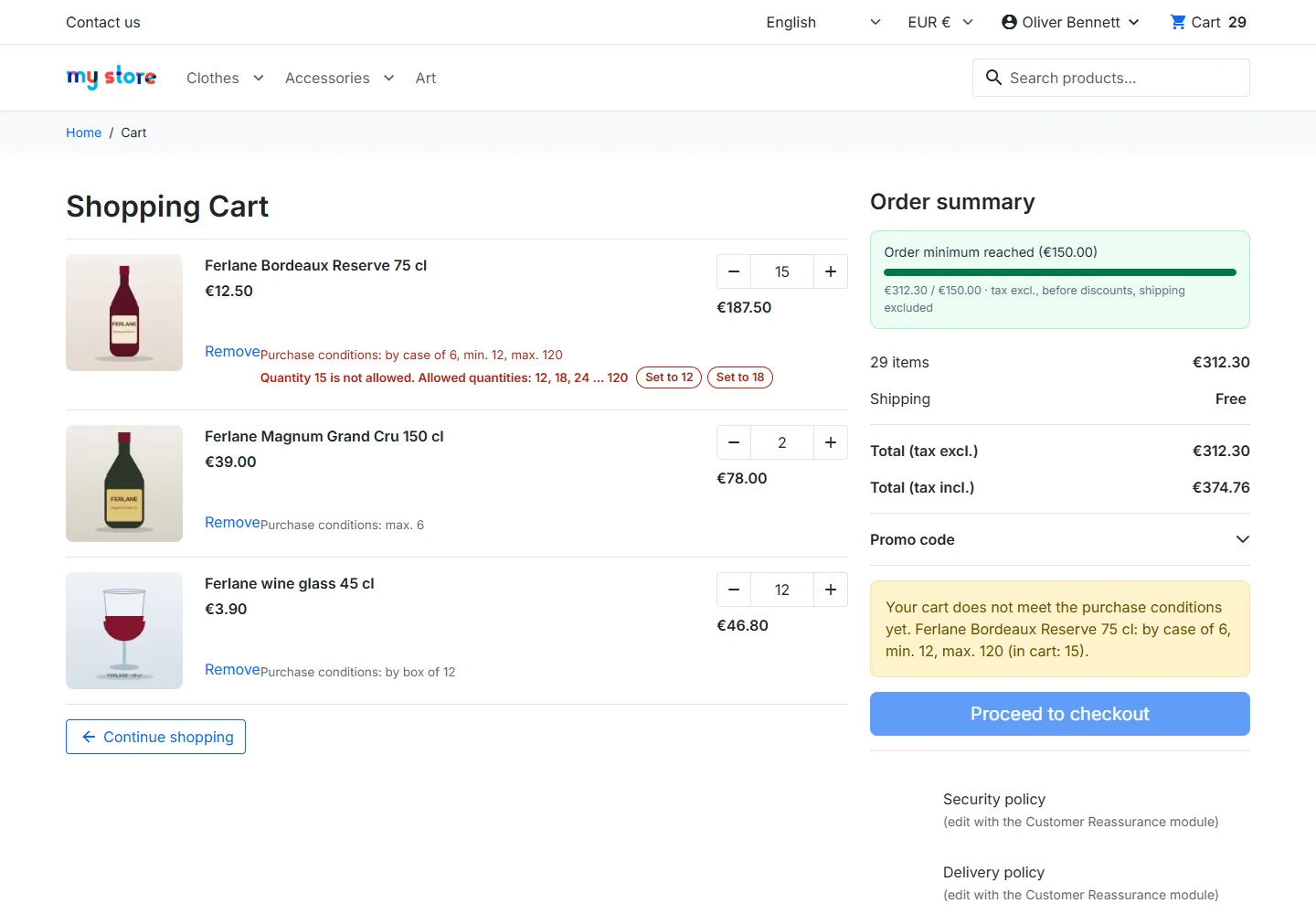
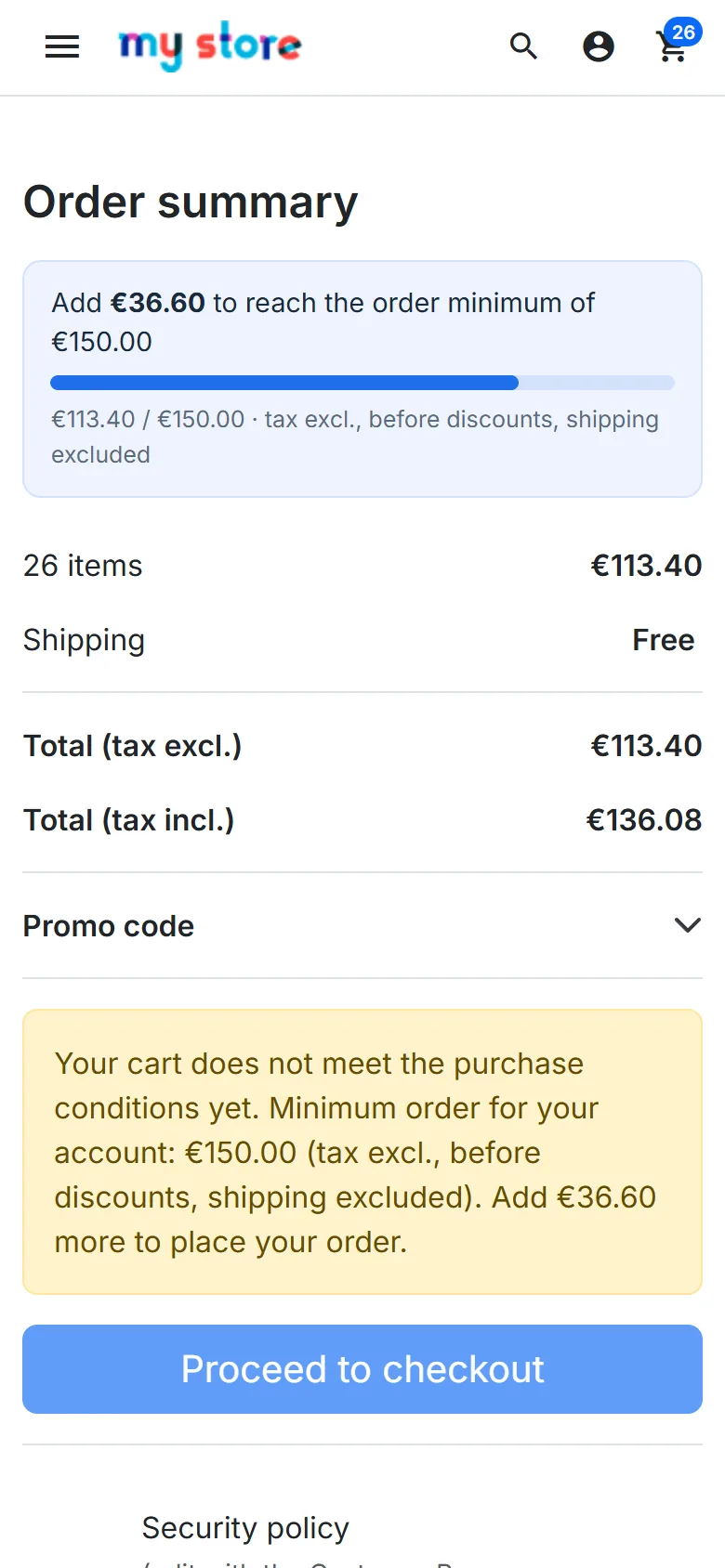
A progress bar shows the amount left to reach the order minimum of the customer, on desktop and mobile.
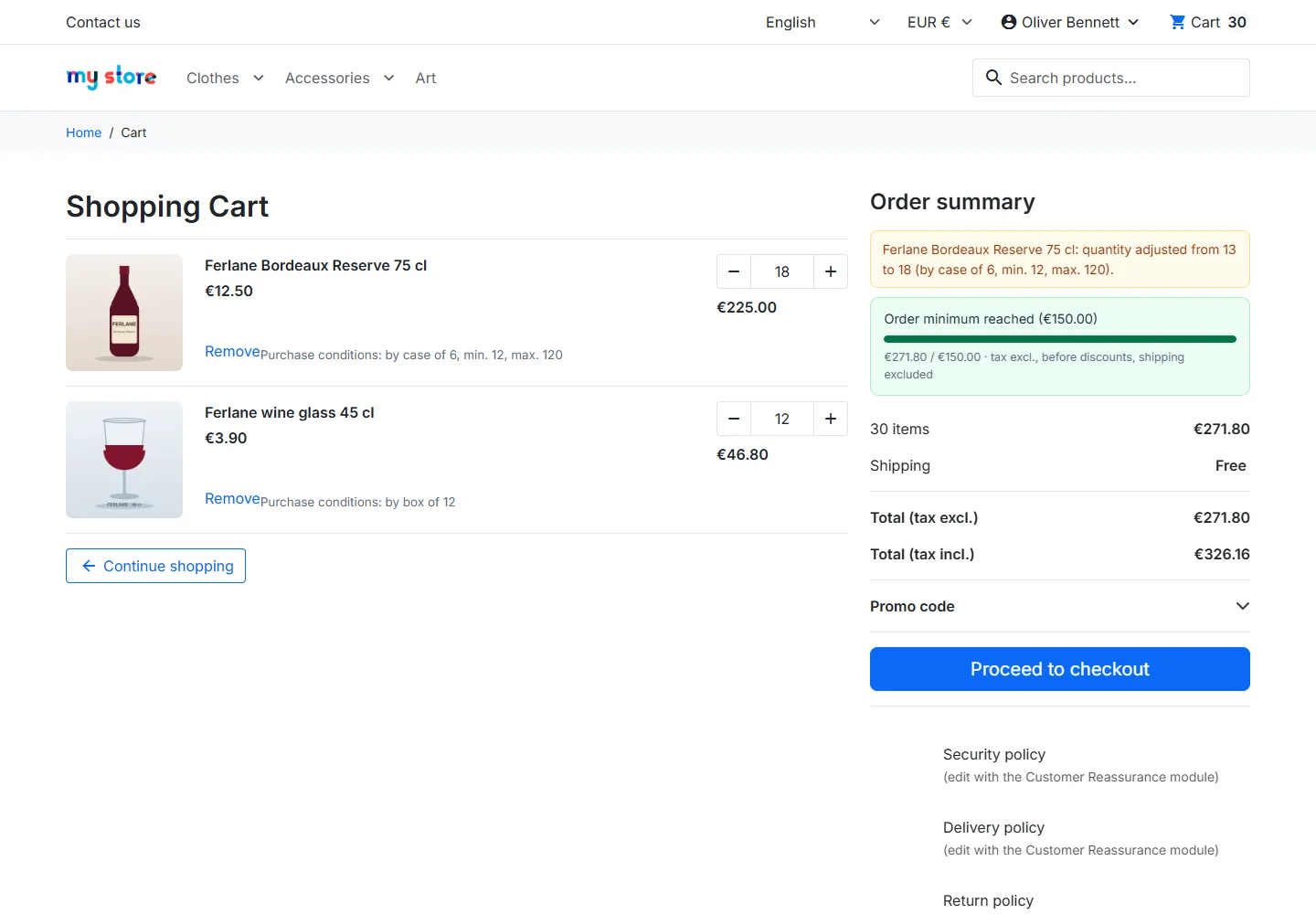
When a quantity is adjusted automatically, the customer is told once, in the cart summary.
Server-side checks
- Add to cart and quantity changes, by AJAX or direct URL: adjusted or refused according to the setting.
- Checkout page: a cart that breaks a rule is sent back to the cart with the reasons.
- Direct access to a payment module (for example the bank wire validation page): redirected to the cart, no order is created.
- Order creation: last check before the order is saved, whatever the entry point. Payment notifications sent by a payment provider without the customer session are never blocked, as the customer may already have paid: they are logged.
- Webservice and back office: according to the settings.
The native minimum purchase total of PrestaShop is also enforced at order creation, while PrestaShop itself only checks it on the checkout page.
CSV import and export
Open Import / export. The type of file is recognised from its header: quantity rules (scope column) or order minimums (amount column). Check only is ticked by default: the report lists each line as OK or in error and nothing is saved. The replacement of the existing rules only happens when every line is valid, in one transaction. Exports neutralise spreadsheet formulas and can be imported again as they are.
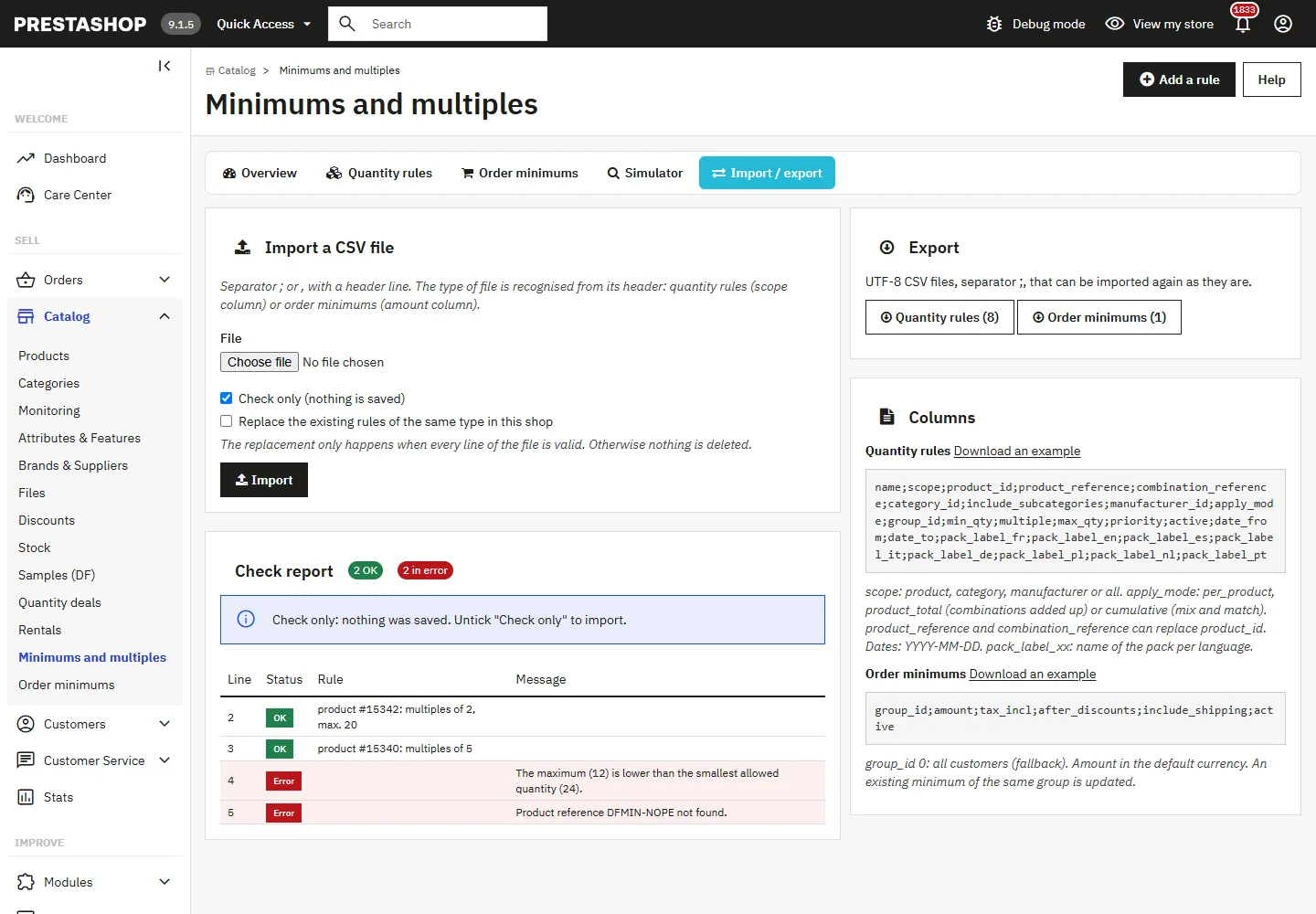
Quantity rule columns: name, scope (product, category, manufacturer, all), product_id or product_reference, combination_reference, category_id, include_subcategories, manufacturer_id, apply_mode (per_product, product_total, cumulative), group_id, min_qty, multiple, max_qty, priority, active, date_from, date_to, pack_label_xx. Order minimum columns: group_id, amount, tax_incl, after_discounts, include_shipping, active. Files from version 1.0.0 are accepted.
Troubleshooting
The minimum is higher than the one of the rule
The native minimum quantity of the product sheet is higher: it wins, rounded up to the multiple. The simulator and the consistency checks show it.
The customer cannot reach the minimum
The stock is below the minimum and out-of-stock orders are refused. Restock, allow backorders or lower the minimum.
The cart is blocked by the native minimum message
It is the minimum purchase total of Shop Parameters > Order Settings. Set it to 0, or choose “replace” in the settings.
The +/- buttons step by 1
The theme does not use the standard selectors. The rule is still enforced on the server: the quantity is adjusted or refused, and the checkout is blocked.
Compatibility
- PrestaShop 1.7.8, 8.x and 9.x, the same ZIP (tested with PHP 7.4, 8.1 and 8.5).
- Classic and Hummingbird themes.
- Multistore: rules and minimums are saved per shop.
- Multi-currency: amounts converted at the current exchange rate.
- Interface in English, French, Spanish, German, Italian, Dutch, Polish and Portuguese.