
DataFirefly Verified Reviews: documentation
Verified customer reviews for PrestaShop 1.7.8, 8 and 9: review requests by e-mail with one-click rating, customer photos, merchant replies, moderation dashboard, Google rich snippets, import from Product Comments and optional AI summaries.
Requirements and installation
DataFirefly Verified Reviews 2.0.0 runs on PrestaShop 1.7.8, 8.x and 9.x, with PHP 7.4 to 8.5. It has been tested on PrestaShop 9.1.5 (Hummingbird theme), 8.2.1 and 1.7.8.11 (Classic theme). A single ZIP covers all these versions.
- In the back office, open Modules → Module Manager and click Upload a module.
- Drop the
dfreviews-2.0.0.zipfile downloaded from your DataFirefly account. - Click Configure once the installation is complete.
The installation creates eight dedicated tables and adds the Catalog → Customer reviews menu entry. A shared navigation bar links the module’s four screens: Reviews, Review requests, Import / export and Settings.
The module ships translated into French, English, Spanish, German, Italian, Polish, Dutch and Portuguese: back office, shop and e-mails.
Dashboard and moderation
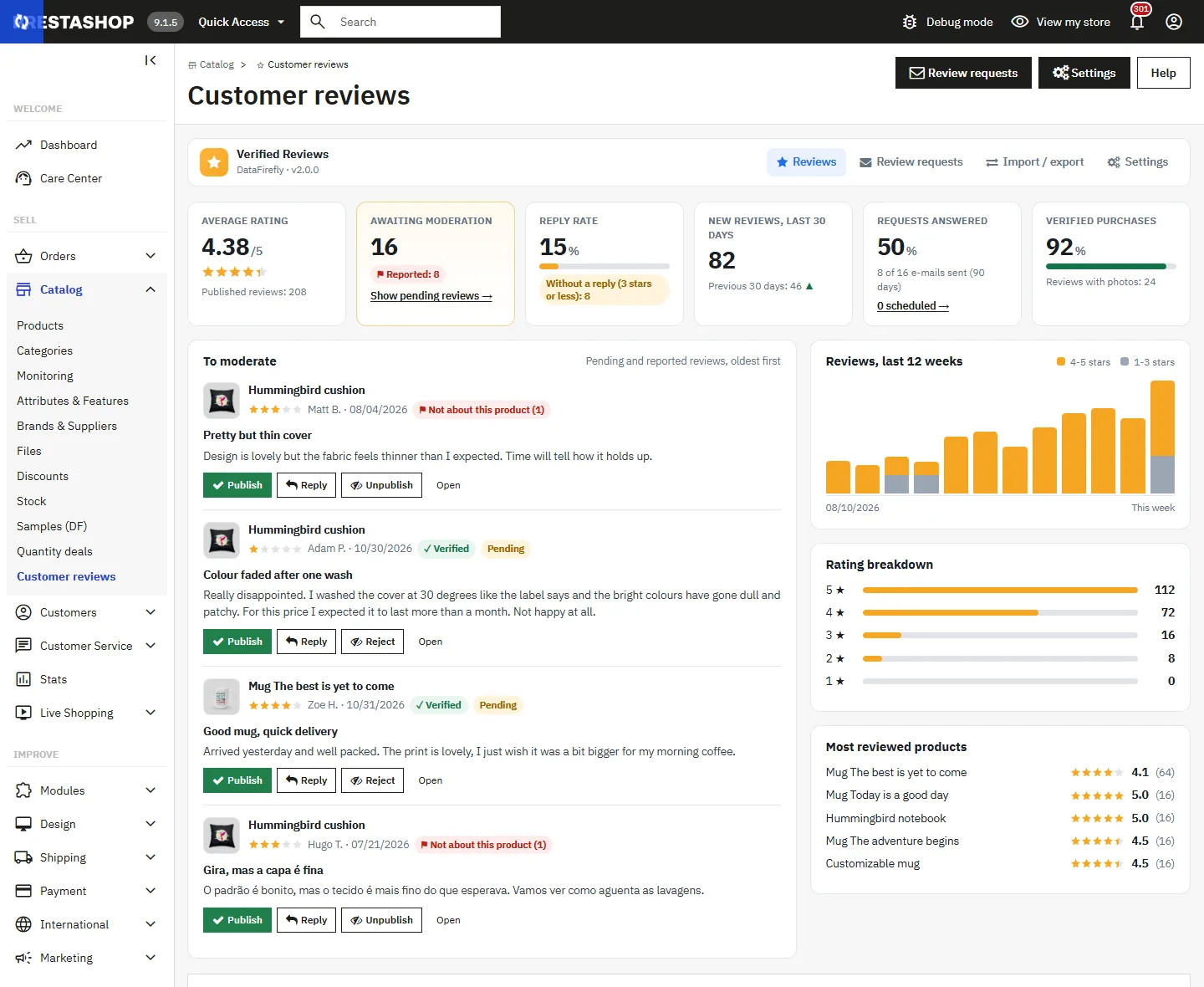
The Catalog → Customer reviews screen opens on a dashboard: average rating, pending and reported reviews, reply rate (with the number of reviews of 3 stars or less still unanswered), new reviews over 30 days and their trend, share of requests that received a review over 90 days, share of verified purchases, a chart of the last 12 weeks, rating breakdown and most reviewed products.
The To moderate area lists pending and reported reviews, with those written in your language first. For each one: Publish, Reject (or Unpublish), Reply with an e-mail sent to the customer, and Suggest a reply if the AI assistant is configured. Everything is done without leaving the page.
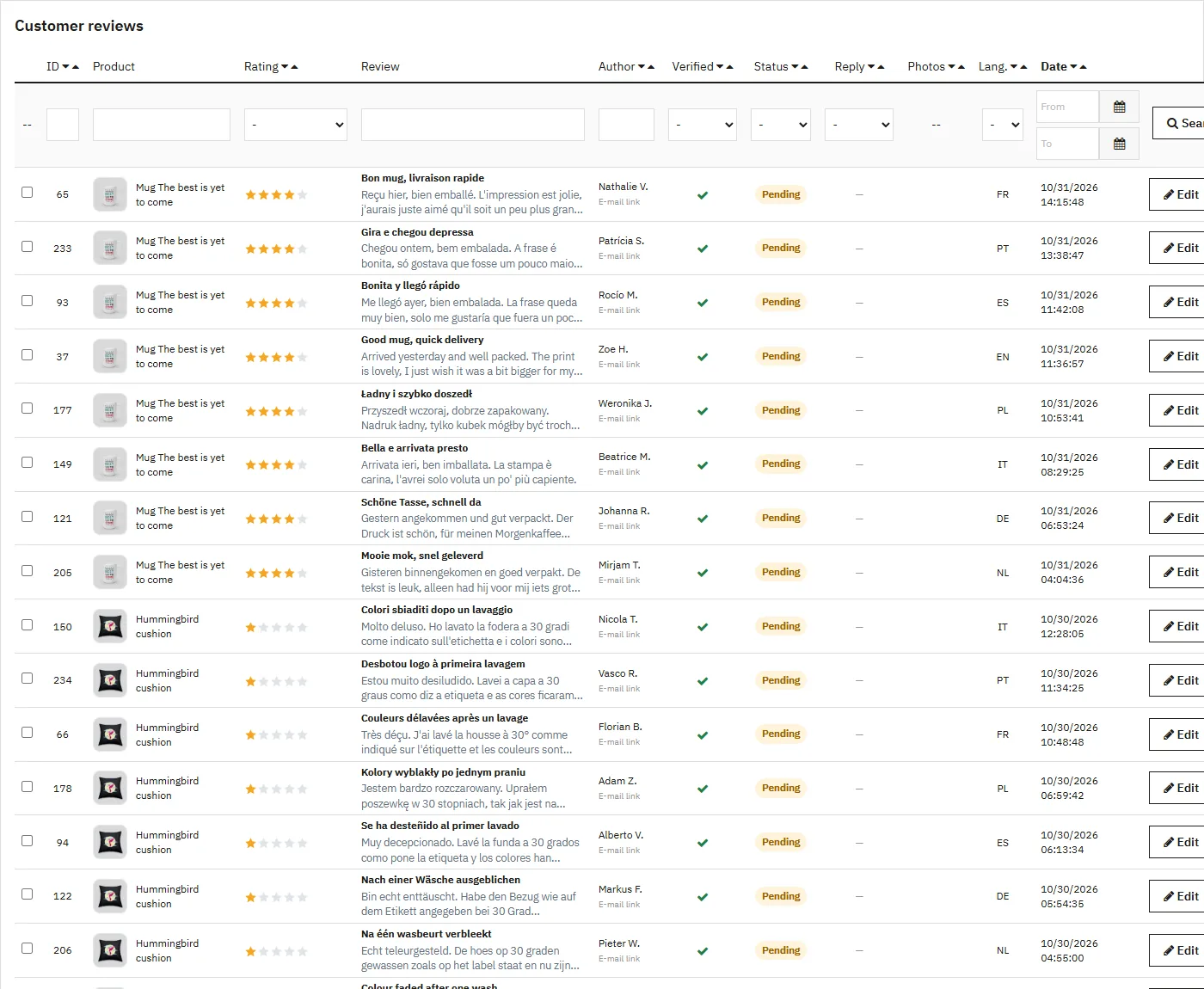
Below the dashboard, the full list can be filtered by product, rating, status (pending, published, reported), reply, photos, language and date. Bulk actions let you publish, unpublish, clear reports or delete several reviews at once.
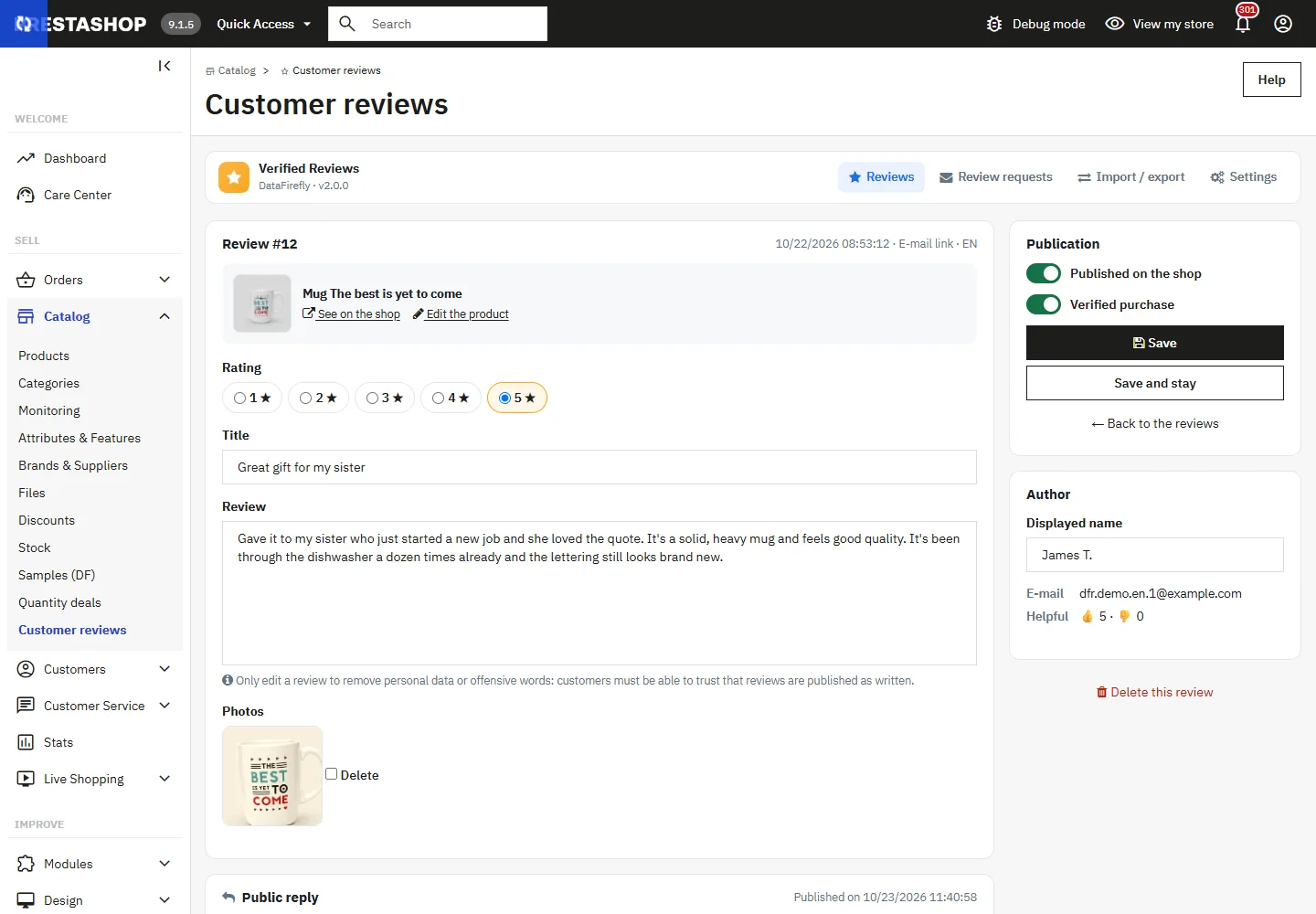
The review page brings together the rating, title, text, photos (each of which can be deleted), report reasons, the “published” and “verified purchase” states, and the public reply. Links lead directly to the customer, the order and the product.
Only edit the text of a review to remove personal data or offensive language: visitors must be able to trust that published reviews appear exactly as they were written.
Review requests by e-mail
In Settings → Review requests by e-mail, choose the order status or statuses that start the countdown (usually Shipped or Delivered) and the sending delay (7 days by default). A single reminder can be sent, only if some products are still waiting to be reviewed. Links expire after the number of days you choose, and you can exclude customer groups (B2B, staff…).
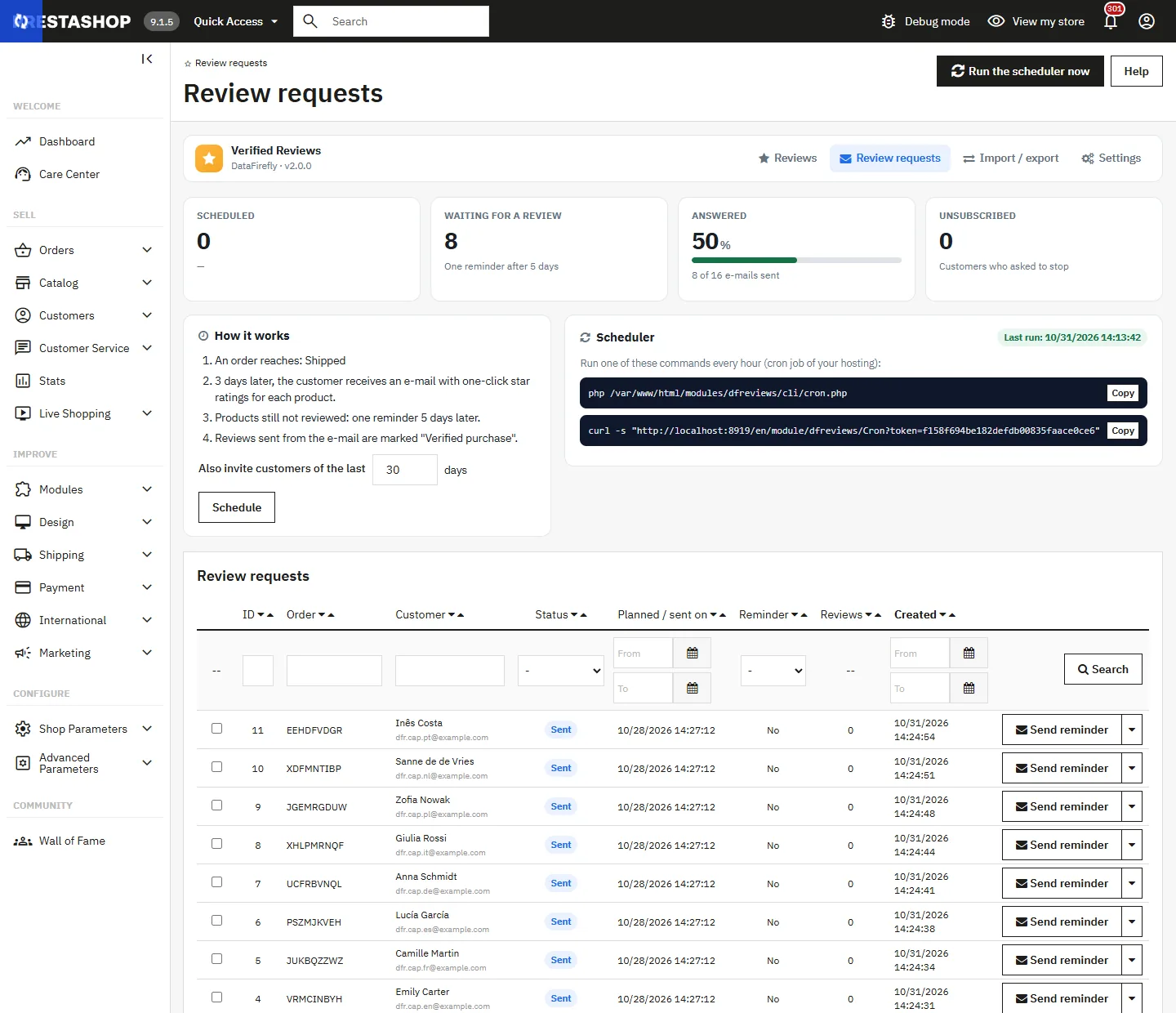
The Review requests screen shows scheduled requests, requests waiting for a review, answered requests and unsubscribes. You can send a request or a reminder immediately, cancel, and invite customers from orders placed in the last N days.
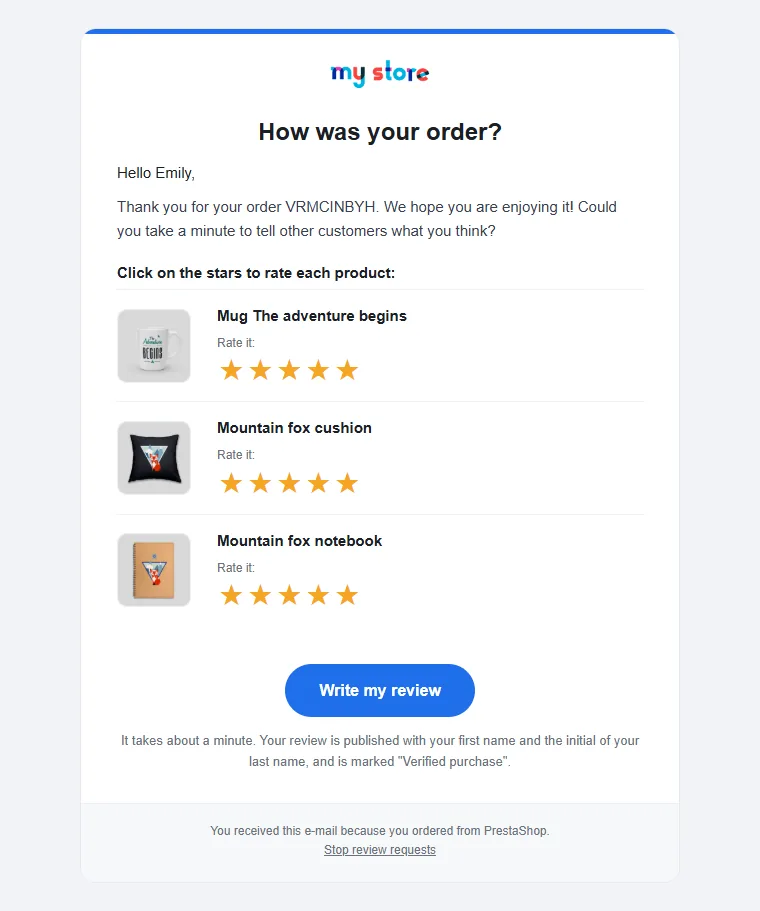
The e-mail presents each product in the order with five clickable stars: one click opens the form with the rating already selected. It is sent in the language of the order and contains an unsubscribe link.
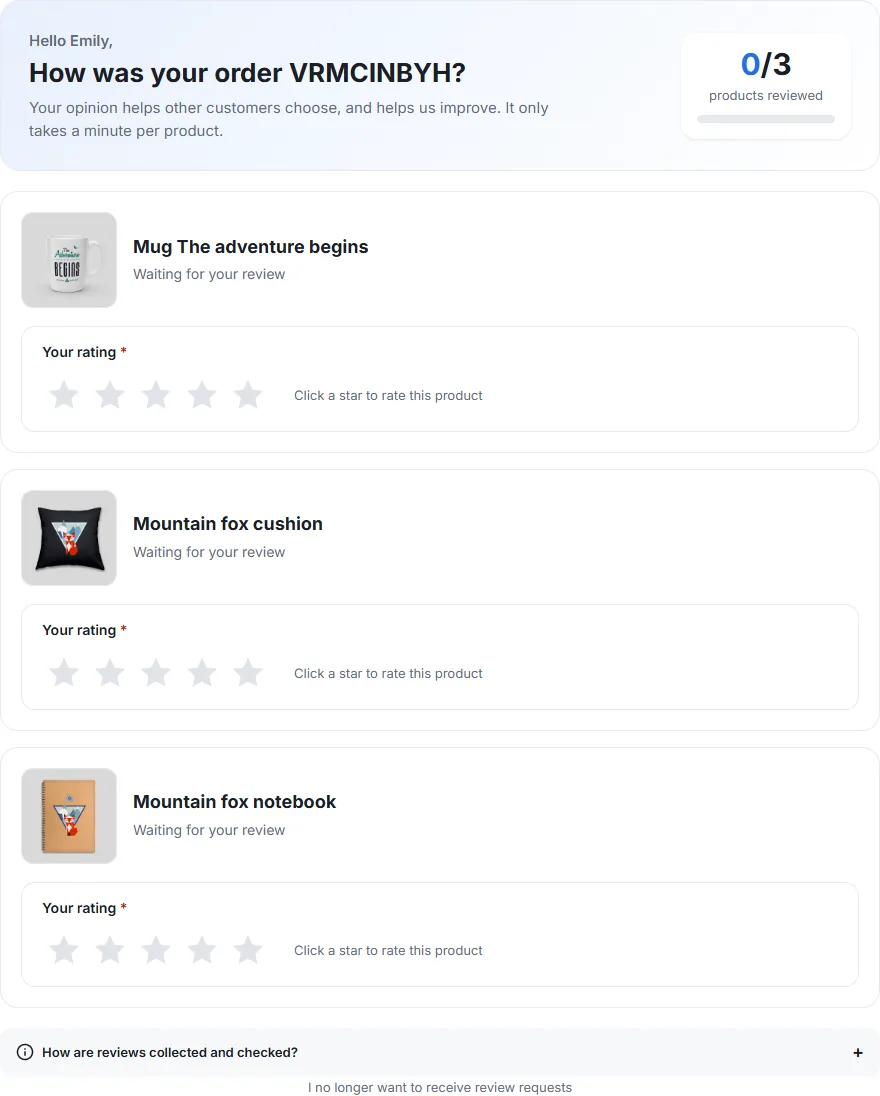
The page opened from the e-mail requires no sign-in: the link proves the purchase. It lists every product in the order with a progress bar; each product’s form opens when a star is clicked. Reviews sent from this page carry the “Verified purchase” label.
Setting up the scheduler
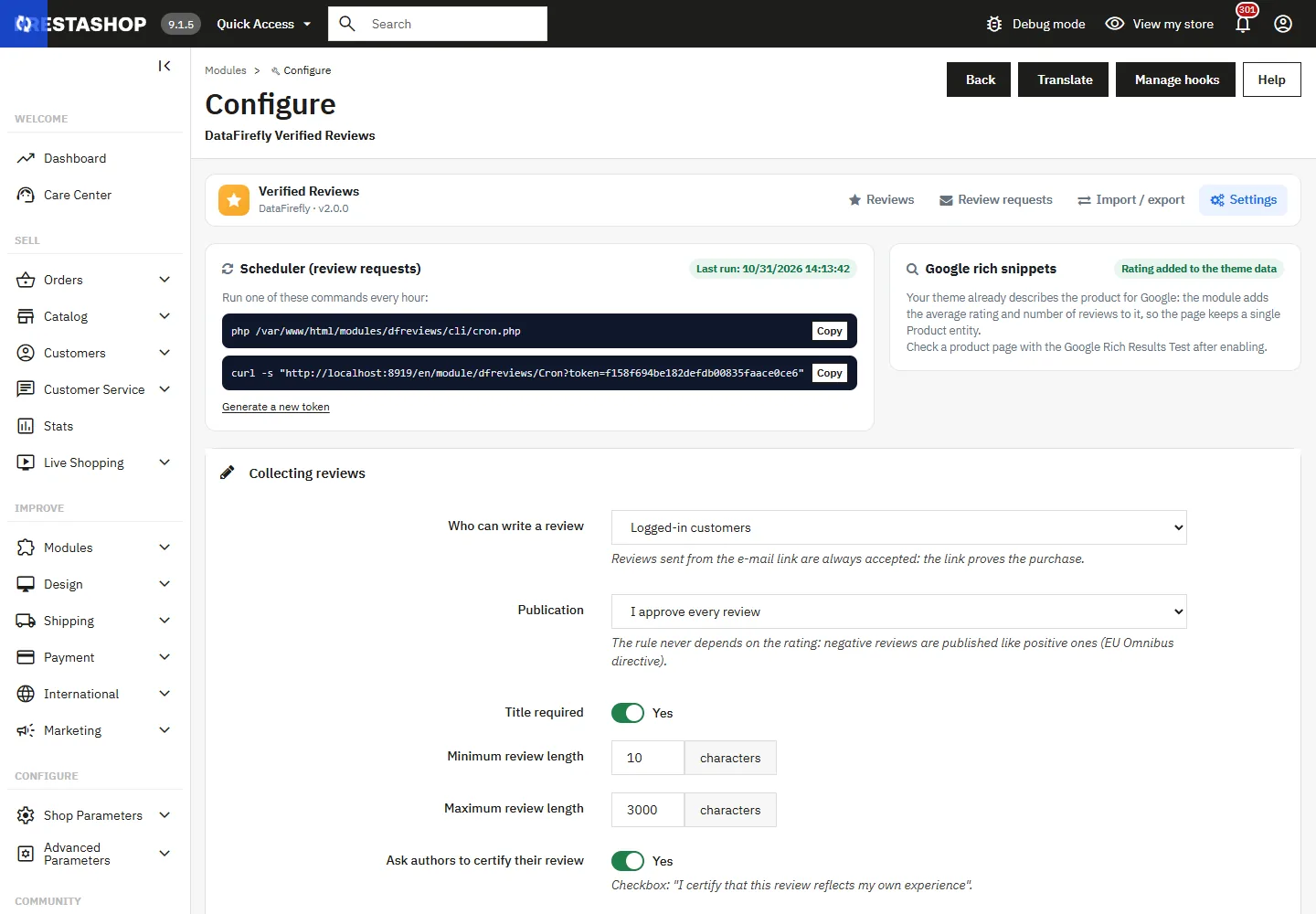
Requests and reminders are sent by the scheduler. Schedule one of these two commands to run every hour with your hosting provider; they are displayed, ready to copy, at the top of the Settings page:
php /path/to/prestashop/modules/dfreviews/cli/cron.php
curl -s "SCHEDULER_URL_SHOWN_IN_THE_MODULE"
The PHP command-line option is recommended, as it does not depend on an HTTP call. The date of the last run is shown in the settings and on the requests screen. The Run the scheduler now button lets you test it immediately.
The URL contains a secret token. Do not publish it; if in doubt, click Generate a new token and then update your cron job.
Display on the shop
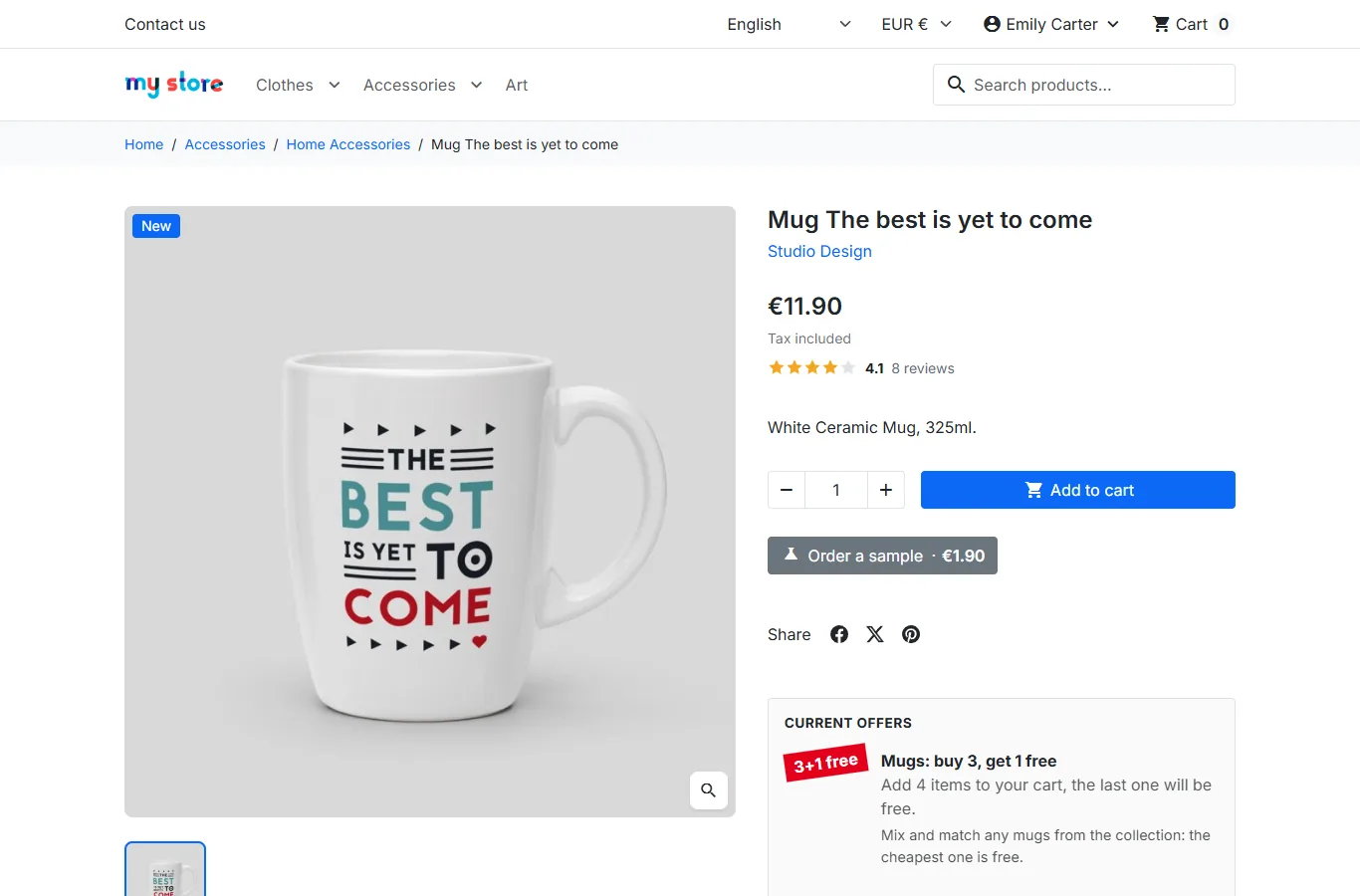
The star rating and the number of reviews are displayed below the price on the product page (Classic, Hummingbird and child themes); clicking them takes visitors to the reviews block.
The reviews block shows the average rating, the clickable rating histogram, the share of 4- and 5-star ratings and customer photos, followed by the list with filters (with photos, verified purchases, by rating) and sorting (most recent, most helpful, highest rating, lowest rating, with photos first, oldest). Each review displays its “Verified purchase” badge, the merchant’s reply, “helpful” votes and a report button with a reason.
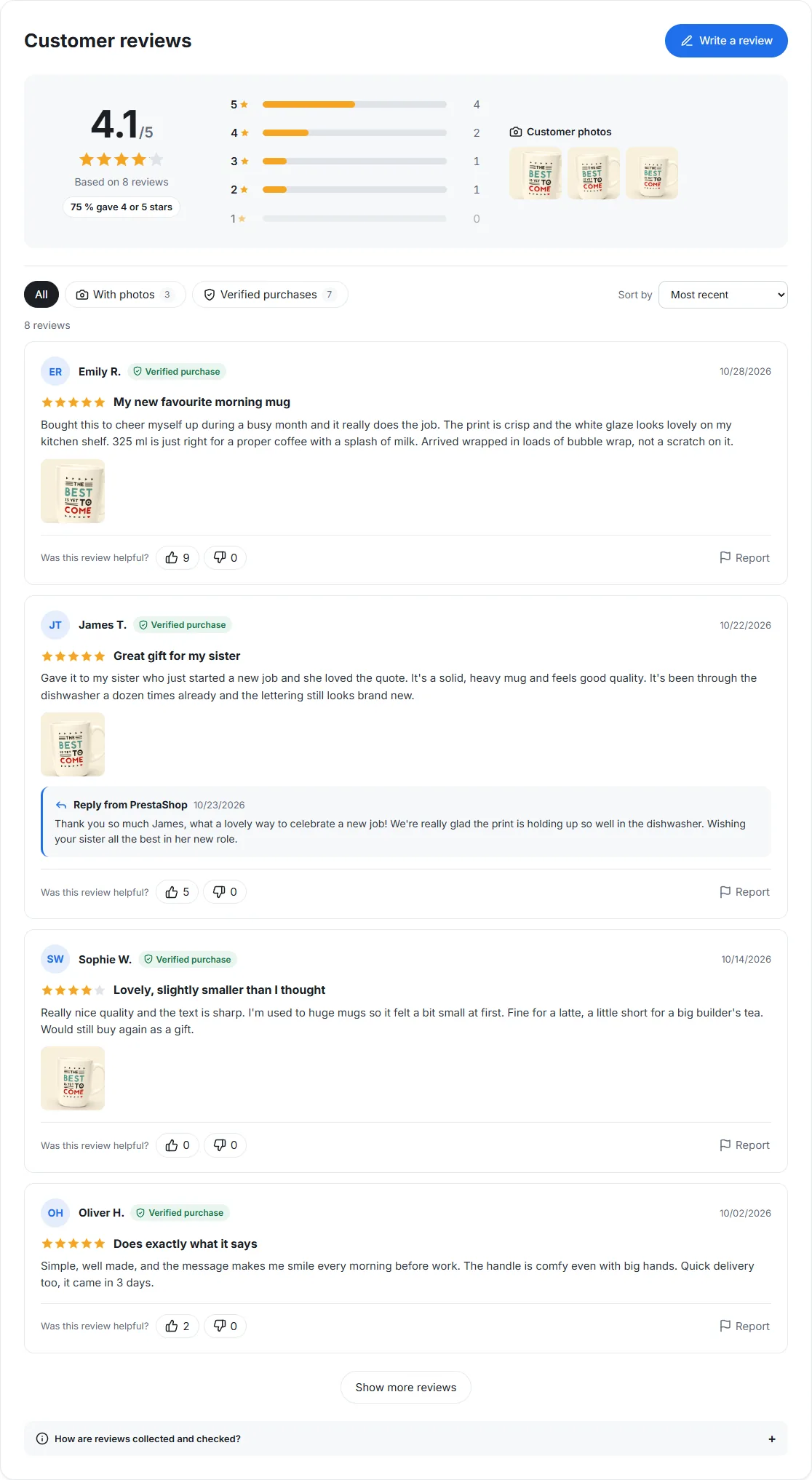
Customer photos open in a viewer that can be used with the keyboard (arrow keys, Esc).

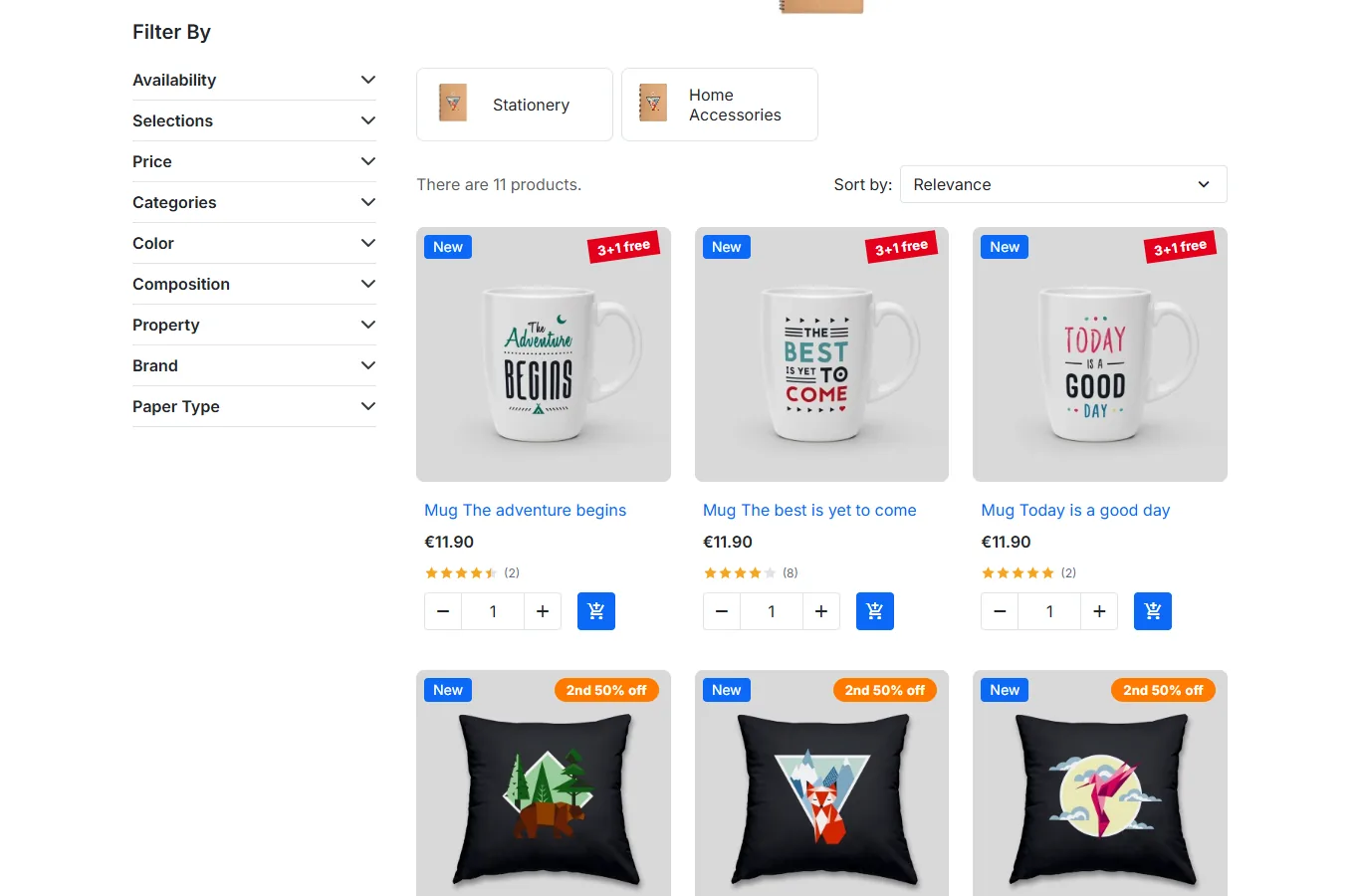
Stars are also displayed in product lists (categories, search, home page), with the number of reviews as an option.
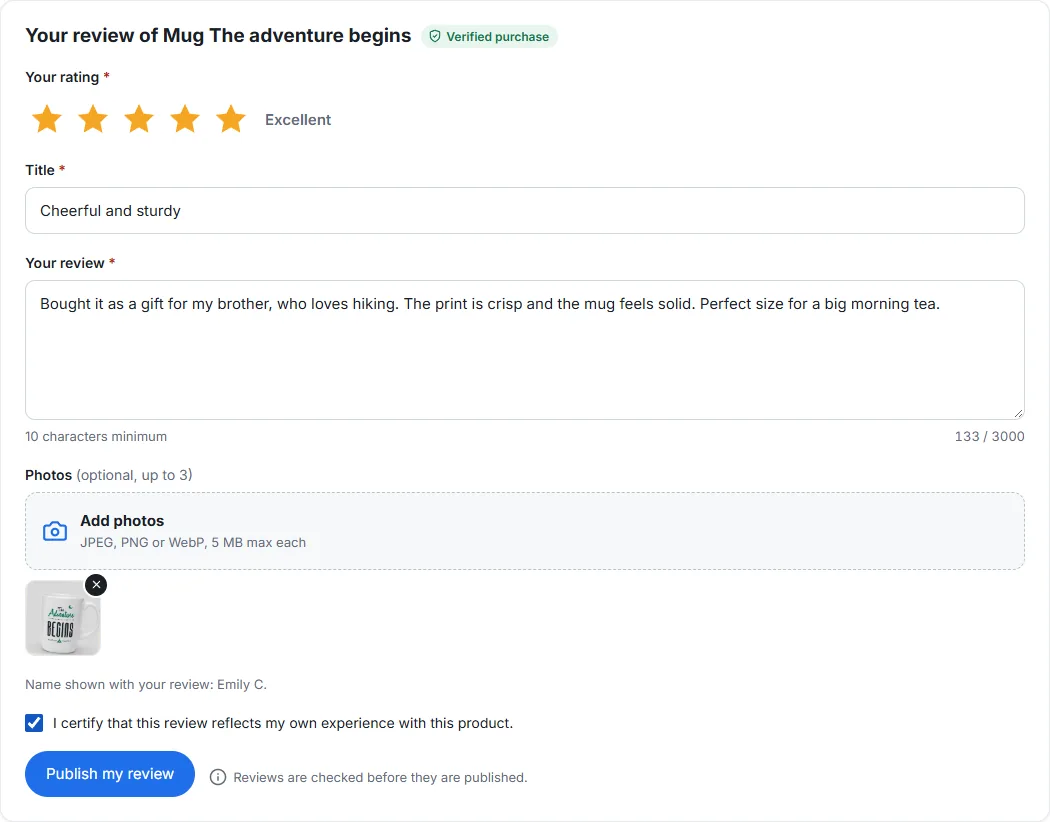
Review form and customer photos
The form is accessible by keyboard and to screen readers: stars as radio buttons, errors shown field by field. Customers can add photos by drag and drop, preview them and remove some before sending. A checkbox has them certify that the review reflects their own experience.
Photos (JPEG, PNG or WebP) are re-encoded and resized to 1600 px; location data (EXIF) is removed. They are stored in modules/dfreviews/uploads/, a folder to include in your backups.
Built-in anti-spam protection: CSRF token, invisible honeypot field, minimum typing time and per-connection limits.
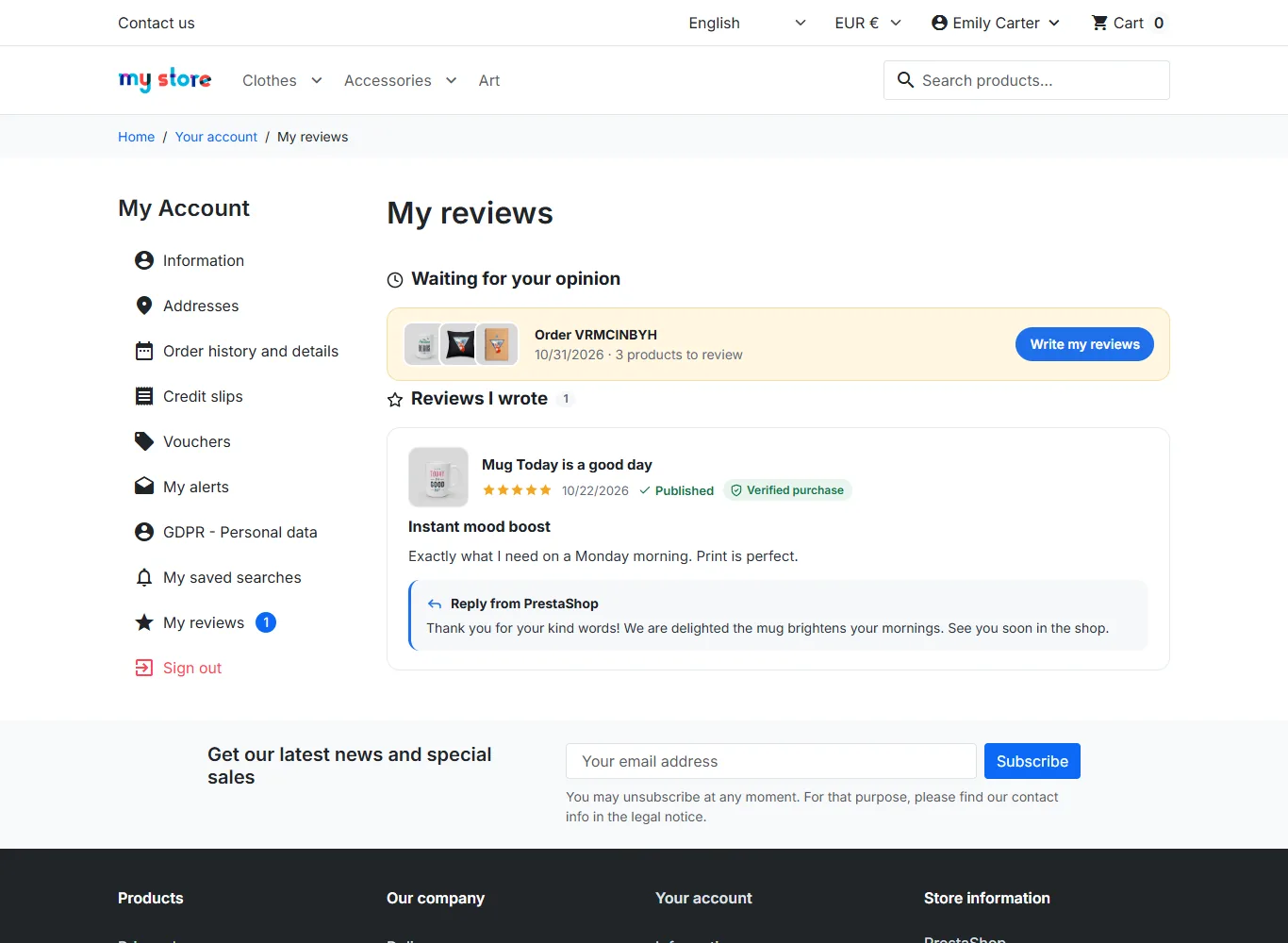
“My reviews” in the customer account
Customers find the reviews they have written, their status (published or being checked), the shop’s replies, their thank-you voucher if any, and the orders still waiting for their review.
Replying to reviews
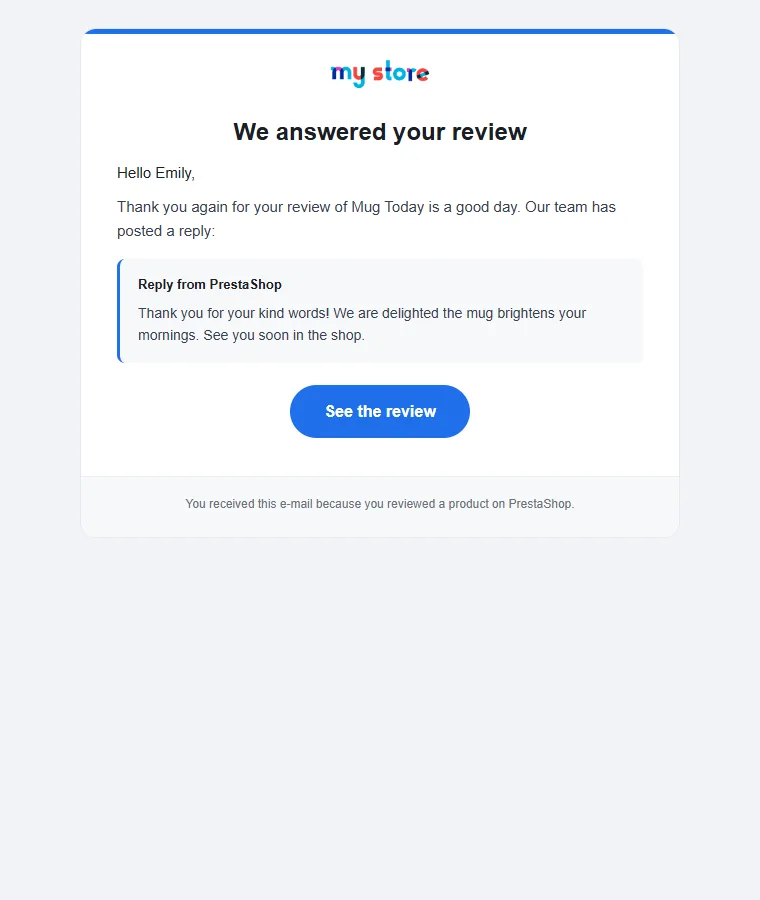
Your reply is displayed publicly below the review. Tick E-mail the customer to let them know: they receive an e-mail in the language of their review, with a link to the product page.
Display settings
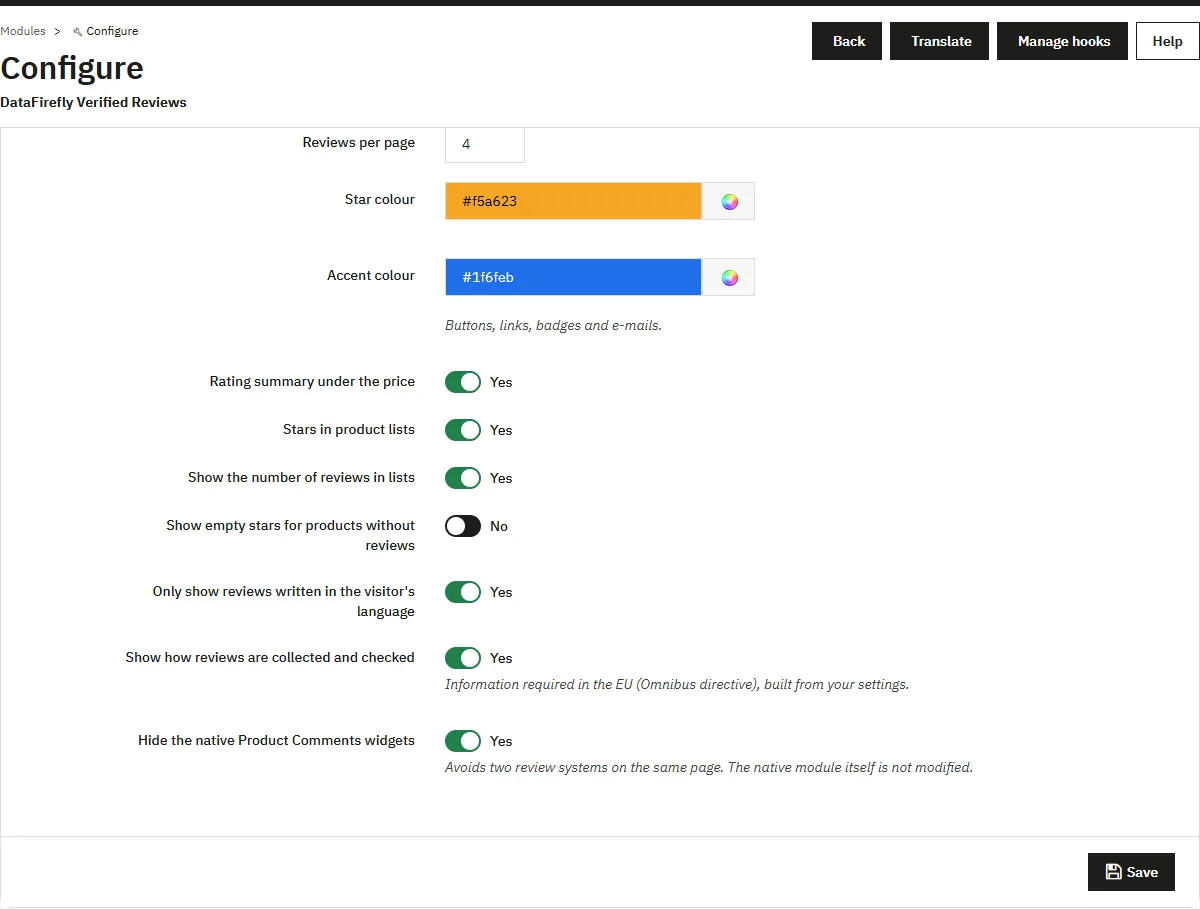
The Display section sets where the block appears (full-width section below the product, or a tab in Classic / accordion in Hummingbird), the number of reviews per page, the star colour and accent colour, stars in product lists and the “only show reviews written in the visitor’s language” option: the average rating and rich snippets are then calculated on those same reviews.
If the native Product Comments module is still enabled, the Hide the native Product Comments widgets option avoids showing two review systems on the same page, without modifying the native module.
Import, export and AI summaries
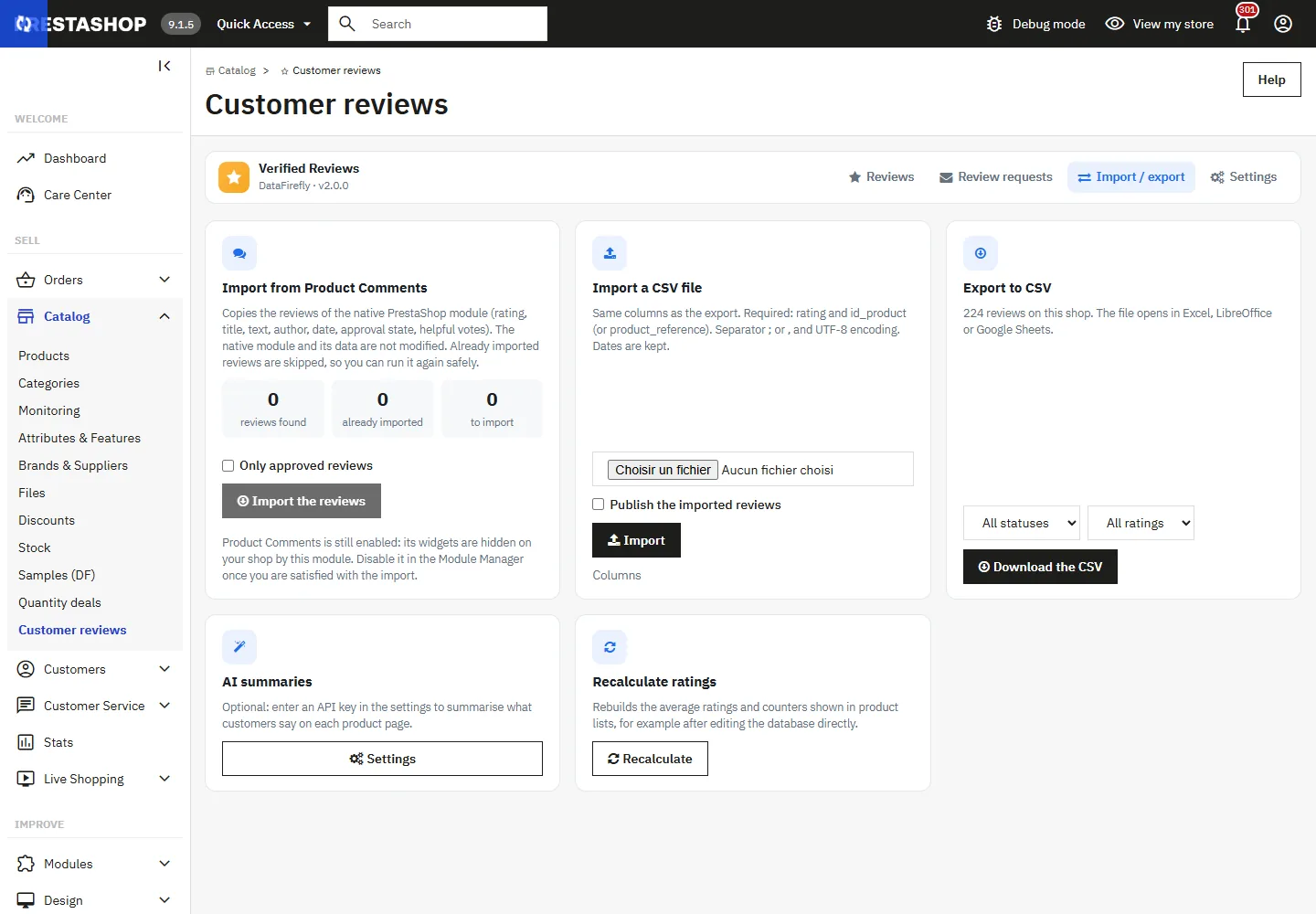
The Import / export screen offers:
- Import from Product Comments: copies the reviews of the native module (rating, title, text, author, date, approval state, helpful votes). The native module and its data are not modified; already imported reviews are skipped, so you can run the import again.
- CSV import: same columns as the export; only
ratingandid_product(orproduct_reference) are required. Dates are kept. - Export to CSV: a UTF-8 file that opens in Excel, LibreOffice or Google Sheets, filterable by status and rating.
- AI summaries and Recalculate ratings.
The AI assistant is optional. Enter a key and, if needed, the URL of an OpenAI-compatible service (OpenAI, Mistral, Azure proxy, local model…). It summarises what customers say about products with at least 3 published reviews, in every active language, and suggests replies. Only review texts and ratings are sent to the provider, never names or e-mail addresses.
Google rich snippets
In automatic mode, if your theme already outputs a Product object (Classic, Hummingbird), the module adds the average rating and the number of reviews to it: the page keeps a single Product object. Otherwise, it outputs a complete Product object with the latest reviews. You can also force either mode or disable structured data. After enabling, check a product page with Google’s Rich Results Test.
Product reviews on a product page are accepted by Google; the module never uses LocalBusiness or Organization markup, for which Google rejects reviews published by the business itself.
Transparency and compliance
The publication rule never depends on the rating: negative and positive reviews are handled in the same way. The “How are reviews collected and checked?” block is built from your settings (moderation, verified purchase, thank-you voucher, default sorting), in line with the EU Omnibus directive.
Personal data: the public name is limited to the first name and the initial of the last name; IP addresses are hashed; deleting a customer anonymises their reviews; export and erasure requests from the official GDPR module (psgdpr) are supported.
Thank-you voucher
Optional: a voucher (percentage or amount, minimum order, validity period) can be offered after a review, whatever its rating. By default, it is reserved for verified purchases, with one voucher per order. Customers see it on screen and in “My reviews”, and the reviews block informs visitors that some authors received a voucher.
Multistore and multilingual
Reviews, requests and statistics are specific to each shop, and settings are read per shop. Each review keeps its language; a review written in another language is flagged to visitors, unless you filter by language.
Upgrading from version 1.x
Install the 2.0.0 ZIP over the existing version: PrestaShop runs the migration automatically. Reviews, photos, votes and requests are kept; your 1.x settings (guest reviews, automatic approval, trigger status, rich snippets) are converted. So that nothing changes on your product page, the block stays in the tab as in 1.x; you can switch to the full-width section in the settings.
Uninstalling
Enable Keep data when uninstalling to keep reviews, photos and requests in the database and find them again after reinstalling. Otherwise, uninstalling deletes the tables, settings, tabs and photos.
Troubleshooting
No request e-mail is sent. Check the date of the scheduler’s last run, then click Run the scheduler now on the requests screen. Check the trigger statuses and the shop’s e-mail configuration.
Two review blocks are displayed. The native Product Comments module is enabled: turn on the option that hides its widgets, or disable it after importing its reviews.
The stars do not appear. At least one review must be published. On a custom theme, check that the displayProductPriceBlock, displayFooterProduct (or displayProductExtraContent) and displayProductListReviews hooks are present.
The displayed average looks wrong after a direct database change. Use Import / export → Recalculate ratings.