
Back-Office Audit Log — Complete guide
Installing, configuring and using the back-office audit log: timeline, before/after comparison, integrity check, settings, e-mail alerts and exports.
Overview
The Audit Log for the back office module records who changed what, and when: creations, modifications and deletions of objects with a before/after comparison, shop and module settings, modules installed or disabled, permissions, successful and failed sign-ins. Secrets are never stored, customers’ personal data is minimized and a hash chain lets you check that the journal has not been rewritten.
Version 2.0.0, compatible with PrestaShop 1.7.8, 8 and 9 (PHP 7.1 to 8.5), single shop or multistore, interface in 8 languages. No core override.
The module helps with traceability. On its own, it does not make a shop compliant with any regulation (GDPR, NIS2, PCI DSS…).
Installation
- Open Modules > Module Manager, click Upload a module and drop the ZIP archive.
- The Advanced Parameters > Audit log menu appears, with four tabs: Journal, Dashboard, Integrity, Settings.
- The Recommended preset is active: nothing else is required to get started.
On installation, the module is enabled in all shops and gives every profile the “view” permission on the module itself. On PrestaShop 1.7.8, without this permission, PrestaShop does not run the module’s hooks for that profile’s employees and their actions would not be recorded. This permission does not give access to the journal, which has its own permission.
Upgrading from version 1.0.0
Upload the new ZIP as for an installation, then run the upgrade. Entries and settings are kept. The secrets that 1.0.0 may have stored (webservice keys, tokens in URLs, values of secret settings) are masked during the upgrade. Entries from 1.0.0 are flagged “not sealed”: they are not part of the hash chain. A disabled module stays disabled.
The journal
The Journal tab shows a timeline by day. Each entry reads as a sentence (“Thomas Petit modified product ‘Hummingbird T-shirt’”), with the time, the IP address, the shop, the origin (back office, webservice, command line…) and the fields changed. An orange bar flags sensitive actions.
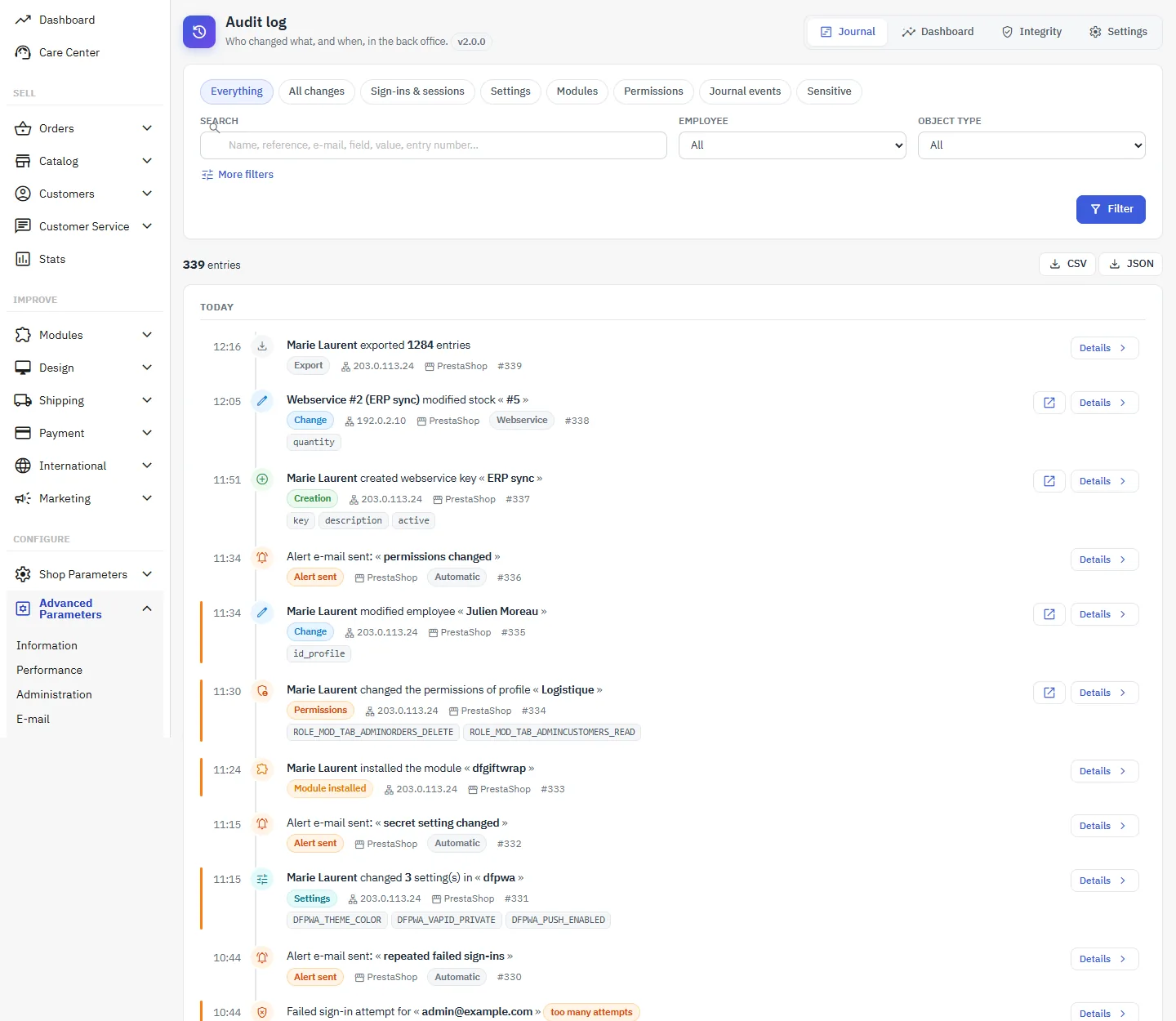
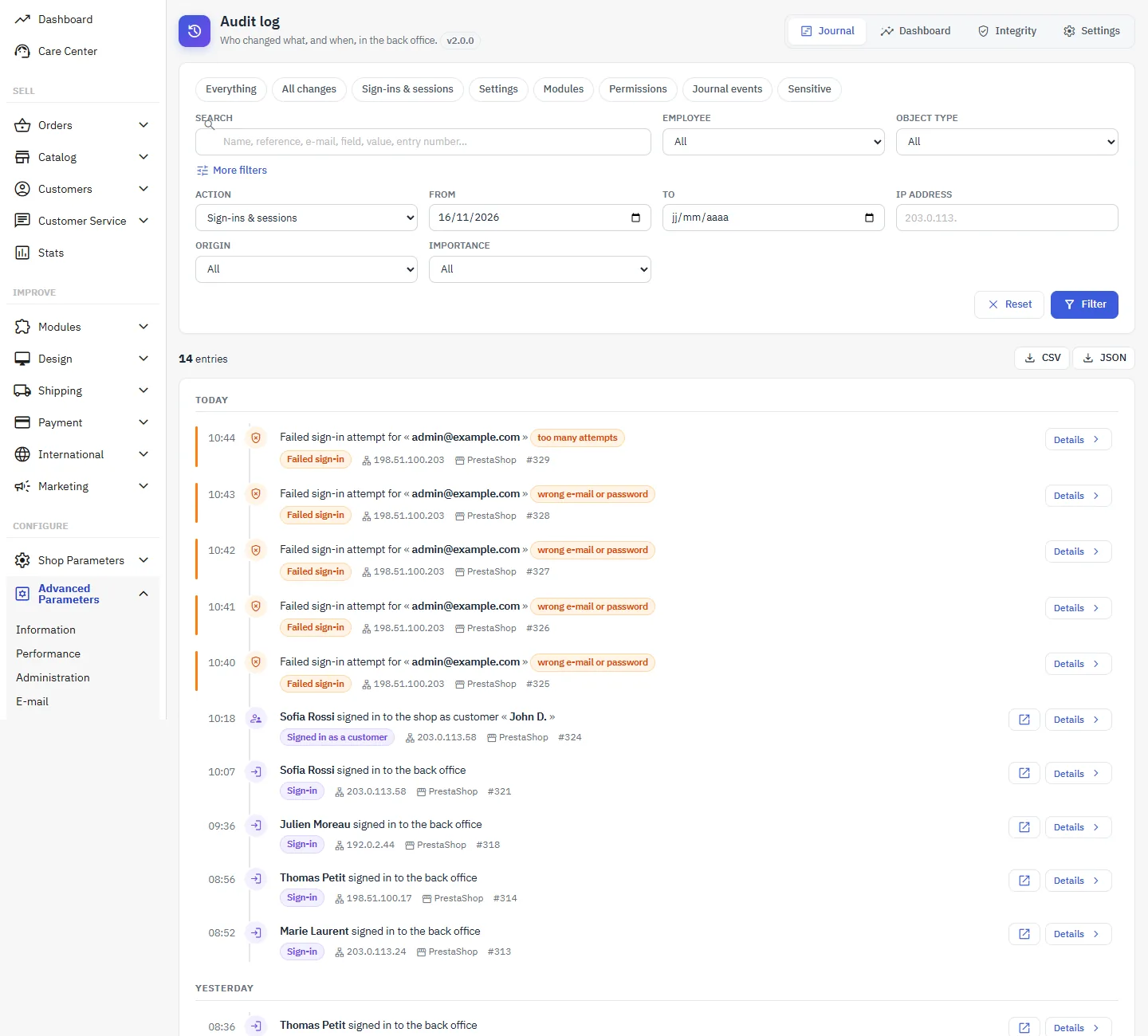
The shortcuts at the top filter in one click: all changes, sign-ins and sessions, settings, modules, permissions, journal events, sensitive actions. More filters opens employee, object type, action, period, IP address, origin, importance and shop. The search covers names, references, e-mail addresses, fields and values (except masked values).
Detailed view
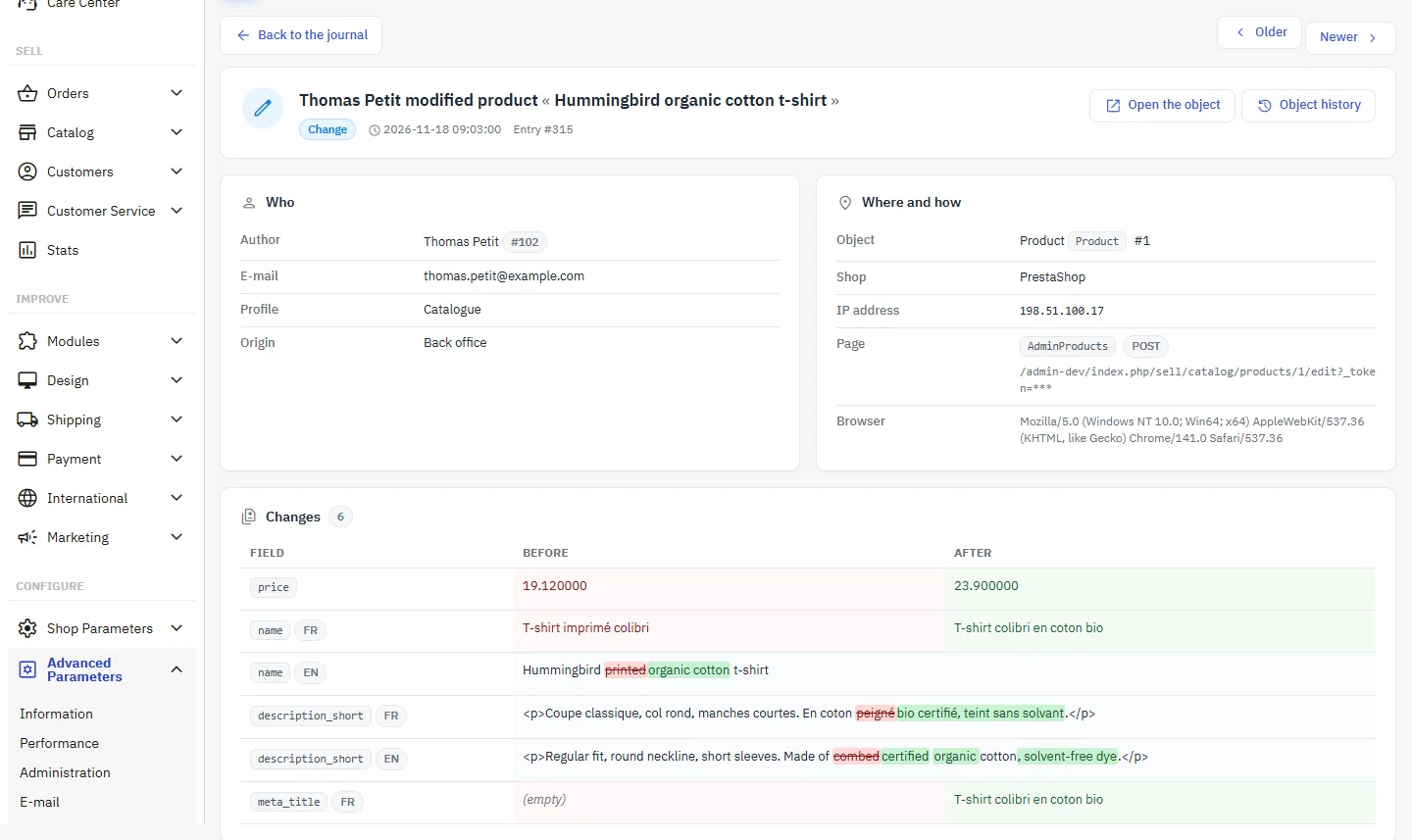
Details opens the entry: who (author, e-mail address, profile, origin), where and how (object, shop, IP, page, browser), then the field-by-field comparison. Each language and each shop has its own row; in long texts, removed words are struck through in red and added words highlighted in green. A masked secret or personal value is marked with a padlock. The buttons open the object and its full history; the “Same request” section lists the other entries of the same action.
History on product, order and customer pages
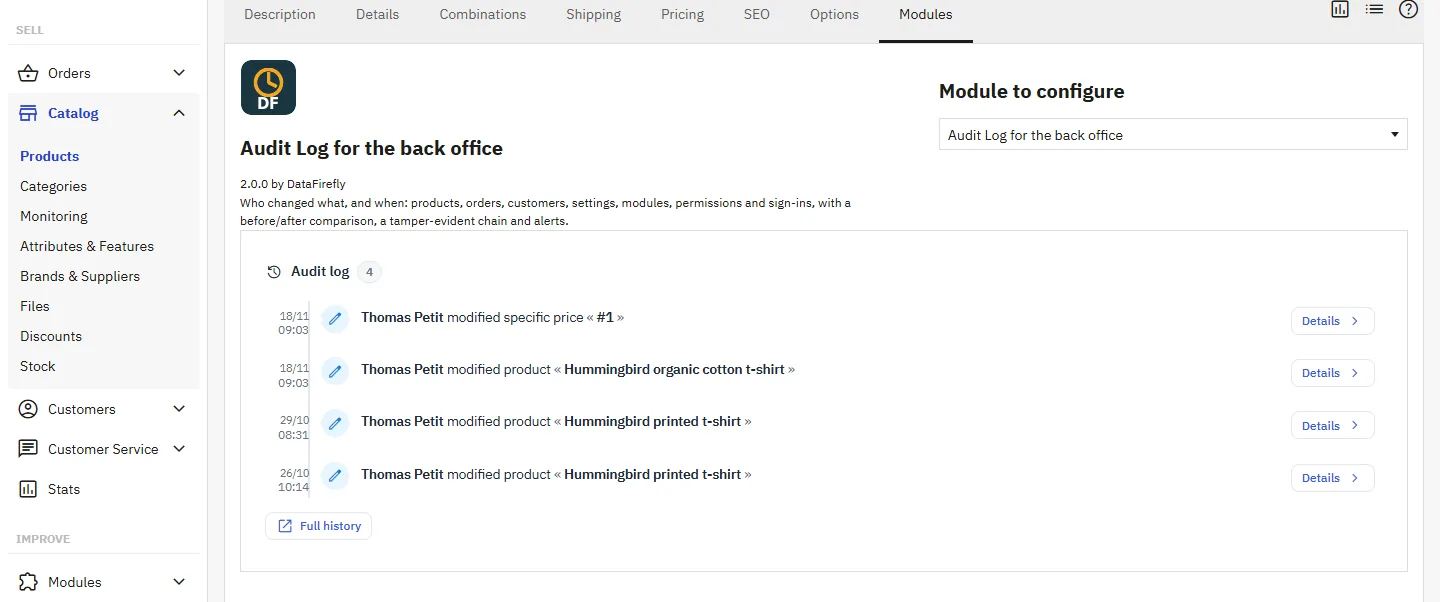
The product (Modules tab), order and customer pages show the latest entries for the object, with a link to the full history. The block only appears for employees who have access to the journal.
What is recorded
- Objects: more than 45 types (products, combinations, specific prices, stock, categories, orders and status changes, payments, credit slips, customers, addresses, cart rules, carriers, taxes, countries, languages, pages, employees, profiles, webservice keys, SQL queries, shops…). You can add classes from other modules.
- Settings: on every back-office form that changes something, the configuration is compared before and after, including module configuration pages.
- Modules: installation, uninstallation, enabling, disabling, upgrade.
- Permissions: Team > Permissions, webservice key permissions, change of an employee’s profile.
- Sign-ins: successful, failed (the login is only kept if it looks like an e-mail address), sign-outs (1.7.8 and 8) and ended sessions (9); “sign in as a customer” with the dfconnectas module.
- Bulk operations: above the grouping threshold (25 by default), the same action on many objects becomes a single entry with the number, the identifiers and the fields changed. Operations of the dfbulkfeature and dfspecificpricecleaner modules are also recorded.
What is not captured
- direct SQL writes made by other modules (except the two modules mentioned above);
- settings changed from the command line, by a cron task or through the webservice;
- PrestaShop 9 Admin API clients.
Dashboard
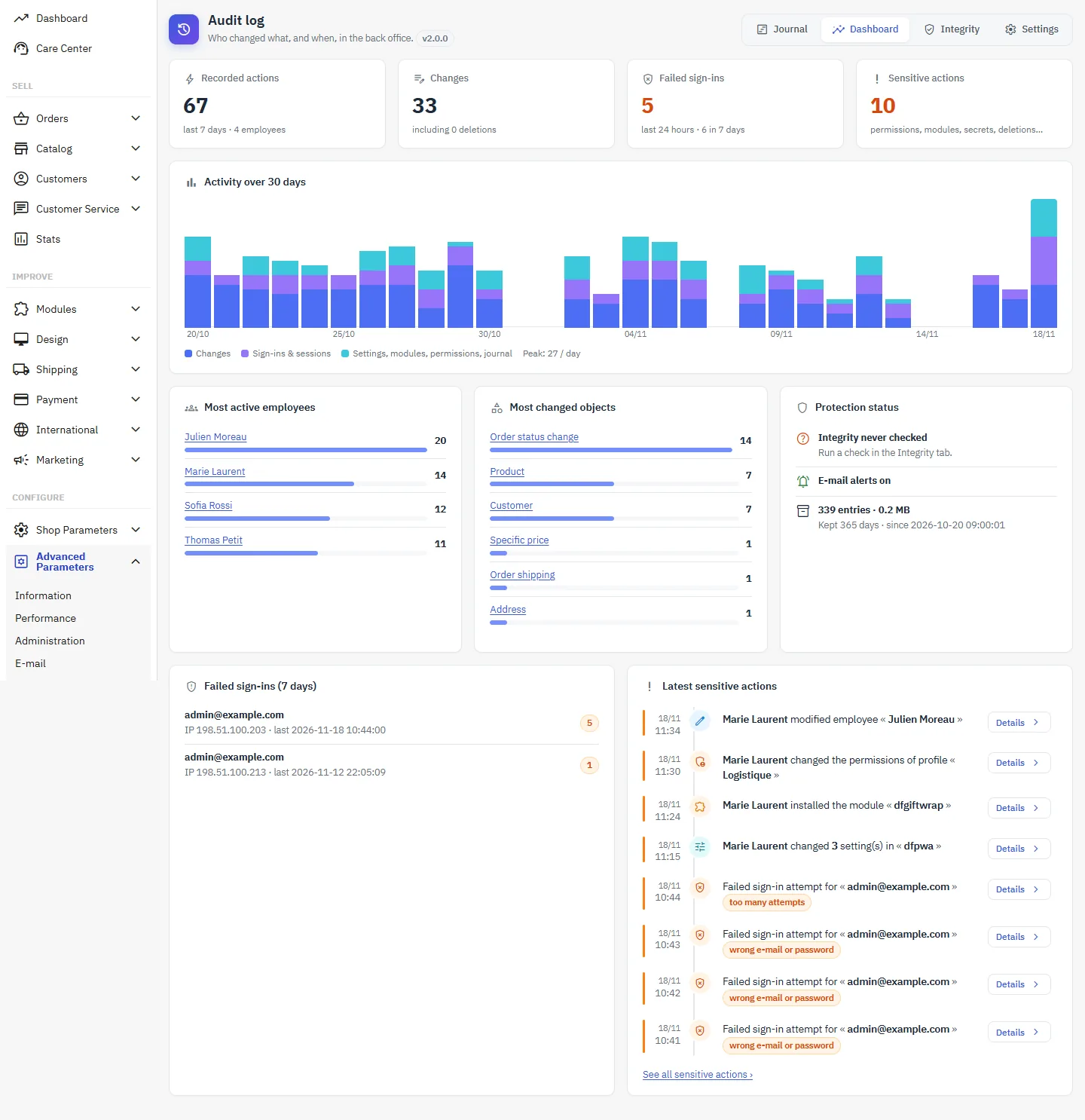
Actions over the last 7 days, modifications and deletions, failed sign-ins (24 h and 7 days), sensitive actions, 30-day activity chart (clicking a bar opens that day), most active employees, most modified objects, protection status (last check, alerts, journal size) and latest sensitive actions. Warnings flag a profile or a shop that would escape the journal.
Integrity
Each entry contains the SHA-256 fingerprint of the previous one. Check now recalculates the whole chain in batches and reports any modified, deleted or inserted entry, with a link to each entry concerned. The check itself is recorded.
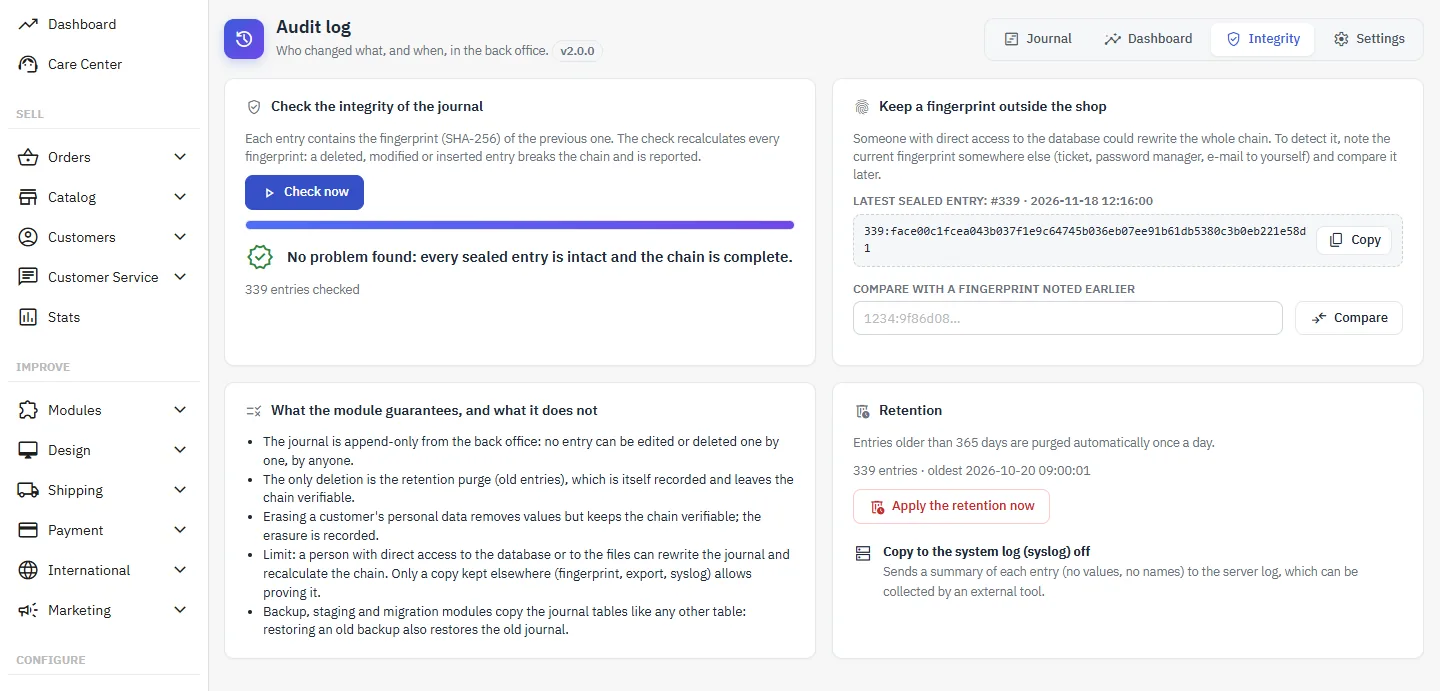
- No entry can be modified or deleted one by one from the back office.
- The only deletion is the retention purge, which is itself recorded; the chain remains verifiable.
- Erasing a customer’s data removes values but keeps the chain verifiable; the erasure is flagged as such.
Limit: someone with direct access to the database can rewrite the whole journal and recalculate the chain. Copy the displayed fingerprint (number and fingerprint of the latest entry) to a separate place and compare it later, export regularly, or enable the copy to syslog if your server logs are collected elsewhere.
Backup, staging and migration modules copy the journal tables like any others: restoring an old backup also restores the old journal.
Settings
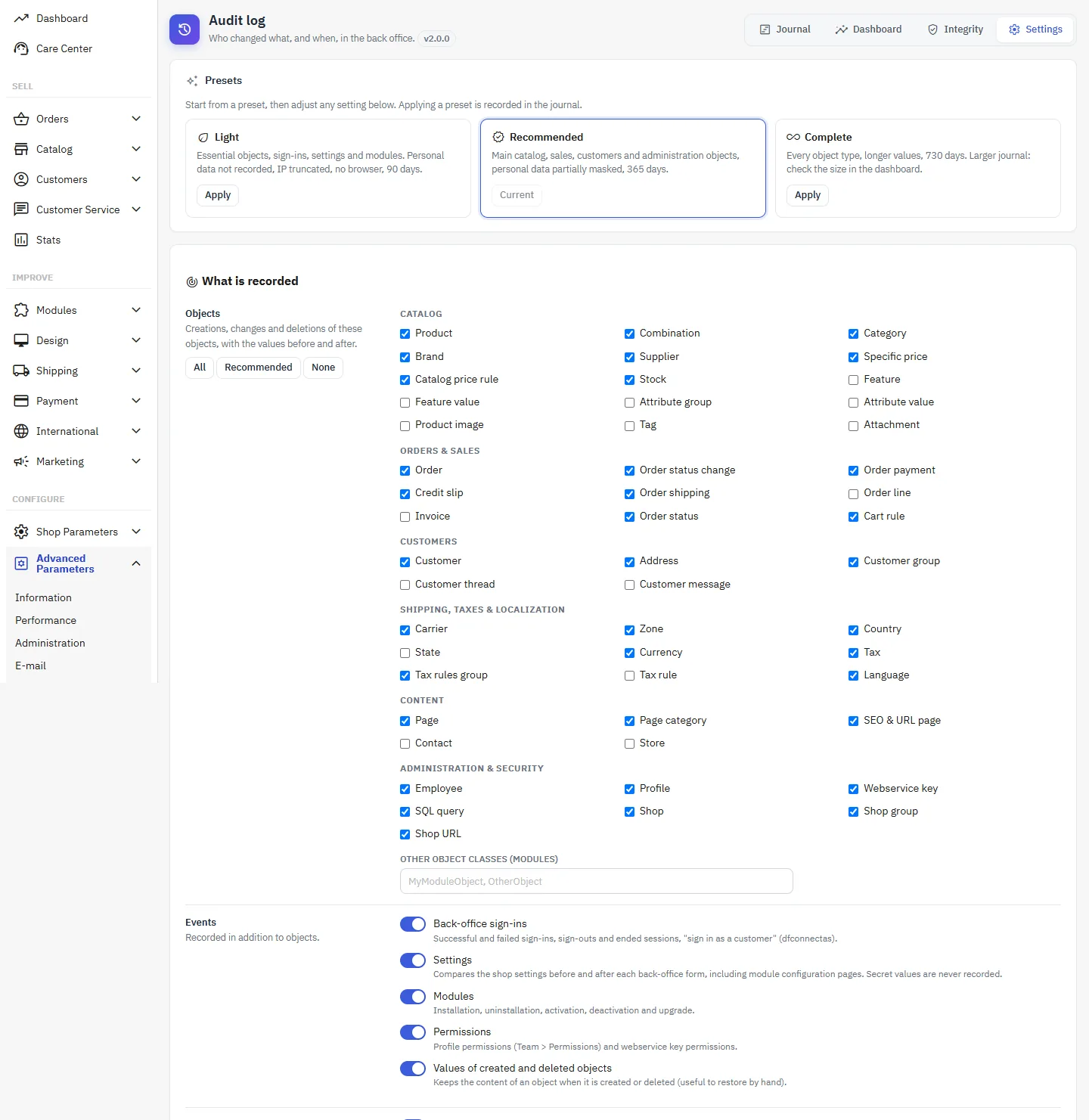
The Settings tab starts with three presets: Light (essential objects, personal data not recorded, IP truncated, 90 days), Recommended (365 days, personal data partially masked) and Complete (all objects, 730 days). Applying a preset is recorded in the journal.
What is recorded
Tick the object types and enable the events: sign-ins, settings, modules, permissions, values of created and deleted objects. Back-office actions are always recorded; the webservice and Admin API, the command line, the front office and cron tasks are options (front office disabled by default). Carts, visits and statistics are never recorded.
Personal data and secrets
- Customer data: partially masked (j•••@e•••.com, •• •• •• 42), not recorded, or full if you have a documented need.
- Erasure: when a customer is deleted, or on request with the psgdpr module, their personal data is removed from the journal.
- IP address of the employee: full, truncated (203.0.113.0) or not recorded; browser optional.
- Secrets: never recorded (passwords and hashes, keys, tokens, webservice keys, payment and OAuth secrets, FTP credentials). You can add fields and settings to mask, and settings to ignore.
Retention and volume
Retention period in days (minimum 30, or 0 for unlimited), automatic purge once a day. The grouping threshold, the number of fields per entry and the length of values protect the database during imports.
Access and exclusions
The journal is only visible to profiles that have the permission on the Audit log menu (Team > Permissions): View to read and export, Edit for the settings, Delete to apply the retention. The Create an “Auditor (read-only)” profile button prepares a dedicated profile. In multistore mode, an employee only sees the entries of their own shops. Excluded employees are not recorded: this choice is itself recorded and you cannot exclude yourself.
E-mail alerts
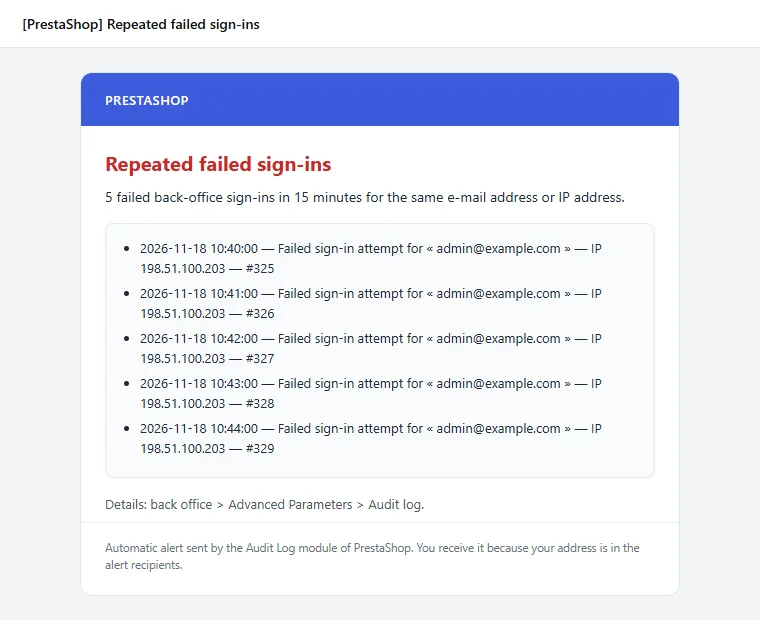
Enable the alerts and enter up to 10 recipients. They are sent for repeated failed sign-ins (5 in 15 minutes by default, same e-mail address or same IP), a mass deletion (20 objects in 10 minutes by default), changes to employees, profiles, permissions and webservice keys, modules installed or switched on or off, a modified secret setting, and always for a change to the journal itself. Each alert is sent in the recipient’s language, at most once every 15 minutes for the same event, and never contains any value. The Send a test alert button checks the shop’s e-mail configuration.
Exports
The CSV and JSON buttons of the journal export the entries shown by the current filters (100,000 at most), with the fields changed and the fingerprints. Masked values stay masked, and CSV cells that a spreadsheet could interpret as formulas are neutralized. Each export is recorded.
Uninstallation
Uninstallation is always recorded. The On uninstall setting decides what happens to the journal: Keep the journal (recommended: the tables remain and a reinstallation continues the same chain) or Delete the journal (export it first if you may need it).
Troubleshooting
An employee’s actions do not appear
Look at the dashboard warnings: excluded employee, profile without the “view” permission on the module (PrestaShop 1.7.8) or shop where the module is disabled.
A settings change does not appear
Only settings changed from a back-office form are compared. Also check that the setting is not in the list of settings to ignore.
Integrity reports a problem
Open the entry shown. A deletion or modification made directly in the database, or restoring an old backup, breaks the chain at that point. Values erased at a customer’s request are not counted as tampering.