
Quantity Deals & Promo Badges: documentation
Set up quantity promotions and promo badges on PrestaShop 8 and 9: six offer types including the tiered discount, targeting, negotiated prices, badge, deals block, cart and diagnostics.
Installation
The module installs like any other PrestaShop module, from the back office or over FTP.
- Go to Modules then Module Manager, click Upload a module and drop the
dfquantitydeal.zipfile. - Over FTP, extract the archive into your shop’s
/modules/folder, then install DataFirefly – Quantity Deals and Promo Badges from the Module Manager. - Clear the cache under Advanced Parameters then Performance.
Installation creates eight tables prefixed ps_df_quantity_deal, registers the module on nine hooks, creates the displayDfQdBadge hook and adds the Quantity deals tab to the Catalog menu.
No class or controller override is installed. Uninstalling removes the tables, the configuration keys and the tab.
Module languages
French is the module’s source language. Translations ship in the translations/ folder for English, Italian, Spanish, German, Dutch, Polish and Portuguese.
- The back office is displayed in the language of the logged-in employee.
- The text customers see (sentences in the deals block, cart prompts, buttons) follows the shop language.
- The menu tab takes its translated name in each installed language.
- As long as the cart discount label keeps its default value, it is shown translated in the customer’s language. If you customise it in the general settings, your text is used in every language.
To adjust a wording, go to International then Translations, type Installed modules translations, module dfquantitydeal.
General settings
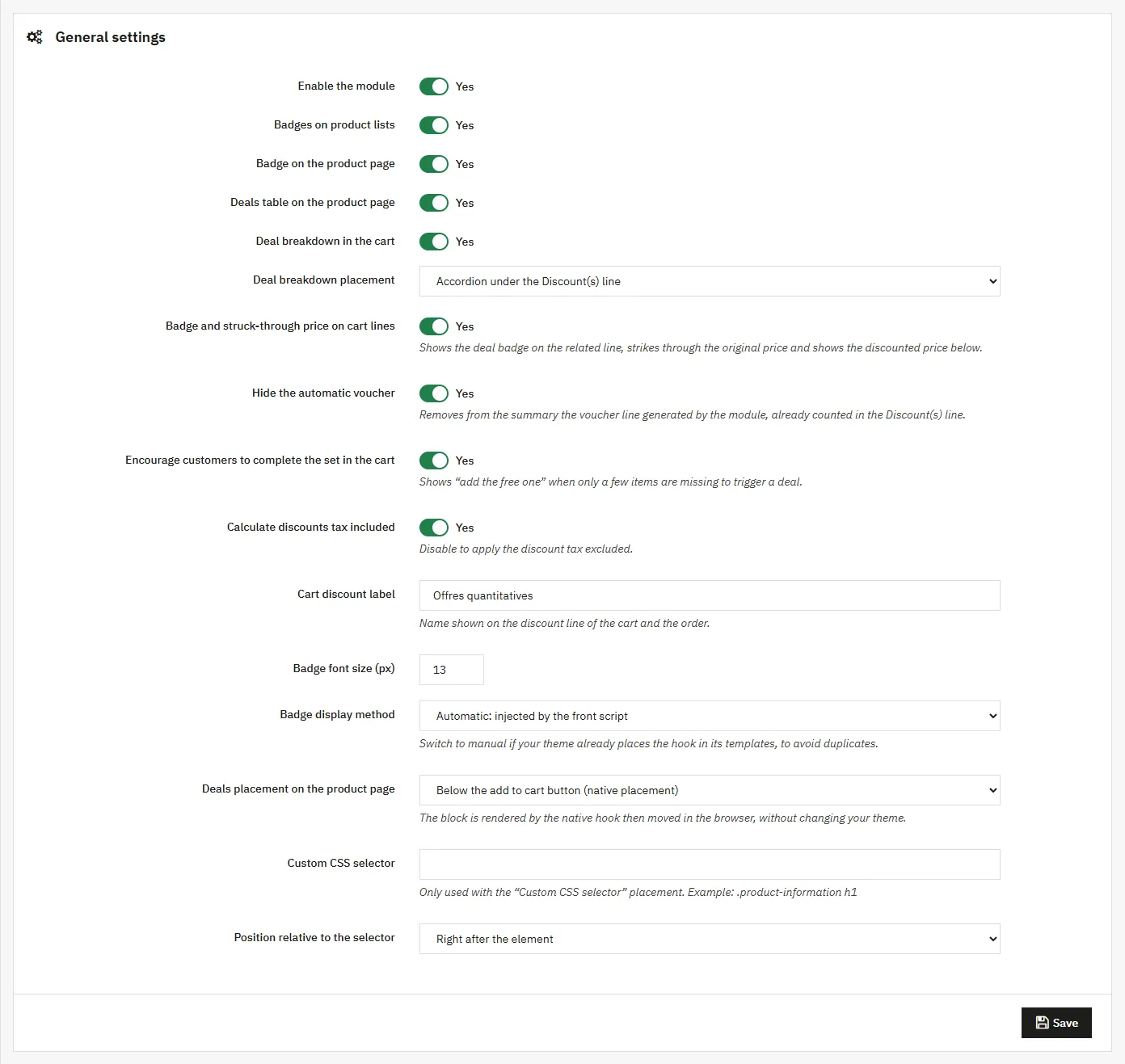
The Configure button on the module page opens the settings that apply to every offer.
- Enable the module: switches off badge display and discount calculation without uninstalling.
- Badges on product lists: shows the badge on thumbnails in category pages, search results and product blocks.
- Badge on the product page: a separate switch, so you can keep the badge on listings only if you prefer.
- Deals table on the product page: shows the block listing the offers that apply to the product.
- Deal breakdown in the cart: shows the amount contributed by each offer.
- Deal breakdown placement: Accordion under the Discount(s) line (default), Above the Shipping line, Below the cart total (tax incl.), or Below the product list (native placement).
- Badge and struck-through price on cart lines: on each line concerned, shows the deal badge, strikes through the original price and shows the discounted price below.
- Hide the automatic voucher: removes from the summary the voucher line generated by the module, which is already counted in the Discount(s) line. The customer therefore cannot remove a discount that is recalculated on every cart change.
- Encourage customers to complete the set in the cart: shows a panel when only a few items are missing to trigger an offer.
- Calculate discounts tax included: when on, the cart rule carries a tax-inclusive amount. When off, the amount is net and PrestaShop applies VAT following your rules.
- Cart discount label: the text shown on the discount line of the cart and the order.
- Badge font size (px): 13 by default.
- Badge display method: automatic (injected by the front script), manual (only through the
displayDfQdBadgehook) or both. - Deals placement on the product page: see the dedicated section further down.
- Custom CSS selector and Position relative to the selector: only used with the “Custom CSS selector” placement.
Diagnostics
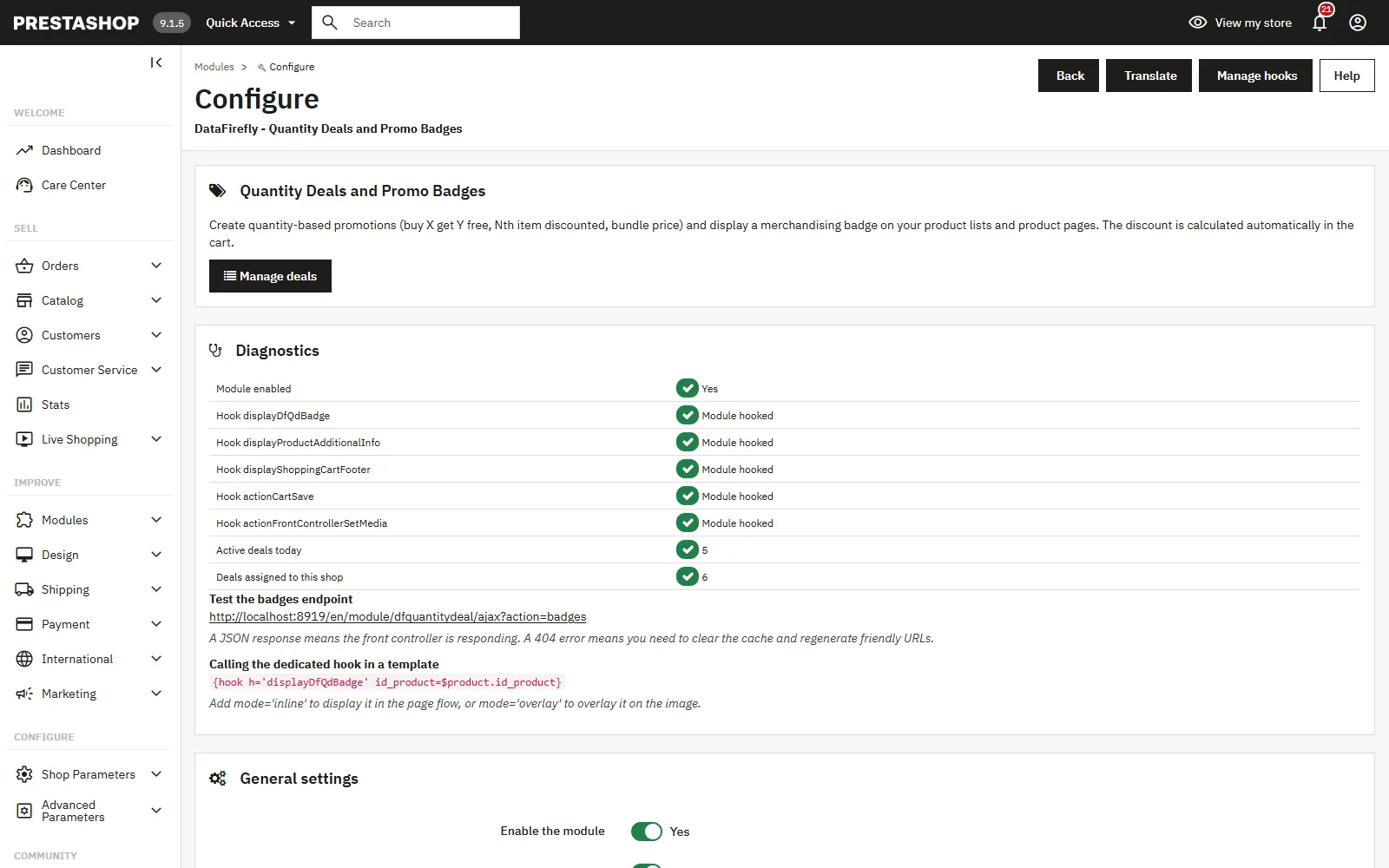
The configuration page shows a Diagnostics panel above the settings. It tells you whether the module is enabled, whether each relevant hook exists in the database and whether the module is registered on it, how many deals are active today and how many deals are assigned to the current shop.
The Test the badges endpoint link opens the front controller that supplies the badges. A JSON response confirms it is responding. A 404 error means you need to clear the cache and regenerate friendly URLs.
Opening the configuration page registers any missing hooks automatically, which fixes most installations made before an update.
Creating an offer
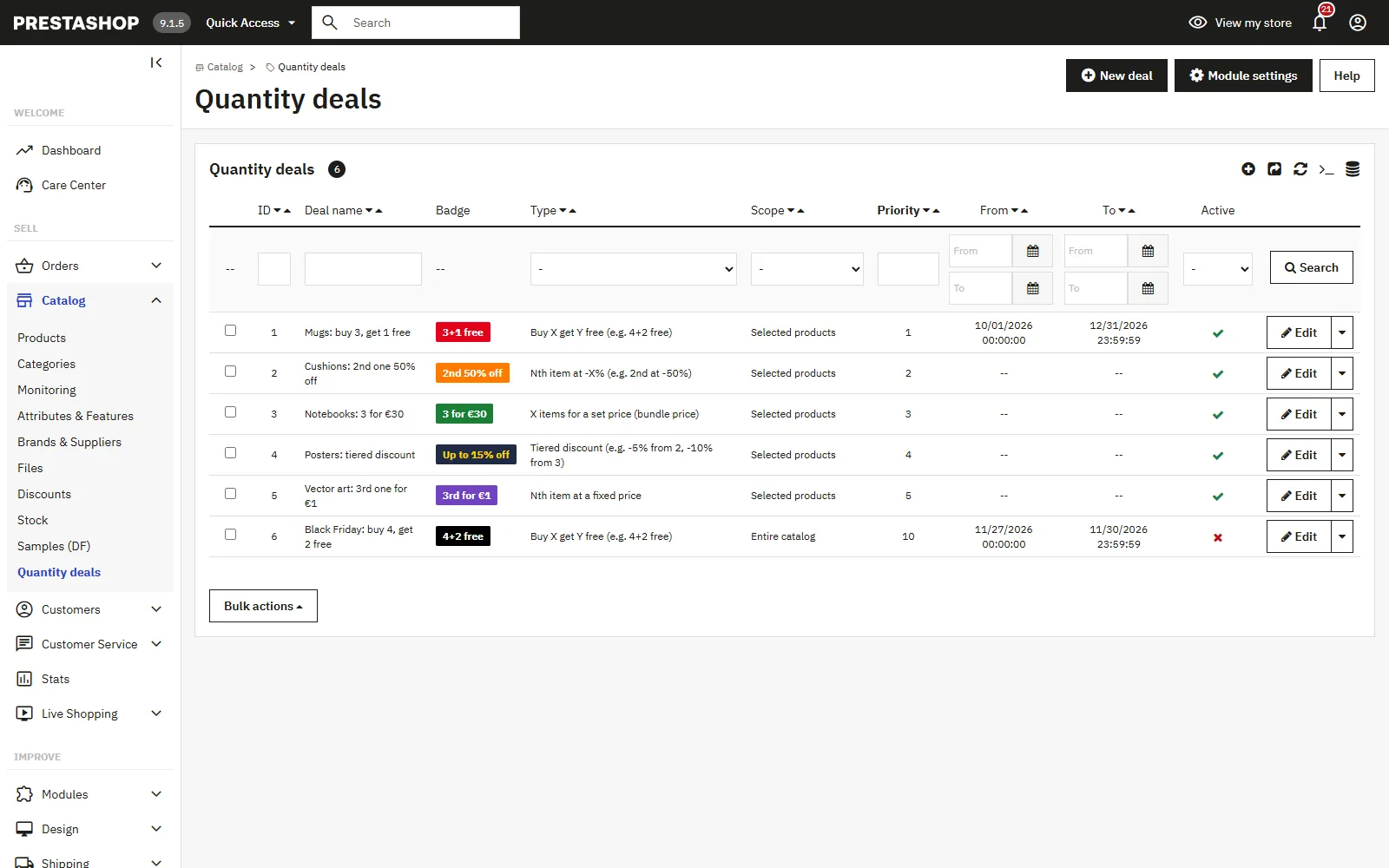
Open Catalog then Quantity deals, and click New deal. The form is split into three tabs.
Deal tab
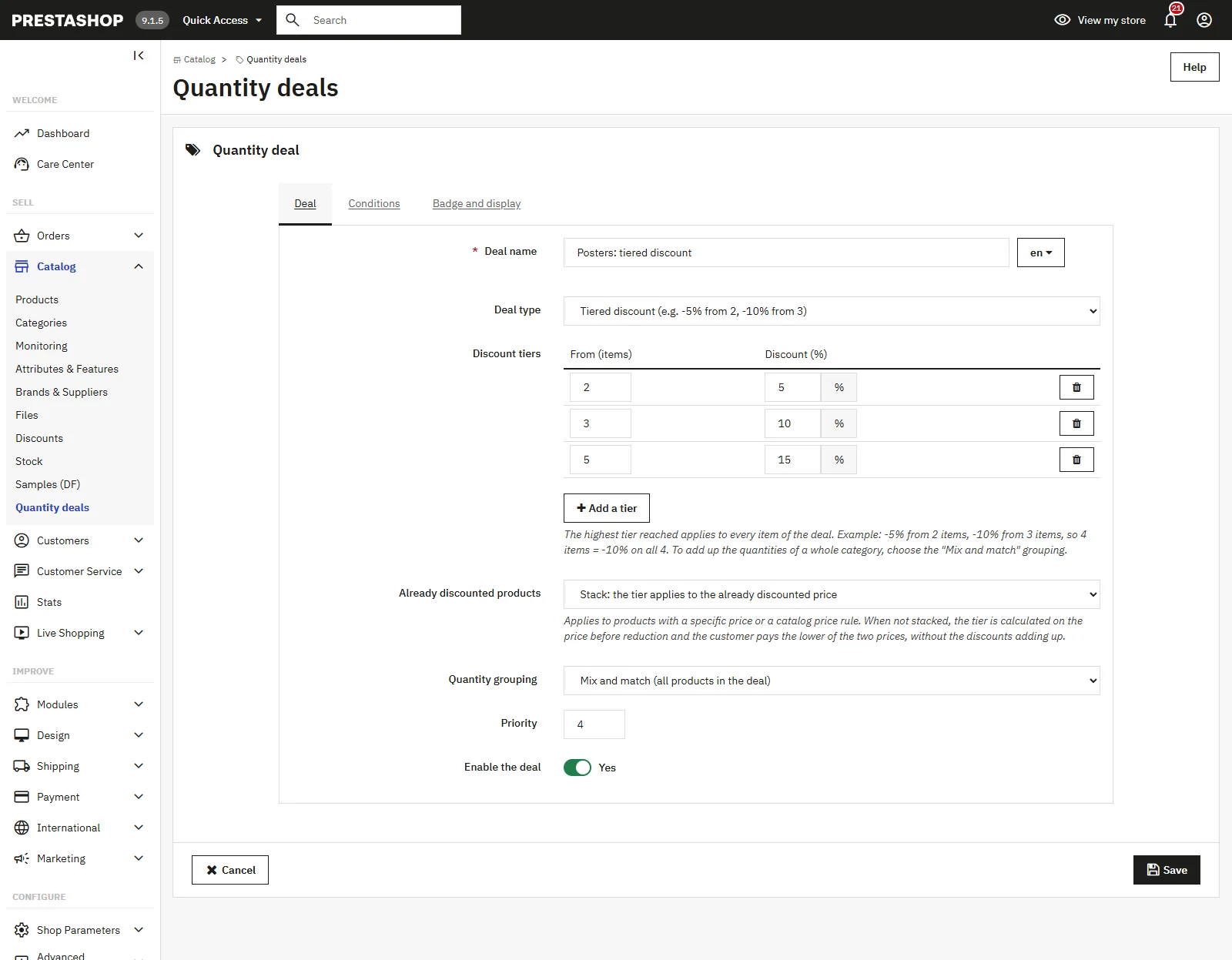
- Deal name: translated field, used in the back office list and in the deals block on the product page.
- Deal type: the six mechanics described below. The form hides the fields that do not apply to the chosen type.
- Quantity bought (X) and Free quantity (Y): for the buy X get Y free type, and X alone for the bundle price.
- Rank of the discounted item (N): 2 for “2nd item at -25%”, 3 for “3rd item at -50%”.
- Discount value: percentage, discount amount or fixed price depending on the type. The field label changes automatically.
- Discount tiers: for the tiered discount only. A table where each row pairs a minimum quantity with a percentage. The Add a tier button creates a row, the bin icon deletes it. Each tier must give a higher discount than the previous one.
- Already discounted products: for the tiered discount only. Stack applies the tier to the already discounted price, Do not stack keeps the better of the two discounts. See the dedicated section further down.
- Repeatable deal: when on, the offer applies as many times as the quantity allows (12 items trigger a 4+2 offer twice). When off, it applies only once per cart. This field is hidden for the tiered discount, which always covers the whole quantity.
- Quantity grouping: per product, per combination, or mix and match.
- Priority: lower values run first.
- Enable the deal: same as the toggle in the list view.
Conditions tab
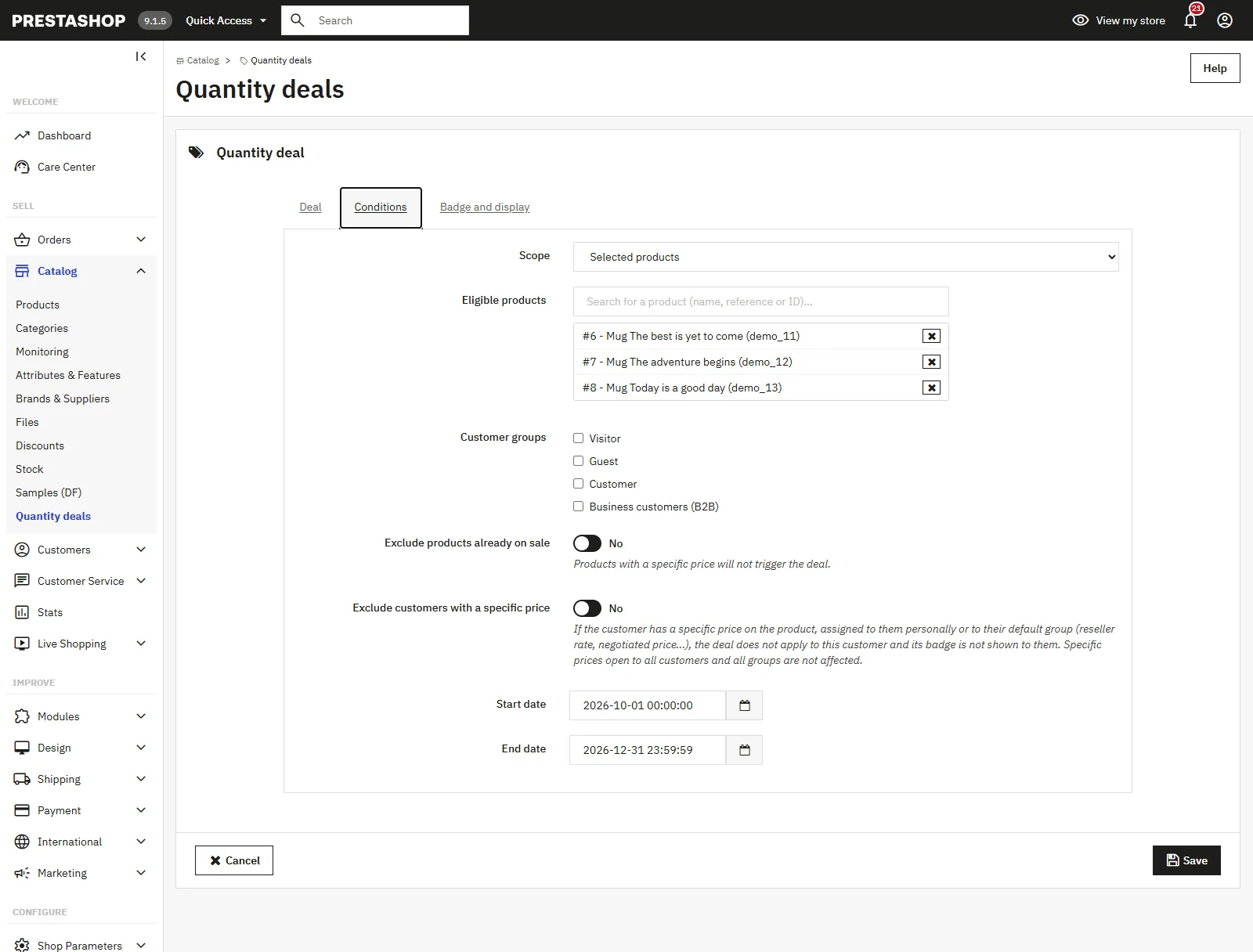
- Scope: Entire catalog, Selected products, Selected categories or Selected brands. The matching selection field appears according to your choice.
- Eligible products: type at least two characters to start the search. It covers name, reference and ID. Click a result to add it to the list.
- Eligible categories: category tree with checkboxes. A product attached to any of the ticked categories triggers the offer.
- Eligible brands: list of the shop’s brands.
- Customer groups: leave everything unticked to apply the offer to all groups, visitors included.
- Exclude products already on sale: products carrying a specific price are left out of the calculation.
- Exclude customers with a specific price: a customer whose account or default group has a specific price on the product gets neither the discount nor the badge. See the dedicated section further down.
- Start date and End date: leave empty for a permanent offer. A date on its own is completed with 00:00:00 for the start and 23:59:59 for the end.
- Shops: only visible when multistore is active.
Badge and display tab
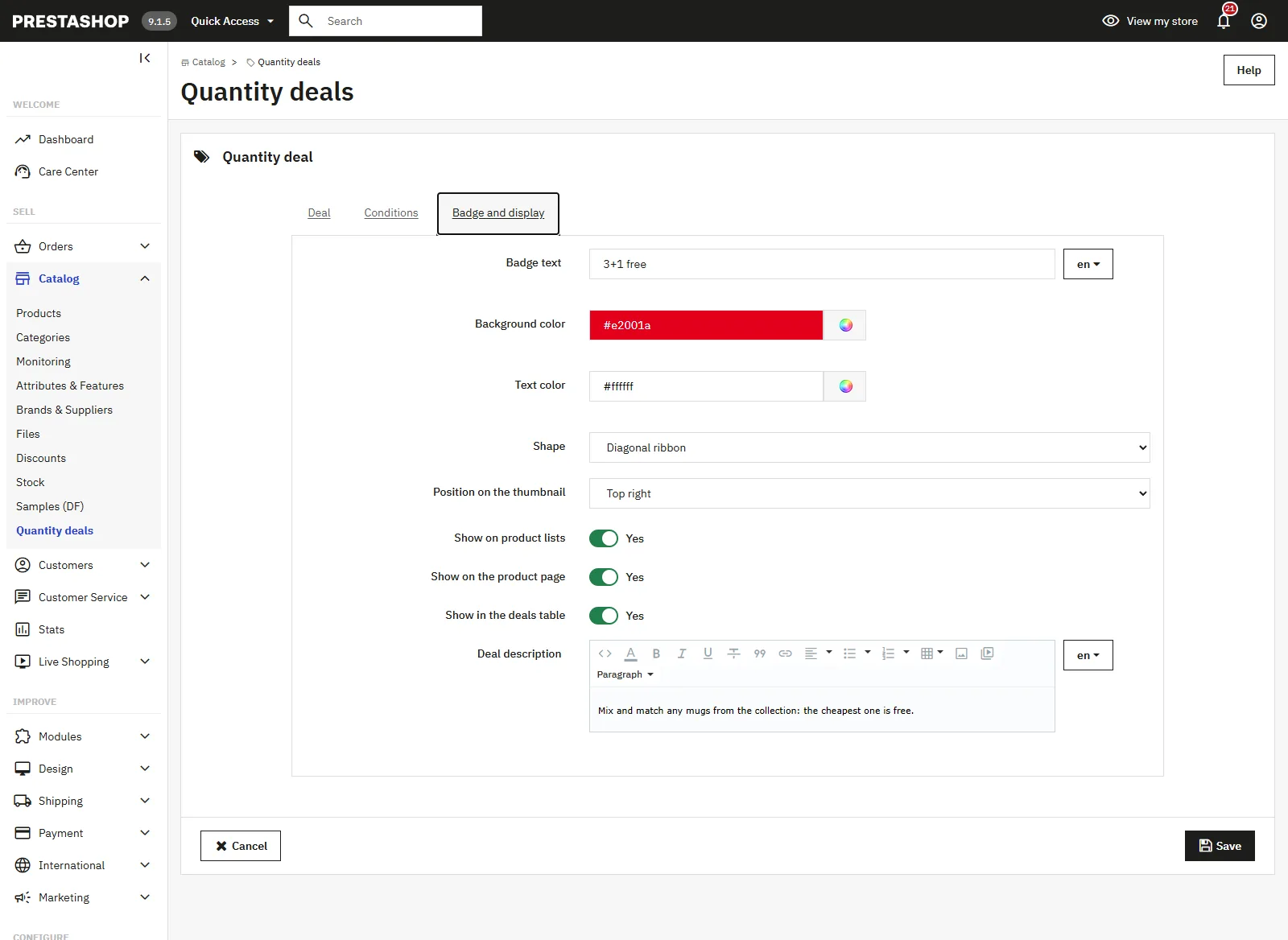
- Badge text: translated field. Leave it empty to have it generated automatically from the offer values.
- Background color and Text color: colour pickers, red and white by default.
- Shape: square, rounded corners, pill, diagonal ribbon, round sticker.
- Position on the thumbnail: top left, top right, bottom left, bottom right, or inline below the price.
- Show on product lists, Show on the product page, Show in the deals table: three per-offer switches, on top of the general settings.
- Deal description: translated rich text, shown in the deals block on the product page.
The six offer types
Buy X, get Y free
The classic 2+1, 3+1 or 4+2 format. The engine splits the eligible cart units into sets of X plus Y. For every complete set, the Y cheapest units are free.
Example: a 4+2 offer, six items at €4.49 in the cart. One complete set, two free units, a discount of €8.98. With only five items, no set is complete and the discount is zero.
Nth item at -X%
The engine splits the units into sets of N. In each set, the unit at rank N gets the percentage off. Because units are sorted by descending price, the discounted item is the cheapest of the set.
Example: a “2nd item at -25%” offer, four items at €20. Two sets of two, two items discounted by €5, a total discount of €10.
Nth item at a fixed amount off
Same split, but the discount is a fixed amount. It is capped at the item price: €30 off an item priced €8 gives a discount of €8, not €30.
Nth item at a fixed price
The item at rank N is brought down to the price you set. The discount is the difference. For “2nd item at €1” on two items at €12, the discount is €11.
Bundle price
For every set of X units, the total is brought down to the price you advertise. On a 3 for €10 offer with six items at €5, the engine forms two sets and applies €10 of discount in total.
Tiered discount
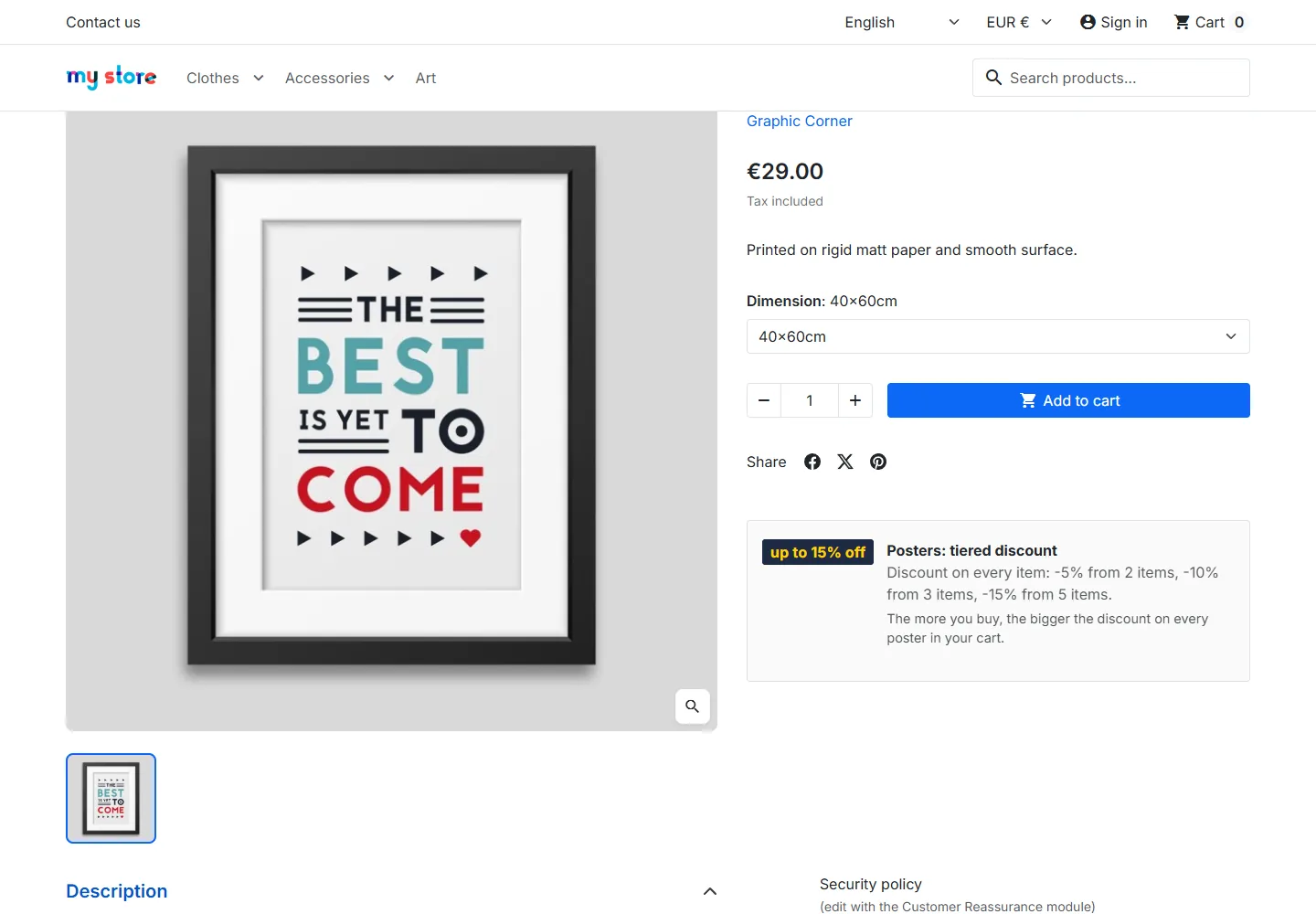
You set quantity thresholds, each with its own percentage. The highest tier reached applies to every item in the offer, not only to the last one.
Example: tiers at -5% from 2 items and -10% from 3. One item: no discount. Two items at €10 and €20: a discount of €1.50 (5% of €30). Four items for €50: a discount of €5, which is -10% on all four.
To reach a tier with different products, a whole category for example, choose the Mix and match grouping. With Per product grouping, each reference has to reach the tier on its own. The tiered discount is not repeatable: it always covers the whole quantity.
A native PrestaShop catalogue price rule can also handle tiers, but it counts quantities product by product. It cannot add up two different references from the same category.
Which item is free
The engine sorts eligible units by descending price, then applies the benefit to the cheapest of each set. This is the rule supermarkets use and the one customers expect.
On a 3+1 set made of items at €20, €15, €10 and €5, the free item is the one at €5. The customer pays €45 instead of €50.
This rule does not concern the tiered discount, which applies to every item in the offer.
Quantity grouping
- Per product: every combination of the same reference counts together. Six bottles of the same shower gel trigger a 4+2 offer even if they come in three different scents.
- Per combination: each variant counts on its own. Six units of the same scent are needed to trigger the same offer.
- Mix and match: every unit of the products attached to the offer feeds the same count. Useful to run a 4+2 across a whole range.
Priority and stacking
Offers are evaluated in priority order, from the lowest value to the highest. Each offer consumes the units it uses, and the next one works on what is left. The same unit is never discounted twice.
Example: seven items in the cart and a 4+2 offer at priority 10. Six units are consumed by the set, and the seventh stays available for a priority 20 offer targeting the same product.
Give your most generous offers a low priority if you want them applied first. At equal priority, the order follows the offer ID.
Already discounted products and negotiated prices
By default, an offer applies to the price shown in the cart, so after specific prices and catalogue price rules. Three settings let you adjust this behaviour.
Exclude products already on sale
Any product whose cart line carries a reduction is left out of the offer calculation. It does not count towards the required quantity either.
Exclude customers with a specific price
Designed for B2B shops and negotiated rates. The module checks, product by product, whether an active specific price exists for the logged-in customer or for their default group. If so, that product is left out of the offer for that customer: no discount in the cart, no badge on the thumbnail or on the product page.
- Only the customer’s default group counts, as in PrestaShop’s price calculation. A customer attached to a second group that has a specific price, when that group is not their default one, pays the normal price and keeps the offer.
- Specific prices open to all customers and all groups do not trigger the exclusion.
- The specific price is taken into account if it is active today, for the customer’s shop, currency and country. The minimum quantity of the specific price is not taken into account.
- A specific price set on a single combination only excludes that combination in the cart. The badge stays visible as long as the price does not cover the whole product.
A visitor who is not logged in has no account: the exclusion only applies to them if the Visitor group has a specific price. To test, log in with the customer account concerned, then change the quantity of a cart item to force a recalculation.
Tier stacking
For the tiered discount, the Already discounted products setting in the Deal tab offers two modes.
- Stack (default): the tier percentage applies to the already discounted price. A product at €20 brought down to €18 by a specific price, with a -10% tier, ends up at €16.20.
- Do not stack: the tier is calculated on the price before reductions and the customer pays the lower of the two prices. A product already at -20% stays at -20% with a -10% tier. A product at -5% moves to -10%.
In both modes, already discounted items count towards reaching the tier.
The badge
Text variables
The Badge text field accepts five variables, replaced at display time with the offer values.
{x}: purchased quantity{y}: free quantity{n}: rank of the discounted item{value}: discount value, without trailing zeros{price}: discount value formatted as a price, in the customer’s currency
You can also write the text out: “buy 4 get 2 free”, “3+1 free”, “2nd item at -25%”. The field is translated, so each language gets its own wording.
If the field stays empty, the module builds a short label from the type and the values: 4+2 for a buy X get Y free offer, -25% x2 for a percentage Nth item, Up to -10% for a tiered discount, or -10% from 3 if there is only one tier.
For a tiered discount, {x} is the quantity of the first tier and {value} the percentage of the highest tier.
Automatic display
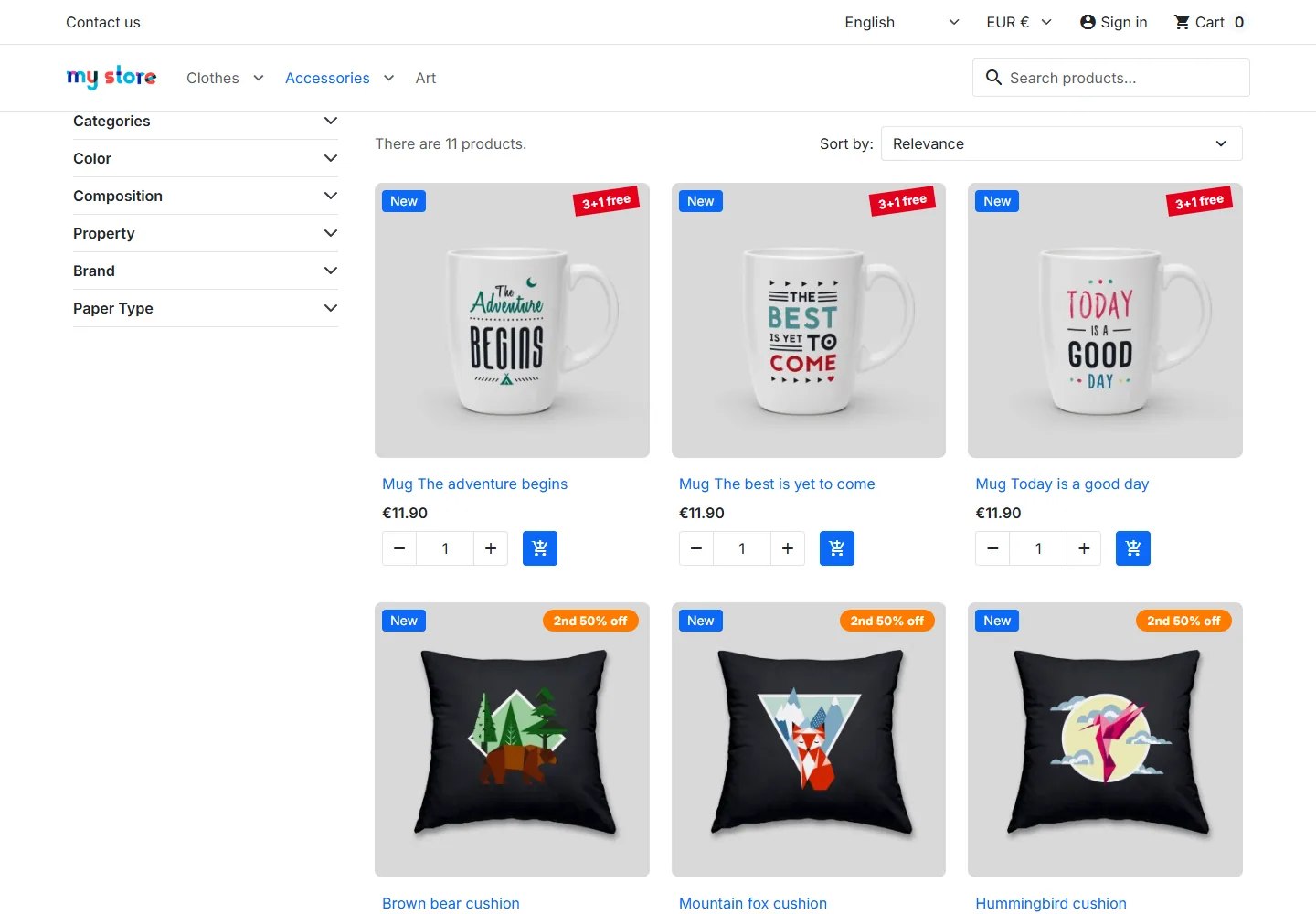
By default, a front script finds the product thumbnails on the page, requests their badges from the module in a single Ajax call, then places them on the image or under the price according to the offer’s position. This does not depend on any thumbnail hook, which covers custom themes that no longer call displayProductPriceBlock. The placement is replayed after Ajax refreshes from faceted search, pagination and quick view.
Dedicated displayDfQdBadge hook
To place the badge at a precise spot in your theme or in another module, call the dedicated hook in the template:
{hook h='displayDfQdBadge' id_product=$product.id_product}Two optional parameters are available.
mode:auto(default) follows the position set on each offer,inlineforces display in the page flow,overlayforces display over the image. The container automatically receivesposition: relative.context:listorproduct, to apply the offer’s listing or product page settings. Detected automatically when omitted.
{hook h='displayDfQdBadge' id_product=$product.id_product mode='inline'}The hook appears under Design then Positions as “DataFirefly – Badge offre quantitative”.
If your theme calls this hook in its templates, set Badge display method to Manual: only through the displayDfQdBadge hook. Otherwise the badges will show twice: once through the hook and once through the script.
The deals block on the product page
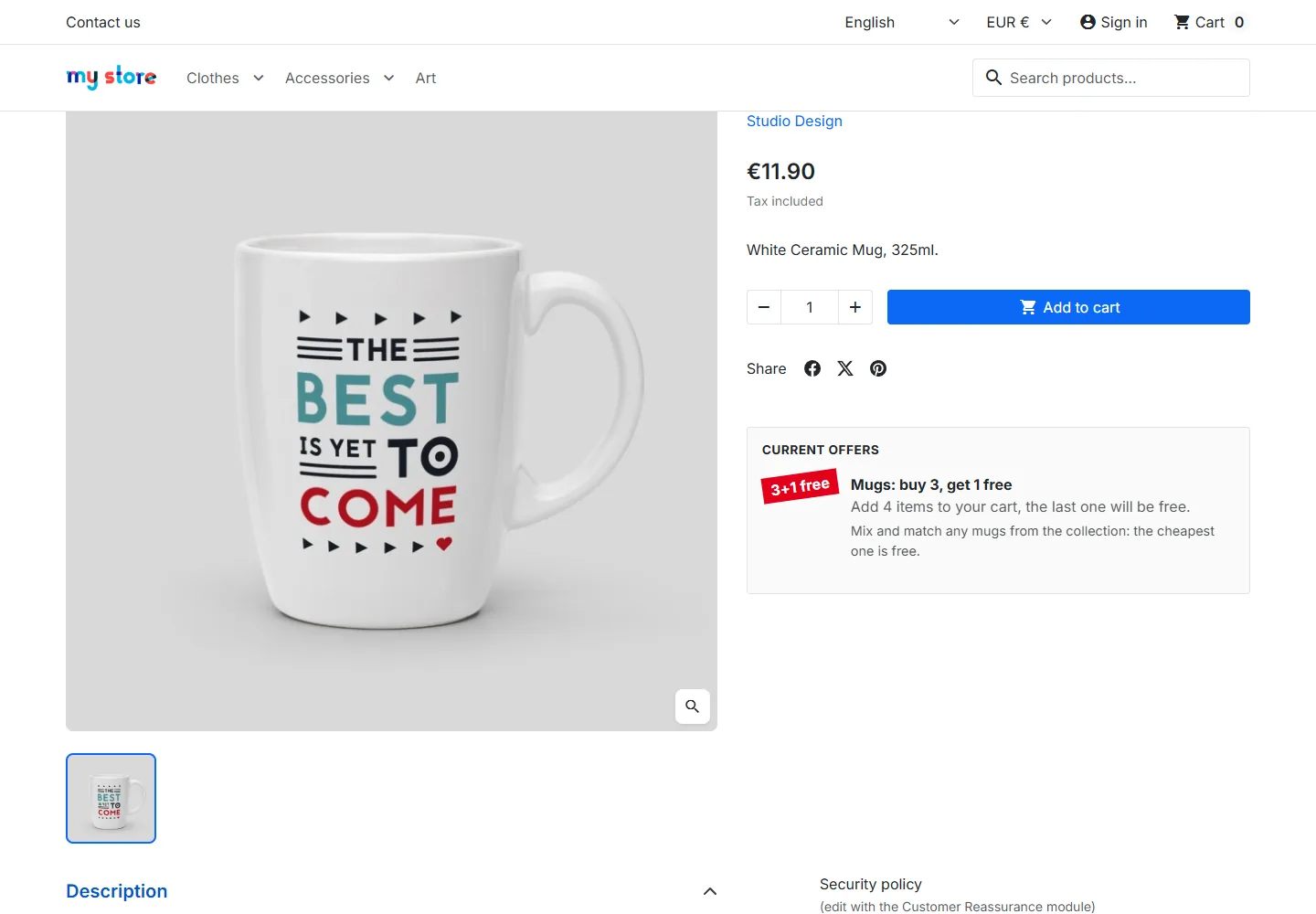
For each applicable offer, the block shows the badge, the offer name, a sentence telling the customer what to do, and the description if you have entered one. Example sentences: “Add 6 items to your cart, the last 2 will be free.”, “Add 3 items to your cart, the set will cost you €10.00.” The “Current offers” heading only appears if one of the offers has an end date.
The Deals placement on the product page setting offers eleven positions:
- above or below the product title;
- below the reference, below the short description;
- above or below the price;
- above the combinations;
- above the add to cart button, or below it (native placement, the default);
- in a dedicated tab on the product page;
- through a custom CSS selector.
The block is rendered by the native displayProductAdditionalInfo hook, then moved in the browser, without changing your theme. The dedicated tab goes through displayProductExtraContent. With the custom CSS selector, enter for example .product-information h1 and choose whether the block goes right before, right after, at the start or at the end of the element. If the selector matches nothing, the block stays in the native placement.
The cart
Discount calculation
On every cart change, the engine recalculates the discount total and syncs a private cart rule. Its internal code starts with DFQD followed by the cart ID. The customer only sees one discount line and has no code to enter.
The rule is only updated when the amount has changed, which avoids recreating it on every page load. If the total falls back to zero, the rule is detached from the cart and deleted.
When the order is placed, the rule is deactivated and its end date is pushed into the past so it cannot be reused. It stays attached to the order, so it remains visible in your accounting exports and usable for a credit note.
The discount amount cannot exceed the cart’s product total. PrestaShop caps it automatically in that case.
Per-offer breakdown
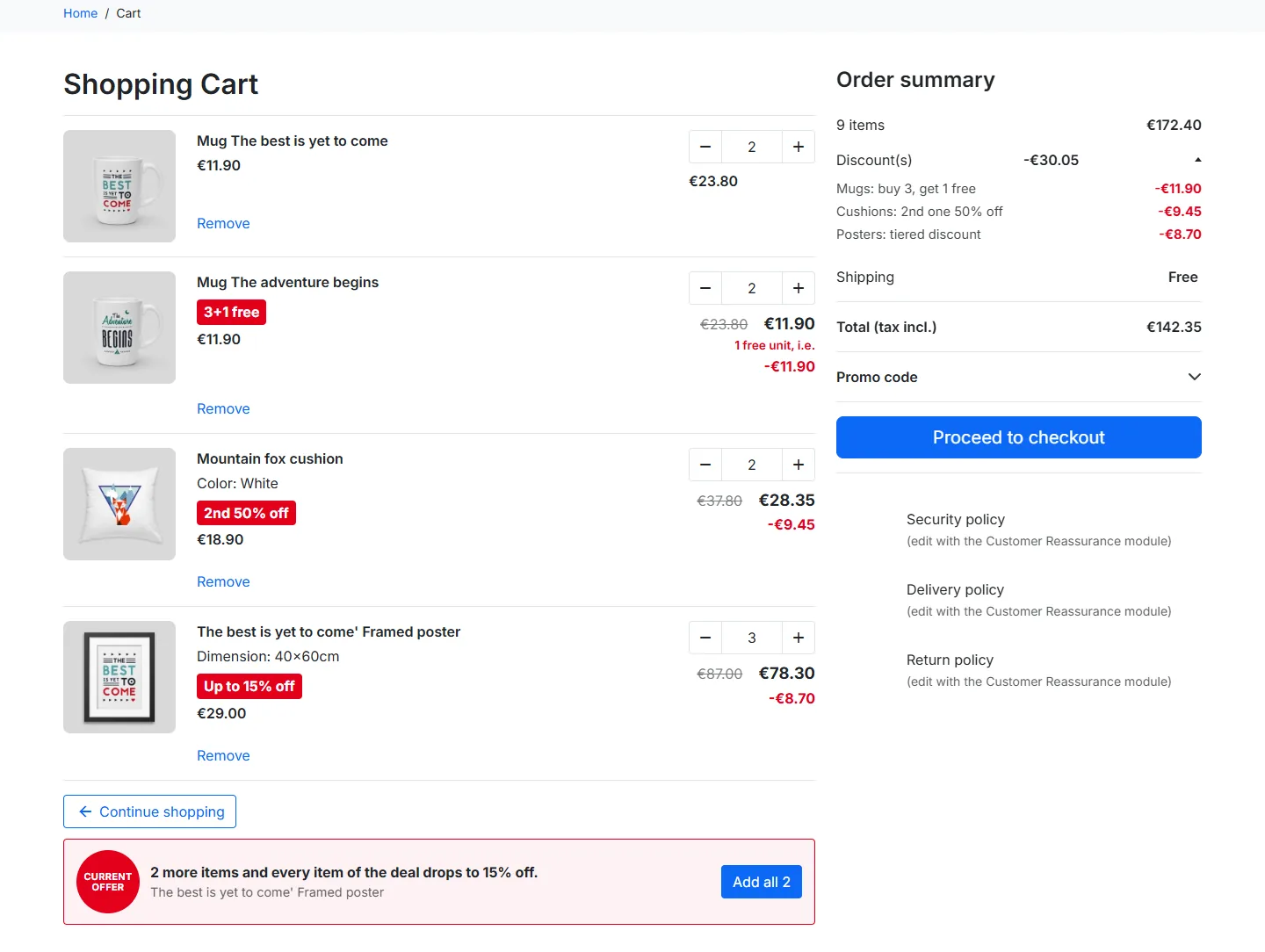
The amount contributed by each offer appears at the placement chosen in the settings. In accordion mode, the native Discount(s) line becomes clickable and expands the breakdown. Its open or closed state is kept across Ajax cart refreshes.
Product lines
With the Badge and struck-through price on cart lines option, each line concerned shows the deal badge under the unit price, the original total struck through and the discounted price below it. For buy X get Y free offers, a note states the number of free units and the amount saved. This works with both the Classic and Hummingbird themes, and is reapplied when the theme reloads the cart lines.
Prompt to complete the set
When only a few items are missing to trigger an offer, a “Current offer” panel says so with a sentence such as “1 more item and you get 2 free.” For a tiered discount, the panel points to the next tier: “1 more item and every item in the offer drops to -10%.” The Add button puts the missing units straight into the cart.
Automatic voucher line
The generated cart rule would normally appear in the list of vouchers, even though its amount is already counted in the Discount(s) line. The Hide the automatic voucher option, on by default, removes that line from the summary. The module identifies it by its label, set in the general settings.
Adapting the display to your theme
Three templates can be overridden. Copy them from /modules/dfquantitydeal/views/templates/hook/ to /themes/your-theme/modules/dfquantitydeal/views/templates/hook/.
badge.tpl: the badge rendered by thedisplayDfQdBadgehookoffers.tpl: the deals block on the product pagecart.tpl: the offer breakdown and the prompts in the cart
The CSS is namespaced under the dfqd prefix. For a small adjustment, target the classes from your theme stylesheet rather than editing views/css/front.css, which would be overwritten on update.
Multistore and multilingual
Each offer is attached to the shops you tick in the Conditions tab. An offer created on one shop does not appear on the others until it is attached to them.
The name, badge text and description fields are translated into the installed languages. The badge and the sentences displayed follow the customer’s language.
Updating from an earlier version
Install the new ZIP over the old one from the Module Manager. The upgrade scripts add the settings and hooks introduced since your version, without touching your offers.
The 1.1.8 upgrade restores the translations (English, Italian, Spanish, German, Dutch, Polish and Portuguese), fixes saving offers on PrestaShop 9 and the badge display on product lists. It also completes the database of shops coming from 1.1.6: the columns for the exclusion of customers with a specific price and for the tiered discount are added if they are missing. The menu tab gets its translated name back in each language.
The 1.1.7 upgrade adds three columns to the ps_df_quantity_deal table for the exclusion of customers with a specific price and for the tiered discount. Existing offers keep their behaviour: both new options are off by default.
The 1.1.5 upgrade renames the menu tab in each installed language and gives the displayDfQdBadge hook an English title. If the cart discount label was still set to the former default value “Offres quantitatives”, it is replaced with its translation in the shop’s default language. A label you have customised is kept.
Troubleshooting
The badge does not appear
- Open the module configuration and read the Diagnostics panel: module enabled, hooks registered, deals active today.
- Check that the offer is active and that today falls within its validity period.
- Check the scope: a product must be explicitly attached to the offer, or belong to a ticked category or brand.
- Review the display switches, in the general settings and in the offer’s Badge and display tab.
- If the display method is set to Manual, check that your template actually calls the
displayDfQdBadgehook. - If the customer group is restricted, test with an account in the right group.
- Clear the Smarty cache and your server cache.
Badges appear twice
Your theme calls the displayDfQdBadge hook and the front script injects the badges as well. Set Badge display method to Manual: only through the displayDfQdBadge hook.
The discount is not applied in the cart
The quantity has to reach the offer threshold under the chosen grouping mode. In Per combination mode, six units spread across three variants do not trigger a 4+2 offer. Check as well that the product is not excluded by the option for products already on sale, and that the customer is not excluded by the option for specific prices. For a tiered discount across several products, grouping must be set to Mix and match.
Two offers get in each other’s way
This behaviour is expected: a unit consumed by the first offer leaves the calculation of the second. If you want one offer to run before the other, lower its priority value.
The badge or the deals block shows in the wrong place
For the badge, set the offer’s position to Inline (below the price), or call the displayDfQdBadge hook at the right spot in your thumbnail template. For the deals block, choose another placement or use the custom CSS selector.
The badge test link returns a 404 error
Clear the cache under Advanced Parameters then Performance, then save the Traffic & SEO settings again to regenerate friendly URLs.
Uninstalling
Uninstalling removes the module’s eight tables, its configuration keys and the Catalog menu tab. Cart rules already attached to past orders are kept, so your accounting history stays intact.