
Deal of the Day for PrestaShop
Install, configure and plan deals of the day: calendar, automatic fill, reserved stock, limits and display in the shop.
Overview
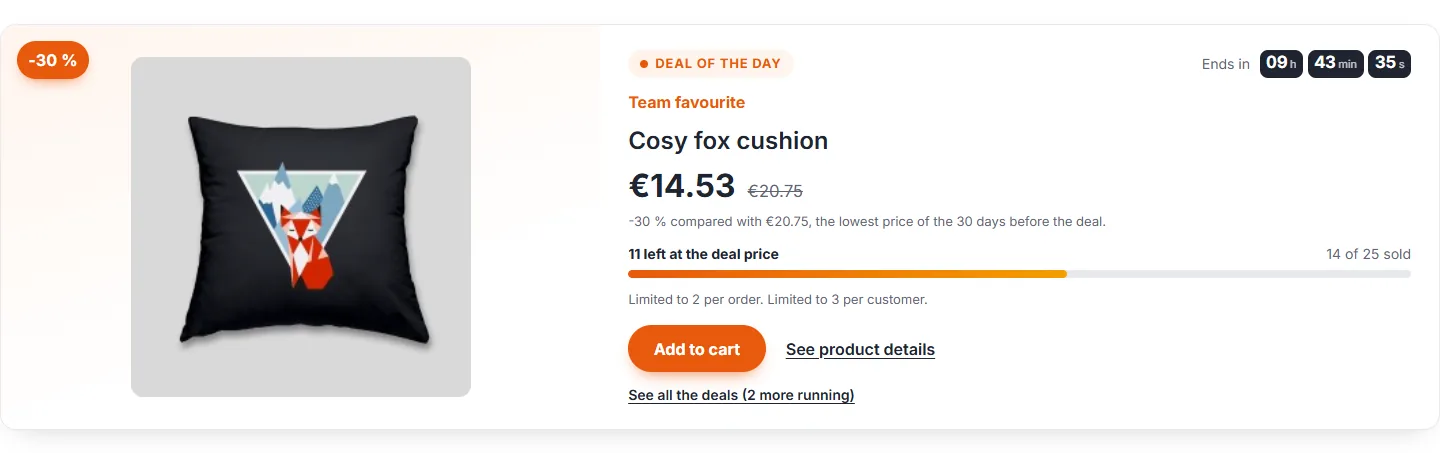
The Deal of the Day module (dfdealoftheday) features a product with a special price, stock reserved for the deal and a countdown to the real end of the deal. Three deal types: Deal of the day (24 hours), Deal of the week (7 days) and Flash sale (free start and end). The price uses a native PrestaShop specific price dated over the deal window: it starts and stops on its own, with no CRON job.
Compatibility: PrestaShop 1.7.8.0 to 9.x, PHP 7.4 to 8.5, multistore. Tested on PrestaShop 1.7.8.11, 8.2.1 and 9.1.5, with the Classic and Hummingbird themes.
Installation and upgrade
- In the back office, open Modules > Module Manager and click Upload a module.
- Upload the file
dfdealoftheday-2.0.0.zip. - The module creates its tables and the Catalog > Deals of the day tab. It joins the
displayHomehook without changing the position of the other modules.
From a 1.x version, just upload the new ZIP: the upgrade keeps the deals, sales, settings and specific prices of the previous version. A specific price is only kept if it still targets the product of the deal.
Settings
The settings are in the Settings tab of the Catalog > Deals of the day page.
Planning
- Deal switch time: daily and weekly deals start and end at this time, in the shop time zone. Changing it moves the deals to come; the running deal ends at the new time so that there is no gap.
- Allow simultaneous deals: a deal of the day, a deal of the week, flash sales and category deals can then run at the same time, one per type and category. A product is never in two deals at once.
- Default maximum per order: prefilled on new deals.
Deal stock
- When are deal units reserved? “In the cart, for a limited time”: units are held for the customer while the cart is active, then freed after the Reservation delay (minutes) without activity. “At checkout only”: carts hold nothing. In both cases a lock prevents two orders from taking the same unit.
- When no unit is left at the deal price: the product stays for sale at its normal price, or it is removed from the carts.
- Keep a sold out deal visible until its end, otherwise the block shows the countdown to the next deal.
- Low stock threshold (%): the remaining quantity is highlighted below this threshold. It always shows the real remaining units.
Reference price
- Announced discount: against the lowest price of the 30 days before the deal, or against the current regular price (PrestaShop default). The module records every day the price really applied to visitors for scheduled products. Without 30 days of history and without a declared reference price, no discount is announced.
- Apply it to the theme prices too: the strike-through price and the discount badge of the theme use the reference price on the deal product.
Display
- Block on the home page, Announcement bar on every page (hook
displayBanner, visitors can close it), panel on the product page with its Position on the product page (under the price or under the add to cart button), category deals at the top of their category, badge on thumbnails, countdown, stock bar. - Announce the next deal: only the start time, the product without its price, or the product and its deal price.
- Live refresh for cached pages: one small request per page view updates the remaining stock and the countdown when the page comes from a page cache. Never one request per second.
- Accent color and Deals page URL.
Create a deal
Click Schedule a deal, an empty day in the calendar, or the module panel on the back-office product page.
- Type and dates: deal of the day, deal of the week or flash sale. Times are shop times.
- Product: search by name, reference or ID, then all combinations or a single one. A category deal is shown at the top of that category and on the deals page.
- Customer group: everybody or one group.
- Discount type and Discount value: percentage, or amount tax excluded or included.
- Deal stock, Maximum per order and Maximum per customer: 0 = no limit. The maximum per customer counts all orders and carts of the same e-mail address, guests included.
- Declared reference price (optional): leave empty to use the history. Fill it in only if you know that price; you remain responsible for it.
- Headline (optional): short text shown above the product name.
The form shows a preview (regular price, deal price, reference price, real stock) and checks conflicts as you type.
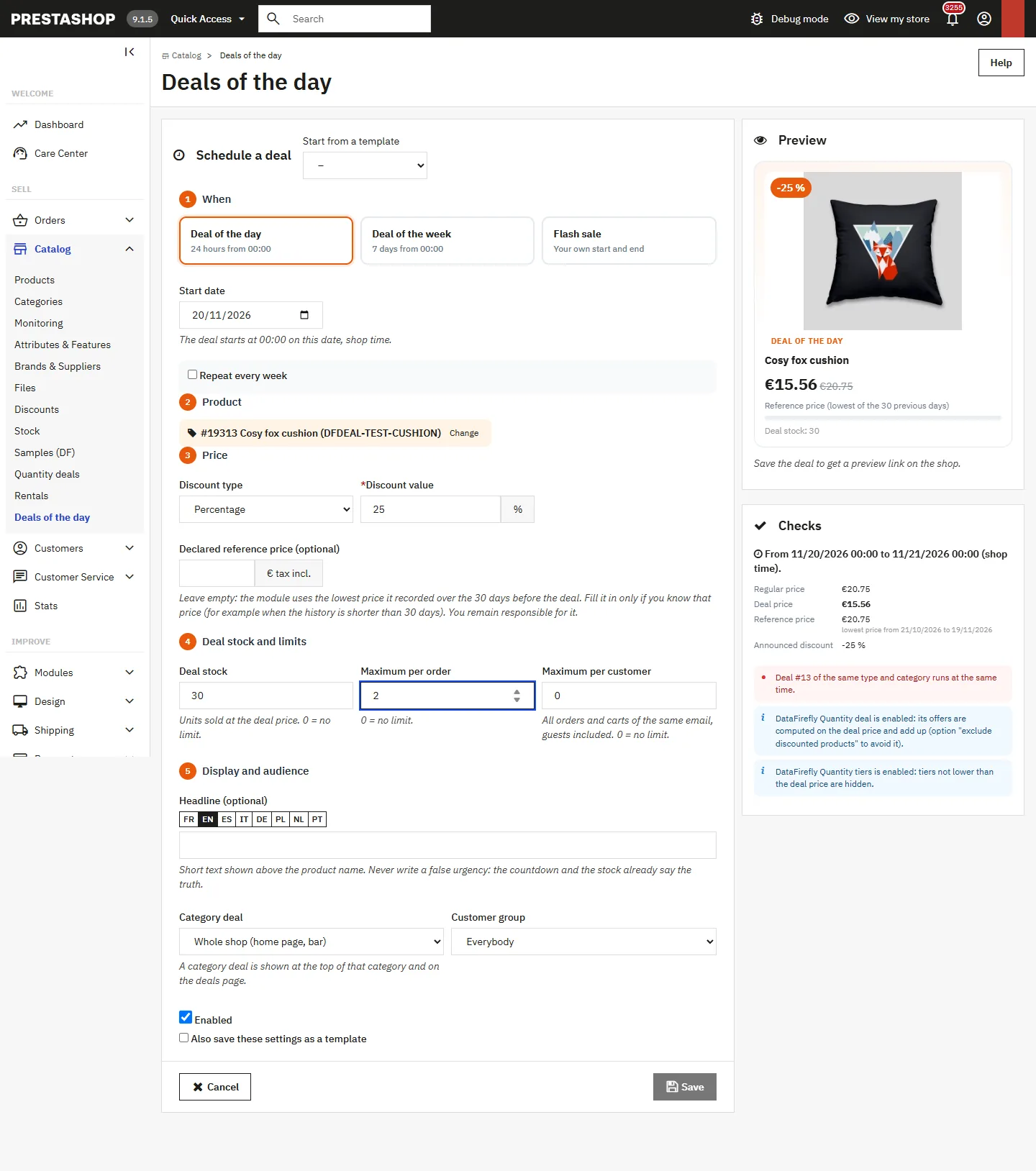
Blocking: another deal in the same period (without simultaneous deals), or the same product in two deals. Warnings: another specific price of the product (catalog price rule, customer price, combination price, quantity discount), a cart rule that can add up with the deal price, real stock lower than the deal stock, incomplete price history, deal price not lower than the reference price, DataFirefly modules whose stacking should be checked.
Plan several weeks
The calendar
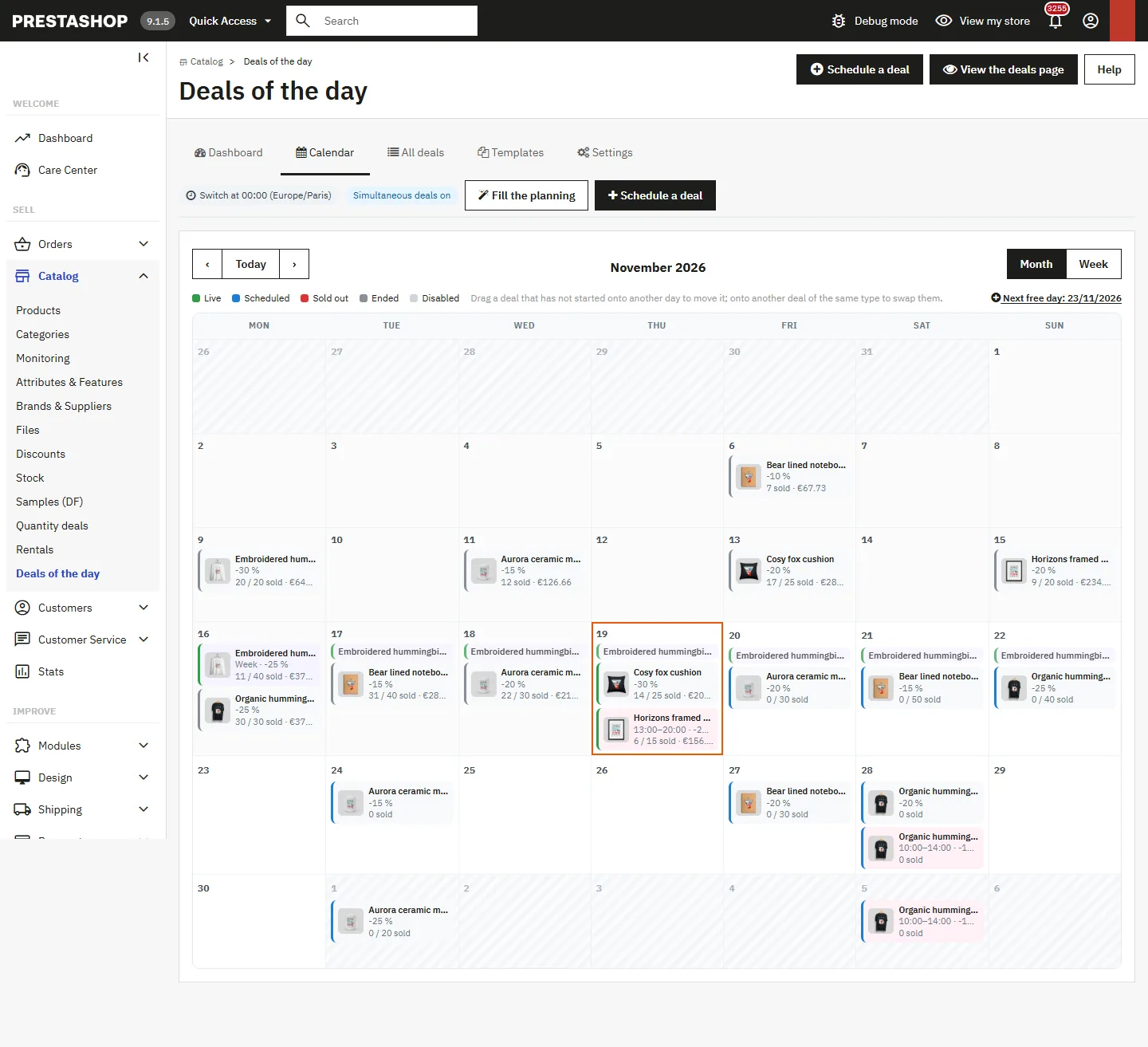
The calendar has a month view and a week view. Drag a deal that has not started onto another day to move it, or onto another deal of the same type to swap their dates.
Templates, duplication and repeat
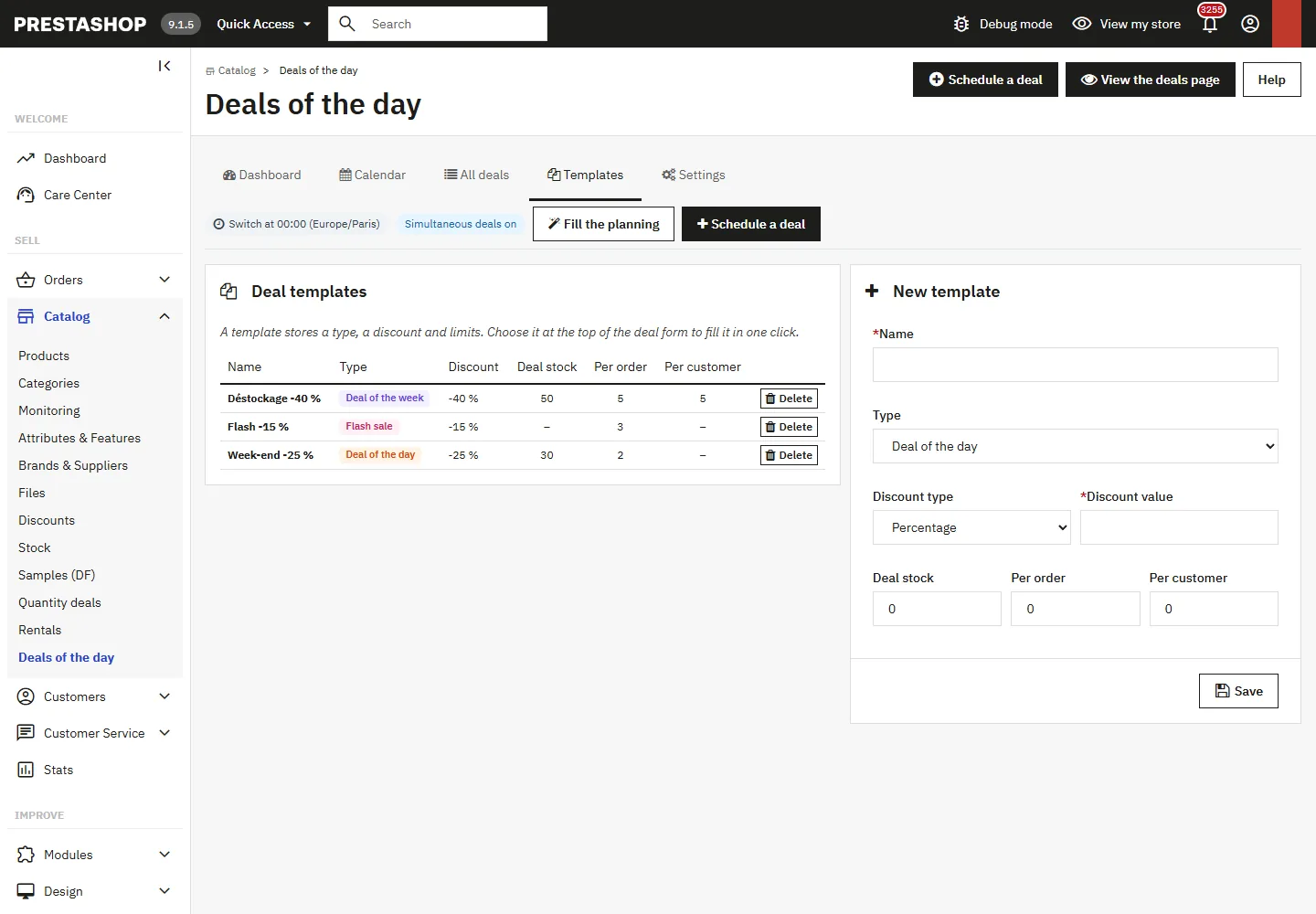
A template stores a type, a discount and limits: choose it at the top of the form to fill it in one click. A deal can be duplicated, or repeated every week for 26 weeks at most; days that already have a deal are skipped and each copy can then be edited on its own.
Automatic filling
Fill the planning automatically creates one deal per empty day over a period of 366 days at most: days of the week, product source (category with or without subcategories, list of IDs or best sellers), order, in stock products only, minimum gap between two deals on the same product, discount and limits. Days already scheduled are never changed.
A product back in a deal less than 30 days after the previous one has the previous deal price as reference price: its announced discount is smaller. A minimum gap of 30 days avoids this.
Stock, limits and orders
- Each order is checked under a lock up to payment. Only the units really sold at the deal price are counted.
- The cart is brought back to the smallest of these numbers: units left in the deal, maximum per order, units the customer is still allowed. The customer sees a clear message.
- A cart still open after the end of the deal, or beyond the stock, goes back to the regular price with a message.
- Cancellation, payment error, partial refund, return or edited order: units are counted again from the order, never returned twice. The deal price comes back if units are released during the deal.
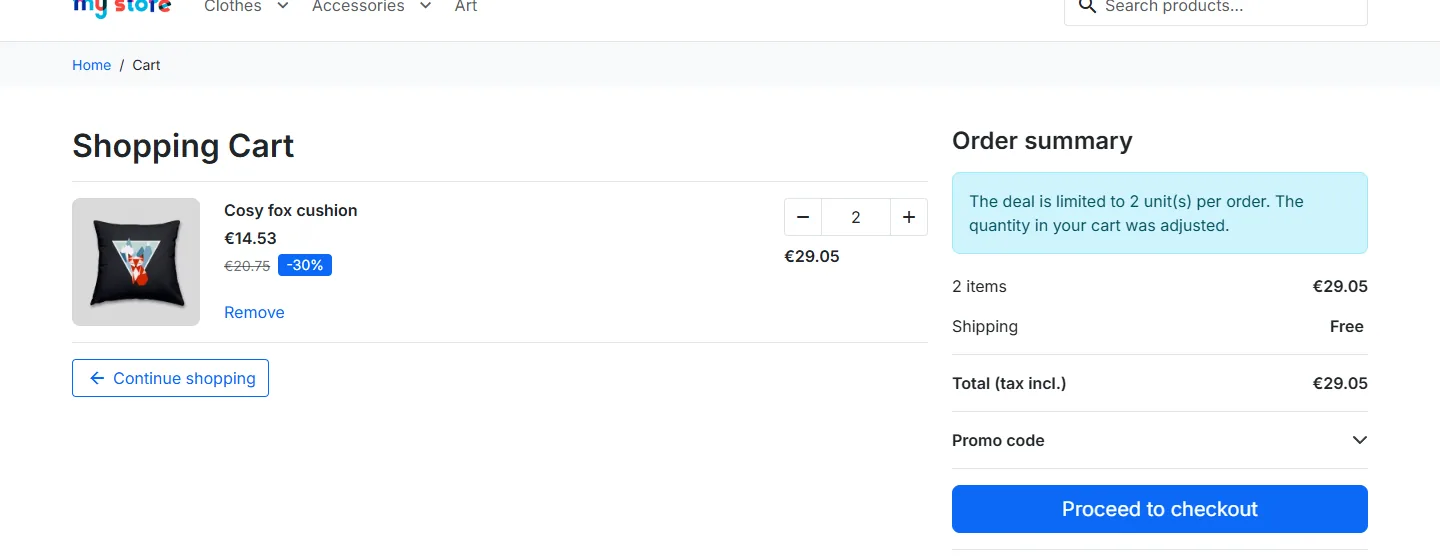
If a payment module confirms an order through a delayed notification, after the units were released, the sale is recorded as an overflow and flagged on the dashboard, without being blocked: the customer has paid.
Display in the shop
- Home page: block with image, price, reference price, discount, stock bar and countdown.
- Custom hook:
{hook h='displayDfDealOfTheDay'}or{widget name='dfdealoftheday'}in a theme template. - Deals page: running deals and the next deal announcement, at the URL you set.
- Product page: panel with the real end, reference price, real stock and limits.
- Product lists: badge on thumbnails. Announcement bar at the top of the pages if the option is enabled.
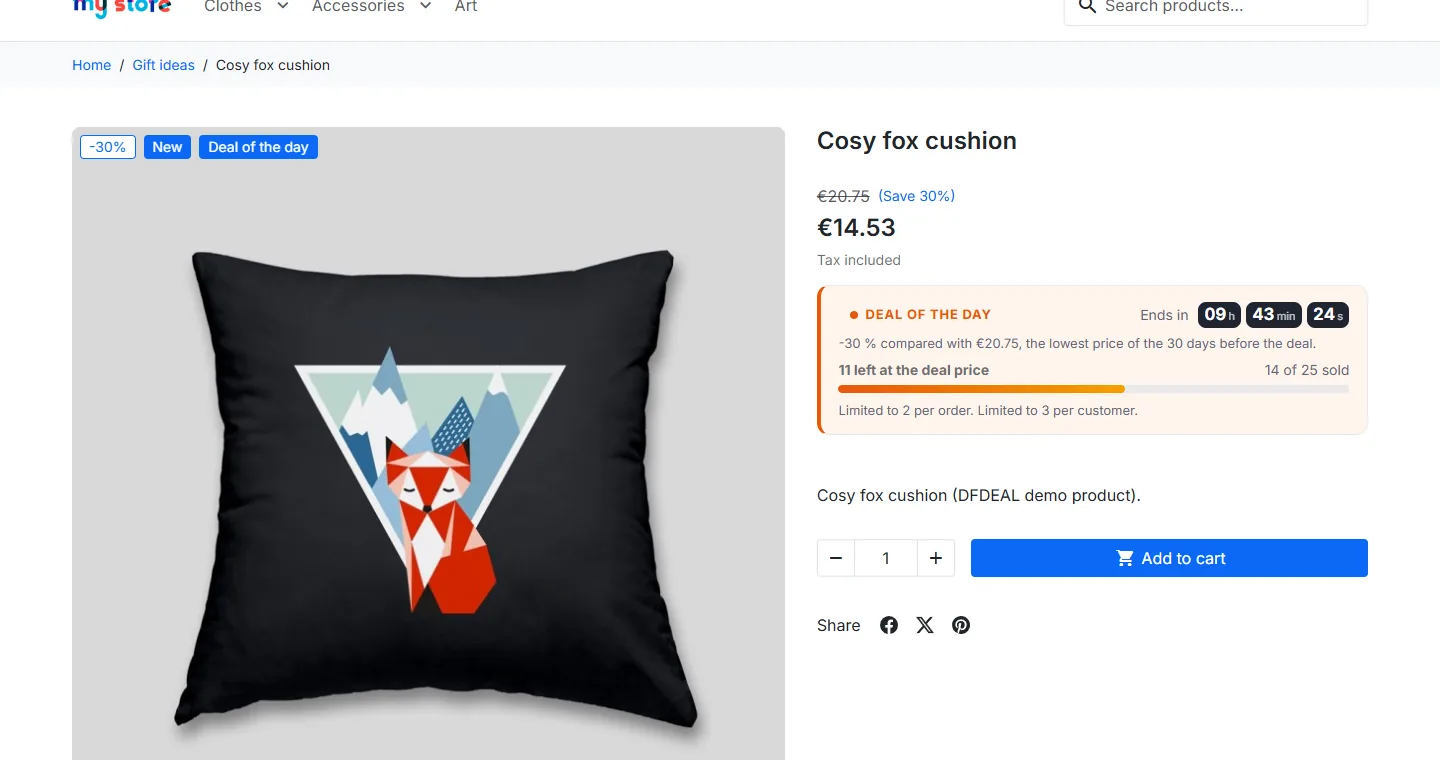
The countdown leads to the real end of the deal, based on the server time, and never restarts. The page reloads once at the end. The timer is readable by screen readers and respects the device’s reduced motion setting.
Results
The Dashboard shows running and upcoming deals, units and revenue tax excluded measured on orders, the sell-through of limited deals, coverage of the next 14 days, points to check and a journal (prices created, removed or restored, deals moved, overflow sales). Figures only come from real orders.
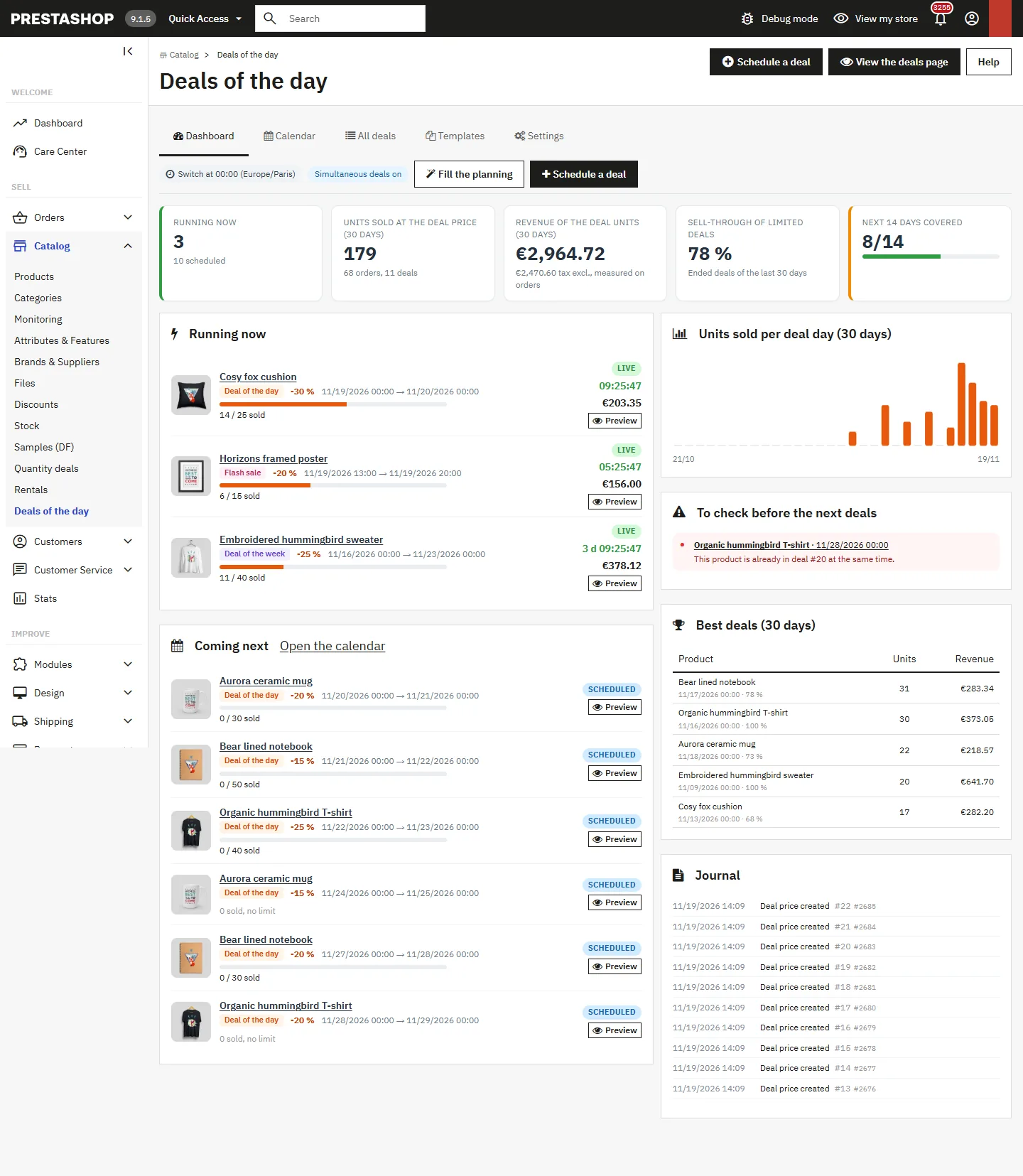
To check a future deal, save it and use Preview on the shop: this private link is the only way to see the deal before it starts.
Troubleshooting
The deal price does not apply
Check that the deal is enabled, that its stock is not sold out, and read the warnings of the form: a customer price, a combination price or a quantity discount wins over the deal.
The strike-through price or the discount does not show
The module announces no discount until it has 30 days of price history for the product, unless a reference price is declared. It announces none either if the deal price is not lower than the reference price.
The panel does not show on the product page
Set Position on the product page to “Under the add to cart button”.
The displayed stock does not move with a page cache
Keep Live refresh for cached pages enabled and purge the cache when a deal starts if the theme prices must change at once.
Uninstall
Uninstalling deletes the deals, the sales and price history, the settings and the specific prices created by the module, and only those. The other specific prices of the shop are not touched.
The module is a tool: it computes a reference price and shows a real countdown and real stock, but it does not guarantee that your price announcements are compliant. That remains your responsibility.