
Prescription Glasses Module for PrestaShop: installation and setup
Install the module, set up lenses, treatments and frames, understand feasibility, verify prescriptions and process prescription glasses orders.
Overview
The dfopticlens module lets you sell prescription glasses on PrestaShop 8 and 9. On a frame page, the customer chooses a use, enters their prescription, compares lenses with their estimated thickness, adds treatments and confirms a summary. The server checks every value, calculates the price and verifies that the correction can be made on the frame. The lens price is added to the frame line through PrestaShop’s native customization, and the prescription follows the order all the way to the invoice.
Version 2.0.0 adds optician verification, a dashboard, encryption of prescription files, explicit customer consent, a fully redesigned configurator and the lens summary in the cart.
Installation and upgrade
- In Modules > Module Manager, click Upload a module and send the
dfopticlens-2.0.0.zipfile. - Installation creates the Sell > Optics menu: Dashboard, Prescriptions, Frames, Lenses and indices, Treatments. A shared navigation bar links these pages and the settings.
- Five lenses (1.50, 1.59 polycarbonate, 1.60, 1.67, 1.74) and seven treatments are created with example prices and descriptions in all 8 languages. Adjust them before going live.
- The
upload/dfopticlens/folder is created and protected. Each prescription file is stored there encrypted, under a random name.
Upgrading from 1.x: upload the 2.0.0 ZIP over the installed module. The upgrade script adds the new columns and settings, encrypts the files already received in place and puts the orders of the last 14 days into the verification queue. No prescription, frame, lens or treatment is deleted.
Disabling the module removes the hidden customization field from frames: they can still be bought as usual. It is created again when the module is re-enabled.
Dashboard
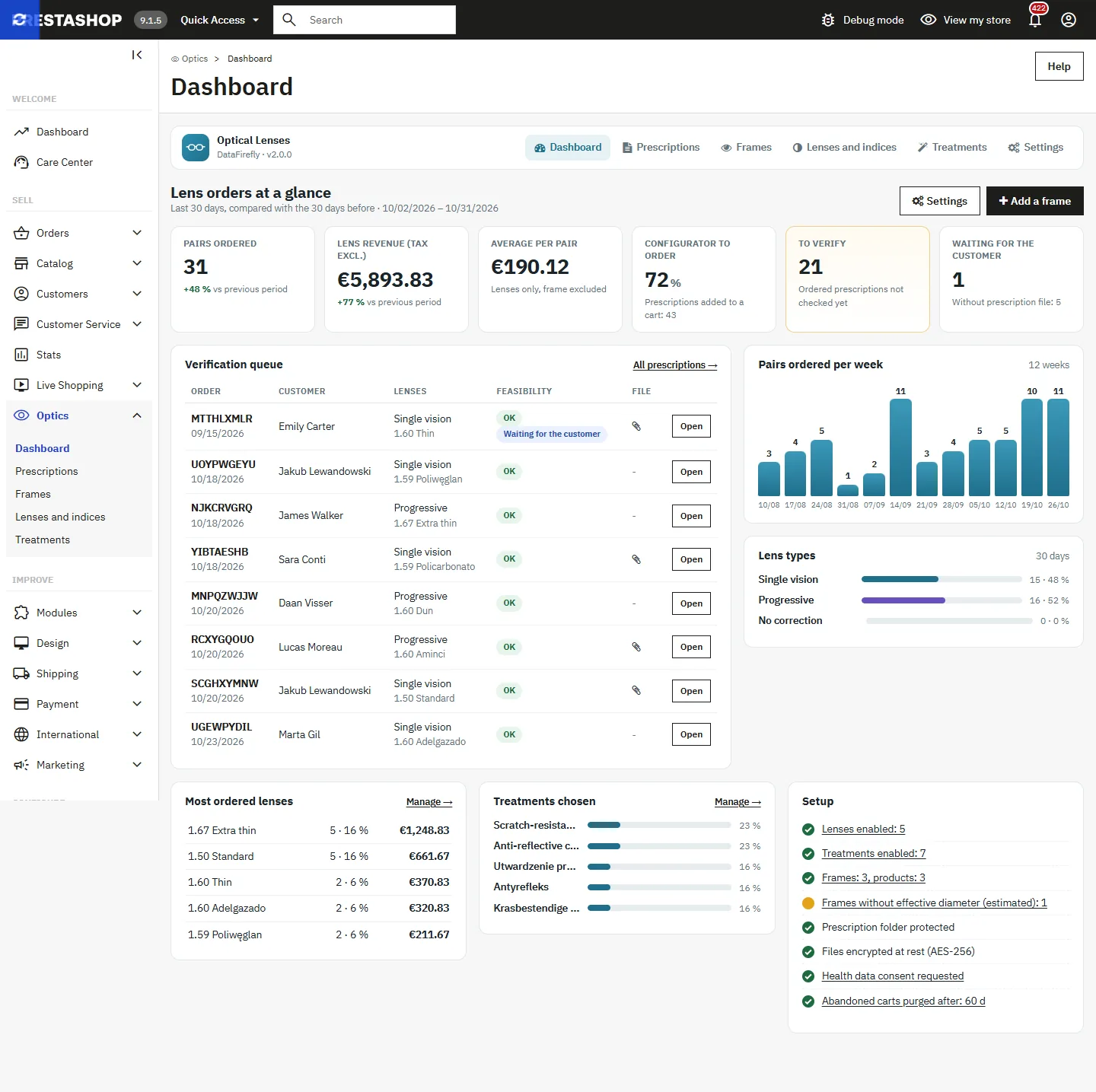
Sell > Optics > Dashboard sums up the last 30 days, compared with the 30 days before:
- pairs ordered, lens revenue excluding tax (lenses, treatments and surcharges) and average per pair;
- “configurator to order” rate: prescriptions ordered divided by prescriptions added to a cart;
- prescriptions to verify (including those with feasibility notes) and prescriptions waiting for the customer;
- verification queue, chart of pairs ordered over 12 weeks and breakdown by lens type;
- most ordered lenses, treatments chosen and setup checklist: active lenses and treatments, frames, protected folder, encryption, consent, purge.
Module configuration
The configuration page groups the settings into five tabs.
Prescription entry
- Cylinder convention sent to the lab: minus cylinder, plus cylinder or kept as written. Customers always type the values from their prescription; the transposition is done when it is saved.
- Prescription file upload: disabled, optional or required, with a maximum size in MB.
- Warn when the prescription is older than X years (0 disables it).
- File upload from the account after ordering: adds the My prescriptions page to the customer account.
- “I do not know my PD” option and average pupillary distance used (63 mm by default). The order is then flagged.
Feasibility rules
- Block lenses that cannot be made: enabled by default. When disabled, the order is accepted with a warning.
- Edging allowance and effective diameter margin when the frame’s ED is unknown (estimated ED = A + margin).
- Minimum lens height for progressive lenses (28 mm) and short corridor below (32 mm).
- Warning thresholds: difference between eyes, decentration per eye, plus power on semi-rimless frames.
- Target thickness of the recommended lens, centre thickness of minus lenses and edge thickness of plus lenses (rimless or not).
Pricing
- Prices entered tax included or excluded. The tax rule of the frame product is applied to the lenses.
- High power and high cylinder surcharges: threshold in dioptres and amount (0 disables them).
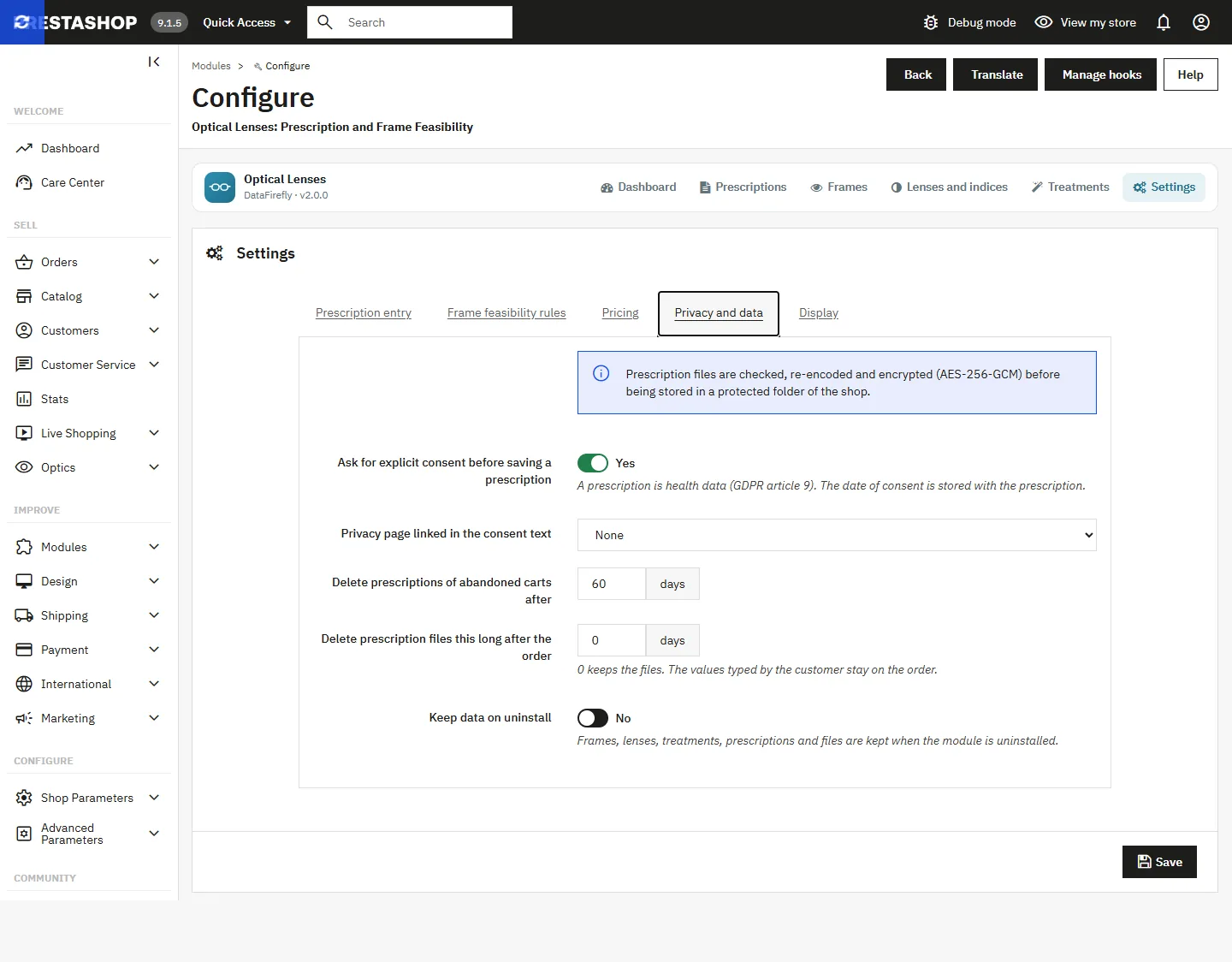
Privacy and data
- Ask for explicit consent before saving a prescription (enabled by default). A prescription is health data under article 9 of the GDPR. The date of consent is stored and shown on the order.
- Privacy page linked in the consent text (a CMS page).
- Delete prescriptions of abandoned carts after X days.
- Delete prescription files X days after the order (0 keeps them). The values entered stay on the order.
- Keep data on uninstall: frames, lenses, treatments, prescriptions and files are kept.
Display
- Accent colour of the configurator (buttons, selection, progress bar).
- Lens summary under each frame in the cart.
Out-of-range values are refused with a message stating the accepted range.
Lenses and indices
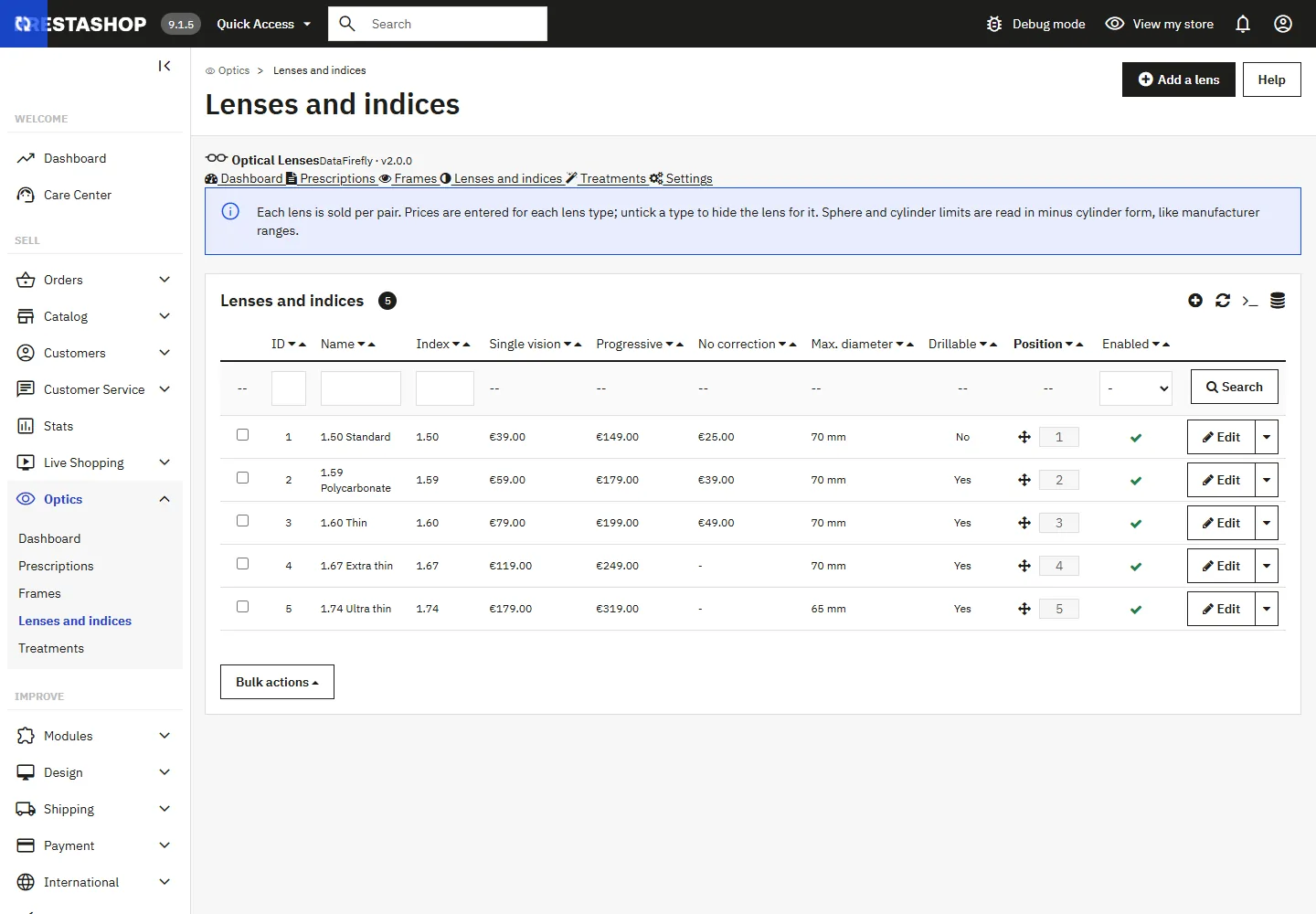
In Lenses and indices, each lens has:
- a name and a short description shown to the customer, in each language;
- the refractive index, used to estimate thickness, and the material for the lab sheet;
- the lens types it is offered for, with a price per pair for each: single vision, progressive, no correction;
- the minimum and maximum sphere and the maximum cylinder (read in minus cylinder, like manufacturers’ ranges);
- the largest blank diameter available (0 disables this check) and whether it can be drilled for rimless frames.
The display order is changed by drag and drop in the list.
Treatments
Each treatment has a name, a short description and a price per pair. A price of 0 shows it as included and always selected. The exclusive group prevents two treatments from being combined: those with the same code, for example tint for photochromic, sun tint and polarised, exclude each other. You can also restrict a treatment to some lenses, for example polarised to the 1.50 and 1.60 indices. The order is changed by drag and drop.
Frames
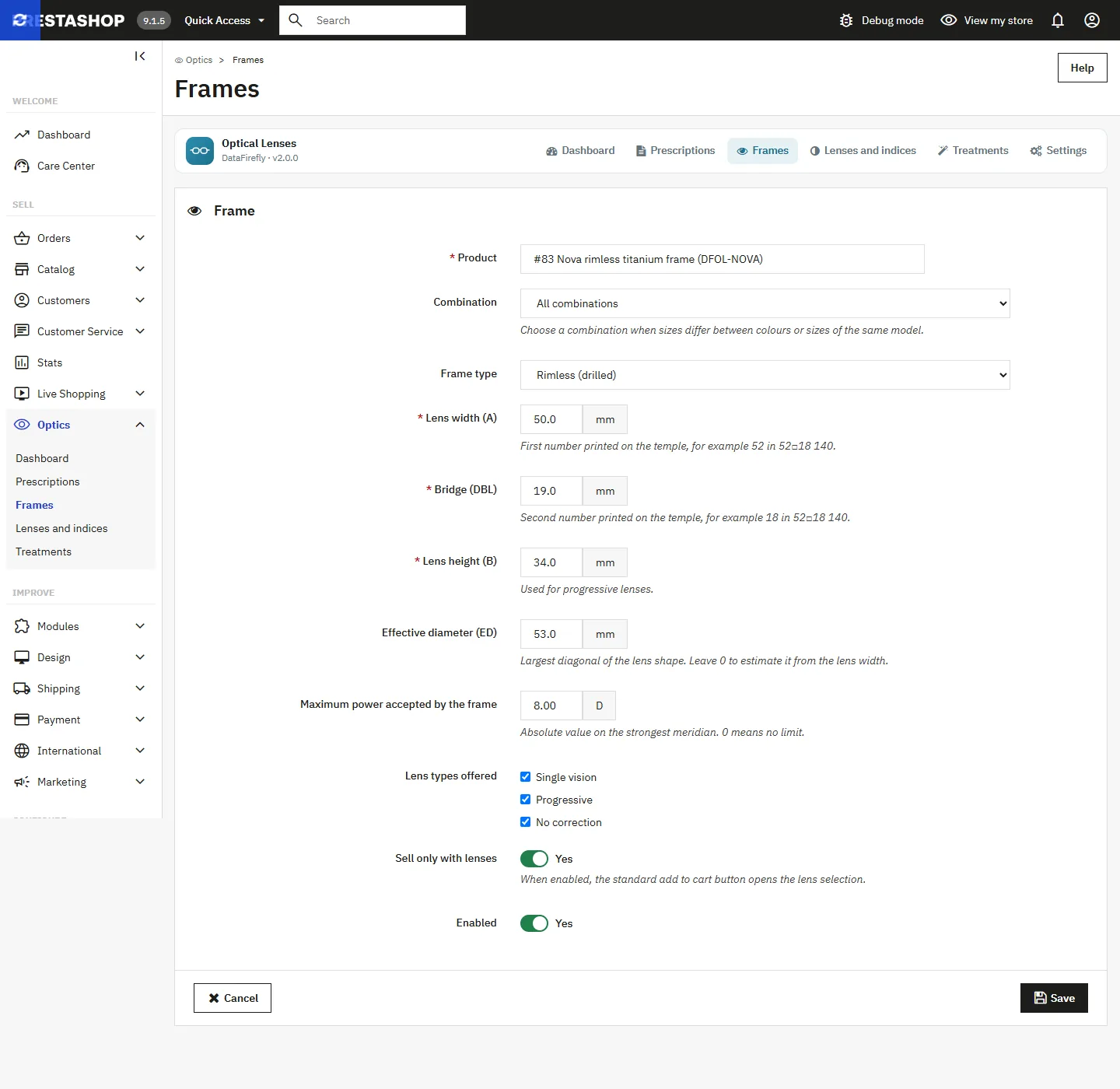
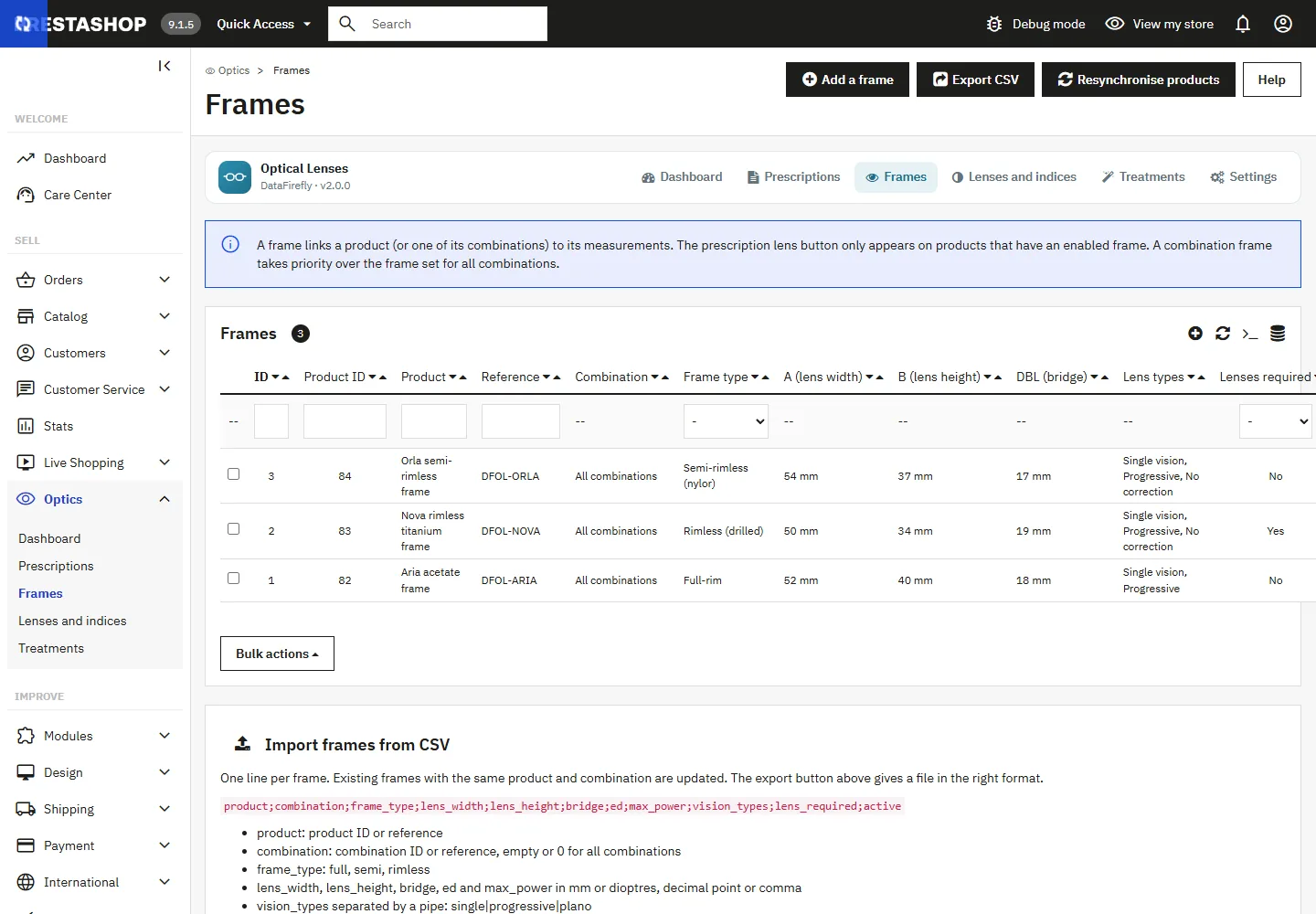
A frame links a product, or one of its combinations, to its measurements. The lens block only appears on products with an active frame.
Create a frame
- In Frames, click Add a frame, or from the product page, Modules tab, click Add frame measurements.
- Search for the product by name, reference or ID, then choose All combinations or a specific combination. A frame set for a combination takes priority.
- Enter the type (full-rim, semi-rimless, rimless), the lens width A, the bridge DBL and the lens height B. These are the numbers printed on the temple: 52□18 gives A = 52 and DBL = 18.
- Optional: the effective diameter ED (estimated otherwise) and the maximum power the frame accepts.
- Tick the lens types offered and, if needed, Sell only with lenses.
With “Sell only with lenses”, the native cart button opens the lens selection. If a direct call to the cart still adds the frame on its own, the module removes it from the cart.
CSV import and export
The Export CSV button gives a file in the right format. The import accepts semicolons or commas and the columns:
product;combination;frame_type;lens_width;lens_height;bridge;ed;max_power;vision_types;lens_required;active
product: product ID or reference;combination: combination ID or reference, empty or 0 for all.frame_type: full, semi or rimless;vision_types: single|progressive|plano.- An existing frame (same product and combination) is updated. Rejected lines are listed with their number.
Customer journey
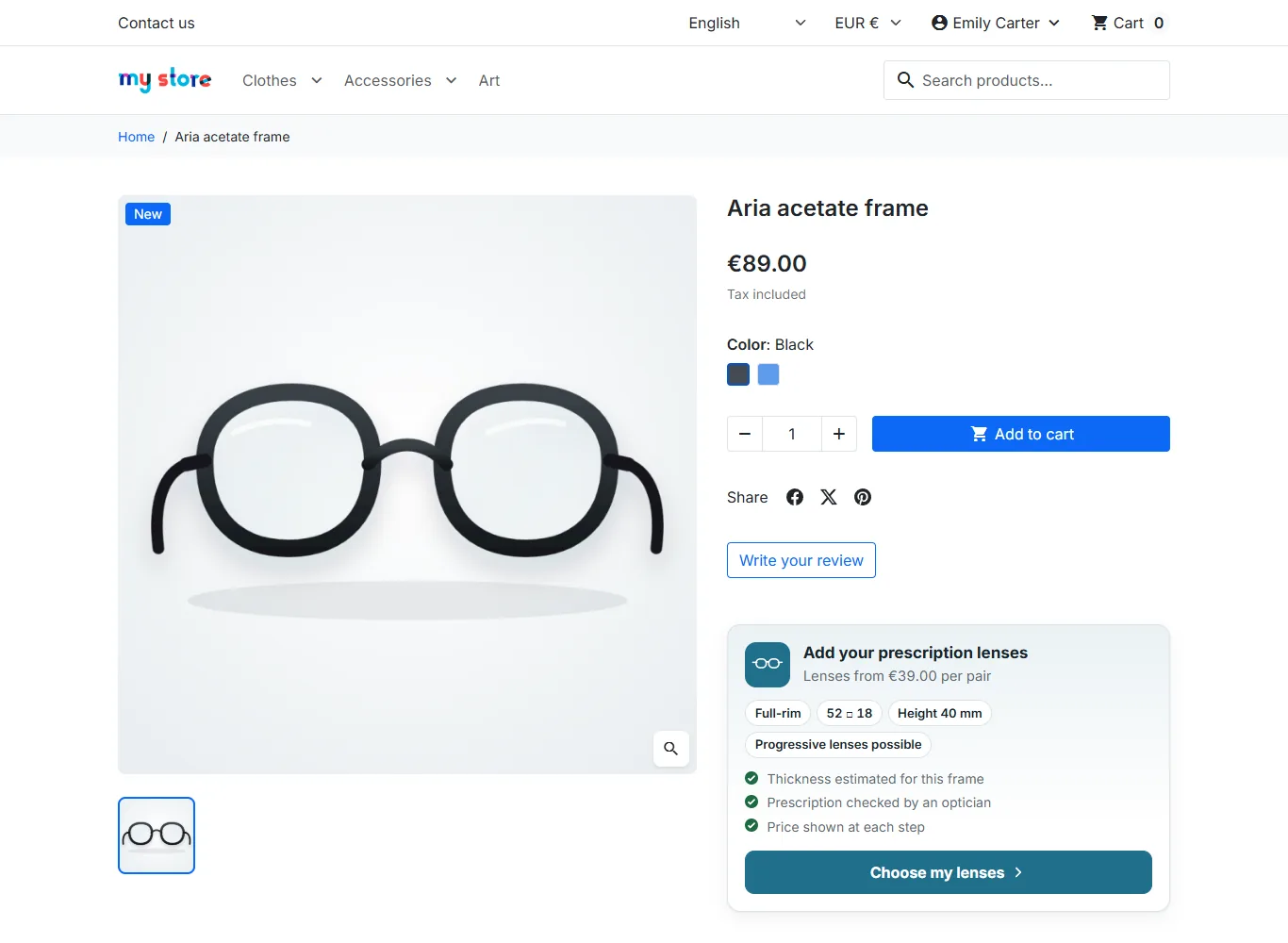
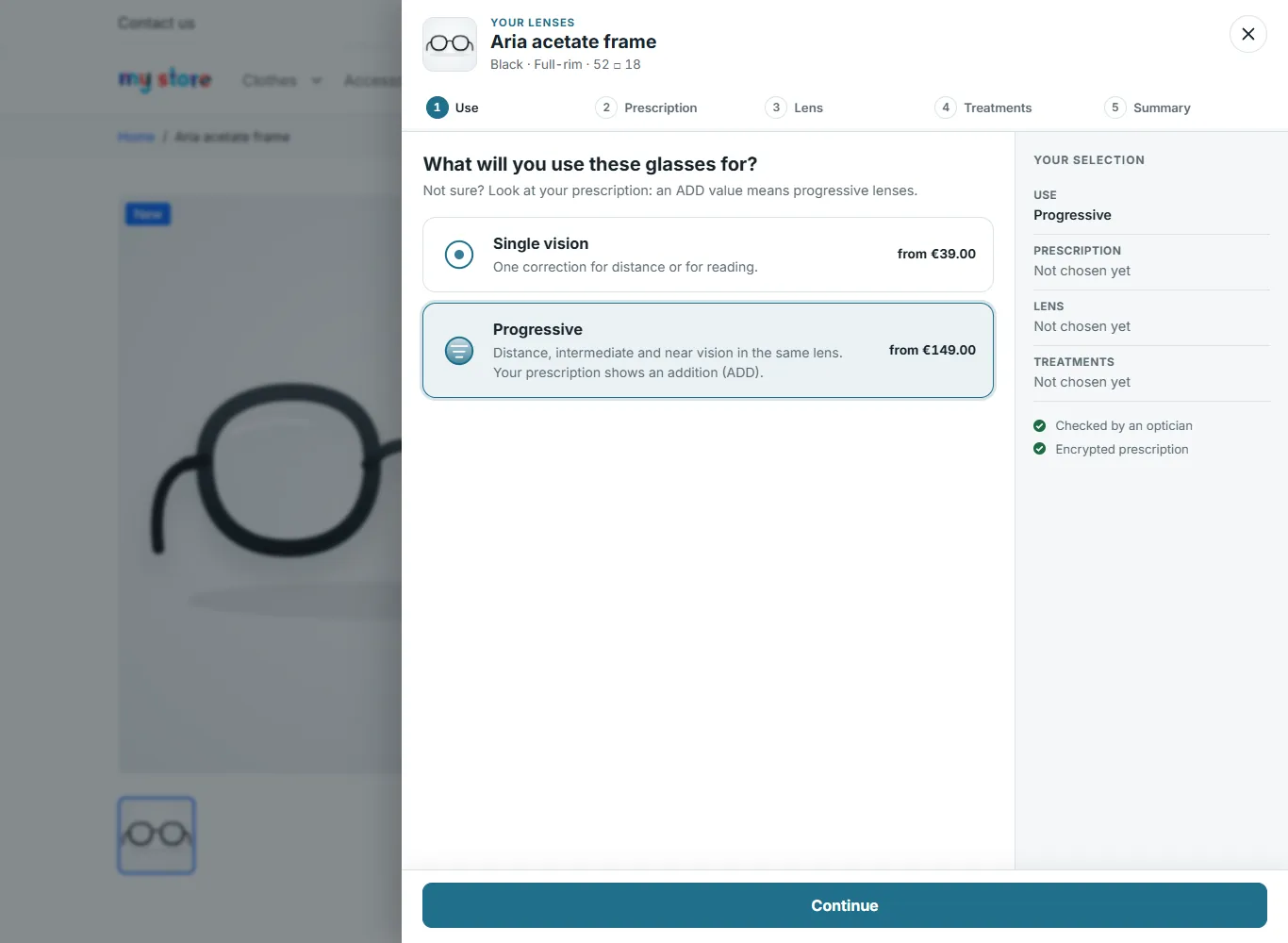
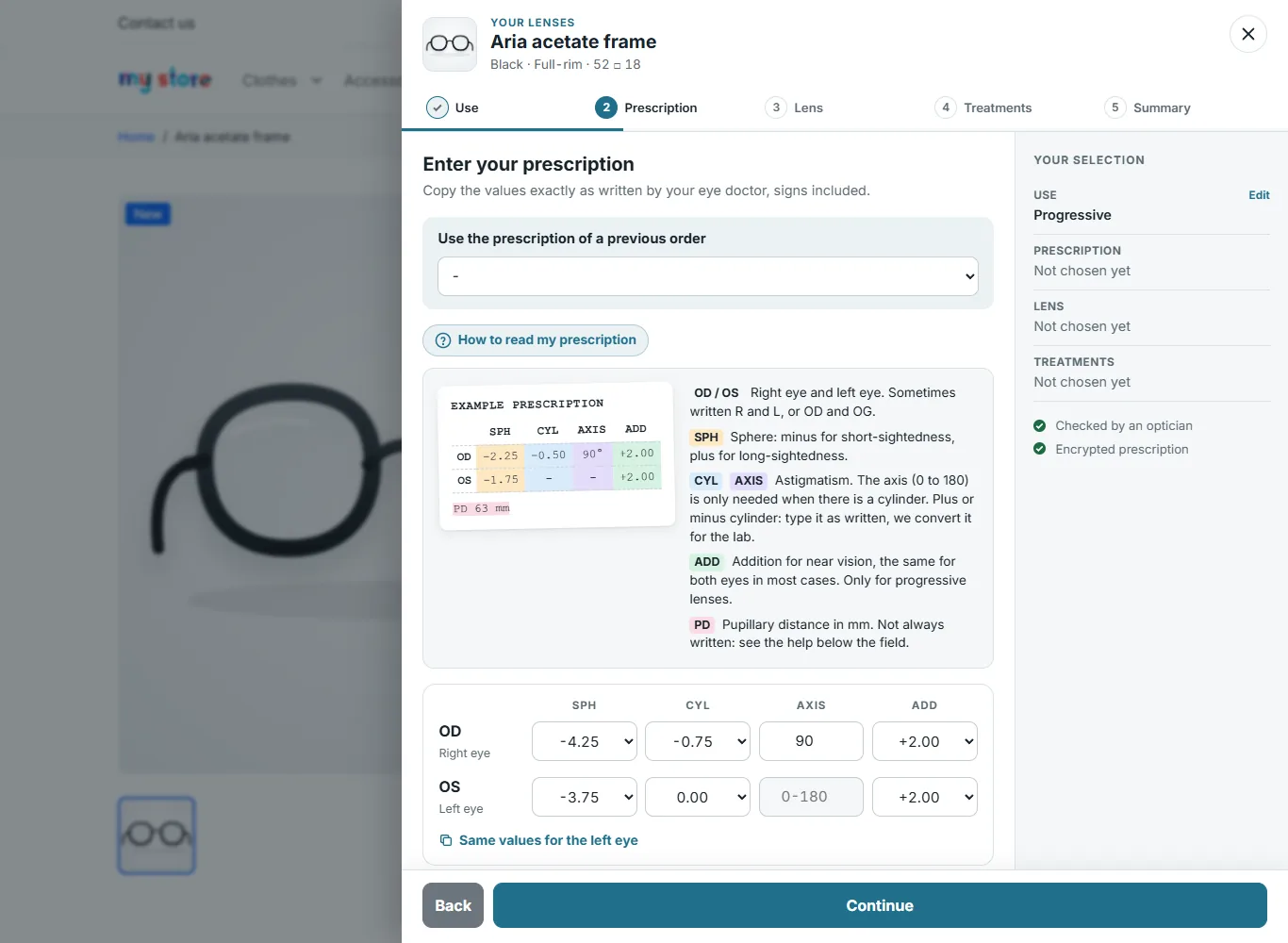
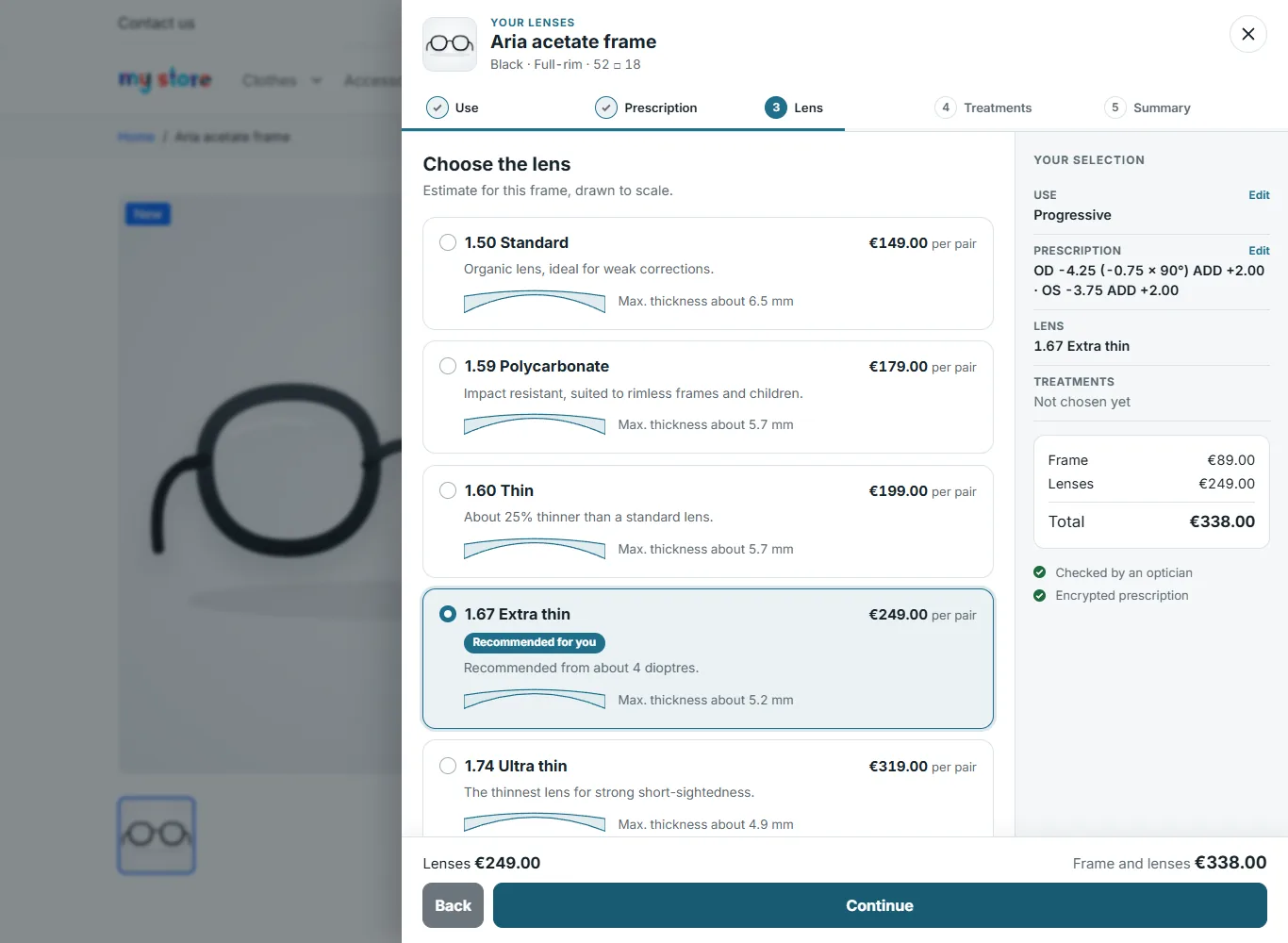
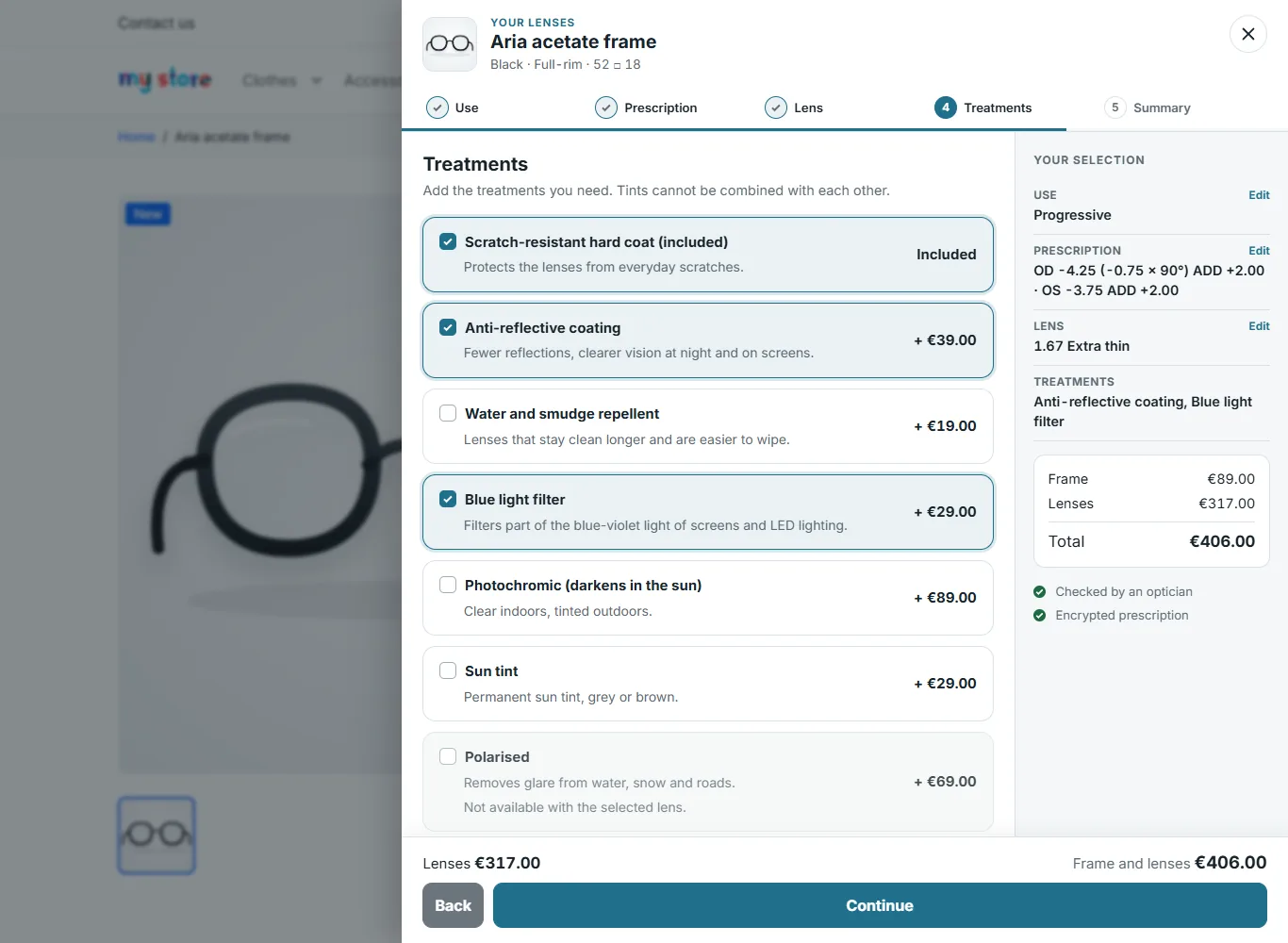
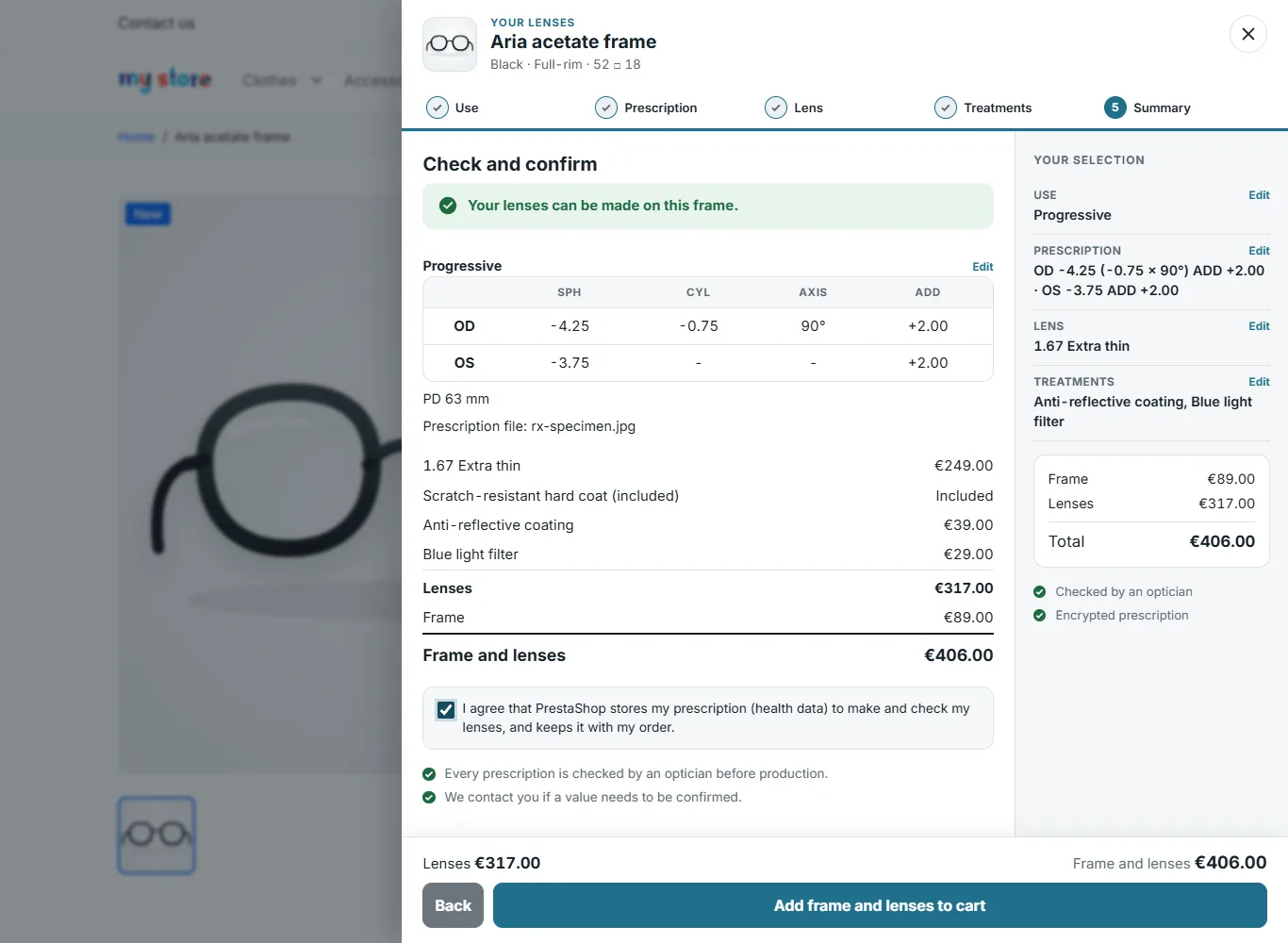
On the frame page, the “Add your prescription lenses” block shows the starting lens price, the frame type and the frame size. It opens a five-step panel, with a “Your selection” column updated live and the frame and lenses total in the footer.
- Use: single vision, progressive or no correction, depending on what the frame offers, with the “from” price of each type. With no correction, the prescription step is skipped.
- Prescription: OD / OS grid, pupillary distance as one or two values, date, file by drag and drop and a note for the optician. The How to read my prescription button shows an annotated example prescription. A logged-in customer can reuse the prescription from a previous order.
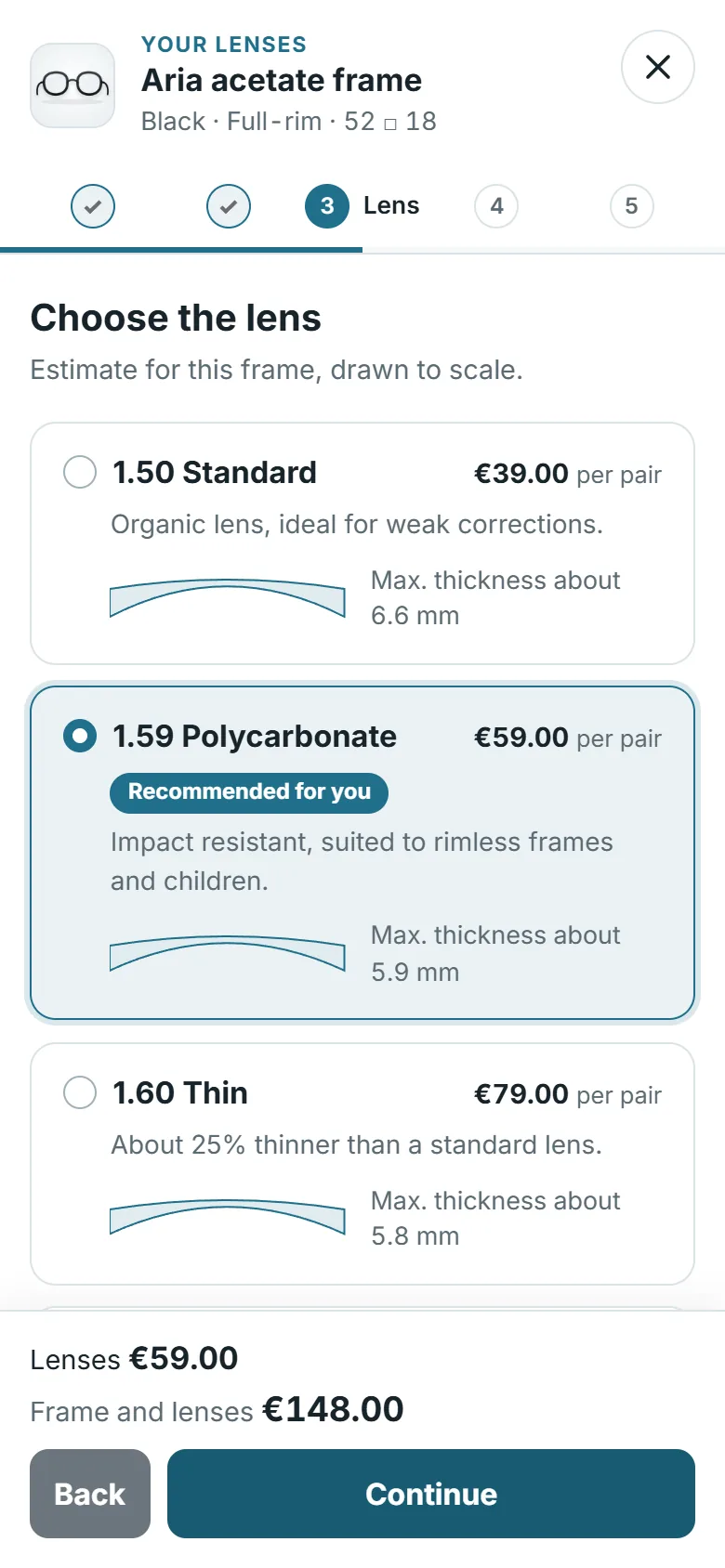
- Lens: cards with the price per pair, cross-section of the lens to scale, estimated thickness and recommended lens. Lenses that cannot be made are greyed out with the reason.
- Treatments: treatments not available for the chosen lens are greyed out, and tints exclude each other.
- Summary: feasibility status, notes, prescription, price breakdown, total and consent.
Errors are shown under the field concerned and disappear as soon as they are corrected. The entry is kept if the customer reloads the page and cleared after adding to cart. The panel can be used with the keyboard and adapts to mobile.
Feasibility rules
| Check | Effect |
|---|---|
| Sphere or cylinder outside the lens range | Lens unavailable |
| Blank diameter needed (ED + 2 × decentration + allowance) larger than the lens blank | Lens unavailable if blocking is enabled |
| Rimless frame and material that cannot be drilled | Lens unavailable if blocking is enabled |
| Height B below the minimum for a progressive lens | Blocking (or warning) |
| Height B below the short corridor threshold | Information |
| Power above the frame maximum | Blocking (or warning) |
| Difference between eyes, strong decentration, high plus power on a semi-rimless frame, old prescription, unknown pupillary distance | Warning |
Calculations are done on the minus cylinder form. Thickness is estimated with the sag formula: it is a guide for comparing indices, not the lab calculation.
Cart, e-mails and invoice
The lens price is stored excluding tax in the customization of the cart line. PrestaShop adds it to the frame price and applies the product’s VAT. If the frame has a percentage discount, PrestaShop applies it to the lenses too: the panel shows it with a struck-through price, so that the total displayed matches the cart.
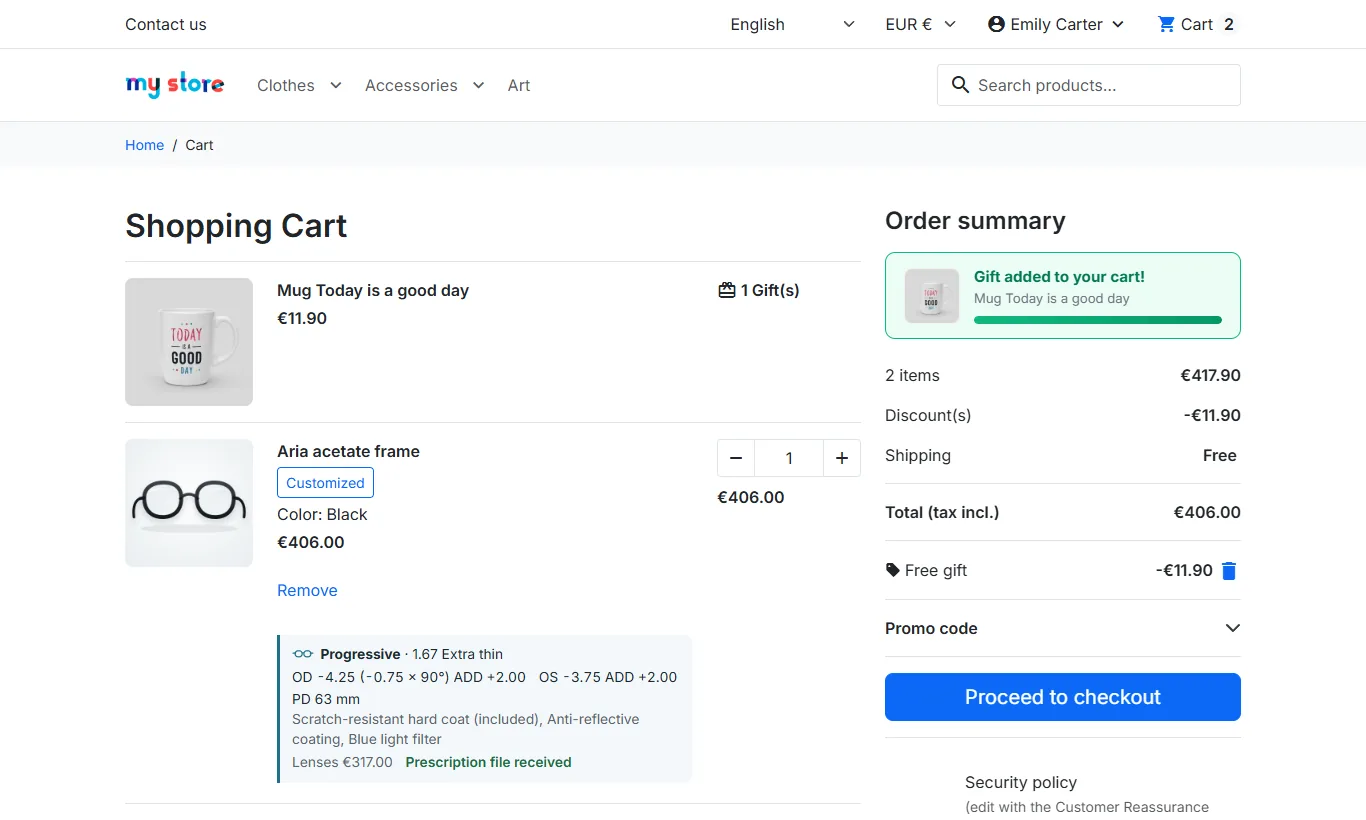
- Cart: under each frame, a summary shows the lens type, the lens, the OD / OS values, the pupillary distance, the treatments, the lens price and whether the file has been received.
- Order e-mails and PDF invoice: the prescription appears under the product, one line per item (lens, OD, OS, pupillary distance, treatments).
Optician verification
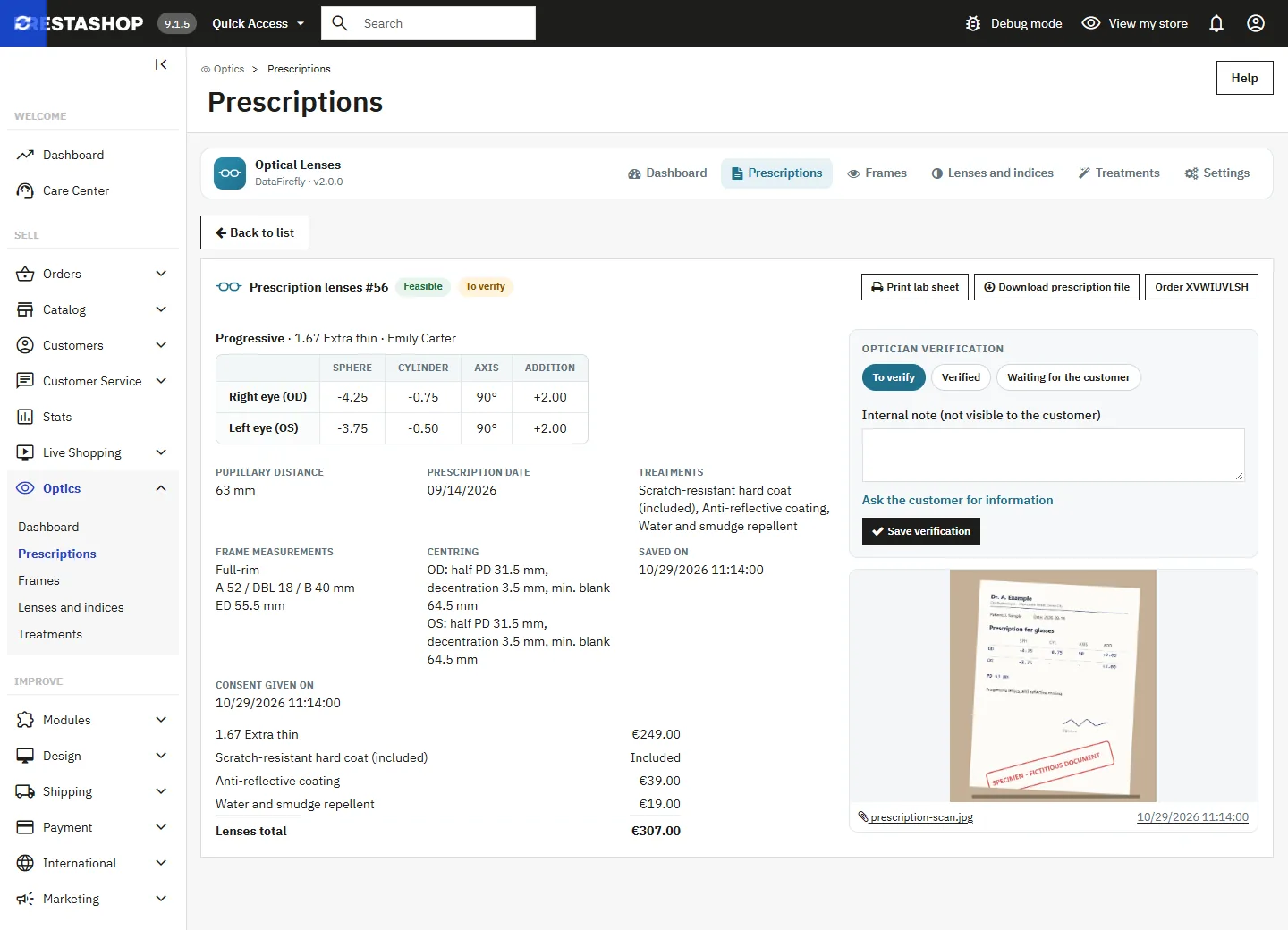
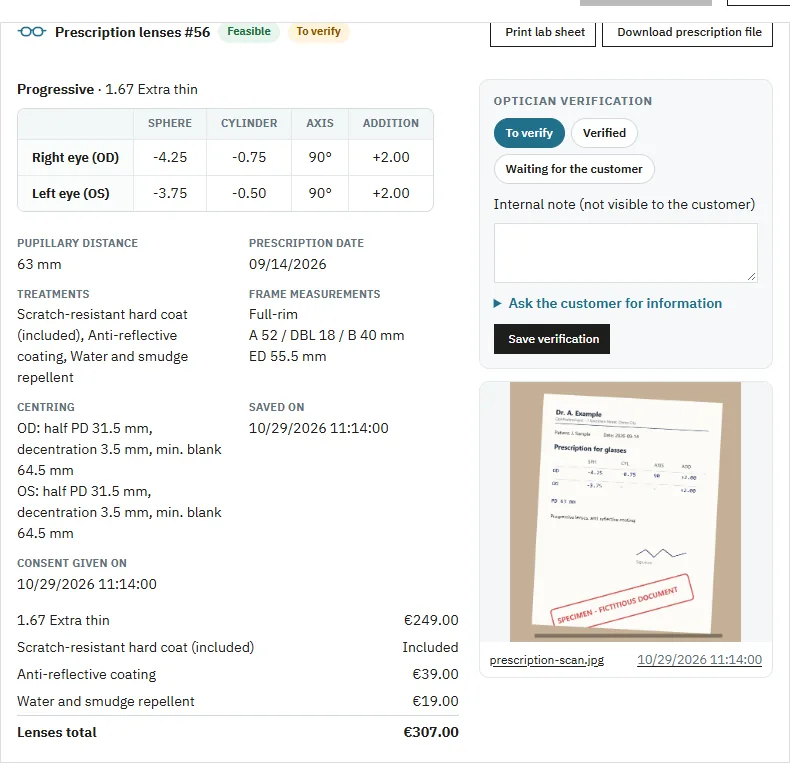
Each ordered prescription enters the verification queue with the status To verify. On the prescription page as on the order page, the Optician verification block lets you:
- set the status to Verified or Waiting for the customer;
- write an internal note, never visible to the customer;
- preview the prescription file, decrypted on the fly, or download it;
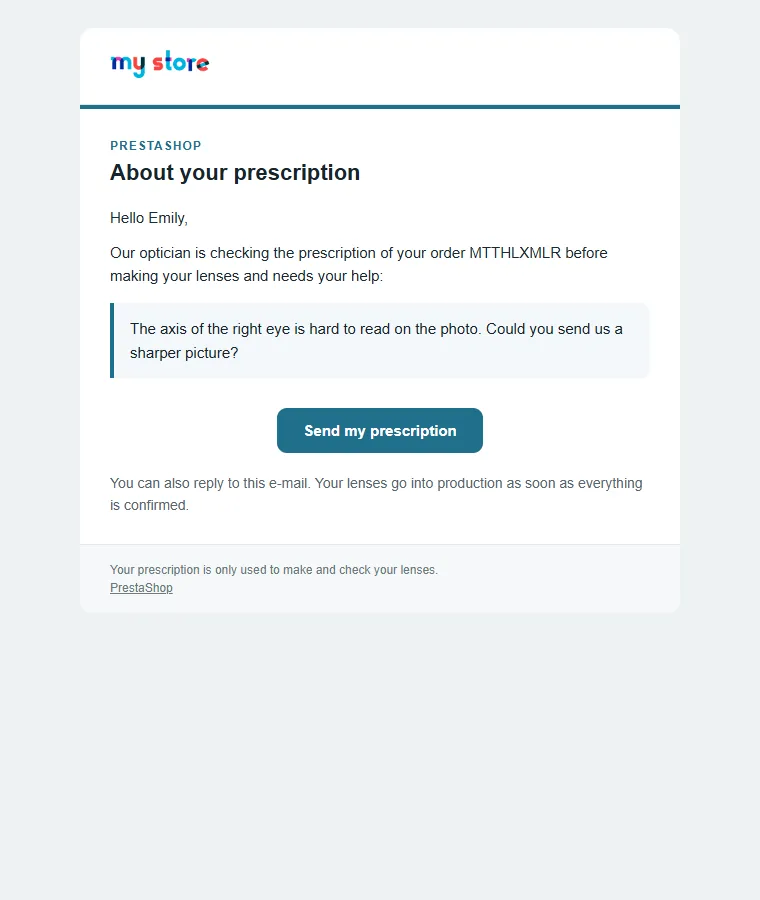
- ask the customer for information: an e-mail is sent in the language of the order with your message and a link to the My prescriptions page. The status changes to “Waiting for the customer”.
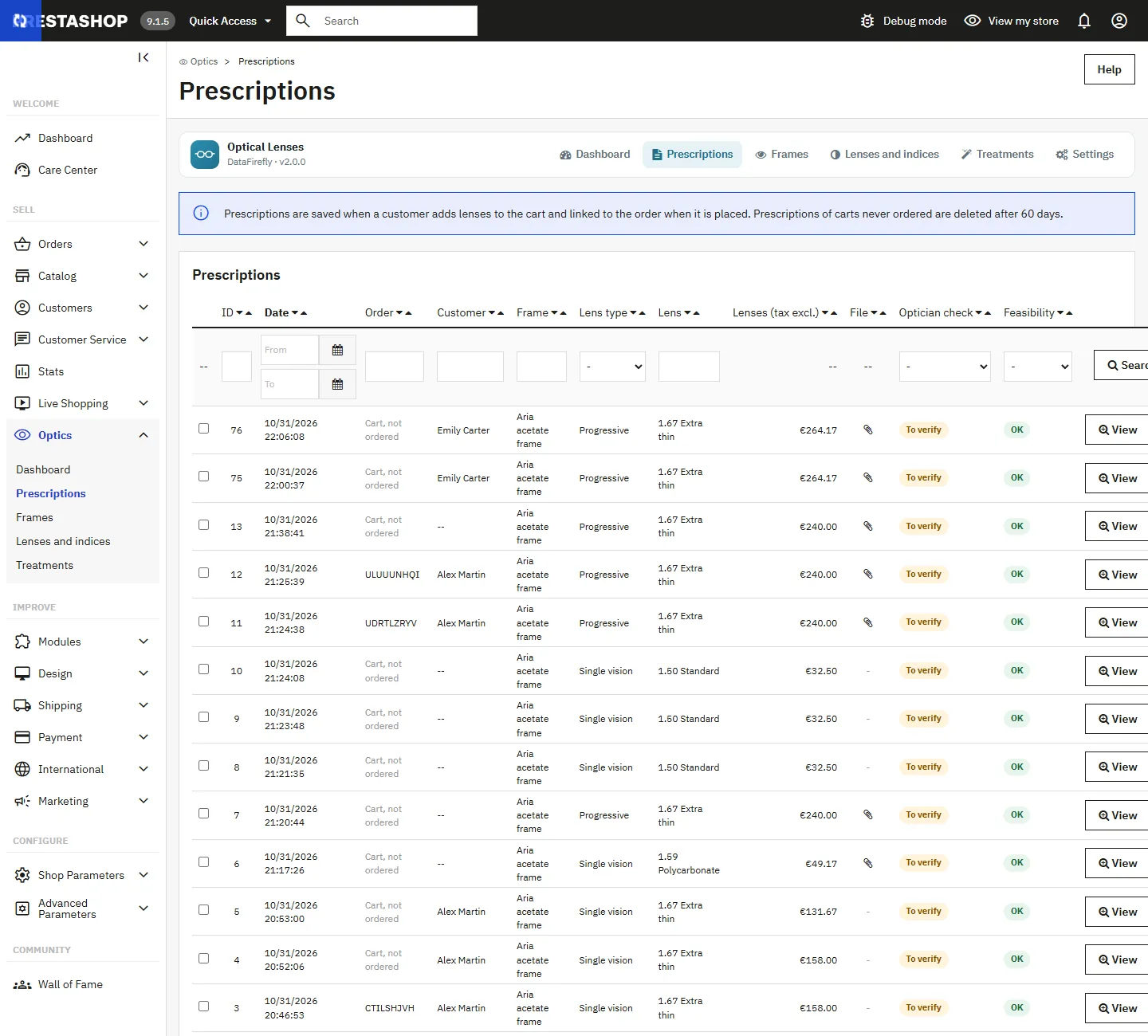
When the customer sends their file again, the status goes back to “To verify”. The author and date of the last change are shown. The Prescriptions list can be filtered by verification status and by feasibility, and shows which prescriptions come with a file.
Orders and lab sheet
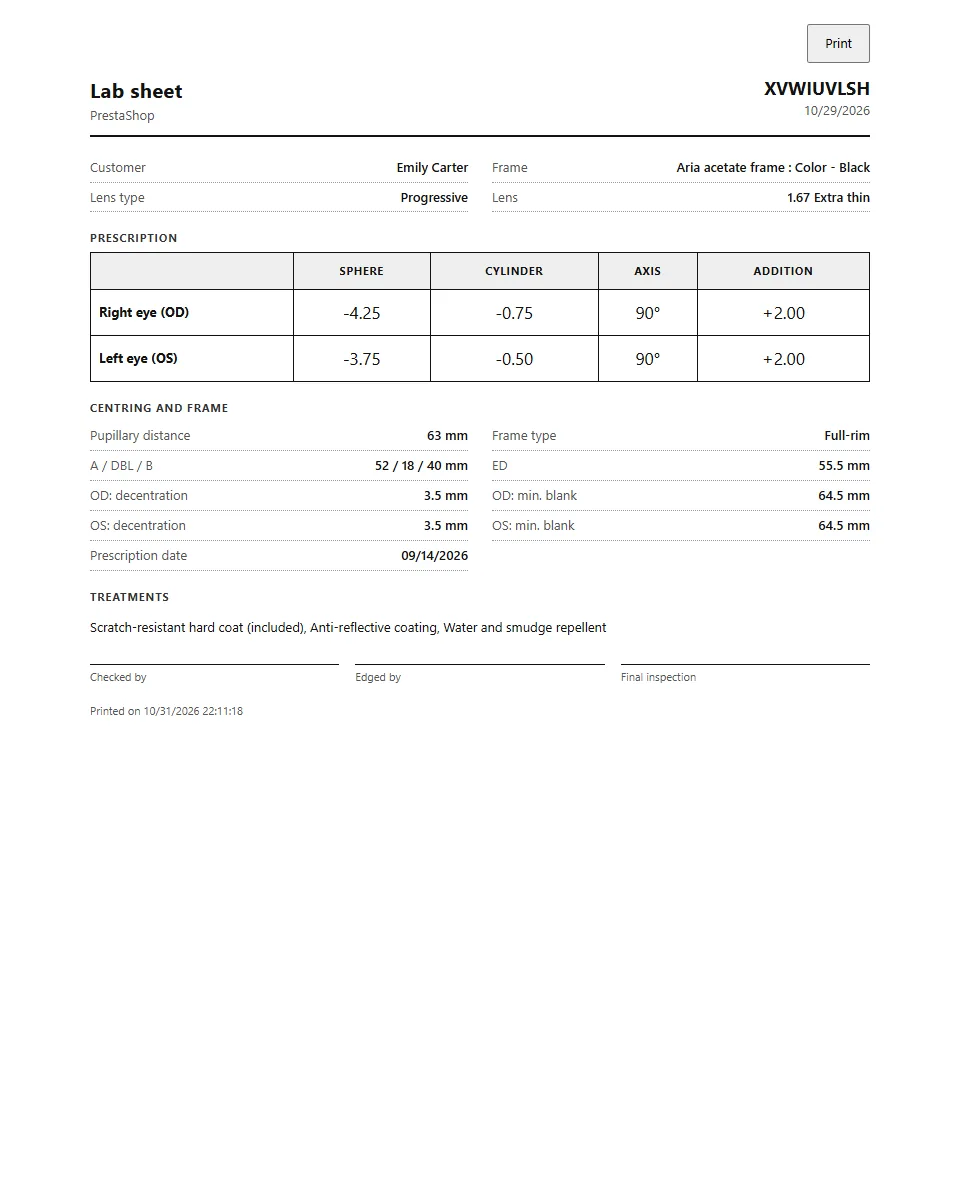
- The back office order page shows one block per prescription: transposed values, lens, treatments, frame measurements, decentration and minimum blank per eye, feasibility notes, price breakdown, consent and verification.
- Print lab sheet opens an A4 page ready to print, with boxes for checking, edging and final inspection.
Customer account: My prescriptions
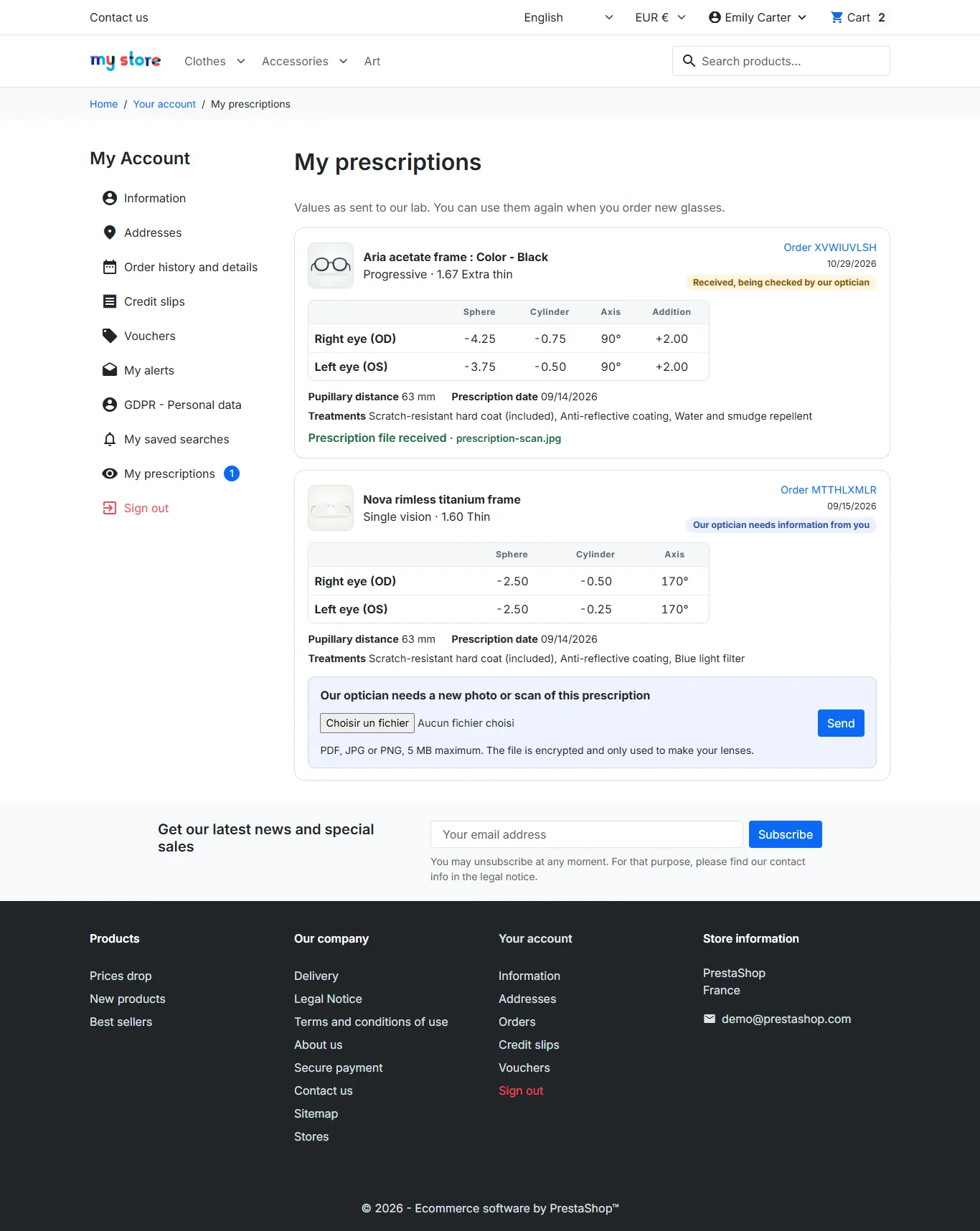
A customer who has ordered lenses sees the My prescriptions link in their account, with a counter when the optician is waiting for information. The page lists each prescription with the frame, the order and the verification status: received, verified or information requested. The customer can send their file there, or replace it when the optician asks.
Health data and GDPR
- Explicit consent before saving, with its date kept.
- Images are re-encoded (EXIF and GPS metadata removed), PDFs are checked, and each file is encrypted with AES-256-GCM in a protected folder. Preview and download only go through the back office.
- Prescriptions of carts that were never ordered are deleted after the delay set. Files can be deleted automatically after the order.
- When a customer is deleted in the back office, their cart prescriptions are deleted; those of their orders lose the file and the link to the customer.
- With the official psgdpr module, exporting and deleting a customer’s data includes their prescriptions.
Troubleshooting
The lens block does not appear on the product page
Check that the module is enabled, that the product has an active frame and that the theme displays the displayProductAdditionalInfo hook. Clear the PrestaShop cache.
The native cart button does not open the panel on a “lenses required” frame
The module intercepts buttons with data-button-action="add-to-cart". If your theme uses another attribute, the server-side block still applies: the frame on its own is removed from the cart.
The information request e-mail does not arrive
Check the PrestaShop e-mail configuration (Advanced Parameters > E-mail). If sending fails, the status is saved and a message says so on the page.
The panel total differs from the cart
A fixed-amount discount only applies to the frame, and a cart rule applies to the whole cart: they do not appear in the lens panel.