
Product Rental — Complete Guide
Install, configure and operate product rental: booking calendar, dashboard, timeline planning per unit, serial numbers, check-in and check-out, overbooking protection, seasons, packages, deposit as a separate line or Stripe imprint, payment-free requests, packs, REST API, iCal feed, webhooks and reminder emails, for PrestaShop 1.7.8 to 9.x.
Overview
The Product Rental module (dfproductrental) adds a rental mode you enable product by product on your PrestaShop shop, then covers the whole fleet operation. On a rentable product’s page, the customer picks the dates in a built-in calendar that shows, day by day, what is available, the units left, the fully booked days and the days without hand-over or return. The price is calculated live: duration, daily rate applied, savings from tiers or packages, deposit and total. Pricing works per day through degressive tiers, a percentage of the sale price or duration coefficients, modulated by seasonal pricing and fixed packages. The deposit lives on a dedicated cart line, refundable by credit slip, or switches to a Stripe card imprint.
In the back office, a dashboard lists what needs you today, a timeline planning shows every booking per unit (serial number), and bookings, check-out and check-in, statistics, payment-free requests, synced packs, REST API, private iCal feed, outgoing webhooks and reminder emails complete the module. Dates are held while the customer pays and any overlap is detected, so a unit is never rented twice.
Ideal for equipment, furniture, event gear, instruments, vehicles or tools: anything that is rented rather than sold once and for all. The rental mode only activates on the products you designate, without changing the rest of your catalog.
What’s new in version 2.0.0
- Works with Hummingbird, the default theme of PrestaShop 9, as well as Classic and custom themes.
- No more overbooking: dates are held during checkout, a booking taken in the meantime is removed from the cart with a message before payment, and an order paid on dates that are no longer free is flagged as a conflict (dashboard, order, planning, email to the shop).
- Protected cart: quantities of rental lines are locked, the native add to cart is refused on rentable products, the deposit line cannot be removed.
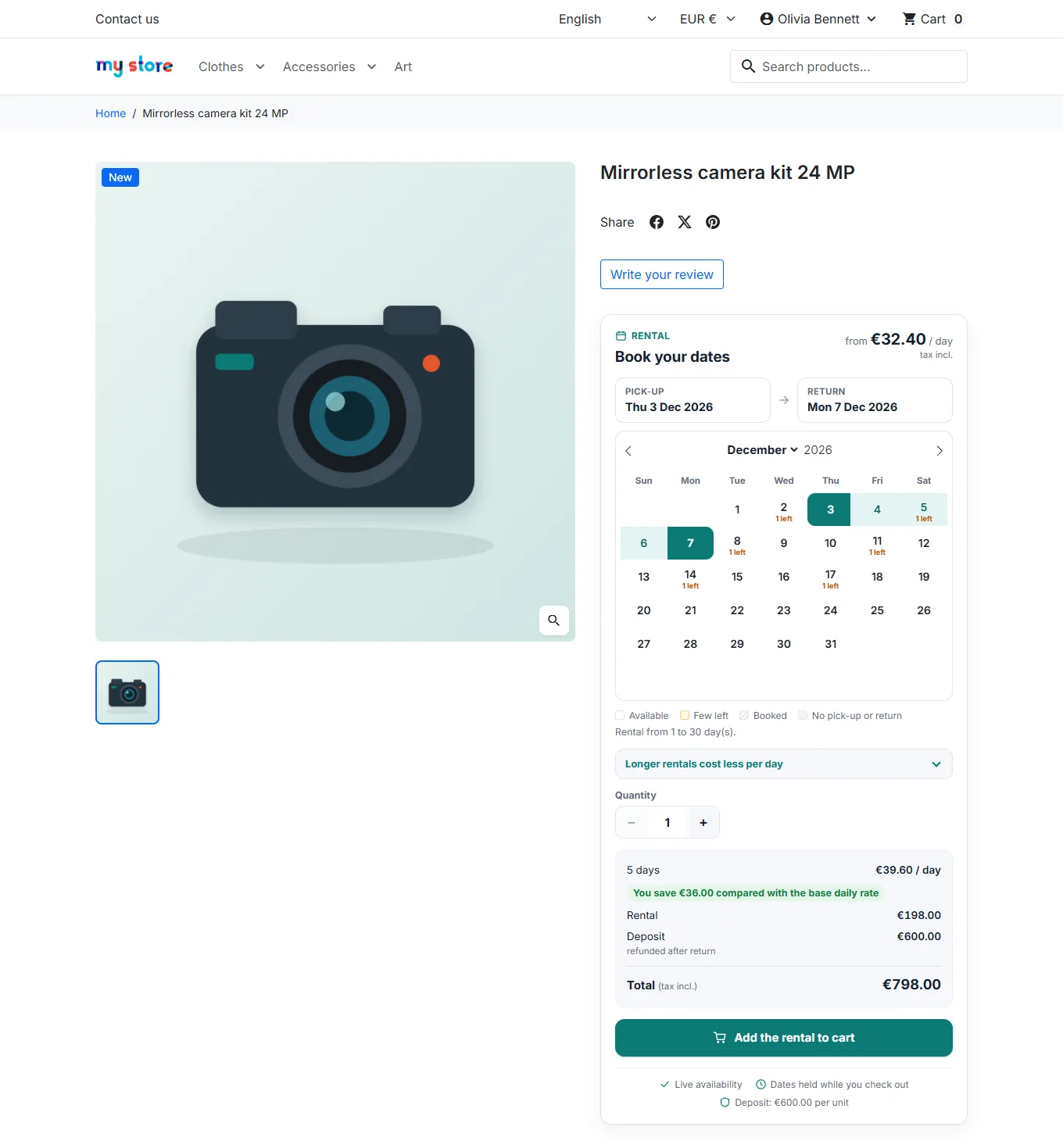
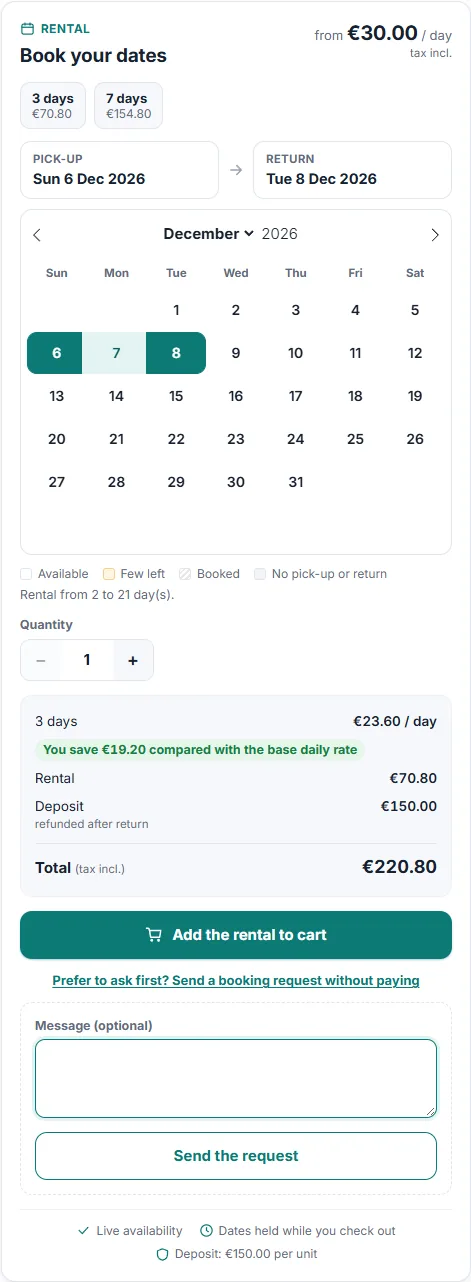
- New booking block: inline calendar with the units left, live price with the savings made, packages as chips, quantity selector, collapsible request form.
- New back office: dashboard with one-click actions, timeline planning per unit with buffer days, overdue rentals and conflicts, settings in six sections, redesigned statistics, a Rental card on the PrestaShop product page.
- Private iCal feed of your rentals for Google Calendar, Outlook or Apple Calendar.
- 8 languages (EN, FR, ES, DE, IT, PL, NL, PT) and 9 redesigned email templates in each language.
- Clearer amounts: prices shown excluding or including tax according to the customer group, deposit shown at the amount actually paid or guaranteed, new Add VAT to per-product deposits setting.
- Security: token on every shop-side action, limit of requests per visitor and per hour, anti-bot field, lock around availability checks, HTTPS webhooks, Stripe secret key never shown again.
- Compatible from PrestaShop 1.7.8 to 9.x and PHP 7.4 to 8.5.
Compatibility
- PrestaShop 1.7.8 to 9.x
- PHP 7.4 to 8.5
- Hummingbird, Classic and custom themes
- Single store and multistore
- 8 languages: EN, FR, ES, DE, IT, PL, NL, PT (interface, calendar and emails)
- No dependency: no Composer, manual PSR-4 autoloader, calendar embedded locally
Installation and upgrade
- In the back office, open Modules > Module Manager.
- Click Upload a module and select the
dfproductrental.zipfile. - Once installed, click Configure to open the settings.
The module creates its tables, registers its hooks and adds a Catalog > Rentals menu with six pages: Dashboard, Planning, Bookings, Rental products, Units and Statistics. A navigation bar common to every page of the module links them together with the settings, shows the number of requests waiting for an answer and warns you about booking conflicts.
Upgrading from 1.x: upload the 2.0.0 ZIP over the previous version, then clear the PrestaShop cache. Bookings, units, product configurations and settings are kept. Versions 1.x added the product VAT rate to per-product deposits: this behaviour is kept after the update so your customers pay the same amounts, and a banner offers to switch it off. A webhook URL in http:// is disabled by the update (HTTPS is required).
Dashboard
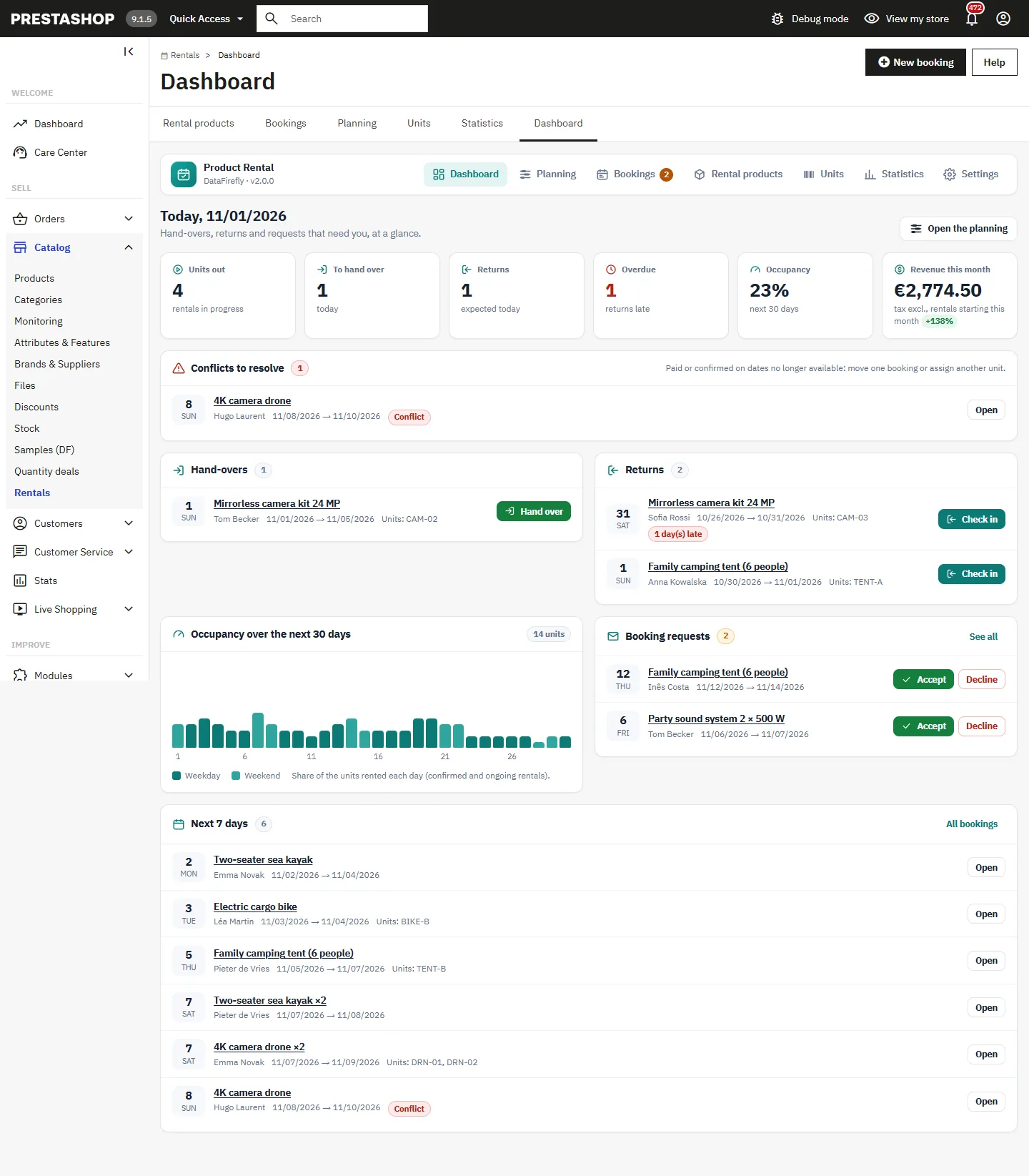
Catalog > Rentals > Dashboard gathers what needs you, at a glance:
- Indicators: units out (rentals in progress), hand-overs and returns expected today, overdue returns, occupancy over the next 30 days and revenue this month (tax excluded, rentals starting this month) with its change.
- Lists of today’s hand-overs and returns, booking requests and overdue rentals with one-click actions: Hand over, Check in, Accept, Decline.
- Conflicts to resolve: bookings paid or confirmed on dates that are no longer available, to move or to assign to another unit.
- An occupancy chart for the next 30 days and the rentals starting in the next 7 days.
On a new shop, guided empty states show the first steps: add a rental product, then wait for the first bookings.
Settings
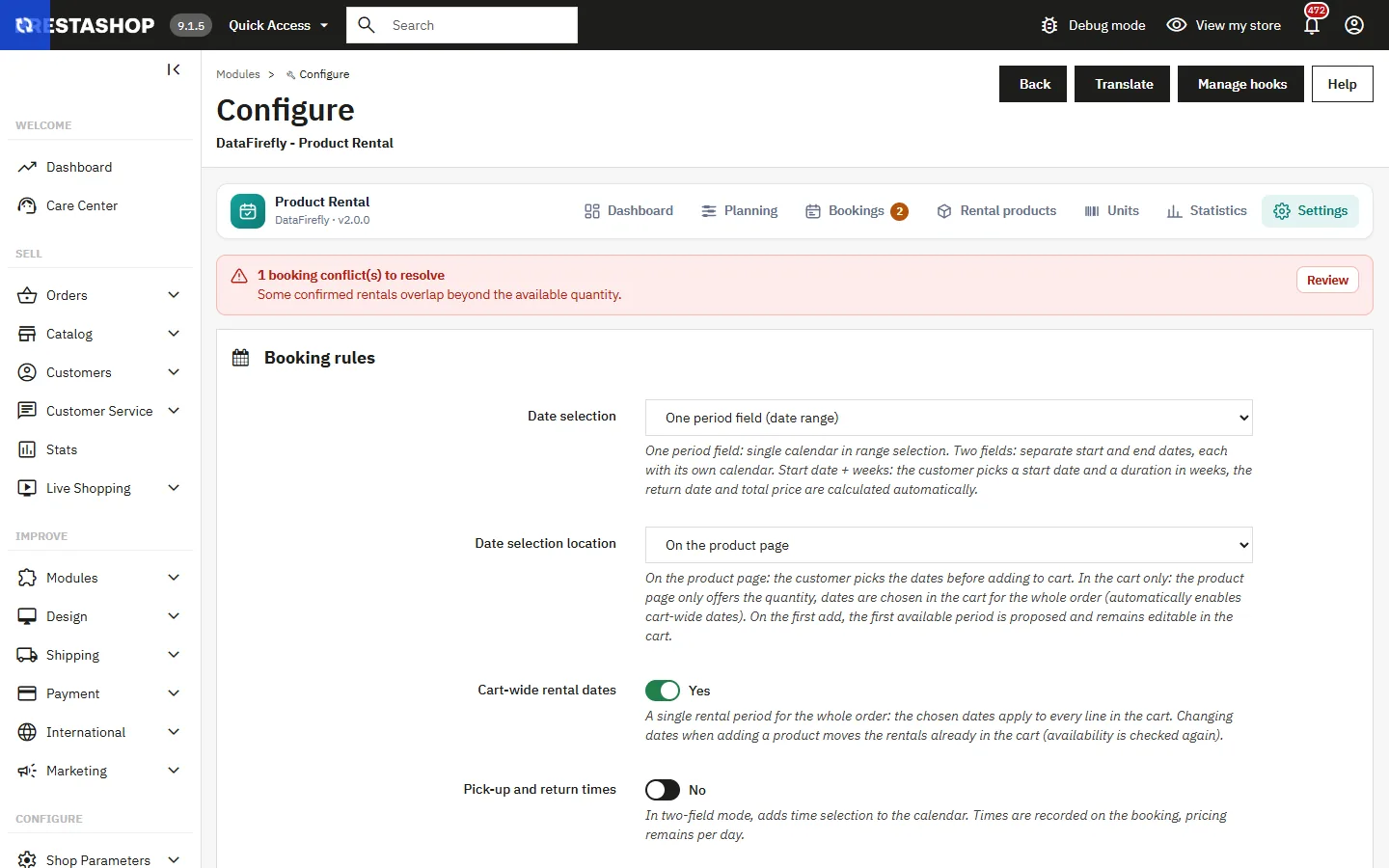
The configuration page (Configure in the Module Manager, or Settings in the module navigation) is organised in six sections. Grids (seasons, closing dates, coefficients) are checked line by line on saving, with a message pointing to the faulty line.
Booking rules
- Date selection: one period field (range), two fields start and end, or start date plus a number of weeks.
- Date selection location: on the product page, or in the cart only (dates are then chosen once for the whole order).
- Cart-wide rental dates and pick-up and return times.
- Charge for the return day: yes, calendar counting, the return day is a rental day (14th to 20th = 7 days); no, rotation model, the return happens the day after the billed period (14th to 21st = 7 days, one week runs Monday to Monday), that day staying unavailable for another hand-over.
- Calendar horizon (days): how far in the future customers can book (365 by default).
- Default buffer days: days blocked after each return to prepare the item, overridable per product.
- Cart expiry (minutes): past this delay, an unpaid cart releases its dates (60 by default). During checkout, the delay is renewed.
- Weekly closing days (check boxes) and closing dates, one per line, as YYYY-MM-DD (one-off) or MM-DD (every year, e.g. 12-25). A rental can span a closed day; only hand-over and return are impossible on it.
Pricing
Pricing seasons, coefficient grid and weekend coefficients (Saturday to Monday, Friday to Monday), and the Whole catalog for rent mode with its pricing (product price per day, or product price × duration coefficient) and its payment-free requests.
Deposit
Deposit mode (per product, automatic global with one deposit per order, or disabled), default deposit, Charge the deposit, Add VAT to per-product deposits (no by default: the deposit you enter is the amount paid), multiplier, minimum and rounding of the global deposit.
Product page display
Position of the rental block (and repositioning by JavaScript for themes that need it), hiding of the native add to cart, and Show remaining units in the calendar (the “N left” mention).
Requests and notifications
Cascade packs to their components, request expiry (hours), requests per visitor and hour (anti-spam limit, 5 by default), automatic reminder emails and their advance, and Alert me about booking conflicts (email to the shop).
Integrations
REST API, calendar feed (iCal), outgoing webhooks and their HTTPS URL, deposit via Stripe card imprint with publishable key, secret key (never shown again: leave the field empty to keep it), mandatory imprint before hand-over and consent text. Tokens, cron URL, iCal address and webhook secret are shown in panels under the form.
Configuring a rentable product
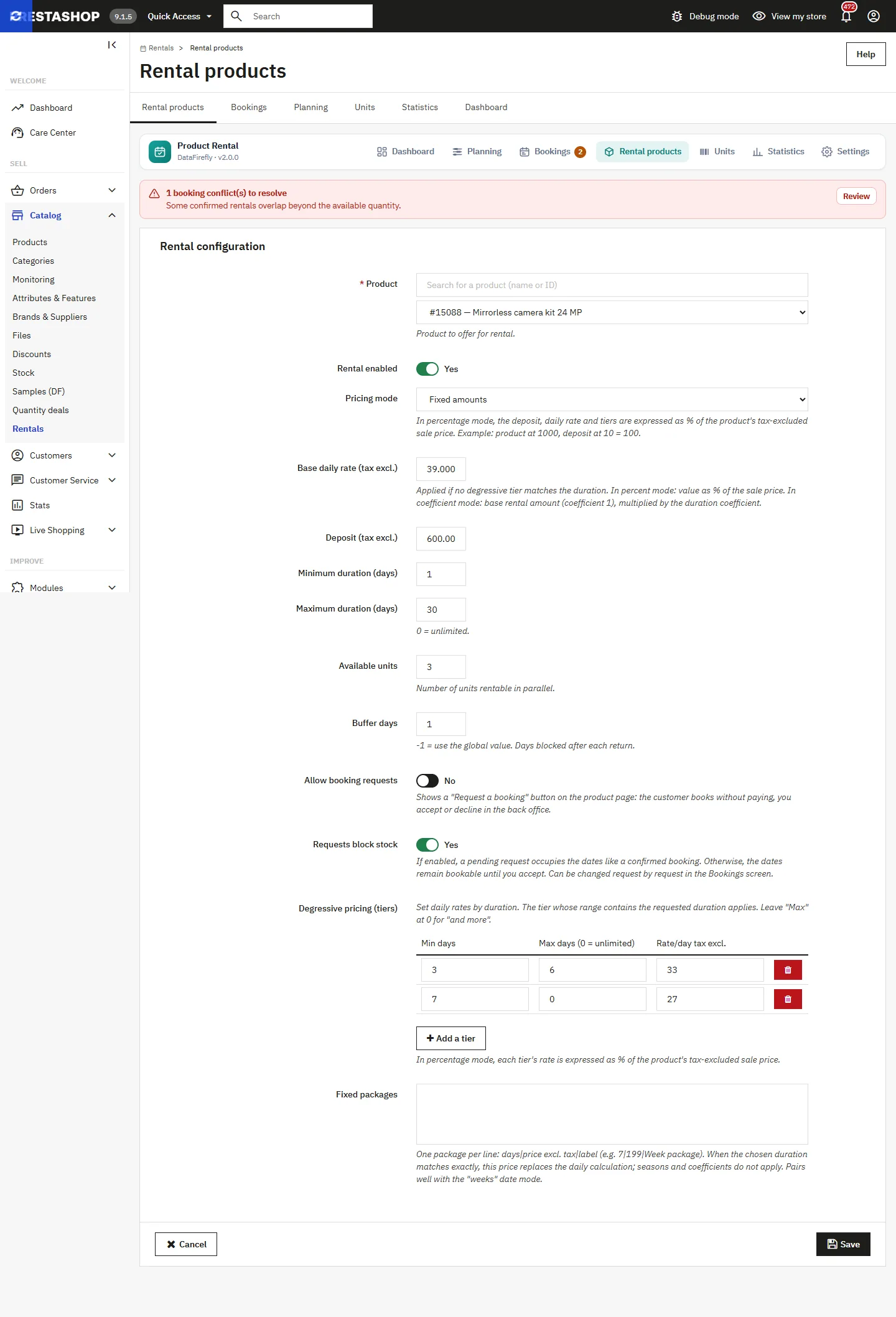
Go to Catalog > Rentals > Rental products, then Add: product, activation, pricing mode (fixed amounts, percentage of sale price or coefficient), base daily price, deposit, minimum and maximum duration, available units, buffer days, payment-free request and stock blocking by requests. On the PrestaShop product page, a Rental card sums up the status, rate, units, durations and next bookings, with links to the configuration and the planning.
Degressive pricing tiers
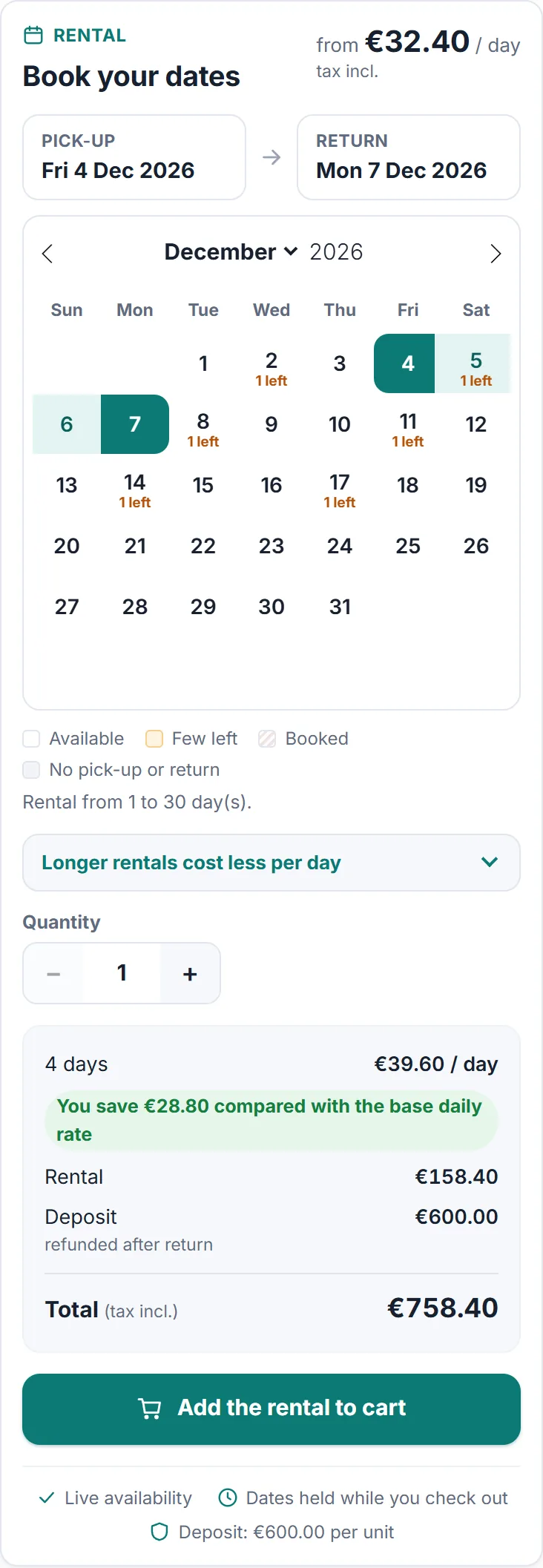
Each tier is defined by a minimum day, a maximum day and a daily price. The module applies the tier whose range contains the chosen duration; a maximum day of 0 means unlimited; without a matching tier, the base price applies. Example: 39/day for 1 to 3 days, 32/day for 4 to 7 days, 26/day from 8 days. On the product page, the savings compared with the base price are shown in the price summary.
Fixed packages
The Fixed packages area accepts one package per line as days|price excl. tax|label, for instance 7|199|Week package. When the chosen duration matches exactly, this round price replaces the whole calculation: no tiers, no coefficients, no seasons. Packages are offered as chips above the calendar: one click selects the matching period.
Percentage mode
The base daily price, deposit and tiers are expressed as a percentage of the product’s sale price excluding tax. A product sold at 1000 with a deposit of 10 requires a 100 deposit. Amounts automatically follow your catalog prices.
Shop-side usage
Choosing dates
The booking block opens with a “from X / day” header, then a built-in calendar (two months on a large screen, one on mobile). Each day shows its state: available, “N left” when few units remain, fully booked (struck through), or closed for hand-over and return. “Pick-up” and “Return” boxes guide the selection and a legend explains the colours. Booked days include the buffer of each product. In the weeks mode, the customer picks a start date and a number of weeks; the return date and the total are computed automatically.
Price and booking
The price summary updates live: duration, daily rate applied, savings made with tiers or packages, rental, deposit (refunded or only guaranteed) and total. Amounts are shown excluding or including tax according to the customer group. A reassurance line reminds the customer that availability is live, that the dates are held during payment and how the deposit works. The booking button adds the rental to the cart: the price is injected through a specific price scoped to the cart, the catalog price staying untouched, and the deposit shows on its own line.
On mobile
The block adapts to small screens: one-month calendar, large touch targets, price summary under the calendar. It was checked at 390 px wide, with labels, visible focus and live announcements for screen readers.
Cart
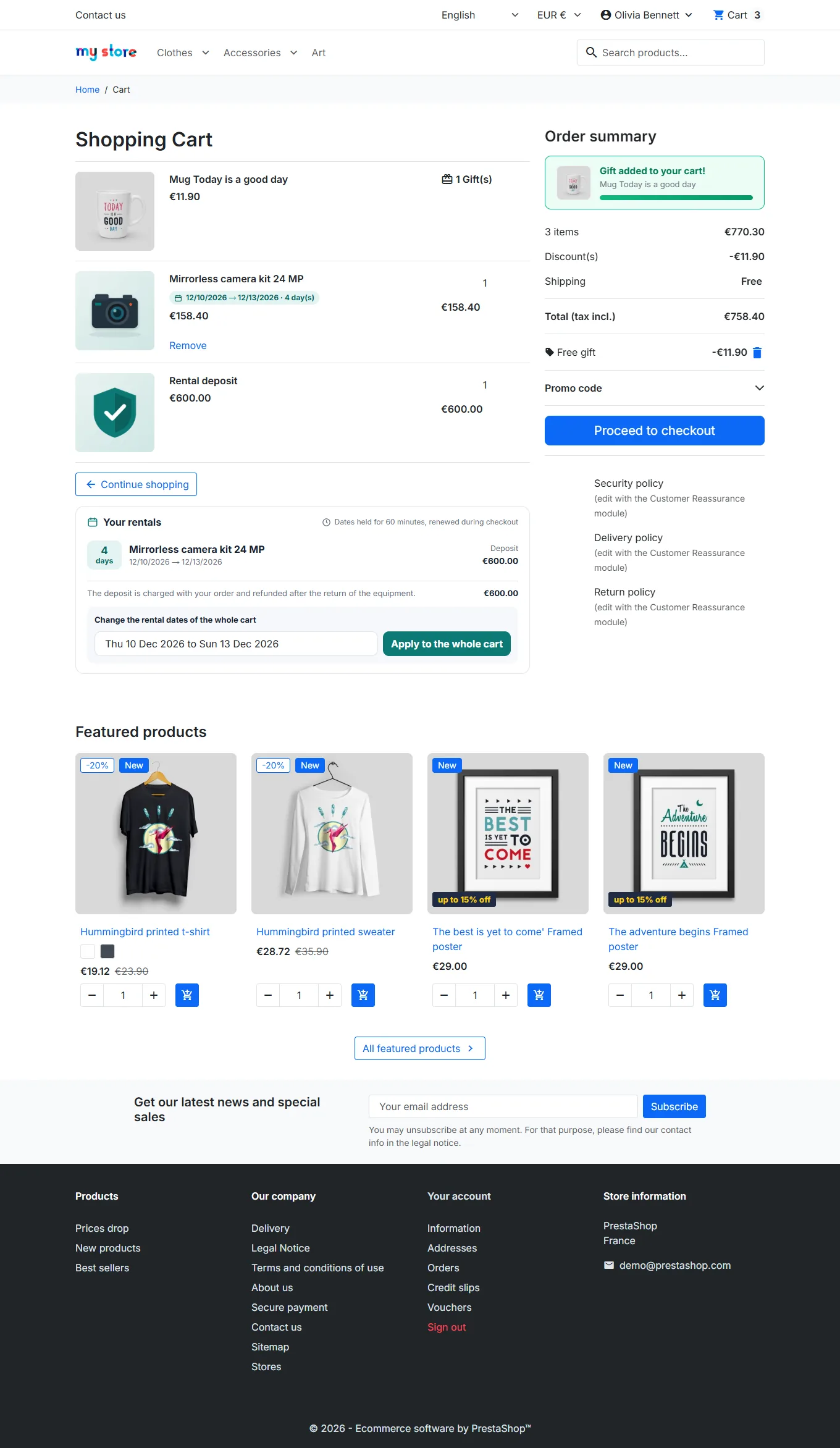
Every rental line shows its dates under the product name. Quantities of rental lines are locked: changing a quantity means choosing new dates. A rental summary recalls how long the dates stay held, and the cart-wide date editor (when enabled) lets the customer change the period for the whole order. If dates were taken by someone else while the cart was waiting, the line is removed with a message before payment.
Order confirmation and customer account
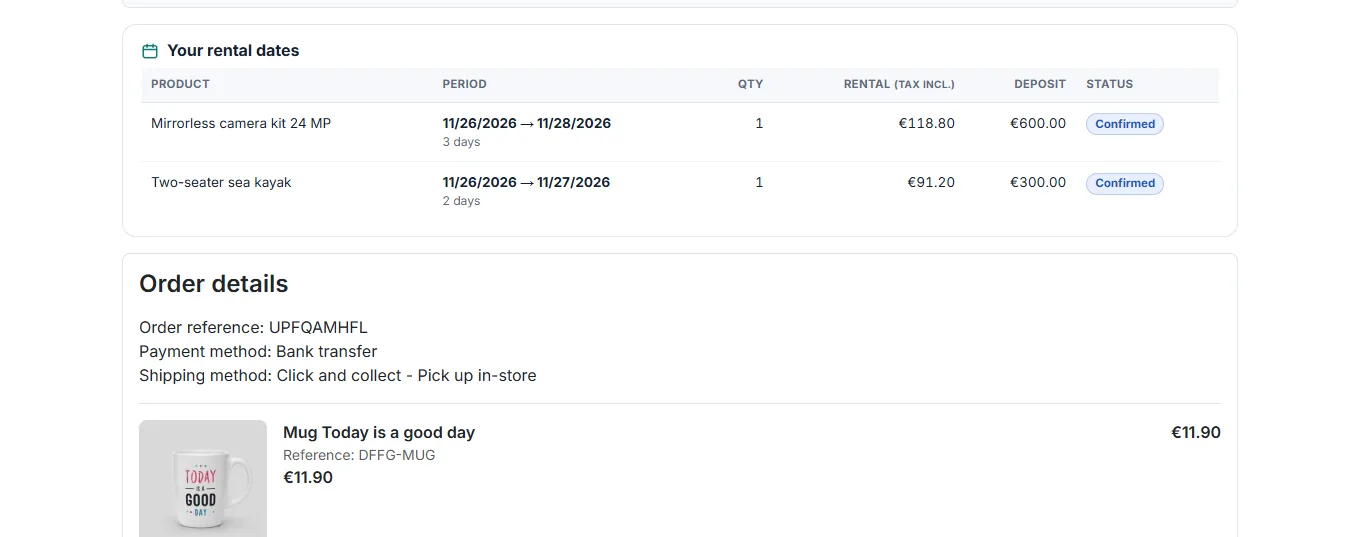
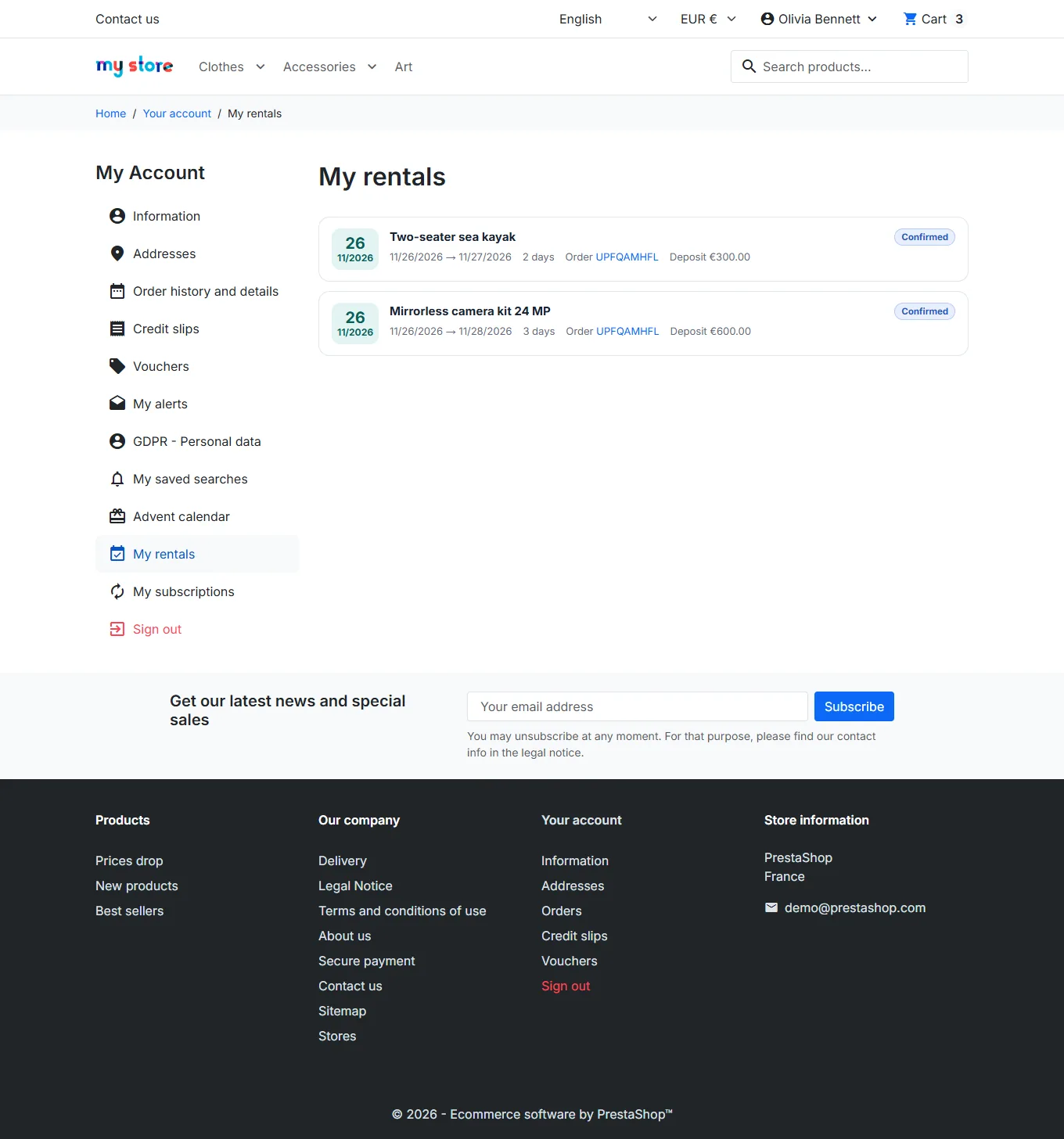
The order confirmation and the order detail of the customer account show a table of the rental periods, durations, amounts, deposits and statuses. The My rentals page of the customer account lists the rentals as cards, with their status and, when needed, the Save my card button for the Stripe imprint.
Deposit: dedicated line or Stripe imprint
Charged deposit
When Charge the deposit is enabled, the deposit shows as a dedicated cart line: a technical Rental deposit product, tax free, hidden from the catalog, carries the order’s total deposit. Rented product prices only contain the rental. On the invoice, the deposit is a separate line; its refund when the equipment comes back takes one credit slip on that line, from the order page. The deposit line cannot be removed from the cart. The amount comes from the chosen mode: per-product deposit, or automatic global deposit (multiplied base amount incl. tax, with minimum and rounding).
A security deposit is usually not subject to VAT: with Add VAT to per-product deposits off (default on a new install), the deposit you enter is exactly the amount the customer pays.
Stripe card imprint
With Charge the deposit disabled and Deposit via Stripe card imprint enabled (pk_ and sk_ keys filled in), nothing is cashed. After their order, the customer is invited from the confirmation page to save their card on a secured page powered by Stripe Elements: no card data goes through the shop, no amount is charged or held. The module checks that the saved card belongs to the order.
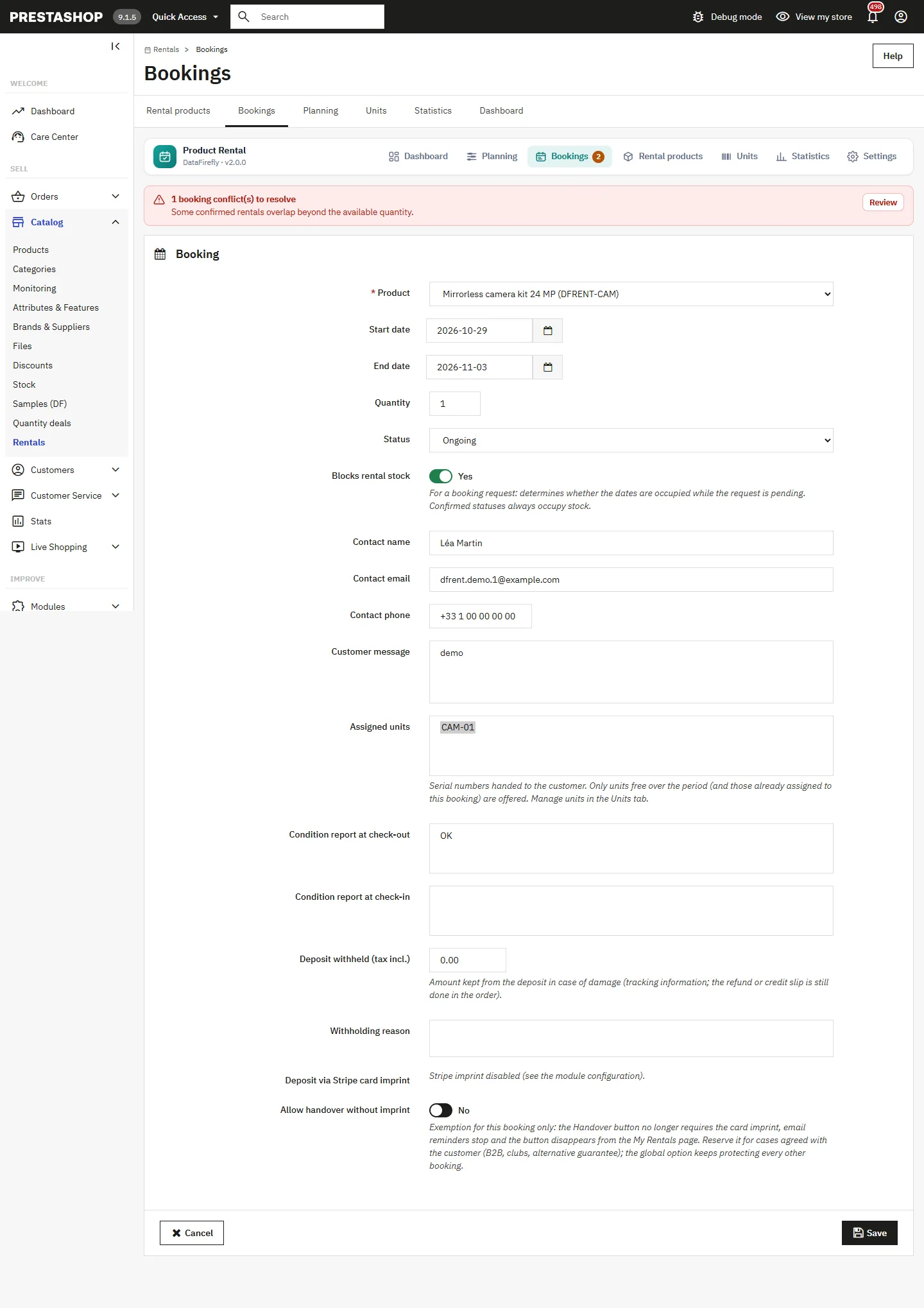
In case of damage found at return: open the booking, enter the withheld deposit and its reason, save, then click Charge the withholding via Stripe. The amount is debited off session in the order currency and the payment identifier is kept on the booking. A bank decline (3-D Secure) is shown as is; the withholding then remains to be collected another way.
Mandatory imprint before hand-over
This option makes the hand-over conditional on the card being saved: a paid booking without an imprint is flagged as awaiting imprint (badge and filter in the bookings, indicator on the dashboard) and the Hand over button refuses until the card is saved. No paid order is ever cancelled automatically. The customer is guided along the way: Save my card button on the My rentals page, daily email reminder with the secure link (through the cron URL), and a link you can copy from the booking sheet. The consent text of the imprint page can be replaced in every language.
For a case agreed with the customer (B2B, club, alternative guarantee), the Allow hand-over without imprint switch on the booking sheet exempts that one rental.
Why not a classic pre-authorisation? Card networks expire pre-authorisations after 7 days: impossible to cover a longer rental. Card registration does not expire; it is the model rental platforms use. The Stripe account used is independent from the shop’s payment module.
Units and serial numbers
In Catalog > Rentals > Units, create one sheet per physical item: product, reference or serial number, state (available or under maintenance), activation, internal note. As soon as a product has at least one unit, its rental capacity becomes the number of active and available units: putting a unit under maintenance removes it from stock without touching the configuration. This capacity is also used when accepting requests and in the API.
On each booking, the Assigned units field offers the units free over the period (buffer included) plus those already assigned. A unit taken by another booking is refused with a message. References show in the bookings list, the planning, the order page and the webhook.
Bookings, check-out and check-in
Catalog > Rentals > Bookings lists all bookings with product, customer, order, dates, assigned units, deposit and coloured status: request pending, pending (cart), confirmed, active, returned, declined, cancelled, plus the conflict and awaiting imprint badges. Quick actions follow the status:
- Hand over, on a confirmed booking: the equipment is given to the customer, the rental becomes active and the time is stored.
- Check in, on an active rental: the equipment is given back, the rental becomes returned and the time is stored. Dates are released after the buffer days.
- Accept and Decline, on a request.
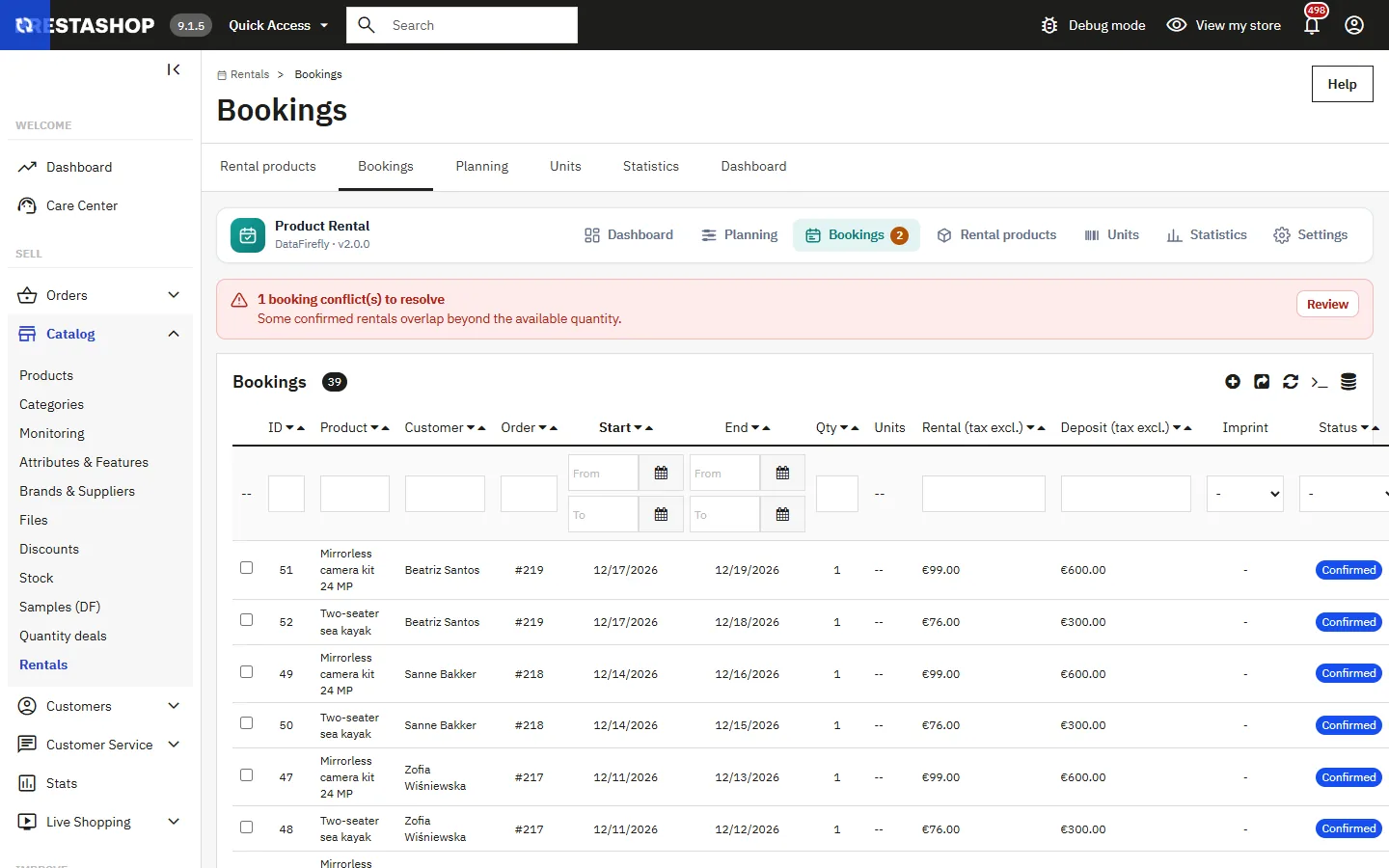
The booking sheet groups the product, dates, quantity, status and assigned units, the condition report at hand-over and at return, and the withheld deposit with its reason, ready for the Stripe charge or a partial credit slip. On saving, dates and status are checked and a period that exceeds the capacity is flagged as a conflict.
Planning
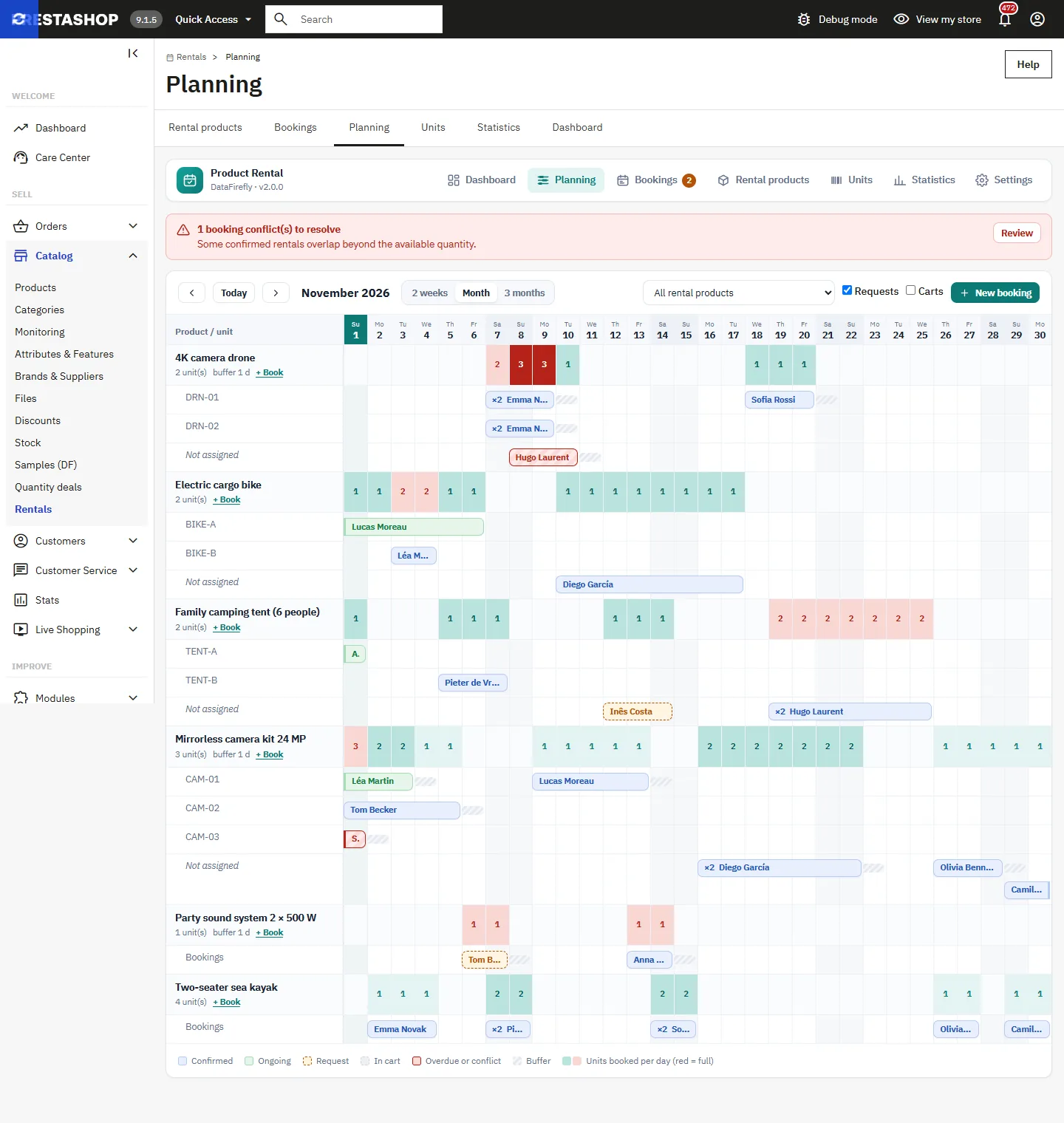
Catalog > Rentals > Planning shows a timeline: one row per product with the load of each day (green, then red when full), and one row per unit (serial number) with the booking bars coloured by status: confirmed, in progress, request, cart, overdue or conflict. Buffer days are hatched and overdue rentals extend up to today. Switch between the 2 weeks, month and 3 months views, filter by product, show or hide requests and carts, and click a bar to open the booking. Closing days and the current day are marked. Links from version 1.x keep working.
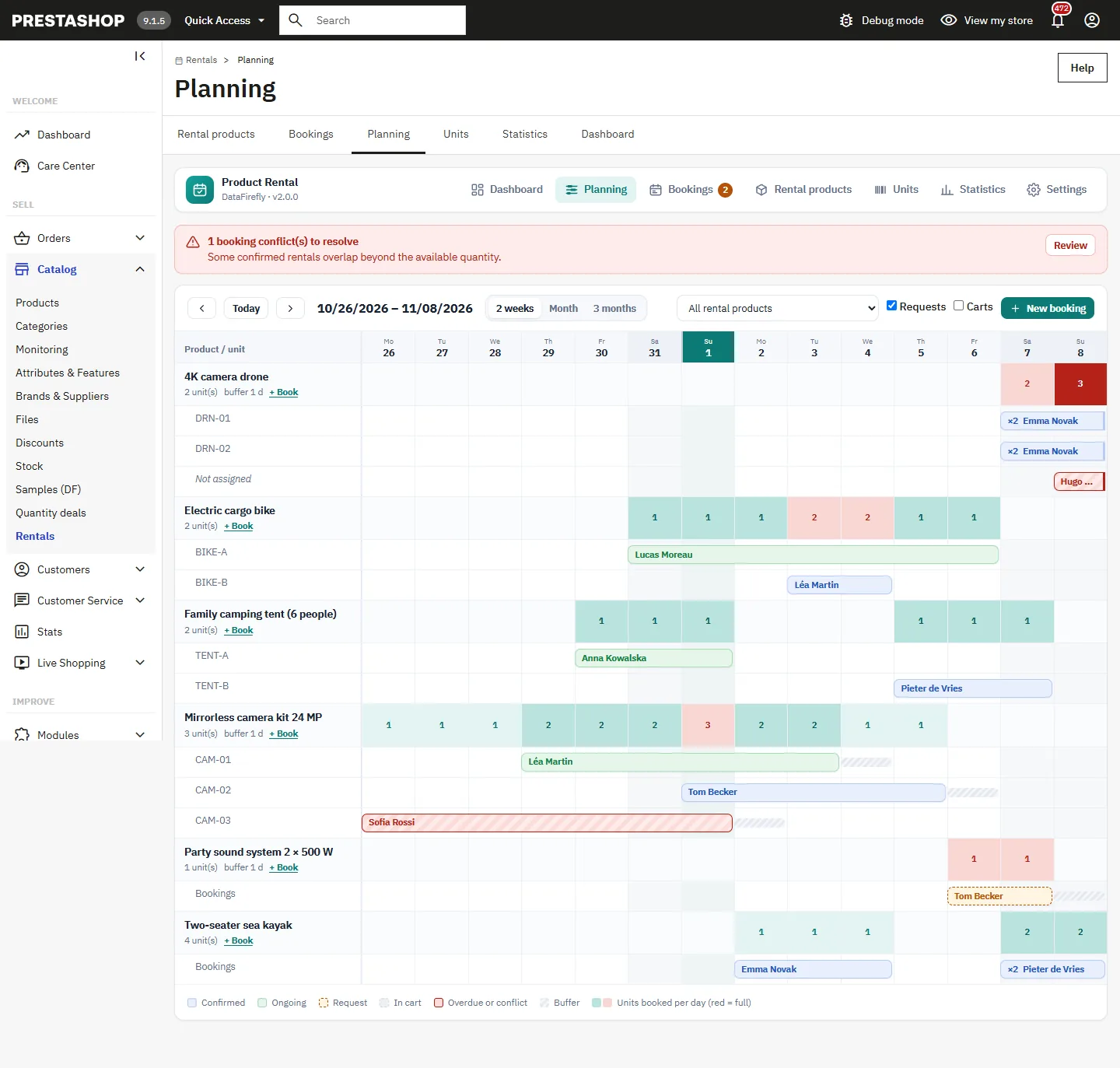
Overbooking protection and conflicts
Availability is checked under a database lock, so two customers cannot take the last unit at the same time. While the customer goes through the cart and checkout, each booking is checked again and its hold renewed. If its dates were taken in the meantime (for instance after the cart expired), the line is removed with a message before payment.
If an order is still paid on dates that are no longer available, the booking is kept (the order exists) but flagged as a conflict: banner in the module navigation, list on the dashboard, red bar in the planning, mention on the order page and, if enabled, an email to the shop. Move one of the bookings or assign another unit to resolve it.
Statistics
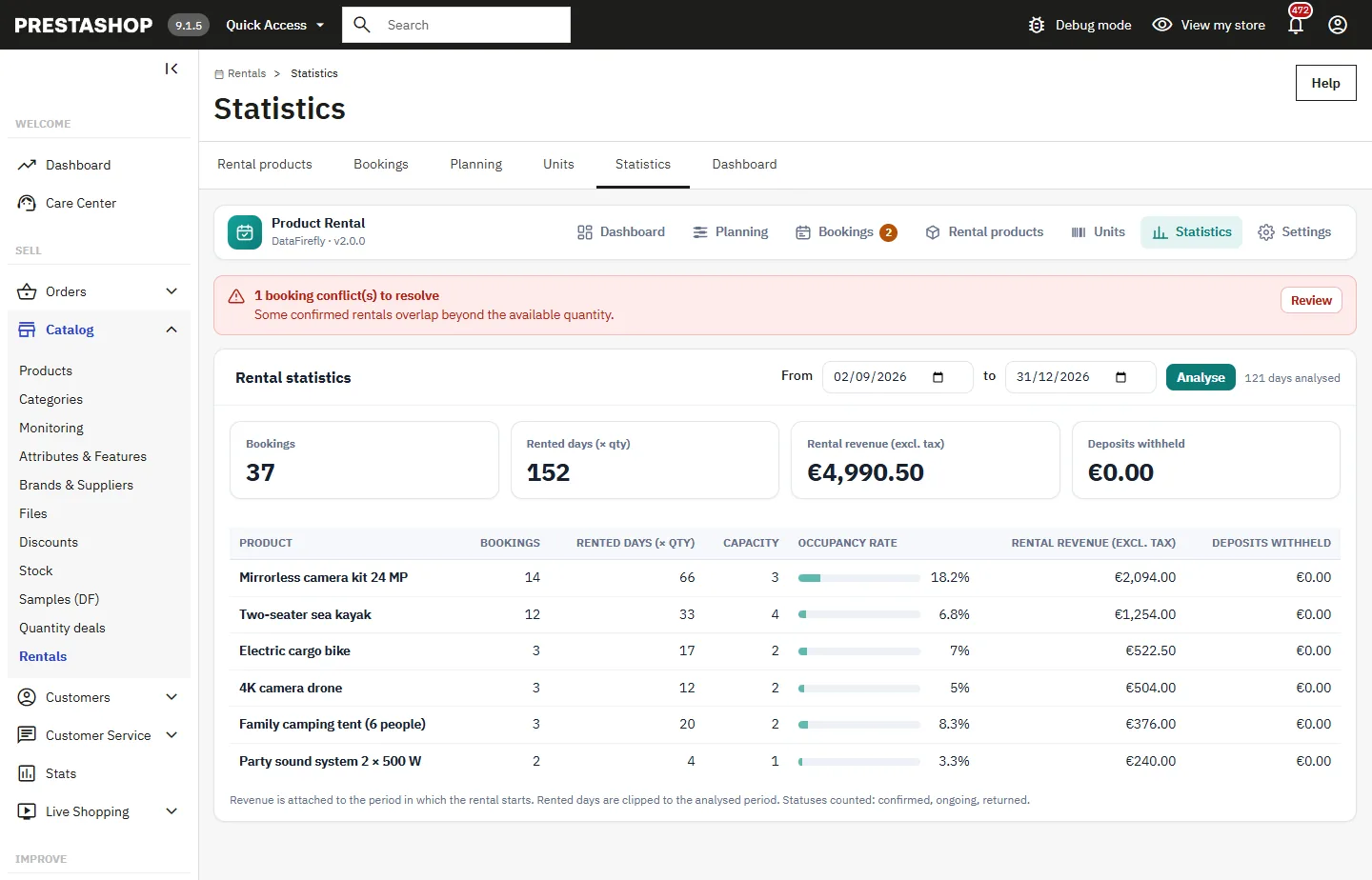
Catalog > Rentals > Statistics analyses the period of your choice (last 12 months by default): indicators, then per product the number of bookings, rented days multiplied by quantity and clipped to the period, capacity, occupancy rate with a bar, rental revenue excl. tax attached to the rental start and withheld deposits, with a totals row. Statuses taken into account: confirmed, active, returned.
Back-office order page
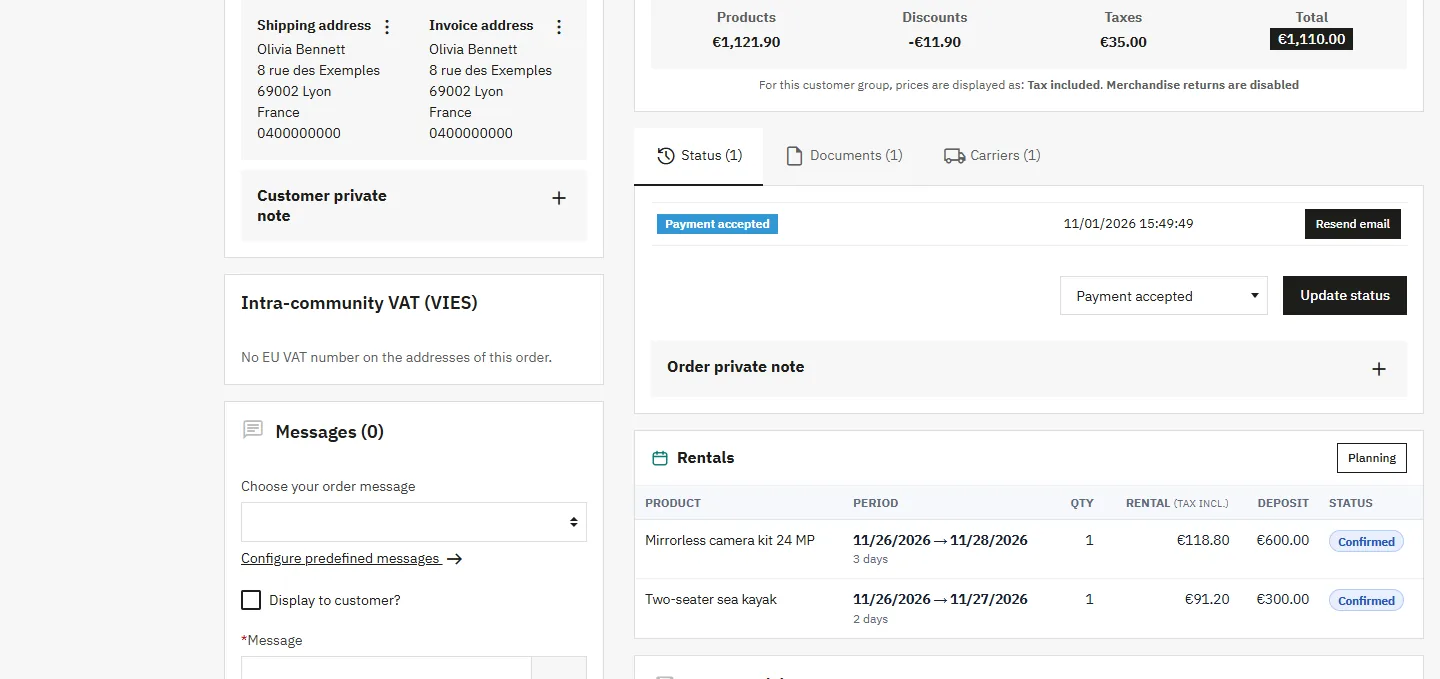
On the PrestaShop order page, a single Rental block shows each rented product with its period, duration, units, amounts, deposit and status (translated and coloured), with links to the bookings. The same information appears on the invoice.
Seasonal pricing
The seasons grid accepts one season per line: start|end|multiplier|label. Two bound formats: full dates 2026-06-15|2026-09-15|1.3|High season (one-off season) or month-day 12-20|01-05|1.5|Holidays (every year, year crossing handled). Each rental day is billed at the daily rate multiplied by its season’s coefficient; outside any season the coefficient is 1; when seasons overlap, the last line wins. Fixed packages ignore seasons: that is the point of a round price.
Emails and reminders (cron)
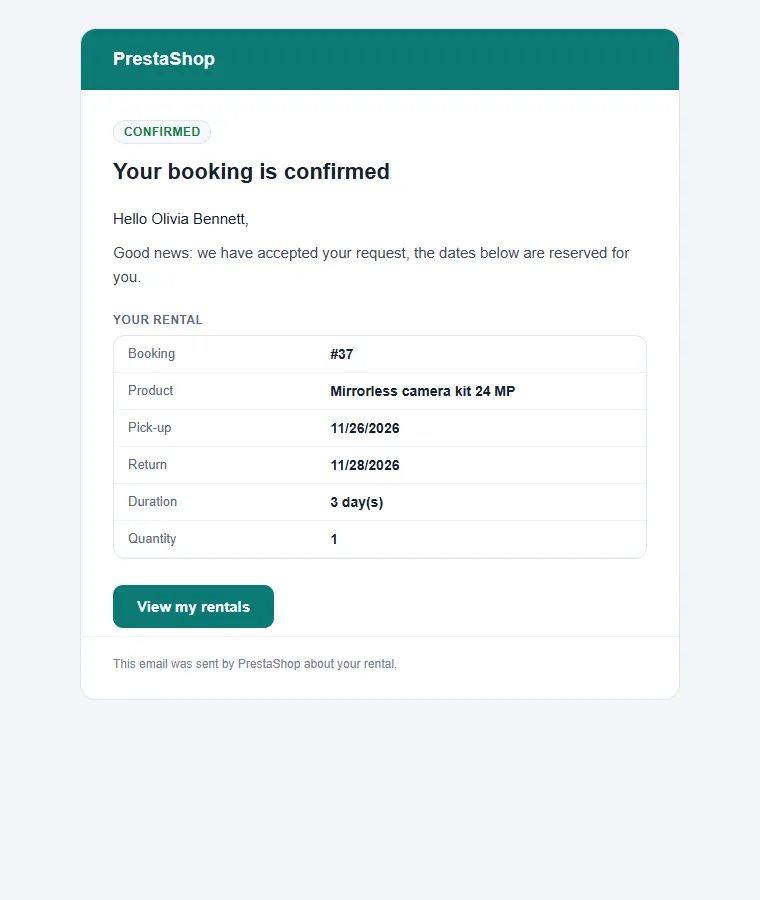
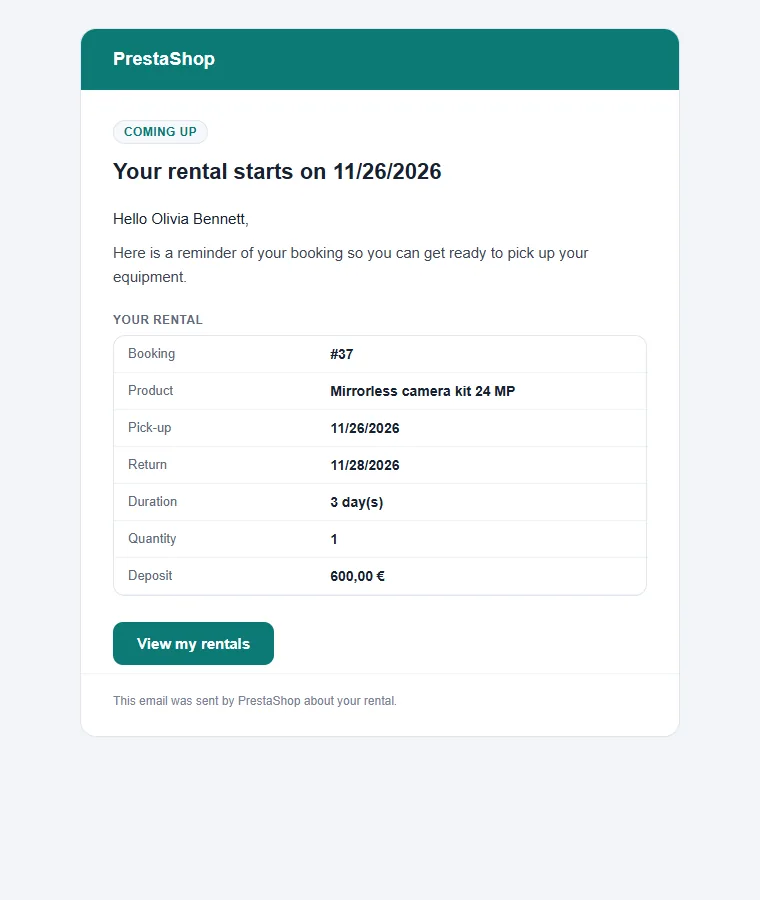
The module ships 9 email templates in the 8 languages, with a header, a status badge, a summary table and an action button: request received, request accepted or declined, new request for the shop, reminder before the start, reminder before the return, overdue follow-up, card imprint reminder and booking conflict. Subjects, dates and amounts follow the language of the recipient.
Reminders are sent by the token-secured cron URL shown under the settings form: enable Automatic reminder emails, set the advance (1 = the day before) and call the URL once a day (hosting cron task or external service). Each email is sent only once per booking. The cron call also purges expired requests.
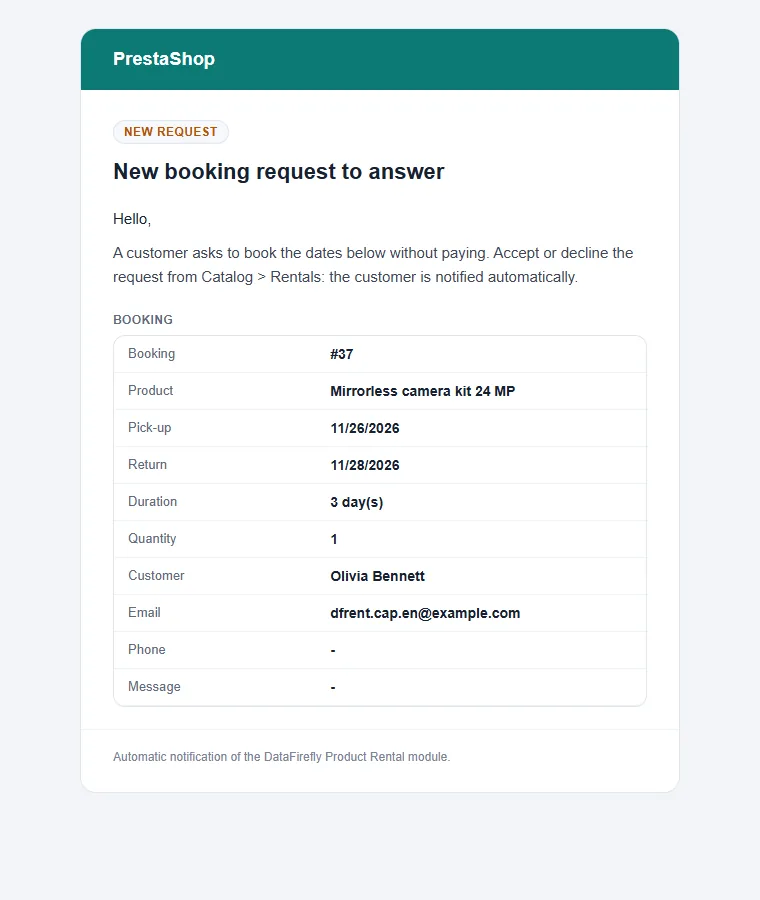
Payment-free booking request
On products where the option is enabled, the booking block offers a collapsible request form: the customer picks dates, leaves their contact details (filled in automatically when logged in) and a message, without checking out. The shop receives an email and the request appears in the bookings and on the dashboard with the Request pending status: Accept rechecks availability then confirms and notifies the customer; Decline releases the dates and notifies the customer. Stock blocking by requests is set per product, an expiry delay can cancel unanswered requests, and requests are limited per visitor and per hour against spam.
Product packs
Native PrestaShop packs are synced: booking a pack blocks the availability of each of its rentable components over the same period (pack quantities included), booking a component alone makes the pack unavailable, and any change to the pack booking is propagated to its components. Component bookings are hidden shop side and visible in the back office with a Pack badge. A setting disables the mechanism.
REST API
Enable the API in the Integrations section: two regenerable tokens (read-write and read-only), passed via X-Api-Key or Authorization: Bearer.
GET ping: authentication and version.GET products: rentable products and their configuration.GET availability: day-by-day availability, remaining units and buffer included.GET bookings: bookings, filterable bystatus,id_product,from,to,updated_since,external_reference.POST bookings: creation, idempotent viaexternal_reference; a period beyond capacity returns 409.POST bookings&id=N: update;DELETE bookings&id=N: cancellation.
Calendar feed (iCal)
Enable Calendar feed (iCal) in the Integrations section: a private address, shown in the panel under the form, publishes your confirmed and ongoing rentals and pending requests. Subscribe to it from Google Calendar, Outlook or Apple Calendar to see hand-overs and returns in your usual calendar. The address can be regenerated at any time; the previous one then stops working.
Outgoing webhooks
Enable webhooks and set your software’s HTTPS URL: on every event it receives a JSON POST containing the full booking (dates, quantity, price, status, customer, assigned units, check-out and check-in times, withholding). Two headers accompany each call: X-DfRental-Event (event name) and X-DfRental-Signature (HMAC-SHA256 of the body with the secret shown in the dedicated panel, regenerable). Events: booking.requested, booking.confirmed, booking.declined, booking.cancelled, booking.active, booking.returned, plus booking.created and booking.updated for the API. Delivery is best effort with a short timeout: a receiver being down never blocks the shop.
Webhooks and the API complement each other: webhooks notify your software in real time, the API with updated_since lets you catch up after a receiver outage.
FAQ and troubleshooting
Does the rental price change my product’s price?
No. The price is injected through a specific price scoped to the current cart, and the deposit lives on its own line. The catalog price stays unchanged.
Can two customers book the last unit at the same time?
No. Availability is checked under a lock, dates are held during checkout and checked again before payment. If an order is nevertheless paid on dates that are no longer free (for example after a very long payment), the booking is flagged as a conflict on the dashboard and in the planning, and you are alerted by email.
The calendar does not show on the product page
Check that the product is configured and active in Rental products. Then clear the PrestaShop cache (Advanced Parameters > Performance). If your theme moves the purchase area, enable Reposition the block with JavaScript or choose another block position in the Product page display section.
The customer cannot change the quantity in the cart
That is intended: the quantity of a rental line is the quantity booked for those dates. To rent more units, the customer chooses the quantity in the booking block, which checks availability.
Is the deposit subject to VAT?
By default no: the deposit you enter is the amount paid. After an upgrade from 1.x, VAT stays added to keep the same amounts; switch off Add VAT to per-product deposits in the Deposit section if you do not want it.
The weeks mode returns on Sunday, I want Monday to Monday
Disable Charge for the return day: one week then runs Monday to Monday, 7 billed days, the return happening the day after the billed period. That day stays unavailable for another hand-over.
The customer did not save their Stripe imprint
The link is offered on the order confirmation page and a Save my card button shows on the My rentals page. With the Mandatory imprint before hand-over option, the customer is reminded daily by email and the Hand over button stays blocked. The link can also be copied from the booking sheet.
The Stripe charge is declined
The customer’s bank can decline an off-session debit (3-D Secure). Stripe’s message is shown as is in the back office. The withholding then remains to be collected through another channel; the booking keeps the amount and reason.
My product’s capacity no longer follows the configured quantity
That is the expected behaviour as soon as a unit exists for this product: capacity becomes the number of active and available units. Delete the units to go back to the configured quantity.
Does an accepted request create an order?
No. Acceptance confirms the booking and blocks the dates, without creating a PrestaShop order. You collect the payment through the channel of your choice and track the rental from the bookings.
Reminder emails are not going out
Check that the reminder emails switch is on and that the cron URL is called daily: it answers in JSON with the number of emails sent. Each email is sent only once per booking, only for bookings attached to an order.
My webhook no longer receives anything after the upgrade
Version 2.0.0 requires an HTTPS URL. An http:// address is disabled by the update: enter an HTTPS address and enable webhooks again.
The API returns 401
Check that the API is enabled and that the token sent matches the displayed token. After a regeneration, update your integrations. The read-only token is only accepted on GET endpoints (403 otherwise).
Which PrestaShop versions are supported?
PrestaShop 1.7.8 to 9.x, with PHP 7.4 to 8.5, in single store and multistore, with the Hummingbird and Classic themes and custom themes.