
Bulk Generate Unique Coupon Codes for PrestaShop 8 & 9: documentation
Install the module, create a batch with the wizard, secure the codes, email them, print them with a QR code, export them and track the results of each campaign.
Overview
The module creates batches of unique discount codes that share the same rules. Each code is a native PrestaShop cart rule: it works in the cart, appears on the invoice and remains valid if the module is uninstalled. Codes are distributed by email, by PDF printing with a QR code, by direct link or by CSV export, and each batch has its own statistics.
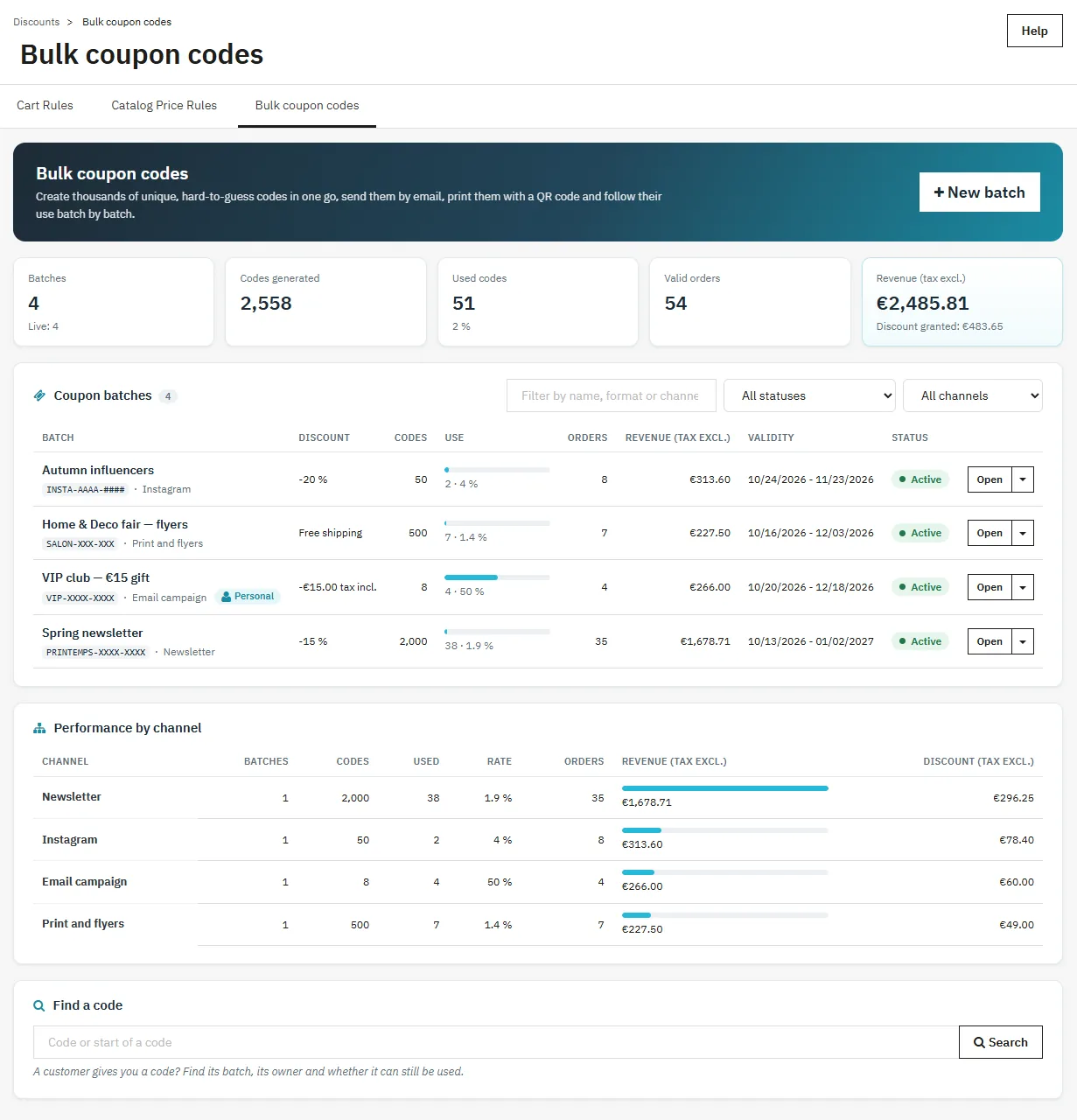
The dashboard summarizes all batches: codes generated and used, validated orders, revenue (tax excl.) and discount granted. The list can be filtered by name, status or channel, and a bar shows the redemption rate of each batch.
Installation and update
- In Modules > Module Manager, click Upload a module and select
dfbulkcoupons-2.0.0.zip. - The installation creates the Catalog > Discounts > Bulk coupon codes tab. The module’s Configure button also leads there.
Compatibility: PrestaShop 1.7.8, 8 and 9, PHP 7.1 to 8.5, Classic and Hummingbird themes.
Updating from 1.0 or 1.1: upload the new ZIP over the old one. Batches, codes, statistics and sending settings are kept. The update adds a uniqueness index on the codes and the direct link protection.
Creating a batch
Click New batch. A six-step wizard guides you: Campaign, Codes, Discount, Conditions, Restrictions and Review. Nothing is created before the last step. You can go back to any step from the progress bar, and a summary on the right shows a live example code, the discount, the validity and the security level.
1. Campaign
The batch name is used in statistics and exports. The channel indicates where the codes will be distributed (email, newsletter, SMS, social media, influencers, affiliates, print, physical store, customer service or a custom name). It is used to compare campaigns. An internal note is optional.
2. Codes
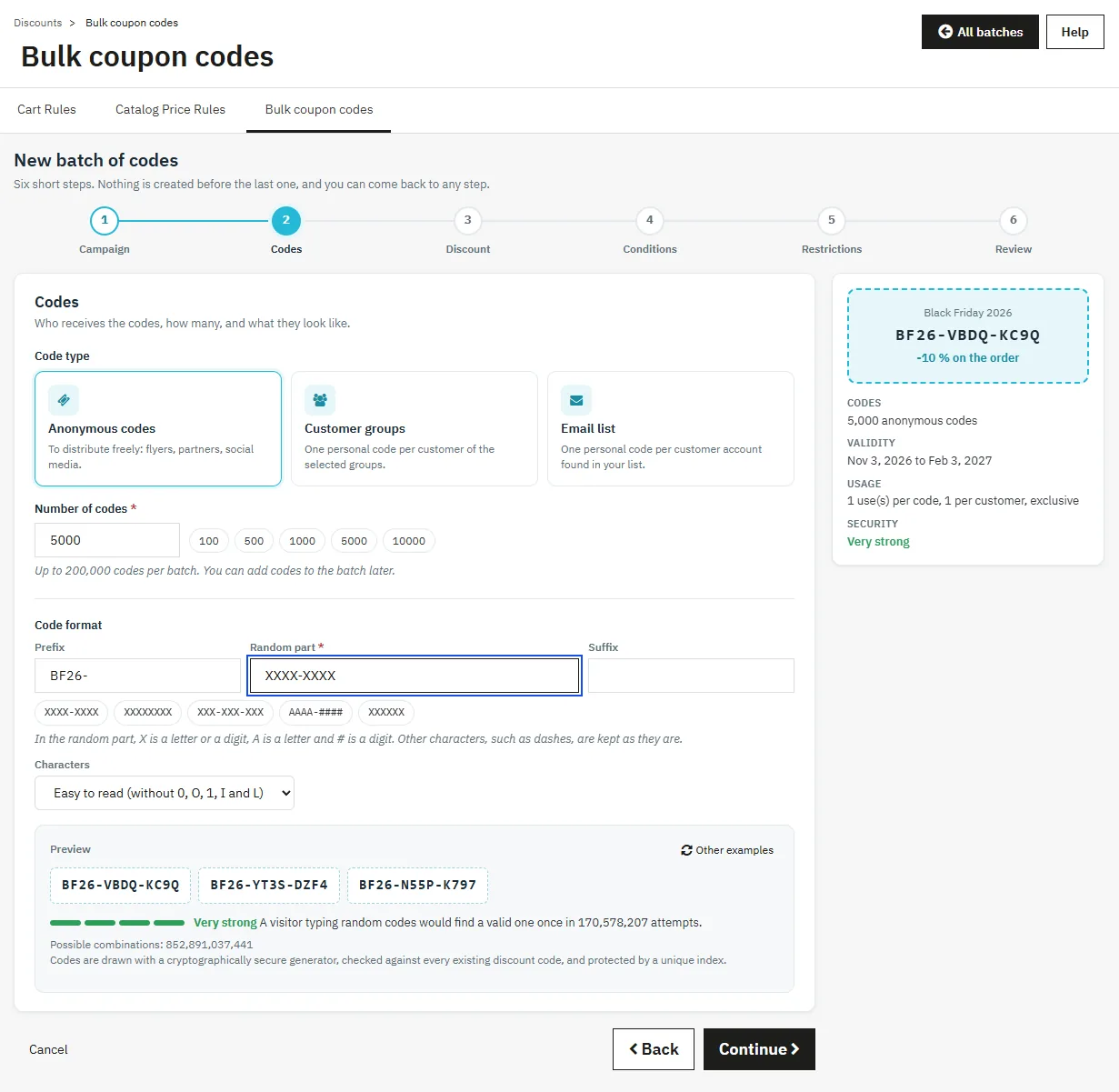
- Anonymous codes: from 1 to 200,000 codes, to distribute freely. Quick-choice buttons offer 100, 500, 1,000, 5,000 and 10,000.
- Customer groups: one personal code per active customer of the selected groups (guest accounts excluded), with the “Newsletter subscribers only” option. The number of customers in each group is displayed.
- Email list: one personal code per customer account found in the pasted list. Addresses without an account are ignored and their number is shown.
A personal code only works for the customer account it is assigned to.
The format consists of a prefix, a random part and a suffix. In the random part, X is a letter or a digit, A a letter and # a digit; other characters, such as hyphens, are kept. Ready-made formats can be chosen in one click. The “Easy to read” set excludes 0, O, 1, I and L. The preview shows three examples, the number of possible combinations and a security indicator.
3. Discount
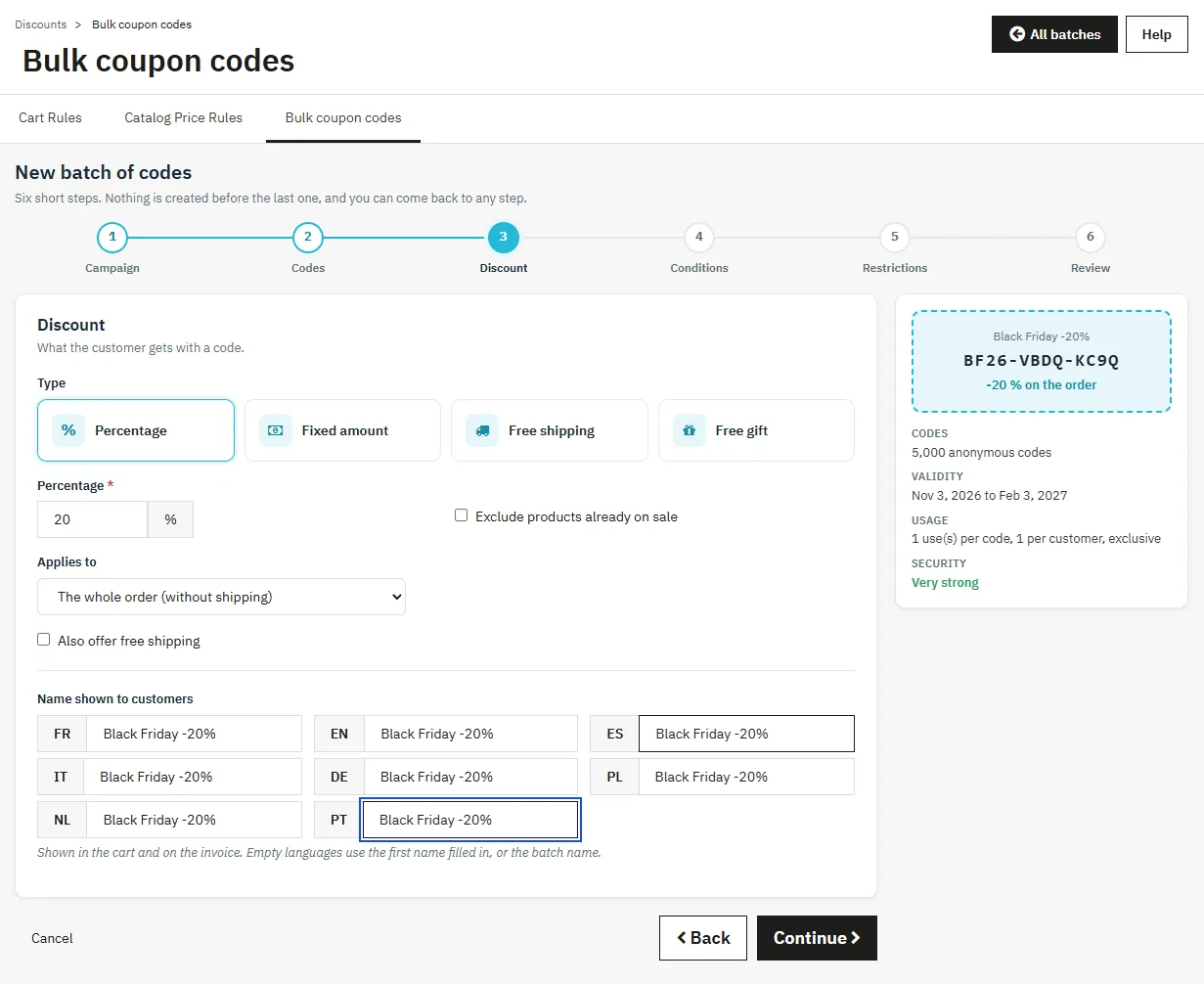
Types: percentage, fixed amount (tax excl. or tax incl., in one currency, with a partial use option), free shipping or gift (default combination of the product). A percentage or an amount applies to the whole order excluding shipping or to one specific product; a percentage can also target the cheapest product or the products of the restriction. The name shown to customers appears in the cart and on the invoice, in each language.
4. Conditions
Start and end dates (shop time zone), uses per code and per customer (1 and 1 for single-use codes), minimum amount with currency, taxes and shipping, and priority. The Exclusive codes option, enabled by default, prevents two codes of the batch from being used in the same order, as well as with another discount that is also exclusive. For personal codes, the code can be displayed in its holder’s cart. Codes can be created disabled so that they can be enabled later.
5. Restrictions
Restriction by products (search by name, reference or ID), categories or brands (filterable lists), with a minimum quantity of matching products. Allowed customer groups, delivery countries and, in multistore, shops. A field left empty imposes no restriction.
6. Review
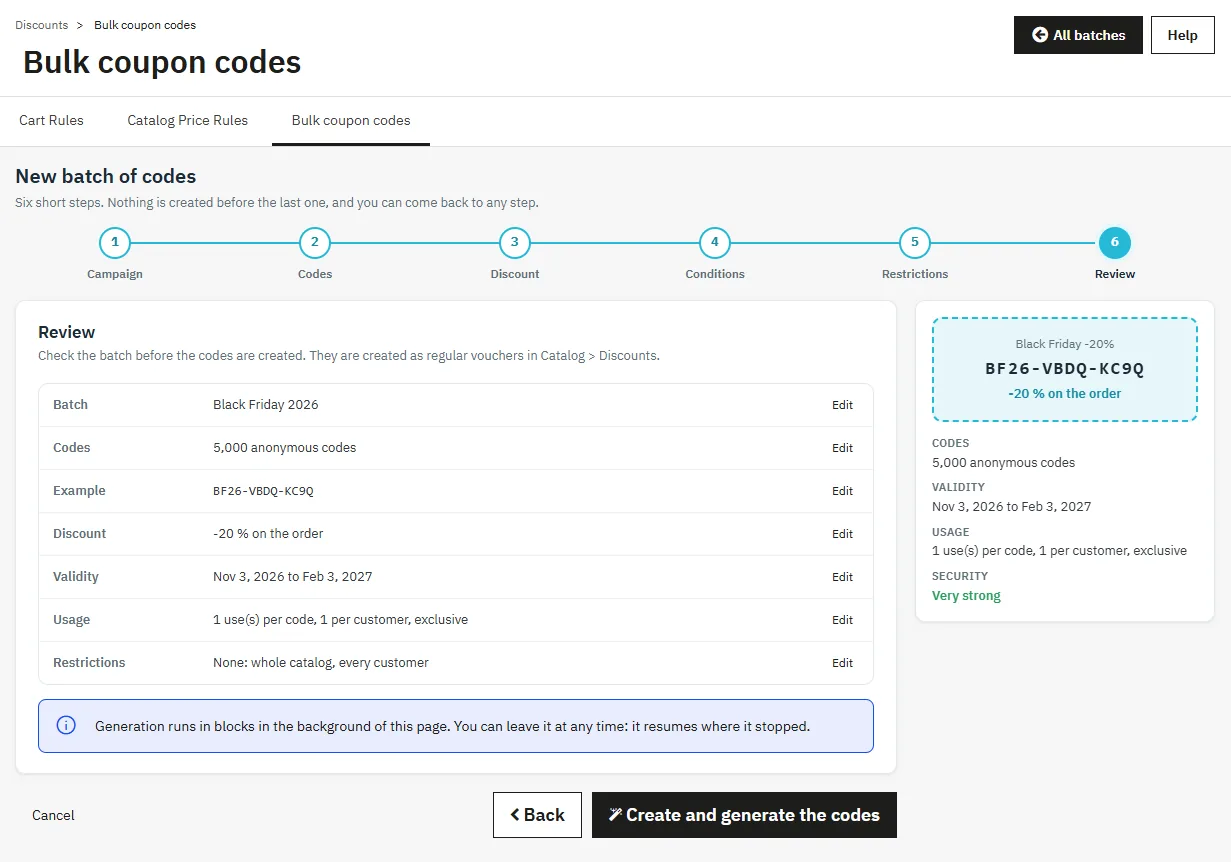
The last step summarizes the batch (codes, example, discount, validity, usage and restrictions) with an edit link to each step. The Create and generate the codes button starts the generation.
Code security
- Codes are drawn by a cryptographically secure generator, checked against all existing discount codes and protected by a unique index in the database.
- A format must have at least 6 random characters and offer at least 10,000 combinations per requested code. The indicator shows the probability that a visitor finds a valid code by typing at random: too easy (refused), acceptable, strong or very strong.
- The direct link accepts at most 10 unknown codes per connection within 15 minutes, to prevent it from being used to guess codes.
- CSV exports neutralize spreadsheet formulas in every cell.
Code generation
Codes are created in blocks of 500 with a progress bar, the speed and the remaining time. A button lets you pause and resume. You can leave the page: generation resumes where it stopped the next time the batch is opened. Each block is saved in full or not at all. At the end, the first codes are displayed with shortcuts to the CSV export, sending by email, printing and statistics. Each code is a cart rule whose description starts with [DFBC#id], visible in Catalog > Discounts.
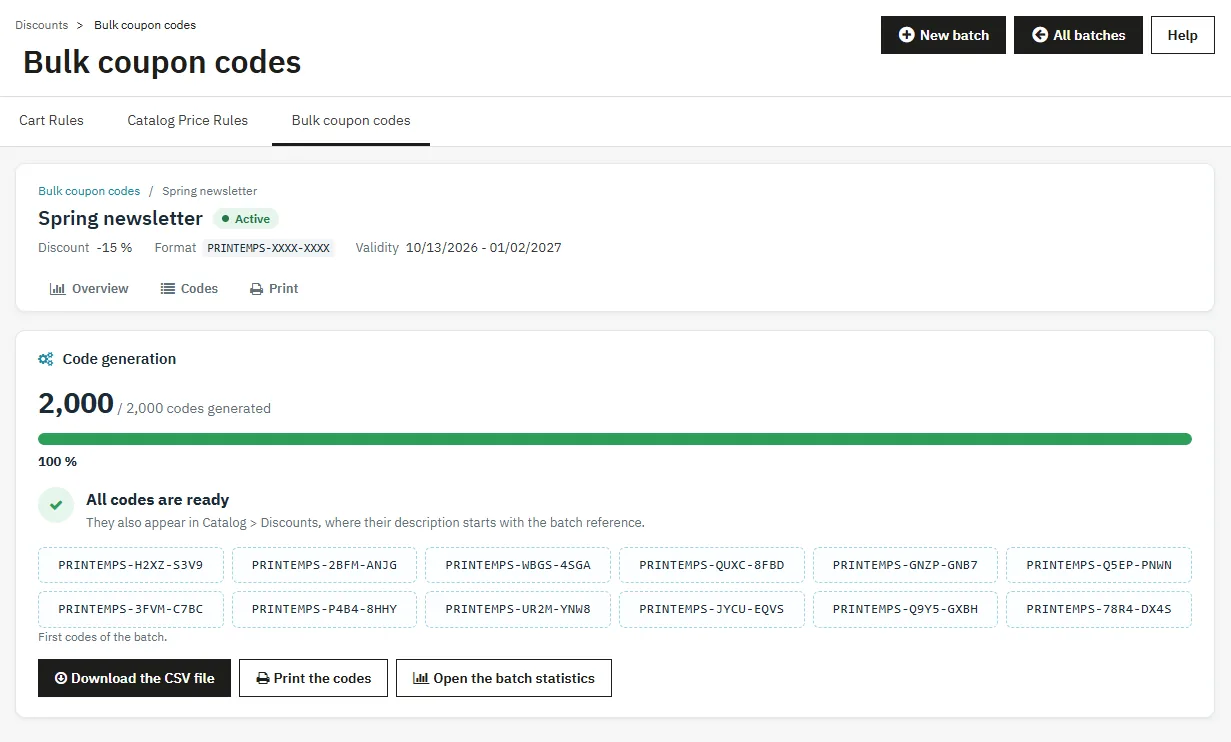
Batch page
Each batch has a common header (status, discount, format, validity) and tabs: Overview, Codes, Email (personal codes) and Print.
Overview
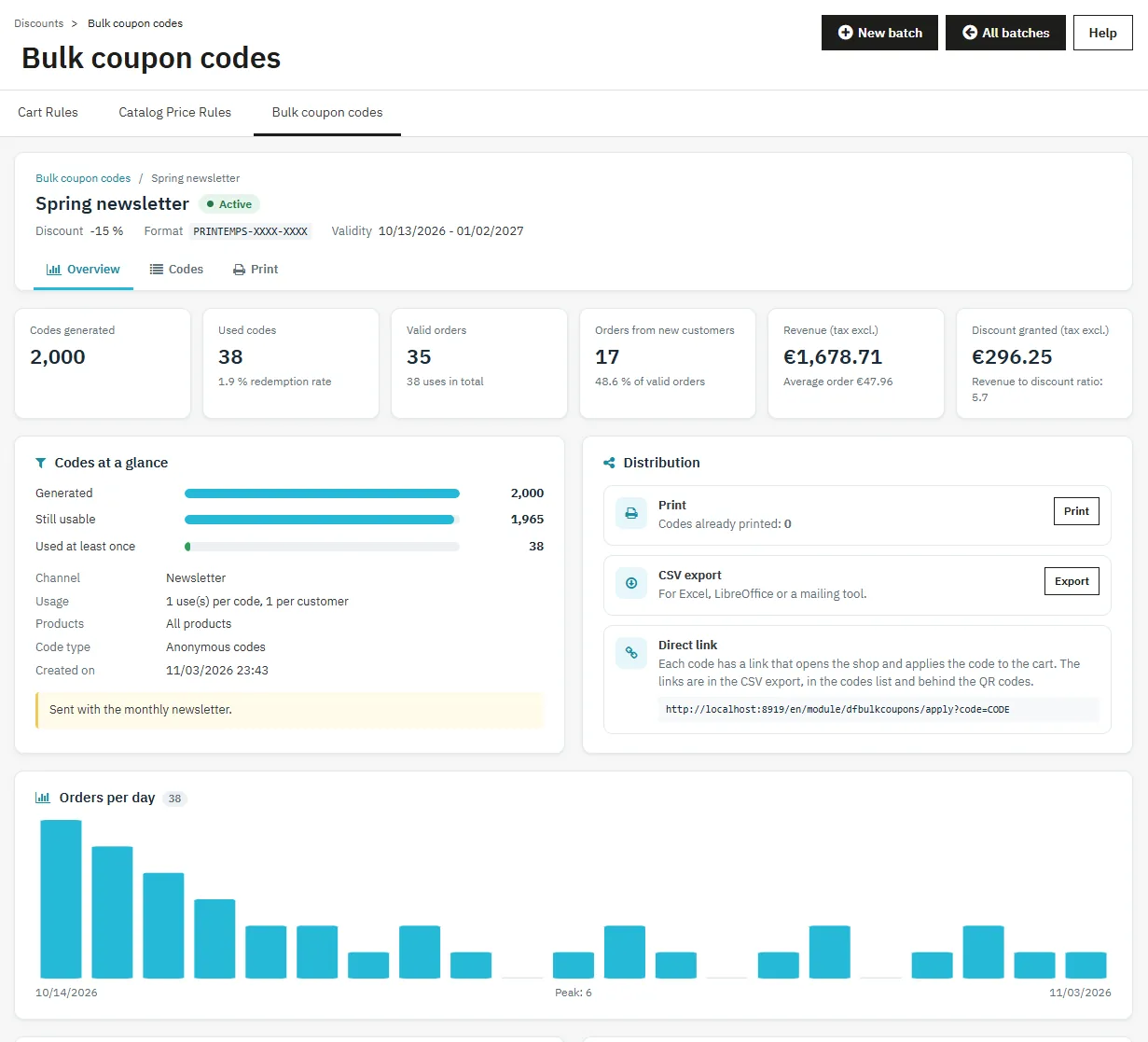
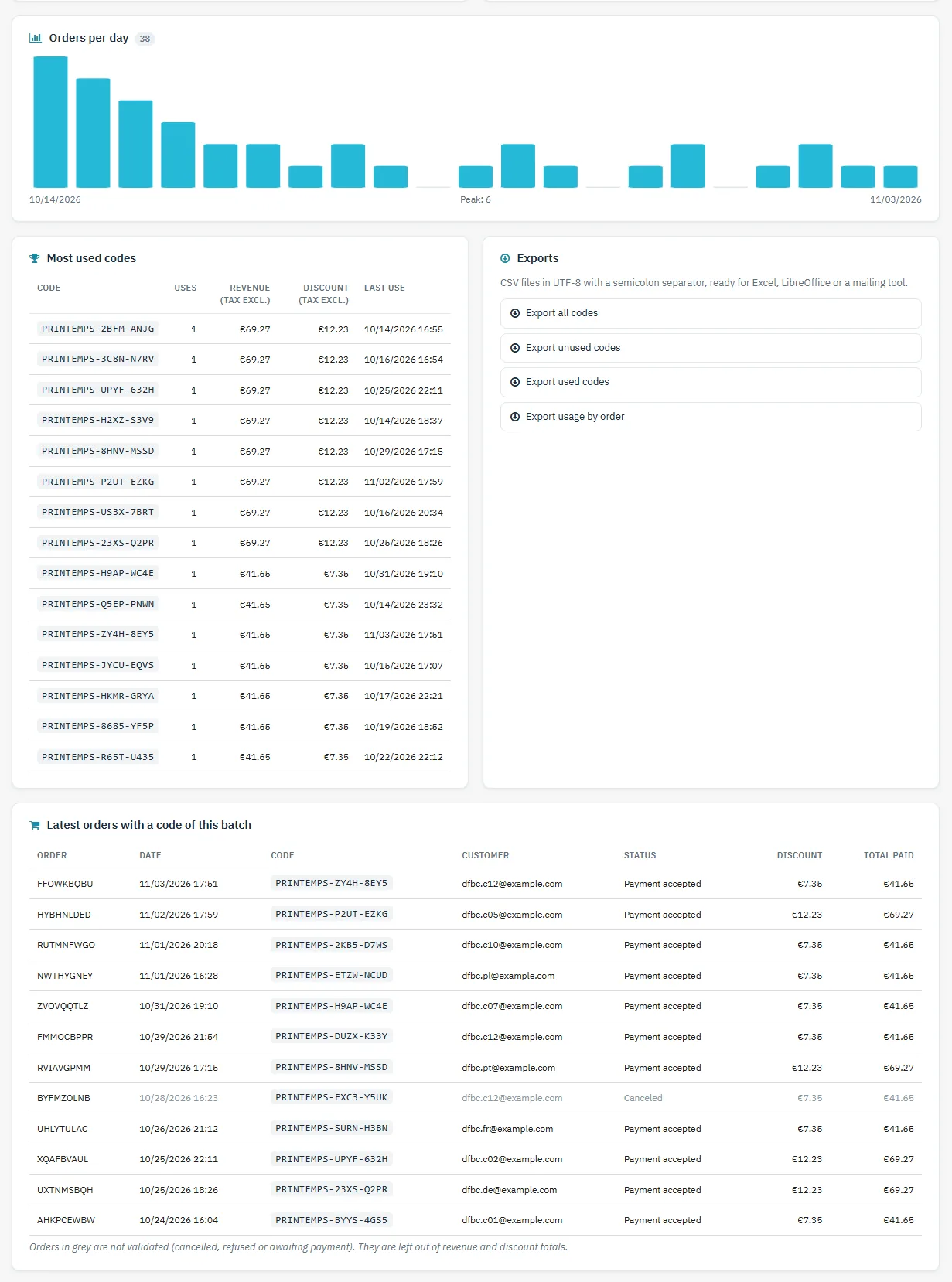
Codes generated, used codes and redemption rate, validated orders, orders from new customers, revenue (tax excl.) and average order, discount granted and revenue to discount ratio. A summary shows the codes generated, still usable and used at least once. The Distribution panel groups email, printing, export and the direct link. Next come the chart of orders per day, the most used codes, the exports and the latest orders. Only validated orders count in revenue and discount, converted into the default currency.
Manage the batch
- Details: name, channel and internal note. The new name is carried over to the description of the cart rules.
- End of validity: applies to all codes of the batch.
- Add codes to a batch of anonymous codes, with the same format and the same rules.
- Duplicate the batch, disable or enable all codes.
- Danger zone: delete the codes that were never used, or delete the batch. Confirmation is required; past orders keep their discount.
Code list
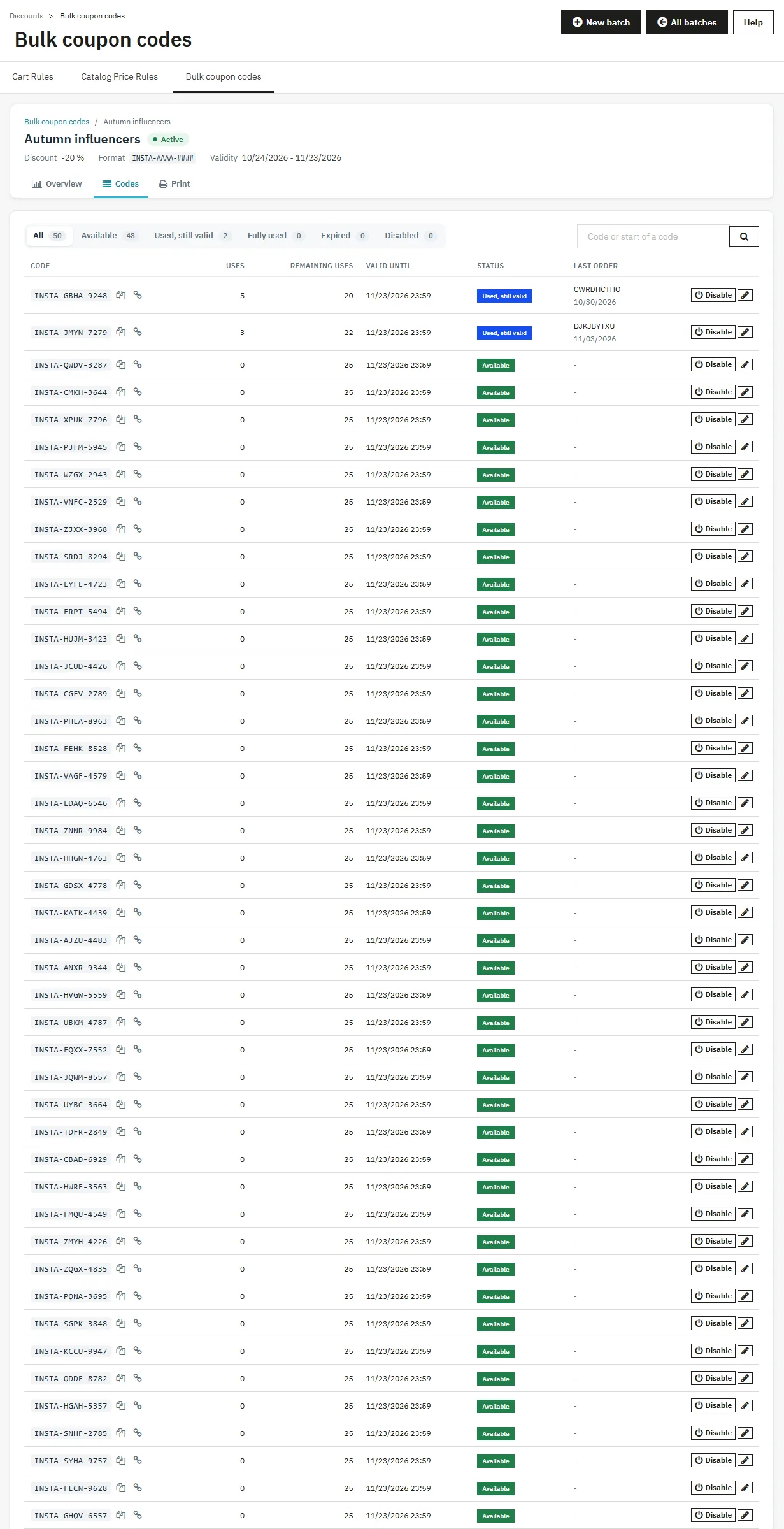
The Codes tab shows codes in pages of 50, filtered by status (available, used, fully used, expired, disabled) with the number of codes in each status. The search covers the beginning of the code or the customer’s email. For each code: copy of the code or its direct link, uses, remaining uses, sending date, last order, enabling or disabling, and a link to the native cart rule.
Sending codes by email
Available for batches of personal codes, in the Email tab.
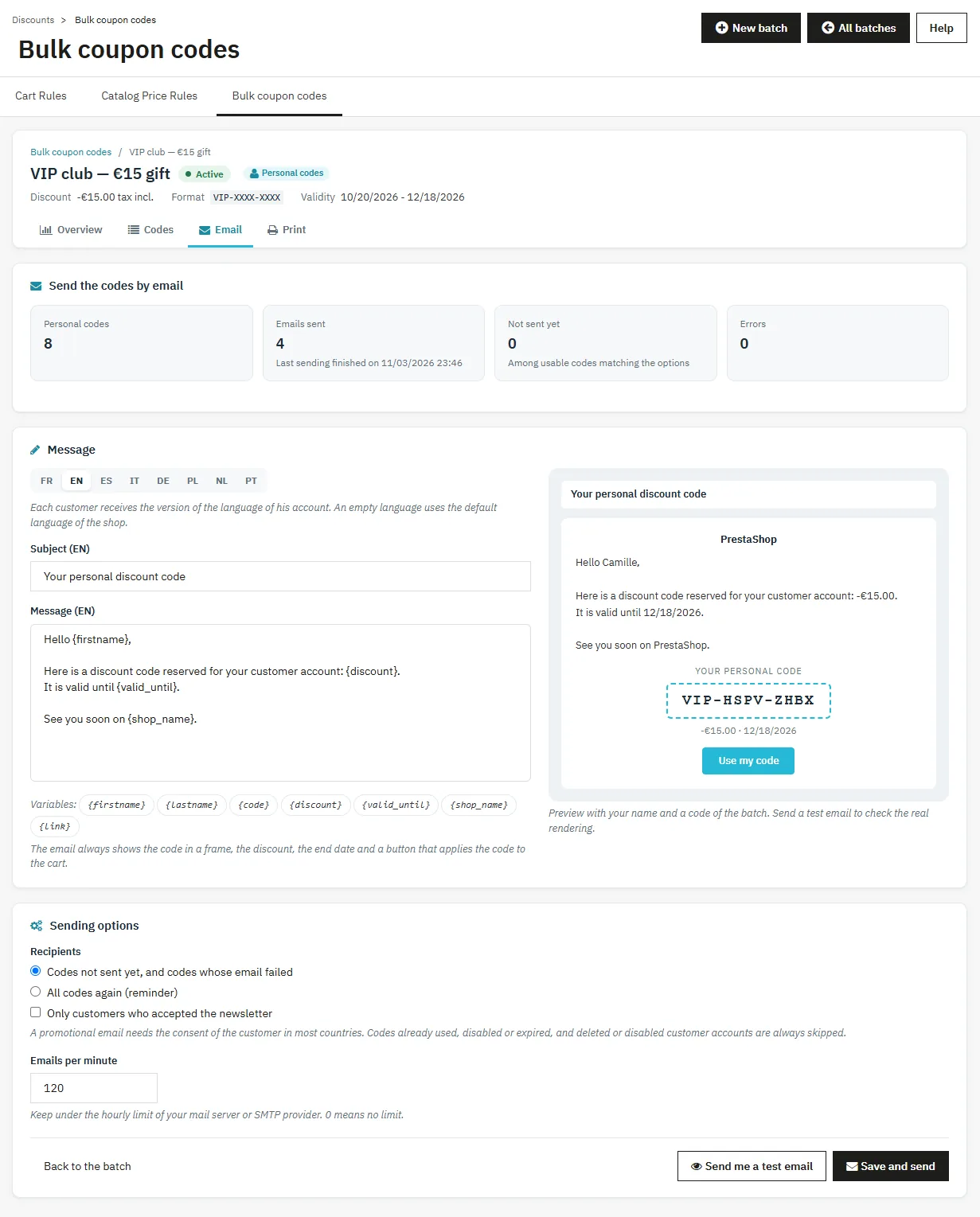
- For each language, edit the subject and the message. The variables
{firstname},{lastname},{code},{discount},{valid_until},{shop_name}and{link}can be inserted in one click. The preview updates as you type. - Click Send me a test email: it goes to your employee address, in your language.
- Choose the recipients: codes not sent yet (and failed codes), or all codes for a reminder. The “Only customers who accepted the newsletter” option is checked by default.
- Set the number of emails per minute to stay under your server’s limit, then click Save and send.
Sending is done in packets of 10, with a progress bar and a pause button. Each customer receives the version in their account language. Codes already used, disabled or expired and deleted or disabled accounts are skipped. Emails refused by the server are listed and retried at the next sending.
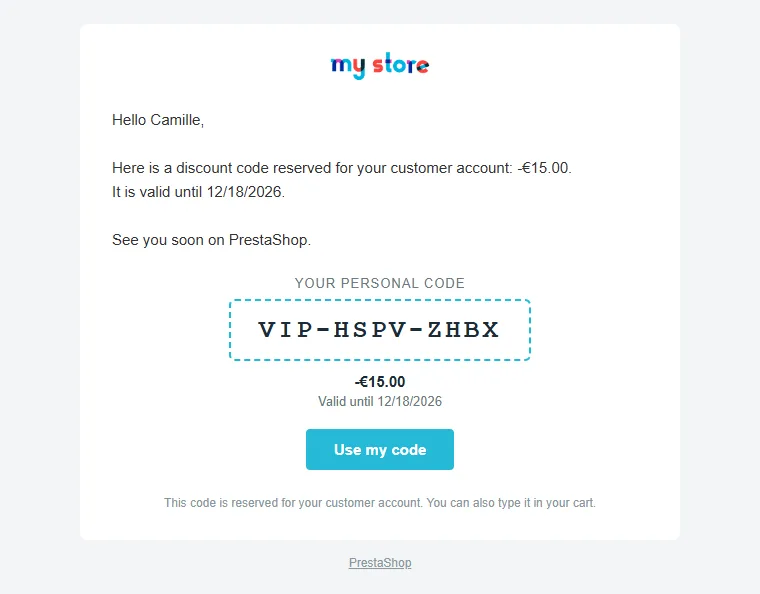
The customer receives their code in a frame, the discount, the end date and a button that applies the code to their cart. A text version is attached for email clients that do not display HTML.
Emails go through the configuration in Advanced Parameters > Email. If sending is disabled there, a warning at the top of the page says so.
Printing codes
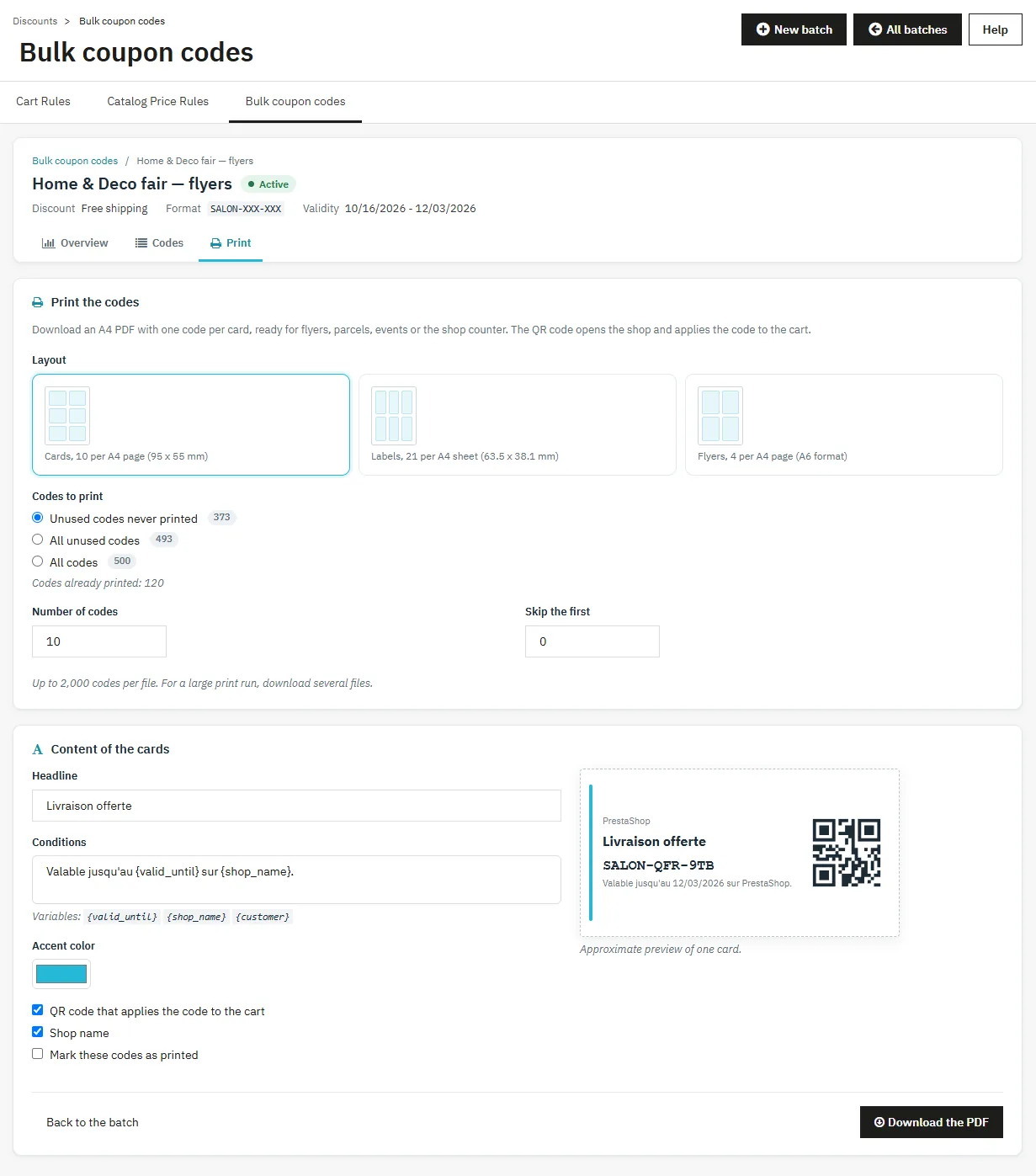
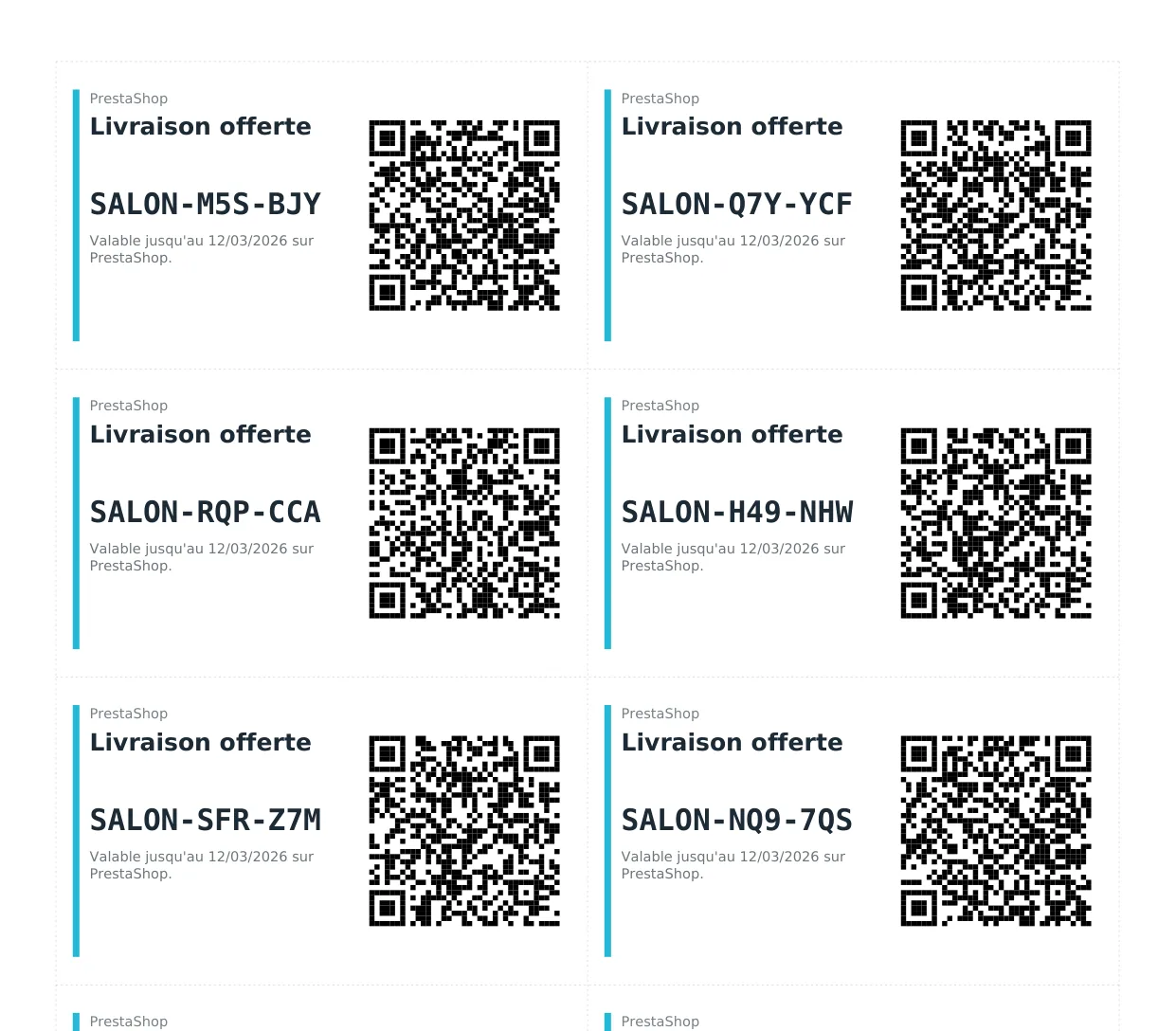
The Print tab generates an A4 PDF:
- Cards: 10 per page (95 x 55 mm), with cut marks.
- Labels: 21 per sheet (63.5 x 38.1 mm, standard 3 x 7 sheets).
- Flyers: 4 per page in A6 format, with cut marks.
Choose the codes (unused codes never printed, all unused codes or all codes), how many (2,000 per file at most) and the number of codes to skip at the start. Set the headline, the conditions (variables {valid_until}, {shop_name}, {customer}), the accent color, the QR code, the shop name and, for personal codes, the customer’s name. A preview of one card updates live. The “Mark these codes as printed” option avoids reprinting the same codes.
Direct link and QR code
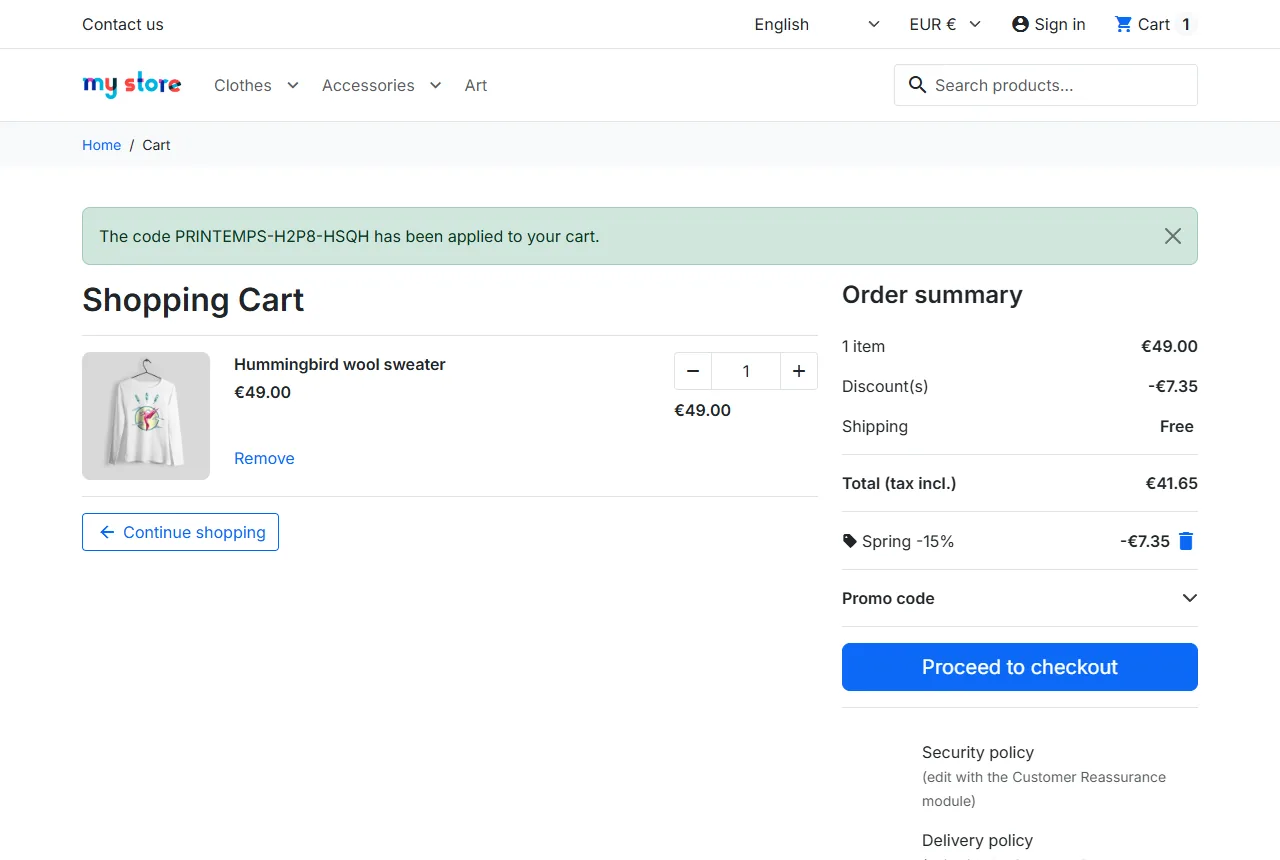
Each code has an address of the form https://your-shop.com/module/dfbulkcoupons/apply?code=CODE. It opens the shop and applies the code to the cart, with a confirmation message in the visitor’s language (Classic and Hummingbird themes). If the cart is empty, the code is kept for 30 days and applied as soon as a product is added. If the cart does not yet meet the conditions, the reason is displayed and the code is applied automatically as soon as it does. For a personal code, the visitor is asked to log in, then the code is applied. This link is behind the printed QR codes, on the button in the emails, in the code list and in the CSV export.
CSV exports
Files are in UTF-8 with a semicolon separator, readable directly in Excel.
- Codes (all, unused or used): code, status, uses, remaining uses, validity dates, email, customer’s first and last name, last use, last order, sending date, printing date, direct link.
- Usage by order: order date, ID, reference and status, whether the order is validated, code, customer, discount and total tax excl. and tax incl., currency.
Performance by channel and code lookup
As soon as several channels are used, the dashboard shows a table by channel: batches, codes, used codes, rate, orders, revenue (tax excl.) and discount (tax excl.), sorted by revenue. The Find a code block finds the batch, the holder, the end date and the status of a code a customer gives you.
Uninstallation
Uninstalling deletes the module’s tables (batches, sending and printing history). Codes already generated remain active cart rules in Catalog > Discounts.
Troubleshooting
- Generation stops: reopen the batch or click Resume. A specific message is displayed if the database refuses the inserts; no partial code is left behind.
- “This format is too easy to guess”: add random characters or switch to the full alphabet.
- Failed emails: check Advanced Parameters > Email with a test email, then restart sending for unsent codes.
- The QR code does not reduce the cart: the displayed message indicates the missing condition. For a personal code, the customer must log in to their account.
- “Too many codes were tried”: the direct link protection lifts by itself after 15 minutes.