
DataFirefly Advent Calendar: advent calendar for PrestaShop
Installation and upgrade, settings and reminder cron, ready-made models, doors and discount codes, instant win, preview, emails, prize draw, statistics and troubleshooting.
Installation and upgrade
Install the module from Modules > Module Manager > Upload a module by sending the ZIP file, or drop the dfadventcalendar folder into the /modules/ directory of your shop and click Install. The same ZIP works from PrestaShop 1.7.8 to 9.x.
Installation creates the module tables, registers its hooks, creates the calendar page (one address per language) and adds the Catalog > Discounts > Advent calendar tab. Door images are stored in /img/dfadventcalendar/, outside the module folder.
Upgrading from 1.0.0: upload the new ZIP and PrestaShop runs the migration. Calendars, doors, participants and codes are kept. The previous page address is kept in every language so that links already sent by email keep working.
Module settings
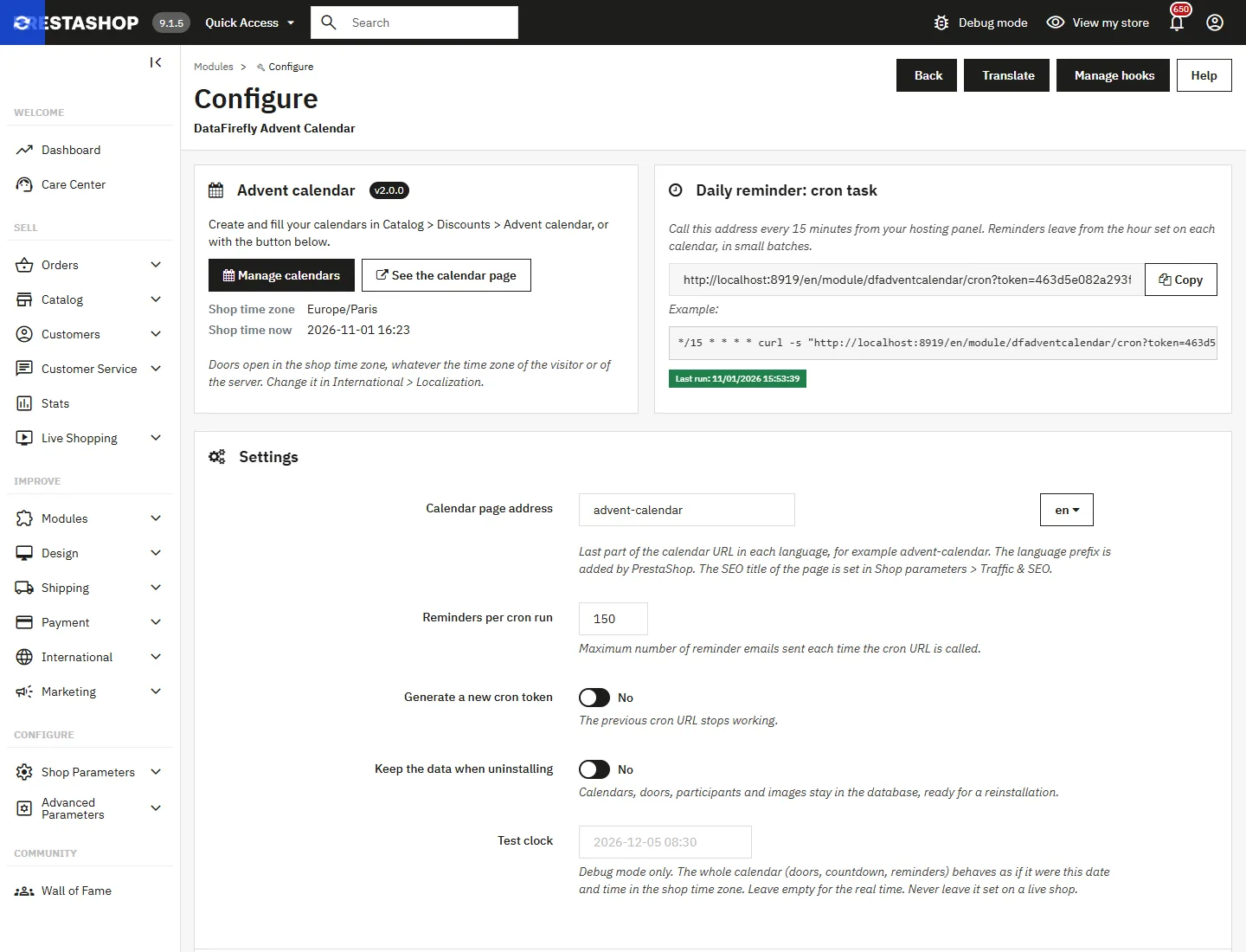
The module configuration page (Configure button) gathers the settings shared by all calendars.
- Calendar page address: one address per language, for example
/advent-calendarin English and/calendrier-de-l-aventin French. The module refuses an address already used by another page. The SEO title of the page is set in Shop Parameters > Traffic & SEO. - Shop time zone and time: doors open in this time zone, whatever the time zone of the visitor or of the server.
- Reminders per cron run: maximum number of emails sent at each call (150 by default).
- Keep the data when uninstalling: calendars, doors, participants and images stay in the database, ready for a reinstallation.
- Test clock (debug mode only): the whole calendar behaves as if it were the date and time you enter. The back office shows a warning as long as it is set. Never leave it active on a live shop.
Daily reminder: cron task
Copy the cron address shown and schedule it every 15 minutes in your hosting panel:
*/15 * * * * curl -s "https://www.your-shop.com/module/dfadventcalendar/cron?token=YOUR_TOKEN" > /dev/nullThe calendar works without cron: only the reminder emails depend on it. The last run is displayed, and the launch checklist of the dashboard flags a cron that has stopped.
Create a calendar
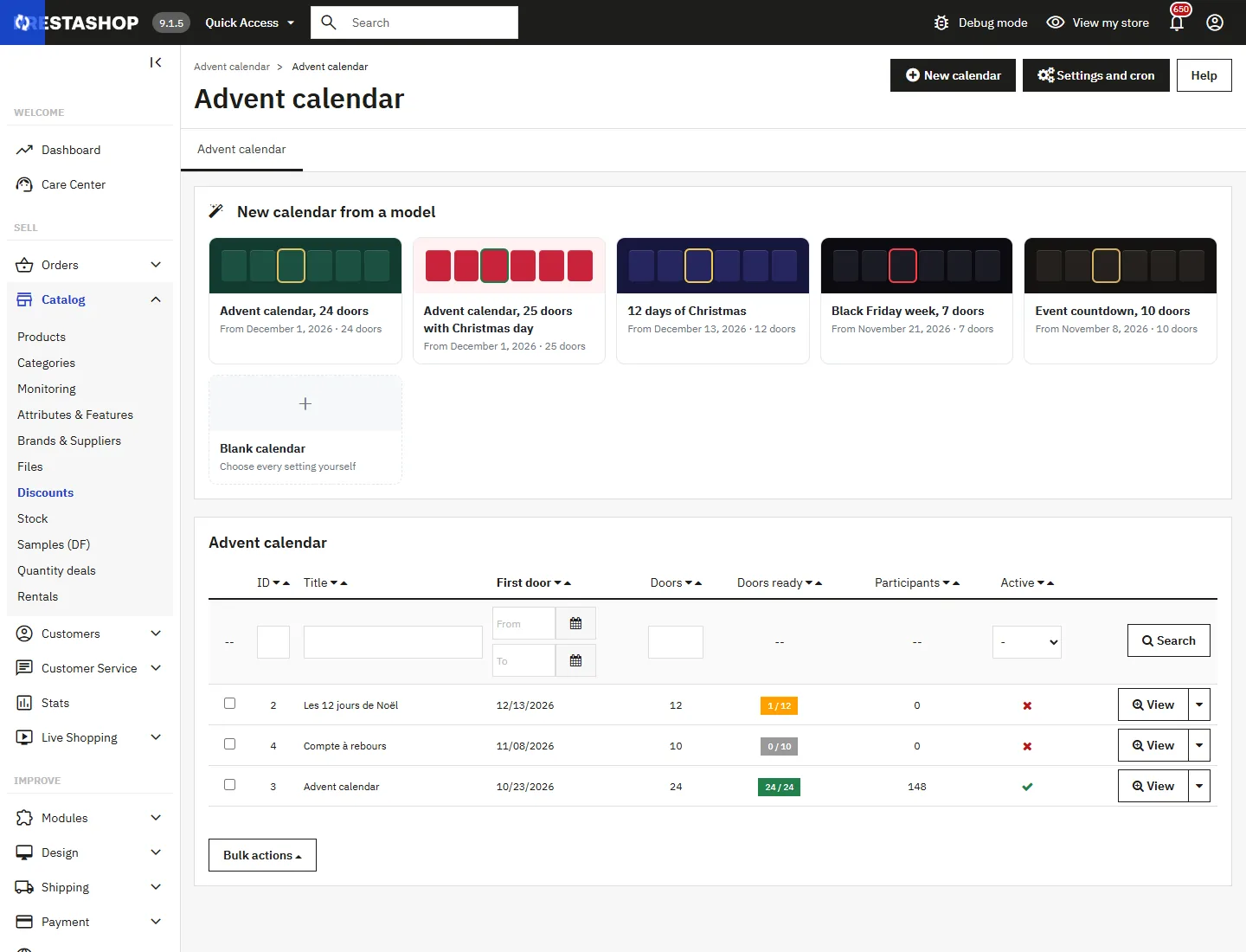
Open Catalog > Discounts > Advent calendar. The fastest way is to start from a model: dates, number of doors, theme and title in all your languages are prepared. You then fill the doors.
- Advent calendar, 24 doors or 25 doors with Christmas day, from 1 December;
- 12 days of Christmas, from 13 to 24 December;
- Black Friday week, 7 doors up to the last Friday of November;
- Event countdown, 10 doors before a launch or a private sale.
The Blank calendar or New calendar button lets you choose every setting.
Dates and opening
- Date of the first door and number of doors (1 to 60): one door per day from that date.
- Opening time of the doors: 00:00 for midnight, or an appointment time such as 08:00. Before that time, yesterday’s door is still the door of the day.
Look
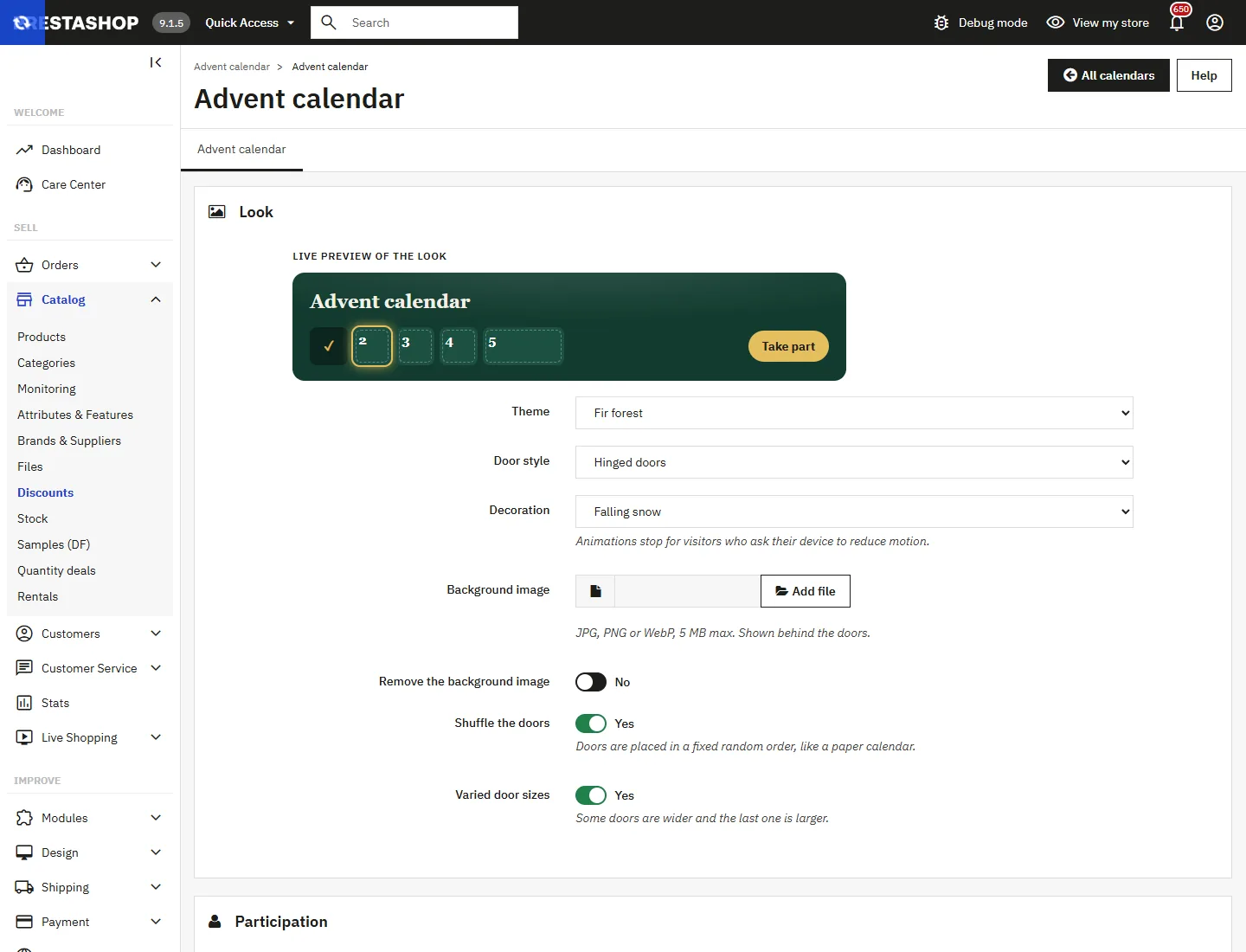
Nine themes are available: Fir forest, Kraft paper, Frost, Winter night, Candy cane, and four themes outside Christmas (Black and gold, Black Friday, Spring pastel, Summer lagoon). The Custom colors option enables four colors. Three door styles are available: hinged doors, gift boxes with ribbon and minimal tiles. The decoration animates the background: snow, stars, confetti or none. A live preview shows the result while you set it up.
With varied sizes, the grid fills without gaps on 6 or 4 columns. On mobile it switches to 4 even columns. Animations stop for visitors who ask their device to reduce motion.
Participation
- Email required to open the doors: when disabled, visitors open doors freely, but personal codes and games remain reserved for participants.
- Reserved for customer accounts: only signed-in customers take part, and their codes are linked to their account. It is the strongest protection against code harvesting with throwaway addresses.
- Confirm the email address (double opt-in) and an optional, unticked newsletter checkbox.
- Allow opening past doors: shared codes then stay valid until the end of the calendar.
- Consent text: add the link to your privacy policy.
Configure the doors
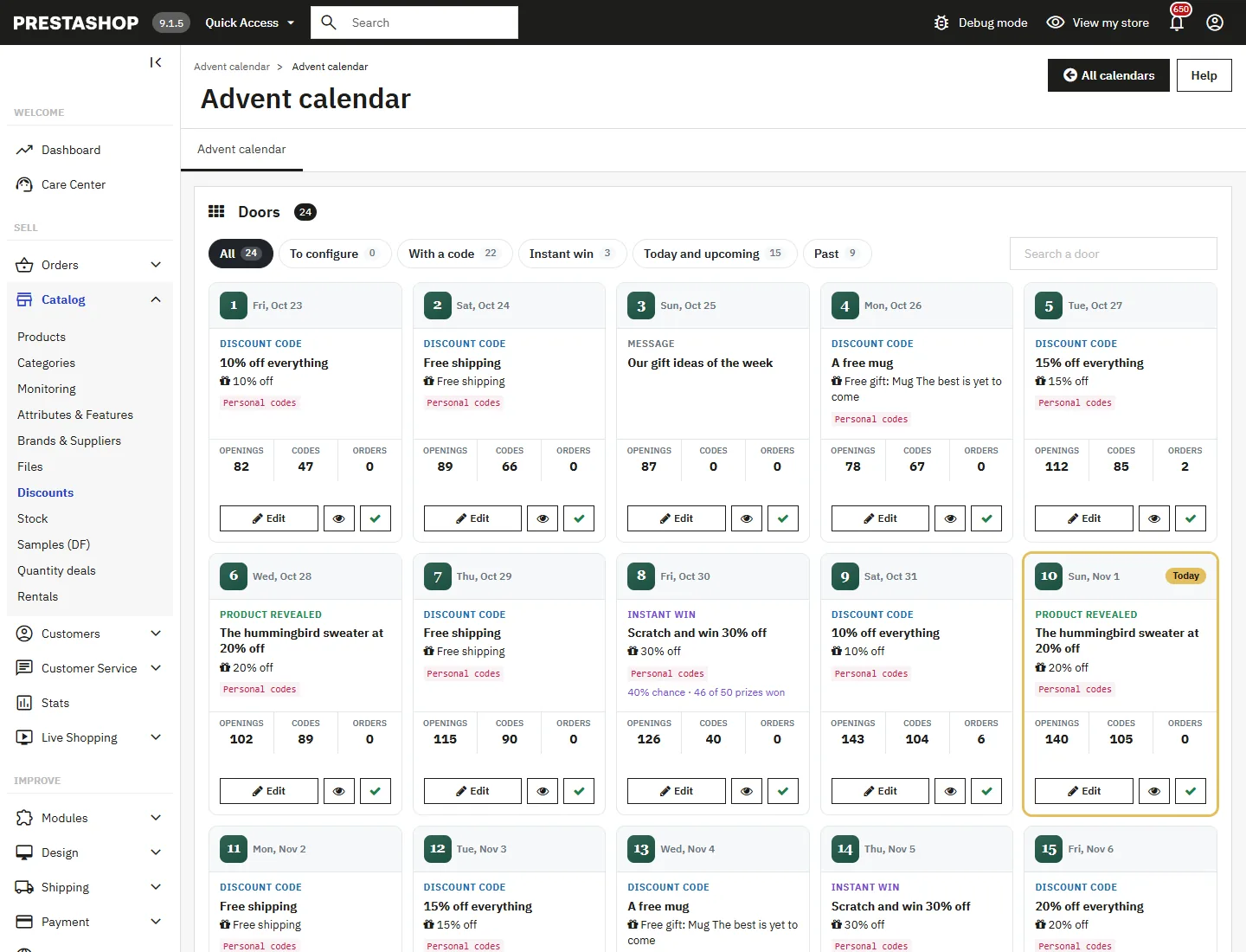
The calendar dashboard shows the doors as cards: date, type, reward, code, openings, revealed codes and orders. The To configure, With a code, Instant win, Today and upcoming and Past filters and the search box find a door at once. Each card lets you edit the door, preview it or activate it.
Door types
- Message: text, image and optional button.
- Discount code: the code is the star, on a ticket to copy or add to the cart.
- Product revealed: product card with price and add to cart button.
- Instant win: the participant tries their luck and wins the reward with the chance you set.
Reward and code
Percentage discount, fixed amount discount, free shipping, free gift product, or an existing cart rule of the shop with its own conditions. For the rewards created by the module:
- Personal code: a single-use cart rule is generated when the participant opens the door. It is linked to the customer account when known and is valid until midnight, plus the extra validity you choose.
- Same code for everyone: one cart rule per door, synced automatically. Leave the field empty for an automatic code (prefix, year and number, for example
ADVENT26-07). - Optional minimum order amount and restriction to the revealed product.
The previous door and next door buttons let you fill the calendar in a row. Short on time? Fill the empty doors applies a ready-made plan translated into all your languages.
Instant win
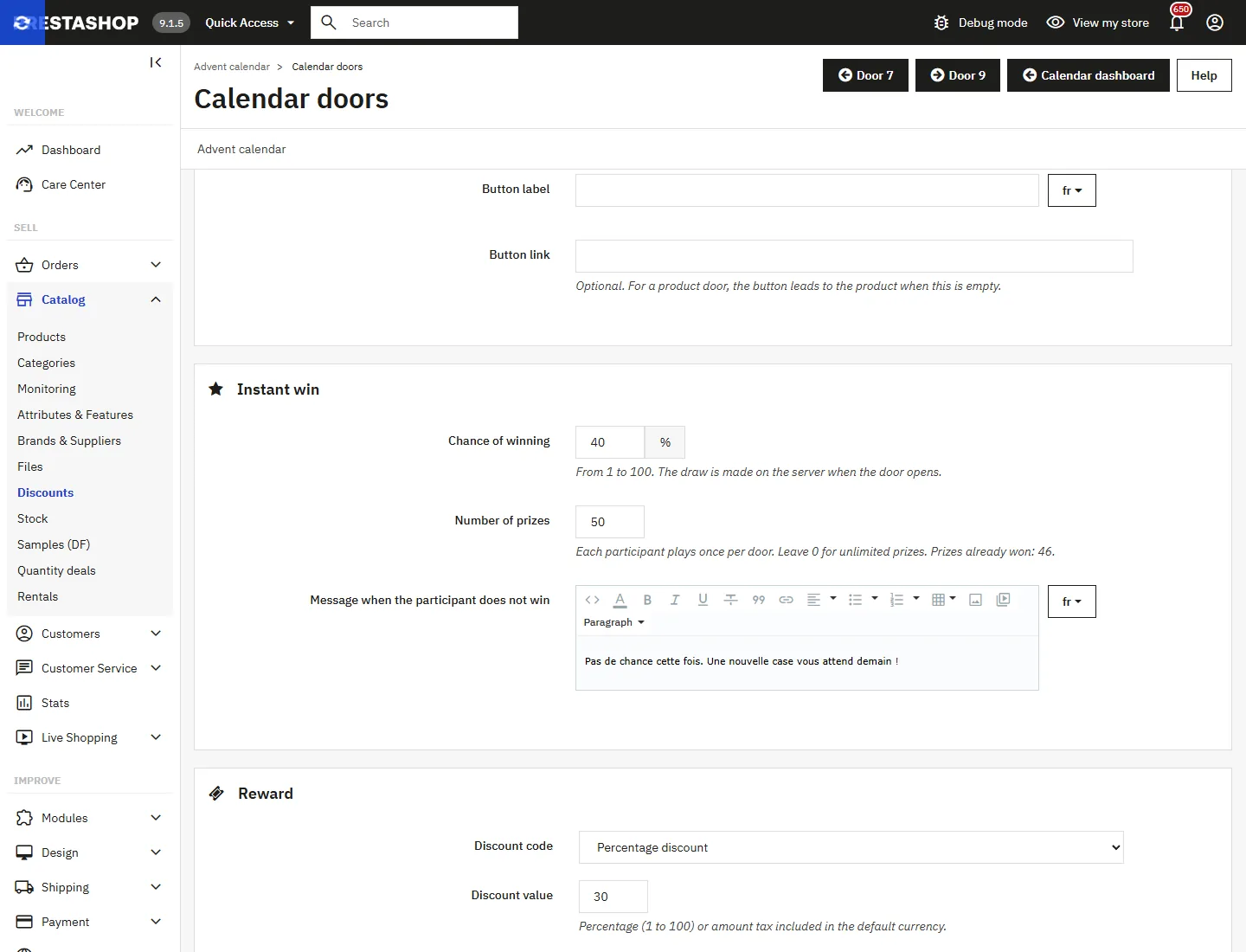
Set the chance of winning (1 to 100%), the number of prizes (0 for unlimited) and the losing message. The draw is made on the server when the door opens, once per participant. Opening the door again gives the same result. When all prizes have been won, the next participants see the losing message.
Preview and launch
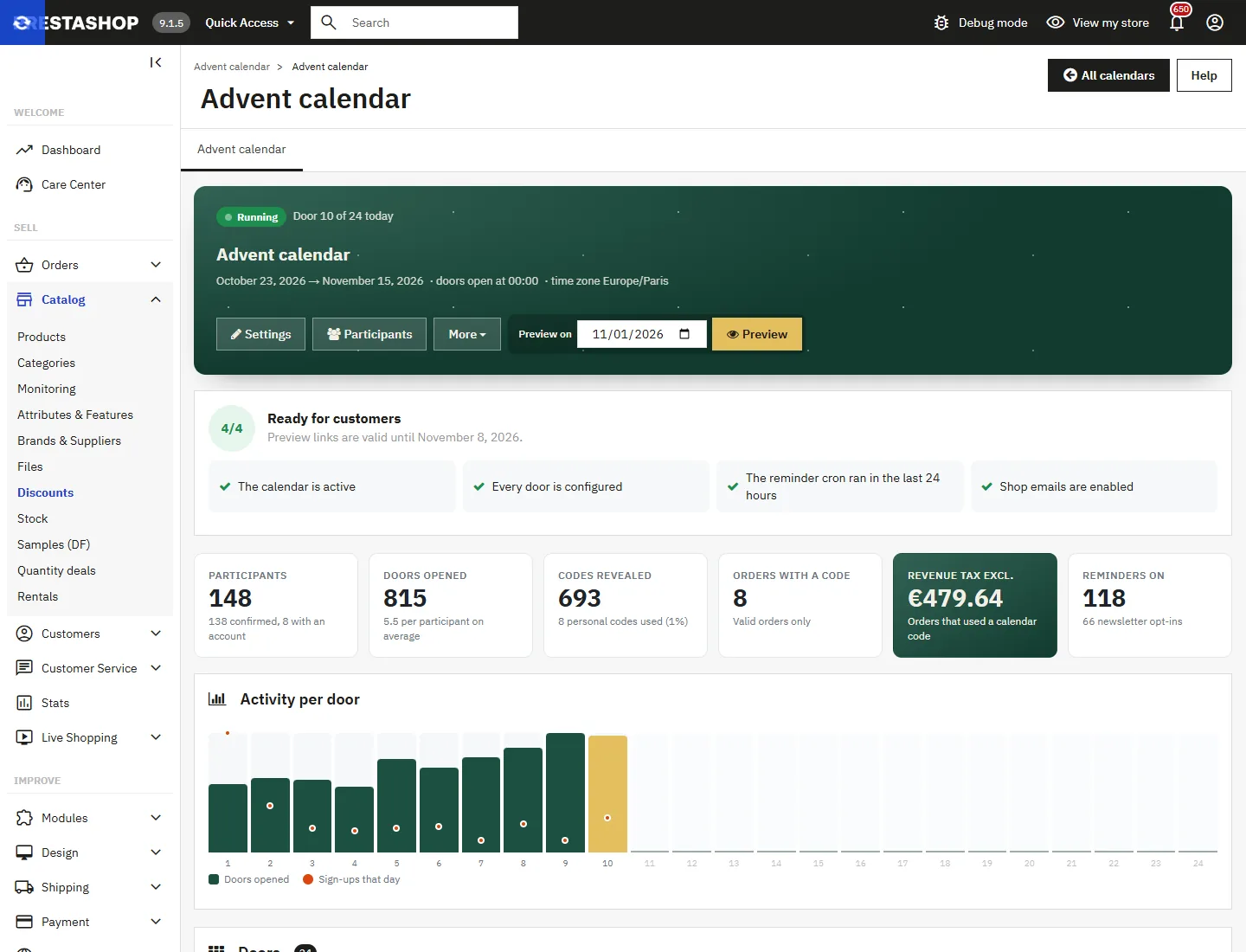
The dashboard gathers everything you need to launch the calendar:
- Preview on: pick a date and open the calendar as it will look that day. Codes shown are examples and nothing is saved. Preview links expire after 7 days.
- Launch checklist: calendar active, doors configured, reminder cron and shop emails.
- More > Send me the test emails: the four emails (reminder, welcome, confirmation, access link) go to the logged-in employee, in their language.
What customers see
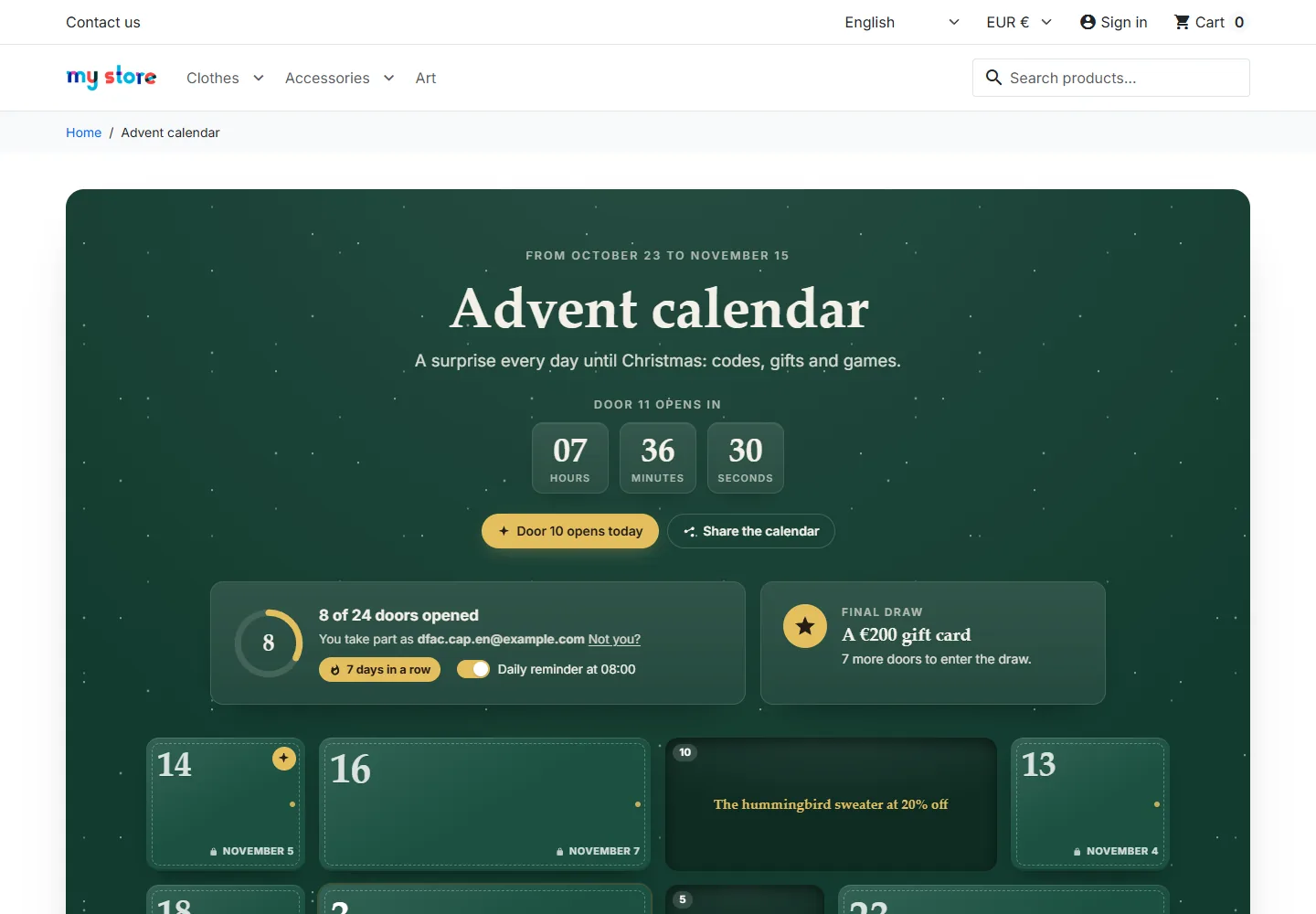
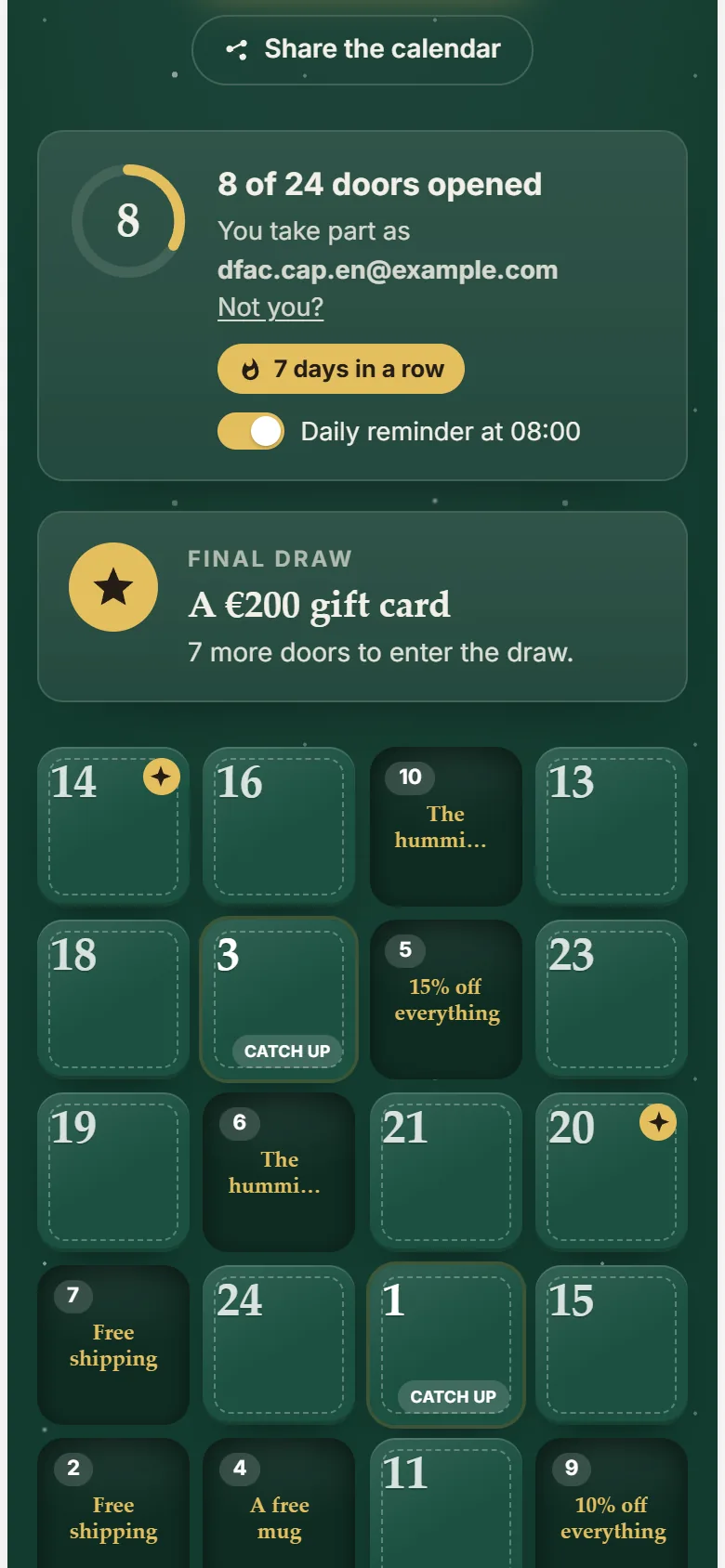
The calendar page opens on a countdown to the next door, with the door of the day highlighted. Once signed up, participants see their progress ring, their streak of days in a row and the daily reminder switch.
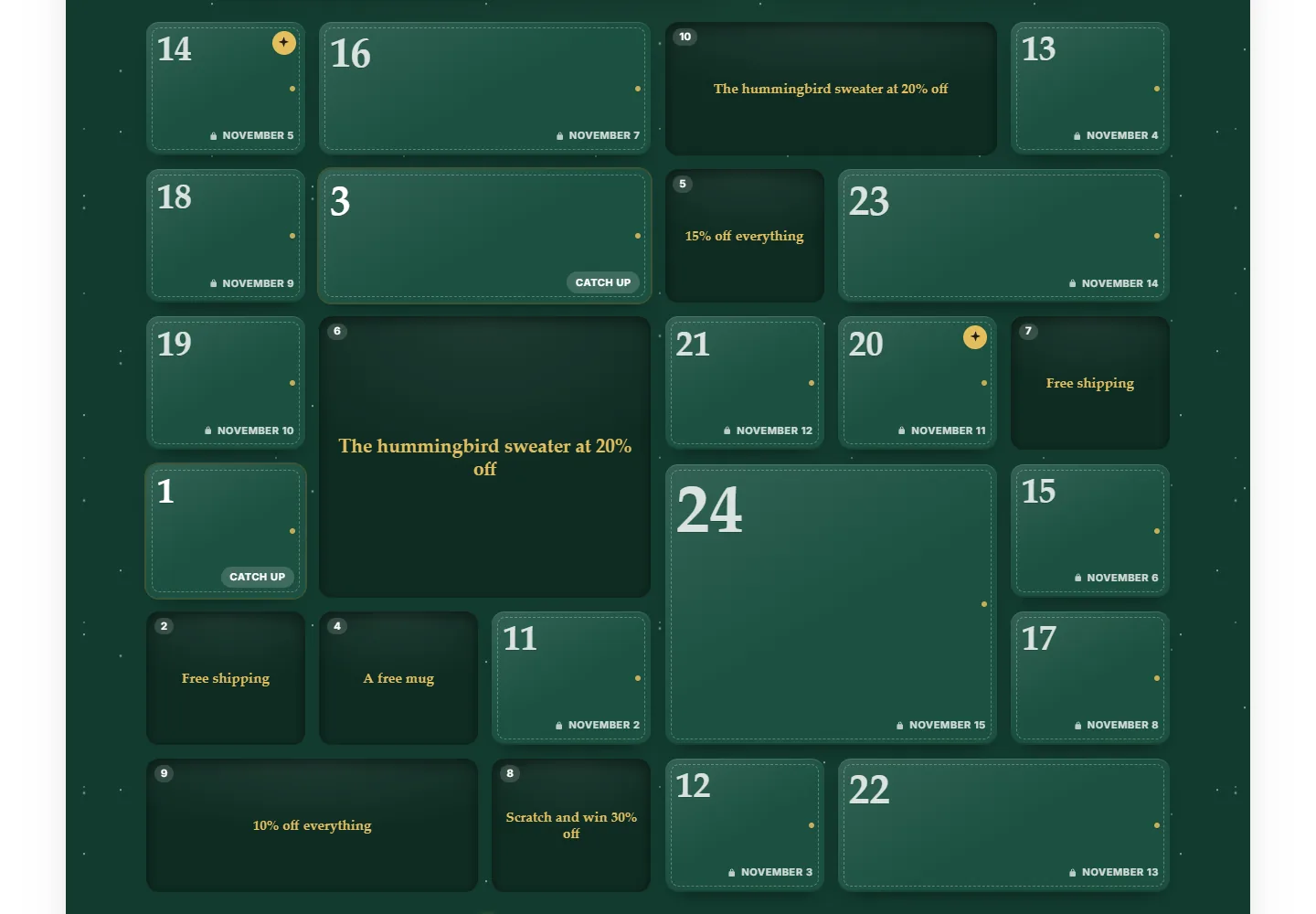
Doors have five states: today (animated glow), to catch up, opened (content visible), upcoming (padlock and date) and missed. A star marks game doors.
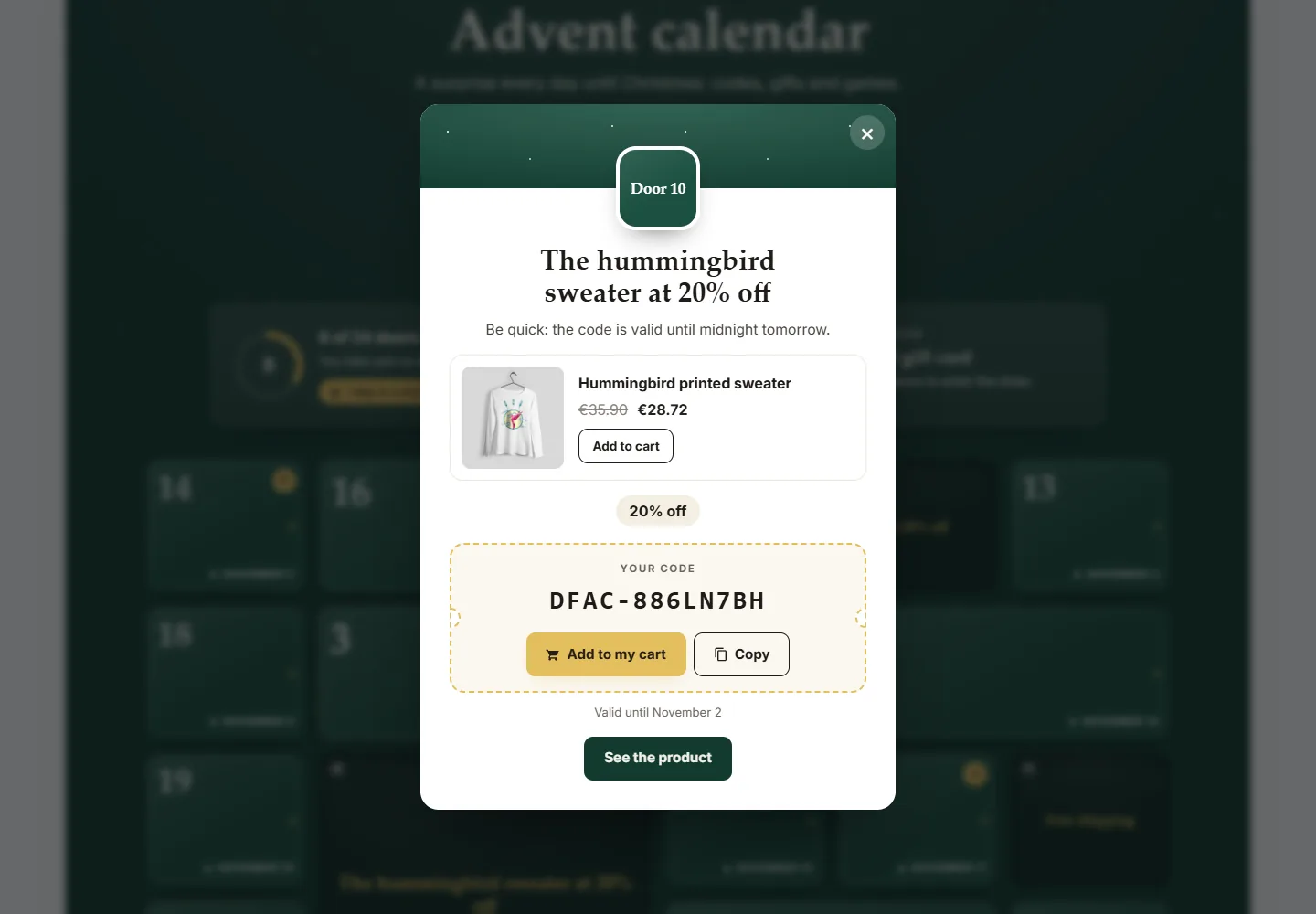
When a door opens, a window reveals the surprise: product with its price, code on a ticket, Add to my cart and Copy buttons. If the cart is empty, the code is kept for 14 days and applied to the first product added.
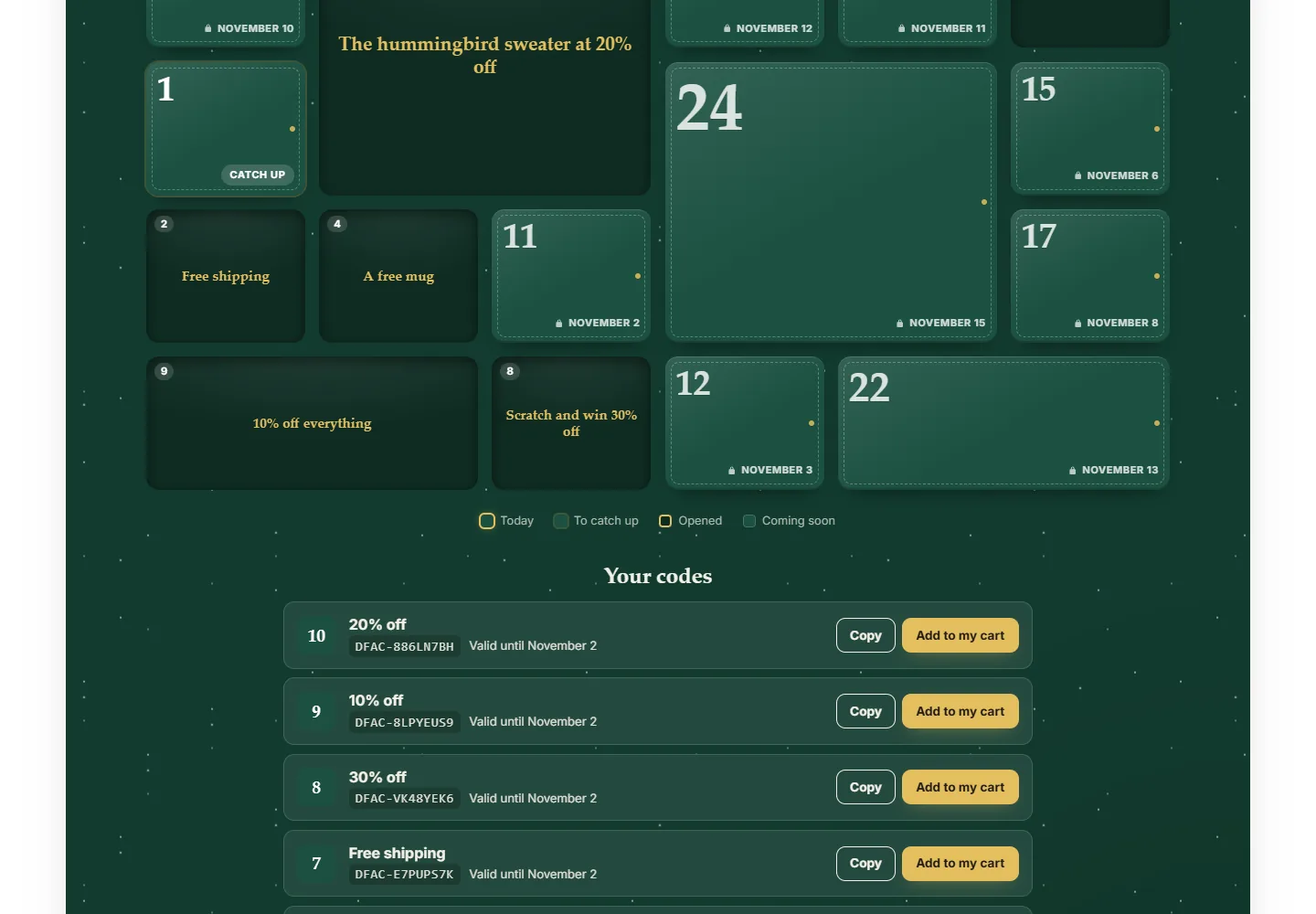
The Your codes summary lists the codes collected, with their validity and status (used, expired).
On mobile, the grid switches to 4 even columns and the panels stack.
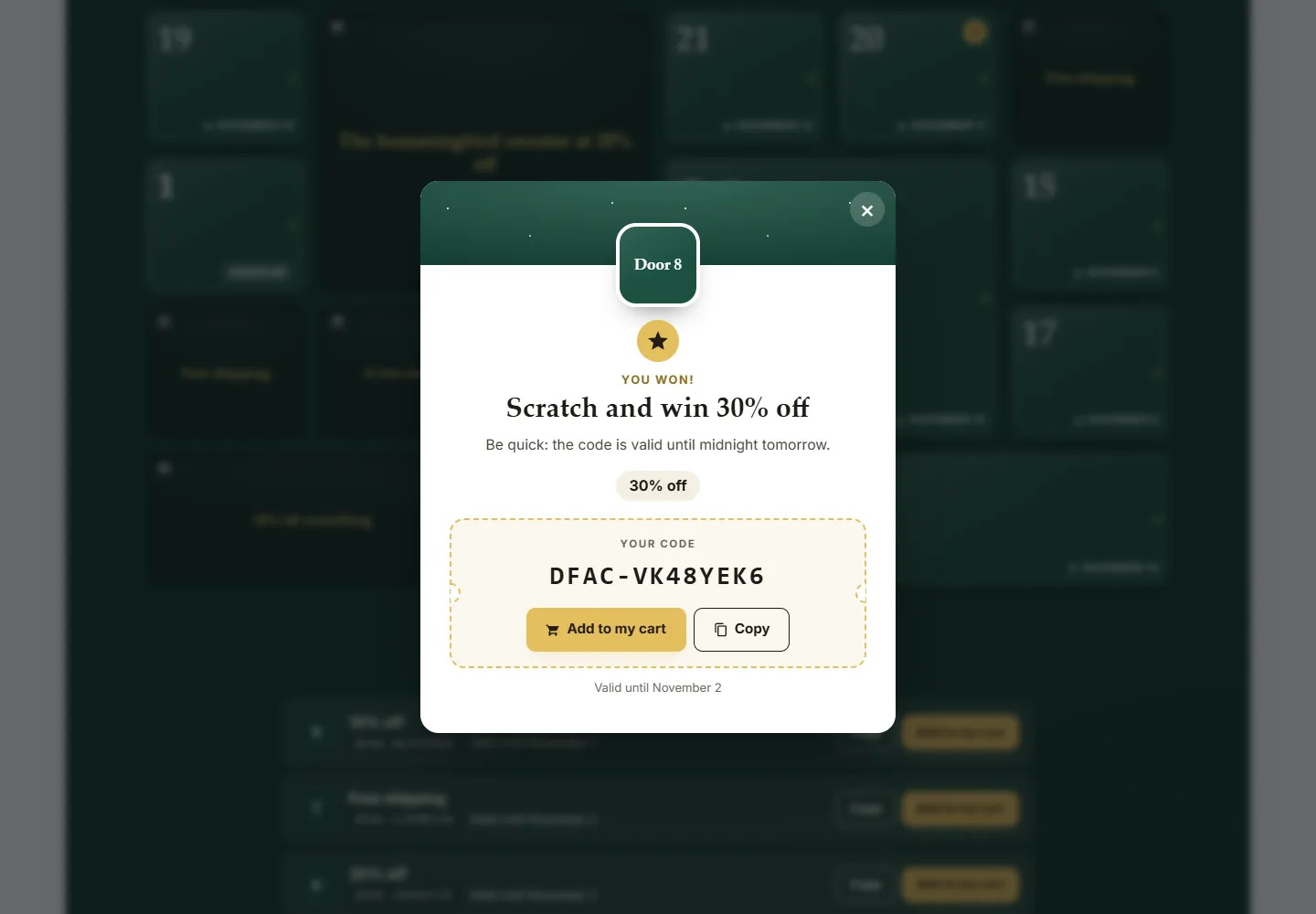
Instant win game
A game door lets the participant try their luck. If they win, they get the code as with a regular door. Otherwise they see the losing message and can play on the next game door. A visitor who has not signed up is invited to leave their email: one chance per participant.
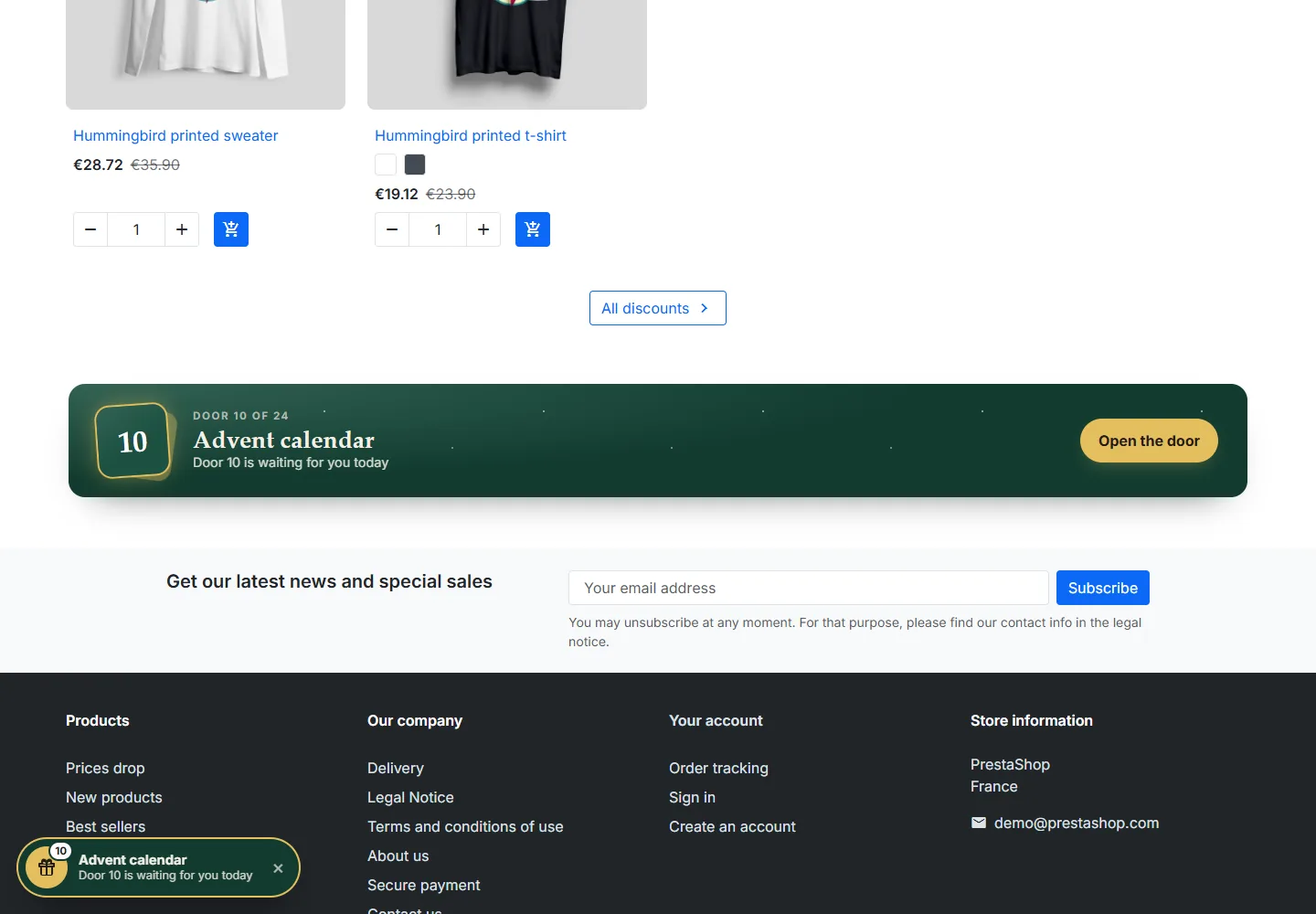
Home page banner and floating button
The banner shows on the home page during the calendar and, if you wish, a few days before it starts. The floating button, enabled in the calendar settings, recalls the door of the day on every page. Visitors can hide it until the next day. To place the banner elsewhere, add {hook h='displayDfAdventCalendar'} to a template of your theme.
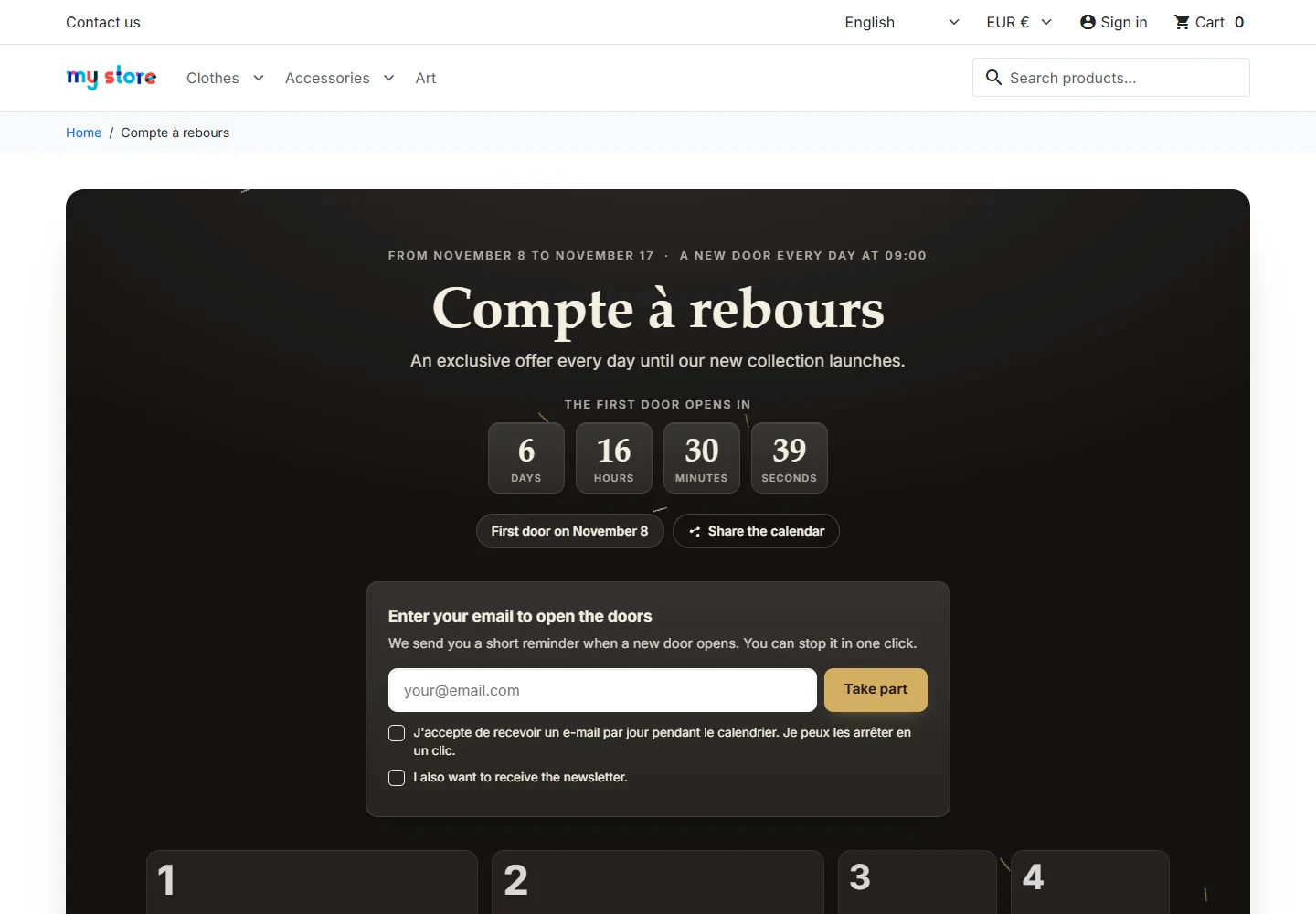
Countdowns outside Christmas
The same module drives any key moment: Black Friday week, a collection launch, sales, the anniversary of your shop. Choose a countdown model, a theme such as Black and gold, minimal tiles and an opening time. Before the start, the page shows the countdown to the first door.
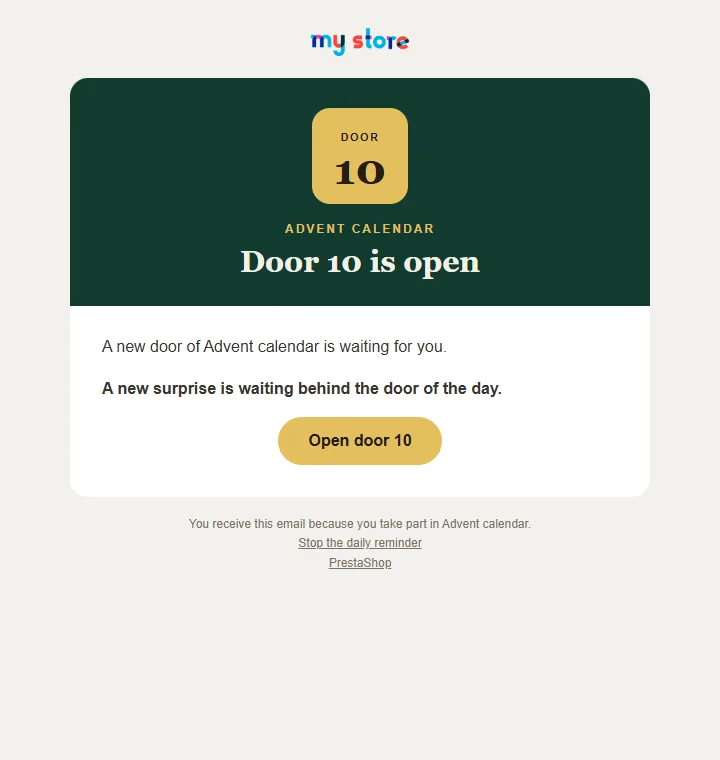
Reminders and emails
Every day, from the chosen time (never before the doors open), a short email announces the door of the day to confirmed participants who have not opened it yet. A participant receives at most one reminder per day, and none on the day they sign up: the welcome email is enough. Emails use the colors of the calendar theme.
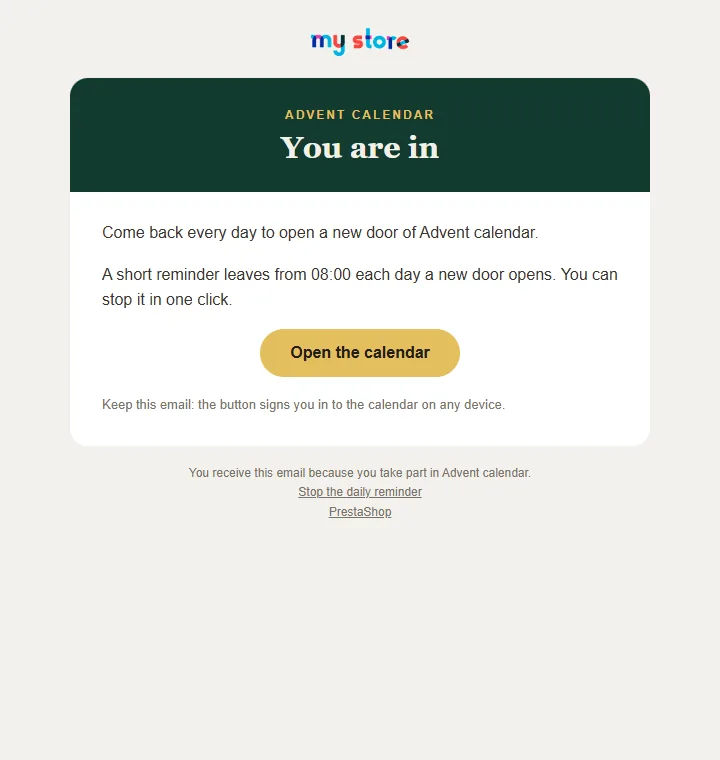
Four templates are provided in eight languages in mails/: dfadvent_reminder (reminder), dfadvent_welcome (welcome), dfadvent_confirm (address confirmation) and dfadvent_access (access link). A participant who types their address again receives an access link: the module never signs anyone in from a typed address, and the same address receives at most one email every 2 minutes. To customize the templates, copy them to themes/your-theme/modules/dfadventcalendar/mails/.
Participants
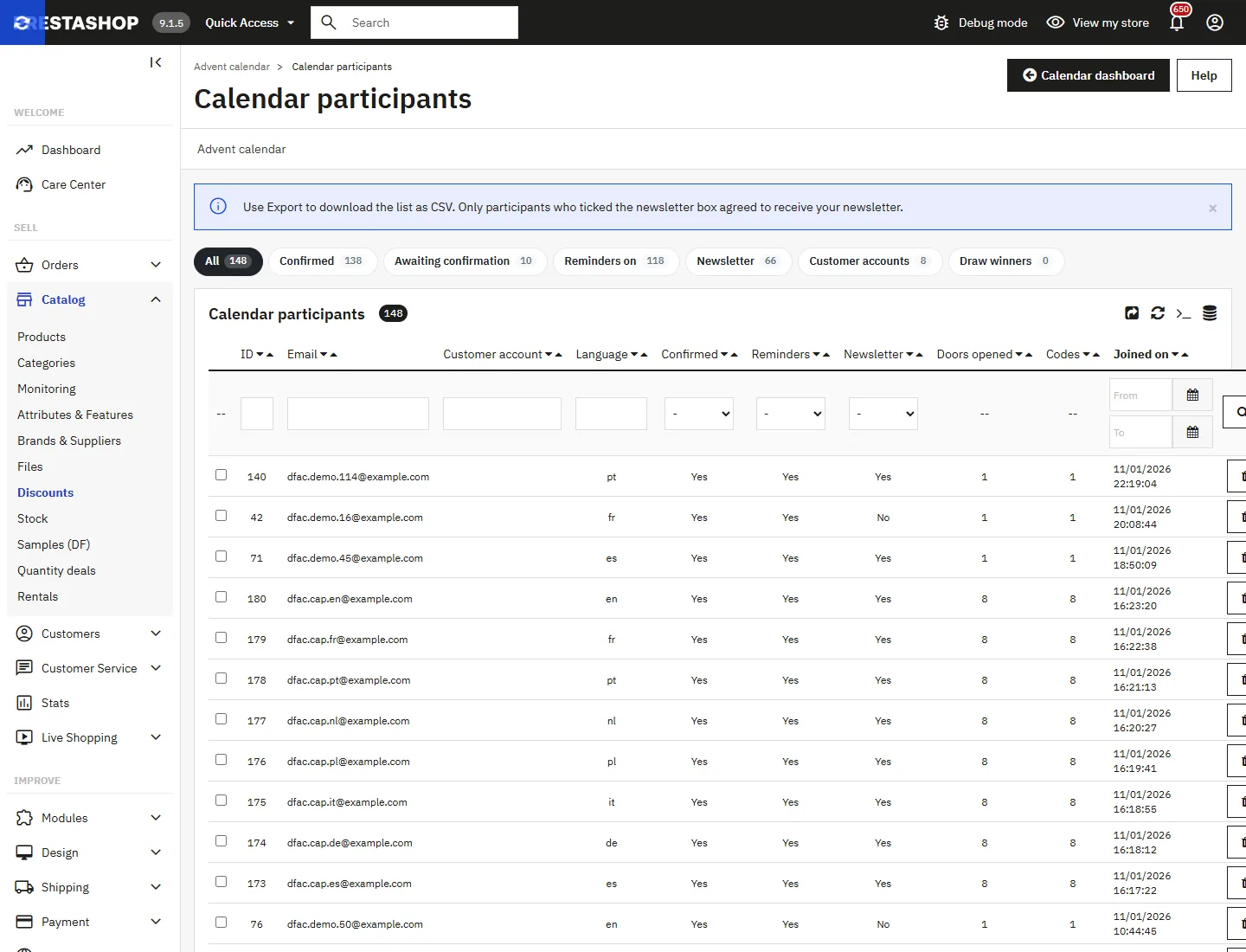
The participant list filters in one click: confirmed, awaiting confirmation, reminders on, newsletter, customer accounts, draw winners. It shows the doors opened and the codes collected by each participant, and exports to CSV.
Final prize draw
In the calendar settings, set the minimum number of doors opened to take part (0 disables the draw) and describe the prize. The dashboard shows how many participants are eligible. The Draw a winner button picks at random among eligible confirmed participants, excluding previous winners. Every draw is logged.
A prize draw and an instant win game are subject to the rules on promotional games. Publish the rules on your shop before the launch.
Statistics
The dashboard shows participants (confirmed, with a customer account), doors opened and the average per participant, revealed codes and the share of personal codes used, valid orders placed with a code, the revenue excluding tax of these orders and active reminders. The activity chart shows openings and sign-ups door by door.
If Google Tag Manager is present, the module sends these events to the dataLayer: dfadv_join, dfadv_door_open, dfadv_code_copy, dfadv_code_apply and dfadv_share.
The More > Duplicate for next year menu copies the calendar and its doors one year later, inactive, without participants or codes.
Personal data
- The consent checkbox is mandatory, the newsletter checkbox is separate and unticked.
- Every reminder email contains a one-click unsubscribe link.
- The IP address is only stored hashed, to limit sign-ups to 5 per hour per connection.
- The module answers PrestaShop personal data export (codes included) and deletion requests.
Troubleshooting
Reminders are not sent
Check the launch checklist of the dashboard: cron run in the last 24 hours, shop emails enabled. Reminders leave from the chosen time, and only to confirmed participants who have not opened the door of the day yet.
The calendar page returns a 404 error
Check that friendly URLs are enabled, then clear the cache. If the address clashes with another page, change it in the module settings.
A door stays closed on its day
Check the opening time of the calendar and the shop time zone (International > Localization). A door that is not configured or inactive stays closed.
The code is not added to the cart
The message shown comes from PrestaShop: minimum order not reached, expired code or code linked to another customer account. If the cart is empty, the code is kept and applied to the first product.
Compatibility
- PrestaShop 1.7.8 to 9.x, the same ZIP for all versions.
- Classic, Hummingbird and child themes.
- Multistore (one calendar per shop) and multicurrency (amounts converted into the visitor currency).
- ModuleAdminController architecture, no Composer dependencies.
- Module translated into English, French, Spanish, German, Italian, Dutch, Polish and Portuguese.