
Tracking Number in Shipped Email: complete guide
Add the carrier, the tracking number and a tracking button to the Shipped email, hold it until the number is entered, and show a tracking card in the customer account.
Overview
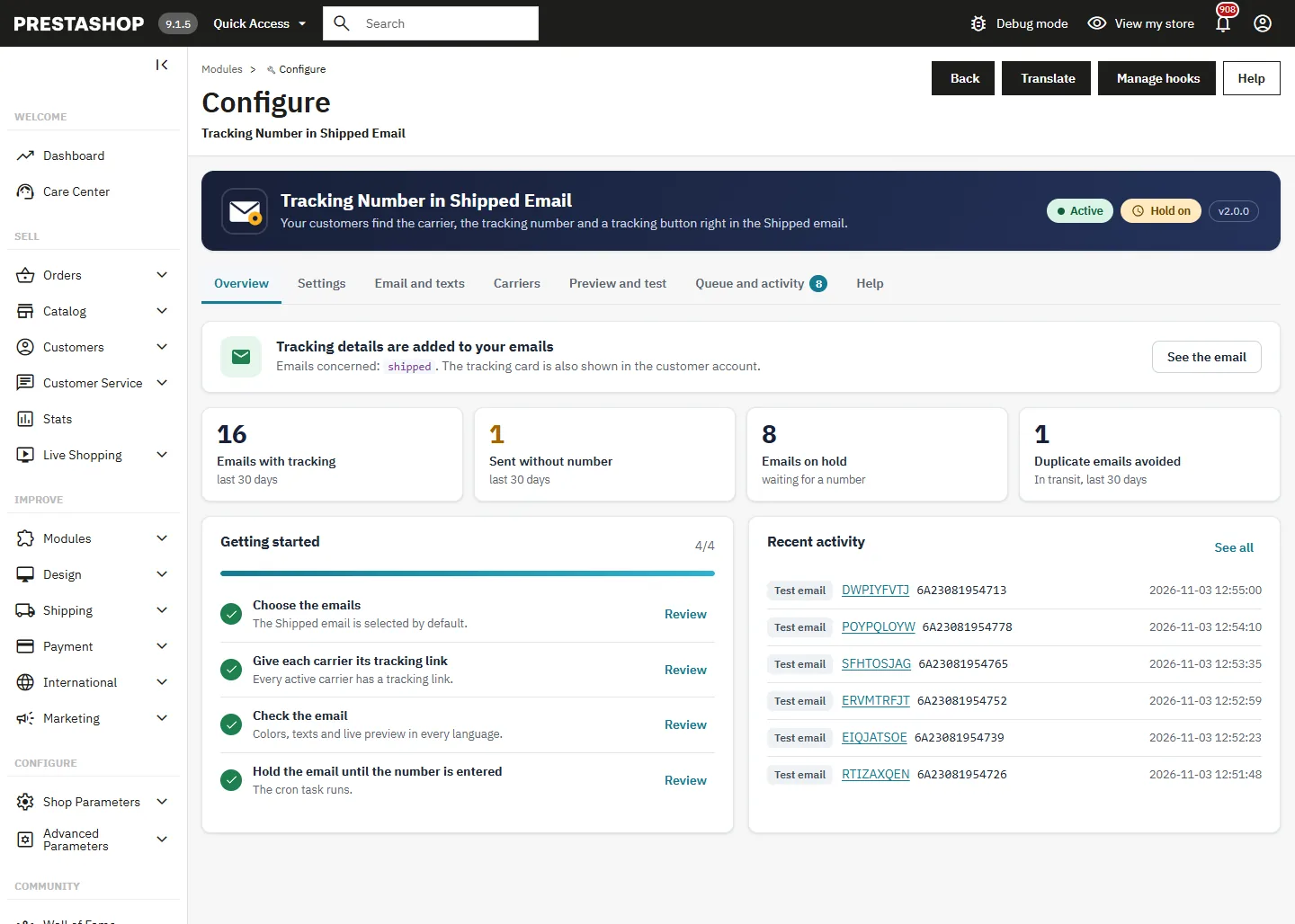
Tracking Number in Shipped Email adds a Track your parcel block to the Shipped email of PrestaShop: the carrier, the tracking number and a button that opens the tracking page of the carrier. The block is written in the language of the order and inserted while the email is sent: your email templates are never modified.
The module can also hold the Shipped email when an order is marked as shipped before its tracking number is entered, and send it as soon as the number is saved. It shows a tracking card in the customer account, and gives you a live preview, a test email, a queue and an activity log.
It runs on PrestaShop 1.7.8 to 9.x with PHP 7.1 to 8.5, on Classic, Hummingbird and their child themes. The back office and the default texts are available in English, French, Spanish, German, Italian, Polish, Dutch and Portuguese.
Installation and upgrade
- In Modules > Module Manager, click Upload a module and drop the
dftrackingmail-2.0.0.zipfile. - Click Configure. The module is already active on the Shipped email, with default texts in every installed language.
A welcome message lists the three points to check: the tracking links of your carriers, the colors of the block, and a test email.
Upgrading from 1.0: upload the new zip over the old one. Your settings, texts, colors, carrier links and held emails are kept. The customer account card starts off, so nothing changes on your shop until you turn it on.
Settings
Activation
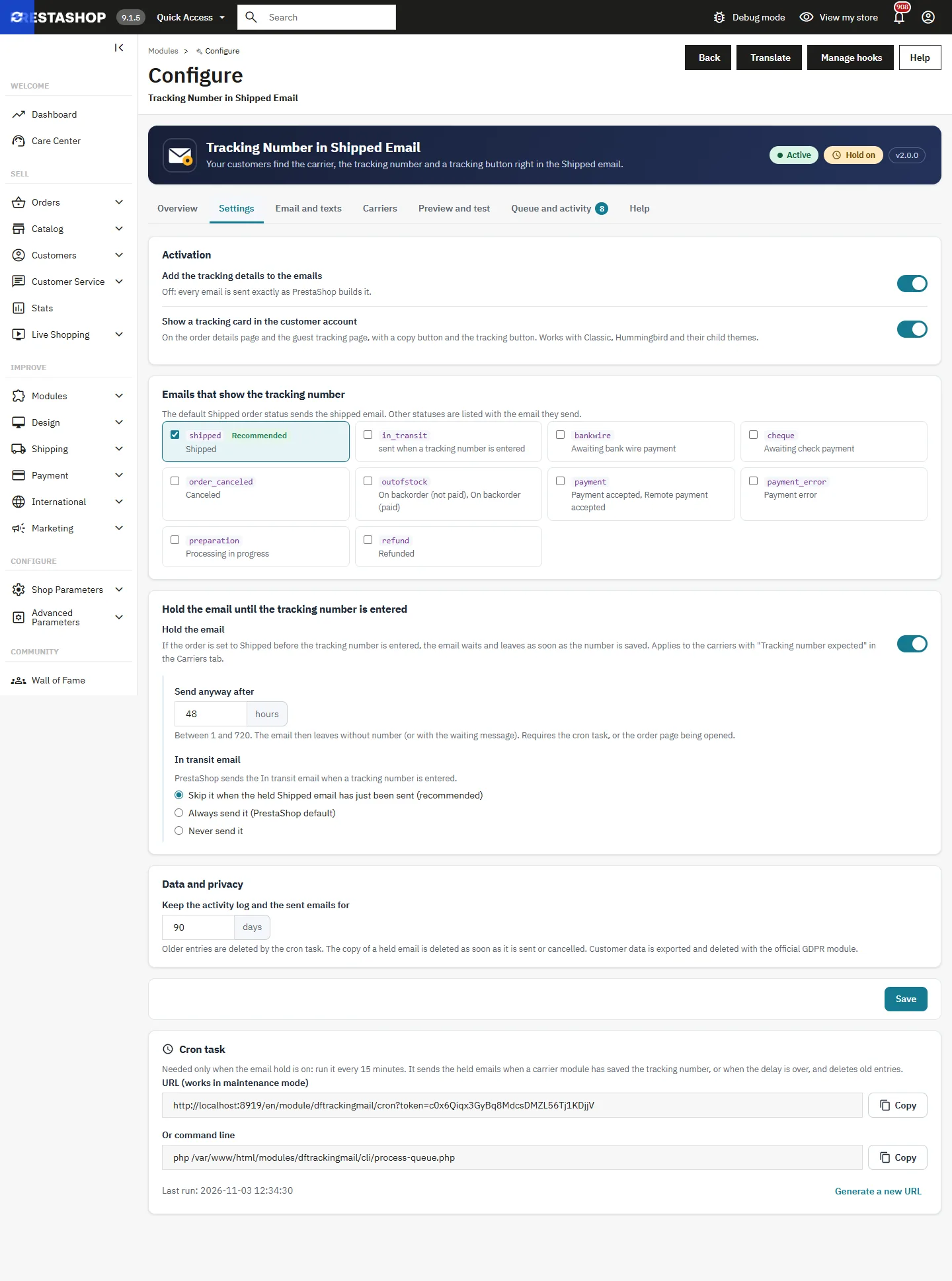
- Add the tracking details to the emails: when off, every email is sent exactly as PrestaShop builds it.
- Show a tracking card in the customer account: on the order details page and the guest tracking page.
Emails that show the tracking number
The default Shipped status sends the shipped email, selected by default. Every order status that sends an email is listed with its template, so you can add custom statuses or the in_transit email.
Data and privacy
Choose how long the activity log and the sent emails are kept (90 days by default). The copy of a held email is deleted as soon as it is sent or cancelled. With the official GDPR module, customer data is exported and deleted with the rest of the account.
Holding the email until the tracking number is entered
If you change the status to Shipped before printing the label, the default email leaves without any number. Turn on Hold the email: the Shipped email then waits in a queue and leaves as soon as the tracking number is saved, on the order page or by a carrier module.
- Send anyway after: the email leaves without number (or with the waiting message) after this delay, 48 hours by default.
- In transit email: PrestaShop sends it when a tracking number is entered. By default it is skipped when the held Shipped email has just left, so the customer receives one complete email instead of two.
- Only carriers with Tracking number expected ticked in the Carriers tab are held. Store pickup and other carriers without tracking are never held.
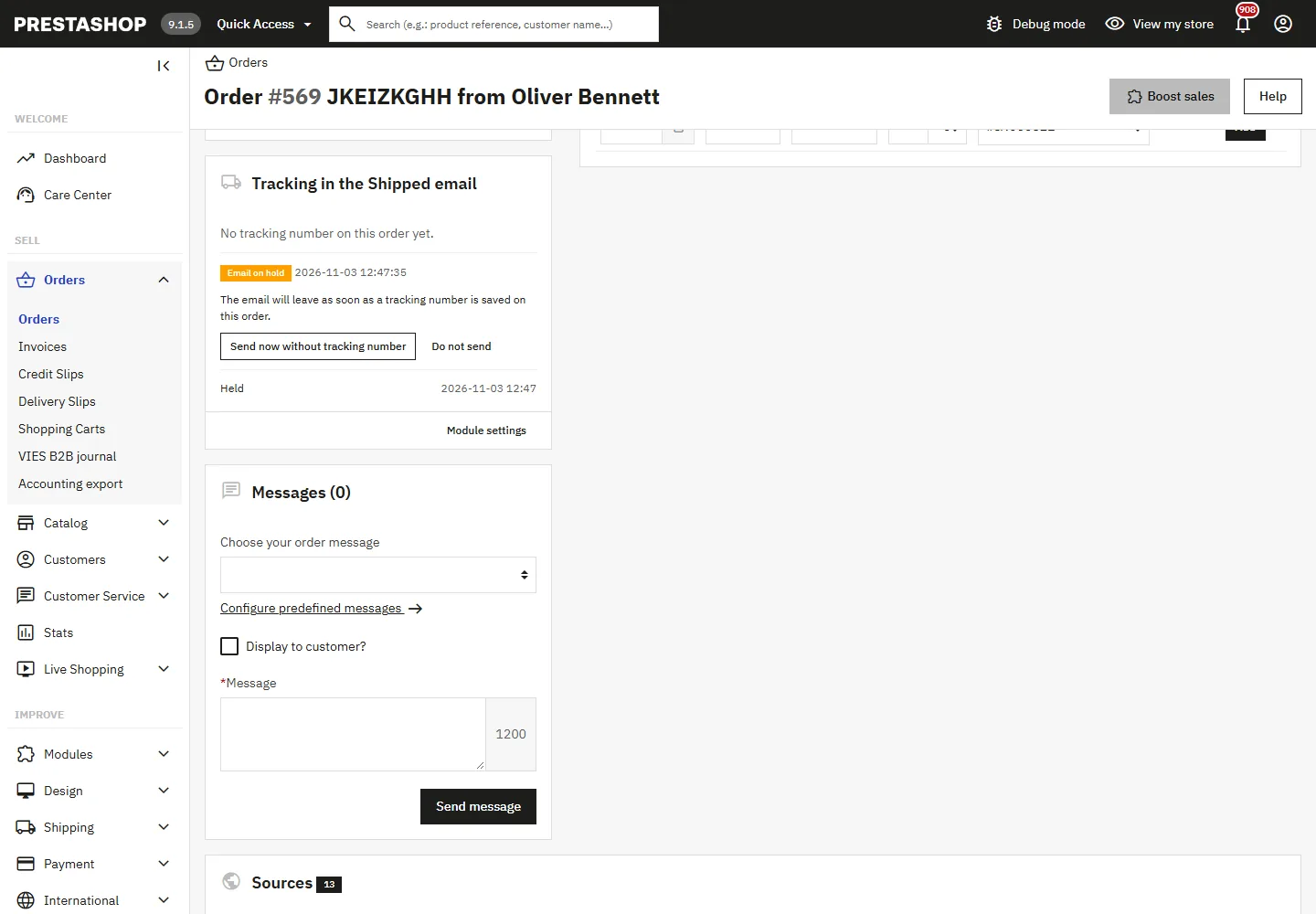
On the order page, a card shows the numbers the customer will see, the state of the held email and two actions: Send now without tracking number and Do not send.
Cron task
The cron task is needed only when the hold is on. Run it every 15 minutes: it sends the held emails whose number was written by a carrier module, or whose delay is over, and deletes old entries. Copy the URL from the Settings tab (it works in maintenance mode) or use the command line:
php /path/to/prestashop/modules/dftrackingmail/cli/process-queue.phpGenerate a new URL invalidates the previous one.
Email and texts
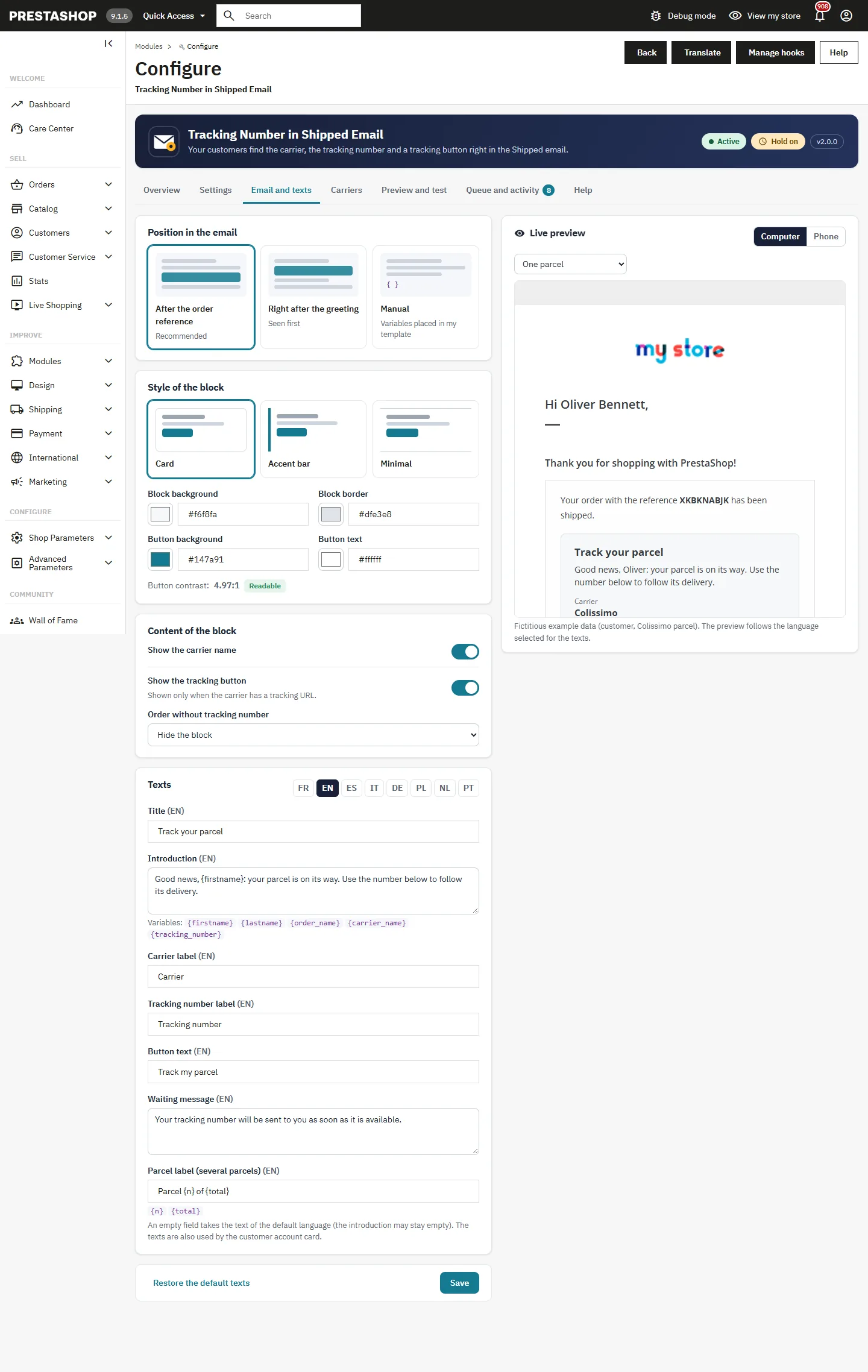
Position in the email
- After the order reference (recommended): right after the sentence that gives the order reference.
- Right after the greeting: seen first.
- Manual: the block appears only where your template contains
{df_tracking_block}.
Style and colors
Choose a card, an accent bar or a minimal style, then the background, border, button and button text colors. The contrast of the button is checked live: below 4.5:1 the text is hard to read and a warning is shown.
Content and texts
Show or hide the carrier name and the tracking button, and choose what happens when the order has no tracking number yet: hide the block or show the waiting message. The texts are edited per language: title, introduction, carrier and number labels, button text, waiting message and parcel label. The introduction accepts {firstname}, {lastname}, {order_name}, {carrier_name} and {tracking_number}; the parcel label accepts {n} and {total}.
The live preview on the right follows your changes before saving, in the language selected for the texts, on a computer or a phone.
Carriers and tracking links
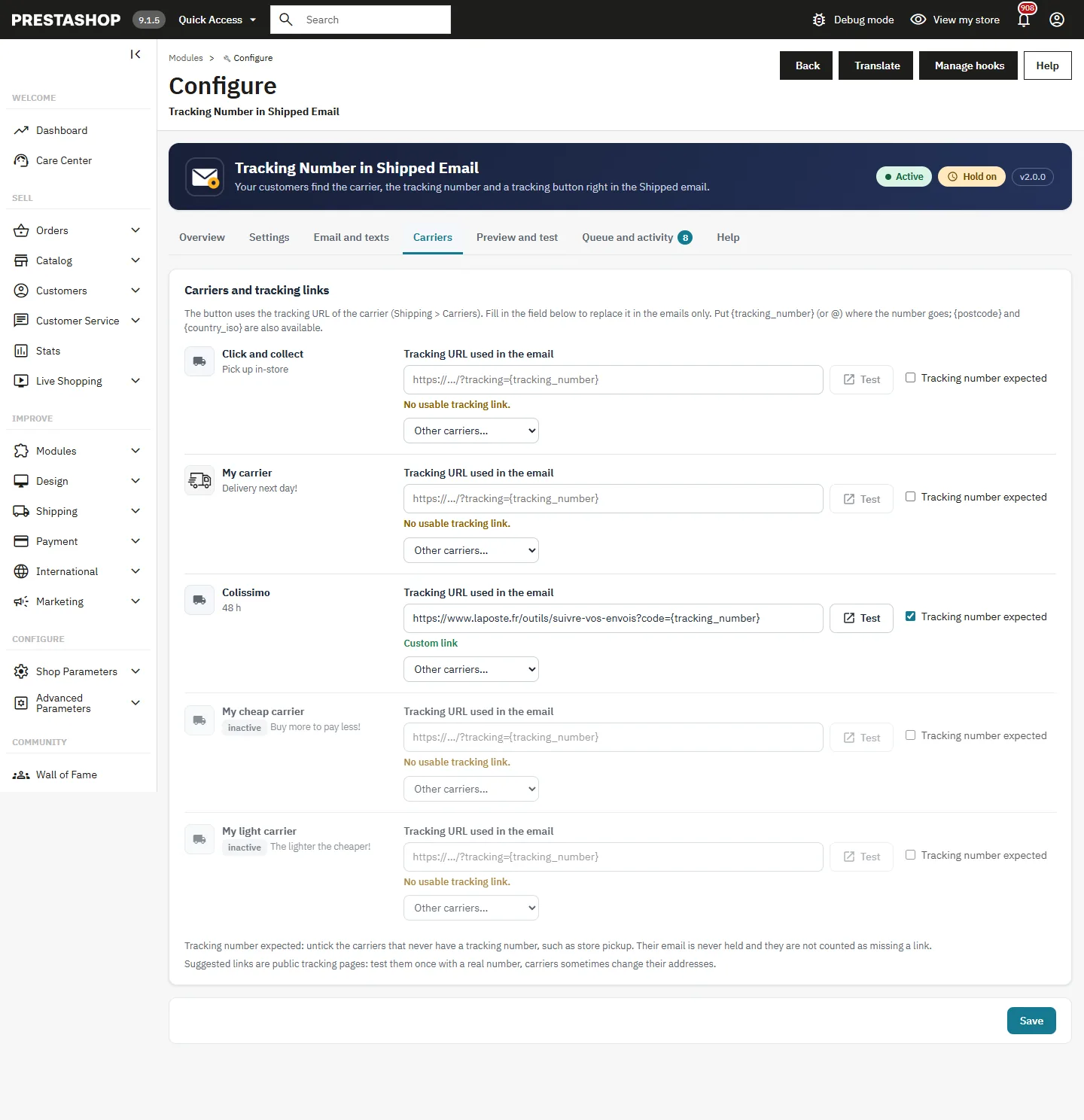
The tracking button uses the tracking URL set in Shipping > Carriers. Fill in the field of a carrier to replace it in the emails only. Put {tracking_number} (or @, the PrestaShop syntax) where the number goes; {postcode} and {country_iso} are filled from the delivery address for carriers that need them.
- A suggestion appears when the name of the carrier is recognized; Other carriers lists 21 tracking links (Colissimo, Chronopost, Mondial Relay, DPD, GLS, UPS, FedEx, DHL, PostNL, bpost, Correos, SEUR, CTT, Poste Italiane, BRT, InPost, Poczta Polska, Royal Mail, USPS, 17TRACK).
- Test opens the link with a sample number.
- Tracking number expected: untick the carriers that never have a number. Their email is never held and they are not counted as missing a link.
Test each link once with a real number: carriers sometimes change the address of their tracking page.
Preview and test
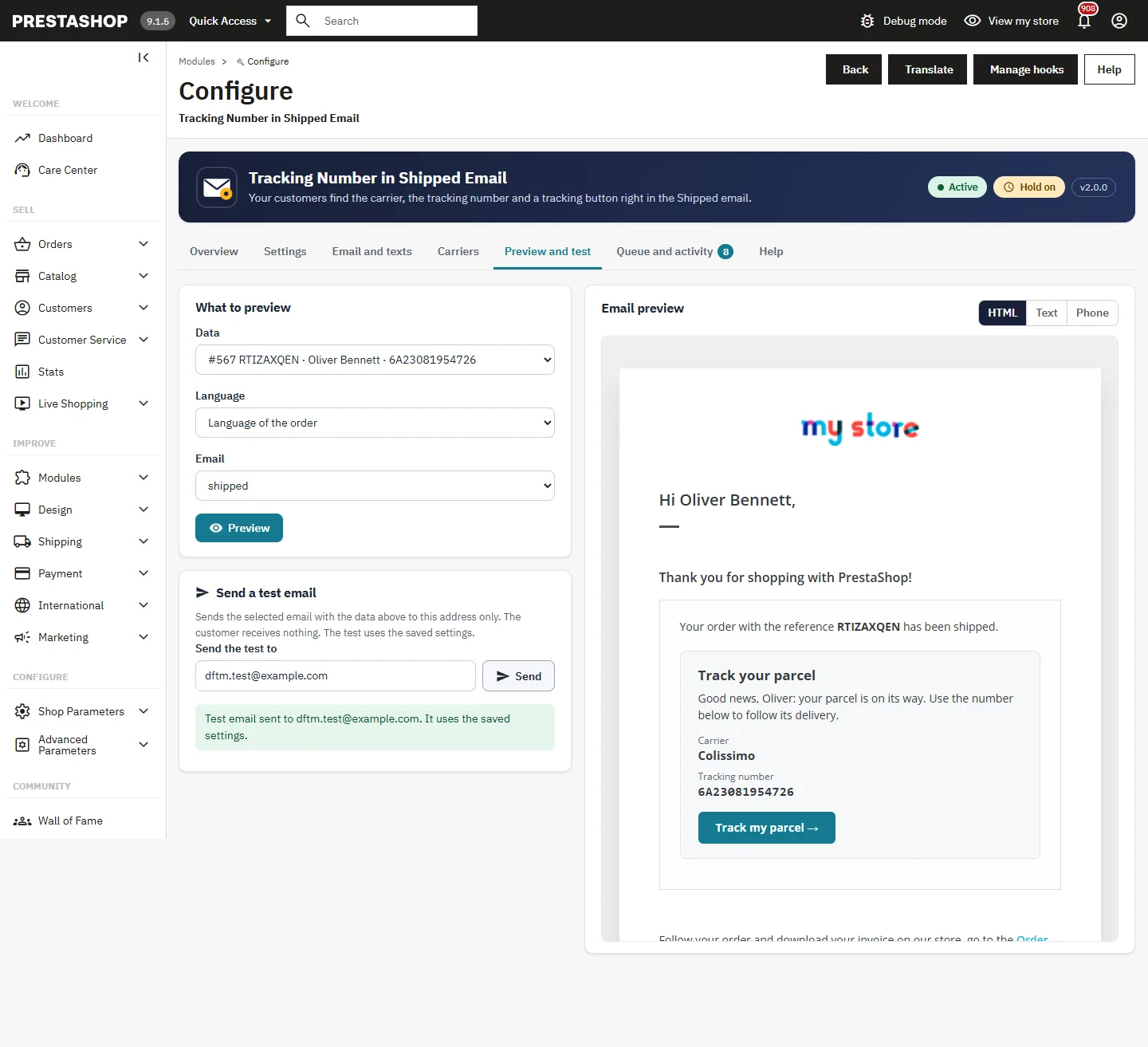
The Preview and test tab shows the whole email, built from the templates of your shop: with fictitious example data (one parcel, two parcels or no number yet) or with a recent order. Choose the language and the email, then switch between the HTML version, the text version and the phone view.
Send a test email sends the selected email to the address you enter, with [Test] in the subject. The customer receives nothing. The test uses the saved settings.
What your customers receive
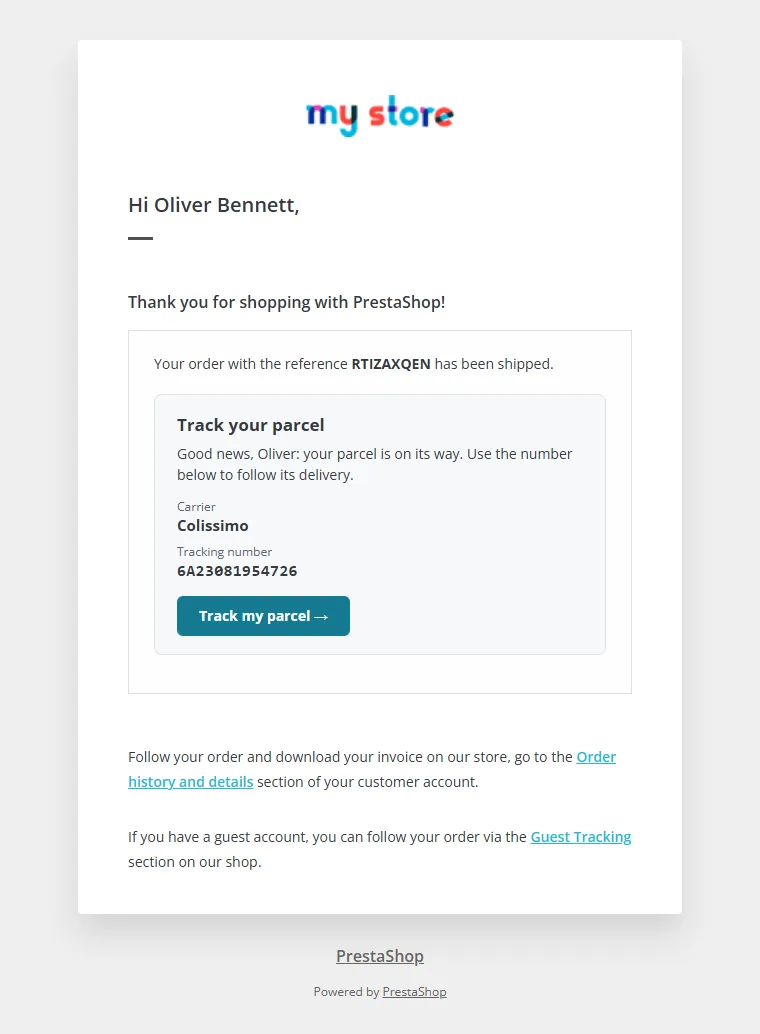
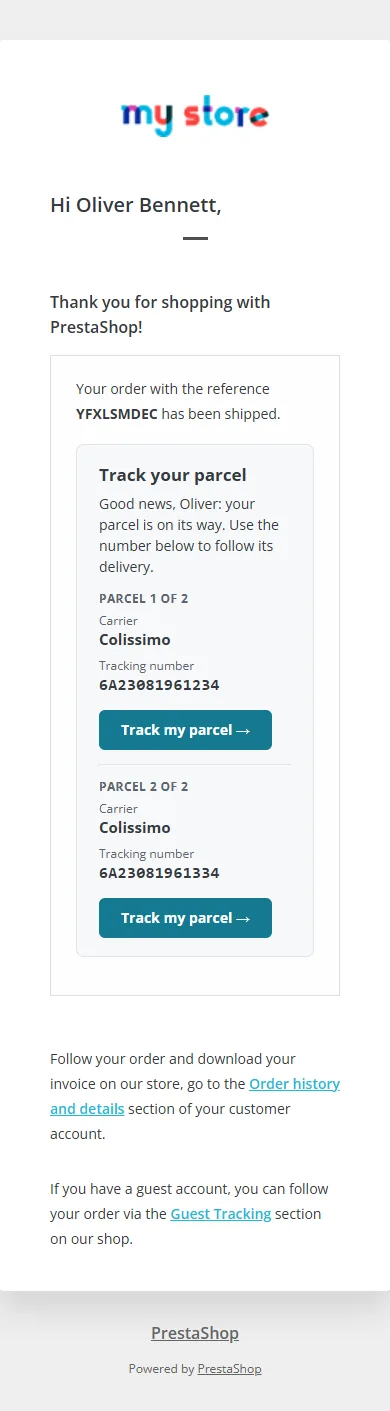
The block shows the carrier, the tracking number in a readable font and the tracking button. When an order has several parcels, each one is numbered with its own button. The text version of the email carries the same information.
Customer account
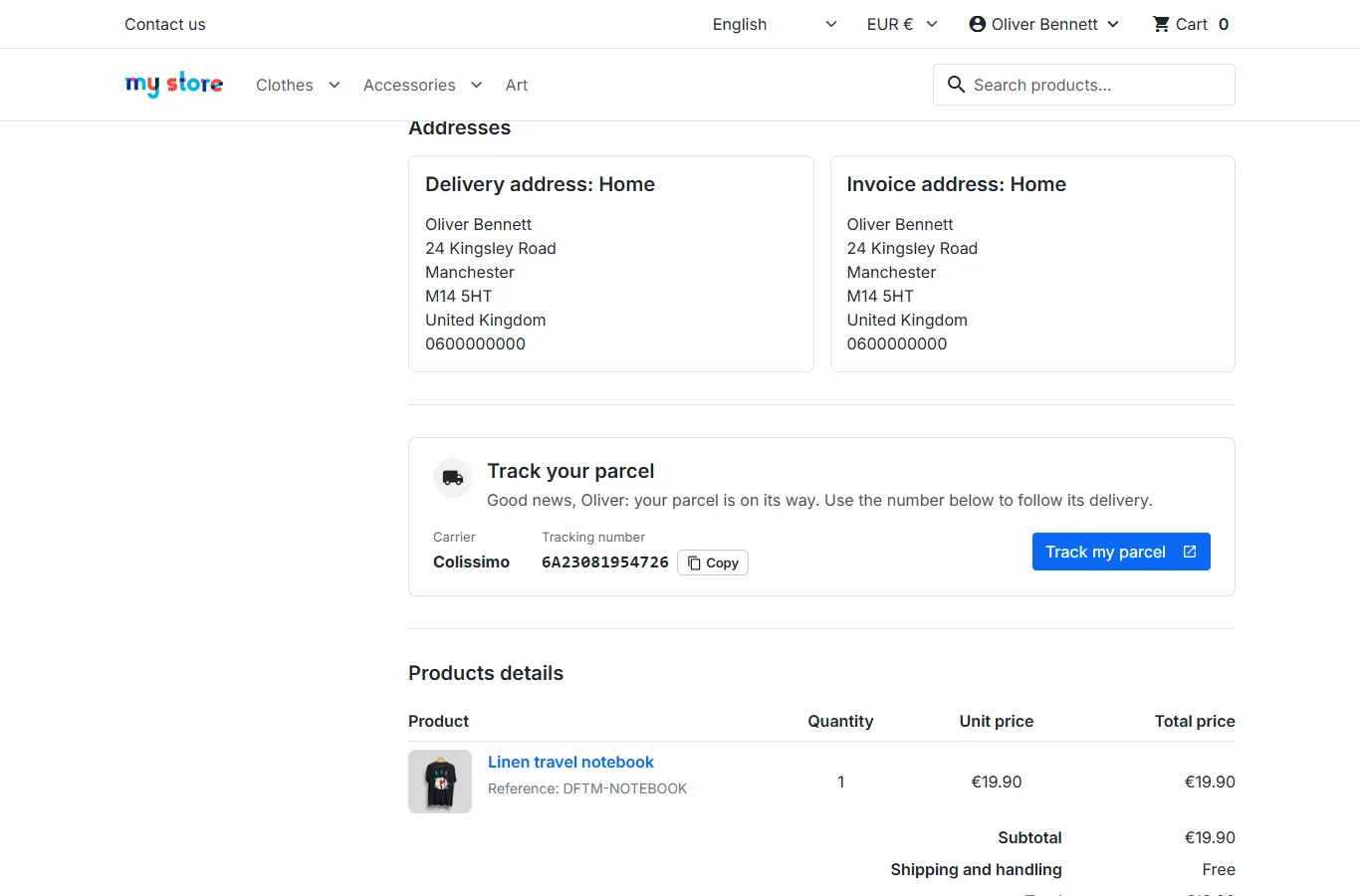
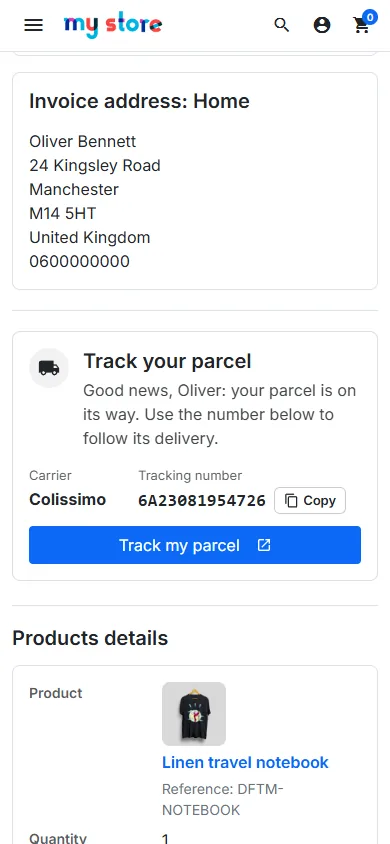
When the option is on, the order details page and the guest tracking page show a tracking card with the carrier, the number, a Copy button and the tracking button. The card uses the texts of the block and adapts to Classic, Hummingbird and their child themes.
Queue and activity
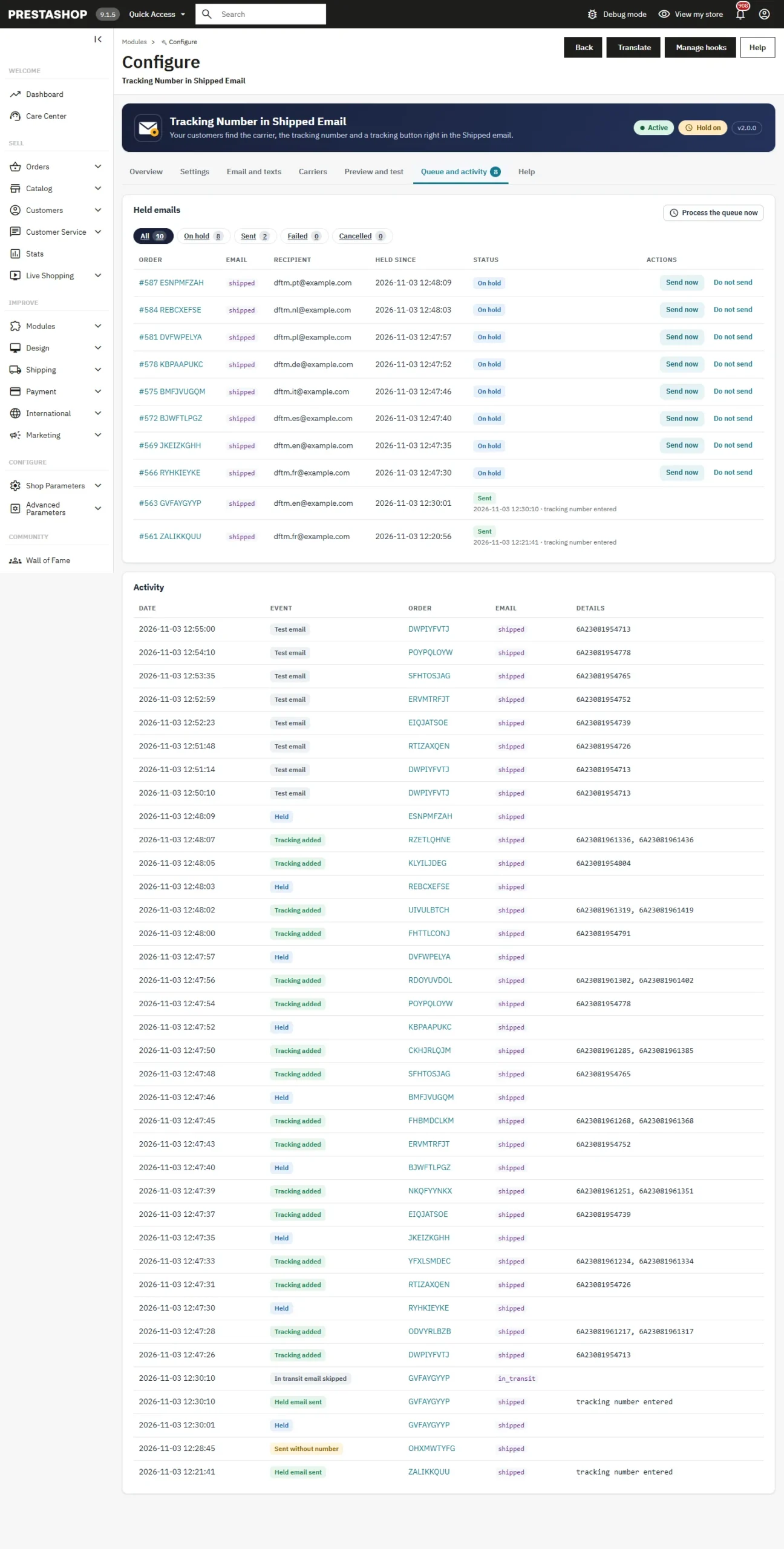
The Queue and activity tab lists the held emails with filters by status (on hold, sent, failed, cancelled). Send now and Do not send act on one email; Process the queue now runs the cron task at once. A failed email is retried three times automatically and the reason is shown.
The activity log records each email: tracking added, sent without number, held, held email sent, In transit email skipped, test email.
Manual position and variables
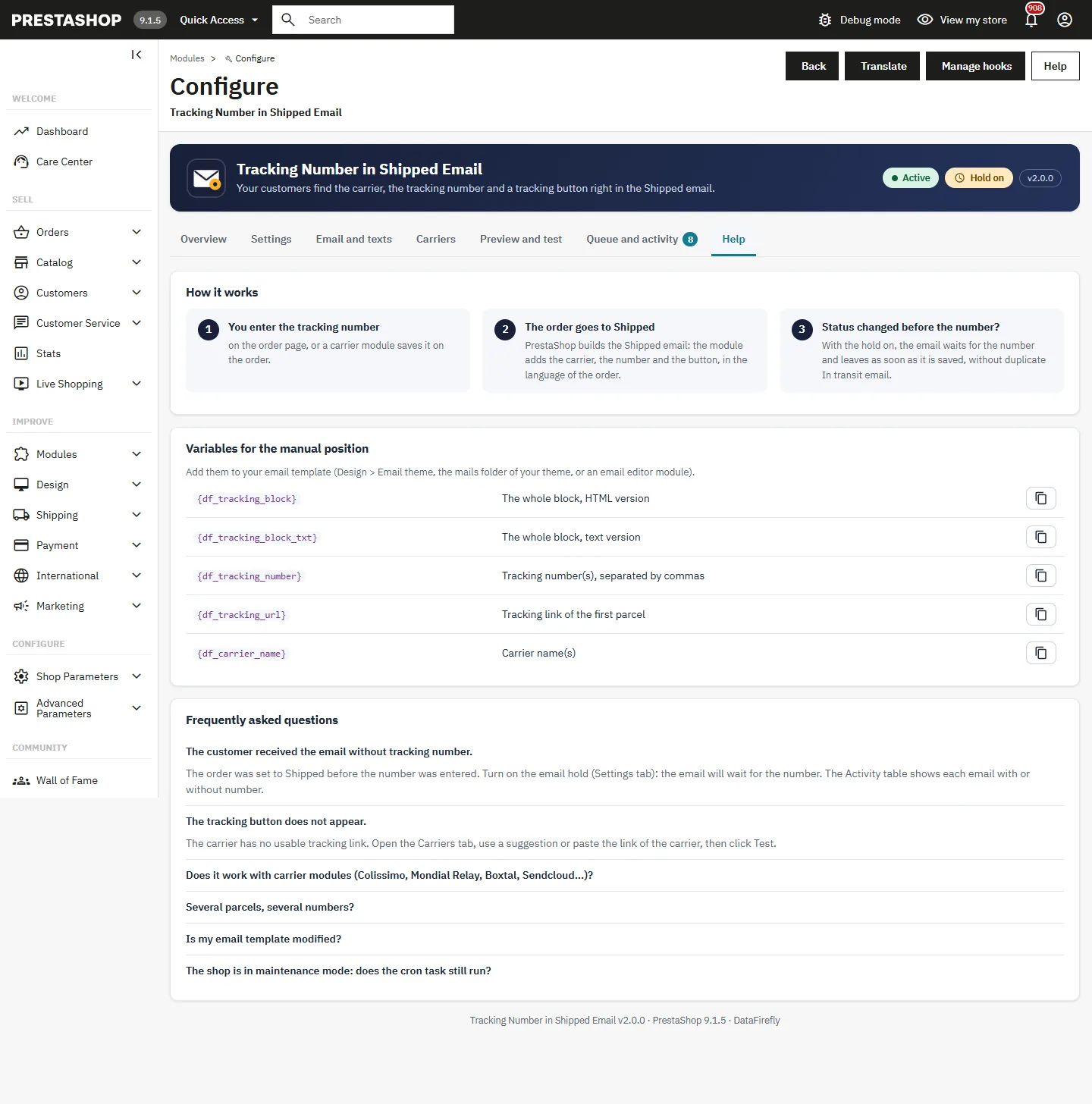
With the manual position, add these variables to your email template (Design > Email theme, the mails folder of your theme, or an email editor module):
{df_tracking_block}: the whole block, HTML version.{df_tracking_block_txt}: the whole block, text version.{df_tracking_number}: the tracking number(s), separated by commas.{df_tracking_url}: the tracking link of the first parcel.{df_carrier_name}: the carrier name(s).
Troubleshooting
The customer received the email without tracking number
The order was set to Shipped before the number was entered. Turn on the hold in the Settings tab. The Activity table shows each email with or without number.
The tracking button does not appear
The carrier has no usable tracking link. Open the Carriers tab, use a suggestion or paste the link of the carrier, then click Test.
Held emails do not leave
The number was written by a carrier module, or the delay is over, but the cron task does not run. The Overview tab shows a warning when it has not run for more than 2 hours. Set it up with the URL or the command line, or click Process the queue now.
The email is in the wrong language
The email uses the language of the order. If PrestaShop has no template in this language, it sends the default language: the preview tells you which version is used.