
Category Price Rules: PrestaShop discounts by category tree
Installation, dashboard, 6-step editor, priorities, price simulator, history, settings, disabling and troubleshooting.
Installation
Install the module from Modules > Module Manager > Upload a module by sending the ZIP file. The module creates its tables and adds the Catalog > Discounts > Category Price Rules tab. It creates no price at installation.
To upgrade from 1.1.0, simply upload the new ZIP. The rules, their status and their links to the native catalog price rules are kept, and the prices are recalculated identically. Then open Settings to check the disabling and uninstalling choices.
How the module creates prices
Each rule of the module becomes a native PrestaShop catalog price rule with its specific prices. The cart, orders, product feeds and modules that read PrestaShop prices see them as usual. These native rules are hidden from the Catalog > Discounts > Catalog Price Rules list so that nobody edits them by hand; manage them from the module.
The module only changes or deletes a native rule if it is in its own list of created rules and still bears the name it gave it. A rule renamed or reused outside the module is left untouched: the module then creates a new native rule and records it in the history. Prices entered on product pages, prices of other modules and catalog price rules created by hand are never changed.
The dashboard
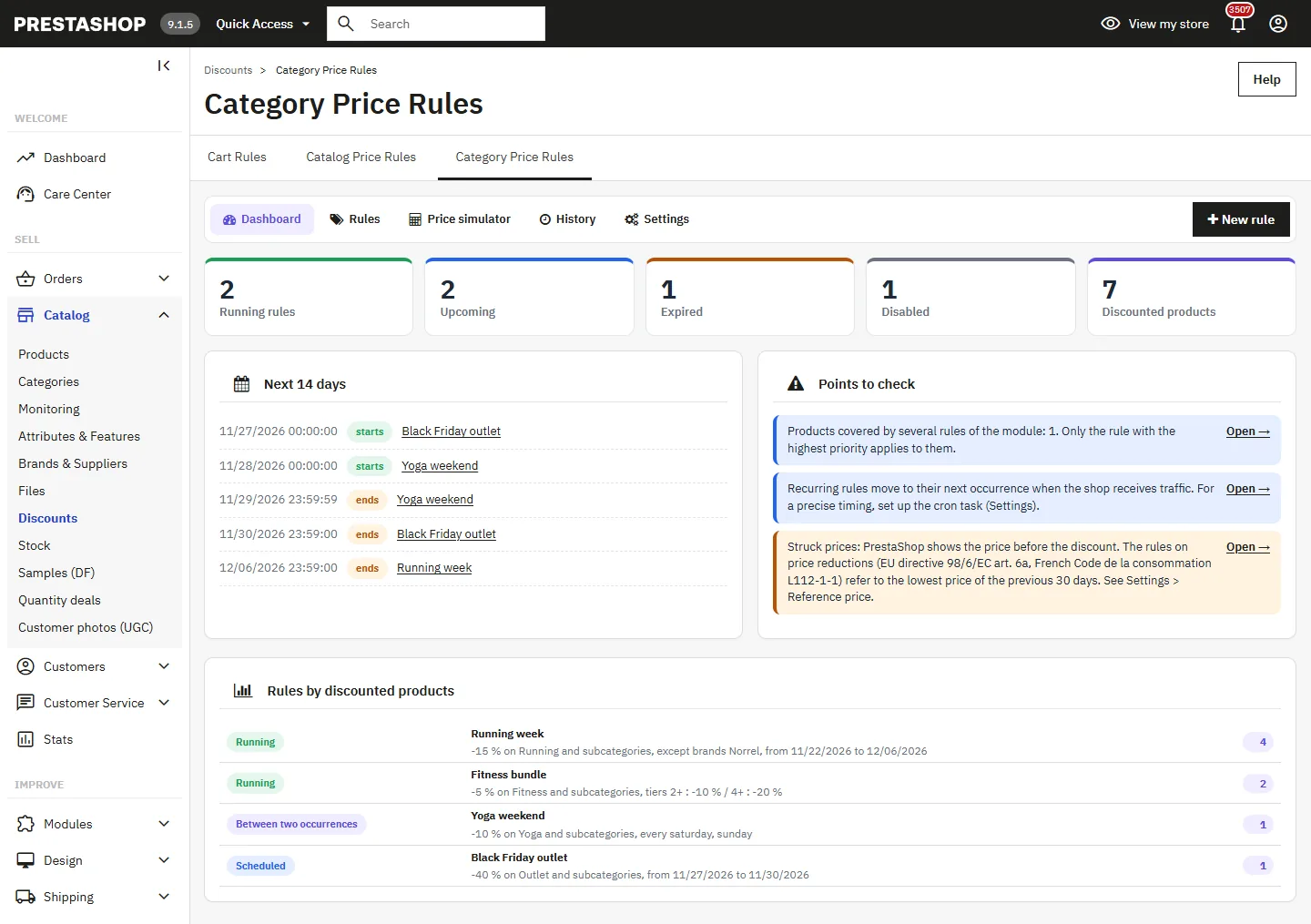
The first page shows the number of running, upcoming and expired rules, the number of discounted products and the recalculations waiting. The Next 14 days block lists the upcoming starts and ends of rules. The Points to check block reports in particular:
- products covered by several rules of the module (only the rule with the highest priority applies);
- discounted products that also have a specific price of their own (product page or another module), which wins at equal quantity;
- the recalculations waiting and the state of the cron task;
- a native rule linked to the module that was renamed or deleted outside the module.
The rule list
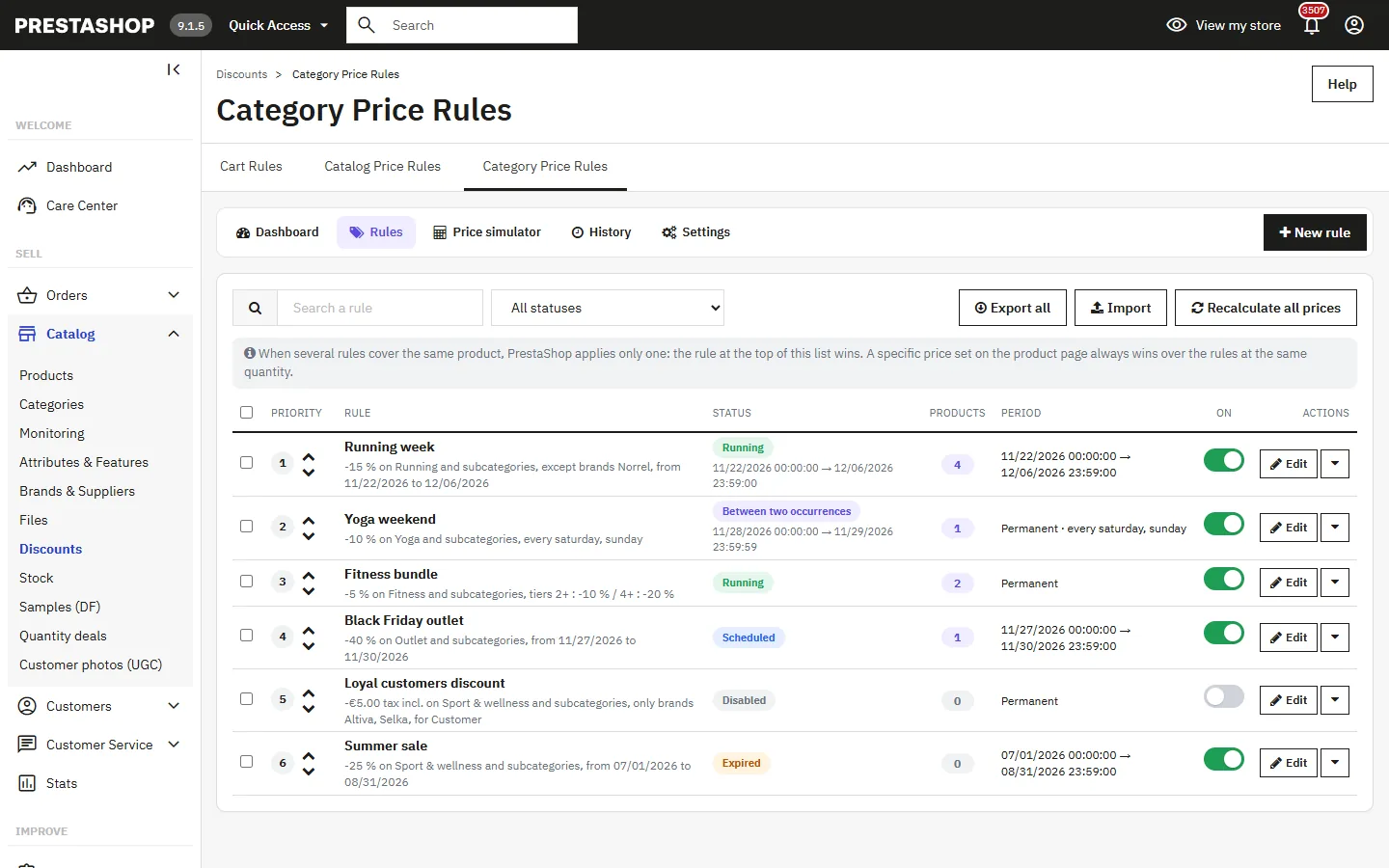
The Rules tab shows each rule with its priority, a one-sentence summary, its status and its number of products. The status can be: running, scheduled, between two occurrences, expired, disabled, incomplete or suspended (module disabled). The On switch acts immediately.
- Edit, Duplicate (the copy is created disabled), Simulate and Delete on each row.
- Bulk actions on the selection: enable, disable, duplicate, export as JSON or CSV, delete.
- Import rules (JSON or CSV) exported from this module, on this shop or another one. By default, rules are imported disabled; unknown categories, brands or products are ignored and counted.
- Recalculate all prices rebuilds the prices of every rule, writing only the differences.
Priority between rules
When several rules cover the same product, PrestaShop applies only one. Use the Higher priority and Lower priority arrows: the rule at the top of the list wins. The module renumbers its native rules in that order, because PrestaShop applies the oldest one. At equal quantity, a price entered on the product page always wins over a catalog rule.
Create a rule in 6 steps
Click New rule. The summary at the top of the editor describes the rule in one sentence and updates with every change, for example “-15% on Running and subcategories, except brands Norrel, from 22 Nov to 6 Dec”. Use Save and stay to keep working on the rule.
1. Products
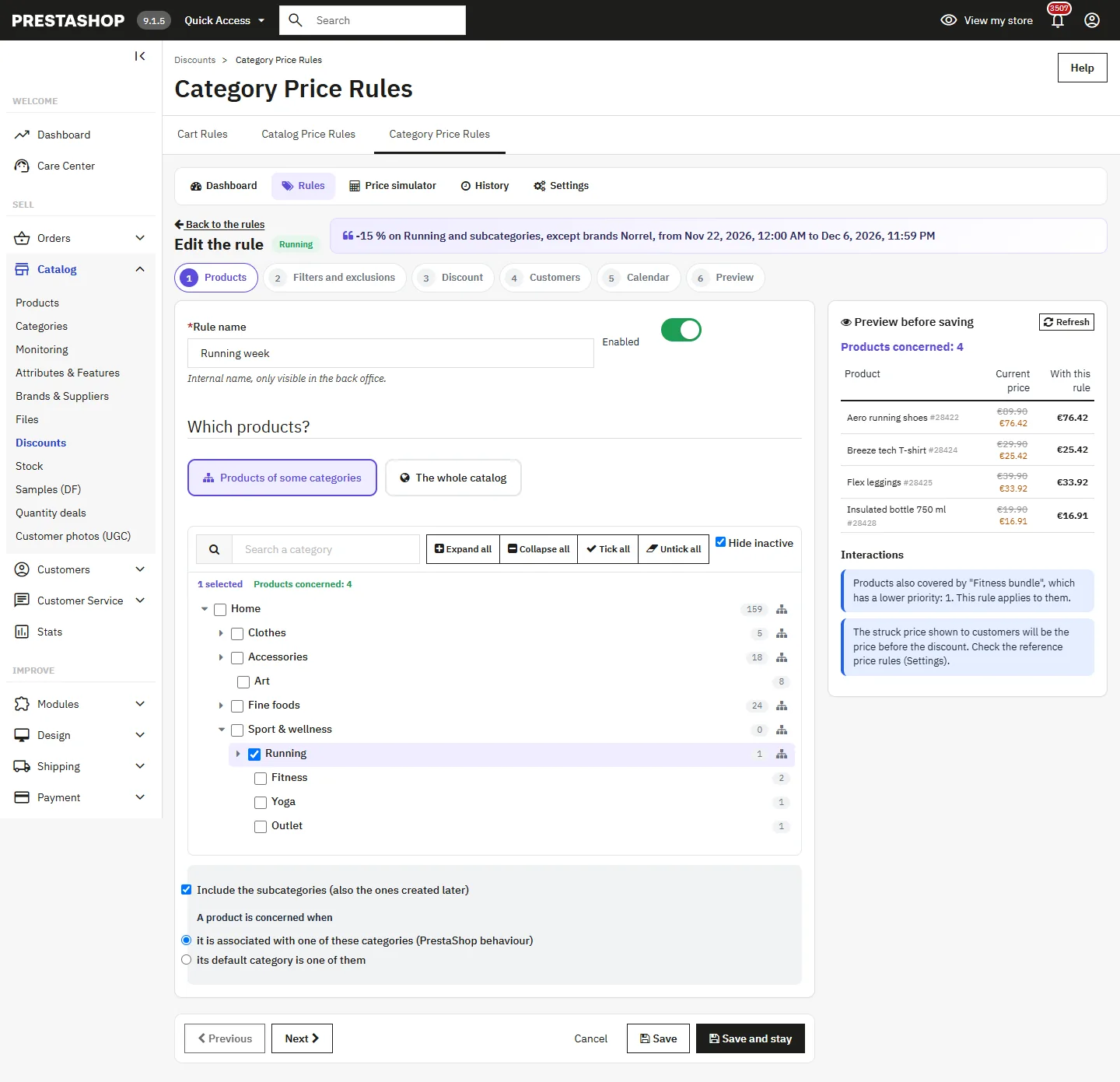
Give the rule an internal name and choose the shop. Under Which products?, choose Products of some categories or The whole catalog. In the tree, search a category, tick it or tick a whole branch, expand or collapse, hide inactive categories. Each category shows its number of products.
- Include the subcategories: subcategories are included, also the ones created later.
- A product is concerned when: it is associated with one of the categories (PrestaShop behaviour), or its default category is one of them.
2. Filters and exclusions
Filters narrow the products down: all of them must match. Exclusions always win.
- Filters: only these brands, suppliers or feature values; base price tax excl. between two amounts; only products in stock.
- Exclusions: products (search by name, reference or ID), categories with their subcategories, brands, suppliers.
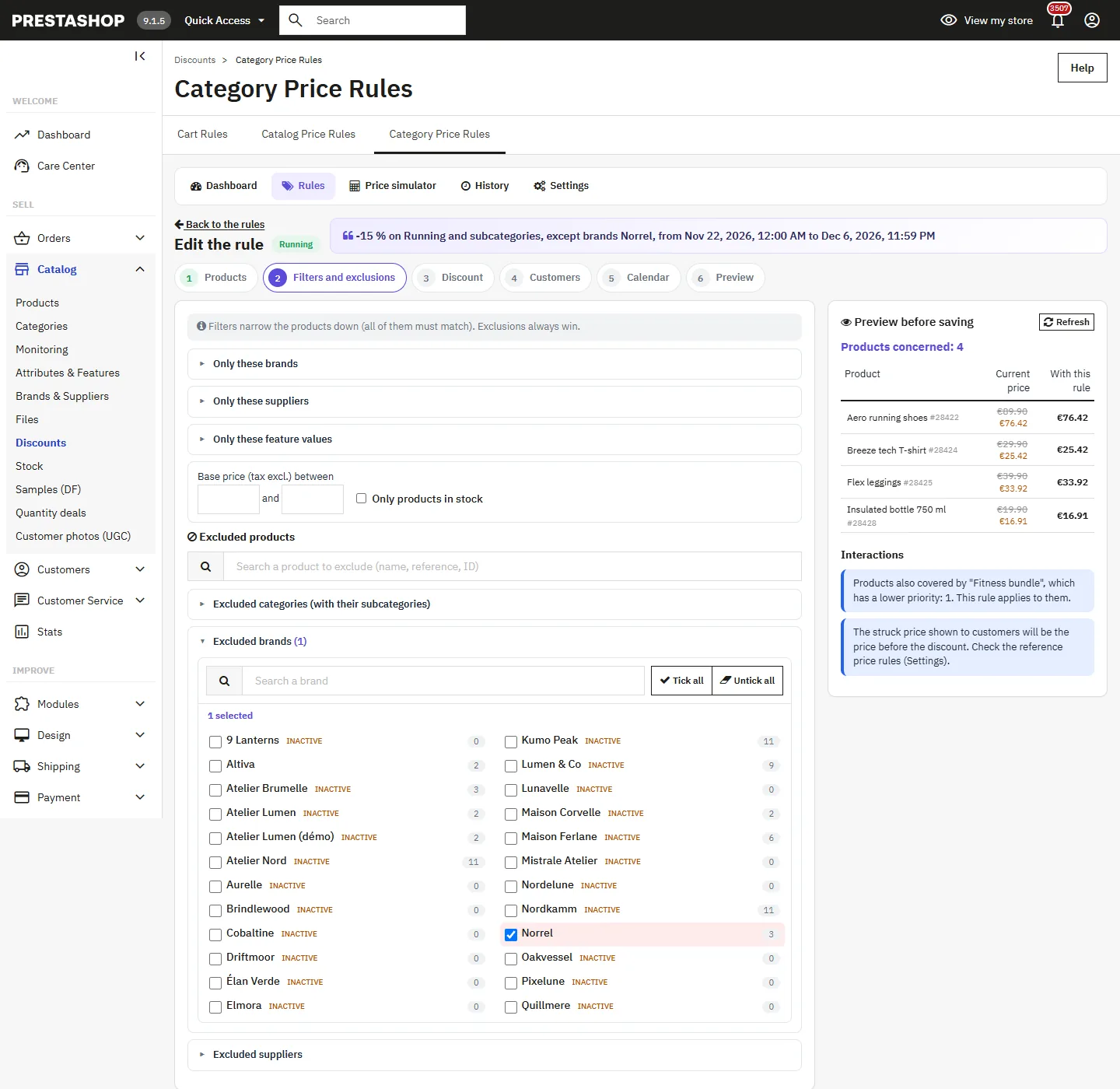
Filters and exclusions are also respected when PrestaShop applies the catalog price rules again by itself, for example when a product is saved: an excluded product does not get the discount.
3. Discount
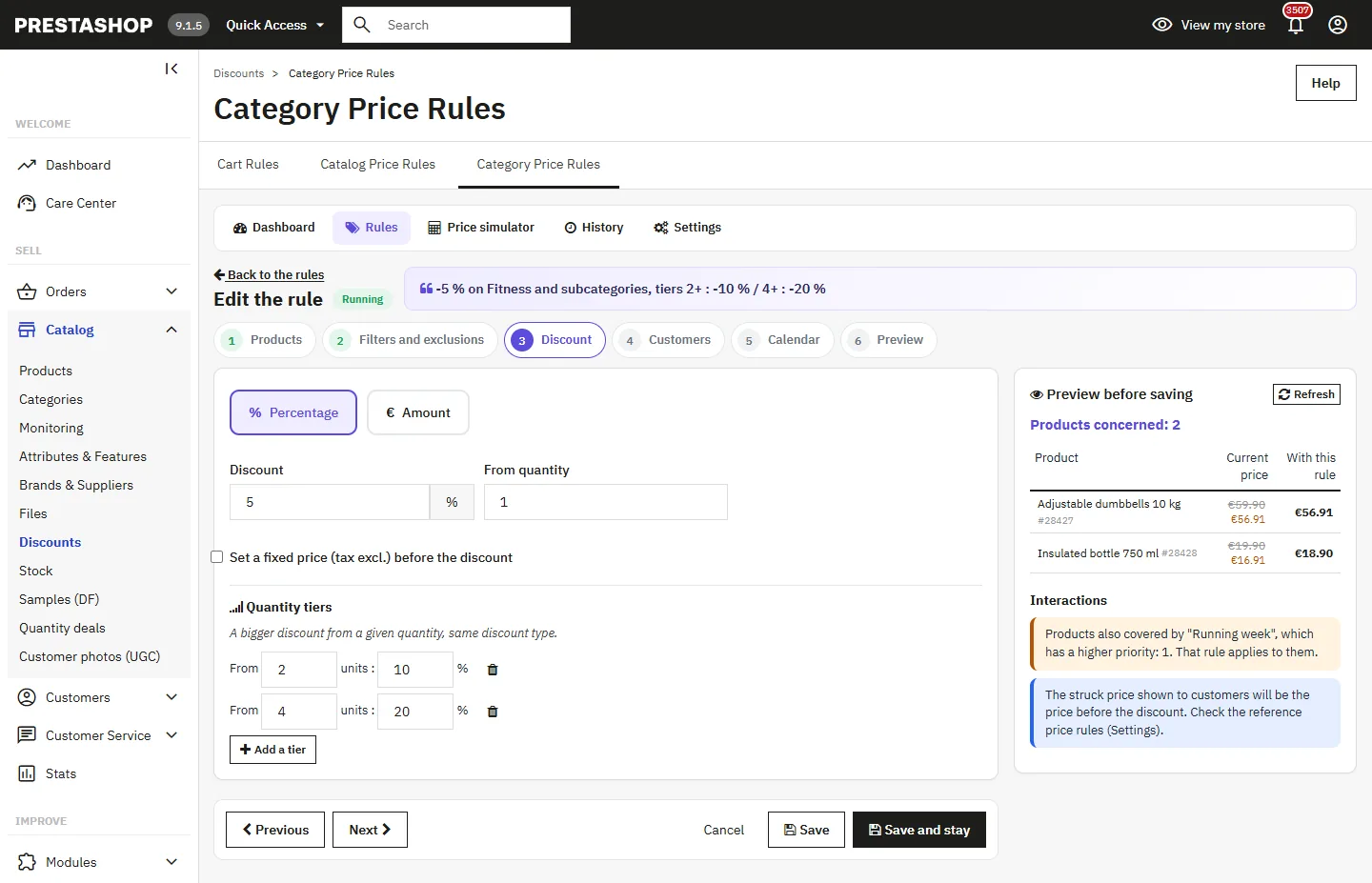
Choose a percentage or an amount discount (tax excl. or incl.), or tick Set a fixed price (tax excl.) before the discount. Set the minimum quantity. Quantity tiers add a bigger discount from a given quantity, with the same discount type: for example -10% from 1 unit, -15% from 5 units.
4. Customers
Limit the rule to a customer group, a country or a currency. Leave All for it to apply to everyone.
5. Calendar
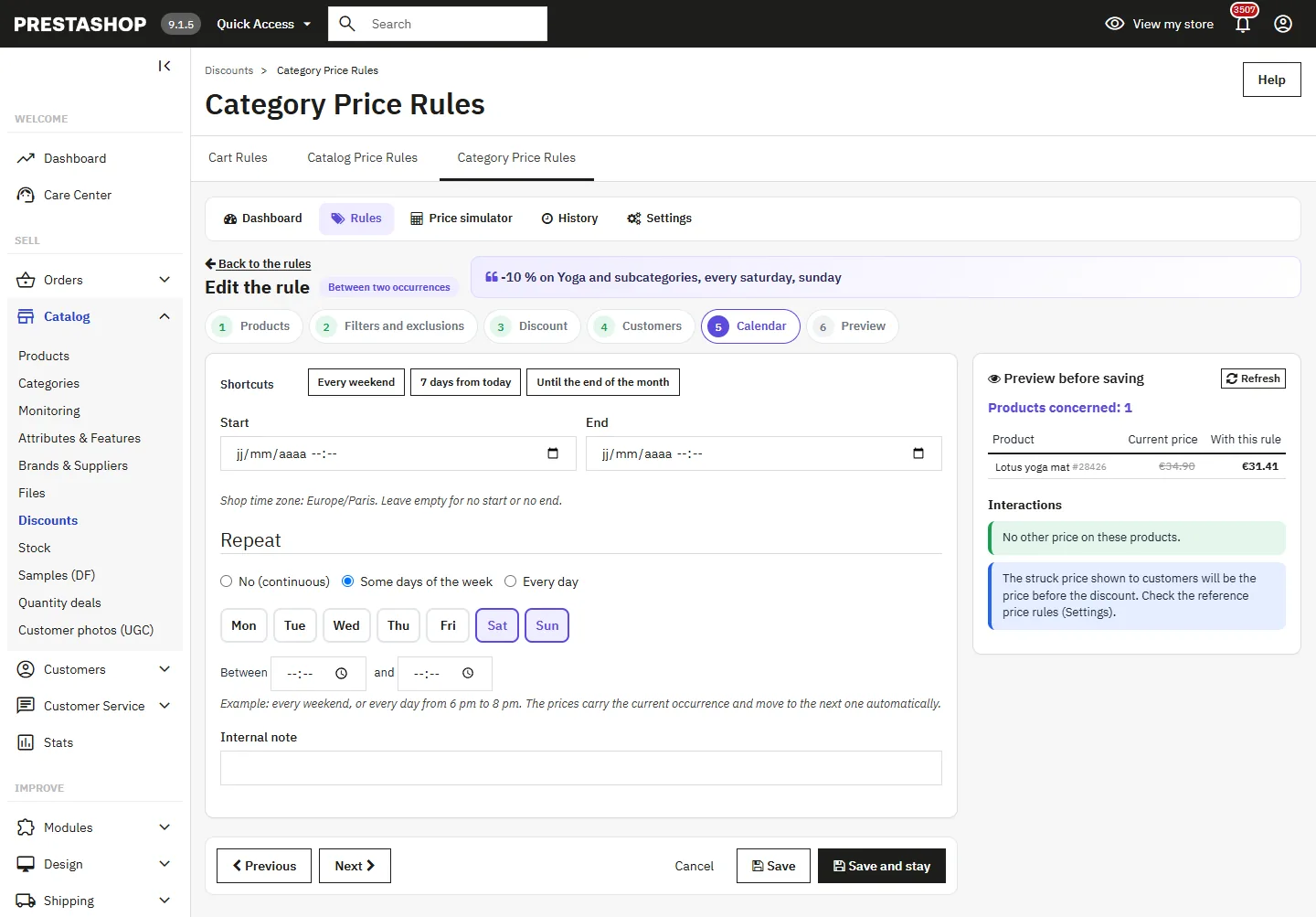
Set the start and the end, in the shop time zone; leave empty for no start or no end. The shortcuts fill in the dates: Every weekend, 7 days from today, Until the end of the month.
Repeat creates a recurrence: some days of the week or every day, between two times, overnight too (for example from 10 pm to 2 am). The prices carry the current occurrence and move to the next one when the shop receives traffic, or on time with the cron task.
6. Preview
The Preview before saving gives the number of products concerned and a sample with the current price and the price with this rule. The Interactions part reports:
- products with a specific price of their own (product page or another module), which wins at equal quantity;
- products also covered by other catalog price rules of the shop;
- products also covered by another rule of the module, with a higher or lower priority;
- cart rules, which apply on top in the cart, except the ones set to exclude discounted products.
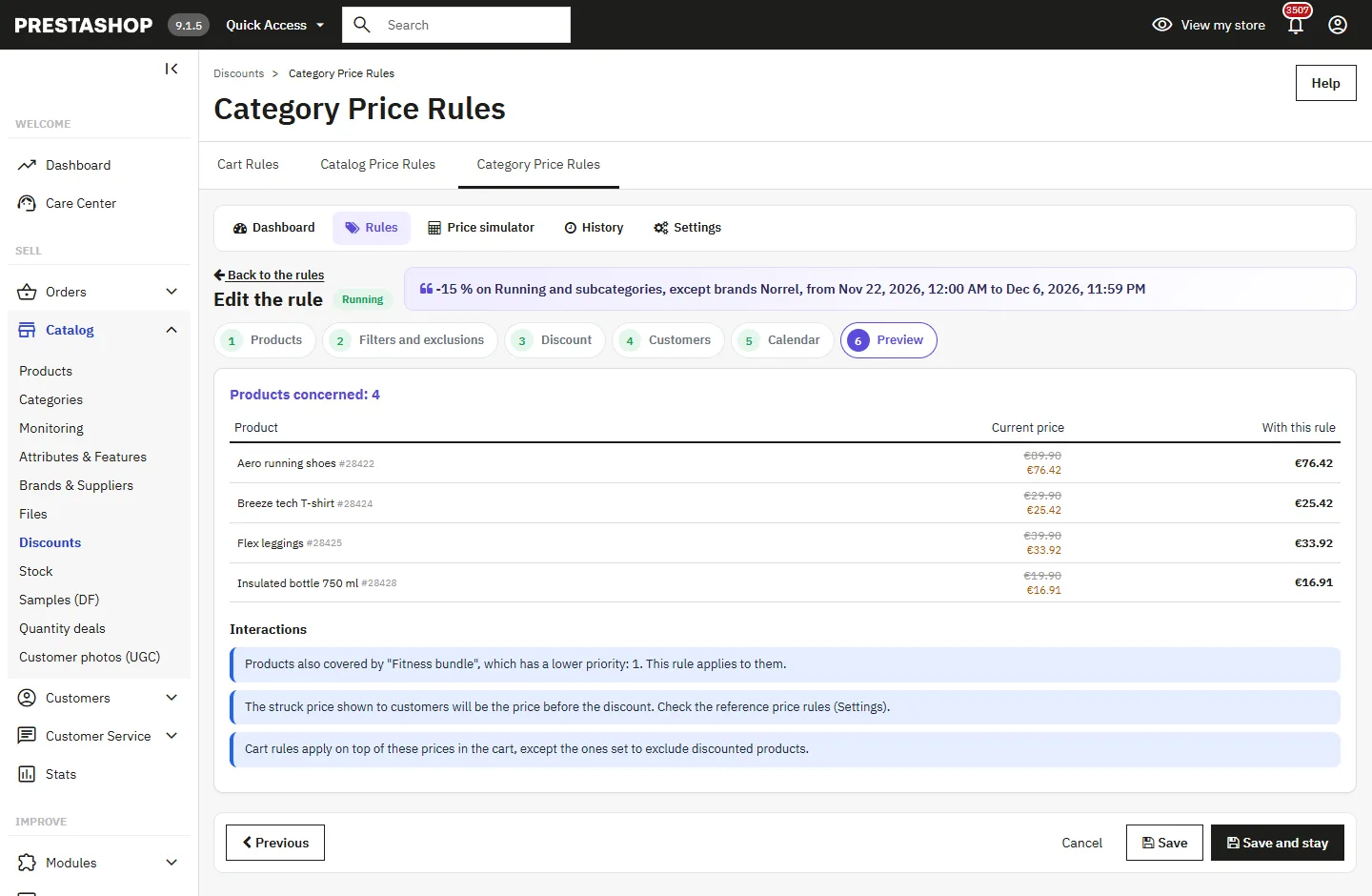
The new price in the preview is the visitor price. Customer group, country and currency conditions apply at the time of purchase: use the simulator to check a specific case.
The price simulator
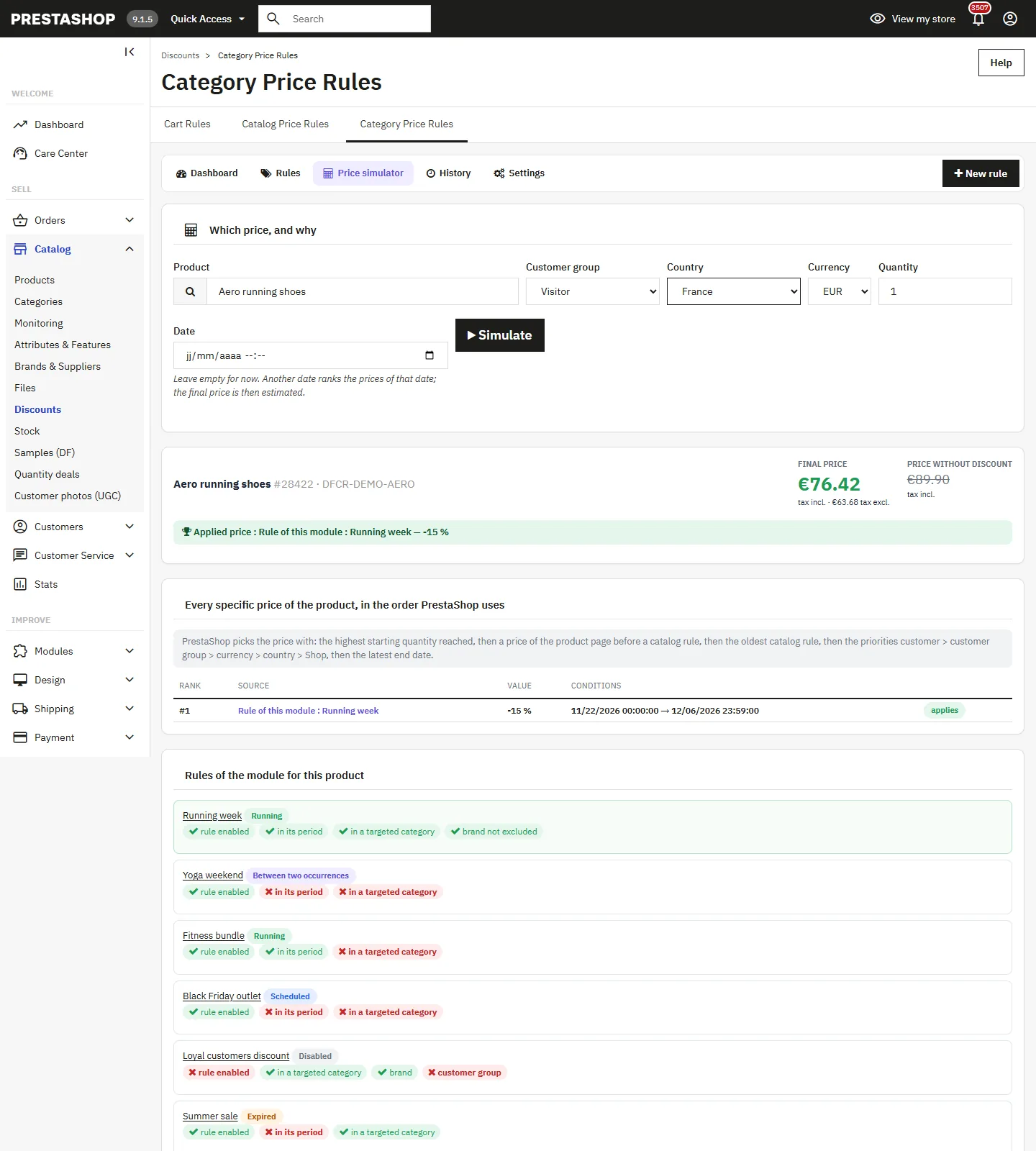
The Price simulator tab answers the question “which price, and why”. Choose a product, a customer group, a country, a currency, a quantity and, if needed, a date. The simulator shows:
- the price without discount, the applied price and the final price computed by PrestaShop;
- every specific price of the product in the order PrestaShop uses, with the source of each one (rule of this module, catalog price rule, product page or other module) and why it does not apply: other currency, other country, other customer group, quantity not reached, not started, ended;
- for each rule of the module, the detail criterion by criterion (targeted category, brand, price range, product not excluded…);
- the number of cart rules that may apply on top.
The Simulate button of the rule list opens the simulator for that rule.
History and undo
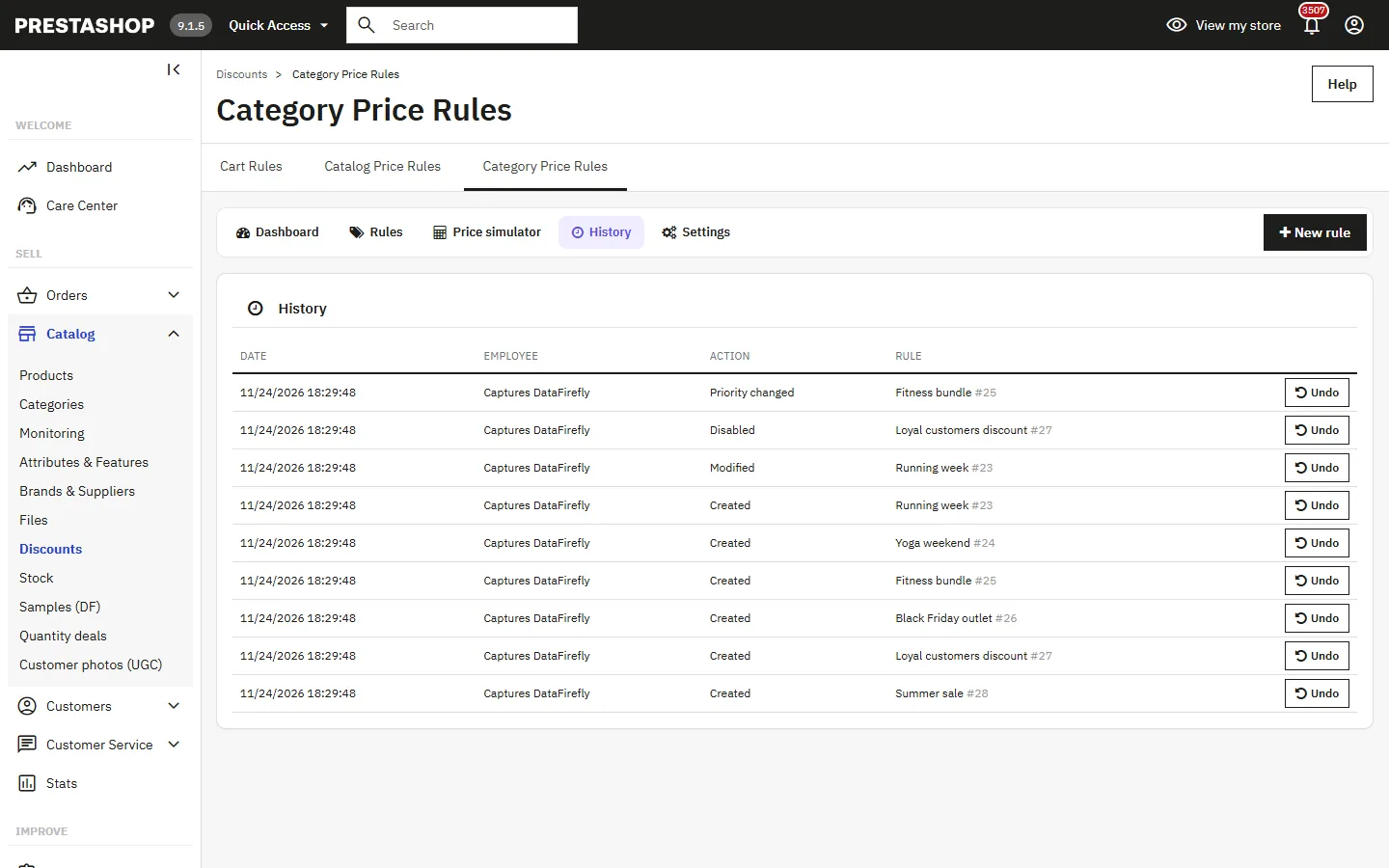
The History tab records every creation, change, deletion, duplication, import and priority change, with the employee and the date. It also keeps system events: native rule deleted or renamed outside the module, module upgrade. Undo restores the rule as it was before the change, even a deleted rule, with the same ID, then recalculates its prices.
Settings
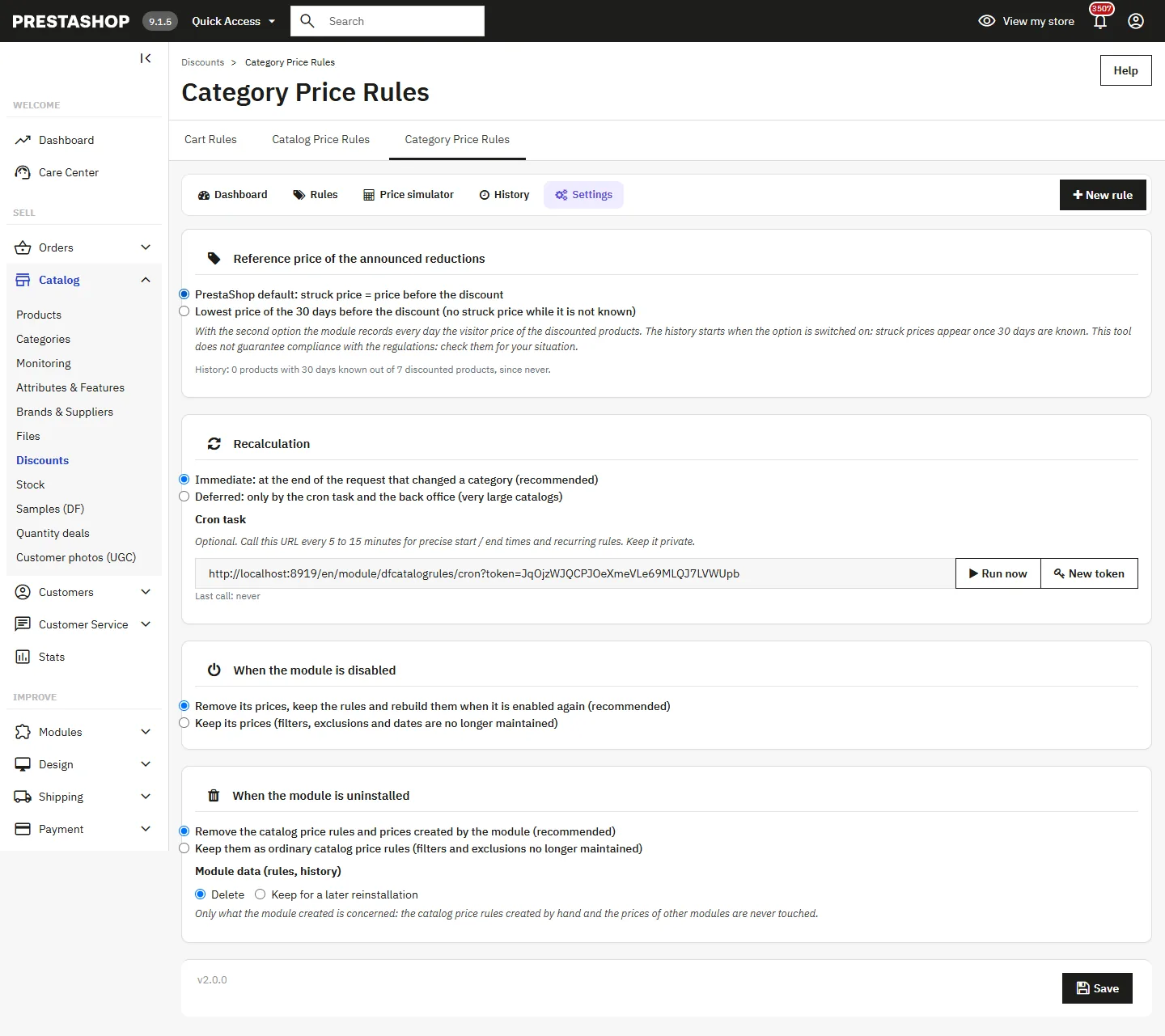
Recalculation
- Immediate (recommended): rules whose categories changed are recalculated at the end of the request that changed the category.
- Deferred: only by the cron task and the back office, for very large catalogs.
When a product is saved (price, brand, stock, categories), only the products concerned are evaluated again. Beyond 300 products, they go through the queue.
Cron task
Optional. Call the URL shown every 5 to 15 minutes for precise start and end times and for recurrences on a shop with little traffic. The block shows the last call; Run now processes the queue at once and New token replaces the URL. Keep this URL private: a call with a wrong token gets a 403 error.
Reference price of the announced reductions
- PrestaShop default: struck price = price before the discount.
- Lowest price of the 30 days before the discount: the module records every day the visitor price of the discounted products. The struck price and the percentage shown are calculated on the lowest price of the 30 days before the discount. While that history is not known for a product, no struck price is shown. The block tells how many products already have 30 days of history.
This option is a display tool. It does not guarantee that your price reduction announcements comply with the law: the history only starts when it is enabled, it covers the visitor price in the default currency, and rules reserved for a group or a country are not covered. Check the rules that apply in your country.
Disabling and uninstalling
- When the module is disabled: remove its prices, keep the rules and rebuild them when it is enabled again (recommended), or keep its prices (filters, exclusions and dates are then no longer maintained).
- When the module is uninstalled: remove the catalog price rules and prices created by the module (recommended), or keep them as ordinary catalog price rules.
- Module data (rules, history): delete, or keep for a later reinstallation. A reinstallation then takes back the kept native rules, with no duplicate.
Only what the module created is concerned: catalog price rules created by hand and product page prices are never touched.
What customers see
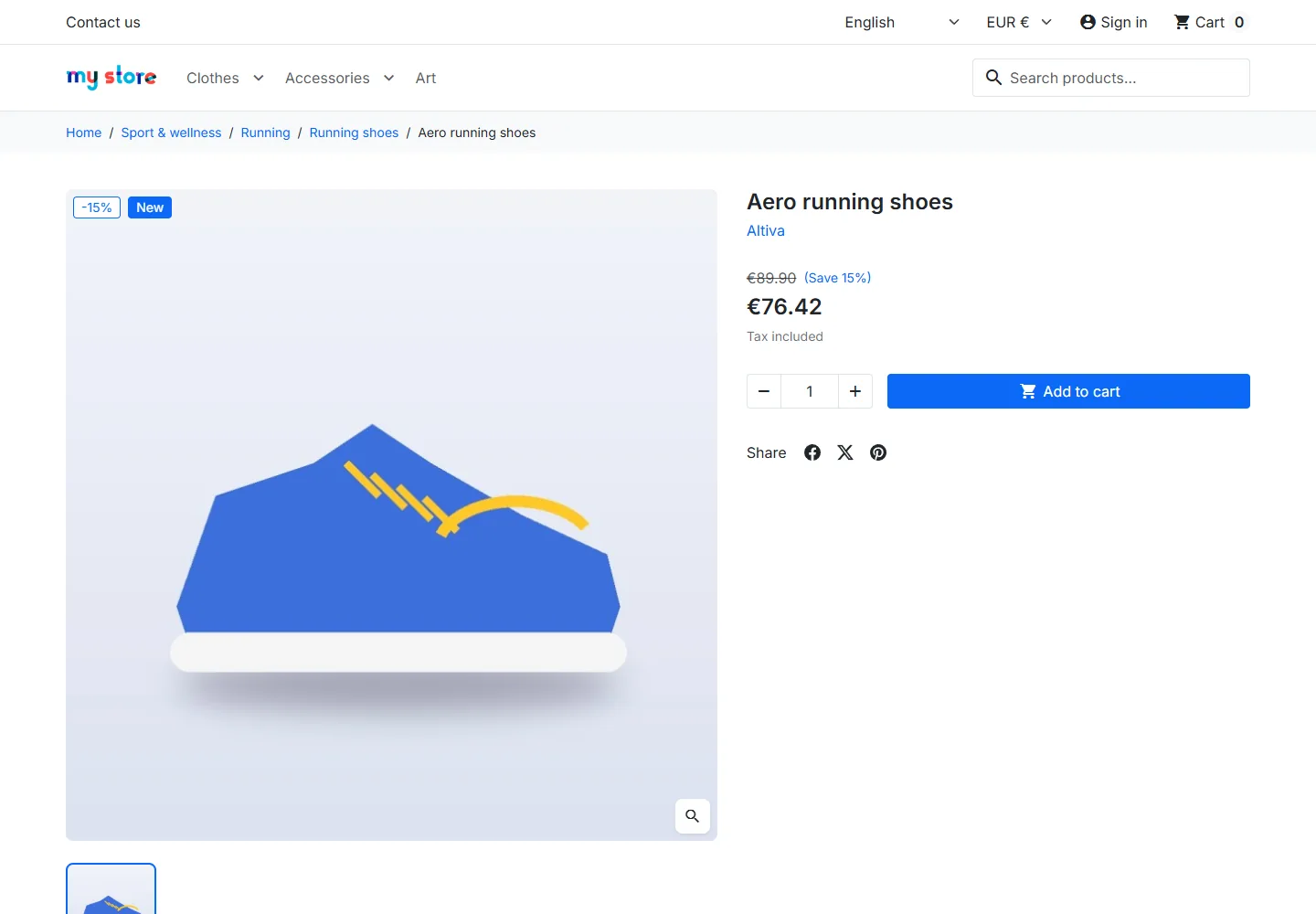
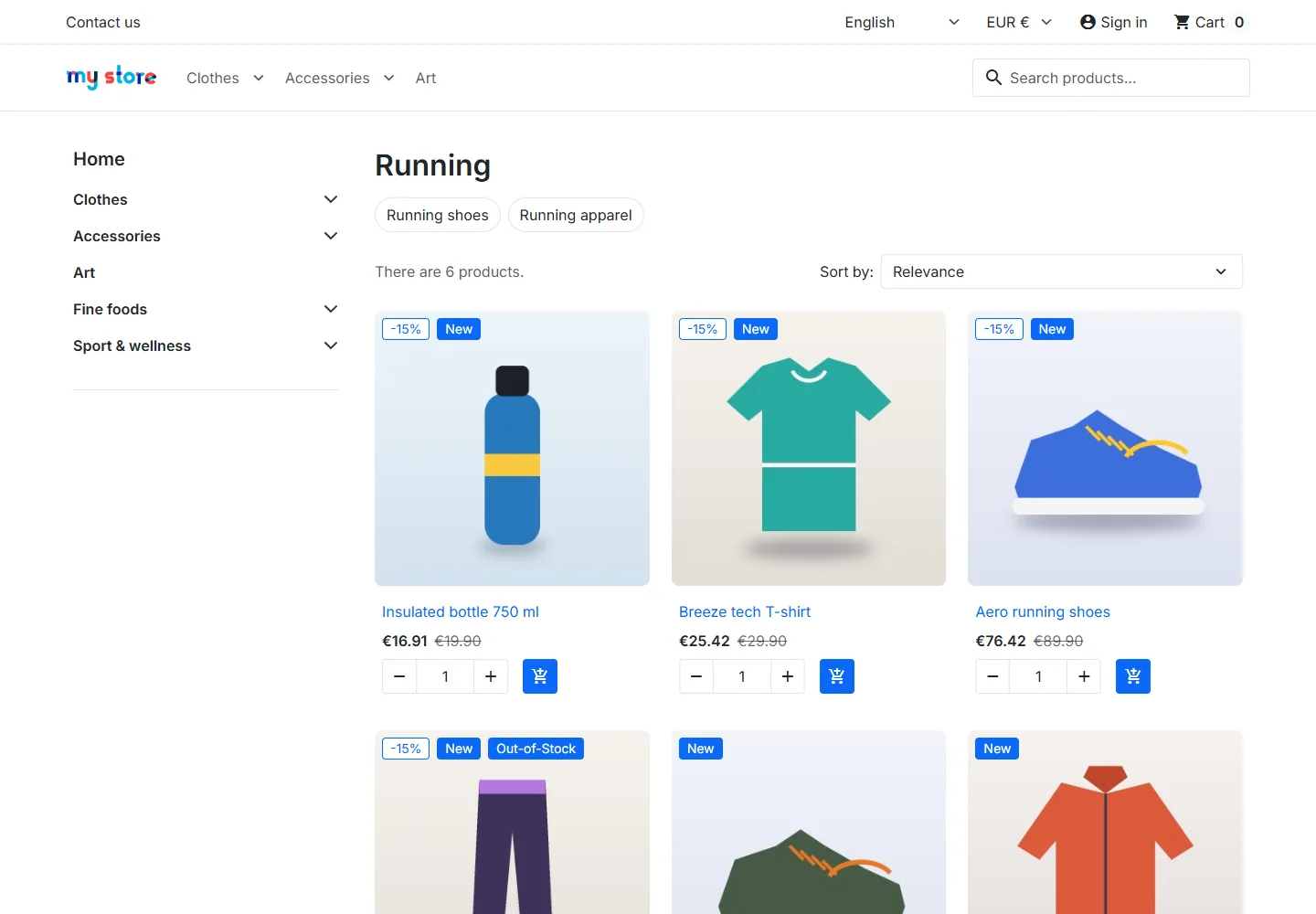
The prices are native specific prices: the theme shows the discounted price, the struck price and the discount badge as for any PrestaShop promotion, on the product page and in lists. An excluded product (here a brand) stays at its normal price.
Employee permissions and multistore
Viewing the module requires the “View” permission of the tab; creating, editing and deleting require the “Add”, “Edit” and “Delete” permissions. An employee without these permissions sees the pages read-only. In multistore, each rule is linked to one shop, like a native rule, and only targets the categories of that shop; an employee only sees and changes the rules of their shops. For the same promotion on another shop, duplicate the rule and change its shop.
Troubleshooting
A targeted product does not get the discount
Open the simulator on that product. Most often, a specific price from the product page or another module wins, a rule with a higher priority already covers the product, or a filter (stock, price, brand) leaves it out.
The rule is “incomplete”
It has no target: tick at least one category or choose the whole catalog.
A recurrence changes occurrence late
Without traffic, the move to the next occurrence waits for the next request. Set up the cron task every 5 to 15 minutes.
The dashboard reports recalculations waiting
They run at the end of the next back office or shop requests, or at the next cron call. Click Run now in Settings to process them at once.
The import ignores some items
Categories, brands, suppliers, features or products that do not exist on the target shop are ignored and counted. The file must be a JSON or CSV export of this module (2 MB maximum).
Known limits
- A rule is linked to a single shop.
- At equal quantity, a price entered on a product page wins over any catalog rule: this is how PrestaShop works.
- Page caches (Varnish, LiteSpeed…) can delay the display of a new price.
- The reference price record only covers the visitor price in the default currency.
Compatibility
- PrestaShop 1.7.8 to 9.x with the same ZIP. Tested on 1.7.8.11, 8.2.1 and 9.1.5, with PHP 7.4, 8.1 and 8.5.
- Multistore and multi-currency.
- ModuleAdminController architecture, no Composer dependency.
- Interface translated into French, English, Spanish, German, Italian, Dutch, Polish and Portuguese.